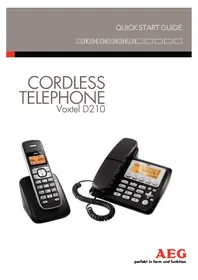
Voxtel D210 - Cordless phone AEG - Free user manual and instructions
Find the device manual for free Voxtel D210 AEG in PDF.



| Product type | DECT cordless phone |
| Brand | AEG |
| Model | Voxtel D210 |
| Power supply (base) | AC adapter 6 V DC 450 mA, 230 V AC/50 Hz |
| Power supply (charger) | AC adapter 6 V DC 300 mA, 230 V AC/50 Hz |
| Batteries | 2 AAA NiMH rechargeable batteries supplied |
| Standby time | Up to 100 hours |
| Talk time | Up to 10 hours |
| Battery charging time | 15 hours for first charge |
| Outdoor range | Up to 300 meters |
| Indoor range | Up to 50 meters |
| Phonebook | 50 entries per handset, 50 entries on base |
| Call log | 20 entries with time stamp |
| Redial list | Last 5 numbers (handset), last 10 numbers (base) |
| Caller ID display | Yes, requires subscription from operator |
| Hands-free function | Yes, on handset and base |
| Intercom | Yes, between handsets and base |
| Maximum number of handsets | 5 per base |
| Emergency call without power | Possible with the corded handset of the base |
| Cleaning and maintenance | Damp cloth only, no chemicals |
| Safety | Use only NiMH batteries, avoid humidity and storms |
| Warranty | 24 months from purchase date |
| Operating temperature | 0 °C to 40 °C |
| Frequency | 1.88 to 1.9 GHz (DECT) |
Frequently Asked Questions - Voxtel D210 AEG
User questions about Voxtel D210 AEG
0 question about this device. Answer the ones you know or ask your own.
Ask a new question about this device
Download the instructions for your Cordless phone in PDF format for free! Find your manual Voxtel D210 - AEG and take your electronic device back in hand. On this page are published all the documents necessary for the use of your device. Voxtel D210 by AEG.
USER MANUAL Voxtel D210 AEG
Thank you for purchasing this product. This product has been designed and assembled with utmost care for you and the environment. This is why we supply this product with a quick installation guide to reduce the number of paper (pages) and therefor save trees to be cut for making this paper. A full and detailed user guide with all the features described can be found on our website www.aegtelephones.eu. Please download the full user guide in case you want to make use of all the advanced features of your product. To save the environment we ask you not to print this full user guide. Thank you for supporting us to protect our environment.
2 IMPORTANT SAFETY INSTRUCTIONS
When using your telephone, basic safety precautions should always be followed to reduce the risk of fire, electric shock and injury, including the following:
- Read and understand all the instructions.
- Follow all warnings and instructions marked on the product.
- Unplug the power adapter from the wall outlet before cleaning. Do not use liquid cleaners or aerosol cleaners. Use a damp cloth for cleaning.
- Keep your phone away from hot, humid conditions or strong sunlight and don't let it get wet or use this product near water (for example, near a bath tub, kitchen sink, swimming pool).
- Do not overload wall outlets and extension cords as this can result in the risk of fire or electric shock.
-
Unplug this product from the wall outlet under the following conditions:
-
When the power supply cord or plug is damaged.
- If the product does not operate normally by following the operating instructions.
- If the product has been dropped and the cabinet has been damaged.
-
If the product exhibits a distinct change in performance.
-
NEVER use your phone outdoors during a thunderstorm-unplug the base from the telephone line and the mains socket when there are storms in your area. Damage caused by lightning is not covered by the guarantee.
- Do not use the telephone to report a gas leak in the vicinity of the leak.
- Use only the supplied NiMH (Nickel Metal Hydride) batteries!
- The use of other battery types or non-rechargeable batteries/primary cells can be dangerous. These may cause interference and/or damage to the unit or surroundings. The manufacturer will not be held liable for damage arising from such non-compliance.
- Do not use third party charging bays. Damage may be caused to the batteries.
- Please ensure the batteries are inserted in the correct polarity.
- Dispse of batteries safely. Do not immerse them in water, burn them, or put them where they could get punctured.
3 INTENDED USE
This telephone is intended to be connected to a public analogue telephone network or to an analogue extension of a compatible PBX system.
4 UNPACKING YOUR PHONE
The package contains the following items:
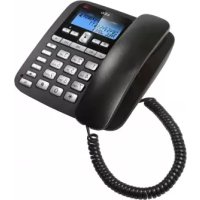
1 Corded Handset
1 Coiled Handset Cord
1 Base station
1 Cordless Handset
- 1 Charger Pod with connected AC power adapter
- 1 AC power adapter for the base station
- 1 Telephone line cord
- 2 AAA rechargeable Batteries
- 1 User manual
Keep the packing materials in a safe place in case you later need to transport the device.
5 GETTING TO KNOW YOUR PHONE
5.1 Cordless handset overview (see P1)
| # Meaning | ||
| 1 | ∧◇ | Up key ·In idle mode: press to access the call list ·In menu mode: press to scroll up the menu items ·In phonebook list / radial list / call list: press to scroll up the list ·During a call: press to increase the earpiece volume ·During ringing: press to increase the ringer volume |
| 2 | ⊃/⊗ | Right soft key (clear/back/mute/intercom) ·In main menu mode: press to go back to idle screen ·In sub-menu mode: press to go back to previous level ·In sub-menu mode: press and hold to go back to idle screen ·In editing / predialling mode: press to clear a character/digit ·In editing / predialling mode: press and hold to delete all the characters / digits ·During a call: press to mute / unmute the microphone ·In idle mode: press to intercom another handset |
| 3 | ○/□ | Off / hang up key ·During a call: press to end a call and go back to idle screen ·In menu / editing mode: press to go back to previous menu ·In idle mode: press and hold to power off the handset ·In idle mode (when the handset is powered off): press and hold to power on the handset |
| 4 | R | Flash key ·In idle / predialling mode: press to insert a flash ·During a call: press to generate flash signal |
| 5 | ◇ | Speakerphone key ·During a call: press to turn on / off the speakerphone ·Call list / phonebook entry: press to make a call with speakerphone ·During ringing: press to answer a call with speakerphone |
| 6 | ▽◇ | Down key (redial/down) ·In idle mode: press to access the radial list ·In menu mode: press to scroll down the menu items ·In phonebook list / radial list / call list: press to scroll down the list ·During a call: press to decrease the earpiece volume ·During ringing: press to decrease the ringer volume |
| 7 | C | Talk key ·In idle / predialling mode: press to make a call ·In radial list / call list / phonebook list: press to make a call to the displayed entry ·During ringing: Press to answer a call |
| 8 | 国/OK | Left soft key (menu/ok) ·In idle mode: press to access the main menu ·In sub-menu mode: press to confirm the selection ·During a call: press to access Intercom/phonebook/ radial list/ call list |
5.2 Cordless handset display (see P2)
The LCD display gives you information on the current status of the telephone.
| # Meaning | ||
| T | Steady when the handset is in range of the base. Flashes when out of range of the base or not registered to the base. | |
| = | Steady when an intercom call is in progress. Flashes when there is an incoming internal call. | |
| c | Indicates a call is in progress on that handset. | |
| Indicates that speakerphone is being used. | ||
| # | Indicates that the handset ringer is switched off. | |
| Steady when an alarm is set. Flashes when the alarm is sounding. | ||
| Indicates that the keypad is locked. | ||
| Indicates when you have a new Voice Mail message. (This is a caller display service from the network operator.) | ||
| Indicates when the battery is fully charged. Whole icon flashes when the battery is charging. Internal block icon flashes when the battery is in final charging stage. | ||
| Indicates when the battery needs charging. Flashes when low battery power level is detected. | ||
| Indicates when there are more characters or numbers in front of those being displayed. | ||
| Indicates when there are more characters or numbers after those being displayed. | ||
| Left soft key function. Press to access the main menu. | ||
| OK | Left soft key function. Press to confirm the current selection. | |
| ★ | Indicates new call in call list. | |
| ▲▼ | Indicates more options available in lists, above or below. | |
| Right soft key function. Press to start an intercom call. | ||
| Right soft key function. Press to go back to the previous menu (back) level or cancel the current action. | ||
| c | Right soft key function. Press the alarm, or mute/unmute the microphone during a call. |
5.3 Corded Base Station
| # | Meaning | |
| 9 | M1-M5 | M1-M5 Direct memory keys Press to call the number stored in the memory key. |
| 10 | 国/OK | Menu/OK In idle mode: Press to access the main menu. In sub-menu mode: Press to confirm the selection. In Redial List / Call Log: Press for sub-menu. |
| 11 | /ɪŋ | C/Mute In main menu mode: Press to go back to idle screen. In sub-menu mode: Press to go back to previous level. In editing / predialling mode: Press to clear a character / digit. During a call: Press to mute / unmute the microphone. During ringing: Press to silence the base ringer. In idle mode: Press to intercom handsets. |
| 12 | ʌ | Up In menu mode: Press to scroll up the menu items. In Phonebook list / Redial list / Call List / Call Log: Press to scroll up the list. During a call: Press to increase the volume. |
| 13 | ʌ | Call list / right In Idle mode: Press to access the Call List. In editing mode: Press to move the cursor one character to the right. |
| 14 | ʌ | Redial/Down In idle mode: Press to access the Redial List. In menu mode: Press to scroll down the menu items. In Phonebook list / Redial list / Call List / Call Log: Press to scroll down the list. During a call: Press to decrease the volume. |
| 15 | ʌ | Phonebook / left In Idle: Press to access phonebook list. In editing mode: Press to move the cursor one character to the left. |
| 16 | R | Flash In predial mode or during a call: Press to insert a Flash signal. |
| 17 | ʌ | Speakerphone Press to make a call with speakerphone. |
5.4 Base Station Display
| Indicates a call is in progress. | |
| Indicates that handsfree is being used. | |
| Indicates the time of day. | |
| Indicates that the base ringer volume is switched off. | |
| This will display when you are in the phonebook menu. | |
| Indicates when you have a new Voice Mail message. (This is a network service depend on your operator). | |
| This will display when it is a repeat call. | |
| # | Indicates the sequence number of the CID record. |
| NEW | This will display when there is a new CID entry or if one is being viewed. |
6 INSTALLING YOUR PHONE
6.1 Connecting the corded base station (see P6)
- Use the coiled cord to connect the corded handset to the base station, making sure the plugs are inserted fully into the sockets on the handset and on the side of the base, until they click in place.
- Plug the power supply cord & phone line cord into the sockets in the back of the base station.
- Plug the power adapter into a 230Vac, 50Hz mains socket and the line cord into your telephone line socket.
Warning:
Use only the power adapter provided for the base station.
6.2 Installing the cordless handset and charging the batteries (see P3)
- Slide open the battery compartment cover from the back of the handset.
- Place the 2 supplied batteries into the battery compartment with the polarity markings as indicated.
- Slide the battery compartment cover back until it clicks into place.
- Put the cordless handset on the charger and charge for 15 hours before using the handset for the first time.
The handset will give a beep when it is properly placed on the charger.
Warning:
Use only NiMH rechargeable batteries.
7 USING YOUR PHONE
Using the cordless handset:
7.1 Make a call
7.1.1 Preparatory dialling
- Enter the phone number and press (to connect to the line and dial the number)
When entering the number, if you make a mistake, press "C"x@) to delete digits.
7.1.2 Direct dialling
- Press to connect to the line and then enter the phone number.
Note:
If you enter a wrong digit you cannot correct it with the "C" (♀/♀) key.
7.1.3 Call from the phonebook
- Press to access the phonebook and press / to select the desired phonebook entry.
- Press to dial out the selected phonebook entry.
Note:
The alphanumeric keys provide a short-cut to find entries beginning with the corresponding letters.
7.1.4 Call from the call list (only available with caller display)
- Press to access the call list and press to select the desired call list entry.
- Press to dial out the selected call list entry.
7.1.5 Call from the radial list
- Press to access the radial list and press to select the desired radial number.
- Press to dial out the selected radial number.
7.1.6 Call timer
Your handset automatically times the duration of every call.
The call timer is displayed as soon as you answer a call or 15 seconds after dialling and remains on the screen for 5 seconds after the end of the call.
It is shown in hours, minutes and seconds format (HH:MM:SS).
7.2 Answer a call
If the handset is not on the charging cradle:
- When the phone rings, press to answer a call.
Note:
If "AUTO ANSWER" is set to "ON", then lifting the handset off the base or charger will answer the call automatically and no keys need to be pressed.
7.3 End a call
During a call press to end the call.
OR
- Put the handset on the base station or charger to end the call.
7.4 Handset speakerphone
During a call, you can press to alternate between hands-free speakerphone and normal handset use.
7.5 Adjust volume
There are 5 levels ("VOLUME 1" to "VOLUME 5") to choose from for each of the earpiece and speaker volumes.
During a call:
- Press to select volume 1-5. The current setting is shown.
When you end the call, the setting will remain at the last selected level.
7.6 Mute a call
You can talk to someone nearby without letting the caller hear you during a call.
During a call:
Press "C" (▶/▲) to mute the microphone and "MUTED" will display on the LCD.
Your caller cannot hear you. Press "C" (▶/■) again to unmute the microphone.
7.7 Turn off the handset ringer
In idle, press and hold # to turn off the handset ringer. The icon is displayed on the LCD.
Note:
The display will still flash the call icon and show "CALL" or the caller display number, when there is an incoming call, even if the ringer is turned off.
To turn the ringer back on, press and hold # again.
7.8 Turn on the keypad lock
You can lock the keypad so that it cannot be used accidentally while carrying it around.
- In idle, press and hold * to turn on the keypad lock and the icon will display.
Note:
You can still use to answer a call when the handset is ringing.
To turn the keypad lock off, press and hold again.
7.9 Redial the last number
You can redial any of the 5 last numbers called. If you have stored a name in phonebook to go with the number, the name will be displayed instead.
The most recent last number will display at the top of the radial list.
7.9.1 Redial a number from the radial list
- In idle mode, press to access the redial list.
Note:
If the radial list entry shows a name, press # to view the number of this entry.
- Press to browse the radial list.
- Press to dial to the selected radial number.
Note:
If there are no numbers in the radial list, the display shows "EMPTY".
Using the corded base:
7.10 Make an External Call
7.10.1 Preparatory dialling
Enter the phone number and lift up the corded handset or press to dial the number. When entering the number, if you make a mistake, press to delete digits.
Note:
To insert a pause in the dialling sequence, press and hold the < 0> button, the screen will then show a "P" in the number.
Press R to insert a flash signal and the screen will show a "F".
7.10.2 Direct dialling
Lift up the corded handset or press to connect to the line and then enter the phone number.
7.10.3 Call from the phonebook
Press to access the phonebook and press to select the desired phonebook entry.
Lift the corded handset or press to dial out the selected phonebook entry.
7.10.4 Call from the call list
Press to access the Call List and press to select the desired Call List entry. Lift up the corded handset or press to dial out the selected Call List number.
7.10.5 Call from the radial list
Press to access the radial list and press / to select the desired radial number. Lift up the handset or press to dial out the selected radial number.
7.10.6 Call timer
Your base display automatically times the duration of every call. The call timer appears on the display as soon as a call is answered or about 15 seconds after dialling, and remains on the screen for a few seconds after the end of the call. It is shown in hours, minutes and seconds format (HH:MM:SS).
7.11 Answer a Call
When there is an incoming ring, pick up the handset or press to answer the call.
7.12 End a Call
During a call connection, put the corded handset on the base station to end the call.
Or press if you have a call in handsfree mode.
7.13 Adjust Earpiece and Handsfree Volume
There are 5 levels ("VOLUME 1" to "VOLUME 5") to choose from for each of the earpiece and speaker volumes.
During a call:
Press to increase or decrease the volume level respectively.
The current setting is shown. When you end the call, the settings will remain at the last selected level.
7.14 Mute a Call
You can talk to someone nearby without letting the caller hear you during a call.
During a call:
Press to mute the microphone and "MUTED" is displayed on the display. Your caller cannot hear you. Press again to unmute the microphone. "MUTED" will be replaced by "LINE IN USE" on the display, and the caller will be able to hear you again.
7.15 Emergency Call without Mains Power
The corded base unit can make an emergency call with the corded handset when the mains AC power is disconnected.
Pick up the corded handset and wait for the dial tone and then enter the phone number to make a call.
Note:
It is not possible to dial numbers from memories or use the speakerphone when the mains power is off. When the mains power is off, you can also answer an incoming call with the corded handset.
When the phone rings, pick up the corded handset to talk to the caller.
7.16 Redial
You can redial any of the last 10 numbers called. If you have stored a name in the phonebook to go with the number, the name will be displayed as well.
7.16.1 Redial a Number from the Redial List
In idle mode, press to view the radial list.
Note:
The radial list can also be viewed using then selecting "CALL LOG" and "DIALED".
- Press to browse the radial list.
- Pick up the corded handset or press to dial the selected radial number.
Note:
If no numbers are in the radial list, the display will show "EMPTY".
7.17 Make an Internal Call
This feature allows you to make internal calls, transfer external calls. If the called base or handset is not answered within 60 seconds, the called base or handset will stop ringing and the calling one will return to standby mode.
7.17.1 Intercom
Using the cordless handset:
- In idle mode, press "C" ( / ) and all the other registered handset numbers will display, along with a 7^ and a 9^ .
- Enter < 7> to call the base or enter the number of the handset that you want to call, or enter 9'' to call all handsets and the base.
- The called base rings and the corded handset must be lifted off the base to establish the internal call. OR
- The called handset rings and must be pressed on that handset to establish the intercom call.
Note:
If only one handset is registered to the base station, pressing "C" (三) will call the base immediately.
Note:
If there is an external call while you are on an intercom call, you'll hear warning beeps, and you have to end the intercom call, before you can answer the external call.
Using the corded base:
- In idle mode, press and the registered handset numbers will display, along with a ^ 9^
- Enter the handset number you want to call, or press "9" to call all handsets.
- The called handset rings. Press on the called handset to establish the internal call.
7.17.2 Transfer an External Call
Using the cordless handset:
During an external call:
- Press to show "INTERCOM".
- Press to show all the other registered handset numbers, plus "9". Enter the number for the handset you want to transfer the call to.
- The external call is put on hold automatically and the called handset rings.
- Press on the called handset to establish an internal call.
- Press on the calling handset or put the calling handset on the charging cradle to end the current call with the external party.
- The external call is transferred to the called handset.
Note:
If the other handset has not answered the intercom call, you can stop the intercom and return to the external call by pressing 口 .
Using the corded base:
During an external call:
- Press to show all the other registered handset numbers, plus a ^ 9^
- Enter the number for the handset you want to transfer the call to.
The external call is put on hold automatically and the called handset rings.
- Press on the called handset to establish an internal call.
- Replace the corded handset on to the base, or press if in speakerphone mode, to end the current call with the external party.
- The external call is transferred to the called handset.
8 PRIVATE PHONEBOOK
Your phone can store up to 50 private phonebook entries with names and numbers in each handset and 50 entries in the base. Each phonebook entry can have a maximum of 20 digits for a handset phone number or 24 digits for a base phone number, and 12 characters for the name. You can also select different ringtones for your phonebook entries. (Note: the different ringtones only play when you receive a call if you subscribe to Caller Display and the incoming number matches the stored number.) Phonebook entries are stored alphabetically by name.
Using the cordless handset:
8.1 Add a new phonebook entry
In idle:
- Press and to select "PHONEBOOK" and then press to access the phonebook.
- Press OK to show "ADD".
- Press OK and then enter the name.
- Press OK and then enter the number.
- Press OK and to select the desired ringtone for your phonebook entry.
- Press OK to store the phonebook entry.
Using the corded base:
8.2 Add a new entry
In idle:
- Press to show "PHONEBOOK".
- Press then to show "ADD".
- Press and the display will show the cursor at the beginning of the name position.
- Key in the name using the digit keys (maximum 12 characters). If you make any mistakes, press to delete the last character.
-
Press and the cursor will move to the number position.
-
Key in the number using the digit keys (maximum 24 digits). If you make any mistakes, press to delete the last digit.
- Press to show "MELODY 1".
Use to scroll through the melodies (there are 10 melodies to choose from).
- Press to confirm the melody and store the entry in the phonebook.
Note:
If there is no more space in the phonebook, "PB FULL" will appear on the display.
9 CALLER DISPLAY (NETWORK DEPENDENT)
This feature is available if you have subscribed to the Caller Display service with your network service provider. Your phone can store up to 20 received calls with date/time information in the base and cordless handset Call Lists. The number will be shown on the handset and base displays when the phone is ringing. If the number matches with one of the entries in your base and/or handset Phonebook, the caller's name stored in that phonebook will be displayed alternately with the number on the handset, and with the number on the base.
The handset and base will ring with the melody associated with that phonebook entry.
If the call is from someone who withheld their number, "WITHHIELD" will display.
If the call is from someone whose number is unavailable, e.g. an international call or from a private exchange,"OUT OF AREA" will display.
If you've got new Caller Display records, the handset will display "X NEW CALLS" in standby mode, where X is the number of new calls, and the base will show "NEW X" at the top right of the display.
Using the cordless handset:
9.1 View the call list
All received calls are saved in the call list with the latest call at the top of the list. When the call list is full, the oldest call will be replaced by a new call. Any unanswered calls which have not been viewed are marked with a icon at the centre of the bottom line of the display.
- Press to access the call list.
OR Press and to show "CALL LIST", then press OK - Press to select the desired entry.
- Press # to view the caller's number if applicable.
- Press to show "DETAILS", and then to display the date and time of the call.
- Press OK to go back to the previous screen.
Using the corded base:
9.2 View the call log and/or call list
Calls are saved in the Call Log, with all calls in the RECEIVED list but only unanswered calls in the MISSED list and in the Call List, with the latest call at the top of the list. When the call list is full, the oldest call will be replaced by a new call. Any unanswered call which has not been read is marked with the icon when viewed, and the number of new calls is shown at the top right of the screen in idle mode.
- Press to see the most recent Missed call record from the Call Log.
OR Press, then show "CALL LOG", then to show "MISSED", and press to see the most recent Missed call record in the Call Log, or press again to show "RECEIVED" and then press to see the most recent Received call in the Call Log. - Press to scroll through the appropriate list.
10 PHONE SETTINGS
Your phone comes with a selection of settings that you can change to personalise your phone the way you like it to work.
Using the cordless handset:
10.1 Set the handset language
- Press and to select "HS SETTINGS".
- Press OK and to select "LANGUAGE".
- Press OK and to select the desired language.
- Press OK to confirm.
10.2 Set the Auto Answer
If you turn on the Auto Answer, you can answer a call automatically by just lifting the handset off the base or charger, without having to press any key.
- Press and select "HS SETTINGS".
- Press and to select "AUTO ANSWER".
- Press and turn on or off the auto answer feature.
- Press to confirm.
10.3 Base Settings
10.3.1 Set the base language
In Idle:
- Press and select "LANGUAGE".
- Press and select your desired language.
- Press to confirm.
10.3.2 Reset your phone
You can reset your phone to the default settings. After a reset, all your personal settings, call list entries, radial list entries, and answering machine messages will be deleted but your phonebook remains unchanged:
- Press and select "DEFAULT".
- Press to display "PIN?----".
- Enter the 4-digit system "PIN" (default 0000).
- Press to display "CONFIRM?"
- Press to confirm, and the phone will be reset to its default settings.
10.3.3 Base default
You can reset all of your base settings to their default settings. After a reset, all your personal base settings, call list entries, radial list entries, direct memory entries, and answering messages will be deleted, but any phonebook entries will be kept:
- Press and to select " SETTINGS".
- Press and /to select "BS DEFAULT".
- Press and display will show "PIN?", enter the 4-digit PIN (default setting is 0000).
- Press to confirm, and base will return to the previous menu.
11 HANDSET REGISTRATION
Important:
When you purchase your phone system, all cordless handsets are already registered to your base, so you do not need to register them.
Handset registration is only necessary when you buy extra cordless handsets or if a cordless handset has become faulty.
You can register additional cordless handsets to have up to 5 handsets per base unit, with each handset's number (1 to 5) shown on its display.
A cordless handset can be registered to only one base at a time.
To check whether a handset is registered, make sure mains power to the base unit is switched on and the handset is within range. The handset's display should show its number and the Y icon should be steadily on. If the display shows "REGISTER", you need to register the handset again using the following process:
-
On the base station, press and show "REGISTRATION", and then press to the base station into registration mode. The base display will show "PLEASE WAIT" and the base will stay in registration mode for about 2 minutes, so the following handset sequence must be completed within this time.
-
Press and to select "REGISTRATION".
-
Press 国 to display "PIN?----".
-
Enter the 4-digit system PIN (default is 0000).
-
Press to confirm, and the display will show "PLEASE WAIT" flashing.
If the handset registration is successful, the display will change to standby mode with the new handset number and the Y icon will stop flashing.
The handset will automatically be allocated the next available handset number. If the handset registration is unsuccessful, the Y icon will still flash.
12 GUARANTEE AND SERVICE
The phone is guaranteed for 24 months from the date of purchase shown on your sales receipt. This guarantee does not cover any faults or defects caused by accidents, misuse, fair wear and tear, neglect, faults on the telephone line, lightning, tampering with the equipment, or any attempt at adjustment or repair other than through approved agents.
Please keep your sales (till) receipt this is your proof of guarantee.
12.1 While the unit is under Guarantee
- Disconnect the base unit from the telephone line and the mains electricity supply.
- Pack up all parts of your phone system, using the original package.
- Return the unit to the shop where you bought it, making sure you take your sales receipt.
- Remember to include the mains adapter.
12.2 After the Guarantee has expired
If the unit is no longer under Guarantee, contact us via www.aegtelephones.eu
This product works with rechargeable batteries only. If you put nonrechargeable batteries in the handset and place it on the base, the handset will be damaged and this in NOT covered under the warranty conditions.
13
TECHNICAL
DETAILS
| Standard Digital Enhanced Cordless Telecommunication (DECT) | |
| Frequency range 1.88 to 1.9 GHz (bandwidth = 20 MHz) | |
| Channel bandwidth 1.728 MHz | |
| Operating range Up to 300m outdoors; Up to 50m indoors | |
| Operating time Standby: 100 hours, Talking: 10 hours Battery charge time: 15 hours | |
| Temperature range Operating 0°C to 40°C, Storage -20°C to 60°C | |
| Electrical power Cored Base: | Ten Pao - S004LB0600045 / S004LV0600045 input 100-240VAC 50/60Hz 150mA, output 6VDC 450mA Charger unit: Ten Pao - S004LB0600030 / S004LV0600030 input 100-240VAC 50/60Hz 150mA, output 6VDC 300mA |
14 CE DECLARATION
This product is in compliance with the essential requirements and other relevant provisions of the R&TTE directive 1999/5/EC.
The Declaration of conformity can be found on: www.aegtelephones.eu
15 DISPOSAL OF THE DEVICE (ENVIRONMENT)

At the end of the product lifecycle, you should not throw this product into the normal household garbage but bring the product to a collection point for the recycling of electrical and electronic equipments. The symbol on the product, user guide and/or box indicate this. Some of the product materials can be re-used if you bring them to a recycling point. By reusing some parts or raw materials from used products you make an important contribution to the protection of the environment. Please contact your local authorities in case you need more information on the collection points in your area.
Batteries must be removed before disposing of the device. Dispose of the batteries in an environmental manner according to your country regulations.
16 CLEANING AND CARE
Do not clean any part of your phone with benzene, thinners or other solvent chemicals as this may cause permanent damage which is not covered by the Guarantee.
When necessary, clean it with a damp cloth.
Keep your phone system away from hot, humid conditions or strong sunlight, and don't let it get wet.
12 GWARANCJA I SERWIS
7 XPHSEH TOY THAEQNOY
XpnoTou aoupuatou akovotikob:
7.1 Ppaatonoinon Eepxoevnc khaonc
7.1.1 KAnon nKtpoAoynOn oAokKnnpou Tou apIeou npot
- LynmuiaTe Tov apiOo tnAeovou Tnou oEaTE va kaAeotc KAI KAOTIV PAnote To KOUPTI cyia va avoiEi n ypaun kai va kAnthe i o apiOoC.
Kata thi diapkeia iag kIohns:
Narntote To "C" (5/8) yia va evepyoinoTe Tn oyaon Tou mikoopovou. TOT, OTnv oovn LCD 0a eupavioi n Ev6iEg "SIAH" (MUTED).
Tote, o ouvoiIantc aac ta aiae va aac akoei. natoe gava "C/8) ia va atvepyoioe Tn siyaon tou mikoopovou.
7.7 Anevepyoinon ts aeitoupyiaKw8wiogtou aupatou akovotikoi
Me To TnAePwO Oe avaovn, PAtnoTE KAI KpatnoTE PAtnuevo TO # YIA VA ATIEVepyOTIOINoETe Tn λeioupyia Kωδawioμou Tou aoupuatou akouotikou. TOTE, To EIKoviδio Θa εμφaviotei OTNV oθovn LCD.
Inmuio:
Akoun K av n aeitoupyia kwosoviou evai aTevepyotoinuev, o TepiTTwon eoepxoevns khoans, otnv oovn 0a egakoloutheta i va avaooehvei to ekovidio c kalva epaviciai n evdeig "KAHsH" (CALL) n o apiOoC tou kaLouvtoC.
Tia va eTavaevepyotoinoTe Tn aeitoupyia Kw8swiouob, Patote gava kai kpatnoTe patnuevo to#.
5.3Ba3OBA cTaHcNc Ka6eA
7.9 NOBTOPHO H6npaHe Ha nocAeHnHa6paH Homep
Moxete Da HabepeTe NOBTOPOH BCEKN OT NocAeHNTE 5 HabpaHn Homepa.AKO CTe 3anamETnHn HMe KbM Homepa B TeAeOHHN yKA3aTeA, BmecTo TOBa Iue Ce POKAXe HMeTO.
IocaeHnT H6paH Homep Ie Ce NOKaxe B HauaTo Ha cNcBka 3a NOBTOHO H6paHe.
7.9.1 NOBTOPHO Ha6upahe Ha HOMep OT cncsbka 3a NOBTOPOHa6upahe
BpeKIM Ha rTOBHOCT HATNCHETe 3a Da Bae3eTe B CnncbKa 3a NOBTOPO Ha6npaHe.
3a6eAekka:
Ako 3aПИСьТВ CПИСьКa 3a ПОВТОРНоHa6ираHЯ6иранe ПOKa3Ba ИМe, HATNCHETe #, 3a DA BnДI HOMepa 3a TO3N 3aПИС.
- Hatnchete / 3a da npereAeate cncsbka 3a noBtOpHo HabipaHe.
- Hatnchete, 3a da ha6epete n36paHnHa Homep.
3a6eAekka:
Ako Hama Homepa B Cnncbka 3a NOBTOPO Ha6npaHe, Ha dncnlae Iue ce noka3Ba ,EMPTY".
N3noA3BaHe Ha 6a3OBaTa CtaHnA c Ka6eA:
7.10 OcbueCTBBAhe Ha BbHNo NOBnKBaHe
7.10.1 IpeBapHTeHNo Ha6npaHe
BbBeTe TeleOHHn Homep N BAnHete CAYaAkaTc C KaBe A HATnCHTea Da HabepeTe Homepa. Ako dOnyChTe rpeLka npN BBExdAHeTo Ha Homepa, HATnCHTe 3a Da n3Tpne TnCpnte.
3a6eAekka:
3a Da BMbKHeTe Nay3a B NocAeOBAteAHOCT Ha HApHaHe, HATNCHe T 3aDpBxTe 6yToHa < 0 >, CAd TOBa ekpaHbT Lue NOKa3Ba „P“ B HOMepa.
HATnCHete R, 3a Da BmBkHeTe CnHaA 3a npeKbCBAhe N ekpaHbT Lc EOKa3Ba ,F".
7.10.2 AnpeKTHo Ha6HpaHe
BAnHHeTe CAYUaKata C KaBeA HnH HATnCHeTe 3a Da Ce CbpxTe C AnHnTa, n CaeTobA HabepeTe TeAeOHHnHrHomep.
7.10.3 NOBKBaHe Ype3 TeAeOHHnYkA3aTeA
HATNCHETe 3a Da Bae3eTe B TeAefoHHn yKa3aTeA, n HATNCHETe / , 3a Da n3bepete JEAAHN 3aNNC OT TEAEFOHHN yKA3aTeA.
BAnHHeTe CAYUaKata C KaBeA HAn HATnCHeT, 3a Da HaBepeTe N36paHn 3aNc OTeAeOHHy YKa3aTeA.
7.10.4 NOBnKBaHe OT CnncbKa C NOBnKBaHHa
HATNCHETe 3a Da BAE3eTe B CnncbKa C NOBnKBaHn, HATNCHETe / aHa n36epete XeAAHn 3aPiNc OT CnncbKa C NOBnKBaHn. BAnrHete CaylaAkaTc KaBea nn HATNCHeTe, 3a Da HApepete N36paHn Homep OT CnncbKa C NOBnKBaHn.
7.10.5 NOBnKBaHe ot cncbKa 3a noBtOpHo Ha6npaHe
HATNCHETe 3a Da Bae3eTe B CnncbKa C NOBnKBaHnra, HATNCHETe 3a Da N36epete
KeAahn 3aHnC OT CnncbKa C NOBnKBaHnra. BAnrHete CAYsAaKata nn HATNHeBa Da
HaBepeTe N36paHnra Homep 3a NOBtOHO HaBipapHe.
7.10.6 TaHMeP Ha NOBKBAHnTa
AHCNAEAT Ha 6a3OBATA CTAHUABTOMATNUHO OTHTA PPOBAXKTEAHOCCTTA HA BCAKO NOBHKBAHE. TaHMEpbT 3a NOBKNBAHNTA Ce NOKa3Ba BeHARa UOM OTROBOPHTe Ha NOBKNBAHe IAI 15 cekyHAn CaeHa HApnaHe Ha HcpaHa B PNOBbXKeHne Ha HRAKO CekyHAn CaeKa Pa3ROBopa. POKa3Ba Ce BBΦopmat Ha YacObE, MInHyTN N cekyHAn (Y:MM:CC).
Korato TeAeOHObT 3BbHHe, BAnrHete CAYaAkaTa C Ka6eA, 3a Da pa3roBaPte C o6aKaaIaIaIaIaIaIaIaIaIaIaIaIaIaIaIaIaIaIaIaIaIaIaIaIaIaIaIaIaIaIaIaIaIaIaIaIaIaIaIaIaIaIaIaIaIaIaIaIaIaIaII a.
7.16 Nobtopno ha6npahe
Moxete da HabepeTe IOBTOHO BCEK NTocAeHHTe 10 HabpaHn Homepa.AKO cTe 3anamETnH NMe KbM HOMepa B TeaeDPOHHN Yka3aTeA, Lce Ce NOKaKe N HMeTo.
7.16.1 Nobtopno Ha6npahe Ha Homep ot cnncbka 3a nobtopho Ha6npahe
BpeKIM Ha rTOBHOCT HATNCHeTe 0, 3a da ppeAeAte CnncbKa 3a NOBTOPOHa6npaHe.
3a6eAnKka:
CnncbkbT 3a noBtOpHo Habipane Moxe da ce npereea qpe3 nH3bnpaHe Ha „CALL LOG" n „DIALED".
- HATINCHETeA73a Da npereAedeTe CnncbKa 3a NOBTOPO Ha6npaHe.
- BAnHHeTe CAYUaKata c KaBeA HAn HATnCHTe3a Da HabepeTe N36paHn HOpE 3a NOBToPHo HaBnPaHe.
3a6eAekKa:
Ako Hama Homepa B Cnncbka 3a NOBTOPOHa6npaHe, Ha dncnlae Iue ce noka3Ba ,EMPTY".
7.17 OcbseCTBBAHe Ha BbTpewHO NOBNKbaHe
Ta3n cyHKnBn PO3BOABA DA OCBIeCTBBAte BbTpEHHN NOBnKBaHn IA npExBpAraTE BbHn. Ako H6paHata 6a3OBA CTAHn IAN CAYIaKa He npneMe NOBnKBaHTo B pAMKIne Ha CEkyHAn, Tg Ue CnpE DA 3BbHN IOBNKBaUcOTO YCTPOJcTBO Ue Ce BbpHe B pexm HA rTOOBHOCT.
7.17.1 HHTepkOM
N3noA3BaHe Ha 6e3XnUHata caywaAka:
- B pexHM Ha rotOBHOCT HATNCHEt ,C"V(8) n ige ce NOKAKAT HOMepaTa Ha BCNUKn OCTaHAAI peHCTpnpAHn CAYUaKN, 3aeADHO CbC ,7" n ,9".
- BbBeTe < 7> , 3a DA HabepeTe 6a3OBATA CTAHUN, HAN BbBeTe Homepa HA CAYUAKATA, KOrTo NCKATE DA HabepeTe. MoKeTe DA BbBeTe "9", 3a DA HabepeTe BCnKn CAYUAKN IN 6a3OBATA CTAHUN.
- Повниканата базова санця 3вьн, a caluakata c ka6eA trpaBA da 6bde BAnHATA, 3a da ce ocbluctBN btpelueh pa3roBOp. IAN
- Повиканота саллakа 3БнИ И Трбва Дa Се HATNCHe TAOH CAYLAKA, 3a Da Ce OcbшсctBN BbTppeWeH pa3roBOp.
3a6eAekka:
Ako KbM 6a3OBATA cTahnuepeHCTpnpaHa cAmO eHa CAYLAAKA, HATNCKAHeTo Ha ,C" (D/8)
Ie Habepe He3a6abHO 6a3OBATA cTahnue.
3a6eAekka:
Ako Ce NIoayuBbHsHo NOBKBAHe, OOKATO NPOBExaTe Pa3ROBOp NO INHTepKOMa, Ie Cyte PpeynpaNTeAHN CnHaNN UIe Tp6Ba Da IpeKpaTne NOBKBAHTo NO INHTepKOMa, PpeAn DA pInemTe BbHsHOTo NOBKBAHe.
N3noA3BaHe Ha 6a3OBaTa CtaHnC Ka6eA:
- BpeKHM Ha rotOBHOCT HATNCHEH N Ue ce NOKAKAT HOMepaTa Ha pernctpnpaHnte CAYUAAKA 3aeADHO C,9".
- BbBeTe Homepa Ha CAYaKaTa, KOrTo NCKate Da HabepeTe, Hn HATnCHete ,9" 3a da NOBnKATE BCnKn CAYaKn.
- NOBHKaHATA CAYUAAKA 3BbHN. HATINCHETe HA NOBHKAHATA CAYUAAKA, 3A DA OCBIeCTBHTE BbTpeWeH pa3ROBOP.
7.17.2 NpexBbpaHHe Ha BbHNo NOBnKBaH
N3noA3BaHe Ha 6e3XnHHaTa CAYaAka:
No BpeMe Ha BbHsHo NOBnKbaHe:
- Hattichete国, 3a da ce nokaxe „INTERCOM".
- Hatnchete国, 3a Da ce nokakat Homepata Ha BCnKn pyrH peHCTnpaHn CAYlaAKn IAOC "9". BbBeDeTe Homepa Ha CAYLAAkata, KbM KOrTO NCKATE Da IpexBpAnTe NOBNKBaHETO.
- BbHnHOTIO NOBkBaHe Ce NoCTABr ABtOMaTnUHO B peXm Ha n3yakBaHe H ha6paHaTaCayLlAka 3BbHn.
-
Hatachete Ha ha6paHata caylaaKa, 3a da ocblueCTBNTe BbtpweH pa3roBOp.
-
Hatnchete 念 / 口 Ha NOBnKBaUaTcA CAYUaKA HAn NoCTABeTe NOBnKBaUaTcA CAYUaKA Bbpxy BnAKATA 3a 3apeKdaHe, 3a Da npeKpatITE TEkyu npa3ROBOP C BbHuaHata CTpaHa.
- BbHshHOTIO NOBnKBaHe Ce npexBpA KbM HapHaTcaylaKa.
3a6eAekka:
Ako Dpyrata CAYaAka He e OTROBOPHa HA NOBNKBAHETO NO INHTepKOMA,MOXeTe aIpeKpaNTe INHTepKOMA n Da Ce BbPHeTe KbM BbHUnn pa3roBOp C HATNCKAHeto Ha
N3noA3BaHe Ha 6a3OBata CtaHnC Ka6eA:
No BpeMe Ha BbHluHO NOBnKbaHe:
- HATINCHETe国, 3a Da ce NOKAKAT HOMepaTa Ha BCNUKn peHCTpnpAHn CAYUAAKN IIOC ,9".
- BbBeTe HOMepa Ha CAYUAAKATA, KbM KOrTO NCKATE Da IpexBpAHTe NOBHKBAHTo. BbHJHO TNOBHKBaHe Ce NoCTABr ABTomAtnHOB pExm Ha N3aKBAHe n Ha6paHata CAYUAAKA 3BbHN.
- Hatachete Ha Hapahata CAYaAka, 3a da OcbIeCTBHe BbTpeH pa3roBOp.
- NocTabete obpatno caywaakata c Ka6eA Bbpxy 6a3OBATA cTahnna HAn HATNChe T aKO CTe BpeKIM Ha BVCOKOROBOpTEA, 3a da npeKpATNE TEkyu na pa3ROBOP C BbHnHata cTpaHa.
- BbHlHOTO NOBnKBaHe ce npexBbpaKbMaHa6paHaTa CAYlaAka.
8 YACTEH TEΛΕΦΟΗΥΚΑ3ATEΛ
TealepoHbT Bn MoKe Da CbXpaHn Do 50 3aPiNc B TealepoHHn YKa3aTeA C HmEHa N Homepa BbB BcRAK CaUHaAka N 50 3aPiNc B 6a3OBATA CTAHZn. BCEKn 3aPiNc B TealepoHHn YKa3aTeA MoKe Da CbAbPka MaKcHym 20 Unpn 3a TealepoHem Homep B CAYHaAka Nn 24 Unpn 3a TealepoHem Homep B 6a3OBATA CTAHZn, KAKTO n 12 CImBOA 3a Hme. MoKeTe CbIoo Da N36epeTe n Pa3AnuHn ToHOBe Ha 3BbHeHe 3a Pa3AnuHnTE 3aPiNCte OT TealepoHHn YKa3aTeA.
(3a6eIeKKa: pa3AnHInTe TOHOBe Ha 3BbHeHe Ce Bb3POn3BExKdAT CAmO KOrato NOAUYABATE NoBNKBAHe, aKO CTe abOHnPaHH 3a YcAYrata 3a NOKa3BaHe Ha NOBNKBaUu, I NOBNIKBALU HOMep CbOTBETCTBa HA 3aAnMeTeHnHnHnHmOp.) 3aINCHTe B TeAeDpoHHnYkA3aTeA CE CbXpaHnBAt B a36yueH peA no nme.
N3NOA3BAHe Ha 6e3XnHHTa CAYWAAKA:
8.1do6abRHe Ha HOB 3aHc B TeAefoHHn yKa3aTeA
B pexm Ha rotobhoct:
- Hatnchete n △/7, 3a da n36epete „PHONEBOOK" n cAeToba HATnCHete OK, 3a da BAE3ETe B TeAeOHHy YKa3ateA.
- Hatnchete OK, 3a da ce nokaxe „ADD".
- HATINCHETe OK n CAeTTOBA BBBeTe HMeTo.
- HATINCHETe OK N CAE TOBa BBBEDEte HOMepa.
- Hatnchete OK n / 3a da n36epete JkeAahnra ToH Ha 3BbHeHe 3a 3aPiNcBa TeAedpoHHy KA3aTeA.
- Hatnchete OK, 3a Da CbXpaHnTe 3aNCA B TeAefoHHnYkA3aTeA.
N3noA3BaHe Ha 6a3OBata CtaHnC Ka6eA:
8.2do6abRHe HAOHB3aHc
13 TEXHINHECKN DAHHN
| Стандат Digital Enhanced Cordless Telecommunication (DECT) | |
| Чеборг Т e n o b x b a r 1,88do 1,9GHz (ч e b t o r e n o b x b a r = 20 MHz) | |
| Чеборг Т e n o b x b a r 1,728 MHz | |
| Рабов Т e n o b x b a r 300 m ha o t k p i n t o; До 50 m ha z a k p i n t o | |
| Врeme на работа Ржим на говост: 100 уа са, Разовори: 10 уа са Врeme на зараздаме на бateория: 15 уа са | |
| Темпегатуpeн дуназог Paбota 0°C до 40°C, сьхранения -20°C до 60°C | |
| Ельстриеско зхранван e Ba3obа Stанця с кабел: Ten Pao - S004LB0600045 / S004LV0600045 Вхороча мошноct 100-240 VAC 50/60 Hz 150mA, ИЗхороча Мошноct 6 VDC 450 mA Зарадно уст四项: Ten Pao - S004LB0600030 / S004LV0600030 Вхороча мошноct 100-240 VAC 50/60 Hz 150mA, ИЗхороча Мошноct 6 VDC 300 mA |
14 CE AEKAPAUIN
CE
To3n =npoayKT =e =B =CboTBetCTBne =C =OCHOBHnTe =N3nCKBAHHn =N =Apyn =CBbp3aHn =pa3nopea6n =DnpekTnBa R&TTE 1999/5/EO.
AekapauTata cboTBetCTBHe MoKeTe Da HamePte Ha aDpec: www.aegtelephones.eu
15 IN3XBbPAAHE HA YCTPOINCTBOTO (OKOANCAPEDA)

B kpa HA ekcnaoatauohnHa npOdykTa He Tp6Ba Da To H3XbpaTe 3aeHc C bHTOBHe OTaBun, a Tp6Ba Da To npedAte B cbbpateeH nyHKT 3a peukanepaHe Ha eaktpuecko n eekpoHHo o6OpybaHe. TOBa e yka3aHO ype3 cIMBOa Bbpxy npOdykTa, B pbKOBoACTBOTO 3a Notpe6nteHa n Ha kytna. HAKO NT MATEPNAHTe B npOdykTa MOAT da 6bDat N3NOA3BAHN IOBTOPO, aKo Tn npedAte B nyHKT 3a peukanape. Ype3 NOBTOPHOT O N3NOA3BAHe Ha hKOn qactn =nAN =CypOBHH =OT =ynotpe6ehn =npOdykTH =BHe =dABATE =BaxKeH =nnHOC =3a =ONa3BAHETO HA =OKoAHATA =CpeDA. Cbbpxte =Ce =C =MeCTHne =BACTN, =ako =Ce =HyxdaTe =OT =DObnHHTAE INOPMAUNI OTHOCHO cbbpateAHHTe NYHKTOBE BB BALsner pEHOH.
BaTepeHnTe Tp6Ba Da ce H3BaAaT PpeAn H3XbPaAHeTo Ha yCTpoIcTBOTo. H3XBpa 6aTepeHnTe no 6e3onaceH 3a OKoAHata CpeDa HauHH Cbo6pa3HO HAUHOHaAHnte pa3nope6n.
16 NOUHCTBAHE N OBCAYXBAHE
He nouchtaBaiTe HIKAKBA qACT OT TeAeP0Ha C 6eH3oA, pa3peAnTEaN HAn ApyIpa3TBapRiXIMnueckn BELsECTBa, TbK KATO TOBa MOKe Da npuHn TpaHn IOBpeDa, KOrTO He Ce NOKpNBaOT rapaHcuiRA.
Pn Heo6xOAMOCT NOUHCTBaIte C BAAxHa Kbpa.
Pana3eTe TealeoHHata CnCTema daaey OT ropeun H BAAxHN YCAOBH N CnAHa CbHYeBa CBETAMHa. He no3BOAraBaiTe da ce Hamokpn.
1 NAČEM NÁM ZÁLEŽI
© 2012 Binatone Electronics International Limited
All rights reserved
Subject to availability. Rights of modification reserved.
AEG is a registered trademark used under license from AB Electrolux (publ)
www.aegtelephones.eu


- IMPORTANT SAFETY INSTRUCTIONS
- INTENDED USE
- UNPACKING YOUR PHONE
- GETTING TO KNOW YOUR PHONE
- Cordless handset overview (see P1)
- Cordless handset display (see P2)
- Corded Base Station
- INSTALLING YOUR PHONE
- Connecting the corded base station (see P6)
- Warning:
- Installing the cordless handset and charging the batteries (see P3)
- USING YOUR PHONE
- Using the cordless handset:
- Make a call
- Preparatory dialling
- Direct dialling
- Note:
- Call from the phonebook
- Call from the call list (only available with caller display)
- Call from the radial list
- Call timer
- Answer a call
- End a call
- OR
- Handset speakerphone
- Adjust volume
- Mute a call
- Turn off the handset ringer
- Turn on the keypad lock
- Redial the last number
- Redial a number from the radial list
- Using the corded base:
- Make an External Call
- Preparatory dialling
- Direct dialling
- Call from the phonebook
- Call from the call list
- Call from the radial list
- Call timer
- Answer a Call
- End a Call
- Adjust Earpiece and Handsfree Volume
- Mute a Call
- Emergency Call without Mains Power
- Redial
- Redial a Number from the Redial List
- Make an Internal Call
- Intercom
- Transfer an External Call
- PRIVATE PHONEBOOK
- Add a new phonebook entry
- Add a new entry
- CALLER DISPLAY (NETWORK DEPENDENT)
- View the call list
- View the call log and/or call list
- PHONE SETTINGS
- Set the handset language
- Set the Auto Answer
- Base Settings
- Set the base language
- Reset your phone
- Base default
- HANDSET REGISTRATION
- Important:
- GUARANTEE AND SERVICE
- While the unit is under Guarantee
- After the Guarantee has expired
- CE DECLARATION
- DISPOSAL OF THE DEVICE (ENVIRONMENT)
- CLEANING AND CARE
- GWARANCJA I SERWIS
- XPHSEH TOY THAEQNOY
- XpnoTou aoupuatou akovotikob:
- Ppaatonoinon Eepxoevnc khaonc
- KAnon nKtpoAoynOn oAokKnnpou Tou apIeou npot
- Anevepyoinon ts aeitoupyiaKw8wiogtou aupatou akovotikoi
- Inmuio:
- 5.3Ba3OBA cTaHcNc Ka6eA
- NOBTOPHO H6npaHe Ha nocAeHnHa6paH Homep
- NOBTOPHO Ha6upahe Ha HOMep OT cncsbka 3a NOBTOPOHa6upahe
- 3a6eAekka:
- N3noA3BaHe Ha 6a3OBaTa CtaHnA c Ka6eA:
- OcbueCTBBAhe Ha BbHNo NOBnKBaHe
- IpeBapHTeHNo Ha6npaHe
- AnpeKTHo Ha6HpaHe
- NOBKBaHe Ype3 TeAeOHHnYkA3aTeA
- NOBnKBaHe OT CnncbKa C NOBnKBaHHa
- NOBnKBaHe ot cncbKa 3a noBtOpHo Ha6npaHe
- TaHMeP Ha NOBKBAHnTa
- Nobtopno ha6npahe
- Nobtopno Ha6npahe Ha Homep ot cnncbka 3a nobtopho Ha6npahe
- 3a6eAnKka:
- OcbseCTBBAHe Ha BbTpewHO NOBNKbaHe
- HHTepkOM
- N3noA3BaHe Ha 6e3XnUHata caywaAka:
- N3noA3BaHe Ha 6a3OBaTa CtaHnC Ka6eA:
- NpexBbpaHHe Ha BbHNo NOBnKBaH
- N3noA3BaHe Ha 6e3XnHHaTa CAYaAka:
- YACTEH TEΛΕΦΟΗΥΚΑ3ATEΛ
- N3NOA3BAHe Ha 6e3XnHHTa CAYWAAKA:
- 8.1do6abRHe Ha HOB 3aHc B TeAefoHHn yKa3aTeA
- 8.2do6abRHe HAOHB3aHc
- TEXHINHECKN DAHHN
- CE AEKAPAUIN
- CE
- IN3XBbPAAHE HA YCTPOINCTBOTO (OKOANCAPEDA)
- NOUHCTBAHE N OBCAYXBAHE
- NAČEM NÁM ZÁLEŽI
Brand : AEG
Model : Voxtel D210
Category : Cordless phone