
Create iPad Pro keyboard case - Gaming Keyboard LOGITECH - Free user manual and instructions
Find the device manual for free Create iPad Pro keyboard case LOGITECH in PDF.

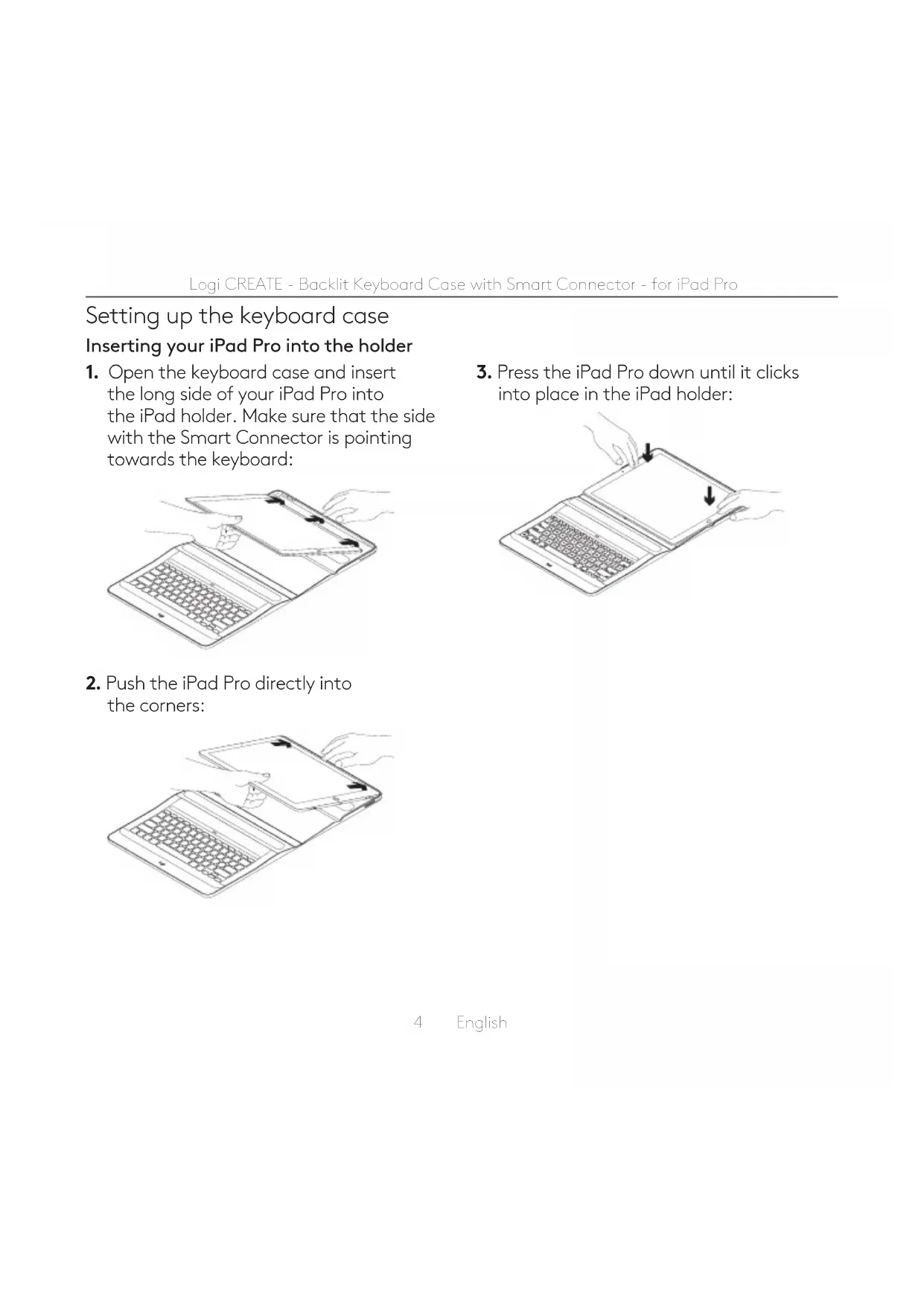


| Product type | Keyboard case with backlight for iPad Pro |
| Brand | Logitech |
| Model | Create |
| Compatibility | iPad Pro (9.7 inches) |
| Dimensions (approx.) | 280 x 220 x 20 mm |
| Weight (approx.) | 600 g |
| Power supply | Via iPad Pro's Smart Connector (no battery) |
| Backlight | Yes, adjustable brightness |
| Connection | Integrated Smart Connector (instant connection) |
| Viewing positions | Two positions: typing and reading |
| Automatic sleep mode | Yes, activated by opening/closing the case |
| Shortcut keys | Home, screen brightness, search, language switching, keyboard brightness, media control, screen lock, virtual keyboard |
| Material | Plastic and fabric (case) |
| Care and cleaning | Wipe with a soft, dry cloth. Do not use abrasive products. |
| Spare parts and repairability | Not applicable (product not user-repairable) |
| Safety | Do not expose to water or excessive moisture. |
| Warranty | Check Logitech website for details |
| General information | © 2016 Logitech. Registered trademarks. |
Frequently Asked Questions - Create iPad Pro keyboard case LOGITECH
User questions about Create iPad Pro keyboard case LOGITECH
0 question about this device. Answer the ones you know or ask your own.
Ask a new question about this device
Download the instructions for your Gaming Keyboard in PDF format for free! Find your manual Create iPad Pro keyboard case - LOGITECH and take your electronic device back in hand. On this page are published all the documents necessary for the use of your device. Create iPad Pro keyboard case by LOGITECH.
USER MANUAL Create iPad Pro keyboard case LOGITECH
Backlit Keyboard Case with Smart Connector for iPad Pro
by Logitech
Contents
English . . . . . . . . . . . . . . . . . . . . . . . . . . . . . . . . . . . . . . . . 3
Français 10
Español. 17
Português .....24
Know your product
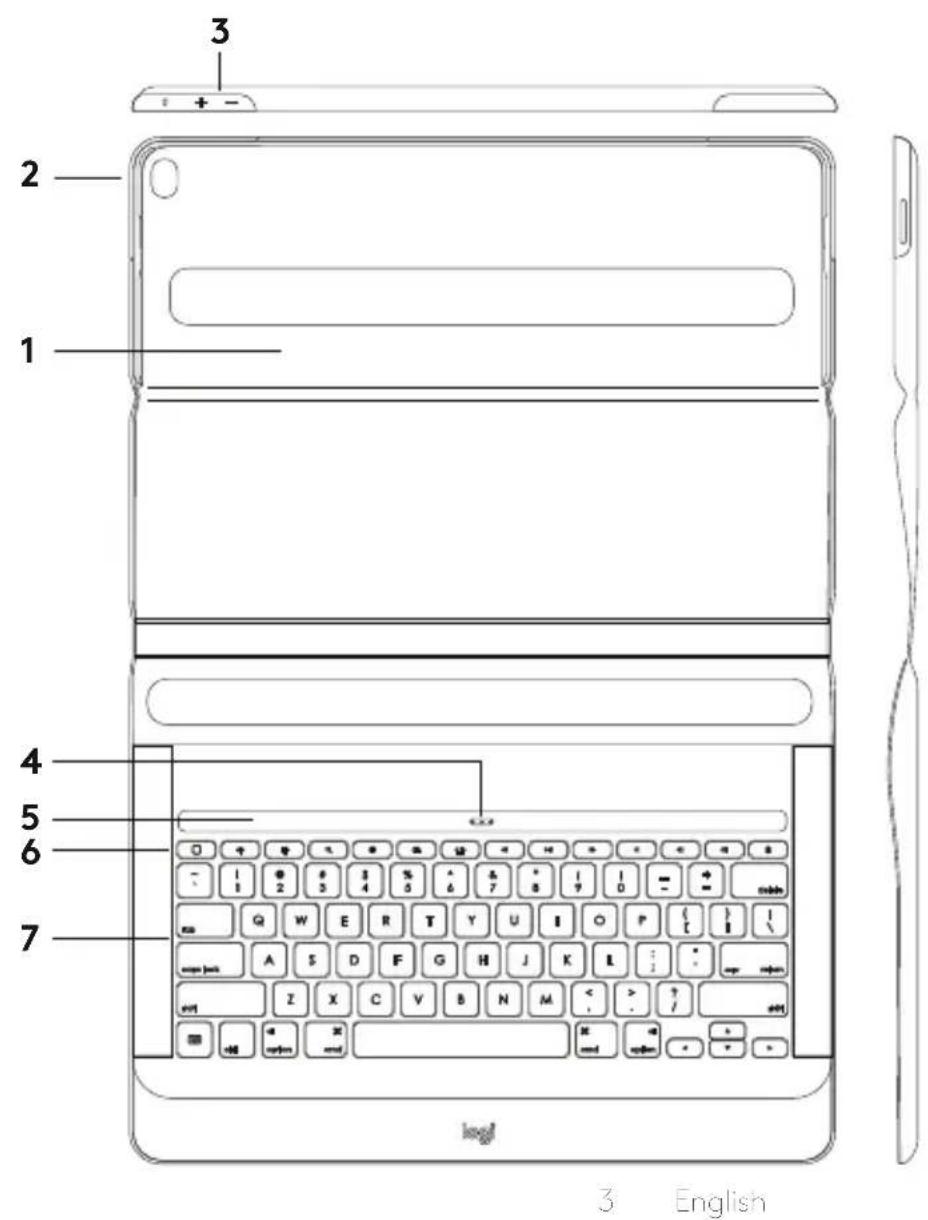
- iPad Pro holder
- iPad Pro power button
- iPad Pro volume up and down
- Smart Connector
- Magnetic iPad dock
- Shortcut keys
- Keyboard
Setting up the keyboard case Inserting your iPad Pro into the holder
- Open the keyboard case and insert the long side of your iPad Pro into the iPad holder. Make sure that the side with the Smart Connector is pointing towards the keyboard:
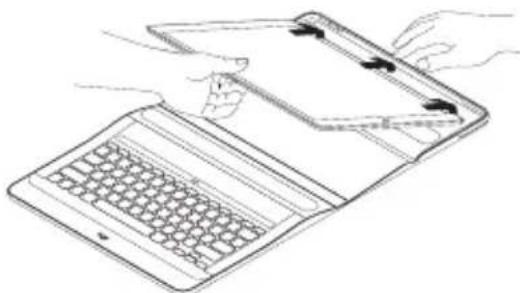
natural_image
Line drawing of hands using a laptop to open the screen, showing keyboard and mouse (no text or symbols)- Push the iPad Pro directly into the corners:
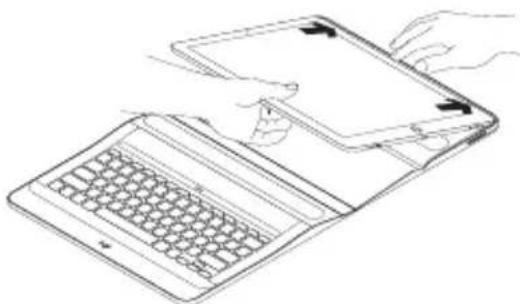
natural_image
Line drawing of hands using a laptop to open the screen, showing keyboard and mouse (no text or symbols)- Press the iPad Pro down until it clicks into place in the iPad holder:
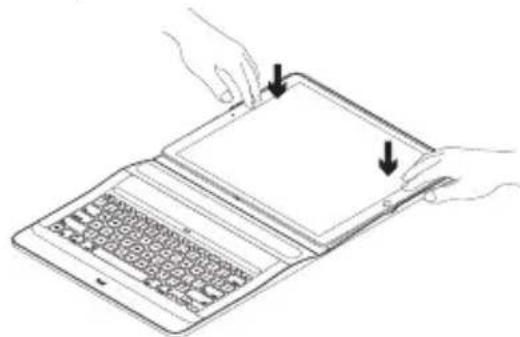
natural_image
Line drawing of hands installing or adjusting a laptop screen with keyboard and keyboard (no text or symbols)Using your iPad Pro
Opening your iPad Pro
When you want to start using your iPad Pro, open the cover holding the iPad using the cut-outs on either side:

natural_image
Line drawing of hands holding a tablet device with an arrow indicating fold change (no text or symbols)Auto wake/sleep
Opening the keyboard case wakes your iPad Pro.
Closing the keyboard case puts your iPad Pro into sleep mode.
The keyboard connects to the iPad Pro automatically and will light up when a successful connection is established:
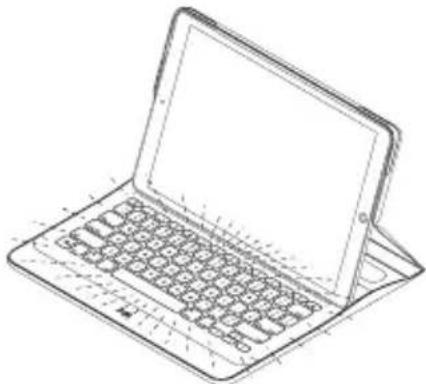
natural_image
Line drawing of a laptop computer with visible keyboard and screen (no text or symbols)The keyboard is instantly connected to the iPad Pro and receives power from the iPad Pro.
Two viewing positions
The keyboard case provides two viewing positions—one for typing and another for browsing.
For typing mode, place the iPad on the magnetic iPad dock so that the Smart Connectors of the iPad and the keyboard are aligned:
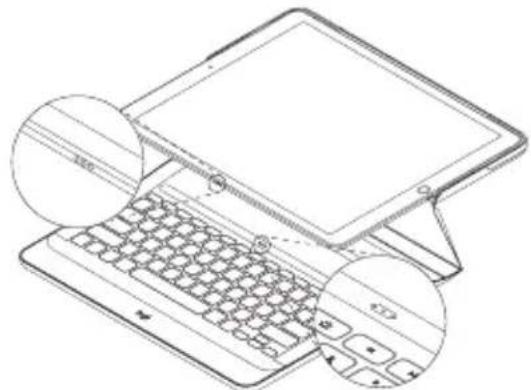
natural_image
Line drawing of a laptop keyboard with two magnified views showing front and side views (no text or symbols)The keyboard is instantly connected to the iPad Pro and receives power from iPad Pro.
When the iPad Pro is docked, you can lift it with one hand without closing the keyboard case cover:
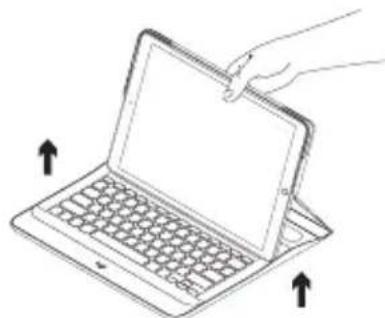
natural_image
Line drawing of a hand inserting a tablet into a laptop keyboard, with arrows indicating orientation (no text or symbols)For browsing mode, place the keyboard case in the browsing position:
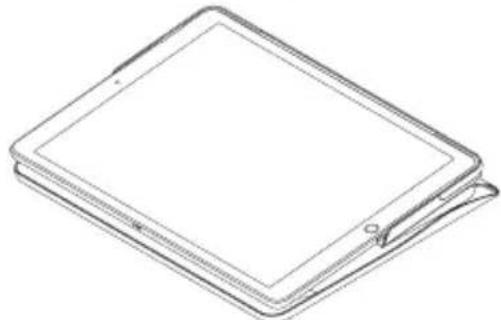
natural_image
Line drawing of a flat-screen tablet device (no text or symbols)The keyboard powers off automatically when you disconnect the iPad Pro from the Smart Connector.
Storing your iPad for travel
- Insert your iPad in the tablet holder.
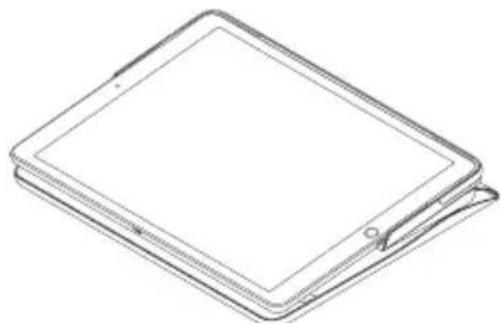
- Close the keyboard case:
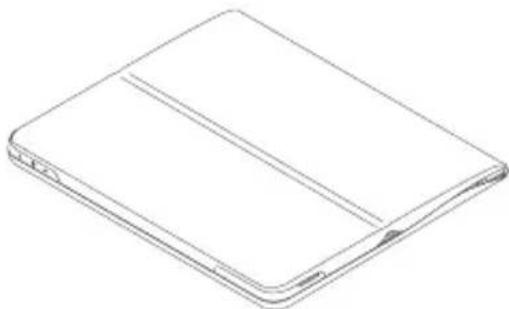
natural_image
Line drawing of a rectangular electronic device with two horizontal panels and a side tab (no text or symbols)Detaching your iPad Pro
- To detach your iPad Pro from the case, lay it out on a flat surface:
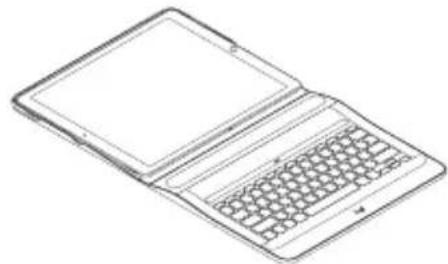
natural_image
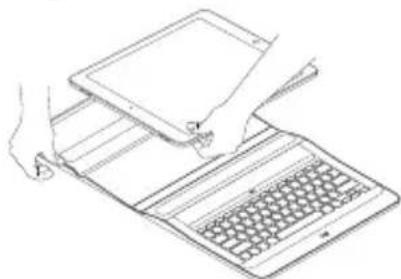
Line drawing of an open laptop with visible keyboard and screen (no text or symbols)- Lift the iPad Pro at the edge closest to the keyboard and press down on the holder edge near the recess to release the iPad Pro:
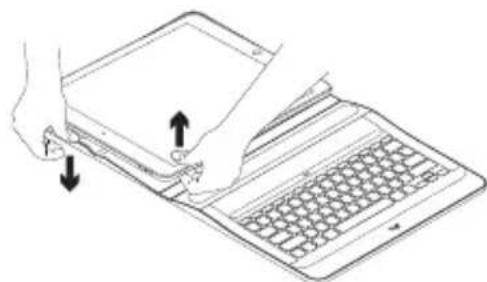
natural_image
Line drawing of hands installing a laptop keyboard with arrows indicating press or scroll (no text or symbols)- You can now lift the iPad Pro out of the keyboard case:
natural_image
Line drawing of hands using a tablet to open a laptop keyboard (no text or symbols)Shortcut keys

Home
Goes to iPad home screen

Brightness down
Reduces the iPad screen brightness

Brightness up
Increases the iPad screen brightness

Search
Type keywords in the search bar for contacts, music, notes, events, mail, web, and more

Switch language
Switches the keyboard language

Keyboard brightness down
Reduces the brightness of the keyboard backlight

Keyboard brightness up
Increases the brightness of the keyboard backlight

Previous track

Play/Pause

Next track

Mute

Volume down

Volume up

Lock screen
Locks or unlocks the iPad screen

Virtual keyboard
Shows/hides the virtual keyboard
Visit Product Support
There's more information and support online for your product. Take a moment to visit Product Support to learn more about your new keyboard case.
Browse online articles for setup help, usage tips, and information about additional features.
Connect with other users in our Community Forums to get advice, ask questions, and share solutions.
At Product Support, you'll find a wide selection of content including:
- Tutorials
- Troubleshooting
- Support community
• Online documentation - Warranty information
- Spare parts (when available)
Go to:
www.logitech.com/support/create-backlit-keyboard-case
Troubleshooting
The keyboard does not work
- Press any key to wake the keyboard from sleep mode.
- Make sure that the three connection points on the iPad Pro align with the Smart Connector on the keyboard case.
natural_image
Line drawing of a laptop with hands holding a tablet and keyboard (no text or symbols)natural_image
Line drawing of hands using a laptop to open the screen (no text or symbols present)natural_image
Line drawing of hands holding a laptop with a keyboard and two arrows pointing to the screen (no text or symbols)natural_image
Line drawing of hands holding a tablet device with an upward arrow indicating fold change (no text or symbols)natural_image
Line drawing of a laptop with visible keyboard and screen (no text or symbols)natural_image
Line drawing of a laptop keyboard with two magnified views showing front and side views (no text or symbols)natural_image
Line drawing of a hand inserting a laptop into a stand, with arrows indicating orientation (no text or symbols)Pour la navigation, placez l'étui clavier en position de lecture:
natural_image
Line drawing of a flat-screen tablet device (no text or symbols)natural_image
Line drawing of a rectangular electronic device with two horizontal lines, no text or symbols presentnatural_image
Line drawing of a laptop with visible screen and keyboard (no text or symbols)natural_image
Line drawing of hands holding a tablet device with a keyboard and mouse (no text or symbols)natural_image
Line drawing of hands using a tablet to open a laptop keyboard (no text or symbols)www.logitech.com/support/create-backlit-keyboard-case
Dépannage
natural_image
Line drawing of a laptop with hands holding the screen (no text or symbols)natural_image
Line drawing of hands installing or opening a laptop screen with keyboard and keyboard (no text or symbols)natural_image
Line drawing of a laptop with hands holding the screen and keyboard, showing open and closed states (no text or symbols)Uso del iPad Pro
Apertura del iPad Pro
natural_image
Line drawing of hands holding a tablet device with an upward arrow indicating fold change (no text or symbols)natural_image
Line drawing of a laptop with visible keyboard and screen (no text or symbols)natural_image
Line drawing of a laptop keyboard with two magnified views showing front and side views (no text or symbols)natural_image
Line drawing of a hand inserting a laptop into a stand, with arrows indicating orientation (no text or symbols)natural_image
Line drawing of a flat-screen tablet device (no text or symbols)natural_image
Line drawing of a rectangular electronic device with two horizontal lines, no text or symbols presentnatural_image
Line drawing of a laptop with open screen and keyboard (no text or symbols)natural_image
Line drawing of hands holding a tablet device with a keyboard and mouse (no text or symbols)natural_image
Line drawing of hands installing or adjusting a laptop keyboard (no text or symbols present)www.logitech.com/support/create-backlit-keyboard-case
natural_image
Line drawing of hands holding a laptop with keyboard and mouse (no text or symbols)natural_image
Line drawing of a foldable laptop with hands operating the screen (no text or symbols)natural_image
Line drawing of hands holding a laptop with keyboard and open screen (no text or symbols)Usando o iPad Pro
Operando o iPad Pro
natural_image
Line drawing of hands holding a tablet device with an upward arrow indicating fold change (no text or symbols)Despertar/dormir automáticos
Ao abrir o Keyboard Case, o iPad Pro desperta.
Fechar o Keyboard Case coloca o iPad Pro no modo de dormir.
natural_image
Line drawing of a laptop with visible keyboard and screen (no text or symbols)natural_image
Line drawing of a laptop keyboard with two magnified views showing internal components (no text or symbols)natural_image
Line drawing of a hand inserting a laptop into a stand, with arrows indicating orientation (no text or symbols)natural_image
Line drawing of a flat-screen tablet device (no text or symbols)natural_image
Line drawing of a rectangular electronic device with two horizontal strips, no text or symbols presentSoltando o iPad Pro
natural_image
Line drawing of a laptop with open screen and keyboard (no text or symbols)natural_image
Line drawing of hands holding a tablet and interacting with a laptop keyboard (no text or symbols)natural_image
Line drawing of hands using a tablet to open a laptop keyboard (no text or symbols)Teclas de atalho

Inicio
www.logitech.com/support/create-backlit-keyboard-case
www.logitech.com/support/create-backlit-keyboard-case
© 2016 Logitech. Logitech, Logi and other Logitech marks are owned by Logitech and may be registered. iPad and iPad Pro are trademarks of Apple Inc., registered in the U.S. and other countries. All other trademarks are the property of their respective owners. Logitech assumes no responsibility for any errors that may appear in this manual. Information contained herein is subject to change without notice.
621-000735.002




- Contents
- Setting up the keyboard case Inserting your iPad Pro into the holder
- Using your iPad Pro
- Opening your iPad Pro
- Auto wake/sleep
- Two viewing positions
- Storing your iPad for travel
- Detaching your iPad Pro
- Shortcut keys
- Home
- Brightness down
- Brightness up
- Search
- Switch language
- Keyboard brightness down
- Keyboard brightness up
- Previous track
- Play/Pause
- Next track
- Mute
- Volume down
- Volume up
- Lock screen
- Virtual keyboard
- Visit Product Support
- Troubleshooting
- The keyboard does not work
- Dépannage
- Uso del iPad Pro
- Apertura del iPad Pro
- Usando o iPad Pro
- Operando o iPad Pro
- Despertar/dormir automáticos
- Soltando o iPad Pro
- Teclas de atalho
- Inicio
Brand : LOGITECH
Model : Create iPad Pro keyboard case
Category : Gaming Keyboard