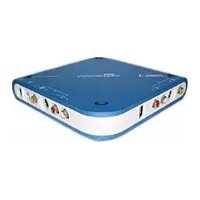
Studio Moviebox Deluxe 9 - Audio and/or video software PINNACLE - Free user manual and instructions
Find the device manual for free Studio Moviebox Deluxe 9 PINNACLE in PDF.



| Product Type | Audio and video software with USB capture box |
| Brand | Pinnacle |
| Model | Studio Moviebox Deluxe 9 |
| Minimum System Requirements | Pentium IV 1.6 GHz, 256 MB RAM, Windows XP SP1+, USB 2.0 port, DirectX 9 graphics card |
| Video Input Connectors | Composite, S-Video, DV (IEEE 1394) |
| Video Output Connectors | Composite, S-Video |
| Audio Connectors | Left/right audio input, left/right audio output |
| Power Supply | External power adapter |
| Supported Compression Formats | DV, MPEG-1, MPEG-2, uncompressed YUV |
| Main Functions | Capture, video editing, export to DVD, CD, DV, professional movie creation |
| Compatible Devices | Analog camcorders (8 mm, Hi8, VHS, S-VHS), DV/Digital8/MicroMV camcorders with analog outputs |
| Hardware Warranty | 24 months against defects in materials and workmanship |
| Box Contents | MovieBox Deluxe unit, USB 2.0 cable, IEEE 1394 cable, Studio Programs CD, Content CD, manual and quick start guide |
| Manual Languages | French, German, English, Spanish, Italian, Dutch, Portuguese |
| Maintenance and Cleaning | Store in a dry place, avoid shocks, clean with a soft dry cloth |
| Safety | Disconnect before any connection, do not expose to moisture, use the supplied adapter |
Frequently Asked Questions - Studio Moviebox Deluxe 9 PINNACLE
User questions about Studio Moviebox Deluxe 9 PINNACLE
0 question about this device. Answer the ones you know or ask your own.
Ask a new question about this device
Download the instructions for your Audio and/or video software in PDF format for free! Find your manual Studio Moviebox Deluxe 9 - PINNACLE and take your electronic device back in hand. On this page are published all the documents necessary for the use of your device. Studio Moviebox Deluxe 9 by PINNACLE.
USER MANUAL Studio Moviebox Deluxe 9 PINNACLE
Pinnacle MovieBox Deluxe Professional Quality Movie Making
QUICK START GUIDE
KURZANLEITUNG
GUIDE DE DEMARRAGE RAPIDE
KORTE HANDLEIDING
GUIDA RAPIDA
MANUAL BREVE DE INSTRUCCIONES
GUIA DE INICIO RAPIDO
© Pinnacle Systems GmbH 2004
All rights reserved.
No part of this manual may be reproduced or transferred to other media without explicit written permission from Pinnacle Sysrems., Braunschweig, Germany.
All brand or product names are trademarks or registered trademarks of their respective holders.
Pinnacle Systems GmbH 2004
P A KAGE C O N T E N T S 2
INSTALLING THE SOFTWARE 3
This Quick Start Guide explains how to install the Pinnacle hardware and software.
Important text passages are marked with the "notepad" and this format.

Numbers mark step by step instructions:
- Start Windows.
All keyboard commands appear in this font:
Setup
Menu, commands, options, or buttons which the user can select are written in italics.
This chapter tells you which computer system components are required for the operation of MovieBox Deluxe and what is included in the MovieBox Deluxe package contents.
SYSTEM REQUIREMENTS

Please make sure your system meets the following requirements before installing MovieBox Deluxe:
Computer
- Pentium IV 1.6 GHz (or higher) or equivalent AMD CPU (2 GHz recommended)
USB2.0 port - Windows XP (Home and Professional Edition, Service Pack 1 or higher)
- DirectX 9 or higher compatible graphics card
- DirectX9 or higher compatible sound card
256 MB of RAM (512 MB recommended)
CD-ROM drive (optional: CD or DVD burner required to create Video CD, S-Video CD or DVD) - 300 MB of free hard disk space to install software.
Video equipment
MovieBox Deluxe can capture from and output video to:
Any analog (8mm, Hi8, VHS, SVHS, VHS-C or SVHS-C) camcorder or VCR
- Any DV, Digital8 or MicroMV camcorder with analog outputs (capture only)
- Any DV or Digital8 camcorder or VCR (to output to the camcorder, it must be enabled to record from DV Input)
PACKAGE CONTENTS
Please make sure your MovieBox Deluxe system is complete before you begin the installation. The system includes:
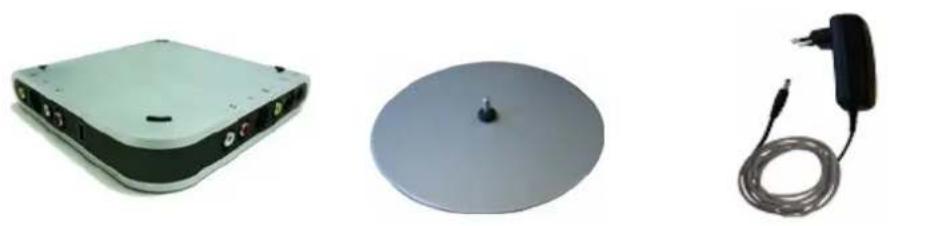
MovieBox Deluxe Stand Power Supply

USB-cable IEEE-1394 cable 6x4 Pinnacle Studio "Programs"
and "Content" disks

Studio Manual and this Quick Start Guide
If any parts are missing, please contact your retailer.
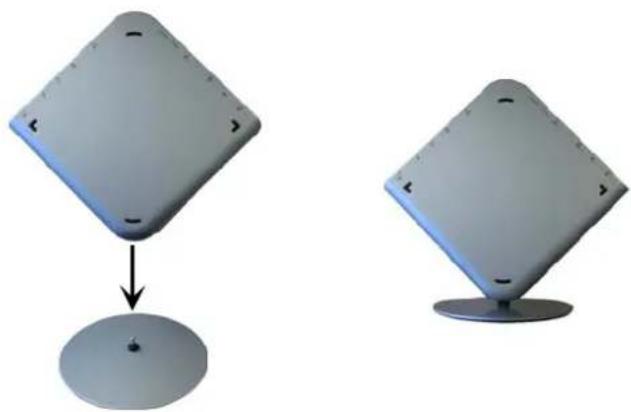
Optionally you can place the MovieBox Deluxe-Box onto the stand, as shown below:
- Insert the Studio CD-ROM into your CD-ROM drive.
If you have Autorun enabled for your CD-ROM, Setup will run automatically. If you do not have Autorun enabled, navigate to your CD-ROM drive, and double-click on Setup.exe.
-
Select the language of your choice.
-
Check for previous version.
If a previous version of Studio is not found on your system you will be asked to insert the CD-ROM of your previous version into your CD-ROM drive.
-
Personalise your Studio installation by entering your name, country, e-mail address (optional) and serial number.
-
Registration.
Next you will be given the opportunity to register your copy of Studio. You can quickly and easily register using your Internet connection. Registration is important for four reasons:
You will receive a free bonus effect pack upon registration.
Registration is required to receive technical support.
- Registration allows Pinnacle Systems to inform you of free updates to the Studio software.
- Registration makes you eligible for special offers and promotions from Pinnacle Systems.
- Agree to the Studio software license terms (click I Agree).
If you do not accept or understand the terms, you should promptly return this product to your dealer. - Choose Typical installation (recommended).
Only advanced computer users should choose Custom. - Click Next until the installation is completed.
- Restart. In some cases, you may be instructed to restart your PC.
- Driver installation.
Follow the prompts on the screen to complete the driver installation. - When a reminder pops up, insert the Studio Content DVD into your DVD drive. If you have Autorun enabled for your DVD drive, Setup will run automatically. If you do not have Autorun enabled, navigate to your DVD drive, and double-click on Setup.exe. If you do not have a DVD drive you may order the tutorial, electronic manual and bonus content separately on CD ROMs at http://www.pinnaclesys.com/studio9cd
- Install additional software.
If you received any additional effects or content with your Studio upgrade, install it now by inserting the CD-ROM(s) or DVD into your CD-ROM or DVD drive. If you have Autorun enabled for your CD-ROM or DVD drive, Setup will run automatically. If you do not have Autorun enabled, navigate to your CD-ROM or DVD drive, and double-click on Setup.exe.
Connecting the MovieBox Deluxe and the Video Devices
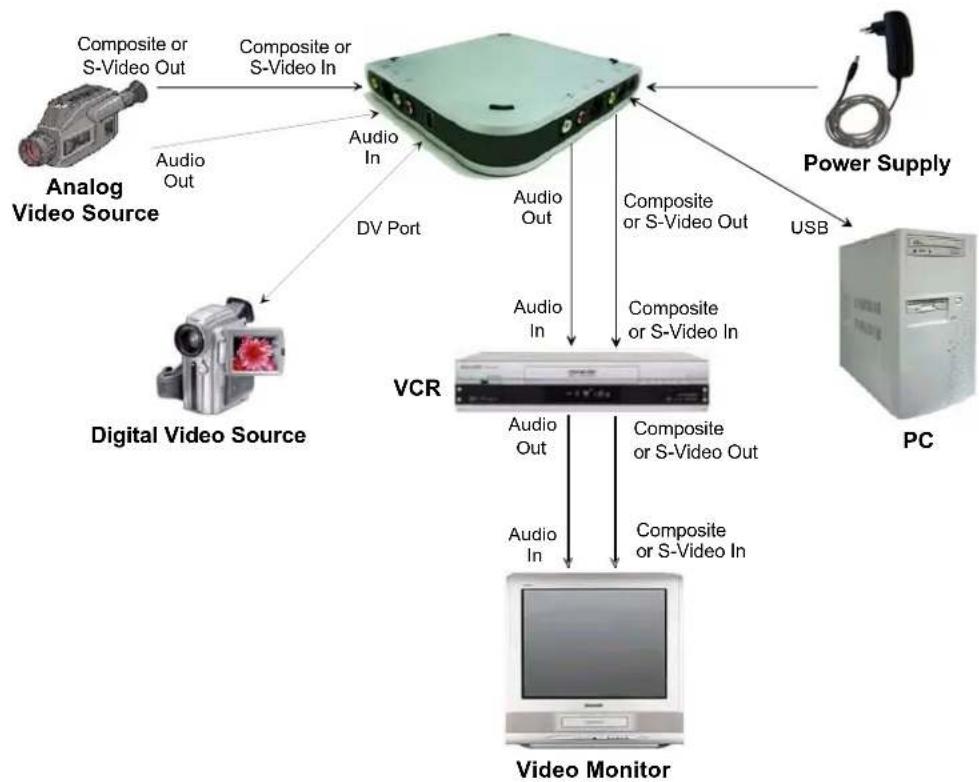
The following chapter tells you how to connect your video devices to the MovieBox Deluxe. To do so you will need the appropriate cables.

Important: Be sure your PC, MovieBox Deluxe and video equipment are all turned OFF before making any connections.
HOW TO CONNECT THE DEVICES

If the Windows Add New Hardware dialog box appears, follow the on-screen prompts.
The following illustrations show how to connect MovieBox Deluxe to your PC and video equipment.
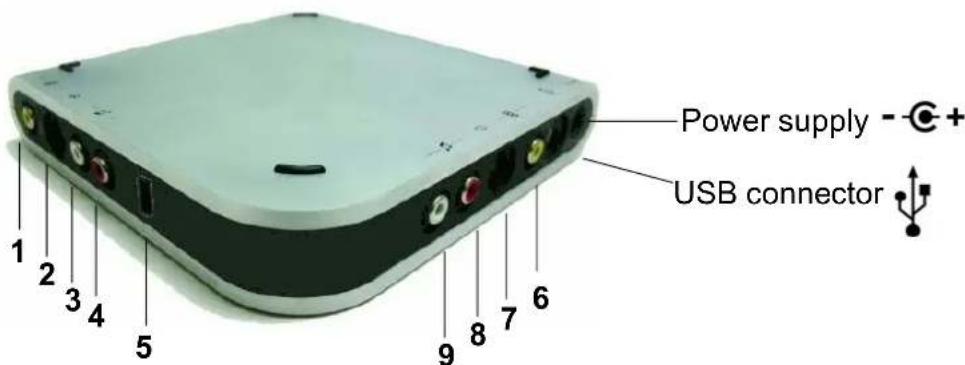
1 Composite Video In
6 Composite Video Out
2 S-Video In
7 S-Video Out
3 Audio Left In
8 Audio Right Out
4 Audio Right In
9 Audio Left Out
5 DV Port In/Out
English
Now, have some fun...
Now that you have installed the MovieBox Deluxe, you can use it immediately. We strongly recommend you take this opportunity to experience Studio digital video editing.
KEY PARTS
Hardware
- External USB box
- External power supply
USB 2.0 hi-speed cable
1394 cable
Software
Drivers for Windows XP
Studio Application
KEY FEATURES
- Connectors:
S-video and composite video I/O
- Stereo audio I/O
- One 1394 6pin port to connect DV device
One USB 2.0 port for connection to host PC
Power supply
Power LED
-
Operating modes:
-
Capture analog video and audio
Playback analog video and audio - Capture DV data from IEEE1394 port
-
Playback DV data on IEEE1394 port
Preview analog A/V source on PC while capturing
Preview DV source on PC while capturing -
Compression formats:
DV
MPEG2
MPEG1
Uncompressed YUV
Other:
Supports Device Control on IEEE1394 port
Pinnacle Systems, Inc. (Pinnacle) warrants your new hardware against defects in materials and workmanship for a period of 24 months from the date of your original purchase of the new product. If product fails to be free of defects in materials and workmanship during the warranty period, Pinnacle will repair, or at its sole option, replace the product, provided that you return it (postage prepaid, with proof of your purchase from the original retailer) to Pinnacle during the warranty period. Pinnacle may repair or replace the product with functionally equivalent new or reconditioned components or products.
To obtain warranty service, please check the Support Center information that accompanies your product. To access the Support Center, click on the Windows Start menu and select:
Programs/Your Pinnacle Product/Help/Pinnacle Service & Support Center.
or visit the Pinnacle Systems Web site http://www.pinnaclesys.com for the latest Pinnacle Customer Support contact information.
Replacement products will be returned to you at Pinnacle's expense via ground delivery service. Extra freight charges will apply for expedited shipping, or to points outside of territories where Pinnacle maintains a customer service department, if such service is available. Replacement products will be covered for the remainder of the original 24-month warranty period, or for a period of 90 days, whichever is longer.
WARRANTY EXCLUSIONS
This limited warranty does not cover defects caused by (a) accident, misuse, abuse or neglect, (b) improper operation, maintenance, installation, adjustment, or any alteration or modification of any kind, or (c) repairs or disassembly not performed by Pinnacle.
THIS LIMITED WARRANTY IS Pinnacle'S ONLY WARRANTY, AND Pinnacle EXPRESSLY EXCULES ALL OTHER WARRANTYES, EXPRESS OR IMPLIED, INCLUDING WITHOUT LIMITATION IMPLIED WARRANTYES OF MERCHANTABILITY, FITNESS FOR A PARTICULAR PURPOSE AND NONINFRINGEMENT. EXCEPT FOR THE EXPRESS LIMITED WARRANTY ABOVE, THE PRODUCT IS SOLD "AS IS," AND YOU ASSUME THE ENTIRE RISK AS TO THE PRODUCT'S SUITABILITY TO YOUR NEEDS, ITS QUALITY AND ITS PERFORMANCE. IN NO EVENT WILL Pinnacle BE LIABLE FOR ANY DIRECT, INDIRECT, SPECIAL, INCIDENTAL OR CONSEQUENTIAL DAMAGES RESULTING FROM ANY DEFECT IN THE PRODUCT OR FROM ITS USE, EVEN IF ADVISED OF THE POSSIBILITY OF SUCH DAMAGES.
All exclusions and limitations in this limited warranty are made only to the extent permitted under applicable law and shall not apply to the extent in conflict with the express requirements of applicable law. This limited warranty gives you specific rights, and you may also have other rights that vary from state to state or country to country.
EXCUSIONS DE LA GARANTIE
BEPERKTE GARANTIE VOOR HARDWARE VAN PINNACLE
Programs/Your Pinnacle Product"/Help/Pinnacle Service & Support Center.
GARANTIA LIMITADA DE HARDWARE DA PINNACLE
This certification is based on: Test report(s) generated by EMI-test laboratory
Braunschweig, 23. Februar 2004 / February 23rd, 2004
FOR YOUR OWN SAFETY
NOTE: Shielded cables should be used for a composite interface. This is to ensure continued protection against radio frequency interference.
FCC WARNING STATEMENT
NOTE: This equipment has been tested and found to comply with the limits for a Class B digital device, pursuant to Part 15 of the FCC Rules. These limits are designed to provide reasonable protection against harmful interference in a residential installation. This equipment generates, uses and can radiate radio frequency energy and, if not installed and used in accordance with the instructions, may cause harmful interference to radio communications. However, there is no guarantee that interference will not occur in a particular installation. If this equipment does cause harmful interference to radio or television reception, which can be determined by turning the equipment off and on, the user is encouraged to try to correct the interference by one or more of the following measures:
Reorient or relocate the receiving antenna.
- Increase the separation between the equipment and receiver.
- Connect the equipment into an outlet on a circuit different from that to which the receiver is connected.
- Consult the dealer or an experienced radio/TV technician for help.
CAUTION
Changes or modifications not expressly approved by the party responsible for compliance could void the user's authority to operate the equipment.
Shielded interface cable must be used in order to comply with the emission limits.
LABEL WARNING
This device complies with Part 15 of the FCC Rules. Operation is subject to the following two conditions: (1) this device may not cause harmful interference, and (2) this device must accept any interference received, including interference that may cause undesired operation.
Pinnacle Systems
MovieBox Deluxe

Tested To Comply With FCC Standards
FOR HOME OR OFFICE USE

- PINNACLE MOVIEBOX DELUXE PROFESSIONAL QUALITY MOVIE MAKING
- © PINNACLE SYSTEMS GMBH 2004
- PINNACLE SYSTEMS GMBH 2004
- INSTALLING THE SOFTWARE 3
- SETUP
- SYSTEM REQUIREMENTS
- COMPUTER
- VIDEO EQUIPMENT
- PACKAGE CONTENTS
- CONNECTING THE MOVIEBOX DELUXE AND THE VIDEO DEVICES
- HOW TO CONNECT THE DEVICES
- NOW, HAVE SOME FUN
- KEY PARTS
- HARDWARE
- SOFTWARE
- KEY FEATURES
- WARRANTY EXCLUSIONS
- EXCUSIONS DE LA GARANTIE
- BEPERKTE GARANTIE VOOR HARDWARE VAN PINNACLE
- GARANTIA LIMITADA DE HARDWARE DA PINNACLE
- FOR YOUR OWN SAFETY
- FCC WARNING STATEMENT
- CAUTION
- LABEL WARNING
Brand : PINNACLE
Model : Studio Moviebox Deluxe 9
Category : Audio and/or video software