R1 DAB - Radio Ruark Audio - Free user manual and instructions
Find the device manual for free R1 DAB Ruark Audio in PDF.



| Product type | DAB/DAB+/FM radio alarm clock with RDS |
| Dimensions (W x H x D) | 175 x 130 x 135 mm |
| Weight | 1.5 kg |
| Power supply | Mains adapter: input 90-240 V AC, 50-60 Hz, 0.5 A; output 14 V DC, 1.5 A |
| Speaker | 3.5" (8.9 cm) in a bass reflex enclosure |
| Rated power | 9 W |
| Antenna | Telescopic, removable, with F-type connector |
| Presets | 5 DAB stations + 5 FM stations |
| Alarm | Dual alarm with source selection (DAB, FM, buzzer) and snooze |
| Sleep timer | Sleep: adjustable from 15 to 90 minutes |
| Equalizer | Presets Normal, My EQ (customizable: bass, treble, intensity) |
| Display | Backlit LCD screen with high contrast, auto brightness, large time display |
| Connections | 3.5 mm headphone jack, 3.5 mm auxiliary line input, 3.5 mm line output |
| Additional functions | DRC (Dynamic Range Control), automatic time update via DAB/FM, factory reset |
| Care and cleaning | Clean with a soft, lint-free cloth slightly dampened; avoid sprays and chemicals |
| Safety | Do not expose to water, flames, excessive heat; ensure ventilation of at least 10 cm around the device |
| Spare parts and repairability | Removable F-type antenna; for any other parts or software updates, contact the manufacturer or an authorized dealer |
| General information | Brand: Ruark Audio; Model: R1 DAB; Warranty: 2 years; Made in the United Kingdom |
Frequently Asked Questions - R1 DAB Ruark Audio
User questions about R1 DAB Ruark Audio
0 question about this device. Answer the ones you know or ask your own.
Ask a new question about this device
Download the instructions for your Radio in PDF format for free! Find your manual R1 DAB - Ruark Audio and take your electronic device back in hand. On this page are published all the documents necessary for the use of your device. R1 DAB by Ruark Audio.
USER MANUAL R1 DAB Ruark Audio
User guide
EN
Important: Please read this manual carefully before operating your R1 and retain for future reference.
1 Connect aerial
Ensure retaining
nut is secure and aerial
is fully extended.

2 Connect power Connect power adapter to back of unit and then plug into mains socket.
Basic controls
Sleep
Set the sleep timer to automatically switch the R1 to standby.
Press SLEEP to choose between 15, 30, 45, 60, 90 minutes or off. Press OK to confirm.
If sleep timer is active, pressing SLEEP displays the remaining time. Clock icon shows that the sleep timer is active.
Alarm
See page 6 for detailed information on how to use the alarm.
Station presets
You can store 5 DAB and 5 FM preset stations.
To select a preset station press a numbered button.
To store the currently playing station press and hold a numbered button.
"Press and hold" means you need to keep the button pressed for at least 2 seconds.
Changing source
Press SOURCE to cycle through DAB, FM and AUX; the selected source is automatically loaded.
Info
Press INFO/MENU to cycle through station information e.g. text, date and time, content type, etc.
Standby – press to switch on/off.
Volume – rotate left or right.
Snooze – press when the alarm sounds to snooze for 5 minutes.
Cancel alarm – press and hold when the alarm sounds.
Changing stations
DAB: press ▼▲ to scroll through station list. Press OK to select station.
FM scan: press and hold ▼▲ to scan for next available station.
FM manual tune: press ▼▲ to change frequency.
Getting to know your R1
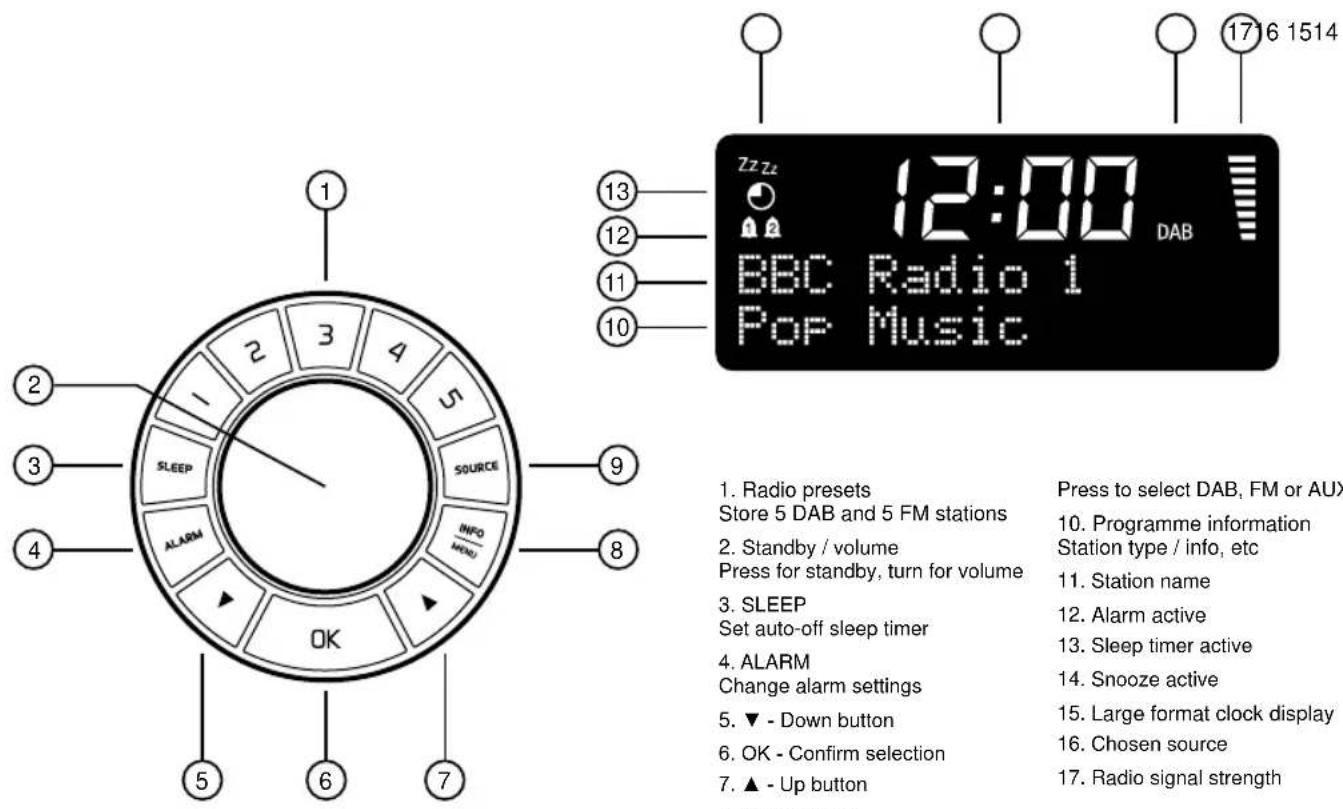
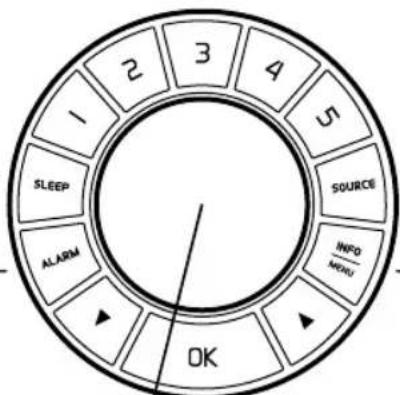
- Radio presets
Store 5 DAB and 5 FM stations
- Standby / volume
Press for standby, turn for volume
- SLEEP
Set auto-off sleep timer
- ALARM
Change alarm settings
-
▼ - Down button
-
OK - Confirm selection
-
▲ - Up button
-
INFO/MENU
Change programme information
or enter settings menu
- SOURCE
Press to select DAB, FM or AUX
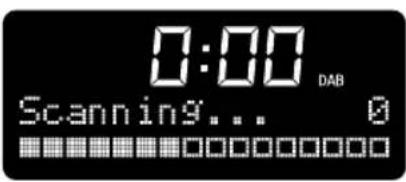
- Programme information
Station type / info, etc
-
Station name
-
Alarm active
-
Sleep timer active
-
Snooze active
-
Large format clock display
-
Chosen source
-
Radio signal strength
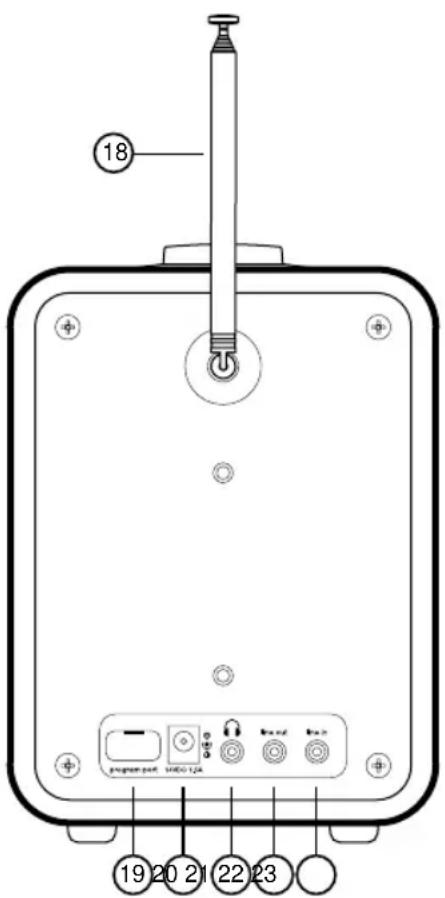
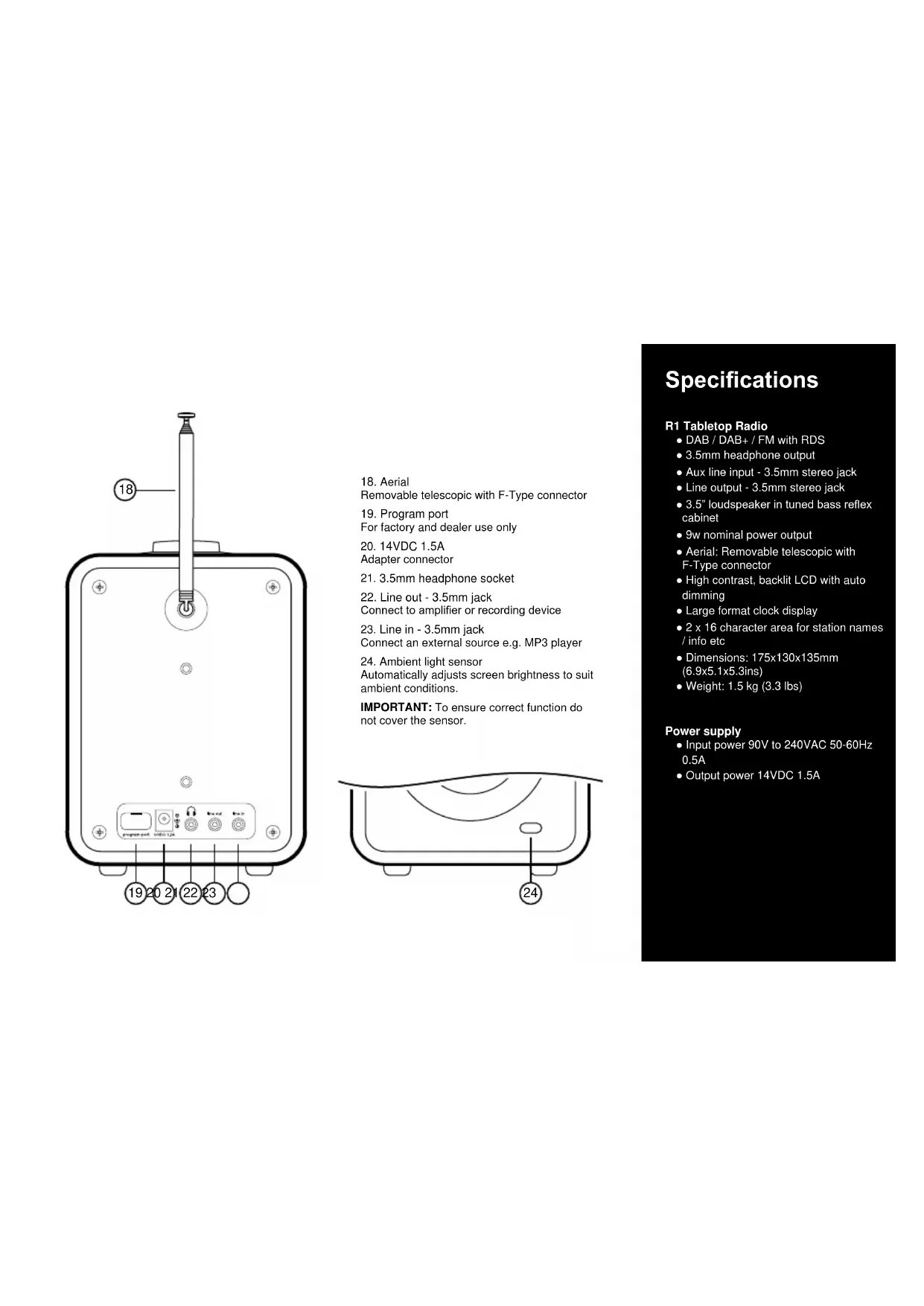
- Aerial
Removable telescopic with F-Type connector
- Program port
For factory and dealer use only
- 14VDC 1.5A
Adapter connector
-
3.5mm headphone socket
-
Line out - 3.5mm jack
Connect to amplifier or recording device
- Line in - 3.5mm jack
Connect an external source e.g. MP3 player
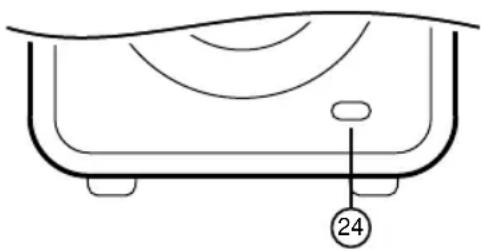
- Ambient light sensor
Automatically adjusts screen brightness to suit ambient conditions.
IMPORTANT: To ensure correct function do not cover the sensor.
natural_image
Simple line drawing of a bathtub with a numbered label (24) pointing to the interior area (no text or symbols beyond the number)Specifications
R1 Tabletop Radio
• DAB / DAB+ / FM with RDS
• 3.5mm headphone output
• Aux line input - 3.5mm stereo jack
• Line output - 3.5mm stereo jack
- 3.5" loudspeaker in tuned bass reflex cabinet
• 9w nominal power output
- Aerial: Removable telescopic with F-Type connector
- High contrast, backlit LCD with auto dimming
• Large format clock display
- 2 x 16 character area for station names / info etc
- Dimensions: 175x130x135mm (6.9x5.1x5.3ins)
• Weight: 1.5 kg (3.3 lbs)
Power supply
- Input power 90V to 240VAC 50-60Hz
0.5A
• Output power 14VDC 1.5A
Alarm
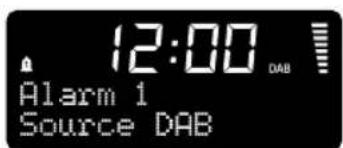
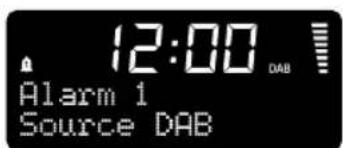
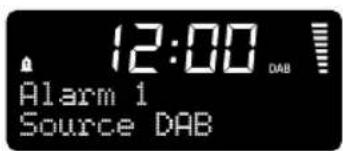
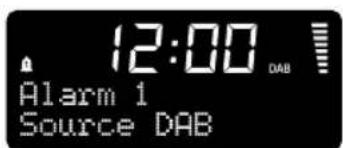
The R1 has two separate alarm settings enabling you to, for example, have one alarm for weekdays and one for weekends.
Setting the alarm
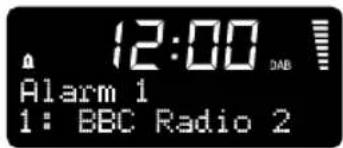
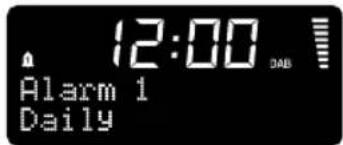
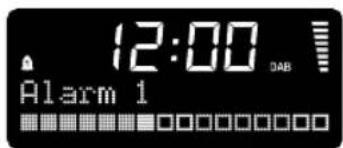
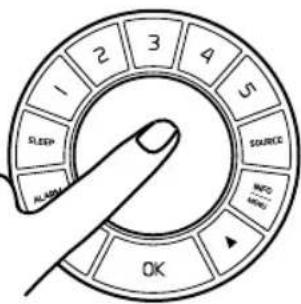
- Press ALARM to choose between 'Alarm setup 1' or 'Alarm setup 2'. Press OK to confirm.
- Press ▼▲ to turn alarm ON/OFF. Press OK to confirm.
- Press ▼▲ to set hour. Press OK to confirm. Press ▼▲ to set minutes. Press OK to confirm.
- Press ▼▲ to set alarm duration to 15, 30, 45, 60 or 90 minutes. Press OK to confirm.
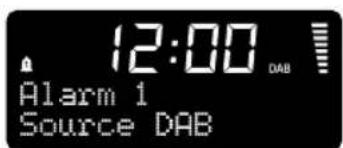
- Press ▼▲ to cycle through 'DAB', 'FM' or 'Buzzer'. Press OK to confirm.
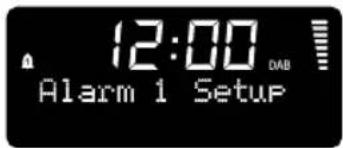
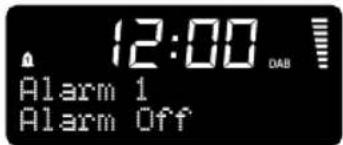
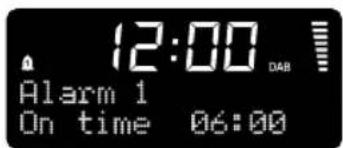
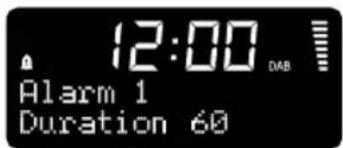
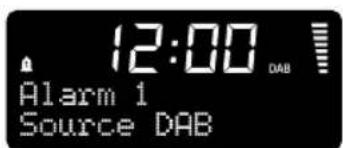
- Press OK to wake to last listened station or ▼▲ and then OK to choose a preset station. Note: This does not apply if 'Buzzer' is selected.
- Press ▼▲ to set repeat pattern to 'Daily', 'Once', 'Weekends' or 'Weekdays'. Press OK to confirm.
- Press ▼▲ to set alarm volume. Press OK to confirm and save the chosen alarm. Bell icons show which alarms are active.
Snooze
When the alarm sounds, tap the volume knob to snooze an alarm for 5 minutes. Press again to add another 5 minutes.
Cancel alarm
When the alarm sounds, press and hold the volume knob.
Advanced DAB settings
These settings are only available when source is set to DAB.
Did you know you can press INFO/MENU at any time to return to previous step?
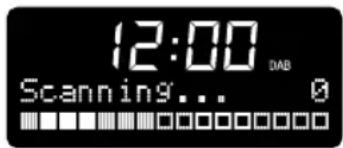
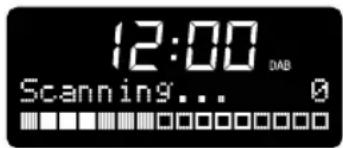
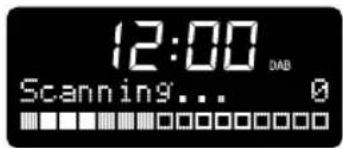
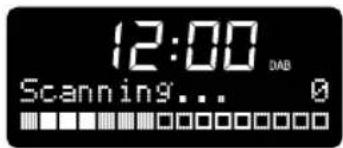
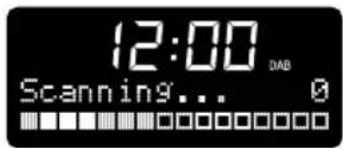
Full scan
Updates the list of available DAB stations.
- Press and hold INFO/MENU until 'Full scan' appears. Press OK to confirm.
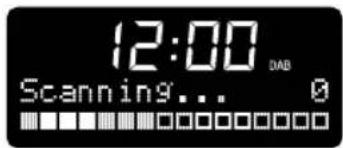
- The R1 will commence a scan of all available DAB stations.
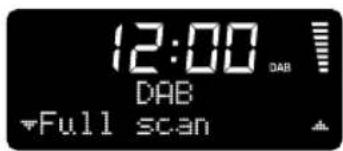
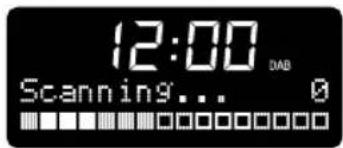
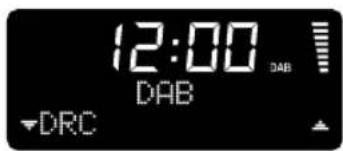
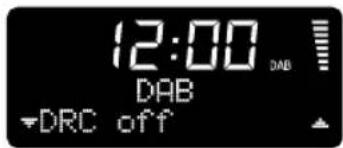
DRC (Dynamic Range Control)
Some Talk and Classical music stations transmit a DRC signal which can make quiet passages easier to hear in noisy environments. If DRC is not transmitted, this function will have no effect.
- Press and hold INFO/MENU. Press ▼▲ to select 'DRC'. Press OK to confirm.
- Use ▼▲ to cycle through 'DRC high', 'DRC low' and 'DRC off'. Press OK to confirm.
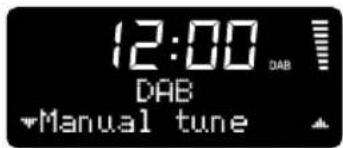
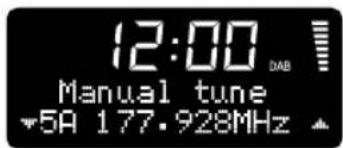
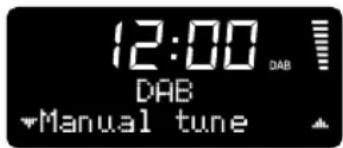
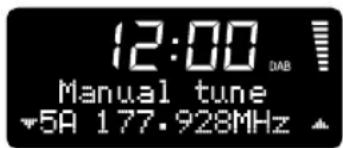
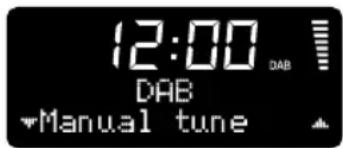
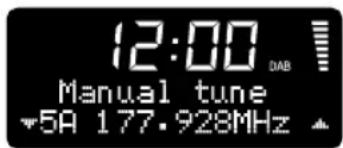
Manual tune
Manually change the frequency.
- Press and hold INFO/MENU. Press ▼▲ to select 'Manual tune'. Press OK to confirm.
- Use ▼▲ to change the frequency. Press OK to confirm.
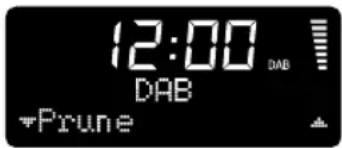
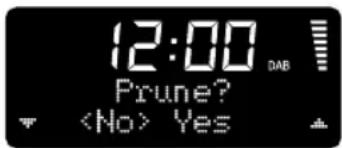
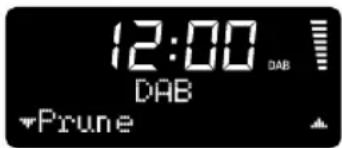
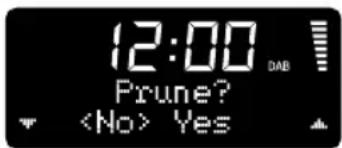
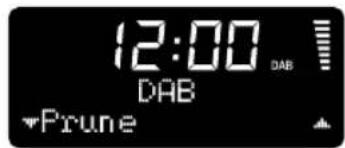
Prune
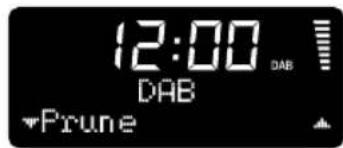
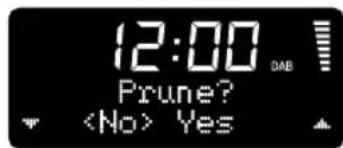
Removes unused or unavailable stations from list.
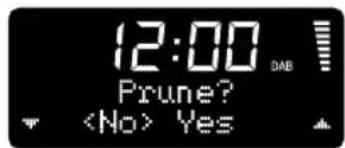
- Press and hold INFO/MENU. Press ▼▲ to select 'Prune'. Press OK to confirm.
- Use ▼▲ to select 'Yes' or 'No'. Press OK to confirm.
Advanced FM settings
These settings are only available when source is set to FM.
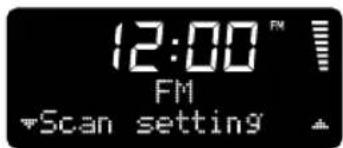
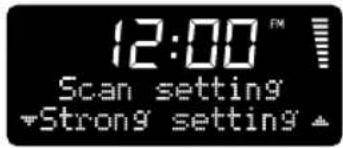
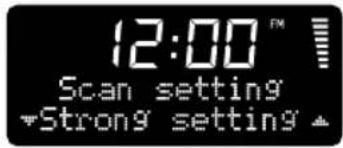
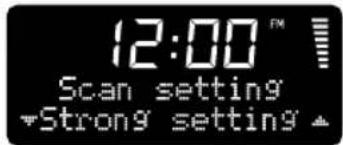
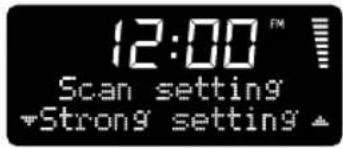
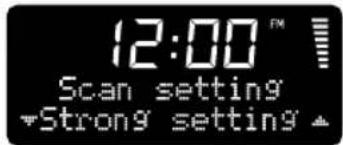
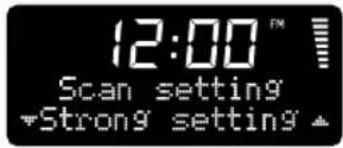
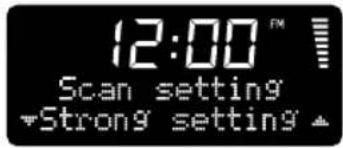
Scan setting
Change how the FM scan finds stations.
- Press and hold INFO/MENU until 'Scan setting' appears. Press OK to confirm.
- Use ▼▲ to cycle between 'Strong stations only' and 'All stations'. Press OK to confirm.
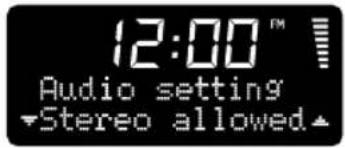
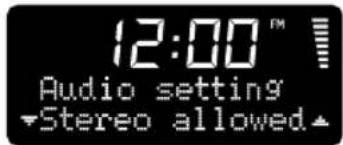
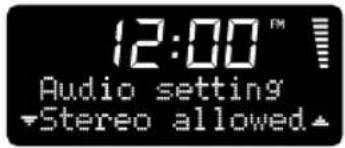
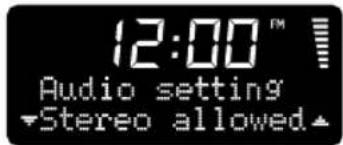
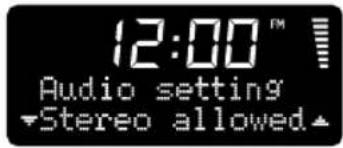
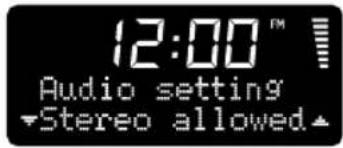
Audio setting
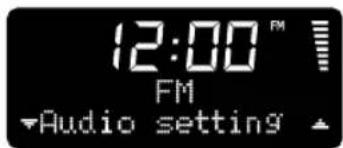
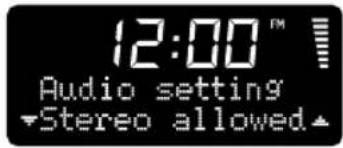
Change between stereo or mono settings. (Forced mono will help to reduce background noise on weak FM stations).
- Press and hold INFO/MENU. Press ▼▲ to select 'Audio setting'. Press OK to confirm.
- Use ▼▲ to cycle between 'Stereo allowed' and 'Forced mono'. Press OK to confirm.
System settings
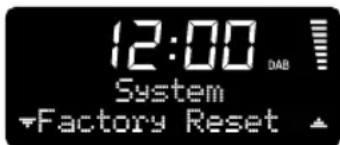
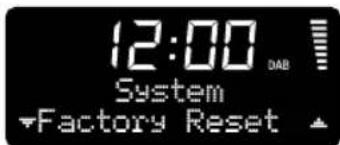
To change system settings press and hold INFO/MENU. Use ▼▲ to select 'System' and press OK to confirm.
Did you know that when in a menu, the current setting is highlighted by *?
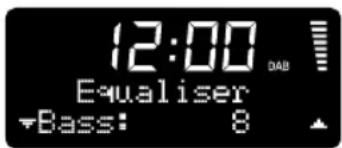
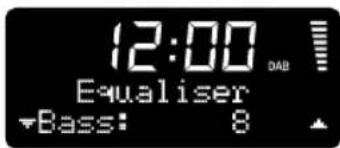
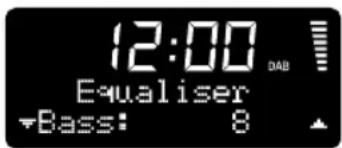
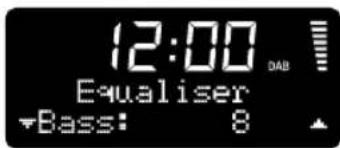
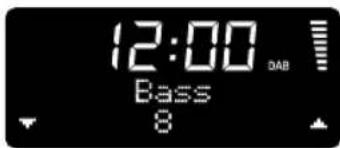
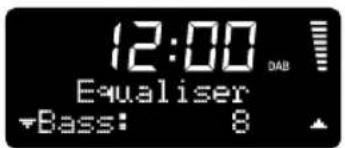
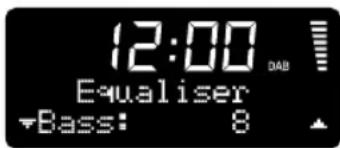
Equaliser
Selects or customises the tone settings.
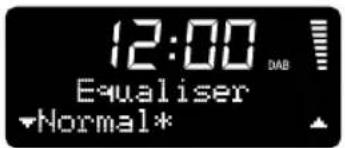
- 'Equaliser' is the first option that comes up in the system settings menu. Press OK to confirm.
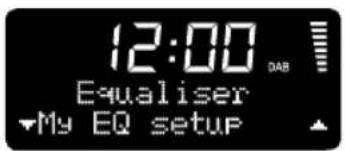
- Use ▼▲ to cycle through 'Normal', 'My EQ' and 'My EQ setup'. Press OK to confirm.
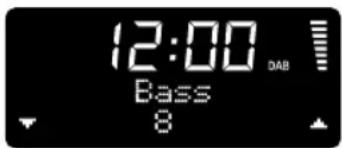
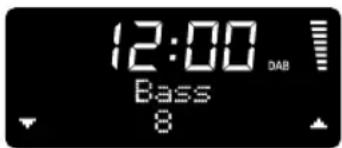
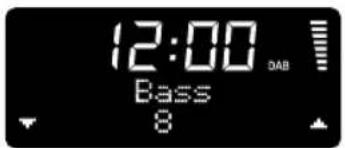
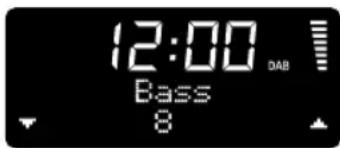
Customise 'My EQ'
- In 'Equaliser' menu, use ▼▲ to select 'My EQ setup'. Press OK to confirm.
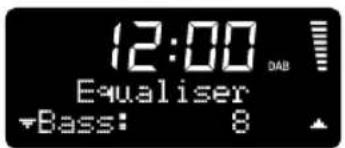
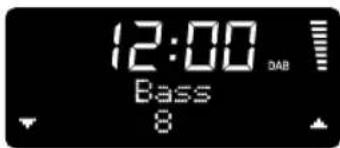
- Use ▼▲ to cycle through 'Bass', 'Treble' and 'Loudness' settings. Press OK to confirm.
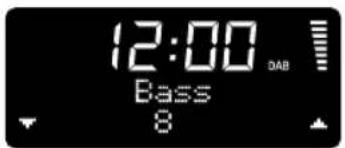
- Use ▼▲ to change value. Press OK to confirm.
Sleep
This function is also directly available through the sleep button as shown on page 3.
- In 'System' menu, use ▼▲ to select 'Sleep'. Press OK to confirm.
- Use ▼▲ to cycle 15, 30, 45, 60 and 90 minute sleep timer. Press OK to confirm.
Alarm
See page 6 for detailed information on how to set the alarm.
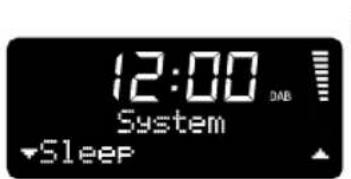
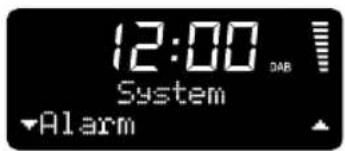

System settings
To change system settings press and hold INFO/MENU. Use ▼▲ to select 'System' and press OK to confirm.
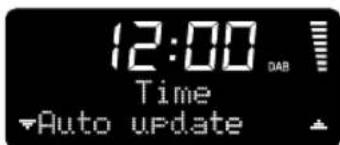
Time
Adjust how the time and date are displayed.
In 'System' menu, use ▼▲ to select 'Time'. Press OK to confirm.
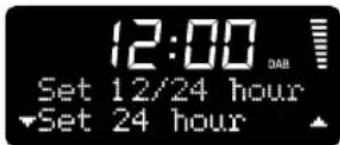
Set 12/24 hour
- In 'Time' menu, use ▼▲ to select 'Set 12/24 hour'. Press OK to confirm.
- Use ▼▲ to select 'Set 12 hour' or 'Set 24 hour' clock format. Press OK to confirm.
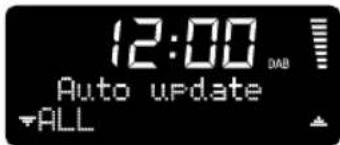
Auto update time
Adjust how time and date is automatically updated.
- In 'Time' menu, use ▼▲ to select 'Auto update'. Press OK to confirm.
- Use ▼▲ to select 'All', 'DAB', 'FM' or 'Off'. Press OK to confirm.
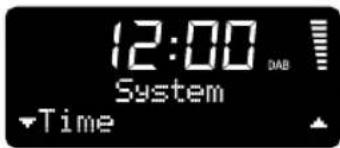
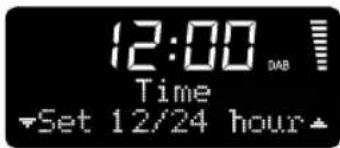
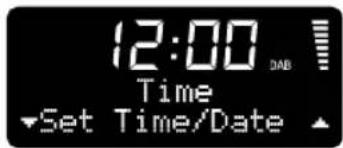
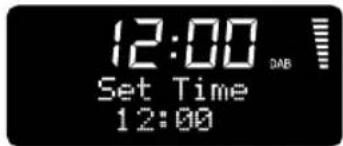
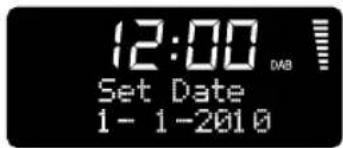
Set time/date
PLEASE NOTE: Manual time & date settings are overwritten if 'Auto update' is on with DAB and RDS signals.
- In 'Time' menu, use ▼▲ to cycle to 'Set Time/Date'. Press OK to confirm.
- Use ▼▲ and OK to set hour then minutes. Press OK to confirm.
- Use ▼▲ and OK to set day, month then year. Press OK to confirm.
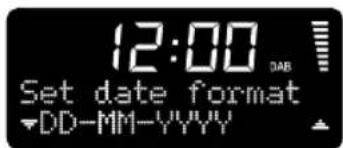
Set date format
Adjust the on screen date format.
- In 'Time' menu, use ▼▲ to select 'Set date format'. Press OK to confirm.
- Use ▼▲ to choose 'DD-MM-YYYY' or 'MM-DD-YYYY'. Press OK to confirm.
System settings
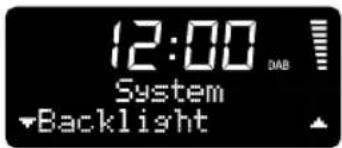
To change system settings press and hold INFO/MENU. Use ▼▲ to select 'System' and press OK to confirm.
Did you know you can press INFO/MENU at any time to return to previous step?
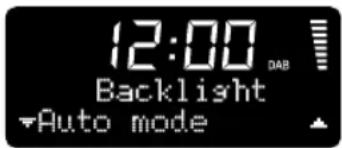
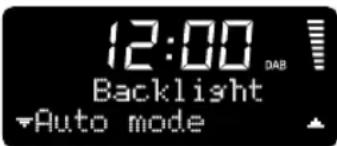
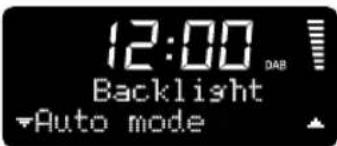
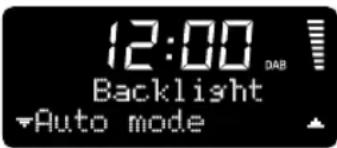
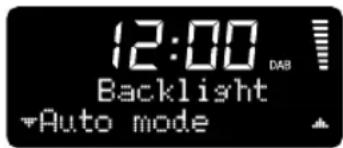
Backlight
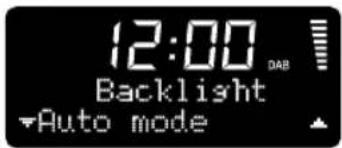
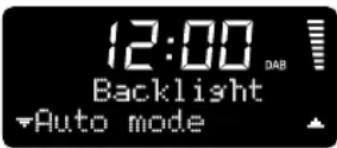
The backlight automatically adjusts to suit ambient light but you can also set it to 'time-out' and switch off. We recommend this setting is activated when R1 is used with its optional battery pack (BackPack) to give best battery life.
- In 'System' menu, use ▼▲ to select 'Backlight'. Press OK to confirm.
- Use ▼▲ to cycle through options. Press OK to confirm.
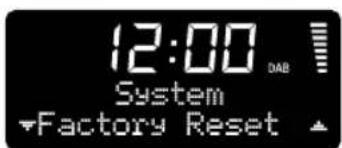
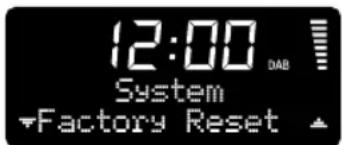
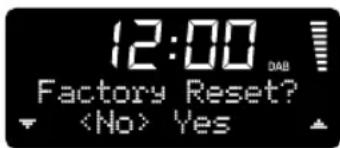
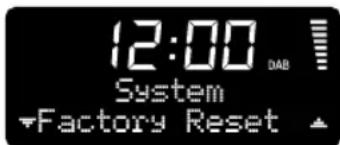
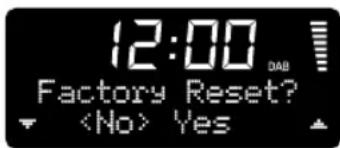
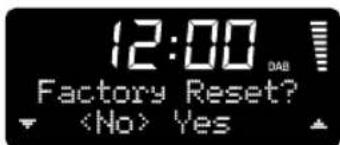
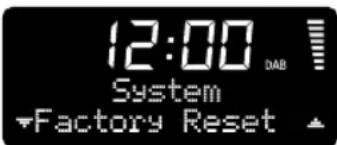
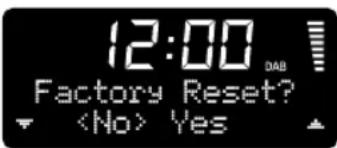
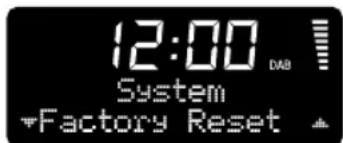
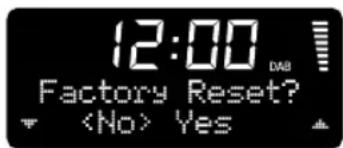
Factory reset
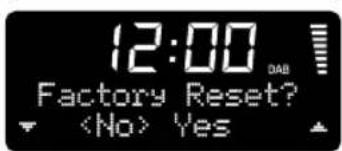
Reset to default factory settings.
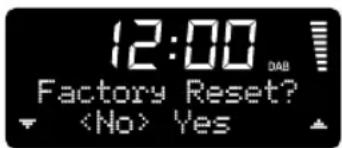
- In 'System' menu, use ▼▲ to select 'Factory reset'. Press OK to confirm.
- Use ▼▲ to select 'Yes' or 'No'. Press OK to confirm.
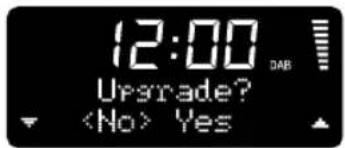
Software upgrade
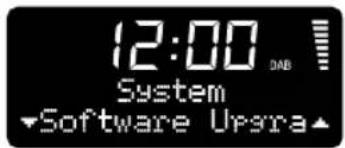
This facility is for factory and dealer use only. Its primary function is to allow customisation for applications such as Hotel use etc.
- In 'System' menu, use ▼▲ to select 'Software upgrade'. Press OK to confirm.
- Use ▼▲ to select 'Yes' or 'No'. Press OK to confirm.
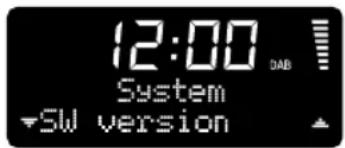
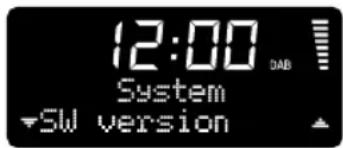
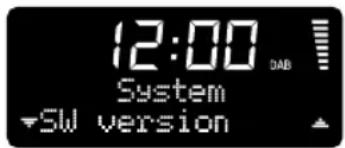
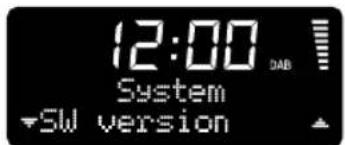
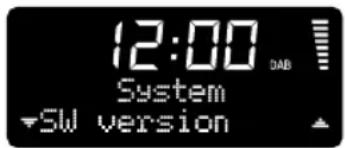
Software version
Use this function to view the Model Software version. In 'System' menu, use ▼▲ to select 'Software version'. Press OK to confirm.


Guarantee information
We guarantee this product to be free from defects for a period of two years from date of purchase, providing due care and attention has been paid. Product failure through accidental damage (however caused), excessive wear and tear, negligence or unauthorised modification will void your guarantee.
Should you experience a problem please contact us either by sending an email to info@ruark.co.uk or calling us directly on 01702 601410 where we will advise the course of action. If your product needs to be returned it should be packaged in its original packing along with proof of purchase. If it is not possible to return the product by hand, then it should be sent carriage prepaid by a reputable parcel carrier. If the original packing is not available, replacement packing can be purchased from us.
Guarantee for overseas sales
The distributor in the country of purchase guarantees products purchased outside the UK. For details, please contact your local Ruark distributor or outlet.
THIS GUARANTEE IN NO WAY VARIES OR REMOVES THE PURCHASER'S STATUTORY RIGHTS. E&OE
Cautions
- Listening through headphones or earphones at high volume can cause hearing loss.
- The unit should not be exposed to dripping or splashing and no objects containing liquids, such as vases, should be placed on the unit.
- Ensure that the power adapter, mains plug or mains connector into the unit is readily accessible in case disconnection from the mains is required.
- The normal function of this product may be affected by strong Electromagnetic Interference. If you experience problems, simply reset the product to resume normal operation. If, after resetting, the product still fails to operate correctly, try using it in a different location.
- Keep the unit away from naked flames such as lighted candles and heat sources such as radiators.
- The unit should be positioned at least 10cm away from adjacent objects to ensure adequate ventilation.
General care
- Clean with a soft, lint-free duster or slightly dampened cloth. Do not use wax sprays or other substances as these may damage the surface finish or impair performance.
- Do not expose your unit to direct sunlight, high humidity, dust, excessive vibration or extreme temperatures, all of which can affect the finish, performance and reliability of the unit.
- The recommended operating temperature range is 5^ to 40^ .
- Natural wood finish cabinets will vary and lighten or darken with age, particularly when exposed to sunlight.

ruarkaudio
20130329.1
59 Tailors Court - Temple Farm Industrial Estate - Southend on Sea - Essex - SS2 5TH - UK +44 (0) 1702 601 410 info@ruark.co.uk www.ruarkaudio.com
User guide
EN
natural_image
Simple line drawing of a bathtub with a numbered label (24) pointing to the interior area (no text or symbols beyond the number)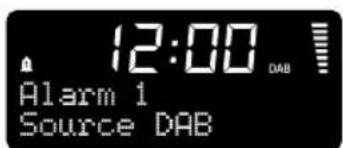
Réglages DAB avancés
Réglages FM avancés
Audio setting
(Réglages audio)
Sleep
(Arrêt programmé)
Informations concernant la garantie
User guide EN
Ändern der
Wiedergabequelle
natural_image
Simple line drawing of a bathtub with a numbered label (24) pointing to the interior area (no text or symbols beyond the number)Technische Daten
R1- Kompaktradio
Audioeinstellung
Systemeinstellungen
Sleep (Timer)
Software-
Aktualisierung
Garantie
User guide
"Mantenere premuto"
natural_image
Simple line drawing of a bathtub with a numbered label (24) pointing to the interior area (no text or symbols beyond the number)Specifiche techniche
Radio R1
DRC (Dynamic Range Control)
Manual Tune
Audio setting
Sleep
Software upgrade
User guide
natural_image
Simple line drawing of a bathtub with a numbered label (24) pointing to the interior area (no text or symbols beyond the number)Especificaciones
Radio de sobremesa R1
DRC
Ajuste de audio
Sleep (Reposo)
User guide EN
natural_image
Simple line drawing of a bathtub with a numbered label (24) pointing to the interior area (no text or symbols beyond the number)Spesifikasjoner
R1 bordradio
Avanserte DAB-innstillinger
DRC (Dynamisk breddekontroll)

Manuell innstilling
Endre frekvensen manuelt.
Avanserte FM-innstillinger
Audio-innstilling
Skift mellom stereo- eller monoinnstillinger.
Systeminnstillinger

Garantiinformasjon
User guide EN
- Antenne
natural_image
Simple line drawing of a bathtub with a numbered label (24) pointing to the interior area (no text or symbols beyond the number)Specifications
R1 Tafelradio
Handmatig afstemmen
Audio-instellingen
Systeeminstellingen
Sluimerstand
Software-upgrade