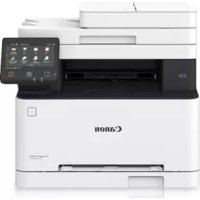
USER MANUAL iSensys MF635Cx CANON
Please read "Important Safety Instructions" before operating this product. After you finish reading this guide, store it in a safe place for future reference.
The information in this document is subject to change without notice.


You can access canon.com/oip-manual
to read the User's Guide that describes all functions of this machine.
Quick Setup
Getting Started
Please read "Important Safety Instructions" before operating this product.
P.78
After you finish reading this guide, store it in a safe place for future reference.
The information in this document is subject to change without notice.
Getting Started
canon.com/oip-manual to read the User's Guide that describes all functions of this machine.
Items Included with the Machine
Starter toner cartridges are included.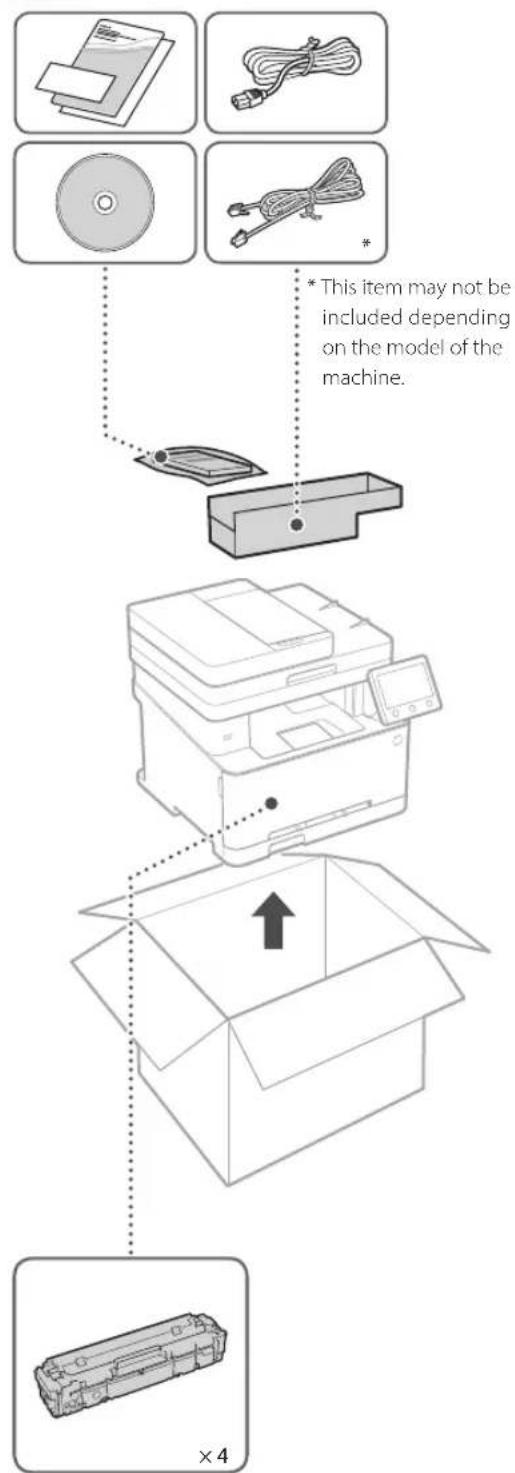
Installing the Machine Before starting the installation

- Do not remove the cap that covers the USB port.
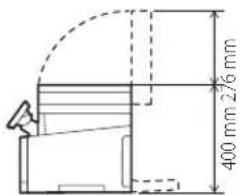
Installation Requirements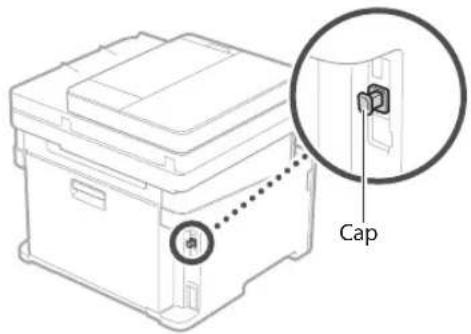
Provide a space of 100 mm or more around the machine.
MF635Cx/MF633Cdw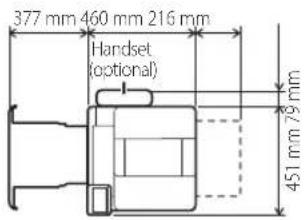
MF631Cn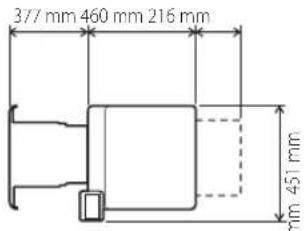
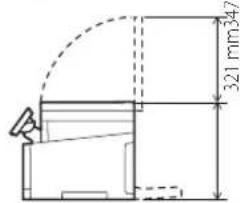
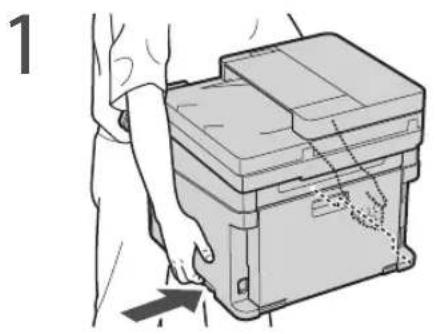
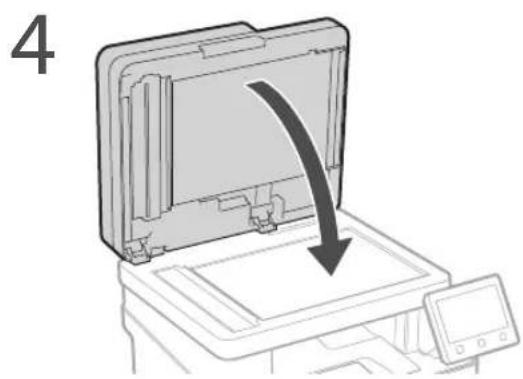
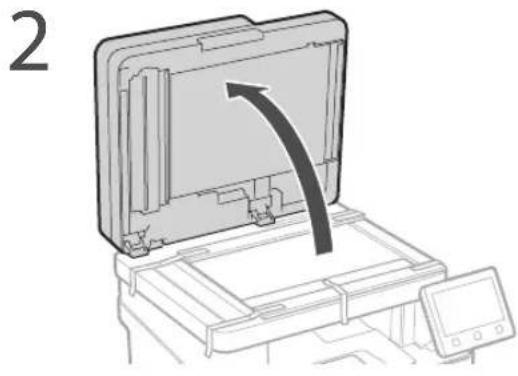
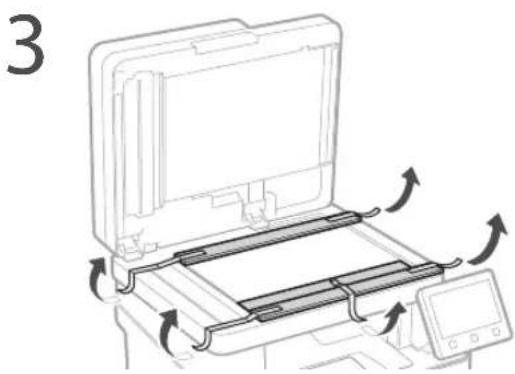
8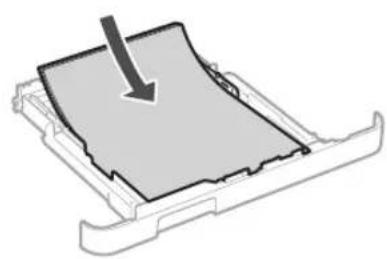
9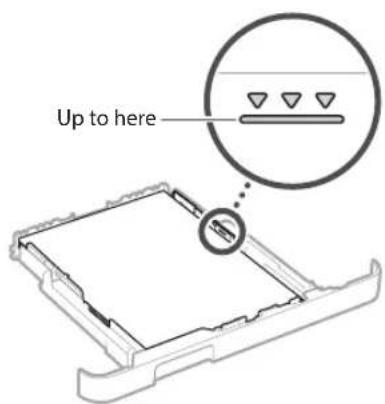
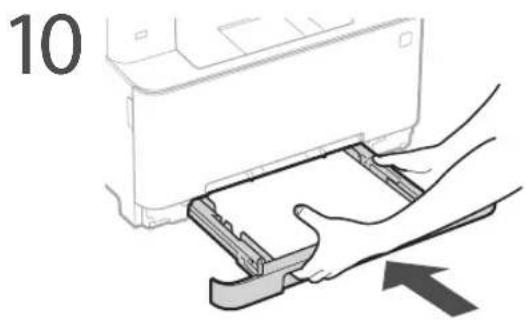
11 Attach the handset (optional).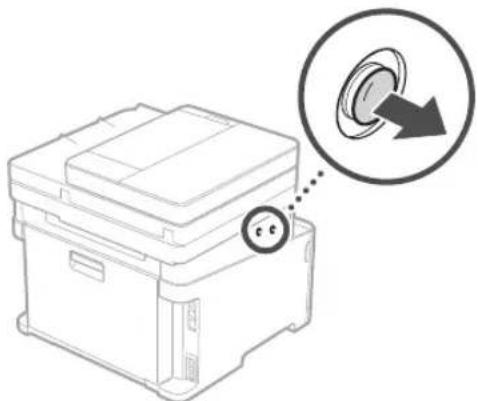
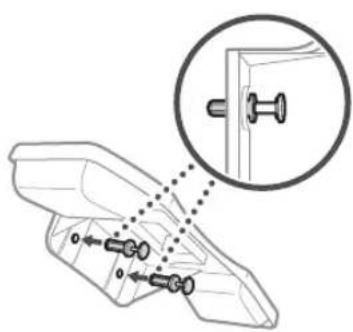
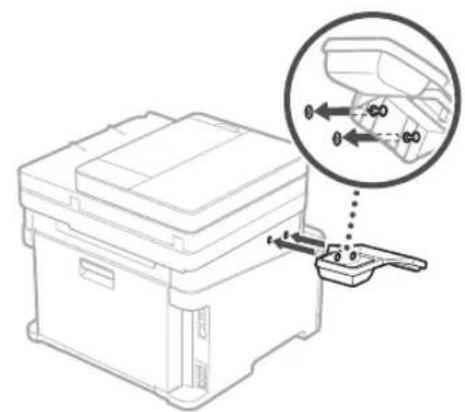
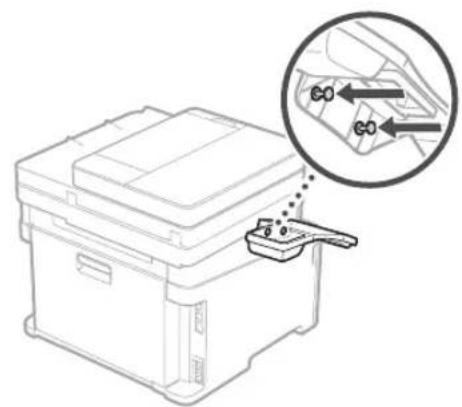
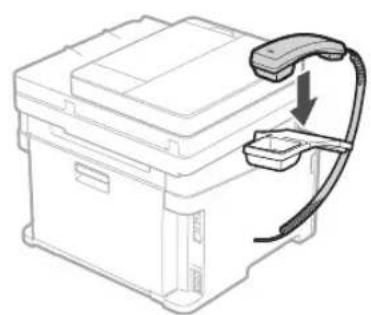
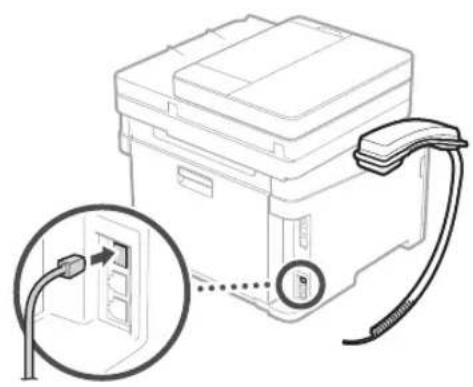
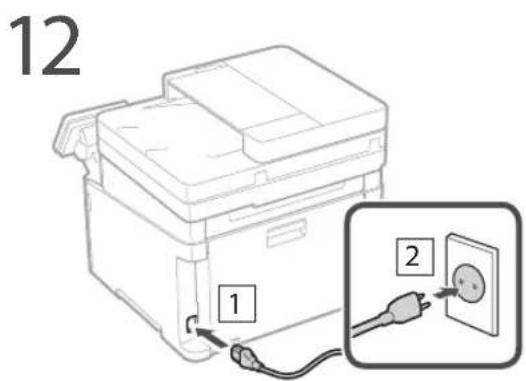
Next, proceed to configure the machine.
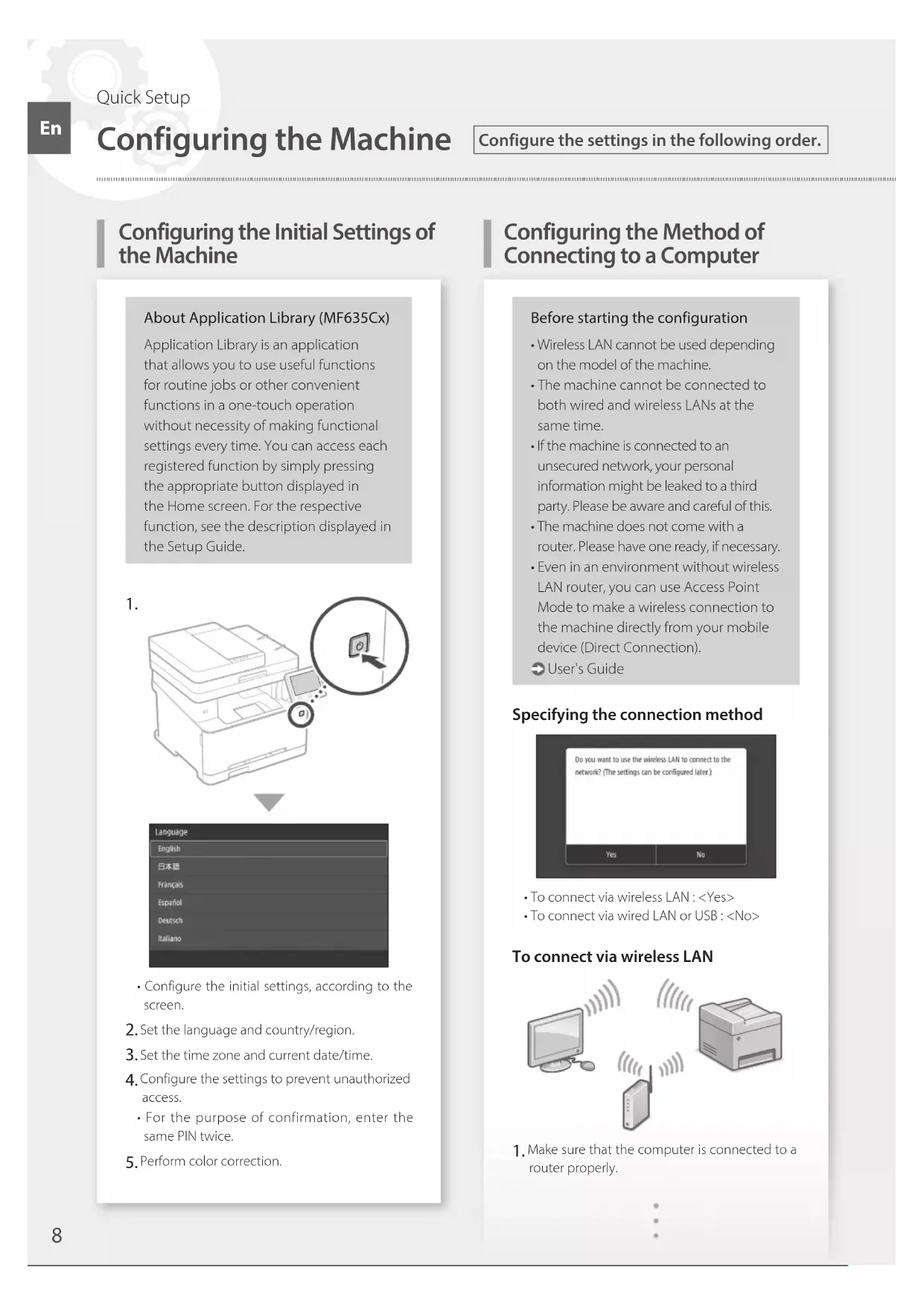
Configuring the Initial Settings of the Machine
About Application Library (MF635Cx)
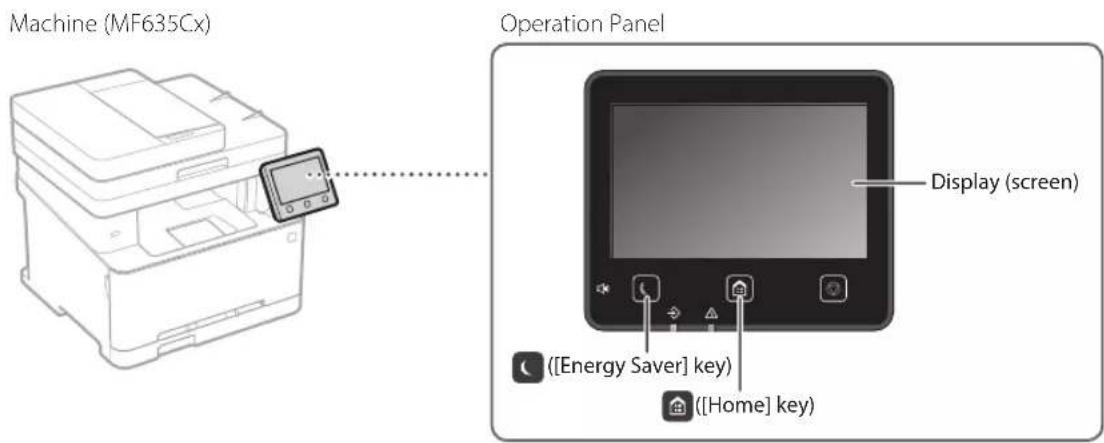
Application Library is an application that allows you to use useful functions for routine jobs or other convenient functions in a one-touch operation without necessity of making functional settings every time. You can access each registered function by simply pressing the appropriate button displayed in the Home screen. For the respective function, see the description displayed in the Setup Guide.
1.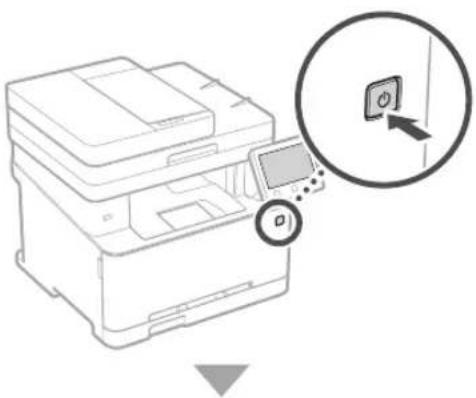
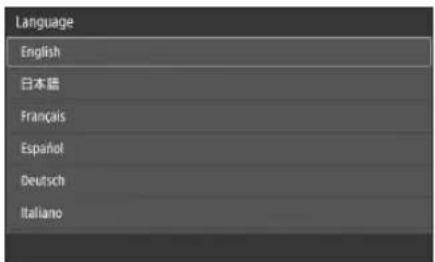
- Configure the initial settings, according to the screen.
- Set the language and country/region.
- Set the time zone and current date/time.
- Configure the settings to prevent unauthorized access.
- For the purpose of confirmation, enter the same PIN twice.
- Perform color correction.
Configuring the Method of Connecting to a Computer
Before starting the configuration
- Wireless LAN cannot be used depending on the model of the machine. The machine cannot be connected to both wired and wireless LANs at the same time. If the machine is connected to an unsecured network, your personal information might be leaked to a third party. Please be aware and careful of this. The machine does not come with a router. Please have one ready, if necessary.
- Even in an environment without wireless LAN router, you can use Access Point Mode to make a wireless connection to the machine directly from your mobile device (Direct Connection).
User's Guide
Specifying the connection method
To connect via wireless LAN: - To connect via wired LAN or USB:
To connect via wireless LAN
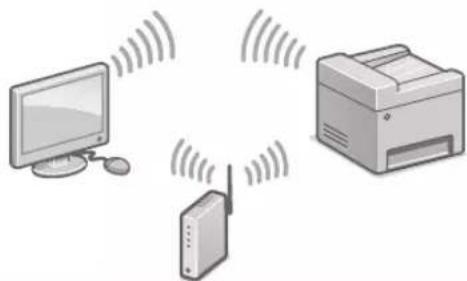
- Make sure that the computer is connected to a router properly.
- Check the network settings on the computer.
- Take note of the SSID and network key.
- Check the label on the router. • User's Guide
- The setting operation is easier if the router is provided with a WPS mark. © User's Guide
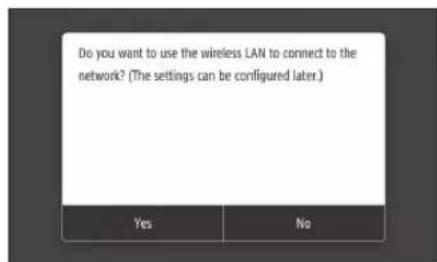
- Set the access point and network key according to the screen below.
- Press OK>
- Press .
- Press .
- Select the access point (SSID), and press .
- Enter a WEP key (network key), and press .
- Press .
The IP address will be automatically configured in a few minutes. "Connected," is displayed.
- Install the driver and software. "Installing the software" on P.10
Now you are finished with the configuration of the initial settings. If your machine is provided with the fax function, proceed to configuring the fax settings. P.11
To connect via wired LAN
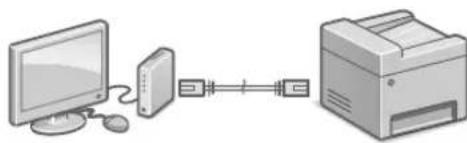
The machine does not come with a LAN cable. Please have one ready, if necessary.
- Make sure that the computer is connected to a router properly.
- Check the network settings on the computer.
- Connect the LAN cable.
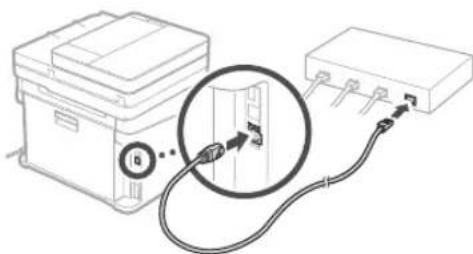
After connecting the cable, wait a few minutes (until the IP address is set automatically). If a static IP address has been set on the computer, set the machine's IP address manually.
4. Install the driver and software.
"Installing the software" on P.10
Now you are finished with the configuration of the initial settings.
If your machine is provided with the fax function, proceed to configuring the fax settings. P.11
To connect via USB
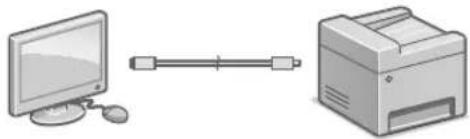
The machine does not come with a USB cable. Please have one ready, if necessary. Make sure that the USB cable you use has the following mark. - Do not connect the USB cable before installing the driver. If you did, disconnect the USB cable from the computer, close the dialog box, and then perform the following procedure from step 1.
- Install the driver and software.
"Installing the software" on P.10
- When the screen to connect the USB cable to the machine is displayed, remove the cap that covers the USB port.
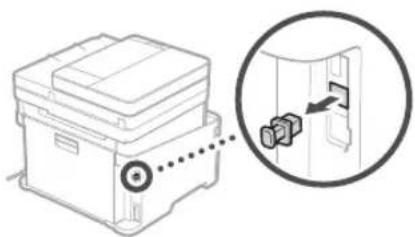
Now you are finished with the configuration of the initial settings.
If your machine is provided with the fax function, proceed to configuring the fax settings. P.11
Installing the software
The procedure described here is only applicable when your computer runs on the Windows OS. For more details on the software installation procedure, see the driver's manual. - For the installation when your computer runs on the Mac OS, see the driver's manual. - Your machine may not come with the driver for the Mac OS, depending on the time of purchase. New drivers are uploaded to the Canon website, and you can download and use the latest one.
1.
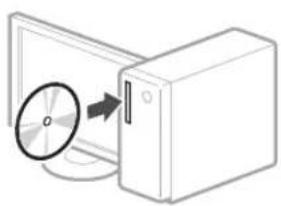
2.
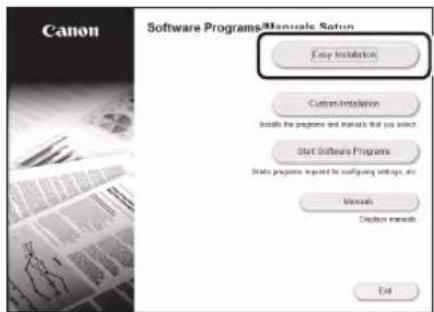
If the screen is not displayed properly, re-insert the DVD-ROM or search for "D:\MInst.exe" on the Windows platform (This description assumes that "D:" is the DVD-ROM drive name).
Using the scanner conveniently
Configuring the network settings with "Send Function Setting Tool" allows you to directly send scanned originals with e-mail or I-Fax or store them in a shared folder or on the FTP server.
In the screen displayed in step 2, select [Start Software Programs] [Send Function Setting Tool] to start the Send Function Setting Tool.
Configuring Fax Settings
Before starting the configuration:
If your machine does not come with a telephone cable, have one ready, as necessary.
Configure the fax settings, according to the screen below.
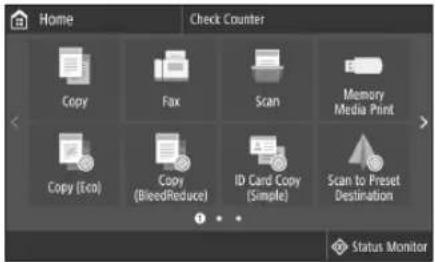
- Press <Fax> .
- Press .
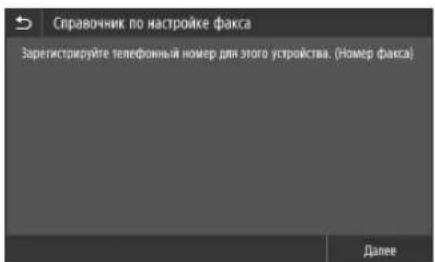
- Register the machine's telephone number (fax number) and abbreviated user name.
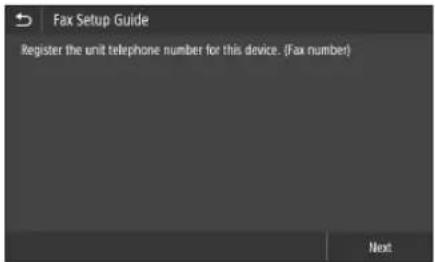
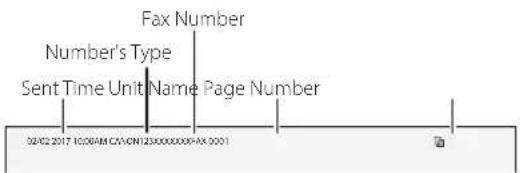
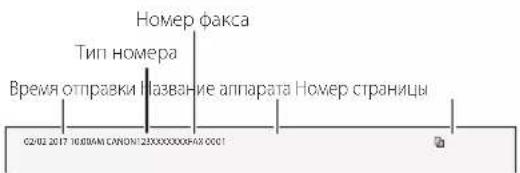
The information below will be printed at the top part of the paper output from the destination machine as sender information.
- Set the reception mode. Make the setting by answering the questions on your purposes of using the fax function.
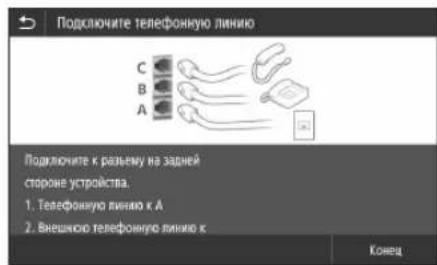
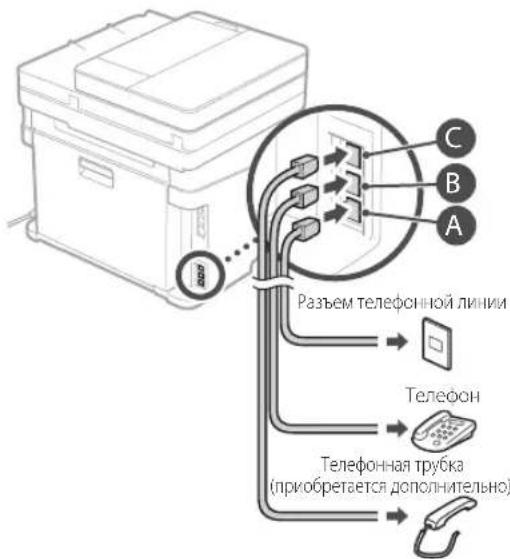
- Connect to a telephone line.
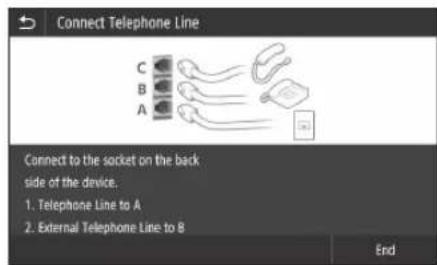
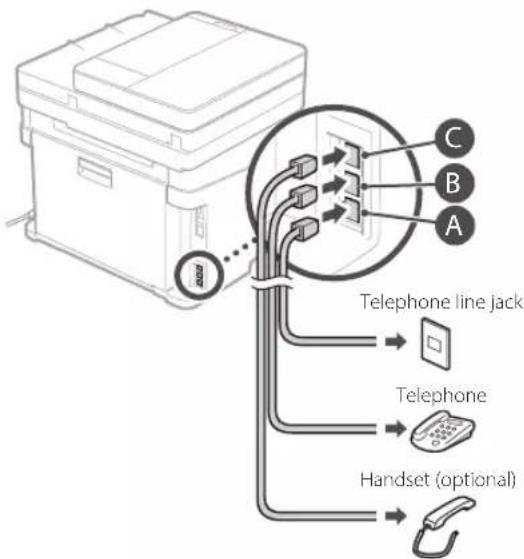
- Press .
- Press .
Now you are finished with the configuration.
CAUTION!
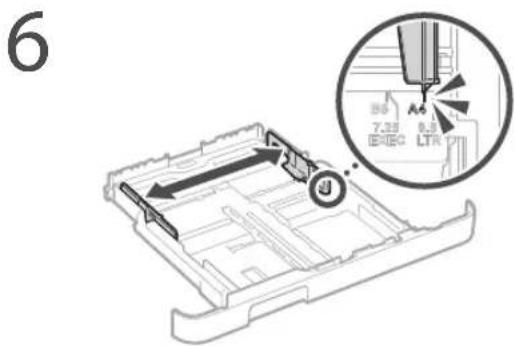
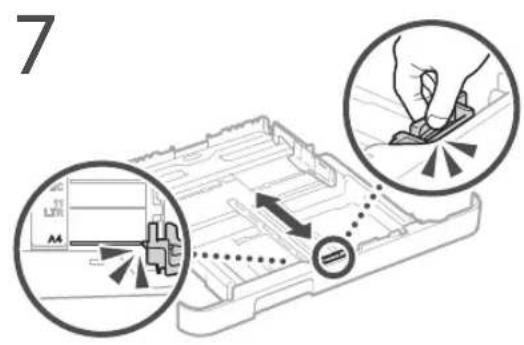
When you load paper of a size other than A4, change the paper settings. Steps 5 and 6 in "Loading in the Paper Printer" on P.76
Use the scanner adequately.
Prepare for the Application Library (Application Library) (MF635Cx)
The Application Library (Application Library) is an application that allows the use of useful functions for daily tasks or advanced functions for specific procedures without having to perform complicated operations each time. You can select a registered function or simply press the corresponding button that appears on the Home screen. You can view the description of each function in the manual.
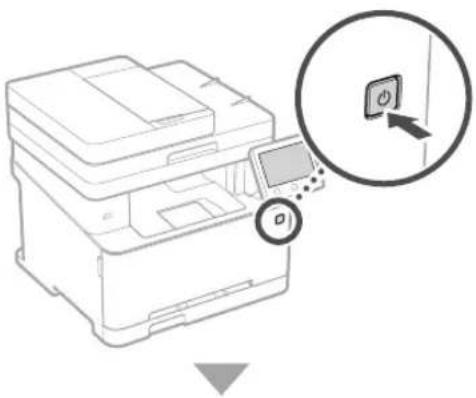
1.
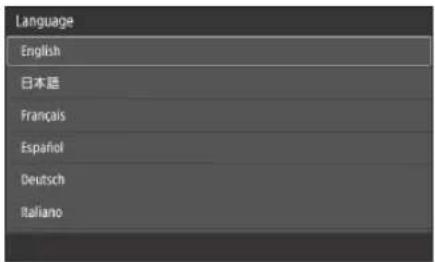
Configure the initial settings according to the instructions on the screen.
- Set the language and the time/date.
- Set the date and time and the current time zone.
- Configure the settings for the administrator or the user. For confirmation, enter the same PIN code twice.
- Execute color correction.
"Software installation" on p.46
Installation of software
- Connection via wireless LAN:
- Connection via wired LAN or USB:
Connection via wireless LAN
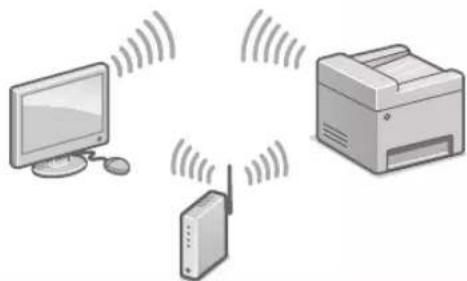
Connection is made via wired LAN
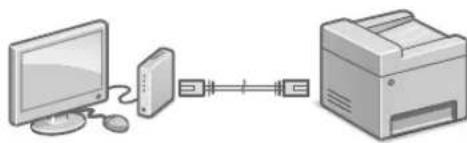
The possibility of using a wireless local network depends on the device model. Simultaneous connection of the device to wired and wireless networks is not possible. - If the device is connected to an unsecured network, personal information may fall into the hands of third parties. Remember this and be careful. The router is not included in the device package. If necessary, prepare it in advance. Even in an environment without a wireless network router, you can use the access point mode for wireless connection to the device directly from a mobile device (direct connection). User's Guide
Selecting a connection method
For connection via wireless local network: - For connection via wired local network or USB: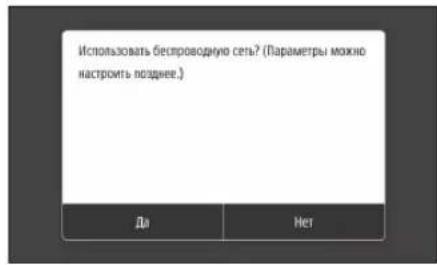
Wireless connection
1. Make sure the computer is correctly connected to the router.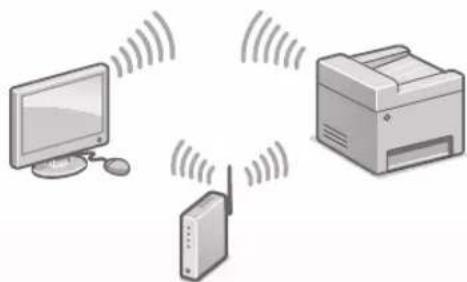
2. Turn on the computer's network. 3. Write down the SSID identifier and network key.
Check the label on the router.
User's Guide Setting up is simplified if the router has a WPS button. User's Guide
4. Enter the access point key in accordance with the screen shown below.
Press OK>
- Press
- Press
- Select the access point (SSID) and press . 5. Enter the WEP key (network key) and press .
The IP address is assigned automatically within a few minutes. The message "Connected." will be displayed.
5. Install the correct software.
"Software installation on page 66
Now the initial configuration is complete.
If the device has a fax function, proceed to the fax settings.
Page 67
Wired connection
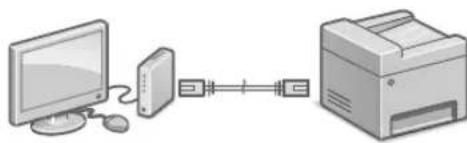
The LAN cable is not included with the device.
If necessary, prepare a cable.
1. Make sure the computer is properly connected to the router. 2. Check the network settings on the computer. 3. Connect the LAN cable.
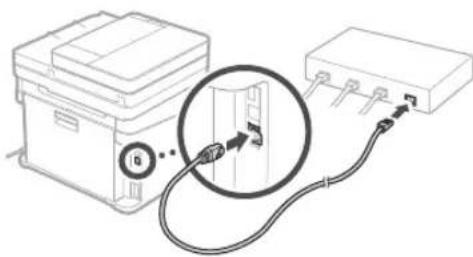
Connect the cable and wait a few minutes (until the IP address is assigned automatically). If the computer has a static IP address, set the device's IP address manually.
- Install the correct software.
"Software installation on page 66
Now the initial configuration is complete.
If the device has an optional function, proceed to the axis adjustment task.
Page 67
USB connection
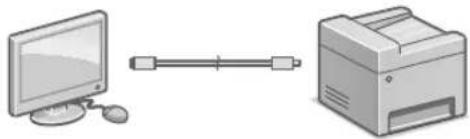
The USB cable is not included with the device. Prepare a cable if necessary.
- Make sure that the USB cable you use has the specified marking.

Do not connect the USB cable before installing the driver. If you have already done so, disconnect the USB cable from the computer, close the dialog box, and perform the procedure below starting from step 1.
1. Install the driver software.
See "Installing the Software" on page 66.
- If a screen prompting you to connect the USB cable to the device appears, remove the cap covering the USB port.
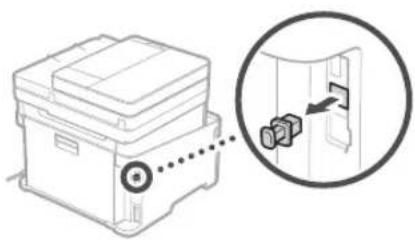
Now the initial settings task is complete.
If the device has an optional function, proceed to the axis adjustment task.
Page 67
Installing the Software
The procedure described here is applicable only to computers running Windows. For details on the installation procedure for the software, see the driver guide. For installation on Mac OS computers, see the driver guide. Depending on when the device was purchased, it may be supplied without a driver for Mac OS. New drivers are posted on the Canon website, so you can download and use the latest driver.
1.
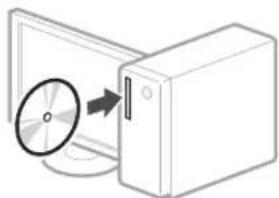
2.
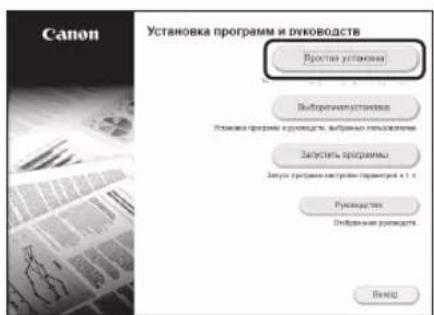
If the icon is not displayed correctly, reinstall the DVD-ROM drive and then run the search for the file "D:\MInst.exe" on the Windows platform (in this description, it is assumed that "D" is the drive letter of the DVD-ROM).
Convenient use of the scanner
Setting up the network using the "Send Function Setup Tool" allows you to send scanned originals directly to an e-mail address or save them in a shared folder on an FTP server. On the screen shown in Figure 2, select [Launch Program] [Send Function Setup Tool] to start the Send Function Setup Tool.
Setting up the fax
Default settings:
If the telephone cable is not included in the device package, prepare it if necessary.
Set the fax settings according to the screen shown below.
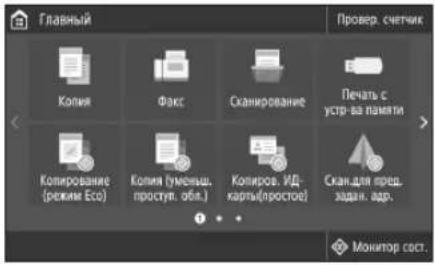
1. Press <Fax> 2. Press 3. Enter the telephone number (fax number) of the device and the abbreviated user name.
The data shown below will be printed at the top of the paper output on the receiving device as information about the sender.
4. Set the reception mode. The settings are applied to the questions about fax usage and functions.
- Connect to the telephone line
- Press
- Press
Brief operating instructions
Ru
Ubnka ekcnnyatacia
UK
Place the Original Properly
Remember before You Start Operation
Place your original on the platen glass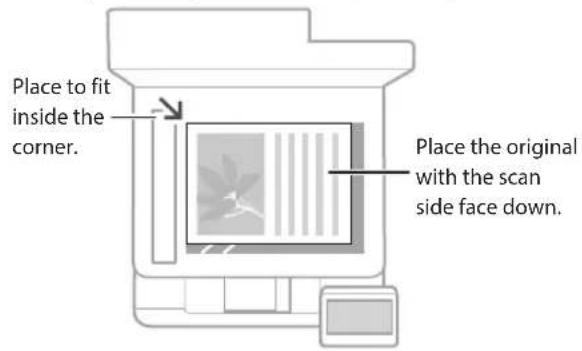


Suitable for scanning book pages, magazine pages and newspaper clips.
- This function may not be included depending on the model of the machine.
Place your originals into the feeder*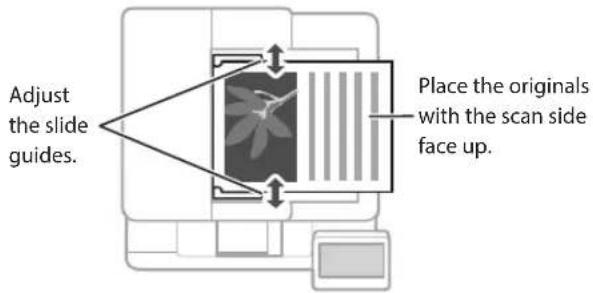
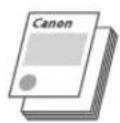
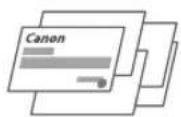
Suitable for continuously scanning many pages of literature, quotation, etc.
Start the Operation from the Operation Panel

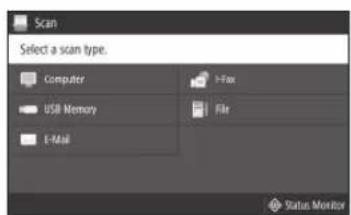
Scanning
- Place the original.
- Press, and select .
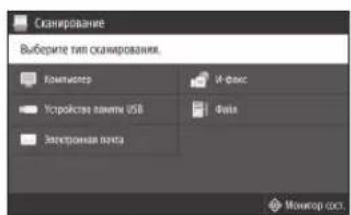
- Select the type of scan, and enter the necessary information.
- Select , or .
Types of scan
Store in USB memory device Send e-mail Send to file server
To scan from a computer
MF Scan Utility
For details
"Scanning" in the User's Guide

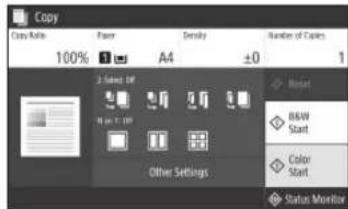
Copying
- Place the original.
- Press and then select <Copy> .
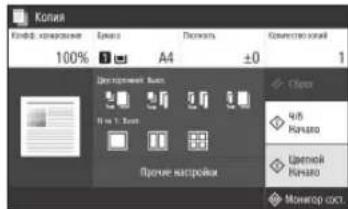
- Specify the copy settings, as necessary.
- Enter the desired number of copies.
- Select or .
Useful copy settings
■Non1 2-Sided or 1-Sided* Enlarging or reducing - Copying ID cards
- This function may not be available, depending on the model of the machine.

For details
"Copying" in the User's Guide

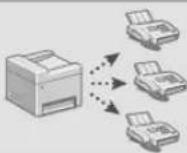
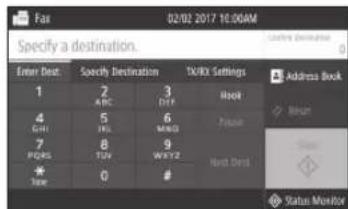
Faxing*
- This function may not be available, depending on the model of the machine.
- Place the original.
- Press and select .
- Enter the destination information.
- Specify the fax settings, as necessary.
- Select .
Useful fax functions
Sequential Broadcast Memory Reception PC Fax
For details
"Faxing" in the User's Guide

Printing
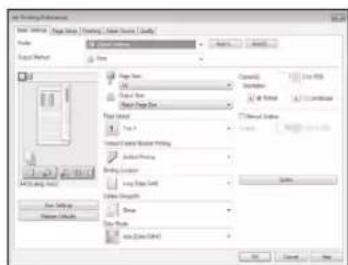
- Open the document to print, and select the print function of the application.
- Select the printer driver for the machine, and select [Preferences] or [Properties].
- Specify the paper size.
- Specify the paper source and paper type.
- Specify the print settings, as necessary.
- Select [OK].
- Select [Print] or [OK].
Useful print settings
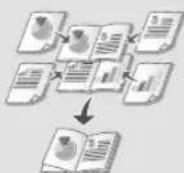
2-sided Non 1 ■ Booklet Printing
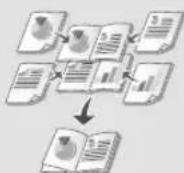
- This function may not be available, depending on the model of the machine.
For details
"Printing" in the User's Guide
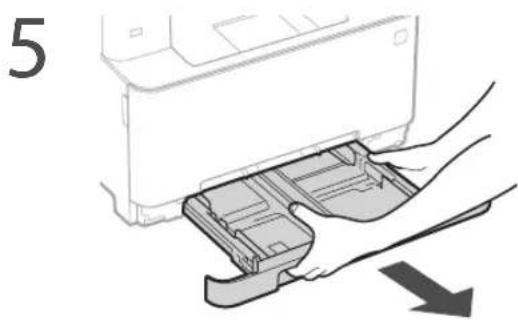
Pull out the paper drawer.
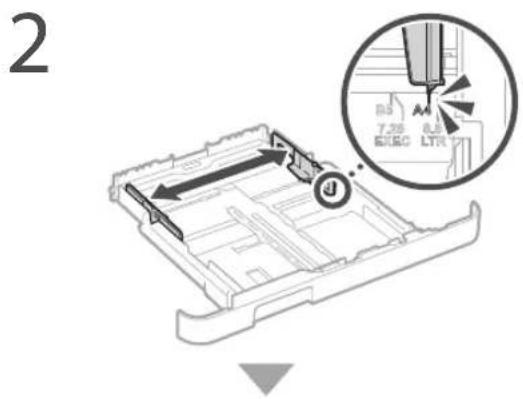
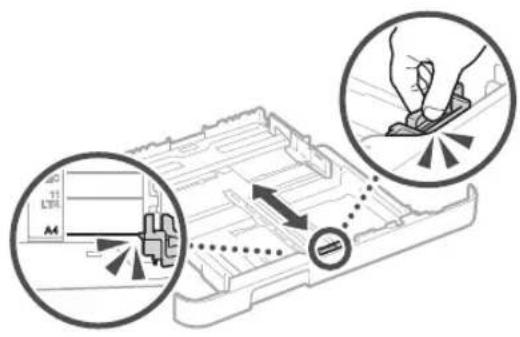
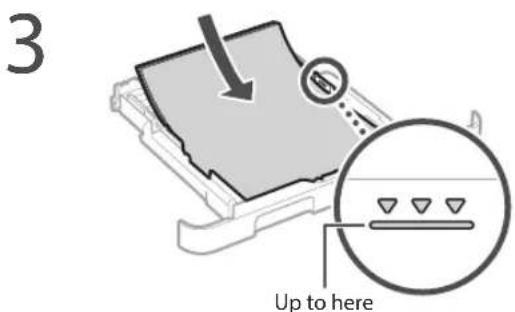
4 Insert the paper drawer into the machine.
If you load a different size or type of paper from the one before, make sure to change the settings.
Press and select . 6 Specify the size and type of paper, according to the screen.
Loading in the Manual Feed Slot
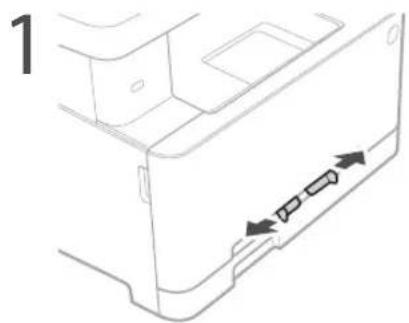
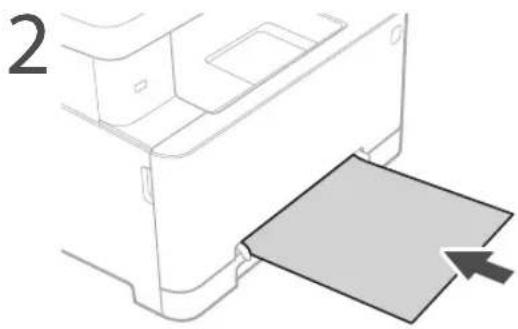
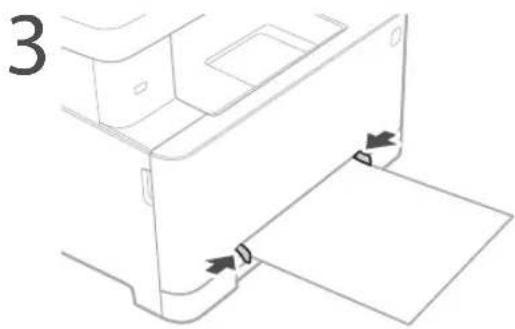
4 Specify the size and type of paper, according to the screen.
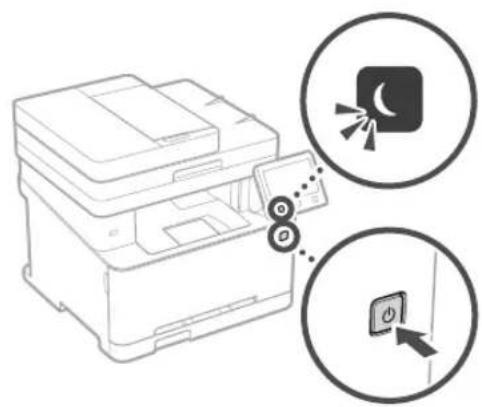
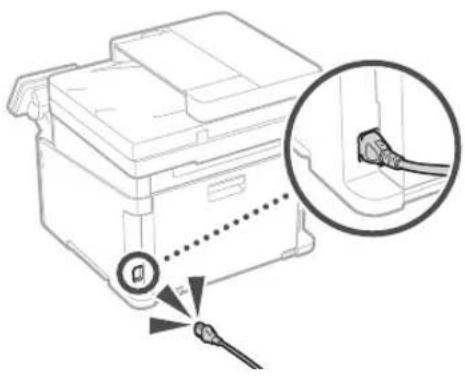
The Machine Does Not Seem to Work
Check the following.
Is the power turned ON? Is the machine out of sleep mode?
If both the display and are not lit, press the power switch.
- Is the power cord connected correctly?
If the problem persists, see the User's Guide.
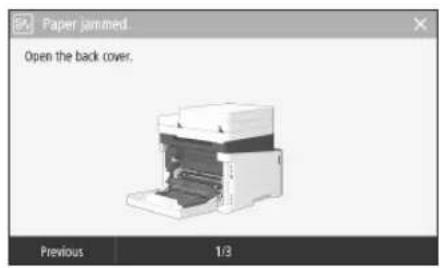
Paper Jams Have Occurred
When paper is jammed, a screen, as shown below appears.
Clear the paper jams, according to the on-screen instructions.
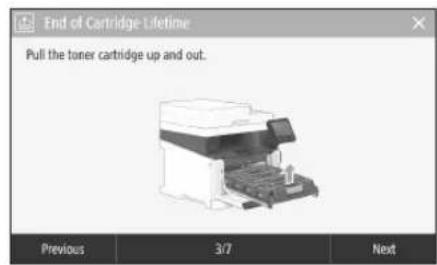
Replacing the Toner Cartridge
Replace the toner cartridge, according to the onscreen instructions.
Model number of replacement toner cartridge
- Canon Cartridge 045 Black
- Canon Cartridge 045 Cyan
- Canon Cartridge 045 Magenta
- Canon Cartridge 045 Yellow
- Canon Cartridge 045 H Black
- Canon Cartridge 045 H Cyan
- Canon Cartridge 045 H Magenta
- Canon Cartridge 045 H Yellow
Appendix
Important Safety Instructions
This chapter describes important safety instructions for the prevention of injury to users of this machine and others, and damage to property. Read this chapter before using the machine, and follow the instructions to use the machine properly. Do not perform any operations not described in this manual. Canon will not be responsible for any damages resulting from operations not described in this manual, improper use, or repair or changes not performed by Canon or a third party authorized by Canon. Improper operation or use of this machine could result in personal injury and/or damage requiring extensive repair that may not be covered under your Limited Warranty.
WARNING
Indicates a warning concerning operations that may lead to death or injury to persons if not performed correctly. To use the machine safely, always pay attention to these warnings.
CAUTION
Indicates a caution concerning operations that may lead to injury to persons if not performed correctly. To use the machine safely, always pay attention to these cautions.
IMPORTANT
Indicates operational requirements and restrictions. Be sure to read these items carefully to operate the machine correctly and avoid damage to the machine or property.
Installation
To use this machine safely and in a trouble-free way, carefully read the following precautions and install the machine in an appropriate location.
WARNING
Do not install in a location that may result in a fire or electrical shock
- A location where the ventilation slots are blocked (too close to walls, beds, sofas, rugs, or similar objects) A damp or dusty location
- A location exposed to direct sunlight or outdoors A location subject to high temperatures A location exposed to open flames Near alcohol, paint thinners or other flammable substances
Other warnings
- Do not connect unapproved cables to this machine. Doing so may result in a fire or electrical shock.
- Do not place necklaces and other metal objects or containers filled with liquid on the machine. If foreign substances come in contact with electrical parts inside the machine, it may result in a fire or electrical shock.
- When installing and removing the optional accessories, be sure to turn OFF the power, unplug the power plug, and then disconnect all the interface cables and power cord from the machine. Otherwise, the power cord or interface cables may be damaged, resulting in a fire or electrical shock. If any foreign substance falls into this machine, unplug the power plug from the AC power outlet and contact your local authorized Canon dealer.
Do not install in the following locations
The machine may drop or fall, resulting in injury.
An unstable location A location exposed to vibrations
CAUTION
Do not install in the following locations. Doing so may result in damage to the machine.
- A location subject to temperature and humidity extremes, whether low or high
- A location subject to dramatic changes in temperature or humidity
- A location near equipment that generates magnetic or electromagnetic waves A laboratory or location where chemical reactions occur A location exposed to corrosive or toxic gases
- A location that may warp from the weight of the machine or where the machine is liable to sink (a carpet, etc.)
Avoid poorly ventilated locations
This machine generates a slight amount of ozone and other emissions during normal use. These emissions are not harmful to health. However, they may be noticeable during extended use or long production runs in poorly ventilated rooms. To maintain a comfortable working environment, it is recommended that the room where the machine operates be appropriately ventilated. Also avoid locations where people would be exposed to emissions from the machine.
Do not install in a location where condensation occurs
Water droplets (condensation) may form inside the machine when the room where the machine is installed is heated rapidly, and when the machine is moved from a cool or dry location to a hot or humid location. Using the machine under these conditions may result in paper jams, poor print quality, or damage to the machine. Let the machine adjust to the ambient temperature and humidity for at least 2 hours before use.
In altitudes of above sea level 3,000 m or higher
Machines with a hard disk may not operate properly when used at high altitudes of about 3,000 meters above sea level, or higher.
Leveling feet (only for products with leveling feet)
Do not remove the machine's leveling feet after the machine has been installed, as this may cause the machine to fall or tip over, resulting in personal injury.
Connecting the Telephone Line (Only for Products with a Fax Function)
This machine conforms to an analog telephone line standard. The machine can be connected to the public switched telephone network (PSTN) only. If you connect the machine to a digital telephone line or a dedicated telephone line, it might impede proper operation of the machine and could be the cause of damage. Make sure to confirm the type of telephone line before connecting the machine. Contact your optical fiber line or IP telephone line service providers if you want to connect the machine to those telephone lines.
When using wireless LAN (only for products with a wireless LAN function)
Install the machine at a distance of 50 meters or less from the wireless LAN router.
As far as possible, install in a location where communication is not blocked by intervening objects. The signal may be degraded when passing through walls or floors.
- Keep the machine as far as possible from digital cordless phones, microwave ovens, or other equipment that emits radio waves.
- Do not use near medical equipment. Radio waves emitted from this machine may interfere with medical equipment, which may result in malfunctions and accidents.
Power Supply
WARNING
- Use only a power supply that meets the specified voltage requirements. Failure to do so may result in a fire or electrical shock.
- Do not use power cords other than the one provided, as this may result in a fire or electrical shock. The provided power cord is intended for use with this machine. Do not connect the power cord to other devices.
- Do not modify, pull, forcibly bend, or perform any other act that may damage the power cord. Do not place heavy objects on the power cord. Damaging the power cord may result in a fire or electrical shock.
- Do not plug in or unplug the power plug with wet hands, as this may result in an electrical shock.
- Do not use extension cords or multi-plug power strips with the machine. Doing so may result in a fire or electrical shock.
- Do not wrap the power cord or tie it in a knot, as this may result in a fire or electrical shock.
- Insert the power plug completely into the AC power outlet. Failure to do so may result in a fire or electrical shock.
- Remove the power plug completely from the AC power outlet during a thunderstorm. Failure to do so may result in a fire, electrical shock, or damage to the machine. Make sure that the power supply for the machine is safe, and has a steady voltage.
- Keep the power cord away from a heat source; failure to do this may cause the power cord coating to melt, resulting in a fire or electrical shock.
- If excessive stress is applied to the connection part of the power cord, it may damage the power cord or the wires inside the machine may disconnect. This could result in a fire. Avoid the following situations:
- Connecting and disconnecting the power cord frequently.
- Tripping over the power cord. The power cord is bent near the connection part, and continuous stress is being applied to the power outlet or the connection part. Applying excessive force on the power plug.
CAUTION
Install this machine near the power outlet and leave sufficient space around the power plug so that it can be unplugged easily in an emergency.
IMPORTANT
When connecting power
- Do not connect the power cord to an uninterrupted power source. Doing so may result in malfunction of or damage to the machine at power failure.
- If you plug this machine into an AC power outlet with multiple sockets, do not use the remaining sockets to connect other devices.
- Do not connect the power cord to the auxiliary AC power outlet on a computer.
Other precautions
Electrical noise may cause this machine to malfunction or lose data.
Handling
WARNING
- Immediately unplug the power plug from the AC power outlet and contact an authorized Canon dealer if the machine makes an unusual noise, emits an unusual smell, or emits smoke or excessive heat. Continued use may result in a fire or electrical shock.
- Do not disassemble or modify this machine. There are high-voltage and high-temperature components inside the machine. Disassembly or modification may result in a fire or electrical shock.
- Place the machine where children will not come in contact with the power cord and other cables or gears and electrical parts inside the machine. Failure to do so may result in unexpected accidents.
- Do not use flammable sprays near this machine. If flammable substances come into contact with electrical parts inside this machine, it may result in a fire or electrical shock.
- When moving this machine, be sure to turn OFF the power of this machine, and then unplug the power plug and interface cables. Failure to do so may damage the power cord or interface cables, resulting in a fire or electrical shock.
- When plugging or unplugging a USB cable when the power plug is plugged into an AC power outlet, do not touch the metal part of the connector, as this may result in an electrical shock.
- Use a modular cable that is shorter than 3 meters.
- Use a USB cable that is shorter than 3 meters.
If the operating noise concerns you
Depending on the use environment and operating mode, if the operating noise is of concern, it is recommended that the machine be installed in a place other than the office.
If you are using a cardiac pacemaker
This machine generates a low level magnetic flux. If you use a cardiac pacemaker and feel abnormalities, please move away from this machine and consult your physician immediately.
CAUTION
- Do not place heavy objects on this machine as they may fall, resulting in injury.
- For safety, unplug the power plug if the machine will not be used for a long period of time. Use caution when opening and closing covers to avoid injury to your hands.
- Keep hands and clothing away from the rollers in the output area. If the rollers catch your hands or clothing, this may result in personal injury.
- The inside of the machine and the output slot are very hot during and immediately after use. Avoid contact with these areas to prevent burns. Also, printed paper may be hot immediately after being output, so use caution when handling it. Failure to do so may result in burns.
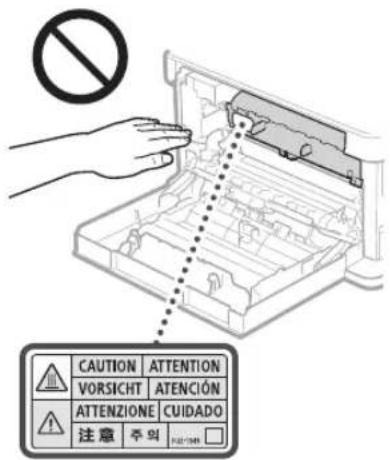
- Be careful not to drop a heavy object, such as a dictionary, on the platen glass. Doing so may damage the platen glass and result in injury.
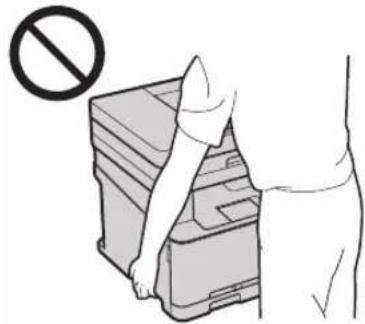
- Do not carry the machine with the paper drawers installed. Otherwise, the paper drawer may fall and result in injury.
Feeder (only for products with a feeder)
- Do not press down hard on the feeder when using the platen glass to make copies of thick books. Doing so may damage the platen glass and result in personal injury.
- Close the feeder gently to avoid catching your hands, as this may result in personal injury.
- Close the feeder gently to avoid catching your hands in the back of the feeder, as this may result in personal injury.
Finisher (only for products with a finisher)
- Do not place your hands in the part of the tray where stapling is performed (near the rollers), especially pay careful attention to the sharp staples, as this may result in personal injury.
Paper drawer (only for products with a paper drawer)
- Do not insert your hand into the machine while the paper drawer is removed, as this may result in personal injury.
Energy Saver key (only for products with an Energy Saver key)
- Press (Energy Saver) for safety when the machine will not be used for a long period of time, such as overnight. Also, turn OFF the main power switch, and disconnect the power cord for safety when the machine will not be used for an extended period of time, such as during consecutive holidays.
Laser Safety
This product is confirmed as a Class 1 laser product in IEC60825-1:2014 and EN60825-1:2014.
CLASS 1 LASER PRODUCT
LASER KLASSE 1
APPAREL A LASER DE CLASSE 1
APPARECCHIO LASER DI CLASSE T
PRODUCTO LASER DE CLASE 1
APARELHO A LASER DE CLASSE 1
CLASS 1 LASER PRODUCT
LASER PRODUCT CLASS 1
The laser beam can be harmful to human bodies. Since radiation emitted inside the product is completely confined within protective housings and external covers, the laser beam cannot escape from the machine during any phase of user operation. Read the following remarks and instructions for safety.
- Never open covers other than those instructed in the manuals for this machine. If the laser beam should escape and enter your eyes, exposure may cause damage to your eyes.
CAUTION
Use of controls, adjustments, or performance of procedures other than those specified in this manual may result in hazardous radiation exposure.
Other precautions
- Follow the instructions on the caution label attached to this machine.
- Do not subject the machine to strong shocks or vibration.
- Do not forcibly open and close doors, covers, and other parts. Doing so may result in damage to the machine.
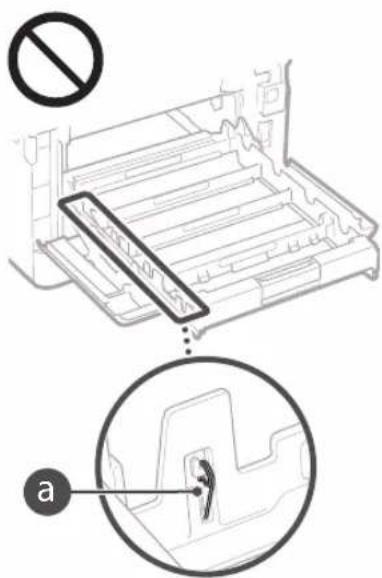
- Do not touch the toner cartridge contacts (a). Doing so may result in damage to the machine.
- Do not turn the main power switch OFF or open the covers while the machine is in operation. This may result in paper jams.
When transporting the machine
To prevent damage to the machine during transport, perform the following.
- Remove the toner cartridges.
- Securely pack the machine in the original box with packing materials.
Appendix
Maintenance and Inspections
Clean this machine periodically. If dust accumulates, the machine may not operate properly. When cleaning, be sure to observe the following. If a problem occurs during operation, see Troubleshooting. If the problem cannot be resolved or you feel the machine requires an inspection, see When a Problem Cannot Be Solved.
WARNING
- Before cleaning, turn OFF the power and unplug the power plug from the AC power outlet. Failure to do so may result in a fire or electrical shock.
- Unplug the power plug periodically and clean with a dry cloth to remove dust and grime. Accumulated dust may absorb humidity in the air and may result in a fire if it comes into contact with electricity.
- Use a damp, well wrung-out cloth to clean the machine. Dampen cleaning cloths with water only. Do not use alcohol, benzenes, paint thinners, or other flammable substances. Do not use tissue paper or paper towels. If these substances come into contact with electrical parts inside the machine, they may generate static electricity or result in a fire or electrical shock.
- Check the power cord and plug periodically for rust, bent prongs, fraying, cracks, or excessive heat generation. Use of poorly-maintained power cord or plug may result in a fire or electrical shock.
CAUTION
The inside of the machine has high temperature and high-voltage components. Touching these components may result in injury or burns. Do not touch any part of the machine that is not indicated in the manual. - When loading paper or removing jammed paper, be careful not to cut your hands with the edges of the paper.
Legal Limitations on the Usage of Your Product and the Use of Images
Using your product to scan, print or otherwise reproduce certain documents, and the use of such images as scanned, printed or otherwise reproduced by your product, may be prohibited by law and may result in criminal and/or civil liability. A non-exhaustive list of these documents is set forth below. This list is intended to be a guide only. If you are uncertain about the legality of using your product to scan, print or otherwise reproduce any particular document, and/or of the use of the images scanned, printed or otherwise reproduced, you should consult in advance with your legal advisor for guidance.
Paper Money Travelers Checks Money Orders Food Stamps Certificates of Deposit Passports Postage Stamps (canceled or uncanceled) Immigration Papers Identifying Badges or Insignias - Internal Revenue Stamps (canceled or uncanceled) - Selective Service or Draft Papers Bonds or Other Certificates of Indebtedness - Checks or Drafts Issued by Governmental Agencies Stock Certificates - Motor Vehicle Licenses and Certificates of Title Copyrighted Works/Works of Art without Permission of Copyright Owner
Power switch: "ON" position. Power switch: "OFF" position. Power switch: "STAND-BY" position. ① Push-push switch "ON"/"OFF". Protective earthing terminal. Dangerous voltage inside. Do not open covers other than instructed. CAUTION: Hot surface. Do not touch. Class equipment. Moving parts: Keep body parts away from moving parts.
[NOTE]
Some of the symbols shown above may not be affixed depending on the product.
v1602_00_en-GB
Laser Safety Label
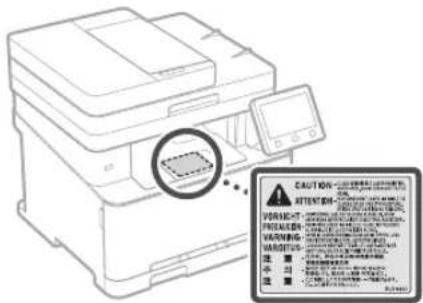
Consumables
WARNING
- Do not dispose of used toner cartridges in open flames. This may cause ignition and result in burns or fire.
- If you accidentally spill or scatter toner, carefully wipe up the loose toner with a damp, soft cloth and avoid inhaling any toner dust. Never use a vacuum cleaner to clean up loose toner. Doing so may cause a malfunction in the vacuum cleaner or result in a dust explosion due to static discharge.
CAUTION
- Keep the toner cartridges and other consumables out of the reach of small children. If toner is ingested, consult a physician or poison control center immediately.
- Do not attempt to disassemble the toner cartridge. The toner may scatter and get into your eyes or mouth. If toner gets into your eyes or mouth, wash them immediately with cold water and consult a physician. If toner spills from the toner cartridge, avoid inhaling it or allowing it to come into contact with your skin. If the toner comes into contact with your skin, wash immediately with soap. If you inhale the toner or your skin becomes irritated due to contact with the toner, consult a physician or poison control center immediately.
IMPORTANT
Handling the toner cartridge
- Be sure to hold the toner cartridge using the handle.
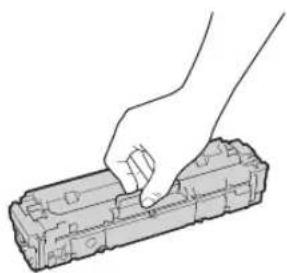
- Do not scratch the drum surface (a) or expose it to light. Do not touch the electrical contacts (b) or the toner cartridge memory (c).
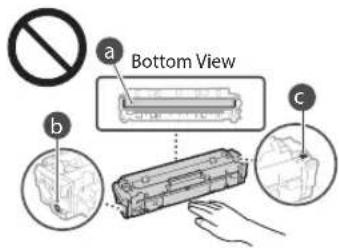
- Do not remove the toner cartridge from this machine or from the protective bag unnecessarily.
- The toner cartridge is a magnetic product. Do not move it close to products susceptible to magnetism including floppy disks and disk drives. Doing so may result in data corruption.
Storing the toner cartridge
- Store in the following environment to ensure safe and satisfactory use. Storage temperature range: 0 to 35°C. Storage humidity range: 35 to 85% RH (relative humidity, no condensation).*
- Store without opening until the toner cartridge is to be used.
- When removing the toner cartridge from this machine for storage, attach the protective cover for the drum, and then place the removed toner cartridge into the original protective bag or wrap it with a thick cloth.
- When storing the toner cartridge, do not store it upright or upside down. The toner will solidify and may not return to its original condition even if it is shaken.
- Even within the storable humidity range, water droplets (condensation) may develop inside the toner cartridge if there is a difference of temperature inside and outside the toner cartridge. Condensation will adversely affect the print quality of toner cartridges.
Do not store the toner cartridge in the following locations
- Locations exposed to open flames
- Locations exposed to direct sunlight or bright light for five minutes or more
- Locations exposed to excessive salty air
- Locations where there are corrosive gases (i.e. aerosol sprays and ammonia)
- Locations subject to high temperature and high humidity
- Locations subject to dramatic changes in temperature and humidity where condensation may easily occur
- Locations with a large amount of dust
- Locations within the reach of children
Be careful of counterfeit toner cartridges
- Please be aware that there are counterfeit Canon toner cartridges in the marketplace. Use of counterfeit toner cartridge may result in poor print quality or machine performance. Canon is not responsible for any malfunction, accident or damage caused by the use of counterfeit toner cartridge. For more information, see http://canon.com/counterfeit.
Availability period of repairing parts and toner cartridges
The repairing parts and toner cartridges for the machine will be available for at least seven (7) years after production of this machine model has been discontinued.
Toner cartridge packing materials
- Save the protective bag for the toner cartridge and protective cover for the drum. They are required when transporting this machine.
- The packing materials may be changed in form or placement, or may be added or removed without notice.
- Dispose of the removed sealing tape according to local regulations.
When disposing of a used toner cartridge
- Attach the protective cover for the drum, place the toner container into its protective bag to prevent the toner from scattering, and then dispose of the toner cartridge according to local regulations.
Notice
Product Name
Safety regulations require the product's name to be registered.
In some regions where this product is sold, the following name(s) in parentheses () may be registered instead.
MF635Cx (F170102)
MF633Cdw/MF631Cn (F170100)
EMC requirements of EC Directive
This equipment conforms with the essential EMC requirements of EC Directive. We declare that this product conforms with the EMC requirements of EC Directive at nominal mains input 230 V 50 Hz although the rated input of the product is 220 to 240 V 50/60 Hz. Use of shielded cable is necessary to comply with the technical EMC requirements of EC Directive.
WEEE and Battery Directives
You can see the WEEE and Battery Directives information in the latest User's Guide (HTML manual) from the Canon website (http://canon.com/oip-manual).
Regulatory information for users in Jordan MF635Cx / MF633Cdw includes approved Wireless LAN Module (Model name: AW-NM383). Contains Wireless LAN Module approved by TRC/SS/2014/38
Regulatory information for users in UAE MF635Cx/MF633Cdw includes approved Wireless LAN Module (Model name: AW-NM383).
TRA
REGISTERED No: ER0126617/14
DEALER No: DA0060877/11
Regulatory information for users in Russia: Confirmation of compliance with the Ministry of Communications of Russia: Declaration of Conformity No. D-MPD-4784 dated 02.05.2017, valid until 02.05.2023, registered with the Federal Communications Agency on 17.05.2017.
RE Directive
(For Europe Only)
English (EN) Hereby, Canon Inc. declares that this equipment is in compliance with Directive 2014/53/EU. The full text of the EU declaration of conformity is available at the following internet address: http://www.canon-europe.com/ce-documentation Wireless LAN Specifications Frequency band(s): 2412-2472 MHz Maximum radio-frequency power: 15.98 dBm
Czech (CS) Timto společnost Canon Inc. prohlašuje, že toto zařízení je v souladu se směrnicí 2014/53/EU. Úplné znění EU prohlášení o shodě je k dispozici na této internetové adrese: http://www.canon-europe.com/ce-documentation Technické údaje bezdrátové LAN Pásmo(a) frekvence: 2412-2472 MHz Maximální výkon rádiové frekvence: 15.98 dBm
The information in this document is subject to change without notice.
CANON INC. MAKES NO WARRANTY OF ANY KIND WITH REGARD TO THIS MATERIAL, EITHER EXPRESS OR IMPLIED, EXCEPT AS PROVIDED HEREIN, INCLUDING WITHOUT LIMITATION, THEREOF, WARRANTY AS TO MARKETABILITY, MERCHANTABILITY, FITNESS FOR A
PARTICULAR PURPOSE OF USE, OR NONINFRINGEMENT. CANON INC. SHALL NOT BE LIABLE FOR ANY DIRECT, INCIDENTAL, OR CONSEQUENTIAL DAMAGES OF ANY NATURE, OR LOSSES OR EXPENSES RESULTING FROM THE USE OF THIS MATERIAL.
About This Manual
The following symbols and key names are a few examples of how keys to be pressed are expressed in this manual.
Operation panel keys: [Key icon] Example: - Display: .
- Buttons and items on the computer display: [Preferences]
Illustrations and Displays Used in This Manual Illustrations and displays used in this manual are which of MF635Cx unless specified.
Trademarks
Mac is a trademark of Apple Inc.
Microsoft, Windows, Windows Vista, Windows Server, Internet Explorer, Excel, and PowerPoint are either registered trademarks or trademarks of Microsoft Corporation in the United States and/or other countries.
Other product and company names herein may be the trademarks of their respective owners.
Third Party Software
This Canon product (the "PRODUCT") includes third-party software modules. Use and distribution of these software modules, including any updates of such software modules (collectively, the "SOFTWARE") are subject to license conditions (1) through (9) below.
(1) You agree that you will comply with any applicable export control laws, restrictions or regulations of the countries involved in the event that this PRODUCT including the SOFTWARE is shipped, transferred or exported into any country. (2) Rights holders of the SOFTWARE retain in all respects the title, ownership and intellectual property rights in and to the SOFTWARE. Except as expressly provided herein, no license or right, expressed or implied, is hereby conveyed or granted by rights holders of the SOFTWARE to you for any intellectual property of rights holders of the SOFTWARE. (3) You may use the SOFTWARE solely for use with the PRODUCT. (4) You may not assign, sublicense, market, distribute, or transfer the SOFTWARE to any third party without prior written consent of rights holders of the SOFTWARE. (5) Notwithstanding the foregoing, you may transfer the SOFTWARE only when (a) you assign all of your rights to the PRODUCT and all rights and obligations under the license conditions to transferee and (b) such transferee agrees to be bound by all these conditions. (6) You may not decompile, reverse engineer, disassemble or otherwise reduce the code of the SOFTWARE to human readable form. (7) You may not modify, adapt, translate, rent, lease or loan the SOFTWARE or create derivative works based on the SOFTWARE. (8) You are not entitled to remove or make separate copies of the SOFTWARE from the PRODUCT. (9) The human-readable portion (the source code) of the SOFTWARE is not licensed to you.
Notwithstanding (1) through (9) above, the PRODUCT includes third-party software modules accompanying the other license conditions, and these software modules are subject to the other license conditions.
Please refer to the other license conditions of third-party software modules described in Appendix of Manual for the corresponding the PRODUCT. This Manual is available at http://canon.com/oip-manual.
By using the PRODUCT, you shall be deemed to have agreed to all applicable license conditions. If you do not agree to these license conditions, please contact your service representative.
Memo
CLASS 1 LASER PRODUCT
LASER KLASSE 1
APPAREL ALASER DE CLASSE 1
APPARECCHIO LASER DI CLASSE 1
CLASS 1 LASER PRODUCT
CLASS 1 LASER PRODUCT
CLASS 1 LASER PRODUCT
CLASS 1 LASER PRODUCT
Regulatory information for users in Jordan MF635Cx/MF633Cdw includes approved Wireless LAN Module (Model name: AW-NM383). Contains Wireless LAN Module approved by TRC/SS/2014/38
Regulatory information for users in UAE MF635Cx/MF633Cdw includes approved Wireless LAN Module (Model name: AW-NM383).
TRA
REGISTERED No: ER0126617/14
DEALER No: DA0060877/11
Regulatory information for users in Russia: The Ministry of Telecom and Mass Communications of the Russian Federation: D-MPD-4784 dated 02.05.2017, valid until 02.05.2023, registered in the register on 17.05.2017
RE Directive
(For Europe Only)
English (EN) Hereby, Canon Inc. declares that this equipment is in compliance with Directive 2014/53/EU. The full text of the EU declaration of conformity is available at the following internet address: http://www.canon-europe.com/ce-documentation Wireless LAN Specifications Frequency band(s): 2412-2472 MHz Maximum radio-frequency power: 15.98 dBm
Czech (CS) Timto společnost Canon Inc. prohlašuje, že toto zařízení je v souladu se směrnicí 2014/53/EU. Úplné znění EU prohlášení o shodě je k dispozici na této internetové adrese: http://www.canon-europe.com/ce-documentation Technické údaje bezdrátové LAN Pásmo(a) frekvence: 2412-2472 MHz Maximální výkon radiofrekvence: 15.98 dBm
CLASS 1 LASER PRODUCT
LASER KLASSE 1
APPAREL A LASER DE CLASSE 1
APPARECCHIO LASER DI CLASSE 1
PRODUCTO LASER DE CLASE 1
APARELHO A LASER DE CLASSE 1
LUOKAN 1 LASER-TUOTE
LASERPRODUKT KCLASS 1
MF633Cdw/MF631Cn(F170100)
Regulatory information for users in Jordan MF635Cx / MF633Cdw includes approved Wireless LAN Module (Model name: AW-NM383). Contains Wireless LAN Module approved by TRC/SS/2014/38
MF635Cx/MF633Cdw includes approved Wireless LAN Module (Model name: AW-NM383).
TRA REGISTERED No: ER0126617/14 DEALER No: DA0060877/11
Regulatory information for users in Russian
Declaration of Conformity No. I-MDPI-4784
02.05.2017, valid until 02.05.2023
registered in the Federal Agency
on 17.05.2017
RE Directive
(For Europe Only)
English (EN) Hereby, Canon Inc. declares that this equipment is in compliance with Directive 2014/53/EU.
The full text of the EU declaration of conformity is available at the following internet address: http://www.canon-europe.com/ce-documentation Wireless LAN Specifications Frequency band(s): 2412-2472 MHz Maximum radio-frequency power: 15.98 dBm
CLASS 1 LASER PRODUCT
LASER KLASSE 1
APPARELÀ LASER DE CLASSE 1 APPARECCHIO LASER DI CLASSE 1
PRODUCTO LASER DE CLASE 1
APARELHO A LASER DE CLASSE 1
LUOKAN 1 LASER-TUOTE
LASERPRODUKT KLASSE 1
MF635Cx / MF633Cdw includes approved Wireless LAN Module (Model name: AW-NM383). Contains Wireless LAN Module approved by TRC/SS/2014/38
MF635Cx / MF633Cdw includes approved Wireless LAN Module (Model name: AW-NM383).
REGISTERED No: ER0126617/14
DEALER No: DA0060877/11
Declaration of Conformity to the EAC: Declaration of Conformity No. D-RU 478402 dated 02.05.2017, valid until 02.05.2023, registered with the Federal Agency for Communications on 17.05.2017.
RE Directive
(For Europe Only)
English (EN) Hereby, Canon Inc. declares that this equipment is in compliance with Directive 2014/53/EU.
The full text of the EU declaration of conformity is available at the following internet address: http://www.canon-europe.com/ce-documentation Wireless LAN Specifications Frequency band(s): 2412-2472 MHz Maximum radio frequency power: 15.98 dBm
CLASS 1 LASER PRODUCT
LASER KLASSE 1
APPAREL ALASER DE CLASSE 1
APPARECCHIO LASER DI CLASSE 1
PRODUCTO LASER DE CLASE 1
CLASS 1 LASER APPARATUS
CLASS 1 LASER PRODUCT
LASER PRODUCT CLASS 1
Regulatory information for users in Jordan MF635Cx / MF633Cdw includes approved Wireless LAN Module (Model name: AW-NM383). Contains Wireless LAN Module approved by TRC/SS/2014/38
Regulatory information for users in UAE MF635Cx/MF633Cdw includes approved Wireless LAN Module (Model name: AW-NM383).
TRA
REGISTERED No: ER0126617/14
DEALER No: DA0060877/11
Regulatory information for users in Russian
Declaration of Conformity No. IMP4784
02.05.2017, valid until 02.05.2023
year, certified by the Federal Agency
on 17.05.2017
RE Directive
(For Europe Only)
English (EN) Hereby, Canon Inc. declares that this equipment is in compliance with Directive 2014/53/EU. The full text of the EU declaration of conformity is available at the following internet address: http://www.canon-europe.com/ce-documentation Wireless LAN Specifications Frequency band(s):2412-2472MHz Maximum radio-frequency power:15.98dBm
Czech (CS) Timto společnost Canon Inc. prohlašuje, že toto zařízení je v souladu se směrnicí 2014/53/EU. Úplné znění EU prohlášení o shodě je k dispozici na této internetové adrese: http://www.canon-europe.com/ce-documentation Technické údaje bezdrátové LAN Pásmo(a) frekvencí:2412-2472 MHz Maximální výkon radiofrekvence:15.98 dBm
Danish (DA) Hermed erklærer Canon Inc., at dette udstyr er i overensstemmelse med direktiv 2014/53/EU. EU-overensstemmelseserklæringens fulde tekst kan findes på følgende internetadresse: http://www.canon-europe.com/ce-documentation Trådløs LAN specifikationer Frekvensbånd: 2412-2472 MHz Maks. radio-frekvenseffekt: 15.98 dBm
Print options
Duplex Nen1 Booklet printing
CLASS 1 LASER PRODUCT
LASER KLASSE 1
APPAREL A LASER DE CLASSE 1
APPARECCHIO LASER DI CLASSE 1
PRODUCTO LASER DE CLASE 1
APARELHO A LASER DE CLASSE 1
LUOKAN1 LASER-TUOTE
LASERPRODUKT KCLASS 1
MF633Cdw/MF631Cn(F170100)
Regulatory information for users in Jordan MF635Cx / MF633Cdw includes approved Wireless LAN Module (Model name: AW-NM383). Contains Wireless LAN Module approved by TRC/SS/2014/38
Regulatory information for users in UAE MF635Cx/MF633Cdw includes approved Wireless LAN Module (Model name: AW-NM383).
TRA
REGISTERED No: ER0126617/14
DEALER No: DA0060877/11
Regulatory information for users in Russian
Declaration of Conformity
According to the Russian Federation: Declaration of Conformity No. D-MJPD-4784 dated 02.05.2017, valid until 02.05.2023, registered with the Federal Communications Agency on 17.05.2017.
RE Directive
(For Europe Only)
English (EN) Hereby, Canon Inc. declares that this equipment is in compliance with Directive 2014/53/EU.
The full text of the EU declaration of conformity is available at the following internet address: http://www.canon-europe.com/ce-documentation Wireless LAN Specifications Frequency band(s): 2412-2472 MHz Maximum radio-frequency power: 15.98 dBm
CLASS 1 LASER PRODUCT LASER KLASSE 1
APPAREL A LASER DE CLASSE 1
APPARECCHIO LASER DI CLASSE 1
PRODUCTO LASER DE CLASE 1
APARELHO A LASER DE CLASSE 1
LUOKAN 1 LASER TUOTE
LASERPRODUKT KCLASS 1
Regulatory information for users in Jordan MF635Cx / MF633Cdw includes approved Wireless LAN Module (Model name: AW-NM383) Contains Wireless LAN Module approved by TRC/SS/2014/38
Regulatory information for users in UAE MF635Cx/MF633Cdw includes approved Wireless LAN Module (Model name: AW-NM383).
TRA
REGISTERED No:ER0126617/14 DEALER No:DA0060877/11
Conformity confirmation: Declaration of Conformity P-IMDP-4784 dated 02.05.2017, valid until 02.05.2023, registered with the Federal Communications Agency on 17.05.2017.
RE Directive
(For Europe Only)
English (EN) Hereby, Canon Inc. declares that this equipment is in compliance with Directive 2014/53/EU. The full text of the EU declaration of conformity is available at the following internet address: http://www.canon-europe.com/c-documentation Wireless LAN Specifications Frequency band(s):2412-2472MHz Maximum radio-frequency power:15.98dBm
CLASS 1 LASER PRODUCT LASER KLASSE 1
APPAREL A LASER DE CLASSE 1 APPARECCHIO LASER DI CLASSE 1 PRODUCTO LASER DE CLASE 1 APARELHO A LASER DE CLASSE 1
LUOKAN1 LASER-TUOTE LASERPRODUKT KCLASS 1
MF635Cx/MF633Cdw includes approved Wireless LAN Module (Model name: AW-NM383). Contains Wireless LAN Module approved by TRC/ SS/2014/38
Regulatory information for users in UAE MF635Cx/MF633Cdw includes approved Wireless LAN Module (Model name: AW-NM383).
REGISTERED No: ER0126617/14 DEALER No: DA0060877/11
Regulatory information for users in Russian
Certificate of Conformity
Russia: Declaration of Conformity D-MJPD-4784
dated 02.05.2017, valid until 02.05.2023, registered in the Federal Agency
on 17.05.2017
RE Directive
(For Europe Only)
English (EN) Hereby, Canon Inc. declares that this equipment is in compliance with Directive 2014/53/EU. The full text of the EU declaration of conformity is available at the following internet address: http://www.canon-europe.com/c-documentation Wireless LAN Specifications Frequency band(s): 2412-2472 MHz Maximum radio-frequency power: 15.98 dBm
Czech (CS) Timto společnost Canon Inc. prohlašuje, že toto zařízení je v souladu se směrnicí 2014/53/EU. Úplné znění EU prohlášení o shodě je k dispozici na této internetové adrese: http://www.canon-europe.com/c-documentation Technické údaje bezdrátové LAN Pásmo(a) frekvence: 2412-2472 MHz Maximální výkon rádiové frekvence: 15.98 dBm
Danish (DA) Hermed erklærer Canon Inc., at dette udstyr er i overensstemmelse med direktiv 2014/53/EU. EU-overensstemmelseserklæringens fulde tekst kan findes på følgende internetadresse: http://www.canon-europe.com/c-documentation Trådløs LAN specifikationer Frekvensbånd: 2412-2472 MHz Maks. radiofrekvenseffekt: 15.98 dBm
Specifications wireless LAN
Frequency band: 2412-2472 MHz
Maximum radio frequency power: 15.98 dBm
Bulgarian (BG) Canon Inc. декларира, че това оборудване е в съответствие с Директива 2014/53/ЕС
Пълният текст на ЕС декларацията за съответствие е достъпен на следния интернет адрес:
http://www.canon-europe.com/c-documentation
Wireless LAN
Frequency range(s): 2412-2472 MHz
Maximum radio-frequency power: 15.98 dBm
Croatian (HR) Canon Inc. hereby declares that this equipment is in compliance with Directive 2014/53/EU.
Declaration of Conformity
- Canon Cartridge 045 Black (black)
- Canon Cartridge 045 Cyan (cyan)
- Canon Cartridge 045 Magenta (magenta)
- Canon Cartridge 045 Yellow (yellow)
- Canon Cartridge 045 H Black (black)
- Canon Cartridge 045 H Cyan (cyan)
- Canon Cartridge 045 H Magenta (magenta)
- Canon Cartridge 045 H Yellow (yellow)
Appendix
Laser product unit (only for
Laser product unit)
Do not place your hands in the area of the unit where the laser beam is emitted (near the window) and especially avoid the sharp metal parts, as there is a risk of injury.
Laser pointer (only for products with laser pointer)
Do not put your hand in the device when the laser pointer is operating, as there is a risk of injury.
CLASS 1 LASER PRODUCT
LASER KLASSE 1
APPAREL A LASER DE CLASSE 1
APPARECCHIO LASER DI CLASSE 1
PRODUCTO LASER DE CLASE
APARELHO ALASER DE CLASSE 1
LUOKAN 1 LASER-TUOTE
LASERPRODUKT KCLASS 1
The laser beam must be safe for the human eye, as long as the laser radiation is emitted inside the product.
Regarding internal and external covers, the activity of the device is not intended for the safe operation of your appliance. Please read the following
instructions and follow the guidelines.
Do not use the covers for any other purpose than those described in the manual for this appliance. The manufacturer is not liable for damage caused by improper use.
WARNING
Using accessories and consumables other than those specified in the manual may result in a fire or electric shock.
Other instructions
Follow the instructions for the intended use of the appliance. Do not use the appliance for any other purpose. Do not open the doors, covers, and other parts while the appliance is in operation. This may cause injury. Do not touch the hot surfaces of the appliance (a). This may cause burns.
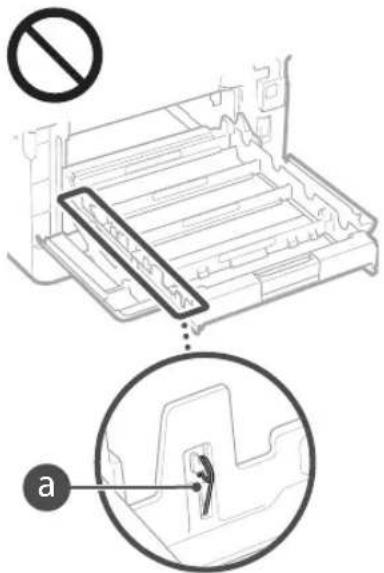
Do not open the operating switch and do not open the covers while the appliance is in operation. This may cause paper jams.
When moving the appliance
To avoid damage to the appliance, when moving it, proceed as follows:
Remove the paper and consumables. - Pack the appliance in its original packaging using the packaging materials.
Maintenance and troubleshooting
Clean this appliance regularly. If dust accumulates, the appliance may not operate properly. When cleaning, follow the instructions. If you encounter any problems during operation, refer to (Troubleshooting). If the problem cannot be resolved, contact the service center (If a problem cannot be resolved).
Before cleaning the device, unplug it from the power supply and allow it to cool down. To avoid electric shock, do not use the device near water. Unplug the device from the power outlet and clean the ventilation openings and the filter. The filter prevents dust and dirt from entering the device and can cause fire if it is blocked. Use a vacuum cleaner, properly set, to clean the device. Do not immerse the device in water. Do not use solvents, benzene, or alcohol-based cleaners. Do not use sharp objects or scrapers. If the internal parts of the device come into contact with these substances, it may create static electricity or cause a fire hazard. Check the power cord and plug for damage, loose connections, frayed wires, or signs of overheating. If the power cord is damaged, it may cause electric shock or fire.
CAUTION
INSIDE THE DEVICE THERE ARE HIGH VOLTAGE AND HIGH TEMPERATURE COMPONENTS. TOUCHING THESE COMPONENTS MAY RESULT IN INJURY OR BURNS. DO NOT REMOVE ANY PART OF THE DEVICE, AS IT IS NOT INTENDED FOR USER SERVICE. WHEN HANDLING PAPER, RECYCLED PAPER, OR PAPER WITH STAINS, BE CAREFUL NOT TO CUT YOUR HANDS ON THE PAPER EDGES.
Usage restrictions for product images
The use of this device for printing, scanning, or reproducing any copyrighted documents, as well as the use of scanned images for printing, may be prohibited by law and may result in civil and/or criminal liability. Follow the guidelines in the relevant documents. This notice is for your information. If you have any doubts about the legality of using this device for printing, scanning, or reproducing
a document, consult with legal counsel beforehand.
Paper documents - Tickets - Invoices - Contracts - Identification cards (valid or invalid) - Documents related to 17th entry and current tax data - Certificates (valid or invalid) - Deposit or withdrawal slips - Orders or payment orders issued by government agencies - Proof of ownership of shares - Licenses for vehicles and motorcycles - Works with copyrighted content/Artworks without the permission of the copyright holder
MF633Cdw/MF631Cn(F170100)
Electromagnetic Compatibility (EMC) requirements of the E.U. Directive
This equipment complies with the basic requirements regarding electromagnetic compatibility (EMC) of the E.U. Directive, when the nominal voltage of the power supply is 230V, 50 Hz, although the operating voltage range of the product is 220 to 240 V, 50/60 Hz. It is required that this device be used with a properly grounded power outlet to meet the technical requirements regarding electromagnetic compatibility (EMC) of the E.U. Directive.
Instructions for Waste Electrical and Electronic Equipment (WEEE) and for Electrical Batteries
For details about the safety of the product and the electrical and electronic equipment (EEE) and for the electrical accessories of this product, refer to the user manual (HTML manual) on the Canon website (http://canon.com/oip-manual).
MF635Cx/MF633Cdw includes approved Wireless LAN Module (Model name: AW-NM383). Contains Wireless LAN Module approved by TRC/ SS/2014/38
Appendix
Regulatory information for users in UAE MF635Cx/MF633Cdw includes approved Wireless LAN Module (Model name: AW-NM383).
TRA
REGISTERED No:ER0126617/14
DEALER No: DA0060877/11
Regulatory information for users in Russia
Conformity confirmation of the Russian Federation: Declaration of Conformity D-MJPD-4784 dated 02.05.2017, valid until 02.05.2023, registered with the Federal Agency on 17.05.2017
RE Directive
(For Europe Only)
English (EN) Hereby, Canon Inc. declares that this equipment is in compliance with Directive 2014/53/EU. The full text of the EU declaration of conformity is available at the following internet address: http://www.canon-europe.com/ce-documentation Wireless LAN Specifications Frequency band(s):2412-2472MHz Maximum radio-frequency power:15.98dBm
CLASS 1 LASER PRODUCT LASER KLASSE 1
APPARELÀ LASER DE CLASSE1
CLASS 1 LASER DEVICE
CLASS 1 LASER PRODUCT
CLASS 1 LASER APPARATUS
CLASS 1 LASER PRODUCT
CLASS 1 LASER PRODUCT
During transport of the machine
Do the following if you want to avoid damaging the machine during transport.
MF633Cdw/MF631Cn(F170100)
EMC requirements of the EU directive
MF635Cx/MF633Cdw includes approved Wireless LAN Module (Model name: AW-NM383). Contains Wireless LAN Module approved by TRC/ SS/2014/38
Regulatory information for users in UAE MF635Cx / MF633Cdw includes approved Wireless LAN Module (Model name: AW-NM383).
TRA
REGISTERED No: ER0126617/14 DEALER No: DA0060877/11
Regulatory information for users in Russia
Declaration of Conformity: Декларация о соответствии NД-МДР-4784 dated 02.05.2017, valid until 02.05.2023, registered in the Federal Communications Agency on 17.05.2017
RE Directive
(For Europe Only)
English (EN) Hereby, Canon Inc. declares that this equipment is in compliance with Directive 2014/53/EU. The full text of the EU declaration of conformity is available at the following internet address: http://www.canon-europe.com/cedocumentation Wireless LAN Specifications Frequency band(s): 2412-2472 MHz Maximum radio-frequency power: 15.98 dBm
Czech (CS) Timto společnost Canon Inc. prohlašuje, že toto zařízení je v souladu se směrnicí 2014/53/EU. Úplné znění EU prohlášení o shodě je k dispozici na této internetové adrese: http://www.canon-europe.com/cedocumentation Technické údaje bezdrátové LAN Pásmo(a) frekvence: 2412-2472 MHz Maximální výkon radiofrekvence: 15.98 dBm
Danish (DA) Hermed erklærer Canon Inc., at dette udstyr er i overensstemmelse med direktiv 2014/53/EU. EU-overensstemmelseserklæringens fulde tekst kan findes på følgende internetadresse: http://www.canon-europe.com/cedocumentation Trådløs LAN specifikationer Frekvensbånd: 2412-2472 MHz Maks. radiofrekvenseffekt: 15.98 dBm
Specifications wireless LAN
Frequency band: 2412-2472 MHz
Maximum radio-frequency power: 15.98 dBm
Bulgarian (BG) Canon Inc. декларира, че това оборудване е в съответствие с Директива 2014/53/ЕС
Пълният текст на ЕС декларацията за съответствие може да се намери на следния интернет адрес:
http://www.canon-europe.com/cedocumentation
Спецификация на безжичната LAN Честотна лента(и): 2412-2472 MHz
Максимална радиочестотна мощност: 15.98 dBm
Croatian (HR) Canon Inc. ovime izjavljuje da je oprema u skladu s Direktivom 2014/53/EU.
The full text of the EU declaration of conformity is available at the following internet address: http://www.canon-europe.com/cedocumentation
Wireless LAN specifications
Frequency band(s): 2412-2472 MHz
Maximum radio frequency power: 15.98 dBm
Irish (GA) Canon Inc. hereby declares that this equipment is in compliance with Directive 2014/53/EU.
CLASS 1 LASER PRODUCT
LASER KLASSE 1
APPAREIL A LASER DE CLASSE 1
APPARECCHIO LASER DI CLASSE 1
PRODUCTO LASER DE CLASE 1
APARELHO A LASER DE CLASSE 1
LUOKAN 1 LASER-TUOTE
LASERPRODUKT KCLASS 1
Regulatory information for users in UAE MF635Cx/MF633Cdw includes approved Wireless LAN Module (Model name: AW-NM383).
TRA REGISTERED No: ER0126617/14 DEALER No: DA0060877/11
Regulatory information for users in Russian
Declaration of Conformity No. Д-МДР-4784
dated 02.05.2017, valid until 02.05.2023
Registered with the Federal Service
on 17.05.2017
RE Directive
(For Europe Only)
English (EN) Hereby, Canon Inc. declares that this equipment is in compliance with Directive 2014/53/EU. The full text of the EU declaration of conformity is available at the following internet address: http://www.canon-europe.com/ce-documentation Wireless LAN Specifications Frequency band(s):2412-2472MHz Maximum radio-frequency power:15.98dBm
CLASS 1 LASER PRODUCT LASER KLASSE 1
APPARELÁ LASER DE CLASSE 1 APPARECCHIO LASER DI CLASSE 1 PRODUCTO LASER DE CLASE 1 APARELHO A LASER DE CLASSE 1
LUOKAN1 LASER-TUOTE LASERPRODUKT KCLASS 1
Laser radiation can be harmful to humans. Since radiation emitted inside the product occurs within a protected cabinet and external covers, the laser beam cannot escape from the machine while the user is operating it. Read the following notes and instructions for safety.
MF633Cdw / MF631Cn (F170100)
Requirements for electromagnetic compatibility (EMC) in the EU directive
This equipment complies with the essential requirements for electromagnetic compatibility (EMC) in the EU directive. We declare that this product complies with the EMC requirements of the EU directive at a nominal voltage of 230 V, 50 Hz even though the specified voltage on the product is 220 to 240 V, 50/60 Hz. Use of shielded cable is required to meet the technical EMC requirements of the EU directive.
Regulatory information for users in Jordan MF635Cx / MF633Cdw includes approved Wireless LAN Module (Model name: AW-NM383) Contains Wireless LAN Module approved by TRC/SS/2014/38
Regulatory information for users in UAE MF635Cx/MF633Cdw includes approved Wireless LAN Module (Model name: AW-NM383).
REGISTERED No: ER0126617/14 DEALER No: DA0060877/11
Regulatory information for users in Russian
Declaration of Conformity
Russia: Declaration of Conformity No. Д-МЛ-4784
dated 02.05.2017, valid until 02.05.2023, registered with the Federal Agency for Technical Regulation and Metrology on 17.05.2017
RE Directive
(For Europe Only)
English (EN) Hereby, Canon Inc. declares that this equipment is in compliance with Directive 2014/53/EU.
The full text of the EU declaration of conformity is available at the following internet address: http://www.canon-europe.com/cedocumentation
Wireless LAN Specifications
Frequency band(s): 2412-2472 MHz
Maximum radio-frequency power: 15.98 dBm
Czech (CS) Timto společnost Canon Inc. prohlašuje, že toto zařízení je v souladu se směrnicí 2014/53/EU.
Úplné znění EU prohlášení o shodě je k dispozici na této internetové adrese:
http://www.canon-europe.com/cedocumentation
Technické údaje bezdrátové LAN
Frequency band: 2412-2472 MHz
Maximum radio frequency power: 15.98 dBm
Greek (EL) Hereby, Canon
Inc. declares that this equipment complies with Directive 2014/53/EU
The full text of the EU declaration of conformity is available at the following internet address:
http://www.canon-europe.com/cedocumentation
Radio equipment type (WLAN)
Frequency range 2412-2472 MHz
Maximum radio frequency power 15.98 dBm
CLASS 1 LASER PRODUCT
LASER KLASSE 1
APPAREL A LASER DE CLASSE 1
APPARECCHIO LASER DI CLASSE 1
PRODUCTO LASER DE CLASE 1
APARELHO A LASER DE CLASSE 1
CLASS 1 LASER PRODUCT
LASER PRODUCT CLASS 1
MF633Cdw / MF631Cn (F170100)
EMC requirements in the EC Directives
MF635Cx/MF633Cdw includes approved Wireless LAN Module (Model name: AW-NM383). Contains Wireless LAN Module approved by TRC/ SS/2014/38
Regulatory information for users in UAE MF635Cx/MF633Cdw includes approved Wireless LAN Module (Model name: AW-NM383).
TRA
REGISTERED No:ER0126617/14
DEALER No: DA0060877/11
Regulatory information for users in Russia
Confirmation of conformity with the Ministry of Telecom and Mass Communications of Russia: Declaration of Conformity No. Д-MДРД-4784
02.05.2017, valid until 02.05.2023, registered with the Federal Agency on 17.05.2017
RE Directive
(For Europe Only)
English (EN) Hereby, Canon Inc. declares that this equipment is in compliance with Directive 2014/53/EU. The full text of the EU declaration of conformity is available at the following internet address: http://www.canon-europe.com/cedocumentation Wireless LAN Specifications Frequency band(s):2412-2472MHz Maximum radio-frequency power:15.98dBm
Czech (CS) Canon Inc. hereby declares that this equipment is in compliance with Directive 2014/53/EU. The full text of the EU declaration of conformity is available at the following internet address: http://www.canon-europe.com/cedocumentation Wireless LAN Specifications Frequency band(s): 2412-2472 MHz Maximum radio-frequency power: 15.98 dBm
Danish (DA) Canon Inc. hereby declares that this equipment is in compliance with Directive 2014/53/EU. The full text of the EU declaration of conformity is available at the following internet address: http://www.canon-europe.com/cedocumentation Wireless LAN Specifications Frequency band: 2412-2472 MHz Maximum radio-frequency power: 15.98 dBm
Regulatory information for users in Jordan MF635Cx / MF633Cdw includes approved Wireless LAN Module (Model name: AW-NM383) Contains Wireless LAN Module approved by TRC/SS/2014/38
Regulatory information for users in UAE MF635Cx/MF633Cdw includes approved Wireless LAN Module (Model name: AW-NM383).
TRA
REGISTERED No: ER0126617/14
DEALER No: DA0060877/11
The product complies with the requirements of the Russian Federation: Declaration of Conformity D-MDPI-4784 dated 02.05.2017, valid until 02.05.2023, registered in the Federal Agency on 17.05.2017
RE Directive
(For Europe Only)
English (EN) Hereby, Canon Inc. declares that this equipment is in compliance with Directive 2014/53/EU. The full text of the EU declaration of conformity is available at the following internet address: http://www.canon-europe.com/cedocumentation Wireless LAN Specifications Frequency band(s): 2412-2472 MHz Maximum radio-frequency power: 15.98 dBm
Install the device correctly
Fill in before starting operation
Place the original on the exposure glass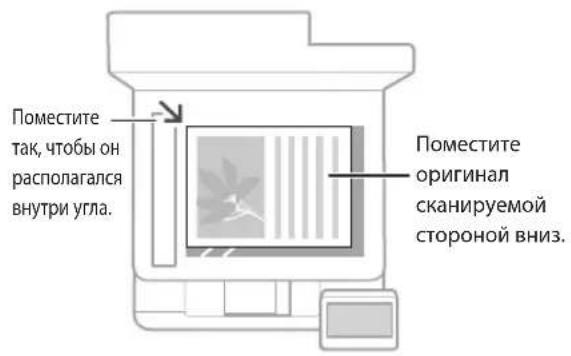
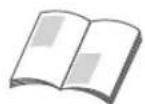

You can scan pages from magazines and newspapers, or cut out sections from newspapers.
Place the original in the device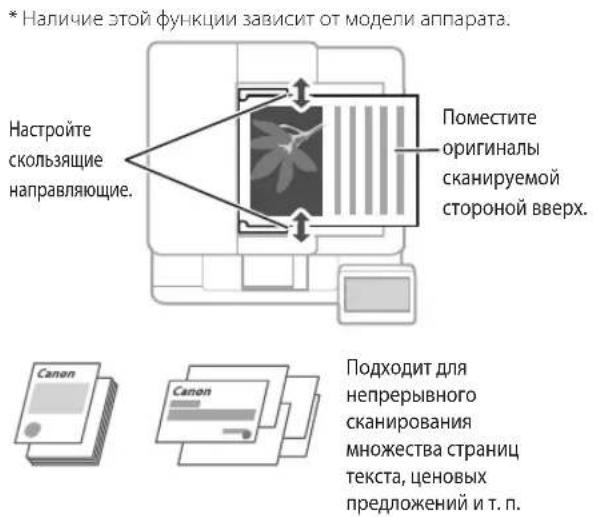
Start the operation from the control panel
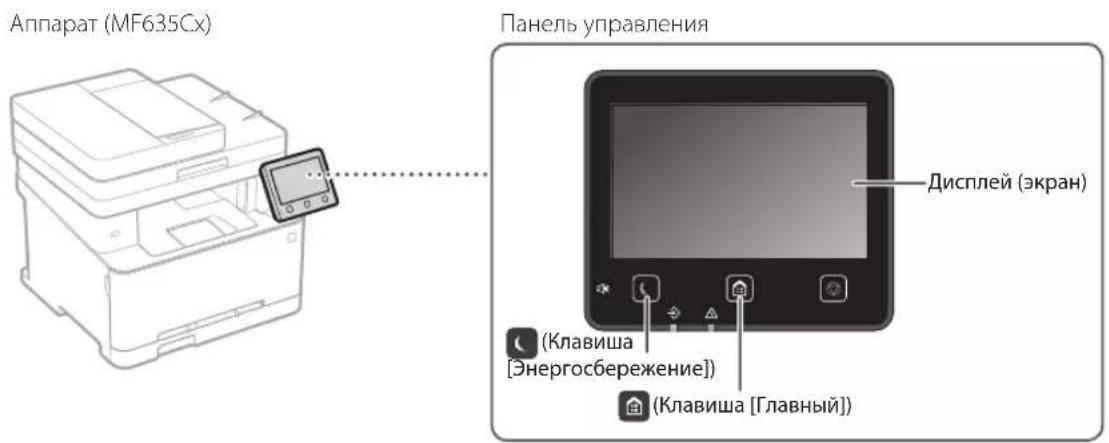

Scanning
1. Place the original. 2. Press and select . 3. Select the scan type and enter the necessary information. 4. Select 4/6 to start.
Scan types
Save to USB memory, send by email, send to file server
Scanning from
a computer
MF Scan Utility
More details
Scanning
User's Guide

Copying
1. Set the original. 2. Press and then select. 3. Specify the required copy settings. 4. Enter the required number of copies. 5. Select <Start> or .
Useful copy settings
1-sided or 2-sided* Enlarge/Reduce Copy ID Card
The availability of functions depends on the machine model.

Detailed
Copy
User's Guide

Fax*
1. Set the original. 2. Press and select . 3. Enter the recipient information. 4. Specify the required fax settings. 5. Select
Useful fax functions
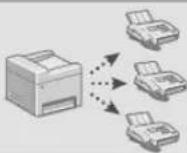
Sequential broadcast Redial ■PC-fax
If the problem is not resolved, see the User's Guide.
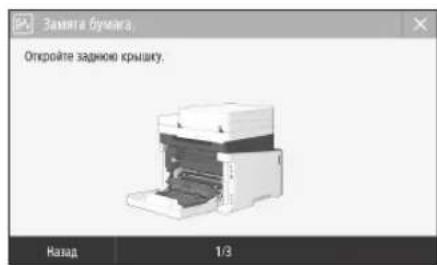
When paper jams occur, follow the instructions below.
Clear the paper jam according to the on-screen instructions.
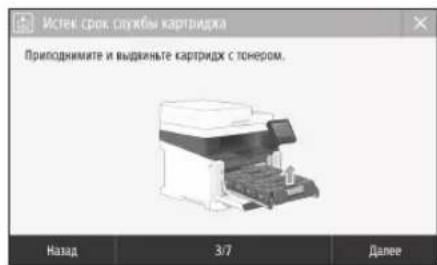
Replace the toner cartridge
Replace the toner cartridge according to the on-screen instructions.
Toner cartridge model number
-Canon Cartridge 045 Black -Canon Cartridge 045 Cyan - Canon Cartridge 045 Magenta -Canon Cartridge 045 Yellow
- Canon Cartridge 045 H Black -Canon Cartridge 045 H Cyan -Canon Cartridge 045 H Magenta -Canon Cartridge 045 H Yellow
Appendices
Important Safety Instructions
This section contains important safety instructions that help prevent injury to users, other people, and damage to property. Please read this section carefully before using the device and follow the instructions provided. Do not perform any actions not described in this manual. Canon is not responsible for any damage resulting from actions not described in this manual, improper use of the device, or repair or modification performed by organizations or individuals not authorized by Canon. Failure to follow the instructions for use of this device may result in injury or damage requiring costly repairs, which may not be covered by the limited warranty.
WARNING
Indicates a risk of serious injury or death if the warning is ignored. Always pay attention to these warnings for safe operation of the device.
CAUTION
Indicates a risk of injury if the warning is ignored. Always pay attention to these cautions for safe operation of the device.
IMPORTANT
Contains operational and maintenance requirements. Read these sections carefully to ensure proper operation of the device and to prevent damage to the device or property.
Installation
For safe and correct operation of the device, carefully read the following precautions before installing the device in the recommended location.
Do not install the device in places with a high risk of fire or electric shock.
Places that are not well ventilated (too close to walls, beds, curtains, carpets, or other objects). Humid or dusty rooms. Places exposed to direct sunlight, open flames, or high temperatures. Places near flammable liquids, solvents, or other volatile substances.
Safety precautions
Do not use ungrounded cables with this device. Failure to comply with this requirement may lead to fire or electric shock. Do not place metal objects or containers with water on the device. Contact of foreign substances with electrical components inside the device may cause fire or electric shock. When installing the device, do not forget to disconnect the power supply, first disconnect the power cord from the outlet, and then disconnect all interface cables and the power cord from the device. Otherwise, damage to the power supply or interface cables may occur, which could lead to fire or electric shock. If foreign substances get into the device, disconnect the power cord from the electrical outlet and contact the nearest authorized Canon service center.
Do not install the device in the following places.
The device may fall, causing injury.
- Unstable surfaces.
- Places subject to vibration.
CAUTION
Do not install the device in the following places.
This may cause damage to the device.
- Places with high or low temperatures or humidity. Places subject to sudden temperature or humidity changes. Places near equipment that generates magnetic or electromagnetic fields. Laboratories or other places where chemical reactions occur. Places exposed to corrosive or toxic gases. Places that may deform under the weight of the device or where the device may tip over (e.g., on carpets, etc.).
Avoid installation locations with poor ventilation.
During use, this device generates ozone and other emissions. They are not harmful to health. However, emissions may become noticeable during prolonged use in poorly ventilated rooms. To ensure comfortable working conditions, it is recommended to ensure ventilation of the room where the device is installed. Also, keep the device away from places most exposed to its emissions.
Install the device in a room with high humidity.
In a room with high humidity, where the device is installed, as well as in cases of moving the device from a colder to a drier environment or to a room with high temperature or high humidity, condensation may form inside the device. Using the device in such conditions may lead to paper jams, poor print quality, or damage to the device. Intended use:
Before operating the device, it must be allowed to acclimate to the temperature and humidity of the surrounding environment for at least two hours.
At altitudes of about 3000 meters or higher above sea level
Devices with a hard disk may not operate correctly at altitudes of about 3000 meters or higher above sea level.
Leveling feet (only for products that have them)
The leveling feet must remain on the device after installation. Otherwise, the device may fall or tip over, which could result in injury to the user.
Connecting to a telephone line (only for products equipped with fax functionality)
This device complies with the standard for analog telephone lines. This device can be connected to a public switched telephone network (PSTN). Connecting the device to a digital or dedicated telephone line may disrupt its operation and lead to damage. Before connecting the device to a telephone line, check the line type. If you wish to connect the device to an optical fiber line or IP telephone, contact the providers of the corresponding services.
Using a wireless local area network
(Only for products equipped with wireless LAN functionality)
Install the device no more than 50 meters from the wireless router. Install the device in a location where the signal is not obstructed by other objects (if possible). The signal strength may drop significantly depending on walls or floors. Install the device as far as possible from digital cordless telephones, microwave ovens, and other equipment that is a source of radio waves. Do not use the device near medical equipment. Radio waves emitted by the device may interfere with the operation of medical equipment. This may lead to damage or injury.
Power source
Reliable
Use only the power source that meets the voltage requirements. Failure to follow this rule may result in fire or electric shock. Do not use power cords other than the one included with the printer, as this may cause fire or electric shock. The included power cord is designed for use only with this device. Do not connect this cord to other devices. Do not modify, pull, bend, or deform the power cord in any way that could cause damage. Do not place heavy objects on the power cord. Damage to the power cord may result in fire or electric shock.
Insert the power cord plug into the AC outlet completely. Failure to do so may result in electric shock. Do not use extension cords or adapters with multiple outlets. Failure to follow this requirement may result in electric shock. Do not bend the power cord or leave it in a knot, as this may cause a fire or electric shock. Insert the power cord plug into the AC outlet completely. Failure to follow this rule may cause a fire or electric shock. Completely disconnect the power cord plug from the AC outlet during cleaning. Failure to do so may cause a fire, electric shock, or damage to the device. Make sure the device's power source operates stably and is not subject to voltage fluctuations. Do not subject the power cord to heat. Failure to follow this requirement may cause the power cord's covering to peel off. This may cause a fire or electric shock. If you use a power strip or extension cord, it may cause overheating of the connection, leading to fire or damage to the device's power cord. This may cause a fire.
Consider the following situations:
- Frequent connection and disconnection of the power cord - Pulling the power cord - Bending the power cord at the part that is inserted into the outlet, or continuing to use it while it is inserted in the outlet - Applying excessive force to the power cord plug.
CAUTION
Place the device near a wall outlet, leaving enough space around the power cord plug so that it can be easily pulled out in case of an emergency.
IMPORTANT
When connecting to a power source
Do not connect the power cord to a power source other than the specified one. This may cause damage to the device and malfunction of the electrical system. If the device is connected to an AC outlet with multiple sockets, do not use other devices connected to the same outlet. Do not insert the power cord into an outlet that is shared with other devices.
Safety precautions
Cleaning and maintenance
Handling the device
CAUTION
Immediately disconnect the power cord from the AC outlet if the device emits an abnormal smell or sound.
The device may heat up during prolonged use under such conditions, which can lead to burns or electric shock. Do not disassemble the device or attempt to modify its structure. Hot components with high voltage are present inside. Disassembly or attempts to modify the device may lead to fire or electric shock. Place the device so that the power cord and internal electrical components are out of reach. Failure to comply with this condition may lead to accidents. Do not spray flammable substances near the device. Contact of flammable substances with electrical components inside the device may cause fire or electric shock. - When moving the device, be sure to turn off the power switch, then disconnect the power cord and interface cables. Otherwise, damage to the power cord and interface cables may occur, which could lead to fire or electric shock. When connecting or disconnecting cables, when the plug is inserted into the AC outlet, do not touch the metal part of the socket, as this may cause electric shock. Use a module cable shorter than 3 meters. Use a USB cable shorter than 3 meters.
If you have any problems with the device, if the specified operating mode is inconvenient, it is recommended to contact the dealer.
Precautions for using a cardiac pacemaker
The device generates a weak magnetic field. If you use a cardiac pacemaker and notice any irregularities in its operation, move away from the device and immediately consult a doctor.
CAUTION
Do not place heavy objects on the device, as they may fall and cause injury. For safety, disconnect the power cord from the outlet if the device is not used for a long time. Be careful when opening or closing the covers to avoid injuring your hands. Avoid contact of the covers with your fingers in the area of the hinges. Pinching your hands or fingers between the covers may cause injury. Immediately after operation, the internal components and the area around the exhaust vent of the device are hot. Do not touch these areas to avoid burns. In addition, printed paper immediately after printing may be hot, so handle it carefully. Otherwise, you may get burned.
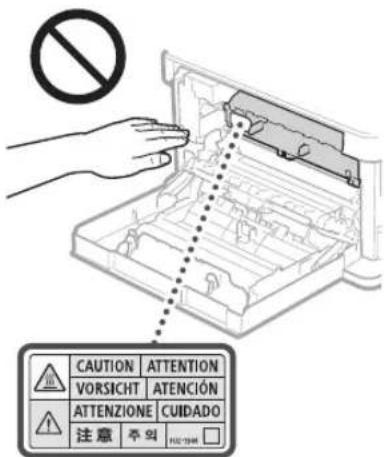
Be careful not to drop heavy objects such as dictionaries on the LCD screen. This may damage the LCD screen or cause injuries. Do not carry the device with the paper trays installed. Otherwise, the paper trays may fall and cause injury.
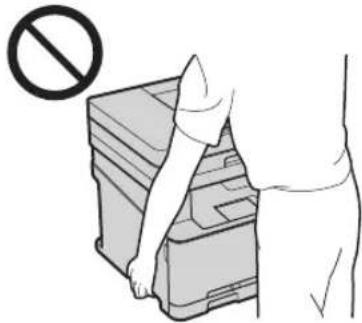
POWER SUPPLY (ONLY FOR PRODUCTS EQUIPPED WITH A POWER SUPPLY)
Risk of injury from the LCD glass. Pressing the LCD screen with excessive force may damage the glass and cause injury. When closing the device, be careful not to pinch your fingers between the device and the LCD screen. When closing the device, be careful not to pinch your fingers between the device and the LCD screen to avoid injury.
Only for products equipped with a filter
Do not place your hands in the part of the device where the filter is being removed (next to the rollers). Be very careful with sharp screws, as they can cause injury.
Cassette for filters (only for devices equipped with filter cassettes)
Do not place your hands in the device when the filter cassette is being removed. This can cause injury.
CLASS 1 LASER PRODUCT LASER KLASSE 1
APPAREL A LASER DE CLASSE 1
APPARECCHIO LASER DI CLASSE 1
PRODUCTO LASER DE CLASE
APARELHO A LASER DE CLASSE 1
LUOKAN 1 LASER TUOTE
LASERPRODUKT KCLASS 1
The laser beam can be dangerous to human health. Since the radiation emitted inside the device is completely shielded by protective covers and external covers, the laser beam cannot escape from the device at any stage of its operation by the user. Follow the safety instructions given below.
In no case should you open any covers of the device, except those specified in this manual. Penetration of laser radiation outside and its contact with the eyes can cause damage to vision.
CAUTION
Use of controls, adjustments, or performance of procedures other than those specified herein may result in hazardous radiation exposure.
Safety precautions
Follow all warnings attached to the device. Do not subject the device to strong mechanical loads or drops. Do not open or close the covers of the internal components while the device is in use. This may lead to damage to the device. Do not touch the contacts with the cartridge, as this may lead to damage to the device.
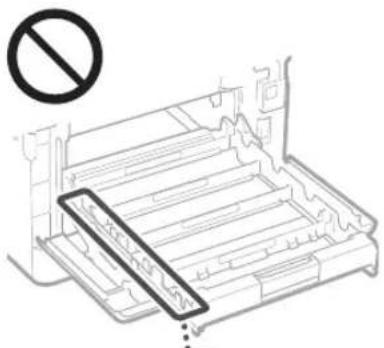
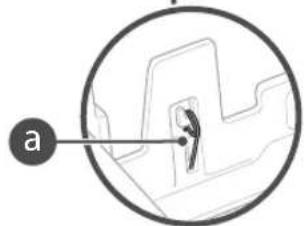
Do not disconnect the power supply or open the cover while the device is operating. This may lead to paper jams.
Transporting the device
To prevent damage to the device during transport, follow the steps below.
- Remove the cartridge. Securely pack the device in the original box with packing materials.
Maintenance and troubleshooting
Perform periodic cleaning of the device. If dust accumulates, the device may operate in an unstable manner. During cleaning, follow the rules below. If problems occur during operation, see the Troubleshooting section. If the problem cannot be resolved by yourself, the device must be inspected. Refer to the section If the problem cannot be resolved
CAUTION
Before cleaning, disconnect the power cord from the power outlet. Failure to do so may result in fire or electric shock. Periodically disconnect the power cord and wipe the plug with a dry cloth to remove dust. Accumulated dust may draw moisture from the air and cause fire or electric shock.
For cleaning the device, use a soft, dry cloth. If the cloth is too dirty, it must be washed. Do not use sprays, solvents, paints, or other flammable substances. Do not use paper wipes or tissues. If these substances come into contact with the contacts or electrical components inside the device, they may cause static electricity or lead to fire or electric shock. From time to time, check the power cord and plug for rust, damage, dirt, wear, or excessive heat. Using a power cord or plug that is not properly maintained may lead to fire or electric shock.
WARNING
Some components inside the device become very hot or are at high voltage. Contact with these components may result in injury or burns. Do not touch any parts of the device not mentioned in this manual. - When handling paper or removing paper jams, be careful not to cut your hand on the edge of the paper.
Legal restrictions on use of the product and images
Use of purchased products for scanning, printing, or reproducing certain documents or images, as well as use of images obtained through scanning, printing, or other means, may be prohibited by law.
The manufacturer is not liable for criminal or civil liability. An incomplete list of such documents is given below. This list is intended for use only as a guide. If you are unsure about the legality of using the device for scanning, reproducing, or otherwise copying a particular document, you should consult with a lawyer or legal counsel.
Paper money, traveler's checks, money orders, government bonds, deposit certificates, passports, postage stamps (used or unused), immigration documents, identification cards for internal use, some documents for servicing or transfer bills, bonds or other debt securities, transferable bills issued by government agencies, vehicle titles, documents certifying property rights, works protected by copyright law, works of art, and reproductions prohibited without the permission of the copyright holder.
Safety symbols
Recommended power: switch to "On" position. Recommended power: switch to "Off" position. Recommended power: switch to "Standby" position.
Press the switch twice to activate the protection against replacement inside the hazardous area. Do not open the covers, except those indicated in the instructions. WARNING: Hot surface. Do not touch. Class II equipment. Do not bring body parts near moving parts.
[NOTE]
Some of the symbols mentioned above may not be present on certain devices.
v1602_00_en-US
![CANON iSensys MF635Cx - [NOTE] - 1](/content/2026/02/383569/images/6bdc410264dcd5450704476311813e8c716f9153eee03d6798c9c63eb1f20fe7.jpg)
Safety label for laser handling
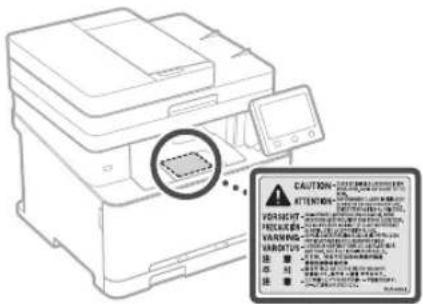
Consumables
CAUTION
Do not discard used toner cartridges or toner bottles carelessly. This may cause environmental pollution and, as a result, lead to fire hazards. When disposing of toner, handle it carefully. Do not inhale toner dust. Do not use a vacuum cleaner for spilled toner. Otherwise, damage to the vacuum cleaner or an explosion may occur due to static electricity.
WARNING
Store toner cartridges and other consumables in places inaccessible to children. If toner is swallowed, seek medical attention immediately or contact a poison control center. Do not attempt to disassemble a toner cartridge. Toner may become airborne and get into eyes or mouth. If toner gets into eyes or mouth, rinse immediately with cold water and seek medical attention. If toner spills from the cartridge, try not to inhale it and avoid skin contact. If toner gets on skin, wash immediately with soap and water. In case of toner ingestion or skin irritation due to toner contact, seek medical attention immediately or contact a poison control center.
IMPORTANT
06pa60ka KapTpndja c TohepOM
UeepKbBnKaptpnck cToHepom,OBaTeIbHO 6epntec3aero pky.
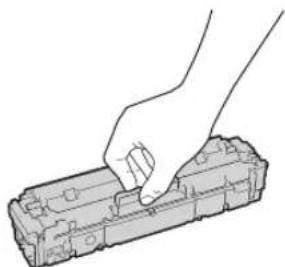
He npapanai Te noepxHOCTb 6apabha ( He noDBeprAte ee Bo3EJCTBIO CBeta. He npKacaiTeCB KNEKTpuCeCKM KOHTaTAM (b) INI yCTPOINCTBY NAMTN KAPTPINKA C TOHecpom (c).
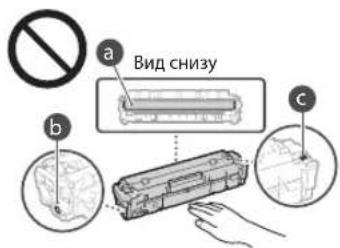
He 3NBeNKeTKe KapTpIuK C TOHepom IN yctPoIcTBa HIN 3auHTHOY YnAkoBKM 6e3 Heo6xO VMOCTN. Kaptpnck CTohepom ABnHETcMaHTNbIM n3dennm. Hpe np6nJkaIte ero Kn3dennm, yBCTBnTeNBbIM K MaHETn3MBy, B Tom uCne K nKIM N XeCTKN DnCKAM B nPOnHBOM cnYae BO3MOKHO NobpeXeHHe NaHHbIX.
XpaHHeNKe KapTpndka CToHepoM
XpaHNTe KAPTPNk BnPnBedeHHbIX HnKe yCNOBnX nIgOBcNEeHnEmy63oNaCHOrn HnAaNeKJUero MCNoB3OBAHN. Dnana3OH Temnepatyp nIxApaHHeNr:0-35°C Dnana3OH BlaxHoCTn nIxApaHHeNr:OT 35% Do 85% OTHocTeBHOblaxHoCTn (6e3 KOHDeHCaUN) XpaHnTe KapTpuiK,OTKpbYyNAKOBYTOIbKO npei CaMbIMCNONB3OBAHm. - PnN3BneHnKapTpDjKa CTOHePOM N 3yptOCTbIaIIN ERO COxpaEHn 3akpoTe 6apabAH 3aunTHbIM IOKpTbHM NIOeCTHe N3BleHHb KAPTpJxB INCXoHbN 3aunTHbN PaKT eN OebpHtE ERO TOCTOn TKAHbK. He xpaHnTe KapTpynK B BeptnKaIbHOMnnn npeepeepHTOM COCTOHN. 3TO pnpBBeT K OTBepDeBAHIO TOHEPA, I ERO NCOJHAR KOHCNCTEHnMQoT HE BOCCTAHOBNITcBdJaKe NOCNE BCTPRXnBAHIN.
JaKe npxpaHEnB npenExn Ax DOnyctmOrO Dnana30Ha BnAnKHOCTKaNN BObl (KoJHeHCaT) MoryT Opa3oBBBaTbCBAHyTpN KapTpNJa npn pa3HnIe TempePaTy BHyTpN n ChapyKn KapTpNJa c ToHEpOM. KoJHeCAuN OKa3bBaET HeraTINBHOe BOdienCTBe Ha KaueCTBO KapTpNKeY C TOHEPOM.
He xpaHnTe KaTpPnIxK ToHepOM B nepeuCnEHHbIX HNKe MeCTax:
B6n3nOTKpbTOrOOrH; B Mecrax, NOBEPKHHb BO3eCTBNO prrmoro CoJIHeHORO CBaE mNpyrTO RpKOrO CBeTc, 0oJee PnT MInHyt; PnnoBbIeHHHOKcHHTpaCmCOeB 3 BO3dyXe; B MeCTax, noDBePExHHbX BO3dEChTBIO pa3beDauOuHX ra3OB (a3PO30NI uAMnA); I0D B03DeiCTBnEM BBiCOKX TemNepaTp I NOBblEHHHO BnAaKHOCTN; B mectax c pe3kMMI peneaAMM TEMNEHPOATyPi BNbAaKHOCTN, PnBBOaRIMM K BOHHNKOBHeHIO KOHDeHCata; B6n3nckonneHn bui; BMectax,doCTyINHbIXIINIeTei;
I36eraTe nCNoB3OBAHnna NoDcEbnbHbIX KapTpndKe CTOHEPOM
B npdae Bcpeaotc Kaptprpnckn C TOHEPOM, RANIOIeNEC NOIDJIeKAMN KAPrpnke Canon. NcnoJIb3OBAHne IIOdJIbHbX KAPrpnpkjMe MOKeT INpBeCTn K yUxUHeHIO KaecTa NeATn pAbOToY cTPOcTBa. KOMHaHr Canon He Hecet OTBETBEHOCTn 3a KaKeIIN6 HoHONJAKN, HecACTHBe CnyuH Nm Uyepe, ABNIOUIeNEc pe3yIbTAOM NoNBJ3OBAHN NOIDENbHOrO KAPrpnka C ToHEPOM. DonOHInTeNbIbe CBeDEHINn CM Ha Be6- CTpaHnue http://canon.com/counterfeit.
OxnaemoeBpemaNOCTyIeHn3aNaChbIX 即TnKAPTpndkeCTOhePOM
3aNaChbueactnKapTpndmCtoHepomdnyctpoCTBa6yUTBnpOaKeBTEeHneMHIMyMcEM(7)NETNOCNECHTNRPOAOBDCTBAdaHHOHMOEJIYCYTPOCTBA
YnakoobHbme MaTePnaIbI KapTpuaToHepa
CoXpAHnTe 3aunTHb nakET KApTpNJa c TOHEPOM N aauHTHoE NOKpItHe 6apBaHa. OHMOrT noHaoBcBnC pIn TpaHCnOpTnPoBe 3TOrO yctpoCTBA. KoHueCTBO,foMa n paMaueHeYnAkoBOHybIX MaTePnaIOB MOry T N3MeHATbCBe3 npEpaBnteBHorO yBcOaMHeH. YTINN3pyTe 3aunTHyKe NENTy B COOTBETCTBn C MecTHbIM 3aKOHAM.
Put the toner cartridge in a plastic bag to prevent toner from scattering, then dispose of the cartridge according to local regulations.
Put the toner cartridge in a plastic bag to prevent toner from scattering, then dispose of the cartridge according to local regulations.
Usage
Product Name
In the EU, this product must be registered. In some countries where this product is distributed, the following names may be registered instead of the original name, as indicated in parentheses. MF635Cx (F170102) MF633Cdw/MF631Cn (F170100)
Requirements for Directives
This equipment complies with the essential requirements of the EMC Directives. We declare that this product complies with the requirements of the EMC Directive 2014/30/EU, at the rated input voltage of 230 V and frequency of 50 Hz, although the range of operating characteristics of this product is from 220 to 240 V, 50/60 Hz. To ensure compliance with the technical requirements of the EMC Directive, the use of shielded cables is required.
WEEE Directive, Battery Directive
Information about the WEEE Directive and the Battery Directive can be found in the user manual (in HTML format) on the Canon website (http://canon.com/oip-manual).
Regulatory information for users in Jordan MF635Cx / MF633Cdw includes approved Wireless LAN Module (Model name: AW-NM383) Contains Wireless LAN Module approved by TRC/SS/2014/38
Appendix
Regulatory information for users in UAE MF635Cx / MF633Cdw includes approved Wireless LAN Module (Model name: AW-NM383).
TRA
REGISTERED No:ER0126617/14
DEALER No: DA0060877/11
RE Directive
(For Europe Only)
English (EN) Hereby, Canon Inc. declares that this equipment is in compliance with Directive 2014/53/EU.
The full text of the EU declaration of conformity is available at the following internet address: http://www.canon-europe.com/cedocumentation
Wireless LAN Specifications
Frequency band(s): 2412-2472 MHz
Maximum radio-frequency power: 15.98 dBm
Czech (CS) Timto spelechost Canon Inc. prohlasje, 2e toto zaifzeni je v souladu se smernici 2014/53/EU.
Uplne zneni EU prohlasei o shode je k dispozici na teto internetové adrese:
http://www.canon-europe.com/cedocumentation
- How do I replace the drum unit?
If the message and indicator do not light up, press the reset button.
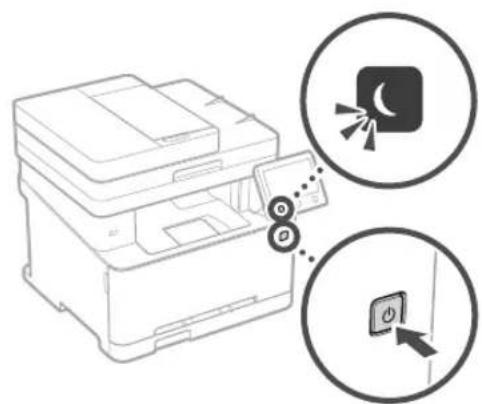
When the drum unit is replaced, the screen is displayed as shown in the figure below.
Replace the drum unit according to the instructions on the screen.
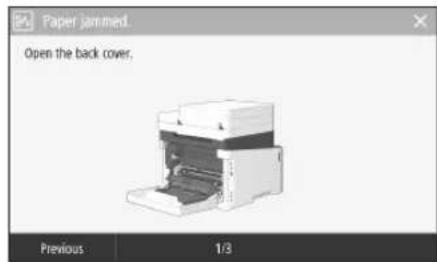
- How do I properly install the drum unit?
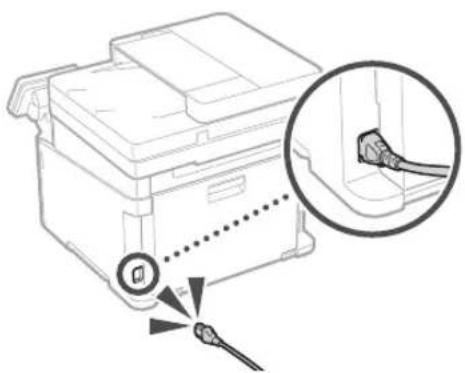
If the problem persists, see the User's Guide.
Replacing the Toner Cartridge
Replace the toner cartridge according to the instructions on the screen.
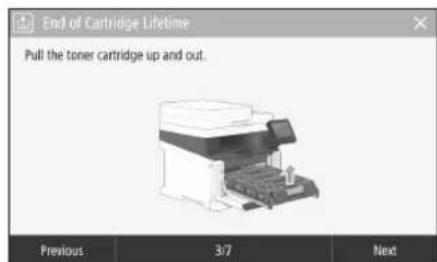
Toner cartridge model number for replacement
- Canon Cartridge 045 Black (black) - Canon Cartridge 045 Cyan (cyan) - Canon Cartridge 045 Magenta (magenta) - Canon Cartridge 045 Yellow (yellow)
- Canon Cartridge 045 H Black (black) - Canon Cartridge 045 H Cyan (cyan)
- Canon Cartridge 045 H Magenta (magenta)
- Canon Cartridge 045 H Yellow (yellow)
Appendix
Important Safety Instructions
IMPORTANT SAFETY INSTRUCTIONS. Read these instructions carefully before using the device to prevent injury to the user, others, and damage to the device. Before using the device, familiarize yourself with this instruction manual to ensure proper use. Do not perform any operations not described in this manual. Canon Inc. is not responsible for any damage or injury caused by operations not described in this manual, improper use, repairs or modifications made by non-Canon personnel or third parties, or modifications approved by Canon Inc. Improper use of the device may result in injury and/or damage requiring major repair, which may not be covered by the warranty.
WARNING
Indicates a potentially hazardous situation which, if not avoided, could result in injury or improper operation. To ensure safe use of the device, please pay attention to these warnings.
CAUTION
Indicates a precautionary situation which, if not avoided, may result in injury or improper operation. To ensure safe use of the device, please pay attention to these cautions.
IMPORTANT
Indicates important information that should be read carefully to ensure proper operation of the device and to prevent malfunction or damage.
INSTALLATION
For safe and secure use of the device, it is important to read the precautions below and install the device in an appropriate location.
PRECAUTIONS
Do not install the device in locations where its operation may cause damage or electric shock, including:
places exposed to water or moisture (near bathtubs, sinks, swimming pools, damp basements, etc.); in humid or dusty places; in places with high temperatures; near flammable materials - near alcohol, thinners, or other flammable substances.
PRECAUTIONS
Do not connect non-recommended cables to this device. This may cause damage or electric shock. Do not place heavy objects, metal objects, or containers with liquid on the device. Contact of external conductive objects with internal electrical parts may cause damage or electric shock.
The installer and user must ensure that the power plug is disconnected and all cables and power cords are unplugged from the device before performing any maintenance. If power cords or cables are damaged, they may cause damage or electric shock. If foreign objects or liquids enter the device, disconnect the power plug from the AC outlet and contact your local Canon authorized service representative.
Do not install the device in places with high humidity.
The device must be installed in a place that meets the following conditions:
- On a flat surface; away from strong vibrations.
Attention
Do not install the device in places with high humidity
(this may lead to damage of the device):
Places with high humidity or extreme temperatures; places where temperature fluctuations are frequent; near flammable materials, strong magnetic or electromagnetic fields; in laboratories where chemical reactions occur, or where corrosive gases are present; on surfaces where condensation may form on the device, or where the device may be splashed with water (e.g., near sinks).
Do not install the device in poorly ventilated rooms.
During normal use, the device may emit a small amount of ozone or other substances. These substances are harmless to health, but prolonged exposure to them may be harmful, especially during operation in poorly ventilated rooms. To ensure a safe working environment, it is recommended to ventilate the room where the device is installed. Also, avoid places where ozone or other substances emitted by the device may accumulate.
Do not install the device in rooms where condensation occurs.
If the room where the device is installed has high humidity or if the device is moved from a cold to a warm place, or to a humid place, condensation may form inside the device. Using the device in such conditions may cause malfunctions, such as short circuits or damage to the device. Before using the device, allow it to adapt to the room temperature and humidity of the surrounding environment for at least 2 hours.
Do not install the device at high altitudes (3000 meters above sea level or higher). At high altitudes (3000 meters above sea level or higher), the device may not operate correctly due to low air pressure.
Adjustable feet (only for models with adjustable feet)
Do not remove the adjustable feet after installing the device, as they may cause the device to tip over, leading to injury.
Connect the telephone line (only for models with a fax function)
The device is designed for connection to analog telephone lines. The device can be connected to a switched telephone network (PSTN). Connecting the device to a digital or special telephone line may not ensure reliable operation or may cause damage. Be sure to check the telephone line before connecting the device to it. If you need to connect to a digital telephone line, contact the service provider of the digital line or the IP telephony provider.
Using a wireless local network (only for models with a wireless local network)
Install the device at a distance of 50 m from the base station of the wireless local network. When installing the device, make sure that objects do not block the signal. The signal can pass through walls and ceilings. Keep the device away from digital wireless phones, microwave ovens, and other equipment that may cause interference. Do not use the device near medical equipment. Radio waves emitted by this device may adversely affect medical equipment, which could lead to malfunction or unsafe operation.
Power source
WARNINGS
Use only the power source specified in the instructions. If you do not, a fire or electric shock may occur. Do not use a power cord other than the one supplied with the device, as this may lead to a fire or electric shock. The supplied power cord is intended for use with this device only. Do not connect the power cord to other devices. Do not modify, bend, or twist the power cord, and do not pull it with excessive force. Do not place heavy objects on the power cord. A damaged power cord may lead to a fire or electric shock. Do not insert or remove the plug from the outlet with wet hands, as this may lead to an electric shock. Do not use this device with a damaged or loose power outlet. This may lead to a fire or electric shock. Do not use a damaged power cord, as this may lead to a fire or electric shock. Firmly insert the power plug into the outlet of the AC power supply. If you do not, a fire or electric shock may occur. When unplugging, hold the plug of the power cord firmly. If you do not, a fire, electric shock, or device malfunction may occur. Make sure that the power source of the device is disconnected from the power supply before cleaning.
Do not immerse the device in water or other liquids, as this may lead to damage to the device and could become a source of electric shock. If liquid gets inside the device, it may cause damage to the device or lead to malfunctions. Do not use the device with wet hands. This may cause damage to the device or lead to malfunctions. Do not use the device near water. Do not use the device in the bathroom. Do not use the device outdoors. Do not use the device in places where it may fall into water. Do not use the device with damaged power cord or plug. Do not use the device if it has been dropped or damaged. Do not attempt to repair the device yourself. Contact a qualified service center. Do not use the device with a damaged power cord or plug. Do not use the device if it has been dropped or damaged. Do not attempt to repair the device yourself. Contact a qualified service center.
WARNING
Install the device near an electrical outlet, providing sufficient free space so that you can easily unplug the device from the outlet.
IMPORTANT
Connecting to power
Do not connect the device to a power source without first checking the voltage. This may cause improper functioning or damage to the device. If the device is connected to a power outlet with a different voltage, do not use the device. Do not connect the device to a power outlet with a different voltage. Do not use the device with a damaged power cord or plug. Do not connect the device to a power outlet with a different voltage.
Other safety measures
Electrical shock can cause damage to the device and loss of data.
Operation
PRECAUTIONS
During operation, the device may heat up. If you notice an unusual smell or noise, unplug the device from the outlet and contact a qualified service center. Improper use may cause damage or electric shock. Do not disassemble or modify the device. The device contains parts that are under high voltage or operate at high temperatures. Disassembly or modification of the device may cause damage or electric shock. Place the device in a location where it is not possible for the power cord or other cables to be pulled or for internal mechanisms and electrical parts to be damaged. Improper use may cause unexpected hazards. Do not use aerosol sprays near the device. If aerosol sprays are necessary for cleaning electrical parts inside the device, they may cause damage or electric shock. When moving the device, always unplug the device first, then disconnect the power cord and plug from the outlet. If you do not follow this, you may damage the power cord or plug, which could result in electric shock.
- When connecting or disconnecting the USB cable, if the device is plugged into an AC outlet, do not touch the metal part of the plug, as this may cause electric shock. Use only the supplied USB cable, which should be no longer than 3 meters. Use only the supplied USB cable, no longer than 3 meters.
If the device does not work properly
If the device does not work properly, it may be due to interference. Try moving it away from other devices or placing it in a different location.
If you use a pacemaker, this device generates a magnetic field. If you use a pacemaker, consult your doctor before using the device. If you experience any discomfort, stop using the device and consult your doctor.
Do not place objects on the device, as they may cause injury. Always open and close the lid carefully, do not touch the blades. Keep hands away from the insertion area. Before cleaning, unplug the device. The internal parts of the device are very hot during and immediately after use. To avoid burns, avoid contact with these parts. Also, the surfaces near the insertion opening may be hot, so handle them with care. Carelessness can lead to injury.
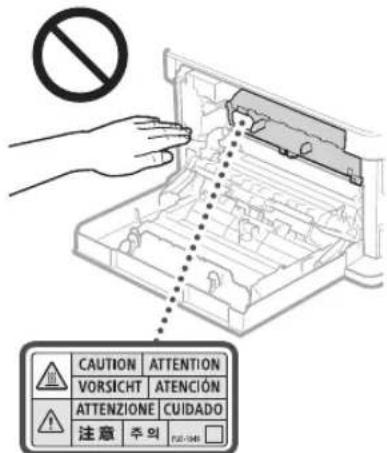
Be careful not to let the device be used by children or unauthorized persons. This can lead to misuse and cause injury. Carry the device with the handle. Such handling can cause injury.
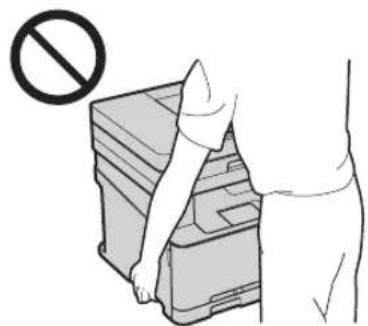
Accessories (only for models with accessory)
Only use accessories recommended by the manufacturer. This can lead to misuse and cause injury. - Accessories must be attached securely to avoid injury. Accessories must be attached securely to avoid injury to hands or other parts of the body.
Accessories for the shredder (only for models with shredder)
Do not insert loose clothing or jewelry into the feed slot. Be careful with sharp edges as they can cause injury.
Handle (only for models with handle)
Do not insert the device into the handle, as this can cause injury.
Energy saving button (only for models with energy saving)
Press the energy saving button for safety, so that the device does not operate accidentally during long periods of inactivity (e.g., at night). Also, unplug the main power switch and remove the plug from the socket for safety, so that the device does not operate accidentally during long periods of inactivity (e.g., on holidays).
Laser safety
Complies with IEC60825-1:2014 EN60825-1:2014. This device is classified as a Class 1 laser product.
CLASS 1 LASER PRODUCT
LASER KLASSE 1
CLASS 1 LASER PRODUCT
CLASS 1 LASER PRODUCT
CLASS 1 LASER PRODUCT
CLASS 1 LASER PRODUCT
CLASS 1 LASER PRODUCT
CLASS 1 LASER PRODUCT
The laser radiation may be dangerous for the human body. Since the radiation emitted by the product is completely enclosed by the housing and the outer covering, the laser radiation cannot escape during any part of the operation. Read the following instructions on safety engineering carefully.
Do not open the panels unless specified in the instructions for each device. If the laser radiation hits the eyes, it can cause injury.
Appendix
WARNING
Using controls or performing procedures other than those specified in this manual may result in hazardous laser radiation exposure.
Safety precautions:
Follow the instructions for the intended use of the device. - Do not drop or hit the device. Do not attempt to open or close the doors, covers, or other parts. This may cause damage to the device. - Do not touch the contacts of the cartridge with your fingers ( ). This may cause damage to the device.
Operate the device on a flat surface with the cover open. Wipe the surface with water before use. Do not use alcohol, benzene, thinners, or other volatile solvents. Do not use cosmetics or abrasive powders. If these solvents get on the electrical parts inside the device, they may cause static electricity, which can lead to electric shock. It is recommended to check the circuit and grounding regularly, including the area, the floor, and the entire unit or the heating element. Using the circuit or the unit in an improper condition may cause damage or electric shock.
WARNING
Improper use of the device under high voltage or at high temperatures may cause errors. Do not touch parts of the device that are not mentioned in this manual. When operating the device, follow all safety instructions to avoid injury.
Original instructions for use and storage
Use of this product by scanning, printing, or copying in any other way of certain documents and use of such scans, prints, or copies in any other way may be prohibited by law and may result in criminal and/or civil liability. A non-exhaustive list of such documents is provided below. This list is created for your convenience. If you have any doubts about the legality of using this product for scanning, printing, or copying any documents or using such scans, prints, or copies in any other way, please contact your legal advisor.
- Paper money, payment orders, checks, securities, deposit certificates
- Passports
- Identification cards or residence permits, internal revenue stamps (paid or unpaid), documents on military service, or other documents on debt obligations
- Tickets or passes issued by travel agencies, stock certificates
- Certificates of authenticity for works protected by copyright laws, or works of art without the permission of the copyright owner
Symbols related to technical safety
Warning: Position "ON"
Warning: Position "OFF" Warning: Position "STANDBY"
Button switch "ON". "OFF"
Protective earth terminal
Dangerous voltage inside. Do not open the cover unless instructed.
CAUTION: Hot surface. Do not touch.
Parts and components: list of parts for the manual
[NOTE]
The listed parts may not be indicated in the product's parts list.
v1602_00_uk-UA
Label with safety rules for working with the laser
Consumables
WARNING
Do not use the cartridge with the toner with an open laser. This can cause eye damage or injury. If the toner cartridge is damaged or spilled, carefully wipe up the spill with a damp cloth; be careful not to inhale it. Never touch the spill with a vacuum cleaner. This can lead to damage to the vacuum cleaner or fire due to static discharge.
CAUTION
Keep the cartridges with toner and consumable materials in places inaccessible to children. If the toner comes into contact with eyes, rinse immediately with water and seek medical advice. Do not attempt to disassemble the toner cartridge. The toner may spill if it falls. If the toner falls, wipe it up with a damp cloth and dispose of it properly. If the toner spills from the cartridge, try to push it back in and be careful not to get it on your skin. If the toner gets on your skin, wash it off immediately with soap and water. If you inhale toner or if your skin is irritated by contact with it, seek medical advice immediately.
Do not turn the device upside down or tilt it while it is operating. This may cause a change in parameters.
During transportation of the device
To avoid damage to the device during transportation, follow the instructions below.
Remove the toner cartridge. Place the device in the packaging materials and put it in the box from the delivery set.
Technical data and specifications
Periodic maintenance of the device. If the device does not work properly, follow the instructions in the user manual. If a problem occurs during operation, check for malfunctions. If you cannot solve the problem yourself, the device will require professional maintenance.
WARNING
Before cleaning the device, unplug the power cord from the electrical outlet. If you do not do this, there is a risk of electric shock or injury from electric current. When unplugging, pull the plug, not the cord. Do not touch the plug with wet hands. If water or other liquids get on the device, there is a risk of electric shock.
C
Appendix
Estonian (ET) Hereby, Canon Inc. declares that this device complies with the requirements of Directive 2014/53/EU.
30-2, Shimomaruko 3-chome, Ohta-ku, Tokyo 146-8501, Japan
One Canon Park, Melville, NY 11747, U.S.A.
CANON EUROPA N.V.
Bovenkerwerweg 59, 1185 XB Amstelveen, The Netherlands
2F Jinbao Building No.89, Jinbao Street, Dongcheng District, Beijing 100005, PRC
CANON SINGAPORE PTE LTD
1 Fusionopolis Place, #15-10, Galaxis, Singapore 138522
CANON AUSTRALIA PTY LTD
Building A, The Park Estate, 5 Talavera Road, Macquarie Park, NSW 2113, Australia
CANON GLOBAL WORLDWIDE SITES
http://www.canon.com/