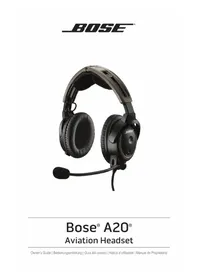
A20 - Wireless Earbuds BOSE - Free user manual and instructions
Find the device manual for free A20 BOSE in PDF.

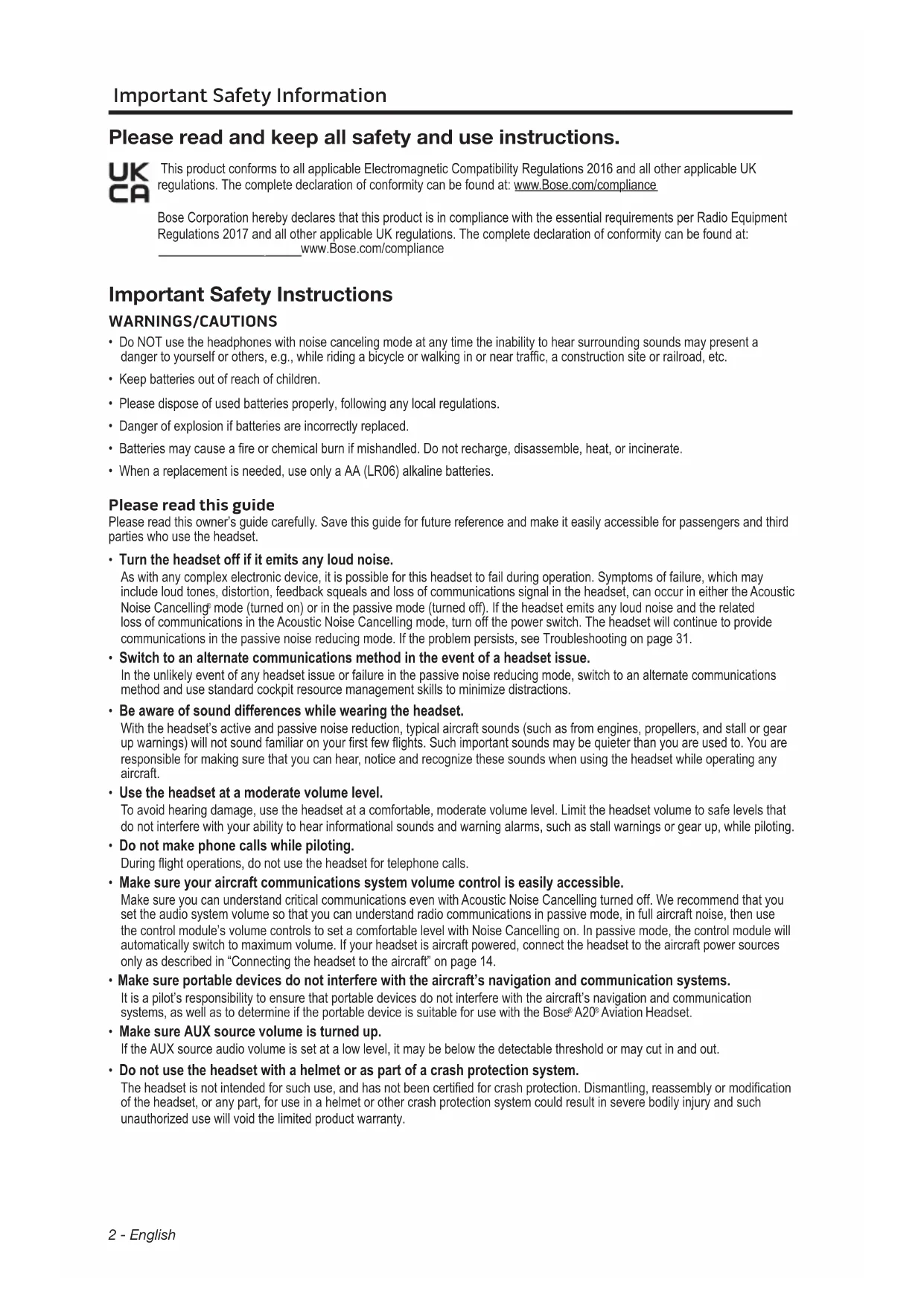


| Product type | Aviation headset with active and passive noise reduction |
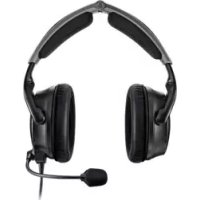
| Model | Bose A20 Aviation Headset |
| Noise reduction | Active (ANC) and passive, switchable |
| Power supply | 2 AA alkaline batteries (IEC LR06) or aircraft power 10-32 V DC (Flex versions) |
| Battery life | At least 45 hours in typical noise environment |
| Wireless connectivity | Bluetooth 3.1, range 10 meters |
| Wired audio input | 3.5 mm AUX mini-jack |
| Microphone | Electret or dynamic type, adjustable, with windscreen |
| Impedance | 160 ohms (mono), 320 ohms (stereo) |
| Frequency response | 15 Hz - 5 kHz |
| Weight | 340 grams |
| Dimensions (headset) | Slider not extended: 214 x 161 x 80 mm; extended: 259 x 168 x 80 mm |
| Dimensions (control module) | 38.1 x 38.1 x 125 mm |
| Operating temperature range | -15 °C to 55 °C |
| Maximum altitude for full ANC | 15,000 feet |
| Additional features | Auto-off, auto-power-on (Flex versions), secondary audio mode selector (MUTE/MIX/OFF), BT/AUX priority control |
| Maintenance and cleaning | Clean with a soft cloth and soapy water; replace ear cushions every 6 months or 350 hours; replace windscreen if necessary |
| Available spare parts | Control module, cable, ear cushions, headband cushion, windscreen, protector cap, carrying case |
| Warranty | Limited warranty (see registration card) |
| Certifications | FCC, ISED, CE, TSO C139 (certain versions) |
Frequently Asked Questions - A20 BOSE
User questions about A20 BOSE
0 question about this device. Answer the ones you know or ask your own.
Ask a new question about this device
Download the instructions for your Wireless Earbuds in PDF format for free! Find your manual A20 - BOSE and take your electronic device back in hand. On this page are published all the documents necessary for the use of your device. A20 by BOSE.
USER MANUAL A20 BOSE
Please read and keep all safety and use instructions.

This product conforms to all applicable Electromagnetic Compatibility Regulations 2016 and all other applicable UK regulations. The complete declaration of conformity can be found at: www.Bose.com/compliance
Bose Corporation hereby declares that this product is in compliance with the essential requirements per Radio Equipment Regulations 2017 and all other applicable UK regulations. The complete declaration of conformity can be found at: www.Bose.com/compliance
Important Safety Instructions
WARNING/CAUTIONS
- Do NOT use the headphones with noise canceling mode at any time the inability to hear surrounding sounds may present a danger to yourself or others, e.g., while riding a bicycle or walking in or near traffic, a construction site or railroad, etc.
- Keep batteries out of reach of children.
- Please dispose of used batteries properly, following any local regulations.
- Danger of explosion if batteries are incorrectly replaced.
- Batteries may cause a fire or chemical burn if mishandled. Do not recharge, disassemble, heat, or incinerate.
- When a replacement is needed, use only a AA (LR06) alkaline batteries.
Please read this guide
Please read this owner's guide carefully. Save this guide for future reference and make it easily accessible for passengers and third parties who use the headset.
- Turn the headset off if it emits any loud noise.
As with any complex electronic device, it is possible for this headset to fail during operation. Symptoms of failure, which may include loud tones, distortion, feedback squeals and loss of communications signal in the headset, can occur in either the Acoustic Noise Cancellation mode (turned on) or in the passive mode (turned off). If the headset emits any loud noise and the related loss of communications in the Acoustic Noise Cancellation mode, turn off the power switch. The headset will continue to provide communications in the passive noise reducing mode. If the problem persists, see Troubleshooting on page 31.
- Switch to an alternate communications method in the event of a headset issue.
In the unlikely event of any headset issue or failure in the passive noise reducing mode, switch to an alternate communications method and use standard cockpit resource management skills to minimize distractions.
- Be aware of sound differences while wearing the headset.
With the headset's active and passive noise reduction, typical aircraft sounds (such as from engines, propellers, and stall or gear up warnings) will not sound familiar on your first few flights. Such important sounds may be quieter than you are used to. You are responsible for making sure that you can hear, notice and recognize these sounds when using the headset while operating any aircraft.
- Use the headset at a moderate volume level.
To avoid hearing damage, use the headset at a comfortable, moderate volume level. Limit the headset volume to safe levels that do not interfere with your ability to hear informational sounds and warning alarms, such as stall warnings or gear up, while piloting.
- Do not make phone calls while piloting.
During flight operations, do not use the headset for telephone calls.
- Make sure your aircraft communications system volume control is easily accessible.
Make sure you can understand critical communications even with Acoustic Noise Cancellation turned off. We recommend that you set the audio system volume so that you can understand radio communications in passive mode, in full aircraft noise, then use the control module's volume controls to set a comfortable level with Noise Cancellation on. In passive mode, the control module will automatically switch to maximum volume. If your headset is aircraft powered, connect the headset to the aircraft power sources only as described in "Connecting the headset to the aircraft" on page 14.
- Make sure portable devices do not interfere with the aircraft's navigation and communication systems.
It is a pilot's responsibility to ensure that portable devices do not interfere with the aircraft's navigation and communication systems, as well as to determine if the portable device is suitable for use with the Bose® A20® Aviation Headset.
- Make sure AUX source volume is turned up.
If the AUX source audio volume is set at a low level, it may be below the detectable threshold or may cut in and out.
- Do not use the headset with a helmet or as part of a crash protection system.
The headset is not intended for such use, and has not been certified for crash protection. Dismantling, reassembly or modification of the headset, or any part, for use in a helmet or other crash protection system could result in severe bodily injury and such unauthorized use will void the limited product warranty.
- Use only AA alkaline batteries.
Replace the batteries only with AA alkaline batteries (IEC LR06). There is a danger of explosion if batteries are incorrectly replaced with any other battery chemistries. Batteries may cause a fire or chemical burn if mishandled. Do not recharge, disassemble, heat, or incinerate batteries. Dispose of used batteries properly, following any local regulations. The headset will not operate properly if used with any battery source other than the Bose A20 Aviation Headset control module.
- Keep batteries out of reach of children.
- Do not repair the headset yourself.
Do not attempt to remove, replace, or repair the protective inner screen on the inside of the earcup, which is critical to the headset's performance. If screen replacement or other repair seems necessary, contact Bose Technical Support. See "Contact information" on page 42. If the screen gets wet or any foreign objects become lodged on or adjacent to it, follow the instructions in "Headset Care and Maintenance" on page 27.
- Keep the earcup free of debris.
Proper headset operation requires that the headset TriPort and microphone openings located on the outside of each earcup are kept free of debris to ensure clear communications. See "Cleaning the headset" on page 27 for cleaning instructions.
DON'T immerse the headset or any parts in water or any other liquid. See "Cleaning" for cleaning instructions.

Contains small parts which may be a choking hazard. Not suitable for children under age 3.

This product contains magnetic material. Consult your physician on whether this might affect your implantable medical device.
- Do NOT expose this product to dripping or splashing, and do not place objects filled with liquids, such as vases, on or near the product.
- Do NOT make unauthorized alterations to this product.
- Do not expose products containing batteries to excessive heat (e.g. from storage in direct sunlight, fire or the like).
Regulatory Information
NOTE: This equipment has been tested and found to comply with the limits for a Class B digital device, pursuant to Part 15 of the FCC Rules. These limits are designed to provide reasonable protection against harmful interference in a residential installation. This equipment generates, uses, and can radiate radio frequency energy and, if not installed and used in accordance with the instructions, may cause harmful interference to radio communications. However, there is no guarantee that interference will not occur in a particular installation. If this equipment does cause harmful interference to radio or television reception, which can be determined by turning the equipment off and on, the user is encouraged to try to correct the interference by one or more of the following measures:
- Reorient or relocate the receiving antenna.
- Increase the separation between the equipment and receiver.
- Connect the equipment into an outlet on a circuit different from that to which the receiver is connected.
- Consult the dealer or an experienced radio/TV technician for help.
Changes or modifications not expressly approved by Bose Corporation could void the user's authority to operate this equipment. This device complies with part 15 of the FCC Rules and with ISED Canada license-exempt RSS standard(s). Operation is subject to the following two conditions: (1) This device may not cause harmful interference, and (2) this device must accept any interference received, including interference that may cause undesired operation.
This device complies with FCC and ISED Canada radiation exposure limits set forth for general population. This transmitter must not be co-located or operating in conjunction with any other antenna or transmitter.
CANICES-3(B)/NMB-3(B)

Bose Corporation hereby declares that this product is in compliance with the essential requirements and other relevant provisions of Directive 2014/53/EU and all other applicable EU directive requirements. The complete declaration of conformity can be found at: www.Bose.com/compliance.
For Europe:
Frequency band of operation 2400 to 2483.5MHz
Maximum transmit power less than 20 dBm EIRP.
Maximum transmit power is below regulatory limits such that SAR testing is not necessary and exempt per applicable regulations.
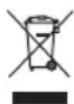
This symbol means the product must not be discarded as household waste, and should be delivered to an appropriate collection facility for recycling. Proper disposal and recycling helps protect natural resources, human health and the environment. For more information on disposal and recycling of this product, contact your local municipality, disposal service, or the shop where you bought this product.

Please dispose of used batteries properly, following local regulations. Do not incinerate.
番蕃达菌回收
| Names and Contents of Toxic or Hazardous Substances or Elements | ||||||
| Toxic or Hazardous Substances and Elements | ||||||
| Part Name Lead (Pb) Mercury | ury (Hg) Cadmium | Cd) | Hexavalent (CR(VI)) | PolybrominatedBiphenyl (PBB) | Polybrominated diphenylether (PBDE) | |
| PCBs X O O O | O O O | |||||
| Metal parts X | O O O O O | |||||
| Plastic parts | O O O O O O | |||||
| Speakers X | O O O O O | |||||
| Cables | X O O O O O | |||||
| This table is prepared in accordance with the provisions of SJ/T 11364. O: Indicates that this toxic or hazardous substance contained in all of the homogeneous materials for this part is below the limit requirement of GB/T 26572. | 5 | |||||
| X: Indicates that this toxic or hazardous substance contained in at least one of the homogeneous materials used for this part is above the limit requirement of GB/T 26572. | ||||||
Date of Manufacture: The eighth digit in the serial number indicates the year of manufacture; "1" is 2011 or 2021.
China Importer: Bose Electronics (Shanghai) Company Limited, Part C, Plant 9, No. 353 North Riying Road, China (Shanghai) Pilot Free Trade Zone
EU Importer: Bose Products B.V., Gorslaan 60, 1441 RG Purmerend, The Netherlands
Taiwan Importer: Bose Taiwan Branch, 9F-A1, No. 10, Section 3, Minsheng East Road, Taipei City 104, Taiwan
Phone Number: +886-2-2514 7676
Mexico Importer: Bose de Mexico, S. de R.L. de C.V., Paseo de las Palmas 405-204, Lomas de Chapultepec, 11000 Mexico, D.F. Phone Number: +5255 (5202) 3545
UK Importer: Bose Limited, Bose House, Quayside Chatham Maritime, Chatham, Kent, ME4 4QZ, United Kingdom
Operate this product within the temperature range of 5^ to 131^ (-15^ to 55^) only.
The Bluetooth® word mark and logos are registered trademarks owned by Bluetooth SIG, Inc. and any use of such marks by Bose Corporation is under license.
Bose Corporation Headquarters: 1-877-230-5639
© 2021 Bose Corporation. No part of this work may be reproduced, modified, distributed or otherwise used without prior written permission.
Please complete and retain for your records
The serial number is located beneath the headband cushion (see page 41). The model number is located in the battery compartment.
Serial number:
Model number:
Please keep your receipt with your owner's guide. Now is a good time to register your Bose product. You can easily do this by going to global.Bose.com/register
Introduction 7
About your Bose A20 Aviation Headset 7
Our commitment to you 7
What's included 7
Components 8
Control module variations 9
Power and cable variations 10
Preparing the Headset for Use 11
The microphone assembly 11
Attaching the microphone assembly 11
The battery compartment 12
Opening the battery compartment 12
The operation switches 12
Changing the operation switches 12
Auto On 13
Auto Off 13
Inserting and replacing the batteries 14
Connecting the headset to the aircraft 14
Using the 6-pin plug 14
Using the dual general aviation plugs. 15
Using other plug types 15
Using the Headset 16
Wearing and adjusting the headset. 16
Conditions related to fit 16
Microphone placement 17
Clothing clips 17
Using the control module 18
Power button 18
Power indicator. 19
Intercom volume controls 19
Primary and secondary audio sources 20
AUX audio sources (wired) 20
Bluetooth® audio sources (wireless) 20
Using the headset with a Bluetooth device 21
Pairing the first device 21
Pairing another device 22
Switching between connected devices 22
Bluetooth multi-function button 22
Making and answering calls 23
Reconnecting to a previously connected device 24
Contents
Recovering a lost connection 24
Disconnecting a Bluetooth device 24
Clearing the headset pairing list 24
Controlling Bluetooth volume 24
Secondary audio modes 25
Secondary Audio Mode selector 25
Managing multiple secondary sources 26
Setting the Priority (BT-AUX) switch 26
Headset Care and Maintenance 27
Instructions for continued airworthiness 27
Cleaning the headset 27
General cleaning 27
Headset earcup openings 27
Microphone windscreen 28
Earcup inner screen 28
Headband cushion 28
Replacing parts 28
Microphone windscreen replacement 28
Ear cushion replacement 29
To replace the ear cushions: 29
Battery replacement 29
Headband cushion replacement 30
Microphone assembly or terminator cover replacement 30
Storage 30
Troubleshooting 31
Installation 36
Mounting the aircraft panel connector 36
Technical Information 37
Mono connection diagram 37
Stereo connection diagram 37
Helicopter (UI74) connection diagram 38
Details on making the connections 38
FAA Technical Standards Order 40
Service and Warranty Information 41
Locating the headset serial number 41
Limited warranty 41
Contact information 42
Ordering parts and accessories 42
About your Bose® A20® Aviation Headset
With the Bose® A20® Aviation Headset, you can rely on crisp, clear audio and significant noise reduction for all cockpit communications. You can also connect the headset to secondary audio sources such as smartphones or tablets.
Our commitment to you
We take great pride in designing each of our products with the goal of providing the highest performance possible in the price range of that product. We strive to reproduce the musical sounds as closely as possible to those of the original performance. And we strive to avoid flashy sounds such as those associated with accentuated bass and/or treble frequencies. While those sounds may be initially attractive to the novice, they are not real and are not enduring. In addition, we use only the highest-quality parts and the latest assembly and quality control techniques to ensure the reliability and long life of our products.
Our reputation rests on our steadfast pursuit of this policy in music and entertainment systems for the home, the automobile, and businesses. At Bose, we are committed to investing in research that continually gives rise to new technologies for improving sound reproduction.
When you purchase any product from Bose, we encourage you to compare it, as we do, to competitive products. We believe that this process will enhance your appreciation of the product you select. With best wishes from all of us at Bose for many years of enjoyment.
What's included
The headset includes a control module, cable, and carrying case.
The type of control module and connector configuration depends on the options you chose for your headset.
There are two options for the control module:
- Control module with Bluetooth® compatibility
- Conventional control module
There are several end-plug configurations for the headset. Your headset falls into one of two general categories:
- Battery powered: Operates with battery power only.
- Dual powered: Operates with either aircraft or battery power. No battery needed when connected to aircraft power. This version is often called Flex powered and comes with an Auto On function.
Components
Headset
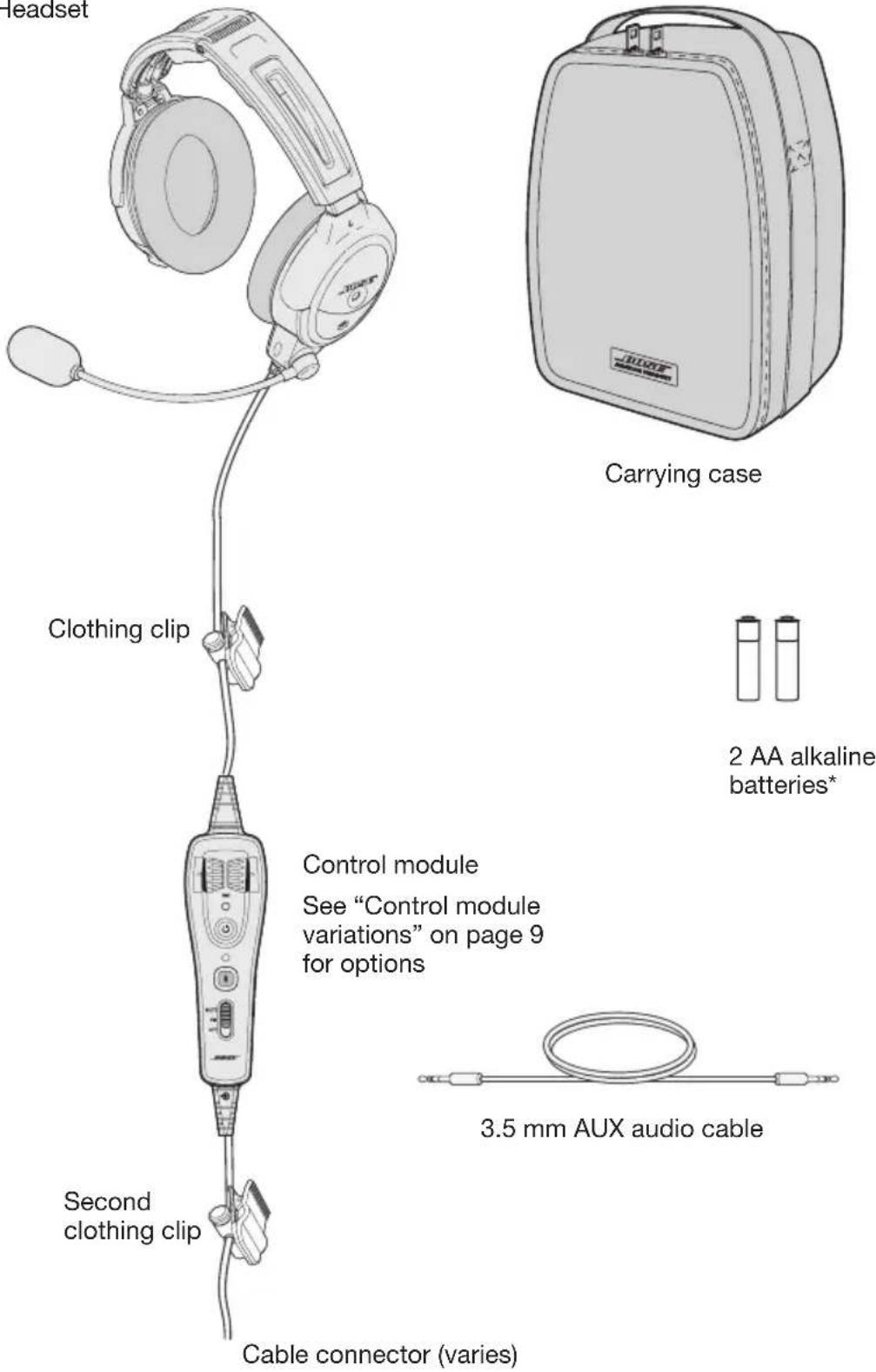
Note: Cable connector types will vary based on model of headset. See "Power and cable variations" on page 10.
Warning: * Replace batteries with alkaline batteries only. Do not use any other battery chemistries.
Control module variations
If you purchased the Bluetooth version of the headset, you received the Bluetooth control module. If not, you received the conventional control module.
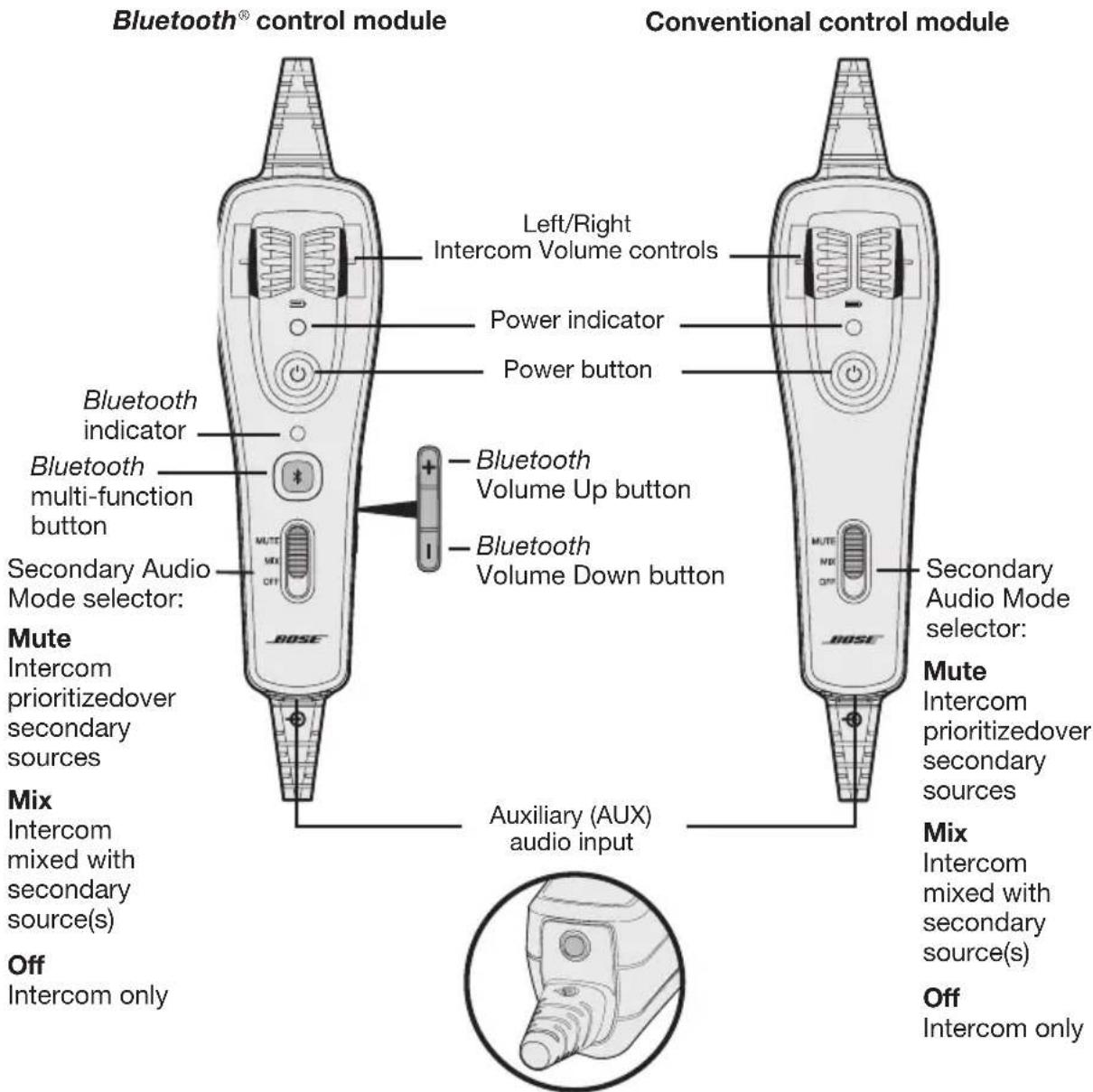
Note: When the Secondary Audio Mode selector is in the Mute or Mix position, you will hear a maximum of two audio sources – the intercom plus one secondary source. See “Secondary Audio Mode selector” on page 25.
Power and cable variations
The Bose® A20® Aviation Headset is available for purchase in different standard aircraft connector options, including:
| Battery powered options Operate with battery power only | Dual powered options Operate with either aircraft or battery power No battery needed when connected to aircraft power |
| Dual G/A 6-pin* | |
| U174 5-pin XLR | |
| U384 8-pin |
- An adapter is available from Bose to convert a 6-pin connector to a dual G/A or U174 plug for additional connection flexibility.
Note: Many different combinations of control module, microphone, connector and cable types are available. Contact Bose Technical Support for more information.
The microphone assembly
Your headset may be shipped with the microphone assembly (boom microphone and cable) attached to the left earcup. If you prefer, you can switch it to the right earcup.
If your headset is shipped with the microphone assembly packed separately, you can attach it to either earcup.
Attaching the microphone assembly
Choose the earcup (L or R) where you want to attach the microphone assembly. Also, make sure that the earcup connector pins are clean and free of debris.
- Use a Phillips screwdriver to loosen the two screws on the terminator cover near the bottom of the earcup where you want to attach the microphone assembly.
Remove the terminator cover to reveal the connector pins on the earcup. - Carefully line up the microphone assembly to the small connector socket on the earcup.
- Slide the connector into the socket until it reaches the stop.
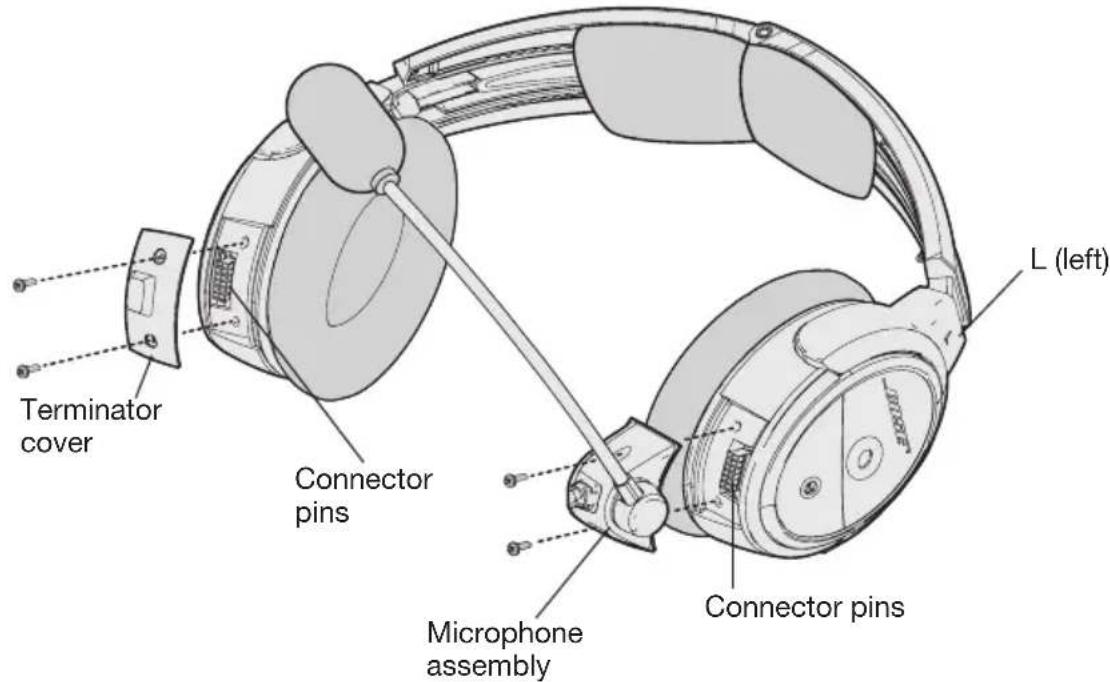
Caution: Do not force the connector into the socket, or earcup damage may occur.
- Tighten the screws to secure the assembly.
- Attach the terminator cover to the earcup that does not have the microphone assembly attached. Insert the screws, then align and tighten them.
Note: The headset will not work without the terminator cover installed.
Caution: Be sure to try the headset and fully test its operation before flight.
The battery compartment
The headset is shipped with factory-set operation defaults. If you want to alter these defaults, you can change the operation switches located inside the control module battery compartment.
Opening the battery compartment
Press down firmly on the finger indent and slide the cover down. The cover is tethered to the module. Do not attempt to detach it.
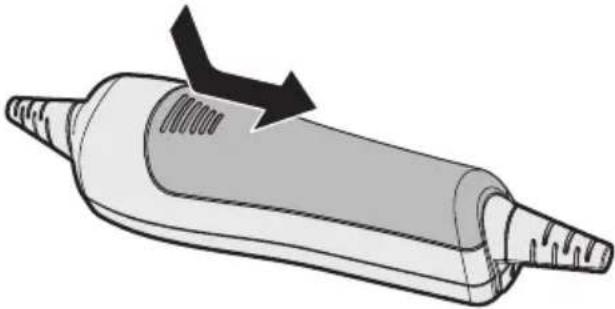
Note: The battery compartment cover is designed to remain securely closed. You may need to use extra force when pressing down and releasing the cover.
The operation switches
The operation switches control: Priority (BT-AUX); Intercom (MON-ST); Auto On feature; and Auto Off feature. For details see the table on page 12.
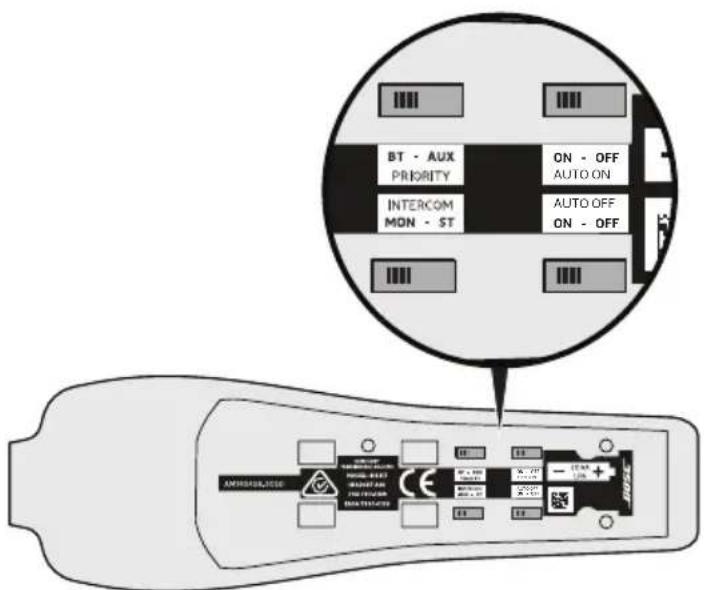
- The Auto On feature is only available for aircraft powered versions.
- The Intercom (MON-ST) option is only available for headset configurations that support two-channel or stereo intercom systems.
The Priority (BT-AUX) option is only available for Bluetooth headsets.
Changing the operation switches
- Open the battery compartment.
- If batteries are installed, remove them. In the battery compartment, you can observe and change the switch positions.
- To change a switch position, use a pen or a small, flat-tipped screwdriver to gently move the switch.
This table shows possible positions, default setting, and purpose for each operation switch.
| Operation Switch Purpose | |
| PRIORITY(Available forBluetooth®headsetonly) | Establishes priority between two secondary audio sources. Select BT to give the Bluetooth (wireless) connection higher priority. Select AUX to give the wired connection higher priority.See “Setting the Priority (BT-AUX) switch” on page 26. |
| INTERCOM(Available for headset configurations that support two-channel or stereointercom systems only) | For most configurations, set at the factory for mono audio systems (to provide audio in both ears). Set it to stereo (ST) if your aircraft has a stereo intercom. |
| AUTO ON(Available for aircraft powered headset versions only) | Set at the factory to enable the Auto On function. The headset will turn on when aircraft power is available.To disable Auto On, set the switch to OFF. With the switch in OFF position, the user must manually turn the headset on. |
| AUTO OFF Set at the factory toAUTO OFFON - OFF | enable the Auto Off function.The headset will turn off after three to nine minutes of inactivity.To disable Auto Off, set the switch to OFF. With the switch in OFF position, the user must manually turn the headset off. |
Auto On
With aircraft powered versions (5-pin XLR, 6-pin, and 8-pin) the headset will turn on automatically when aircraft power is available. If you do not want the headset to turn on automatically, set the switch position to OFF.
Auto Off
The Auto Off feature detects when the headset is not in use and shuts it off after several minutes to preserve battery power. The exact time it takes to shut off varies and can range between three to nine minutes after you stop using the headset.
When the headset is running on battery power and is not plugged in to a powered intercom, it will shut off, unless there is an active AUX audio source present.
If you are on a phone call and unplugged from the intercom, the headset will allow you to complete your call, then it will turn off approximately three minutes after the call is ended.
Inserting and replacing the batteries
Caution: If the batteries do not fit correctly, do not force them in. Forcing an improper connection will cause permanent damage to the control module.
- Turn off headset power.
- Press down firmly on the battery compartment cover and slide the cover to release. The battery door is tethered. Do not detach the door from module.
- Insert two alkaline AA batteries into the control module, observing proper polarity.
- Replace the battery compartment cover.
Warning: Replace batteries with alkaline batteries only. Do not use any other batterychemistries.
Note: For aircraft-powered versions (5-pin XLR, 6-pin, 8-pin) batteries are not required for operation if aircraft power is available.
Connecting the headset to the aircraft
The headset can be configured to either plug into aircraft power or rely entirely on battery power.
Using the 6-pin plug
A single 6-pin plug inserted into the 6-pin connector provides the headset with aircraft power and intercom audio.
If your headset is aircraft-powered, a 6-pin connector may be installed and mounted to an aircraft panel. See "Mounting the aircraft panel connector" on page 36.
Note: An adapter is available from Bose to convert a 6-pin connector to a dual G/A or U174 plug for additional connection flexibility for users who fly multiple aircraft and require other connector types.
To connect the headset
Align the 6-pin plug to the connector keyway by matching the narrow bar on the plug to the slot on the connector.
Firmly press the plug into the connector jack.
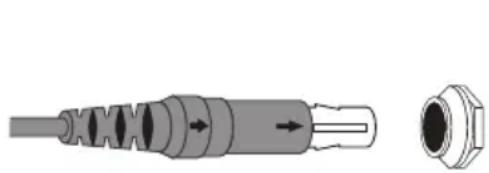
Align keyway
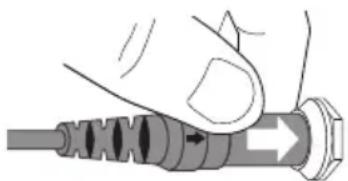
Push plug in
To disconnect the headset
- Pull back on the sleeve near the end of the 6-pin plug.
- Gently continue pulling back to remove the plug from the connector.
Caution: Do not pull the connector out without first pulling back the sleeve. Forcing the connector out will damage the cable and/or the aircraft instrument panel.
Pull sleeve back, then pull plug out.
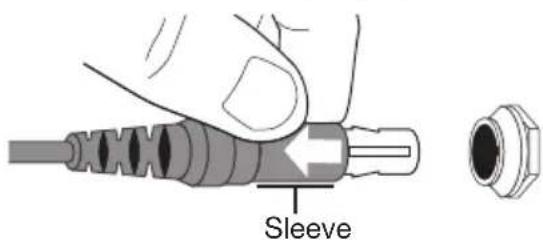
Using the dual general aviation plugs
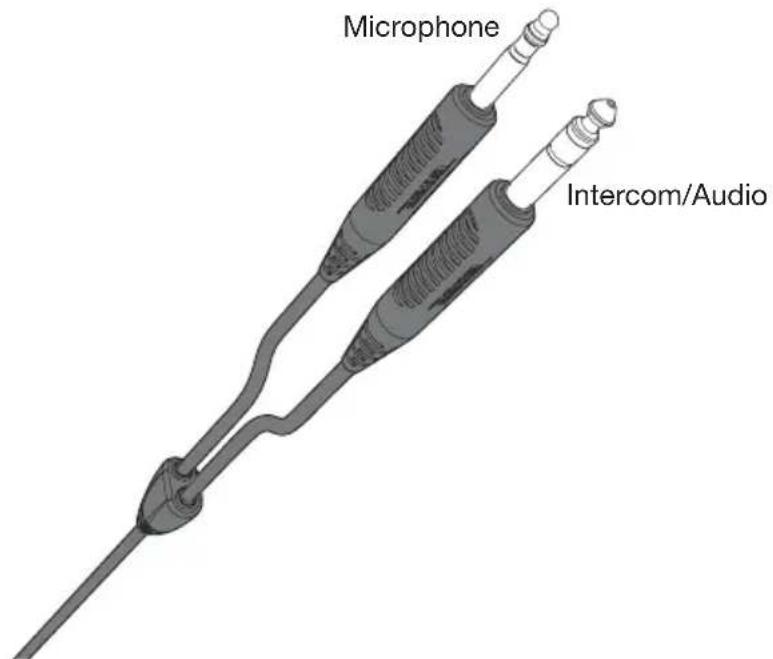
The most common battery powered (only) version of the headset has two general aviation (G/A) plugs that connect to the aircraft audio. Although the plugs look similar, the microphone plug is shorter, thinner, and has a slightly different shape than the intercom plug.
Insert the thicker intercom plug in first. It will only fit into one of the jacks. Then insert the thinner microphone plug into the other jack.
Using other plug types
The headset is also available with other types of plugs for connecting to various aircraft audio jacks. These single-plug connectors should be inserted into the appropriate jack on your aircraft control panel. Refer to "Power and cable variations" on page 10.
Wearing and adjusting the headset
Proper fit on your head is important both for comfort and optimal noise reduction performance. Here are a few guidelines:
- Use the left (L) and right (R) markings above the earcups to orient the headset properly.
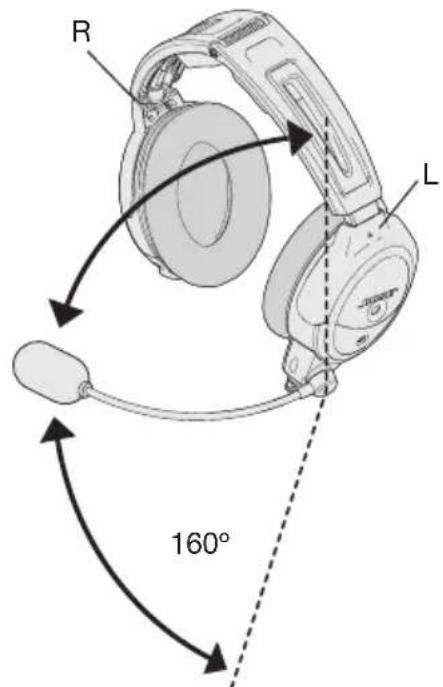
- The microphone is intended to rotate no more than 160^ as shown above. Do not force the microphone beyond the intended rotation.
- As you put the headset on, lightly grasp each earcup and adjust it so its cushion is completely over your ear. You should feel an even, gentle pressure all around each ear.
- Adjust the headband so it rests gently on top of your head.
- Make your final adjustments with the headset powered on in a noisy environment.
In very loud conditions, such as during takeoff, you may experience a brief reduction in Acoustic Noise Cancelling® as the headset compensates for a momentary pressure change. If the problem continues when the sound level returns to normal, see "Noise reduction" on page 31. If the problem persists, contact Bose Technical Support.
Conditions related to fit
A low rumbling sound or frequent, brief losses of Acoustic Noise Cancelling noise reduction may indicate an improper fit or blocked earcup ports. See "Headset earcup openings" on page 27 for instructions on removing blockages.
During a long flight, you may feel a slight pressure point, which can be relieved by adjusting the headband position. Your experience with using the headset will help establish a sense of how it should sound and feel.
Microphone placement
Microphone placement is important for clear communications. With the headset on your head, make these adjustments:
- Grasp the boom with your fingers and move the microphone up or down so it is level with your mouth.
- Pull the microphone in toward your lips. Position the microphone with its talk side facing in (indicated by label). Though it will be slightly off center, the microphone should be 1/2 inch from the opening of your lips.
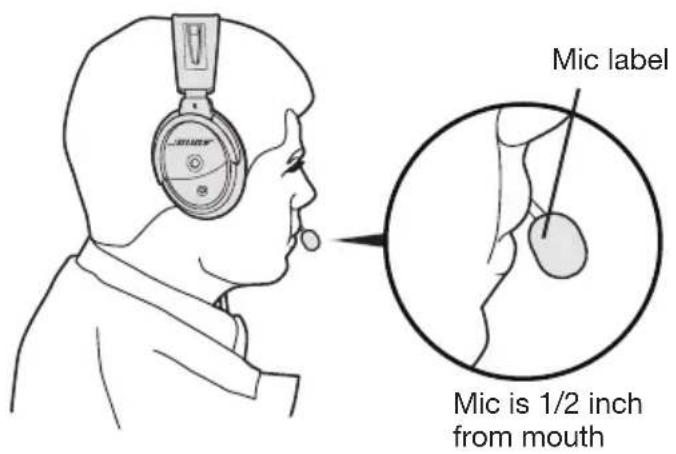
- Make sure the talk side of the microphone is facing your lips. Do not purse your lips.
Clothing clips
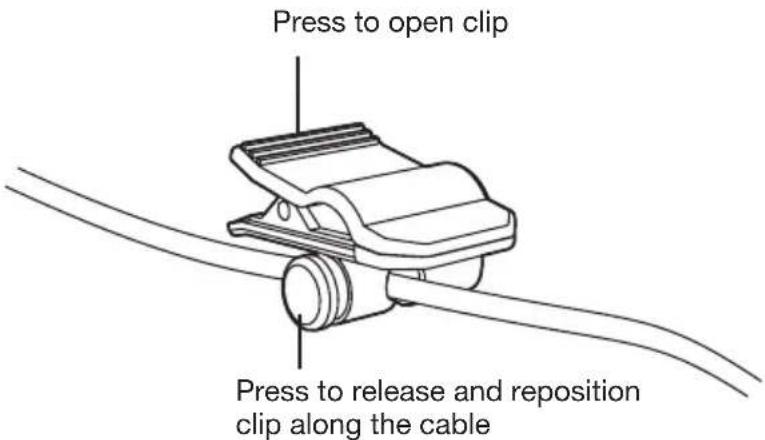
The control module cable is fitted with two clothing clips. Use the clips to attach the headset cable to your clothing, a safety harness, or an aircraft door pocket.
Using the control module
If you purchased the Bluetooth® version of the headset, you received the Bluetooth control module. If not, you received the conventional control module.
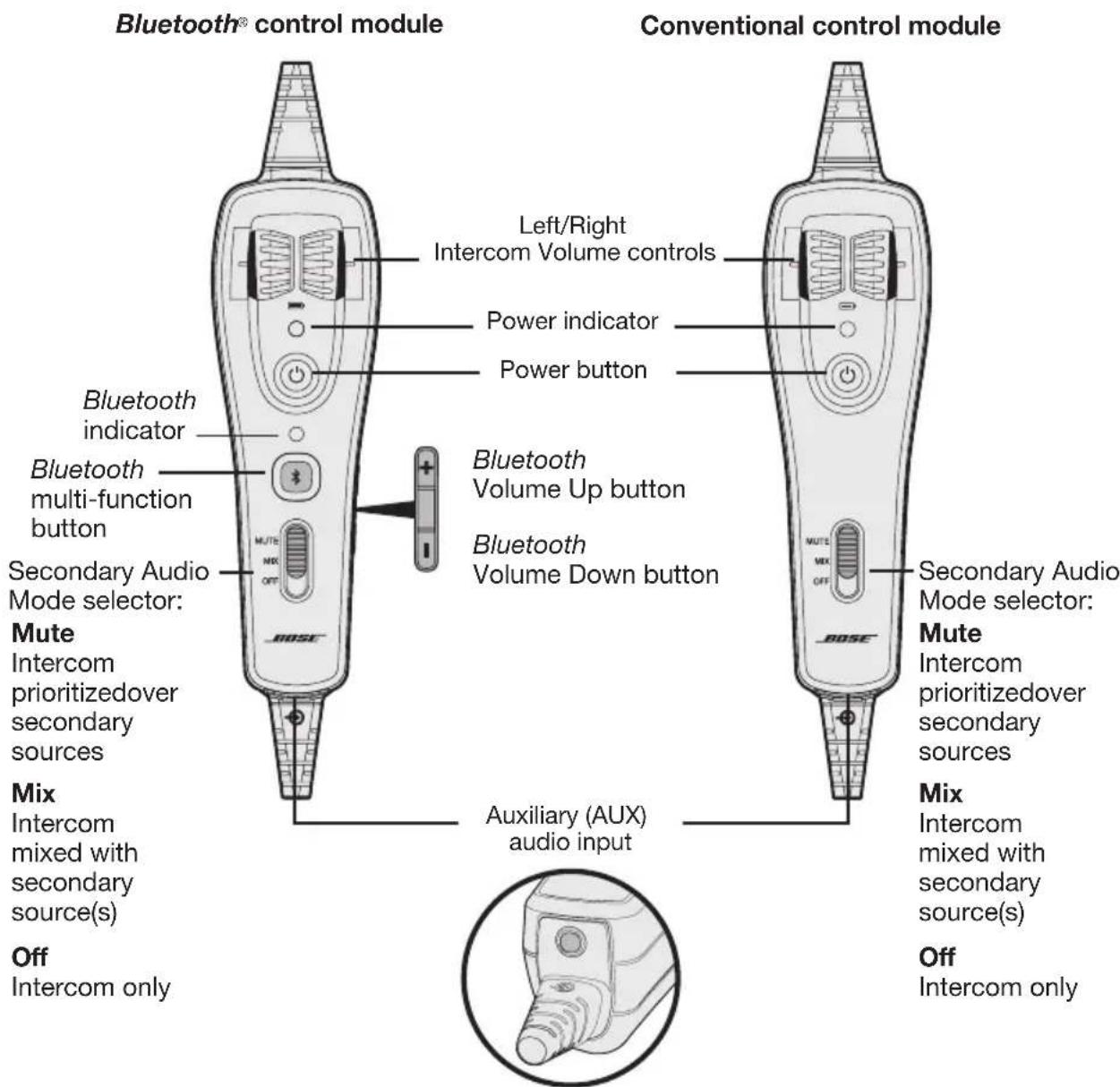
Power button
| Action What to do | |
| Turn on the headset | Press once. |
| Turn off the headset | Press and hold for three seconds. Note: When powered off, the headset will still provide passive audio communications. Note: Repeated pressing will not speed up the power off event. If the unit does not power off, wait 3 seconds try again. |
| Dim the power and Bluetooth indicators | Press twice quickly. Repeat to brighten. |
Power indicator
New alkaline AA batteries will generally supply at least 45 hours of power for the headset. Battery life varies with the ambient noise level of the aircraft, temperature, ear cushion condition, use of the Bluetooth® feature, and age of the batteries. The power indicator changes color to indicate the power status, as follows:
| Indicator color | Power source | Type of light Indicates | |
| Green Aircraft | Slow flashing Power ON | ||
| Green Battery Flashing Power ON and batteries good | |||
| Amber Battery Fast flashing Power ON, but batteries low (8 hours or less remaining) | |||
| Red Battery Very fast flashing | Power ON, but batteries very low* (2 hours or less remaining) | ||
| Off None None Power OFF or batteries depleted | |||
Warning: Replace batteries with alkaline batteries only. Do not use any other batterychemistries.
*When the batteries reach this level, the Bluetooth feature is disabled to conserve remaining power. You will hear a tone, indicating that your Bluetooth device is being disconnected and the Bluetooth feature is turning off.
Intercom volume controls
The left and right volume control wheels on the control module adjust the intercom volume of the corresponding earcup. With Acoustic Noise Cancelling off, volume control will be set to the maximum level.
Caution: Avoid setting the volume levels too high. Exposure to loud sounds may cause hearing damage.
Holding the control module upright and facing you:
- Use the left wheel to adjust volume of the left earcup.
- Use the right wheel to adjust volume of the right earcup.
Overall headset volume control requires adjustments at both the aircraft intercom or radio, and at the headset control module. Even at its lowest setting, neither volume control wheel can completely turn off the volume.
Primary and secondary audio sources
The aircraft intercom system (ICS) is always the headset's primary audio source. When the headset is plugged in to the aircraft, intercom signals will always be heard and cannot be muted by the headset.
In addition to the primary source (intercom), the headset can connect to secondary audio sources.
Secondary sources can be either AUX (wired) or Bluetooth® (wireless).
Note: Only one secondary source can be heard at a time. Audio from a secondary source will never override intercom communications.
AUX audio sources (wired)
Use the 1/8 inch (3.5 mm) AUX audio input to connect your headset with an external audio source such as a portable GPS or a portable audio device. The connector is located at the bottom end of the control module as shown.
Use the supplied 1/8 inch (3.5 mm) adapter cable to connect your external audio device. Plug one end of the adapter cable into the headphone plug on your device and the opposite end into the headset AUX audio input.
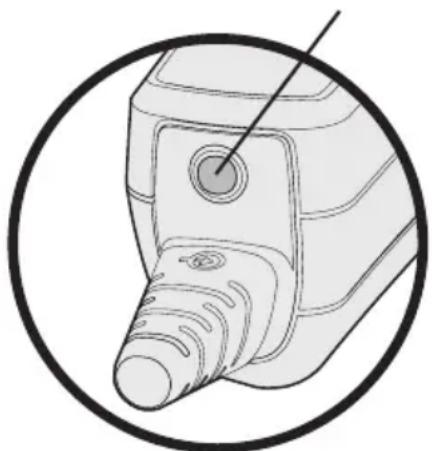
AUX audio input
Note: None of the functions of a connected AUX source are controlled by the control module.
Note: Audio from an AUX source will not be heard if the Secondary Audio Mode selector is in the OFF position.
Bluetooth® audio sources (wireless)
If you purchased the Bluetooth control module version, you can wirelessly connect your headset to an external audio source such as a smartphone or tablet.
Using the headset with a Bluetooth® device
Pairing the first device
-
Press to turn on the headset.
-
Make sure the Secondary Audio Mode selector is in the MUTE or MIX position (not OFF).
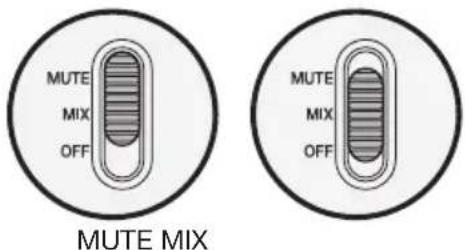
The power indicator glows green or yellow, depending on the charge level of the battery. (If the light is red, the battery is low and needs replacing.)
The Bluetooth indicator flashes purple to indicate that the headset is in pairing mode.
Note: The first time you turn on the headset, it will automatically go into pairing mode and the Bluetooth indicator will flash purple. This will only happen the first time you turn on the headset.
-
Locate the Bluetooth menu on your device and make sure the Bluetooth feature is ON.
-
Select Bose A20 from the Bluetooth device list.
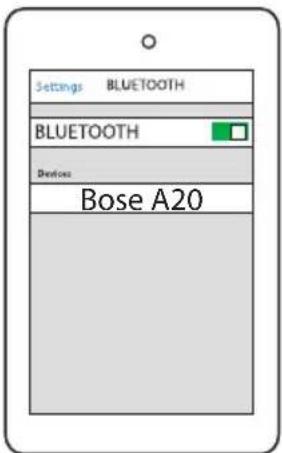
The Bluetooth indicator flashes blue while the devices are pairing, and a tone indicates successful connection.
Note: After five minutes of inactivity, the headset will automatically exit pairing mode and the Bluetooth indicator will turn off. To turn the Bluetooth feature back on, press
Note: Each time you turn on the Bluetooth feature, the headset will attempt to reconnect with the two most recently connected Bluetooth devices. If the device(s) are turned off, or out of range, the headset will return to pairing mode after five minutes. See "Reconnecting to a previously connected device" on page 24.
Pairing another device
The headset can pair with up to eight devices. To pair another device:
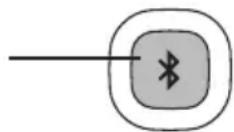
- Press and hold for one second to put the headset into pairing mode.
The Bluetooth® indicator flashes purple.
Bluetooth indicator
Bluetooth multi-function button
- Locate the Bluetooth menu on your device and make sure the Bluetooth feature is ON.
- Select Bose A20 from the Bluetooth device list.
The Bluetooth indicator flashes blue while the devices are pairing.
Note: The headset will automatically exit pairing mode after five minutes of inactivity.
Switching between connected devices
- The headset can connect to two Bluetooth devices at a time. Only one connected device can be heard at a time.
- To switch between two connected Bluetooth devices, pause audio on the first device and start audio on the other.
- To confirm connection, check the Bluetooth device list on your device.
Note: Incoming and outgoing phone calls automatically mute all other secondary audio sources (when the Secondary Audio Mode selector is in either the MUTE or MIX position). During a Bluetooth phone call, the intercom and the phone call will be heard as mixed.
Bluetooth multi-function button
| Action What to do Bluetooth indicator | ||
| Turn the Bluetooth featureon | Press once.Note: The first time you turn on the headset, the Bluetooth feature will be on and the headset will be in pairing mode. | Flashes blue |
| Turn the Bluetooth featureoff | Press and hold for five seconds. | Off |
| Enter pairing mode | Press and hold for one second. | Flashes purple |
Making and answering calls
| Call activity What to do | |
| To make a call Dial from you ur connected phone. The call will automatically transfer to the headset. | |
| To activate voice control (if available) | When there are no active or incoming calls, briefly press |
| To answer a call | Briefly press You should hear a short beep in the headset before you hear the incoming call. |
| To end a call | Briefly press You should hear two short beeps in the headset to indicate that the call has been ended. |
| To ignore an incoming call | Press for one second. |
| To redial the last number | When there are no active or incoming calls, press twice in quick succession. |
| To transfer the audio to the mobile phone | When you are on a call, press for three to four seconds. This transfers the audio to the mobile phone handset while theBluetooth® connection remains active. |
Note: Some functions may not be available for some devices. Refer to your device user's guide for further details.
Note: If you are on a call and unplugged from the intercom, the headset will allow you to complete your call, then it will turn off approximately three seconds after the call is terminated. To use the headset when unplugged from the intercom (to listen to secondary audio sources or to make or receive calls), we recommend you disable the Auto Off feature for uninterrupted functionality. See "Auto Off" on page 13.
Reconnecting to a previously connected device
Each time you turn on the Bluetooth feature, the headset will attempt to reconnect with the two most recently connected Bluetooth® devices.
- Turn the headset on.
- Make sure the Bluetooth indicator is flashing blue. If not, press 串 The indicator flashes blue.
- To confirm connection, check the Bluetooth device list on your device.
Recovering a lost connection
If a connected Bluetooth device moves out of range, the connection will be lost. The headset will automatically attempt to reconnect.
If the headset is unable to reconnect, it will go back into pairing mode. After five minutes of inactivity, the Bluetooth feature will turn off. Move the device back into range, and press once to reconnect.
Disconnecting a Bluetooth device
- On the headset, press and hold for 5 seconds to turn the Bluetooth feature off.
- On your device, turn the Bluetooth feature off.
- Move the Secondary Audio Mode selector to the OFF position.
Clearing the headset pairing list
With the Bluetooth feature on (Bluetooth indicator flashing), press and hold and at the same time for seven seconds. The headset will return to pairing mode.
Controlling Bluetooth volume
Use the Bluetooth volume controls on the right side of the control module to control the volume of a connected Bluetooth device.
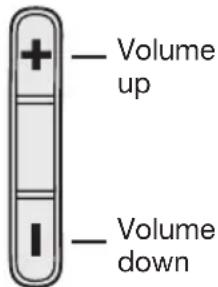
Each press increases or decreases the volume by one level.
- Press and hold the volume button to change the volume continuously.
Secondary audio modes
If you have connected one or more secondary audio sources to the headset, you must decide how you want to hear those secondary sources.
To select how you will hear your secondary audio sources, use the Secondary Audio Mode selector on the control module.
Secondary Audio Mode selector
The selector has three positions: MUTE, MIX and OFF.
| Position Function | Description | |
| MUTE | Intercom prioritized over any secondary audio sources | If an intercom signal is detected, all secondary audio sources are temporarily muted. Secondary audio will return after intercom audio ceases. Also see “Managing multiple secondary sources” on page 26. |
| MUTE MIX OFF | ||
| MIX Intercom mixed with any secondary audio sources | All secondary audio sources are mixed with the intercom audio. (Audio from a connected device will keep playing during intercom communications). Note: In MIX mode, you will hear a maximum of two audio sources – the intercom plus one secondary source. Also see “Managing multiple secondary sources” on page 26. | |
| OFF Intercom only | Note: In OFF mode, Bluetooth® power is disconnected, and all antennae are disabled. | Only intercom audio is active. All secondary audio sources are off. Note: If you switch to OFF mode while connected to a Bluetooth source, you many need to re-establish your Bluetooth connection the next time you turn on the headset. |
Note: Only one secondary source can be heard at a time. Audio from a secondary source will never override intercom communications.
Note: Incoming and outgoing phone calls automatically mute all other secondary audio sources (when the Secondary Audio Mode selector is in either the MUTE or MIX position). During a Bluetooth phone call, the intercom and the phone call will be heard as mixed.
Managing multiple secondary sources
The headset can connect one AUX (wired) source and up to two Bluetooth® (wireless) sources at a time.
If you are likely to receive important information from a particular secondary source (such as a GPS or a warning system), you can assign priority to that source. This insures that incoming audio from the priority source will always override other source.
Setting the Priority (BT-AUX) switch
To assign priority to one of your secondary sources:
- Locate the Priority (BT-AUX) switch inside the battery compartment.
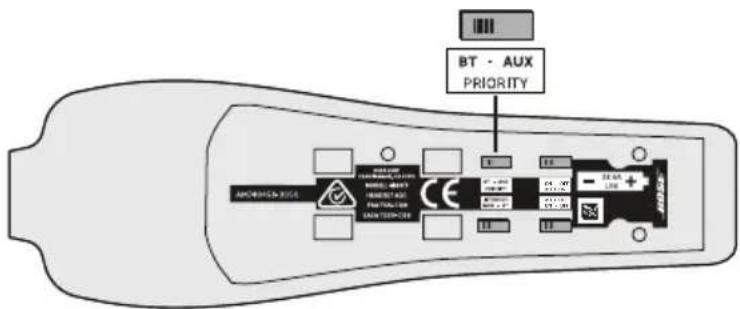
- Set the switch to the correct source (BT or AUX) as shown below.
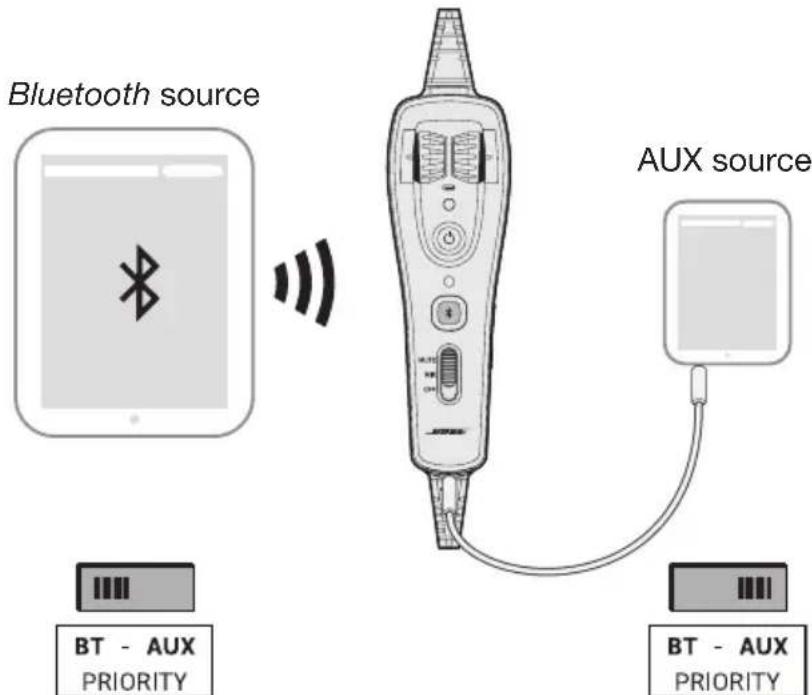
When the switch is in the BT position, the Bluetooth source will override the AUX source if a signal is detected.
When the switch is in the AUX position, the AUX source will override the Bluetooth source if a signal is detected.
Note: Incoming and outgoing phone calls will always override any other secondary source.
Instructions for continued airworthiness
Bose recommends following the general care and maintenance instructions in this guide. With normal use, items such as windscreens and ear cushions require periodic replacement. If cleaning or replacement of these items is needed, follow the recommendations on the following pages. All other care and maintenance, in and out of the warranty period, must be performed by Bose or an authorized repair facility.
Caution: Do not immerse the headset in water or any other liquid. If the headset is immersed in liquid, do not use it. Contact Bose Technical Support for assistance.
Cleaning the headset
General cleaning
Gently wipe the outside surfaces of the headband, connectors, plastic parts, and headband cushion, using a soft cloth moistened with water and mild soap. Take special care when cleaning the ear cushions and the outside surfaces of the earcups. Do not immerse ear cushions in water or any other liquid.
Headset earcup openings
The TriPort® headset opening and the microphone opening must remain clean and free of debris. Check to ensure that the openings on each earcup are clean before each flight.
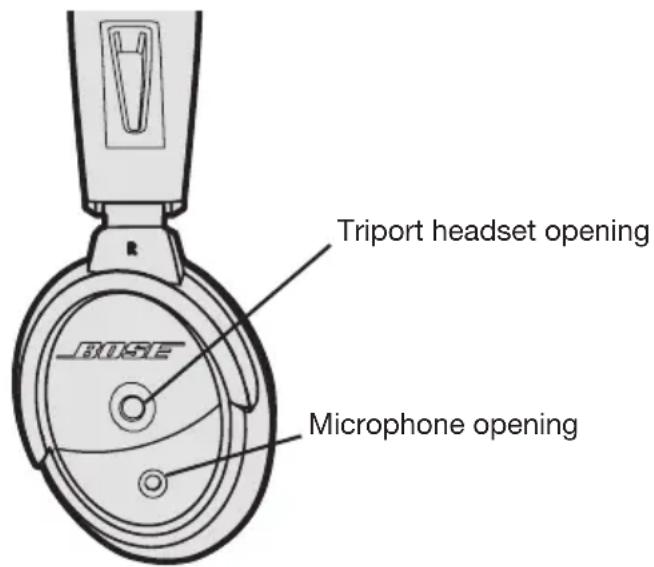
When wiping down the headset earcups, be sure not to force any dirt or debris into the openings. Carefully use tweezers, if necessary, to remove foreign matter that may be lodged in the openings. Do not blow air into or vacuum the openings as this may damage the headset.
Microphone windscreen
Remove the windscreen from the microphone as described in "Microphone windscreen replacement" below.
Rinse and air dry the windscreen. Make sure the windscreen is completely dry, then reattach.
Earcup inner screen
Do not attempt to remove, replace, repair, or clean this component. Located inside the earcup, the inner screen is critical to proper headset operation. If the screen appears to be damaged or worn out, contact Bose.
If the inner screen becomes damp from environmental moisture such as light rain, dew, perspiration, or condensation, allow it to air dry only. Do not use electric heaters, blowers, or hair dryers to dry the inner screen.
Headband cushion
- Remove the cushion as described in "Headband cushion replacement" on page 30.
- Place the cushion in a solution of water and a mild detergent.
- Allow the cushion to air dry, then reattach.
Replacing parts
Through normal use, parts like windscreens and ear cushions may require periodic replacement. Replacement parts can be ordered directly from Bose Corporation. Please refer to "Contact information" on page 42.
Microphone windscreen replacement
- Gently slide or roll the windscreen off the microphone.
- Slide the replacement windscreen on and make sure it fits completely over the microphone.
Ear cushion replacement
As a general rule, ear cushions should be replaced every six months or every 350 hours of use, depending on how often you fly. You may have to replace them more often, if you:
- Have a full beard or heavy whiskers.
- Subject the headsets to severe temperature extremes such as parking your airplane outside in severe cold or heat.
- Put excess strain on the cushions because of improper storage.
Indications that the ear cushions need replacing include:
- Flaking of the outer covering.
- Cuts or tears.
- Flattening of the cushion, reducing the effectiveness of the seal.
To extend the life of the ear cushions, perform regular cleaning as described in "General cleaning" on page 27.
To replace the ear cushions:
- Grasp the ear cushion skirt where it folds into the slot on the earmcup.
- Gently pull the ear cushion skirt up and away from the earcup.
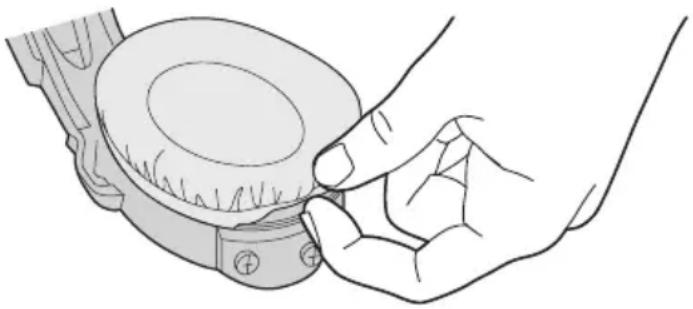
- Properly align the replacement ear cushion with the earmcup.
- Tuck an edge of the ear cushion skirt into the slot behind the ear cushion flange. Be careful not to fold the skirt over.
- Gently stretch the cushion around the earcup, working the skirt into the slot as you go.
- Grasp the ear cushion and adjust its position to remove any folds in the skirt and wrinkles in the cushion.
Battery replacement
Refer to "Inserting and replacing the batteries" on page 14.
Headband cushion replacement
The headband cushion is designed to give the maximum level of comfort to your headset.
Bose recommends that you replace the cushion after regular care and maintenance fails to restore the wool pile to its original size and shape.
To replace the cushion:
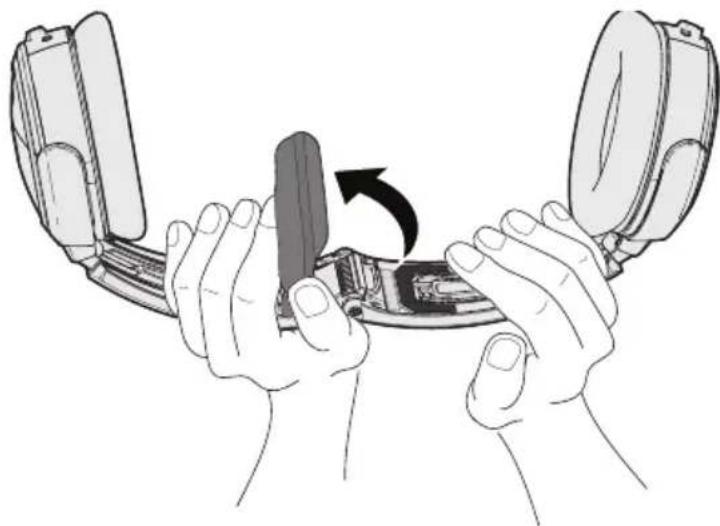
- On a protected surface, turn the headset upside down. Remove the old cushion from the headband.
- While still holding the headband open, align the center of the new cushion with the center of the headband and press firmly from the center toward the outside.
Microphone assembly or terminator cover replacement
Replace the microphone assembly or terminator cover as described in "Attaching the microphone assembly" on page 11.
Storage
- Store the headset in a ventilated area away from direct sunlight.
- Remove the batteries before storing the headset for extended periods.
Look for the problem in the left column of the table, then follow the "What to do" instructions in the right column. If the problem persists, contact Bose using the contact information on page 42 of this guide for assistance.
Warning: Do not attempt to disassemble or service the inside of the earcups or other parts of the headset. Only the boom microphone cable, access cover, batteries, windscreen, headband cushion, and ear cushions are replaceable by the user. For instructions on how to care for and maintain the headset, see "Headset Care and Maintenance" on page 27.
Noise reduction
| Problem What to do | |
| Communication, but no Acoustic Noise Cancellation®noise reduction in either ear | ·Make sure the headset is turned on. ·On the control module, check the power indicator. See page 18. ·If using aircraft power, check the aircraft fuse or circuit breaker. ·If using battery power, make sure the batteries are fresh and correctlyinstalled. Warning: Replace batteries with alkaline batteries only. Do not use any other battery chemistries. |
| No active Acoustic Noise Cancellation noise reduction and no communication | ·Make sure the headphone plugs are securely inserted into the panel connectors. ·Try using the headset in a different seat location. ·Remove the microphone assembly from the headset and check for damage to the connector or pins. See “The microphone assembly” on page 11. |
Intercom communications
| Problem What to do | |
| Acoustic Noise Cancelling noise reduction, but no incoming audio | ·On the control module, make sure the volume controls are not set too low. See “Intercom volume controls” on page 19. ·On the intercom/radio, make sure the volume controls are not set too low. ·Make sure the headset is firmly connected to the aircraft panel. ·Try a different seat location in the aircraft. |
| Low volume of incoming communications | ·On the control module, make sure the volume controls are not set too low. See “Intercom volume controls” on page 19. ·On the intercom/radio, make sure the volume controls are not set too low. ·Inside the battery compartment, make sure the Intercom (MON-ST) switch is correctly set for your intercom system. See “The operation switches” on page 12. ·Check that all headsets sharing the intercom have the Intercom (MON-ST) switch in the correct position. ·Unplug all other headsets and see if the volume can be adjusted to an acceptable level. |
| Intermittent communication | ·Make sure the headset is firmly connected to the aircraft panel. ·Try the headset in a different seat location. |
| Reduced volume in one ear only | ·On the control module, make sure the volume controls are not set too low. See “Intercom volume controls” on page 19. ·Inside the battery compartment, make sure the Intercom (MON-ST) switch is correctly set for your intercom system. See “The operation switches” on page 12. |
| No stereo separation or communications in one ear only | ·If your aircraft has a mono audio system, verify that the Intercom (MON-ST) switch is set to MON. Refer to “The operation switches” on page 12. ·Depending on how your audio jacks are wired, there may be only one channel of audio supplied to the headphone jack. If the Intercom (MON-ST) switch is set to ST and you only hear communications on one side, set the switch to MON. This will play audio on both sides. U174 and 5-pin XLR plugs are mono audio only. |
Audio
| Problem What to do | |
| Reduced Acoustic Noise Cancelling®noise reduction, intermittent clicking sounds, or communication distortion in a loud environment | ·On the outside of each earcup, make sure the TriPort®headset openings are not blocked. If dust or dirt is present, carefully remove the debris using tweezers. Do not vacuum or blow out debris. ·Make sure there are no air gaps around the ear cushion seals. If ear cushions appear worn, they should be replaced. Refer to “Ear cushion replacement” on page 29. Warning: If the headset emits any loud noise and related loss of communications while in the Acoustic Noise Cancelling mode, turn off the power switch. The headset will continue to provide communications in the passive noise reducing mode. |
| Problem What to | do |
| Squealing or whistling sound when the headset is turned on | ·Make sure the headset orientation is correct. Use the Left (L) and Right (R) markings above the earcups to orient the headset correctly. ·Inspect the seal between the ear cushion skirt and the earcup. The skirt should fit into the slot on the earcup with no gaps. Replace any cushions that appear to be worn out. ·Adjust the earcup fit to create a better seal on your head. The headset's low-force design makes it sensitive to items that interfere with the seal around your ear. Make sure your ears are completely inside the ear cushions, and that a hat or eyeglasses with thick temples do not interfere with the seal. ·If the squealing or whistling sound persists, turn off the power switch and contact Bose for service as soon as possible. |
| Low rumbling sound with the headset turned on in a quiet environment | ·Adjust the earcup fit to create a better seal on your head. The low-force design of the headset makes it sensitive to items that interfere with the seal around your ear. Make sure your ears are completely inside the ear cushions, and that a hat or eyeglasses with thick temples do not interfere with the seal. ·Check ports at the outside surface of each earcup to ensure that they are not blocked. If dust or dirt is present, carefully remove the debris using tweezers. Do not blow out or vacuum debris. ·Inspect the seal between the ear cushion skirt and the earcup. The skirt should fit into the slot on the earcup with no gaps. Replace any cushions that appear to be worn out. |
| Crackling sound audible with headset turned on in a loud environment, or Acoustic Noise Cancellation® noise reduction is intermittent | ·Make sure the headset orientation is correct. Use the Left (L) and Right (R) markings above the earcups to orient the headset correctly. ·Adjust the earcup fit. Refer to “Wearing and adjusting the headset” on page 16. ·If your headset is battery-powered, check to see if the battery is low (indicated by fast blinking red LED). ·If your headset is aircraft powered, make sure the voltage powering the headset is no less than 10 VDC. ·Inspect the seal between the ear cushion skirt and the earcup. The skirt should fit into the slot on the earcup with no gaps. Replace any cushions that have surface tears, torn stitching joints, large wrinkles, or have become dried and stiff. |
Warning: If the headset emits any loud noise and related loss of communications while in the Acoustic Noise Cancelling mode, turn off the power switch. The headset will continue to provide communications in the passive noise reducing mode.
AUX audio source
| Problem What to do | |
| No audio from AUX source | ·On the AUX source, turn the volume up. ·Make sure the 3.5 mm AUX audio cable is firmly connected to the control module and the AUX source. ·On the control module, make sure the Secondary Audio Mode selector is in the MUTE or MIX position. ·If the Secondary Audio Mode selector is set to MUTE, all secondary audio sources are temporarily muted when an intercom signal is detected. Secondary audio will return after intercom audio ceases. ·If you are on an active Bluetooth phone call, you will not hear audio from the AUX source. AUX audio will resume after the phone call ends. ·Try another AUX source. |
| Audio in one ear only from the AUX source | ·Make sure the 3.5 mm AUX audio cable is firmly connected to the control module and the AUX source. ·On the headset, make sure the terminator cover is in place and properly connected. Refer to “Attaching the microphone assembly” on page 11. |
| Cannot hear intercom communications while listening to audio from AUX source | ·Make sure the headset is firmly connected to the intercom/radio system. ·Make sure the 3.5 mm AUX audio cable is firmly connected to the control module and the AUX source. |
| AUX source does not mute with incoming intercom communications | ·Inside battery compartment, check the Priority (BT-AUX) switch. See “Operation Switch” on page 13. ·If the Secondary Audio Mode selector is set to MIX, all secondary audio sources are heard as mixed with the intercom audio. To mute the AUX source, set the switch to MUTE or OFF. |
| Cannot be heard on a phone call | ·The headset does not support microphone operation when connected to a device via the AUX audio cable. Hold the device closer to your mouth to use the device's mic. Or, try connecting the phone via a Bluetooth connection. |
Bluetooth® audio source
| Problem What to do | |
| No audio from the Bluetooth source to the headset while on a call | ·On the control module, make sure the Secondary Audio Mode selector is in the MUTE or MIX position. ·On the control module, make sure the Bluetooth feature is on, and the Bluetooth indicator is flashing. If not, press once. ·Make sure the phone and headset are in range (no more than 30 feet from each other). ·On the control module, make sure the Bluetooth volume is turned up. |
| Problem What to | do |
| Headset does not pair with a device | ·On the control module, make sure the Bluetooth feature is on, and the Bluetooth indicator is flashing purple. If not, press and hold for one second. ·On the control module, make sure the Secondary Audio Mode selector is in the MUTE or MIX position. ·Follow the instructions in “Pairing the first device” on page 21. ·Delete BOSE A20 from your device's Bluetooth device list. Then Try pairing again. |
| Cannot answer/end a call | ·Make sure your phone is properly paired and connected to the headset. Refer to “Using the headset with a Bluetooth® device” on page 21. |
| Headset does not reconnect to a previously connecteddevice | ·Make sure the device is in range of the headset (30 feet or 10 m). ·On the control module, make sure the Bluetooth feature is on, and the Bluetooth indicator is flashing blue. If not, press once. ·On the control module, make sure the Secondary Audio Mode selector is in the MUTE or MIX position. ·On your device, make sure the Bluetooth feature is on. ·On your device, delete BOSE A20 from the Bluetooth device list. Then try pairing again. |
Auto on
| Problem What to do | |
| Headset does not turn on automatically | ·Inside the battery compartment, make sure the Auto On (ON-OFF) switch is set to ON. See “The operation switches” on page 12. ·The Auto On feature only works with 5 pin XLR, 6-pin and 8-pin connector versions of the cable. Check the aircraft specs to see if the jack is getting power from the aircraft's electrical system. |
Auto off
| Problem What to do | |
| Headset does not shut off automatically | ·Inside the battery compartment, make sure the Auto Off (OFF-ON) switch is set to ON. See “The operation switches” on page 12. ·It may take up to nine minutes for the headset to shut off when not in use immediately after initial power up. ·Disconnect the headset from the aircraft. Then turn on the headset and wait 15 minutes. If the headset does not turn off, contact Bose Technical Support. |
Mounting the aircraft panel connector
The aircraft panel connector is part of the optional 6-pin wiring harness assembly.
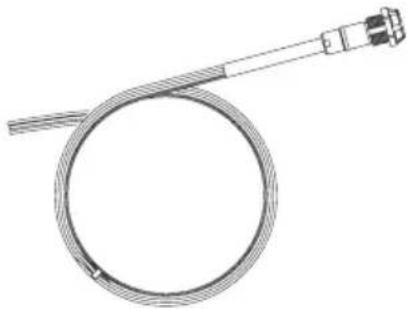
Visit www.Bose.com or www.global.Bose.com for information or purchase.
Warning: The aircraft panel connector must be mounted by a technician who is qualified to perform this type of avionics installation for the aircraft you are using.
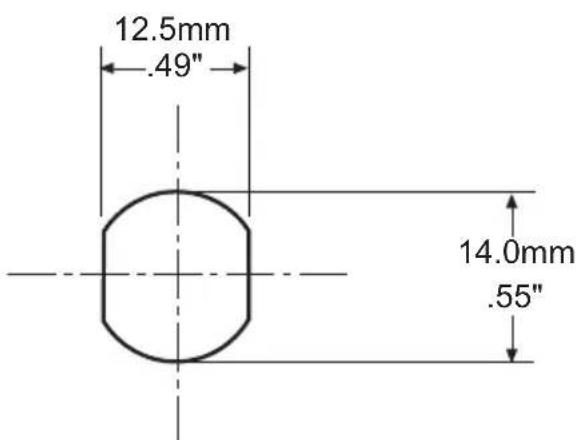
Mount the connector into a cutout, using the diagrams below as a guide.
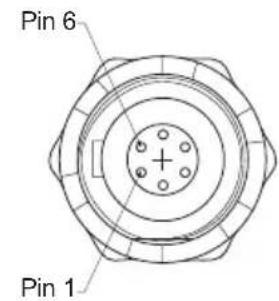
Receptacle - Pinout (front view)
Aircraft Interface Schematic
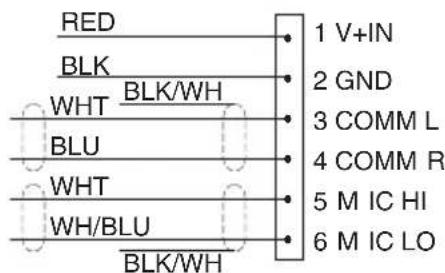
Connect the eight wires as follows:
- Two for the microphone
- Two for audio
One for power
One for ground - Two for audio shields
Audio and microphone wires should be connected to the back of the existing microphone and headphone jacks, leaving existing jacks intact for use with conventional headsets. This is usually the fastest installation method.
Caution: Do not use excessive force or bend the installed connector. This may damage or break internal solder joints.
Note: The aircraft panel connector cannot be installed in an audio system using transformer-coupled audio outputs. Contact Bose Technical Support, using the contact information on page 39 for details.
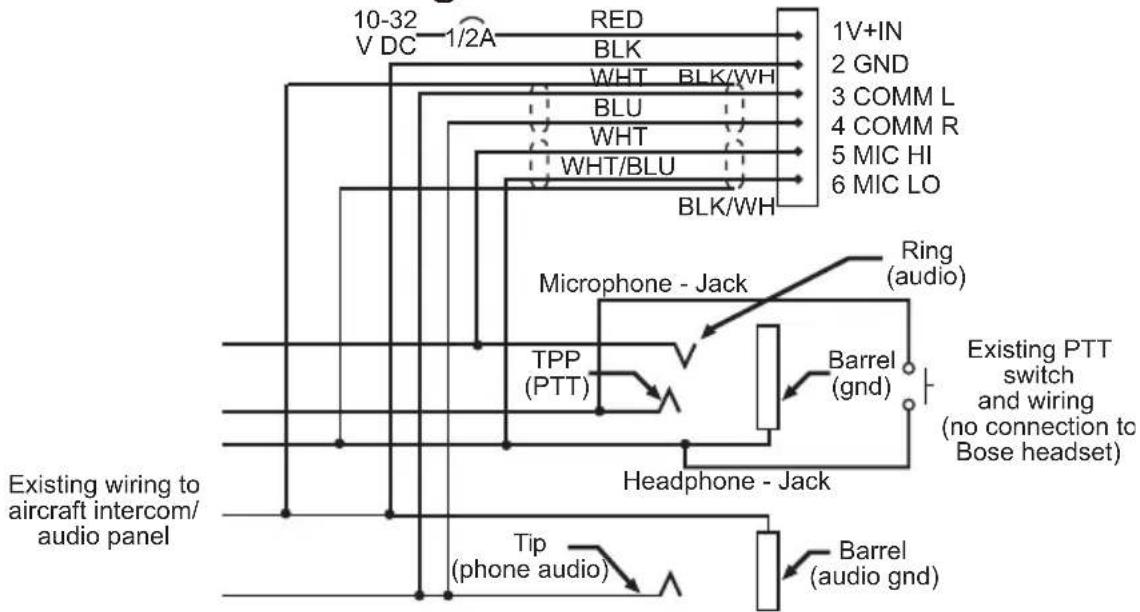
Mono connection diagram
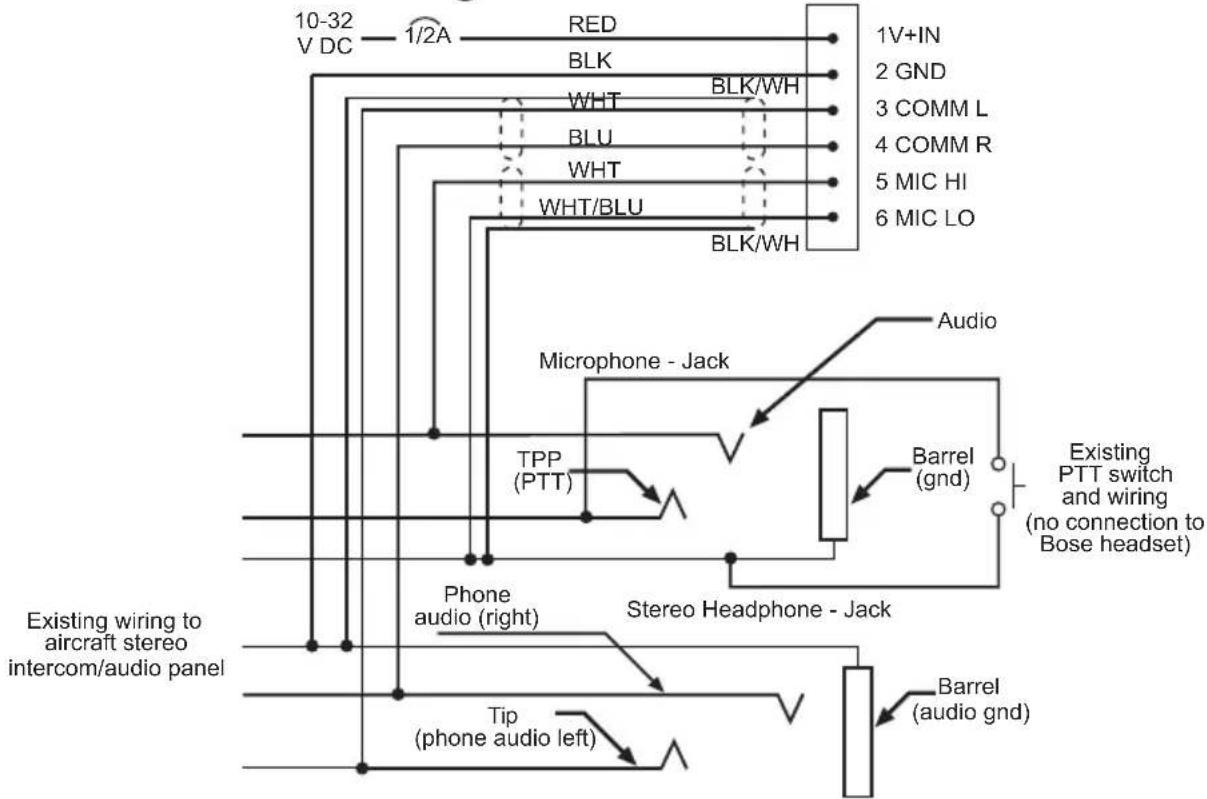
Stereo connection diagram
Helicopter (U174) connection diagram
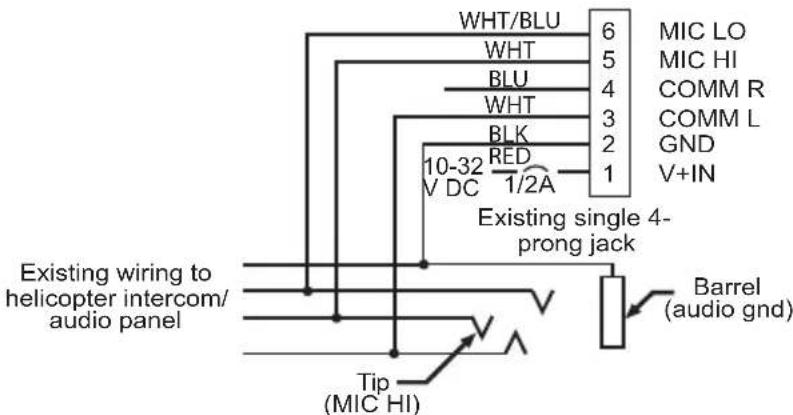
Note: Barrel ground (gnd) refers to aircraft grounds.
Details on making the connections
The pinouts for the optional installed connector are detailed in the table below:
| Pin number Color Purpose | ||
| 1 Red V+IN: Headset power (10-32 VDC). Use a 1/4 amp fuse or a 1/2 amp circuit breaker. | ||
| 2 Black GND: System ground. Connect to the existing audio ground. | ||
| 3 White COMM L: Phone communication: Left. | ||
| 4 Blue COMM R: Phone communication: Right. | ||
| Note: Monaural use cases should not tie left and right audio sources together due to auto sensing systems found in many intercom systems. | ||
| 5 White MIC HI: Microphone/Hi- audio. Connect to the portion of the existing microphone jack that corresponds to the ring position of a headset microphone plug. Do not connect to the tip (PTT) segment. | ||
| 6 White/Blue MIC LO: Microphone/Lo-ground. Connect to the portion of the microphone jack that corresponds to the barrel position of a headset microphone plug. | ||
| Note: If the microphone works on radio transmit but not through the intercom, check pin 6. It may be incorrectly wired to the PTT segment of the microphone jack. | ||
| Comm Shield Black Shield from Comm L and Comm R wire pair. | ||
| Mic Shield Black Shield from Mic Hi and Mic Lo wire pair. | ||
| Note: The wires connecting pins 3 and 4 and pins 5 and 6 are shielded, twisted pairs with a black wire shield termination exiting each pair. If the existing wiring is not shielded, connect the shields to the existing audio wiring shields, or connect the shield from Comm L and Comm R wire pair to audio ground. | ||
| Headphone Damage could occur | to avionics equipment that is intended for use only with 600 Ohm headsets. If in doubt, consult the avionics equipment manufacturer. |
| Impedance Monaural mode: 160 | Ohms ON and OF Stereo mode: 320 Ohms ON and OFF |
| Frequency response 15 Hz to 15 kHz | kHz Sensitivity: 92 dB SPL typical, measured at 1 mw, 1 kHz, full volume on a KEMAR ear simulator. |
| Microphone (Electret) Bias required: 8 to 16 VDC through 220 to 2200 Ohms. Sensitivity: Varies depending on bias and AC radio input impedance. Typical output is 600 mV at 114 dB SPL. To assure proper modulation of the radio, it is recommended that an avionics technician adjusts its input to match the output of the microphone. | |
| Microphone (Dynamic) Impedance: 5 Ohm or 150 Ohm dynamic mic Sensitivity: Equivalent to M-87/M-101 | |
| Maximum ambient noise level 1: 5 dBC SPL for full active noise reduction performance | |
| Power source Battery-powered: Two (2) AA alkaline Aircraft-powered: 10 to 32 VDC | |
| Voltage Battery-powered: Two (2) AA alkaline batteries Aircraft-powered: 10 to 32 VDC | |
| Battery life Alkaline battery life: At least 45 hours in typical general aviation aircraft noise. Duration varies with battery age, ambient noise levels, temperature, ear cushion seal, and use of the Bluetooth feature. | |
| Current Operating: 25 mA in typical aircraft noise | |
| Fuse/breaker recommended 1/4 amp, fast-blow fuse (AGC 1/4 amp fuse) or 1/2 amp circuit breaker | |
| Headset weight 12 ounces | |
| Headset size range Slider not extended: 8.425" (214mm) H x 6.34" (161mm) W x 3.15" (80mm) D Slider extended: 10.2" (259mm) H x 6.6" (168mm) W x 3.15" (80mm) D | |
| Control module dimensions: 1.5" (38.1mm) H x 1.5" (38.1mm) W x 4.92" (125mm) D | |
| Temperature and Altitude Category A: Operating: 5 to 131°F (-15 to 55°C) Storage: -67 to 158°F (-55 to 70°C) Altitude: 15,000 feet maximum pressure altitude for full cancellation | |
| Bluetooth wireless technology: 3.1 | |
FAA Technical Standards Order
The Bose® A20® Aviation Headset that are approved to TSO and ETSO C139 are appropriately marked. The product interface, cables, and microphones have been designed to function in or withstand exposure to the following environmental conditions:
| Condition Category | |
| Altitude and temperature A1 | |
| Salt fog S | |
| AF conducted susceptibility B | |
| Humidity B | |
| Magnetic effect Z | |
| Power input B | |
| RF susceptibility T | |
| Temperature and altitude A1 | |
| Vibration S, R, and U | |
| Voltage spike A | |
| Shock drop 12 times, 1 m onto concrete | |
| Explosive atmosphere Passed |
Environmental categories cited refer to RTCA/DO-160F and RTCA/DO-214 (March 2, 1993).
The conditions and tests required for TSO approval of this are minimum performance standards. It is the responsibility of those installing this article either on or within a specific type or class of aircraft to determine that the aircraft installation conditions are within the TSO standards. TSO articles must have separate approval for installation in aircraft. The article may be installed only if performed under 14 CFR part 43 or the applicable airworthiness requirements.
This device complies with FCC and ISED Canada RF radiation exposure limits for general population. It must not be collocated or operating in conjunction with any other antenna or transmitter.
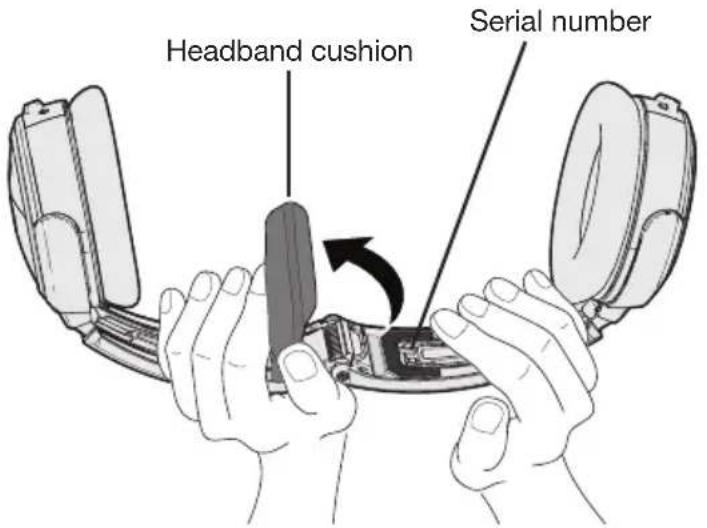
Locating the headset serial number
Your Bose® A20® Aviation Headset is identified by a unique headset serial number located on the underside of the headband and underneath the headband cushion. Reference this serial number when you register your product or contact Bose for technical support.
Be sure to properly reseat the headband cushion by pressing down firmly. For more information on replacing the headband cushion, see Refer to "Headband cushion replacement" on page 30.
Limited warranty
The headset is covered by a limited warranty. Details of the limited warranty are provided on the product registration card that is in the carton. Please refer to the card for instructions on how to register. Failure to do so will not affect your limited warranty rights.
- Contact the Bose organization in your country/region (visit global.Bose.com for Bose contact information in your country/region) for specific return and shipping instructions.
- Label and ship the product, freight prepaid, to the address provided by the Bose organization in your country.
- Place any necessary return authorization number prominently on the outside of the carton. Cartons not bearing a return authorization number, where required, will be refused.
Contact information
Contact Bose for:
- Spare parts and accessories
Technical advice
Installation information
Warranty and repair information
In North America:
Bose Technical Support
145 Pennsylvania Avenue
Framingham, MA 01701-9168 USA
TEL: 1-800-233-4416 (US); 508-879-7330, ext. 62006 (outside U.S.)
FAX: 1-508-766-5997
E-MAIL: aviationheadsetsupport@Bose.com
In Europe:
Bose Technical Support
Nijverheidstraat 8
1135 GE Edam
The Netherlands
TEL: +31 (0)299 - 390 111 (Main)
TEL: +31 (0)299 - 390 283 (Direct)
FAX: +31 (0)299 - 390 109
Online:
www.Bose.com
www.global.Bose.com
www owners. Bose.com
www.facebook.com/BoseAviation
instagram.com/BoseAviation
twitter.com/BoseAviation
Ordering parts and accessories
The following accessories and customer-replaceable parts can be purchased directly from Bose.
Additional control module cable
- Specify: Bluetooth technology or conventional module
- Specify: Connector type
- Ear cushion kit
Headband cushion kit
- Carrying case
- Microphone windscreen
- Clothing clip
- Earcup access cover
- 6-pin connector to dual G/A plug cable adapter
- 6-pin connector to U174 plug cable adapter
Service kit (includes ear cushion kit, microphone windscreen, and headband cushion kit)
- Aircraft panel connector installation kit
- Aircraft panel installation kit cover plate
China-Import: Bose Electronics (Shanghai) Company Limited, Part C, Plant 9, No. 353 North Riying Road, China (Shanghai) Pilot Free Trade Zone
EU-Import: Bose Products B.V., Gorslaan 60, 1441 RG Purmerend, Niederlande
Taiwan-Import: Bose Taiwan Branch, 9F-A1, No. 10, Section 3, Minsheng East Road, Taipei City 104, Taiwan
Telefonnummer: +886-2-2514 7676
Mexiko-Import: Bose de Mexico, S. de R.L. de C.V., Paseo de las Palmas 405-204, Lomas de Chapultepec, 11000 Mexico, D.F. Telefonummer: +5255 (5202) 3545
145 Pennsylvania Avenue
Framingham, MA 01701-9168, USA
E-MAIL: ______ aviationheadsetsupport@Bose.com
In Europa:
www owners. Bose.com
www.facebook.com/BoseAviation
instagram.com/BoseAviation
twitter.com/BoseAviation
Importador en China: Bose Electronics (Shanghai) Company Limited, Part C, Plant 9, No. 353 North Riying Road, China (Shanghai) Pilot Free Trade Zone
Importador en UE: Bose Products B.V., Gorslaan 60, 1441 RG Purmerend, Paises Bajos
Importador en Taiwán: Sucursal de Bose en Taiwán, 9F-A1, No. 10, Section 3, Minsheng East Road, Taipei City 104, Taiwan
Número de téléphone: +886-2-25147676
Importador en Mexico: Bose de Mexico, S. de R.L. de C.V., Paseo de las Palmas 405-204, Lomas de Chapultepec, 11000 Mexico, D.F.Numero de téléphone: +5255 (5202) 3545
145 Pennsylvania Avenue
www owners. Bose.com
www.facebook.com/BoseAviation
instagram.com/BoseAviation
twitter.com/BoseAviation
Compartment des piles 12
Administration (FAA). 40
Compartment des piles
Bose Technical Support
145 Pennsylvania Avenue
E-MAIL: ______ aviationheadsetsupport@Bose.com
Europe :
Bose Technical Support
Nijverheidstraat 8
1135 GE Edam
Pays-Bas
Tél. : +31 (0)299 - 390 111 (standard)
www owners. Bose.com
www.facebook.com/BoseAviation
instagram.com/BoseAviation
twitter.com/BoseAviation
Importador na China: Bose Electronics (Shanghai) Company Limited, Part C, Plant 9, No. 353 North Riying Road, China (Shanghai) Pilot Free Trade Zone
Importador na CE: Bose Products B.V., Gorslaan 60, 1441 RG Purmerend, The Netherlands
Importador em Taiwan: Bose Taiwan Branch, 9F-A1, No. 10, Section 3, Minsheng East Road, Taipei City 104, Taiwan -Numero de téléphone: +886-2-2514 7676
Importador no Mexico: Bose de Mexico, S. de R.L. de C.V., Paseo de las Palmas 405-204, Lomas de Chapultepec, 11000 Mexico, D.F.Numero de téléphone: +5255 (5202) 3545
Importador no Reino Unido: Bose Limited, Bose House, Quayside Chatham Maritime, Chatham, Kent, ME4 4QZ, United Kingdom
Opere este produits dor da faixa de temperatura de -15^ a 55^ (5°F a 131°F).
145 Pennsylvania Avenue
Framingham, MA 01701-9168 USA
E-MAIL: ______ aviationheadsetsupport@Bose.com
Na Europa:
Suporte专业技术e Bose
Nijverheidstraat 8
1135 GE Edam
Paises Baixos
TEL: +31 (0)299 - 390 111 (principal)
www owners. Bose.com
www.facebook.com/BoseAviation
instagram.com/BoseAviation
twitter.com/BoseAviation