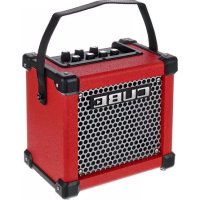
Micro Cube GX - Receiver ROLAND - Free user manual and instructions
Find the device manual for free Micro Cube GX ROLAND in PDF.

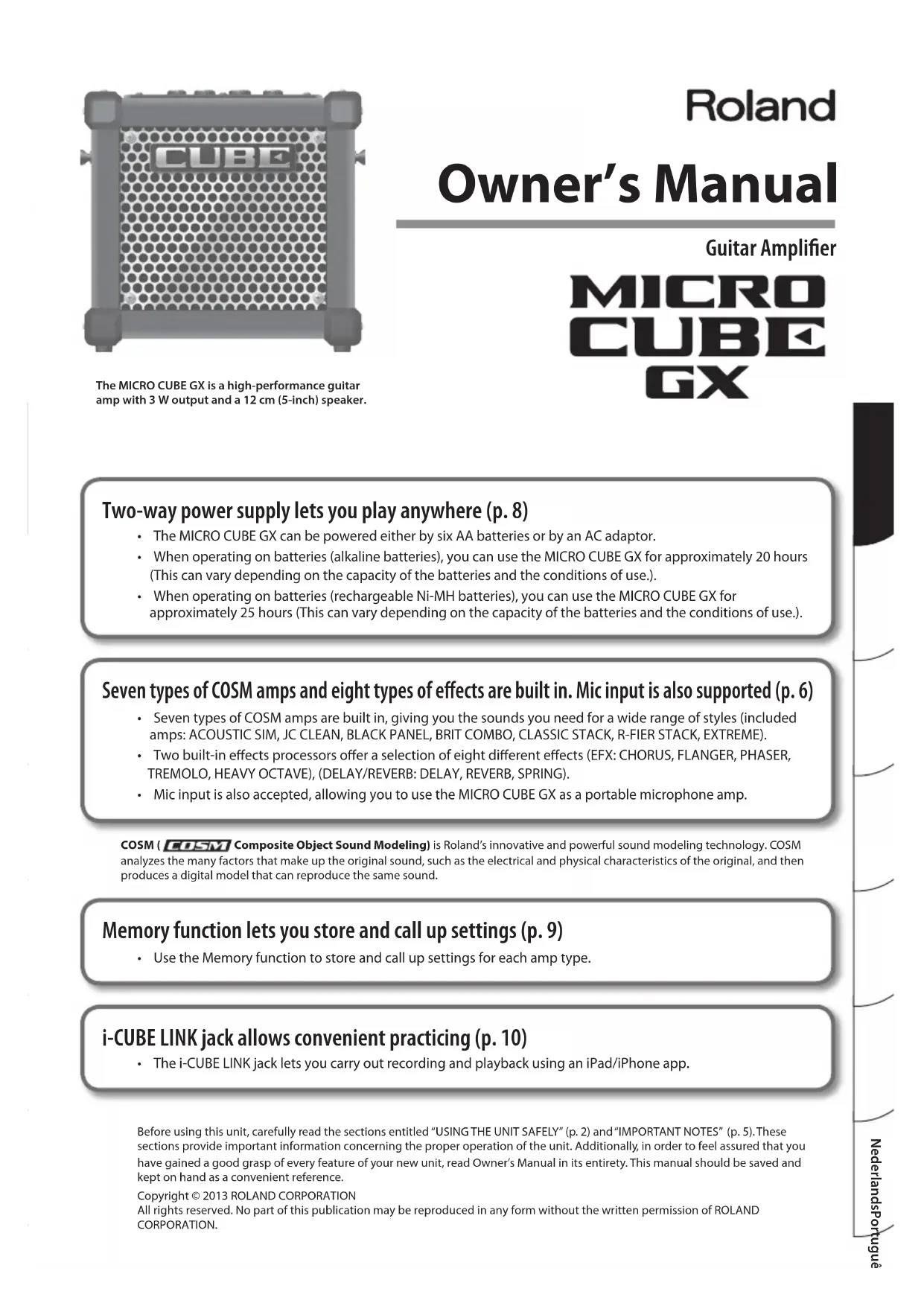


| Product type | Portable guitar amplifier |
| Brand | Roland |
| Model | Micro Cube GX |
| Nominal output power | 3 W |
| Speaker | 12 cm (5 inches) x 1 |
| Power supply | AC adaptor (supplied) or 6 AA batteries (alkaline or rechargeable Ni-MH) |
| Battery life | Approx. 20 hours (alkaline), approx. 25 hours (Ni-MH 2400 mAh) |
| Power consumption | 155 mA |
| Nominal input level (INPUT) | -10 dBu / 1 M ohm |
| Nominal input level (i-CUBE LINK/AUX IN) | -10 dBu |
| COSM amplifier types | 7 types (ACOUSTIC SIM, JC CLEAN, BLACK PANEL, BRIT COMBO, CLASSIC STACK, R-FIER STACK, EXTREME) + MIC mode |
| Built-in effects | 8 types (CHORUS, FLANGER, PHASER, TREMOLO, HEAVY OCTAVE, DELAY, REVERB, SPRING) |
| Memory function | Yes, saves settings per amplifier type |
| Built-in tuner | Chromatic and A string tuning (A=440 Hz) |
| Connectors | INPUT (6.35 mm jack), i-CUBE LINK/AUX IN (4-pole mini-jack), REC OUT/PHONES (stereo mini-jack), DC IN |
| i-CUBE LINK function | Audio interface for iPad/iPhone (recording and playback) |
| Dimensions (W x D x H) | 247 x 172 x 227 mm |
| Weight | 2.7 kg |
| Included accessories | AC adaptor, strap, mini cable (4-pole) |
| Maintenance and cleaning | Soft dry cloth; avoid benzene, thinner, alcohol |
| Safety | Use supplied adaptor, do not disassemble, avoid shocks, handle batteries with care |
| Repairability | Contact dealer or Roland authorized center |
Frequently Asked Questions - Micro Cube GX ROLAND
User questions about Micro Cube GX ROLAND
0 question about this device. Answer the ones you know or ask your own.
Ask a new question about this device
Download the instructions for your Receiver in PDF format for free! Find your manual Micro Cube GX - ROLAND and take your electronic device back in hand. On this page are published all the documents necessary for the use of your device. Micro Cube GX by ROLAND.
USER MANUAL Micro Cube GX ROLAND
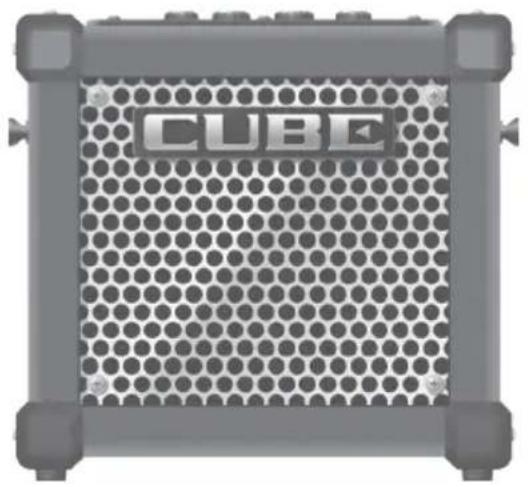
The MICRO CUBE GX is a high-performance guitar amp with 3 W output and a 12cm (5-inch) speaker.
Owner's Manual
Guitar Amplifier
MICRO CUBE GX
Two-way power supply lets you play anywhere (p. 8)
- The MICRO CUBE GX can be powered either by six AA batteries or by an AC adaptor.
- When operating on batteries (alkaline batteries), you can use the MICRO CUBE GX for approximately 20 hours (This can vary depending on the capacity of the batteries and the conditions of use.).
- When operating on batteries (rechargeable Ni-MH batteries), you can use the MICRO CUBE GX for approximately 25 hours (This can vary depending on the capacity of the batteries and the conditions of use).
Seven types of COSM amps and eight types of effects are built in. Mic input is also supported (p. 6)
- Seven types of COSM amps are built in, giving you the sounds you need for a wide range of styles (included amps: ACOUSTIC SIM, JC CLEAN, BLACK PANEL, BRIT COMBO, CLASSIC STACK, R-FIER STACK, EXTREME).
- Two built-in effects processors offer a selection of eight different effects (EFX: CHORUS, FLANGER, PHASER, TREMOLO, HEAVY OCTAVE), (DELAY/REVERB: DELAY, REVERB, SPRING).
- Mic input is also accepted, allowing you to use the MICRO CUBE GX as a portable microphone amp.
COSM ( COSM Composite Object Sound Modeling) is Roland's innovative and powerful sound modeling technology. COSM analyzes the many factors that make up the original sound, such as the electrical and physical characteristics of the original, and then produces a digital model that can reproduce the same sound.
Memory function lets you store and call up settings (p. 9)
- Use the Memory function to store and call up settings for each amp type.
i-CUBE LINK jack allows convenient practicing (p. 10)
- The i-CUBE LINK jack lets you carry out recording and playback using an iPad/iPhone app.
Before using this unit, carefully read the sections entitled "USING THE UNIT SAFELY" (p. 2) and "IMPORTANT NOTES" (p. 5). These sections provide important information concerning the proper operation of the unit. Additionally, in order to feel assured that you have gained a good grasp of every feature of your new unit, read Owner's Manual in its entirety. This manual should be saved and kept on hand as a convenient reference.
Copyright © 2013 ROLAND CORPORATION
All rights reserved. No part of this publication may be reproduced in any form without the written permission of ROLAND CORPORATION.
INSTRUCTIONS FOR THE PREVENTION OF FIRE, ELECTRIC SHOCK, OR INJURY TO PERSONS
About WARNING and CAUTION Notices
| ▲WARNING | Used for instructions intended to alert the user to the risk of death or severe injury should the unit be used improperly. |
| ▲CAUTION | Used for instructions intended to alert the user to the risk of injury or material damage should the unit be used improperly. * Material damage refers to damage or other adverse effects caused with respect to the home and all its furnishings, as well to domestic animals or pets. |
About the Symbols
| 1 | The △symbol alerts the user to important instructions or warnings. The specific meaning of the symbol is determined by the design contained within the triangle. In the case of the symbol at left, it is used for general cautions, warnings, or alerts to danger. |
| 2 | The ○symbol alerts the user to items that must never be carried out (are forbidden). The specific thing that must not be done is indicated by the design contained within the circle. In the case of the symbol at left, it means that the unit must never be disassembled. |
| 3 | The ●symbol alerts the user to things that must be carried out. The specific thing that must be done is indicated by the design contained within the circle. In the case of the symbol at left, it means that the power-cord plug must be unplugged from the outlet. |
ALWAYS OBSERVE THE FOLLOWING
WARNING
To completely turn off power to the unit, pull out the AC adaptor from the outlet
Even with the power switch turned off, this unit is not completely separated from its main source of power. When the power needs to be completely turned off, turn off the power switch on the unit, then pull out the AC adaptor from the outlet. For this reason, the outlet into which you choose to co AC adaptor should be one that is within easy reach accessible.

Do not disassemble or modify by yourself
Do not open (or modify in any way) the unit or its AC adaptor.

Do not repair or replace parts by yourself
Do not attempt to repair the unit, or replace parts within it (except when this manual provides specific instructions directing you to do so). Refer all servicing to your retailer, the nearest Roland Service Center, or an authorized Roland distributor, as listed on the "Information" page.

Do not use or store in the following types of locations
- Subject to temperature extremes (e.g., direct sunlight in an enclosed vehicle, near a heating duct, on top of heat-generating equipment); or are
- Damp (e.g., baths, washrooms, on wet floors); or are
- Exposed to steam or smoke; or are
- Subject to salt exposure; or are
- Humid; or are
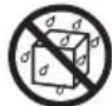
- Exposed to rain; or are
- Dusty or sandy; or are
- Subject to high levels of vibration and shakiness.
WARNING
Do not place in an unstable location
Make sure you always have the unit placed so it is level and sure to remain stable. Never place it on stands that could wobble, or on inclined surfaces

Use only the supplied AC adaptor and the correct voltage
Be sure to use only the AC adaptor supplied with the unit. Also, make sure the line voltage at the installation matches the input voltage specified on the AC adaptor's body. Other AC adaptors may use a different polarity, or be designed for a different voltage, so their use could result in damage, malfunction, or electric shock.

Do not bend the power cord or place heavy objects on it
Do not excessively twist or bend the power cord, nor place heavy objects on it. Doing so can damage the cord, producing severed elements and short circuits. Damaged cords are fire and shock hazards!

Avoid extended use at high volume
This unit, either alone or in combination with an amplifier and headphones or speakers, may be capable of producing sound levels that could cause permanent hearing loss. Do not operate for a long period of time at a high volume level, or at a level that is uncomfortable. If you experience any hearing loss or ringing in the ears, you should stop using the unit, and consult an audiologist.


WARNING
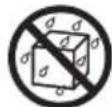
Don't allow foreign objects or liquids to enter unit; never place containers with liquid on unit
Do not place containers containing liquid (e.g., flower vases) on this product. Never allow foreign objects (e.g., flammable objects, coins, wires) or liquids (e.g., water or juice) to enter this product. Doing so may cause short circuits, faulty operation, or other malfunctions.

Turn off the unit if an abnormality or malfunction occurs
Immediately turn the unit off, remove the AC adaptor from the outlet, and request servicing by your retailer, the nearest Roland Service Center, or an authorized Roland distributor, as listed on the "Information" page when:

The AC adaptor or the power-supply cord has been damaged; or
If smoke or unusual odor occurs; or
- Objects have fallen into, or liquid has been spilled onto the unit; or
The unit has been exposed to rain (or otherwise has become wet); or
- The unit does not appear to operate normally or exhibits a marked change in performance.
Adults must provide supervision in places where children are present
When using the unit in locations where children are present, be careful so no mishandling of the unit can take place. An adult should always be on hand to provide supervision and guidance.

Do not drop or subject to strong impact
Protect the unit from strong impact. (Do not drop it!)

Do not share an outlet with an unreasonable number of other devices
Do not force the unit's power-supply cord to share an outlet with an unreasonable number of other devices. Be especially careful when using extension cords—the total power used by all devices you have connected to the extension cord's outlet must never exceed the power rating (watts/amperes) for the extension cord. Excessive loads can cause the insulation on the cord to heat up and eventually melt through.
Do not use overseas
Before using the unit in overseas, consult with your retailer, the nearest Roland Service Center, or an authorized Roland distributor, as listed on the "Information" page.


WARNING
Handle batteries carefully
- Batteries must never be heated, taken apart, or thrown into fire or water.
- Never expose batteries to excessive heat such as sunshine, fire or the like.
Incorrect handling of batteries can cause leakage, overheating, fire, or explosion. Before use, you must read and strictly observe all of the precautions that accompany the batteries, rechargeable batteries, or battery charger. - When using rechargeable batteries and a charger, use only the combination of rechargeable batteries and charger specified by the battery manufacturer.




CAUTION
Place in a well ventilated location
The unit and the AC adaptor should be located so their location or position does not interfere with their proper ventilation.

When disconnecting an AC adaptor, grasp it by the plug
To prevent conductor damage, always grasp the AC adaptor by its body or its plug when disconnecting it from this unit or from a power outlet.

Periodically clean the AC adaptor's plug
At regular intervals, you should unplug the AC adaptor and clean it by using a dry cloth to wipe all dust and other accumulations away from its prongs. Also, disconnect the power plug from the power outlet whenever the unit is to remain unused for an extended period of time. Any accumulation of dust between the power plug and the power outlet can result in poor insulation and lead to fire.
Manage cables for safety
Try to prevent cords and cables from becoming entangled. Also, all cords and cables should be placed so they are out of the reach of children.

Avoid climbing on top of the unit, or placing heavy objects on it
Never climb on top of, nor place heavy objects on the unit.

Do not connect or disconnect the AC adaptor with wet hands
Never handle the AC adaptor body, or its output plugs, with wet hands when plugging into, or unplugging from, an outlet or this unit.

Disconnect everything before moving the unit
Before moving the unit, disconnect the AC adaptor and all cords coming from external devices.

Unplug the AC adaptor from the outlet before cleaning
Before cleaning the unit, turn it off and unplug the AC adaptor from the outlet.


CAUTION
If there is a possibility of lightning strike, disconnect the AC adaptor from the outlet
Whenever you suspect the possibility of lightning in your area, disconnect the AC adaptor from the outlet.

Handle batteries carefully
If used improperly, batteries may explode or leak and cause damage or injury. In the interest of safety, please read and observe the following precautions (p. 8).
- Carefully follow the installation instructions for batteries, and make sure you observe the correct polarity.
- Avoid using new batteries together with used ones. In addition, avoid mixing different types of batteries.
- Remove the batteries whenever the unit is to remain unused for an extended period of time.
- Never keep batteries together with metallic objects such as ballpoint pens, necklaces, hairpins, etc.
- Used batteries must be disposed of in compliance with whatever regulations for their safe disposal that may be observed in the region in which you live.
Handle the ground terminal carefully
If you remove the screw from the ground terminal, be sure to replace it; don't leave it lying around where it could accidentally be swallowed by small children. When refastening the screw, make that it is firmly fastened, so it won't come loose.




Handle leaking batteries carefully
If fluid has leaked from a battery, make sure not to touch it with your bare hands.
If any of the leaking fluid gets into your eyes, the loss of vision may result. Do not rub your eyes; use clean water to flush them thoroughly. Then, promptly see a doctor.
- Burning of the skin or dermatitis may result if fluid has gotten onto your skin or clothing. Use clean water to flush affected areas thoroughly; then, promptly see a doctor.
- Using a soft cloth, carefully wipe any remaining fluid from the inside of the battery compartment. Then, install new batteries.


Power Supply
- Do not connect this unit to same electrical outlet that is being used by an electrical appliance that is controlled by an inverter or a motor (such as a refrigerator, washing machine, microwave oven, or air conditioner). Depending on the way in which the electrical appliance is used, power supply noise may cause this unit to malfunction or may produce audible noise. If it is not practical to use a separate electrical outlet, connect a power supply noise filter between this unit and the electrical outlet.
The AC adaptor will begin to generate heat after long hours of consecutive use. This is normal, and is not a cause for concern.
The use of an AC adaptor is recommended as the unit's power consumption is relatively high. Should you prefer to use batteries, please use the alkaline, rechargeable Ni-MH type. - To prevent malfunction and equipment failure, always make sure to turn off the power on all your equipment before you make any connections.
- When installing or replacing batteries, always turn this unit off and disconnect any other devices you may have connected. This way, you can prevent malfunction and damage.
- If the batteries run extremely low, the sound may distort or interruptions in the sound may occur at high volume levels, but this does not indicate a malfunction. If this occurs, please replace the batteries or use the included AC adaptor.
If operating this unit on batteries, please use alkaline batteries, rechargeable Ni-MH batteries. - If operating this unit on batteries, please disconnect the AC adaptor from this unit.
Placement
- Using the unit near power amplifiers (or other equipment containing large power transformers) may induce hum. To alleviate the problem, change the orientation of this unit; or move it farther away from the source of interference.
- This device may interfere with radio and television reception. Do not use this device in the vicinity of such receivers.
-
Noise may be produced if wireless communications devices, such as cell phones, are operated in the vicinity of this unit. Such noise could occur when receiving or initiating a call, or while conversing. Should you experience such problems, you should relocate such wireless devices so they are at a greater distance from this unit, or switch them off.
-
Do not expose the unit to direct sunlight, place it near devices that radiate heat, leave it inside an enclosed vehicle, or otherwise subject it to temperature extremes. Also, do not allow lighting devices that normally are used while their light source is very close to the unit (such as a piano light), or powerful spotlights to shine upon the same area of the unit for extended periods of time. Excessive heat can deform or discolor the unit.
- When moved from one location to another where the temperature and/or humidity is very different, water droplets (condensation) may form inside the unit. Damage or malfunction may result if you attempt to use the unit in this condition. Therefore, before using the unit, you must allow it to stand for several hours, until the condensation has completely evaporated.
- Do not allow rubber, vinyl, or similar materials to remain on this unit for long periods of time. Such objects can discolor or otherwise harmfully affect the finish.
- Do not paste stickers, decals, or the like to this instrument. Peeling such matter off the instrument may damage the exterior finish.
Depending on the material and temperature of the surface on which you place the unit, its rubber feet may discolor or mar the surface. You can place a piece of felt or cloth under the rubber feet to prevent this from happening. If you do so, please make sure that the unit will not slip or move accidentally. - Do not place containers or anything else containing liquid on top of this unit. Also, whenever any liquid has been spilled on the surface of this unit, be sure to promptly wipe it away using a soft, dry cloth.
Maintenance
- For everyday cleaning wipe the unit with a soft, dry cloth or one that has been slightly dampened with water. To remove stubborn dirt, use a cloth impregnated with a mild, non-abrasive detergent. Afterwards, be sure to wipe the unit thoroughly with a soft, dry cloth.
- Never use benzine, thinners, alcohol or solvents of any kind, to avoid the possibility of discoloration and/or deformation.
Additional Precautions
-
Use a reasonable amount of care when using the unit's buttons, sliders, or other controls; and when using its jacks and connectors. Rough handling can lead to malfunctions.
-
When disconnecting all cables, grasp the connector itself—never pull on the cable. This way you will avoid causing shorts, or damage to the cable's internal elements.
- To avoid disturbing others nearby, try to keep the unit's volume at reasonable levels.
- When you need to transport the unit, package it in the box (including padding) that it came in, if possible. Otherwise, you will need to use equivalent packaging materials.
- Some connection cables contain resistors. Do not use cables that incorporate resistors for connecting to this unit. The use of such cables can cause the sound level to be extremely low, or impossible to hear. For information on cable specifications, contact the manufacturer of the cable.
Intellectual Property Right
- It is forbidden by law to make an audio recording, video recording, copy or revision of a third party's copyrighted work (musical work, video work, broadcast, live performance, or other work), whether in whole or in part, and distribute, sell, lease, perform, or broadcast it without the permission of the copyright owner.
- Do not use this product for purposes that could infringe on a copyright held by a third party. We assume no responsibility whatsoever with regard to any infringements of third-party copyrights arising through your use of this product.
- MMP (Moore Microprocessor Portfolio) refers to a patent portfolio concerned with microprocessor architecture, which was developed by Technology Properties Limited (TPL). Roland has licensed this technology from the TPL Group.
Roland, COSM, MICRO CUBE are either registered trademarks or trademarks of Roland Corporation in the United States and/or other countries. - Company names and product names appearing in this document are registered trademarks or trademarks of their respective owners.
- The product names mentioned in this document are trademarks or registered trademarks of their respective owners, and are not related to Roland Corporation. In this manual, these names are used because it is the most practical way of describing the sounds that are simulated using COSM technology.
- iPad, iPhone are either registered trademarks or trademarks of Apple Inc.
Control Panel
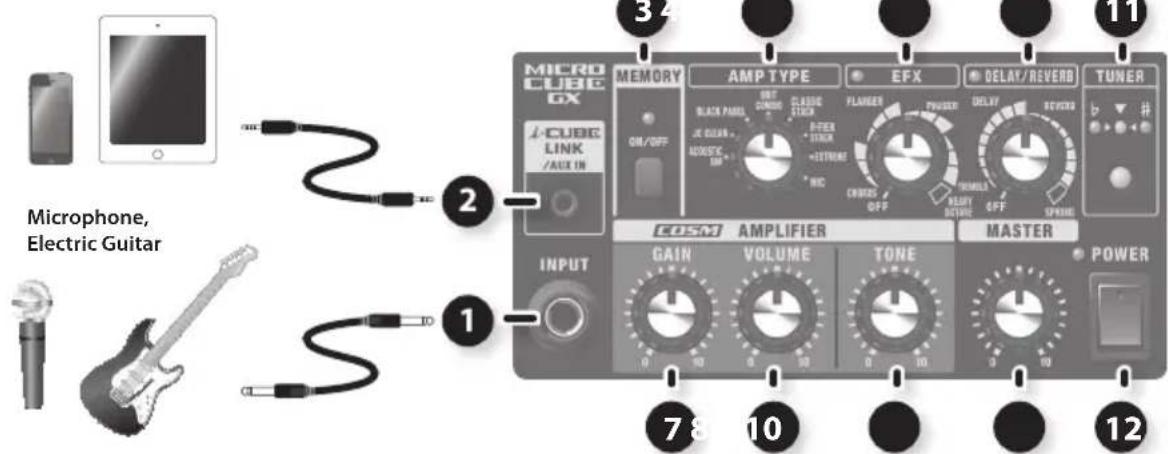
iPhone, iPad, etc.
1INPUT jack
Connect your guitar or microphone here.
-
Howling could be produced depending on the location of microphones relative to speakers. This can be remedied by:
-
Changing the orientation of the microphone(s).
- Relocating microphone(s) at a greater distance from speakers.
- Lowering volume levels.
- To prevent malfunction and equipment failure, always turn down the volume, and turn off all the units before making any connections.
2 i-CUBE LINK/AUX IN jack
i-CUBE LINK
If you use the included mini cable (4-pole) to connect your iPad/ iPhone, you'll be able to use the i-CUBE LINK function (p. 10).
AUX IN
Use the included mini cable (4-pole) or a commercially available stereo-mini cable to connect your digital audio player or iPad/Phone here.
3 [MEMORY] button
Turns the unit's memory feature on/off.
The memory feature lets you individually save your settings for each of the eight amp types (p. 9).
| Memory Explanation | |
| ON (lit) | The MICRO CUBE GX will sound according to the knob settings you previously stored. |
| OFF (unlit) | The MICRO CUBE GX will sound according to the current knob settings. |
4[AMP TYPE] switch
You can select from the following eight amp types:
| Type Explanation | |
| ACOUSTIC SIM | This original amplifier model gives you a dynamic acoustic guitar sound using a standard electric guitar. |
| JC CLEAN | This is a model of Roland's famous JC-120 Jazz Chorus guitar amplifier. The ultra-clean, ultra-flat sound offers a smooth tone. This becomes more effective when used in combination with an external effector. |
| BLACK PANEL | This is modeled on the classic Fender Twin Reverb amplifier, used in a wide variety of musical styles, from country to blues, jazz and rock. Exhibiting rich lows and a bright high end. |
| BRIT COMBO | This is modeled on the Vox AC-30TB, the rock amplifier that created the Liverpool sound of the '60s. It can produce a broad range of sounds, from clean to overdrive, with increased distortion and greater power in the low-midrange when the amplifier's gain is boosted. |
| CLASSIC STACK | This is modeled on the sound and response of a Marshall JMP1987. This is a rock amp distinctive for its fat, solid sound, and a smooth tone that extends into the "presence" frequency range. |
| R-FIER STACK | This is modeled on the MESA/Boogie Rectifier. This super high gain amp is capable of producing slash metal, grunge, and a wide range of other lead sounds. |
| EXTREME | This original high-gain amp delivers thick lows and intense distortion while still preserving the sound's clear definition. |
| MIC | Select this position when a microphone is connected. |
- All product names mentioned in this document are trademarks or registered trademarks of their respective owners, and are not related to Roland Corporation. In this manual, these names are used as appropriate ways to indicate sounds that are simulated using COSM technology.
5 [EFX] knob
Turn this knob to select the effect. Turn the knob to adjust the amount of effect applied.
- Graduations for each effect on a panel are for reference. Be sure to check the sound as you adjust the effects.
| Effect Explanation | |
| CHORUS | In this effect, a slightly detuned sound is added to the original sound, giving the sound greater breadth and fullness. |
| FLANGER | This creates a flanging effect that creates a sort of spinning sensation with the sound. |
| PHASER | This effect adds a variable phase-shifted signal to the direct sound, giving the sound a swirling character. |
| TREMODO | Tremolo is an effect that creates a cyclic change in volume. |
| HEAVY OCTAVE | This adds sound lowered by an octave to the original sound. Since you can play chords even when using this effect, you can use it to fatten the sound of your chordal playing as well. |
6 [DELAY/REVERB] knob
Turn this knob to DELAY or REVERB to switch to that effect.
Turn the knob to adjust the amount of effect applied.
- Graduations for each effect on a panel are for reference. Be sure to check the sound as you adjust the effects.
| Effect Explanation | |
| DELAY | Turn the knob to change the time and amount of delay effect. |
| REVERB Turn | Turn the knob to adjust the reverb level. |
| SPRING | This is modeled on spring reverb. It produces the distinctive reverberations of a spring. |
7 [GAIN] knob
Adjusts the amount of distortion and the input level.
8 [VOLUME] knob
Adjusts the volume of your electric guitar or microphone.
9 [TONE] knob
This adjusts the tone. Turn the knob clockwise for a brighter tone; to get a milder tone, turn the knob counterclockwise.
10 [MASTER] knob
Adjusts the overall volume.
11 [TUNER] button
Use this when you want to tune your guitar. For details, refer to "Using the Tuner Function" (p.9).
12 [POWER] switch
Turns the power on and off (p. 8). The power indicator will light when you turn on the power.
Rear Panel
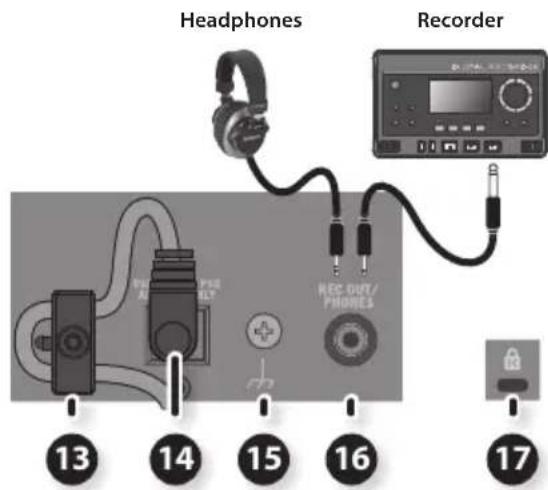
13 Cord hook
To prevent the inadvertent disruption of power to your unit (should the plug be pulled out accidentally), and to avoid applying undue stress to the DC IN jack, anchor the power cord using the cord hook, as shown in the illustration.
14 DC IN jack
Connect the included AC adopter to this jack.
- Use only the AC adaptor included with the MICRO CUBE GX.Use of other AC adaptors may damage the amp or result in other problems.
15 Ground terminal
For details, refer to "Ground terminal" (p. 11).
16 REC OUT/PHONES jack
REC OUT
Connect a recorder, when recording the MICRO CUBE GX's output.Use mono miniature phone plugs when connecting to this jack.
Use the [MASTER] knob to adjust the volume of the signal output from REC OUT to the appropriate level.
PHONES
Connect headphones to this jack.
- The sound is output in mono.
- No sound is played through the unit's speaker while the REC OUT/PHONES jack is in use.
17 Security slot (
http://www.kensington.com/
Turning the Power On/Off
-
Once everything is properly connected, be sure to follow the procedure below to turn on their power. If you turn on equipment in the wrong order, you risk causing malfunction or equipment failure.
-
Make sure that the MICRO CUBE GX's [MASTER] knob and the volume of any connected device is set to 0.
-
Set the [MASTER] knob to 0 before you connect anything to the MICRO CUBE GX's INPUT jack or i-CUBE LINK/AUX IN jack.
-
Turn on all the devices connected to the MICRO CUBE GX's INPUT and i-CUBE LINK/ AUX IN jacks.
-
Turn on the MICRO CUBE GX.
-
Before turning the unit on/off, always be sure to turn the volume down. Even with the volume turned down, you might hear some sound when switching the unit on/off. However, this is normal and does not indicate a malfunction.
-
This unit is equipped with a protection circuit. A brief interval (a few seconds) after turning the unit on is required before it will operate normally.
-
Adjust the volume levels for the devices.
Before switching off the power, lower the volume on each of the devices in your system and then TURN OFF the devices in the reverse order to which they were switched on.
Notes About Batteries
In addition to the AC adaptor, the MICRO CUBE GX can also be powered with six AA batteries (optional). Insert the batteries as shown in the figure, making sure that the batteries are oriented correctly.
- If operating this unit on batteries, please disconnect the AC adaptor from this unit.
- When you're using the MICRO CUBE GX on batteries, all the indicators will blink or become dim if the batteries run low during your performance. Replace the batteries as soon as possible.
- Sounds may distort easily or may cut off when played at high volume as the battery power begins to fade, but this is normal and does not indicate a malfunction. In such instances, either replace the batteries or use the AC adaptor included with the unit.
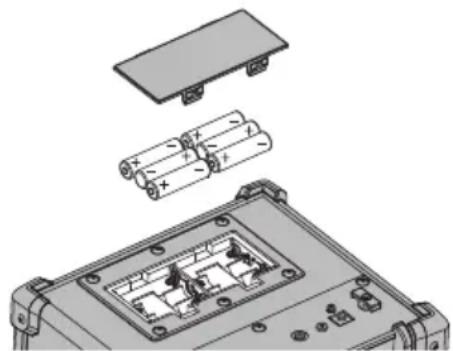
Caution when handling batteries
- If operating this unit on batteries, please use alkaline batteries, rechargeable Ni-MH batteries.
- When installing or replacing batteries, always turn this unit off and disconnect any other devices you may have connected. This way, you can prevent malfunction and damage.
-
If used improperly, batteries may explode or leak and cause damage or injury. In the interest of safety, please read and observe the following precautions.
-
Carefully follow the installation instructions for batteries, and make sure you observe the correct polarity.
- Avoid using new batteries together with used ones. In addition, avoid mixing different types of batteries.
- Remove the batteries whenever the unit is to remain unused for an extended period of time.
- Never keep batteries together with metallic objects such as ballpoint pens, necklaces, hairpins, etc.
-
Used batteries must be disposed of in compliance with whatever regulations for their safe disposal that may be observed in the region in which you live.
-
Batteries must never be heated, taken apart, or thrown into fire or water.
- Never expose batteries to excessive heat such as sunshine, fire or the like.
- Incorrect handling of batteries can cause leakage, overheating, fire, or explosion. Before use, you must read and strictly observe all of the precautions that accompany the batteries, rechargeable batteries, or battery charger.
- When using rechargeable batteries and a charger, use only the combination of rechargeable batteries and charger specified by the battery manufacturer.
Expected battery life under continuous use:
Alkaline battery: 20 hours
Rechargeable Ni-MH battery: 25 hours
These figures will vary depending on the specifications of the batteries and the actual conditions of use.
Using the Memory Function
The unit's memory lets you store the knob settings (see illustration) for each of the eight amp types.
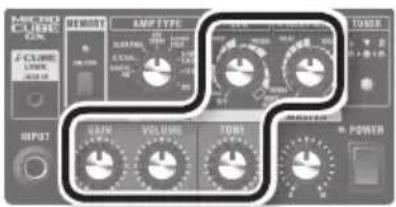
Storing Panel Settings in Memory
Here's how to store the current knob positions in memory.
1. Hold down the [MEMORY] button for several seconds.
The MEMORY indicator will blink.
Once the settings have been stored, the indicator will change to steadily lit.
NOTE
- When you store settings in memory, any settings you've previously stored for the currently selected amp type will be lost.
- The stored settings may be lost if you have the unit serviced, if the unit malfunctions, or if you perform an incorrect operation. Make a note of important settings being stored to memory, so that you will be able to reproduce them if they are lost. Roland accepts no responsibility for the recovery of any data stored in memory and assumes no liability with regard to its loss.
Calling up the Memory
Here's how to call up the knob positions (settings) you've stored.
1. Press the [MEMORY] button so it's lit.
2. Switch the amp type.
The settings stored for that amp type will be selected.
- If you move any knobs after calling up settings from memory, the settings will change to the positions of the knobs.
Using the Tuner Function
The MICRO CUBE GX provides a built-in tuner function. It can be used not only as a chromatic tuner, but also as a tuner for the open 5th string ("A" pitch).
- Use tuning the open 5th string ("A" pitch) when the strings are substantially out of tune (such as after changing strings).
Chromatic Tuning
1. Press the [TUNER] button so it's lit.
The MICRO CUBE GX will enter tuner mode and the [TUNER] button will light, allowing you to use this function as a chromatic tuner that automatically detects the name of the note that is closest to the pitch you played.
In tuner mode, no sound will be output from the speaker or any outputs.
![ROLAND Micro Cube GX - Press the [TUNER] button so it's lit. - 1](/content/2026/02/381672/images/c534b4a62f5831898c54a1ac4f087a8c2be20723829c69fafde7741a76fe9374.jpg)
2. Play a single note on the open string that you want to tune.
Tune the string until the green indicator lights.
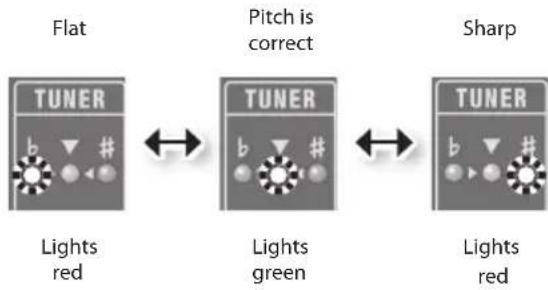
- The red indicator blinks if the pitch is substantially out of tune.
3. When you have finished tuning, press the [TUNER] button once again.
Tuning the Open 5th String ("A" Pitch)
If you hold down the [TUNER] button for at least one second, the [TUNER] button will blink, allowing you to tune to the "A" pitch (open 5th string).
When tuning the open 5th string, you tune the string in the same way as you do when using chromatic tuning by playing a single note and tuning it until the green indicator lights.
- The reference pitch is A = 440 Hz. This cannot be changed.
Using i-CUBE LINK
"i-CUBE LINK" is a function that allows the MICRO CUBE GX to be used simultaneously for conventional AUX IN and as an audio interface for your iPad/iPhone when the iPad/ iPhone is connected via the included mini cable (4-pole).
This function lets you use an iPad/iPhone app to record and play back the sound of your guitar.
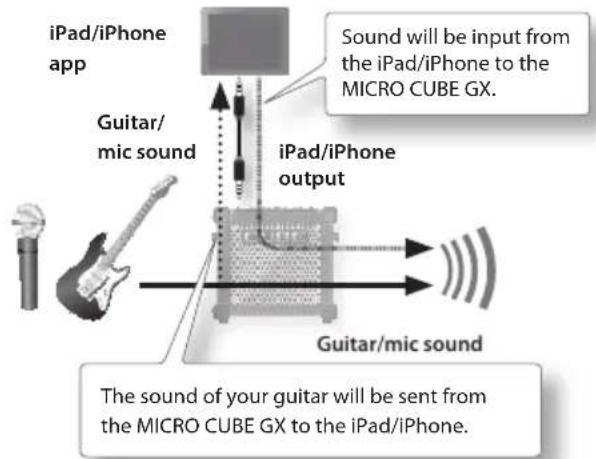
* If you want to hear only the sound that's being input from the iPad/iPhone, turn down the [VOLUME] knob.
For details on i-CUBE LINK and on iPhone/iPad apps that can use i-CUBE LINK, refer to Roland website.
http://www.roland.com/
Notes About Attaching the Strap
Attach the strap securely so that it does not easily become detached. If the strap is loose, and you use it that way when carrying the MICRO CUBE GX, the amp could be dropped, possibly resulting in damage or injury.
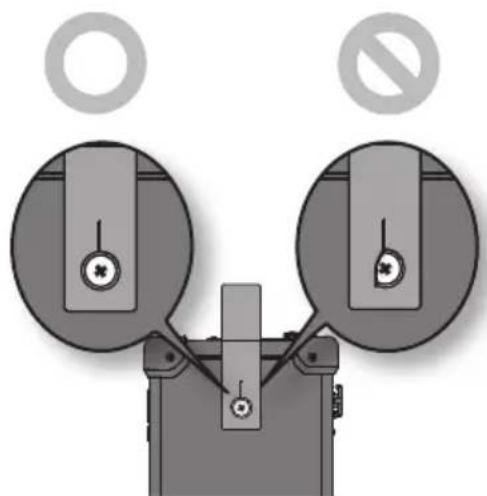
NOTE
Use only the provided strap. The included strap is meant for exclusive use with the MICRO CUBE GX.Do not use this strap for other products.
- Do not spin or swing the MICRO CUBE GX while holding it by the strap. This is extremely dangerous, as it may cause the strap to become detached; or, if the motion is repeated enough, may even break the strap.
Restoring the Factory Settings
If you want to initialize all the knob settings stored in memory, you can revert to the factory default settings as follows (Factory Reset).
1. While holding down the [MEMORY] button, turn on the power.
All indicators will blink, and the settings stored in memory will return to their factory-set state.
NOTE
When you execute the factory reset procedure, all knob settings that you've stored in the MICRO CUBE GX will be lost.
Ground terminal
Depending on the circumstances of a particular setup, you may experience a discomforting sensation, or perceive that the surface feels brittle to the touch when you touch this device, microphones connected to it, or the metal portions of other objects, such as guitars. This is due to an infinitesimal electrical charge, which is absolutely harmless. However, if you are concerned about this, connect the ground terminal with an external ground. When the unit is grounded, a slight hum may occur, depending on the particulars of your installation. If you are unsure of the connection method, contact the nearest Roland Service Center, or an authorized Roland distributor, as listed on the "Information" page.
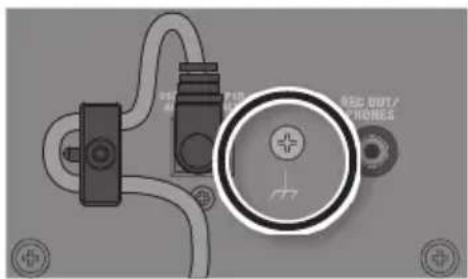
Unsuitable places for connection
Water pipes (may result in shock or electrocution)
Gas pipes (may result in fire or explosion)
- Telephone-line ground or lightning rod (may be dangerous in the event of lightning)
Roland MICRO CUBE GX:Guitar Amplifier
| Rated Power Output | 3 W |
| Nominal Input Level (1 kHz) | INPUT: -10 dBu / 1 M ohm i-CUBE LINK / AUX IN: -10 dBu |
| Speaker 12 cm (5 inches) x 1 | |
| Controls | POWER switch AMP TYPE switch (ACOUSTIC SIM, JC CLEAN, BLACK PANEL, BRIT COMBO, CLASSIC STACK, R-FIER STACK, EXTREME, MIC) MEMORY button TUNER button GAIN knob VOLUME knob TONE knob EFX knob (CHORUS, FLANGER, PHASER, TREMOLO, HEAVY OCTAVE) DELAY / REVERB knob (DELAY, REVERB, SPRING) MASTER knob |
| Indicators | POWER MEMORY EFX DELAY / REVERB TUNER |
| Connectors | INPUT jack (1/4-inch phone type) i-CUBE LINK / AUX IN jack (4-pole miniature phone type) REC OUT / PHONES jack (Stereo miniature phone type) DC IN jack |
| Power Supply | AC adaptor Alkaline battery (AA, LR6) x 6 Rechargeable Ni-MH battery (AA, HR6) x 6 |
| Current Draw 155 mA | |
| Expected battery life under continuous use | Alkaline battery: Approximately 20 hours Rechargeable Ni-MH battery: Approximately 25 hours (When using batteries having a capacity of 2,400 mAh.) * This can vary depending on the capacity of the batteries and the conditions of use. |
| Dimensions | 247 (W) x 172 (D) x 227 (H) mm 9-3/4 (W) x 6-13/16 (D) x 8-15/16 (H) inches |
| Weight | 2.7 kg 6 lbs |
| Accessories | Owner's Manual AC adaptor Strap Mini cable (4-pole miniature phone type) |
- 0 dBu = 0.775 Vrms
- In the interest of product improvement, the specifications and/or appearance of this unit are subject to change without prior notice.
No permitted to be used in the United Nations Organization's General Regulations for the use of liquidated or unmarked chemicals. No permit to be used in the United Nations Organization's General Regulations for the use of liquidated or unmarked chemicals.
2 Conector i-CUBE LINK/AUX IN
i-CUBE LINK
12 Interruptor [POWER]
When you need repair service, call your nearest Roland Service Center or authorized Roland distributor in your country as shown below.
AFRICA
EGYPT
Al Fanny Trading Office 9. EBN Hagar Al Akalary Street, ARD El Golf, Helopsits, Cairo 11341, Egypt TEL: (022)-417-1828
REUNION
MARCEL FO-YAM SAI
25 Rue Julies Hermann, Chaudron-B7P79 97 491
St Clarette Cedex, REUNION ISLAND
TEL: (0262) 218-429
SOUTH AFRICA
Paul Bothner(PTY) Ltd.
Royal Cape Park, Unit 24
Londonerry Road, Ottery 7800
Cape Town, SOUTH AFRICA
TEL: (021) 799 4900
ASIA
CHINA
Roland Shanghai Electronics Co., Ltd.
SF.No.1500 Pingliang Road
Shanghai 200090, CHINA
TEL: (021) 5580-0800
Roland Shanghai Electronics Co., Ltd. (BEIJING OFFICE) 3F, Soluex Fortune Building 53 West Dawang Road, Chaoyang District, Beijing, CHINA TEL: (010)5960-2655
HONG KONG
Tom Lee Music
11/F Silvercord Tower 1
30 Canton Rd
Tismshatsul Kowloon,
HONG KONG
TEL: 852-2737-7688
Parsons Music Ltd.
8th Floor Railway Plaza, 39 Chatham Road South, T.S.T, Kowloon, HONG KONG
TEL: 852-2333-1863
INDIA
Rivera Digitec (India) Pvt. Ltd. 411, Nirman Kendra Mahalaxmi Flats Compound Off. Dr. Edwin Moses Road, Mumbai-400011, INDIA TEL: (022) 2493 9051
INDONESIA
PT. Citra Intrama
Ruko Garden Shopping Arcade
Unit 8, C4, Podomoré City
LIjetjen S, SParmans Kav.28
Jakarta Bara 11470, INDONESIA
TEL: (021) 5698-5519/55320
KAZAKHSTAN
141 Abiyal-Khawae, 1st Floor, OSOOG Almaty, KAZAKHSTAN TEL. (727) 2725477
KOREA
Cosmos Corporation 1461-9, Seocho-Dong, Seocho Kua Seu Korea TEL: (02) 3486-B855
MALAYSIA/
SINGAPORE
Roland Asia Pacific Sdn. Bhd. 45-1, Block C2, Jalan PJU 1/39, Datanin Prima, 47301 Petaling Jaya, Selangor, MALAYSIA
TEL: (01) 7805-1263
PHILIPPINES
G.A.Yupangco & Co. Inc. 339 GilJ.Puyat Avenue Makati, Metro Manila 1200, PHE IPPENES TEL.(02)899 9801
TAIWAN
ROLAND TAIWAN ENTERPRISE CO., LTD.
9F-5, No. 112 Chung Shan
North Road Sec. 2 Talpei 104, TAIWAN R.O.C.
TEL: (02) 2561 3339
THAILAND
Theera Music Co., Ltd.
100-108 Sol Verng Nakornkasem,
New Road, Sumpantawong,
Bangkok 10100, THAILAND
TEL: (021)224-8821
VIETNAM
VIET THUONG CORPORATION
386 CACH MANG THANG TAM ST
DIST 3, HD CHMINH CITY,
VET NAM
TEL: (06) 9316540
OCEANIA
AUSTRALIA/
NEW ZEALAND
Roland Corporation
Australia Pty., Ltd.
36 Campbell Avenue
Dee Why West NSW 2099, AUSTRALIA
For Australia
TEL: (02) 9982 8266
For New Zealand
TEL: (09) 5098 715
CENTRAL/LATIN AMERICA
ARGENTINA
Instrumentos Musicales S.A. Av.Santa Fe 2055 (1123) Buenos Aires,ARGENTINA TEL.(011)4508-2700 BARBADOS
12 Webster Industrial Park Wildey,St.Michael, BARBADOS TEL.(246)430-1100
BRAZIL
Roland Brasil Ltda.
Rua San Jose, 231
Parque Industrial San Jose
Cotaia - São Paulo - SP, BRAZIL
TEL: (011) 4615 5666
CHILE
Commercial Fancy S.A.
Rut: 96.319.420-1
Nataniel Cox #739, 4th Floor
Santiago - Centro, CHILE
TEL: (021) 384-2180
COLOMBIA
Centro Muscular Ltda.
Cra. 43 B No 25 A 41 Bododega 9
MedInn, COLOMBIA
TEL: (570) 3812529
COSTARICA
JUAN Bensbach Instrumentos Musicales
Ave. 1, Calle 11, Apartado 10237, San Jose, COSTA RICA
TEL: 258-0211
CURACAO
Zeelandia Music Center Inc.
Drioweg 30
Curacao, Netherlands Antilles
TEL: (305) 5926866
DOMINICAN REPUBLIC
Instrumentos Fernando Giraldez
Callo Roberto Pasticza #325
Sanchez Naco
Santo Domingo,
DOMINICAN REPUBLIC
TEL: (809) 683 0305
ECUADOR
Mas Musika Rumhaca 822 y Zuruma Guayquil -ECUADOR TEL: (59-4) 230264
EL SALVADOR
OMNI MUSIC
75 Avenida Norto y Néfal Alameda
Juan Pablo II
Erficcio No.4010 San Salvador,
EL SALVADOR
TEL: 262-0788
GUATEMALA
Casa Instrumental Calzada Roosevelt 34-01,zone 11 Ciudad de Guatemala, GUATEMALA
TEL502)599-2888
HONDURAS
Almacen Pajaro Azul S.A. de C.V.
BO.Paz Barhona
3 Ave.11 Calle 5.O
San Pedro Suila, HONDURAS
TEL: (504) 553-2029
MARTIN
Roland Ireland
E2 Calmoun Park, Calmoun
Avenue, Dublin 12,
Republic of RELAND
TEL: (01) 4294444
ITALY
Roland Systems Group EMEA, S.L. Branch Office Porto Edificlo Tower Plaza
Rotunda Eng. Legar Cardoso 23, 48
4400-676 Via Nova de Gaia, PORTUGAL
1-200-000-000-000
RUSSIA
Roland Music LLC
Dorozhnau ul3, korp.6
117 545 Moscow, Russia
TEL: (495) 981-4967
SERBIA
Music AP
Sutjeska br.5 XS - 24413 PALIC, SERBIA
TEL: 01 24 539 395
SLOVAKIA
DAN AUCES s.10. Povazskii 18. SK-940 01 Nové Zámíky, SLOVAKIA TEL: (035) 6424 330
SPAIN
Roland Systems Group EMEA, S.L.
Paseo Garcia Faria, 33-35
08005 Barcelona, SPAIN
TEL: 93 493 91 00
SWEDEN
Roland Scandinavia A/S SWEDISH SALES OFFICE Marbækagatan 31,4tr. SE-123 43 Farita, SWEDEN Tel:0168683040
SWITZER
Roland (Switzerland) AG
Landstrasse S, Postfach,
CH-4452 Bingen, SWITZERLAND
TEL: (0611) 975-9987
UKRAINE
EURYTHYMICS Ltd.
P.O.Box 37-a.
Nedecey Str. 30
UA-89600 Mukachevo, UKRAINE
TEL: (03131)414-40
UNITED KINGDOM
Roland U.K.S.,LTD. Atlantic Close,SWANSEA SA7 9FAUNITED KINGDOMTEL:01/29207020701
MIDDLE EAST
BAHRAIN
Moon Stores
No.1231671249 Rumaytha Building Road 3931, Manatee 339, BA1-RAN TEL: 17 813 842
IRAN
MOOC INC.
Jadah Maksouts Karaj (K-9)
Nakhe Zairn Ave.
Jabal Street, Reza Alley No.4
Tehran 1387/6797, RAN
TEL: (021)-445-6370-5
ISRAEL
Hallit P. Greenspon & Sons Ltd.
8 Retzif Haifa Hashnia St.
Tel-Aviv-Yafo ISRAEL
TEL: (01) 642 3666
JORDAN
MUSIC HOUSE CO. LTD. FREDDY FOR MUSIC P.O.Box 922846 Amman 11192 JORDAN Tel:0615692696
KUWAIT
EASA HUSAIN AL-YOUSIFI &
SONSCO
Al Youfshl Service Center P.O.Box 126 (Safat 1306)
TEL:00965802929
LEBANON
Chahine S.A.L.
George Zeidan St, Chahine Bdg.
Achrafeeh, PO Box 16-5857
Beirut, LERANON
TEL: (01) 20-1441
OMAN
TALENTZ CENTRE L.L.C.
Malatran House No.1
Al Ainor Street, Ruwi
SULTANATE OF OMAN
TEL: 24783443
QATAR
AL-EMADITRADING&
CONTRACTING CO. P.O.Box 62,Doha, QATAR Tel:4423-554
SAUDI ARABIA
Adawlah Universal Electronics
APL
Behind Pizza Inn
Prince Turkey Street
Adawifiah Building, PO Box 2154, All Khabher 31952, SAUDARABM
TEL: (03) 8643601
SYRIA
Technical Light & Sound Center PO Box 13520 Bldg No 49 Khaled Abn Alwalid S; Damascus, SYRIA TEL: (071) 223-5384
TURKEY
ZUHALDIS TICARET A.S.
Galip Dede Cad. No.33
Beyogluy, Istanbul, TURKEY
TEL: (0212) 249 85 10
U.A.E.
Adawiah Universal Electronics
APL
Omar bin alkhattab street, fish round about bay, ave area, deira.
Dubai,USA.
TEL:0412340442
NORTH AMERICA
CANADA
Roland Canada Ltd
(Head Office)
5480 Parkwood Way Richmond B.C., V6V 2M4, CANADA
TEL: (604) 270 6626
Roland Canada Ltd.
(Toronto Office)
170 Admiral Boulevard
Mississauga ON LST 2N6, CANADA
TEL: (95) 362 9707
U.S.A.
Roland Corporation U.S.
5100 S. Eastern Avenue
Los Angeles, CA 90046-2938, U.S.A.
TEL: (323) 890 3700
For EU Countries

This symbol indicates that in EU countries, this product must be collected separately from household waste, as defined in each region. Products bearing this symbol must not be discarded together with household waste.
This equipment has been tested and found to comply with the limits for a Class B digital device, pursuant to Part 15 of the FCC Rules. These limits are designed to provide reasonable protection against harmful interference in a residential installation. This equipment generates, uses, and can radiate radio frequency energy and, if not installed and used in accordance with the instructions, may cause harmful interference to radio communications. However, there is no guarantee that interference will not occur in a particular installation. If this equipment does cause harmful interference to radio or television reception, which can be determined by turning the equipment off and on, the user is encouraged to try to correct the interference by one or more of the following measures:
Reorient or relocate the receiving antenna.
- Increase the separation between the equipment and receiver.
Connect the equipment into an outlet on a circuit different from that to which the receiver is connected.
- Consult the dealer or an experienced radio/TV technician for help.
This device complies with Part 15 of the FCC Rules. Operation is subject to the following two conditions:
(1) this device may not cause harmful interference, and
(2) this device must accept any interference received, including interference that may cause undesired operation.
This equipment requires shielded interface cables in order to meet FCC class B limit.
Any unauthorized changes or modifications not expressly approved by the party responsible for compliance could void the user's authority to operate the equipment.
For Canada
NOTICE
This Class B digital apparatus meets all requirements of the Canadian Interference-Causing Equipment Regulations.
AVIS
This product contains chemicals known to cause cancer, birth defects and other reproductive harm, including lead.