Pico Dab+ - Hi-fi system REVO - Free user manual and instructions
Find the device manual for free Pico Dab+ REVO in PDF.



| Marque | REVO |
| Modèle | Pico Dab+ |
| Type de produit | Système hi-fi compact avec radio DAB/DAB+ et FM |
| Dimensions (L × H × P) | 105 × 167 × 105 mm |
| Alimentation secteur | Adaptateur 12V 1200 mA fourni |
| Alimentation batterie | Batterie Li-Ion rechargeable, autonomie 12 heures |
| Réception radio | DAB/DAB+ (bande III 174-240 MHz) et FM (87,5-108 MHz) |
| Haut-parleur | 2,25" néodyme pleine gamme |
| Puissance de sortie audio | 6 W |
| Entrée auxiliaire | Prise M-Port (3,5 mm) pour iPod/MP3 |
| Sortie casque | Prise 3,5 mm |
| Sortie stéréo | Connecteurs RCA |
| Écran | LCD négatif 3 lignes haute résolution (2 lignes texte, 1 ligne icônes) |
| Mémoires de stations | 12 préréglages DAB + 12 FM |
| Fonctions principales | Radio DAB/DAB+ et FM, balayage local/complet, contrôle dynamique (DRC), syntonisation manuelle, affichage des informations (nom station, fréquence, débit, etc.), haut-parleur pour appareils externes via M-Port |
| Antenne | Télescopique intégrée |
| Télécommande | Infrarouge (en option) |
| Sécurité | Ne pas utiliser près de l'eau, éviter l'introduction de petits objets ou liquides, ne pas ouvrir le boîtier, utiliser uniquement l'adaptateur fourni |
| Entretien et nettoyage | Essuyer avec un chiffon sec, ne pas utiliser de solvants |
| Pièces détachées et réparabilité | Adaptateur secteur disponible sur www.revo.co.uk ; support technique au 01555666161 ou support@revo.co.uk |
| Informations générales | Garantie 1 an, enregistrement recommandé en ligne ; marquage CE et conforme RoHS |
Frequently Asked Questions - Pico Dab+ REVO
User questions about Pico Dab+ REVO
0 question about this device. Answer the ones you know or ask your own.
Ask a new question about this device
Download the instructions for your Hi-fi system in PDF format for free! Find your manual Pico Dab+ - REVO and take your electronic device back in hand. On this page are published all the documents necessary for the use of your device. Pico Dab+ by REVO.
USER MANUAL Pico Dab+ REVO
Benefits of DAB radio 3
Pico overview and key features 3
Warranty 3
Warranty registration 3
Controls and Connections 3
Powering Pico 3
Getting Started 4
Pico's Control Method 4
Pico's Menu Explained 4
DAB Mode 4
Choosing a station 4
Change display mode 5
DAB Mode Menu Options 5
Station Order 5
Manual Tune 6
Set DRC 6
DRC - Dynamic Range Control 6
Local and Full Scan 6
Favourite Station Presets 6
FM Mode 7
FM Operation 7
Favourite Station Presets 7
M-Port 8
Trouble-Shooting 8
Technical Specification 9
Preface
Copyright and Acknowledgements
Copyright © 2008 Revo Technologies Ltd. All rights reserved.
Revo Technologies Ltd
The Inox Building
Caldwellside
Lanark
Scotland
United Kingdom
ML117SR
Tel. 01555 666 161
Fax. 01555 66 33 44
Email: enquiries@revo.co.uk
Website: www.revo.co.uk
The information in this guide is believed to be correct at the time of publication. However, our policy is one of continuous development and so the information is subject to change without notice.
Revo®, Pico and M-Port are trademarks or registered trademarks of Revo Technologies Limited.
iPod® is a registered trademark of Apple Computer, Inc.
SafetyWarnings

Do not operate this radio near water.
Avoid small objects and liquids from getting into this product.
Do not remove screws or casing parts.
Use only the power supply unit supplied.
EEC: This product has been designed and type-tested to comply with EU requirements and carries a CE mark.
RoHS
COMPLIANT


Technical Support
Should you encounter any difficulties with the operation of your radio, or should you suspect that it may be faulty in some way, please call our technical support department on the number below:
01555666161
Alternatively, email support@revo.co.uk or visit the troubleshooting section of our website at: www.revo.co.uk/support
Welcome to Revo DAB
Thank you for buying our Pico Digital Radio, we feel sure that it will provide you with years of enjoyment and reliable service.
This guide has been designed to quickly get you up-and-running and listening to DAB and DAB+ digital radio, offer guidance on the more complex features of this product and provide information on safety, warranty and registration.
Benefits of Digital Radio
Clear, interference free digital sound
Many more stations, much more choice
No frequencies, select by station name
No re-tuning
Text information via LCD screen
Pico Overview
Pico is capable of receiving both standard DAB and new DAB+ digital radio broadcasts, without the need for any software upgrades or modification, all in a splashproof casing, with the convenience of internal battery power.
Pico can also be used as a high quality speaker system for your iPodTM (or other MP3 player or external sound source).
Simply connect your device to Pico's M-Port using the audio lead supplied.
Warranty
Revo Technologies Ltd warrants to the purchaser that this product will be free from parts and manufacturing defects in the course of normal use for a period of one year from the date of purchase.
This warranty does not apply in cases of accidental damage, where the case has been removed, wear and tear, negligence, modification or inappropriate use.
Should you encounter problems with this product, please contact your supplier or alternatively see page 2 of this guide for technical support contact details.
Warranty Registration
It is a warranty condition that you register your purchase by either completing the warranty card enclosed with your radio or alternatively registering online at www.revo.co.uk/register
Controls and Connectors
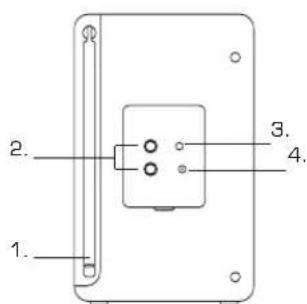
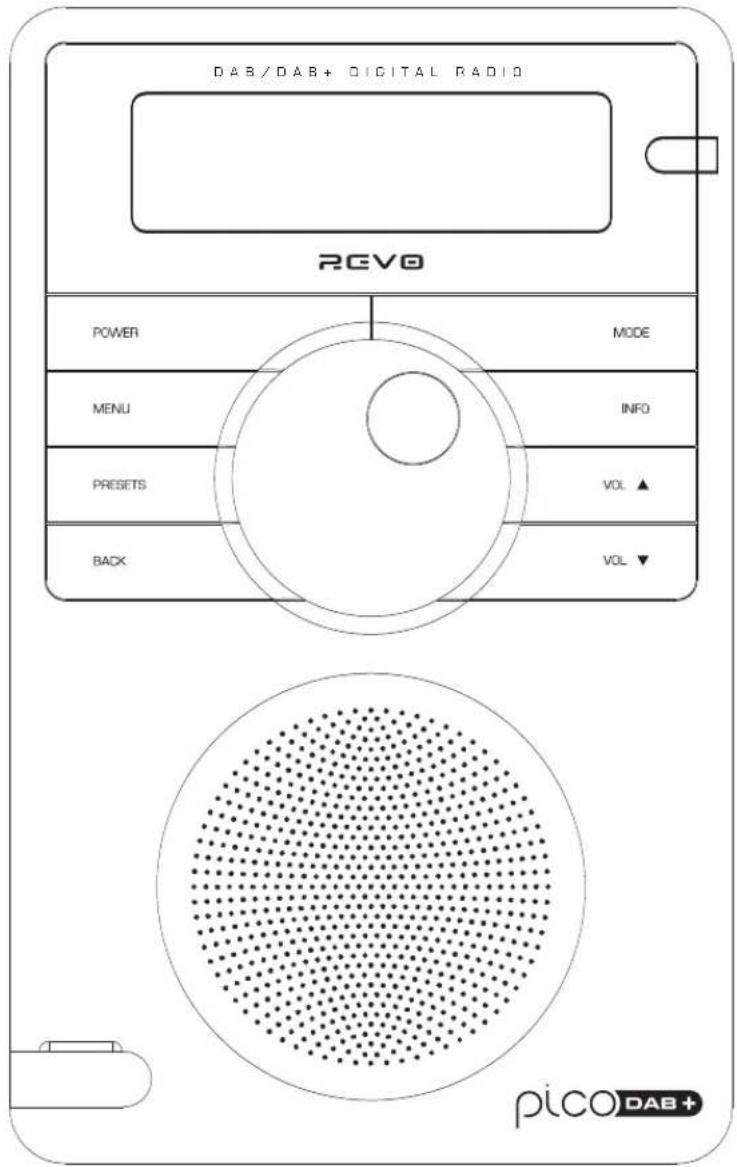
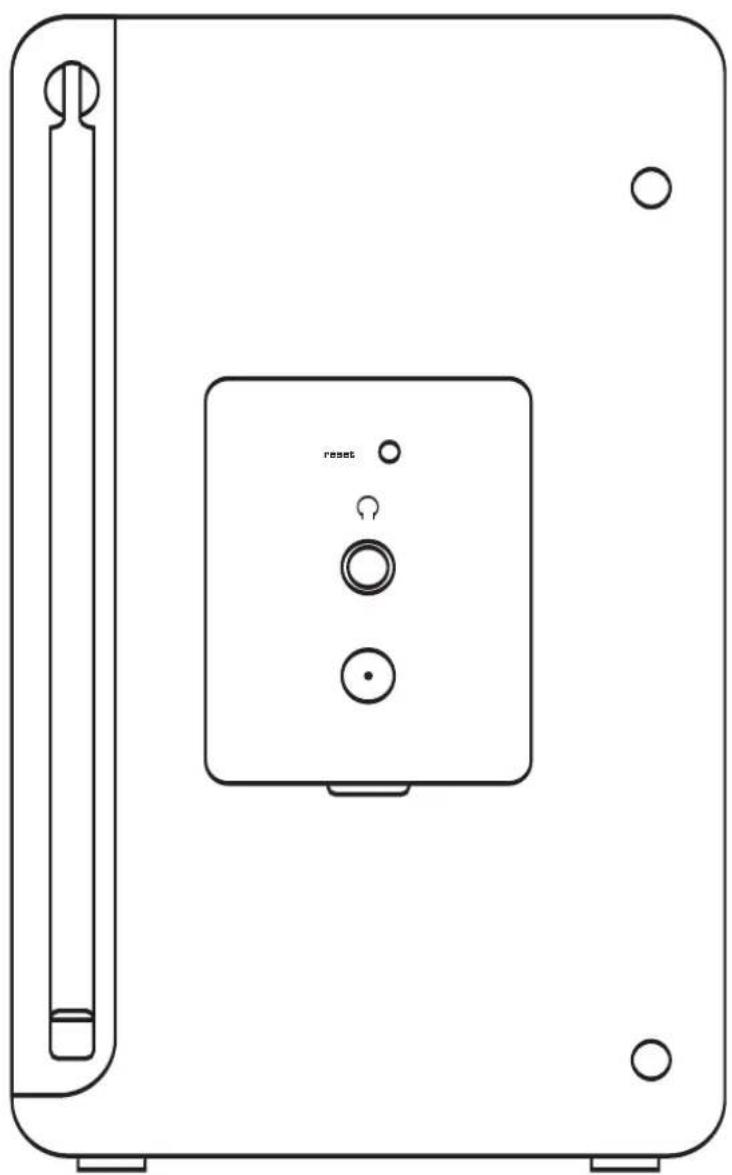
1. Telescopic Antenna
2. Stereo Line-Out
3. 3.5mm Headphone Socket
4. DC Power Socket
Powering Pico
Your Pico radio is powered from the mains using the power adaptor supplied, or from its own internal rechargeable battery pack.
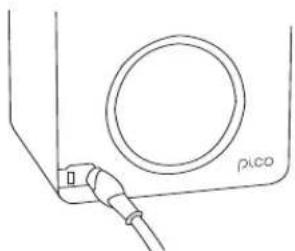
To power from the mains, insert the power adaptor plug into the DC power socket on the rear of Pico. When Pico is connected to mains power, its internal battery pack will commence charging. On a full charge, Pico's internal battery pack has a 12 hour life.
Only use the power adaptor supplied. Replacements are available from www.revo.co.uk
Getting Started
Pico is a sophisticated digital radio device, with several modes of operation and many advanced features.
In order for you to get the most out of Pico's functions, it is important that you learn how to use the cursor based control system, and also understand how Pico's menus work.
Pico's Control Method
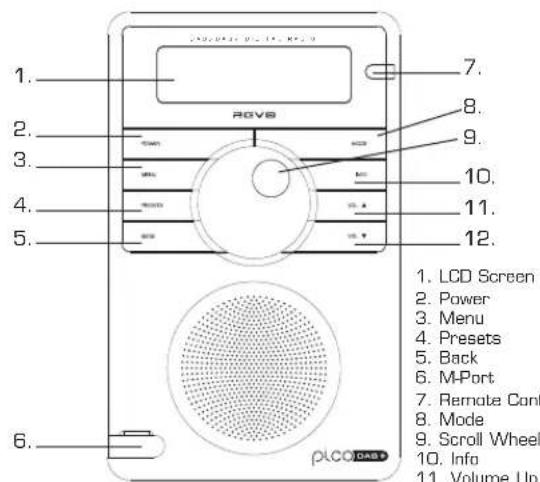
Pico's control method is based around a central scroll wheel (with push to select function) and a number of .
SCROLL WHEEL:
Rotate clockwise and anti-clockwise to scroll through menu options.
PUSH TO SELECT:
Press the scroll wheel to select the current
menu option. In FM mode, pressing SELECT will initiate an FM scan.
BACK:
Press to return to the previously selected menu entry. Repeatedly pressing will return you to the top level of the Mode menu (for the mode you are in).
MENU:
Press to enter (or return to) the Mode menu for the mode of operation you are currently in. Pressing for a second time will return you to the 'playing' screen.
MODE:
Sequentially cycles through each of the modes of operation.
Using these keys, you will be able to perform most functions and navigate through Picos various menus.
Pico's Menu Explained
Pico has three types of menu as follows:
Main Menu
This is Pico's principle [top level] menu, and allows you to enter different operating modes, setup the radio, and view information such as software version and your radio's ID number.
Mode Menus
The Mode menus are so called because they show the functions available within the context of each of the operating modes (DAB mode, FM mode etc.).
Pressing the MENU button at any time will take you to the Mode menu of the operating mode your radio is currently in. Each Mode menu includes a listing for Main Menu - selecting this option will return you to the top level Main Menu (as described above).
Main Menu
The Main menu provides access to the following modes and sub-menus:
DAB Info System
FM Setup
To select an option from the menu, simply use the scroll wheel to move through the menu options, then press to select.
DAB Mode
Choosing a Station
Firstly ensure that you have extended the antenna on the rear of Pico.
Enter DAB Mode by pressing the MODE key and switching between FM Mode and DAB Mode. Alternatively, DAB Mode can be accessed via the Main Menu.
If this is the first time you have used Pico, it will scan for DAB stations in your area and store them in memory. Pico will also set its clock and date at this point.
Pressing and holding the INFO button for a period of two seconds will manually instruct Pico to perform a station scan.
When the station scan has been completed, stations will be displayed in numeric then alphabetic order.
If no DAB signal is found, it may be necessary for you to relocate your radio, or to check whether DAB coverage is available in your area.
To select a station simply rotate the scroll wheel to cycle through the list of available stations, then push to make your selection.
MODE
DBB Mode
Scanning.. 10
中
INFO
ArrowRock
BCCsian
BBC 6 Music
Playing
To Change the Display Mode
Pico has nine different display modes.
Simply press the INFO button to cycle through each mode. These display modes are explained in the table opposite:
Display option Example
Normal display with scrolling text
BBC Radio 1 calls cost max
Signal level, indicator on bar shows minimum acceptable level
1kSPORT
Type of broadcast
BBC Radio 1
Pop Music
Broadcaster
BBC Radio 1 BBC National DAB
Station name and frequency
BBC Radio 1
128 225.64MHz
Signal strength
BBC Radio 1
Sig strength 96
Data rate and broadcast type
BBC Radio 1
128kbits Stereo
Time
BBC Radio 6Music
11:43:03
Date
BBC Radio 6Music
18/12/2007
DAB Mode Menu Options
Pico has a number of additional functions that are accessed through the DAB Mode menu, as follows:
Station Order
Press the MENU key in DAB Mode then select 'Station order'.
To specify the order in which stations are displayed
Select the Station order option.
Turn the scroll wheel to scroll through the options and press to SELECT.
The following table describes the options available under the 'Station Order' menu:
Station order Description
Alphanumeric Lists stations in alphabetical order.
Ensemble Lists stations by multiplex.
Valid Lists only active stations.
Manual Tune
Choose the 'Manual tune' option from the DAB Mode menu.
The 'Manual tune' selection screen allows you to select a particular frequency to tune to. The list of frequencies displayed is dependant on the currently-set frequency band and contains all of the frequencies within that band. It starts with the short name of the frequency, for example 12B, and is followed by the actual frequency in MHz.
If there is a station corresponding to this station number and frequency, the display will show the name, frequency, and a tuning meter will show the signal strength.
DRC - Dynamic Range Control
Pico includes a dynamic range control that automatically boosts the volume of quieter sounds for listening in noisy environments.
The DRC control is found in the DAB Mode menu under 'DRC'. There are three pre-defined settings as follows:
DRC Description
DRC Low Dynamic Range Control is set to half
DRC High The recommended setting for noisy environments
DRC Off Dynamic Range Control is switched off
FM Mode
FM Operation
- Extend the telescopic antenna found on the rear of Pico.
Enter FM Mode by pressing the MODE key and switching between DAB Mode and FM Mode. Alternatively, FM Mode can be accessed via the Main Menu.
If this is the first time Pico has been in FM mode, it will start at the beginning of the FM frequency range. Otherwise, the last FM station you were listening to will be selected.
To scan through the FM frequency range turn the scroll wheel.
To 'SEEK' the next active station, press the scroll wheel.
Favourite Station Presets
Pico allows you to store 12 favourite station presets, either via the PRESET button on Pico itself, or on the optional Pico remote control.
To save the station you are currently listening to as a preset, simply press the PRESET button then use the scroll wheel to find an unused location. Now press the scroll wheel to store.
To listen to a stored station press the PRESET button then use the scroll wheel to locate your desired preset, then press to select.
Local and Full Scan
As time passes, new stations will become available in your area. To find them and add them to your station list it is necessary to perform either a 'Local' or 'Full' scan. Both operations can be accessed via the DAB Mode menu.
A Local Scan performs a shorter scan of only the 'local' ensemble range.
A Full Scan will take longer, but will cover the complete DAB ensemble range.
Favourite Station Presets
- Pico allows you to store 12 favourite station presets, either via the PRESET button on Pico itself, or via the optional Pico remote control.
To save the station you are currently listening to as a preset, simply press the PRESET button then use the scroll wheel to find an unused location. Now press the scroll wheel to store.
To listen to a stored station press the PRESET button then use the scroll wheel to locate your desired preset, then press to select.
MDDE
FIM Mode
87.59%
FM
Preset 1 unset
Preset 2 unsetPreset 1 set
Preset 2 uns
MPort Mode
Using MPort
Revo's MPort connector allows for quick and easy connection of an iPod or other MP3 player or sound source.
Using the connection lead supplied, Pico is transformed into a high quality digital audio speaker system.
- Connect one end of the supplied audio lead to the headphone [or auxiliary out] socket of your source device, then connect the other end to the MPort on the front of Pico.
Pico's LCD screen will now display the word 'MPort' on its screen.
You should adjust the output volume level on both the source device and on Pico itself to gain optimal volume levels and sound performance.
H-Fort
Trouble-Shooting
DAB Digital Radio
I hear a 'burbling' noise on some stations.
A. If the signal strength is too low, a break-up in reception can occur and this sound is the result. Make sure that Pico's antenna is fully extended and in an upright position. If the problem persists, move Pico to another location or check that you are in an area where reception of this station is possible.
a. I get a 'No stations available' message?
A. Make sure that your antenna is fully extended and vertical. Check the signal strength and move Pico to another location if necessary.
Pico's clock isn't set.
A. Pico needs to be able to pick-up a DAB signal or have its clock set manually. If Pico can find a DAB station, it can then set its clock.
Factory Reset
In the unlikely event that Pico performs erratically, it is possible to perform a software reset to restore the original factory settings. The factory reset option can be found under the System Setup heading, which itself can be found under the Main Menu.
Technical Specification
General: Mono DAB and FM radio with full Band III reception.
■ Speaker: 2.25" full-range neodymium
Audio Power Output: BW
Frequency Ranges: DAB Band III [174 - 240 MHz]
DAB+ coverage FM [87.5 - 108 MHz]
Antenna: Integral telescopic aerial
■ Input Connectors: DC power adaptor socket (230V adapter supplied) 3.5mm line-in for auxiliary devices (M-Port)
Output Connector: 3.5mm headphone socket Stereo RCA connectors
LCD Display: High resolution 3 line 'negative' LCD screen. (2 lines text, 1 line icons, 16 character width)
Presets: 12 x DAB and 12 x FM presets
Remote Control: Infra-red remote control [Optional]
Mains Power Supply: 12V 1200mA
Battery Power: Li-hon rechargeable battery pack. 12 hour life.
Approvals: CE marked and RoHS compliant.
Dimensions: 167mm (H) × 105mm (W) × 105mm (D)

EVO
D A B +
DIGITAL RADIO

pICO DAB+
mode d'emploi
Table des matieres
Bienvenue à Revo 3
Copyright © 2008 Revo Technologies Ltd.
Revo Technologies Ltd
The Inox Building
Caldwellside
Lanark
Scotland
United Kingdom
ML11 7SR
Tel. 0044 1555 666 161
Fax. 0044 1555 66 33 44
Email: enquiries@revo.co.uk
Site Internet: www.revo.co.uk
www.revo.co.uk/support
Specifications techniques
Revo Technologies Ltd The Inox Building
Caldwellside
Lanark
Scotland
United Kingdom ML11 7SR
Tel. 01555666 161
Fax. 01555 66 33 44
Email: enquiries@revo.co.uk Website: www.revo.co.uk
BBC Radio 1 calls cost max
Copyright © 2008 Revo Technologies Ltd.
Revo Technologies Ltd
The Inox Building
Caldwellside
Lanark
Scotland
United Kingdom
ML117SR
Tel.0155566161
Fax. 01555 66 33 44
Email. enquiries@revo.co.uk
Sito Web: www.revo.co.uk
BBC Radio 1 calls cost max
Radio is our Religion
Revo Technologies Ltd The Inox Building Caldwellside Lanark Scotland United Kingdom ML11 7SR
Telephone Support 01555 666 161
Online Support www.revo.co.uk/support support@revo.co.uk
- Controls and Connections 3
- Getting Started 4
- DAB Mode 4
- DAB Mode Menu Options 5
- FM Mode 7
- M-Port 8
- Trouble-Shooting 8
- Technical Specification 9
- Preface
- Copyright and Acknowledgements
- SafetyWarnings
- RoHS
- COMPLIANT
- Technical Support
- 01555666161
- Welcome to Revo DAB
- Benefits of Digital Radio
- Pico Overview
- Warranty
- Warranty Registration
- Controls and Connectors
- Powering Pico
- Getting Started
- Pico's Control Method
- SCROLL WHEEL:
- PUSH TO SELECT:
- BACK:
- MENU:
- MODE:
- Pico's Menu Explained
- Main Menu
- Mode Menus
- DAB Mode
- Choosing a Station
- To Change the Display Mode
- Display option Example
- DAB Mode Menu Options
- Station Order
- To specify the order in which stations are displayed
- Station order Description
- Manual Tune
- DRC - Dynamic Range Control
- FM Mode
- FM Operation
- Favourite Station Presets
- Local and Full Scan
- MPort Mode
- Using MPort
- Trouble-Shooting
- DAB Digital Radio
- Factory Reset
- Technical Specification
- pICO DAB+
- Table des matieres
- Bienvenue à Revo 3
- Specifications techniques
- Radio is our Religion
Brand : REVO
Model : Pico Dab+
Category : Hi-fi system