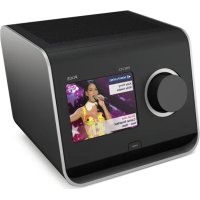
USER MANUAL PIXIS REVO
Should you encounter problems using this product, please refer to the troubleshooting section on page 13 of this owner's guide. Alternatively, call Revo technical support on :
UK 01555 666161
From outside the UK + 44 1555 666161
Alternatively, e-mail support@revo.co.uk or visit the troubleshooting section of our website at: www.revo.co.uk
Environmental Info
PRODUCT DISPOSAL INSTRUCTIONS (WEEE DIRECTIVE)

The symbol shown here and on the product means that it is classed as Electrical or Electronic Equipment and should not be disposed with other household or commercial waste at the end of its working life.
The Waste of Electrical and Electronic Equipment (WEEE) Directive (2002/96/EC) has been put in place to recycle products using best available recovery and recycling techniques to minimise the impact on the environment, treat any hazardous substances and avoid the increasing landfi II.
For more information please contact your local authority or the retailer where the product was purchased.
RoHS COMPLIANT & CE MARK

This product has been designed to comply with international directives on the Restriction of Hazardous Substances (RoHS) and has been designed and type-tested to comply with EU requirements and carries a CE mark.
SAFETY WARNINGS
- Do not operate this radio near water
- Do not remove screws or casing parts
- Use only the power supply unit supplied
- Avoid small objects and liquids from entering the product

Warranty
Revo Technologies Ltd warrants to the end user that this product will be free from defects in materials and workmanship in the course of normal use for a period of one year from the date of purchase. This guarantee covers breakdowns due to manufacturing faults and does not apply in cases such as accidental damage, general wear and tear, user negligence, modification or repair not authorised by Revo Technologies Ltd.
To register your purchase please visit www.revo.co.uk
Copyrights and Acknowledgements
Copyright 2014 Revo technologies Ltd. All rights reserved.
No part of this publication may be copied, distributed, transmitted or transcribed in any form or by any means, electronic, mechanical, magnetic, manual or otherwise, without the permission of Revo Technologies Limited.
REVO and PiXiS are trademarks or registered trademarks of Revo Technologies Ltd.
Revo Technologies Ltd
The Inox Building, Caldwellside, Lanark, Scotland, United Kingdom, ML11 7SR
Tel: 01555 66 61 61 Int. Tel: +44 1555 66 61 61
Fax: 01555 66 33 44 Int. Fax: +44 1555 66 33 44
Email: enquiries@revo.co.uk Website: www.revo.co.uk
Disclaimer
Revo Technologies Limited makes no representation or warranties with respect to the content of this publication, and specifically disclaims any implied warranties of merchantability or fitness for any particular purpose. Further, Revo Technologies Limited reserves the right to make changes to this publication from time to time, without notification to any person or organisation.
Contents
2 Support, Warranty and Environmental Information
3 Contents / Welcome / Unpacking PiXiS / Power Supply
4 Guiding Principles / Home Screen
5 Second-Level Navigation
6 DAB Radio Mode
7 DAB Slideshow
8 DAB Mode Menu Options
9 FM Radio Mode
10 Alarms
11 Alarm Snooze / Sleep Function / USB Update Port
12 System Settings
13 Misc Settings / Troubleshooting
Power Supply
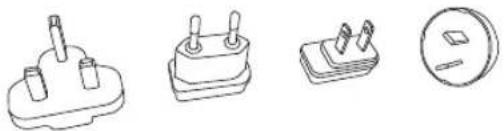
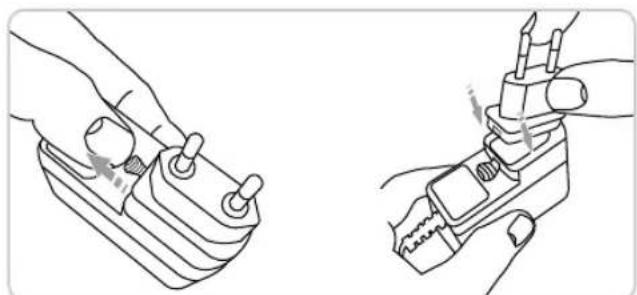
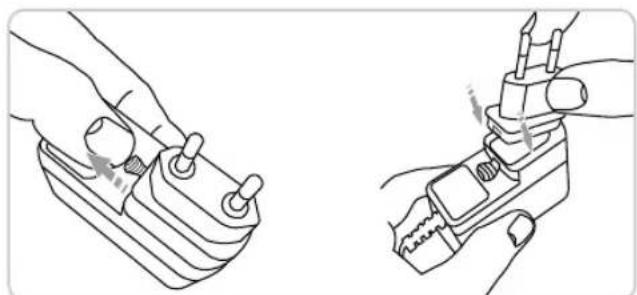
Your PiXiS radio is supplied with a multi-region power supply, meaning that it can be operated in a number of countries around the world.
Simply choose the correct adaptor for your country from the selection supplied, then follow the instructions opposite.
natural_image
Four line drawings of electrical socket components: a plug, two blocks with pins, and a circular socket (no text or symbols)
UK EURO U.S.A AUSTRALIA
Welcome
Thank you for purchasing PiXiS. We are sure that it will provide you with years of enjoyment and reliable service.
This guide has been designed to quickly get you up and running with your radio, offer guidance on the product's features and provide information on operation, safety, warranty details and troubleshooting.
Unpacking PiXiS
Carefully remove your radio from its packaging and remove the other items from the box.
The box should contain the following:
- PiXiS touchscreen radio
- Multi-region power supply with adaptors for UK, Europe, USA and Australia
- Operating guide
- Warranty Card
If any items are missing or damaged, please contact your point of purchase or call Revo directly on +44 (0) 1555 66 61 61
natural_image
Line drawing of two hands using a tool to adjust or install a mechanical component (no text or symbols present)
Guiding Principles
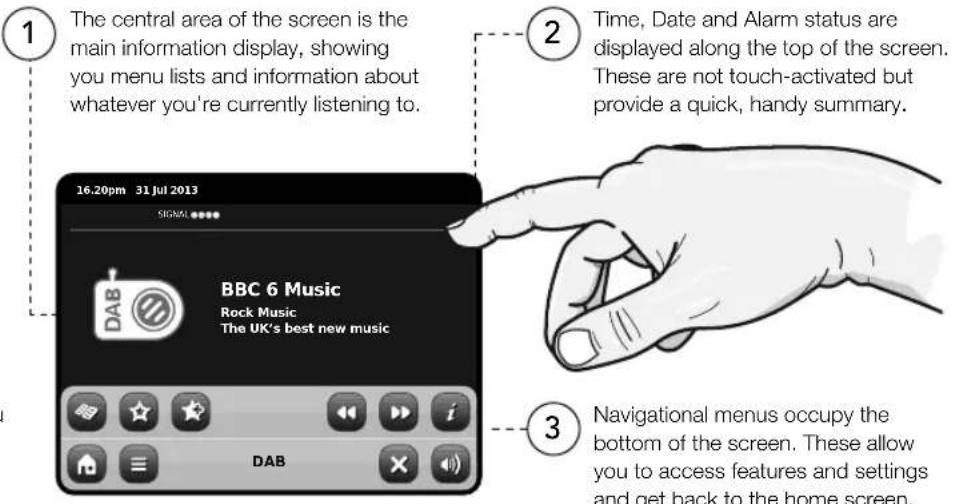
PiXiS's defining feature is its 3.5 inch colour touchscreen, which puts you in direct contact with the radio's many functions.
PiXiS's controls are very intuitive, so should require little explanation. The graphical representation of features and the ability to directly touch words and buttons to activate them should feel natural after just a few minutes of use.
To get you started, the following two pages aim to offer a summary of what you can expect to see in the different areas of your radio's screen and provide an outline of how to find your way around.
Home Screen
Your first point of contact with PiXiS's interface is the home screen. We think the various modes will be fairly self-explanatory and easy to find but here we offer a short description of the function of each of the homepage icons.
Gently press an icon to access the relevant mode.
Sleep
The Sleep setting allows you to set PiXiS to automatically switch itself into standby mode. See page 10 for further information.
DAB Radio
As well as high-sensitivity DAB reception, PiXiS is future-proofed to provide coverage of DAB+ broadcasts where available. See page 6 for further information.
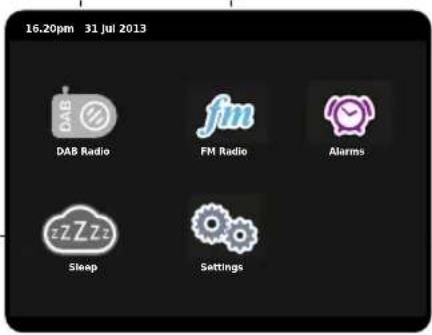
FM Radio
PiXiS includes the ability to receive FM broadcasts, including RDS data. Very handy if you take your radio outside a DAB reception area. See page 8 for further information.
Alarms
PiXiS's alarms allow you to wake up to any of the audio modes or a buzzer. Alarms are fully confi gurable to specify dates, recurrence, volume etc. See page 9.
Settings
The Settings menu provides you with controls to tailor the setup of your PiXiS. For example, time settings, audio EQ, and display brightness can be controlled from here. See page 11 for details.
Second-Level Navigation
After you've clicked an option on the home screen to enter one of the modes, the layout of the screen will change slightly.
While each mode looks unique to a certain extent, depending on the information to be displayed, there are several features in common throughout the system.
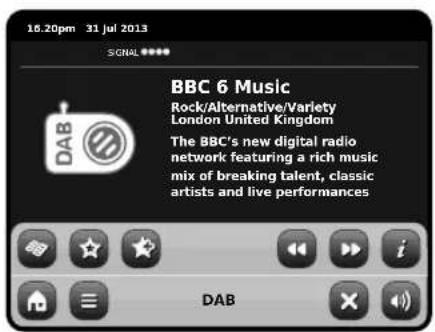
When using any of PiXiS's modes, you'll notice at the foot of the screen are one or two rows of contextual menu buttons. These are your main means of interacting with PiXiS.
The bottom row remains on screen in all modes and provides system-level navigation, enabling you to return to the home-screen at any time, or bring up a contextual menu for your current mode
Home – click to return to the main menu screen while maintaining audio playback of current mode.
The current mode name is displayed in the centre of the bottom menu bar.
Volume – click to mute volume.
Contextual Menu – click to view and configure user options for current mode.

Close – click to return to the home screen and stop playback of current mode.

As you navigate through context-specific sub-menus, the "Close" button will change to a "Back" button, which takes you back up to the previously viewed screen.

If you press the 'Home' button, the current mode will continue to play until you select an alternative audio source. This means you can adjust PiXiS's alarm settings or change your system configuration without interrupting your listening.

If you press the Home button, you'll notice that a "Back" button appears in the lower right hand corner of the main menu screen. Pressing this will take you back to the currently playing mode.
When you enter a navigational menu, the available choices will be shown as a list. Just touch any option in a list to select it.
On longer lists, a scrollbar will appear to the right of the screen. Use the Up and Down buttons to scroll through the list one screen at a time, or press part of the scrollbar background to jump to a point.
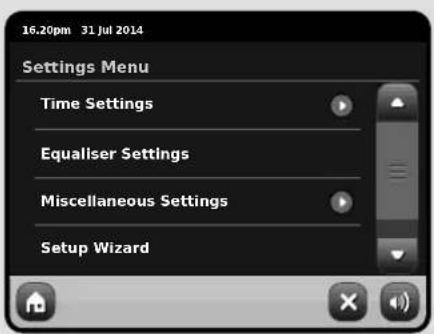

An arrow next to an item in a list indicates that there are further options associated with that item.
DAB Radio Mode
Getting started
Please ensure that your PiXiS's antenna is fully extended before you enter DAB mode.
On PiXiS's Home screen, click the DAB icon.
The first time you enter DAB mode, PiXiS will automatically begin to scan through the frequency range to find radio stations. Scanning will take a few moments; a progress bar will appear on screen to keep track of how many stations are picked up in your area.
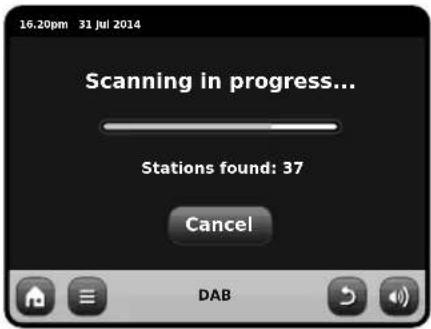
After scanning, the list of radio stations received in your area will be sorted alphabetically and saved to PiXiS's memory.
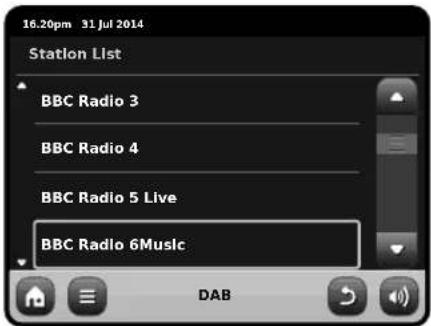
Listening to DAB Stations

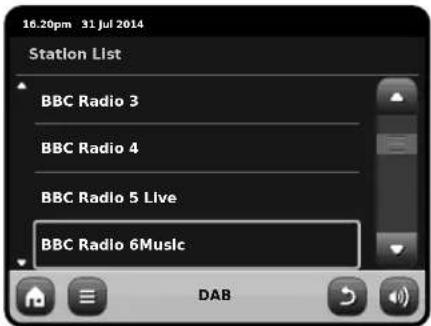
To access PiXiS's DAB Station List, press the directory button.
Simply click on a station name in the station list to begin playing it.
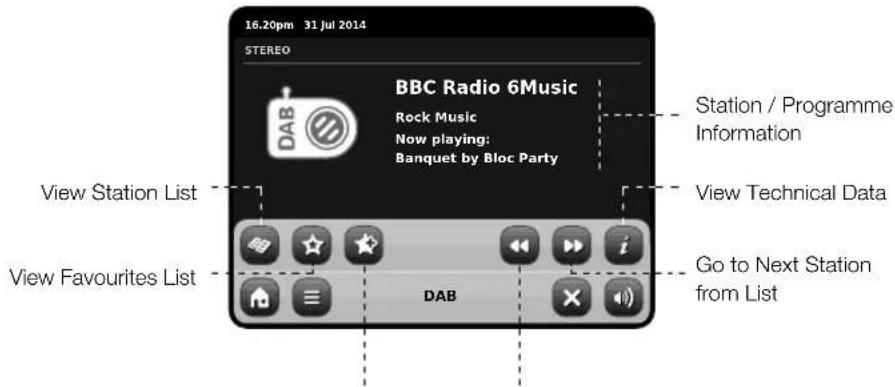
Add Current Station to Favourites List
Go to Previous Station from List
The Now Playing screen displays information from the broadcaster.
Station name and programme type (genre) are displayed at all times.
Additional information is displayed where provided by the broadcaster. This may include categories such as:
- Current track title and artist name.
• Programme information.
• Extra station Information.
- Contact details / web links etc.
- Upcoming programme information.
If text is too long to fit on one screen, it will scroll automatically every few seconds.

More detailed technical information is available by pressing the info key.
This includes detailed broadcaster data and information about signal strength.
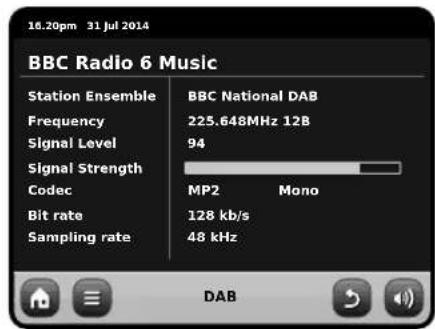
DAB Slideshow

PIXiS provides support for DAB Slideshow, an innovative new feature that significantly enhances the digital radio experience. DAB Slideshow enables detailed full colour images to be broadcast alongside standard digital audio transmissions, providing a colourful and informative backdrop to DAB radio broadcasts. Slideshow content includes a wide variety of information screens and images, including 'Now Playing' screens, news headlines, sports reports, weather information and traffic updates.
At the time of writing, DAB Slideshow content is being broadcast by a growing number of radio stations in the UK, Germany, Switzerland, Norway, Denmark, France, Australia and Hong Kong.
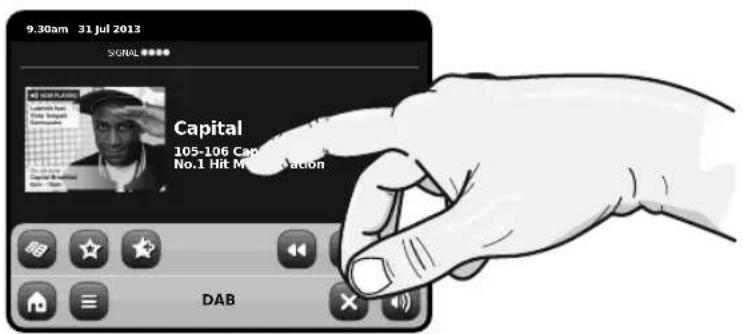
If DAB Slideshow content is available on your chosen station, PiXiS will automatically display the slideshow image at full screen size. To revert to the standard DAB Mode screen, simply press PiXiS's touchscreen. To re-enter full-screen DAB Slideshow mode at any time, press the small slideshow graphic on the left of the screen.
NOTE: The availability of DAB
Slideshow content is at the discretion of broadcaster. Not all stations currently operate this feature.
Rescanning DAB Stations
From time to time, it may be necessary to perform a manual scan to keep your radio's station list up-to-date. A couple of reasons may account for this...
- New station launches or existing stations which cease broadcasting.
- If the initial scan gave poor reception (for example, if the aerial was not properly extended or PiXiS was placed in a bad reception area), the default station list may be incomplete or even empty.
To begin a manual scan, in DAB mode, press the Menu button. Select Scan from the list. When the scan is fi nished, your updated station-list will be saved into PiXiS's memory.
Favourite Station Presets
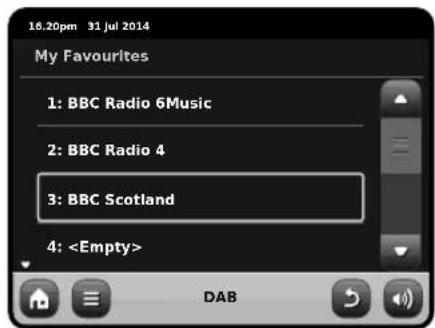
PiXiS lets you save up to 10 of your favourite DAB stations as presets.

To store the station you are currently listening to as a preset, just press the add preset button at any time.
When successful, you'll see the message "Favourite Added".

Favourite Added

To view your preset stations list at any time, press the presets button.
Dynamic Range Control
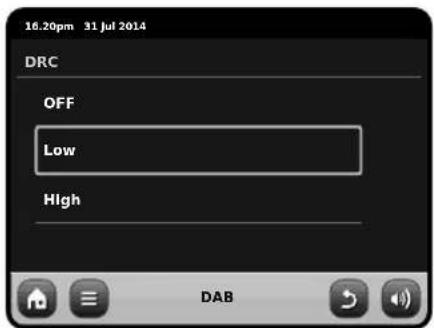
DRC can improve audio performance if you are listening to music with a high dynamic range in a noisy environment (e.g. listening to classical music while cooking in the kitchen).
DRC boosts quieter sounds, making them easier to hear, without over-amplifying the louder sections of music.
PiXiS has 3 DRC settings: OFF, Low and High. Default setting is Low. To alter this setting, click the Menu button in DAB mode. Select DRC from the list, then click your preferred setting.
Note: Not all DAB broadcasts are able to use DRC. If the broadcast does not support DRC, then changing the setting will have no effect.
Pruning Stations
To remove stations that appear on your list but which are not available, press the Menu key in DAB mode and select Prune Invalid Stations.
PiXiS will remove any invalid stations and auto update and save your station list.
Editing Presets
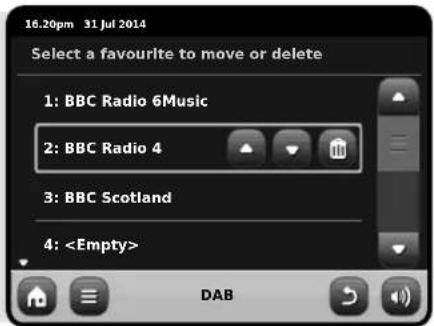
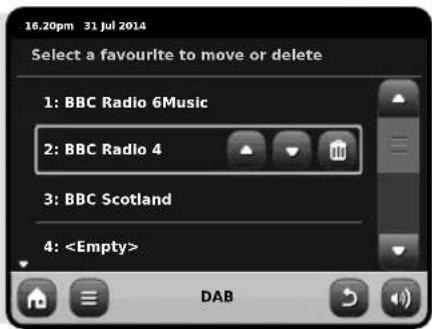
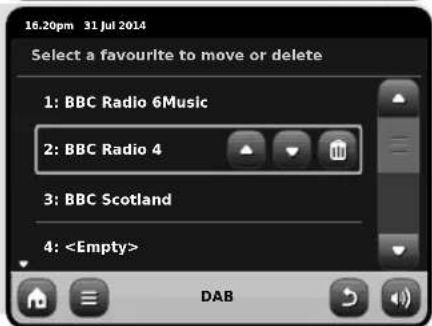
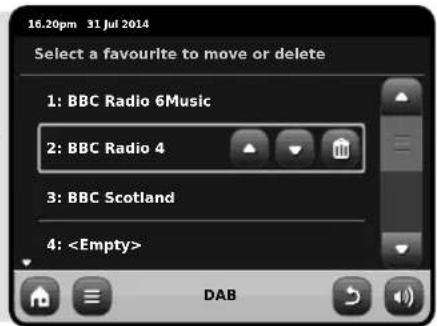
You can change the order or delete items from your favourites list by going to the DAB menu and selecting Edit Favourites.
Controls will appear around any station you select, allowing you to move or remove it.
FM Radio Mode
Before entering FM mode, please fully extend PiXiS's aerial.
From the Home screen, press the FM button. You'll see the following screen, with the currently selected FM frequency displayed.
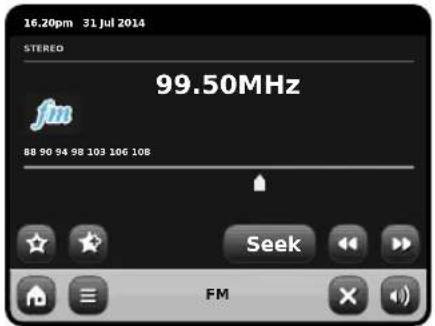
Note the frequency scale across the centre of the screen. You can simply press any part of this scale, to tune PiXiS to the corresponding radio frequency.
You can also use the forward and back buttons to tune up or down through the frequency range, one step at a time.

If you want to scan through the bands to find a station, click on "Seek" so that it's highlighted in yellow, then use the forward and back buttons as before. Now instead of individual steps, PiXiS will scan up or down until it finds the next available station.

For stations with good signal strength which broadcast RDS information, PiXiS will display the RDS Data.
Favourite Station Presets
PiXiS allows you to store up to 10 favourite station presets in FM Mode.
To add the station you're listening to as a new favourite, click the Add Favourite button.

This will bring up the following feedback:
Favourite Added
To review your favourites list, click the favourites button at any time.

Your favourites will be listed as shown below. If you're already listening to one of your favourites, it will be highlighted on the list as shown here:
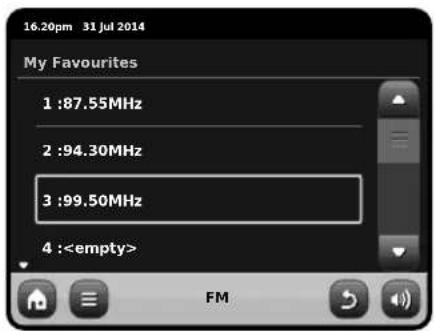
FM Settings
Press the contextual menu button to bring up the FM Settings menu:
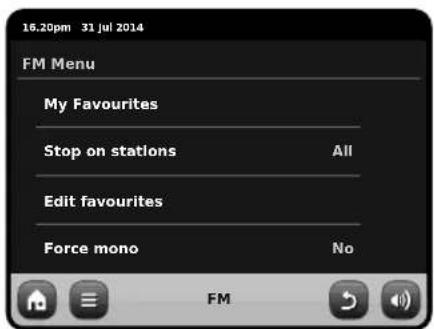
My Favourites: takes you to view your favourite stations list.
Stop on Stations: is a toggle button which dictates PIXiS's FM sensitivity when scanning for stations. If set to "Strong", scanning will only stop on stations with good reception.
Edit Favourites: lets you easily rearrange or delete items from your favourites list:
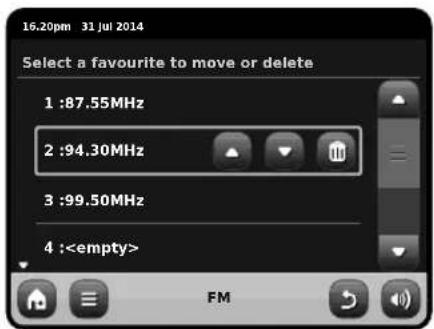
Force Mono: can switch playback to Mono if signal reception is not strong enough to allow constant Stereo reception.
Alarm Settings
PiXiS is equipped with two programmable alarm clocks. From the Home Screen, press "Alarms" then press "Alarm settings".
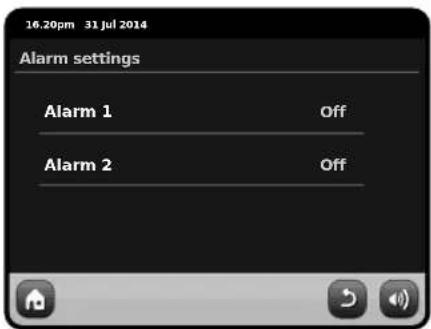
To edit or review an alarm, press either "Alarm 1" or "Alarm 2". A summary screen displaying the current alarm selections will be displayed. There are five adjustable settings:
- Alarm Enable / Frequency selection
- Time
- Mode
• My Favourites (DAB and FM only)
• Volume (0 - 16)
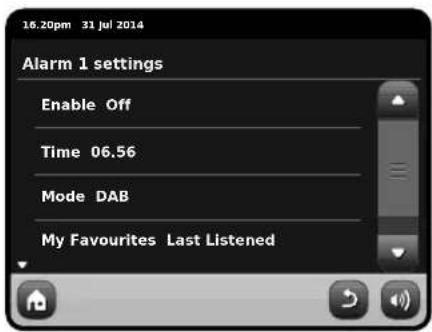
Simply press any setting to review or edit it. Pressing the Back button will save your changes and take you back to the main summary screen.
Alarms can be set to activate Daily, Once, Weekends or on Weekdays.
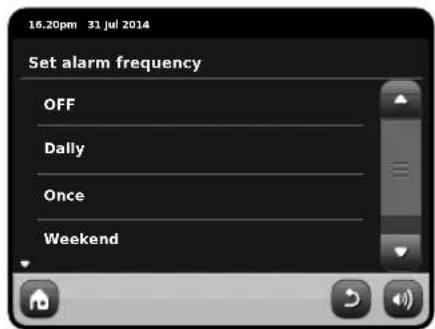
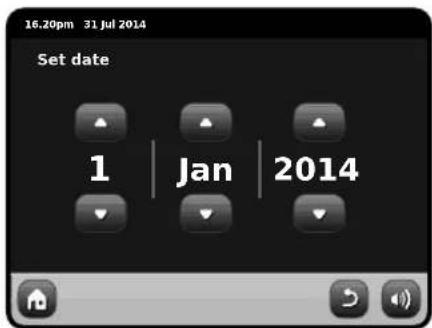
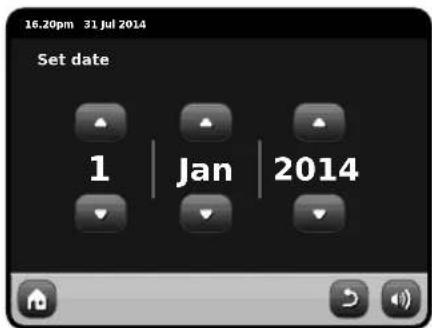
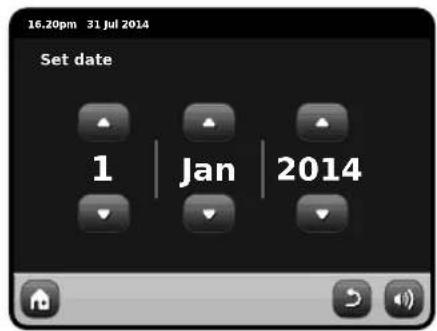
If you select "Once", in addition to setting the alarm time, you will also need to set a specific date. The date setting screen behaves in the same manner as the time setting screen.
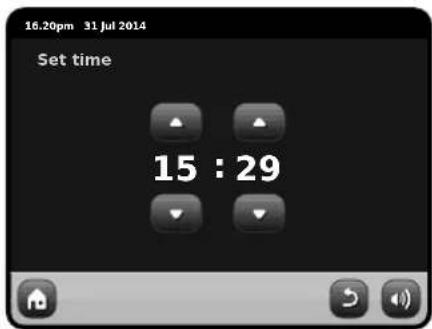
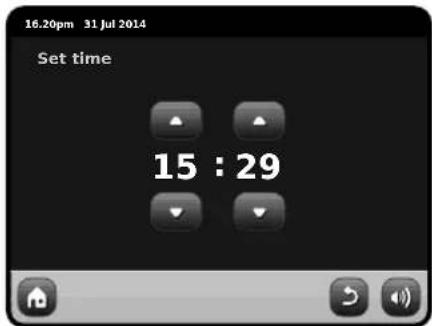
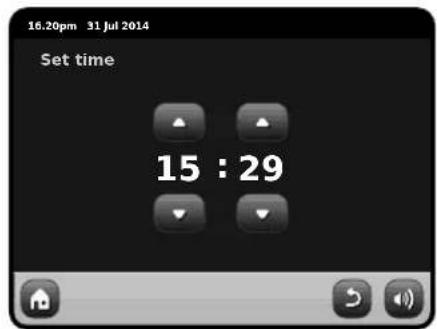
Press "Time" to adjust the time of alarm activation. Using the up and down arrows above the hours and minutes, set the specific time that you wish the alarm to sound.
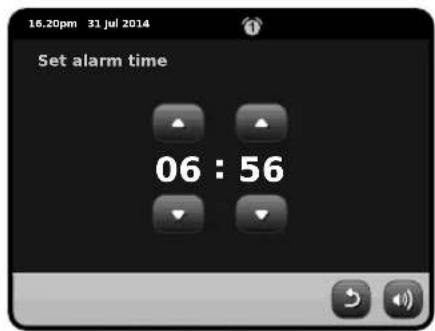
Alarms can be set to wake you with audio from any one of the following modes: DAB, FM or Buzzer.
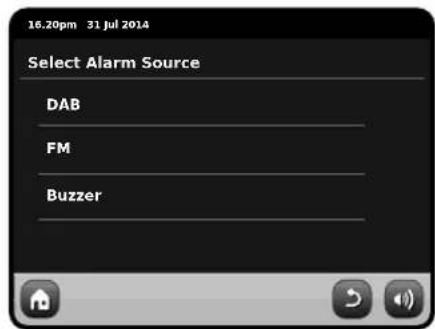
If DAB or FM is chosen for the alarm source, you will also be given the option of waking to the "Last Listened" station or one of your preset favourites. This selection can be made by pressing "My Favourites".
Pressing "Volume" will display the "Select Alarm Volume" screen, where you can predefi ne the volume level that you wish your alarm to activate at.
When either alarm is activated, mini icon(s) as picture below will appear in the top section of your radio's screen.


Alarms in Standby Mode
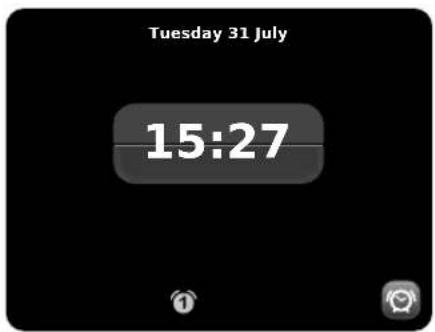
When PiXiS is in standby mode, if an alarm is set an alarm icon will be displayed on screen.
In the bottom right hand corner of this screen, a shortcut button is also provided which returns you to the main alarm summary screen at any time.
Alarm Snooze
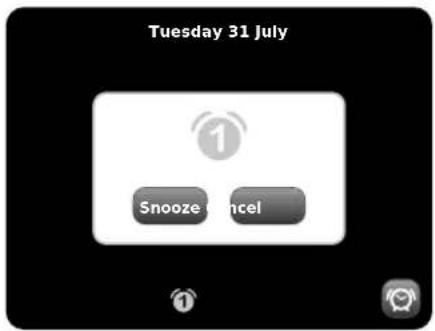
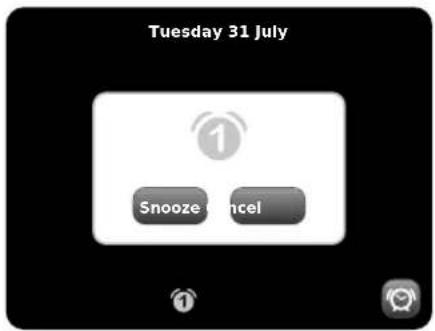
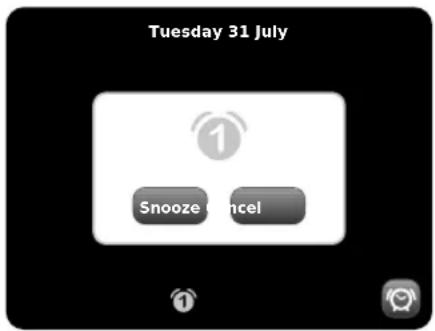
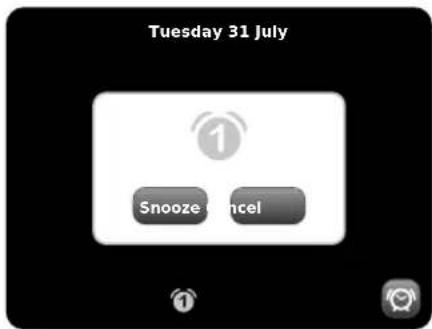
When an alarm goes off, you'll get the option to either "Snooze" or "Cancel".
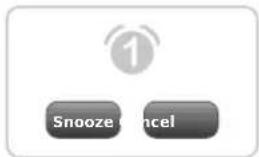
" Snooze" puts PiXiS back into standby mode for a specified period before repeating the alarm.
The snooze interval duration can be set in the Alarms Menu, simply press the Alarms Icon then press "Alarm Snooze". The Snooze interval can be set from between 1 to 30 minutes.
"Cancel" switches the alarm system off while allowing you to continue listening.
To switch the alarm off and also stop audio playback, press the standby button on PiXiS.
Sleep Function
PiXiS has a handy sleep function which automatically switches PiXiS into standby mode after a specified time period.
Simply press the "Sleep" icon on the Homepage. The default setting is "Off", but by pressing the "+" icon, you can cycle through the options to send PiXiS to standby in 15, 30, 45 or 60 Minutes.
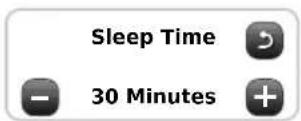
If Sleep mode is activated, a crescent moon icon will show in the top part of the screen.
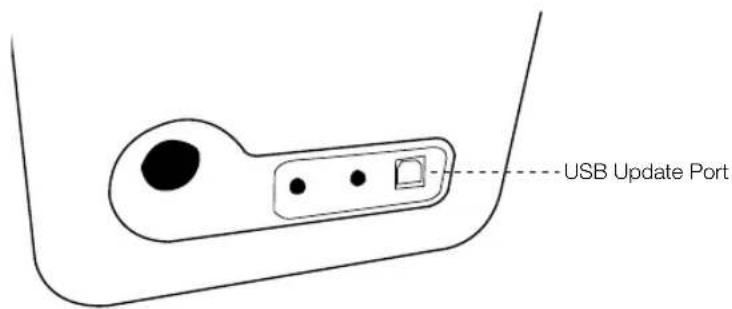
USB Update Port
PiXiS has a USB software upgrade facility. You can connect the radio to your PC via its USB socket, located on the units back panel.
If a new software revision becomes available, it will be downloadable from www.revo.co.uk, where explicit instructions on how the upgrade should be executed will also be provided. Connecting PiXiS to your PC without following these instructions is not advised and could permanently damage your radio.
System Settings
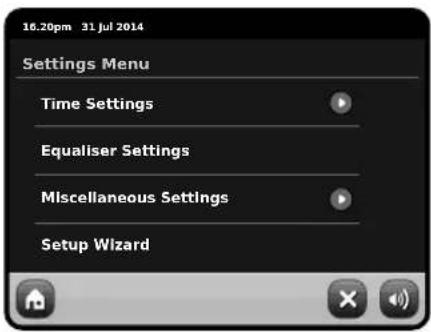
The System settings menu is accessible from PiXiS's main menu screen. The following options are available, allowing you to manually view and change PiXiS's settings:
- Time
Equaliser
- Miscellaneous
- Setup Wizard
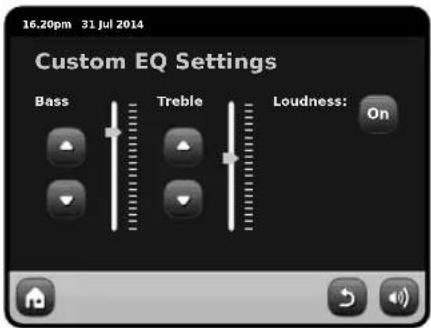
Equaliser Settings
PiXiS gives you control over its default audio settings. Bass, Treble and Loudness settings can be adjusted from this screen. Press the "Back" button to save your settings.
Time & Date Settings
By default, PiXiS will automatically set its time and date when it receives a DAB signal. However, should you need to set or change it yourself, the Time Settings menu includes the following options:
- Time Source
- Manual Setup
- Time Format
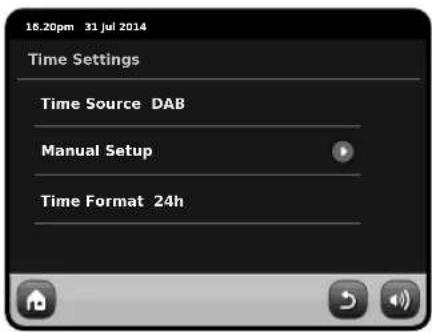
Time Source
Allows you to specify where PiXiS should sync its clock from. By default, your radio will set the time from DAB, this is the simplest option.
You can set the time sync source to "None", if you intend to set the time yourself and don't require any external updates. Time can also be set from FM mode, to do so you'll need to receive a good station signal for several seconds to extract the time data.
A simple toggle to select either 12 or 24 hour clock.
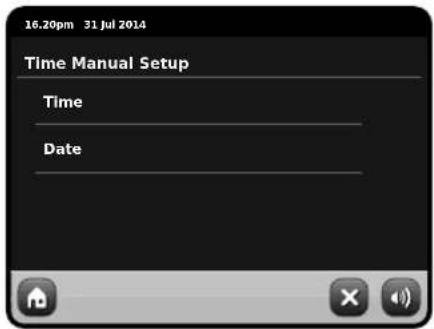
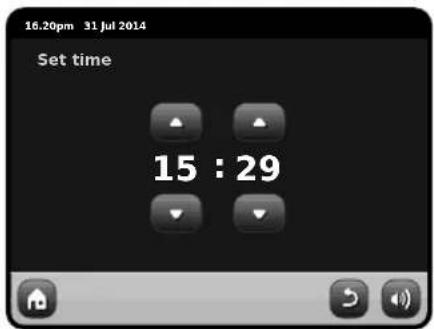
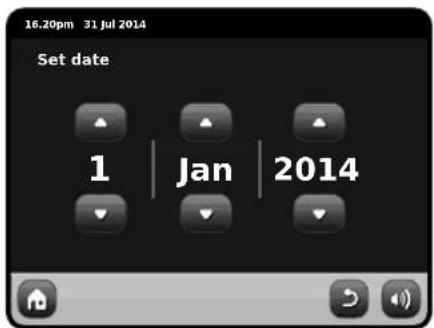
Manual Setup
Allows you to easily set the time and date yourself. Use the Up / Down buttons as illustrated. Clicking the Back button will save your changes and take you to the previous screen.
Miscellaneous Settings
Allows control over a range of assorted preferences for your PiXiS.
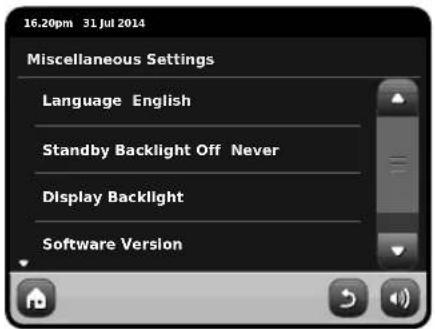
In order, the miscellaneous settings are:
Language
The default language on your PiXiS is English. To change, just pick an option from the available list.
Standby Backlight
When this feature is activated, the PiXiS display will switch off after a pre-defined period of time. The display can be easily re-activated by simply moving the volume dial in either direction, allowing you to check the time or alarm status. The display will then 'go to sleep' again after the pre-defi ned timeout period has elapsed.
To activate this feature, select "Miscellaneous Settings" from the "Settings" menu, then "Standby Backlight Off", then choose your desired timeout period from the available list. After selecting your desired timeout duration, the feature will now be activated. To de-activate, select "Standby Backlight Off", then choose "Never".
Please note that this setting is only applicable to standby mode, and will not have an effect on the brightness of the touchscreen backlight in any other mode.
Display Backlight
The Display Backlight feature allows you to control the default brightness of your radio's colour screen, both when in operation and in standby mode. Reducing the brightness in standby mode will minimise light pollution should your radio be used in a bedside situation.
Software Version
Should you encounter technical problems with your radio, Revo Technical Support may request the software version number. This information can be accessed via this menu listing.
Factory Reset
This option resets PiXiS to its default factory values, erasing any personal settings which may have been configured, such as Time and Date and Favourite Station Presets.
Troubleshooting
Problem
FM: Hissing or
DAB: Burbling/intermittent cut-out
Possible Cause
Low signal strength.
Try This
Check/move antenna.
Move radio to another location.
Rescan local (high-strength) stations only.
For DAB, check local coverage.
DAB: "No Stations Available"
Low signal strength.
As above, then rescan stations.
REVO.
PiXiS
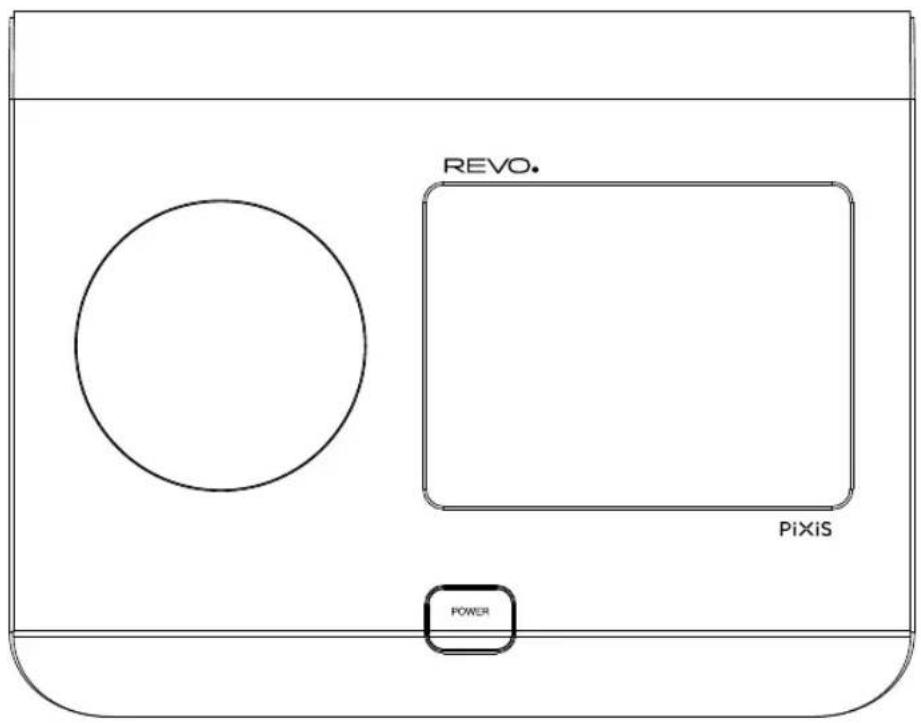
Owner's Guide
v2.0

Français
Support Technique
INSTRUCTIONS POUR L'ÉLIMINATION DU PRODUIT (directive DEEE)


Revo Technologies Ltd
The Inox Building, Caldwellside, Lanark, Scotland, United Kingdom, ML11 7SR
Tel: 01555 66 61 61 Int. Tel: +44 1555 66 61 61
Fax: 01555 66 33 44 Int. Fax: +44 1555 66 33 44
Email: enquiries@revo.co.uk Website: www.revo.co.uk
natural_image
Four line drawings of electrical plug components: a socket, two blocks with pins, and a circular socket (no text or symbols)
UK EURO U.S.A AUSTRALIA
Bienvenue
natural_image
Line drawing of two hands using a tool to adjust or install a mechanical component (no text or symbols present)
Principe directeur
Alarmes

DAB Slideshow

Mode Radio FM
Réglages FM
Fonction de sommeil
Réglages Heure & Date
Source du temps
Réglages Divers
UK 01555 666161
From outside the UK + 44 1555 666161
Copyright 2014 Revo technologies Ltd. All rights reserved.
Revo Technologies Ltd
The Inox Building, Caldwellside, Lanark,
Scotland, United Kingdom, ML11 7SR
Tel: 01555 66 61 61 Int. Tel: +44 1555 66 61 61
Fax: 01555 66 33 44 Int. Fax: +44 1555 66 33 44
Email: enquiries@revo.co.uk Website: www.revo.co.uk
Haftungsausschluss
natural_image
Four line drawings of electrical plug components: a socket, two blocks with three leads, and a circular socket (no text or symbols)
UK EURO U.S.A AUSTRALIA
natural_image
Line drawing showing two hands operating a mechanical device with adjustment knobs (no text or symbols)
Gebrauchsanweisung
FM Radio

DAB Slideshow

Dynamic Range Control
FM Radio Modus
FM Einstellungen
Sleep Funktion
Equalizer-Einstellungen
Uhrzeit & Datum
Zeitquelle
UK 01555 666161
From outside the UK + 44 1555 666161

Revo Technologies Ltd
The Inox Building, Caldwellside, Lanark, Scotland, United Kingdom, ML11 7SR
Tel: 01555 66 61 61 Int. Tel: +44 1555 66 61 61
Fax: 01555 66 33 44 Int. Fax: +44 1555 66 33 44
Email: enquiries@revo.co.uk Sito: www.revo.co.uk
Diniego
natural_image
Four line drawings of electrical plug components: two with pins, one with three-pin socket, one with three-pin socket, and one with a circular outlet (no text or symbols)
UK EURO U.S.A AUSTRALIA
Benvenuti
natural_image
Line drawing of two hands using a tool to adjust or install a mechanical component (no text or symbols present)
Principi Guida
Radio FM

Add Current Station to Favourites List
DAB Slideshow

Dynamic Range Control
Modalità Radio FM
Funzione Sleep
Origine Orario
Impostazioni Varie
www.revo.co.uk/support