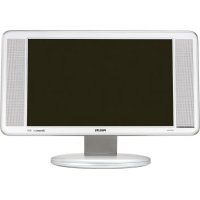
23IF9946 - Television PHILIPS - Free user manual and instructions
Find the device manual for free 23IF9946 PHILIPS in PDF.

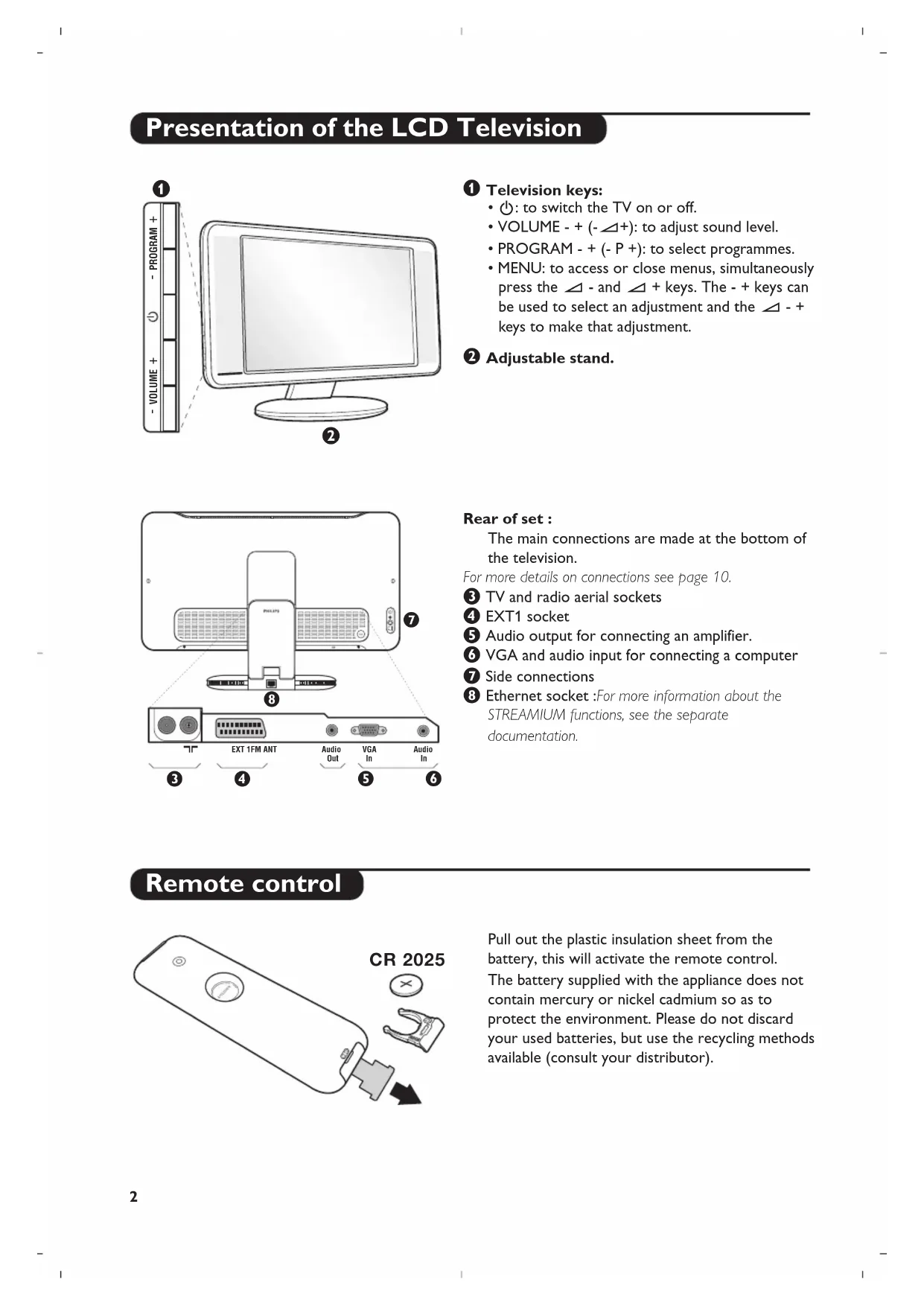


| Product type | LCD TV |
| Brand | Philips |
| Model | 23IF9946 |
| Power supply | 220-240 V, 50 Hz |
| Standby consumption | Less than 1 W |
| Screen formats | 16:9, 4:3, Zoom 14:9, Zoom 16:9, 16:9 Subtitles, Super 4:3, Full Screen |
| Compatible PC resolutions | 640×350 to 1280×1024, up to 75 Hz |
| Optimal PC resolution | 1024×768, 60 Hz |
| Connectivity | SCART socket EXT1, VGA input, PC audio input, audio output, Ethernet port, TV and radio antenna socket, side connections (AV, S-VHS, headphone) |
| Main functions | Teletext, FM radio, PC monitor mode, Streamium (via Ethernet), parental control (not detailed), timer, picture and sound settings |
| Remote control battery | Type LR03 (estimate), mercury and cadmium free |
| Care and cleaning | Soft lint-free cloth; do not use alcohol or solvent |
| Safety | Do not expose to water, heat; do not block ventilation grilles |
| Recycling | Reusable materials; contact the retailer for take-back |
| Stand | Tiltable |
Frequently Asked Questions - 23IF9946 PHILIPS
User questions about 23IF9946 PHILIPS
0 question about this device. Answer the ones you know or ask your own.
Ask a new question about this device
Download the instructions for your Television in PDF format for free! Find your manual 23IF9946 - PHILIPS and take your electronic device back in hand. On this page are published all the documents necessary for the use of your device. 23IF9946 by PHILIPS.
USER MANUAL 23IF9946 PHILIPS
Thank you for purchasing this television set.
This handbook has been designed to help you install and operate your TV set.
We would strongly recommend that you read it thoroughly.
We hope our technology meets entirely with your satisfaction.
Table of Contents
Installation
Presentation of the LCD Television 2
The keys on the TV set 2
Remote control keys 3
Installing your television set 4
Quick installation 4
Program sort 5
Manual store 5
Other settings in the Install menu 5
Operation
Picture settings 6
Sound adjustments 6
Feature settings 6
16:9 Format 7
Teletext 8
Using the radio 9
Using in PC monitor mode 9
Peripherals
Video recorder 10
Other equipment 10
To select connected equipment 10
Side connections 11
Amplifier 11
Computer 11
Practical information
Tips 12
Glossary 12

Recycling
The materials used in your set are either reusable or can be recycled.
To minimise environmental waste, specialist companies collect used appliances and dismantle them after retrieving any materials that can be used again (ask your dealer for further details).
Presentation of the LCD Television
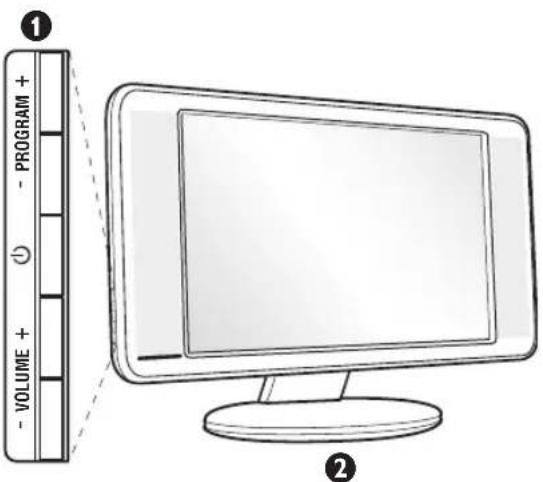
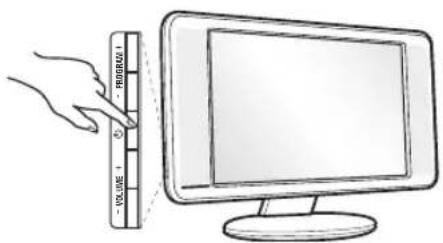
Television keys:
- to switch the TV on or off.
VOLUME-+(-4+):to adjust sound level. - PROGRAM - + (- P +): to select programmes.
- MENU: to access or close menus, simultaneously press the and keys. The - + keys can be used to select an adjustment and the - + keys to make that adjustment.
2 Adjustable stand.
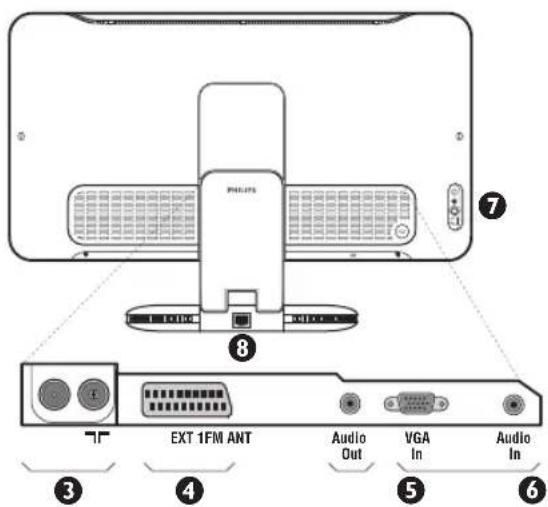
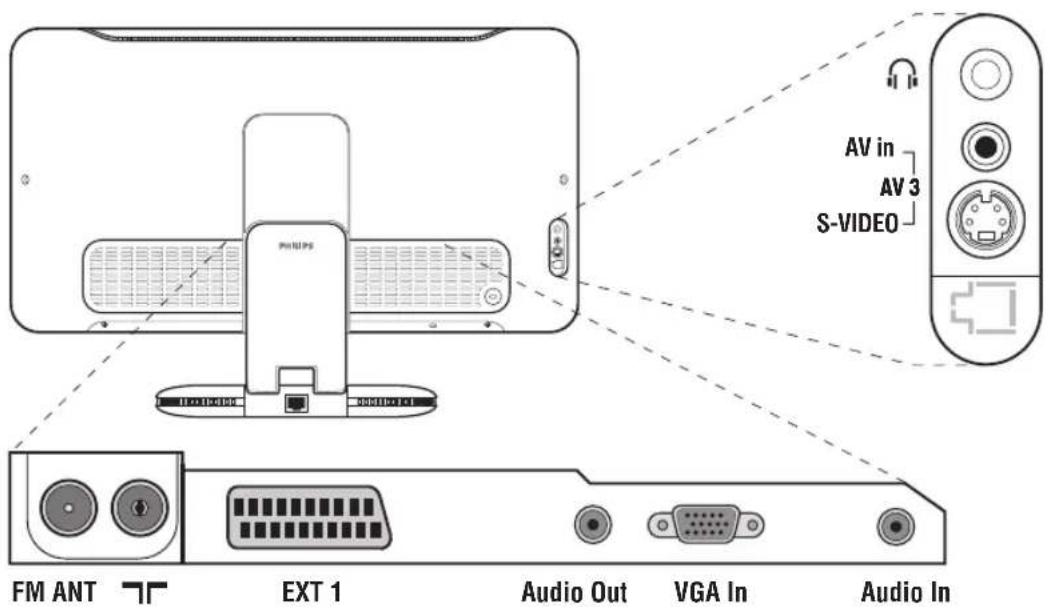
Rear of set :
The main connections are made at the bottom of the television.
For more details on connections see page 10.
3 TV and radio aerial sockets
EXT1 socket
Audio output for connecting an amplifier.
VGA and audio input for connecting a computer
Side connections
Ethernet socket:For more information about the STREAMIUM functions, see the separate documentation.
Remote control
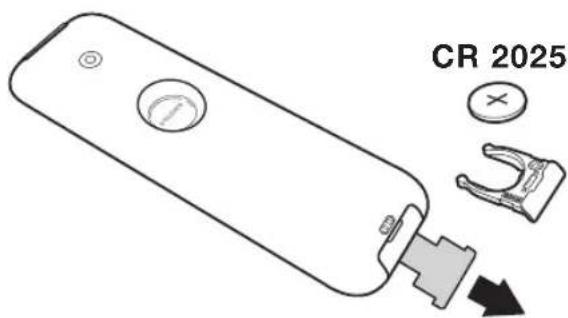
Pull out the plastic insulation sheet from the battery, this will activate the remote control. The battery supplied with the appliance does not contain mercury or nickel cadmium so as to protect the environment. Please do not discard your used batteries, but use the recycling methods available (consult your distributor).
Remote control keys
For more information about the STREAMIUM functions, see the separate documentation.
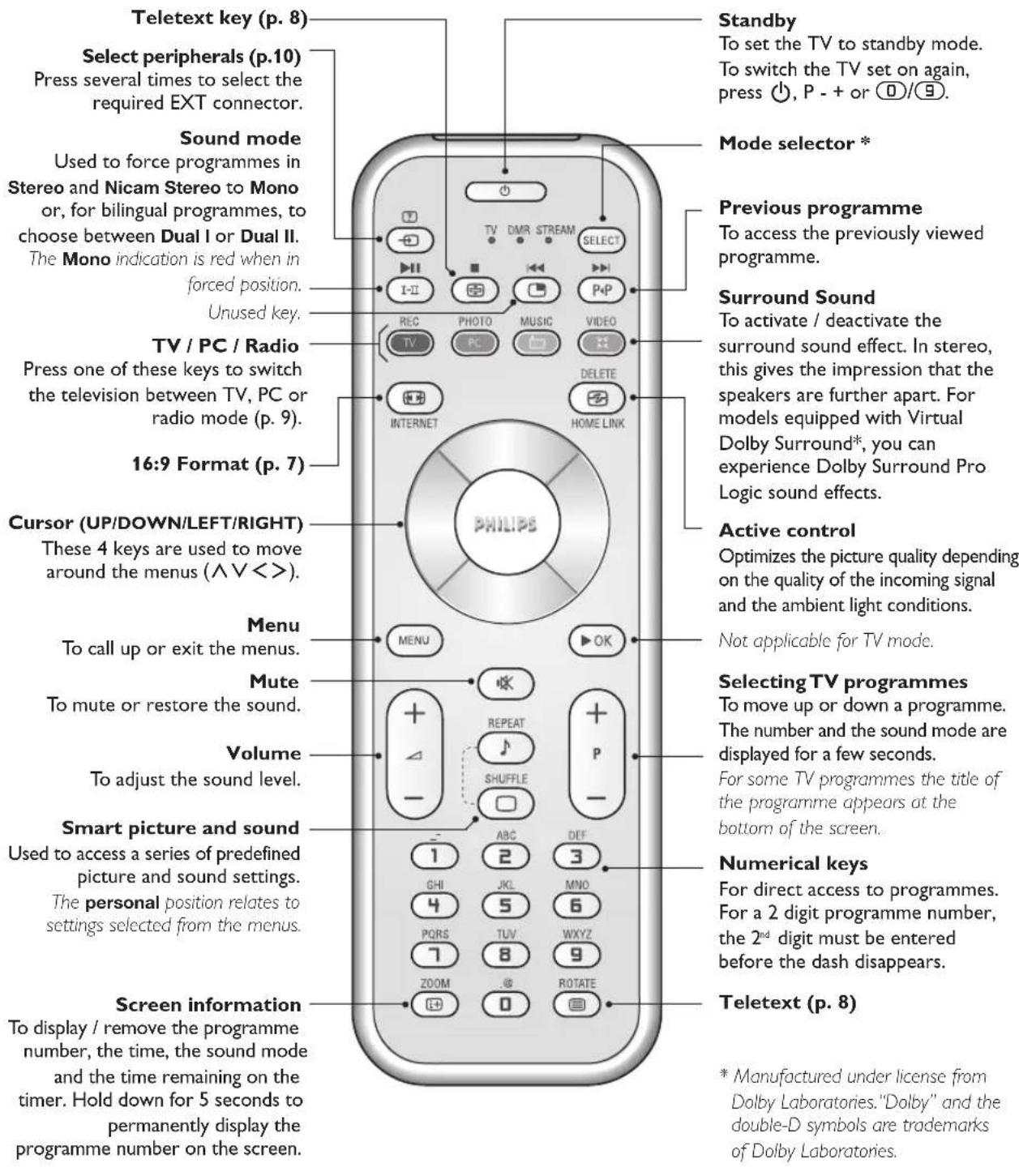
* Mode selector
Press the Select key to select the required mode: TV, DMR (other equipment) or STREAMIUM. The remote control indicator lights up to display the selected mode. It switches off automatically after 20 seconds if left idle. The remote control automatically returns to TV mode. For more information about the STREAMIUM functions, see the separate documentation.
Installing your television set
Positioning the television set
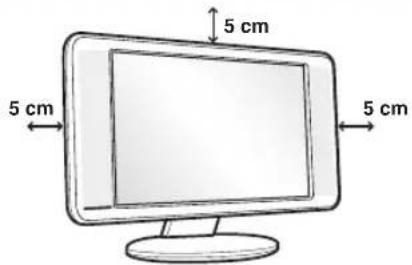
Place your TV on a solid stable surface. To avoid danger do not expose the TV to water, or a heat source (e.g. lamp, candle, radiator). Do not obstruct the ventilation grid at the rear.
Connecting the aerials
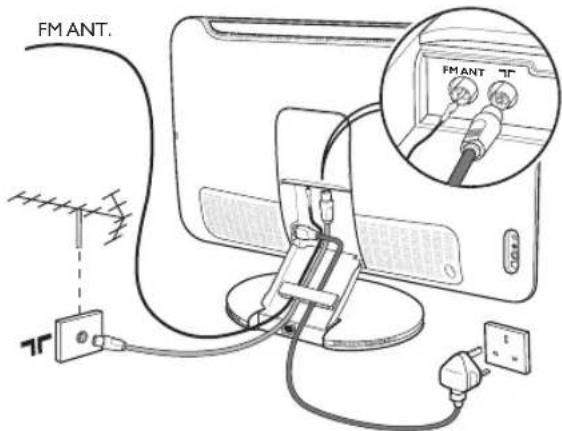
- Use the aerial connection lead supplied and connect the socket situated at the bottom of the TV to your aerial socket.
- Insert the radio aerial lead supplied into the FM ANT socket located at the bottom of the TV.
- Connect the power lead to the television and the mains plug into the wall socket (220-240 V/50 Hz).
- Arrange the leads by passing them through the television stand. Replace the stand cover. For connecting other appliances see page p.10.
Switching on
To switch on the set, press the on/off key. A green indicator comes on and the screen lights up. Go straight to the Quick Installation chapter. If the TV remains in standby mode(red indicator), press the P key on the remote control.
The indicator will flash when you use the remote control.
Plug & Play
Quick installation
When you turn on the TV set for the first time, a menu is displayed on screen. This menu prompts you to select the country and language for the menus:
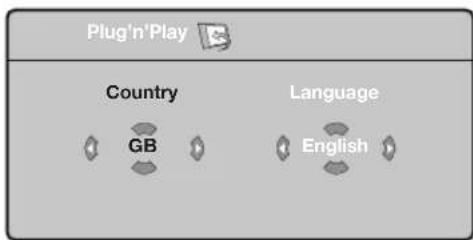
If the menu is not displayed, press and hold down the and + keys on the TV set for 5 seconds to display the menu.
Use the cursor UP/DOWN on the remote control to select your country and validate with cursor RIGHT.
If your country does not appear in the list, select choice...
Next select your language using the cursor UP/DOWN and validate with cursor RIGHT.
3 The search starts automatically. All the available TV programmes and radio stations will be stored. This operation takes a few minutes. The display shows the progress of the search and the number of programs found. At the end of the search, the menu disappears.
To exit or interrupt the search, press HEN. If no programme is found, consult the possible solutions p. 12.
If the transmitter or cable network sends the automatic sort signal, the programs will be numbered correctly. In this case, the installation is complete.
If this is not the case, you need to use the Sort menu to number the programs correctly.
Some transmitters or cable networks broadcast their own sort parameters (region, language, etc.). In this case, indicate your choice using the cursor UP/DOWN and validate with cursor RIGHT.
Program sort
Press key (MENU).The TV Menu is displayed on the screen.
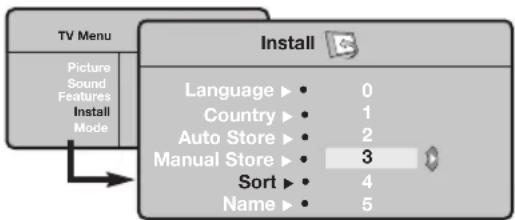
With the cursor, select the Install menu followed by the Sort menu.
3 Select the programme you want to move using the cursor UP/DOWN and press cursor RIGHT.
4 Then use the cursor UP/DOWN to select the new number and validate with cursor LEFT.
Repeat steps 3 and 4 for each program you wish to renumber.
6 To quit the menus, press
Manual store
This menu is used to store the programmes one at a time.
Press the MENU key.
With the cursor, select the Install menu then Manual store:
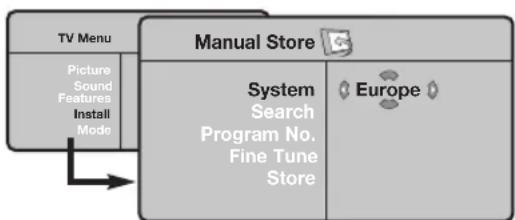
System: select Europe (automatic detection*) or Western Europe (BG standard), Eastern Europe (DK standard), United Kingdom (I standard) or France (LL' standard).
- Except for France (LL' standard), you must select
choice France.
Search: press cursor RIGHT.The search starts. Once a programme is found, the scanning stops and its name is displayed (when available). Go to the next step. If you know the frequency of the required programme, this can be entered directly using the 0 to 9 keys. If no picture is found, consult the possible solutions (p. 12).
5 Program No.: enter the required number with the cursor LEFT/RIGHT or 0 to 9 keys.
6 Fine Tune: if the reception is not satisfactory, adjust using the cursor LEFT/RIGHT.
Store: press cursor RIGHT.The program is stored.
Repeat steps 4 to 8 for each programme to store.
9 To quit the menus, press
Other settings in the Install menu
0 Press the (MEN) key and select the Install menu:
Language: to change the display language for the menus.
Country: to select your country (GB for Great Britain).
This setting is used for the search, automatic programme sort and teletext display. If your country does not appear in the list, select ..
Auto Store: to start automatic search for all programmes available in your region. If the transmitter or cable network sends the automatic sort signal, the programmes will be numbered correctly. If this is not the case, you need to use the Sort menu to renumber the programmes (see p. 4).
Some transmitters or cable networks broadcast
their own sort parameters (region, language, etc.). In this case, indicate your choice using the cursor UP/DOWN and validate with cursor RIGHT.To quit or interrupt the search, press (MEN). If no picture is found, consult the possible solutions (p. 12).
5 Name: If required, you can give a name to the programmes and external connectors. Use the cursor LEFT/RIGHT to move around the name display area (5 characters) and the cursor UP/DOWN to select the characters.When the name has been entered, use thecursor LEFT to exit.The name is stored.
Note: on installation, the programs are named automatically when an identification signal is sent.
6 To quit the menus, press
Picture settings
Press then cursor RIGHT.The Picture menu is displayed:
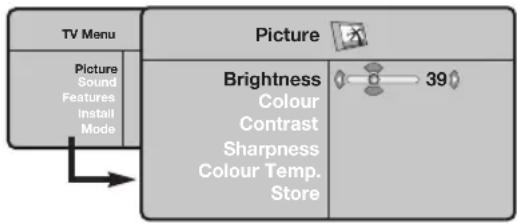
Use the cursor UP/DOWN to select a setting and the cursor LEFT/RIGHT to adjust.
3 Once the adjustments have been made, select
Store and press cursor RIGHT to store them. Press to exit.
Description of the adjustments:
- Brightness: this changes picture brilliance.
Colour: this changes the intensity of the colour. - Contrast: this changes the difference between the light and dark tones.
- Sharpness: this changes the picture definition.
- Colour Temp.: this changes the colour rendering: Cold (bluer), Normal (balanced) or Warm (redder).
- Store: to store the picture adjustments and settings.
Sound adjustments
Press MEU, select Sound (DOWN) and press cursor RIGHT. The Sound menu is displayed:
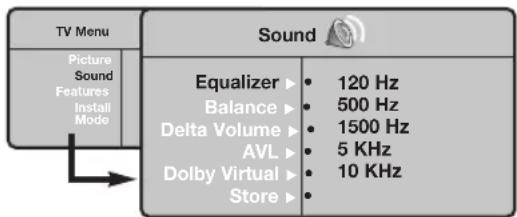
Use the cursor UP/DOWN to select a setting and the cursor LEFT/RIGHT to adjust.
3 Once the adjustments have been made, select Store and press cursor RIGHT to store these changes.
4 To quit the menus, press
Description of the settings:
- Equalizer: to adjust the sound tone (from bass: 120 Hz to treble: 10 kHz).
Balance: this balances the sound on the left and right speakers. - Delta Volume: this is used to compensate any volume discrepancies between the different programs or EXT sockets. This setting is available for programs 0 to 40 and the EXT sockets.
- AVL (Automatic Volume Leveller): this is used to limit increases in sound, especially on program change or advertising slots.
- Dolby Virtual: To activate / deactivate the surround sound effect. You can also access these settings with key 1 .
- Store: this is used to store the sound settings.
Feature settings
Press (MENU), select Features (cursor DOWN) and press cursor RIGHT. You can adjust:
Contrast ^+ automatic adjustment of the picture contrast which permanently sets the darkest part of the picture to black.
NR: attenuates picture noise (snow) in difficult
reception conditions.
4 Sleep : to select an automatic standby period.
5 To quit the menus, press + .
16:9 Formats
The pictures you receive may be transmitted in 16:9 format (wide screen) or 4:3 format (conventional screen). 4:3 pictures sometimes have a black band at the top and bottom of the screen (letterbox format). This function allows you to optimise the picture display on screen.
Press the key (or cursor LEFT/RIGHT) to select the different modes:
This TV set is also equipped with automatic switching which will select the correct-screen format, provided the specific signals are transmitted with the programmes.

4:3
The picture is reproduced in 4:3 format and a black band is displayed on either side of the picture.
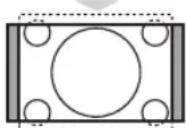
Zoom 14:9
The picture is enlarged to 14:9 format, a thin black band remains on both sides of the picture.
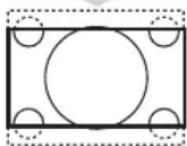
Zoom 16:9
The picture is enlarged to 16:9 format. This mode is recommended when displaying pictures which have black bands at the top and bottom (letterbox format).
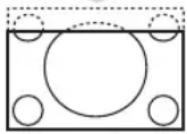
Subtitle Zoom
This mode is used to display 4:3 pictures using the full surface of the screen leaving the sub-titles visible.
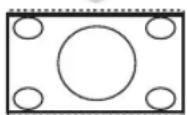
SuperWide
This mode is used to display 4:3 pictures using the full surface of the screen by enlarging the sides of the picture.
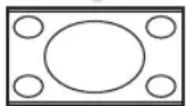
Widescreen
This mode restores the correct proportions of images transmitted in 16:9.
Note: If you display a 4:3 picture in thid mode, it will be enlarged horizontally.
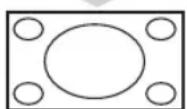
Fullscreen
This mode displays images in full screen.
Teletext
Teletext is an information system broadcast by certain channels which can be consulted like a newspaper. It also offers access to subtitles for viewers with hearing problems or who are not familiar with the transmission language (cable networks, satellite channels, etc.).
| Press : | You will obtain : | |
| Teletext call | This is used to call teletext, change to transparent mode and then exit.The summary appears with a list of items that can be accessed. Each item has a corresponding 3 digit page number. If the channel selected does not broadcast teletext, the indication 100 will be displayed and the screen will remain blank (in this case, exit teletext and select another channel). | |
| Selecting a page | Enter the number of the page required using the 0 to 9 or- P + keys. Example: page 120, enter 1 2 0. The number is displayed top left, the counter turns and then the page is displayed. Repeat this operation to view another page. If the counter continues to search, this means that the page is not transmitted. Select another number. | |
| Direct access to the items | Coloured areas are displayed at the bottom of the screen. The 4 coloured keys are used to access the items or corresponding pages. The coloured areas flash when the item or the page is not yet available. | |
| Contents | This returns you to the contents page (usually page 100). | |
| Stop sub-page acquisition | Certain pages contain sub-pages which are automatically displayed successively.This key is used to stop or resume sub-page acquisition.The indication 0 appears top left. | |
| Hidden information | To display or hide the concealed information (games solutions). | |
| Enlarge a page | This allows you to display the top or bottom part of the page and then return to normal size. | |
| Favourite pages | Instead of the standard coloured areas displayed at the bottom of the screen,you can store 4 favourite pages on the first 40 channels which can then be accessed using the coloured keys (red,green,yellow,blue). Once set, these favourite pages will become the default every time tetetext is selected. 1 Press the 0 key to change to favourite pages mode. 2 Display the teletext page that you want to store. 3 Press the coloured key of your choice for 3 seconds. The page is now stored. 4 Repeat the operation with the other coloured keys. 5 Now when you consult teletext,your favourite pages will appear in colour at the bottom of the screen. To temporarily retrieve the standard items, press 0. To clear everything,and return the standard items as the default,press 0 for 5 seconds. | |
Using the radio
Choosing radio mode
Press the key on the remote control to switch the TV to radio mode. Press the key to return to TV mode. In radio mode the number and name of the station (if available), its frequency and the sound mode are indicated on the screen.
Selecting programmes
Use the 0 / 9 or - P + keys to select the FM stations (from 1 to 40).
Using the radio menus
Use the key to access the specific radio settings.
Searching radio stations
If you have used the quick installation all the available FM stations will be stored. To start a new search use the Install menu: Auto Store (for a complete search) or Manual Store (for a station by station search). These menus work in exactly the same way as the TV menus.
Screen saver
In the Features menu you can activate / close the screen saver.
Using in PC monitor mode
Note:
When using the LCD TV as a PC monitor, slight diagonal interference lines may be observed when it is operated under electromagnetic interference environment but will not affect the performance of this product. For better performance, good quality VGA cable with good noise isolation filter is recommended.
PC Mode
Your TV can be used as a computer monitor. You must first of all connect the computer and adjust the resolution (see p.11).
Choosing PC mode
Press the PC key on the remote control to switch the TV to PC. Press the TV key to return to TV mode.
If there is no PC signal for more than five seconds, the TV automatically goes into standby mode.
Using the PC menus
Press the MENU key to access the specific settings of the PC monitor mode. Use the cursor to adjust them (the settings are automatically saved):
- Picture :
- Brightness / Contrast : to adjust the brightness and contrast.
-
Horizontal / Vertical : to adjust the horizontal and vertical placing of the image.
-
Adjust Colour : to adjust the colours (cold, normal or warm).
Audio Selection : to choose the sound reproduced on the TV (PC or TV/Radio). For example, you can listen to the radio while you use the computer.
- Features :
- Phase/Clock: eliminates the horizontal (Phase) and vertical (Clock) interfering lines.
- View Format: to choose between large screen or the original format of the PC screens.
-
Auto Adjust : position is set automatically.
-
Reset To Factory Setting : to return to the factory settings (default settings).
Mode Select: to come back to TV or radio mode.
Connecting peripheral equipment
Remove the stand cover and the clip on rear panel of the television to expose the connectors. Arrange the leads by passing them through the television stand. Replace the stand cover. The EXT1 socket has audio, CVBS/RGB inputs and audio, CVBS outputs.
Video recorder
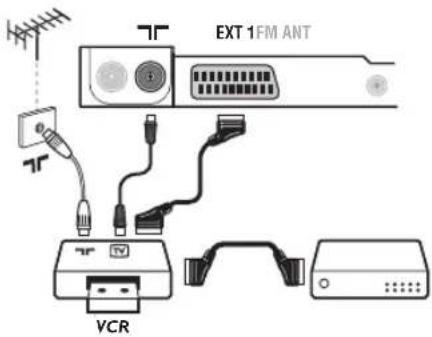
Carry out the connections shown opposite, using a good quality euroconnector cable.
If your video recorder does not have a euroconnector socket, the only connection possible is via the aerial cable. You will therefore need to tune in your video recorder's test signal and assign it programme number 0 (refer to manual store, p. 5).
To reproduce the video recorder picture, press 0.
Video recorder with decoder
Connect the decoder to the second euroconnector socket of the video recorder. You will then be able to record scrambled transmissions.
Other equipment
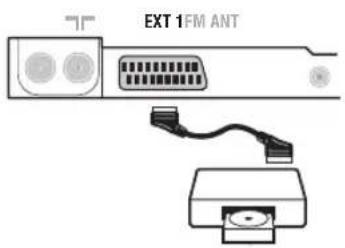
Satellite receiver, decoder, CDV, games, etc.
Carry out the connections shown opposite.
To select connected equipment
Press the key to select EXT1.
Most equipment (decoder, video recorder) carries out the switching itself.
Side connections
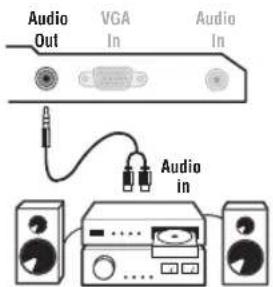
Amplifier
Computer

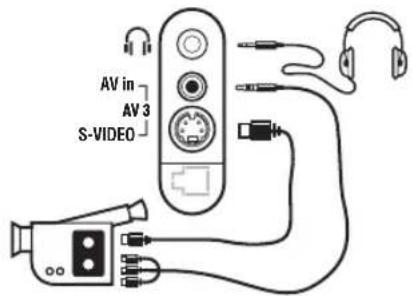
Make the connections as shown opposite.
With the key, select AV/S-VHS.
For a mono set, connect the sound signal to the AUDIO L (or AUDIO R) input. The sound automatically comes out of the left and right speakers of the set.
Headphones
When headphones are connected, the sound on the TV set will be cut. The - + keys are used to adjust the volume level.
The headache impedance must be between 32 and 600 Ohms.
To connect to a hi-fi system, use an audio connection cable and connect the sound output Audio out on the TV set to the "AUDIO IN" "L" and "R" input on your hi-fi amplifier.
Connect the monitor output of your computer to the PC VGA In of the TV.
Connect the sound output Audio out L and R of the computer to the input Audio in (PC) of the TV.
For more information on using PC mode see page 9.
Configure the computer on 1024 × 768 , 60Hz for optimum resolution.
Here is the list of the different display resolutions available on your TV:
640× 350,70Hz720× 400,70Hz1024× 768,60Hz
640× 350,85Hz720× 400,85Hz1024× 768,70Hz
640× 480,60Hz800× 600,56Hz1024× 768,75Hz
640× 480,67Hz800× 600,60Hz1024× 768,85Hz
640× 480,72Hz800× 600,72Hz1152× 864,75Hz
640× 480,75Hz800× 600,75Hz1280× 960,60Hz
640× 480,85Hz800× 600,85Hz1280× 1024,60Hz
832× 624 75Hz1280× 1024,75Hz
Tips
| Poor reception | The proximity of mountains or high buildings may be responsible for ghost pictures, echoing or shadows. In this case, try manually adjusting your picture: see Fine Tune (p.5) or modify the orientation of the outside aerial. If you are using an indoor aerial, reception may be difficult in certain conditions.You can improve reception by rotating the aerial. If the reception remains poor, you will need to use an external aerial |
| No picture | Have you connected the aerial socket properly? Have you chosen the right system? (p. 5). Poorly connected euroconnector cables or aerial sockets are often the cause of picture or sound problems (sometimes the connectors can become half disconnected if the TV set is moved or turned). Check all connections. |
| No sound | If on certain channels you receive a picture but no sound, this means that you do not have the correct TV system. Modify theSystem setting (p. 5). The amplifier connected to the TV does not deliver any sound? Check that you have not confused the audio output with the audio input. |
| PC modes don't work? | Check that you have configured the computer on a compatible display resolution (see p. 11). |
| Remote control | The TV set does not react to the remote control; the indicator on the set no longer flashes when you use the remote control? Replace the battery. |
| Standby | If the set receives no signal for 15 mins, it automatically goes into standby mode. To save power, your set is fitted with components that give it a very low power consumption when in standby mode (less than 1 W). |
| Cleaning the set | Only use a clean, soft and lint-free cloth to clean the screen and the casing of your set. Do not use alcohol-based or solvent-based products. |
| Still no results? | Disconnect the mains plug of the TV for 30 seconds then reconnect it. If your TV set breaks down, never attempt to repair it yourself: contact your dealer's after-sales service. |
Glossary
RGB signals : These are the three video signals, Red Green Blue, which make up the picture.
Using these signals improves picture quality.
S-VHS Signals: These are 2 separate Y/C video signals from the S-VHS and Hi-8 recording standards. The luminance signals Y (black and white) and chrominance signals C (colour) are recorded separately on the tape. This provides better picture quality than with standard video (VHS and 8mm ) where the Y/C signals are combined to provide only one video signal.
NICAM sound: Process by which digital sound can be transmitted.
System: Television pictures are not broadcast in the same way in all countries. There are different standards: BG, DK, I, and L L'.The System setting (p. 5) is used to select these different standards. This is not to be confused with PAL or SECAM colour coding. Pal is used in most countries in Europe, Secam in France, Russia and most African countries. The United States and Japan use a different system called NTSC.
16:9: Refers to the ration between the length and height of the screen.
Wide screen televisions have a ration of 16/9, conventional screen TV sets have a ration of 4/3.
Introduction
Systeem: selecteer Europe (automatisch zoeken*) of West Eur (BG-norm), East Eur (DK-nrom), UK (I-norm) of France (LL-norm).
Sorting of programmer
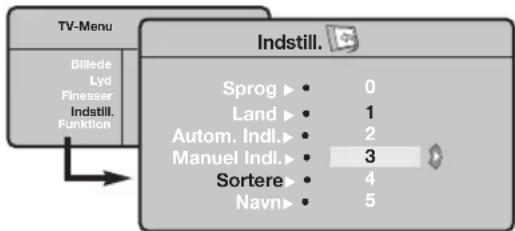
Tryk pà tasten (MEN). TV-menu vises pà skærmen.
Sogning after radiostationer
- Table of Contents
- Installation
- Operation
- Peripherals
- Practical information
- Recycling
- Presentation of the LCD Television
- Television keys:
- Adjustable stand.
- Rear of set :
- Remote control
- Remote control keys
- * Mode selector
- Installing your television set
- Positioning the television set
- Connecting the aerials
- Switching on
- Quick installation
- Use the cursor UP/DOWN on the remote control to select your country and validate with cursor RIGHT.
- Program sort
- Manual store
- Other settings in the Install menu
- Picture settings
- Description of the adjustments:
- Sound adjustments
- Description of the settings:
- Feature settings
- 16:9 Formats
- 4:3
- Zoom 14:9
- Zoom 16:9
- Subtitle Zoom
- SuperWide
- Widescreen
- Fullscreen
- Teletext
- Using the radio
- Choosing radio mode
- Selecting programmes
- Using the radio menus
- Searching radio stations
- Screen saver
- Using in PC monitor mode
- Note:
- PC Mode
- Choosing PC mode
- Using the PC menus
- - Picture :
- - Features :
- Connecting peripheral equipment
- Video recorder
- Video recorder with decoder
- Other equipment
- Side connections
- Amplifier
- Computer
- Headphones
- Tips
- Glossary
- Introduction
- Sorting of programmer
- Sogning after radiostationer
Brand : PHILIPS
Model : 23IF9946
Category : Television