Pico WiFi - Radio REVO - Free user manual and instructions
Find the device manual for free Pico WiFi REVO in PDF.


| Product Type | DAB+ and FM digital radio with speaker and auxiliary input |
| Brand | REVO |
| Model | Pico WiFi |
| Dimensions (H x W x D) | 167 mm x 103 mm x 98 mm |
| Power Supply | 12 V, 1.2 A mains adapter (included) and internal NiMH rechargeable battery |
| Battery Life | Approximately 8 hours (average) |
| Loudspeaker | 2-inch wideband speaker, waterproof, with neodymium magnet, 8 W power |
| Audio Output Power | 2 W |
| Frequency Ranges | DAB Band III (174 - 240 MHz), FM (87.5 - 108 MHz) |
| Antenna | Integrated telescopic antenna |
| Input Connectors | DC adapter socket (230 V), 3.5 mm line input for auxiliary devices (M-Port) |
| Output Connectors | 3.5 mm headphone jack, RCA stereo line output |
| Display | High-resolution LCD screen, 2 x 16 characters, backlight |
| Controls | On/Off, Navigation, Select, Volume, Alarm, Scan/Info, Menu, DAB/FM |
| Remote Control | Infrared (optional accessory) |
| Water Resistance | Splash-proof design (do not immerse) |
| Care and Cleaning | Clean with a soft, dry cloth. Avoid introducing liquids or small objects. |
| Safety | Do not use near water. Do not open the casing. Use only the supplied adapter. |
| Spare Parts and Repairability | Replaceable internal battery. Available accessories: remote control, mains adapter, M-Port cable, protective case, car adapter. |
| Warranty | 1 year from date of purchase (excluding abnormal use, opening of casing, etc.) |
Frequently Asked Questions - Pico WiFi REVO
User questions about Pico WiFi REVO
0 question about this device. Answer the ones you know or ask your own.
Ask a new question about this device
Download the instructions for your Radio in PDF format for free! Find your manual Pico WiFi - REVO and take your electronic device back in hand. On this page are published all the documents necessary for the use of your device. Pico WiFi by REVO.
USER MANUAL Pico WiFi REVO
DAB DIGITAL RADIO

Digital Audio Broadcasting
Preface
Copyright and Acknowledgements
Copyright © 2006 Revo Technologies Ltd. All rights reserved.
Revo Technologies Ltd
The Inox Building
Caldwellside
Lanark
Scotland
United Kingdom
ML11 7SR
Tel. 01555 666 161
Fax. 01555 66 33 44
Email. enquiries@revo.co.uk
Website: www.revo.co.uk
The information in this guide is believed to be correct at the time of publication.
However, our policy is one of continuous development and so the information is subject to change without notice.
RevoTM, PicoTM and M-PortTM are trademarks or registered trademarks of Revo Technologies Limited.
iPod® is a registered trademark of Apple Computer, Inc.
Safety Warnings
Do not operate this radio near water.
Avoid small objects and liquids from getting into this product.
Do not remove screws or casing parts.
Use only the power supply unit supplied.
EEC: This product has been designed and type-tested to comply with EU requirements and carries a CE mark.




Technical Support
Should you encounter any difficulties with the operation of your Revo PicoTM, or should you suspect that it may be faulty in some way, please call our technical support department on the number below:
01555 666 161
Alternatively, email support@revo.co.uk or visit the troubleshooting section of our website at: www.revo.co.uk/support
Contents
Welcome to Revo! 4
Benefits of DAB radio 4
PicoTM overview and key features 4
Warranty 4
Warranty registration 4
Controls and Connections 5
Powering PicoTM 5
DAB Operation 6
Change display mode 7
Show signal strength 7
Finding and adding new stations 7
Removing 'unavailable' stations 7
■ Menu Options 8
To change station order 8
Manual Tuning 9
Set DRC 9
Display software version 9
FM Operation 10
Station presets 10
M-PortTM 11
Charging + Weatherproofing 12
PicoTM Battery Information 12
Charging PicoTM 12
Charge Management Circuit 12
Pico's Splashproof Design 12
How Waterproof is PicoTM? 12
Trouble-shooting 13
Technical Specification 14
Accessories and Spares 15
Welcome to Revo DAB
Thank you for buying our Pico™ DAB Digital Radio. We feel sure that it will provide you with years of enjoyment and reliable service.
This guide has been designed to quickly get you up-and-running and listening to DAB digital radio, offer guidance on the more complex features of this product, and provide information on safety, warranty, and registration.
Benefits of DAB Radio
Clear, interference-free digital sound. Many more stations, much more choice. No frequencies, select by station name. No re-tuning. Text information via LCD screen.
Pico™ Overview
Pico™ is the go-anywhere DAB digital radio.
Pico™ combines high-quality DAB and FM radio reception in a splashproof casing, with the convenience of internal battery power.
Pico™ can also be used as a high-quality speaker system for your iPod™ (or other MP3 player or external sound source).
Simply connect your device to Pico's M-Port™ using the audio lead supplied.
Warranty
Revo Technologies Ltd warrants to the purchaser that this product will be free from parts and manufacturing defects in the course of normal use for a period of one year from the date of purchase.
This warranty does not apply in cases of accidental damage, where the case has been removed, wear and tear, negligence, modification, or inappropriate use.
Should you encounter problems with this product, please contact your supplier or alternatively see page 2 of this guide for technical support contact details.
Warranty Registration
It is a warranty condition that you register your purchase by either completing the warranty card enclosed with your radio or alternatively registering online at www.revo.co.uk/register
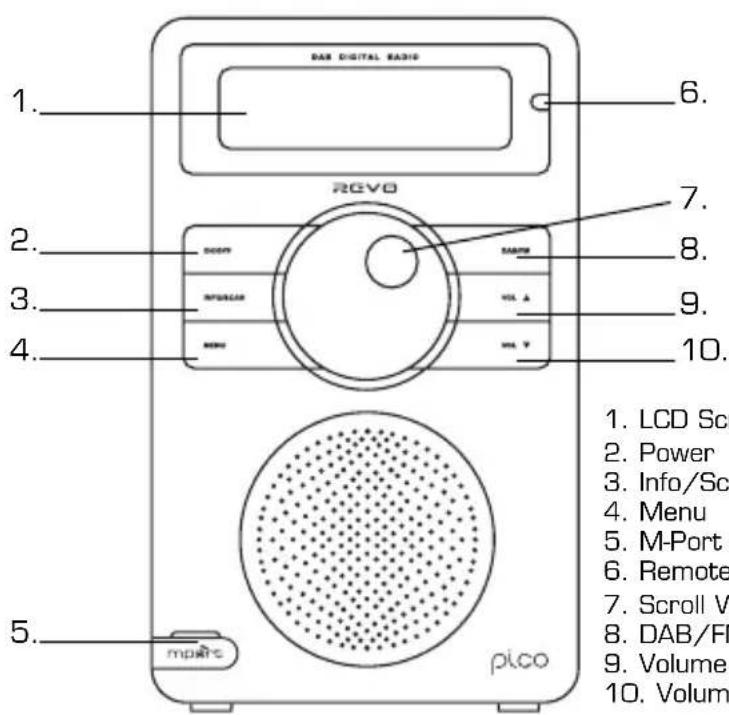
Controls and Connectors
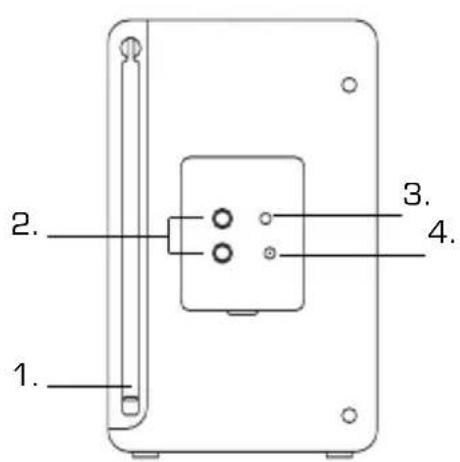
- Telescopic Antenna
- Stereo Line-Out
- 3.5mm Headphone Socket
- DC Power Socket
Powering Pico™
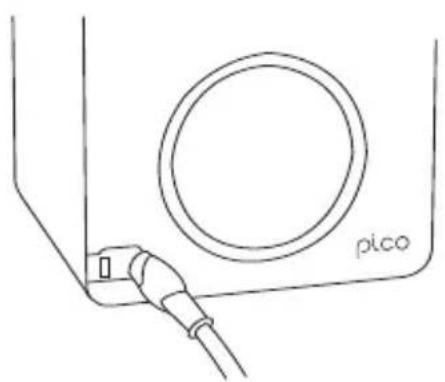
Your Pico™ radio can be powered from the mains using the power adaptor supplied, or from its internal battery pack.
To power from the mains, insert the power adaptor plug into the DC power socket on the rear of Pico™. Pressing the button will switch Pico™ on.
Only use the power adaptor supplied. Replacements can be purchased from our website www.revo.co.uk, or alternatively call us on 01555 666 161.
DAB Operation
- Extend the telescopic antenna found on the rear of Pico™. Press the ON/OFF button to switch on your radio. If this is the first time Pico™ has been used, press and hold the SCAN button. Pico™ will now scan for DAB stations in your area and store them in memory.
- When the station scan has been completed, stations will be displayed in numeric then alphabetic order. The first station in the list will be selected. If no DAB signal is found, it may be necessary for you to relocate your radio. Alternatively, visit www.ukdigitalradio.com/coverage to check that DAB coverage is available in your area. The top line of Pico's LCD screen shows the name of the station currently selected. Turn Pico's scroll wheel to cycle through the available stations. Press the scroll wheel to select the chosen station.
Revo Pico Digital Radio
Scanning.. 10
Station not available
6 Music Now tuning...
To Change the Display Mode
PicoTM has seven different display modes.
Press the INFO/SCAN button to cycle through each mode.
These display modes are explained in the table below:
Display option Example
| Normal display with scrolling text | BBC Radio 1 calls cost max |
| Type of broadcast | BBC Radio 1 POP Music |
| Broadcaster | BBC Radio 1 BBC National DAB |
| Time and date | BBC Radio 1 12:34 22-02-2005 |
| Station name and frequency | BBC Radio 1 12B 225.64MHz |
| Data rate and stereo/mono | BBC Radio 1 128kbps Stereo |
| Signal strength | BBC Radio 1 Sig strength 96 |
To Show the Signal Strength
Press the scroll wheel.
The display shows a signal bar with the strength of the current station:
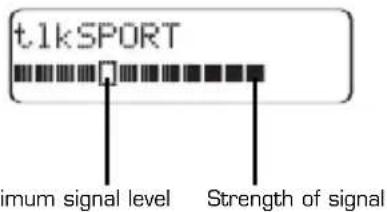
The indicator on the signal bar shows the minimum acceptable signal level.
Stations with a signal strength below this level will not provide a steady stream of audio.
Finding and Adding New Stations
As time passes, new stations will become available in your area. To add them to your station list simply press and hold the SCAN button for at least two seconds.
Removing 'Unavailable' Stations
To remove 'unavailable' stations from Pico's station list, i.e., those that display a '?' before the station name, see the 'Menu Options' section on page 8.
Menu Options
Pico™ has a number of functions that are accessed through the MENU button.
To change station order
Press MENU, then turn Pico's scroll wheel until the name of the option is displayed:
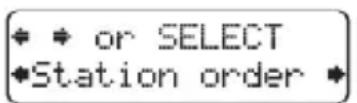
Press the scroll wheel to select your choice.
To specify the order in which stations are displayed
Select the Station order option.
The top line of the display shows the currently selected station order and allows you to change it.
Turn the scroll wheel to step between the station order options:
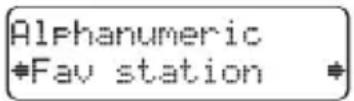
Press the scroll wheel to select the current option.
The following table describes the options available under the 'Station Order' menu:
Station order Description
Fav station Lists the most frequently selected stations first.
Alphanumeric Displays all stations in alphanumeric order.
Active station Lists active stations [ones that are currently broadcasting] before inactive ones.
Prune stations Remove inactive stations from the station list.
To use manual tuning
- Select the Manual tune option.
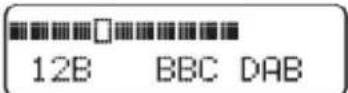
The display shows the current station number and frequency:
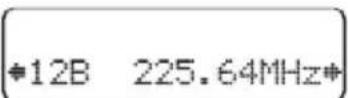
Press or to step between the stations and press SELECT to select the current station.
If there is a station corresponding to this station number and frequency the display will show the station name, and a tuning meter showing the signal strength.
To set the dynamic range control
Pico™ includes a dynamic range control that automatically boosts the volume of quieter sounds for listening in noisy environments.
Select the DRC value option.
The display shows the current DRC value and allows you to adjust it:
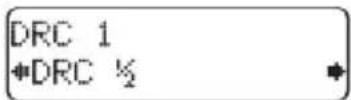
The DRC value can be switched between the following options:
| DRC Description |
| DRC 0 Dynamic Range Control is switched off |
| DRC 1/2 Dynamic Range Control is set to half normal level. |
| DRC 1 Dynamic Range Control is switched on; the default setting recommended for noisy environments. |
To display the software version number
Press the MENU button then use the left and right buttons to scroll across to SW VERSION. The software version number is displayed on the top line of the display. You should specify this when speaking to Revo Technical Support.
FM Operation
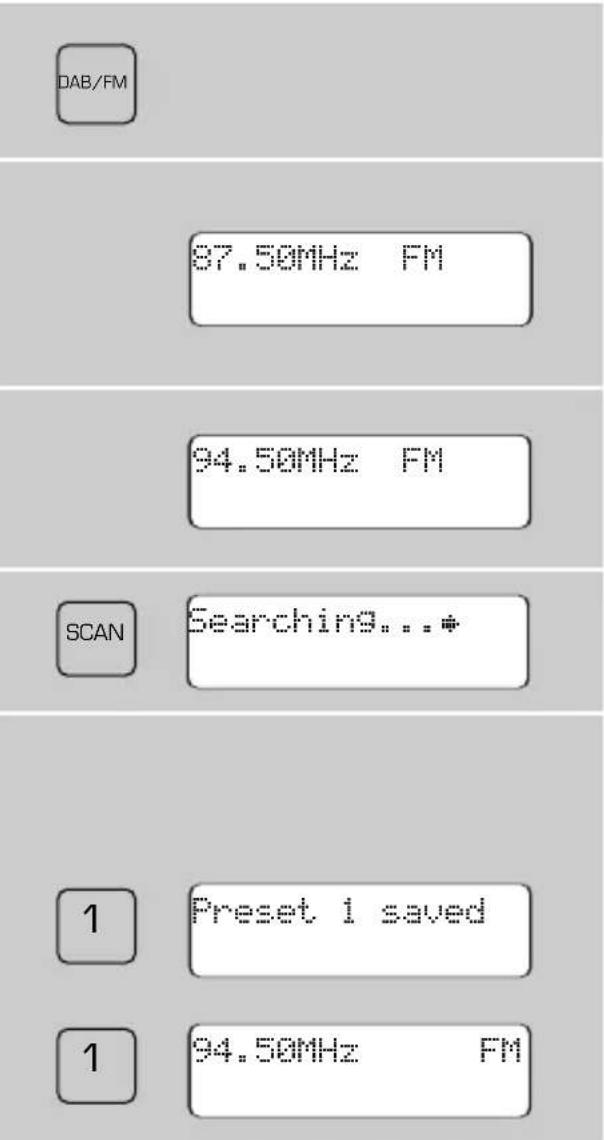
To listen to FM radio stations, switch Pico™ on and press the DAB/FM button. If this is the first time Pico™ has been in FM mode, it will start at the beginning of the FM frequency range. Otherwise, the last FM station you were listening to will be selected. To scan through the FM frequency range, turn Pico's scroll wheel clockwise or anticlockwise. To select the current frequency, press the scroll wheel. To 'SEEK' the next active station, press and hold the SCAN button.
Station Presets
- Pico™ can store five FM presets, but only if you have the optional Pico™ infra-red remote control (see page 15). To store the current station, press and hold one of the preset buttons (1-5) on your remote control. To select a stored FM station, simply press the corresponding preset key (1-5).
M-Port™
Using M-Port™
Revo's M-Port™ technology allows for quick and easy connection of an iPod® (or other MP3 player or external sound sources). Using the connection lead supplied, Pico™ is transformed into a high quality digital audio speaker system. Connect one end of the supplied audio lead to the headphone (or auxiliary out) socket of your source device, then connect the other end to the M-Port™ on the side of Pico™. Pico's LCD screen will now display the words "M-Port Active". You should adjust the output volume level on both the source device and on Pico™ itself to gain optimal volume levels and sound performance.
M-Port Active
Charging + Weatherproofing
Pico™ Battery Information
- Inside Pico™ there is a rechargeable Nickel Metal Hydride battery pack. Out-of-the-box this may carry a small amount of charge, but it is suggested that you perform a full charge before using Pico™.
Charging Pico™
- Ideally Pico™ should initially be charged overnight before being used. Thereafter a full charge will take approximately 6 hours. It can take 3 or 4 charges before Pico's internal batteries are performing at their optimum level. Pico™ charges its batteries whenever it is plugged into the mains, whether it is being used at the time, or switched off. If you are using Pico™ while it is charging from the mains, it will take up to three times longer to charge the batteries to full capacity.
Charge Management Circuit
- Pico™ has a charge management circuit that ensures that its battery is never over-charged. When the batteries have taken a full charge, Pico™ will automatically stop charging them.
Pico's Splashproof Design
Pico's case is sealed against the elements, allowing Pico™ to be used outdoors, or in places where there is moisture, such as a bathroom.
How Waterproof is Pico™?
Pico™ has been designed to withstand small splashes of water, such as raindrops. It is not designed to be submerged in water.
Trouble-Shooting
C. I hear a 'burbling' noise on some stations. A. If the signal strength is too low, a breakup in reception can occur. This sound is the result. Make sure that Pico's antenna is fully extended and in an upright position. If the problem persists, move Pico™ to another location or check that you are in an area where reception of this station is possible (visit www.ukdigitalradio.com/coverage to check). a. I get a ? before some stations in my station list, and don't seem to be able to select them. A. ? before a station name means that it is either inactive or unavailable. This can be because they are not currently broadcasting, you are outside their broadcast area or you have simply lost reception. To remove inactive or unavailable stations press the MENU button and go to the 'Prune Stations' option (available through the Station Order menu), see page 8.
a. I get a 'No stations available' message? A. Make sure that your antenna is fully extended and vertical. Check the signal strength and move Pico™ to another location if necessary. a. Sometimes when I'm listening to Pico™ the volume dips slightly and the sound becomes distorted. A. A loss of volume, sound quality and/or reception sensitivity usually indicates that Pico's internal battery needs to be charged. a. Even after I've given Pico™ a full charge, the battery doesn't seem to last very long. Certainly not as long as it used to. A. It sounds like Pico's internal battery needs to be replaced. Replacement batteries are available as a spare part, see page 15 for details.
Technical Specification
General: Mono DAB and FM radio with full Band III reception. ■ Speaker: 2" Weatherproof, full-range neodymium, 8W power handling Audio Power Output: 2W ■ Frequency Ranges: DAB Band III (174 - 240 MHz) FM (87.5 - 108 MHz) Antenna: Integral telescopic aerial ■ Input Connectors: DC power adaptor socket (230V adapter supplied) 3.5mm line-in for auxiliary devices (M-Port) - Output Connectors: 3.5mm headphone socket Stereo RCA line-out LCD Display: High resolution 2 x 16 character negative display Controls: Power, left, right, select, volume up/down, alarm, scan/info, menu, DAB/FM ■ Weatherproofing: 'Splashproof' case design Remote Control: Infra-red remote control (optional accessory) Mains Power Supply: 12V 1.2mA ■ Battery Power: Nickel Metal Hydride - 8 hour life (average) Approvals: CE marked and RoHS compliant. Dimensions: 167mm (H) x 103mm (W) x 98mm (D)
Accessories and Spares
The following optional accessories and spare parts are available for Pico™. Please contact your local retailer or alternatively call us on 01555 666 161. Accessories and spare parts can also be purchased online at www.revo.co.uk
Remote Control:
Control Pico™ with our compact infra-red remote control.
Mains Power Supply Unit:
Replacement power supply as supplied with Pico™.
M-Port™ Lead:
Used to connect an iPod® (or similar device) to Pico™.
Protective Carry Case:
Keep Pico™ safe and sound with our custom made protective case.
In-Car Power Cord/Charger:
Charge or power your Pico™ from your vehicle's cigarette lighter socket with this handy accessory.

DAB DIGITAL RADIO

Digital Audio Broadcasting
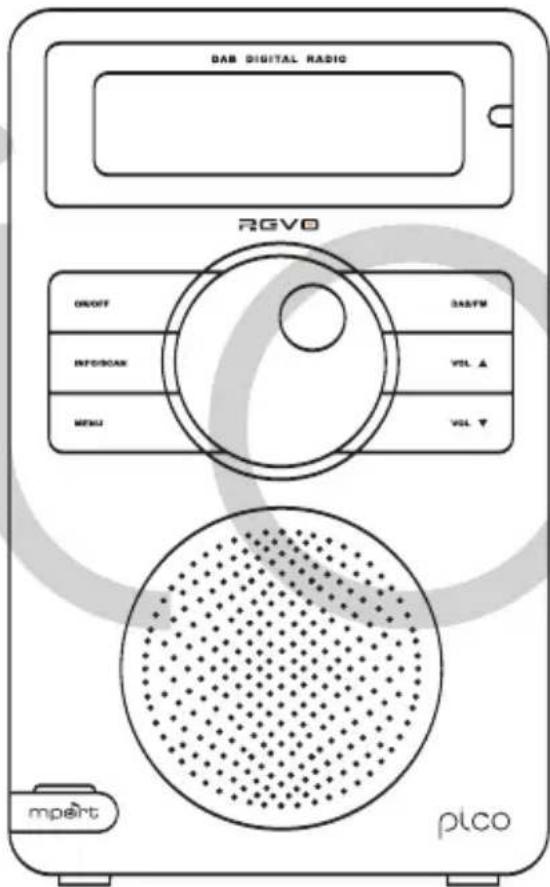
User manual
Preface
Revo Technologies Ltd, The Inox Building, Caldwellside, Lanark, Scotland, United Kingdom, ML11 7SR
Tel. 01555 66 61 61 Fax. 01555 66 33 44 Email. enquiries@revo.co.uk Website: www.revo.co.uk
BBC Radio 1 calls cost max
Type of broadcast
BBC Radio 1 POP Music
Technical Specification
D A B D I G I T A L R A D I O

Digital Audio Broadcasting
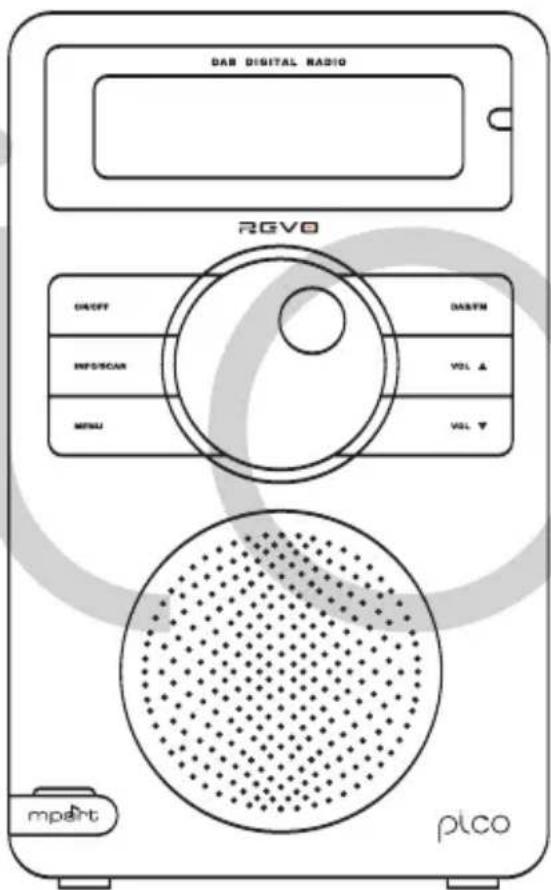
User Manual
Introduction
Copyright (c) 2006 Revo Technologies Ltd.
Revo Technologies Ltd
The Inox Building
Caldwellside
Lanark
Scotland
United Kingdom
ML11 7SR
Tel. +44 1555 666 161
Fax. +44 1555 66 33 44
Email. enquiries@revo.co.uk
Website: www.revo.co.uk
Web www.revo.co.uk/support
Contents
Welcome to Revo! 4
BBC Radio 1 calls cost max
Transmission type
BBC Radio 1 POP Music
Broadcaster
BBC Radio 1 BBC National DAB
Date and time
BBC Radio 1 12:34 22-02-2005
Technical Specification
DAB DIGITAL RADIO

Digital Audio Broadcasting
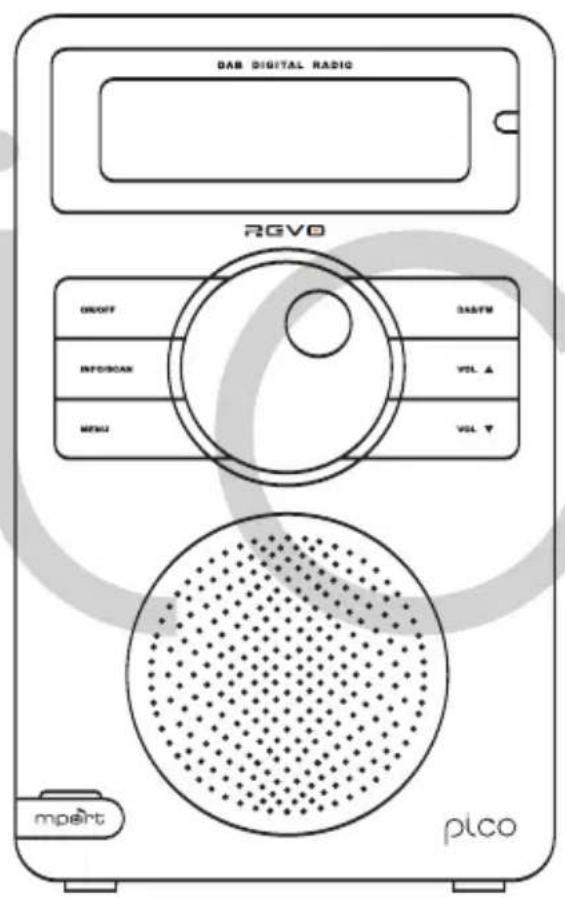
User Manual
Preface
Copyright © 2006 Revo Technologies Ltd. All rights reserved.
Revo Technologies Ltd The Innox Building Caldwellside Lanark Scotland UK ML11 7SR
Show software version
9
FM functions 10
Save stations 10
■ M-PortTM 11
Charging and what it says 12
Splash-proof design.
The casing around the pico is of such a sleek character that it withstands light, damp environments. This means you can have it outdoors or in the bathroom. It does not mean that it withstands direct contact with liquids.
Revo Technologies Ltd
The Inox Building
Caldwellside
Lanark
Scotland
United Kingdom
ML11 7SR
Telephone Support 01555 666 161
Online Support
www.revo.co.uk
www.revo.co.uk/support
support@revo.co.uk


- PREFACE
- COPYRIGHT AND ACKNOWLEDGEMENTS
- SAFETY WARNINGS
- TECHNICAL SUPPORT
- 01555 666 161
- CONTENTS
- WELCOME TO REVO! 4
- CONTROLS AND CONNECTIONS 5
- DAB OPERATION 6
- MENU OPTIONS 8
- MANUAL TUNING 9
- FM OPERATION 10
- M-PORTTM 11
- CHARGING + WEATHERPROOFING 12
- TROUBLE-SHOOTING 13
- TECHNICAL SPECIFICATION 14
- ACCESSORIES AND SPARES 15
- WELCOME TO REVO DAB
- BENEFITS OF DAB RADIO
- PICO™ OVERVIEW
- WARRANTY
- WARRANTY REGISTRATION
- CONTROLS AND CONNECTORS
- POWERING PICO™
- DAB OPERATION
- TO CHANGE THE DISPLAY MODE
- TO SHOW THE SIGNAL STRENGTH
- FINDING AND ADDING NEW STATIONS
- REMOVING 'UNAVAILABLE' STATIONS
- MENU OPTIONS
- TO CHANGE STATION ORDER
- TO SPECIFY THE ORDER IN WHICH STATIONS ARE DISPLAYED
- STATION ORDER DESCRIPTION
- TO USE MANUAL TUNING
- TO SET THE DYNAMIC RANGE CONTROL
- TO DISPLAY THE SOFTWARE VERSION NUMBER
- FM OPERATION
- STATION PRESETS
- M-PORT™
- USING M-PORT™
- CHARGING + WEATHERPROOFING
- PICO™ BATTERY INFORMATION
- CHARGING PICO™
- CHARGE MANAGEMENT CIRCUIT
- PICO'S SPLASHPROOF DESIGN
- HOW WATERPROOF IS PICO™
- TROUBLE-SHOOTING
- TECHNICAL SPECIFICATION
- ACCESSORIES AND SPARES
- REMOTE CONTROL
- MAINS POWER SUPPLY UNIT
- M-PORT™ LEAD
- PROTECTIVE CARRY CASE
- IN-CAR POWER CORD/CHARGER
- INTRODUCTION
- USER MANUAL
- FM FUNCTIONS 10
- CHARGING AND WHAT IT SAYS 12
- SPLASH-PROOF DESIGN
Brand : REVO
Model : Pico WiFi
Category : Radio