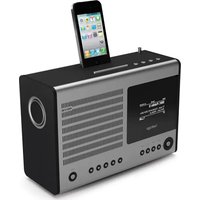
Heritage G2 - Radio REVO - Free user manual and instructions
Find the device manual for free Heritage G2 REVO in PDF.


| Product Type | Multi-format digital radio (DAB/DAB+, FM, Wi-Fi Internet Radio) |
| Dimensions (approx.) | 25 x 15 x 15 cm |
| Weight (approx.) | 2 kg |
| Power supply | Multi-country power adapter (UK, EU, USA) included; mains voltage 100-240V |
| Power consumption | Not specified but typical < 20W |
| Speaker | 1x 3" neodymium speaker (7.6 cm) with 7W amplifier |
| Display | High resolution graphic OLED |
| Cabinet materials | Aluminium and furniture-grade American walnut |
| Connectivity | Wi-Fi 802.11 b/g, Ethernet (RJ45), iPod/iPhone dock, 3.5mm AUX input, Digital optical output, Composite video output, 3.5mm headphone jack, RCA stereo output |
| Radio functions | DAB/DAB+, FM with RDS, Internet Radio (via Frontier Silicon portal), Podcasts |
| Audio functions | UPnP playback (MP3, AAC, WMA, FLAC), Wireless audio streaming, Last.fm, Docked iPod/iPhone, AUX in |
| Convenience functions | 2 alarms, sleep timer, snooze, 10 presets (remote) or 5 direct keys |
| Equalizer | 9 presets (Normal, Flat, Jazz, Rock, Cinema, Classical, Pop, News, My EQ) + bass/treble/loudness adjustments |
| Remote control | Infrared, CR2025 battery included |
| Antenna | Telescopic for DAB/FM |
| Software update | Over the air (OTA) with automatic or manual check |
| Care and cleaning | Use a soft, dry cloth; do not use abrasive products |
| Safety | Do not use near water; do not open the cabinet; use only the supplied power supply |
| Spare parts and repairability | Contact Revo technical support; interchangeable dock adapter |
| Warranty | 1 year (manufacturing defects) |
| Environmental information | Compliant with WEEE, RoHS, CE marking |
Frequently Asked Questions - Heritage G2 REVO
User questions about Heritage G2 REVO
0 question about this device. Answer the ones you know or ask your own.
Ask a new question about this device
Download the instructions for your Radio in PDF format for free! Find your manual Heritage G2 - REVO and take your electronic device back in hand. On this page are published all the documents necessary for the use of your device. Heritage G2 by REVO.
USER MANUAL Heritage G2 REVO
With docking for iPod and iPhone
DAB | DAB+ | FM | Internet Radio | Audio Streaming
Made for
iPod iPhone

Owner's Manual

Bedienungsanleitung

Should you encounter problems using this product, please refer to the troubleshooting section on page 39 of this owner's guide. Alternatively, call Revo technical support on :
UK 01555 666161 From outside the UK + 44 1555 666161
Alternatively, e-mail support@revo.co.uk or visit the troubleshooting section of our website at: www.revo.co.uk/support
ENVIRONMENTAL INFO
PRODUCT DISPOSAL INSTRUCTIONS (WEEE DIRECTIVE)

The symbol shown here and on the product means that it is classed as Electrical or Electronic Equipment and should not be disposed with other household or commercial waste at the end of its working life.
The Waste of Electrical and Electronic Equipment (WEEE) Directive (2002/96/EC) has been put in place to recycle products using best available recovery and recycling techniques to minimise the impact on the environment, treat any hazardous substances and avoid the increasing landfi II.
For more information please contact your local authority or the retailer where the product was purchased.
RoHS COMPLIANT & CE MARK

This product has been designed to comply with international directives on the Restriction of Hazardous Substances (RoHS) and has been designed and type-tested to comply with EU requirements and carries a CE mark.
SAFETY WARNINGS
- Do not operate this radio near water
- Do not remove screws or casing parts
- Use only the power supply unit supplied
- Avoid small objects and liquids from entering the product

ISO 7000-0434
WARRANTY
Revo Technologies Ltd warrants to the end user that this product will be free from defects in materials and workmanship in the course of normal use for a period of one year from the date of purchase. This guarantee covers breakdowns due to manufacturing faults and does not apply in cases such as accidental damage, general wear and tear, user negligence, modification or repair not authorised by Revo Technologies Ltd.
To register your purchase please visit www.revo.co.uk/register
COPYRIGHTS AND ACKNOWLEDGEMENTS
Copyright 2011 Revo technologies Ltd. All rights reserved.
No part of this publication may be copied, distributed, transmitted or transcribed in any form or by any means, electronic, mechanical, magnetic, manual or otherwise, without the permission of Revo Technologies Limited.
REVO and HERITAGE are trademarks or registered trademarks of Revo Technologies Ltd. iPod and iPhone are trademarks of Apple Inc., registered in the U.S. and other countries.
Revo Technologies Ltd
The Inox Building, Caldwellside, Lanark,
Scotland, United Kingdom, ML11 7SR
Tel: 01555 66 61 61 Int. Tel: +44 1555 66 61 61
Fax: 01555 66 33 44 Int. Fax: +44 1555 66 33 44
Email: enquiries@revo.co.uk Website: www.revo.co.uk
DISCLAIMER
Revo Technologies Limited makes no representation or warranties with respect to the content of this publication, and specifically disclaims any implied warranties of merchantability or fitness for any particular purpose. Further, Revo Technologies Limited reserves the right to make changes to this publication from time to time, without notification to any person or organisation.
CONTENTS
| 02 | Technical | Support | |
| 02 | Environmental | Info | |
| 02 | Warranty | ||
| 02 | Copyrights | and | Acknowledgements |
| 02 | Disclaimer | ||
| 03 | Welcome / Overview / Unpacking | ||
| 04 | Anatomy | ||
| 05 | Remote | Control | |
| 06 | Power | Supply | |
| 06 | Set-Up | ||
| 07 | Controlling Heritage / Menu Structure | ||
| 08 - 09 | DAB | Mode | |
| 10 - 11 | DAB Mode Menu Options | ||
| 12 | FM | Mode | |
| 13 | FM Mode / AUX-IN Mode | ||
| 14 - 16 | IPod | Mode | |
| 17 - 22 | Internet Radio Mode | ||
| 23 | Internet Radio Portal | ||
| 24 - 25 | Setting Up A Music Server | ||
| 26 - 28 | Music Player Mode | ||
| 29 - 31 | Last.fm | Mode | |
| 32 - 33 | Alarm | Clock | |
| 34 - 38 | System | Settings | |
| 39 - 40 | Troubleshooting | ||
| 41 | Error | Messages | |
WELCOME
Thank you for purchasing our Heritage radio, we are sure that it will provide you with many years of enjoyment and reliable service. This guide has been designed to quickly get you up-and-running with your radio, offer guidance on the more complex features of this product and provide information on safety, warranty details and troubleshooting.
HERITAGE OVERVIEW
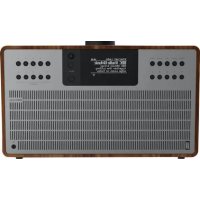
Heritage is a contemporary reinterpretation of classic European table radio designs from the 60's. A multi-format digital radio that provides coverage of DAB, DAB+, FM and WI-FI Internet radio - as well as wireless audio streaming and iPod/iPhone docking functionality.
Heritage is crafted using the 11 nest quality materials and components. Its cabinet is constructed using a combination of aluminium and furniture-grade American walnut. Audio performance is delivered by a custom-designed 3" neodymium speaker driver, driven by a superb 7W amplifier. Lastly, Heritage benefit is from a large, graphical OLED display and intuitive control system.
UNPACKING HERITAGE
Carefully remove Heritage from its packaging before removing the other items from the box.
The box should contain the following:
- Heritage radio
- Remote control
- iPod/iPhone dock adaptor kit
• Power adaptor with multi-country adaptors (UK, Euro, USA) - Owner's Manual
Should any Item be missing or damaged, please contact your point of purchase or call Revo directly on +44 (0) 1555 66 61 61
NOTE: Heritage's packaging should be retained for possible future use. It is the safest way to transport Heritage should it be necessary.

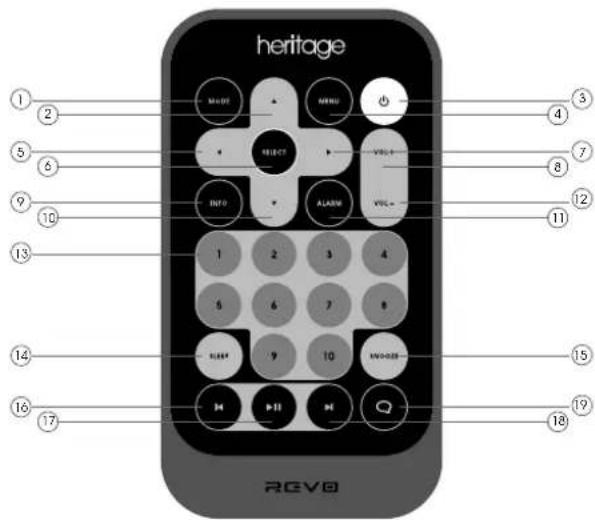
ANATOMY OF HERITAGE
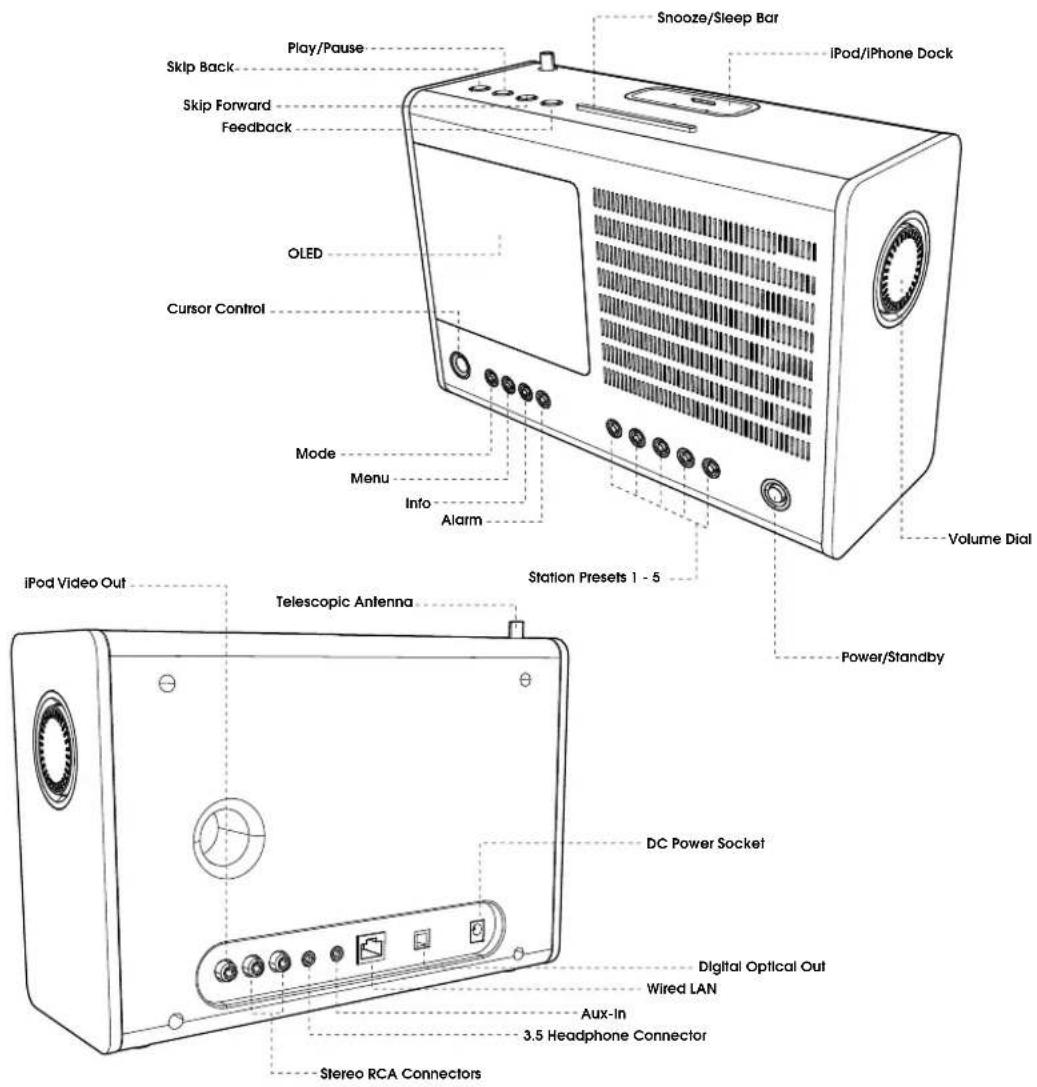
REMOTE CONTROL
01 - Mode
02 - Scroll up
03 - Menu
04 - Power
05 - Back
06 - Select
07 - Forward
08 - Volume increase
09 - Info
10 - Scroll Down
11 - Alarm
12 - Volume Decrease
13 - Presets 1-10
14 - Sleep
15 - Snooze
16 - Skip Back (Fast Rewind)
17 - Play/Pause
18 - Skip Forward (Fast Forward)
19 - Feedback (Love/Ban)
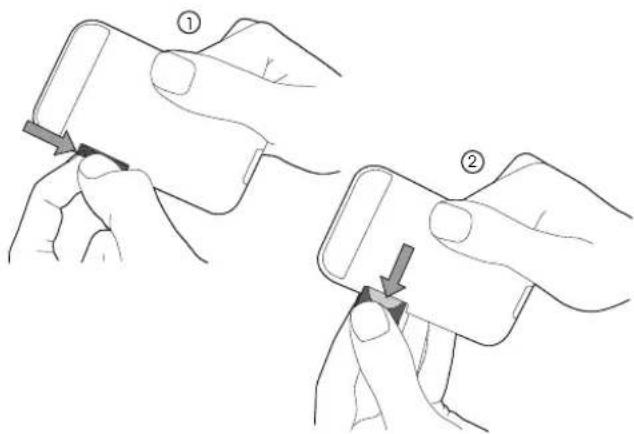
BATTERY REPLACEMENT
The Heritage remote control is powered by a single 3V lithium battery. Depending on usage, the battery should happily run for between 1 and 2 years.
Replace the battery when button presses seem sluggish, or when the operating range appears to have reduced significantly.
Replace the old battery with a new CR2025 lithium cell.

POWER SUPPLY (PSU)
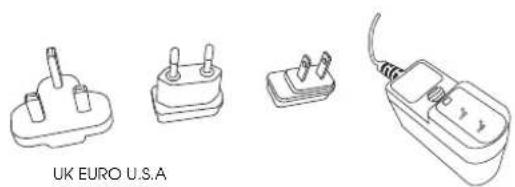
Your Heritage radio is supplied with a multi-region power supply, meaning that it can be operated in a number of countries around the world.
Simply choose the correct adaptor for your country from the selection supplied, then follow the instructions below.
natural_image
Line drawings of four different electrical plug devices (no text or symbols on the devices themselves)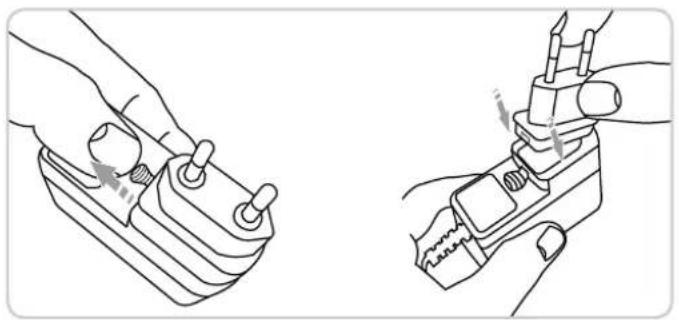
natural_image
Line drawing of two hands using a tool to adjust or install a mechanical component (no text or symbols present)SET-UP
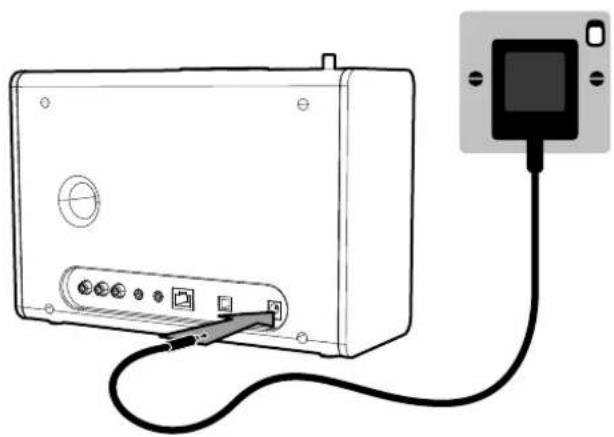
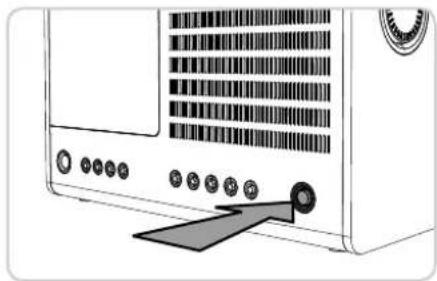
① Using the PSU supplied, connect one end to the DC power socket found on the rear of Heritage, then plug the opposite end into the mains socket on the wall.
natural_image
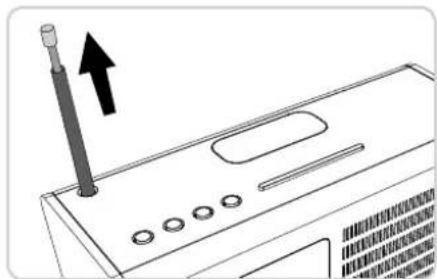
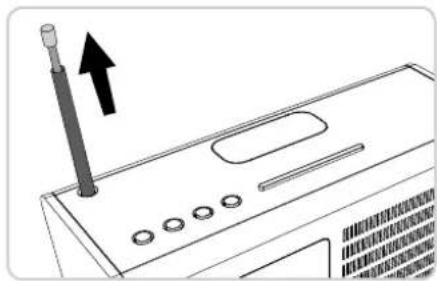
Line drawing of a device with an attached cable and a separate monitor connected to its right (no text or symbols)② Fully extend the antenna for DAB or FM operation
natural_image
Diagram of a computer monitor with a screwdriver inserted, showing no text or symbols③ Press the POWER button once to start the initialisation process.
natural_image
Illustration of a computer front panel with buttons and a button labeled 'Enter' (no text or symbols beyond basic labels)CONTROLLING HERITAGE
In order for you to get the most from your radio, it is important for you to understand how its control and menu system operates.
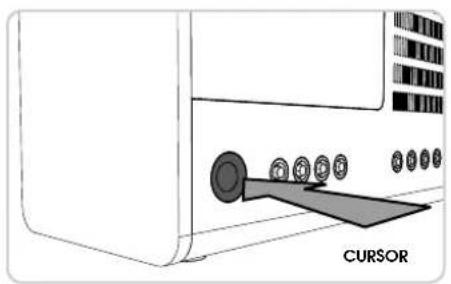
CURSOR CONTROL
Your radio uses a cursor based control system for ease of use.
The cursor control has five functions as follows:
UP Scrolls Up
DOWN Scrolls Down
LEFT Scrolls Left and moves back through menus
RIGHT Scrolls Right and moves forward through menus
PRESS Selects current option
MENU BUTTON
Pressing the MENU button will take you to the Mode Menu for the particular mode of operation you are in. For example, pressing MENU when in DAB Mode will take you to the DAB MODE MENU.
Pressing the MENU button for a second time will return you to the 'playing screen' that you just left.
MODE BUTTON
Pressing the MODE button will sequentially cycle through each of Heritage's modes of operation. It is also possible to move between modes of operation via the MAIN MENU (see below).
natural_image
Diagram of a computer monitor with a cursor pointing to the right button (no text or symbols on the device itself)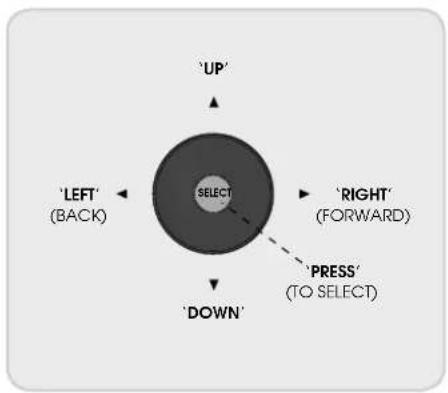
flowchart
graph TD
    A["SELECT"] --> B["'UP'"]
    A --> C["'LEFT'<br>(BACK)"]
    A --> D["'DOWN'"]
    A --> E["'RIGHT'<br>(FORWARD)"]
    A --> F["'PRESS'<br>(TO SELECT)"]
MENU STRUCTURE EXPLAINED
MAIN MENU
The MAIN MENU provides access to the following modes and sub-menus:
- Internet radio
- iPod
• Music player • Auxiliary Input - Last.fm
- Alarms
• DAB radio • System settings
• FM radio
MODE MENUS
The Mode Menus are so called because they show the functions available within the currently selected mode.
Pressing the MENU button at any time will take you to the Mode Menu for the mode of operation your radio is currently in.
Each of the Mode Menus also includes a listing for MAIN MENU, allowing you to return to the top level MAIN MENU.
DAB RADIO MODE
Please ensure that the radio's antenna is extended before operation in DAB Mode.
To enter DAB MODE, press the MODE button until the DAB MODE intro screen is displayed, alternatively press MENU then select MAIN MENU, then DAB from menu option list.
On power-up, Heritage will automatically perform a full scan to see what stations are being broadcast in your area, before storing them alphabetically in the radio's memory.

It may be necessary to perform a manual scan from time to time, in order to update your radio's station list. This may be required for any one of the following reasons:
-
Station availability can change from time to time as new stations appear, or existing stations cease broadcasting.
-
If reception was poor during the initial automatic scan, for example the radio's antenna was not completely extended, it may be that the station list is incomplete or even empty.
-
If you have poor reception on some of the stations (resulting in broken or poor quality audio), you may wish to list only stations that have a strong signal strength.
To start a manual scan, press the MENU button then select FULL SCAN from the menu list.
To scan for only stations that have a strong signal strength, press then select LOCAL SCAN from the menu list.
When the scan is complete, your radio will list all available stations.
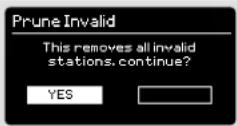
To remove stations that are listed but unavailable, press MINI then choose PRUNE INVALID. When asked whether you wish to "remove all invalid stations", select YES.
DAB RADIO MODE
SELECTING A STATION
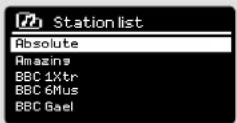
To access your radio's station list, press UP, DOWN or LEFT on the cursor control at any time, alternatively press MENU then select STATION LIST.
Scroll through the available stations using UP and DOWN on the cursor control then either press the select button to select your station choice, or tap RIGHT.
FAVOURITE STATION PRESETS
Heritage allows you to store your favourite stations as presets, either via its 5 front panel mounted 'hot-keys', or 10 preset buttons located on the Heritage remote control.
To store the station you are currently listening to as a preset, simply press and hold a preset button until "Preset Stored" is displayed on your radio's screen. The preset number that has been assigned to the station will be displayed at the bottom of the screen.
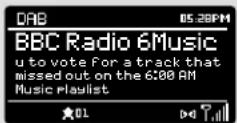
If you want to change a particular preset in the future, repeat the process and the previously stored preset will be automatically overwritten.

DAB MODE MENU OPTIONS
STATION INFO
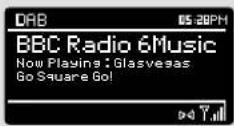
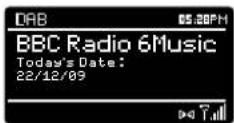
In DAB MODE, Heritage is capable of displaying various pieces of information on its screen. By pressing the INFO button, you can sequentially cycle through the following types of information.
STANDARD DAB SCREEN Shows scrolling text info from broadcaster
PROGRAMME TYPE For example News, Rock Music, Classical etc.
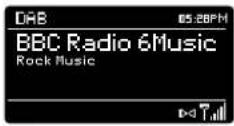
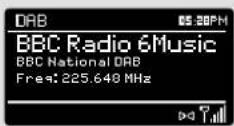
MULTIPLEX AND FREQUENCY Multiplex owner and station frequency
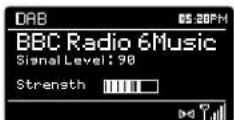
SIGNAL STRENGTH Station's current signal strength
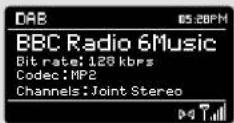
BIT RATE AND CODEC Audio format, sample rate, mono or stereo
DATE Today's date
DAB MODE MENU OPTIONS
DYNAMIC RANGE COMPRESSION (DRC)
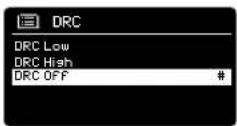
If you are listening to music with a high dynamic range in a noisy environment (for example, classical music while cooking), you may wish to compress the audio's dynamic range. This has the effect of making quiet sounds louder, and loud sounds quieter.
To change the DRC setting, press MENU then choose the DRC option, before selecting OFF, LOW or HIGH.
STATION ORDER
It is possible to choose the order of the DAB station list to be either ALPHANUMERIC, ENSEMBLE or VALID.
As the name implies, ALPHANUMERIC lists stations in alphanumeric order.
ENSEMBLE lists groups of stations that are broadcast together on the same ensemble, for example BBC or Central Scotland Local.
VALID lists valid stations first, alphanumeric, then off-air stations.
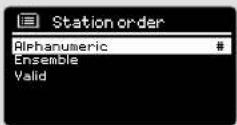
To change the station order, press MENU then select STATION ORDER, before choosing either ALPHANUMERIC, ENSEMBLE or VALID.
STATION ORDER DESCRIPTION
ALPHANUMERIC Display all stations in alphanumeric order.
ENSEMBLE List active stations (ones that are currently broadcasting) before inactive ones.
VALID Remove inactive stations from the station list.

FM RADIO MODE
FM OPERATION
Please ensure that the radio's antenna is extended before operation in FM MODE.
To enter FM MODE, press the MODE button until the FM MODE intro screen is displayed, alternatively press MENU then select MAIN MENU, then FM from menu option list.
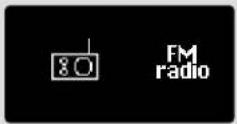
If this is the first time that Heritage has been used in FM MODE, scanning will start at the beginning of the frequency range - otherwise Heritage will default to the station you were listening to last.

Pressing the select button will start the radio scanning for the next available station. Heritage will automatically stop scanning when a station is found.
To fine tune, use UP or DOWN on the cursor control to incrementally change the frequency.
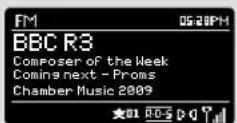
When on an FM station that has a strong signal and is broadcasting RDS information. Heritage will display the station name and other pieces of text information on-screen.
FAVOURITE STATION PRESETS
Heritage allows you to store your favourite stations as presets, either via its 5 front panel mounted 'hot-keys', or 10 preset buttons located on the Heritage remote control.
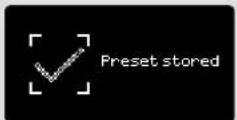
To store the station you are currently listening to as a preset, simply press and hold a preset button until "Preset Stored" is displayed on your radio's screen. The preset number that has been assigned to the station will be displayed at the bottom of the screen.
If you want to change a particular preset in the future, repeat the process and the previously stored preset will be automatically overwritten.
FM RADIO MODE
FM SETTINGS
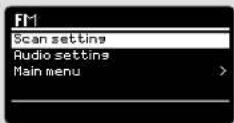
Press the MENU button to access the FM MODE MENU. From here you can set some FM preferences such as SCAN SETTING and AUDIO SETTING.
SCAN SETTING allows you to decide whether the radio should stop scanning only when it finds a station with a strong signal.
AUDIO SETTING gives you the option of listening to a station in mono, should the signal strength not be sufficiently strong to allow stereo reception.
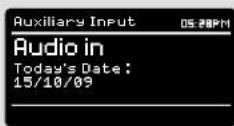
AUX IN MODE
AUX IN MODE allows you to play audio from an external source (such as an MP3 player) through your radio.
To do so, connect your external audio source to the 3.5mm AUX IN connector on the rear of Heritage.
Turn the volume down low on both Heritage and, if adjustable, the external device.
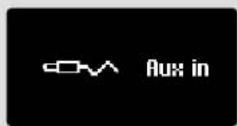
Now press MODE until the AUX IN screen is displayed, alternatively press MENU then select MAIN MENU, then choose AUX IN.
Adjust the volume of Heritage and, if necessary, the external audio device as required.
iPod MODE
FITTING A DOCK ADAPTOR
Heritage is supplied with a selection of dock adaptors to fit most iPod/iPhone models.
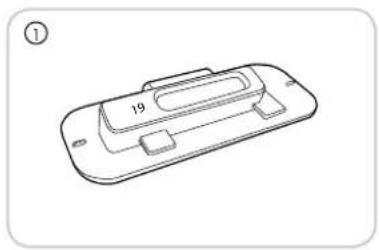
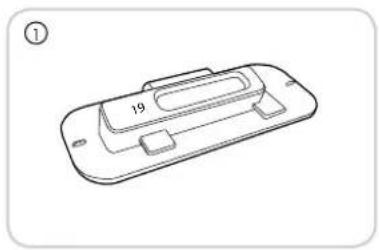
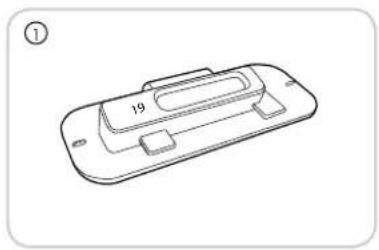
Select the adaptor that is compatible with your iPod/iPhone using the compatibility table on the right - each one is numbered (see illustration ① below).
To fit the adaptor, remove the dock dust cover before inserting the adaptor into the recess that surrounds the dock connector (see illustration ②). If a dock adaptor for your specific iPod/iPhone model is not one of the adaptors included with your radio, please use the adaptor supplied by Apple as part of your iPod/iPhone kit.
Adaptor No. iPod Model
9 iPod classic 80GB
10 iPod classic 120GB
12 iPhone
13 iPod nano (3rd generation)
15 iPhone 3G
16 iPod touch (2nd and 3rd generation)
17 iPod nano (4th generation)
18 iPod nano (5th generation)
19 iPhone 4
20 iPod touch (4th generation)
natural_image
Line drawing of a device casing with internal compartments and a labeled part (no text or symbols beyond the number 19)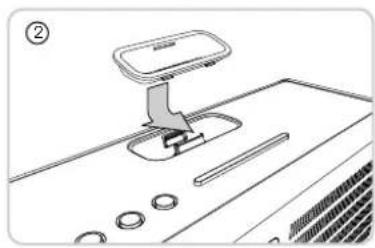
natural_image
Line drawing of a mechanical device with a lever and adjustment knob (no text or symbols)ENTERING iPod MODE
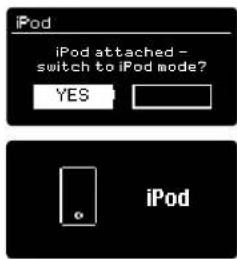
Connect your iPod/iPhone to the dock connector. Heritage will automatically ask if you would like to switch to iPod mode. Select YES or NO using the cursor control.
If an iPod/iPhone is already connected to Heritage, press MODE until the iPod MODE Intro screen is displayed, or press MENU then select MAIN MENU, then iPod.
iPod MODE
CONTROL AND PLAYBACK
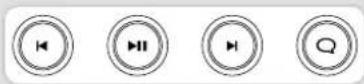
Basic track control functions can be carried out by using the media controls located on the top face of Heritage.
Pressing ▶ will start the currently selected track. Pressing it when a track is playing will PAUSE the current track.
Pressing ⬇ will advance to the next track. Pressing and holding will fast-forward.
Pressing will skip-back to the previous track. Pressing and holding will fast-rewind.
Alternatively, your iPod/iPhone can be operated using the Heritage remote control, which offers advanced control of menus etc.
Lastly, it is possible to control the iPod/iPhone by using the controls on the iPod/iPhone itself.
VIDEO
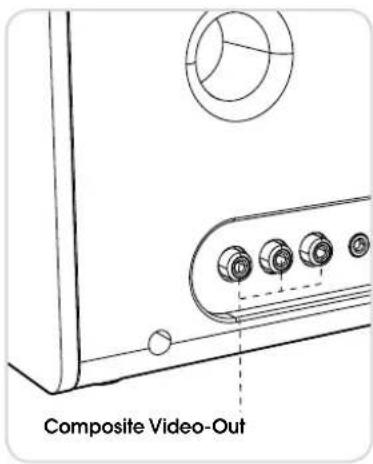
Heritage is equipped with a set of composite video-out connectors, making it possible to view iPod/iPhone movies, slideshows etc. on your television - all directly from your radio.
To use this functionality, go to SETTINGS on your iPod/iPhone, select VIDEO, then switch TV OUT to ON. Now set the TV SIGNAL to either PAL or NTSC, depending on the broadcast system that your TV uses.
Should you need to buy a composite video cable, they can be purchased directly from the Apple Store.

iPod MODE
NOW PLAYING INFO
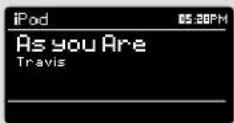
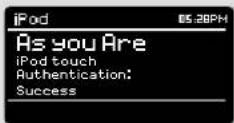
When an iPod/IPhone has been docked and the authentication process has been completed, your radio will display the artist and track information for the current track (If this information is stored on your iPod/IPhone).
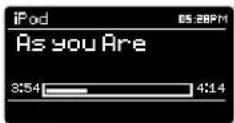
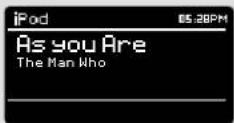
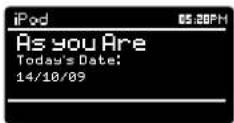
Heritage is capable of displaying various pieces of information about the current track and the iPod/iPhone that is connected. By pressing the INFO button, it is possible to sequentially cycle through the following types of information.
STANDARD SCREEN Shows track name and artist
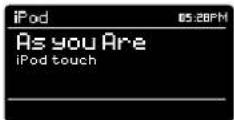
iPod/iPhone TYPE Shows model of iPod/iPhone currently connected
AUTHENTICATION STATUS Whether authentication was successful or not
TRACK TIME Shows track length and current position in track
ALBUM TITLE Displays album title if available
DATE
Today's
date
INTERNET SETUP
USING THE INTERNET RADIO SETUP WIZARD
The first time you use Heritage In INTERNET RADIO MODE, you will be asked whether you would like to run the SETUP WIZARD. The 'WIZARD' will run through a series of questions, and is the simplest way to get internet radio up and running on your device.
You can run the SETUP WIZARD again at any time, it can be found under the NETWORK heading, in the SYSTEM SETTINGS MENU.
To set up your radio for online operation using the INTERNET WIZARD, follow these steps:
Press the select button to select YES, and start the SETUP WIZARD procedure.

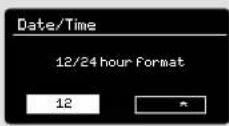
Choose and select your preferred hour format (12 or 24 hour).

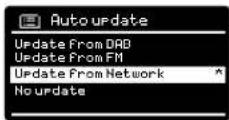
Choose and select UPDATE FROM NETWORK.

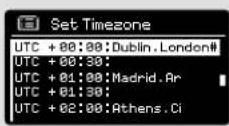
Scroll and select your local timezone from the menu.

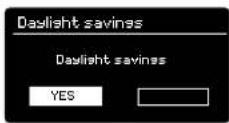
Choose and select your preferred daylight savings status.

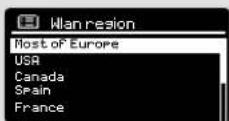
Scroll and select your Wlan region.

INTERNET SETUP
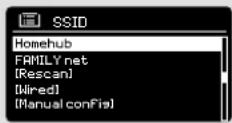
⑥ Scroll and select your NETWORK. In some cases your radio may find more than one. Simply choose the one you want to use.
WIRED CONNECTIONS
If you would like to use your radio over a wired connection, rather than a wireless one, simply choose the WIRED option from the SSID list.
⑦ If your wireless network is not password protected. Heritage will automatically connect, and the following screen will be displayed:
⑧ If you do use password protection, enter your network password using the cursor control to scroll over and select the correct alphanumeric characters. When you have correctly entered your password, select OK.

Select BKSP (back space) If you have entered an incorrect character.
Heritage will save the password into its memory. There will be no need to re-enter the password again.
INTERNET RADIO MODE
GETTING STARTED
To enter INTERNET RADIO MODE, press the MODE button until the INTERNET RADIO MODE intro screen is displayed, alternatively press MENU then select MAIN MENU, then INTERNET RADIO from the menu option list.
The INTERNET RADIO MENU comprises of the following options:
My Favourites: Used to navigate to your favourite stations. These can be set up by visiting the Frontier Silicon Radio Portal (using your PC or Mac). See page 23 for further information.
Local: A comprehensive list of all the stations being broadcast from within your own geographical area (or country).
BBC: Used as a shortcut to all BBC stations broadcast worldwide.
Stations: Find stations using a number of search criteria such as: location, genre, most popular etc.
Podcasts: Find Podcasts or 'Listen-Again' broadcasts by location, genre or search by name.
My Added Stations: Shows stations that you have personally added to your radio's station list via the Frontier Silicon Radio Portal. See page 23 for full details.
Help: Find your radio's ACCESS CODE here. Required to access the Frontier Silicon Radio Portal. See page 23.
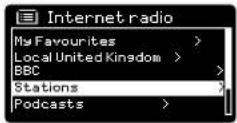
CHOOSING A STATION
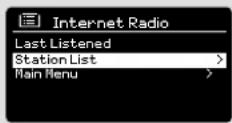
To choose a station, select STATION LIST from the INTERNET RADIO MENU, then select STATIONS using the cursor control.
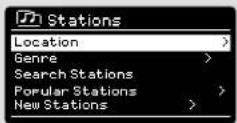
You now have the option to choose or find a station using the following search criteria:
LOCATION (country of origin) GENRE SEARCH STATIONS (by name) POPULAR STATIONS NEW STATIONS

INTERNET RADIO MODE
CHOOSING A STATION (Continued)
Using the cursor control, scroll through the options and press select to choose your search criteria.
For example, choosing LOCATION will give you an alphabetical list of continents/regions, and then a list of countries. Use the cursor control to scroll through the list and press select to choose the continent, then country. You will then be given the option of choosing ALL STATIONS or a GENRE, to further refine your search.
After selecting your search criteria, you will be presented with a list of stations. Simply select a station from the list to begin listening.
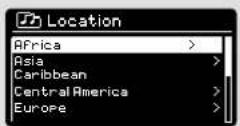
SEARCH
You can search for an internet radio station by name (If you know it), or by using a keyword from within its title.
To SEARCH for a station, select SEARCH STATIONS from the STATIONS MENU, then enter a keyword using the keyboard input screen (similar to the keyboard screen you used for password Input).
If your station is found, simply select to listen.
If you searched for a keyword, Heritage will list all the stations found that contain that particular keyword. Scroll through the list and select your station.
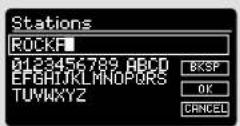
CHOOSING A PODCAST
Podcasts (also referred to as 'Listen Again') are searched and selected in the same way as a regular station.
Select PODCAST from the INTERNET RADIO MENU, then search by location, genre or a combination of both.
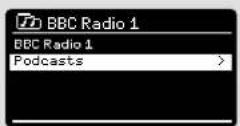
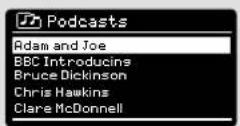
The main difference when searching for a Podcast, is that when you have selected a station, you will then be presented with a list of Shows (or Podcasts) available from that station.
Simply select your choice from the list.
INTERNET RADIO MODE
MY FAVOURITES
It is possible to compile a list (or lists) of your favourite stations, allowing quick and easy access to a number of stations from different countries and genres.
To do this you must first register your radio with the Frontier Silicon Radio Portal. See the INTERNET RADIO PORTAL section on page 23.
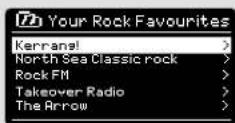
To store a station as a favourite, press and hold the select button until FAVOURITE ADDED appears on the screen. The chosen station will now appear in the default favourites stations list.
To access the MY FAVOURITES list, select STATION LIST, then MY FAVOURITES, followed by STATIONS. You can now scroll through and select any station in the list.
MY ADDED STATIONS
If you have added any of your own stations to the Internet radio station list (via the Frontier Silicon Radio Portal, see page 23), they will be listed here. The MY ADDED STATIONS option can be found under the STATION LIST MENU, in INTERNET RADIO MODE.
BBC
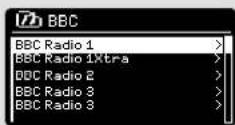
The BBC option is a shortcut to the entire BBC station list. Simply select this option from the STATION LIST MENU, then scroll through and select a station in the normal way.
LAST LISTENED
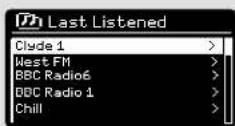
When you enter INTERNET RADIO MODE, the last-listened station is automatically selected. To select another station that you've listened to recently, select LAST LISTENED. A full list will be displayed (the most recent being at the top).

INTERNET RADIO MODE
HELP
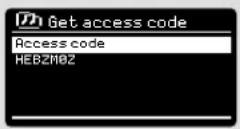
The HELP option can be found in the STATIONS LIST MENU. Under HELP, you will find the ACCESS CODE that you require to register your radio on the Frontier Silicon Radio Portal (see page 23 for full instructions).
A helpful FAQ audio track can also be found under the HELP heading.
LOCAL
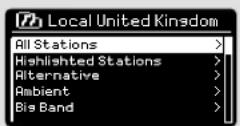
The LOCAL station list can be found under the STATION LIST MENU and will differ depending on which country you are currently located in. For example, if you are based in the UK, this selection will display stations originating from the UNITED KINGDOM. Likewise, if you are using your radio in Germany, this selection will display only stations that are being broadcast from Germany.
Select this option to navigate either all of the available local stations, or alternatively you can search the list by genre.
INTERNET RADIO PORTAL
ACCESSING ADDITIONAL FEATURES
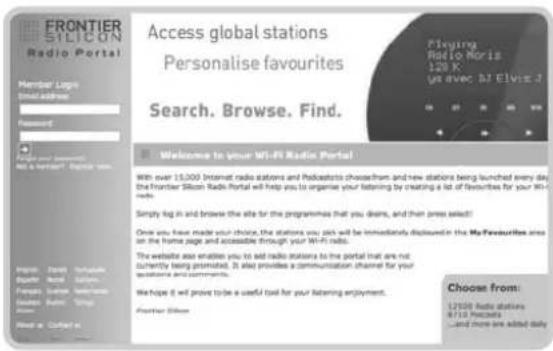
Some of Heritage's more advanced Internet radio features can only be accessed by visiting the Frontier Silicon Radio Portal.
In order to access these features you must first register your radio.
REGISTERING YOUR RADIO
In order to register your radio, you will need your radio's unique access code.
To find the access code, firstly enter INTERNET RADIO MODE, then press MENU. Select STATION LIST, then HELP. Now select GET ACCESS CODE.
Write down the access code.
Now, using your PC or Mac, visit the portal website at - www.wifiradio-frontier.com
Click on the REGISTER HERE link (located on the left hand panel) to begin the registration process.
If you already have an account and wish to add an additional radio, log in to your account and select MY PREFERENCES, then ADD ANOTHER WI-FI RADIO.
When you have registered your radio with the portal, you can immediately take advantage of various additional features and services that it provides.

SETTING UP A MUSIC SERVER
In order for Heritage to be able to play music files from a connected computer, the computer must first be set up for media sharing.
UPnP media sharing allows devices like Heritage to play music from a shared media library, navigating through tag menus such as Artist, Album or Genre.
If you are running a PC with Windows Media Player 11 or later (WMP), or an Apple Mac with OS X 10 or later and a UPnP application installed, you can connect Heritage and stream audio.
NOTE: iTunes does not currently operate as a UPnP media server, but there are a number of third party software add-ons available that will allow you to access your iTunes library.
SHARING MEDIA WITH WINDOWS MEDIA PLAYER
The most common UPnP server is Windows Media Player (version11 or later) although other UPnP platforms and servers may be used.
To set up WMP for media sharing, performs the following steps:
Ensure that your PC and radio are connected to the same network. Heritage will be recognised as 'Heritage' by your PC.
① In WMP, add to the media library the audio files and folders you want to share with Heritage (LIBRARY > ADD TO LIBRARY . . .).
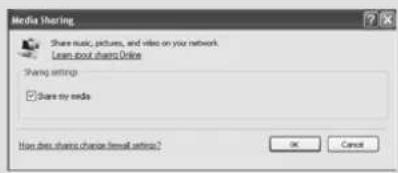
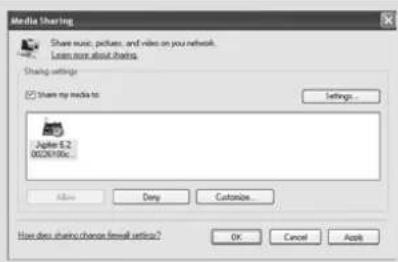
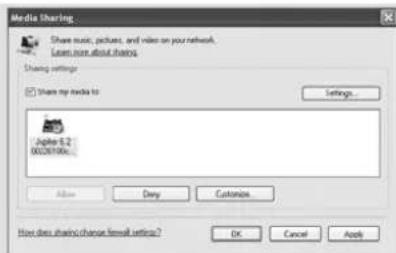
② Make sure that the radio has access to the shared media by selecting it and clicking ALLOW. You can also set a name for the shared media settings.
The PC is now ready to stream music to your radio. The WMP UPnP service runs in the background; there is no need to start WMP explicitly.
SETTING UP A MUSIC SERVER
SHARING MEDIA WITH A MAC
In order to connect Heritage to your Apple Mac, a third party UPnP server application is required. There are a number of applications available to download from the Internet.
One such application is EyeConnect. This is an easy to install media sharing application that enables Heritage to stream audio. EyeConnect can be downloaded from:
http://www.elgato.com

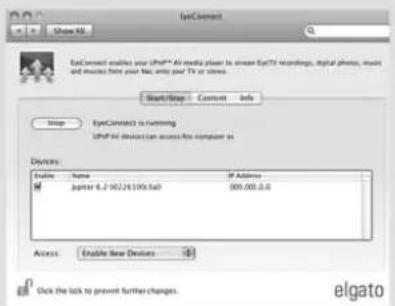
Once Installed, EyeConnect can be found on the System Preference panel. When connecting Heritage, make sure EyeConnect is shown as running on its setup screen.
Heritage will appear as 'Jupiter 6.2' in the EyeConnect list of devices. The ENABLE box must be checked and the ACCESS selection set to ENABLE NEW DEVICES.
Your Mac is now ready to stream music to your radio. EyeConnect will normally run automatically after boot up.

MUSIC PLAYER MODE
PLAYING AUDIO TRACKS IN THE MUSIC PLAYER
MUSIC PLAYER MODE allows you to play audio files such as MP3s, AACs, WMAs or FLACs directly from a computer or music server on your local network.
To enter MUSIC PLAYER MODE, press MODE until the MUSIC PLAYER MODE intro screen is displayed, alternatively press MENU then select MAIN MENU, then MUSIC PLAYER from the menu option list.
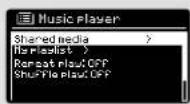
Once in music player mode, press MENU, then select either SHARED MEDIA.
You can navigate your way through the list using the cursor control, using UP and DOWN to scroll through the list, and either Push (SELECT) or RIGHT to advance through folders. When you reach your desired track, a short press of the select button will start the track playing, a long press will add the track to the playlist (see PLAYLISTS on page 28 for more information).
Audio tracks can also be controlled using the 🏠️ 🏠️ 🏠️ buttons mounted on your radio's top panel.
Pressing and holding the ⏻ button will fast-rewind the track your are currently playing, while doing the same with the ⏻ button will fast-forward.

natural_image
Line drawing of a mechanical component with four circular holes and a handle (no text or symbols)MUSIC PLAYER MODE
SHARED MEDIA (From a UPnP Media Server)
In MUSIC PLAYER MODE select SHARED MEDIA. If you have set up shared media (as described on page 24), you should see an entry, for the server you set up, example "SB-Laptop: Audio". If you have more than one computer sharing media, the alternatives are listed. Select the shared media you want to play.
From this point on, the menus are generated from the shared media server (typically Windows Media Player). The first menu shows a list of media types, for example music, video, pictures and playlists. Heritage can only play music and playlists.
There is also a search function, which finds tracks in a similar way to Internet radio search, as described on page 20.
For music there are numerous ways of selecting tracks, including:
Genre | Artist | Album | Composer | Rating
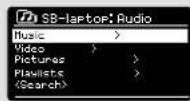
Once you have found a track you want to play, press the select button to select. A short press plays the track immediately, while a long press will add the track to the PLAYLIST.
Note: Tracks played in UPnP mode are SROBBLED to Last.fm, if SCROBBLING is turned on In the Last.fm menu. For more information about SCROBBING, see page 29.
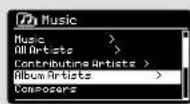
MUSIC PLAYER MODE
PLAYLISTS
Heritage is capable of holding a queue of up to 500 tracks in its playlist. Playlist tracks can be mixed from multiple UPnP servers and USB devices. To manage the playlist, select MY PLAYLIST from the MUSIC PLAYER MENU.
To view the contents of the playlist, scroll through it using the cursor control. To play the playlist from a certain track, give the select button a short press. To delete a track from the playlist, give the select button a long press, then confirm YES to erase.
If you select a track/album/folder for instant playback, without using the playlist feature, the playlist will be preserved and will continue to be stored by your radio until you choose to delete it.
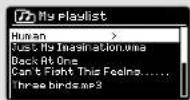
REPEAT/SHUFFLE
You can choose to repeat tracks or play them in random order by selecting REPEAT PLAY or SHUFFLE PLAY from the MUSIC PLAYER MENU.
NOW PLAYING INFORMATION
While a track is playing. Heritage will display the track and artist name (UPnP). There is also a progress bar with displays elapsed and total track time.
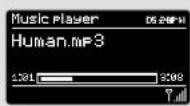
To view further track information, press INFO. Each time you press INFO, another piece of information is displayed as follows:
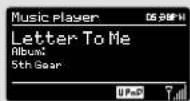
UPnP: Track name/artist, progress bar/track times, album, codec/sampling rate, playback buffer and today's date.
LAST.FM MODE
In addition to its terrestrial and Internet radio capabilities, Heritage is also capable of providing access to online music service Last.fm. Simply choose an artist or genre and let Last.fm build the perfect playlist from its library of 5 million tracks - unique to you, and fresh every time.
If you already subscribe to the service, you can use your existing Last.fm profil le on Heritage, alternatively visit www.last.fm, complete a profil le, then subscribe.
If you have a Trial Subscription Voucher, visit www.last.fm/voucher and follow the on-screen prompts.
ADDING A USER ACCOUNT
To enter LAST.FM MODE, press MODE until the LAST.FM MODE intro screen is displayed, alternatively press MENU then select MAIN MENU, then LAST.FM from the menu list.
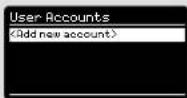
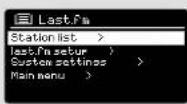
To add an account, select LAST.FM SETUP from the menu, then select USER ACCOUNTS.
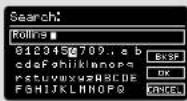
Now select ADD NEW ACCOUNT and enter your LAST.FM user name and password using the on-screen keyboard.
SCROBBLING AND LOVE/BAN TRACKS
To get the most from LAST.FM, you can SCROBBLE all the tracks that you've listened to, in both UPnP and LAST.FM modes (and even those from an iPod or computer media server with the correct software plug-ins). This sends track names to LAST.FM, adding them to your library, and helps the service tailor recommendations (and neighbours) to your musical tastes. You can playback your LAST.FM library by selecting the YOUR LIBRARY station in the LAST.FM MENU.
To turn SCROBBLING ON or OFF, select LAST.FM SETUP, then SCROBBLING, now select ON or OFF.
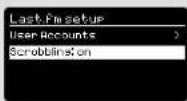
Note: If you intend to let other people use Heritage In LAST.FM MODE, you may want to turn SCROBBLING OFF. Alternatively, you could switch to another account.
LAST.FM MODE
While listening to LAST.FM you can choose to LOVE or BAN tracks (which SCROBBLES them even if SCROBBLING is set to OFF). Telling LAST.FM that you LOVE a track will add that particular track to your YOUR LOVED TRACKS list, allowing playback at a future time. BANNING a track will mean it will never be played again.
To LOVE or BAN a track press the 🔒 button and use the cursor to select either LOVE or BAN.
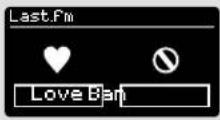
The 🔒 button can be found on the top face of your radio, or alternatively on the remote control. When listening to LAST.FM you can choose to SKIP a track by pressing the 🔒 button. It is not possible to PAUSE a track in LAST.FM.
Note: You can edit your library and track ratings by visiting the LAST.FM website.
PLAYING MUSIC
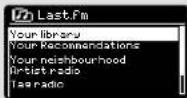
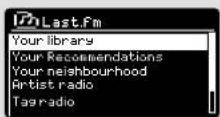
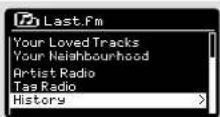
There are several types of streams, or 'radio stations' available in LAST.FM. To choose one, select STATION LIST from the LAST.FM MODE menu. If you are new to LAST.FM, we recommend that you perhaps start off with ARTIST or TAG RADIO, to allow you to be fully comfortable with the basic features of the service.
The following options are available:
YOUR LIBRARY
Plays all the tracks SCROBBLED to your profile, or tracks by artists you've added to your library. Can be edited on the LAST.FM website.
YOUR RECOMMENDATIONS
Plays tracks recommended to you based on your music profile and that of other listeners with similar tastes.
YOUR LOVED TRACKS
Plays tracks you have rated as LOVED.
YOUR NEIGHBOURHOOD
Plays tracks from the libraries of people on LAST.FM with similar music tastes to yours.
LAST.FM MODE
PLAYING MUSIC (continued)
ARTIST RADIO
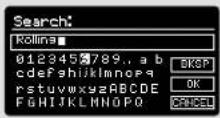
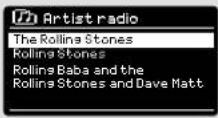
Plays a selection of tracks by a certain artist, together with tracks by artists that have a similar musical style. Pick an artist by entering their name or part of their name (you don't have to enter the full name, so for example to find ROLLING STONES you can just enter ROLLING), then pick the artist from the list of search results and select OK.
TAG RADIO
Plays a selection of tracks tagged with certain keywords. Pick a tag word/genre by entering a word or phrase (Its advisable to be as specific as possible, for example BOLLYWOOD rather than BOLLY, because tags are user-generated, so there tends to be many spurious tags connected to only a few tracks, which may then give an insufficient content error). Pick a tag from the list of search results and select OK.
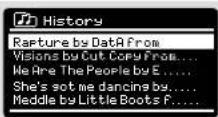
HISTORY
Lists the tracks you have listened to recently, with the most recent track listed first. It is not possible to select a track from this list and listen to it again on demand.
ON-SCREEN INFORMATION
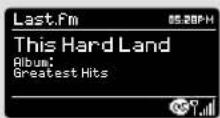
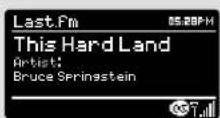
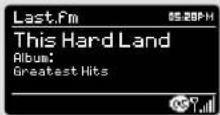
While LAST.FM is playing, the screen will display the track name and progress bar, with figures for elapsed and total track time. A LAST.FM icon is shown at the bottom of the screen to signify that you are in LAST.FM MODE.
During track playback, pressing the INFO button will allow you to cycle though other pieces of information such as artist, album, track name, radio name, codec/sampling rate, playback buffer and today's date.
ALARM CLOCK
SETTING AN ALARM
Heritage is able to store two Individual alarm settings. To set or change an alarm, either press the MENU button, or select MENU, then MAIN MENU, then ALARM. Select which of the ALARM SETTINGS (Alarm 1 or Alarm 2) you would like to modify or enable.
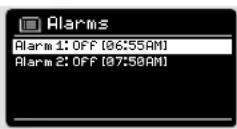
Using the cursor control, scroll through the options below, setting your preferences.
- Enable: on/off
• Frequency: Daily, Once, Weekends or Weekdays.
• Time
• Mode: Buzzer, Internet Radio, DAB, FM or iPod or Last.fm - Preset: Last listened or favourite station preset 1-10
• Volume: 0 - 20
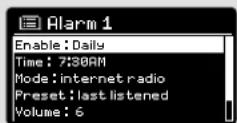
When your preferences have been set, remember to select SAVE.
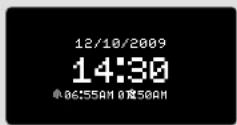
Heritage shows any active alarms by displaying an icon at the bottom of its screen.
When in STANDBY MODE, by simply pressing the ALARM button, you can turn any alarms held in memory ON or OFF. Pressing ALARM will cycle through ALARM 1 and ALARM 2 settings, enabling, and disabling them. If the ALARM icons are displayed, the alarm is enabled. If no alarm icon is shown, the alarms are switched off.
STOPPING AN ALARM
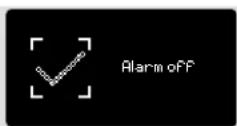
When an alarm is sounding, pressing any one of Heritage's buttons will STOP the alarm.
When the alarm has been cancelled, an ALARM OFF message will be displayed on Heritage's screen.
ALARM CLOCK
SLEEP MODE
By using the SLEEP function, you can set Heritage to automatically switch itself into STANDBY mode. The SLEEP mode can be engaged in one of two ways:
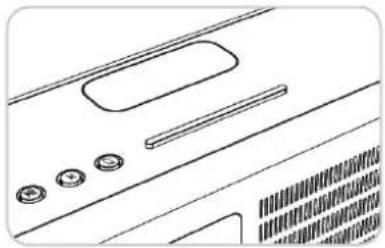
The quickest method is via the SNOOZE BAR. Simply tap the SNOOZE BAR to cycle through a range of pre-set SLEEP durations, from SLEEP OFF, through 15, 30, 45 and 60 minutes.
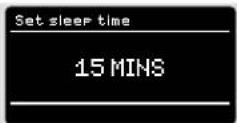
Alternatively, press MENU then select MAIN MENU, then SLEEP. You can now set the SLEEP timer to any one of the following pre-sets.
When you have selected a sleep duration, Heritage will return to the MAIN MENU.
Press MENU to return to the NOW PLAYING screen.
natural_image
Line drawing of a computer monitor with buttons and ventilation grilles (no text or symbols)SNOOZE FUNCTION
Heritage includes a SNOOZE feature and incorporates a dedicated SNOOZE BAR, found on the top face of the radio. SNOOZE allows you to temporarily silence the alarm for a period of up to 30 minutes.
The SNOOZE duration can only be set when your radio is actually in the process of alarming. At this point, simply tap the SNOOZE BAR to cycle through a range of pre-set SNOOZE durations, either 5, 10, 15 or 30 minutes.
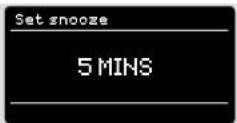
When SNOOZE is activated, Heritage will return to standby for the set period with the Icon of the SNOOZED alarm shown on-screen.
SYSTEM SETTINGS
EQUALISER
Heritage provides the user with a significant degree of control over its standard (factory default) audio settings. This includes control over BASS and TREBLE, LOUDNESS and the ability to use one of a number of preset EQ settings. It is also possible to create your own personalised EQ setting - known as "My EQ".
To adjust the audio settings, press MENU then select MAIN MENU, followed by SYSTEM SETTINGS. Now select EQUALISER from the menu.
Heritage will display a list of nine EQ options as follows: Normal, Flat, Jazz, Rock, Movie, Classic, Pop, News and My EQ.
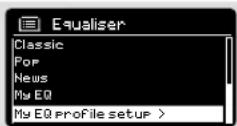
Simply select your preference from the list by highlighting your option and pressing the select button. Heritage will now store this setting in its memory. For reference, the current EQ settling is highlighted by an asterisk (*) in the EQ list.
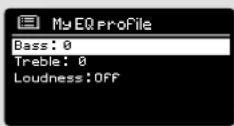
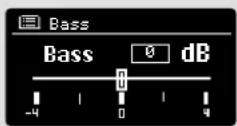
To configure your own personal EQ setting, select MY EQ PROFILE SETUP from the EQUALISER menu. Now adjust the BASS and TREBLE levels, decide whether you would like the LOUDNESS function OFF or ON - before selecting SAVE. Your personalised EQ setting can now be selected by choosing MY EQ from the EQUALISER menu.
SYSTEM SETTINGS
NETWORK
The NETWORK MENU can be found under SYSTEM SETTINGS in the MAIN MENU and includes an entry for the INTERNET WIZARD, which will assist you in setting up your radio's Internet connection.
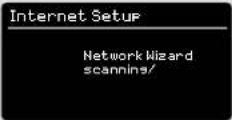
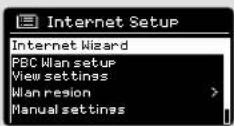
For the more experienced user, a variety of manual settings can also be accessed from here, as follows:
INTERNET WIZARD :
Simplifi es the setup of your radio's Internet connection by taking you through step-by-step Instructions.
PBC WLAN SETUP :
Used to pair your radio with a router that uses WPS security.
VIEW SETTINGS :
View the MAC address, Wlan region, etc.
WLAN REGION :
Where you are using your radio - Europe, USA etc.
MANUAL SETTINGS :
Detailed control of Wired and Wireless connections.
NETWORK PROFILE :
Shows the names of the last four wireless networks Heritage has been connected to.
NOTE: Heritage remembers the last four wireless networks it has connected to, and automatically tries to connect to whichever one of them it can find. It's possible however to delete unwanted networks, simply select SYSTEM SETTINGS, then NETWORK, then NETWORK PROFILE. Now select the network profile you'd like to delete by selecting and confirming delete YES.

SYSTEM SETTINGS
TIME / DATE
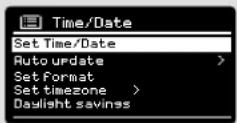
Found in the SYSTEM SETTINGS menu, this menu offers you the option of changing a number of time/date related settings. The TIME/DATE menu has three listings as follows:
SET TIME / DATE : Allows you to manually set the time/date.
AUTO UPDATE : Choose from three different automatic setting options.
SET FORMAT : Choose whether you would like to use 12hr or 24hr formats.
Update from DAB :
Automatically takes time/date from DAB signal. Heritage needs to have been operated in DAB MODE (and have received a signal) before this information can be extracted.
Update from FM :
Sets time/date from FM broadcast. Like DAB, Heritage needs to have been operated in FM MODE, and have received RDS information before time/date information can be extracted.
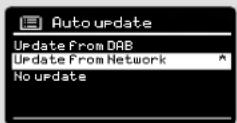
Update from Network :
Takes time/date from your Internet connection.
BRIGHTNESS
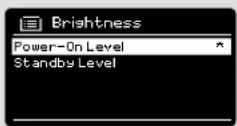
Heritage allows a degree of control over the brightness of its OLED display, meaning that both its STANDBY and POWER ON brightness levels can be independently set to either HIGH, MEDIUM or LOW brightness levels.
To change the brightness settings, press MENU then select MAIN
MENU, followed by SYSTEM SETTINGS. Now select BRIGHTNESS from the menu list. You will now be able to modify the default brightness level settings for the two modes of operation - STANDBY and POWER ON.
Select the mode you'd like to change from these two options, then choose your desired brightness level. Your chosen settings will be held in memory indefinitely, but can be changed at any time.
SYSTEM SETTINGS
LANGUAGE
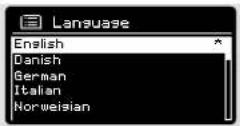
The default language on your radio is English, though 12 other languages are supported as follows:
Danish Dutch Finnish French German Italian Norwegian Polish Portuguese Spanish Swedish Turkish
To change the current language setting, select SYSTEM SETTINGS from the MAIN MENU, then LANGUAGE, then select your choice.
FACTORY RESET
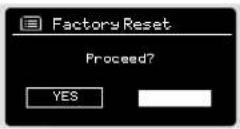
By selecting FACTORY RESET from the SYSTEM SETTINGS menu, you can reset Heritage to its default factory values, erasing any personal settings that may have been conti gured (time/date, network configuration and presets will be erased). However, Heritage's current software version is maintained, as is its registration with the internet radio portal. Internet radio favourites are therefore retained, unless you re-register your radio with another account on the portal.
To perform a factory reset, press MENU then select MAIN MENU, followed by SYSTEM SETTINGS, then FACTORY RESET. Now answer YES.
SOFTWARE UPDATES
From time to time we will make software updates available for your radio. These are necessary for general maintenance reasons, as well as for adding additional functionality to your radio. Software updates are carried out 'over-the-air', via your broadband connection.
Heritage will to check for software updates each time it is switched on, and if an update is available, will ask you to confirm that you'd like to go ahead and commence the download.
Please note that after a software upgrade, all user settings are maintained.

SYSTEM SETTINGS
SOFTWARE UPDATES (Continued)
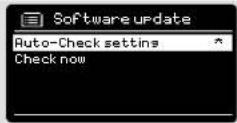
If you'd prefer to manually check for software updates, press MENU then select MAIN MENU. Now choose SYSTEM SETTINGS, then SOFTWARE UPDATES. Select AUTO-CHECK SETTING then choose NO when prompted.
To manually check for updates, select CHECK NOW from the SOFTWARE UPDATES menu.
CAUTION: Before commencing a software upgrade, ensure that Heritage is plugged into a stable mains power connection. Disconnecting power during a software update may permanently damage your radio.
SETUP WIZARD
The SETUP WIZARD simplifies the set-up of both time/date and internet settings, by running through a series of questions.
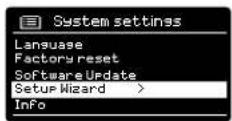
To access the SETUP WIZARD, press MENU then select MAIN MENU, followed by SYSTEM SETTINGS. Now select SETUP WIZARD from the menu list.
INFO
When dealing with a technical support issue, you may be asked for the SOFTWARE VERSION or RADIO ID number. Both these pieces of information can be found under the INFO heading. In the SYSTEM SETTINGS menu.
Press MENU then select MAIN MENU, followed by SETTINGS, then INFO.

TROUBLESHOOTING
| PROBLEM CAUSE SOLUTIONS | ||
| FM: HISS | Low signal strength. Check/move antenna. | |
| DAB: Burbling/Intermittent | Move radio to another location.Rescan local (high-strength)stations only. | |
| Cut-Out | For DAB, check local coverage at www.ukdigitalradio.com/coverage | |
| DAB: 'No stations available' Low signal strength. As above, then rescan stations. | ||
| Cannot connect to network Network down. Check that network is working between computer and the router. | ||
| Router restricts access to listed MAC addresses. | Obtain the Heritage MAC address fromMENU> SYSTEM SETTINGS > NETWORK > VIEW SETTINGS and add to router listNOTE: Heritage has separate MAC addresses for wired and wireless networks; only the current net-work adaptor method address is displayed, but the other address can be obtained by changing the first pair of digits between '00' (wireless) and '02' (wired) | |
| Insuffi client WI-FI signal strength. Check distance to router. | See if a computer can connect to the network in this location. | |
| Unknown encryption method. Change encryption method on router. Heritage supports WEP, WPA and WPA2. | ||
| Unusual network configuration. Setup network manually through MENU > SYSTEM SETTINGS > NETWORK > MANUAL SETTINGS | ||
| Firewall preventing access. Check the following ports are open on the router:UDP and TCP ports 80 and 123DNS port 53Windows shares: ports 135 - 139 and 445Windows media player: varies - Non-Microsoft fi rewalls may require configuration for UPnP. | ||

TROUBLESHOOTING
| PROBLEM CAUSE SOLUTIONS | ||
| Cannot connect to Internet Internet | connection down Check that the Internet is working for a computer connected to the same network. | |
| Firewall preventing access Check the following ports are open:UDP and TCP ports 80 and 123DNS port 53.Some Internet radio stations may require additional ports to be opened. | ||
| Cannot play particular Internet radio station | Station not broadcastingOverloaded or insufficient bandwidth.Station broadcasting using unknown codec.Link out of date. | Try other stations.Try listening on computer via Internet radio portal website.Try later. |
| Cannot play Last.fm 'Unauthorized' | message Account details wrong. | Account details not entered.Region not supported.(Last.fm is currently restricted to particular regions e.g. US/UK)due to licensing issues. |
| Last.fm: Insufficient content to play | There are not enough tracks available and licensed to play for the particular artist or tag radio station you have. | Select a different radio station. |
ERROR MESSAGES
| MESSAGE DESCRIPTION EXAMPLE | ||
| Failed to connect Correct key entered, but router rejects request. | MAC fi ltering enabled on router. | |
| Format error Cannot recognise fi le format - independent of network. | Received .wma, but found that the stream wasn't WMA when trying to decode. | |
| Network error Problem past router - Incorrect data being received from network. | Data obtained from server is unreadable. | |
| Network timeout Problem past router - no response being received from network. | Streaming IR station and suddenly station becomes unavailable. | |
| No UPnP media found No UPnP servers found. | ||
| Service not available (DAB) No DAB reception. | ||
| Unauthorised Access not grated by UPnP server. Allow access for Heritage in UPnP server settings. | ||
| Update failed Software upgrade failed. | ||
| Network not ready | problem with connection to router. | Router switched off. |


NOTES

REVO
TECHNICAL SUPPORT
TEL - +44 (0) 1555 666161
E-MAIL - support@revo.co.uk
WEB - www.revo.co.uk/support
Made for
iPod iPhone
"Made for iPod", and "Made for iPhone", means that an electronic accessory has been designed to connect specifically to iPod or iPhone, respectively, and has been certified by the developer to meet Apple performance standards.
REVO
Version 2.0
heritage
DELUXE TISCHRADIO
DAB | DAB+ | FM | Internet Radio | Audio Streaming
Made for
iPod iPhone

Bedienungsanleitung

TECHNISCHE HILFE
Revo Technologies Ltd
The Inox Building, Caldwellside, Lanark,
Scotland, United Kingdom, ML11 7SR
Tel: 01555 66 61 61 Int. Tel: +44 1555 66 61 61
Fax: 01555 66 33 44 Int. Fax: +44 1555 66 33 44
STROMZUFUHR (PSU)
natural_image
Technical line drawing showing two mechanical assembly steps with hands operating a component (no text or symbols present)AUFBAU
natural_image
Line drawing of a device with an attached cable and a separate monitor connected to its right (no text or symbols)natural_image
Diagram of a computer monitor with a screwdriver inserted, showing no text or symbolsnatural_image
Illustration of a computer front panel with buttons and a button, no text or symbols presentBEDIENEN IHRES HERITAGE RADIOS
natural_image
Diagram of a device with a labeled lever and buttons, no readable text or symbols present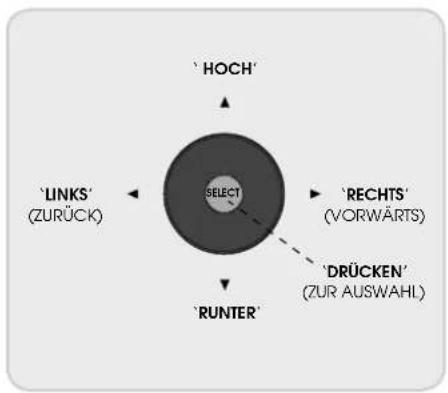
flowchart
graph TD
    A["SELECT"] --> B["'HOCH'"]
    A --> C["'LINKS' (ZURÜCK)"]
    A --> D["'RUNTER'"]
    A --> E["'RECHTS' (VORWÄRTS)"]
    A --> F["'DRÜCKEN' (ZUR AUSWAHL)"]
MODUSMENÜS
Adaptor No. iPod Model
9 iPod classic 80GB
10 iPod classic 120GB
12 iPhone
13 iPod nano (3rd generation)
15 iPhone 3G
16 iPod touch (2nd and 3rd generation)
17 iPod nano (4th generation)
18 iPod nano (5th generation)
19 iPhone 4
20 iPod touch (4th generation)
natural_image
Line drawing of a device casing with internal compartments and slots, labeled with number 1 (no text or symbols on the diagram itself)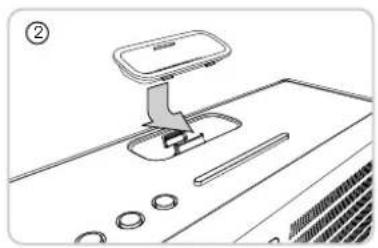
natural_image
Line drawing of a mechanical device with a handle and circular components (no text or symbols)DEN iPod MODUS BETRETEN
iPod MODUS
KONTROLLE UND WIEDERGABE
To choose a station, select STATION LIST from the INTERNET RADIO MENU, then select STATIONS using the cursor control.
MUSIKABSPIELMODUS
natural_image
Line drawing of a device panel with four circular buttons on the lid (no text or symbols)MUSIKABSPIELMODUS
SHARED MEDIA (VON EINEM UPnP MEDIASERVER)
natural_image
Line drawing of a computer monitor with buttons and ventilation grilles (no text or symbols)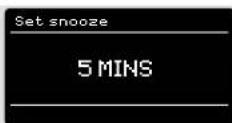
SYSTEMEINSTELLUNGEN
EQUALIZER
E-MAIL - support@revo.co.uk
WEB - www.revo.co.uk/support
Made for
iPod iPhone
REVO
Version 2.0
heritage
RADIO DA TAVOLO DELUXE
Con docking station per iPod e iPhone
DAB | DAB+ | FM | Internet Radio | Audio Streaming
Made for
iPod iPhone

Revo Technologies Ltd
The Inox Building, Caldwellside, Lanark,
Scotland, United Kingdom, ML11 7SR
Tel: 01555 66 61 61 Int. Tel: +44 1555 66 61 61
Fax: 01555 66 33 44 Int. Fax: +44 1555 66 33 44
Email: enquiries@revo.co.uk Website: www.revo.co.uk
DISCLAIMER
ALIMENTATORE (PSU)
natural_image
Line drawing of two hands using a tool to adjust or install a mechanical component (no text or symbols present)SET-UP
natural_image
Line drawing of a device with ports and cables, no text or symbols present② Estrarre completamente l'antenna per DAB o FM
natural_image
Diagram of a computer monitor with a screwdriver inserted, showing no text or symbolsnatural_image
Illustration of a computer front panel with buttons and a circular button, no text or symbols presentCONTROLLO HERITAGE
Adaptor No. iPod Model
9 iPod classic 80GB
10 iPod classic 120GB
12 iPhone
13 iPod nano (3rd generation)
15 iPhone 3G
16 iPod touch (2nd and 3rd generation)
17 iPod nano (4th generation)
18 iPod nano (5th generation)
19 iPhone 4
20 iPod touch (4th generation)

natural_image
Line drawing of a device casing with internal components and mounting holes (no text or symbols)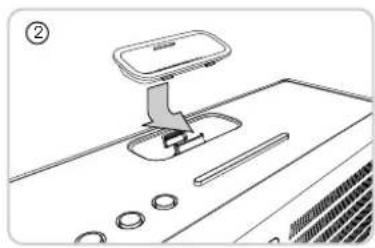
natural_image
Line drawing of a mechanical device with a lever and adjustment knob (no text or symbols)ENTRARE IN MODALITA' iPod
MODALITA' iPod
PREDISPORRE UN SERVER MUSICALE
IMPOSTARE UN SERVER MUSICALE
CONDIVIDERE CON UN MAC
MODALITA' MUSIC PLAYER
ESEGUIRE TRACCE AUDIO NEL LETTORE MUSICALE
natural_image
Line drawing of a door handle with four circular buttons on the front panel (no text or symbols)MODALITA' MUSIC PLAYER
MATERIALE CONDIVISO (Da un Media Server UPnP)
natural_image
Line drawing of a computer monitor with buttons and ventilation grilles (no text or symbols)FUNZIONE SNOOZE
E-MAIL - support@revo.co.uk
WEB - www.revo.co.uk/support
Made for
iPod iPhone
REVO
Version 2.0
heritage
DAB | DAB+ | FM | Internet Radio | Audio Streaming
Made for
iPod iPhone

Manuale dell'utente
SUPPORT TECHNIQUE
Revo Technologies Ltd
The Inox Building, Caldwellside, Lanark,

ALIMENTATION ÉLECTRIQUE
natural_image
Line drawing of a device with ports and cables, no text or symbols presentnatural_image
Diagram of a computer monitor with a screwdriver inserted, showing no text or symbolsnatural_image
Illustration of a computer front panel with buttons and a button, no text or symbols presentCONTROLE D'HÉRITAGE
natural_image
Diagram of a computer monitor with a cursor pointing to the right side (no text or symbols on the device itself)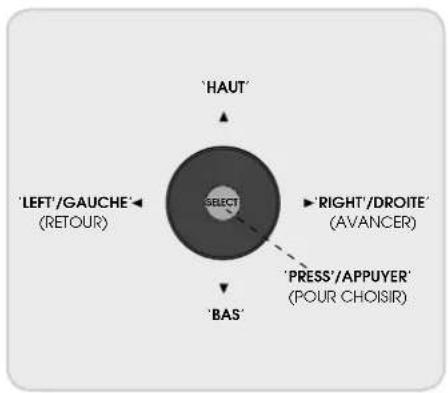
flowchart
graph TD
    A["'HAUT'"] --> B["SELECT"]
    C["'RIGHT'/DROITE'"] --> B
    D["'PRESS'/APPUYER'"] --> B
    E["'BAS'"] --> B
    F["'LEFT'/GAUCHE'"] --> B
    G["'AVANCER'"] -.-> B
    H["RETOUR"] --> B
MODE MENUS
Adaptor No. iPod Model
9 iPod classic 80GB
10 iPod classic 120GB
12 iPhone
13 iPod nano (3rd generation)
15 iPhone 3G
16 iPod touch (2nd and 3rd generation)
17 iPod nano (4th generation)
18 iPod nano (5th generation)
19 iPhone 4
20 iPod touch (4th generation)
natural_image
Line drawing of a device casing with internal compartments and buttons, labeled with number 1 (no text or symbols on the diagram itself)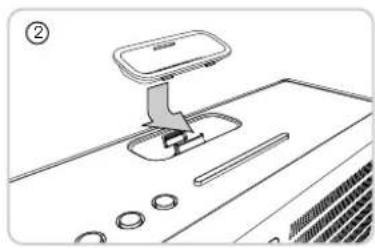
natural_image
Line drawing of a mechanical device with a lever and adjustment knob (no text or symbols)Accès au mode iPod
MODE iPod
CONTROLE ET PLAYBACK
INSTALLER UN SERVEUR MUSICAL
INSTALLER UN SERVEUR MUSICAL
PARTAGER DES MEDIA AVEC UN MAC
MODE LECTEUR DE MUSIQUE
LECTURE DE PLAGES AUDIO DANS LE LECTEUR AUDIO
natural_image
Line drawing of a mechanical component with four circular holes and a handle (no text or symbols)MODE LECTEUR DE MUSIQUE
INFORMATIONS SUR ECRAN
natural_image
Line drawing of a computer monitor with buttons and ventilation slots (no text or symbols)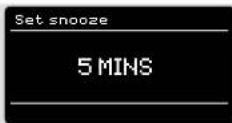
PBC WLAN SETUP (Installation WLAN PBC) :
MISES A JOUR DU LOGICIEL
MISES A JOUR DU LOGICIEL (suite)
E-MAIL - support@revo.co.uk
WEB - www.revo.co.uk/support
Made for

d iPhone
"Made for iPod" and "Made for iPhone" means that an electronic accessory has been designed to connect specifically to iPod or iPhone and has been certified by the developer to meet Apple performance standards.


- ENVIRONMENTAL INFO
- PRODUCT DISPOSAL INSTRUCTIONS (WEEE DIRECTIVE)
- RoHS COMPLIANT & CE MARK
- SAFETY WARNINGS
- WARRANTY
- COPYRIGHTS AND ACKNOWLEDGEMENTS
- DISCLAIMER
- WELCOME
- HERITAGE OVERVIEW
- UNPACKING HERITAGE
- REMOTE CONTROL
- BATTERY REPLACEMENT
- POWER SUPPLY (PSU)
- SET-UP
- CONTROLLING HERITAGE
- CURSOR CONTROL
- MENU BUTTON
- MODE BUTTON
- MENU STRUCTURE EXPLAINED
- MAIN MENU
- MODE MENUS
- DAB RADIO MODE
- SELECTING A STATION
- FAVOURITE STATION PRESETS
- DAB MODE MENU OPTIONS
- STATION INFO
- DYNAMIC RANGE COMPRESSION (DRC)
- STATION ORDER
- STATION ORDER DESCRIPTION
- FM RADIO MODE
- FM OPERATION
- FM SETTINGS
- AUX IN MODE
- iPod MODE
- FITTING A DOCK ADAPTOR
- Adaptor No. iPod Model
- ENTERING iPod MODE
- CONTROL AND PLAYBACK
- VIDEO
- NOW PLAYING INFO
- INTERNET SETUP
- USING THE INTERNET RADIO SETUP WIZARD
- WIRED CONNECTIONS
- INTERNET RADIO MODE
- GETTING STARTED
- CHOOSING A STATION
- CHOOSING A STATION (Continued)
- SEARCH
- CHOOSING A PODCAST
- MY FAVOURITES
- MY ADDED STATIONS
- BBC
- LAST LISTENED
- HELP
- LOCAL
- INTERNET RADIO PORTAL
- ACCESSING ADDITIONAL FEATURES
- REGISTERING YOUR RADIO
- SETTING UP A MUSIC SERVER
- SHARING MEDIA WITH WINDOWS MEDIA PLAYER
- SHARING MEDIA WITH A MAC
- MUSIC PLAYER MODE
- PLAYING AUDIO TRACKS IN THE MUSIC PLAYER
- SHARED MEDIA (From a UPnP Media Server)
- PLAYLISTS
- REPEAT/SHUFFLE
- NOW PLAYING INFORMATION
- LAST.FM MODE
- ADDING A USER ACCOUNT
- SCROBBLING AND LOVE/BAN TRACKS
- PLAYING MUSIC
- YOUR LIBRARY
- YOUR RECOMMENDATIONS
- YOUR LOVED TRACKS
- YOUR NEIGHBOURHOOD
- ON-SCREEN INFORMATION
- ALARM CLOCK
- SETTING AN ALARM
- STOPPING AN ALARM
- SLEEP MODE
- SNOOZE FUNCTION
- SYSTEM SETTINGS
- EQUALISER
- NETWORK
- INTERNET WIZARD :
- PBC WLAN SETUP :
- VIEW SETTINGS :
- WLAN REGION :
- MANUAL SETTINGS :
- NETWORK PROFILE :
- TIME / DATE
- BRIGHTNESS
- LANGUAGE
- FACTORY RESET
- SOFTWARE UPDATES
- SOFTWARE UPDATES (Continued)
- SETUP WIZARD
- INFO
- heritage
- TECHNISCHE HILFE
- STROMZUFUHR (PSU)
- AUFBAU
- BEDIENEN IHRES HERITAGE RADIOS
- MODUSMENÜS
- DEN iPod MODUS BETRETEN
- iPod MODUS
- KONTROLLE UND WIEDERGABE
- MUSIKABSPIELMODUS
- SHARED MEDIA (VON EINEM UPnP MEDIASERVER)
- SYSTEMEINSTELLUNGEN
- EQUALIZER
- ALIMENTATORE (PSU)
- CONTROLLO HERITAGE
- ENTRARE IN MODALITA' iPod
- MODALITA' iPod
- PREDISPORRE UN SERVER MUSICALE
- IMPOSTARE UN SERVER MUSICALE
- MODALITA' MUSIC PLAYER
- ESEGUIRE TRACCE AUDIO NEL LETTORE MUSICALE
- MATERIALE CONDIVISO (Da un Media Server UPnP)
- FUNZIONE SNOOZE
- SUPPORT TECHNIQUE
- ALIMENTATION ÉLECTRIQUE
- CONTROLE D'HÉRITAGE
- Accès au mode iPod
- MODE iPod
- CONTROLE ET PLAYBACK
- INSTALLER UN SERVEUR MUSICAL
- PARTAGER DES MEDIA AVEC UN MAC
- MODE LECTEUR DE MUSIQUE
- LECTURE DE PLAGES AUDIO DANS LE LECTEUR AUDIO
- INFORMATIONS SUR ECRAN
- MISES A JOUR DU LOGICIEL
Brand : REVO
Model : Heritage G2
Category : Radio