CRH700B - Receiver TEAC - Free user manual and instructions
Find the device manual for free CRH700B TEAC in PDF.



User questions about CRH700B TEAC
0 question about this device. Answer the ones you know or ask your own.
Ask a new question about this device
Download the instructions for your Receiver in PDF format for free! Find your manual CRH700B - TEAC and take your electronic device back in hand. On this page are published all the documents necessary for the use of your device. CRH700B by TEAC.
USER MANUAL CRH700B TEAC
AM/FM Stereo CD Receiver
OWNER'S MANUAL
MODE D'EMPLOI
MANUAL DEL USUARIO
BEDIENUNGSANLEITUNG
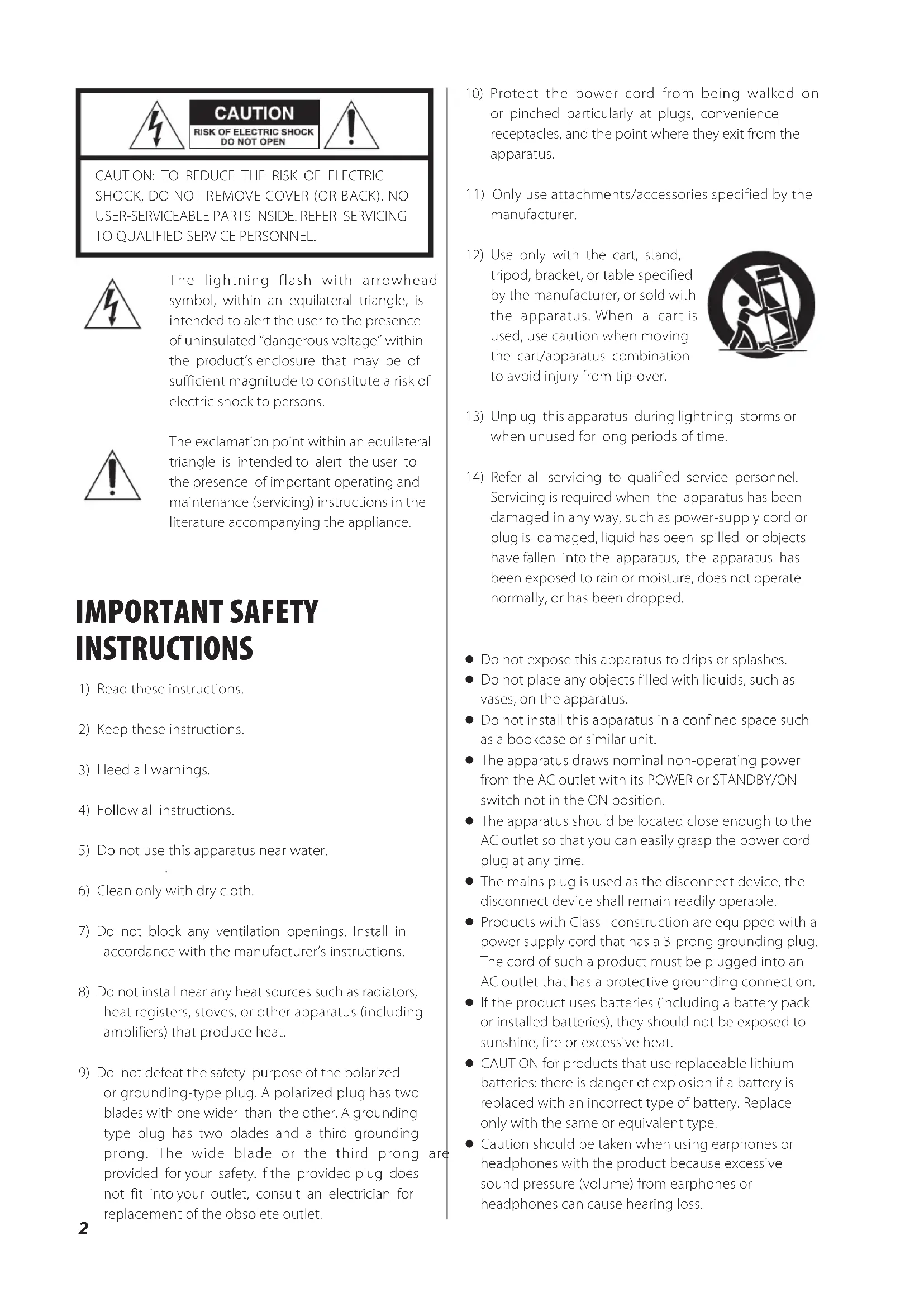
The lightning flash with arrowhead symbol, within an equilateral triangle, is intended to alert the user to the presence of uninsulated "dangerous voltage" within the product's enclosure that may be of sufficient magnitude to constitute a risk of electric shock to persons.

The exclamation point within an equilateral triangle is intended to alert the user to the presence of important operating and maintenance (servicing) instructions in the literature accompanying the appliance.
IMPORTANT SAFETY INSTRUCTIONS
1) Read these instructions.
2) Keep these instructions.
3) Heed all warnings.
4) Follow all instructions.
5) Do not use this apparatus near water.
6) Clean only with dry cloth.
7) Do not block any ventilation openings. Install in accordance with the manufacturer's instructions.
8) Do not install near any heat sources such as radiators, heat registers, stoves, or other apparatus (including amplifiers) that produce heat.
9) Do not defeat the safety purpose of the polarized or grounding-type plug. A polarized plug has two blades with one wider than the other. A grounding type plug has two blades and a third grounding prong. The wide blade or the third prong are provided for your safety. If the provided plug does not fit into your outlet, consult an electrician for replacement of the obsolete outlet.
10) Protect the power cord from being walked on or pinched particularly at plugs, convenience receptacles, and the point where they exit from the apparatus.
11) Only use attachments/accessories specified by the manufacturer.
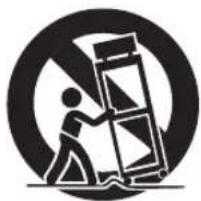
12) Use only with the cart, stand, tripod, bracket, or table specified by the manufacturer, or sold with the apparatus. When a cart is used, use caution when moving the cart/apparatus combination to avoid injury from tip-over.
natural_image
Symbolic icon of a person lifting a ladder inside a circle (no text or symbols)13) Unplug this apparatus during lightning storms or when unused for long periods of time.
14) Refer all servicing to qualified service personnel. Servicing is required when the apparatus has been damaged in any way, such as power-supply cord or plug is damaged, liquid has been spilled or objects have fallen into the apparatus, the apparatus has been exposed to rain or moisture, does not operate normally, or has been dropped.
- Do not expose this apparatus to drips or splashes.
- Do not place any objects filled with liquids, such as vases, on the apparatus.
- Do not install this apparatus in a confined space such as a bookcase or similar unit.
● The apparatus draws nominal non-operating power from the AC outlet with its POWER or STANDBY/ON switch not in the ON position. - The apparatus should be located close enough to the AC outlet so that you can easily grasp the power cord plug at any time.
- The mains plug is used as the disconnect device, the disconnect device shall remain readily operable.
- Products with Class I construction are equipped with a power supply cord that has a 3-prong grounding plug. The cord of such a product must be plugged into an AC outlet that has a protective grounding connection.
- If the product uses batteries (including a battery pack or installed batteries), they should not be exposed to sunshine, fire or excessive heat.
- CAUTION for products that use replaceable lithium batteries: there is danger of explosion if a battery is replaced with an incorrect type of battery. Replace only with the same or equivalent type.
- Caution should be taken when using earphones or headphones with the product because excessive sound pressure (volume) from earphones or headphones can cause hearing loss.
WARNING: TO PREVENT FIRE OR SHOCK HAZARD, DO NOT EXPOSE THIS APPLIANCE TO RAIN OR MOISTURE.
CAUTION
- DO NOT REMOVE THE EXTERNAL CASES OR CABINETS TO EXPOSE THE ELECTRONICS. NO USER SERVICEABLE PARTS ARE WITHIN!
- IF YOU ARE EXPERIENCING PROBLEMS WITH THIS PRODUCT, CONTACT TEAC FOR A SERVICE REFERRAL. DO NOT USE THE PRODUCT UNTIL IT HAS BEEN REPAIRED.
- USE OF CONTROLS OR ADJUSTMENTS OR PERFORMANCE OF PROCEDURES OTHER THAN THOSE SPECIFIED HEREIN MAY RESULT IN HAZARDOUS RADIATION EXPOSURE.
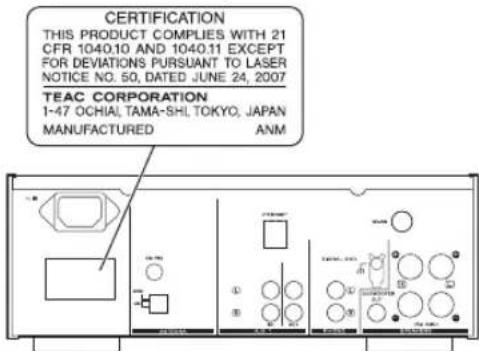
This product has been designed and manufactured according to FDA regulations "title 21, CFR, chapter 1, subchapter J, based on the Radiation Control for Health and Safety Act of 1968", and is classified as class 1 laser product. There is not hazardous invisible laser radiation during operation because invisible laser radiation emitted inside of this product is completely confined in the protective housings.
The label required in this regulation is shown as follows.
text_image
CERTIFICATION THIS PRODUCT COMPLIES WITH 21 CFR 1040.10 AND 1040.11 EXCEPT FOR DEVIATIONS PURSUANT TO LASER NOTICE NO. 50, DATED JUNE 24, 2007 TEAC CORPORATION 1-47 OCHIAI, TAMA-SHI, TOKYO, JAPAN MANUFACTURED ANMOptical pickup :
Type : SF-P101VF Manufacturer : Sanyo Electric Co., Ltd Laser output : Less than 1mW on the objective lens Wavelength : 790±25nm
MPEG Layer-3 audio coding technology licensed from Fraunhofer IIS and Thomson.
Supply of this product does not convey a license nor imply any right to distribute MPEG Layer-3 compliant content created with this product in revenue-generating broadcast systems (terrestrial, satellite, cable and/or other distribution channels), streaming applications (via Internet, intranets and/or other networks), other content distribution systems (pay-audio or audio-on-demand applications and the like) or on physical media (compact discs, digital versatile discs, semiconductor chips, hard drives, memory cards and the like). An independent license for such use is required. For details, please visit http://mp3licensing.com.
This product is protected by certain intellectual property rights of Microsoft. Use or distribution of such technology outside of this product is prohibited without a license from Microsoft.
Windows, Windows Vista, Windows 7 and Windows Media are either registered trademarks or trademarks of Microsoft Corporation in the United States and/or other countries.
"Made for iPod," "Made for iPhone," and "Made for iPad" mean that an electronic accessory has been designed to connect specifically to iPod, iPhone, or iPad, respectively, and has been certified by the developer to meet Apple performance standards.
Apple is not responsible for the operation of this device or its compliance with safety and regulatory standards.
Please note that the use of this accessory with iPod, iPhone, or iPad may affect wireless performance.
Apple, AirPlay, the AirPlay logo, iPad, iPhone, iPod, iPod classic, iPod nano, iPod shuffle, iPod Touch, and iTunes are trademarks of Apple Inc., registered in the U.S. and other countries.
Other company names, product names and logos in this document are the trademarks or registered trademarks of their respective owners.
Contents
Thank you for choosing TEAC. Read this manual carefully to get the best performance from this unit.
Before Use 4
playable Discs/Files and iPod/iPhone/iPad Compatibility .....5
Connecting Antennas (AM/FM) 7
Speaker Connections 8
Connections 10
Part Names (main unit) 12
Part Names (remote control unit) 14
Remote Control Unit 16
Basic Operation 17
Disc Playback 18
USB Playback....20
General Playback (disc/USB) 20
Folder Search 21
Programmed Playback 22
Shuffle Playback 24
Repeat Playback 24
Display 25
Listening to iPod 25
Listening to FM/AM 28
Preset Tuning 29
RDS 31
PTY Search 32
Initial Network Setup 34
Listening to Internet Radio 35
Radio Portal 38
Using AirPlay 38
Using Music Streaming 39
Setting up Media Player 40
Listening to Media Player 44
Network Configuration 45
Setting the Clock....46
Setting the Timer 47
Timer Operation 48
Sleep Timer 49
Listening to an External Source 49
Troubleshooting 50
Specifications 52
Before Use
Features of CR-H700
- USB port for iPod/iPhone/USB devices
- Internet Radio (page 35)
- Airplay (page 38)
● Music Streaming (page 39)
Music Streaming is a Function for using audio/visual devices, computers, or other information home appliances together in a network.
● Media Player (page 44)
CR-H700 offers you "Multi-room and Multi-Control-Solution" by AirPlay, Music Streaming, and Media Player.
Read this before operations.
- When the unit is turned on, switching on the TV may result in lines appearing on the TV screen, depending on the condition of the electric waves of the TV broadcast. This is not malfunction in the unit or the TV. In this case, turn off the unit.
- As the unit may become warm during operation, always leave sufficient space around the unit for ventilation.
- The voltage supplied to the unit should match the voltage as printed on the rear panel. If you are in any doubt regarding this matter, consult an electrician.
- Choose the installation location of your unit carefully. Avoid placing it in direct sunlight or close to a source of heat. Also avoid locations subject to vibrations and excessive dust, heat, cold or moisture.
- Do not place the unit on an amplifier/receiver.
- Do not open the cabinet as this might result in damage to the circuitry or electrical shock. If a foreign object should get into the set, contact your dealer or service agency.
- When removing the power plug from the wall outlet, always pull directly on the plug, never yank the cord.
- Do not attempt to clean the unit with chemical solvents as this might damage the finish. Use a clean, dry cloth.
- Keep this manual in a safe place for future reference.
- The operations are illustrated using the European model for example in this manual.
DO NOT MOVE THE UNIT DURING PLAYBACK
During playback, the disc rotates at high speed. Do NOT lift or move the unit during playback. Doing so may damage the disc.
WHEN MOVING THIS UNIT
When changing places of installation or packing the unit for moving, be sure to remove the disc and return the disc table to its original position in the player.
Then, press the power switch to turn the power off, and disconnect the power cord. Moving this unit with the disc loaded may result in damage to this unit.
playable Discs/Files and iPod/iPhone/iPad Compatibility (1)
playable Discs:
- Conventional audio CDs bearing the COMPACT DISC DIGITAL AUDIO logo on the label.

• Properly finalized CD-R and CD-RW discs
- MP3/WMA CDs
Note:
- Depending on the quality of the disc and/or the condition of the recording, some CD-R/CD-RW discs may not be playable.
- Copy-protected discs and other discs which do not conform to the CD standard may not play back correctly in this player. If you use such discs in this unit, TEAC Corporation and its subsidiaries cannot be responsible for any consequences or guarantee the quality of reproduction. If you experience problems with such non-standard discs, you should contact the producers of the disc.
● Always place the disc on the disc tray with the label side uppermost. (Compact discs can be played or recorded only on one side.) - To remove a disc from its storage case, press down on the center of the case and lift the disc out, holding it carefully by the edges.
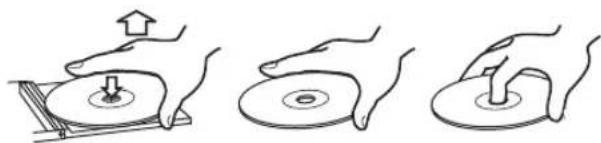
natural_image
Three-step illustration showing hand positioning of a disc on a base, with no text or symbols present.- If the disc becomes dirty, wipe the surface radially from the center hole outward towards the outer edge with a soft and dry cloth.
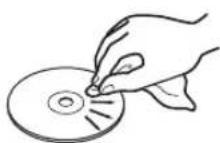
- Never use such chemicals as record sprays, antistatic sprays or fluid, or thinner to clean the discs. Such chemicals will do irreparable damage to the disc's plastic surface.
- Discs should be returned to their cases after use to avoid dust and scratches that could cause the laser pickup to "skip".
- Do not expose discs to direct sunlight or high humidity and temperature for extended periods. Long exposure to high temperatures will warp the disc.
- Do not play any disc that is warped, deformed or damaged. Playing such discs may cause irreparable harm to the playing mechanisms.
- CD-R and CD-RW discs are more sensitive to the effects of heat and ultraviolet rays than commercial CDs. It is important that they are not stored in a location where direct sunlight will fall on them, and which is away from sources of heat such as radiators or heat-generating electrical devices.
- While printable CD-R and CD-RW discs utilizing modern printing technologies are generally acceptable, older systems that use adhesives to attach paper type labels to the disc surface are not recommended.
- Do not stick papers or protective sheets on the discs and do not use any protective coating spray.
- Use a soft oil-based felt-tipped pen to write the information on the label side. Never use a ball-point or hard-tipped pen, as this may cause damage to the recorded side.
- Never use a stabilizer. Using commercially available CD stabilizers with this unit will damage the mechanisms and cause them to malfunction.
- Do not use irregular shape CDs (octagonal, heart shaped, business card size, etc.). CDs of this sort can damage the unit.

natural_image
Four-panel image showing a heart-shaped object with a cross mark, each paired with a separate irregular shape (no text or symbols)- If you are in any doubt as to the care and handling of a CD-R/CD-RW disc, read the precautions supplied with the disc, or contact the disc manufacturer directly.
playable Discs/Files and iPod/iPhone/iPad Compatibility (2)
playable Files:
- This unit can play various files recorded in various external USB storage devices such as USB flash memory, MP3 player or HDD. The HDD must be formatted FAT 16 or FAT 32, but not NTFS.
- When more than 2000 files are recorded using the USB memory, the unit might not be able to play them correctly.
- File names should be alphanumeric characters. This unit cannot display symbols and full-size or double-byte characters (such as Japanese, Chinese, etc.) correctly. Also, be sure to use the proper file extension.
- Audio encoded at 128 kbps should sound close to regular audio CD quality. Although this player will play lower bit-rate MP3 files, the sound quality becomes noticeably worse at lower bit-rates.
See below for details on each playable file.
MP3
File extension: .mp3
Stream: MPEG-1/2 Layer III
Sampling Frequency: 8 to 48 kHz
Audio word size: 16 bits
Channel Count: 2 ch
Bit Rate: 8 to 320 kbps
VBR/ CBR: Supported
LPCM
Stream: LPCM
Sampling Frequency: 8 to 48 kHz
Audio word size: 16/20/24 bits
Channel Count: 2 ch
WAV
File extension: .wav
Stream: LPCM
Sampling Frequency: 8 to 48 kHz
Audio word size: 16/20/24 bits
Channel Count: 2 ch
WMA
File extension: .asf/.wma
Stream: WMA2/7/8/9/10, WMA Pro, WMA Lossless
Sampling Frequency: 8 to 48 kHz
Audio word size: 16 bits
Channel Count: 2 ch
Bit Rate: 5 to 320 kbps
VBR/ CBR: Supported
AAC
File extension: .m4a/.aac/.3gp/.3g2
Stream: MPEG-4 AAC/MPEG-4 HE AAC (AAC Plus v1/2)
Sampling Frequency: 32 to 96 kHz
Audio word size: 16 bits
Channel Count: 2 ch
Bit Rate: 16 to 320 kbps
VBR/ CBR: Supported
FLAC
Sampling Frequency: 48 kHz
Audio word size: 16 bits
Channel Count: 2 ch
iPod/iPhone/iPad Compatibility:
This unit can be connected to and used with the following iPod models.
iPod classic (6th generation or later)
iPod nano (2nd generation or later)
iPod touch (1st generation or later)
iPhone (3G or later)
iPad (1st generation or later)*
* Compatible only with AirPlay
- This unit cannot output video from a connected iPod.
- To connect an iPod/iPhone/iPad, use the USB cable supplied with the iPod/iPhone/iPad.
- An iPod shuffle is incompatible with this port.
Compatible iPod Software
In case your iPod will not work with the CR-H700 or with the remote control unit, a software update may solve the problem.
Visit the Apple website and download the latest iPod software.
Connecting Antennas (AM/FM)
AM Indoor Loop Antenna
The high-performance AM loop antenna provided with this unit is sufficient for good reception in most areas. To stand the loop antenna on a surface, fix the claw to the slot in the antenna base.
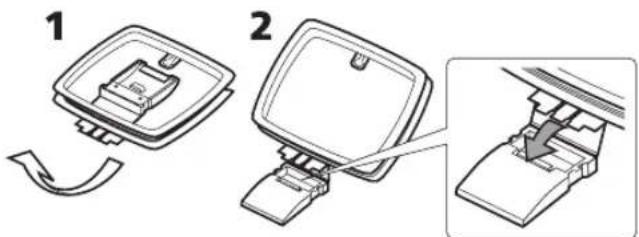
text_image
Diagram showing two steps of a device insertion or assembly process, labeled 1 and 2, with arrows indicating the direction of movement.Connect the loop antenna's wires to the AM antenna terminals.
Place the antenna on a shelf or hang it on a window frame, etc., in the direction which gives the best reception. Keep all other wires such as power cords, speaker wires or interconnect wires as far away as possible from the antenna.
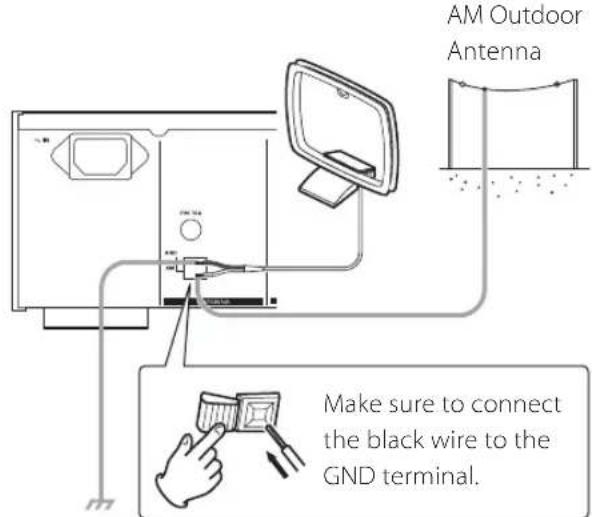
text_image
AM Outdoor Antenna Make sure to connect the black wire to the GND terminal.- If the AM loop antenna provided does not deliver sufficient reception (often due to being too far from the transmitter or in a concrete building, etc.), it may be necessary to use an AM outdoor antenna.
Use either a high quality commercially available AM antenna or, if not available, an insulated wire more than 5 m long. Strip one end, and connect this to the terminal as shown.
The antenna wire should be fitted outdoors or indoors near a window. For better reception, connect the GND terminal to a reliable ground.
Note:
Even when using an AM outdoor antenna, do not disconnect the AM loop antenna.
FM Indoor Antenna
Connect the lead-type FM antenna to the FM 75Ω socket, extend the lead and tune in your favourite station (see page 28). Adjust the antenna in a suitable location like a window frame or wall until the reception is best and then affix the antenna in that position using thumb tacks, push pins or any other suitable means.
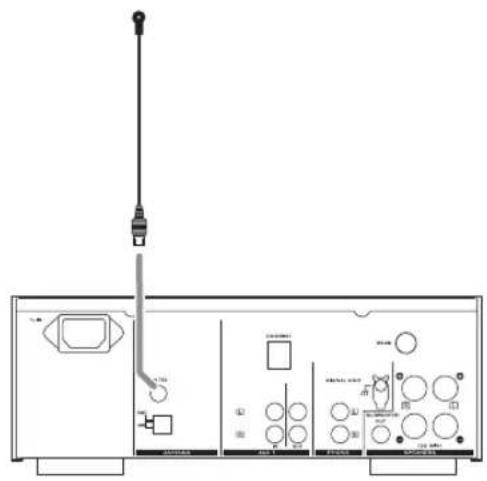
text_image
Technical diagram of a device panel with labeled components and wiring connectionsFM Outdoor Antenna
In an area where FM signals are weak, it may be necessary to use an FM outdoor antenna.
Generally, a 3-element antenna will be sufficient; if you live in an area where the FM signals are particularly weak, it may be necessary to use one with 5 or more elements.
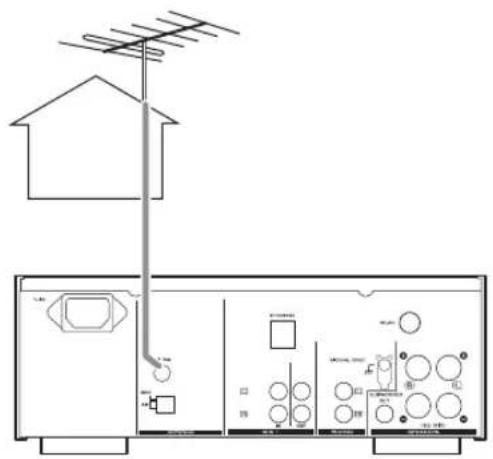
text_image
Diagram of a home electrical panel with labeled components and grounding symbols- Disconnect the FM indoor antenna when using an outdoor antenna.
flowchart
graph TD
    subgraph Speaker_1
        R["Speaker"] -->|+| L["Speaker"]
    end
    subgraph Subwoofer_1
        L -->|+| A["Subwoofer"]
        A -->|+| B["Subwoofer"]
    end
    subgraph Antenna_1
        FM_TSG["FM TSG"] --> GND_GND
        AM_AM --> GND_AM
        FM_TSG --> ETHERNET["ETHERNET"]
        ETHERNET --> IN_INOUT["IN"]
        IN_INOUT --> PHONO["PHONO"]
        PHONO --> SAEKERS["SPEAKERS"]
    end
    subgraph Subwoofer_2
        R -->|+| L
        L -->|+| A
        A -->|+| B
        B -->|+| LINE_IN["LINE IN"]
    end
A Speaker Connections
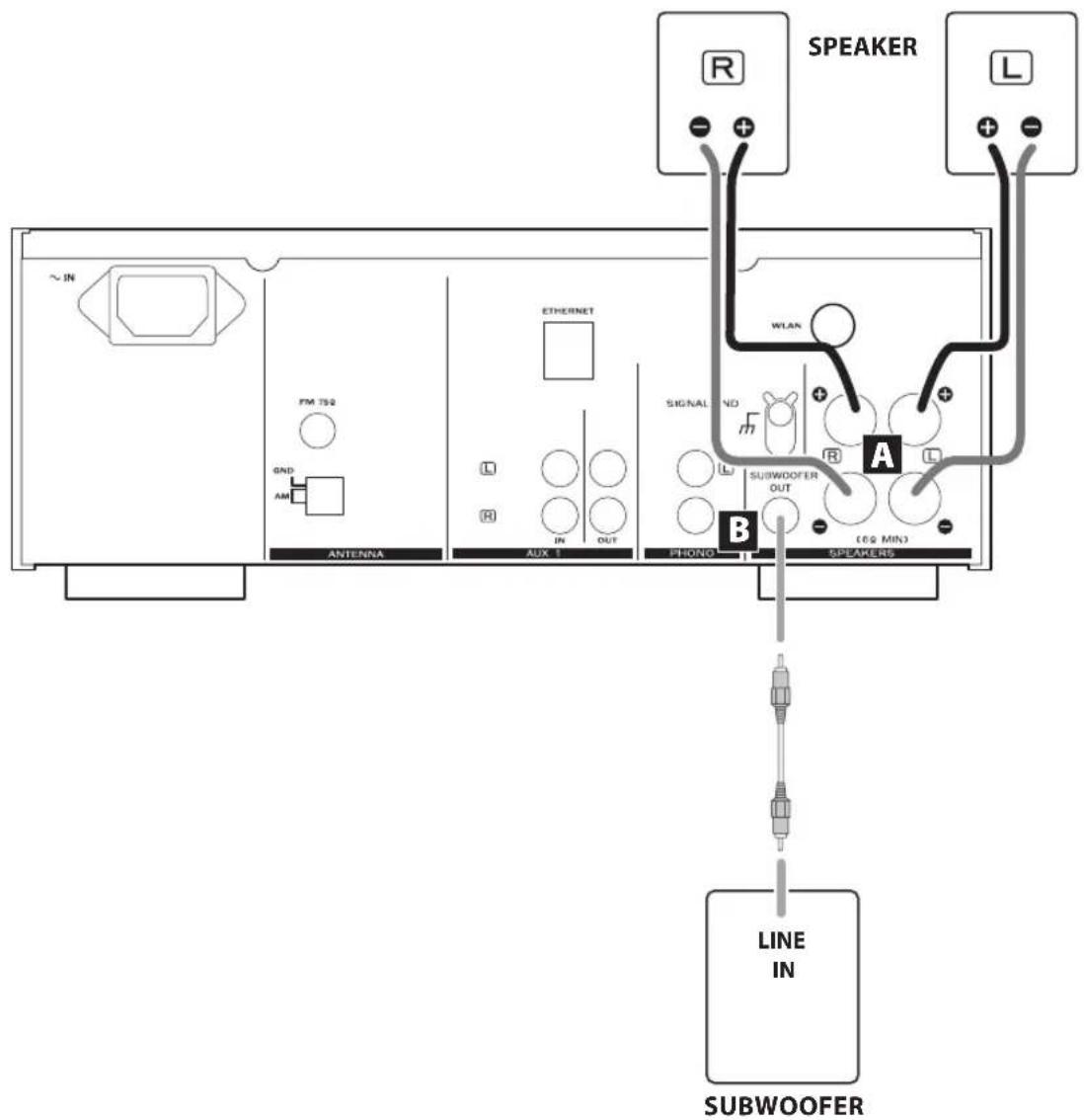
CR-H700's ⊕ (positive) terminals are red (for the right speaker) and white (for the left speaker). The ⊖ (negative) terminals are black.
The ⊕ side of the speaker cable is marked to make it distinguishable from the negative side of the cable. Connect this marked side to the red and white ⊕ terminals and the unmarked side to the black ⊖ terminals of CR-H700 and speakers.
CAUTION
- To avoid damaging the speakers with sudden high-volume sound, be sure to switch the power off before connecting the speakers.
- Check the impedance of your speakers. Connect speakers with an impedance of 6 ohms or more.
- Prepare the speaker cables for connection by stripping off approximately 10 mm (1/2 inch) or less (no more as this could cause a short-circuit) of the outer insulation. Twist the wires tightly together to avoid tangles:
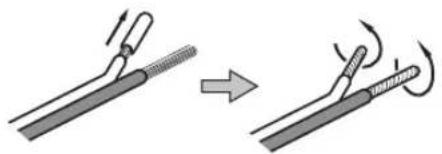
natural_image
Diagram showing two stages of a soldering process: before and after, with no text or symbols present.How to connect
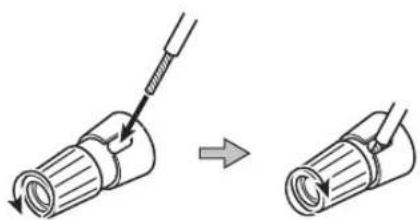
- Turn the terminal cap counter-clockwise to loosen it. The speaker terminal caps cannot be fully removed from the base.
- Insert the wire into the terminal fully and turn the terminal cap clockwise to securely connect it:
natural_image
Diagram showing a tool interacting with a cylindrical device before and after assembly (no text or symbols)- Make sure it is fastened firmly by pulling the cable lightly.
For European customers
In accordance with European safety regulations, it is not possible to connect banana plugs into the speaker terminals on European models. The holes into which banana plugs are inserted have been covered with black caps. Connect the speakers using spades or bare wires. If the black caps become separated from the terminals, return them to their original position.
B SUBWOOFER OUT jack
Connect a commercially available powered subwoofer.
Connections
text_image
~IN FM 750 GND AM ANTF NNA A B ETHERNET WLAN C SIGNAL END SUB DOFER (68 MIN) PEKONS A D E F Cassette deck, CD recorder, etc. LINE OUT IN LR LINE OUT IN Turntable RCAUTION
- Turn off the power of all the equipment before making connections.
- Read instructions of each component you intend to use with this unit.
- Be sure to insert each plug securely. To prevent hum and noise, do not bundle the connection cables with the power cord or speaker cable.
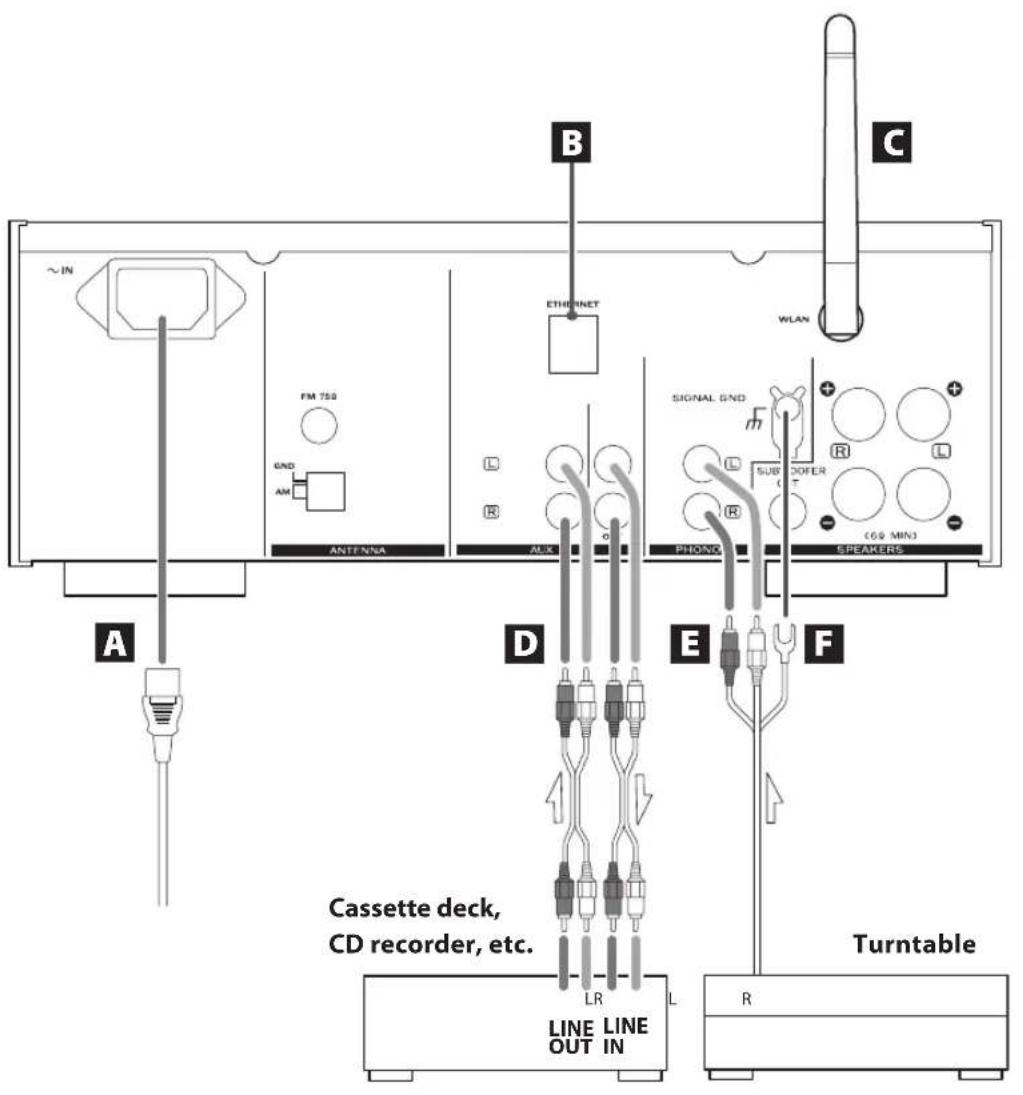
A AC Power Cord
Plug this cord into an AC wall socket.
- Unplug the power cord when you are not going to use the unit for long periods of time.
B ETHERNET port
To use a wired Internet connection, connect the ETHERNET port of this unit to the ethernet network using a commercially available ethernet cable.
- If you connect or disconnect the ethernet cable while the unit is turned on, turn the unit off and turn it back on. See page 17 for how to turn the unit on or off.
Wireless LAN antenna
If you can use a wireless LAN in your installation site, the unit connects to the LAN using the wireless LAN antenna. Stand the antenna up to use it.
D AUX 1 jacks
These jacks transmit an analog 2-channel audio signal. Connect the components using commercially available RCA pin cables.
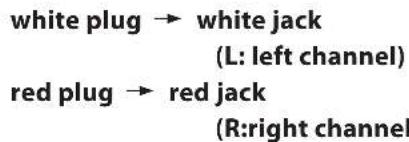
Make sure to connect the cables as follows:
text_image
white plug → white jack (L: left channel) red plug → red jack (R:right channel)
text_image
White (L) Red (R)If you want to use a recorder (ex. a cassette deck or a CD recorder, etc.) with the CR-H700, connect the output jacks of the recorder to the AUX 1 IN jacks of the CR-H700, connect the input jacks of the recorder to the AUX 1 OUT jacks of the CR-H700.
- Be sure to insert each plug securely. To prevent noise and humming, avoid bundling the signal interconnection cables together with the AC power cord or speaker cables.
E PHONO jacks
Connect the turntable's RCA pin cable to the PHONO jacks.
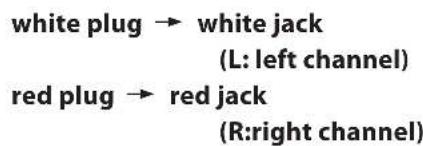
Make sure to connect the cables as follows:
text_image
white plug → white jack (L: left channel) red plug → red jack (R:right channel)- Be sure to insert each plug securely. To prevent noise and humming, avoid bundling the signal interconnection cables together with the AC power cord or speaker cables.
- Moving Magnet (MM) cartridges can be used with this unit.
F SIGNAL GND
Connect the ground lead of the turntable to this terminal.
- This is not a safety earth.
- If the turntable's ground lead is not connected to this terminal, hum noise may be heard.
text_image
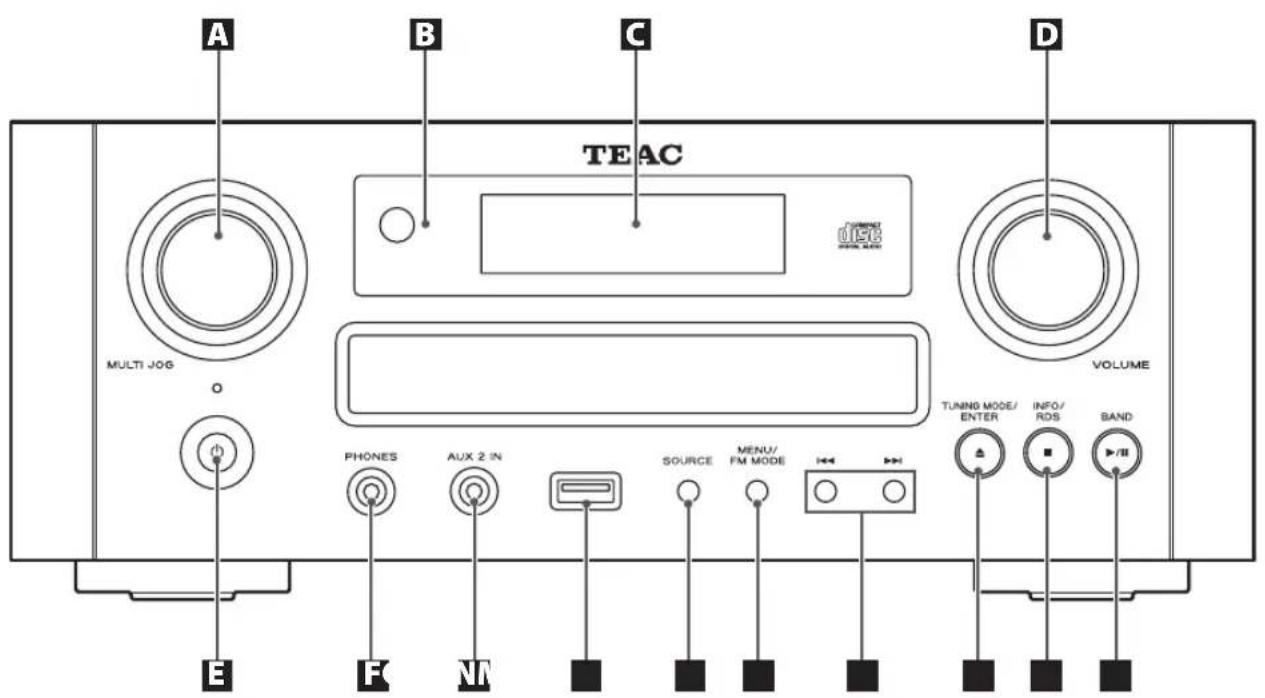
A B C TEAC MULTI JO6 o E F M C D VOLUME TUNING MODE/ ENTER INFO/ ROS BAND PHONES AUX 2 IN SOURCE MENU/ FM MODEA MULTI JOG
In TUNER mode, use this knob to tune in stations or select the preset stations.
In iPod mode, use this knob to scroll up and down the menu.
In CD/USB mode, use this knob to skip tracks/files during playback or in the stop mode.
B Remote sensor
When operating the remote control unit, point it towards the remote sensor.
C Display
D VOLUME
Turn this knob to adjust the volume.
- The volume level is memorized even if the unit turns off.
E Standby/On (💡)
Press this switch to turn the unit on or off.
The standby indicator turns red when the unit is in the standby mode. When the unit is turned on, the indicator turns blue.
F PHONES
For private listening, insert the headphones plug into this jack, and adjust the volume by turning the VOLUME knob.
G AUX 2 IN
Connect equipment such as a portable audio player using a 3.5 mm stereo mini plug cable.
USB port
Connect an iPod or external USB storage device.
SOURCE
Use this button to select a listening source.
MENU/FM MODE
Use this button to go back to a previous menu of your iPod. This button is equivalent to the MENU button on your iPod.
In FM mode, use this button to select stereo or monaural.
K Skip (|◀◀/▶▶)
In CD/USB mode, use these buttons to skip tracks/files during playback or in the stop mode of the CD or USB. In iPod mode, use these buttons to skip songs during playback or in pause mode of the iPod.
During playback, hold down these buttons to search for a track/file/song.
When performing settings, use the ◀◀ button to return to the previous menu.
L TUNING MODE, ENTER, Open/Close (▲)
In FM or AM mode, use this button to select the tuning mode.
Use this button to set the time while setting the timer or the clock.
In iPod mode, use this button to confirm selection in menus.
In CD mode, use this button to open and close the disc tray.
M INFO/RDS, Stop (■) (For Europe)
INFO, Stop (■) (For North America and Japan)
While listening to the Internet Radio or Media Player, use this button to change the information on the second line of the display.
Only for Europe, use this button to select an RSD mode in FM mode.
In USB/CD mode, use this button to stop playback.
N BAND, Play/Pause (▶/II)
Use this button to select FM, AM.
In USB/iPod mode, use this button to start or pause playback of the iPod or USB.
In CD mode, use this button to start or pause playback of the CD.
text_image
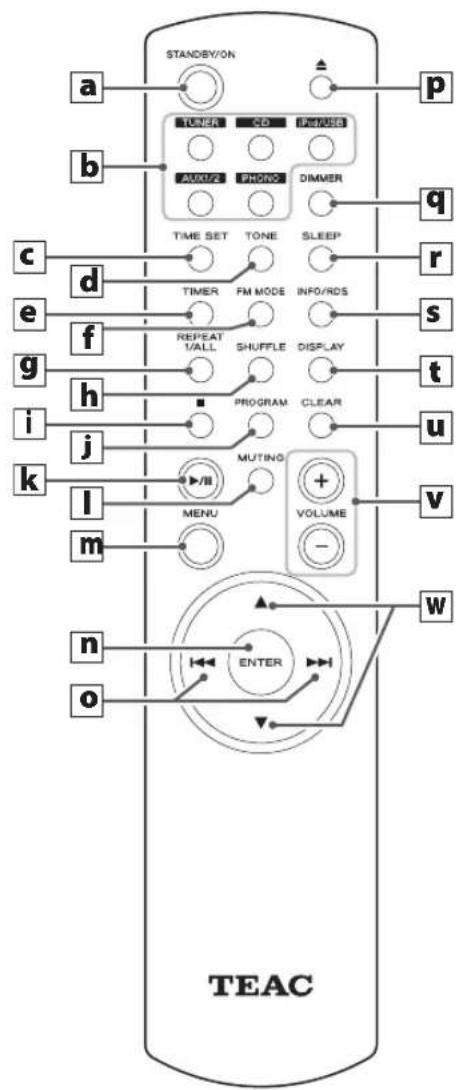
STANDBY/ON TUNER CD PDFUSE AUX/2 PHONE DIMMER TIME SET TONE SLEEP TIMER FM MODE INFO/RDS REPEAT SHUFFLE DISPLAY PROGRAM CLEAR MUTING MENU VOLUME TEAC a b c d e f g h i j k l m n o p q r s t u v wa STANDBY/ON
Press this button to turn the unit on or standby.
b TUNER, CD, iPod/USB, AUX 1/2, PHONO
Use these buttons to select a source.
c TIME SET
Use this button to adjust the clock and to set a timer.
d TONE
Use this button to adjust bass, treble, or sound balance together with scroll button (▲ or ▼).
e TIMER
Use this button to turn on or off the timer function.
f FM MODE
In FM mode, use this button to select stereo or monaural.
9 REPEAT 1/ALL
In USB/iPod mode, use this button to set the repeat playback of the iPod or USB.
In CD mode, use this button to set the repeat playback of the CD.
h SHUFFLE
In USB/iPod mode, use this button to start shuffle playback of the iPod or USB.
In CD mode, use this button to start shuffle playback of the CD.
i Stop (■)
In USB mode, use this button to stop playback of the USB.
In CD mode, use this button to stop playback of the CD.
J PROGRAM
In CD mode, use this button to enter the programme mode of the CD.
In programme mode, use this button to enter the selection.
In TUNER mode, use this button to preset stations.
k Play/Pause (▶/II)
In USB/iPod mode, use this button to start or pause playback of the iPod or USB.
In CD mode, use this button to start or pause playback of the CD.
I MUTING
Use this button to mute the sound.
m MENU
Use this button to go back to previous menu of iPod. This button is equivalent to the MENU button on your iPod.
n ENTER
Use this button to set the time while setting the timer or the clock.
Skip (|◀◀/▶▶|)
In CD/USB mode, use these buttons to skip tracks/files during playback or in the stop mode of the CD or USB. In iPod mode, use these buttons to skip songs during playback or in pause mode of the iPod.
During playback, hold down these buttons to search for a track/file/song.
P Eject (▲)
Use this button to open/close the disc tray.
9 DIMMER
Use this button to dim the display.
r SLEEP
Use this button to set sleep timer.
s INFO/RDS, (For Europe)
INFO (For North America and Japan)
While listening to the Internet Radio or Media Player, use this button to change the information on the second line of the display.
Only for Europe, use this button to select an RSD mode in FM mode.
t DISPLAY
Use this button to change what information is displayed during CD/USB/iPod playback.
u CLEAR
Use this button to clear tracks/files in programme mode.
v VOLUME
Use these buttons to adjust the volume level.
w Scroll (▲/▼)
In USB/iPod mode, use these buttons to select a folder or file of USB.
Or use these buttons to scroll menu of the iPod.
After pressing the TONE button these buttons are used to adjust treble, bass, or sound balance.
The provided remote control unit allows the unit to be operated from a distance.
When operating the remote control unit, point it towards the remote sensor on the front panel of the unit.
- Even if the remote control unit is operated within the effective range, remote control operation may be impossible if there are any obstacles between the unit and the remote control unit.
- If the remote control unit is operated near other appliances which generate infrared rays, or if other remote control devices using infrared rays are used near the unit, it may operate incorrectly.
Conversely, the other appliances may operate incorrectly.
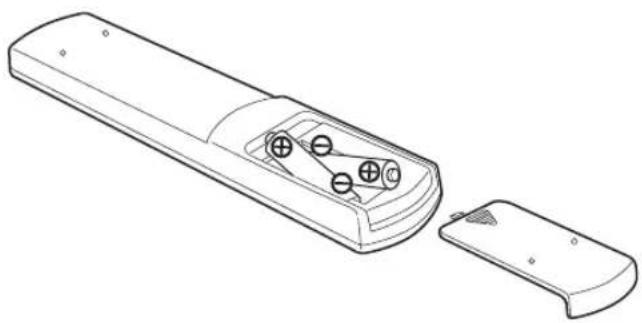
Battery Installation
- Remove the battery compartment cover.
-
Insert two "AAA" dry batteries. Make sure that the batteries are inserted with their positive "⊕" and negative "⊖" poles positioned correctly.
-
Close the cover.
natural_image
Line drawing of a remote control device with two buttons and a separate handle (no text or symbols)Battery Replacement
If the distance required between the remote control unit and main unit decreases, the batteries are exhausted. In this case replace the batteries with new ones.
- For more information about collection of batteries, please contact your local municipality, your waste disposal service or the point of sale where you purchased the items.
Precautions Concerning Batteries
- Be sure to insert the batteries with positive “⊕” and negative “⊖” polarities positioned correctly.
- Use batteries of the same type. Never use different types of batteries together.
- Rechargeable and non-rechargeable batteries can be used. Refer to the precautions on their labels.
- When the remote control unit is not to be used for a long time (more than a month), remove the batteries from the remote control unit to prevent them from leaking.
- If the batteries leak, wipe away the liquid inside the battery compartment and replace the batteries with new ones.
- Do not use any other batteries not specified. Do not mix new batteries with old ones or use different types of batteries together.
- Do not heat or disassemble batteries and never throw them in the fire or water.
- Do not carry or store batteries with other metallic objects. The battery may short circuit, leak or explode.
- Never recharge a battery unless it is a verified rechargeable type.
Basic Operation (1)
text_image
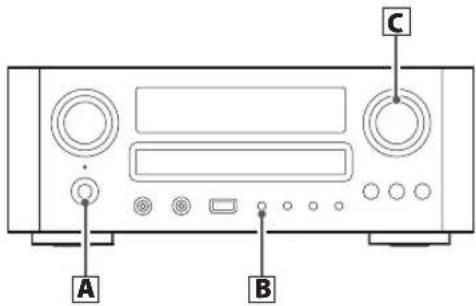
A B CA How to turn the unit on or off
Press the ⏻ switch to turn the unit on or off.

Standby/On indicator
The Standby/On indicator turns blue when the unit is turned on.
- When you turn on the system, the source that was selected last time will start playback automatically.
B How to select source
Every time the SOURCE button is pressed, the mode is changed as follows:
SOURCE

Or press the TUNER, iPod/USB, PHONO, AUX 1/2 or CD button on the remote control unit to select the source directly.
When TUNER is selected as the source, pressing the TUNER button on the remote control unit, or the BAND button on the unit repeatedly changes the mode as follows:

C Adjust the volume
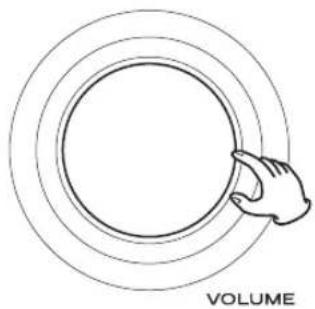
To protect the speakers from a sudden high-volume sound, gradually turn up the volume to the required level with the VOLUME knob.
natural_image
Simple line drawing of a hand touching a circular ring, labeled 'VOLUME' below (no other text or symbols)D Muting
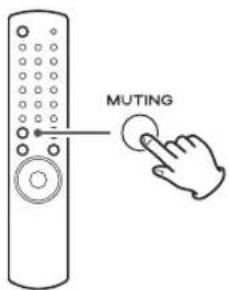
To mute the sound temporarily, press the MUTING button. To cancel muting, press the MUTING button again or change the volume setting.
text_image
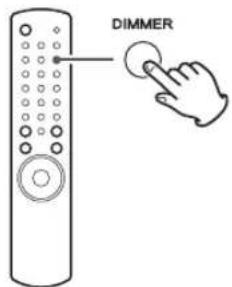
MUTINGE Dimmer
Press the DIMMER button to dim the display. Press the button again to cancel the dimmer function.
text_image
DIMMER- This function will be cancelled when the unit is turned off.
Basic Operation (2)
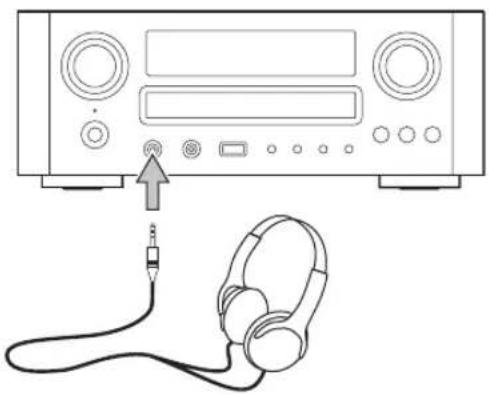
F Listening through headphones
Insert the headphone plug into the PHONES jack, and adjust the volume. The sound from speakers and subwoofer will be cut off.
natural_image
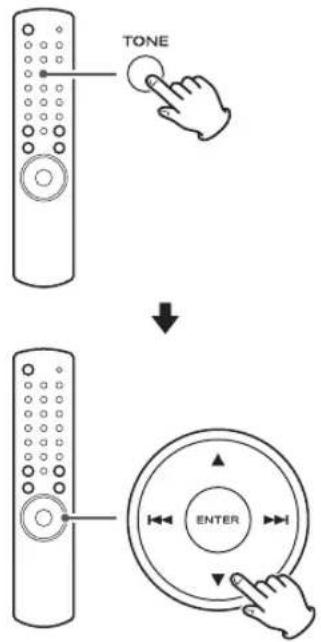
Line drawing of an audio recording device connected to a microphone and headphones (no text or symbols)G How to adjust the bass/treble sound and sound balance
You can change the bass and treble sound between "-10" to "+10". You can also change the sound balance between the left/right speakers (The setting value is between L (Left) +6 to R (Right) +6).
Press the TONE button repeatedly to select BASS, TREBLE, or BALANCE CENTER. And then press the scroll buttons (▲/▼) to adjust the sound level or balance within 3 seconds.
text_image
TONE ↓ ENTERDisc Playback
text_image
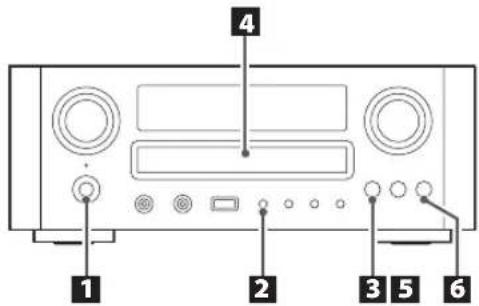
1 2 3 4 5 6playable disc/files of this unit are as follows:
Discs: CD-DA/CD-R/CD-RW
Files: MP3/WMA
1 Press the ⏻ button to turn the unit on.
Standby/On indicator
The Standby/On indicator turns from orange to blue. "No Disc" will be displayed if no disc has been inserted.
2 Press SOURCE button to select "CD."
SOURCE
3 Press the open/close button (▲).
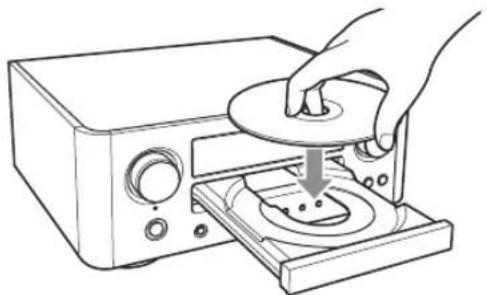
4 Place a disc on the tray with the printed label facing up.
natural_image
Line drawing of a hand using a circular device to press down a tray with a button (no text or symbols)- The disc must be loaded centrally into the disc tray. If the disc is not correctly loaded, it may not be possible to open the tray again once it has closed.
- Never place more than one disc on the tray.
- Do not stick labels or tapes on the disc.
- Do not use irregularly-shaped discs.
Press the open/close button (▲) to close the tray.
- Keep fingers clear of moving tray to avoid trapping them.
- It takes a few seconds for the unit to load a disc. No buttons will work during loading. Wait until the total number of the tracks/files and the total play time of the disc are displayed.
Audio CD
The total number of the tracks and total play time of the disc are displayed.
CD/Stop
T016 72:00
MP3/WMA disc
The total number of files on the disc is displayed.
CD/Stop
Total File 010
6 Press the play/pause button (▶/Ⅲ) to start playback.
Disc playback starts from the first track/file.
Audio CD
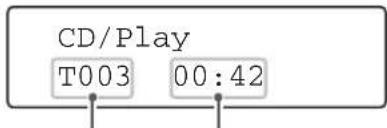
text_image
CD/Play T003 00:42current track number elapsed time of the current track
MP3/WMA disc
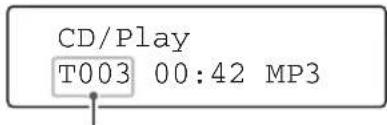
text_image
CD/Play T003 00:42 MP3current file number
- MP3/WMA files recorded outside of folders are automatically put in the "ROOT" folder, and playback starts from the first file of the ROOT folder.
- If there are folders that have no MP3/WMA file, this unit skips them.
- During playback of MP3/WMA file, "title_artist_album" is scrolled across the display.
- The unit stops automatically when playback of all the tracks/files has finished.
- If you load a disc, and then press the play/pause button (▶/■) (or the SHUFFLE button of the remote control unit) without having first closed the disc tray, the disc tray closes and playback starts.
USB Playback
text_image
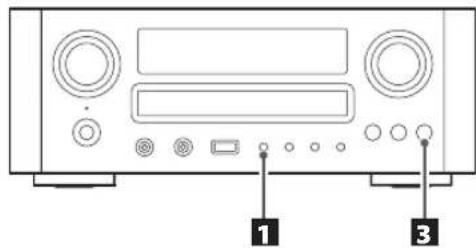
Diagram of a device front panel with labeled buttons and ports, marked as 1 and 3.You can play MP3/WMA files by connecting various external USB storage devices such as USB flash memory. For details on playable files, see " playable Files" on page 6.
Press the SOURCE button repeatedly to select "USB/iPod".
"Not Connected" will be displayed if no USB device is connected.
SOURCE

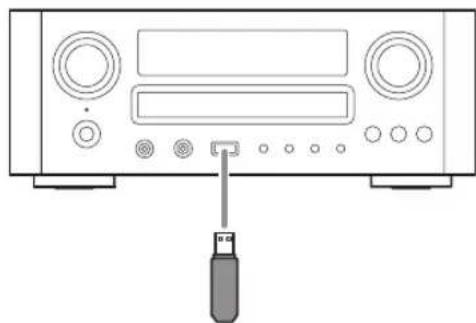
2 Connect the external USB storage device to the unit.
When an HDD device is connected to this unit, it may take several minutes to display the number of files.
natural_image
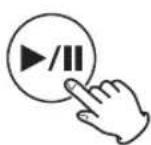
Front view of a portable electronic device with ports and a screwdriver inserted (no text or symbols visible)Press the play/pause button (▶/II).
General Playback (disc/USB)
text_image
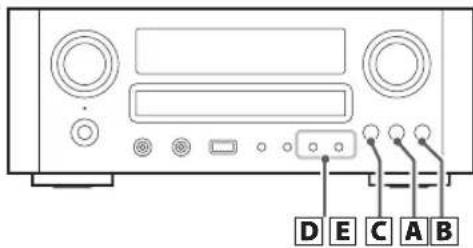
D E C A BA To stop playback
Press the stop button (■) to stop playback.
To start playback again, press the play/pause button (▶/II).
Playback starts from the first track/file.
B To suspend playback temporarily (pause mode)
Press the play/pause button (▶/■) during playback. Playback stops at the current position.
To resume playback, press the play/pause button (▶/II).
C To eject the disc
When the open/close button (▲) is pressed, playback stops and the tray will open.
After the disc is ejected, close the tray by pressing the open/close button (▲).
- When CD is selected as the source, you can eject the disc.
D To skip to the next or a previous track/file


During playback, press the skip/scan buttons (I◄◄/►►) repeatedly until the desired track/file is found. The selected track/file will be played from the beginning.
On the remote control unit use the skip buttons (|◀◀/▶▶▶|).
In the stop or pause mode, press the skip/scan buttons (I◄◄/►►I) repeatedly until the track/file you want to listen to is found. Press the play/pause button (►/■) to start playback the selected track/file.
- When the ◀◀ button is pressed during playback, the track/file being played will be played from the beginning. To return to the beginning of the previous track/file, press the ◀◀ button twice.
- During programmed playback, the next or previous track/file in the program is played.
- The unit stops when the end of the last track/file is reached.
Folder Search
You can select a folder and a file during playback or when stopped.
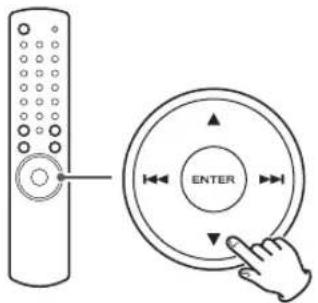
1 Press the scroll buttons (▲/▼) to select a folder.
text_image
Diagram showing a remote control with directional arrows and a circular button labeled 'ENTER' pointing to it.2 Press the ENTER button.
text_image
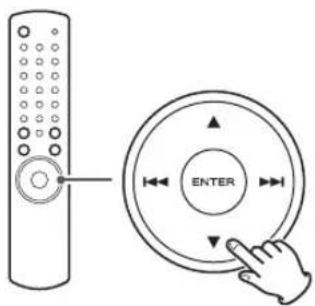
Diagram showing a remote control with a hand pressing the button labeled 'ENTER' and directional arrows indicating left and right movement.3 If you want to select a file, press the scroll buttons (▲/▼).
text_image
ENTER- The selection moves within the folder.
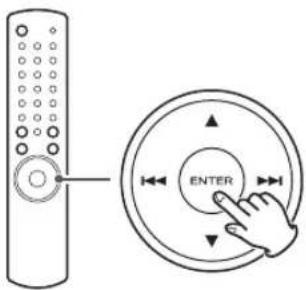
4 Press the ENTER button.

text_image
ENTERPlayback starts from the selected file.
Programmed Playback
When CD is selected as the source, up to 32 tracks/files can be programmed in the desired order.
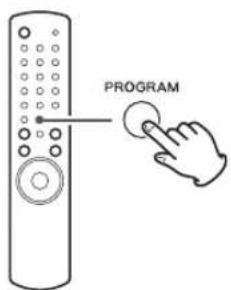
1 Press the PROGRAM button in the stop mode.
text_image
PROGRAMP-00 T000
T016 72:00
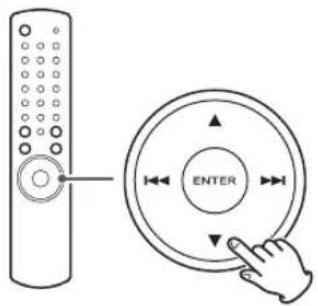
2 Press the scroll buttons (▲/▼) to select a track/file.
text_image
Diagram showing a remote control with a circular dial labeled 'ENTER' and a hand interacting with it.P-01 T002
T016 72:00
3 Within 5 seconds, press the PROGRAM button.
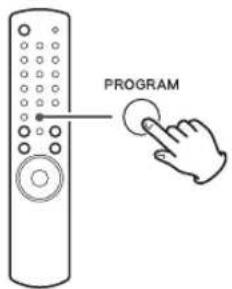
text_image
PROGRAMP-01 T012
T016 72:00
- Repeat steps 2 and 3 to programme more tracks/files.
- If you made a mistake, press the CLEAR button. The last programmed number will be deleted.
- Up to 32 tracks/files can be programmed. If you attempt to programme more than 32 tracks/files, "P-FULL (Programme is full)" is displayed and no more tracks/files can be programmed.
4 When programming has finished, press the play/pause button (▶/Ⅱ) to start programmed playback.
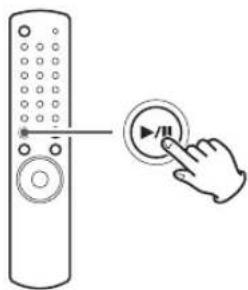
natural_image
Line drawing of a remote control with a hand pressing a button labeled 'II' (no text or symbols on the device itself)When the playback of all the programmed tracks/files has finished, or if the stop button (■) or the STANDBY/ON button is pressed, the programme mode will be cancelled.
- If the unit is disconnected from the power supply, the programmed contents will be erased.
To check the programmed order
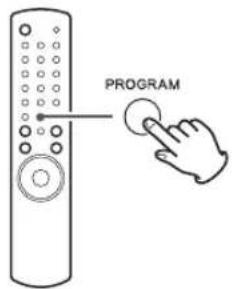
text_image
PROGRAMIn the stop mode, press the PROGRAM button repeatedly. The track/file number and programme number will be shown on the display.
To change or add a track/file to the programme
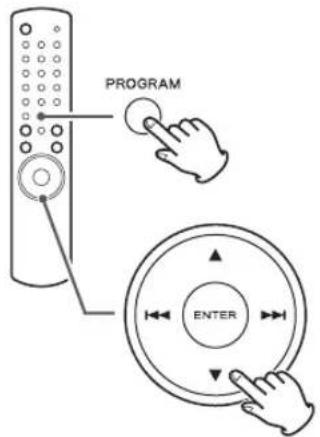
text_image
PROGRAM ENTERIn the stop mode, press the PROGRAM button repeatedly until the program number that contains the track/file you want to change appears on the display. Then select a track/file using the scroll buttons (▲/▼). The previous track/file is replaced with the newly selected one.
If you want to add a track/file to the end of the programme, press the PROGRAM button repeatedly until "P-END" briefly appears on the display. Then select a track/file using the scroll buttons (▲/▼). The track/file is added to the programme.
To delete a track/file from the programme
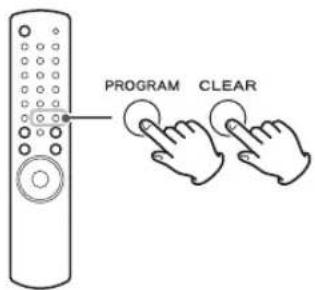
text_image
PROGRAM CLEARIn the stop mode, press the PROGRAM button repeatedly until the programme number of the file to be deleted appears on the display, and then press the CLEAR button. The selected track/file is deleted from the programme.
To clear the programme
- In the stop mode, press the PROGRAM button.
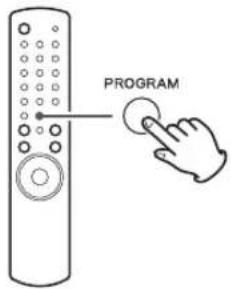
text_image
PROGRAM- Hold down the CLEAR button for more than 4 seconds.
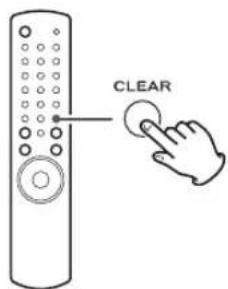
text_image
CLEAR- In the following cases, the programmed contents will also be cleared:
pressing the STANDBY/ON button opening the disc tray disconnecting the AC power cord
Shuffle Playback
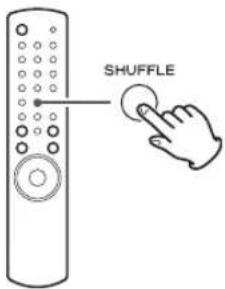
text_image
SHUFFLEWhen the SHUFFLE button is pressed, the tracks/files on the disc or USB device will be played randomly.
When CD is selected
CD/Random
T003 00:07
When USB is selected
USB/Random
00:07 WMA
- If you press the ▶▶ button during shuffle playback, next track/file will be randomly selected and played. If you press the ◀◀ button, the currently played track/file will be played from the beginning. A track/file cannot be replayed during shuffle playback.
- To cancel shuffle playback, press the SHUFFLE button.
- To stop shuffle playback, press the stop button (■).
Repeat Playback
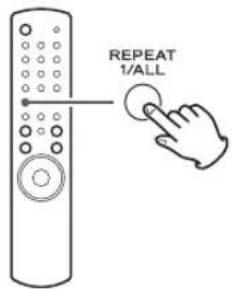
text_image
REPEAT 1/ALLEvery time the REPEAT 1/ALL button is pressed, the mode is changed as follows:
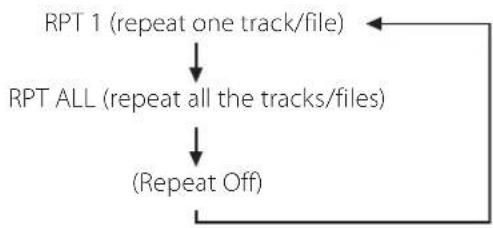
flowchart
graph TD
    A["RPT 1 (repeat one track/file)"] --> B["RPT ALL (repeat all the tracks/files)"]
    B --> C["(Repeat Off)"]
    C --> A
- When the stop button (■) is pressed the repeat mode is cancelled.
Repeat One Track/File (RPT 1)
The track/file being played will be played repeatedly. If you select another track/file in "RPT 1" mode, the track/file you selected will be played repeatedly.
If you select "RPT 1" mode in the stop mode and select a track/file, the selected track/file will be played repeatedly.
Repeat All (RPT ALL)
All the tracks/files will be played repeatedly.
- In the program mode, the programmed contents are played repeatedly.
Display
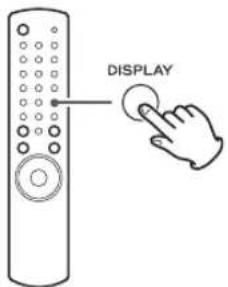
text_image
DISPLAYDuring playback, press the DISPLAY button repeatedly to change the information on the display.
Audio CD:
Display changes as follows:
current track number and elapsed time of the current track
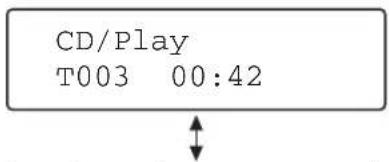
text_image
CD/Play T003 00:42current track number and remaining time of the whole disc
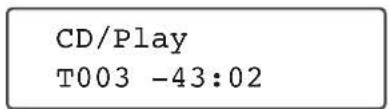
text_image
CD/Play T003 -43:02MP3/WMA files:
Display
- Default display (scrolling)
- Current file format and elapsed time
- Artist Name
- File Name
- Album Name
Listening to iPod (1)
1 Press the SOURCE button repeatedly to select "USB/iPod".
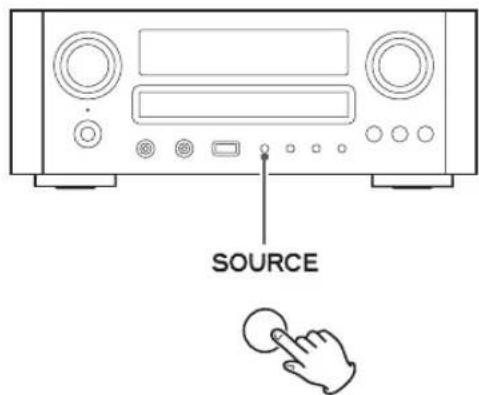
text_image
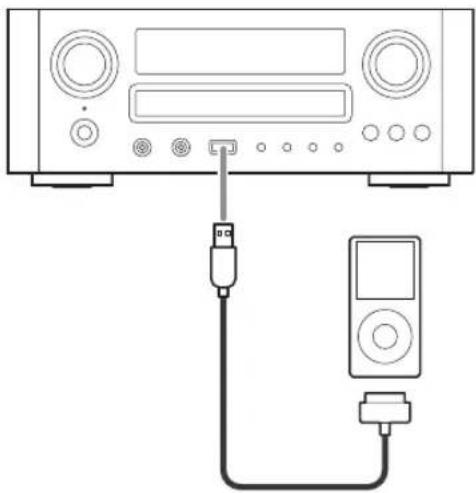
SOURCE2 Connect your iPod using the USB cable supplied with iPod.
The iPod automatically turns on and starts playback from the iPod music list.
When the iPod is connected while the CR-H700 is set to another listening source, the iPod will turn on and enter the pause mode.
natural_image
Diagram of a CD-ROM connected to an audio player via a USB cable (no text or symbols present)- The iPod battery will be fully recharged when the iPod is docked and the CR-H700 is on.
- When the iPod is connected to the CR-H700, the headphones jack of the iPod can not output the sound.
If you want to listen to the sound from your headphones, connect your headphones to the CR-H700's PHONES jack.
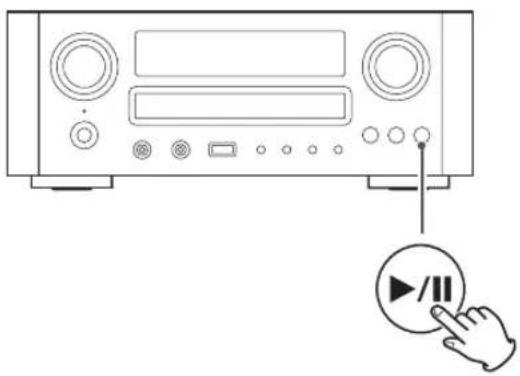
To pause playback
natural_image
Line drawing of a portable electronic device with control knobs and a hand pointing to a play button (no text or symbols)During playback, press the play/pause button (▶/■) to pause playback. Playback stops at the current position.
To resume playback, press the play/pause button (▶/■) again.
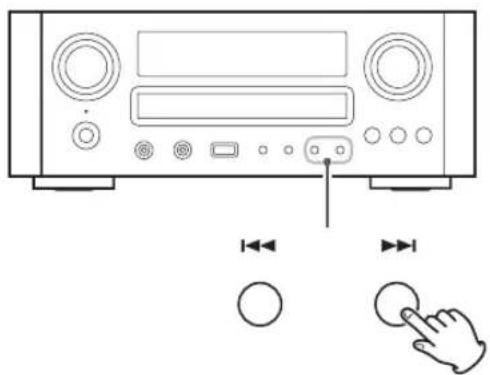
To skip to the next or a previous song
text_image
Diagram of a device front panel with buttons, display screen, and control buttons, accompanied by directional arrows and a finger pointing to the button.During playback or in pause mode, press the skip buttons (◄◄/►►) repeatedly until the desired song is found.
- When the I◀◀ button is pressed during playback, the song being played will be played from the beginning. If you want to play the previous songs, press the I◀◀ button twice or more.
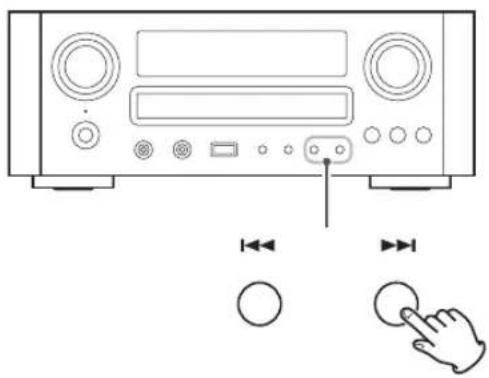
Search for a part of a song
text_image
Diagram of a device front panel with labeled buttons and directional arrows indicating playback controlsDuring playback, hold down the skip buttons (I◄◄/►►I) and release it when the part you want to listen to is found.
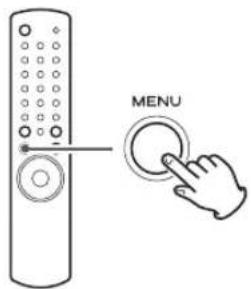
To go back to the previous menu
text_image
MENUPress the MENU button to go back to the previous menu.
This button is equivalent to the MENU button on your iPod.
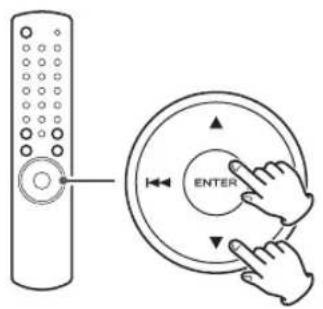
Select the menu item
text_image
Diagram showing a remote control with a circular dial labeled 'ENTER' and a hand interacting with it.Press the scroll buttons (▲/▼) of the remote control unit to scroll to the menu item you want, and then press the ENTER button.
Repeat playback
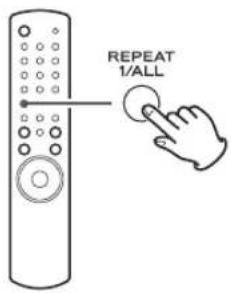
text_image
REPEAT 1/ALLEvery time the REPEAT 1/ALL button is pressed, the mode is changed as follows:
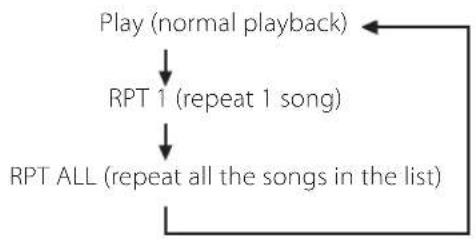
flowchart
graph TD
    A["Play (normal playback)"] --> B["RPT 1 (repeat 1 song)"]
    B --> C["RPT ALL (repeat all the songs in the list)"]
    C --> A
Shuffle playback
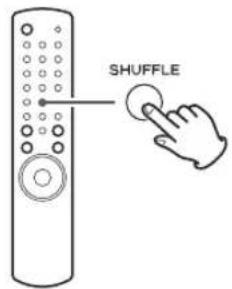
text_image
SHUFFLEDuring playback, press the SHUFFLE button to change the shuffle mode.
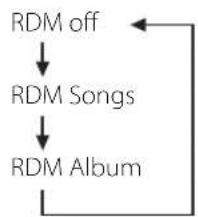
flowchart
graph TD
    A["RDM off"] --> B["RDM Songs"]
    B --> C["RDM Album"]
    C --> A
When you select "RDM Songs", the iPod shuffles songs within the list you choose to play.
When you select "RDM Album", the iPod plays all the songs on an album in order, and then randomly selects another album in the list and plays through it in order.
text_image
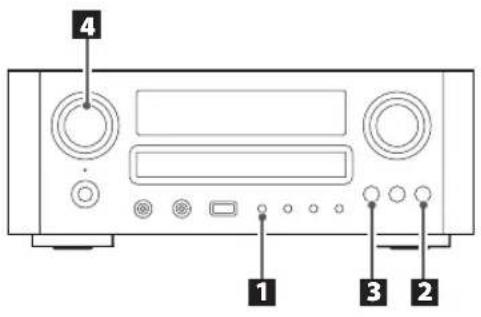
4 1 3 21 Press the SOURCE button repeatedly to select TUNER mode.
SOURCE
2 Select FM or AM by pressing the BAND button repeatedly.
3 Select the desired tuning mode.
TUNING MODE/ENTER
Each time the TUNING MODE button is pressed, the tuning mode changes as follows:
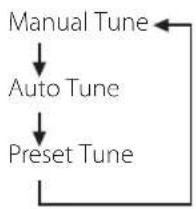
flowchart
graph TD
    A["Manual Tune"] --> B["Auto Tune"]
    B --> C["Preset Tune"]
    C --> A
4 Select the station you want to listen to.
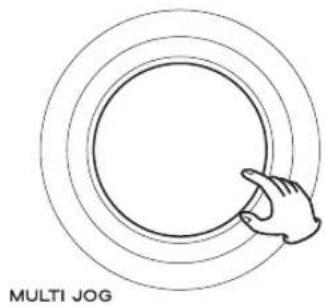
natural_image
Simple line drawing of a hand pointing at concentric circles, labeled 'MULTI JOG' below (no other text or symbols)Manual tuning mode
Turn the MULTI JOG knob until the station you want to listen to is found.
On the remote control, press the scroll buttons (▲/▼) repeatedly.
The frequency changes by a fixed step (FM: 50 kHz steps, AM: 9 kHz steps).
Auto tuning mode
Turn the MULTI JOG knob to start auto tuning.
When a station is found, the unit tunes in the station automatically. Repeat this step until the station you want to listen to is found.
- Press the ENTER button to stop the auto tuning.
Preset tuning mode
Turn the MULTI JOG knob to select a preset channel.
On the remote control, press the skip buttons
(◀◀/▶◀) repeatedly.
The selected preset channel is tuned in.
Preset Tuning (1)
FM Mode
You can select between Stereo and Mono by pressing the FM MODE button when a stereo FM program is tuned in.
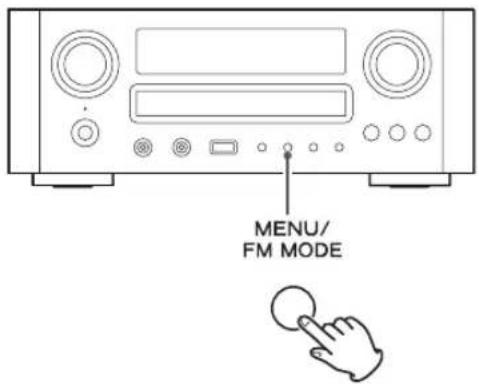
text_image
MENU/ FM MODEStereo:
FM stereo broadcasts are received in stereo and "ST" is displayed.
When a broadcast signal cannot be tuned in, the sound is muted.
FM/ST
10:00
108.00MHz
Mono:
Select this mode when the signal is weak. Reception will be changed to monaural, reducing unwanted noise.
When you try to listen to another broadcast but its signal cannot be tuned in, the FM mode changes to Stereo and the sound is muted.
Presetting Automatically (FM/AM)
You can store up to 30 FM, 30 AM.
1 Select FM or AM by pressing the TUNER button repeatedly.
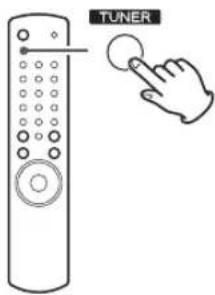
text_image
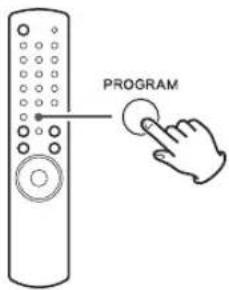
TUNER2 Hold down the PROGRAM button for more than 3 seconds.
text_image
PROGRAMUp to 30 of the best received stations in your area will be stored automatically.
Preset Tuning (2)
Presetting manually (AM/FM)
1 Select AM or FM by pressing the TUNER button repeatedly.
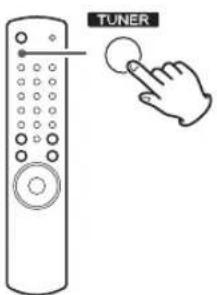
text_image
TUNER2 Tune in the station you want to store. See page 28 for the procedure of tuning.
3 Press the PROGRAM button.
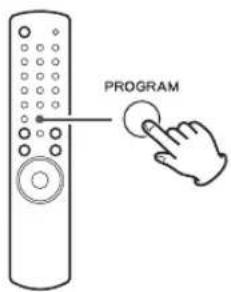
text_image
PROGRAM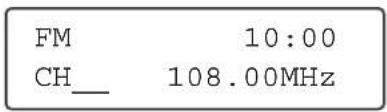
text_image
FM 10:00 CH_ 108.00MHz4 Within 4 seconds, select the preset number for this station.
Press the scroll buttons (▲/▼).

text_image
Diagram showing a remote control with a circular button labeled 'ENTER' and a hand interacting with it.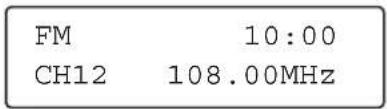
text_image
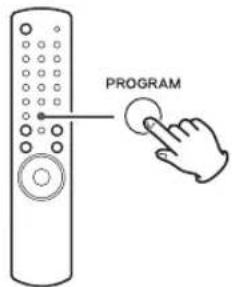
FM 10:00 CH12 108.00MHz5 Within 4 seconds, press the PROGRAM button.
text_image
PROGRAMThe station is stored.
- To store more stations, repeat steps 2 to 5.
- If you do not press the PROGRAM button within 4 seconds after selecting the preset number, presetting will be cancelled.
The Radio Data System (RDS) is a broadcasting service which allows stations to send additional information along with the regular radio programme signal. RDS works on the FM waveband in Europe only.
1 Tune in an FM station (see page 28).
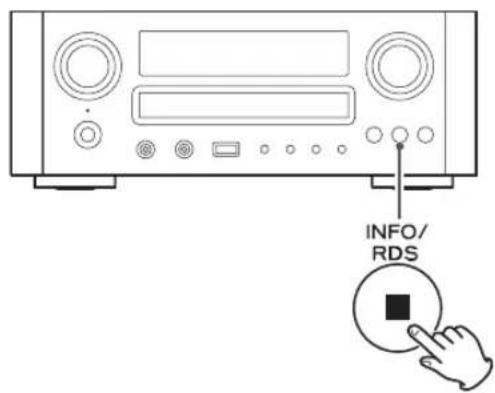
2 Press the RDS button.
text_image
INFO/ RDSEach time the RDS button is pressed, the RDS mode is changed as follows:
PROGRAM SERVICE
When you select "PROGRAM SERVICE", "PROGRAM SERVICE" will blink for about 3 seconds and then the programme service name or a station's name will be displayed. If there is no programme service data, the frequency will be displayed.
PROGRAM TYPE
When you select "PROGRAM TYPE", "PROGRAM TYPE" will blink for about 3 seconds and then the programme type will be displayed.
CLOCK TIME
Displays the information about times provided from the station.
When you select "CLOCK TIME", "RDS CLOCK TIME" will blink for about 3 seconds and then the clock time will be displayed.
RADIO TEXT
When you select "RADIO TEXT", "RDS RADIO TEXT" will blink for about 3 seconds and then the news of stations composed of up to 64 symbols will be displayed.
If there is no radio text data, RDS mode will be automatically switched to PROGRAM SERVICE mode.
TRAFFIC ANNOUNCE
When you select "TRAFFIC ANNOUNCE", "TRAFFIC ANNOUNCE" will blink for 3 seconds and then the unit searches for a traffic announcement.
- When a traffic programme is found, the TRAFFIC ANNOUNCE mode is switched to PROGRAM SERVICE mode.
If the station currently selected is transmitting a traffic programme signal, the RDS mode will be switched to PROGRAM SERVICE mode without searching for a traffic programme.
The clock setting of this unit is automatically adjusted according to the CLOCK TIME (CT) data.
If you tune in an RDS station broadcasting incorrect CT data, the clock might be wrongly adjusted, and that may eventually affect the timer operation.
When you do not want the clock of this unit to be set according to the CT data, turn off the auto clock adjustment.
- No matter which RDS mode is selected, the unit receives CT data and adjusts the clock.
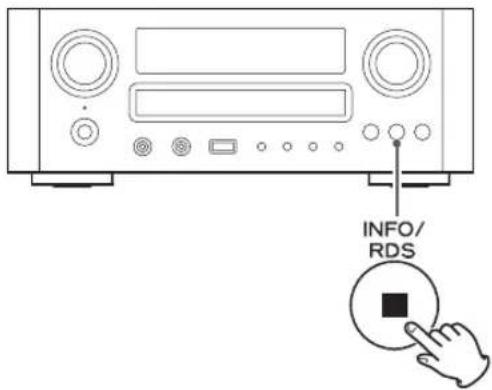
To turn off the auto clock adjustment, hold down the RDS button for more than 8 seconds.
text_image
INFO/ RDS- To turn on the auto clock adjustment again, hold down the RDS button for more than 8 seconds.
- When the auto clock adjustment is turned off, CLOCK TIME is not displayed.
text_image
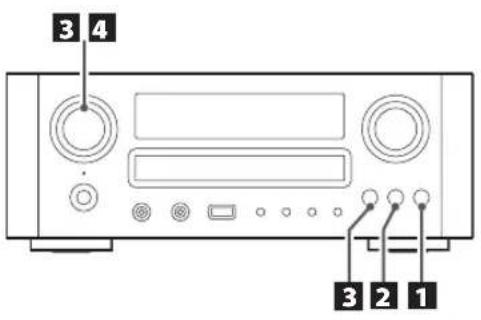
3 4 3 2 1You can search for stations by programme type.
This function is available only on RDS services of FM waveband in Europe.
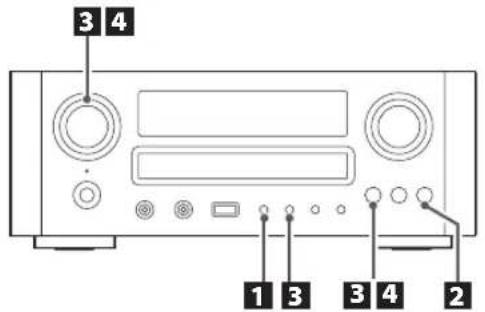
1 Select FM by pressing the BAND button repeatedly.
2 Hold down the RDS button for more than 3 seconds.
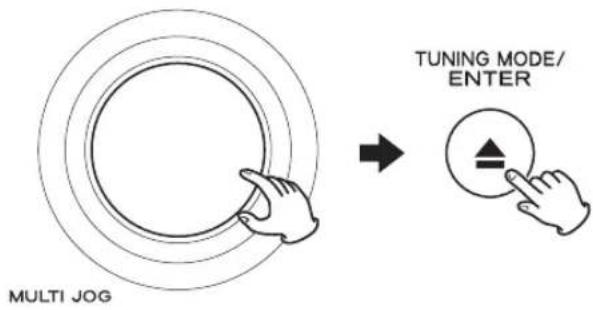
3 Select the desired programme type (PTY).
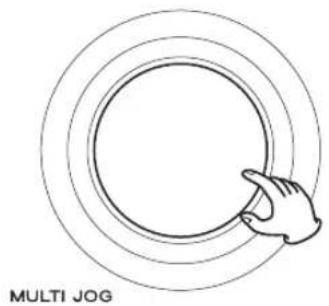
Turn the MULTI JOG knob to select an item, and then press the ENTER button.
text_image
MULTI JOG TUNING MODE/ ENTERSelect your desired one from among 31 kinds of PTY programmes.
The programme type will blink.
4 Turn the MULTI JOG knob within 3 seconds to start searching.
natural_image
Simple line drawing of a hand touching a circular ring, labeled 'MULTI JOG' below (no other text or symbols)- When the broadcast whose programme type you have selected is found, searching stops and the programme type will be displayed.
- If a broadcast of the selected programme type is not found during PTY Search, it will stop at the very first frequency.
- To stop searching, press the RDS button.
News:
brief announcements, events, public opinion, reports, actual situations.
Current Affairs:
a kind of suggestion including practical announcements other than news, documents, discussion, analysis and so on.
Information:
daily information or reference such as weather forecast, consumer guide, medical assistance and so on.
Sport:
sports related programmes.
Education:
educational and cultural information.
Drama:
all kinds of radio concert and serial drama.
Cultures:
all aspects of national or local culture including religious events, philosophy, social science, language, theatre, and so on.
Science:
programmes on natural science and technology.
Varied Speech:
popular programmes such as quiz, entertainment, private interview, comedy, satire and so on.
Pop Music:
programme on commercial, practical and popular songs, and sale volume of discs, etc.
Rock Music:
practical modern music generally composed and played by young musicians.
Easy Listening:
popular music usually lasting for less than 5 minutes.
Light Classics M:
classical music, instrumental music, chorus, and light music favoured by non-professionals.
Serious Classics:
orchestra including great operas, symphony, chamber music and so on.
Other Music:
other music styles (Rhythm & Blues, Reggae, etc.).
Weather & Meter:
weather reports, forecast.
Finance:
financial reports, commerce, trading.
Children's Progs:
children's programmes.
Social Affairs:
social affairs.
Religion:
religious programmes.
Phone In:
programme in which the public expresses its view by phone.
Travel & Touring:
travel reports.
Leisure & Hobby:
programmes concerning recreational activities.
Jazz Music:
jazz music.
Country Music:
country music.
National Music:
national music.
Oldies Music:
music from the so-called golden age of popular music.
Folk Music:
folk music.
Documentary:
documentaries.
Alarm Test
Alarm-Alarm!:
a programme notifying an emergency or a natural disaster.
text_image
3 4 1 3 3 4 2When you use the network function for the first time, the unit starts an initial setup procedure to connect to the Internet.
1 Press the SOURCE button repeatedly to select TUNER mode.
SOURCE
2 Select "Internet Radio" by pressing the BAND button repeatedly.
Initial setup wizard starts.
3 Display the network setup menu.
Press the MENU/FM MODE button to display "Setup Menu", turn the MULTI JOG knob to select "Network", and then press the ENTER button.
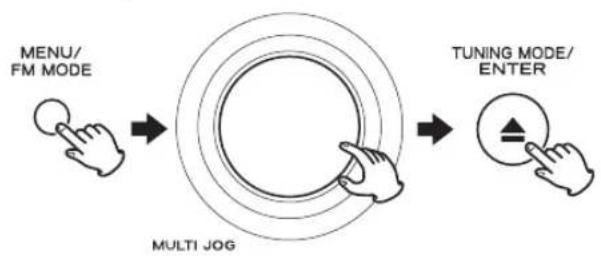
flowchart
graph LR
    A["MENU/FM MODE"] --> B["MULTI JOG"]
    B --> C["TUNING MODE/ENTER"]
- To go back to the previous screen, press the ◀◀◀ button.
4 Select a network method you want to use.
Turn the MULTI JOG knob to select "Wired" or "Wireless", and then press the ENTER button.
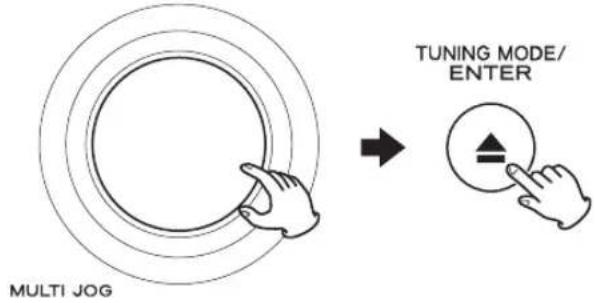
text_image
MULTI JOG TUNING MODE/ ENTER- When you select "Wired":
Use the MULTI JOG knob and the ENTER button to adjust "DHCP" and "Proxy Setting".
Make sure that the unit is connected to the network using a LAN cable.
- When you select "Wireless":
- Turn the MULTI JOG knob to select "Search AP", and then press the ENTER button.
- Turn the MULTI JOG knob to select the access point to connect, and then press the ENTER button.
- Turn the MULTI JOG knob to select characters to input.
See "How to input characters" on the next page. - Use the skip (I◄◄/►►I) button to move the cursor.
- Press the ENTER button when you finished inputting characters.
When the unit has been connected to the access point, press the MENU/FM MODE button to display "Save", turn the MULTI JOG knob to select "Yes", and then press the ENTER button.
Make sure that the unit is not connected to the network using the LAN cable.
Now the unit starts to connect to the Internet.
When connection is established successfully, the internet radio menu is displayed. See the next page to select a station.
- If you have a problem connecting to the Internet, see page 50.
How to input characters
text_image
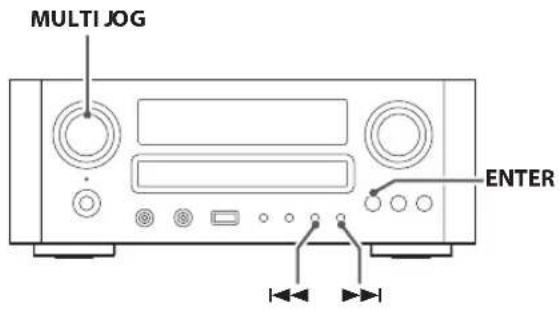
MULTI JOG ENTER- Turn the MULTI JOG knob to select a set of characters.
- When you select the character to input, move the cursor by pressing ▶▶1 button to input the next character.
Press the ◀◀◀ button to move the cursor to the previous character.
- When you finished inputting the characters, make sure that the cursor is on the last character, then press the ENTER button.
Repeat steps 1 to 3 to input next characters.
Characters you can input
0123456789
ABCDEFGHIJKLMNOPQRSTUVWXYZ
abcdefghijklmnopqrstuvwxyz
(space)!"#α%&'()*+,-./;<==>?@[-]–|`{|}
Listening to Internet Radio (1)
text_image
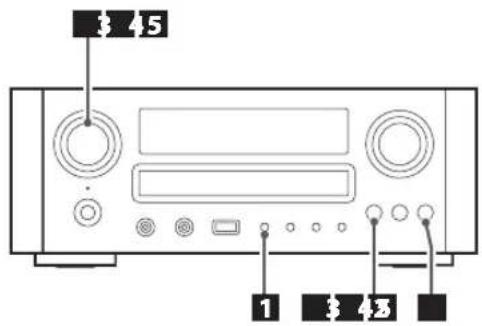
3 4 5 1 3 4 3Listening to an internet radio station/a podcast
1 Press the SOURCE button repeatedly to select TUNER mode.
SOURCE
2 Select "Internet Radio" by pressing the BAND button repeatedly.
BAND
3 Select a search method.
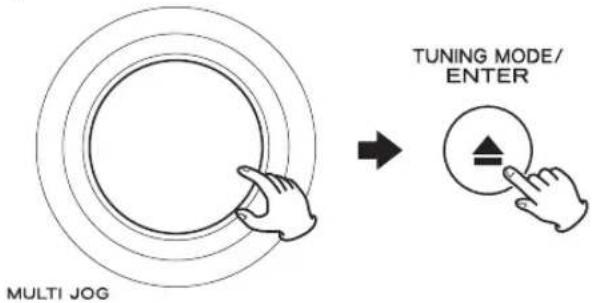
Turn the MULTI JOG knob to select the item, and then press the ENTER button.
text_image
MULTI JOG TUNING MODE/ ENTERThe following search methods are available.
Favorites:
List of stations/Podcast you stored as favourite is displayed. Select a station/Podcast you want to listen to. Favourites are stored on the internet radio portal. See page 38.
Added Stations:
Even though the station list contains thousands of stations, you may want to listen to stations not listed. You can add your own stations via the internet radio portal. See page 38.
Listening to Internet Radio (2)
Location:
Search by the location of the broadcaster.
Genre:
Search by the genre of music played on the station/ Podcast.
Podcasts By Location:
Search by the Podcast's location.
Podcasts By Genre:
Search by the Podcast's genre.
New Stations:
Select from a list of recently added stations.
Most Popular Stations:
Select from a list of popular stations.
Recently Played:
You can select the station/Podcast from the ones you listened to recently.
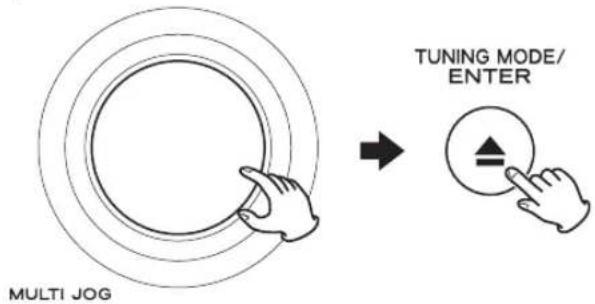
4 If you have selected "Location", "Genre" "Podcasts by Location", or "Podcasts by Genre", in step 3, search for the channel you want.
Turn the MULTI JOG knob to select the item, and then press the ENTER button.
text_image
MULTI JOG TUNING MODE/ ENTER5 Select a station or a Podcast you want to listen to.
Turn the MULTI JOG knob to select the item, and then press the ENTER button.
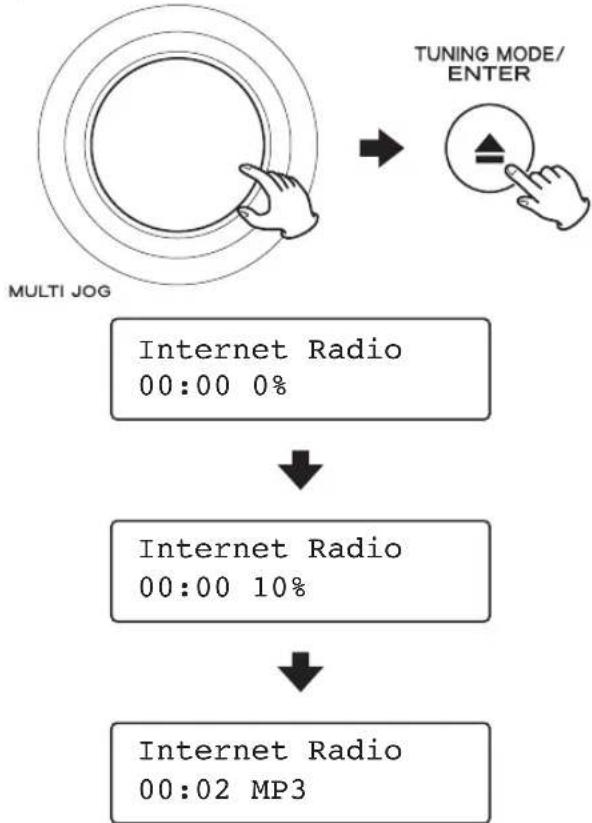
flowchart
graph TD
    A["MULTI JOG"] --> B["TUNING MODE/ENTER"]
    B --> C["Internet Radio 00:00 0%"]
    C --> D["Internet Radio 00:00 10%"]
    D --> E["Internet Radio 00:02 MP3"]
Changing the displayed information
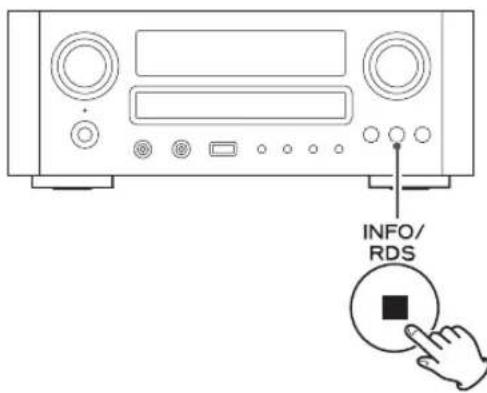
text_image
INFO/ RDSEach time the INFO button is pressed, information on the second line of the display changes.
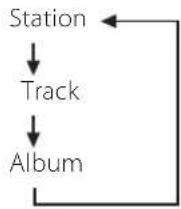
- The types of information displayed may vary depending on the stations/Podcasts.
Radio Portal
Internet radio portal
Access the radio portal on the Internet using your computer to fully enjoy the internet radio function of this unit.
- You can create a list of your favourite stations/Podcasts on the portal. This list can be viewed from your unit, making it easier for you to find your usual programmes.
You can see the list of your favourite stations from "Favorites" in the internet radio menu.
- If the station/Podcast you want to listen to is not in the channel list, you can create your own list.
You can see the list of your added stations from "Added Stations" in the internet radio menu.
Accessing the radio portal
1 Open your Internet browser and access http://teac.vtuner.com/.
You can change the language by clicking each nation's flag icon on the top.
2 Input your e-mail address and password to register.
3 Input the MAC address of the unit.
You can confirm the MAC address from "Setup Menu" → "Information" → "MAC Address". See page 45 for how to open "Setup Menu".
When you input the MAC address, do not input ":" between the alphanumeric characters.
4 Select a genre from the list.
5 Select a station to add to your favourite list.
Click the button to add the station, then a dialog box appears.
6 Input a group name in the dialog box to make a group, then click the button.
The group name is added to "My Favourite Groups". You can access the group from "Favourites" in the Internet Radio menu.
Using AirPlay
This unit is compatible with AirPlay. You can play back audio files on your computer with iTunes 10 or later or iPhone/iPod touch/iPad with iOS 4.2.1 or later through AirPlay.
From your iPhone/iPod touch/iPad:
- Before using AirPlay, perform setup for the Internet connection. For details, see "Initial Network Setup" on page 34.
1 Press the ⏻ button to turn the unit on.
Standby/On indicator

2 Turn your iPhone/iPod touch/iPad on.
Connect your iPhone/iPod touch/iPad to the network.
4 Start up iPod on your iPhone/iPod touch/iPad.
5 Tap the (AirPlay) icon.
The available device list is displayed.
6 Select "CR-H700" from the list.
7 Start playing back a file from your iPhone/iPod touch/iPad.
Using Music Streaming
From your Computer:
- Before using AirPlay, perform setup for the Internet connection. For details, see "Initial Network Setup" on page 34.
1 Press the ⏻ button to turn the unit on.
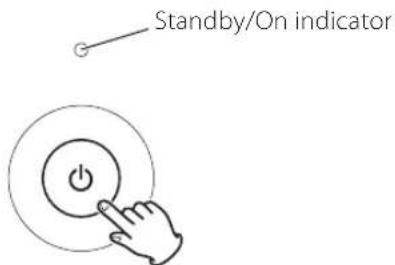
text_image
Standby/On indicator2 Turn your computer on.
3 Connect your computer to the network.
4 Start up iTunes on your computer.
5 Click the (AirPlay) icon.
The available device list is displayed.
6 Select the "CR-H700" from the list.
7 Start playing back a file from iTunes.
You can play back audio files on the server connected to the network from your computer or mobile device.
- Before using Music Streaming, perform setup for the Internet connection. For details, see "Initial Network Setup" on page 34.
- When you use Music Streaming, make sure that DLNA application is installed on your computer or mobile device.
● Prepare a NAS (Network Attached Storage) server compatible with DLNA.
1 Press the ⏻ button to turn the unit on.
Standby/On indicator
2 Turn your computer or mobile device on.
Connect a NAS (Network Attached Storage) server to the network.
For details on how to connect, refer to the server's instructions.
4 Connect your computer or mobile device to the unit and the server using the DLNA application.
5 Start playing back a file from your computer or mobile device.
About the Media Player function
Using the Media Player function, you can play back the music files in your computers through the LAN. There are two ways of connecting to the computer: using media sharing and using folder sharing.
Media sharing
Media sharing allows this unit to play back a shared media library on the computer, as well as browsing the tracks using tag items such as artist names, genres and album names.
You need a PC running on Windows XP, Windows Vista, or Windows 7 and Windows Media Player 10 or later on it.
Folder sharing
To use file sharing method, you need to configure your music files open to access, so that other computers or CR-H700 can read those files.
Preparations for Shared Media (Windows 7)
1 Connect your computer to the LAN.
2 Connect CR-H700 to the LAN. (page 10)
- If you have a problem connecting to the LAN, see page 50.
3 If the files you want to share are not yet added to the media library of Windows Media Player, add them to the media library. - Refer to the manual of Windows Media Player for details.
4 On Windows Media Player, open "Stream", then "Turn on media streaming".
5 Click "Turn on media streaming".
6 On Windows Media Player, open "Stream", then "More streaming options...".
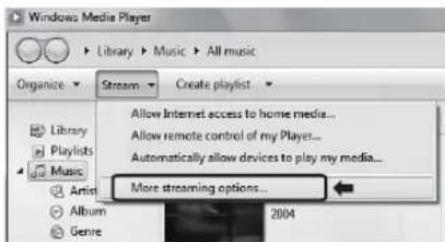
text_image
Windows Media Player Library > Music > All music Organize > Stream > Create playlist Library Playlists Music Allow Internet access to home media... Allow remote control of my Player... Automatically allow devices to play my media... More streaming options... Album Genre 20047 Select "CR-H700" from the list, then click "Customize...".
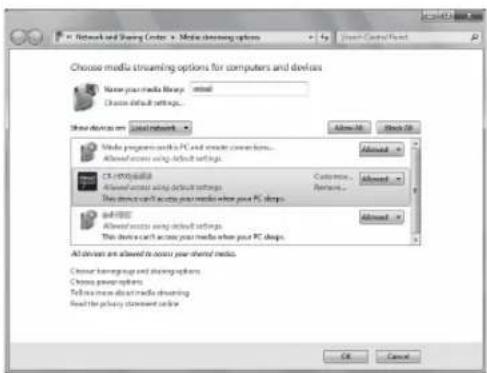
text_image
Network and Sharing Center - Media Streaming Options Choose media streaming options for computers and devices Name your media library: email Choose default settings... Show device name: local network Make programs with PC and create common icons... Allow screen using default settings. CS-1000348 Allow installed usage default settings. This device can't access your media when your PC shops. and access Allow access using default settings. This device can't access your media when your PC shops. All devices are allowed to access your shared media. Choose sharing scope and sharing options... Choose power options... Tell us more about media streaming Read the privacy document online. OK Cancel8 Configure detailed sharing settings, then click "OK".
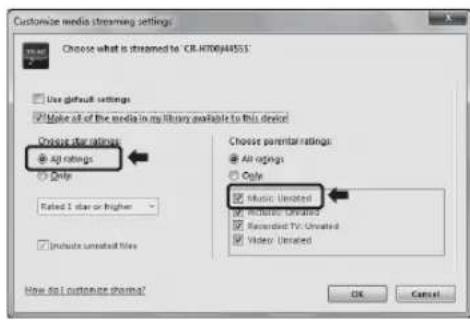
text_image
Customize media streaming settings Choose what is streamed to CR.H700J44551 Use default settings Make all of the media in my library available to this device Choose star ratings All ratings Only Rated 1 star or higher Include unrelated files Choose parentar ratings All ratings Only Music Unrated Include Unrated Recorded TV Unrated Video Unrated How do I customize sharing? OK Cancel- To listen to music files regardless of their rating, set "Choose star ratings" to "All ratings".
- Ensure that "Music" is checked.
9 Click "OK".
For the procedure of playback, see "Listening to Media Player". (page 44)
Preparations for Shared Media (Windows Vista)
1 Connect your computer to the LAN.
2 Connect CR-H700 to the LAN. (page 10)
- If you have a problem connecting to the LAN, see page 50.
3 If the files you want to share are not yet added to the media library of Windows Media Player, add them to the media library.
- Refer to the manual of Windows Media Player for details.
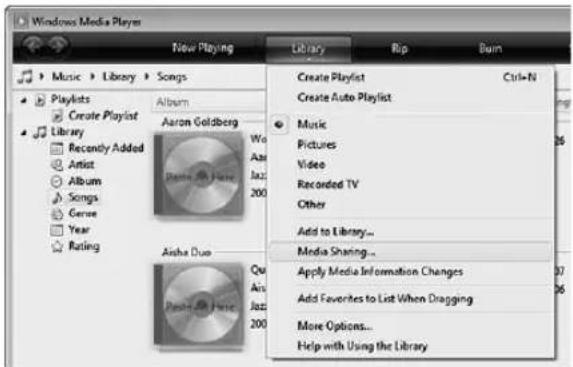
4 On Windows Media Player, open "Library", then "Media Sharing...".
text_image
Windows Media Player New Playing Library Hip Burn Music > Library > Songs Playlists Create Playlist Library Recently Added Artist Album Songs Gerve Year Rating Aaron Goldberg Aisha Duo Music Pictures Video Recorded TV Other Add to Library... Media Sharing... Apply Media Information Changes Add Favorites to List When Dragging More Options... Help with Using the LibraryMedia Sharing window opens.
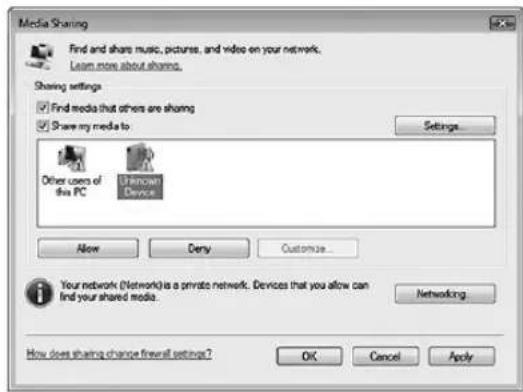
5 Activate "Share my media to:"
"CR-H700" appears in the device list.
6 Select "CR-H700" and click "Allow".
The CR-H700 can now access to the shared library.
text_image
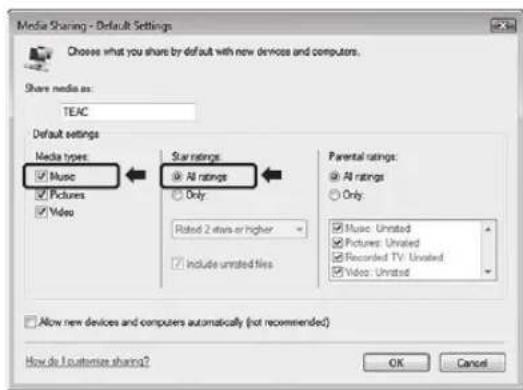
Media Sharing Find and share music, pictures, and video on your network. Learn more about sharing. Sharing settings ✓ Find media that others are sharing ✓ Share my media to: Settings... Other users of this PC Unknown Device Allow Deny Customize... Your network (Network) is a private network. Devices that you allow can find your shared media. Networking How does sharing change firewall settings? OK Cancel Apply7 Click on "Settings...", and configure detailed sharing settings.
text_image
Media Sharing - Default Settings Choose what you share by default with new devices and computers. Share media as: TEAC Default settings Media types: Music Pictures Video Star ratings: All ratings Only Rated 2 stars or higher Include unrelated files Parental ratings: All ratings Only: Music: Unrated Pictures: Unrated Recorded TV: Unrated Video: Unrated Allow new devices and computers automatically (not recommended) How do I customize sharing? OK Cancel- To listen to music files regardless of their rating, set "Star ratings" to "All ratings".
- Ensure that "Music" is checked under the "Media types" setting.
For the procedure of playback, see "Listening to Media Player". (page 44)
Preparations for Shared Folders (Windows XP)
Check the name of the Domain or the "Workgroup" your computer belongs to.
To enable Shared Folders, your computer needs to be a member of a Domain or a "Workgroup".
Usually, your computer belongs to a "Workgroup" by default. To see the name of the Domain or the "Workgroup" your computer belongs to, check the PC setting as follows:
Control Panel → System → Computer Name
2 Check the user account name and its password.
To access the computer from CR-H700, you need the user account name and the password of the computer.
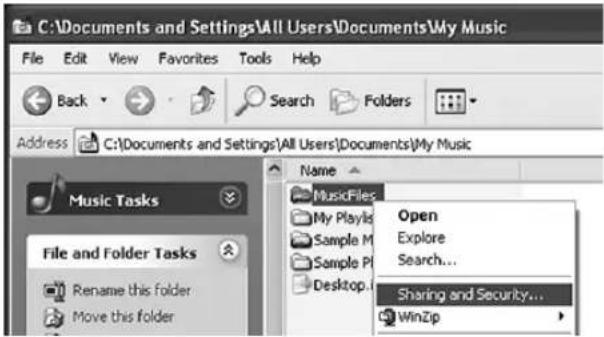
3 Right-click on the folder which contains the music files you want to share, and select "Sharing and Security".
text_image
C:\Documents and Settings\All Users\Documents\My Music File Edit View Favorites Tools Help Back Search Folders Address C:\Documents and Settings\All Users\Documents\My Music Music Tasks File and Folder Tasks Rename this folder Move this folder Name MusicFiles My PlayIs Sample M Sample P Desktop... Open Explore Search... Sharing and Security... WinZip4 In the "Sharing" tab, check "Share this folder".
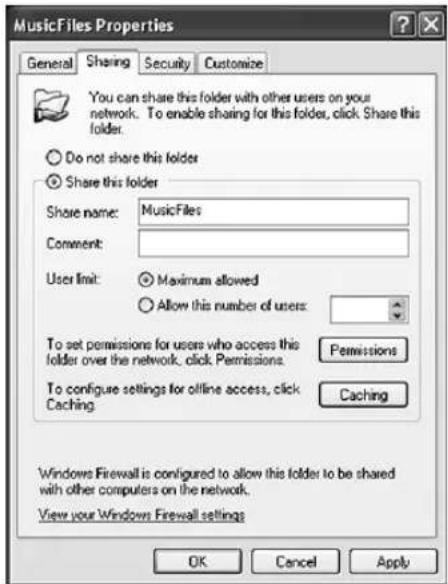
text_image
MusicFiles Properties General Sharing Security Customize You can share this folder with other users on your network. To enable sharing for this folder, click Share this folder. Do not share this folder Share this folder Share name: MusicFiles Comment: User limit: Maximum allowed Allow this number of users: To set permissions for users who access this folder over the network, click Permissions Caching To configure settings for offline access, click Caching Permissions Caching Windows Firewall is configured to allow this folder to be shared with other computers on the network. View your Windows Firewall settings OK Cancel ApplyPreparations for Shared Folders (Windows Vista)
1 Check the name of the Domain or the "Workgroup" your computer belongs to.
To enable Shared Folders, your computer needs to be a member of a Domain or a "Workgroup".
Usually, your computer belongs to a "Workgroup" by default. To see the name of the Domain or the "Workgroup" your computer belongs to, check the PC setting as follows:
Control Panel → System and Maintenance → System
2 Check the user account name and its password.
To access the computer from CR-H700, you need the user account name and the password of the computer.
3 Open "Control Panel", "Network and Internet", then "Network and Sharing Center".
4 Set "Public folder sharing" to "On (read only)".
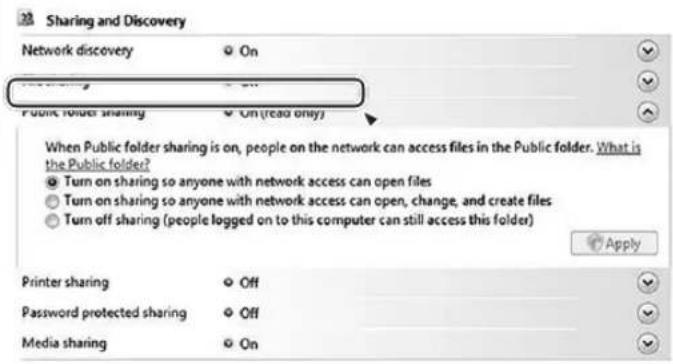
text_image
Sharing and Discovery Network discovery On Public folder sharing On (read only) When Public folder sharing is on, people on the network can access files in the Public folder. What is the Public folder? Turn on sharing so anyone with network access can open files Turn on sharing so anyone with network access can open, change, and create files Turn off sharing (people logged on to this computer can still access this folder) Apply Printer sharing Off Password protected sharing Off Media sharing On5 Set "Password protected sharing" to "On".
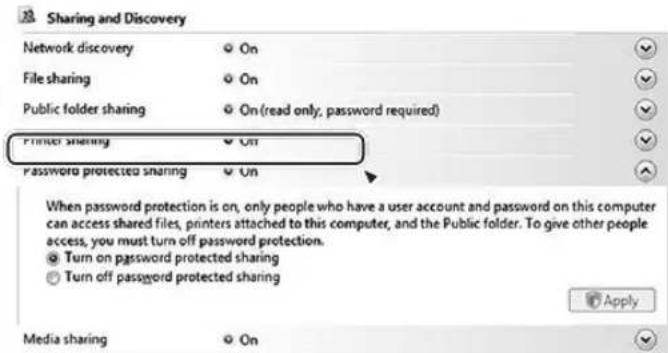
text_image
Sharing and Discovery Network discovery File sharing Public folder sharing Printer sharing Password protected sharing On On On (read only; password required) On On Apply When password protection is on, only people who have a user account and password on this computer can access shared files, printers attached to this computer, and the Public folder. To give other people access, you must turn off password protection. Turn on password protected sharing Turn off password protected sharing6 Copy the music files you want to enjoy on CR-H700 into the "Public Music" folder in the "Public" folder.
Preparations for Shared Folders (Windows 7)
Check the name of the Domain or the "Workgroup" your computer belongs to.
To enable Shared Folders, your computer needs to be a member of a Domain or a "Workgroup".
Usually, your computer belongs to a "Workgroup" by default. To see the name of the Domain or the "Workgroup" your computer belongs to, check the PC setting as follows:
Control Panel → System and Security → System
2 Check the user account name and its password.
To access the computer from CR-H700, you need the user account name and the password of the computer.
3 Open "Control Panel", "Network and Security", then "Network and Sharing Center".
4 Click "Change advanced sharing setting".
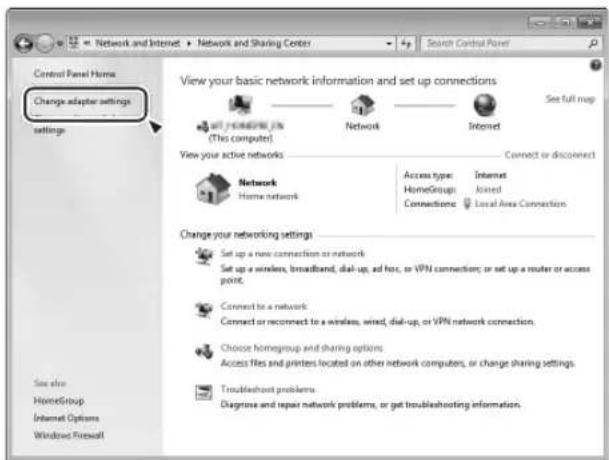
text_image
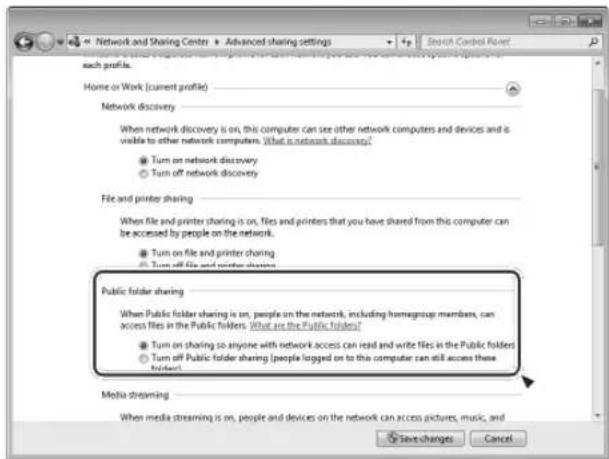
Network and Internet Network and Sharing Center Search Control Power Control Panel Home Change adapter settings Settings View your basic network information and set up connections Set full map set previous job (This computer) Network Internet View your active networks Connect or disconnect Network Home network Access type: Internet HomeGroup Joined Connections Local Area Connection Change your networking settings Set up a new connection or network Set up a wireless, broadband, dial-up, ad hoc, or VPN connection; or set up a router or access point. Connect to a network Connect or reconnect to a wireless, wired, dial-up, or VPN network connection. Choose homegroup and sharing options Access files and printers located on other network computers, or change sharing settings. Troubleshoot problems Diagnose and repair network problems, or get troubleshooting information.5 Select "Turn on sharing so anyone with network access can read and write files in the Public folders" for "Public folder sharing".
text_image
Network and Sharing Centers Advanced sharing settings Search Control Panel each profile. Home or Work (current profile) Network discovery When network discovery is on, this computer can see other network computers and devices and is visible to other network computers. What is network discovery? ● Turn on network discovery ○ Turn off network discovery File and printer sharing When file and printer sharing is on, files and printers that you have shared from this computer can be accessed by people on the network. ● Turn on file and printer sharing ○ Turn off file and printer sharing Public folder sharing When Public folder sharing is on, people on the network, including homegroup members, can access files in the Public folders. What are the Public folders? ● Turn on sharing to anyone with network access can read and write files in the Public folders ○ Turn off Public folder sharing (people logged on to the computer can still access these folders) Media streaming When media streaming is on, people and devices on the network can access pictures, music, and Save changes Cancel6 Click "Save changes".
7 Copy the music files you want to enjoy on CR-H700 into the "Public Music" folder in the "Public" folder.
Listening to Media Player
- Before listening to Media Player, perform setup for the Internet connection. For details, see "Initial Network Setup" on page 34.
1 Press the ⏻ button to turn the unit on.
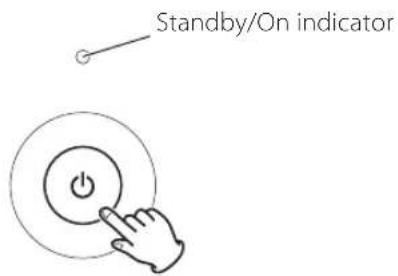
text_image
Standby/On indicator2 Connect the unit and the computer or NAS (Network Attached Storage) server to the network.
Press the SOURCE button repeatedly to select TUNER mode.

4 Select "Media Player" by pressing the BAND button repeatedly.
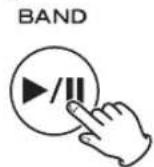
Select a computer or a server to use.
Turn the MULTI JOG knob to select the item, and then press the ENTER button.
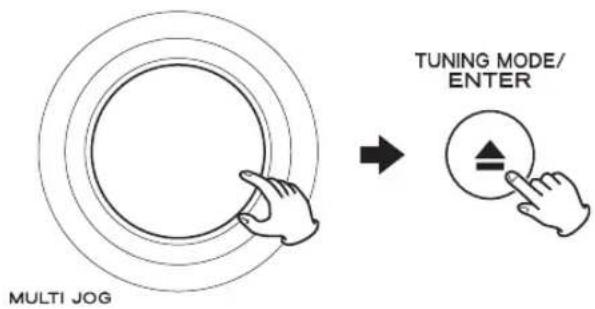
text_image
MULTI JOG TUNING MODE/ ENTER6 Select a file to play back.
Turn the MULTI JOG knob to select the item, and then press the ENTER button.
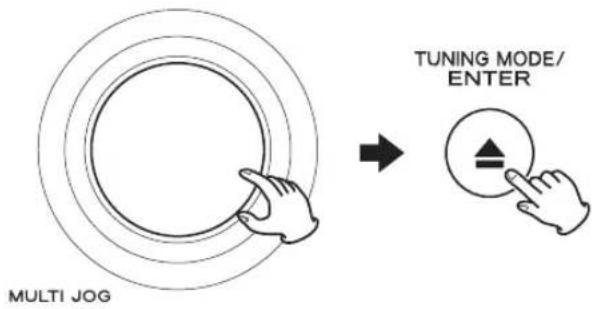
text_image
MULTI JOG TUNING MODE/ ENTERThis unit can display only single-byte alphanumeric characters. If a file includes double-byte characters (such as Japanese, Chinese, etc.), they cannot be displayed correctly. However, it does not affect file playback.
Network Configuration
Software update
The software of the unit can be updated via the Internet connection, so that you are able to use the latest features of the unit. Regularly check for updates.
1 Press the SOURCE button repeatedly to select TUNER mode.
SOURCE

2 Select "Internet Radio" by pressing the BAND button repeatedly.
BAND
3 Open "Setup Menu".
Press the MENU/FM MODE button.
MENU/FM MODE
Setup Menu Device Name
4 Select "Software Update" from "Setup Menu".
Turn the MULTI JOG knob to select the item, and then press the ENTER button.
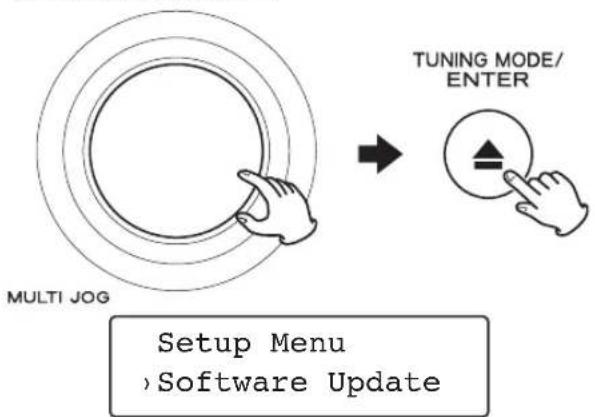
flowchart
graph TD
    A["MULTI JOG"] --> B["TUNING MODE/ENTER"]
    B --> C["Setup Menu\nSoftware Update"]
If an update is available, the unit automatically starts download and installation of the new software.
- You can check the current software version of your unit using "Setup Menu". Follow the menu items as follows:
"Setup Menu" → "Information" → "Firmware Version"
Network standby setting
If you select "On" for this setting, the unit turns on and starts playback automatically when it detects an AirPlay or DLNA signal.
Follow the menu items as follows:
"Setup Menu" → "Network" → "Wireless" → "Wired" → "Standby (Off)", and then select "On".
Searching an access point
If you have moved or modified your network environment, or if you have a problem connecting to the Internet, perform the initial network setup to establish the Internet connection again.
Follow the menu items as follows:
"Setup Menu" → "Network" → "Wireless" → "Search AP"
Manual Internet setup
You can check and modify detailed settings of the Internet connection.
Follow the menu items as follows:
To check the current network settings
"Setup Menu" → "Information"
To configure Wired LAN settings
Select "Setup Menu" → "Network" → "Wired", and then adjust "DHCP" and "Proxy Setting".
To configure Wireless LAN settings
Select "Setup Menu" → "Network" → "Wireless", and then adjust "DHCP", "SSID", "Security", "Key", and "Proxy Setting".
To check the Radio ID of your unit
The Radio ID may be required when you contact our customer support.
Follow the menu items as follows:
"Setup Menu" → "Information" → "MAC Address"
Setting the Clock
The clock setting of this unit is automatically adjusted according to the CLOCK TIME data of an RDS broadcast. If you adjust the clock manually, follow the following steps.
1 Press the TIME SET button.

text_image
TIME SETEach time the TIME SET button is pressed, the mode is changed as follows.
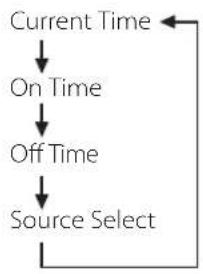
flowchart
graph TD
    A["Current Time"] --> B["On Time"]
    B --> C["Off Time"]
    C --> D["Source Select"]
- For Europe, the unit uses the 24-hour "military" clock. For North America, the unit uses the 12-hour clock.
- When no action is taken for 10 seconds, the time adjust mode will be cancelled.
- Press the stop button (■) to cancel the time setting.
2 Press the scroll buttons (▲/▼) to set the current hour.
text_image
ENTER3 Press the ENTER button.
text_image
Diagram showing a remote control with a circular button labeled 'ENTER' and a hand pressing it, indicating navigation or action.The "minute" value blinks.
4 Press the scroll buttons (▲/▼) to set the current minute.
text_image
Diagram showing a remote control with a circular dial labeled 'ENTER' and a hand interacting with it.5 Press the ENTER button.
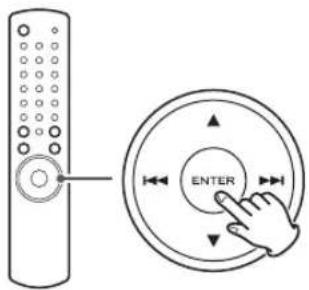
text_image
Diagram showing a remote control with a hand pressing the button labeled 'ENTER' and directional arrows indicating rotation.The clock starts from 00 seconds.
- The clock setting will not be saved when the AC power cord is pulled out.
Setting the Timer
- Adjust the clock before setting the timer.
- When no action is taken for 1 minute, the timer setting mode will be cancelled.
1 Press the TIME SET button repeatedly until "On Time" is displayed.
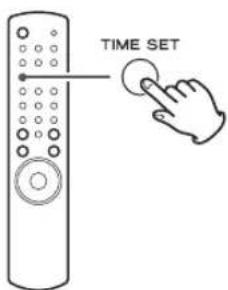
text_image
TIME SET"On Time" appears on the display, and the "hour" value blinks.
2 Press the scroll buttons (▲/▼) to set the hour value, and press the ENTER button.
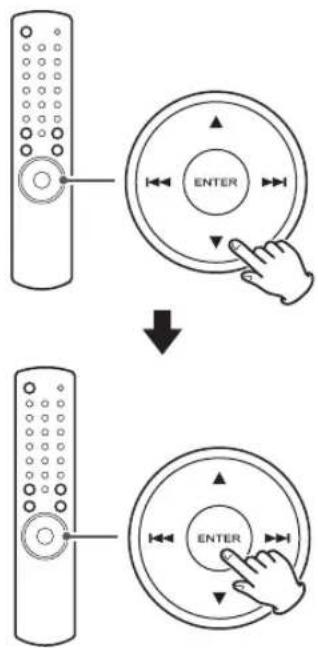
text_image
Diagram showing how to press a remote control via keyboard shortcuts, with directional arrows indicating action.The "minute" value blinks.
3 Press the scroll buttons (▲/▼) to set the minute value, and press the TIME SET button.
"Off Time" appears on the display, and the "hour" value blinks.
text_image
ENTER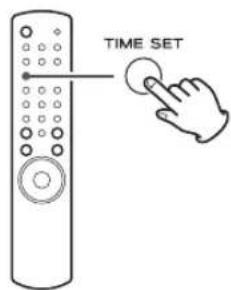
text_image
TIME SET4 Repeat step 2 and 3 to set the Off time.
"Source Select" appears on the display.
- When you select "TUNER" as the source, the band is fixed as FM. The station selected when the timer activates is the one selected last.
- You cannot select "USB/iPod" as the source.
5 Press the scroll buttons (▲/▼) to select the source, and press the ENTER button.
Now the timer setting is stored in memory.
Every time you press the TIMER button on the remote control unit, the timer mode changes as follows.
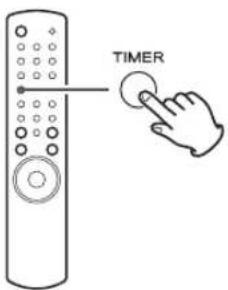
text_image
TIMER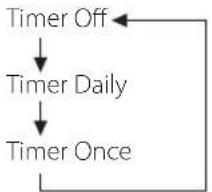
flowchart
graph TD
    A["Timer Off"] --> B["Timer Daily"]
    B --> C["Timer Once"]
Timer Playback (for daily playback)
1 Select "Timer Daily" by pressing the TIMER button on the remote control unit.
The timer indicator "lights on the display.
2 Prepare for the timer playback.
Adjust the volume, tune in a station, etc.
3 Press the STANDBY/ON button to put the unit in standby mode.
Everyday when the On time is reached, the unit will turn on and start playback, and when the Off time is reached the unit will return to standby.
Timer Playback (for playback once)
1 Select "Timer Once" by pressing the TIMER button on the remote control unit.
The timer indicator "lights on the display.
2 Prepare for the timer playback.
Adjust the volume, tune in a station, etc.
3 Press the STANDBY/ON button to put the unit in standby mode.
When the On time is reached, the unit will turn on and start playback, and when the Off time is reached the unit will return to standby.
Timer off
When not using the timer, press the TIMER button on the remote control unit to select "Timer Off".
The timer indicator "disappears from the display.
Sleep Timer
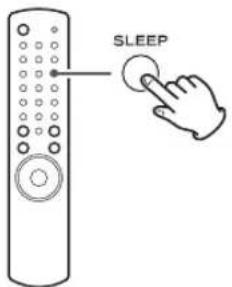
text_image
SLEEPThe power can be switched off after a specified amount of time.
Press the SLEEP button repeatedly until desired time appears on the display.
SLEEP-90 (80, 70 ... 10)
The power will be switched off 90 (80, 70 ... 10) minutes later.
SLEEP OFF
The sleep timer is off.
● The display is dimmed when you set the sleep timer.
- If you want to check the remaining time, press the SLEEP button once. The remaining time will be displayed for 3 seconds, and return to the normal display.
Listening to an External Source
You can listen to the sound from the external component connected to the PHONO, AUX 1 IN, or AUX 2 IN jacks.
1 Press the SOURCE button to select "PHONO", "AUX 1" or "AUX 2".
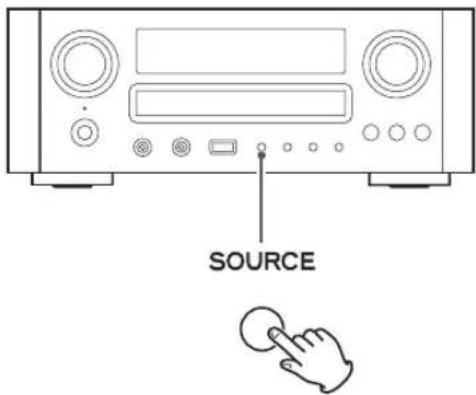
text_image
SOURCE2 Start playback on the external component.
3 Adjust the volume.
Turn the VOLUME knob to adjust the volume.

natural_image
Simple line drawing of a hand touching a circular ring, labeled 'VOLUME' below (no other text or symbols)Troubleshooting
In case of trouble with the unit, please take the time to look through this chart and see if you can solve the problem yourself before you call your dealer or TEAC service center.
Amplifier
No power.
→ Check the connection to the AC power supply.
No sound from speakers.
→ Check the connection to the speakers.
→ Adjust the volume.
→ Select proper source.
→ Pull out the headphones plug from PHONES jack.
→ If muting is on, press the MUTING button.
The sound is noisy.
The unit is too close to a TV set or similar appliances. Install the unit apart from them, or turn them off.
Remote Control Unit
Remote control unit does not work.
→ If the batteries are exhausted, change the batteries.
→ Use remote control unit within the range (5 m/16 ft.) and point at the front panel.
→ Clear obstacles between the remote control unit and the main unit.
→ If a fluorescent light is near the unit, turn it off.
Tuner
Cannot listen to any station, or signal is too weak.
→ Tune in the station properly.
→ If a TV set is near the unit, turn it off.
→ Install the antenna again after locating the best reception position.
→ An external antenna is recommended.
Though the broadcast is stereo, it sounds monaural.
→ Press the FM MODE button.
Network
Cannot connect to the Internet.
→ Check if your computer can connect to the Internet using the same network.
→ Enter a correct pass key to the network.
→ Check the settings of your network's firewall. The unit needs access to the following UDP and TCP ports as a minimum: 80, 554, 1755, 5000 and 7070.
Cannot listen to a station/Podcast.
→ The broadcaster has a temporary problem with Internet connection.
→ Check if your Internet connection is not temporarily disconnected or disturbed.
Cannot find a station/Podcast in the station list.
→ The station/Podcast may not be broadcast at the moment.
→ The link of the station/Podcast may be out of date.
→ The allowed number of simultaneous listeners of station/Podcast might have reached the maximum.
→ The internet connection speed is too slow.
→ Add the station/Podcast to your own station list by accessing the internet radio portal.
Cannot use Airplay.
→ Check if you selected the unit as the device for Airplay.
Cannot use Music Streaming.
→ Check if you selected the unit as the device for Music Streaming.
Media Player
Cannot connect to the LAN.
→ Check the settings of your network's firewall. The unit needs access to the following UDP and TCP ports as a minimum: 80, 554, 1755, 5000 and 7070.
→ Check if your computer can connect to the Internet using the same network.
→ Enter a correct password to the network.
→ Check if the computer is not shut down or in the sleep mode. Set up the computer not to shut down or turn into the sleep mode automatically.
There may be a problem with the network authentication. Press the SOURCE button or BAND button to select the Media Player again.
Cannot find a track. (Shared Media)
→ Add the track to the media library of Windows Media Player.
→ Select "CR-H700" from the list (Windows 7) or select "Allow" for "CR-H700" (Windows Vista) (page 40 to 41).
→ Check the file format. Playable formats are MP3 and WMA.
→ If you have antivirus security software enabled on your computer, the unit may fail to connect.
Cannot find a folder/file. (Shared Folders)
→ Configure the folder/file sharing setting. (page 42 to 43)
→ Add the file to the shared folder.
→ Enter a correct password of the user account.
→ Check the file format. Playable formats are MP3 and WMA.
If you have antivirus security software enabled on your computer, the unit may fail to connect.
CD Player
Will not play.
→ Load a disc with label side up.
→ If the disc is dirty, clean the surface of the disc.
→ A blank disc has been loaded. Load a prerecorded disc.
→ Depending on the disc, etc. it may not be possible to play back CD-R/RW discs. Try again with another disc.
→ You cannot play back unfinalized CD-R/RW discs. Finalize such a disc in a CD recorder and try again.
Sound skips.
→ Place the unit on a stable place to avoid vibration and shock.
→ If the disc is dirty, clean the surface of the disc.
→ Do not use scratched, damaged or warped discs.
iPod Player
Will not play.
→ Remove the iPod from the USB jack, wait a few seconds, and insert it again.
→ Software update may solve the problem. Visit the Apple website and download the latest iPod software.
Cannot operate the iPod.
→ Make sure the HOLD switch of the iPod is not set to HOLD.
Audio Files
There is no sound even if the play/pause button (▶/II) is pressed.
→ Check if there are playable files on the USB device.
→ Non-playable file formats (e.g MPEG 1 LAYER 2 file) cannot be played.
"Artist:[ ]", "Title:[ ]", and "Album:[ ]" appears on the display.
There is no ID3 tag information for the music file. Edit the title, artist, and album information of the song on a PC using an MP3 or WMA file editing application.
Some unknown characters are displayed on the display panel.
This unit cannot display symbols and full-size or double-byte characters (such as Japanese, Chinese, etc.) correctly. File name of MP3 or WMA should be alphanumeric characters.
If normal operation cannot be recovered, unplug the power cord from the outlet and plug it again.
Maintenance
If the surface of the unit gets dirty, wipe with a soft cloth or use diluted neutral cleaning liquid. Be sure to remove any fluid completely. Do not use thinner or alcohol as they may damage the surface of the unit.
Restoring factory settings
If the power supply is interrupted for 14 days or longer, all the settings kept in memory (such as preset stations and timer settings) will be erased.
It will take more than 3 days after plugging the power cord into the outlet to charge enough electricity for the memory backup function.
If you want to manually initialize the settings, hold down the SOURCE button and play/pause button (▶/Ⅲ) for more than 4 seconds in standby mode.
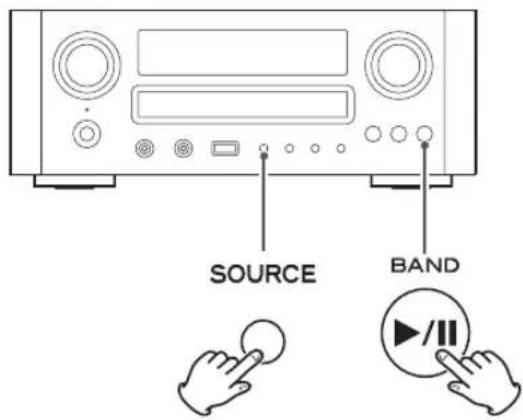
text_image
SOURCE BANDThe unit will be turned on, and all the settings are reset to the default settings.
AMPLIFIER Section
Output Power ..... 40 W/ch (6 ohms, 0.5 % ,1 kHz)
Input Sensitivity ...... PHONO: 2.5 mV 47 kΩ
AUX1, AUX2: 200 mV 47 kΩ
Frequency Response .... 20 Hz to 60,000 Hz (+1/-3 dB)
TUNER Section
FM Section
Tuning Range 87.50 MHz to 108.00 MHz
Signal-to-Noise Ratio 65 dB (Mono)
60 dB (Stereo)
AM Section
Tuning Range
522 kHz to 1,629 kHz (European Model)
530 kHz to 1,710 kHz (North American Model)
Signal-to-Noise Ratio 35 dB
USB Section
Playback
Frequency Response ..... 20 Hz to 20,000 Hz (±2 dB)
Signal-to-Noise Ratio .... more than 85 dB
Internet Radio
Format MP3, WMA, RealAudio
Internet connection
LAN terminal 10/100 BASE-T
Wireless LAN IEEE 802.11b/g
Security WEP, WPA, WPA2
GENERAL
Power Requirements
230 V AC, 50 Hz (European Model)
120 V AC, 60 Hz (North American Model)
Power Consumption 120 W
0.5 W (standby)
Dimension (W x H x D) 290 x 113 x 340 mm
(11-7/16 × 4-1/2 × 13-7/16 inch)
Weight 5.8 kg
(12.8 lbs)
Standard Accessories
Power Cord x 1
Remote Control Unit (RC-1286) x 1
Batteries (AAA) x 2
AM Loop Antenna x 1
FM Lead-type Antenna x 1
Owner's Manual x 1
Warranty Card x 1
- Design and specifications are subject to change without notice.
● Weight and dimensions are approximate. - Illustrations may differ slightly from production models.
Information for Users on Collection and Disposal of Old Equipment and used Batteries
These symbols on the products, packaging, and/or accompanying documents mean that used electrical and electronic products and batteries should not be mixed with general household waste. For proper treatment, recovery and recycling of old products and used batteries, please take them to applicable collection points, in accordance with your national legislation and the Directives 2002/96/EC and 2006/66/EC.
By disposing of these products and batteries correctly, you will help to save valuable resources and prevent any potential negative effects on human health and the environment which could otherwise arise from inappropriate waste handling.
For more information about collection and recycling of old products and batteries, please contact your local municipality, your waste disposal service or the point of sale where you purchased the items.
Information on Disposal in other Countries outside the European Union
These symbols are only valid in the European Union. If you wish to discard these items, please contact your local authorities or dealer and ask for the correct method of disposal.
Note for the battery symbol (bottom right two symbol examples):
This symbol might be used in combination with a chemical symbol. In this case it complies with the requirement set by the Directive for the chemical involved.

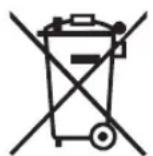
Pb
Sommaire
natural_image
Three-step illustration showing hands holding a CD or DVD disc, with an upward arrow indicating motion (no text or symbols)text_image
Diagram showing two steps of a device mounting mechanism, labeled 1 and 2, with a magnified inset view.text_image
Technical diagram of a device panel with labeled components and wiring connectionstext_image
Architectural or interior layout diagram showing a house, roof-mounted antenna, and room layouts with labeled fixtures and equipment.natural_image
Diagram showing two-step welding process: one with a tool, the other with a tool (no text or symbols)Comment raccorder
natural_image
Diagram showing a tool inserting into a cylindrical device into a separate cylindrical device (no text or symbols present)B Prise SUBWOOFER OUT
text_image
Blanc (L) Rouge (R) Blanc (L) Rouge (R)N BAND, lecture/pause (▶/II)
k Lecture/pause (▶/II)
natural_image
Line drawing of a remote control device with two buttons and a separate handle (no text or symbols)natural_image
Simple line drawing of a hand touching a circular ring, labeled 'VOLUME' at the bottom (no other text or symbols)D Coupure du son
natural_image
Line drawing of an audio recording device connected to a microphone and headphones (no text or symbols)natural_image
Line drawing of a hand using a disc to press down an open microwave oven (no text or symbols)text_image
Diagram of a device front panel with labeled buttons and ports, marked as 1 and 3.natural_image
Front view of a portable electronic device with ports and a USB jack inserted (no text or symbols visible)text_image
Diagram showing a remote control with directional arrows and a circular button labeled 'ENTER' pointing to it.text_image
Diagram showing a remote control with a hand pressing the button labeled 'ENTER' and directional arrows indicating navigation.text_image
Diagram showing a remote control with a hand pressing a button labeled 'II' to its left, indicating navigation or action.text_image
PROGRAM CLEARtext_image
REPEAT 1/ALLnatural_image
Diagram showing connection between a CD-ROM and an audio player via USB cable (no text or symbols)natural_image
Line drawing of a CD-ROM front panel with control buttons and a hand cursor pointing to the right button (no text or symbols)natural_image
Line drawing of a CD-ROM front panel with buttons and indicator lights, no text or symbols presenttext_image
Diagram of a device front panel with labeled buttons and directional arrows indicating playback controlstext_image
Diagram showing a remote control with a circular dial labeled 'ENTER' and a hand interacting with it.text_image
REPEAT 1/ALLflowchart
graph TD
    A["RDM off"] --> B["RDM Songs"]
    B --> C["RDM Album"]
    C --> A
natural_image
Simple line drawing of a hand touching a circular ring, labeled 'MULTI JOG' below (no other text or symbols)text_image
Diagram showing a remote control with a circular button labeled 'ENTER' and a hand interacting with it.FM 10:00
CH12 108.00MHz
text_image
INFO/ RDStext_image
INFO/ RDSnatural_image
Simple line drawing of a hand pressing a circular ring, labeled 'MULTI JOG' below (no other text or symbols)programmes relatifs aux sports.
Education:
Podcasts By Location:
Most Popular Stations:
text_image
INFO/ RDStext_image
Windows Media Player Library > Music > All music Organize Stream Create playlist Library Playlists Music Artist Album Genre Allow Internet access to home media... Allow remote control of my Player... Automatically allow devices to play my media... More streaming options... 2004text_image
Network and Sharing Center > Media Streaming options Choose media streaming options for computers and devices Name your media library: email Choose default settings... Show directories: Local network Media programs will use PC and create connections... Allowed access using default settings. CAM/CMOSSEM Allowed access using default settings This device can access your media where your PC shops. Add PDF Allowed access using default settings This device can access your media when your PC shops. All devices are allowed to access your shared media. Choose homegroup and sharing options Choose group options Select more than media streaming Read the privacy requirement online. OK Canceltext_image
Customize media streaming settings Choose what is streamed to 'CR.H700j4415S' Use default settings Make all of the media in my library available to this device Closest ratings: All ratings Only Rated 1 video or higher Include unrelated files How do I customize sharing? Choose parental ratings: All ratings Only Music Untitled Untitled variations Recorded TV Untitled Video Untitled OK Canceltext_image
Windows Media Player New Playing Library Rip Burn Music > Library > Songs Playlists Create Playlist Aflum Aaron Goldberg Library Recently Added Artist Album Songs Genre Year Rating Asha Duo Music Pictures Video Recorded TV Other Add to Library... Media Sharing... Apply Media Information Changes Add Favorites to List When Dragging More Options... Help with Using the Library5 Activez "Share my media to:"
text_image
Media Sharing Find and share music, pictures, and video on your network. Learn more about sharing. Sharing settings ✓ Find media that others are sharing ✓ Share my media to Settings... Other users of this PC Unknown Device Allow Deny Customize... Your network (Network) is a private network. Devices that you allow can find your shared media. Networking How does sharing change firewall settings? OK Cancel Applytext_image
Media Sharing - Default Settings Choose what you share by default with new devices and computers. Share media as: TEAC Default settings Media types Music Pictures Video Star ratings All ratings Only: Rated 2 stars or higher Include unrelated files Parental ratings: All ratings Only: Music: Untitled Pictures: Untitled Recorded TV: Untitled Video: Untitled Allow new devices and computers automatically (not recommended) How do I customize sharing? OK CancelControl Panel → System → Computer Name
text_image
C:\Documents and Settings\All Users\Documents\My Music File Edit View Favorites Tools Help Back Search Folders Address C:\Documents and Settings\All Users\Documents\My Music Music Tasks File and Folder Tasks Rename this folder Move this folder Name MusicFiles My PlayIs Sample M Sample PI Desktop. Open Explore Search... Sharing and Security... WinZip4 Dans l'onglet "Sharing", cochez "Share this folder".
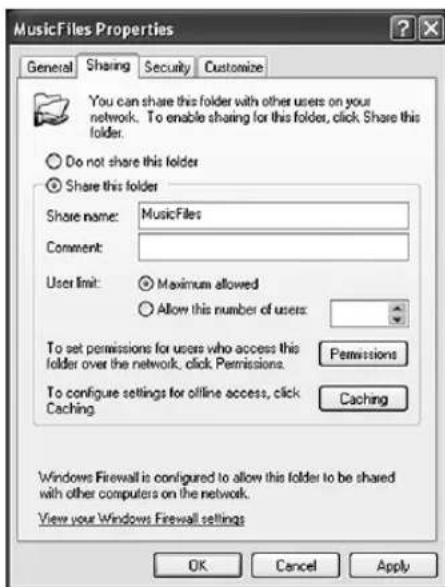
text_image
MusicFiles Properties General Sharing Security Customize You can share this folder with other users on your network. To enable sharing for this folder, click Share this folder. Do not share this folder Share this folder Share name: MusicFiles Comment: User limit: Maximum allowed Allow this number of users: To set permissions for users who access this folder over the network, click Permissions. Caching To configure settings for offline access, click Caching Permissions Caching Windows Firewall is configured to allow this folder to be shared with other computers on the network. View your Windows Firewall settings OK Cancel ApplyControl Panel → System and Maintenance → System
4 Réglez "Public folder sharing" sur "On (read only)".
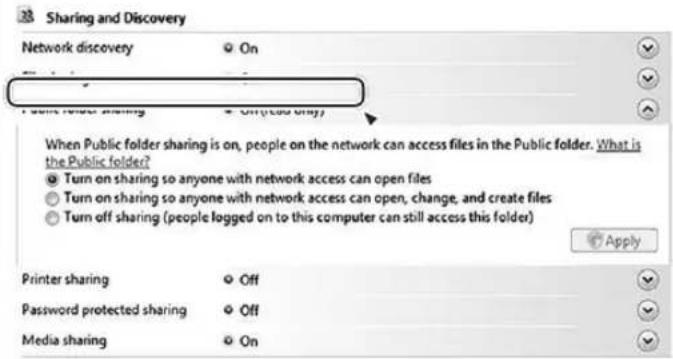
text_image
Sharing and Discovery Network discovery On Public folder sharing Off (You only) When Public folder sharing is on, people on the network can access files in the Public folder. What is the Public folder? Turn on sharing so anyone with network access can open files Turn on sharing so anyone with network access can open, change, and create files Turn off sharing (people logged on to this computer can still access this folder) Apply Printer sharing Off Password protected sharing Off Media sharing On5 Réglez "Password protected sharing" sur "On".
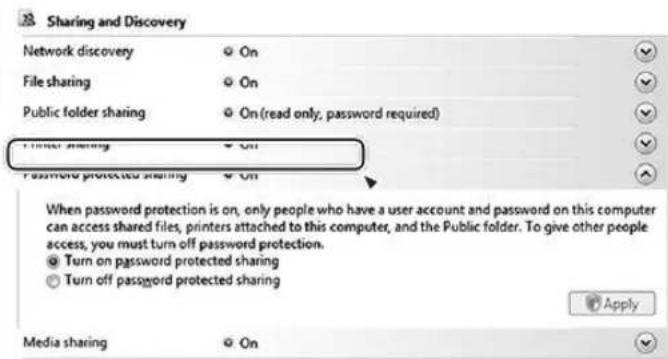
text_image
Sharing and Discovery Network discovery File sharing Public folder sharing Print sharing Password protected sharing On On On (read only; password required) On Password protected sharing On When password protection is on, only people who have a user account and password on this computer can access shared files, printers attached to this computer, and the Public folder. To give other people access, you must turn off password protection. Turn on password protected sharing Turn off password protected sharing Apply Media sharing OnControl Panel → System and Security → System
text_image
Control Panel Home Change adapter settings settings View your basic network information and set up connections Set full map Network Internet View your active networks Connect or disconnect Network Home network Access type: Internet HomeGroup Connected Local Area Connection Change your networking settings Set up a new connection or network Set up a wireless, broadband, dial-up, ad hoc, or VPN connection; or set up a router or access point. Connect to a network Connect or reconnect to a wireless, wired, dial-up, or VPN network connection. Choose homegroup and sharing options Access files and printers located on other network computers, or change sharing settings. Troubleshoot problems Diagnose and repair network problems, or get troubleshooting information.5 Sélectionnez "Turn on sharing so anyone with network access can read and write files in the Public folders" pour le "Public folder sharing".
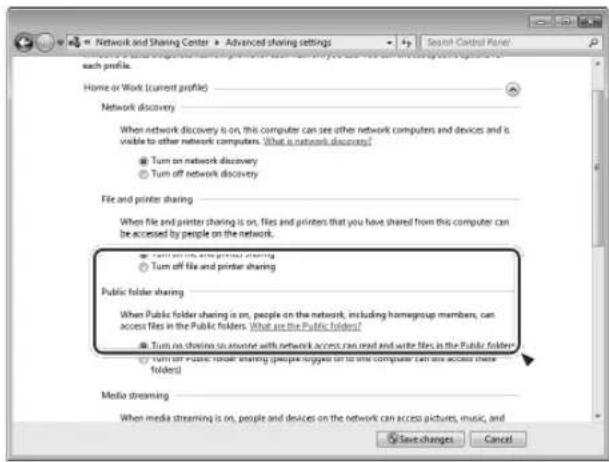
text_image
Network and Sharing Center ▶ Advanced sharing settings Search Control Panel each profile. Home or Work (current profile) Network discovery When network discovery is on, this computer can see other network computers and devices and is visible to other network computers. What is a network discovery? ● Turn on network discovery ○ Turn off network discovery File and printer sharing When file and printer sharing is on, files and printers that you have shared from this computer can be accessed by people on the network. ● Turn on file and printer sharing ○ Turn off file and printer sharing Public folder sharing When Public folder sharing is on, people on the network, including homegrup members, can access files in the Public folders? What are the Public folders? ● Turn on sharing to announce with network access can read and write files in the Public folders? ○ Turn on public folder sharing people suggest on to this computer can see access these folders? Media streaming When media streaming is on, people and devices on the network can access pictures, music, and Save changes Cancel"Setup Menu" → "Information" → "Firmware Version"
"Setup Menu" → "Network" → "Wireless" → "Wired"
"Setup Menu" → "Network" → "Wireless" → "Search AP"
Réglage Internet manuel
"Setup Menu" → "Information"
"Setup Menu" → "Information" → "MAC Address"
flowchart
graph TD
    A["Current Time"] --> B["On Time"]
    B --> C["Off Time"]
    C --> D["Source Select"]
text_image
Diagram showing how to press a remote control via keyboard shortcuts, with directional arrows indicating action.flowchart
graph TD
    A["Timer Off"] --> B["Timer Daily"]
    B --> C["Timer Once"]
natural_image
Simple line drawing of a hand touching a circular ring, labeled 'VOLUME' below (no other text or symbols)Impossible de commander iPod.
text_image
SOURCE BAND(11-7/16 × 4-1/2 × 13-7/16 pouces)
Poids 5,8 kg
(12,8 livres)
Accessoires Standard
iPod/iPhone/iPad 105
natural_image
Three-step diagram showing hands operating a CD or DVD disc, with no text or symbols present.natural_image
Four identical heart-shaped diagrams with cross marks, each containing a small circle and an X symbol (no text or labels)text_image
Diagram showing two steps of a device component assembly, labeled 1 and 2, with an inset view highlighting the process.text_image
Technical diagram of a device front panel with labeled components and wiring connectionsAntena de FM exterior
text_image
Diagram of a home electrical panel with antenna, control panel, and labeled components in Chinesetext_image
ALTAVOCES R L ~ IN FM 750 GND AM ANTENNA AUX 1 ETHERNET IN OUT PHONO B SIGNAL A SUBWOOFER OUT (69 MIN) SPEAKERS WLAN LINE IN SUBWOOFERnatural_image
Diagram showing two stages of a welding or cutting process, with arrows indicating motion direction (no text or symbols)Cómo conectar
natural_image
Diagram showing a tool inserting into a cylindrical device into a separate cylindrical device (no text or symbols present)B Conector SUBWOOFER OUT
natural_image
Line drawing of a remote control device with two buttons and a separate handle (no text or symbols)natural_image
Simple line drawing of a hand touching a circular ring, labeled 'VOLUME' below (no other text or symbols)D Enmudecimiento
natural_image
Line drawing of an audio recording device connected to a microphone and headphones (no text or symbols)natural_image
Line drawing of a hand using a circular device to press or install a tray with a button, no text or symbols presenttext_image
Diagram of a device front panel with labeled buttons and ports, marked as 1 and 3.natural_image
Front view of a computer monitor with ports and a screwdriver inserted (no text or symbols visible)text_image
Diagram showing a remote control with directional arrows and a circular button labeled 'ENTER' pointing to it.text_image
Diagram showing a remote control with a hand pressing the button labeled 'ENTER' and directional arrows indicating navigation.text_image
Diagram showing a remote control with a circular button labeled 'ENTER' and a hand interacting with it.P-01 T002
T016 72:00
natural_image
Line drawing of a remote control with a hand pressing a button (no text or symbols)text_image
PROGRAM CLEARUSB/Random 00:07 WMA
text_image
REPEAT 1/ALLnatural_image
Diagram showing connection between a CD-ROM and an audio player via USB cable (no text or symbols)natural_image
Line drawing of a portable electronic device with control knobs and a hand pointing to a play button (no text or symbols)natural_image
Diagram of a device front panel with buttons and indicator lights, showing no text or symbolsnatural_image
Front view of a portable electronic device with control buttons and indicator lights (no text or symbols visible)text_image
Diagram showing a remote control with a circular dial labeled 'ENTER' and a hand interacting with it, illustrating navigation or interaction.text_image
REPEAT 1/ALLflowchart
graph TD
    A["RDM off"] --> B["RDM Songs"]
    B --> C["RDM Album"]
    C --> A
natural_image
Simple line drawing of a hand pointing at concentric circles, labeled 'MULTI JOG' below (no other text or symbols)text_image
INFO/ RDStext_image
INFO/ RDSnatural_image
Simple line drawing of a hand pointing at concentric circles, labeled 'MULTI JOG' below (no other text or symbols)Cultures (culturas):
Children's Progs (programas infantiles):
programas infantiles.
Social Affairs (acontecimientos sociales):
asuntos sociales.
Podcasts By Location:
Most Popular Stations:
text_image
INFO/ RDStext_image
Windows Media Player Library > Music > All music Organize > Stream > Create playlist Library Playlists Music Artist Album Genre Allow Internet access to home media... Allow remote control of my Player... Automatically allow devices to play my media... More streaming options...text_image
Network and Sharing Center > Media Streaming Options Choose media streaming options for computers and devices Show devices are: [ ] Show network Media programs will PC and create operations... Allowed access using default settings. C:\My Documents Allowed access using default settings This device can't access your media where your PC deeps. Add to Web Allowed access using default settings This device can't access your media when your PC deeps. All devices are allowed to access your shared media. Choose homegroup and sharing options Choose power options Take any more about media streaming Read the privacy statement code.text_image
Customize media streaming settings Choose what is streamed to 'CR-H70044551' Use default settings Make as of the media in my library available to this device Choose due ratings: All ratings Only Rated 1 star or higher Include unrelated files Choose parental ratings: All ratings Only Music Unrated Pictures Unrated Revised TV Unrated Video Unrated How do I customize sharing? OK Canceltext_image
Windows Media Player New Playing Library Rip Burn Music > Library > Songs Playlists Create Playlist Library Recently Added Artist Album Songs Genre Year Rating Album Aaron Goldberg Woo Audio Jazz 200 Aisha Duo Audio Jazz 200 Create Playlist Create Auto Playlist Music Pictures Video Recorded TV Other Add to Library... Media Sharing... Apply Media Information Changes Add Favorites to List When Dragging More Options... Help with Using the Librarytext_image
Media Sharing Find and share music, pictures, and video on your network. Learn more about sharing. Sharing settings ✓ Find media that others are sharing ✓ Share my media to: Settings Other users of this PC Unknown Device Allow Deny Customize... Your network (Network) is a private network. Devices that you allow can find your shared media. Networking How does sharing change firewall settings? OK Cancel Applytext_image
Media Sharing - Default Settings Choose what you share by default with new devices and computers. Share media as: TEAC Default settings Media types Music Pictures Video Star ratings: All ratings Only Rated 2 stars or higher Include unrelated files Parental ratings: All ratings Only: Music: Unrated Pictures: Unrated Recorded TV: Unrated Video: Unrated Allow new devices and computers automatically (not recommended) How do I customize sharing? OK CancelControl Panel → System → Computer Name
text_image
C:\Documents and Settings\All Users\Documents\My Music File Edit View Favorites Tools Help Back Search Folders Address C:\Documents and Settings\All Users\Documents\My Music Music Tasks File and Folder Tasks Rename this folder Move this folder Name MusicFiles My Playls Sample M Sample P Desktop. Open Explore Search... Sharing and Security... WinZip4 En la pestaña "Sharing", marque "Share this folder".
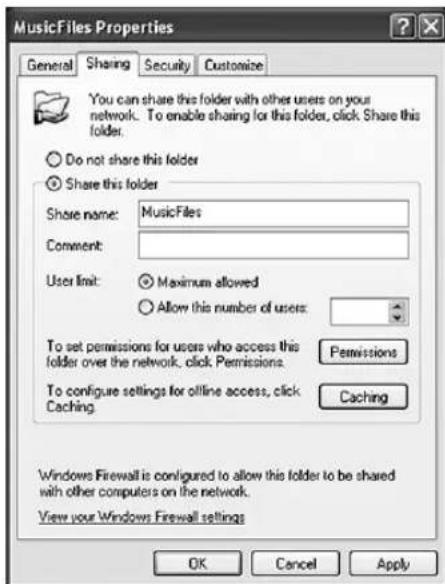
text_image
MusicFiles Properties General Sharing Security Customize You can share this folder with other users on your network. To enable sharing for this folder, click Share this folder. Do not share this folder Share this folder Share name: MusicFiles Comment: User limit: Maximum allowed Allow this number of users: To set permissions for users who access this folder over the network, click Permissions Permissions To configure settings for offline access, click Caching Caching Windows Firewall is configured to allow this folder to be shared with other computers on the network. View your Windows Firewall settings OK Cancel ApplyPreparativos para carpetas compartidas (Windows Vista)
Control Panel → System and Maintenance → System
text_image
Sharing and Discovery Network discovery On Public folder sharing On (read only) When Public folder sharing is on, people on the network can access files in the Public folder. What is the Public folder? Turn on sharing so anyone with network access can open files Turn on sharing so anyone with network access can open, change, and create files Turn off sharing (people logged on to this computer can still access this folder) Apply Printer sharing Off Password protected sharing Off Media sharing On5 Ajuste "Password protected sharing (compartir protegido con password)" a "On".
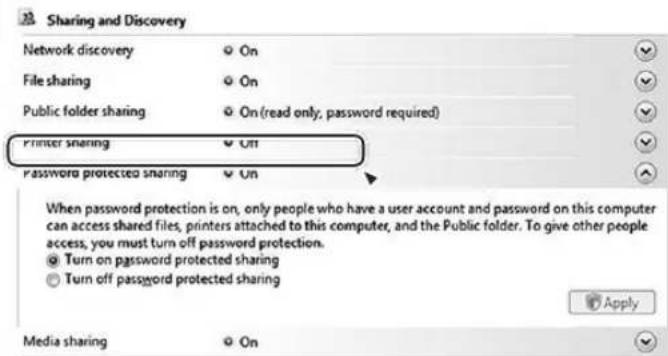
text_image
Sharing and Discovery Network discovery File sharing Public folder sharing Printer sharing Password protected sharing On On On (read only; password required) On On When password protection is on, only people who have a user account and password on this computer can access shared files, printers attached to this computer, and the Public folder. To give other people access, you must turn off password protection. Turn on password protected sharing Turn off password protected sharing Apply Media sharing OnControl Panel → System and Security → System
text_image
Control Panel Home Change adapter settings settings View your basic network information and set up connections View your active networks Connect or disconnect Network Home network Access type: Internet HomeGroup: Joined Connections: Local Area Connection Change your networking settings Set up a new connection or network Set up a wireless, broadband, dial-up, ad hoc, or VPN connection; or set up a router or access point. Connect to a network Connect or reconnect to a wireless, wired, dial-up, or VPN network connection. Choose homegroup and sharing options Access files and printers located on other network computers, or change sharing settings. Troubleshoot problems Diagnose and repair network problems, or get troubleshooting information.5 Seleccione "Turn on sharing so anyone with network access can read and write files in the Public folders" para "Public folder sharing".
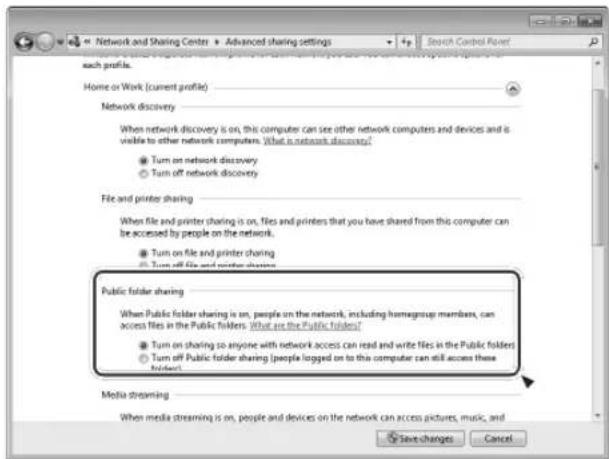
text_image
Network and Sharing Centers Advanced sharing settings Search Control Panel each profile. Home or Work (current profile) Network discovery When network discovery is on, this computer can see other network computers and devices and is visible to other network computers. What is network discovery? ● Turn on network discovery ○ Turn off network discovery File and printer sharing When file and printer sharing is on, files and printers that you have shared from this computer can be accessed by people on the network. ● Turn on file and printer sharing ○ Turn off file and printer sharing Public folder sharing When Public folder sharing is on, people on the network, including homegroup members, can access files in the Public folders. What are the Public folders? ● Turn on sharing to anyone with network access can read and write files in the Public folders ○ Turn off Public folder sharing (people logged on to the computer can still access these folders) Media streaming When media streaming is on, people and devices on the network can access pictures, music, and Save changes Cancel6 Haga clic en "Save changes".
"Setup Menu" → "Information" → "Firmware Version"
"Setup Menu" → "Information"
"Setup Menu" → "Information" → "MAC Address"
Ajuste del reloj
flowchart
graph TD
    A["Current Time"] --> B["On Time"]
    B --> C["Off Time"]
    C --> D["Source Select"]
text_image
Diagram showing a remote control with a circular dial labeled 'ENTER' and a hand interacting with it.text_image
Diagram showing a remote control with a circular dial labeled 'ENTER' and a hand interacting with it.text_image
Diagram showing how to press a remote control via keyboard shortcuts, with directional arrows indicating action.flowchart
graph TD
    A["Timer Off"] --> B["Timer Daily"]
    B --> C["Timer Once"]
natural_image
Simple line drawing of a hand touching a circular ring, labeled 'VOLUME' below (no other text or symbols)text_image
SOURCE BANDnatural_image
Three-step illustration showing hands operating a CD or DVD disc with an upward arrow indicating motion (no text or symbols)natural_image
Four-panel image showing a heart-shaped object with a cross mark, each paired with a separate irregular shape (no text or symbols)Stream: MPEG-1/2 Layer III
text_image
Diagram showing two steps of a computer mouse with a clip, labeled 1 and 2, and an inset view of the clip assembly.text_image
Technical diagram of a device panel with labeled components and wiring connectionsUKW-Außenantenne
text_image
Technical diagram of a home electrical panel with antenna, control panel, and labeled componentsnatural_image
Diagram showing two-step welding process: one with tool, the other with curved tool (no text or symbols)natural_image
Diagram showing a tool inserting into a cylindrical device into a hollow cylindrical device (no text or symbols present)natural_image
Line drawing of a remote control device with two buttons and a separate handle (no text or symbols)Batteriewechsel
natural_image
Simple line drawing of a hand touching a circular ring, labeled 'VOLUME' below (no other text or symbols)D Stummschalten
natural_image
Line drawing of an audio recording device connected to a headset via cable (no text or symbols)natural_image
Line drawing of a hand using a disc to press down an open microwave oven (no text or symbols)text_image
Diagram of a device front panel with labeled buttons and ports, marked as 1 and 3.natural_image
Front view of a portable electronic device with ports and a screwdriver inserted (no text or symbols visible)text_image
Diagram showing a remote control with a circular button labeled 'ENTER' and a hand pressing it, indicating navigation or action.natural_image
Line drawing of a remote control with a hand cursor clicking a button (no text or symbols)text_image
PROGRAM CLEARtext_image
REPEAT 1/ALLnatural_image
Line drawing of a CD-ROM connected to an audio player via cable (no text or symbols)natural_image
Line drawing of a portable electronic device with control knobs and a hand pointing to a play button (no text or symbols)text_image
Diagram of a digital audio device with labeled buttons and control panel, showing playback, display, and finger icons.natural_image
Line drawing of a CD-ROM front panel with buttons and indicator lights, no text or symbols presenttext_image
Diagram showing a remote control with a circular dial labeled 'ENTER' and a hand interacting with it.text_image
REPEAT 1/ALLflowchart
graph TD
    A["RDM off"] --> B["RDM Songs"]
    B --> C["RDM Album"]
    C --> A
natural_image
Simple line drawing of a hand pointing at concentric circles, labeled 'MULTI JOG' below (no other text or symbols)text_image
INFO/ RDStext_image
INFO/ RDSnatural_image
Simple line drawing of a hand pointing at concentric circles (no text or symbols)Podcasts By Location:
Most Popular Stations:
text_image
INFO/ RDStext_image
Windows Media Player Library > Music > All music Organize Stream Create playlist Library Playlists Music Artist Album Genre Allow Internet access to home media... Allow remote control of my Player... Automatically allow devices to play my media... More streaming options...text_image
Network and Sharing Orders > Media Streaming Options Choose media streaming options for computers and devices Name: your media library: mml Choose default settings... Show devices: Local network Media programs with PC and video connections... Allow access to default settings... CH-MyBlock Allow access to default settings. This device can access your media when your PC sleeps. Add PDF Allow access to default settings. This device can access your media when your PC sleeps. All devices are allowed to access your shared media. Choose remote access and sharing options Choose power options Software access about media streaming Read the privacy statement online OK Canceltext_image
Customize media streaming settings Choose what is streamed to CR-H790944355 Use default settings Make all of the media in my library available to this device Choose streamlines: All ratings Only Rated 1 size or higher Include uncated files Choose parental ratings: All ratings Color Music Unrated Pictures Unrated Recorded TV Unrated Video Unrated How do I customize shares? OK Canceltext_image
Windows Media Player New Playing Library Hip Burn Music > Library > Songs Playlists Create Playlist Library Recently Added Artist Album Songs Genre Year Rating Album Aaron Goldberg Aisha Duo Audio Jazz 200 Create Playlist Create Auto Playlist Music Pictures Video Recorded TV Other Add to Library... Media Sharing... Apply Media Information Changes Add Favorites to List When Dragging More Options... Help with Using the Librarytext_image
Media Sharing Find and share music, pictures, and video on your network. Learn more about sharing. Sharing settings ✓ Find media that others are sharing ✓ Share my media to: Settings... Other users of this PC Networks Device Allow Deny Customize... Your network (Network) is a private network. Devices that you allow can find your shared media. Networking How does sharing change forward settings? OK Cancel Applytext_image
Media Sharing - Default Settings Choose what you share by default with new devices and computers. Share media as: TEAC Default settings Media types: Music Pictures Video Star ratings: All ratings Only: Rated 2 stars or higher Include unsted files Parental ratings: All ratings Only: Music: Unrated Pictures: Unrated Recorded TV: Unrated Video: Unrated Allow new devices and computers automatically (not recommended) How do I customize sharing? OK Canceltext_image
C:\Documents and Settings\All Users\Documents\My Music File Edit View Favorites Tools Help Back Search Folders Address C:\Documents and Settings\All Users\Documents\My Music Music Tasks File and Folder Tasks Rename this folder Move this folder Name MusicFiles My Playls Sample M Sample P Desktop. Open Explore Search... Sharing and Security... WinZiptext_image
MusicFiles Properties General Sharing Security Customize You can share this folder with other users on your network. To enable sharing for this folder, click Share this folder. Do not share this folder Share this folder Share name: MusicFiles Comment: User limit: Maximum allowed Allow this number of users: To set permissions for users who access this folder over the network, click Permissions. Permissions To configure settings for offline access, click Caching Caching Windows Firewall is configured to allow this folder to be shared with other computers on the network. View your Windows Firewall settings OK Cancel ApplyControl Panel → System and Maintenance → System
text_image
Sharing and Discovery Network discovery On File sharing On Public folder sharing On (read only) When Public folder sharing is on, people on the network can access files in the Public folder. What is the Public folder? Turn on sharing so anyone with network access can open files Turn on sharing so anyone with network access can open, change, and create files Turn off sharing (people logged on to this computer can still access this folder) Printer sharing Off Password protected sharing Off Media sharing Ontext_image
Sharing and Discovery Network discovery On File sharing On Public folder sharing On (read only, password required) Printer sharing Off Password protected sharing On When password protection is on, only people who have a user account and password on this computer can access shared files, printers attached to this computer, and the Public folder. To give other people access, you must turn off password protection. Turn on password protected sharing Turn off password protected sharing Apply Media sharing Ontext_image
Control Panel Home Change adapter settings settings View your basic network information and set up connections Set full map set up a new connection or network Set up a wireless, broadband, dial-up, ad here, or VPN connection; or set up a router or access point. Connect to a network Connect or reconnect to a wireless, wired, dial-up, or VPN network connection. Choose homegroup and sharing options Access files and printers located on other network computers, or change sharing settings. Troubleshoot problems Diagnose and repair network problems, or get troubleshooting information.5 Wählen Sie „Turn on sharing so anyone with network access can read and write files in the Public folders“ unter „Public folder sharing“.
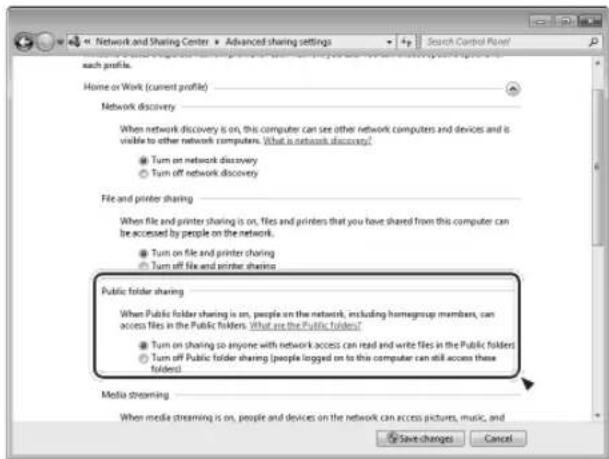
text_image
Network and Sharing Center ▶ Advanced sharing settings Search Control Point each profile. Home or Work (current profile) Network discovery When network discovery is on, this computer can see other network computers and devices and is visible to other network computers. What is network discovery? ● Turn on network discovery ○ Turn off network discovery File and printer sharing When file and printer sharing is on, files and printers that you have shared from this computer can be accessed by people on the network. ● Turn on file and printer sharing ○ Turn off file and printer sharing Public folder sharing When Public folder sharing is on, people on the network, including homegroup members, can access files in the Public folders. What are the Public folders? ● Turn on sharing to anyone with network access can read and write files in the Public folders ○ Turn off Public folder sharing (people logged on to this computer can still access these folders) Media streaming When media streaming is on, people and devices on the network can access pictures, music, and Save changes Cancelflowchart
graph TD
    A["Current Time"] --> B["On Time"]
    B --> C["Off Time"]
    C --> D["Source Select"]
text_image
Diagram showing a remote control with a circular button labeled 'ENTER' and a hand interacting with it.text_image
Diagram showing a remote control with a circular dial labeled 'ENTER' and a hand interacting with it.text_image
Diagram showing a remote control with a hand pressing the button labeled 'ENTER' and directional arrows indicating left and right movement.text_image
Diagram showing how to press a remote control via keyboard shortcuts, with directional arrows indicating action.flowchart
graph TD
    A["Timer Off"] --> B["Timer Daily"]
    B --> C["Timer Once"]
natural_image
Simple line drawing of a hand touching a circular ring, labeled 'VOLUME' below (no other text or symbols)text_image
SOURCE BAND(11-7/16 × 4-1/2 × 13-7/16 Zoll)
Gewicht 5,8 kg
(12,8 lbs)
Standardzubehör
Netzkabel x 1
Fernbedienung (RC-1286) x 1
Batterien (AAA) x 2
natural_image
Three-step illustration showing hands operating a CD or DVD disc with an upward arrow indicating motion (no text or symbols)natural_image
Four-panel image showing a heart-shaped object with a cross mark, each paired with a separate abstract shape (no text or symbols)Stream: MPEG-1/2 Layer III
text_image
Diagram showing two steps of a computer switch or latch mechanism, labeled 1 and 2, with an arrow indicating the process.text_image
Technical diagram of a device front panel with labeled components and wiring connectionstext_image
Diagram of a home control panel with antenna, indicator lights, and labeled components in Chinesetext_image
DIFFUSORI R L ~ IN FM 750 GND AM ANTENNA ETHERNET L IN OUT PHONO B SIGNAL A SUBWOOFER OUT (69 MIN) SPEAKERS WLAN LINE IN SUBWOOFERnatural_image
Diagram showing two stages of a cable or wire being welded, with no text or symbols present.natural_image
Diagram showing a tool inserting into a cylindrical device into a separate cylindrical device (no text or symbols present)text_image
Bianca (L) Bianca (L) Rossa (R) Rossa (R)N BAND, Play/Pause (▶ /II)
natural_image
Line drawing of a remote control device with two buttons and a separate handle (no text or symbols)natural_image
Simple line drawing of a hand touching a circular ring, labeled 'VOLUME' below (no other text or symbols)natural_image
Line drawing of an audio recording device connected to a headset via cable (no text or symbols)natural_image
Line drawing of a hand using a circular device to press or install a tray with a button (no text or symbols)text_image
Diagram of a device front panel with labeled buttons and ports, marked as 1 and 3.natural_image
Front view of a portable electronic device with ports and a screwdriver inserted (no text or symbols visible)text_image
Diagram showing a remote control with a hand pressing the button labeled 'ENTER' and directional arrows indicating left and right controls.text_image
Diagram showing a remote control with directional arrows and a circular button labeled 'ENTER' pointing to it.natural_image
Line drawing of a remote control with a hand pressing a button (no text or symbols)text_image
PROGRAM CLEARtext_image
REPEAT 1/ALLnatural_image
Diagram of a CD-ROM connected to an audio player via a USB cable (no text or symbols present)natural_image
Line drawing of a CD-ROM front panel with control buttons and a hand pointing to a play button (no text or symbols)text_image
Diagram of a CD-ROM front panel with buttons and control buttons, showing playback controls and finger pressing function buttons.natural_image
Line drawing of a CD-ROM front panel with buttons and control buttons, showing playback controls and finger icons (no text or symbols)text_image
Diagram showing a remote control with a circular button labeled 'ENTER' and a hand interacting with it.text_image
REPEAT 1/ALLflowchart
graph TD
    A["RDM off"] --> B["RDM Songs"]
    B --> C["RDM Album"]
    C --> A
natural_image
Simple line drawing of a hand pointing at concentric circles, labeled 'MULTI JOG' below (no other text or symbols)text_image
INFO/ RDStext_image
INFO/ RDSnatural_image
Simple line drawing of a hand touching a circular ring, labeled 'MULTI JOG' below (no other text or symbols)Podcasts By Lacation:
Most Popular Stations:
text_image
INFO/ RDStext_image
Windows Media Player Library > Music > All music Organize Stream Create playlist Allow Internet access to home media... Allow remote control of my Player... Automatically allow devices to play my media... More streaming options...text_image
Network and Sharing Center > Mode Streaming Options Choose media streaming options for computers and devices Name: you media library: mml Choose default settings... Show destinations: Local network Include programs with the PC and remote connections... Allowed access using default settings... All rights reserved Allowed access using default settings... This device can't access your media when your PC disks. and HBS Allowed access using default settings This device can't access your media when your PC disks. All allows are allowed to create your shared media. Choose herimg src and sharing options: Choose power options Set more recent about media streaming Read the privacy statement online. OK Canceltext_image
Customize media streaming settings Choose what is streamed to: CR-HID044555 Use default settings Make all of the media in my library available to this device Choose ratings: ● All ratings ○ Only Rated 1 star or higher ■ Includes unrelated files Choose parental ratings: ● All ratings ○ Only Music Untreated Electronic Untreated Recorded TV Untreated Video Untreated How do I customize sharing? OK Canceltext_image
Windows Media Player New Playing Library Hip Burn Music > Library > Songs Playlists Create Playlist Library Recently Added Artist Album Songs Genre Year Rating Aaron Goldberg Aisha Duo Create Playlist Create Auto Playlist Music Pictures Video Recorded TV Other Add to Library... Media Sharing... Apply Media Information Changes Add Favorites to List When Dragging More Options... Help with Using the Librarytext_image
Media Sharing Find and share music, pictures, and video on your network. Learn more about sharing. Sharing settings ✓ Find media that others are sharing ✓ Share my media to: Settings Other users of the PC Userable Devices Allow Deny Customize... Your network (Network) is a private network. Devices that you allow can find your shared media. Networking How does sharing change firewall settings? OK Cancel Applytext_image
Media Sharing - Default Settings Choose what you share by default with new devices and computers. Share media as: TEAC Default settings Media types: Music Pictures Video Star ratings: All ratings Only Rated 2 stars or higher Include unstated files Parental ratings: All ratings Only: Music: Unrated Pictures: Unrated Recorded TV: Unrated Video: Unrated Allow new devices and computers automatically (not recommended) How do it customize sharing? OK Canceltext_image
C:\Documents and Settings\All Users\Documents\My Music File Edit View Favorites Tools Help Back Search Folders Address C:\Documents and Settings\All Users\Documents\My Music Music Tasks File and Folder Tasks Rename this folder Move this folder Name MusicFiles My Playls Sample M Sample P Desktop... Open Explore Search... Sharing and Security... WinZiptext_image
MusicFiles Properties General Sharing Security Customize You can share this folder with other users on your network. To enable sharing for this folder, click Share this folder. Do not share this folder Share this folder Share name: MusicFiles Comment: User limit: Maximum allowed Allow this number of users: To set permissions for users who access this folder over the network, click Permissions Caching To configure settings for offline access, click Caching Permissions Caching Windows Firewall is configured to allow this folder to be shared with other computers on the network. View your Windows Firewall settings OK Cancel ApplyE Aprire "Control Panel", "Network and Internet" e quindi "Network and Sharing Center".
4 Impostare "Public folder sharing" su "On (read only)".
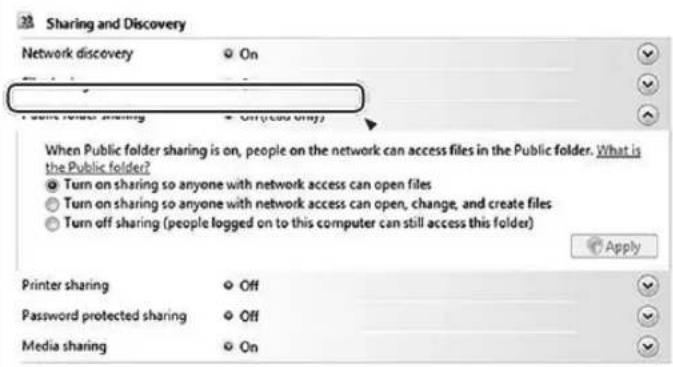
text_image
Sharing and Discovery Network discovery On Public folder sharing Off (used only) When Public folder sharing is on, people on the network can access files in the Public folder. What is the Public folder? Turn on sharing so anyone with network access can open files Turn on sharing so anyone with network access can open, change, and create files Turn off sharing (people logged on to this computer can still access this folder) Apply Printer sharing Off Password protected sharing Off Media sharing On5 Impostare "Password protected sharing" su "On".
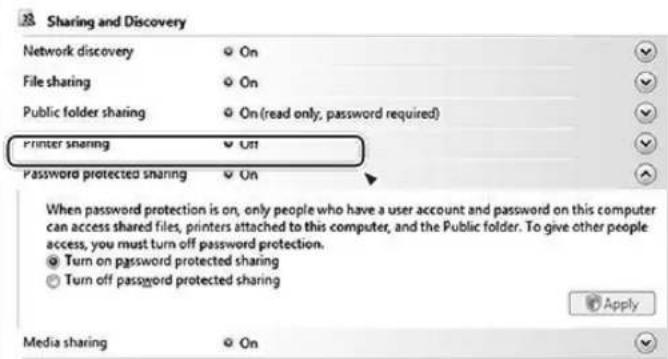
text_image
Sharing and Discovery Network discovery On File sharing On Public folder sharing On (read only; password required) Printer sharing Off Password protected sharing On When password protection is on, only people who have a user account and password on this computer can access shared files, printers attached to this computer, and the Public folder. To give other people access, you must turn off password protection. Turn on password protected sharing Turn off password protected sharing Apply Media sharing On3 Aprire "Control Panel", "Network and Security" e quindi "Network and Sharing Center".
4 Fare clic su "Change advanced sharing setting".
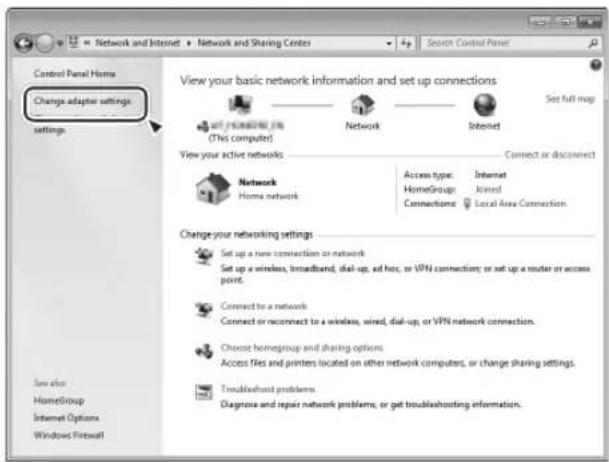
text_image
Control Panel Home Change adapter settings settings View your basic network information and set up connections Set full map View your active networks Connect or disconnect Network Home network Access type: Internet HomeGroup: Joined Connections: Local Area Connection Change your networking settings Set up a new connection or network Set up a wireless, broadband, dial-up, ad hoc, or VPN connection; or set up a router or access point. Connect to a network Connect or reconnect to a wireless, wired, dial-up, or VPN network connection. Choose homegroup and sharing options Access files and printers located on other network computers, or change sharing settings. Troublebust problems Diagnose and repair network problems, or get troubleshooting information.5 Selezionare "Turn on sharing so anyone with network access can read and write files in the Public folders" per "Public folder sharing".
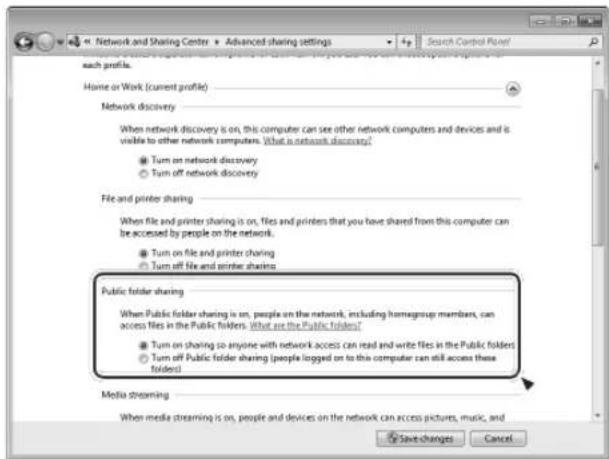
text_image
Network and Sharing Center Advanced sharing settings Search Control Point each profile. Home or Work (current profile) Network discovery When network discovery is on, this computer can see other network computers and devices and is visible to other network computers. What is a network discovery? ● Turn on network discovery ○ Turn off network discovery File and printer sharing When file and printer sharing is on, files and printers that you have shared from this computer can be accessed by people on the network. ● Turn on file and printer sharing ○ Turn off file and printer sharing Public folder sharing When Public folder sharing is on, people on the network, including homegroup members, can access files in the Public folders. What are the Public folders? ● Turn on sharing to anyone with network access can read and write files in the Public folders ○ Turn off Public folder sharing (people logged on to this computer can still access these folders) Media streaming When media streaming is on, people and devices on the network can access pictures, music, and Save changes Cancel6 Fare clic su "Save changes".
"Setup Menu" → "Information" → "Firmware Version"
"Setup Menu" → "Network" → "Wireless" → "Wired"
"Setup Menu" → "Network" → "Wireless" → "Search AP"
"Setup Menu" → "Information"
"Setup Menu" → "Information" → "MAC Address"
flowchart
graph TD
    A["Current Time"] --> B["On Time"]
    B --> C["Off Time"]
    C --> D["Source Select"]
text_image
Diagram showing a remote control with a circular dial labeled 'ENTER' and a hand interacting with it.text_image
Diagram showing how to press a remote control via keyboard shortcuts, with directional arrows indicating action.flowchart
graph TD
    A["Timer Off"] --> B["Timer Daily"]
    B --> C["Timer Once"]
natural_image
Simple line drawing of a hand touching a circular ring, labeled 'VOLUME' at the bottom (no other text or symbols)text_image
SOURCE BAND(11-7/16 × 4-1/2 × 13-7/16 poll.)
Peso 5,8 kg
(12,8 lb)
Accessori standard
This appliance has a serial number located on the rear panel. Please record the model number and serial number and retain them for your records.
Model number Serial number