Voxtel D505 - Cordless phone AEG - Free user manual and instructions
Find the device manual for free Voxtel D505 AEG in PDF.



| Product Type | DECT Cordless Phone |
| Brand | AEG |
| Model | Voxtel D505 |
| Standard | DECT (Digital Enhanced Cordless Telecommunications) |
| Outdoor range | Up to 300 meters |
| Indoor range | Up to 50 meters |
| Standby time | 100 hours |
| Talk time | 10 hours |
| Initial charging time | 15 hours |
| Battery type | 2 NiMH rechargeable batteries (AAA type) |
| Base power supply | 100-240 V AC, 50/60 Hz, 150 mA, output 6 V DC 450 mA |
| Directory capacity | Up to 10 entries (name and number) |
| Call log | Up to 20 entries with time stamp |
| Answering machine capacity | Up to 59 messages or 15 minutes of recording |
| Main functions | Hands-free, intercom, handset locator, caller ID display (CLIP), alarm, key lock |
| Network compatibility | Public analog telephone network or analog extension of a PBX |
| Maximum number of handsets | Up to 5 handsets per base |
| Cleaning and maintenance | Clean with a damp cloth; do not use solvents or chemicals |
| Safety | Use only the supplied batteries; disconnect during a thunderstorm |
| Warranty | 24 months from date of purchase |
| Operating temperature | 0 °C to 40 °C |
| Storage temperature | -20 °C to 60 °C |
Frequently Asked Questions - Voxtel D505 AEG
User questions about Voxtel D505 AEG
0 question about this device. Answer the ones you know or ask your own.
Ask a new question about this device
Download the instructions for your Cordless phone in PDF format for free! Find your manual Voxtel D505 - AEG and take your electronic device back in hand. On this page are published all the documents necessary for the use of your device. Voxtel D505 by AEG.
USER MANUAL Voxtel D505 AEG
P3
natural_image
Technical line drawing of a mobile phone casing showing internal components and battery pack (no text or symbols)P4 P5
natural_image
Simple line drawing of a U-shaped object with rounded corners (no text or symbols)1 BECAUSE WE CARE
Thank you for purchasing this product. This product has been designed and assembled with utmost care for you and the environment. This is why we supply this product with a quick installation guide to reduce the number of paper (pages) and therefore save trees to be cut for making this paper.
A full and detailed user guide with all the features described can be found on our website www.aegtelephones.eu. Please download the full user guide in case you want to make use of all the advanced features of your product. To save the environment we ask you not to print this full user guide. Thank you for supporting us to protect our environment.
2 IMPORTANT SAFETY INSTRUCTIONS
When using your telephone, basic safety precautions should always be followed to reduce the risk of fire, electric shock and injury, including the following:
- Read and understand all the instructions.
- Follow all warnings and instructions marked on the product.
- Unplug the power adapter from the wall outlet before cleaning. Do not use liquid cleaners or aerosol cleaners. Use a damp cloth for cleaning.
- Keep your phone away from hot, humid conditions or strong sunlight and don't let it get wet or use this product near water (for example, near a bath tub, kitchen sink, swimming pool).
-
Do not overload wall outlets and extension cords as this can result in the risk of fire or electric shock.
-
Unplug this product from the wall outlet under the following conditions:
-
When the power supply cord or plug is damaged.
- If the product does not operate normally by following the operating instructions.
- If the product has been dropped and the cabinet has been damaged.
-
If the product exhibits a distinct change in performance.
-
NEVER use your phone outdoors during a thunderstorm-unplug the base from the telephone line and the mains socket when there are storms in your area. Damage caused by lightning is not covered by the guarantee.
-
Do not use the telephone to report a gas leak in the vicinity of the leak.
-
Use only the supplied NiMH (Nickel Metal Hydride) batteries!
-
The use of other battery types or non-rechargeable batteries/primary cells can be dangerous. These may cause interference and/or damage to the unit or surroundings. The manufacturer will not be held liable for damage arising from such non-compliance.
- Do not use third party charging bays. Damage may be caused to the batteries.
- Please ensure the batteries are inserted in the correct polarity.
- Dispose of batteries safely. Do not immerse them in water, burn them, or put them where they could get punctured.
3 INTENDED USE
This telephone is intended to be connected to a public analogue telephone network or to an analogue extension of an compatible PBX system.
4 UNPACKING YOUR PHONE
In the box you will find:
- 1 Handset
- 1 Base station
• 1 Mains power adapter
• 1 Telephone line cord
• 2 Rechargeable batteries - 1 User manual
Keep the packing materials in a safe place in case you later need to transport the device.
Note:
If you have a Twin, Triple or Quad system, you will also have the extra handset(s), batteries and a charger pod for each extra handset.
5 GETTING TO KNOW YOUR PHONE
5.1 Handset overview (see P1)
| # Meaning | ||
| 1 | Up keyIn idle mode: press to access the call listIn menu mode: press to scroll up the menu itemsIn phonebook list / redial list / call list: press to scroll up the listDuring a call: press to increase the earpiece volumeDuring ringing: press to increase the ringer volume | |
| 2 | Right soft key (clear/back/mute/intercom)In main menu mode: press to go back to idle screenIn sub-menu mode: press to go back to previous levelIn sub-menu mode: press and hold to go back to idle screenIn editing / predialling mode: press to clear a character/ digitIn editing / predialling mode: press and hold to delete all the characters / digitsDuring a call: press to mute / unmute the microphoneIn idle mode: press to intercom another handset | |
| 3 | Off / hang up keyDuring a call: press to end a call and go back to idle screenIn menu / editing mode: press to go back to previous menuIn idle mode: press and hold to power off the handsetIn idle mode (when the handset is powered off): press and hold to power on the handset | |
| 4 | R | Flash keyIn idle / predialling mode: press to insert a flashDuring a call: press to generate flash signal |
| 5 |  | Speakerphone keyDuring a call: press to turn on / off the speakerphone.Call list / phonebook entry: press to make a call with speakerphoneDuring ringing: press to answer a call with speakerphone |
| 6 |  | Down key (redial/down)In idle mode: press to access the redial listIn menu mode: press to scroll down the menu itemsIn phonebook list / redial list / call list: press to scroll down the listDuring a call: press to decrease the earpiece volumeDuring ringing: press to decrease the ringer volume |
| 7 |  | Talk keyIn idle / predialling mode: press to make a callIn redial list / call list / phonebook list: press to make a call to the displayed entryDuring ringing: Press to answer a call |
| 8 | [62x1] | Left soft key (menu/ok)In idle mode: press to access the main menuIn sub-menu mode: press to confirm the selectionDuring a call: press to access Intercom/phonebook/redial list/ call list |
5.2 Display icons and symbols (see P2)
The LCD display gives you information on the current status of the telephone.
| Meaning | |
| Steady when the handset is in range of the base.Flashes when out of range of the base or not registered to the base. | |
| Steady when an intercom call is in progress.Flashes when there is an incoming internal call. | |
| Indicates a call is in progress on that handset. | |
| Indicates that speakerphone is being used. | |
| Indicates that the handset ringer is switched off. | |
| Steady when an alarm is set.Flashes when the alarm is sounding. | |
| Indicates that the keypad is locked. | |
| Indicates when you have a new Voice Mail message.(This is a caller display service from the network operator.) | |
| Indicates when the battery is fully charged.Whole icon flashes when the battery is charging.Internal block icon flashes when the battery is in final charging stage. | |
| Indicates when the battery needs charging.Flashes when low battery power level is detected. | |
| Indicates when there are more characters or numbers in front of those being displayed. | |
| Indicates when there are more characters or numbers after those being displayed. | |
| Left soft key function. Press to access the main menu. | |
| OK | Left soft key function. Press to confirm the current selection. |
| Indicates new call in call list. | |
| Indicates more options available in lists, above or below. | |
| Right soft key function. Press to start an intercom call. | |
| Right soft key function. Press to go back to the previous menu (back) level or cancel the current action. | |
| Right soft key function. Press the alarm or mute/unmute the microphone during a call. |
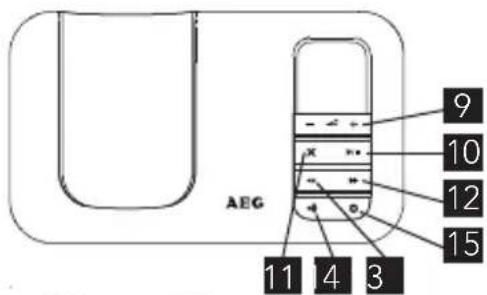
5.3 Base station (see P4)
| # Meaning | ||
| 9 |  | Vol - / Vol +Press to decrease or increase the speaker volume during message playback. |
| 10 |  | Play/StopPress to play the messages.During message playback, press to stop the playback. |
| 11 |  | DeletePress once to delete the voice message during playback.Press and hold to delete all old messages in idle mode. |
| 12 |  | Skip forwardPress to skip to a message during playback. |
| 13 |  | Skip backwardPress once to repeat playing the current message from the beginning.Press twice to skip backward to play the previous message. |
| 14 |  | PagePress to page your registered handset(s).Press and hold to start the registration process. |
| 15 |  | On/OffPress to turn on the answering machine ON/OFF. |
6 INSTALLATION
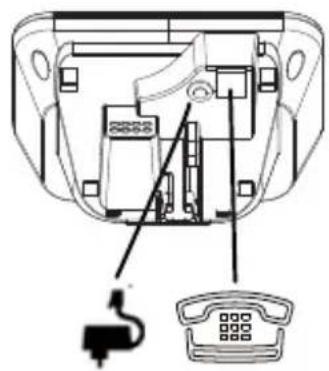
6.1 Connecting the base station (see P5)
- Plug the power supply and line cord into the base station.
- Plug the power adapter into a 110-240 Vac,50/60Hz mains socket and the line cord into your telephone line socket.
Warning:
Use only the provided adaptor, using other power supplies may cause a hazard or damage the phone.
Install the base unit in a position where the mains adapter plug will reach an easily accessible mains socket to unplug in case needed. Never try to lengthen the mains power cable.
Note:
The base unit needs mains power for normal operation, not just for charging the handset batteries.
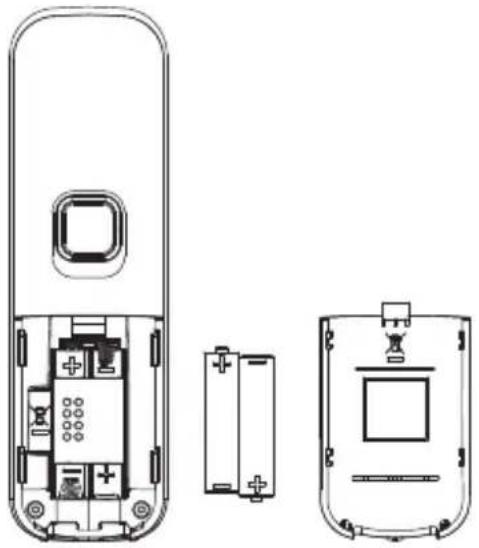
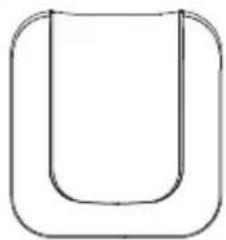
6.2 Installing and charging the batteries (see P3)
- Place the 2 supplied batteries into the battery compartment with the polarity markings. Use only the NiMH rechargeable battery type provided with the telephone.
- Position the battery compartment cover over the batteries and slide up to click into place.
- Put the handset on the base and charge for 15 hours before using the handset for the first time.
The handset will give a beep when it is properly placed on the base or charger.
7.1.1 Preparatory dialling
- Enter the phone number and press (to connect to the line and dial the number.
When entering the number, if you make a mistake, press C"()/⊗ to delete digits.
7.1.2 Direct dialling
- Press C to connect to the line and then enter the phone number.
7.1.3 Call from the phonebook
- Press ☐, ▽ OK to access the phonebook and press △to select the desired phonebook entry.
- Press C to dial out the selected phonebook entry.
Note:
The alphanumeric keys provide a short-cut to find entries beginning with the corresponding letters.
7.1.4 Call from the call list (only available with caller display)
- Press 🔒 to access the call list and press △ to select the desired call list entry.
- Press C to dial out the selected call list entry.
7.1.5 Call from the redial list
- Press ⬆ to access the redial list and press △ to select the desired redial number.
- Press C to dial out the selected redial number.
7.1.6 Call timer
Your handset automatically times the duration of every call.
The call timer is displayed as soon as you answer a call or 15 seconds after dialling and remains on the screen for 5 seconds after the end of the call. It is shown in hours, minutes and seconds format (HH:MM:SS).
7.2 Answer a call
If the handset is not on the charging cradle:
- When the phone rings, press C to answer a call.
Note:
If "AUTO ANSWER" is set to "ON", then lifting the handset off the base or charger will answer the call automatically and no keys need to be pressed.
7.3 End a call
- During a call press ^① to end the call.
OR
- Put the handset on the base station or charger to end the call.
7.4 Handset speakerphone
During a call, you can press 🔒 to alternate between hands-free speakerphone and normal handset use.
7.5 Adjust volume
There are 5 levels ("VOLUME 1" to "VOLUME 5") to choose from for each of the earpiece and speaker volumes.
During a call:
- Press / to select volume 1-5. The current setting is shown.
When you end the call, the setting will remain at the last selected level.
7.6 Turn off the handset ringer
In idle, press and hold # to turn off the handset ringer. The 🎩 icon is displayed on the LCD.
Note:
The display will still flash the call icon and show "CALL" or the caller display number, when there is an incoming call, even if the ringer is turned off. To turn the ringer back on, press and hold # again.
7.7 Turn on the keypad lock
You can lock the keypad so that it cannot be used accidentally while carrying it around.
- In idle, press and hold * to turn on the keypad lock and the 🔒 icon will display.
Note:
You can still use C to answer a call when the handset is ringing. To turn the keypad lock off, press and hold * again.
7.8 Redial the last number
You can redial any of the 5 last numbers called. If you have stored a name in phonebook to go with the number, the name will be displayed instead. The most recent last number will display at the top of the redial list.
7.8.1 Redial a number from the redial list
- In idle mode, press ⚙ to access the redial list.
Note:
If the redial list entry shows a name, press # to view the number of this entry.
- Press / to browse the redial list.
- Press (to dial to the selected redial number.
Note:
If there are no numbers in the redial list, the display shows "EMPTY".
7.9 Find the handset
You can locate the handset by pressing the find key ●. All the handsets registered to the base will produce the paging tone and show "PAGING" on the display for 60 seconds.
You can stop the paging by pressing Ⓞ) on any handset or ••on the base again.
Note:
If there is an incoming call during paging, the phone will ring with the incoming call instead of paging.
8 PRIVATE PHONEBOOK
Each handset can store up to 20 private phonebook entries with names and numbers. Each phonebook entry can have a maximum of 20 digits for the phone number and 12 characters for the name. You can also select different ringtones for your phonebook entries. (Note: the different ringtones only play when you receive a call if you subscribe to caller display and the incoming number matches the stored number.) Phonebook entries are stored alphabetically by name.
8.1 Add a new phonebook entry
In idle:
- Press ☐ and △ to select "PHONEBOOK" and then press OK to access the phonebook.
- Press OK to show "ADD".
- Press OK and then enter the name.
- Press OK and then enter the number.
- Press OK and △to select the desired ringtone for your phonebook entry.
- Press OK to store the phonebook entry.
8.2 Search for a phonebook entry
In idle:
- Press ☐ and △/▽ to select "PHONEBOOK" and then press OK to access the phonebook.
- Enter the first letter of the name using the alphanumeric keys (e.g. if it begins with C, press the 2 key three times) and then △/▼ to scroll to the entry you want.
8.3 Edit a phonebook entry
In idle:
- Press ☐ and △ to select "PHONEBOOK and then press OK to access the phonebook.
- Press / to select the desired phonebook entry.
- Press OK and △to select "EDIT".
- Press OK to display the current name.
-
Edit the name and press OK.
-
Edit the number and press OK.
- Press / to select the ringtone and press OK to confirm.
8.4 Delete a phonebook entry
In idle:
- Press ☐ and △ to select "PHONEBOOK" and then press OK to access the phonebook.
- Press / to select the desired phonebook entry.
- Press OK and △to select "DELETE".
- Press OK to confirm, and the entry will be deleted.
9 CALLER DISPLAY (NETWORK DEPENDENT)
This feature is available if you have subscribed to the calling Line Identification service with your network service provider. Your phone can store up to 10 received calls with date/time information in the call list. The number will be shown on the handset display when the phone is ringing. If the number matches with one of the entries in your private phonebook, the caller's name stored in the private phonebook will be displayed alternately with the number, and the handset will ring with the ringtone associated with that phonebook entry.
If the call is from someone who withheld their number, "WITHHELD" will display.
If the call is from someone whose number is unavailable, e.g. an international call or from a private exchange, "OUT OF AREA" will display. If you've got new caller display records, the handset will display "X NEW CALLS" in standby mode. The New calls indication will remain until all the new call records have been viewed on that handset.
9.1 View the call list
All received calls are saved in the call list with the latest call at the top of the list. When the call list is full, the oldest call will be replaced by a new call. Any unanswered calls which have not been viewed are marked with a ★ icon at the centre of the bottom line of the display.
- Press to access the call list.
OR Press □ and △ to show "CALL LIST", then press OK.
- Press / to select the desired entry.
- Press # to view the caller's number if applicable.
- Press ☐, △to show "DETAILS", and then OK to display the date and time of the call.
- Press OK to go back to the previous screen.
9.2 Delete an entry in the call list
- Follow steps 1 and 2 in section "9.1 View the call list".
- Press □ and △ to select "DELETE".
- Press OK to confirm.
9.3 Delete all call list entries
Follow steps 1 and 2 in section "9.1 View the call list".
- Press ☐ and △ to select "DELETE ALL".
- Press OK to display "CONFIRM?".
- Press OK to confirm.
All entries will be deleted and the display will show "EMPTY".
10 PHONE SETTINGS
Your phone comes with a selection of settings that you can change to personalise your phone the way you like it to work.
10.1 Set the handset language
- Press and /to select "HS SETTINGS".
- Press OK and △to select "LANGUAGE".
- Press OK and △to select the desired language.
- Press OK to confirm.
10.2 Base Settings
10.2.1 Set the base ringer melody
- Press □ and △ to select "BS SETTINGS".
- Press OK and △ to select "BS RINGER".
- Press OK and △ to select the desired melody you want from a choice of 5.
- Press OK to confirm.
Note:
The respective ringer melody will be played while browsing the melody list.
10.2.2 Set the ringer volume
- Press □ and △ to select "BS SETTINGS".
- Press OK and △ to select "RING VOLUME".
- Press OK and △to select the desired ringer volume (a total of 6 ringer volume levels including "VOLUME OFF").
- Press OK to confirm.
Note:
The respective ringer volume will be played during your selection.
10.3 Handset registration
Important:
When you purchase your phone, all handsets are already registered to your base, so you do not need to register them.
Handset registration is only necessary when you buy extra handsets or if a handset has become faulty.
You can register additional handsets to have up to five handsets per base unit, with each handset's number (1 to 5) shown on its display. (Note: each handset can only be registered to one base.)
To register a new handset to your base:
- Press and hold • on the base station for more than five seconds, to put the base station into registration mode. It will stay in registration mode for about 1 minute, so the following handset sequence must be completed within this time.
- Press □ and △to select "REGISTRATION".
-
Press OK to display "PIN?----".
-
Enter the 4-digit system PIN (default 0000).
- Press OK to confirm, and the display will show "SEARCHING".
If the handset registration is successful, you will hear a confirmation tone and the ⚡ will stop flashing.
The handset will automatically be allocated the next available handset number. This handset number is shown in the handset display in standby mode. If the handset registration is unsuccessful, the ⚪ will still flash.
11 ANSWERING MACHINE
Your phone includes a telephone answering machine that records unanswered calls when it is on. The answering machine can store up to 59 messages within the maximum recording time of approximately 15 minutes. As well as recording incoming messages, you can record memos for other users of your phone.
If the answering machine memory is full, the Handset will display "TAM FULL" alternately with the handsets name or time, depending on the handset standby display mode set. You will have to delete some messages before any new ones can be recorded.
Some answering machine functions can be operated from the base, including playing messages and turning the answering machine on or off. The answering machine can also be controlled and set up using the handset menu functions, as below.
11.1 Turn on/off the answering machine
You can turn the answering machine on or off using the handset.
When the answering machine is set to "ON", calls will be answered after the set answer delay and the caller can then leave you a message.
When the answering machine is set to "OFF", calls will be answered after 14 rings and the answer only message will be played to your callers. They will not be able to leave you a message.
- Press □ and △to select "ANS. MACHINE".
- Press OK and △to select "TAM ON/OFF".
- Press OK and △to select "ON" or "OFF".
- Press OK to confirm.
If answering machine is set to "ON" displays on the handset LCD.
If answering machine is set to "OFF" will not display on the handset LCD.
11.2 Listen to the messages in the answering machine
When new messages are recorded on the answering machine, the ★ flashes on the handset display until all the new messages are played. After a new message is played it will be saved as an old message automatically unless it is deleted.
Old messages will be played after all new messages are all played.
- Press □ and △ to select "ANS. MACHINE".
- Press OK and △ to select "MSG PLAYBACK".
- Press OK to start message playback through the earpiece and the screen displays the date and time information of the message received.
Note:
A ★ is placed at the centre of the bottom of the handset display to indicate that it is a new message.
When a message has been played, the ★ will disappear and will not be shown when you listen to this message again.
Note:
If there are no messages, the handset display will briefly show "00-00 00-00" then return to "MSG PLAYBACK".
- During message playback, press △ or ▽ to increase or decrease the message playback volume respectively.
- Press □ and △ to select "STOP", "FORWARD", "PREVIOUS", "DELETE" to perform the following functions during message playback.
| STOP Stop the current message playback and return to the ANS. MACHINE menu. |
| FORWARD Skip to play the next message. The date and time information of the next message will display if there is another message. |
| PREVIOUS Repeat playing the current message from the beginning. The date and time information of the current message will display. |
| DELETE Delete the current message and the next message will be played. |
Note:
Alternatively, you can use the following shortcut keys to control different operations during message playback.
- Press key 5 to stop message playback.
- Press key 4 once to skip to repeat playing the current message from the beginning. Press twice to skip backward to play the previous message.
- Press key 6 to skip to play next message.
- Press key 2 to delete the current message playback.
11.3 Delete all messages in the answering machine
- Press □ and △ to select "ANS. MACHINE".
- Press OK and △to select "DELETE ALL".
- Press OK to display "CONFIRM?".
- Press OK to delete all old messages.
Note:
If there are no more messages in the answering machine, "EMPTY" will display and return back to "ANS. MACHINE" menu.
11.4 Answering machine settings
You can use the "TAM SETTINGS" menu through the handset to change the settings of your answering machine.
11.4.1 Set the answer mode
By default, the answer machine is set in "ANS & REC" mode which allows callers to leave a message. This mode can be changed to "ANSWER ONLY" which does not allow callers to leave a message. In that case, your callers will be prompted to call back later.
- Press □ and △ to select "ANS. MACHINE".
- Press OK and △to select "TAM SETTINGS".
- Press OK and △to select "ANSWER MODE".
- Press OK and △to select "ANS & REC" or "ANSWER ONLY".
- Press OK to confirm.
When your answering machine memory is full and it is in "ANS & RECORD", the answer mode will change to "ANSWER ONLY" automatically. It will return to "ANS & RECORD" mode automatically after some messages have been deleted.
11.4.2 Set the outgoing message (OGM) language.
The answering machine announces the outgoing message when it answers a call. There is a pre-set OGM for each of "ANS & RECORD" mode or "ANSWER ONLY" mode.
- Press □ and △to select "ANS. MACHINE".
- Press OK and △to select "TAM SETTINGS".
- Press OK and △ to select "TAM LANGUAGE".
- Press OK and △to select your desired OGM language.
- Press OK to confirm.
11.4.3 Record Your Own Outgoing Message (OGM)
You can record your own OGM for ANS & REC mode or ANSWER ONLY mode. When you record your own OGM, it will be used when the answering machine answers the call. If your personalised OGM is deleted, the pre-set OGM will be restored automatically.
- Press □ and △to select "ANS. MACHINE".
- Press OK and △to select "TAM SETTINGS".
- Press OK and △ to select "OGM SETTINGS".
- Press OK and △ to select "ANS & RECORD" or "ANSWER ONLY".
- Press OK and △to select "RECORD MESS".
- Press OK to start recording your personalised OGM and "RECORDING" is displayed on the screen.
- Press OK to stop and save your personalised OGM.
Your newly saved OGM will playback automatically.
- Alternatively, press ⭕/☒ to return to previous screen without saving the personalised OGM
12 GUARANTEE AND SERVICE
The phone is guaranteed for 24 months from the date of purchase shown on your sales receipt. This guarantee does not cover any faults or defects caused by accidents, misuse, fair wear and tear, neglect, faults on the telephone line, lightning, tampering with the equipment, or any attempt at adjustment or repair other than through approved agents.
Please keep your sales (till) receipt this is your proof of guarantee.
12.1 While the unit is under Guarantee
- Disconnect the base unit from the telephone line and the mains electricity supply.
- Pack up all parts of your phone system, using the original package.
- Return the unit to the shop where you bought it, making sure you take your sales receipt.
- Remember to include the mains adapter.
12.2 After the Guarantee has expired
If the unit is no longer under Guarantee, contact us via www.aegtelephones.eu
This product works with rechargeable batteries only. If you put nonrechargeable batteries in the handset and place it on the base, the handset will be damaged and this in NOT covered under the warranty conditions.
13 TECHNICAL DETAILS
| Standard | DECT |
| 1.88 to 1.9 GHz (bandwidth = 20 MHz) | |
| Channel bandwidth | 1.728 MHz |
| Operating range | Up to 300m outdoors; Up to 50m indoors |
| Operating time | Standby: 100 hours, Talking: 10 hoursBattery charge time:15 hours |
| Temperature range | Operating 0°C to 40°C,Storage -20°C to 60°C |
| Electrical power | Base unit/Charger Pod:Ten Pao - S003IB0600045 / S003IV0600045100-240VAC 50/60Hz 150mA, 6VDC 450mAVTPL - VT04EEU06045 / VT04EUK06045100-240VAC 50/60Hz 150mA, 6VDC 450mARuijing - RJ-AS060450B001 / RJ-AS060450E002100-240VAC 50/60Hz 150mA, 6VDC 450mA |
14
CE
DECLARATION

This product is in compliance with the essential requirements and other relevant provisions of the R&TTE directive 1999/5/EC.
The Declaration of conformity can be found on: www.aegtelephones.eu
15 DISPOSAL OF THE DEVICE (ENVIRONMENT)

At the end of the product lifecycle, you should not throw this product into the normal household garbage but bring the product to a collection point for the recycling of electrical and electronic equipment. The symbol on the product, user guide and/or box indicate this. Some of the product materials can be re-used if you bring them to a recycling point. By reusing some parts or raw materials from used products you make an important contribution to the protection of the environment. Please contact your local authorities in case you need more information on the collection points in your area.
Batteries must be removed before disposing of the device. Dispose of the batteries in an environmental manner according to your country regulations.
16 CLEANING AND CARE
Do not clean any part of your phone with benzene, thinners or other solvent chemicals as this may cause permanent damage which is not covered by the Guarantee.
When necessary, clean it with a damp cloth.
Keep your phone system away from hot, humid conditions or strong sunlight, and don't let it get wet.
12 GWARANCJA I SERWIS
© 2014 Binatone Electronics International Limited
All rights reserved
Subject to availability. Rights of modification reserved.
AEG is a registered trademark used under license from AB Electrolux (publ)
www.aegtelephones.eu

- BECAUSE WE CARE
- IMPORTANT SAFETY INSTRUCTIONS
- INTENDED USE
- UNPACKING YOUR PHONE
- Note:
- GETTING TO KNOW YOUR PHONE
- Handset overview (see P1)
- Display icons and symbols (see P2)
- Base station (see P4)
- INSTALLATION
- Connecting the base station (see P5)
- Warning:
- Installing and charging the batteries (see P3)
- Preparatory dialling
- Direct dialling
- Call from the phonebook
- Call from the call list (only available with caller display)
- Call from the redial list
- Call timer
- Answer a call
- End a call
- OR
- Handset speakerphone
- Adjust volume
- Turn off the handset ringer
- Turn on the keypad lock
- Redial the last number
- Redial a number from the redial list
- Find the handset
- PRIVATE PHONEBOOK
- Add a new phonebook entry
- In idle:
- Search for a phonebook entry
- Edit a phonebook entry
- Delete a phonebook entry
- CALLER DISPLAY (NETWORK DEPENDENT)
- View the call list
- Delete an entry in the call list
- Delete all call list entries
- PHONE SETTINGS
- Set the handset language
- Base Settings
- Set the base ringer melody
- Set the ringer volume
- Handset registration
- Important:
- ANSWERING MACHINE
- Turn on/off the answering machine
- Listen to the messages in the answering machine
- Delete all messages in the answering machine
- Answering machine settings
- Set the answer mode
- Set the outgoing message (OGM) language.
- Record Your Own Outgoing Message (OGM)
- GUARANTEE AND SERVICE
- While the unit is under Guarantee
- After the Guarantee has expired
- DISPOSAL OF THE DEVICE (ENVIRONMENT)
- CLEANING AND CARE
- GWARANCJA I SERWIS
Brand : AEG
Model : Voxtel D505
Category : Cordless phone