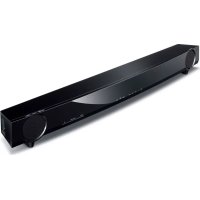
YAS93 - Soundbar YAMAHA - Free user manual and instructions
Find the device manual for free YAS93 YAMAHA in PDF.



| Product type | Soundbar with built-in subwoofer |
| Brand | YAMAHA |
| Model | YAS93 |
| Dimensions (W x H x D) | Without stands: 890 x 91 x 115 mm With stands: 890 x 109 x 121 mm |
| Weight | 4.0 kg |
| Power supply | 220-240 V AC, 50/60 Hz |
| Power consumption | 22 W (standby < 0.5 W) |
| Output power | Front L/R: 30 W x 2, Subwoofer: 60 W |
| Supported audio formats | PCM (2 channels), Dolby Digital, DTS Digital Surround |
| Digital inputs | 2 optical (TV, BD/DVD), 1 coaxial |
| Analog input | 1 stereo RCA |
| Audio functions | Clear Voice, UniVolume, Surround (AIR SURROUND XTREME) |
| Remote control functions | Learning and repeating TV remote signals |
| Auto standby | Yes (adjustable, default enabled depending on region) |
| Wall mounting | Yes (template and spacers included) |
| Package contents | Remote control, AAA batteries x2, optical cable 1.5 m, mounting template, spacers x2 |
| Maintenance | Dry and clean cloth; do not use chemical solvents |
| Safety | Ventilation: 10 cm above, rear, and sides; do not expose to humidity, heat, or falling objects |
| Repairability | Do not open or repair yourself; contact a Yamaha authorized service |
Frequently Asked Questions - YAS93 YAMAHA
User questions about YAS93 YAMAHA
0 question about this device. Answer the ones you know or ask your own.
Ask a new question about this device
Download the instructions for your Soundbar in PDF format for free! Find your manual YAS93 - YAMAHA and take your electronic device back in hand. On this page are published all the documents necessary for the use of your device. YAS93 by YAMAHA.
USER MANUAL YAS93 YAMAHA
Front Surround System
• To assure the finest performance, please read this manual carefully. Keep it in a safe place for future reference.
• Install this unit in a well ventilated, cool, dry, clean place - away from direct sunlight, heat sources, vibration, dust, moisture, and/or cold. For proper ventilation, allow the following minimum clearances.
Top: 10 cm (4 in), Rear: 10 cm (4 in), Sides: 10 cm (4 in)
- Locate this unit away from other electrical appliances, motors, or transformers to avoid humming sounds.
- Do not expose this unit to sudden temperature changes from cold to hot, and do not locate this unit in an environment with high humidity (i.e. a room with a humidifier) to prevent condensation inside this unit, which may cause an electrical shock, fire, damage to this unit, and/or personal injury.
- Avoid installing this unit where foreign objects may fall onto this unit and/or this unit may be exposed to liquid dripping or splashing. On the top of this unit, do not place:
- Other components, as they may cause damage and/or discoloration on the surface of this unit.
- Burning objects (i.e. candles), as they may cause fire, damage to this unit, and/or personal injury.
- Containers with liquid in them, as they may fall and liquid may cause electrical shock to the user and/or damage to this unit.
- Do not cover this unit with a newspaper, tablecloth, curtain, etc. in order not to obstruct heat radiation. If the temperature inside this unit rises, it may cause fire, damage to this unit, and/or personal injury.
- Do not plug in this unit to a wall outlet until all connections are complete.
- Do not operate this unit upside-down. It may overheat, possibly causing damage.
- Do not use force on switches, knobs and/or cords.
- When disconnecting the power cable from the wall outlet, grasp the plug; do not pull the cable.
- Do not clean this unit with chemical solvents; this might damage the finish. Use a clean, dry cloth.
- Only voltage specified on this unit must be used. Using this unit with a higher voltage than specified is dangerous and may cause fire, damage to this unit, and/or personal injury. Yamaha will not be
held responsible for any damage resulting from use of this unit with a voltage other than specified.
• To prevent damage by lightning, keep the power cable and outdoor antennas disconnected from a wall outlet or the unit during a lightning storm.
- Do not attempt to modify or fix this unit. Contact qualified Yamaha service personnel when any service is needed. The cabinet should never be opened for any reasons.
- When not planning to use this unit for long periods of time (i.e. vacation), disconnect the AC power plug from the wall outlet.
- Be sure to read the "Troubleshooting" section on common operating errors before concluding that this unit is faulty.
- Before moving this unit, press to set this unit in standby mode, and disconnect the power supply cable from the wall outlet.
- Condensation will form when the surrounding temperature changes suddenly. Disconnect the power supply cable from the outlet, then leave the unit alone.
• Install this unit near the wall outlet and where the AC power plug can be reached easily.
- The batteries shall not be exposed to excessive heat such as sunshine, fire or like.
- Secure placement or installation is the owner's responsibility. Yamaha shall not be liable for any accident caused by improper placement or installation of speakers.
Notes on remote controls and batteries
- Do not spill water or other liquids on the remote control.
- Do not drop the remote control.
- Do not leave or store the remote control in the following places:
- places of high humidity, such as near a bath
- places of high temperatures, such as near a heater or a stove
- places of extremely low temperatures
- dusty places
- Do not expose the remote control sensor of this unit to direct sunlight or lighting such as inverted fluorescent lamps.
- If the batteries grow old, the effective operation range of the remote control decreases
considerably. If this happens, replace the batteries with two new ones as soon as possible.
- Do not use old batteries together with new ones.
- Do not use different types of batteries (such as alkaline and manganese batteries) together. Read the packaging carefully as these different types of batteries may have the same shape and color.
- Exhausted batteries may leak. If the batteries have leaked, dispose of them immediately. Avoid touching the leaked material or letting it come into contact with clothing, etc. Clean the battery compartment thoroughly before installing new batteries.
- Do not throw away batteries with general house waste. Dispose of them correctly in accordance with your local regulations.
- Keep batteries away from children. If a battery is accidentally swallowed, contact your doctor immediately.
- When not planning to use the remote control for long periods of time, remove the batteries from the remote control.
- Do not charge or disassemble the supplied batteries.
WARNING
TO REDUCE THE RISK OF FIRE OR ELECTRIC SHOCK, DO NOT EXPOSE THIS UNIT TO RAIN OR MOISTURE.
As long as this unit is connected to the AC wall outlet, it is not disconnected from the AC power source even if you turn off this unit by In this state, this unit is designed to consume a very small quantity of power.
(Power key)
Turns on the power of this unit or sets it to the standby mode.
(YAS-103 only)
Do not use this unit within 22 cm (9 inches) of persons with a heart pacemaker implant or defibrillator implant.
(YAS-103 only)
Radio waves may affect electro-medical devices. Do not use this unit near medical devices or inside medical facilities.
We, Yamaha Music Europe GmbH hereby declare that this unit is in compliance with the essential requirements and other relevant provisions of Directive 1999/5/EC.

FOR U.K. CUSTOMERS
If the socket outlets in the home are not suitable for the plug supplied with this appliance, it should be cut off and an appropriate 3 pin plug fitted. For details, refer to the instructions described below.
NOTE
The plug severed from the mains lead must be destroyed, as a plug with bared flexible cord is hazardous if engaged in a live socket outlet.
SPECIAL INSTRUCTIONS FOR U.K. MODEL
IMPORTANT
THE WIRES IN THE MAINS LEAD ARE COLOURED IN ACCORDANCE WITH THE FOLLOWING CODE:
Blue: NEUTRAL Brown: LIVE
As the colours of the wires in the mains lead of this apparatus may not correspond with the coloured markings identifying the terminals in your plug, proceed as follows:
The wire which is coloured BLUE must be connected to the terminal which is marked with the letter N or coloured BLACK. The wire which is coloured BROWN must be connected to the terminal which is marked with the letter L or coloured RED. Making sure that neither core is connected to the earth terminal of the three pin plug.
Contents
Supplied items 2
Features......3
Frequently asked questions.... 3
Part names and functions (sound bar).... 4
Installation 5
Connections 6
Analog connection of an external device (game console) ....7
Digital connection of an external device ....7
Operations....8
Listening to the sound from a Bluetooth device (YAS-103
only) 10
Settings.... 12
Programming the sound bar with the TV's remote control (TV's remote control learning function).... 12
Sending the TV's remote signal through the sound bar (TV Remote Repeater function) 14
Setting the auto power standby function .... 14 Initializing the sound bar .... 14
Troubleshooting 15
Specifications.... 18
About this manual
- Illustrations used in this manual refer to the YAS-103. Instructions are common to both YAS-103 and YAS-93, except where otherwise specified, such as "YAS-103 only."
Marks used in this manual
NOTE
This indicates precautions for use of the product and its feature limitations.
HINT
This indicates supplementary explanations for better use.
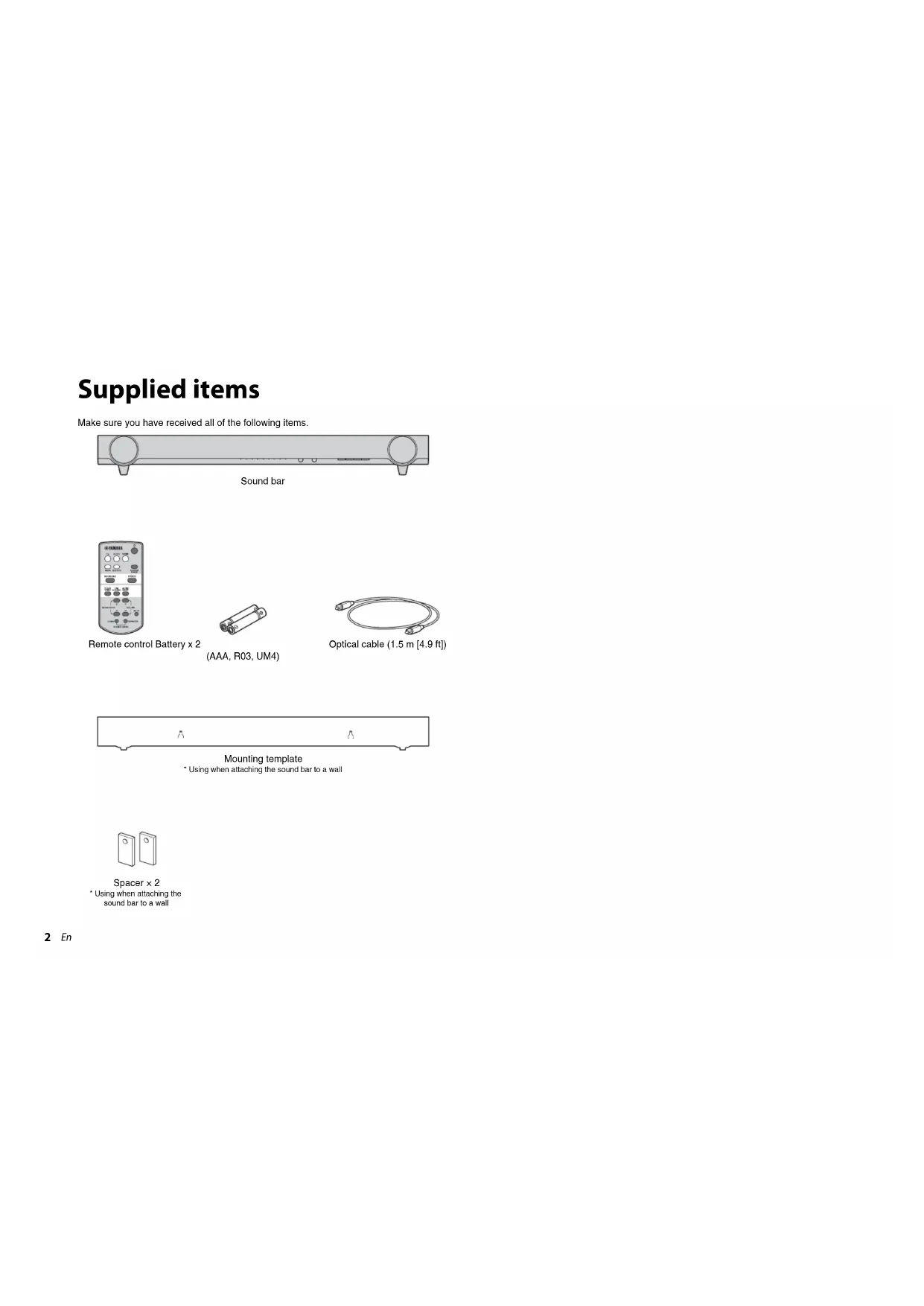
PDF versions of this manual can be downloaded from the following website. http://download.yamaha.com/
Supplied items
Make sure you have received all of the following items.

natural_image
Technical line drawing of a mechanical component with two circular ports and a central shaft (no text or symbols)Sound bar
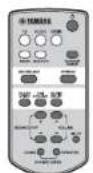
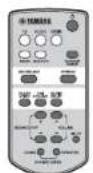
Remote control Battery x 2

(AAA, R03, UM4)
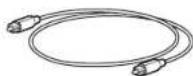
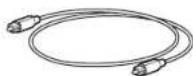
Optical cable (1.5 m [4.9 ft])

natural_image
Simple geometric shape with two horizontal lines and a central symbol, no text or labels present.Mounting template
* Using when attaching the sound bar to a wall

Spacer × 2
* Using when attaching the sound bar to a wall
Features
Enjoy powerful and realistic sound from the sound bar with built-in subwoofer, and easy installation and connection to a TV and other devices.
Enjoy 7.1 channel surround sound, which creates a wide and deep soundstage, as if speakers are set not only on the left and right, but also behind of the listener (p.9).
• Sophisticated sound technology
Enjoy powerful bass sound for the surround playback with the Yamaha original bass boost technology.
- Bluetooth® connection (YAS-103 only)
Bluetooth®
Content on a Bluetooth compatible smartphone, tablet, or computer can be played back easily (p.10).
You can enjoy deep and fresh sound as close to the original by the Compressed Music Enhancer. Also, you can operate the sound bar easily using the dedicated controlling application "HOME THEATER CONTROLLER."
• TV's remote control learning function
Operate the sound bar with the TV's remote control (p.12).
• TV Remote Repeater function
Enables the TV's remote signal to path through the sound bar. If the installed sound bar blocks the TV's remote sensor, the TV's remote will not work. This function provides a convenient solution (p.14).
- Clear voice
Makes voice sound (such as dialogues and narrations) clear (p.9).
• UniVolume UniVolume
Maintains consistent volume between channels, programs, commercials and sound sources (p.9).
Frequently asked questions
The following section covers popular functions and frequently asked questions about the sound bar.
Q1 Can I operate the sound bar using the remote control of the TV? Switching between the remote controls of the TV and sound bar is inconvenient.
A1 Yes. You can control the sound bar using your TV's remote control by the "TV's remote control learning" function (p.12).
This function is available only for the IR (infrared) remote control. Check your TV's remote control type.
Q2 The TV's remote control does not work after the sound bar is installed in front of the TV.
A2 The sound bar will transmit TV's remote control signals by the "TV Remote Repeater" function (p.14).
This function is available only for the IR (infrared) remote control. Check your TV's remote control type.
Q3 Can I make voice sound more clear?
A3 Yes. Dialogue in movies, TV news or sports programs, etc., can be made clearer using the "clear voice" function (p.9).
Q4 How do I connect the sound bar if the TV does not have an optical output?
A4 If the TV has analog audio outputs (red and white terminals), connect to ANALOG input of the sound bar with an RCA stereo cable (p.7). In this case, select ANALOG for the input source of the sound bar (p.8).
Q5 Can I set the sound bar to turn off automatically when I am not using it?
A5 Yes. Using the "auto power standby" function, the sound bar can be automatically turned off when it is not being used (p.14).
Part names and functions (sound bar)
Sound bar (front panel)
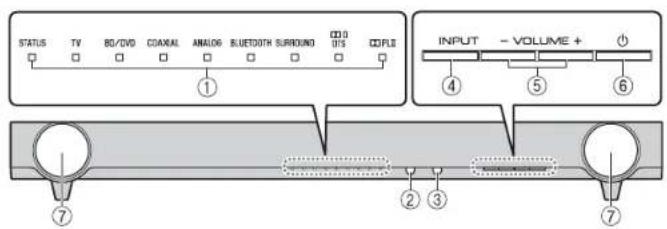
①Indicators
Indicate the status of the sound bar. The indicators will dim automatically if no operations are performed for 5 seconds. Refer to "Operations" (p.8 to 9) for the main functions of the indicators.
② Remote control sensor
Receives infrared signals from the remote control of the sound bar (p.8).
③TV's remote control sensor
Receives infrared signals from the TV's remote control when the TV Remote Repeater function is enabled (p.14).
④INPUT key
Selects an input source to be played back.
⑤VOLUME (+/-) keys
Adjust the volume (p.8).
⑥ (power) key
Turns on or off (standby) the sound bar (p.9).
HINT
- The sound bar may automatically turn off when the auto power standby function is enabled (p.14).
⑦Speakers
Sound bar (rear panel)
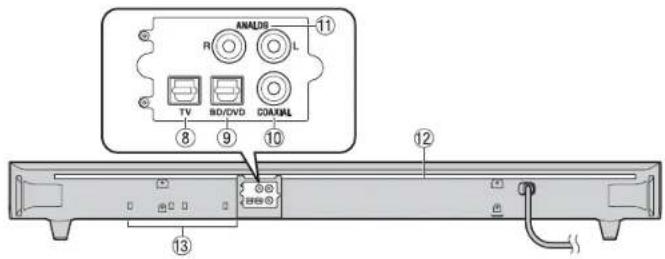
⑧TV input jack
For connecting to a TV with an optical cable (p.6).
⑨BD/DVD Input Jack
For connecting to a playback device, such as a Blu-ray Disc (BD) player, with an optical cable.
⑩COAXIAL input jack
For connecting an external device with a coaxial digital cable (p.7).
⑪ANALOG input jacks
For connecting an external device with an RCA stereo cable (p.7).
⑫IR flasher for TV Remote Repeater
Transmits TV's remote control signals received at the remote control sensor to the TV (p.14).
⑬Dual built-in subwoofers
The built-in subwoofers are located in the bottom part of the sound bar.
Installation
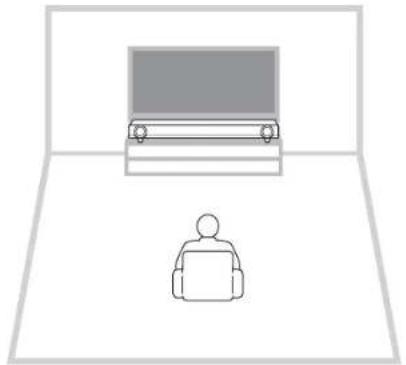
Place the sound bar on a flat surface such as on top of a TV cabinet.
natural_image
Simple line drawing of a person sitting at a desk with a monitor and chair (no text or symbols)Cautions
- Do not place the sound bar on/under any other devices such as BD player in a pile. Doing so may cause a malfunction due to vibrations.
- Do not touch the grilles (fabric parts) on the front of the sound bar.
- The sound bar contains acoustic suspension speakers. Do not place magnetically sensitive items (hard disk drive, etc.) near the sound bar.
- Depending on your installation environment, it may be better to connect the sound bar and external devices (such as a TV) before installing the sound bar.
- Do not place the sound bar within 50 mm (2") of the TV. The wall mount brackets on the rear panel can be removed as necessary.
natural_image
Technical line drawing of a rectangular electronic component with mounting holes and internal components (no text or symbols)Removing the stands
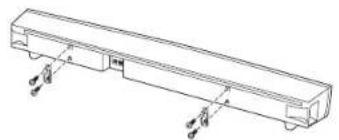
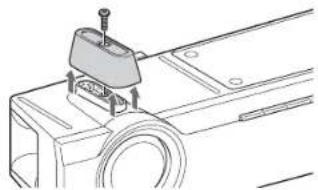
When the sound bar blocks the view of the lower part of the TV screen or the remote control sensor of the TV, remove the stands (18 mm [3/4") of the sound bar to adjust its height.
HINT
- Use the TV Remote Repeater function (p.14) to transmit TV's remote control signals via the sound bar.
natural_image
Technical line drawing of a mechanical component with mounting bracket and base plate (no text or symbols)NOTE
- Keep the stands and screws in a safe place for future use.
Attaching the sound bar to a wall
natural_image
Simple line drawing of a laptop and a monitor on a screen, no text or symbols presentCautions
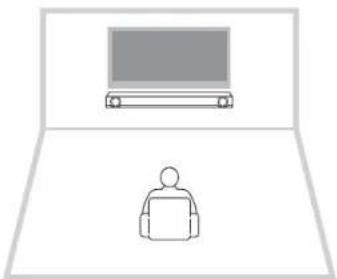
- When installing the sound bar on a wall, all installation work must be performed by a qualified contractor or dealer. The customer must never attempt to perform this installation work. Improper or inadequate installation could cause the sound bar to fall, resulting in personal injury.
- Do not attach the sound bar to a wall that is made of weak materials such as plaster or veneered woods. Doing so may cause the sound bar to fall.
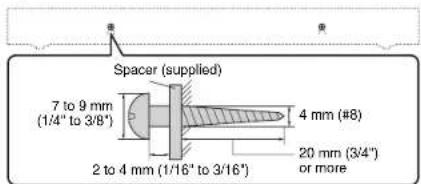
• Make sure you use commercially available screws that can support the weight of the installation (specified in Step 2 on the right). Using clamps other than specified screws, such as short screws, nails, and two-sided tape, may cause the sound bar to fall.
How to install on the wall
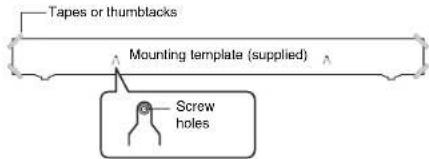
1 Attach the mounting template on a wall and mark for the screw holes.
2 Remove the mounting template from the wall, then install commercially available screws and supplied spacers (as illustrated below) at the points marked on the wall.
3 Hang the sound bar on the screws.
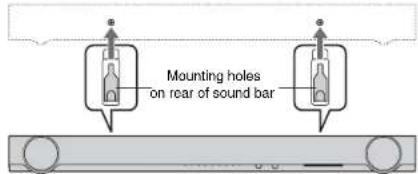
Cautions
- Fix the cables in place where they will not become loose. If your fool or hand accidentally gets caught on a loose cable, the sound bar may fall.
- Check that the sound bar is fixed securely after the installation. Yamaha will bear no responsibility for any accidents caused by improper installations.
Connections
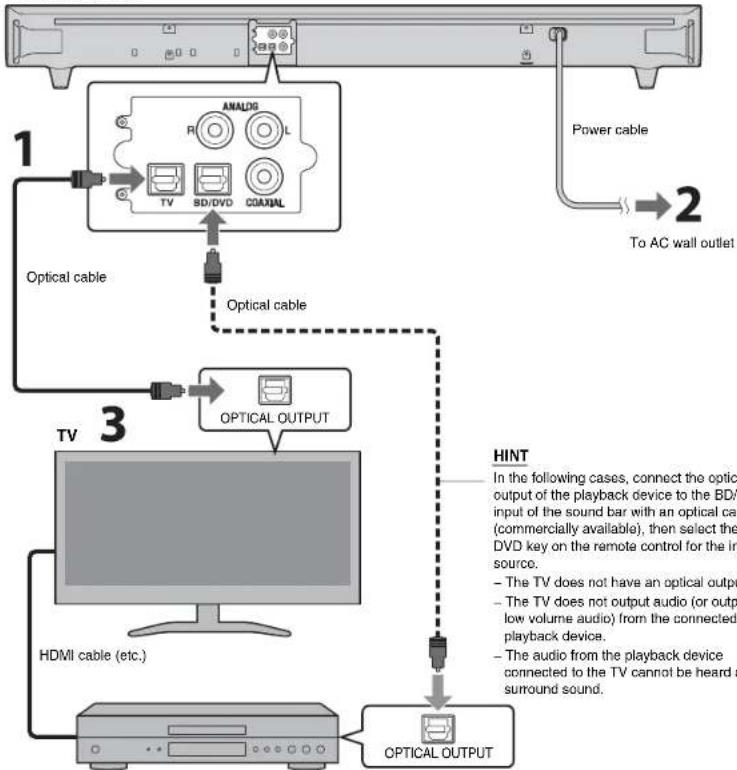
Connect to a TV (or other peripheral device).
CAUTIONS
- Do not connect the power cable of the sound bar to the AC wall outlet before making connections.
- Do not use excessive force when inserting the cable plug. Doing so may damage the cable plug or AC wall outlet.
1 Connect the TV and sound bar with the optical cable (supplied).
Remove the cap of the optical cable and check the direction of the plug.
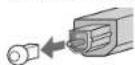
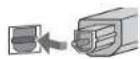
2 Connect the power cable of the sound bar to an AC wall outlet.
3 Set the TV as follows.
- Set the TV volume to minimum.
- Disable the TV built-in speaker output (if available).
HINT
-
If a setting to disable the speaker output is not available on your TV, you may disable it by connecting headphones to the headphone jack on the TV. For details, refer to the manuals of the TV.
• The TV, BD/DVD and COAXIAL input jacks support the following audio signals. -
PCM (2 channel)
- Dolby Digital (up to 5.1 channel)
- DTS Digital Surround (up to 5.1 channel)
Sound bar (rear)
flowchart
graph TD
    A["TV"] --> B["Optical cable"]
    B --> C["Analog TV"]
    C --> D["SD/DVD"]
    D --> E["COAXIAL"]
    E --> F["Optical output"]
    F --> G["Optical cable"]
    G --> H["Power cable"]
    H --> I["To AC wall outlet"]
    J["HDMI cable (etc.)"] --> K["Optical output"]
    L["OPTICAL OUTPUT"] --> M["The TV does not have an optical output"]
    M --> N["The TV does not output audio (or output low volume audio) from the connected playback device"]
    N --> O["The audio from the playback device connected to the TV cannot be heard a surround sound"]
Playback device (such as a BD player) Set top box
Analog connection of an external device (game console)
You can connect an external device, such as a game console or TV that does not have an optical output, to the ANALOG input jacks of the sound bar.
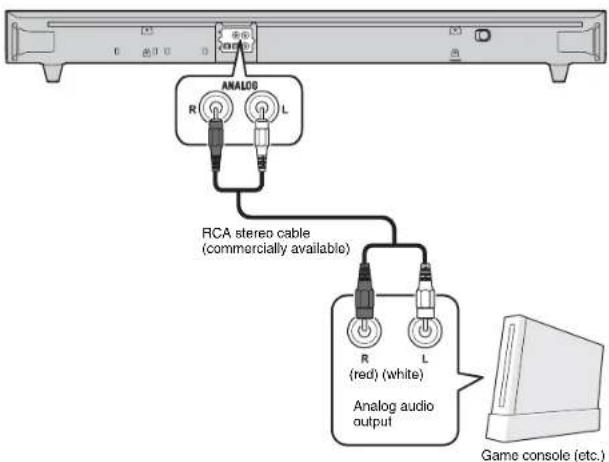
NOTE
• Make sure the left (L) and right (R) channels are connected correctly.
- Select the ANALOG key on the remote control for the input source.
Digital connection of an external device
You can connect an external device that has a coaxial digital audio output, such as a DVD player, to the COAXIAL input jack of the sound bar.
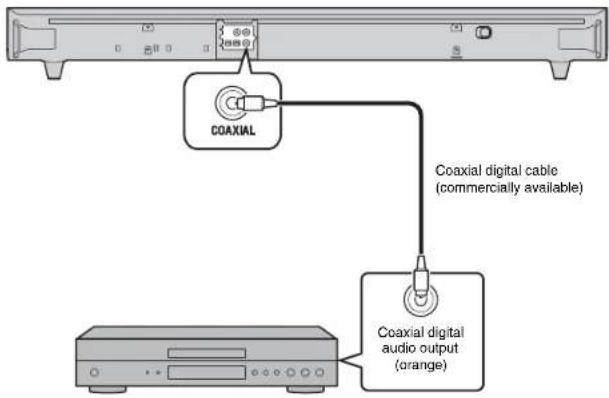
NOTE
- Select the COAXIAL key on the remote control for the input source.
Operations
Preparing the remote control
Peel off the protection sheet before use.
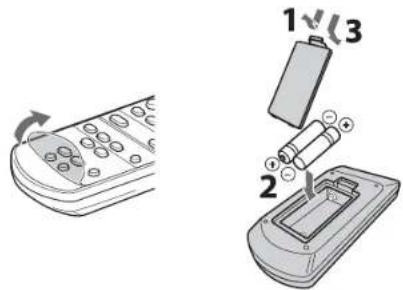
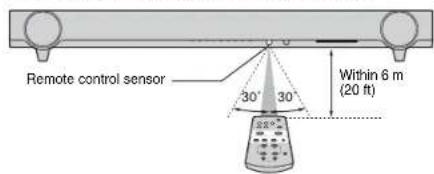
Operating range of the remote control
Remain within the operating range shown below.
Indicators
The indicators on the front panel flash or light up, to indicate the operation and setting status.
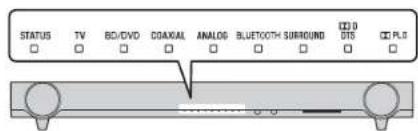
Select an input source to be played back.
TV TV audio
BD/DVD......Audio from a device connected to the BD/DVD input jack
COAXIAL......Audio from a device connected to the COAXIAL input jack
ANALOG ......Audio from a device connected to the ANALOG input jack
BLUETOOTH (YAS-103 only)
Audio from a Bluetooth connected device
The indicator for the selected input source lights up. (Example: when TV is selected)
TV 80/CVD COAXIAL ANALOS BLUETOOTH ■ □ □ □ □
HINT
- To play audio of the playback device connected to the TV or to watch videos of the playback device, set the TV's input source to the playback device.
- For details on Bluetooth connection, refer to "Listening to the sound from a Bluetooth device (YAS-103 only)" (p.10).
SUBWOOFER keys (+/-)
Adjust the volume of the subwoofer.
□ □ □ □ ■ □ □ □ □
Volume down (−) Volume up (+)
VOLUME keys (+/-)
Adjust the volume of the sound bar.
☀️ ☉️ ☉️ ☉️ ☐ ☐ ☐
Volume down (-) Volume up (+)
1
Remote control signal transmitter
Transmits infrared signals.
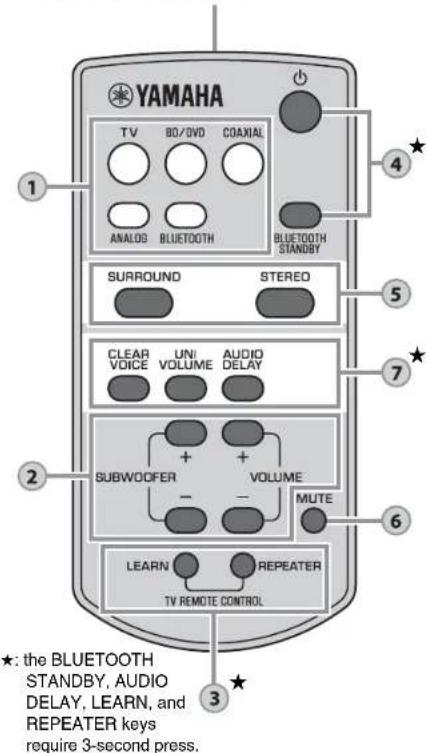
LEARN key ^
Sets the sound bar to the TV's remote control learning mode (p.12).
REPEATER key\*
Enables/disables the TV Remote Repeater function (p.14).
3
(POWER) key
Turns on or off (standby) the sound bar.
STATUS Green (turned on)
STATUS Red (Bluetooth standby)
STATUS Off (turned off)
BLUETOOTH STANDBY key ^* (YAS-103 only)
Enables/disables the Bluetooth standby mode. (p.11).
4
5
SURROUND and STEREO keys
Switch between surround and stereo (2 channel) playback. When surround playback is selected, you can enjoy a realistic sound effect using Yamaha's exclusive AIR SURROUND XTREME.
SURROUND
SURROUND Lights up (surround playback)
STEREO
SURROUND Off (stereo playback)
HINT
- When 2 channel stereo signals are played in surround, the BULL indicator lights up.
PLII Lights up (Dolby Pro Logic II)
6
MUTE key
Mutes the audio output. Press the key again to unmute.

CLEAR VOICE key
Enables/disables the clear voice function. When this function is enabled, you can enjoy clear voice sounds while watching movies, TV dramas, news programs or sports programs.

UNIVOLUME key
Enables/disables the UniVolume function. When this function is enabled, consistent volume is maintained between channels, programs, commercials and sound sources.

HINT
- The UniVolume function is automatically disabled when BLUETOOTH is selected as the input source.
AUDIO DELAY key ^*
Adjusts the audio delay to synchronize the sound with the video when the video image on the TV may seem delayed with respect to the sound. Follow the procedure below to adjust the audio delay.
1 Hold down AUDIO DELAY for more than 3 seconds.
The left most indicator flashes.

2 Press SUBWOOFER (+/-) to adjust the audio delay.

Smaller delay (−) Larger delay (+)
3 To finish the adjustment, press AUDIO DELAY.
HINT
- The adjustment will be finished automatically if no operations are performed for 20 seconds.
Decoder indication
The sound bar supports the following audio signals. You can check the type of the input audio signal by the color of the indicator.
Green (Dolby Digital), Red (DTS Digital Surround)
□
Off (PCM)
□
Listening to the sound from a Bluetooth device (YAS-103 only)
You can listen to the wireless sound from a Bluetooth device, such as a smartphone or digital music player. See also the operating manual of the Bluetooth device for more details.
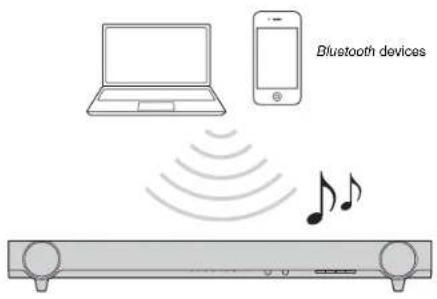
Perform the following steps on the Bluetooth device to be connected.
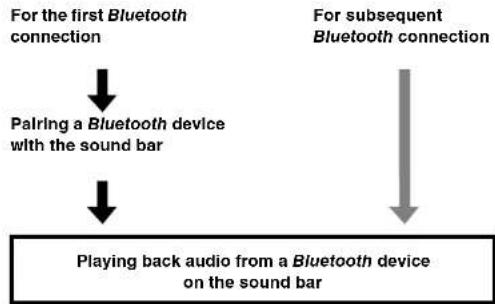
flowchart
graph TD
    A["For the first Bluetooth connection"] --> B["Pairing a Bluetooth device with the sound bar"]
    C["For subsequent Bluetooth connection"] --> D["Playing back audio from a Bluetooth device on the sound bar"]
Pairing a Bluetooth device with the sound bar
When connecting to a Bluetooth device for the first time, "pairing" between the device and sound bar is required. "Pairing" is necessary for each Bluetooth device you use. Once "pairing" is completed, subsequent connection will be made automatically.
1 Press the BLUETOOTH key on the sound bar's remote control to select Bluetooth as the input source.
The BLUETOOTH indicator on the front panel lights up in green.


2 Turn on the Bluetooth compatible device to be paired, and perform pairing.
The operation varies depending on the device. Refer to the operation manual of the device.
3 Select "YAS-103 Yamaha" in the Bluetooth device list on the device. If a passkey (PIN) is required, enter the number "0000".
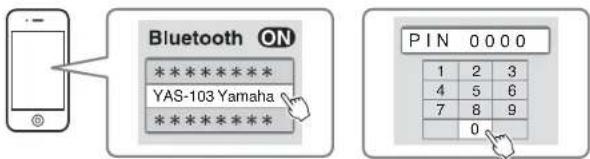
When pairing is completed, for a completion message appears.
NOTE
• Perform pairing with the Bluetooth device and sound bar within 10 meters (33 ft) of each other.
- Up to eight Bluetooth devices can be pairing with the sound bar. If a ninth device is paired, the oldest pairing information is deleted.
- If pairing information for a device is deleted, to use that device again, pairing of the device is required again.
- If a Bluetooth device is already connected to the sound bar, terminate that Bluetooth connection, then perform pairing with the new device.
- Refer to "Troubleshooting" (p.15) for troubleshooting Bluetooth connection.
Playing back audio from a Bluetooth device on the sound bar
1 With the sound bar turned on, press the BLUETOOTH key on the sound bar's remote control to select Bluetooth as the input source.
The BLUETOOTH indicator on the front panel lights up in green.


2 Turn on the Bluetooth device.
When Bluetooth connection is made correctly, the BLUETOOTH indicator of the sound bar flashes 3 times.

3 Play back a song on the device.
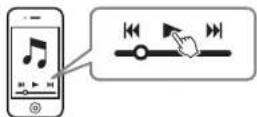
NOTE
- Perform Bluetooth connection with the device and sound bar within 10 meters (33 ft) of each other.
- It may be necessary to select "YAS-103 Yamaha" in the Bluetooth device list again, in the event that a connection problem occurs. You may have to change the output setting to output audio to the sound bar, depending on the Bluetooth device you are using.
- Adjust the volume level of the Bluetooth device as required.
- If a Bluetooth device is already connected to the sound bar, terminate that Bluetooth connection, then connect with the new device.
Terminating Bluetooth connection
Bluetooth connection is terminated in the following cases. When the Bluetooth connection is terminated, the BLUETOOTH indicator flashes once.
• The Bluetooth compatible device is turned off.
- The BLUETOOTH key on the sound bar's remote control is pressed for more than 3 seconds.
• The sound bar is turned off.
Using the Bluetooth standby mode
The Bluetooth standby mode allows you to turn on (or off) the sound bar automatically, that interlocked by the operation of the Bluetooth device.
How to set
With the sound bar turned on, hold down the BLUETOOTH STANDBY key on the sound bar's remote control for more than 3 seconds.
Holding down the BLUETOOTH STANDBY key for 3 seconds each time toggles the mode between enabled and disabled.


When the Bluetooth standby mode is enabled and the sound bar is turned off, the STATUS indicator lights up in red.

Functions available on Bluetooth devices with Bluetooth standby mode enabled
Power on interlock function (when the sound bar is turned off) When Bluetooth connection is made on the device, the sound bar will turn on and will be ready to play back sound from the device.
Power off Interlock function (when the sound bar is turned on) The sound bar will be turned off when Bluetooth connection is terminated on a Bluetooth device. (Only when BLUETOOTH is selected as the input source.)
Using the HOME THEATER CONTROLLER application
By installing the dedicated free application "HOME THEATER CONTROLLER" to a Bluetooth device, such as a smartphone, you can perform various operations easily and conveniently with the Bluetooth device. (Setting items: basic operation, sound-field, sound adjustments)
For details on "HOME THEATER CONTROLLER", see the product information on our website.
Settings
Programming the sound bar with the TV's remote control (TV's remote control learning function)
Once you program the sound bar, you can control it with your TV's remote control for functions such as turning on/off the TV and sound bar simultaneously, or volume up/down and muting/unmuting of the sound bar.
NOTE
- This function is available only when your TV's remote control uses IR (infrared) signal.
• An RF (Radio Frequency) remote control will not work. - If you want to use a cable or satellite set top box's remote control to operate the sound bar, use your original TV's IR (infrared) remote control to program the sound bar, then use the set top box's remote control to operate.
- If by changing the volume of the sound bar the TV's volume also changes, set the TV's volume to minimum, or disable speaker output.
1 Turn off the TV.
2 Turn off the sound bar.
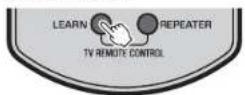
3 Hold down the LEARN key on the sound bar's remote control for more than 3 seconds to set the sound bar to the learning mode.
When the sound bar is in the learning mode, the indicators on the front panel flash as shown below.

NOTE
- Steps 4 to 7 require only the TV's remote control and the keys on the front panel of the sound bar.
The remote control of the sound bar is not necessary. - If the sound bar has already learned functions, the following indicator light up.
Mute: BD/DVD
Volume (-): COAXIAL
Volume (+): ANALOG
Power BLUETOOTH
4 Teach the sound bar the "Mute" code of the TV's remote control.
4-1 Press INPUT on the front panel of the sound bar.
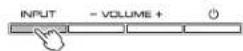
4-2 While pointing your TV's remote control at the remote control sensor, hold down the mute key for more than 1 second twice or three times.

flowchart
graph TD
    A["TV's remote control"] --> B["Approx. 30 cm (1 ft)"]
    B --> C["MUTE"]
    C --> D["Hold down (more than 1 second)"]
    D --> E["Release (more than 1 second)"]
    E --> F["MUTE"]
    F --> G["Hold down (more than 1 second)"]
    G --> H["Release (more than 1 second)"]
| Result Bleep/buzzer Indicators | ||
| Successfully learned | Once | |
| Failed to learn* Repeat from Step 4-1. | Twice | |
5 Teach the sound bar the "Volume (−)" code of the TV's remote control.
5-1 Press VOLUME (−) on the front panel of the sound bar.
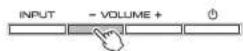
5-2 While pointing your TV's remote control at the remote control sensor, hold down the volume (−) key for more than 1 second twice or three times.
| Result Bleep/buzzer Indicators | ||
| Successfully learned | Once | |
| Failed to learn* Repeat from Step 5-1. | Twice | |
6 Teach the sound bar the "Volume (+)" code of the TV's remote control.
6-1 Press VOLUME (+) on the front panel of the sound bar.
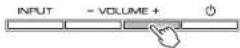
6-2 While pointing your TV's remote control at the remote control sensor, hold down the volume (+) key for more than 1 second twice or three times.
| Result Bleep/buzzer Indicators | ||
| Successfully learned | Once | |
| Failed to learn* Repeat from Step 6-1. | Twice | |
7 Teach the sound bar the "Power" code of the TV's remote control.
7-1 Press (power) on the front panel of the sound bar.
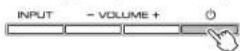
7-2 While pointing your TV's remote control at the remote control sensor, hold down the power key for more than 1 second twice or three times.
| Result Bleep/buzzer Indicators | ||
| Successfully learned | Once | |
| Failed to learn* Repeat from Step 7-1. | Twice | |
8 To finish the learning mode, press the LEARN key on the sound bar's remote control.
This completes the necessary settings. Now you can operate the sound bar with the TV's remote control's mute key, volume keys, or power key.
HINT
• The learning mode will be finished automatically if no operations are performed for 5 minutes.
- Set the TV volume to minimum. When you turn up the volume of the sound bar with the TV's remote control, the volume of the TV may be turned up at the same time. In this case, follow Step 3 in "Connections" (p.6) to change the TV setting.
- You can press the key on the sound bar's remote control to finish leaning mode.
Clearing all programmed functions
1 With the sound bar turned off, hold down the LEARN key on the sound bar's remote control for more than 3 seconds. (for entering the learning mode)
When the sound bar is in the learning mode, the indicators on the front panel flash as shown below.

2 Hold down INPUT on the front panel of the sound bar for more than 3 seconds.

If the clearing is completed, you will hear the bleep sound three times.
3 Press the LEARN key on the sound bar's remote control.
Sending the TV's remote signal through the sound bar (TV Remote Repeater function)
When the TV Remote Repeater function is enabled, the sound bar relays the TV's remote signal received by the front sensor to the rear transmitter. This function should be enabled when you place the sound bar in front of your TV and you cannot operate your TV with the TV's remote control.
NOTE
- This function is available only when your TV's remote control uses infrared signals.

1 Turn on the sound bar.
2 Hold down the REPEATER key on the sound bar's remote control for more than 3 seconds to enable/disable the TV Remote Repeater function.

This completes the necessary settings. When the TV Remote Repeater function is enabled, you can operate your TV from the TV's remote control via the sound bar.
HINT
• The TV Remote Repeater function is disabled by default.
- If the power cable of the sound bar is connected to an AC wall outlet and when the TV Remote Repeater function is enabled, the function is usable even when the sound bar is turned off.
- If you have made the sound bar learn the volume (+) operation (p.13), the volume of the TV may be turned up when you turn up the volume of the sound bar with the TV's remote control. In this case, follow Step 3 in "Connections" (p.6) to change the TV setting.
- You can check the status of the TV Remote Repeater function by the center indicator when turning on the sound bar.

Setting the auto power standby function
By enabling the auto power standby function, you can avoid forgetting to turn off the sound bar after use, or if you fall asleep while watching TV.
NOTE
- When the auto power standby function is enabled and one of the following conditions is met, the sound bar will automatically turn off.
- No operations for 8 hours
- No audio input and no operations for 20 minutes when BLUETOOTH is selected as the input source.
1 With the sound bar turned off, hold down the MUTE key on the sound bar's remote control for more than 3 seconds.
You can check the status of the auto power standby function when turning on the sound bar.

HINT
- Initial setting varies depending on the country or region.
- U.K. and Europe models; enabled
- Other models: disabled
Initializing the sound bar
Follow the procedure below to initialize the sound bar.
1 Turn off the sound bar.
2 Hold down (power) on the front panel of the sound bar for more than 3 seconds.

Troubleshooting
Refer to the table below when the sound bar does not function properly. If the problem you are experiencing is not listed below or if the instructions below do not help, turn off the sound bar, disconnect the power cable, and contact the nearest authorized Yamaha dealer or service center. First, check the following:
①The power cables of the sound bar, TV and playback devices (such as BD players) are connected to AC wall outlets securely.
②The sound bar, TV and playback devices (such as BD players) are turned on.
③The connectors of each cable are securely inserted in to Jacks on each device.
Power and system
| Problem Cause Remedy | ||
| The power turns off immediately. | The auto power standby function worked.When the auto power standby function is enabled and one of the following conditions is met, the sound bar will automatically turn off.- No operations for 8 hours- No audio input and no operations for 20 minutes when BLUETOOTH is selected as the input source. | Disable the auto power standby function (p.14). |
| The power cannot be turned on. | The protection circuitry has been activated three times consecutively. (If you try to turn on the power in this condition, the STATUS indicator flashes.) | For product protection, the power cannot be turned on. Unplug the power cable from the AC wall outlet and contact the nearest authorized Yamaha dealer or service center. |
| The sound bar is not reacting. | The internal microcomputer is frozen, due to an external electric shock (such as lightning or excessive static electricity) or to a drop in the power supply voltage. | Hold down (power) on the front panel of the sound bar for more than 10 seconds to reboot it. (If the problem persists, disconnect the power cable from the AC wall outlet and plug it again.) |
| The sound bar operates by Itself. | Another Bluetooth device is being operated nearby. | Terminate Bluetooth connection of the sound bar (p.11). |
| TV's 3D glasses do not work. | The sound bar is blocking the 3D glasses transmitter of your TV. | Check the position of the 3D glasses transmitter of your TV and adjust the position of the sound bar. If necessary, remove the stands of the sound bar (p.5). |
Audio
| Problem Cause Remedy | ||
| No sound. | Another input source is selected. Select an appropriate input source (p.8). | |
| The mute function is activated. Cancel the mute function (p.9). | ||
| The volume is too low. Turn up the volume (p.8). | ||
| No sound is coming from the subwoofer. | The volume of the subwoofer is too low. | Turn up the volume of the subwoofer (p.8). |
| The playback source does not contain low-frequency signals. | Play back a sound source containing low-frequency signals. | |
| The volume decreases when the sound bar is turned on. | The automatic volume adjustment function worked.To prevent excessive loudness, the sound bar automatically controls its volume within a certain level when the sound bar is turned on. | If necessary, turn up the volume (p.8). |
| No surround effect. | Stereo playback is selected. Select surround playback (p.9). | |
| The volume is too low. Turn up the volume (p.8). | ||
| The TV or playback device is set to output 2 channel audio (such as PCM) only. | Change the digital audio output setting on the TV or playback device to Dolby Digital or BitStream. | |
| The audio is output from the TV built-in speakers. | Set the TV volume to minimum (p.6). | |
| Noise is heard. | The sound bar is too close to another digital or high-frequency device. | Move those devices away from the sound bar. |
Remote control
| Problem Cause Remedy | ||
| The sound bar cannot be controlled using the remote control. | The sound bar is out of the operating range. | Use the remote control within the operating range (p.8). |
| The batteries are weak. Replace with new batteries (p.8). | ||
| The remote control sensor of the sound bar is exposed to direct sunlight or strong lighting. | Adjust the lighting angle, or reposition the sound bar. | |
| The TV cannot be controlled using the TV's remote control. | The remote control sensor of the TV is blocked by the sound bar. | Use the TV Remote Repeater function (p.14) or remove the stands of the sound bar so that the TV's remote control sensor is not blocked (p.5). |
| There may be any problem with the TV or TV's remote control. | Refer to the manuals of the TV. | |
| The TV cannot be controlled by using the TV Remote Repeater function. | The TV Remote Repeater function is disabled. | Enable the TV Remote Repeater function (p.14). |
| The TV's remote control does not use infrared signals. (Some remote controls may not work even if it uses infrared signals.) | The TV Remote Repeater function cannot be used in this case. Adjust the position of the sound bar so that the remote control sensor of the TV is not blocked by the sound bar and use the TV's remote control to operate the TV. | |
| The sound bar and TV are too close or too far from one another. | Move the sound bar away from the TV more than 50 mm (2") (p.5). If necessary, remove or attach the stands of the sound bar to adjust height for the IR flasher (for TV Remote Repeater) of the sound bar positioning in front of the remote control sensor of the TV (p.5). | |
| There is any obstacle (such as cables) between the sound bar and TV. | Remove the obstacle between the sound bar and TV. | |
| TV is not receiving the remote control signal well since the signals from the TV's remote control and IR flasher (for TV Remote Repeater) of the sound bar are interfering. | Disable the TV Remote Repeater function (p.14). | |
| The sound bar does not learn TV's remote control operations. | The TV's remote control key was not held down long enough. | Hold down the key for more than 1 second twice or three times (p.12). |
| The TV's remote control does not use infrared signals. (Some remote controls may not work even if it uses infrared signals.) | The TV's remote control learning function cannot be used in this case. Use the sound bar's remote control to operate the sound bar. | |
| The position where you operated the TV's remote control is not appropriate. | Operate the TV's remote control at the appropriate position (p.12). | |
| The batteries of the TV's remote control are weak. | Replace with new batteries. | |
| The remote control sensor of the sound bar is exposed to direct sunlight or strong lighting. | Adjust the lighting angle, or reposition the sound bar. | |
| The transmission of the remote control signal was disturbed by the TV screen light. | Turn off the TV and perform the learning operation again (p.12). | |
| Sound Is coming from the TV when the sound bar volume is turned up with the TV's remote control. (when TV's remote control learning function is used) | Audio output is enabled on the TV. | Change the TV setting to disable the TV speaker output. If a setting to disable the speaker output is not available on your TV, try the following methods.- Connect headphones to the headphone jack on the TV.- Set the TV volume to minimum. |
| The power of the sound bar and of the TV switch in the opposite direction. (For example, the TV is turned off if the sound bar is turned on.) (when TV's remote control learning function is used) | The power of the TV was on when you performed the learning operation. | Press the power key on the TV and (power) on the front panel of the sound bar to turn on them and then press the power key on the TV's remote control to turn off them. |
Bluetooth (YAS-103 only)
| Problem Cause Remedy | ||
| Cannot make the sound bar paired with the Bluetooth device. | BLUETOOTH is not selected as the input source. | Select BLUETOOTH as the input source. |
| The device does not support A2DP. | Perform pairing operations with a device which supports A2DP. | |
| A Bluetooth adaptor, etc. that you want to pair with the sound bar has a password other than “0000”. | Use a Bluetooth adaptor, etc. whose password is “0000”. | |
| The sound bar and device are too far apart. | Move the device closer to the sound bar. | |
| There is a device (microwave oven, wireless LAN, etc.) outputs signals in the 2.4 GHz frequency band nearby. | Move the sound bar away from the device that is emitting radio frequency signals. | |
| Another Bluetooth device is connected. | Terminate current Bluetooth connection, and perform pairing with the new device. | |
| Cannot make a Bluetooth connection. | Another Bluetooth device is connected. | The sound bar cannot make multiple Bluetooth connections. Terminate current Bluetooth connection, and make connection for the desired device. |
| More than nine devices are paired and the oldest pairing information is deleted. | Perform pairing again. The sound bar can retain pairing information for up to eight devices. When pairing a ninth device, the oldest pairing information will be deleted. | |
| No sound is produced or the sound is interrupted during playback. | The Bluetooth connection of the sound bar with the device is disconnected. | Perform Bluetooth connection operations again (p.10). |
| The sound bar and device are too far apart. | Move the device closer to the sound bar. | |
| There is a device (microwave oven, wireless LAN, etc.) outputs signals in the 2.4 GHz frequency band nearby. | Move the sound bar away from the device that is emitting radio frequency signals. | |
| The device's Bluetooth function is off. | Activate the Bluetooth function of the device. | |
| The device is not set to send Bluetooth audio signals to the sound bar. | Check that the Bluetooth function of the device is set properly. | |
| Playback on the device has not been performed. | Perform playback on the device. | |
| The device's volume is set to minimum. | Turn up the volume level. |
Specifications
| Item specifications | ||
| Amplifier Section | Maximum Rated Output Power | Front L/R 30 W x 2 ch |
| Subwoofer 60 W | ||
| Front Speaker Section | Type | Acoustic suspension type (Non-magnetic shielding type) |
| Driver 6.5 cm (2-1/2") cone x 2 | ||
| Frequency Response | 150 Hz to 22 kHz | |
| Subwoofer Section | Type | Bass reflex type (Non-magnetic shielding type) |
| Driver 7.5 cm (3") cone x 2 | ||
| Frequency Response | 50 Hz to 150 Hz | |
| Decoder | Supported audio signal (TV, BD/DVD) | PCM (2ch) Dolby Digital DTS Digital Surround |
| Input Jacks | Digital (Optical) 2 (TV, BD/DVD) | |
| Digital (Coaxial) 1 (COAXIAL) | ||
| Analog (RCA) 1 (ANALOG) | ||
| Bluetooth (YAS-103 only) | Bluetooth version | Ver. 2.1 +EDR |
| Supported protocols | A2DP, SPP | |
| Supported codecs | SBC, MPEG4 AAC | |
| Wireless output Bluetooth Class 2 | ||
| Maximum communication distance | 10 m ([33 ft] without obstructions) | |
| General | Power Supply | U.S.A. and Canada models: AC 120 V, 60HzTaiwan model: AC 110—120 V, 50/60HzOther models: AC 220—240 V, 50/60Hz |
| Power Consumption | 22 W | |
| Standby Power Consumption | Less than 0.5 W | |
| Bluetooth standby power consumption (YAS-103 only) | 0.6 W | |
| Dimensions (W x H x D) | 890 x 91 x 115 mm (not including stands and brackets)(35" x 3-5/8" x 4-1/2") | |
| 890 x 109 x 121 mm (Including stands and brackets)(35" x 4-1/4" x 4-3/4") | ||
| Weight 4.0 kg (8.8 | bs) |
* Specifications are subject to change without notice.

This system employs new technologies and algorithms that make it possible to achieve 7.1 channel surround sound with only front speakers, and without using wall reflections.
UniVolume
"UniVolume" is a trademark of Yamaha Corporation.
Bluetooth
(YAS-103 only)
Bluetooth is a registered trademark of the Bluetooth SIG and is used by Yamaha in accordance with a license agreement.

DOLBY
DIGITAL
Manufactured under license from Dolby Laboratories. Dolby, Pro Logic and the double-D symbol are trademarks of Dolby Laboratories.


For DTS patents, see http://patents.dts.com. Manufactured under license from DTS Licensing Limited. DTS, the Symbol, & DTS and the Symbol together are registered trademarks, and DTS Digital Surround is a trademark of DTS, Inc. © DTS, Inc. All Rights Reserved.
"Blu-ray Disc™", "Blu-ray™", and the logos are trademarks of the Blu-ray Disc Association.
The following description applies to YAS-103 only.
Bluetooth
- Bluetooth is a technology for wireless communication between devices within an area of about 10 meters (33 ft) employing the 2.4 GHz frequency band, a band which can be used without a license.
Handling Bluetooth communications
- The 2.4 GHz band used by Bluetooth compatible devices is a radio band shared by many types of equipment. While Bluetooth compatible devices use a technology minimizing the influence of other components using the same radio band, such influence may reduce the speed or distance of communications and in some cases interrupt communications.
- The speed of signal transfer and the distance at which communications is possible differs according to the distance between the communicating devices, the presence of obstacles, radio wave conditions and type of equipment.
- Yamaha does not guarantee all wireless connections between this unit and devices compatible with Bluetooth function.
Information for Users on Collection and Disposal of Old Equipment and Used Batteries
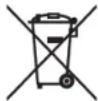

These symbols on the products, packaging, and/or accompanying documents mean that used electrical and electronic products and batteries should not be mixed with general household waste. For proper treatment, recovery and recycling of old products and used batteries, please take them to applicable collection points, in accordance with your national legislation and the Directives 2002/96/EC and 2006/66/EC.
By disposing of these products and batteries correctly, you will help to save valuable resources and prevent any potential negative effects on human health and the environment which could otherwise arise from inappropriate waste handling.

For more information about collection and recycling of old products and batteries, please contact your local municipality, your waste disposal service or the point of sale where you purchased the items.
[Information on Disposal in other Countries outside the European Union] These symbols are only valid in the European Union. If you wish to discard these items, please contact your local authorities or dealer and ask for the correct method of disposal.
Note for the battery symbol (bottom two symbol examples): This symbol might be used in combination with a chemical symbol. In this case it complies with the requirement set by the Directive for the chemical involved.
Pb
ATTENTION : LISEZ CE QUI SUIT AVANT D'UTILISER VOTRE APPAREIL.
natural_image
Technical line drawing of a rectangular electronic device with two circular ports and a central indicator (no text or symbols)Barre de son
⑧Prise d'entrée TV
natural_image
Simple line drawing of a person sitting at a desk with a monitor and chair, no text or symbols present.Précautions
natural_image
Technical line drawing of a mechanical component with mounting holes and internal channels (no text or symbols)natural_image
Technical line drawing of a mechanical component with mounting bracket (no text or symbols)REMARQUE
natural_image
Simple line drawing of a laptop and a person on a desk, no text or symbols presentPrécautions
⊕ Touche (alimentation)
Guide de dépannage
natural_image
Technical line drawing of a rectangular electronic component with two circular ports and a central indicator (no text or symbols)Soundbar
natural_image
Simple geometric shape with two horizontal lines and a central symbol, no text or labels present.natural_image
Simple line drawing of a person sitting at a desk with a monitor and chair, no text or symbols present.Vorsicht
natural_image
Technical line drawing of a mechanical component with mounting holes and internal channels (no text or symbols)natural_image
Technical line drawing of a mechanical component with mounting holes and a central bracket (no text or symbols)HINWEIS
natural_image
Simple line drawing of a laptop and a person silhouette on a screen (no text or symbols)Vorsicht
natural_image
Technical line drawing of a rectangular electronic device with two circular ports and a central indicator (no text or symbols)Ljudplanka
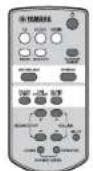
Fjärrkontroll Batteri x 2

(AAA, R03, UM4)
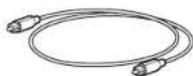
Optisk kabel (1,5 m)
natural_image
Simple line drawing of a person sitting at a desk with a monitor and chair, no text or symbols present.natural_image
Technical line drawing of a mechanical component with mounting holes and a central housing (no text or symbols)natural_image
Technical line drawing of a mechanical component with mounting bracket and housing (no text or symbols)OBS!
natural_image
Simple line drawing of a laptop and a person silhouette on a screen (no text or symbols)natural_image
Technical line drawing of a mechanical component with two circular ports and a central shaft (no text or symbols)Barra audio
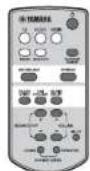
Telecomando Batteria x 2

(AAA, R03, UM4)
Cavo ottico (1,5 m)
natural_image
Simple line drawing of a person sitting at a desk with a monitor and chair, no text or symbols present.Attenzione
natural_image
Technical line drawing of a mechanical component with mounting holes and internal channels (no text or symbols)natural_image
Technical line drawing of a mechanical component with mounting bracket and housing (no text or symbols)NOTA
natural_image
Simple line drawing of a laptop and a person on a platform (no text or symbols)Attenzione
Verde (Dolby Digital), Rosso (DTS Digital Surround)
□
Spento (PCM)
□
natural_image
Technical line drawing of a rectangular electronic component with two circular ports and a central shaft (no text or symbols)Barra de sonido
natural_image
Simple line drawing of a person sitting at a desk with a monitor above it (no text or symbols)Precauciones
natural_image
Technical line drawing of a rectangular mechanical component with mounting holes and internal channels (no text or symbols)Quitar los soportes
natural_image
Technical line drawing of a mechanical component with mounting holes and a central bracket (no text or symbols)NOTA
natural_image
Simple line drawing of a laptop and a person on a laptop (no text or symbols)Precauciones
Verde (Dolby Digital), Rojo (DTS Digital Surround)
□
Apagado (PCM)
□
natural_image
Technical line drawing of a rectangular electronic component with two circular ports and a central indicator (no text or symbols)Soundbar
Afstandsbediening Batterij x 2

(AAA, R03, UM4)
natural_image
Simple geometric shape with two horizontal lines and a central symbol, no text or labels present.natural_image
Simple line drawing of a person sitting at a desk with a monitor and chair, no text or symbols present.Let op
natural_image
Technical line drawing of a mechanical component with mounting holes and internal structure (no text or symbols)natural_image
Line drawing of a mechanical component with mounting bracket and housing (no text or symbols)OPMERKING
natural_image
Simple line drawing of a laptop and a person on a platform (no text or symbols)Let op
Groen (Dolby Digital), rood (DTS Digital Surround)
□
Uit (PCM)
□
natural_image
Technical line drawing of a rectangular electronic device with two circular ports and a central indicator (no text or symbols)Звуковая панель
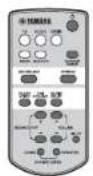
Пульт ДУ

Батарейка x 2
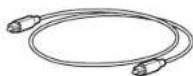
(AAA, R03, UM4)

natural_image
Simple geometric shape with two horizontal lines and a central symbol, no text or labels present.natural_image
Simple line drawing of a person sitting at a desk with a monitor and chair, no text or symbols present.Предупреждения
natural_image
Technical line drawing of a mechanical component with mounting holes and internal channels (no text or symbols)natural_image
Technical line drawing of a mechanical component with mounting holes and a central bracket (no text or symbols)ПРИМЕЧАНИЕ
natural_image
Simple line drawing of a laptop and a person on a laptop (no text or symbols)Предупреждения
Important Notice: Guarantee Information for customers in EEA\* and Switzerland
English
For detailed guarantee information about this Yamaha product, and Pan-EEA* and Switzerland warranty service, please either visit the website address below (Printable file is available at our website) or contact the Yamaha representative office for your country.
* EEA: European Economic Area