to open.
Read from Bookmarks in Current Book
In reading page, press
- To close the music player control, press the button.

From the Home screen, press the
- Archos 70d ereader
- USB cable Warranty and legal notices guide
NEED HELP?
REGISTER YOUR PRODUCT!

On our website: Check the Frequently Asked Questions (FAQ) at www.archos.com/faq
After unpacking your ARCHOS product, we advise you to take a few minutes to register it (www.archos.com/register). This will give you access to ARCHOS technical support (www.archos.com/support).

Contact our technical support team: Go to www.archos.com/support for email assistance.

On the Internet: www.archos.com/register
DESCRIPTION OF THE ARCHOS
7 Back button
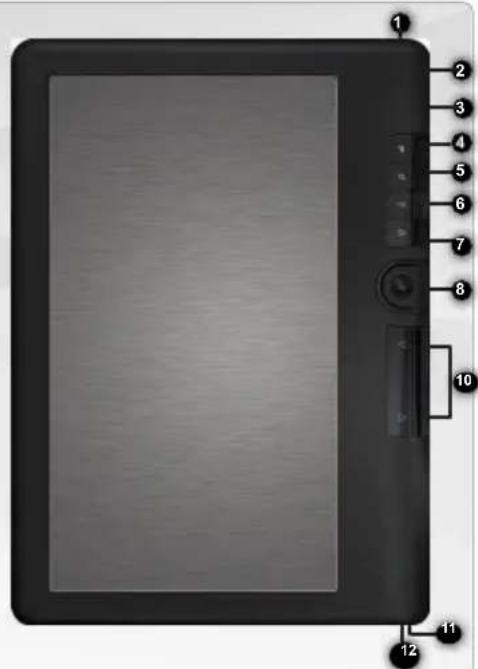
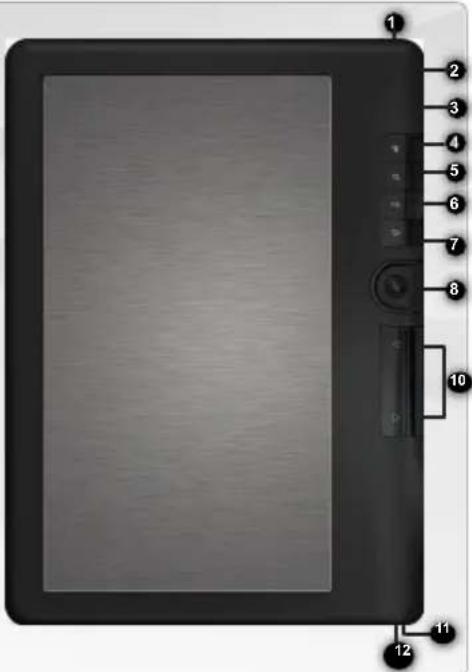
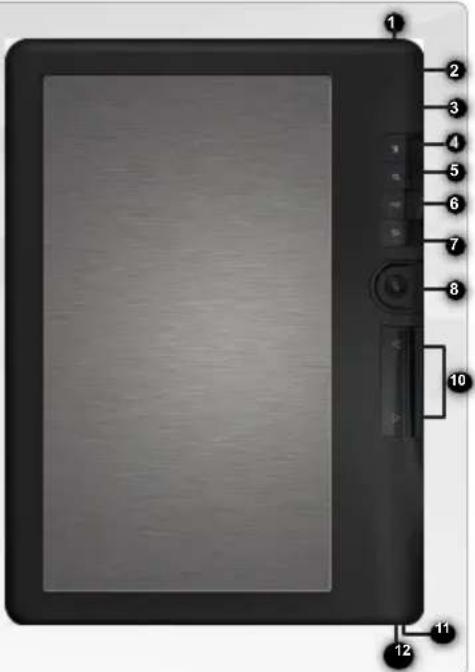
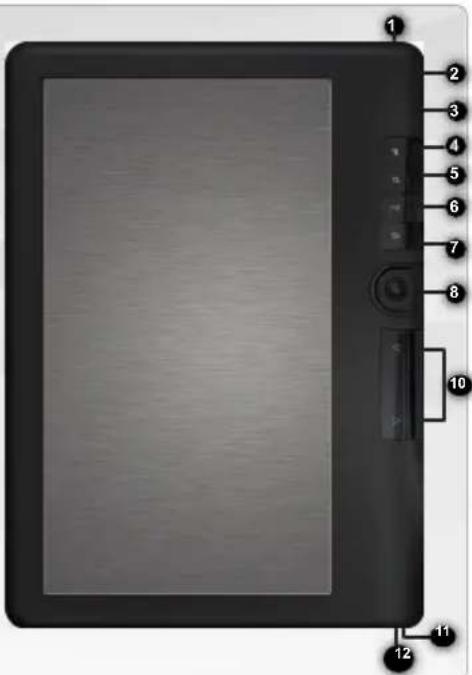
1 Headphone jack 2 Micro-USB port: transfer files and charge the battery 3 Micro-SD card slot: accepts FAT and NTFS type cards. NTFS type cards are necessary for copying files larger than 4GB. 4 Menu button: see the options available for the displayed screen 5 Zoom button: adjust font size - zoom in/out 6 Play/Pause button: access the music menu
- Press once to return to the previous screen.
- Press and hold to return to the home screen. 6 Directional arrows: move the cursor. 9 OK button. 10 Previous page button - Next page button: go to a previous or next page while reading. Loading indicator. 12 On/Off button.
- To turn off, press and hold for 3 seconds.
- To reset, press and hold for 6 seconds.
Resetting your device: If your ARCHOS completely freezes, you can press the On/Off button for 6 seconds.
GO!
FIRST USE

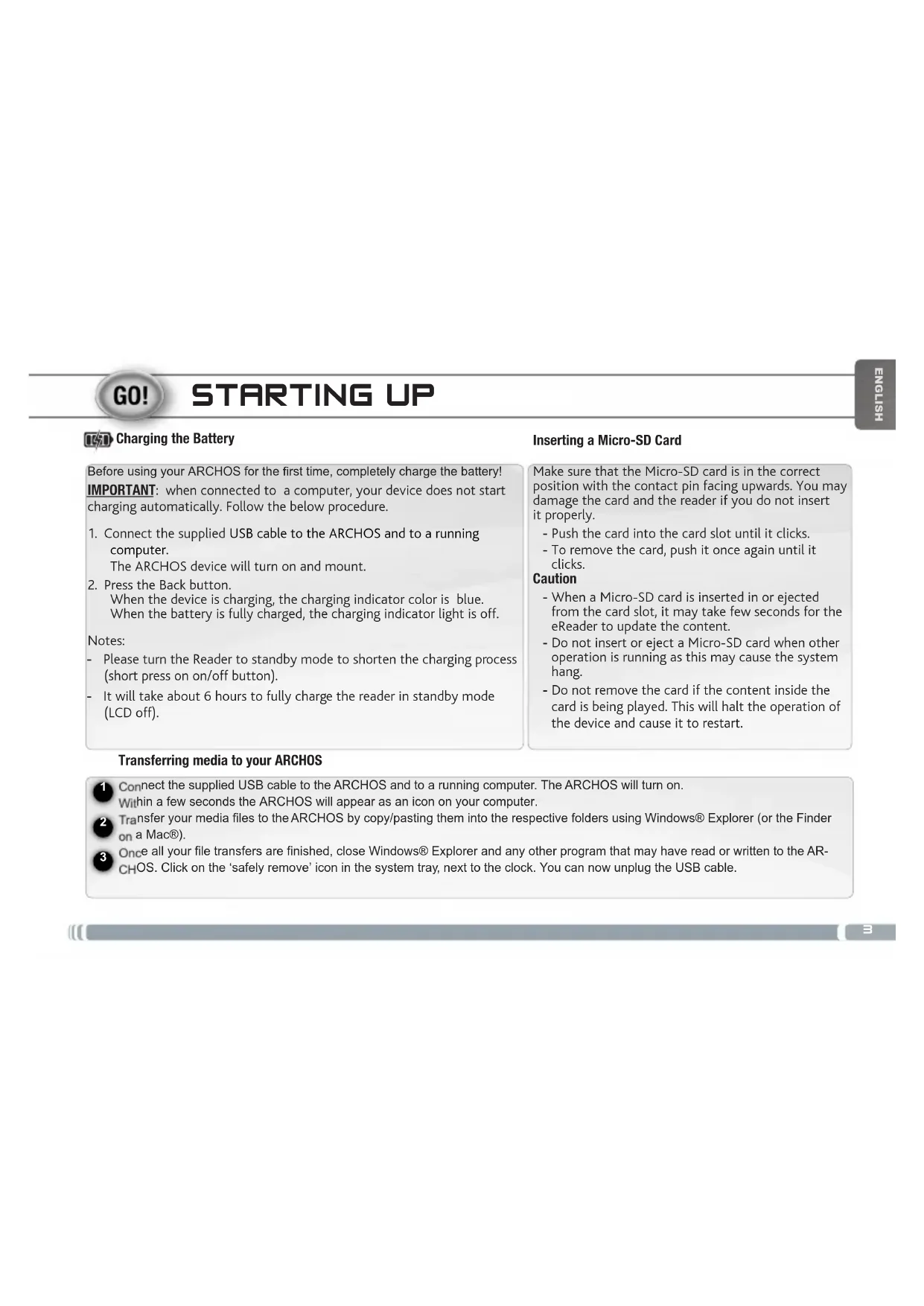
Charging the battery
Before using your ARCHOS for the first time, fully charge its battery!
IMPORTANT: Battery charging does not start automatically as soon as the device is connected to a computer. Please follow the procedure below.
- Connect the supplied USB cable to the ARCHOS and to a powered-on computer. The ARCHOS device turns on and is mounted.
- Press the Back button. While charging, the charging indicator color is blue. When the battery is fully charged, the charging indicator turns off.
Notes:
- Put the ARCHOS in standby mode to reduce charging time.
- Full charging of the ARCHOS in standby mode takes about 6 hours.
Inserting a Micro-SD card
Make sure to properly orient the Micro-SD card before inserting it. You risk damaging the card and the device if the card is not inserted correctly.
- Insert the card into the Micro-SD card slot until you hear a click.
- To remove the card, press it once until you hear a click.
Warning
- When you insert or remove a Micro-SD card, updating the device's content may take a few seconds.
- Do not insert or remove a Micro-SD card while another process is running, as this may cause the system to crash.
- Do not remove the card if its content is in use. This will interrupt the device's operation and it will restart.
Transferring multimedia files
1 Connect the supplied USB cable to your ARCHOS and to a powered-on computer. The ARCHOS turns on. After a few seconds, the ARCHOS appears as an icon on your computer. To transfer your files to the ARCHOS, you can copy/paste them directly into the device's respective folders (with Windows Explorer or Finder on Mac®). 3 Once all file transfers are complete, close Windows Media Player or any other program that might be using the ARCHOS. Then click the safely remove hardware icon in the taskbar, next to the clock. You can now unplug the USB cable.
THE ARCHOS INTERFACE
Description
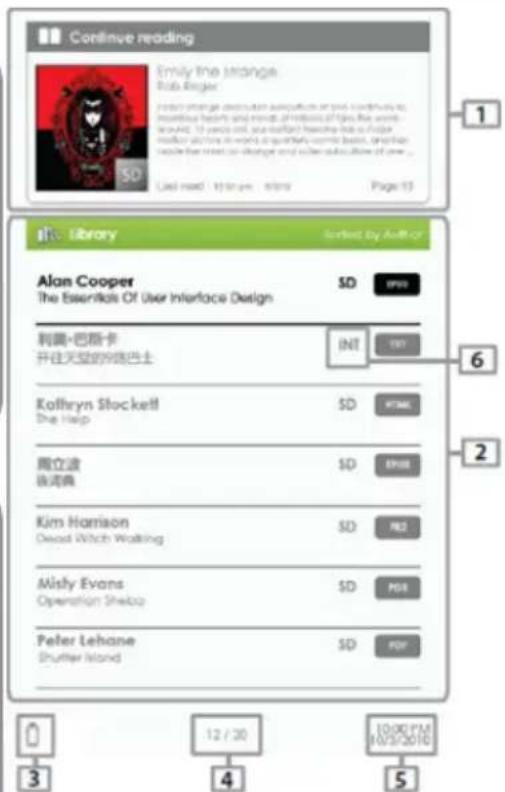
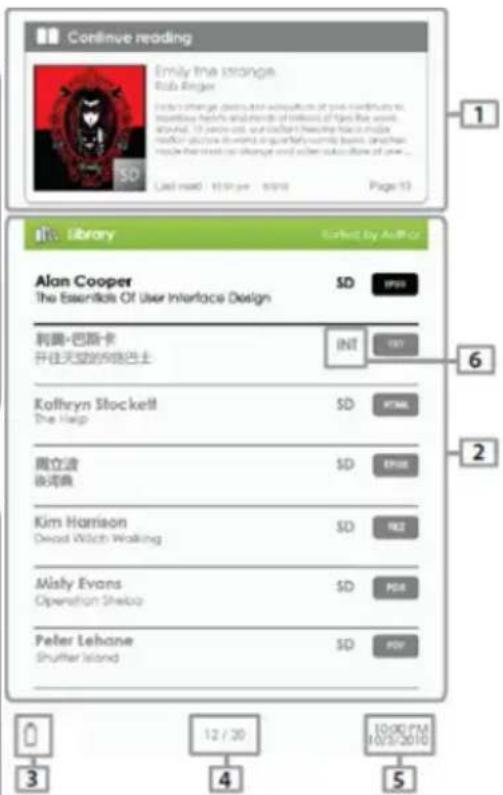
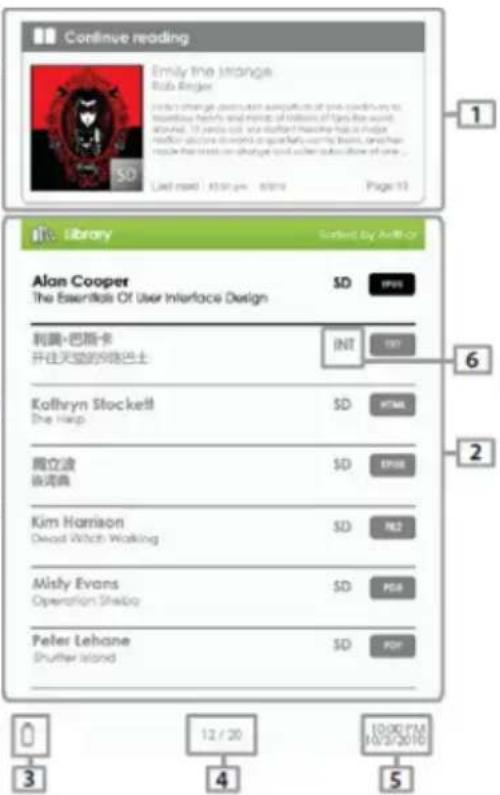
1 Continue reading: displays the last book consulted. Press the button to display the last page of the book you read. 2 Library: displays the list of your books. Move the cursor to the desired book and press the button. 3 Battery icon: displays the battery charge level. 4 Page number: displays the number of the displayed page as well as the total number of pages. Date & Time: displays the date and time. They can be modified by pressing the Menu button, then Settings. 6 File directory: indicates the location where a given file is stored. SD means SD card, INT means internal memory
- To access the available options, press the Menu button.
- Use the directional arrows to reach the desired element.
- Press the OK button to select it.
- To close the menu, press the button.
Sort your e-books by type: Title, Author, Category, Date, Format - Access a specific page of a book or an interface. - Read from bookmarks that have been added - Adjust the screen brightness - Access the video file player
- Access the music file player
- Access the photo file viewer
- Access the file explorer to manage all your files
- Access system features
- Display the list of your preferred e-books

ADOBE DIGITAL RIGHTS MANAGEMENT
It allows you to read protected e-books. To do this, you need to download and install Adobe Digital Editions on your computer. This application will allow you to purchase e-books and transfer them to your ARCHOS.
Install Adobe Digital Editions (ADE) Grant access rights to the PC and the ARCHOS
The installation software for Adobe Digital Editions is preloaded on your device.
- Connect the ARCHOS to your PC via the USB cable.
- On your computer, go to My Computer and double-click on the ARCHOS icon. Make sure you have access to the Internet.
- Double-click on the file [digitaleditions_172] to launch the installation. You can also download the installation software from http://www.adobe.com/products/digitaleditions/#fp.
If you are connecting for the first time, you will need to create a free account on the Adobe website. Click on Get an Adobe ID.
- Enter your email address and complete the form as indicated.
- After you have registered, display the ADE window.
- Enter your username and password to access your Adobe account.
- Connect the ARCHOS to your computer. The Adobe Digital Editions application detects the device and asks you to open access to your ARCHOS.
Once access is opened, the ARCHOS will be displayed in the Adobe Digital Editions application. The content of the device will be displayed in the right part of the application. Purchase and download books from stores that support Adobe DRM. Your books will be stored in My Documents/[My Digital Editions].
Transfer your books to any ARCHOS
- From the Adobe Digital Editions application, click on All Items in the left column. The books present in the [My Digital Editions] folder will be displayed in the right window.
- Select the books to transfer. + to select multiple files at the same time.
- Drag and drop the selected books onto the ARCHOS icon displayed at the bottom of the left column.
READING FUNCTION
Your digital books downloaded to the Archos eReader are displayed on the home screen page. The ARCHOS reads digital books in epub, pdf, txt formats and supports Google Books. Use the directional arrows or , or to select a digital book. Press to display it.
Opening a digital book
- From the main screen of the ARCHOS, use the directional arrows to select Library.
- Select the book you want to display.
- Press the OK button.
Turning a page
- Press the button or directional arrow to go to the next page. - To display the previous page, press the directional arrow button.
Setting the font size
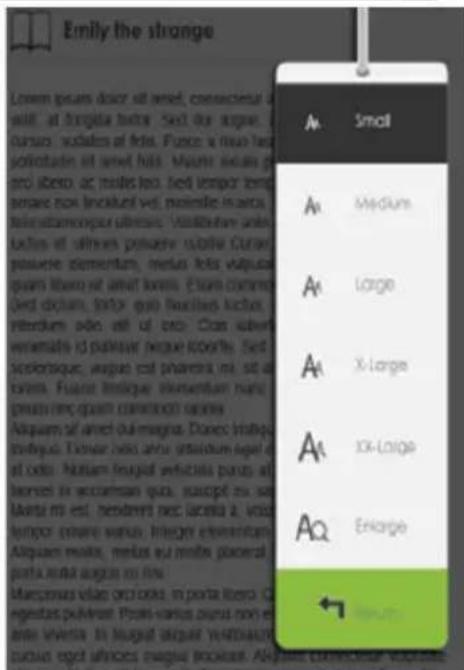
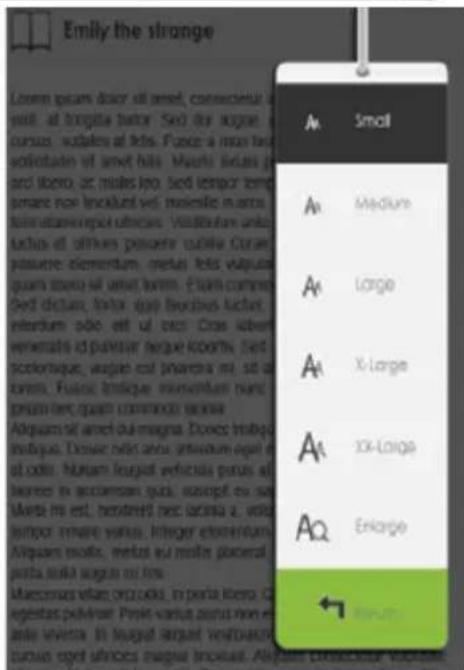
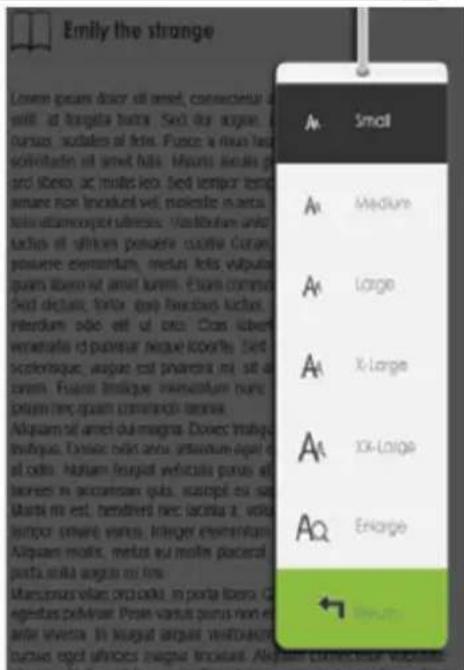
- While reading, you can press the button to access the font size menu. There are 5 font sizes: Normal, Medium, Large, Very Large, XXL.
- Select the desired font size.
- Press OK to confirm. The font size is adjusted after a few moments.
Zoom in/out
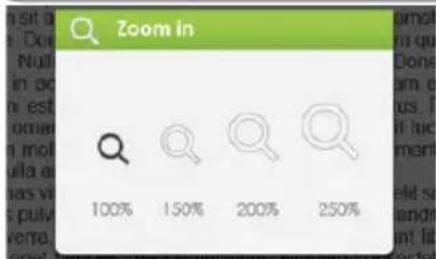
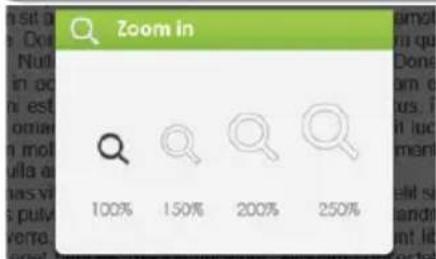
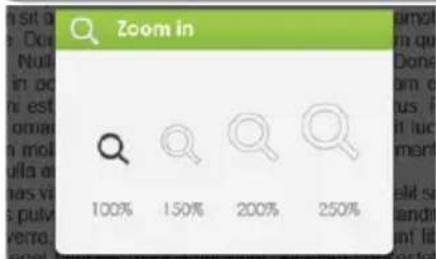
While reading, you can zoom in or out. 1. Press the Zoom button to access the font size menu. 2. Select Enlarge. Zoom options are displayed. 3. Select the desired zoom size and press the OK button. When you zoom in on a page, use the directional arrows to move around the page. When zoomed, the page turning function is disabled. Press the Back button to exit zoom mode.
READING FUNCTION
Bookmarks
Adding a bookmark: While reading an ebook, open the page where you want to add a bookmark. 1. Press the button
A music player control bar appears at the bottom of the page.
To use the control bar:
Directional arrow: volume +
Directional arrow: volume -
Directional arrow: next/fast forward
Directional arrow: previous/rewind - Press the button to close.
aikquak: Nallum lacus lilil. Cras dipalus eros in augae fermentum inconsector. Maenexenas subtilitudin odin vinculata magna congrua in sebrii nequei lamell. Sed verticilla faucobius toero, ut egestas nula tinctifolium un. harmortior erren, suscipit nec varix idd. condimenti-menti. Proem. liniscutum, erem et litrificans alvamarginus, lacus caecus, laticarpus longis, willa tinctifolium nuiu, maesia ed illi (Sed non erro orio), erget commatissus maxillae. Cras to rimn iuus. Proem. Lucus laurica nereis leucurus fulvum verh. deln lacina quas peditemnes sapens peditemnesquef.
Casas mainaia, neque a termenium cagare, eros iagata tempor ora, ut coriueq irio tibimperis risus. Vivamus aliqupcing froneus

PLAYING MULTIMEDIA FILES
From the home screen, press the button
- Archos 70d eReader USB cable
- Warranty, legal notice, and safety instructions
?
DO YOU NEED HELP?
REGISTER YOUR PRODUCT!

On our website: For frequently asked questions (FAQ) see www.archos.com/faq

Contact our technical support: You can get help by email at www.archos.com/support
We recommend that you take a few minutes after unpacking your ARCHOS product to register it (www.archos.com/register). This gives you access to ARCHOS technical support (www.archos.com/support).

Online at www.archos.com/register
DESCRIPTION OF THE ARCHOS
1 Audio jack 2 Micro USB port: for data transfer and charging 3 microSD card slot: supports TF cards in FAT and NTFS file systems. NTFS is required to copy a file larger than 4 GB 4 Menu button: press to display options for the current screen 5 Zoom button: press to adjust font size or zoom in/out 6 Play/Pause button: to access the music menu 7 Back button:
- Press once to return to the previous menu
- Press and hold to return to the Home menu
8 Directional buttons: to move the cursor
9 OK button 10 Next page button - Next page button: to go to a previous or next page while reading
Charging status
On/Off button:
Press and hold for 3 seconds to turn on/off. Press and hold for 6 seconds to reset
Hardware reset: If your device crashes, please turn it off. Hold the On/Off button for 6 seconds.
GO!
STARTING

Charging the battery Inserting a micro SD card
Before first use of the ARCHOS, the battery must be fully charged!
IMPORTANT: When the device is connected to a computer, it does not start charging automatically. Follow the procedure described below.
- Connect the ARCHOS to your computer using the supplied USB cable. The ARCHOS will then turn on and become ready.
- Press the Back button. While the battery is charging, the power indicator lights up blue. When the battery is fully charged, the charging indicator turns off. Notes:
- Put the reader back into standby mode to shorten the charging time.
- Fully charging the reader in standby mode (LCD off) takes about 6 hours.
Make sure the microSD card is in the correct position with the contact pins facing up. If the card is not inserted properly, the card or the reader may be damaged.
- Press the card into the card slot until it clicks into place audibly.
- To remove the card, press it again until you hear a click.
Caution
When inserting or removing a microSD card into the card slot, it may take a few seconds for the eReader to update the content. Do not insert or remove a microSD card while another operation is in progress, as this may cause a system lock. Do not remove the card while the content of the card is being played. This will stop the device and restart it.
1. Connect your ARCHOS to the computer using the supplied USB cable. The ARCHOS will then turn on. Within a few seconds, the ARCHOS appears as an icon on your computer. 2. You can transfer your media files by copying/pasting them into the respective folders on your ARCHOS, either with Windows Explorer (or with Finder on a Mac®). Once the file transfer is complete, close Windows Explorer and all other programs. Click on the 'Safely Remove' icon in the system tray next to the clock. You can now remove the USB cable.
THE ARCHOS INTERFACE
Description
1 Continue reading: Open the last page read of the last book read. Press the key to access the last page read. 2 Library: Display available books as a list. Select the desired book and open it. 3 Loading status: Display of loading status during operation. 4 Page number: Display of current page number and total number of pages. 5 Time & Date: Change time and date display under [Settings] 6 File directory: Display of storage location of files: SD - SD card, INT - internal storage
- To access available options, press the Menu key.
- Use the direction keys (up/down) to navigate to the desired icon.
- Press <OK> to select the desired icon.
- Press to exit the activity.
- Sort books by category: - Access the video player Title, author, category, date, format - Access the music player - Jump to a specific page - Access the photo viewer
- From recently added bookmarks - Access the explorer for reading advanced file management
- Set display brightness - Access system settings
Open the list of book favorites
ADOBE DIGITAL RIGHTS MANAGEMENT
You can load the latest books in protected ePub and PDF format onto your eReader. To do so, you need to download Adobe Digital Editions® and install it on your computer. This program will allow you to purchase eBooks and load them onto your ARCHHOS.
Installation of Adobe Digital Editions (ADE)
The installer for Adobe Digital Editions is preinstalled on the eReader.
- Connect the eReader to your PC using the supplied USB cable.
- On your PC, go to My Computer and double-click the eReader icon. Make sure the computer is connected to the internet.
- Double-click the file [digitaleditions_172] to open the installer. Alternatively, you can download the installer here: http://www.adobe.com/products/digitaleditions/#fp.
First-time users need a free Adobe ID from the Adobe website. Click on Apply for Adobe ID online.
- Enter your email address and fill out the form as instructed.
Authorize PC and eReader
- After registration, return to the ADE window.
- Enter username and password to activate your Adobe account.
- After activation, connect the reader to the PC. ADE will recognize the reader and you will be prompted to authorize the device.
After authorization, you will find the recognized reader in ADE as shown. The content of the reader is displayed in the right-hand panels.
You can now start downloading or purchasing eBooks from eBook shops that support Adobe DRM.
Purchased or downloaded eBooks are saved under [My Digital Editions] in [Documents and Settings].
Transferring DRM eBooks to your reader
- Click [All Items] in the left column in the Adobe Digital Editions application. The items in [My Digital Editions] are listed in the right window.
- Select the item(s) you want to transfer. + , to select multiple files.
- Drag the selected item(s) onto the Reader drive in the last row of the left column.
READING BOOKS
Books transferred to the ARCHOS device are listed in the Home menu. The ARCHOS device supports eBooks in the formats epub, pdf, txt. Use the direction keys - up or down, left or right - to select a book and open it with OK>.
Open book
- Use the direction keys on the main page of the eReader to select the library.
- Select the book you want to open.
- Press the OK button.
- Press the button or to go to the next page. - Press the button or to go to the previous page.
Adjust font size
- While reading, the font size can be changed with the – button. Five different font sizes are available: Small, Medium, Large, XL, and XXL.
- Select the desired font size.
- Confirm with OK.
- Changing the font size may take a few minutes.
Zoom (enlarge/reduce)
You can zoom while reading.
- Press the zoom button to access the font size menu.
- Select enlarge. The zoom options will be displayed.
- Select the desired zoom level and confirm with the OK button. While in zoom mode, you can navigate the zoomed page using the arrow keys. While in zoom mode, page turning is disabled. Exit zoom mode using the back button.
READING BOOKS
Bookmarks
Add bookmark
- While reading, select the page you want to bookmark.
- Press the menu button.
- Select Add bookmark.
- Press the OK button.
Delete bookmarks
- Select Bookmarks from the menu. All your bookmarks will now be displayed.
- Select the desired bookmark and press the Menu button.
- Select Delete and confirm the deletion with the OK button. From a displayed bookmark;
- Press the Menu button.
- Select Delete bookmarks and confirm with the OK button
In the Home menu, press and select [Bookmarks] to access the bookmark list. Move the cursor in the bookmark list to the desired bookmark and press to open it.
While reading a page, press and select [Bookmarks] to access the bookmark list.
Move the cursor in the bookmark list to the desired page and press to open the page
Playing music while reading
You can play music while reading or during a slideshow. Press the < Play/Pause > button. A control for the music player appears at the bottom of the page.
Keys for music control:
Up: Volume+ Down: Volume-, Right: Next song/Fast forward, Left: Previous song/Rewind
To control the music player, press the button.

Video
On the main screen, press the button, then select Video, Music, or Photo. Press the button. 3 The ARCHOS device displays the selected application.
Activate/exit full screen mode. Press the button.
Press the button.
Previous video / Fast rewind: press the directional button.
Next video / Fast forward: press the directional button.
Play / Stop a video: press the button.
Display subtitles during video playback: The player supports subtitle formats sub, ssa, srt, lrc.
The subtitle file name must be identical to that of the video file. Subtitles are loaded automatically during video playback.
Music
In the music player, use the OK button to play or stop music.
Use the directional button to play the next song.
Press and hold the button for fast forward.
Press the button for volume up.
Press the button for volume down.
Photo
Use the buttons to navigate through files/folders.
Press OK to display a selected photo in full-screen mode.
In full-screen mode, use the buttons to show the previous or
next image. Press the button to zoom into an image in full-screen mode
and switch zoom levels. Pressing the button
displays the original size.
Slideshow
In full-screen mode, press
- Archos 70d eReader USB cable
- Warranty, legal, and safety notices

NEED HELP?
REGISTER YOUR PRODUCT!

Frequently asked questions can be found at www.archos.com/faq.
Once you have unpacked your ARCHOS product, we recommend that you take a few moments to register it (www.archos.com/register). This will give you access to ARCHOS technical support (www.archos.com/support).

Contact our Technical Support team: Visit www.archos.com/support for email support.

Online at www.archos.com/register
Please note that as we are constantly updating and improving our products, the software on your device may vary slightly from what is described in this Quick Guide.
DESCRIPTION OF THE ARCHOS
1 Headphone jack 2 Micro-USB port: for data transfer and power 3 Micro-SD card slot: supports TF card with FAT and NTFS file systems. NTFS is needed to copy files larger than 4GB 4 Menu button: press to access options for the current screen 5 Zoom button: press to adjust font size, or zoom in/out on text 6 Play/Pause button: to go to the music menu 7 Back button:
- press once to return to the previous menu.
- Press and hold to return to the home menu.
8 Direction buttons: to move the cursor
9 OK button 10 Previous page button - Next page button: to go to the previous or next page during reading Charging indicator 12 POWER ON/OFF button:
- to turn on/off, press and hold for 3 seconds.
- To reset, press and hold for 6 seconds.
Device reset: In case the ARCHOS becomes frozen, you can force the device to shut down. Press the POWER ON/OFF button for 6 seconds.
GO!
BEFORE YOU START

Charging the battery
Before using your ARNOVA for the first time, fully charge the battery!
IMPORTANT: when the device is connected to a computer, the device does not start automatically. Follow the procedure below.
- Connect the supplied USB cable to the ARCHOS and to a powered-on computer. The ARCHOS will turn on. The USB storage device can be used.
- Press the Back button. The power indicator is blue when the battery is charging. When the battery is fully charged, the charge indicator light turns off.
Notes:
- Put the Reader in standby mode to shorten the charging process.
- In standby mode, the reader takes about 6 hours to fully charge (LCD off).
Insert a microSD card.
Make sure the Micro-SD card is in the correct position, with the contact plates facing up. If you do not insert it correctly, you may damage the card and the reader.
- Push the card to the bottom of the slot until it clicks.
- To remove the card, press it again until it clicks.
Caution
- Once a Micro-SD card is inserted or ejected from its slot, the eReader will take a few seconds to update the content.
- Do not insert or eject any Micro-SD card while another operation is in progress, as this may cause a system lock.
- Do not remove the card while its content is being played. This may interrupt the device's operation and cause it to restart.
File Transfer
1. Connect the supplied USB cable to the ARCHOS and to a powered-on computer. The ARCHOS will turn on. Within a few seconds, the ARCHOS icon will appear on your computer. You can transfer multimedia files to the ARCHOS device by copying and pasting them into the corresponding folders using Windows Explorer (or Finder on a Mac). 3. Once all file transfers are complete, close Windows Explorer and any other program that may have read or written to the ARCHOS. Click the "Safely Remove Hardware" icon in the system tray, next to the clock. Now you can unplug the USB cable.
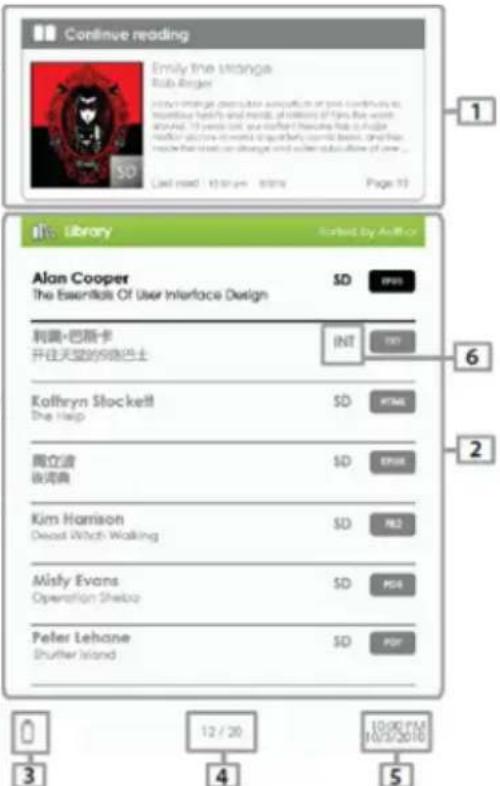
THE ARCHOS INTERFACE
Description
1 Continue reading: shows the page of the last book read. Press the button to open the exit page. 2 Library: shows the list of available books. Move the cursor to the desired book and press < OK> to open it. 3 Battery indicator: shows the battery status during operation. 4 Page number: shows the current page number and the total number of pages. 5 Date and time: shows the current date and time, you can adjust them in [Settings]. 6 File directory: indicates where the file is saved. SD: SD card, INT: internal memory
- To access the available options, press the Menu button.
- Use the Up or Down arrow keys to move to the desired item.
- Press < OK> to select it.
- Press the Back button to exit.
- To sort books by categories: - Start the music player, Title, Author, Category, Date, Format - Open the photo viewer
- Go directly to a specific page - Access the file explorer to
- Read a previously added book organize them Marks - Access the system settings
- Adjust the screen brightness - Open your favorite books list
ADOBE DIGITAL RIGHTS MANAGEMENT
You can download the latest books in protected ePub and PDF formats and transfer them to your e-reader. To do this, you will need to download and install Adobe Digital Editions® on your computer. This program will help you when you request and transfer your e-books to your ARCHOS.
Installing Adobe Digital Editions (ADE)
The Adobe Digital Editions installer is loaded from the source on the e-reader. 1. Connect the e-reader to your PC using the supplied USB cable. 2. On the PC, go to My Computer and double-click on the e-reader icon. 3. Make sure the computer is connected to the Internet. Double-click on the file [digitalations_172] to start the installer. You can also download the installer from http://www.adobe.com/products/digitaleditions/#fp.
If it is the first time you use it, you will need to get a free Adobe ID on the Adobe website. Click on Get an Adobe ID online.
- Enter your email address and fill in the form as instructed.
PC and e-reader authorization
- After registering, return to the ADE screen.
- Enter your username and password to activate your Adobe account.
- After activation, connect the e-reader to the PC. ADE will detect the e-reader and you will be prompted to authorize the device. After authorization, you will find the e-reader in ADE, as shown below. The content of the e-reader will appear in the right-hand windows. You can now start downloading or purchasing e-books from eBook stores compatible with Adobe DRM. Purchased or downloaded e-books will be saved in [My Digital Editions] under [My Documents].
Transferring DRM e-books to your e-reader
- In the Adobe Digital Editions application, click on [All Items] in the left column. The items in [My Digital Editions] will appear in the right-hand window.
- Choose the items you want to transfer + to select multiple files.
- Drag and drop the selected items onto the e-reader drive located in the last row of the left column.
READING BOOKS
The books transferred to the Archos device appear in the Home menu. The ARCHOS device is compatible with e-books in epub, pdf, and txt formats. Use the direction buttons, up or down, left or right, to select a book and press to open it.
Opening a book
- From the main screen of the e-reader, use the direction buttons to choose Library.
- Select the book you want to open.
- Press the OK button.
Turn a page of the book
- Press the or button to advance to the next page. - To go back to the previous page, press the or button.
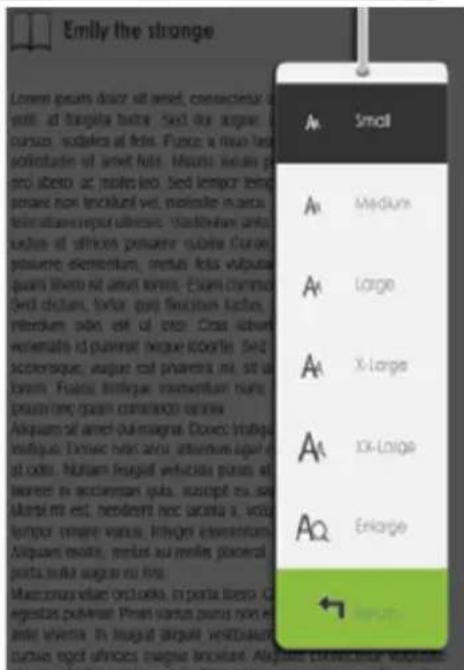
Adjusting the font size
- During reading, press the button to access the font size menu. There are 5 possible font sizes: Small, Medium, Large, XLarge, XXLarge.
- Move the cursor to the desired font size.
- Press OK to confirm. It may take a while for the font size to change.
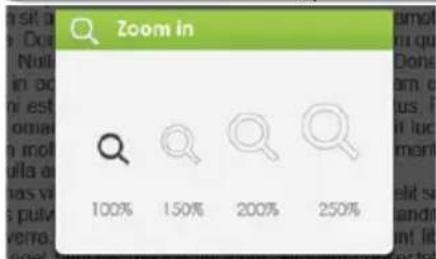
Zoom in/out
During reading, you can enlarge or reduce the text (zoom in/out). 1. Press the Zoom button to access the font size menu. 2. Select Enlarge. The zoom options will appear. 3. Move the cursor to the desired zoom level and press the OK button. In zoom mode, use the buttons to move around the enlarged page. Page turning is disabled in zoom mode. To exit zoom mode, press the Back button.
READING BOOKS
Bookmarks
Adding a bookmark
During reading, go to the desired page where you want the bookmark.
- Press the Menu button.
- SELECTION Add bookmark.
- Press the OK button.
Delete Bookmark
- Press the Menu button and choose Bookmarks. All your bookmarks are displayed.
- Choose the one you want to delete and press the Menu button.
- Select Delete and press OK.
- Press the button.
- Select Delete bookmark and press OK.
In the Home menu, press <Menu> and choose [Bookmarks] to access the list of bookmarks.
In the list, move the cursor to the one you want, and press to open it.
Read from bookmarks in the current book
On the page you are reading, press
- Press the button. A player control bar will appear at the bottom of the page.
For the music control buttons:
: volume + : volume - :, : previous/rewind - To close the music player control, press the button.

Video
Activate/Deactivate full screen Press the button
Increase/Decrease volume Press the button
Previous video/Fast rewind Press the button
Next video/Fast forward Press the button
Play/Pause a video: Press the button
To display subtitles during video playback: The player supports subtitles in sub, ssa, srt, and lrc formats. The subtitle file name must be identical to the video file name. The subtitle is loaded automatically during video playback.
Music
In the Music player, press the button to play/pause the music.
Press the direction button to play the next song. Press and hold to fast forward.
Press the direction button to play the previous song. Press and hold to rewind quickly.
Press the direction button to increase the volume.
Press the direction button to decrease the volume.
Photo
Use the buttons to navigate through files and folders.
Press the selected photo to view it in full screen.
In full screen mode, press to
view the previous photo and the next one. To zoom in on the image in full screen
mode, press the button to change the zoom level. To return
to the original size, press the button .
Image presentation
In full screen mode, press