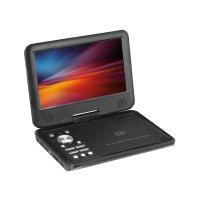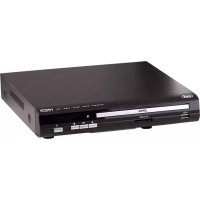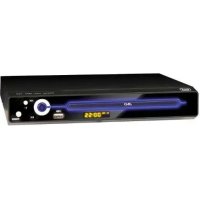
DXV 3530 USB - DVD player Trevi - Free user manual and instructions
Find the device manual for free DXV 3530 USB Trevi in PDF.



| Product type | DVD player |
| Brand | Trevi |
| Model | DXV 3530 USB |
| Power supply | AC 100-240 V, 50/60 Hz |
| Power consumption | 15 W |
| Video system | NTSC / PAL |
| Compatible formats | DVD, VCD, CD, MPEG4, MP3, WMA, JPEG, HDCD, DVD±R/RW |
| USB input | Yes (front USB port, compatible up to 250 GB FAT32) |
| Video outputs | Composite, S-Video, YUV, RGB (via SCART), P-Scan |
| Audio output | Coaxial digital, analog RCA (2.0 Vpp) |
| Remote control | Yes (AAA batteries not included) |
| Dimensions (approx.) | 430 x 240 x 40 mm |
| Weight (approx.) | 2.5 kg |
| Double insulation | Yes |
| Laser class | 1 |
| Supplied accessories | RCA audio/video cables, remote control, user manual |
| Maintenance | Clean with a damp cloth; do not use liquid detergents |
Frequently Asked Questions - DXV 3530 USB Trevi
User questions about DXV 3530 USB Trevi
0 question about this device. Answer the ones you know or ask your own.
Ask a new question about this device
Download the instructions for your DVD player in PDF format for free! Find your manual DXV 3530 USB - Trevi and take your electronic device back in hand. On this page are published all the documents necessary for the use of your device. DXV 3530 USB by Trevi.
USER MANUAL DXV 3530 USB Trevi
natural_image
Silhouette of a person pushing a ladder inside a circular frame (no text or symbols)(Symbol provided by RETAC)
text_image
00:00:15 1/7 / Audio Filter Repeat off Mode▼ Normal Music PlayingUscita video: 1,0 Vpp/75 Ω
Uscita audio: 2,0 Vpp
DAC Audio 16bit/48KHz
Please read this User Manual carefully before using this product and keep this manual for future reference.
Content
Introduction
Safety Precautions 3
■ Important Safety Instructions ....4
Caution 6
Features 6
Front Panel and Rear Panel Illustration 7
Remote Control 8
■ Connections 9
Advanced Features
■ MP3/WMA/MPEG4 playing....10
Picture CD playback 11
■ SYSTEM setup .... 12
■ Function of USB 16
Others
Troubleshooting 17
Specifications....18
Safety Precautions
Introduction
text_image
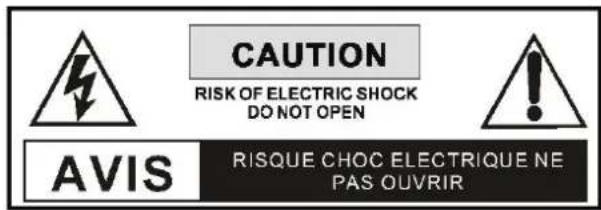
CAUTION RISK OF ELECTRIC SHOCK DO NOT OPEN AVIS RISQUE CHOC ELECTRIQUE NE PAS OUVRIR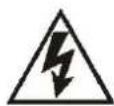
THE LIGHTNING FLASH WITH ARROWHEAD SYMBOL WITHIN AN EQUILATERAL TRIANGLE IS INTENDED TO ALERT THE USER TO THE PRESENCE OF UNINSULATED "DANGEROUS VOLTAGE" WITHIN THE UNIT'S CABI-NET THAT MAY BE OF SUFFICIENT MAGNITUDE TO CONSTITUTE A RISK OF ELECTRIC SHOCK TO PERSONS.

THE EXCLAMATION POINT WITHIN AN EQUILATERAL TRIANGLE IS INTENDED TO ALERT THE USER TO THE PRESENCE OF IMPORTANT OPERATING AND MAINTENANCE (SERVICING) INSTRUCTIONS IN THE MANUAL ACCOMPANYING THE UNIT.

THE MAINS PLUG USED AS THE DISCONNECT DEVICE, THE DISCONNECT DEVICE SHALL REMAIN READILY OPERABLE.

THE APPARATUS SHALL NOT BE EXPOSED TO DRIPPING OR SPLASHING AND THAT NO OBJECTS FILLED WITH LIQUIDS, SUCH AS VASES, SHALL BE PLACED THE APPARATUS.

ALWAYS REMEMBER TO REMOVE THE PLUG FROM THE MAINS SOCKET BEFORE DISCONNECTING THE POWER LEAD FROM THE BACK OF THE UNIT.
WARNING:
TO PREVENT FIRE OR ELECTRIC SHOCK, DO NOT EXPOSE THE UNIT TO RAIN OR MOISTURE. NEVER ATTEMPT TO OPEN THE CABINET, DANGEROUS HIGH VOLTAGES ARE PRESENTED IN THE UNIT. REFER SERVICING TO QUALIFIED SERVICE PERSONNEL.
CAUTION:
TO PREVENT ELECTRIC SHOCK, MATCH WIDE-BLADE PLUG WITH WIDE SLOT AND FULLY INSERT. THE APPARATUS SHALL NOT BE EXPOSED TO WATER AND NO OBJECTS FILLED WITH LIQUID SUCH AS VASES SHALL BE PLACED ON THE APPARATUS.
CAUTION:
THE UNIT EMPLOYS A LASER SYSTEM. TO ENSURE THE PROPER USE OF THE UNIT, READ THIS MANUAL CAREFULLY AND KEEP IT FOR FUTURE REFERENCE.
IF THE UNIT REQUIRES SERVICING, CONTACT THE SELLER OR SEE "TROUBLESHOOTING".
TO PREVENT DIRECT EXPOSURE TO THE LASER RADIATION, DO NOT OPEN THE CABINET. VISIBLE LASER MAY RADIATE WHEN THE CABINET IS OPENED OR THE INTERLOCKS ARE DEFEATED. DO NOT STARE INTO THE LASER BEAMS.
CAUTION:
THE DVD VIDEO PLAYER IS A CLASS 1 LASER PRODUCT. USE OF CONTROLS OR ADJUSTMENTS OR PERFORMANCE OF PROCEDURES OTHER THAN THOSE SPECIFIED HEREIN MAY RESULT IN HAZARDOUS RADIATION EXPOSURE. AS THE LASER BEAM USED IN THIS DVD VIDEO PLAYER IS HARMFUL TO THE EYES, DO NOT ATTEMPT TO DISASSEMBLE THE CABINET. REFER SERVICING TO QUALIFIED PERSONNEL ONLY.
WARNING:
FCC REGULATIONS STATE THAT ANY CHANGE OR MODIFICATION TO THE EQUIPMENT, NOT EXPRESSLY APPROVED BY MAKER OR ITS AUTHORIZED PARTIES, COULD VOID USER'S AUTHORITY TO OPERATE THIS EQUIPMENT.

This symbol indicates that this product incorporates double insulation between hazardous mains voltage and user accessible parts. When servicing use only identical replacement parts.
WARNING: To reduce the risk of fire or electric shock, do not expose this apparatus to rain or cords.
Important Safety Instructions
Introduction
1. Read Instructions
All the safety and operating Instructions should be read before the product is operated.
2. Retain Instructions
The safety and operating instructions should be retained for future reference.
3. Heed Warnings
All warnings on the product and in the operating instructions should be adhered to.
4. Follow Instructions
All operating instructions should be followed.
5. Cleaning
Unplug this product from the wall outlet before cleaning. Do not use liquid cleaners or aerosol cleaners. Use a damp cloth for cleaning.
6. Attachments
Do not use attachments not recommended by the product manufacturer as they may cause hazards.
7. Water and Moisture
Do not use this product near water for example, near a bathtub, wash bowl, kitchen sink, or laundry tub; in a wet basement; or near a swimming pool; and the like.
8. Accessories
Do not place this product on an unstable cart, stand, tripod, bracket, or table. The product may fall, causing serious Injury to a child or adult, and serious damage to the product. Use only with a cart, stand, tripod, bracket, or table recommended by the manufacturer, or sold with the product. Any mounting of the product should follow the manufacturer's instructions, and should use a mounting accessory recommended by the manufacturer.
9. Portable Cart Warning
A product and cart combination should be moved with care. Quick stop, excessive force, and uneven surface may cause the product and cart combination to overturn.
10. Ventilation
Slots and openings in the cabinet are provided for ventilation and to ensure reliable operation of the product and to protect it from overheating, and these openings must not be blocked or covered. The openings should never be blocked by placing the product on a bed, sofa, rug, or other similar surface. This product should not be placed in a built-in installation such as a bookcase or rack unless proper ventilation is provided or the manufacturer's instructions have been adhered to.
11. Power Sources
This product should be operated only from the type of power source indicated on the marking label. If you are not sure of the type of power supply to your home, consult your product dealer or local power company. For products intended to operate from battery power or other sources, refer to the operating instructions.
12. Grounding or Polarization
This product may be equipped with a polarized alternating current line plug (a plug having one blade wider than the other). This plug will fit into the power outlet only one way. This is a safety feature. If you are unable to insert the plug fully into the outlet, try reversing the plug. If the plug should still fail to fit, contact your electrician to replace your obsolete outlet. Do not defeat the safety purpose of the polarized plug.
13. Power Cord Protection
Power supply cords should be routed so that they are not likely to be walked on or pinched by items placed upon or against them, paying particular attention to cords at plugs, convenience receptacles, and the point where they exit from the product.
Important Safety Instructions
14. Lightning
For added protection for this product during a lightning storm, or when it is left unattended and unused for long periods of time, unplug it from the wall outlet and disconnect the antenna or cable system. This will prevent damage to the product due to lightning or power lines surges.
15. Power Lines
An outside antenna system should not be located in the vicinity of overhead power lines or other electric light or power circuits, or where it can fall into such power lines or circuits. When installing an outside antenna system, extreme care should be taken to keep from touching such power lines or circuits as contact with them might be fatal.
16. Overloading
Do not overload wall outlets, extension cords, or integral convenience receptacles, as this can result in a risk of fire or electric shock.
17. Object and Liquid Entry
Never push objects of any kind into this product through openings as they may touch dangerous voltage points or short-out parts that could result in a fire or electric shock. Never spill liquid of any kind to the product.
18. Servicing
Do not attempt to service this product yourself as opening or removing covers may expose you to dangerous voltage or other hazards. Refer all servicing to qualified service personnel.
19. Damage Requiring Service
Unplug this product from the wall outlet and refer servicing to qualified service personnel under the following conditions:
A) When the power-supply cord or plug is damaged,
B) If liquid has been spilled, or objects have fallen into the product,
C) If the product has been exposed to rain or water, D) If the product does not operate normally by following the operating instructions. Adjust only those controls that are covered by the operating instructions as an improper adjustment of other controls may result in damage and will often require extensive work by a qualified technician to restore the product to its normal operation,
E) If the product has been dropped or damaged in any way.
F) When the product exhibits a distinct change in performance this indicates a need for service.
20. Wall or Ceiling Mounting
The product should be mounted to a wall or ceiling only as recommended by the manufacturer.
21. Heat
The product should be situated away from heat sources such as radiators, heat registers, stoves, or other products (including amplifiers) that produce heat.
Caution
Introduction
- Please use the original box and packing materials for safe transportation of this product.
- It is normal for the cover and rear panel to become warm after the player has been operating for an extended period of time.
- Do not move this product during playback. Doing so may cause damage to the pickup and the disc.
- Press OPEN/CLOSE on the front panel or remote to open or close the disc tray. Do not push or touch the tray while it is opening or closing.
Features
Introduction
Disc formats supported by this player:

MPEG4 files on discs

Dolby Digital

MP3 files on CD-R/CD-RW

DVD video
Multi-angle
Subtitle choices
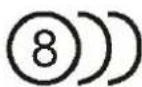
Audio choices
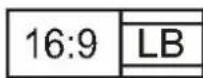
TV Aspect Ratio modes
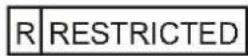
Parental Lock
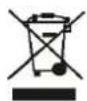
Precautions for correct disposal of the product.
The symbol shown on the equipment indicates that waste must be disposed of in "separate collection" and so the product must not be disposed of together with urban waste.
The user must take the product to special “separate waste collection centres” provided by local government, or deliver it to the retailer against the purchase of a new product.
Separate collection of waste and subsequent treatment, recycling and disposal operations promotes the production of equipment with recycled materials and limits negative effects on the environment and on health caused by improper handling of waste.
Illegal disposal of the product leads to the enforcement of administrative penalties.
Front Panel and Rear Panel Illustration
Introduction
Front panel
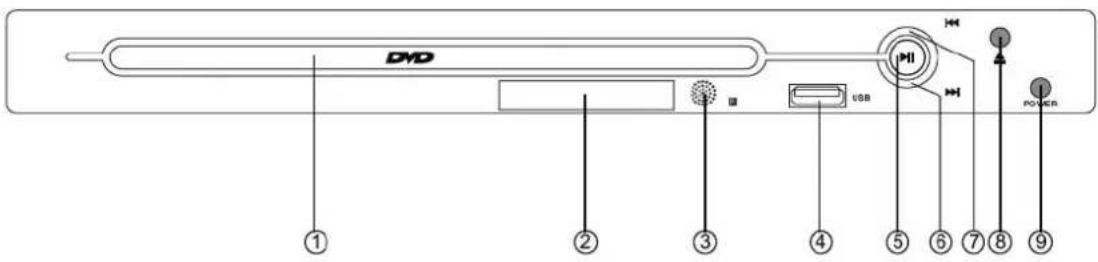
text_image
DVD ① ② ③ ④ USB ⑤ ⑥ ⑦ ⑧ ⑨ POWER1) CD DOOR
2) DISPLAY SCREEN
3) IR SENSOR
4) USB INPUT
5) PLAY/PAUSE BUTTON
6) NEXT BUTTON
7) PREV BUTTON
8) OPEN/CLOSE BUTTON
9) POWER
Rear panel
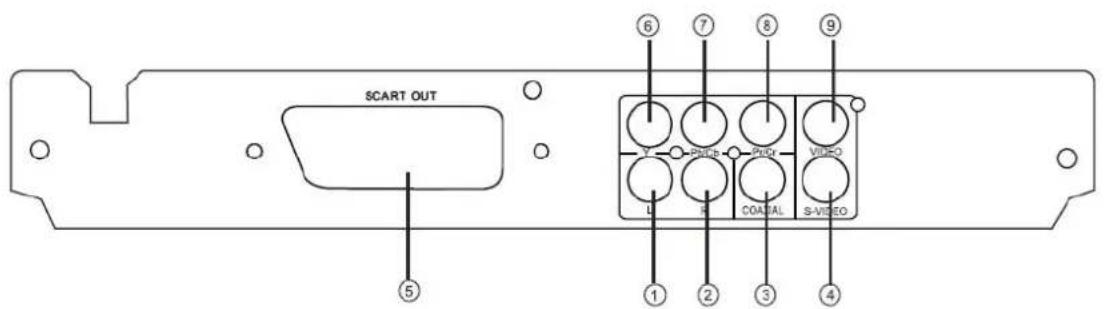
text_image
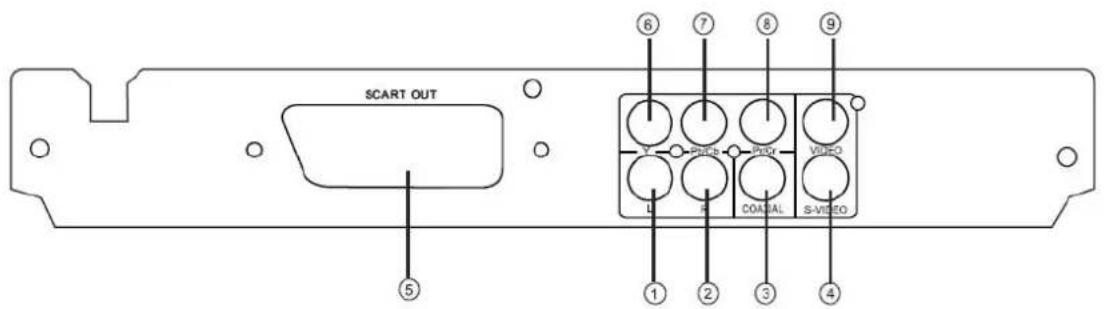
SCART OUT ⑤ ⑥ ⑦ ⑧ ⑨ Y Pads Pads VIDE L R COATIAL S-VIDEO ① ② ③ ④1) Left channel output
2) Right channel output
3) Coaxial digital audio output
4) S-Video Output
5) SCART Output
6) Y video output (luminance)
7) Pb/Cb video Output (blue chroma)
8) Pr/Cr video Output (red chroma)
9) Video Composit output
Remote Control
Introduction
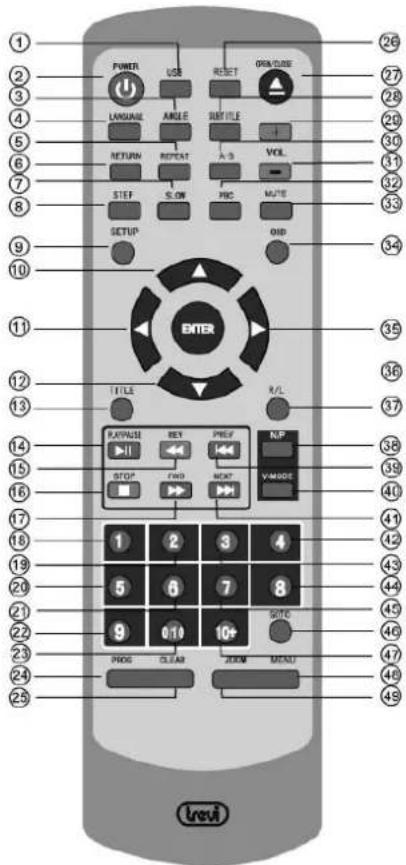
1.USB
2.POWER
3.ANGLE
- LANGUAGE
5.REPEAT
6.RETURN
7.SLOW
8.STEP
- SETUP
10.UP
11.LEFT
12.DOWN
- TITLE
14.PLAY/PAUSE
15.REV
16.STOP
17.FWD
18.1
19.2
20.5
21.6
22.9
23.10
24.PROG
25.CLEAR
text_image
1 2 3 4 5 6 7 8 9 10 11 12 13 14 15 16 17 18 19 20 21 22 23 24 25 POWER USB RESET OR/OR/OR LANGUAGE ANGLE SUBTITLE A-3 VOL STEP SLOW PROC WRITE SETUP OID ENTER TITLE R/L REFERENCE KEY PREF NIP STOP FIND NEXT VIMODES 1 2 3 4 5 6 7 8 9 0 10+ SUTC PROC CLEAN ZOOM MENU Lrevi26.RESET
- OPEN/CLOSE
28.SUBTITLE
29.VOL+
30.A-B
31.VOL-
32.PCB
33.MUTE
34.OSD
35.RIGHT
- ENTER
37.R/L
38.N/P
39.PREV
40.V-MODE
41.NEXT
42.4
43.3
44.8
45.7
46.GOTO
47.10+
48.MENU
49.ZOOM
Remote Control Preparation
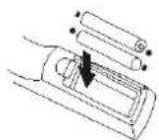
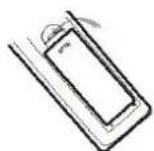
Battery installation (NOT INCLUDED)
1.Open the cover
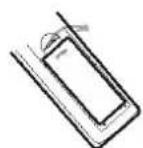
- Install batteries 3. Close the cover
Using the remote
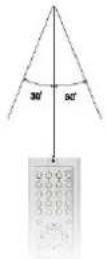
Point the remote control at the remote sensor.
(The pictures below are for reference only.)
Notes:
- Point the remote control directly at the player's remote sensor.
- Do not leave the remote control in an extremely hot or humid place.
- Do not spill water or put anything wet on the remote control.
- Inserting the 2AAA 1.5V batteries (not included) making sure the polarity (+ or -) of the batteries matches the polarity marks inside the unit.
Connections
Connections
flowchart
graph TD
    A["Digital Amplifier"] --> B["TV"]
    B --> C["Video"]
    C --> D["Audio IN"]
    D --> E["SCART OUT"]
    E --> F["Coaxial cable"]
    G["COAXIAL"] --> H["SCART"]
    H --> I["SCART OUT"]
    I --> J["Coaxial cable"]
    K["Y"] --> L["U"]
    K --> M["V"]
    N["R"] --> O["L"]
    N --> P["VIDEO"]
    Q["S-VIDEO"] --> R["VIDEO IN"]
    S["YPbPr IN"] --> T["S-VIDEO IN"]
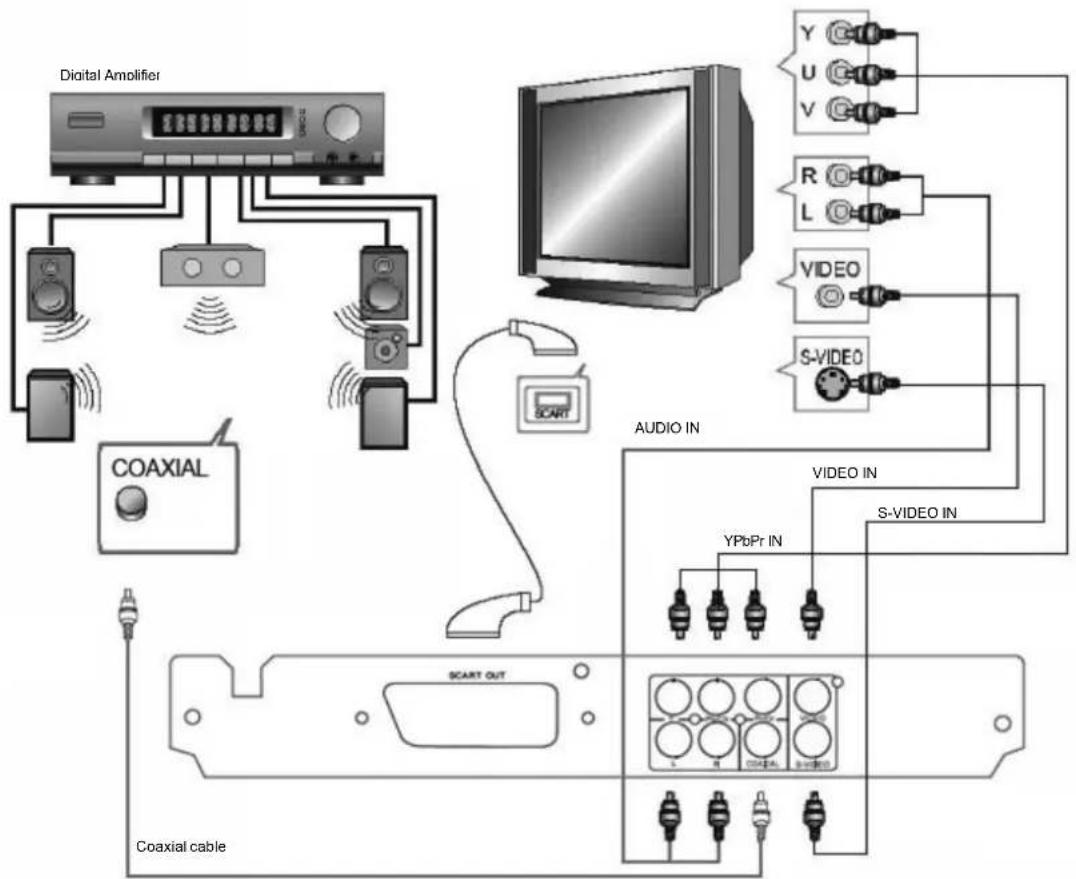
- CONNECT DVD PLAYER TO TV SET BY AV SOCKET
Use the Video Composit cable (not supplied) to connect DVD player and your TV. Set the [Video Out] to [Composite].
- CONNECT DVD PLAYER TO TV SET BY S-VIDEO SOCKET
Use the S-VIDEO cable (not supplied) to connect DVD player and your TV. Set the [Video Out] to [S-Video].
- CONNECT DVD PLAYER TO TV SET WITH SCART SOCKET
Use the SCART cable (not supplied) to connect DVD player and your TV. Set the [Video Out] to [TV-RGB].
- CONNECT THE DVD TO A TV USING THE Y/Pb/Pr JACKS
Use the COMPONENT Cable (not supplied) to connect DVD player to your TV. Set the [Video Out] to [YUV]. For Progressive Scan, set to [P-Scan]. [YUV] and [P-Scan] signal is transferred through same jack. If the TV set supports P-Scan function, you can set [Video Out] to [P-Scan]. If not, you can set [Video Out] to [YUV].
- Connecting to an AV Amplifier with Digital Audio Input
Use the COAXIAL cable (not supplied) to connect DVD player and your DIGITAL AMPLIFIER. Set the [Digital Output] to [PCM]. Set the DIGITAL AMPLIFIER to the AV input connected to the DVD player.
MP3/WMA/MPEG4 PLAYING
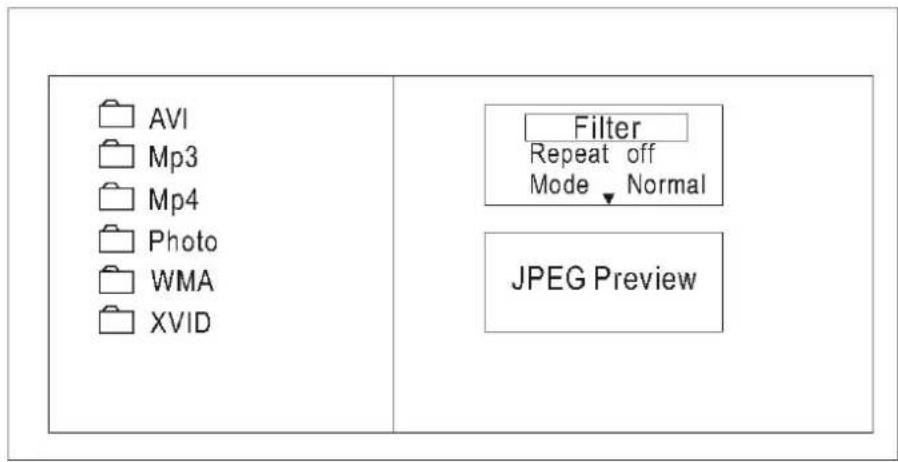
text_image
AVI Mp3 Mp4 Photo WMA XVID Filter Repeat off Mode ▼ Normal JPEG Preview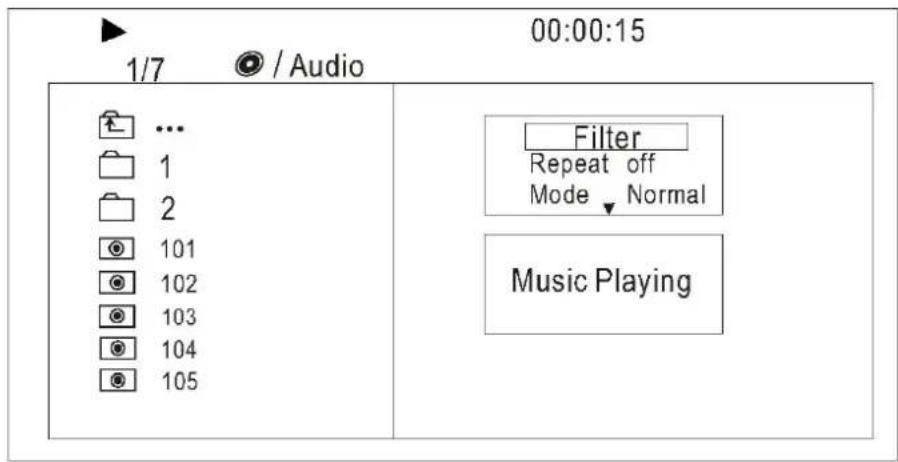
text_image
00:00:15 1/7 / Audio Filter Repeat off Mode▼ Normal Music PlayingThe MP3/WMA/MPEG4 disc has such a directory structure as shown picture above.
Press Direction key to choose the root directory and then press ENTER button to enter into the sub directory. Press Direction key to choose the desired track and then press ENTER or PLAY to enjoy the music or movie. If you want to return to the upper menu, press Direction key to choose the icon and press ENTER button.
Filter: Allows selecting the categories of files displayed in the browser list. This selection is done among the 3 categories: Audio, Photo and Video.
Repeat: To switch different repeat playing mode
Mode: Select different playing mode
Normal: Shuffle mode is cancelled
Shuffle: Shuffle mode enabled. When playback reaches the end of the current chapter/track, playback jumps to a random chapter/track. As the end of each chapter/track is reached, another random chapter/track will be played until all tracks/chapters have been played or the Shuffle mode is cancelled by toggling to a different Mode Option.
Music Intro: In this mode, the media will play 10 seconds then skip to next media
PICTURE CD PLAYBACK
The PICTURE CD disc has such a directory structure structure as shown in the following picture.
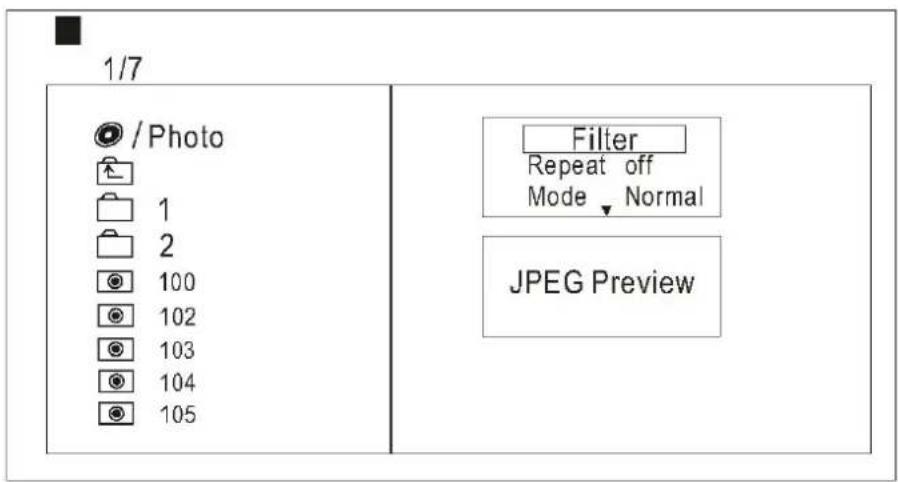
text_image
1/7 / Photo 1 2 100 102 103 104 105 Filter Repeat off Mode ▼ Normal JPEG PreviewPress Direction key to choose the root directory and then press ENTER button to enter into the sub directory. Press Direction key to choose the desired picture and then press ENTER or PLAY to enjoy the picture. If you want to return to the upper menu, press Direction key to choose 📄 the icon and press ENTER button.
Image rotation
In picture play state, press Direction key to rotation the picture, press ANGLE button to change the picture scan mode.
SYSTEM SETUP
DVD menu setup
Press the SETUP button on the remote control, the SETUP MENU (main) will be displayed.
After accessing the setup menu, press the direction buttons for up and down movement to select an item desired, then press the ENTER button to confirm. Press LEFT direction button return to the menu of upper level.
To exit the setup, press the SETUP button again. In the SETUP MENU, you may choose any of the following options as you like.
LANGUAGE SETUP
Select Language in the setup menu, and display the Language submenu:
| Lingue | LingueSottotitoliSottotitoli MPEG4AudioMenu DVD |
| Video | |
| Audio | |
| Rating | |
| Misc |
Language
Use this item to select the language of the setup menu and screen display.
Subtitle
This option allows you to select the default language of the subtitles of the DVD.
MPEG4 Subtitle
This option lets you select the subtitle decoding of MPEG4 movies.
Audio
This option allows you to select the default language of the DVD audio.
DVD Menu
This option allows you to select the default language of the DVD menu.
SYSTEM SETUP
VIDEO SETUP
Select Video in the setup menu, and display the Video submenu:
4:3: Choosing this setting if your DVD player is connected to a normal ratio TV. You can fill the movie to the entire screen of your TV. This might mean that parts of the picture(the left and right edges)won t be seen.
16:9 : Choose this setting if your DVD player is connected to a wide screen TV. If you choose this setting and you don't have a side screen TV, the images on the screen may appear distorted due to vertical compression.
Notes: The image display ratio is related to the recorded disc format. Some disc can not display images in the aspect ratio you choose. If you play a disc recorded in 4:3 format on a wide screen TV, black bars will appear on the left and right side of the screen. You must adjust the screen setting depending on the type of the television you have.
View Mode
Select View Mode to toggle between views.
FILL: display images with the black bands above and below but respects the original format of the program and does not cause loss of part of the image.
ORIGINAL: Allows you to keep the original settings of the movie.
AUTO FILL: Allows you to expand the image to full screen.
PAN SCAN: Allows you to enlarge the image so as to eliminate the black bands above and below but the size of the left and right.
TV System
This product supports output of various system, including NTSC, PAL, Auto.
If your TV set has only NTSC or PAL system, the screen will blink and become colorless when a wrong system is selected.
Note: For more information of output format, refer to the instructions or your TV set.
Video Out
Selecting the Video Output setting to switch between different video outputs.
COMPOSITE: Set the output video to Composite Video output.
S-VIDEO : Set the video output to S-VIDEO output.
YUV: Set the video output to YUV output.
RGB: Set the video output to SCART output. If you select SCART connection, you should set up the play mode as RGB state, then it will output normally.
P-SCAN: If your TV is progressive TV, please select the option. You can get better picture quality.
Note: The VIDEO OUT function also makes the V-MODE button on the remote
AUDIO SETUP
Select Audio in the setup menu, and display the Audio submenu.
| Lingue | Uscita digitale |
| Video | |
| Audio | |
| Rating | |
| Misc |
Digital Output
Selecting the Digital Output setting allows the user to adjust the audio output on S/PDIF ports to work in harmony with the audio equipment (e.g. receiver, speakers) connected to the player.
OFF: Digital audio output is disabled.
PCM: Select this option to set the digital audio output in PCM decoding.
RATING SETUP
Select Rating in the setup menu, and display the Rating submenu: Note: Not all DVD support ratings.
| Lingue | Controllo Parent | 1. Protezione bambini |
| Video | Imp. Password | 2. G3. PG4. PG-135. PG-R6. R7. NC-178. Adulti |
| Audio | ||
| Rating | ||
| Misc |
Parental control
Selecting a Rating allows the user to set the parental control feature of the player
Select Parental control, and press ENTER to change the different mode.
Note: Unlock the password before setting Parental control.
Set Password
Use the 0-9 keys to input four digits (password), then press ENTER to confirm (the factory password is 8888).
Press ENTER and type the new four-digit password using the 0-9 keys and confirm with ENTER.
Retype the new password using the 0-9 keys and confirm with ENTER.
MISC SETUP
Select MISC in the setup menu, and display the submenu:
| Lingue | Impostazioni predefiniteScreen saver : On |
| Video | |
| Audio | |
| Rating | |
| Misc |
Use Default Settings
Reset setup data to factory default and re-load disc.
Screen saver
Activate the screen saver after 7 minutes of inactivity.
USB interface
This unit have a USB jack, when no disc in the player, you can insert a USB device
or a MP3 Player with USB Interface to play the MP3 or WMA music or and JPEG files. All the function is the same to play a disc.
When the disc is in the player at the stop state, user can enjoy USB by selecting USB in the remote controller USB. Not all USB Device can be supported by this system.
NOTE:
When using USB function. Please do not insert in the wrong direction, or it will be corrupted.
The DVD player supports an external hard disc up to 250GB with file system format in FAT32.
If you have any questions, please consult the troubleshooting guide below.
NO PICTURE OR SOUND
- Ensure the power button is on.
- Ensure the power outlet is operational.
- Ensure the power cord is not damaged.
- Ensure the power plug is connected firmly to the outlet.
"BAD DISC" DISPLAYED
- Ensure the disc is not warped, damaged or deformed.
- Ensure the disc is not badly stained or damaged.
- Ensure the disc format is compatible with the player.
- Please check whether you have tried to play a software CD. If so, please restart the player.
PICTURE BUT NO SOUND
- Ensure the audio jacks are securely connected.
- Ensure the audio connector is not damaged.
- Ensure the volume is turned up.
- Ensure you have set the player's AUDIO settings correctly.
- Ensure you have entered the correct AV input for your TV
- Ensure the audio is not set to mute.
REMOTE NOT WORKING
- Make sure the Main units POWER button is on
- Ensure the remote batteries are working.
- Point the remote control directly at the player's IR sensor.
- Remove any obstacles between the remote and the IR sensor.
SOUND BUT NO PICTURE
- Ensure the video jacks are securely connected.
- Ensure you have entered the correct AV input for your TV
- Ensure the video connector is not damaged.
- Ensure you have set the player's VIDEO settings correctly.
UNIT NOT WORKING
- Turn off the power, and then turn it on again.
POOR PICTURE OR SOUND
- Ensure you have set the player's AUDIO settings correctly.
- Ensure the disc is not scratched or stained.
- Ensure the AV connector or the output terminal is not damaged.
"NO DISC" DISPLAYED
- Ensure you have put the disc on the tray.
- Ensure the disc is not upside down.
- Ensure the disc is not distorted, stained or scratched.
Specifications
Other
Power requirements: AC 100-240 Volt, 50/60 Hz
Power Consumption: 15 W
Video standard: NTSC/PAL
Discs compatibility: MPEG4, DVD, VCD, HDCD, CD, DVD+/-R, RW, MP3
Video out: 1.0 Vpp/75 Ω
Audio out: 2.0 Vpp
Audio system: Digital output AC-3
Audio DAC 16bit/48KHz
Frequency response: CD from 4Hz to 20kHz
DVD 48K from 4Hz to 22KHz
DVD 96K from 4Hz to 44KHz
S/N ratio: >92 dB
Total harmonic distortion: <0.04%
[Accessories]
Audio/Video cable x1
Remote control x1
Instruction manual x1
Specifications are subject to change without notice
![Trevi DXV 3530 USB - [Accessories] - 1](/content/2026/02/366693/images/7eb108e61a4a2c29e368bfb0603bb6ecad2c97c5b59adb65f9d272dc74a3065d.jpg)
text_image
treviMANUEL DE L'UTILISATEUR

text_image
MP5GA - DVD - MP3 - USB - SD ACO POWER DVD 08:28 USB POWERLECTEUR DVD
DXV 3530 USB
natural_image
Silhouette of a person pushing a ladder against a circular background (no text or symbols)(Symbol provided by RETAC)
8) BOUTON OPEN/CLOSE
3) IR CAPTEUR
6) BOUTON NEXT
9) POWER
Face arrière
text_image
SCART OUT ⑤ ⑥ ⑦ ⑧ ⑨ Y Profs Prodr VIDEO L R COATIAL S-VIDEO ① ② ③ ④1) Gauche de sortie
4) Sortie S-Video
7) Sotie video Pb/Cb (chroma bleu)
2) Droit de sortie
5) Sortie SCART
8) Uscita video Pr/Cr (chroma rouge)
text_image
00:00:15 1/7 / Audio Filter Repeat off Mode▼ Normal Music PlayingPAS D'IMAGES OU DE SON
Audio DAC 16bit/48KHz
natural_image
Silhouette of a person pushing a ladder against a dark circular background (no text or symbols)(Symbol provided by RETAC)
Einleitung
text_image
00:00:15 1/7 / Audio Filter Repeat off Mode▼ Normal Music Playingnatural_image
Silhouette of a person pushing a ladder against a circular background (no text or symbols)(Symbol provided by RETAC)
Introducción
text_image
00:00:15 1/7 / Audio Filter Repeat off Mode ▼ Normal Music Playing3. Siga as advertências
natural_image
Silhouette of a person climbing a ladder against a black circular background (no text or symbols)(Symbol provided by RETAC)
text_image
POWER USB RESET ORANGE LANGUAGE ANGLE SUB TILE RETURN REPEAT A S VOLT STEP SLOW REC MUTE SETUP OIB ENTER TITLE R/L RETURN KEY PROFIT REP STOP FWD RIGHT VAMIDE 1 2 3 4 5 6 7 8 9 0 10+ SET0 PICK CLEAN ROOM MENU Urevi26.RESET
- OPEN/CLOSE
28.SUBTITLE
29.VOL+
30.A-B
31.VOL-
32.PCB
33.MUTE
34.OSD
35.DIREITA
- ENTER
37.R/L
38.N/P
39.PREV
40.V-MODE
41.NEXT
42.4
43.3
44.8
45.7
46.GOTO
47.10+
48.MENU
49.ZOOM
text_image
00:00:15 1/7 / Audio Filter Repeat off Mode ▼ Normal Music PlayingNENHUMA IMAGEM OU SOM
natural_image
Silhouette of a person pushing a ladder against a circular background (no text or symbols)(Symbol provided by RETAC)