MDV 6300 BT - Car stereo Trevi - Free user manual and instructions
Find the device manual for free MDV 6300 BT Trevi in PDF.


User questions about MDV 6300 BT Trevi
0 question about this device. Answer the ones you know or ask your own.
Ask a new question about this device
Download the instructions for your Car stereo in PDF format for free! Find your manual MDV 6300 BT - Trevi and take your electronic device back in hand. On this page are published all the documents necessary for the use of your device. MDV 6300 BT by Trevi.
USER MANUAL MDV 6300 BT Trevi
text_image
9.1 9.2 9.3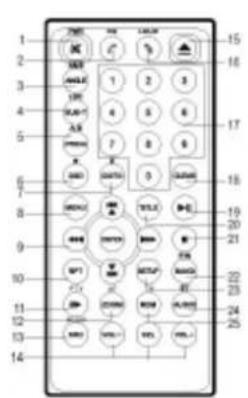
text_image
1 2 3 4 5 6 7 8 9 10 11 12 13 14 15 16 17 18 19 20 21 22 23 24 25 26 27 28 29 30 31 32 33 34 35 36 37 38 39 40 41 42 43 44 45 46 47 48 49 50 51 52 53 54 55 56 57 58 59 60 61 62 63 64 65 66 67 68 69 70 71 72 73 74 75 76 77 78 79 80 81 82 83 84 85 86 87 88 89 90 91 92 93 94 95 96 97 98 99 100COLLEGAMENTI AUTORADIO
RICERCA VELOCE TRACCE
text_image
Automatic Touch Buy Button-RICERCA MANUALE (MANUAL SEARCH)
CAR STEREO CONNECTIONS
Connect the car stereo via the ISO connector.
To ensure a proper ISO connection, verify the following connection points:
the 12 V permanent battery shall be connected to the Yellow wire (BATTERY);
the 12 V ignition key dashboard shall be connected to the Red wire (IGNITION KEY);
the 12 V position lights shall be connected to the Pink wire (LAMP IN).
Thus connected, the car stereo only turns on with the ignition key in and the car stereo front panel comes turn on together with position lights.
Should the car stereo not come on after its connection via the ISO connector, bridge the Yellow and Red wires.
Should no connection to the 12 V position lights be available, bridge the Pink and Blue wires (ANTENNA POWER).
Thus connected, the car stereo front panel comes on as the car stereo is turned on.
Connect the PARKING BRAKE Brown wire to the handbrake switch. Should this wire connection be omitted, no image shall be available on the LCD screen.
TURNING ON
TURNING ON AND OFF
Press and hold the POWER key (2) on the car stereo front panel or the PWR key (1) on the remote control to turn on the car stereo.
Hold for a few seconds the POWER key (2) to turn it off.
SOURCE SELECTION
Press repeatedly the MOD key (6) on the car stereo front panel or the SRC key (13) on the remote control to select the source you wish to reproduce. The available sources include RADIO, DVBT, AUX1, AUX2, BLUETOOTH. The CD/DVD, SD CARD and USB sources are only available if the corresponding supports are present.
AUDIO CONTROLS
VOLUME AND TONE CONTROL
Press repeatedly the volume control VOL/SEL (8) on the car stereo front panel or the SEL key (14) on the remote control to display the adjustable audio settings.
The available settings are: L-FRONT (front left channel volume), the R-FRONT (front right channel volume), L-REAR (rear left channel volume), R-REAR (rear right channel volume), SUBWOOF (toggle sub-woofer output), BASS, MIDDLE, TREBLE and VOL (overall volume).
Turn the volume control VOL/SEL (8) clockwise / counter-clockwise to increase / decrease the desired level.
The same adjustment can be made with the VOL- and VOL+ keys (14) of the remote control.
MUTE FUNCTION
Press the POWER / MUTE key (2) on the car stereo front panel or the PWR/ key (1) on the remote control to temporarily switch off the sound. Press it again to restore the initial conditions.
EQ FUNCTION
Press the EQ key (19) on the remote control to apply predefined equalization modes including POP / CLASS / ROCK / OFF to any source.
These equalization modes differ in their treble and bass settings.
LOUD FUNCTION
Press the LOUD key (16) of the remote control to activate or deactivate the loudness.
This feature enhances the bass tones at low volume, ensuring a better listening experience.
MAIN MENU
Press the top left corner of the LCD screen to enter the source selection and the main menu. The following screen will appear:
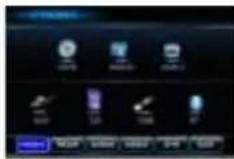
Tap the corresponding functions at the bottom of the LCD screen.
FRONT
Source Selection for Zone FRONT. The area face is displayed on the main display is heard over the sound of the car.
REAR
Source Selection for Zone REAR. The REAR zone is displayed and played by the additional monitors.
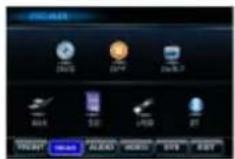
Activating a source in the neighborhood of REAR, the main display area corresponding to FRONT, will become blue with white lettering.
AUDIO
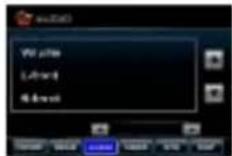
Audio settings adjustment.
You may set the level of VOLUME, L-FRONT, R-FRONT, L-REAR, R-REAR, SUBWOOF, BASS, MIDDLE and TREBLE.
Tap the setting directly on the LCD screen and use the arrows ▶ to adjust appropriately.
Use the arrows to move between setting pages.
VIDEO
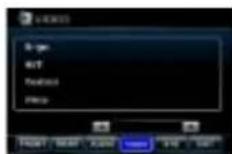
Video settings adjustment.
You may set the levels of BRIGHT (brightness), HUE (hue), CONTRAST (contrast), SHARP (intensity).
Tap the setting directly on the LCD screen and use the arrows ▶ to adjust appropriately.
SYSTEM
System settings adjustment.
Tap the setting directly on the LCD screen and use the arrows ▶ to adjust or set appropriately.
Use the arrows to move between setting pages.
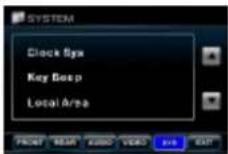
Clock Sys: Sets time in the12 / 24-hour mode.
Key Beep: Activates / deactivates the beep every time you press a key or touch the LCD screen.
Local Area: Sets the radio frequency per the local reception area.
Bass freq: set the frequency bass.
Middle freq: set the frequency of mid-tones.
Treble freq: set the frequency of high tones.
Subwoof freq: set the frequency of the subwoofer.
BassQ factor: you set the quality factor, bass.
MidQ factor: you set the quality factor of the mids.
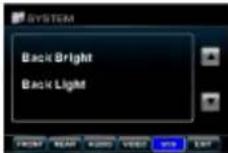
Back Brigt: Setting the backlight brightness: 80%, 60%, 40% or 20%.
Back Light: you set the time duration of the backlight of the display: Off, 15, 30 or 60 seconds.
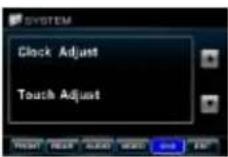
Clock Adjust: Sets the time. Move with the arrows ▶ an arrow over the time indicates that it may be modified: Use the arrows ▶ to adjust the time.
Proceed likewise with minutes and seconds, using the arrows to set the desired minutes and seconds.
Touch Adjust: Sets the Touch Screen. Use this function when controls no longer apply once touched on the LCD screen.
Press and hold for 2 seconds on the X displayed.
At the end, a setup complete message is displayed.
RADIO
TUNING
Select the frequency band (FM1, FM2, FM3, MW1, MW2) you wish to listen to with the BAND key (22) on the remote control.
Press the key on the remote control to navigate to the next preset station.
Press the key on the remote control to navigate to the previous preset station.
Press the remote control key ➞ once to tune into the station next to the one shown. Press and hold to increase the displayed frequency by 0.05 MHz.
Press the remote control key once to tune into the station previous to the one shown. Press and hold to decrease the displayed frequency by 0.05 MHz.
MANUAL STATION STORING
Tune into the desired station as described above.
Press and hold any remote control key from 1 to 6 corresponding to the location where you wish to store the station or tap the corresponding number on the LCD screen, until the radio beeps to indicate the station has been stored automatically.
Repeat the procedure to store all the other stations in all bands.
AUTOMATIC STATION STORING
Hold down the AMS key (3) on the remote control to start scanning stations automatically, the car stereo will store the strongest stations in that band to take up all presets available (18 FM, 12 AM).
PLAYING A DVD
STARTING PLAYBACK
-
To play a DVD, insert the disc into the appropriate tray.
-
Place the disc with the titles facing upwards.
-
The disc starts playing automatically.
Note: All functions that may be activated via remote control may also be activated through the car stereo front panel.
SWITCHING TO NEXT / PREVIOUS CHAPTER
-
Press the key on the remote control to switch to the previous chapter.
-
Press the key on the remote control to switch to the next chapter.
FAST SEARCH
-
Press repeatedly the key on the remote control to fast-rewind the images.
-
Press repeatedly the key on the remote control to fast-forward the images.
-
The speed increases each time the key is pressed.
-
The numbers on the screen next to the symbol or display the speed (2x - 4x - 8x - 16x - 32x).
-
To return to normal playback, press the key ▶(19).
STOPPING PLAYBACK
-
Press the (21) key of the remote control to stop disc playback, the screen will show "STOP" and the initial screen.
-
Press the key ▶(19) to resume playback from the point it was interrupted.
-
Press the key ■(21) twice to stop playback completely.
-
Press the key ▶(19) to resume playback from the beginning.
PAUSE FUNCTION
- Press the ▶(19) key on your remote control to pause playback and to freeze frame.
- Press it again to resume playback.
PLAYING A MP3/MPEG4 DISC
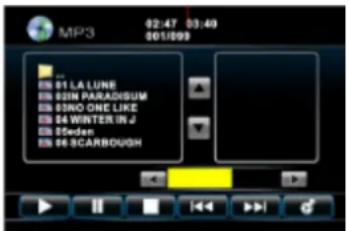
Upon inserting a MP3/MPEG4 disc, playback starts automatically, displaying the following screen:
text_image
MP3 02:47 03:49 001/099 #1 LA LUNE #2IN PARADISUM #3NO ONE LIKE #4 WINTER IN J #5 Koder #6 SCARBOUGHThe playback features are identical to those of a DVD.
TRACK FAST SEARCH
To quickly search for a track on the disc, type directly the track number using the numeric keys (17) of the remote control, or touch the top of the LCD screen and then type the track number on the numeric keypad that appears on the right.
DVB-T
Thanks to the integrated DVBT tuner you may view digital terrestrial broadcasts.
Note: Should you install your car stereo in a vehicle with shielded windscreen (review the car manual), please ensure the DVBT antenna supplied is installed in the unshielded area of the windscreen, which is generally found in the top centre, behind the rear-view mirror.
TOUCH SCREEN MENU
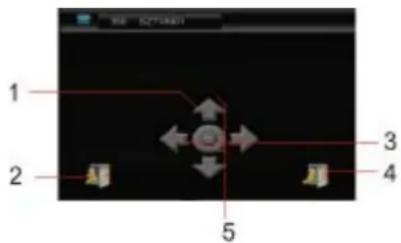
Upon touch, the LCD screen will display the following controls:
- Display the channel list
- Display the main menu
- Volume control
- Return to the previous screen
- Changing channels
text_image
1 2 3 4 5CHANGING CHANNELS
Tap the ▲ arrow on the LCD screen or press the remote control ▲ key to navigate to the next stored channel. Tap the ▼ arrow on the LCD screen or press the remote control ▼ key to navigate to the previous stored channel.
VOLUME CONTROL
The DVBT function includes its own volume control, independent from the car stereo volume control.
Tap the ▶ arrow on the LCD screen or press the remote control ▶ key to increase volume.
Tap the ◀ arrow on the LCD screen or press the remote control ◀ key to decrease volume.
CHANNEL DISPLAY
Touch the symbol ■ (1) on the LCD screen or press the ENTER key on the remote control to display the channel list.
Tap the ▲ or ▼ arrows on the LCD screen or press the ◀◀ or ▶◀ keys on the remote control to navigate to the previous / next channel. The selected item will be automatically displayed.
Press the ← or → remote control keys to switch between TV and Radio channels and vice versa.
Touch the symbol (4) on the LCD screen or press the CLEAR key (18) on the remote control to return to normal display.
MAIN MENU
Touch the ☐ symbol (2) on the LCD screen or press the MENU key (8) on the remote control to enter the main menu.
Touch the N symbol (4) on the LCD screen or press the CLEAR key (18) on the remote control to return to the previous screen.
SEARCH
-AUTOMATIC SEARCH
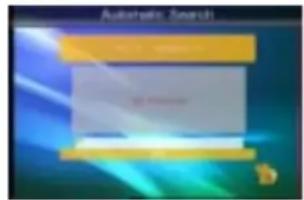
Automatic DVBT channel scan for the country selected (see section SYSTEM> COUNTRY).
Note: Should no or few stored channels be available, please try selecting a different country with a different frequency system (for example, select 'Germany' instead of 'Italy').
Once scanning is complete, the first stored channel is displayed.
text_image
Automatic Search-MANUAL SEARCH
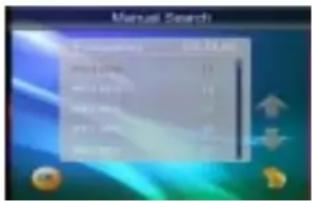
Scan DVBT channels manually for the selected country (see section SYSTEM> COUNTRY).
Select the channel number displayed on the right corresponding to the scan rate shown on the left. The frequency will be scanned upon selection confirmation.
Allows you to set the main menu language.
-SCREEN
Screen format: Allows setting the screen size. You may choose between 16:9 and 4:3.
Display format: Allows setting the display format. You may choose among Auto, Letter Box, and Pan&Scan.
-OSD
Allows setting the main menu background colour: You may choose among Blue, Green, and Red.
SYSTEM
-COUNTRY
Allows setting the scan country. Each country has its own frequency system.
Note: Should no or few stored channels be available, please try selecting a different country with a different frequency system (for example, select 'Germany' instead of 'Italy').
-CURRENT VERSION
Displays the software version.
-RESET TO DEFAULTS
Allows resetting the DVBT factory settings.
CONNECTING VIA BLUETOOTH (HANDS-FREE mode)
You may be able to place calls from your mobile phone in HANDS-FREE mode thanks to the compatibility with the Bluetooth international wireless standard.
- Speak loud and clear during the call.
- To ensure an optimal condition before placing or answering a call, close the car windows.
- The voice can be reproduced in a distorted fashion should telephony problems arise.
- The use of the HANDS-FREE function depends on the partial / total mobile phone compatibility.
- Ensure that your mobile phone is Bluetooth ready or review the mobile phone manual to that end.
PAIRING YOUR MOBILE PHONE
- Press repeatedly the MOE key (6) on the car stereo front panel or the SRC key (13) on the remote control to select the BLUETOOTH source.
- Activate Bluetooth in your mobile phone and search for "Audio accessories".
- Select from your mobile phone the MDV6300BT device matching your car stereo.
- Enter the 4-digit code '1234'.
- The connection is now established. The car stereo display will show CONNECT and the name of your mobile phone.
PLACING CALLS
Note: Placing a call requires the complete stop of the vehicle and the handbrake operation.
- Place a phone call through the car stereo by entering the call number using the numeric keys (17) on the remote control or directly on the LCD screen.
- Press the /EQ (2) on the remote control or touch the LCD screen over the symbol to place the call. The display will show 'DIALING' with the telephone number dialled.
- Press VLOUD (16) on the remote control or touch the LCD screen over the symbol to end the call.
PLACING A CALL FROM STORED NUMBERS
You may select the number and make a call to a person from the list of dialled, received, or lost calls.
- Touch the LCD screen over the symbol.
- Touch the LCD screen over the symbol to place a call using the received calls list.
- Touch the LCD screen over the symbol to place a call using the placed calls list.
- Touch the LCD screen over the symbol to place a call using the lost calls list.
RECEIVING A CALL
Upon an incoming call, the playback of the source you were viewing or listening to shall stop and your phone ringing shall be heard on the car audio system.
Press the /EQ (2) on the remote control or touch the LCD screen over the symbol to place the call.
The sound of your call proceeding shall be heard on the speakers of your system.
After the call, the car stereo will resume playing the source you were viewing or listening to at the point it was interrupted.
PLAYING AUDIO FILES VIA BLUETOOTH
You may listen to the music tracks stored in your mobile phone (if compatible) directly through the car audio system via the Bluetooth connection.
- To connect your device, refer to the PAIRING paragraph.
- Start playback of any audio tracks from your mobile phone.
Note: Playing files via Bluetooth does not apply to video tracks.
CONNEXIONS AUTORADIO
natural_image
Abstract graphic with layered yellow and blue gradient background, no visible text or symbols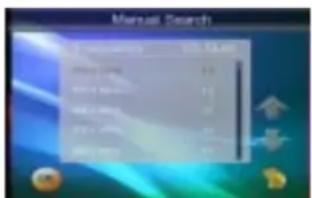
text_image
Manual Search My Search 10x10x8 10x10x8 10x10x8 10x10x8 10x10x8 10x10x8 10x10x8 10x10x8 10x10x8 10x10x8 10x10x8 10x10x8 10x10x8 10x25x8 10x25x8 10x25x8 10x25x8 10x25x8 10x25x8 10x25x8 10x25x8 10x25x8 10x25x8 10x25x8 10x25x8 10x25x8ANZEIGE
-SPRACHEINSTELLUNG
Precautions for correct disposal of the product.
The symbol shown on the equipment indicates that waste must be disposed of in "separate collection" and so the product must not be disposed of together with urban waste.
The user must take the product to special "separate waste collection centres" provided by local government, or deliver it to the retailer against the purchase of a new product.
Separate collection of waste and subsequent treatment, recycling and disposal operations promotes the production of equipment with recycled materials and limits negative effects on the environment and on health caused by improper handling of waste.
Illegal disposal of the product leads to the enforcement of administrative penalties.