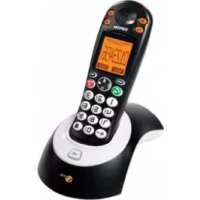
Sologic B931 - Phone TOPCOM - Free user manual and instructions
Find the device manual for free Sologic B931 TOPCOM in PDF.


User questions about Sologic B931 TOPCOM
0 question about this device. Answer the ones you know or ask your own.
Ask a new question about this device
Download the instructions for your Phone in PDF format for free! Find your manual Sologic B931 - TOPCOM and take your electronic device back in hand. On this page are published all the documents necessary for the use of your device. Sologic B931 by TOPCOM.
USER MANUAL Sologic B931 TOPCOM
natural_image
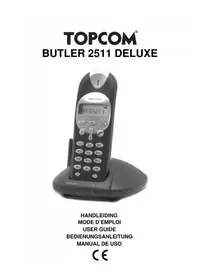
Black and white photo of a modern POPCOM mobile phone with keypad and speaker, mounted on a stand (no visible text or symbols on device body)USER GUIDE / HANDLEIDING
To use 'Caller ID' (display caller), this service has to be activated on your phone line. Normally you need a separate subscription from your telephone company to activate this function. If you don't have the Caller ID function on your phone line, the incoming telephone numbers will NOT be shown on the display of your telephone.
Belangrijk
UK To be connected to the public analogue telephone network.
UK The features described in this manual are published with reservation to modifications.
UK Hereby, TOPCOM EUROPE N.V., declares that this device is in compliance with the essential requirements and other relevant provisions of Directive 1999/5/EC. The Declaration of conformity can be found on: http://www.topcom.net/cedeclarations.asp
UK This product works with rechargeable batteries only. If you put non-rechargeable batteries in the handset and place it on the base/charger, the handset will be damaged and this in NOT covered under the warranty conditions.
The following safety advice must always be followed before using electrical equipment. Please read carefully through the following information concerning safety and proper use. Make yourself familiar with all the functions of the equipment. Be careful to keep these advic notes and if necessary pass them on to a third party.
Electrical safety and protection
- Do not operate the equipment if the mains plug, cable or the equipment itself is damaged.
- If the equipment is dropped, then it must be checked by an electrician before further use.
- Dangerous voltages are present inside the equipment. Never open the housing or insert objects through the ventilation holes.
- Do not allow liquids to get into the equipment. In case of emergency, pull out the plug from the socket.
- Similarly, if a fault develops during use or before you start to clean the equipment, pull the plug out if the socket.
- Do not touch the charger and plug contacts with sharp or metal objects.
- Do not carry out any modifications or repairs to the equipment yourself. Have repairs done to the equipment or the mains cable only by a specialist service centre. Unsatisfactory repairs can lead to considerable danger for the user.
- Children frequently underestimate the dangers associated with electrical equipment. Therefore you must never leave children unsupervised in the vicinity of electrical equipment.
- The equipment is not to be used in a damp room (e.g. bathrooms) or rooms where there is a lot of dust.
- Equipment connected to the mains during a thunderstorm can be damaged by lightning. Therefore you should pull the plug out of the mains socket during a storm.
- To completely disconnect the equipment from the electricity supply, the plug must be removed from the socket. When doing this always pull on the plug itself and never on the cable.
- Protect the mains cable from hot surfaces or other sources of damage and do not allow it to become constrained.
- Check the mains cable regularly for any damage.
- Unwind the mains cable completely before use.
- Make sure that the mains cable does not represent a trip hazard.
- The operation of some medical devices may be affected.
- The handset may cause an unpleasant buzzing sound in hearing aids.
Fire safety
- The heat accumulated inside the equipment can lead to the defect and/or to the fire of the equipment. Do not expose this equipment therefore to extreme temperature like:
– direct sun exposure and heater warmth. - ventilation holes may not be covered.
Danger of explosion
- Never throw batteries in fire.
Poisoning danger
- Keep batteries away from small children.
Note
- Only use the charger plug supplied. Do not use other chargers, as this may damage the batteries cells.
- The wall outlet for the power supply must be close and accessible.
- Only use rechargeable batteries of the same type. Place the batteries with correct polarity inside the battery compartment (polarity is marked inside the handset). Never use normal non rechargeable batteries!

As this telephone cannot be used in case of a power cut, you should use a mains-independent telephone for emergency calls, e.g. a mobile phone.
2 Disposal of the device (environment)

At the end of the product lifecycle, you should not throw this product into the normal household garbage but bring the product to a collection point for the recycling of electrical and electronic equipments. The symbol on the product, user guide and/or box indicate this.
Some of the product materials can be re-used if you bring them to a recycling point. By re-using some parts or raw materials from used products you make an important contribution to the protection of the environment.
Please contact your local authorities in case you need more information on the collection points in your area.
3 Cleaning
Clean the telephone with a slightly damp cloth or with an anti-static cloth. Never use cleaning agents or abrasive solvents.
4 ECO mode (low-radiation)
This cordless telephone (compliant with the DECT standard) facilitates low-radiation operation. The radiation intensity of the radio signal between the base station and handset is reduced to a minimum when the handset is on the base station. Only when the handset is removed from the base station or a call is received does the radiation intensity of the radio signal increase to the normal strength.
This does not mean that normal DECT radiation is harmful to health. The low-radiation mode prevents unnecessary DECT radiation load when no communication is required between the base station and handset.
For technical reasons, no additional handsets can be operated in low-radiation mode (an additional handset that is not located in the immediate vicinity of the base station would always be "searching for base station" due to the weak radio signal).
Low-radiation mode is enabled in the factory settings. Low-radiation mode is automatically disabled if you log on an additional handset.
5 Installation

Before you use the telephone for the first time, you must first make sure the batteries are charged. If not, the telephone will not work optimally.
5.1 Installing the base
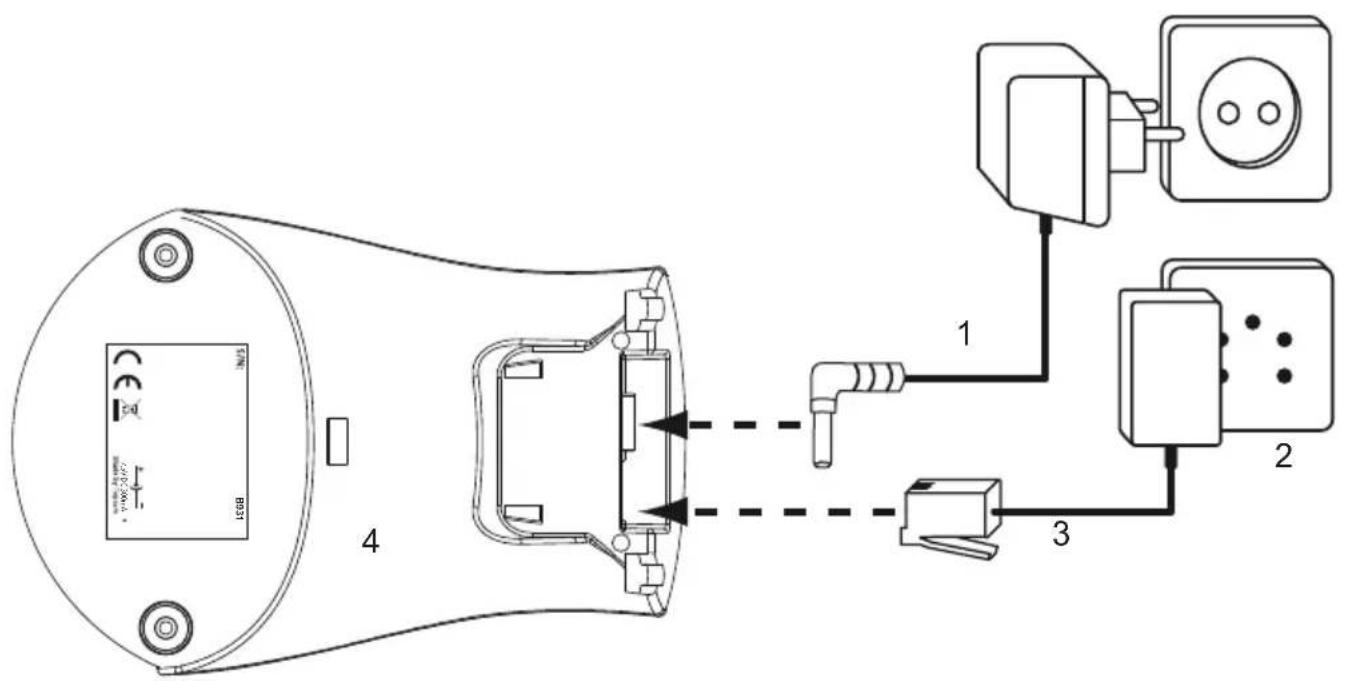
For installation, do the following:
- Plug one end of the adaptor into the 230V outlet and the other end into the adapter jack on the bottom of the base.
- Connect one end of the telephone cord with the wall phone jack and the other end to the bottom of the base. Use the included telephone cord.
text_image
Technical diagram showing wiring connections between a device and three electrical components with labeled parts 1, 2, and 3.- Power cable
- Telephone wall outlet
- Telephone cord
- Bottom view of the base
5.2 Installing the batteries
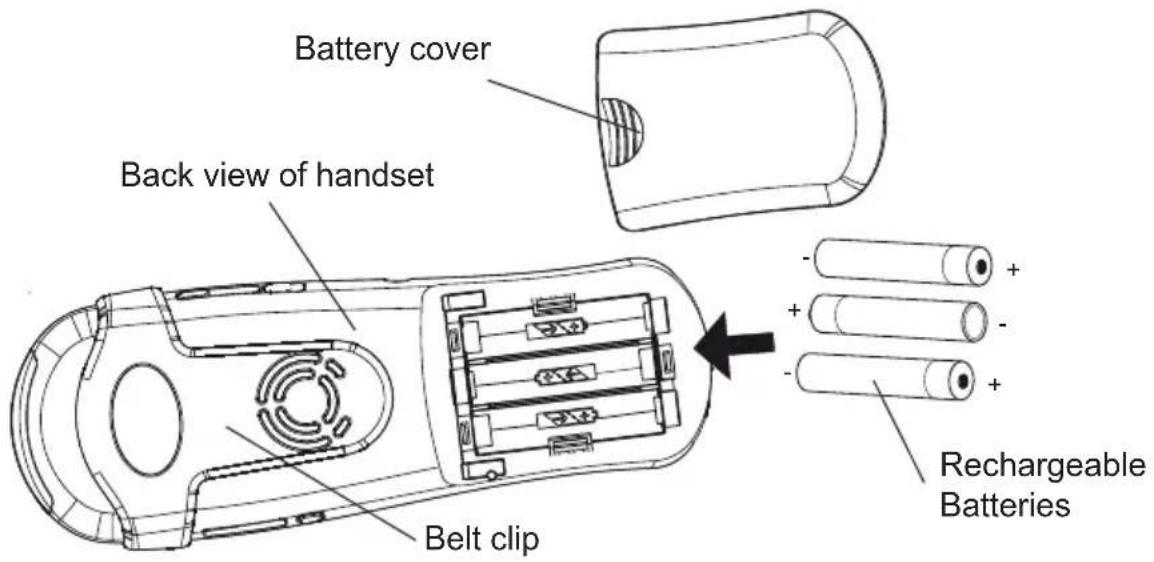
- Open the battery compartment (see below).
- Insert the batteries respecting the (+ and -) polarity.
- Close the battery compartment.
- Leave the handset on the base unit for 16 hours. The handset charging indicator LED ☑ the base unit will light up.
text_image
Battery cover Back view of handset Belt clip Rechargeable Batteries5.3 Wall mounting
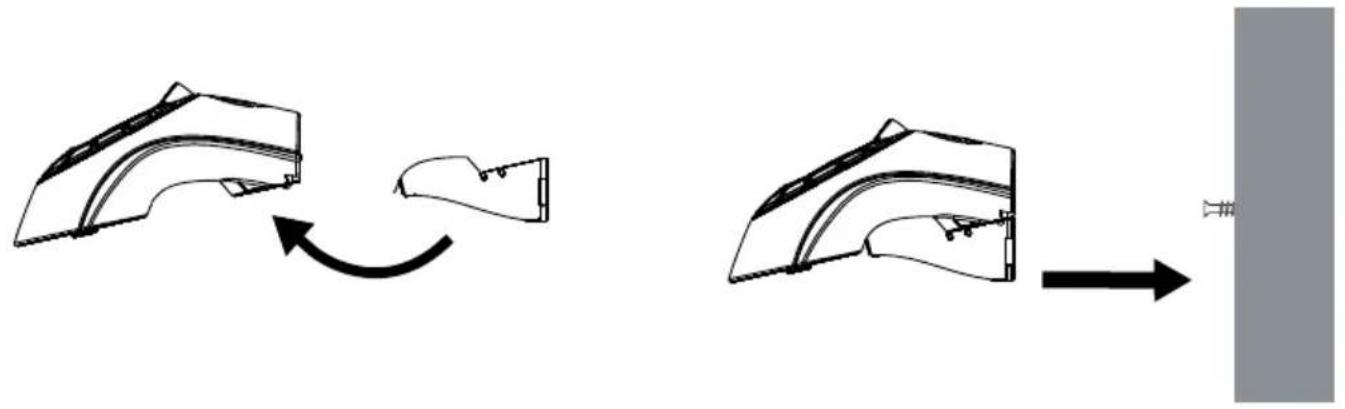
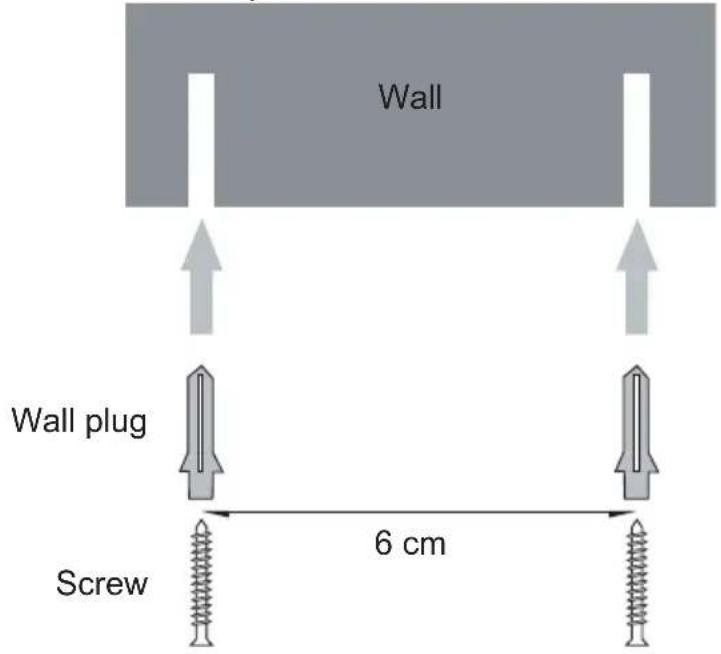
You can hang the base against the wall by using the cradle. Attach the cradle onto the base.
natural_image
Diagram showing a mechanical assembly process: before and after transformation, with no visible text or symbols.Drill the holes in the wall 6 cm apart.
text_image
Wall Wall plug Screw 6 cm6 Getting to know your telephone
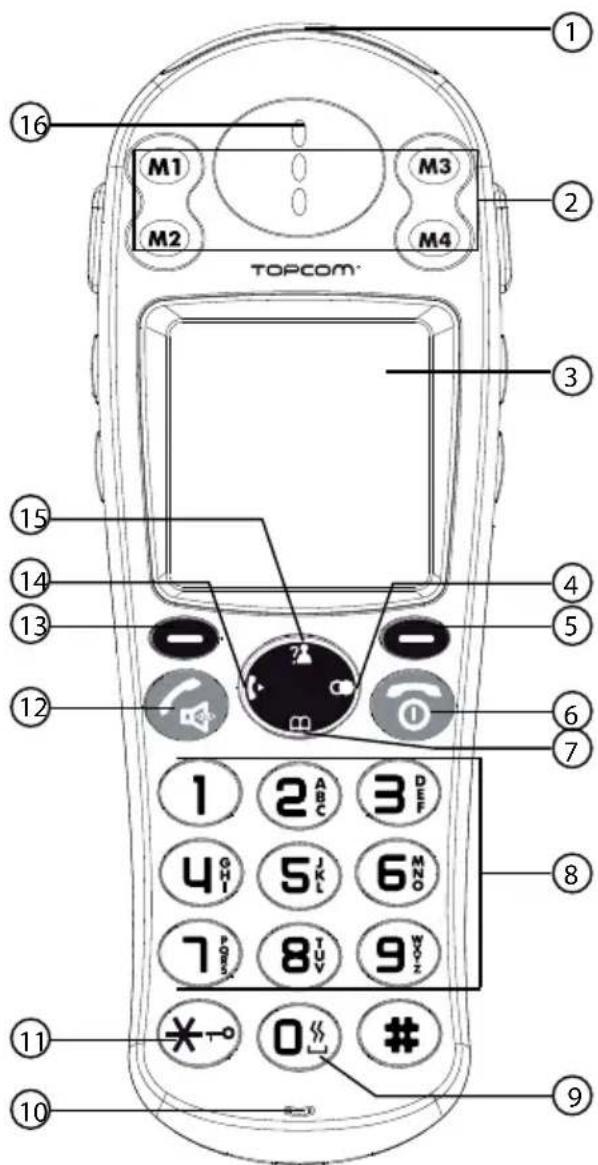
6.1 Keys / LED
Handset
- Visual ringer
- One-touch memories M1 - M4
- Display
- Right / redial / pause key
- Right menu key
- On hook / on-off key
- Down / phonebook key
- Alphanumeric keys
- Shaker / visual ringer on key
- Microphone
- Keypad lock key
- Off hook / handsfree key
- Left menu key
- Left / internal call key
- Up / call log key
- Earpiece
Base
- Handset charging indicator (LED)
- Paging key
- Charge contacts
text_image
1 M1 M3 2 M2 M4 TOPCOM 3 15 14 13 12 4 5 6 7 1 2 ABC 3 DEF 4 OTI 5 JKL 6 MNO 7 FLOW 8 TUV 9 WOK 11 * -o 0 ## 10 9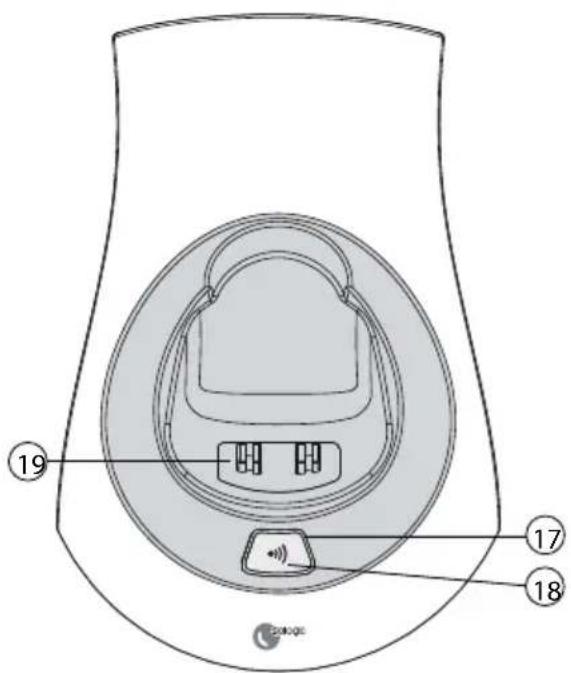
text_image
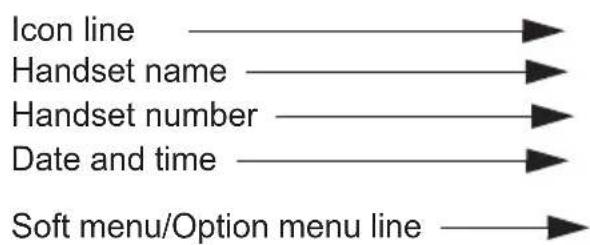
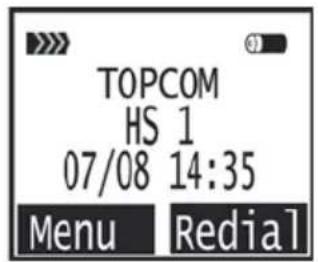
Diagram of a device interior with numbered labels pointing to components like a device, sensor, and speaker.6.2 Display (LCD)
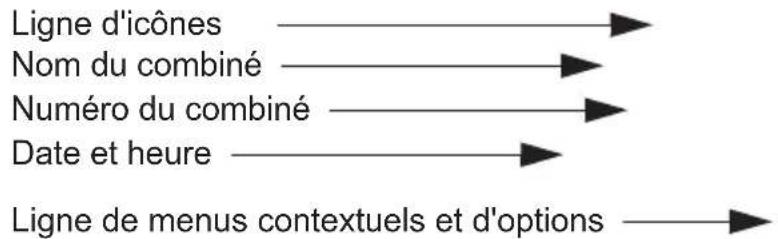
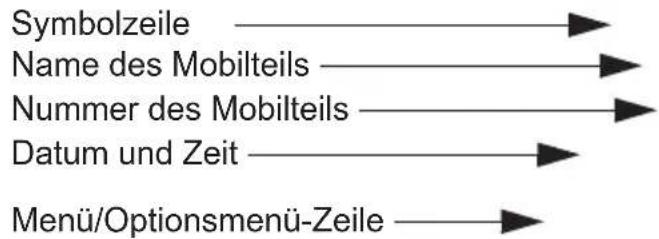
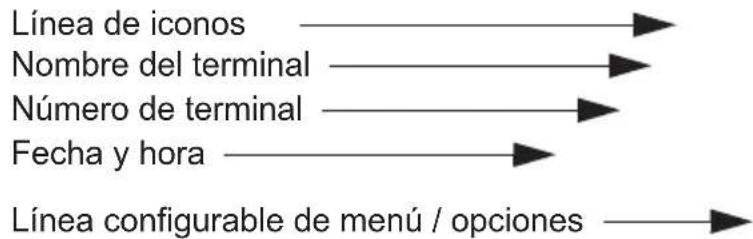
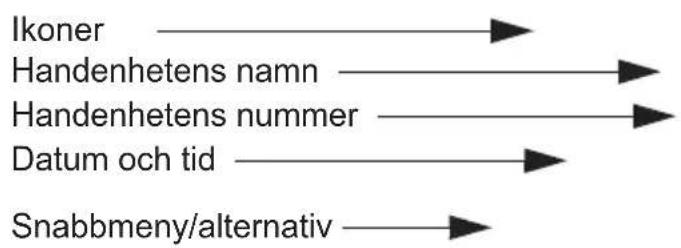
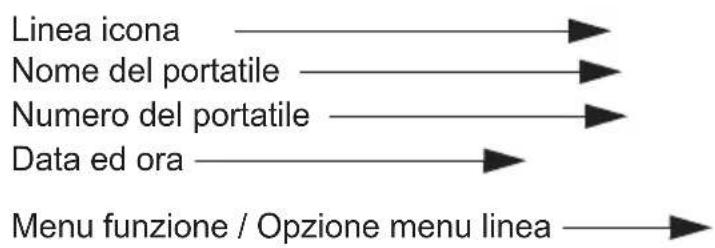
flowchart
graph LR
    A["Icon line"] --> B["Handset name"]
    B --> C["Handset number"]
    C --> D["Date and time"]
    D --> E["Soft menu/Option menu line"]

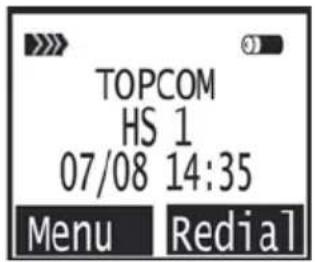
text_image
TOPCOM HS 1 07/08 14:35 Menu RedialBattery indicator:
• The battery is fully charged
• The battery is 25% drained
• The battery is half drained (50%)
• The battery is 75% drained
- The battery is low. You will hear warning signals and the battery symbol on the display will blink.
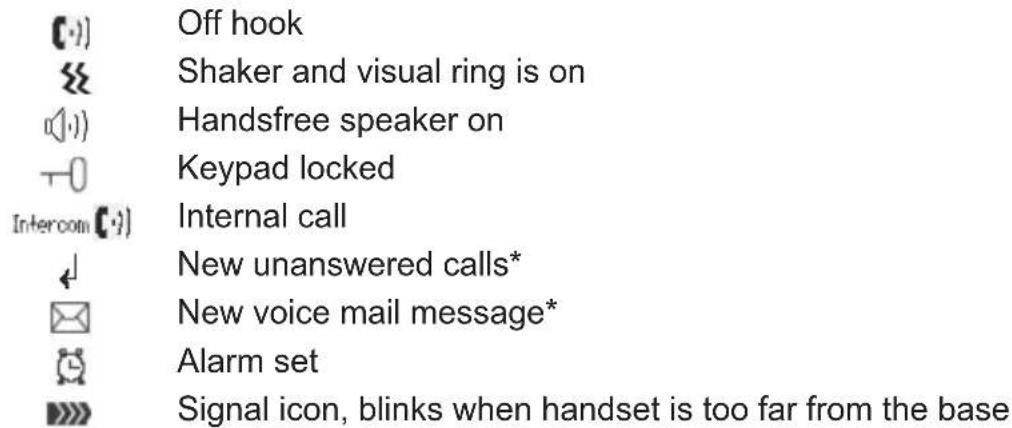
6.3 Icons
text_image
Off hook Shaker and visual ring is on Handsfree speaker on Keypad locked Internal call New unanswered calls* New voice mail message* Alarm set Signal icon, blinks when handset is too far from the base* Only when Caller ID is activated on your telephone line.
6.4 Display keys
Display keys (soft keys) are located directly under the display ☐The function of these 2 keys changes depending on the operation mode. The actual function is displayed as text directly above the 2 menu keys.
6.5 Base LED
The handset charging indicator LED 1 indicates the following status:
- Off: no base power connected or handset not in base for charging.
- On: handset charging.
6.6 Navigating the menu
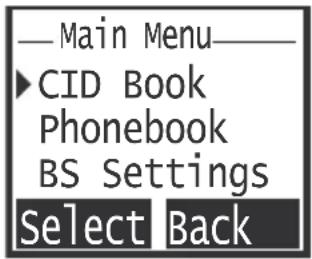
The handset has a menu system which is easy to use. Each menu leads to a list of options. When the handset is switched On and in standby, press the left menu key 1to open the main menu.
Press the up key ☐ the down key to screen the menu option you want. Then press ⚫ select further options or confirm the setting displayed.
text_image
Main Menu ►CID Book Phonebook BS Settings Select BackExit or go back one level in the menu:
To go to the previous level in the menu, press 'Back'.
To cancel and return to standby at any time, press the on/off key if no button is pressed for 15 seconds, the handset returns to standby automatically.
6.7 Menu overview
| Menu Submenu items | |
| CID Book | |
| Phonebook | NewEditDeleteDelete AllPB Status |
| BS Settings | Terminate HSDial modeFlash TimeModify PINBS Reset |
| HS Settings | AlarmAudio SetupRing SetupTone SetupLanguageHS NameAuto AnswerLCD ContrastDate & TimeSelect baseHS Reset |
| Registration Base 1 - 4 |
7 Handset operation
7.1 Turning the handset on/off
- To turn the handset on, press the on/off key or put the handset inside the base.
- To turn the handset off, press and hold down the on/off key, till the handset switches off.
7.2 Setting the language
The telephone has 9 display languages.
To set the language, do the following:
- Press the Left menu button under 'Menu'.
- Press the up or down key ⑮/⑦ repeatedly until 'HS Setting' is selected.
- Pres 13 'Select' to confirm.
- Press the up or down key ⑮/⑦ repeatedly until 'Language' is selected.
- Press \$3 'Select' to confirm.
- The language set appears on the display.
- Press the up or down key 15/peatedly to select the language you would like to use.
- Press 'Save' ⑬ to confirm your selection or press 'Back' ⑤ to leave the menu without saving.
7.3 Making Calls
7.3.1 External Call
- Press the off hook key . 12
- The call symbol appear on the display.
- You will hear the dial tone. Dial the telephone number you wish to call.
- The number appears on the display and is dialed.
• After finishing your call, press the on hook key to hang up.
7.3.2 Number preparation
- Dial the telephone number you wish to call. You can correct the number by pressing the 'Erase' key.
- Press the off hook key . 12
- The call symbol appear on the display.
- The telephone number is dialed automatically.
- After finishing your call, press the on hook key or put the handset back on the base unit to hang up.
7.3.3 Redialing the last number dialed
- Press the redial key . ④
- Press the off hook key. The number you last called is dialed automatically.
7.3.4 Redial one of the last 10 numbers dialed
- Press the redial key. The number you last called appears on the display.
- Press the up or down key ①/②⑦ repeatedly until the desired number appears on the display.
-
Press the off hook key . 12
-
The number shown on the display is dialed automatically.
- After finishing your call, press the on hook key or put the handset back on the base unit to hang up.
7.3.5 Calling a programmed number from the phonebook
The telephone has a phonebook in which you can store telephone number with name (See also § "10 The phonebook"). To call a number from the phonebook:
- Press the phonebook key. The first number of the phonebook appears on the display.
- Press the up or down key ⑮/⑦ repeatedly to select the telephone number you want to call.
- Press the off hook key . 12
- The number shown on the display, is dialed automatically.
- After finishing your call, press the on hook key or put the handset back on the base unit to hang up.
7.3.6 Flash signal
With the 'Flash' ⑬ key you can use certain services on your external line such as "call waiting" (if your telephone company offers this feature); or to transfer calls if you use a telephone exchange (PABX). The flash key is a brief interruption of the line. You can use the flash key during a call by pressing the left menu key 'Flash' ⑬. You can set the flash time to short or long (see "12.1 Flash time setting").
7.4 Receiving a Call
During internal or external incoming call, the handset will start to ring. You can change the ring volume by pressing the up or down keys ⑤/⑦
- All subscribed handsets will ring when you receive a call.
- The telephone number of the caller appears on the display if you have Caller ID service (CLIP). Consult your telephone company. The name of the caller also appears on the display if:
– the number is programmed into the phonebook with name.
– the network sends the name together with the telephone number.
- Press the off hook key to accept the external call.
- OR Lift the handset off its base unit (if the auto answer option is active, see §7.21 Auto answer").
- During the conversation the ⚡ symbol appear on the display and the call timer starts to run.
- After finishing your call, press the on hook key to hang up or put the handset back on the base unit.
7.5 Redial list options
When scrolling through the redial list (see §7.3.4 Redial one of the last 10 numbers dialed") you have the following options:
When the desired number is shown on the display press 'More' ⑬ and select with the up and down keys ⑦ following options:
- 'Add to PB': to store the number into the phonebook memory. Press 'Select' to confirm. Enter a name (See §10.1 Adding a number and a name to the phonebook") and press
'Next' ⑬. Edit the number and press 'Next'. Select the desired ring melody and press 'Save' ⑬.
- 'Delete Call': to delete an entry in the redial list. Press 'Del' to confirm.
- 'Delete All': to delete all entries in the redial list. Press 'Del' to confirm.
7.6 Activate / deactivate handsfree function
This function allows you to communicate without having to pick up the handset. When you are talking, press the handsfree key to activate the handsfree function.
Press the button again to deactivate the handsfree function.

When you are calling in handsfree mode and you want to change the volume, press up or down key ⑮/ repeatedly.

When you use the handsfree function for a long time, the batteries will drain quickly!
7.7 'Out of range' warning
If the handset is out of range of the base unit, a warning signal will sound.
- 'SEARCHING' appears on the display and the symbol : ; ; ; ; ; ; ; ; ; ; ; ; ; ; ; ; ; ; ; ; ; ; ; ; ; ; ; ; ; ; ; ; ; ; ; ;
- Move closer to the base unit.
- As soon as you are back within range of the base unit, a signal sounds and the symbol stops blinking.
7.8 Setting the speaker volume
Use the up and down keys ①/② during conversation to set the volume of the speaker. You can select from 5 levels.

The handsfree volume can be set the same way as above!
7.9 Call Duration Indicator on the Display
During an external call, the call duration is shown on the display:
E.g. "01:10:40" for 1 hour, 10 minute and 40 seconds.
The call duration remains visible on the display for 5 seconds after each call.
7.10 Turning off the microphone (mute)
To turn off the microphone during a call press the right menu key ‘Mute’ ⑤ key. Now you can speak freely without the caller being able to hear you. To activate the microphone again, press the right menu key ‘Mute’ ⑤ again.
7.11 Pause key
If you dial a telephone number and you would like to add a pause to this number, press the pause/redial key ④ at the desired place in the number.
When you dial or redial this number, the pause (3 seconds) is automatically included.
7.12 Locating a misplaced handset (paging)
If you cannot find the handset, briefly press the paging key • on the base unit.
All handsets subscribed on the base unit will ring so you can locate the misplaced handset.
To stop the signal, briefly press any key on any handset.
7.13 Using the alphanumeric handset keypad
Use the alphanumeric keypad to type text. To select a letter, press the corresponding alphanumeric key .8E.g. if you press the alphanumeric key '5', the first character 'j' appears on the display. Press it repeatedly to select other characters from this key.
Press the '2' key once to select the letter 'a'. If you would like to select both 'a' and 'b' after each other, first press the '2' key once to select 'a', wait 2 seconds until the cursor moves to the next position and then press the '2' key twice to select 'b'. You can delete characters mistakenly typed by using the 'Erase' key. The character in front of the cursor will be deleted.
You can move the cursor by pressing the up and down keys ⑮/⑦
7.14 Setting the ring volume level on the handset
You can change the ring volume of an incoming call (internal and external) between 6 levels (levels '1' to '5' and 'Off').
If you select level 'Off' the handset will not ring when a call is received.
Level '5' is the highest level.
7.14.1 Setting the ring volume and Melody for Internal and external calls
- Press the 'Menu' key.
- Press the up or down key ⑮/⑦ repeatedly until 'HS Settings' is selected.
- Press 'Select' to confirm.
- Press the up or down key ⑮/⑦ repeatedly until 'Ring Setup' is selected.
- Press 'Select' to confirm.
- Select 'INT Ring' or 'EXT Ring' and press 'Select'.
- Select 'Melody' or 'Volume' and press 'Select'.
- The current volume and melody is shown and hearable.
- Press the up or down key 15/peatedly to select the desired volume/melody.
- Press 'Save' ⑬ to confirm your selection or press 'Back' ⑤ to leave the menu without saving.

You can also change the ring volume during incoming call, see "7.4 Receiving a Call".
7.15 Setting the earpiece/handsfree volume
You can also use the menu to adjust the audio volume of the handsfree speaker and earpiece:
- Press the 'Menu' key.
- Press the up or down key ⑮/⑦ repeatedly until 'HS Settings' is selected.
- Press 'Select' to confirm.
- Press the up or down key 15/7 repeatedly until 'Audio Setup' is selected.
- Press 'Select' to confirm.
- Select 'Speaker V.' or 'Earpiece V.' and press 'Select' ⑬.
- Press the up or down key ⑮/⑦ repeatedly to select the desired volume.
- Press 'Save' ⑬ to confirm your selection or press 'Back' ⑤ to leave the menu without saving.
7.16 Locking the key pad
You can lock the keypad to prevent involuntary key presses. When the keypad is locked it is impossible to dial a telephone number, only the direct memory keys M1 - M4 can be used. Also incoming calls can still be answered.
To activate keypad lock:
- Press and hold the keypad lock key for 5 seconds.
- 'HS Locked' and the icon 0 will appear on the display.
To deactivate keypad lock:
- Press the keypad lock key again for 15 seconds.
7.17 Turning key click on/off
You can set the handset to make a beep whenever you press a key.
- Press the left 'Menu' key.
- Press the up or down key ⑮/⑦ repeatedly until 'HS Settings' is selected.
- Press 'Select' to confirm.
- Press the up or down key ⑮/⑦ repeatedly until 'Tone Setup' is selected.
- Press 'Select' to confirm.
-
Press the up or down key 15/7 repeatedly until 'Key Tone' is selected.
-
Select
- ' On': turn on key click
- ' Off': turn off key click
- Press 'Save' ⑬ to confirm your selection or press 'Back' ⑤ to leave the menu without saving.
7.18 Range alarm
A beep will sound when the handset is out of the base range. You can turn this audible warning on/off:
- Press the left 'Menu' key.
- Press the up or down key ⑮/⑦ repeatedly until 'HS Settings' is selected.
- Press 'Select' to confirm.
- Press the up or down key ⑮/⑦ repeatedly until 'Tone Setup' is selected.
- Press 'Select' to confirm.
- Press the up or down key ⑮/⑦ repeatedly until 'Range Alarm' is selected.
- Select
- ‘ On’: turn on the range alarm
- ' Off': turn off the range alarm
- Press 'Save' ⑬ to confirm your selection or press 'Back' ⑤ to leave the menu without saving.
7.19 Display contrast
To change the display contrast:
- Press the left 'Menu' key.
- Press the up or down key ⑮/⑦ repeatedly until 'HS Settings' is selected.
-
Press 'Select' to confirm.
-
Press the up or down key ⑮/⑦ repeatedly until 'LCD Contrast' is selected.
- Press 'Select' to confirm.
- Press the up or down key 15/ repeatedly to change the contrast between 0 (light) and 16 (dark).
- Press 13\$ to con save your selection or press 'Back' ⑤ to leave the menu without saving.
7.20 Changing the handset name
You can change the handset name displayed on the handset during standby.
- Press the left 'Menu' key.
- Press the up or down key ⑮/⑦ repeatedly until 'HS Settings' is selected.
- Press 'Select' to confirm.
- Press the up or down key ①⑮/⑦ repeatedly until 'HS Name' is selected.
- Press 'Select' to confirm.
- Enter the new handset name and press 'Erase' to erase the characters in front of the cursor.
- Press 'Save' ⑬ to confirm your selection or press 'Back' ⑭ to leave the menu without saving.
7.21 Auto answer
When there is an incoming call and the handset is on the base, the phone automatically takes the line when lifted. This function can be turned on or off.
- Press the left 'Menu' key.
- Press the up or down key ⑮/⑦ repeatedly until 'HS Settings' is selected.
- Press 'Select' to confirm.
- Press the up or down key ⑮/⑦ repeatedly until 'Auto Answer' is selected.
- Press 'Select' to confirm.
- Select
- ' On': turn on the auto answer
- ' Off': turn off the auto answer
- Press 'Save' ⑬ to confirm your selection or press 'Back' ⑭ to leave the menu without saving.
7.22 Turning visual ringer and shaker on/off
By turning on the visual ringer and shaker, the visual ring ⓦ will blink and the handset will vibrate during an incoming call.
- Press and hold the key until the icon appears to activate it.
- Press and hold the key until the icon disappears to deactivate it.
8 Handset reset
You can restore all handset settings back to default and erase all phonebook, call log, ring volume/melodies, Audio setup, Tone setup, Alarm, language and redial entries. The LCD contrast cannot be restored.
To restore the default settings:
- Press the left 'Menu' key.
-
Press the up or down key ⑮/⑦ repeatedly until 'HS Settings' is selected.
-
Press 'Select' to confirm.
- Press the up or down key ⑮/⑦ repeatedly until 'HS Reset' is selected.
- Press 'Select' to confirm.
- Enter the pin code (0000).
- Press 'Reset' ⑬ to confirm your selection or press 'Back' ⑤ to leave the menu without saving.
The default settings are:
Alarm: Off
Audio Setup: 3
INT/EXT Melody: Melody 3
INT/EXT Ring Volume: Volume 3
Key Tone: On
Range Alarm: On
Handset name: HS1
Time Format: 24 hours
Date Format: DD-MM
Phone Book: Empty
Call log: Empty
Redial list: Empty
Auto Answer: Off
Time and Date: 0:00 01-01

After a reset you have to turn on the handset again, see "7.1 Turning the handset on/off".
9 Setting the clock and alarm
9.1 Date and time format
- Press the left 'Menu' key.
- Press the up or down key 📷 (15)/图标⑦ repeatedly until 'HS Settings' is selected.
- Press 'Select' to confirm.
- Press the up or down key ⑮/⑦ repeatedly until 'Date & Time' is selected.
- Press 'Select' to confirm.
- Press the up or down key ⑮/⑦ repeatedly and select 'Date Format' or 'Time Format'.
- Press 'Select' to confirm.
- Use the up or down key ⑮/⑦ to select the date format 'DD-MM' / 'MM-DD' or time format '12-Hour' / '24-Hour'.
- Press 'Save' ⑬ to confirm your selection or press 'Back' ⑤ to leave the menu without saving.
9.2 Setting the date and time
- Press the left 'Menu' ⑬ key.

If you have Caller id on your telephone line and the operator sends date and time, your clock will be set automatically on an incoming call.
- Press the up or down key ⑮/⑦ repeatedly until 'HS Settings' is selected.
- Press 'Select' to confirm.
- Press the up or down key ⑮/⑦ repeatedly until 'Date & Time' is selected.
- Press 'Select' to confirm.
- Press the up or down key 15/7 repeatedly and select 'Set Date' or 'Set Time'.
- Press 'Select' to confirm.
- Enter the current date/time by the numeric keypad.
- Press 'Save' ⑬ to confirm your selection or press 'Back' ⑤ to leave the menu without saving.
9.3 Using the alarm feature
Set the date and time and use your handset to give you a reminder alarm. You can have different alarm settings for each handset registered to your base. The alarm rings only at the handset, not at the base or any other handset.
If one of the alarms is set, the alarm set icon 📋 appears in standby mode on the display.
When the alarm sounds, press any key to turn it off.
9.3.1 Set the alarm
- Press the left 'Menu' key.
- Press the up or down key ⑮/⑦ repeatedly until 'HS Settings' is selected.
- Press 'Select' to confirm.
- Press the up or down key ⑮/⑦ repeatedly until 'Alarm' is selected.
- Press 'Select' to confirm.
- Press the up or down key ①/⑦ repeatedly and select 'On' or 'Off'.
- Press 'Select' to confirm.
- If you select 'On', the display indicates to enter the time in HH:MM format. Use the numeric keypad to enter. Press 'Next' and the display will show 'Snooze On/Off'. Press the up or down key ?15/00 enable or disable the snooze functions.
- Press 'Save' ⑬ to confirm your selection or press 'Back' ⑤ to leave the menu without saving.

If you choose 'Snooze On', the alarm will ring at regular intervals of 11 minutes. If you press the 🔒⑥ key when the alarm sounds, the option will be switch to 'Snooze Off'.
10 The phonebook
The phonebook allows you to memorise 50 telephone numbers and names. You can enter names up to 12 characters length and numbers up to 20 digits length.
10.1 Adding a number and a name to the phonebook
- Press the left 'Menu' key.
- Press the up or down key ⑮/⑦ repeatedly until 'Phonebook' is selected.
- Press 'Select' to confirm.
- Press the up or down key ⑮/⑦ repeatedly until 'New' is selected.
- Press 'Select' to confirm.
- Press the up or down key ①/②⑦ repeatedly and select 'On' or 'Off'.
-
Press 'Select' to confirm.
-
Enter the name by using the numerical keys (see also "7.13 Using the alphanumeric handset keypad").
- Press 'Next' and enter the desired number (up to 20 digits).
- Press 'Next' and select the desired ring melody associated with this number with the up or down key 15/7
- Press 'Save' ⑬ to confirm your selection or press 'Back' ⑤ to leave the menu without saving.
10.2 Looking up a number in the phonebook
- Press the phonebook key . 7
- Enter the first letter of the desired name via the alphanumeric keypad.
- The first name in the list with this letter appears on the display.
- Press the up or down key 15/10 Browse for other numbers in the phonebook.
- If the desired number appears on the display, the number will be automatically dialed by pressing the off hook key 12
10.3 Changing a name or number in the phonebook
- Press the left 'Menu' key.
- Press the up or down key ⑮/⑦ repeatedly until 'Phonebook' is selected.
- Press 'Select' to confirm.
- Press the up or down key ⑮/⑦ repeatedly until 'Edit' is selected.
- Press 'Select' to confirm.
- Enter the first letter of the desired name via the alphanumeric keypad.
- The first name in the list with this letter appears on the display.
- Press the up or down key 15/10 Browse for other numbers in the phonebook.
• If the desired number appears on the display, press 'Select' to confirm. - Edit the name by using the numerical keys (see also "7.13 Using the alphanumeric handset keypad").
- Press 'Next' and edit the number.
- Press 'Next' and select the desired ring melody associated with this number with the up or down key ⑮/⑦
- Press 'Save' ⑬ to confirm your selection or press 'Back' ⑤ to leave the menu without saving.
10.4 Deleting one or all entries from the phonebook
- Press the left 'Menu' key.
- Press the up or down key ⑮/⑦ repeatedly until 'Phonebook' is selected.
- Press 'Select' to confirm.
- Press the up or down key ⑤/⑦ repeatedly until 'Delete' or 'Delete All' is selected.
- Press 'Select' to confirm.
- The display shows 'Confirm?' You can press 'Del' or 'Del All' to delete or 'Cancel' to exit.
10.5 Phonebook status
The phonebook status shows the numbers of phonebook entries already stored.
- Press the left 'Menu' key.
- Press the up or down key ⑮/⑦ repeatedly until 'Phonebook' is selected.
- Press 'Select' to confirm.
- Press the up or down key ⑮/⑦ repeatedly until 'PB Status' is selected.
- Press 'Select' to confirm.
11 One-touch memories M1-M4
11.1 Storing a number under the one-touch memory
You can store up to 4 numbers in the direct memory keys M1 - M4. All the numbers will be stores in the phonebook as well.
- Press one of the 4 memory keys (M1 - M4).
• The display will show 'Number?'. Enter the desired number (up to 20 digits). - Press the 'Next' soft key.
- Select the desired ring melody associated with this number with the up or down key

- Press 'Save' ⑬ to confirm your selection or press 'Back' ⑤ to leave the menu without saving.
11.2 Viewing the one-touch memory numbers
The one-touch memory numbers are stored inside the phonebook as the 1st 4 entries.
- Press the phonebook key
- Press the up or down key ⑮/⑯ browse for other numbers.
11.3 Editing the one-touch memory numbers
Perform the same steps as described in "10.3 Changing a name or number in the phonebook".

The one-touch memory names are stores in the phonebook as M1:, M2:, M3:, and M4:. When you edit the name you can only add something like 'M1: Home' but you can't delete the default name.
11.4 Deleting a one-touch memory number
Perform the same steps as described in "10.4 Deleting one or all entries from the phonebook"
12 Base operation
12.1 Flash time setting
You can set the flash time to short (100ms) or long (300ms). The time is set to 100ms by default! However, if your system requires a longer flash time, you can change it:
- Press the left 'Menu' key.
- Press the up or down key ⑮/⑦ repeatedly until 'BS Settings' is selected.
- Press 'Select' to confirm.
-
Press the up or down key ①/⑦ repeatedly until 'Flash Time' is selected.
-
Press 'Select' to confirm.
- Select
- ‘ Flash-1’: (short) to have a flash of 100ms
- ‘ Flash-2’: (long) to have a flash of 300ms
- Press 'Save' ⑬ to confirm your selection or press 'Back' ⑤ to leave the menu without saving.
12.2 Changing the PIN code (system PIN code)
Certain functions are only available if you know the PIN code of the base.
The PIN code has 4 digits. The default PIN code setting is '0000'. If you would like to change the PIN code and set your own secret code, do the following:
- Press the left 'Menu' key.
- Press the up or down key ⑮/⑦ repeatedly until 'BS Settings' is selected.
- Press 'Select' to confirm.
- Press the up or down key 15/7 repeatedly until 'Modify PIN' is selected.
- Press 'Select' to confirm.
- Enter the current pin and press 'Next'.
- Enter the new pin and press 'Next'.
- Enter the new pin again and press 'Save' ⑬ to store the new pin or press 'Back' ⑤ to leave the menu without saving.
12.3 Setting the dialing mode
There are two types of dialing modes that can be used on a telephone line:
• DTMF/Tone dialing (the most common)
- Pulse dialing (for older installations)
To change the dialing mode:
- Press the left 'Menu' key.
- Press the up or down key ①⑮/⑦ repeatedly until 'BS Settings' is selected.
- Press 'Select' to confirm.
- Press the up or down key ⑮/⑦ repeatedly until 'Dial mode' is selected.
- Press 'Select' to confirm.
- Use the up or down key 15/7 to select 'Tone' or 'Pulse'.
- Press 'Save' ⑬ to confirm or press 'Back' ⑤ to leave the menu without saving.
12.4 Base reset
You can restore all Base settings back to default.
To restore the default settings:
- Press the left 'Menu' key.
- Press the up or down key ⑮/⑦ repeatedly until 'BS Settings' is selected.
- Press 'Select' to confirm.
- Press the up or down key ⑮/⑦ repeatedly until 'BS Reset' is selected.
- Press 'Select' to confirm.
- Enter the pin code (0000).
- Press 'Reset' ⑬ to confirm your selection or press 'Back' ⑤ to leave the menu without saving.
The default settings are:
Dial Mode: Tone
Flash time: Flash-1
PIN Code: 0000
13 Additional handsets and bases
You can subscribe up to 5 handsets on one base. Each handset can register to 4 base stations and the user can select which base he wants to use. By default the handset 1 is registered to the base unit 1.
13.1 Adding a new handset

This is only needed when you have deregistered a handset or when you bought a new one.
Keep the paging key •⑰ on the base unit pressed for 5 seconds. The base unit will stay in subscribing mode for 3 minutes. Do the following to subscribe the handset:
- Press the left 'Menu' key.
- Press the up or down key ⑮/⑦ repeatedly until 'Registration' is selected.
- Press 'Select' to confirm.
- Press the up or down key 15/10 select a base (1-4).
- The handset will now search for a base end when it's found the system PIN code (base PIN code; default='0000') is asked.
- Enter the PIN code and and press 'Select'.
- The standby screen will appear when successfully registered and handset name and number will be shown.

Each handset can be subscribed to 4 different DECT base units. Each base unit is assigned a number from '1' to '4' in the handset. When you subscribe a new handset, you can assign a base unit number. It is best to use '1'.
13.2 Removing a handset
It is possible to cancel subscription of a handset to a base. You should do this if a handset is damaged and has to be replaced by a new one.

You can only cancel subscription of another handset, not the handset you are using to do the remove procedure.
- Press the left 'Menu' key.
- Press the up or down key ⑮/⑦ repeatedly until 'BS Settings' is selected.
- Press 'Select' to confirm.
- Press the up or down key ⑮/⑦ repeatedly until 'Terminate HS' is selected.
- Press 'Select' to confirm.
- Enter the PIN code and press 'OK'.
- Use the up or down key 15/3 select the handset. If you select the current handset or a non-existing handset, a warning tone will be heard.
- Press 'Select' ⑬ to confirm your selection or press 'Back' ⑤ to leave the menu.
13.3 Selecting a base unit
If your handset is subscribed to several base unit stations (max. 4), you must select a base unit because the handset can only communicate with one base unit at a time.
- Press the left 'Menu' key.
- Press the up or down key ⑮/⑦ repeatedly until 'HS Settings' is selected.
- Press 'Select' to confirm.
- Press the up or down key repeatedly until 'Select Base' is selected.
- Press 'Select' to confirm.
- Use the up or down key ⑮/⑰ select the base. If you select the current a non-existing base, a warning tone will be heard.
- The display will show 'Selected BSx'. Press the 'Select' key to confirm.

Caution: Before you can select a base unit, the handset must be subscribed to the base first.
13.4 Using multiple handsets

These functions are only possible when more than one handset is subscribed to the base.
13.4.1 Calling another handset
- Press the internal call key . 14
• ‘ Intercom 1 2 3 4 5” appears on the display. - Dial the number of the handset you would like to call.
• After finishing your call, press the on hook key to hang up.
13.4.2 Receiving an internal call
- The internal call icon Intercom [•] and the number of the handset calling, appear on the display.
- Press the off hook key to accept the internal call.
OR - Lift the handset off its base (if the auto answer option is active, see §7.21 Auto answer")
- During the call, the handset number of the caller appear on the display.
• After finishing your call, press the on hook key to hang up.
13.4.3 Receiving an external call during an internal call
If you receive an external call during an internal call, you will hear a call waiting tone (double beep) on both handsets being used for an internal call.
- Press the on hook key to end the internal call.
- Press the off hook key to accept the external call.
- After finishing your call, press the on hook key to hang up.
13.4.4 Transferring a call to another handset
- You have an external caller on the line.
- Press the internal call key 14. 'Intercom 1 2 3 4 5' appears on the display.
- Dial the number of the handset to which you would like to transfer the call.
- If the handset dialed answers, you can have an internal conversation. Press the on hook key and the external call is transferred.
- If the handset dialed does not answer, press the internal call key ① to speak to the external caller again.
13.4.5 Conference call (two internal handsets and one external caller)
You can have a telephone conversation with one internal and one external caller at the same time.
- While on the line with an external caller, press the internal call key 14. The external line is put on hold.
- Dial the number of the handset you would like to include in the call. You can toggle between Internal and External line by pressing the internal call key 14
- Once the handset dialed answers, press the key. ⑪
- Now you are connected to the external and the internal caller and you can talk to them at the same time (conference call).
14 Caller ID / CLIP

You can only use this service when you have a Caller ID / CLIP subscription. Contact your telephone company for more information.
When you receive a call, the telephone number of the caller, the date and time appears on the handset display. If the name is programmed in the phonebook, the name in the phonebook is displayed!
The telephone can store 40 calls in a call list that can be reviewed later. When the memory is full, the new calls automatically replace the oldest calls in the memory. The icon will be shown if there are new unanswered calls in the call list. If the call list is empty and you press the call log key ? Empty' will be shown.
You can view the information of an incoming call:
- Press the call log key . The telephone number will be shown on the first line. The name (if sent by the network or present in the phonebook memory) of the caller will be shown on the 2nd line and date and time on the 3rd line. In the top right corner of the screen you will see following icon followed by the call log sequence number:
- : Upread or unanswered call
- : Read or answered call
14.1 The call list
The calls received are stored in the call list (max. 40 numbers).
- Briefly press the call log key to view the most recent call. OR
- Press the left 'Menu' key.
- Press 'Select' to confirm.
- The telephone number and name of the most recent caller appears on the display.
- The date and time the call was received are linked to each call.
- Press up or down key ⑮/⑦ to browse other numbers on the list.

- If neither the up or down key ⑮/pressed for 1 minute, the telephone will return to standby mode.
• After a call is received, the number of the caller remains on the display for 15 seconds after the last ring.
14.2 Calling a number from the call list
- Press the call log key to code into the call list.
- Press the up or down key 15/17ok up the desired number.
- Once the number is on the display, press the off hook key and the number is dialed automatically.
14.3 Storing a number from the call list in the phonebook
- Press the left 'Menu' key.
- Press 'Select' to confirm.
- Press the up or down key 15/look up the desired number.
• P r e s 5\$ ' More' - Press the up or down key ①/②⑦ repeatedly until 'Add to PB' is selected.
- Press 'Select' to confirm.
- 'Name?' is displayed. Use the alphanumeric keys to add a name. Or if the name was send by the network, you can edit it before saving. Press 'Next' ⑤ to confirm.
- The telephone number is displayed. Edit the number if needed and press 'Next' ⑤ again to store the entry into the phonebook.
- Select the desired ring melody associated with this number with the up or down key ? ⑮/⑰ ⑦
- Press 'Save' ⑬ to confirm your selection or press 'Back' ⑤ to leave the menu without saving.
14.4 Deleting numbers from the call list
14.4.1 Deleting one number
- Press the left 'Menu' key.
- Press 'Select' to confirm.
- Press the up or down key 15/look up the desired number.
• P r e s 5s ' More' - Press the up or down key ⑮/⑦ repeatedly until 'Delete' is selected.
- Press 'Select' to confirm.
- Press 'Del' ⑬ to erase or press 'Cancel' ⑤ to leave the menu without saving.
14.4.2 Delete all numbers
- Press the left 'Menu' key.
- Press 'Select' to confirm.
- Press the up or down key 15/20 look up the desired number.
• Press 5s ' More' - Press the up or down key ⑮/⑦ repeatedly until 'Delete All' is selected.
- Press 'Select' to confirm.
- Press 'Del All' ⑬ to erase or press 'Cancel' ⑤ to leave the menu without saving.
15 Voice mail indicator
This function only works if you have the voice mail or phone mail service and if the network sends this indication along with the caller ID (CLIP) information!
When you receive a new message in your voice mail system, the icon + 'MSG WTG ON' will appear on the display. Once you have listened to your messages, the icon will disappear.
If you want to remove the icon, press the call log key, then press and hold the numerical key '4'. After that press the on-hook key to return to standby.
16 Trouble shooting
| Symptom Possible cause | Solution | |
| No display; the display stays dark | Batteries uncharged Check the position of the batteries | |
| Recharge the batteries | ||
| Handset turned off Turn on the handset | ||
| No tone Telephone cord | badly connected or defect | Check the telephone cord connection |
| The line is occupied by another handset | Wait until the other handset hangs up | |
| The icon :flashes | Handset out of range Bring the handset closer to the base | |
| The base has no power supply Check the mains connection to the base | ||
| The handset is not registered to the base | Register the handset to the base | |
| Base or handset do not ring | The ringing volume is zero or low | Adjust the ringing volume |
| Tone is good, but cannot make any connection | The dialing mode is wrong | Adjust the dialing mode (pulse/tone) |
| Not possible to transfer a call on PABX | The Flash Time is too short | Change the Flash Time |
| Telephone does not react to pressing the keys | Manipulation error | Remove the batteries for at least 1 minute and put them back in place |
17 Technical characteristics
Standard: DECT(Digital Enhanced Cordless Telecommunications) GAP ( Generic Access Profile )
Frequency range: 1880 MHz to 1900 MHz
Number of channels: 120 duplex channels
Modulation: GFSK
Speech coding: 32 kbit/s
Emission power: 10 mW (average power per channel)
Range: 300 m in open space / 50 m maximum in-house
Handset Batteries: 3 rechargeable batteries AAA, NiMh 600mAh
Handset standby time: 100 hours in standby
Handset talk time: 10 hours
Charging time: 16 hours
Dialing mode Tone / Pulse
Normal conditions of use: +5 °C to +45 °C
Flash time: 100ms or 300ms
18 Topcom Warranty
18.1 Warranty period
The Topcom units have a 24-month warranty period. The warranty period starts on the day the new unit is purchased. There is no warranty on standard or rechargeable batteries (AA/AAA type).
Consumables or defects causing a negligible effect on operation or value of the equipment are not covered.
The warranty has to be proven by presentation of the original or copy of the purchase receipt, on which the date of purchase and the unit-model are indicated.
18.2 Warranty exclusions
Damage or defects caused by incorrect treatment or operation and damage resulting from use of non-original parts or accessories are not covered by the warranty.
The warranty does not cover damage caused by outside factors, such as lightning, water and fire, nor any damage caused during transportation.
No warranty can be claimed if the serial number on the units has been changed, removed or rendered illegible.
Any warranty claims will be invalid if the unit has been repaired, altered or modified by the buyer.
This appliance may only be used with rechargeable batteries. If you want to replace the originally included batteries, please check whether the batteries you use are suitable and rechargeable. Alkaline batteries may under NO circumstances be used in the handsets.
If you use Alkaline batteries and place the handset on the basis, the batteries will heat up and may explode. Any damage which may be caused cannot be recovered from the manufacturer and the damage thus caused to the appliance is not covered by the warranty conditions. Any repairs will be charged to you.
1 Veiligheidsadvies
text_image
Technical diagram showing wiring connections between a device and three electrical components with labeled parts 1, 2, and 3.natural_image
Diagram showing a mechanical component before and after assembly, with no visible text or symbolstext_image
Diagram of a device interior with numbered labels pointing to components like a device, sensor, and speaker.6.2 Display (LCD)
text_image
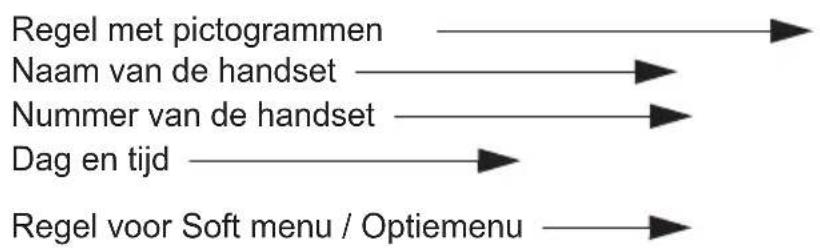
—Main Menu— ►CID Book Phonebook BS Settings Select Back15/7 totdat 'Toontjes' (Tone
Intern/Extern Volume: Volume 3
Toetstoon: Aan
Bereik: Aan
(Phonebook) is geselecteerd.
? 15/7 totdat 'Wis' (Delete) of
15 Voicemailindicator
DECT(Digital Enhanced Cordless Telecommunications)
GAP (Generic Access Profile)
Frequentiebereik: 1880 MHz tot 1900 MHz
text_image
Technical diagram showing wiring connections between a device and three electrical components with labeled parts and connection points.natural_image
Diagram showing a mechanical assembly before and after transformation, with no visible text or symbols.text_image
Diagram of a device interior with numbered components, likely for labeling or identification.6.2 Écran (LCD)
Norme : DECT(Digital Enhanced Cordless Telecommunications) GAP (Generic Access Profile)
text_image
Technical diagram showing wiring connections between a device and electrical components with labeled parts 1, 2, and 3.natural_image
Diagram showing a mechanical component before and after assembly, with no visible text or symbolstext_image
Diagram of a device interior with numbered labels pointing to key components such as a sensor and smart speaker.6.2 LCD-Display
text_image
—Main Menu— ►CID Book Phonebook BS Settings Select BackDECT(Digital Enhanced Cordless Telecommunications)
GAP (Generic Access Profile)
text_image
Technical diagram showing wiring connections between a device and three electrical components with labeled parts and connection points.natural_image
Diagram showing a mechanical component before and after assembly, with no visible text or symbolstext_image
Diagram of a device interior with numbered labels pointing to components like a bag, connector, and sensor.6.2 Pantalla (LCD)
text_image
—Main Menu— ►CID Book Phonebook BS Settings Select Backtext_image
Technical diagram showing wiring connections between a device and electrical components with labeled parts 1, 2, and 3.natural_image
Diagram showing a mechanical assembly process with curved components and directional arrows (no text or symbols)text_image
Diagram of a device with labeled parts including a central device and numbered annotations (17, 18, 19)6.2 Display (LCD)
flowchart
graph LR
    A["Ikoner"] --> B["Handenhetens namn"]
    B --> C["Handenhetens nummer"]
    C --> D["Datum och tid"]
    D --> E["Snabbmeny/alternativ"]
text_image
TOPCOM HS 1 07/08 14:35 Menu RedialDECT(Digital Enhanced Cordless Telecommunications)
GAP ( Generic Access Profile )
text_image
Technical diagram showing wiring connections between a device and electrical components with labeled parts 1, 2, and 3.natural_image
Diagram showing a mechanical component before and after assembly, with no visible text or symbolstext_image
Diagram of a device interior with numbered labels pointing to components like a device, buttons, and sensors.6.2 Display LCD
Audio (Audio Setup): 3
Tasto R (Flash time): R 1
Codice PIN: 0000
DECT(Digital Enhanced Cordless Telecommunications)
GAP (Generic Access Profile)
text_image
Technical diagram showing wiring connections between a device and three electrical components with labeled parts 1, 2, and 3.5.2 Instalar as pilhas
natural_image
Diagram showing a mechanical assembly process: one is a curved component being rotated, the other is a rectangular component with a handle and arrow indicating rotation (no text or symbols)text_image
Diagram of a device interior with numbered labels pointing to key components such as a lock, USB, and speaker.6.2 Visor (LCD)
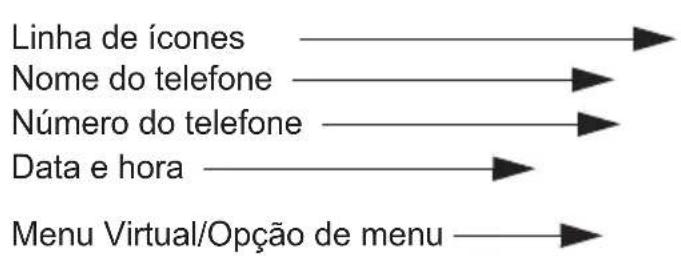
flowchart
graph LR
    A["Linha de ícones"] --> B["→"]
    C["Nome do telefone"] --> D["→"]
    E["Número do telefone"] --> F["→"]
    G["Data e hora"] --> H["→"]
    I["Menu Virtual/Opção de menu"] --> J["→"]
text_image
TOPCOM HS 1 07/08 14:35 Menu RedialDECT(Digital Enhanced Cordless Telecommunications
text_image
Technical diagram showing wiring connections between a device and electrical components with labeled parts and connection points.natural_image
Diagram showing a mechanical assembly process with two stages: one before and after, and another after, with no visible text or symbols.text_image
Diagram of a device interior with numbered parts, likely for labeling or identification.6.2 Wyświetlacz LCD
text_image
—Main Menu— ►CID Book Phonebook BS Settings Select Back| Menu Elementy podmenu | |
| KSIAZKA CID (CID Book) | |
| KSIAZKA TEL. (Phonebook) | NOWY (New)EDYTUJ (Edit)USUN (Delete)USUN WSZYST. (Delete All)POJEMNOSC (PB Status) |
| USTAW. BAZY (BS Settings) | USUN SLUCH. (Terminate HS)TRYB WYBIER. (Dial mode)CZAS FLASH (Flash Time)ZMIEN PIN (Modify PIN)RESET BAZY (BS Reset) |
| USTAW. SLUCH. (HS Settings) | BUDZIK (Alarm)USTAW. AUDIO (Audio Setup)UST. DZWONKA (Ring Setup)UST. DZWIEKU (Tone Setup)JEZYK (Language)NAZWA SLUCH. (HS Name)ODBIOR AUT. (Auto Answer)KONTRAST LCD (LCD Contrast)DATA I CZAS (Date & Time)WYBIERZ BAZE (Select base)RESET SLUCH. (HS Reset) |
| LOGOWANIE (Registration) BA | AZA 1–4 (Base 1 – 4) |
7 Obsługa słuchawki
TRYB WYBIER. (Dial Mode): TONOWE (Tone)
CZAS FLASH (Flash Time): Flash-1
Kod PIN: 0000
DECT (Digital Enhanced Cordless Telecommunications
text_image
Technical diagram showing wiring connections between a device and electrical components with labeled parts 1, 2, and 3.natural_image
Diagram showing a mechanical assembly process with three stages: before, after, and post (no text or symbols present)text_image
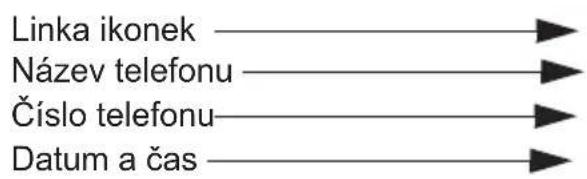
Diagram of a device interior with numbered labels pointing to components like a device, battery, and sensor.6.2 LCD displej
text_image
—Main Menu— ►CID Book Phonebook BS Settings Select Back(Digital Enhanced Cordless Telecommunications)
GAP (Generic Access Profile)
text_image
Technical diagram showing wiring connections between a device and electrical components with labeled parts 1, 2, and 3.natural_image
Diagram showing a mechanical assembly process: before and after transformation, with no visible text or symbols.Flash (Flash time): Flash-1
DECT(Digital Enhanced Cordless Telecommunications
visit our website www.topcom.net www.sologic.info