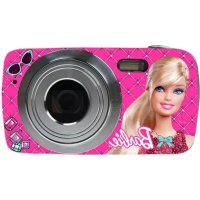
Trendy DJ029BB - Camera LEXIBOOK - Free user manual and instructions
Find the device manual for free Trendy DJ029BB LEXIBOOK in PDF.
Download the instructions for your Camera in PDF format for free! Find your manual Trendy DJ029BB - LEXIBOOK and take your electronic device back in hand. On this page are published all the documents necessary for the use of your device. Trendy DJ029BB by LEXIBOOK.
USER MANUAL Trendy DJ029BB LEXIBOOK
1 x DJ029 digital camera / 1 x USB cable / 1 x Hand strap / 1 x CD-ROM / 1 x Instruction manual
WARNING: All packaging materials, such as tape, plastic sheets, wire ties and tags are not part of
this product and should be discarded for your child’s safety.
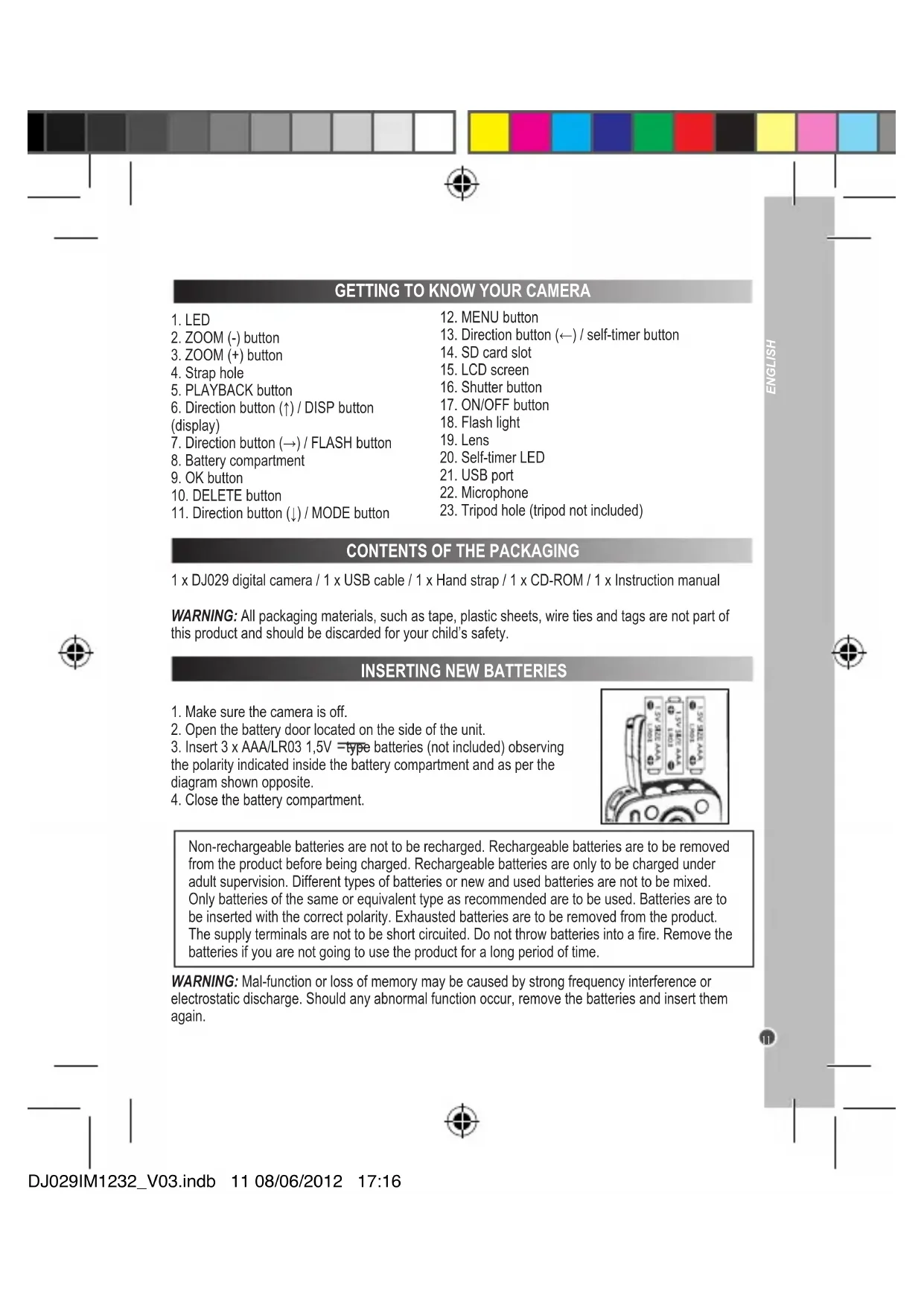
INSERTING NEW BATTERIES
1. Make sure the camera is off.
2. Open the battery door located on the side of the unit.
3. Insert 3 x AAA/LR03 1,5V type batteries (not included) observing
the polarity indicated inside the battery compartment and as per the
diagram shown opposite.
4. Close the battery compartment.
8. Battery compartment
23. Tripod hole (tripod not included)
Non-rechargeable batteries are not to be recharged. Rechargeable batteries are to be removed
from the product before being charged. Rechargeable batteries are only to be charged under
adult supervision. Different types of batteries or new and used batteries are not to be mixed.
Only batteries of the same or equivalent type as recommended are to be used. Batteries are to
be inserted with the correct polarity. Exhausted batteries are to be removed from the product.
The supply terminals are not to be short circuited. Do not throw batteries into a re. Remove the
batteries if you are not going to use the product for a long period of time.
WARNING: Mal-function or loss of memory may be caused by strong frequency interference or
electrostatic discharge. Should any abnormal function occur, remove the batteries and insert them
DJ029IM1232_V03.indb 11 08/06/2012 17:1612
ENGLISH NAVIGATING WITHIN THE MENU AVAILABLE MODES TURNING THE CAMERA ON AND OFF
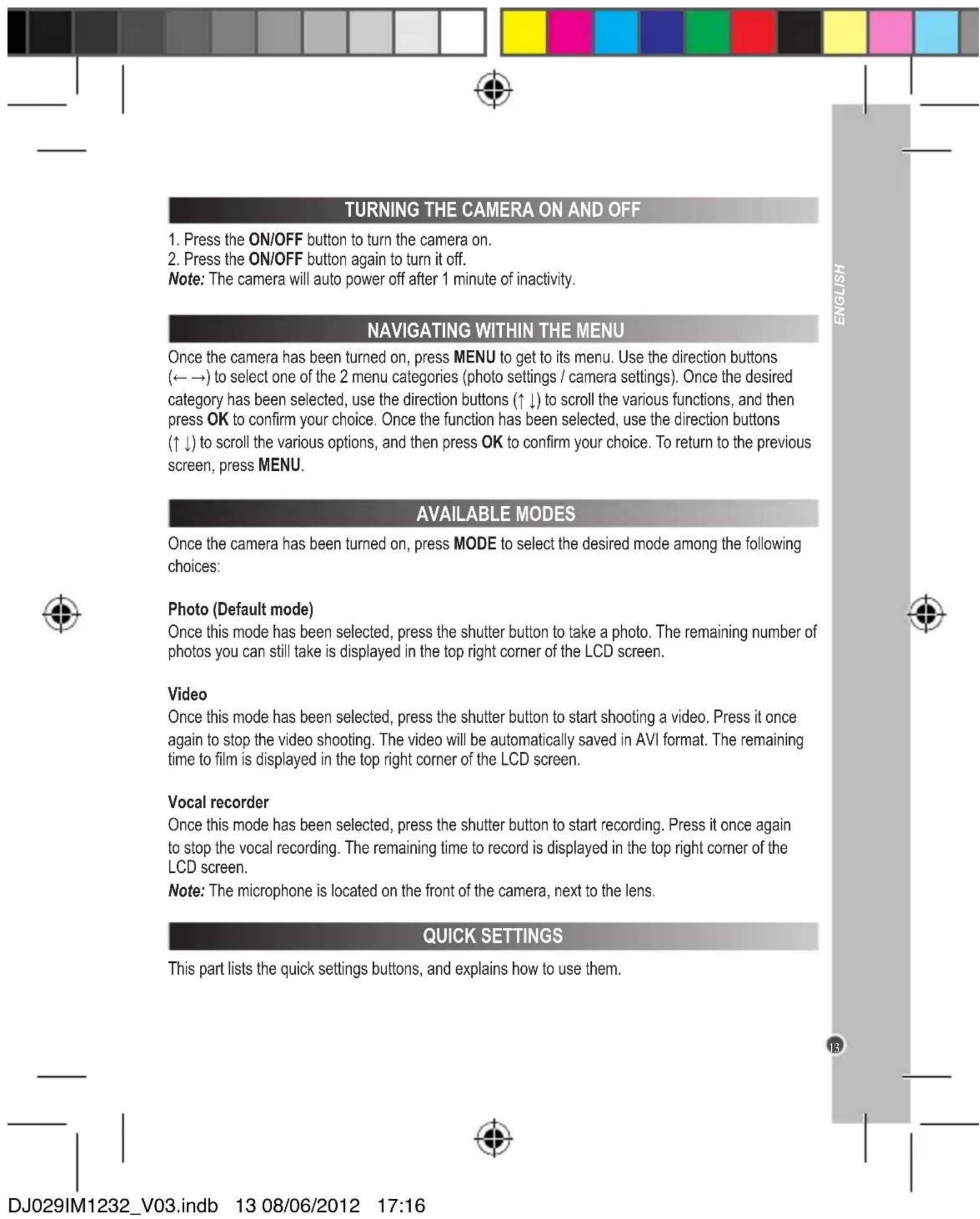
1. Press the ON/OFF button to turn the camera on.
2. Press the ON/OFF button again to turn it off.
Note: The camera will auto power off after 1 minute of inactivity.
Once the camera has been turned on, press MENU to get to its menu. Use the direction buttons
(← →) to select one of the 2 menu categories (photo settings / camera settings). Once the desired
category has been selected, use the direction buttons (↑ ↓) to scroll the various functions, and then
press OK to conrm your choice. Once the function has been selected, use the direction buttons
(↑ ↓) to scroll the various options, and then press OK to conrm your choice. To return to the previous
Once the camera has been turned on, press MODE to select the desired mode among the following
Photo (Default mode)
Once this mode has been selected, press the shutter button to take a photo. The remaining number of
photos you can still take is displayed in the top right corner of the LCD screen.
Once this mode has been selected, press the shutter button to start shooting a video. Press it once
again to stop the video shooting. The video will be automatically saved in AVI format. The remaining
time to lm is displayed in the top right corner of the LCD screen.
Once this mode has been selected, press the shutter button to start recording. Press it once again
to stop the vocal recording. The remaining time to record is displayed in the top right corner of the
Note: The microphone is located on the front of the camera, next to the lens.
1. Insert the CD Software (included) into your CD-ROM drive.
2. In the main menu, rst install the driver by clicking “Install Driver” and wait until the end of the
3. In the main menu, click “Install MAGIX Photo Manager 10” and wait during the extraction.
4. Select your language and click “OK”.
5. “The MAGIX Photo Manager 10 conguration” window displays. Follow the onscreen instructions
and press “Install” to begin the installation.
6. Once you have nished installing, the “MAGIX Photo Manager 10” shortcut will appear on the desk
7. To start using “MAGIX Photo Manager 10”, double click on the shortcut. The pictures taken with the
camera automatically appear on the home screen.
System requirements (minimum conguration): Microsoft® Windows® 2000 XP I Vista® I 7. PC
with Intel® Pentium® or AMD® Athlon® 700 MHz or higher, 256 MB RAM, 120 MB hard disk space
for program les, SVGA graphics card with min. 4 MB RAM, (min. resolution 1024 x 600, 16-bit high-
color), Microsoft® compatible mouse.
Note: To enjoy unlimited use of “MAGIX Photo Manager 10” and “MAGIX Video easy SE”, you need
INSTALLING THE VIDEO SOFTWARE (Magix Video easy SE)
INSTALLING THE PHOTO SOFTWARE (Magix Photo Manager 10)
1. Insert the CD Software (included) into your CD-ROM drive.
2. In the main menu, rst install the driver by clicking “Install Driver” and wait until the end of the
3. In the main menu, click “Install MAGIX Video easy SE” and wait during the extraction.
4. Select the language and then click “OK”.
5. The “MAGIX Video easy SE conguration” window displays. Follow the onscreen instructions and
click “Install” to begin the installation.
6. Once you have nished installing, the “MAGIX Video easy SE” shortcut will appear on the desk of
7. To start using “MAGIX Video easy SE”, double click on the shortcut.
System requirements:Intel® Pentium 4 or AMD® Athlon® 1 GHz and higher, 512 MB RAM, 400
MB free hard disk memory and a DVD drive for program installation, graphics card with a screen
resolution of at least 1024 x 768, sound card.
Supported devices: Video, TV, or graphics cards with video input.
QUICK SETTINGS This part lists the quick settings buttons, and explains how to use them.
DJ029IM1232_V03.indb 12 08/06/2012 17:1613
ENGLISH NAVIGATING WITHIN THE MENU AVAILABLE MODES TURNING THE CAMERA ON AND OFF
1. Press the ON/OFF button to turn the camera on.
2. Press the ON/OFF button again to turn it off.
Note: The camera will auto power off after 1 minute of inactivity.
Once the camera has been turned on, press MENU to get to its menu. Use the direction buttons
(← →) to select one of the 2 menu categories (photo settings / camera settings). Once the desired
category has been selected, use the direction buttons (↑ ↓) to scroll the various functions, and then
press OK to conrm your choice. Once the function has been selected, use the direction buttons
(↑ ↓) to scroll the various options, and then press OK to conrm your choice. To return to the previous
Once the camera has been turned on, press MODE to select the desired mode among the following
Photo (Default mode)
Once this mode has been selected, press the shutter button to take a photo. The remaining number of
photos you can still take is displayed in the top right corner of the LCD screen.
Once this mode has been selected, press the shutter button to start shooting a video. Press it once
again to stop the video shooting. The video will be automatically saved in AVI format. The remaining
time to lm is displayed in the top right corner of the LCD screen.
Once this mode has been selected, press the shutter button to start recording. Press it once again
to stop the vocal recording. The remaining time to record is displayed in the top right corner of the
Note: The microphone is located on the front of the camera, next to the lens.
1. Insert the CD Software (included) into your CD-ROM drive.
2. In the main menu, rst install the driver by clicking “Install Driver” and wait until the end of the
3. In the main menu, click “Install MAGIX Photo Manager 10” and wait during the extraction.
4. Select your language and click “OK”.
5. “The MAGIX Photo Manager 10 conguration” window displays. Follow the onscreen instructions
and press “Install” to begin the installation.
6. Once you have nished installing, the “MAGIX Photo Manager 10” shortcut will appear on the desk
7. To start using “MAGIX Photo Manager 10”, double click on the shortcut. The pictures taken with the
camera automatically appear on the home screen.
System requirements (minimum conguration): Microsoft® Windows® 2000 XP I Vista® I 7. PC
with Intel® Pentium® or AMD® Athlon® 700 MHz or higher, 256 MB RAM, 120 MB hard disk space
for program les, SVGA graphics card with min. 4 MB RAM, (min. resolution 1024 x 600, 16-bit high-
color), Microsoft® compatible mouse.
Note: To enjoy unlimited use of “MAGIX Photo Manager 10” and “MAGIX Video easy SE”, you need
INSTALLING THE VIDEO SOFTWARE (Magix Video easy SE)
INSTALLING THE PHOTO SOFTWARE (Magix Photo Manager 10)
1. Insert the CD Software (included) into your CD-ROM drive.
2. In the main menu, rst install the driver by clicking “Install Driver” and wait until the end of the
3. In the main menu, click “Install MAGIX Video easy SE” and wait during the extraction.
4. Select the language and then click “OK”.
5. The “MAGIX Video easy SE conguration” window displays. Follow the onscreen instructions and
click “Install” to begin the installation.
6. Once you have nished installing, the “MAGIX Video easy SE” shortcut will appear on the desk of
7. To start using “MAGIX Video easy SE”, double click on the shortcut.
System requirements:Intel® Pentium 4 or AMD® Athlon® 1 GHz and higher, 512 MB RAM, 400
MB free hard disk memory and a DVD drive for program installation, graphics card with a screen
resolution of at least 1024 x 768, sound card.
Supported devices: Video, TV, or graphics cards with video input.
QUICK SETTINGS This part lists the quick settings buttons, and explains how to use them.
DJ029IM1232_V03.indb 13 08/06/2012 17:1614
ENGLISH SELECTING THE RESOLUTION (PHOTO / VIDEO)
Once the desired mode (photo / video) has been selected, press MENU to access the mode menu.
Use the direction buttons (↑ ↓) to select the corresponding function, and then press OK to conrm
your choice. Then use the direction buttons (↑ ↓) to select one of the available options, and then press
OK to conrm your choice.
Note: In “photo” mode, the resolution varies between 307 000 and 8 million pixels. In “video” mode,
the resolution varies between 77 000 and 345 000 pixels.
In “photo” mode, press MENU to access the mode menu. Use the direction buttons (↑ ↓) to select the
corresponding function, and then press OK to conrm your choice. Then use the direction buttons
(↑ ↓) to select one of the 3 available options, and then press OK to conrm your choice.
SELECTING THE METERING (PHOTO / VIDEO)
SELECTING THE EFFECT (PHOTO)
Once the desired mode (photo / video) has been selected, press MENU to access the mode menu.
Use the direction buttons (↑ ↓) to select the corresponding function, and then press OK to conrm
your choice. Then use the direction buttons (↑ ↓) to select one of the 3 available options, and then
press OK to conrm your choice.
Once the desired mode (photo / video) has been selected, press MENU to access the mode menu.
Use the direction buttons (↑ ↓) to select the corresponding function, and then press OK to conrm
your choice. Then use the direction buttons (↑ ↓) to select one of the 5 available options, and then
press OK to conrm your choice.
In “photo” mode, press MENU to access the mode menu. Use the direction buttons (↑ ↓) to select the
corresponding function, and then press OK to conrm your choice. Then use the direction buttons
(↑ ↓) to select one of the 13 available options, and then press OK to conrm your choice.
In “photo” mode, press MENU to access the mode menu. Use the direction buttons (↑ ↓) to select the
corresponding function, and then press OK to conrm your choice. Then use the direction buttons
(↑ ↓) to select one of the 4 available options, and then press OK to conrm your choice.
In “photo” mode, press MENU to access the mode menu. Use the direction buttons (↑ ↓) to select the
corresponding function, and then press OK to conrm your choice. Then use the direction buttons
(↑ ↓) to select one of the 7 available options, and then press OK to conrm your choice.
Display (Photo, Video)
The DISP button enables to quickly modify the LCD screen displaying type. By default, the LCD
screen displays various data. Press DISP once to make the data disappear. Press DISP again to
deactivate the LCD screen (black screen). Press DISP again to return to the default display.
By default, the camera is set on “single shooting” mode (1 photo is taken when the shutter button
is pressed). The self-timer button enables to quickly activate the self-timer of the camera. Press the
button once to activate the 2 seconds self-timer (the photo will be taken 2 seconds after pressing
the shutter button). Press the button once again to activate the 10 seconds self-timer (the photo will
be taken 10 seconds after pressing the shutter button). Press the button once again to activate the
“continuous shooting” mode (3 photos will be taken continuously after pressing the shutter button).
Press the button once again to return to the default mode (single shooting).
The FLASH button enables to quickly set the ash type that will be used to take a photo. By default,
the ash is deactivated. Press FLASH once to activate the ash (the ash will be active for each
photo taken). Press FLASH once again to activate the “automatic ash” mode (the unit will, or won’t
activate the ash according to the conditions). Press FLASH once again to return to the default mode
The ZOOM (-) and ZOOM (+) buttons enable to zoom in and zoom out. Press ZOOM (+) as many
times as desired to zoom in. Press ZOOM (-) as many times as desired to zoom out.
DJ029IM1232_V03.indb 14 08/06/2012 17:1615
ENGLISH SELECTING THE RESOLUTION (PHOTO / VIDEO)
Once the desired mode (photo / video) has been selected, press MENU to access the mode menu.
Use the direction buttons (↑ ↓) to select the corresponding function, and then press OK to conrm
your choice. Then use the direction buttons (↑ ↓) to select one of the available options, and then press
OK to conrm your choice.
Note: In “photo” mode, the resolution varies between 307 000 and 8 million pixels. In “video” mode,
the resolution varies between 77 000 and 345 000 pixels.
In “photo” mode, press MENU to access the mode menu. Use the direction buttons (↑ ↓) to select the
corresponding function, and then press OK to conrm your choice. Then use the direction buttons
(↑ ↓) to select one of the 3 available options, and then press OK to conrm your choice.
SELECTING THE METERING (PHOTO / VIDEO)
SELECTING THE EFFECT (PHOTO)
Once the desired mode (photo / video) has been selected, press MENU to access the mode menu.
Use the direction buttons (↑ ↓) to select the corresponding function, and then press OK to conrm
your choice. Then use the direction buttons (↑ ↓) to select one of the 3 available options, and then
press OK to conrm your choice.
Once the desired mode (photo / video) has been selected, press MENU to access the mode menu.
Use the direction buttons (↑ ↓) to select the corresponding function, and then press OK to conrm
your choice. Then use the direction buttons (↑ ↓) to select one of the 5 available options, and then
press OK to conrm your choice.
In “photo” mode, press MENU to access the mode menu. Use the direction buttons (↑ ↓) to select the
corresponding function, and then press OK to conrm your choice. Then use the direction buttons
(↑ ↓) to select one of the 13 available options, and then press OK to conrm your choice.
In “photo” mode, press MENU to access the mode menu. Use the direction buttons (↑ ↓) to select the
corresponding function, and then press OK to conrm your choice. Then use the direction buttons
(↑ ↓) to select one of the 4 available options, and then press OK to conrm your choice.
In “photo” mode, press MENU to access the mode menu. Use the direction buttons (↑ ↓) to select the
corresponding function, and then press OK to conrm your choice. Then use the direction buttons
(↑ ↓) to select one of the 7 available options, and then press OK to conrm your choice.
Display (Photo, Video)
The DISP button enables to quickly modify the LCD screen displaying type. By default, the LCD
screen displays various data. Press DISP once to make the data disappear. Press DISP again to
deactivate the LCD screen (black screen). Press DISP again to return to the default display.
By default, the camera is set on “single shooting” mode (1 photo is taken when the shutter button
is pressed). The self-timer button enables to quickly activate the self-timer of the camera. Press the
button once to activate the 2 seconds self-timer (the photo will be taken 2 seconds after pressing
the shutter button). Press the button once again to activate the 10 seconds self-timer (the photo will
be taken 10 seconds after pressing the shutter button). Press the button once again to activate the
“continuous shooting” mode (3 photos will be taken continuously after pressing the shutter button).
Press the button once again to return to the default mode (single shooting).
The FLASH button enables to quickly set the ash type that will be used to take a photo. By default,
the ash is deactivated. Press FLASH once to activate the ash (the ash will be active for each
photo taken). Press FLASH once again to activate the “automatic ash” mode (the unit will, or won’t
activate the ash according to the conditions). Press FLASH once again to return to the default mode
The ZOOM (-) and ZOOM (+) buttons enable to zoom in and zoom out. Press ZOOM (+) as many
times as desired to zoom in. Press ZOOM (-) as many times as desired to zoom out.
DJ029IM1232_V03.indb 15 08/06/2012 17:1616
ENGLISH EXTRAPOLATING PHOTOS To increase the resolution of you photos, please follow the instructions below:
1.Open the le “Dual Mode Camera” on your desktop, and then double click “My Dsc”.
2.Download your photos by clicking on the icon, and then select the photo(s) that you wish to
3.Click on the icon, modify, if you want, the light (“brightness”) and the colours (“contrast”) of the
selected photo(s), and then tick the “High Quality Mode” box. Finally, click “OK” to end the operation.
DOWNLOADING YOUR PHOTOS / VIDEOS Using « Dual Mode Camera »
1. Connect the camera to a computer with the USB cable supplied.
2. On your desktop, open the folder “Dual Mode Camera”, and then double click “My Dsc”.
3. Download your photos and videos by clicking the icon. Then the photos and videos are
displayed on the screen.
4. Select the photo(s) and video(s) you want to save. Click the icon to select them all, or click
directly the photo(s)/video(s) of your choice (a red frame will appear around each photo/video) if you
don’t want to save them all.
5. Save the selected photo(s) and video(s) by clicking the icon. Then choose a name and a
location for the folder in which the selected photo(s) and video(s) will be saved.
Using « MAGIX Photo Manager »
Once you have saved your photo(s) and video(s) in your computer, you can use “MAGIX Photo
Manager” to display them, numerize them, print them, create albums…
1. Connect the camera to a computer with the USB cable supplied.
2. On your desktop, double click on the “MAGIX Photo Manager 10” shortcut.
3. Reach the photos and videos by selecting the location where they have been saved.
4. According to what you want to do, follow the corresponding software’s instructions.
Publishing your photos on social networking sites:
1. Using “Magix Photo Manager 10”, select the photo that you wish to publish on Facebook or Flickr.
2. The selected image appears in an orange frame.
3. In the menu bar, click the “Online” tab and select “Upload media to other web services” and then
either “Upload media to Flickr” or “Upload media to Facebook”.
4. The “Upload” window will be displayed on screen. Fill in the various elds (le name, description,
5. Click “Upload” to conrm.
6. Depending on your upload destination, you will either open the Facebook or the Flickr home page.
7. Next follow in the instructions displayed on the screen to nish uploading.
SELECTING THE PHOTO FRAME (PHOTO)
SELECTING THE FRAME RATE (VIDEO)
CAMERA SETTINGS DISPLAYING YOUR PHOTOS / VIDEOS DELETING YOUR PHOTOS / VIDEOS In “photo” mode, press MENU to access the mode menu. Use the direction buttons (↑ ↓) to select the
corresponding function, and then press OK to conrm your choice. Then use the direction buttons
(↑ ↓) to select one of the various available photo frames, and then press OK to conrm your choice.
In “video” mode, press MENU to access the mode menu. Use the direction buttons (↑ ↓) to select the
corresponding function, and then press OK to conrm your choice. Then use the direction buttons
(↑ ↓) to select one of the 2 available options, and then press OK to conrm your choice.
Within the camera menu, the following parameters can be set: sounds, power frequency, power save,
language, USB connexion, format, parameters reset.
Once the camera has been turned on, press MENU to access its menu. Press the direction button
(→) to access the camera settings. Use the direction buttons (↑ ↓) to select the desired parameter
to set, and then press OK to conrm your choice. Then use the direction buttons (↑ ↓) to select the
desired setting option, and then press OK to conrm your choice.
Once the camera has been turned on, press PLAYBACK to display the photos and videos and use
the direction buttons to (← →) to scroll them (videos are symbolized by the “video camera” icon that
appears in the bottom left corner of the LCD screen).
Once the camera has been turned on, press PLAYBACK to display the photos and videos . Use the
direction buttons (← →) to scroll them and select the one you want to delete. To delete the selected
photo/video, rst press DELETE and then OK to conrm your choice.
DJ029IM1232_V03.indb 16 08/06/2012 17:1617
ENGLISH EXTRAPOLATING PHOTOS To increase the resolution of you photos, please follow the instructions below:
1.Open the le “Dual Mode Camera” on your desktop, and then double click “My Dsc”.
2.Download your photos by clicking on the icon, and then select the photo(s) that you wish to
3.Click on the icon, modify, if you want, the light (“brightness”) and the colours (“contrast”) of the
selected photo(s), and then tick the “High Quality Mode” box. Finally, click “OK” to end the operation.
DOWNLOADING YOUR PHOTOS / VIDEOS Using « Dual Mode Camera »
1. Connect the camera to a computer with the USB cable supplied.
2. On your desktop, open the folder “Dual Mode Camera”, and then double click “My Dsc”.
3. Download your photos and videos by clicking the icon. Then the photos and videos are
displayed on the screen.
4. Select the photo(s) and video(s) you want to save. Click the icon to select them all, or click
directly the photo(s)/video(s) of your choice (a red frame will appear around each photo/video) if you
don’t want to save them all.
5. Save the selected photo(s) and video(s) by clicking the icon. Then choose a name and a
location for the folder in which the selected photo(s) and video(s) will be saved.
Using « MAGIX Photo Manager »
Once you have saved your photo(s) and video(s) in your computer, you can use “MAGIX Photo
Manager” to display them, numerize them, print them, create albums…
1. Connect the camera to a computer with the USB cable supplied.
2. On your desktop, double click on the “MAGIX Photo Manager 10” shortcut.
3. Reach the photos and videos by selecting the location where they have been saved.
4. According to what you want to do, follow the corresponding software’s instructions.
Publishing your photos on social networking sites:
1. Using “Magix Photo Manager 10”, select the photo that you wish to publish on Facebook or Flickr.
2. The selected image appears in an orange frame.
3. In the menu bar, click the “Online” tab and select “Upload media to other web services” and then
either “Upload media to Flickr” or “Upload media to Facebook”.
4. The “Upload” window will be displayed on screen. Fill in the various elds (le name, description,
5. Click “Upload” to conrm.
6. Depending on your upload destination, you will either open the Facebook or the Flickr home page.
7. Next follow in the instructions displayed on the screen to nish uploading.
SELECTING THE PHOTO FRAME (PHOTO)
SELECTING THE FRAME RATE (VIDEO)
CAMERA SETTINGS DISPLAYING YOUR PHOTOS / VIDEOS DELETING YOUR PHOTOS / VIDEOS In “photo” mode, press MENU to access the mode menu. Use the direction buttons (↑ ↓) to select the
corresponding function, and then press OK to conrm your choice. Then use the direction buttons
(↑ ↓) to select one of the various available photo frames, and then press OK to conrm your choice.
In “video” mode, press MENU to access the mode menu. Use the direction buttons (↑ ↓) to select the
corresponding function, and then press OK to conrm your choice. Then use the direction buttons
(↑ ↓) to select one of the 2 available options, and then press OK to conrm your choice.
Within the camera menu, the following parameters can be set: sounds, power frequency, power save,
language, USB connexion, format, parameters reset.
Once the camera has been turned on, press MENU to access its menu. Press the direction button
(→) to access the camera settings. Use the direction buttons (↑ ↓) to select the desired parameter
to set, and then press OK to conrm your choice. Then use the direction buttons (↑ ↓) to select the
desired setting option, and then press OK to conrm your choice.
Once the camera has been turned on, press PLAYBACK to display the photos and videos and use
the direction buttons to (← →) to scroll them (videos are symbolized by the “video camera” icon that
appears in the bottom left corner of the LCD screen).
Once the camera has been turned on, press PLAYBACK to display the photos and videos . Use the
direction buttons (← →) to scroll them and select the one you want to delete. To delete the selected
photo/video, rst press DELETE and then OK to conrm your choice.
DJ029IM1232_V03.indb 17 08/06/2012 17:1618
ENGLISH WEBCAM MODE Connected to your PC, your camera can be used as a webcam.
1. Connect the video camera to your computer using the USB cable provided.
2. Open the “Dual Mode Camera” folder on the desktop, then double-click the “PCCam” icon to
view the real-time images taken by the webcam.
Instant messaging (chat)
You can use your camera as a webcam with your instant messaging client (Yahoo Messenger, MSN Messenger, Skype…).
MAINTENANCE AND WARRANTY Only use a soft, slightly damp cloth to clean the unit. Do not use detergent. Do not expose the unit to
direct sunlight or any other heat source. Do not immerse the unit in water. Do not dismantle or drop
the unit. Do not try to twist or bend the unit.
Note: Please keep this instruction manual, it contains important information. This product is covered
by our 2-years warranty. For any claim under the warranty or after sale service, please contact your
distributor and present a valid proof of purchase. Our warranty covers any manufacturing material
and workmanship defect, with the exception of any deterioration arising from the non-observance of
the instruction manual or from any careless action implemented on this item (such as dismantling,
exposition to heat and humidity, etc.). It is recommended to keep the packaging for any further
In a bid to keep improving our services, we could implement modication on the colours and the
details of the product shown on the packaging.
Reference: DJ029series
Designed and developed in Europe – Made in China
United Kingdom & Ireland
For any further information, please call:
http://www.lexibook.com
Environmental Protection
Unwanted electrical appliances can be recycled and should not be discarded along with
regular household waste! Please actively support the conservation of resources and help
protect the environment by returning this appliance to a collection centre (if available).

This product is not a toy.
DJ029IM1232_V03.indb 18 08/06/2012 17:1619
(Upload media to Facebook).
ManualGo.com