EasyManual
SW343DPM - Surveillance Camera SWANN - Free user manual and instructions
Find the device manual for free SW343DPM SWANN in PDF.



User questions about SW343DPM SWANN
0 question about this device. Answer the ones you know or ask your own.
Ask a new question about this device
Download the instructions for your Surveillance Camera in PDF format for free! Find your manual SW343DPM - SWANN and take your electronic device back in hand. On this page are published all the documents necessary for the use of your device. SW343DPM by SWANN.
USER MANUAL SW343DPM SWANN
Operating Instructions
Before You Begin
FCC Verification:
NOTE: This equipment has been tested and found to comply with the limits for Class B digital device, pursuant to part 15 of the FCC Rules. These limits are designed to provide reasonable protection against harmful interference in a residential installation. This equipment generates, uses and can radiate radio frequency energy and, if not installed and used in accordance with the instructions, may cause harmful interference to radio or television reception, which can be determined by turning the equipment off and on, the user is encouraged to try to correct the interference by one or more of the following measures:
Reorient or relocate the receiving antenna
· Increase the separation between the equipment and the receiver
- Connect the equipment into an outlet on a circuit different from that to which the receiver is connected
- Consult the dealer or an experienced radio/TV technician for help
These devices comply with part 15 of the FCC Rules. Operation is subject to the following two conditions:
(1) These devices may not cause harmful interference, and
(2) These devices must accept any interference received, including interference that may cause undesired operation.
IMPORTANT NOTE: Prohibition against eavesdropping
Except for the operations of law enforcement offi cers conducted under lawful authority, no person shall use, either directly or indirectly, a device operated pursuant to the provisions of this Part for the purpose of overhearing or recording the private conversations of others unless such use is authorized by all of the parties engaging in the conversation.
WARNING: Modifications not approved by the party responsible for compliance could void user's authority to operate the equipment.
IMPORTANT SAFETY INSTRUCTIONS:
· Make sure product is fixed correctly and stable if fastened in place
- Do not operate if wires and terminals are exposed
- Do not cover vents on the side or back of the DVR and allow adequate space for ventilation
Contents
Before You Begin 2
Package Contents 4
DVR Layout 5-6
Front Panel & Removable Remote 6
Rear Panel 6
Connections & Installation
Connecting Cameras and Power Adapter 7
Connecting the DVR to a TV Monitor 8
Turning the DVR On/Off and Auto Recovery 8
Menu Operation 9
9
Setting DVR Time 9
Image Display 10
Single Camera View 10
Multi Camera View 10
Camera Menu 11
Record Menu 11-12
Motion Detection Menu 12-13
Screen Menu 13
Audio Menu 14
System Menu 14-15
Time Search 15
Language Menu 16
Exit Menu 16
Starting the DVR With a New Hard Drive 16
Changing the Hard Drive 17
Backing Up Footage to PC 18
Viewing Backup Footage on a PC 19
Using the VVFPlayer software 19
VVFPlayer Interface 19
Extract footage from a larger video clip 20
Exporting an AVI fi le 20
Troubleshooting Guide 21
Technical Specifications 22
Warranty Information 23
Technical Support Details Back cover
Package Contents
DVR4-950TM Unit
Front Panel Remote Control X 2
Operating Instructions
Easy Setup Guide
Power Adapter with Cable
Software CD
RCA Video Cable
BNC to RCA adapters X 4
Security Stickers (4 Pack)
If you are missing any of the components above, contact Swann Communications for assistance.
- Front Panel & Removable Remote
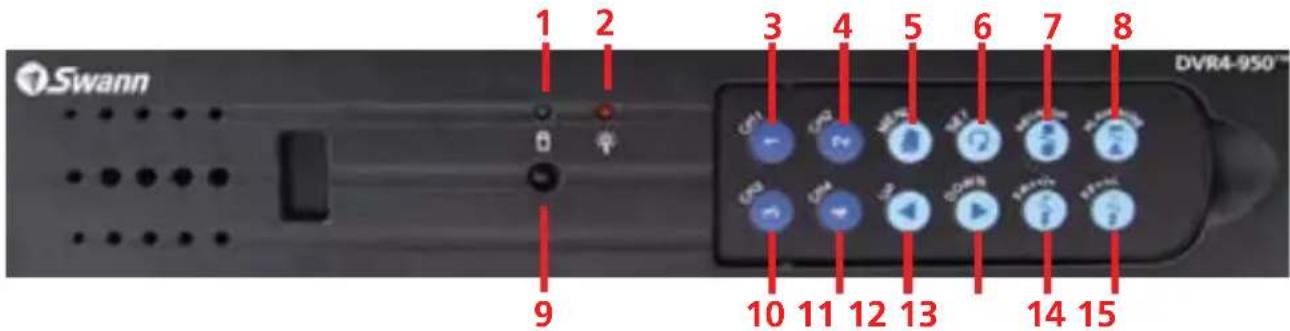
1. Hard Drive Indicator
Lights when hard drive is active (fl ashes when recording, searching etc.)
2. Power Indicator
Lights on when DVR powered
3. Channel 1 Button
Press to view camera 1 in full screen / Press again to return to quad view
4. Channel 2 Button
Press to view camera 2 in full screen / Press again to return to quad view
5. Menu Button
Press to select Menu / previous menu / exit menu
Note: some menu functions require a password. Default password is "111111"
6. Set Button
Press to confirm selection
7. Record/Stop Button
Push to begin or stop recording Note: will not work if time or motion record is set.
8. Play/Pause Button
Push to open EVENT LIST, begin last recording or pause playback
9. Remote Control Sensor
10. Channel 3 Button
Press to view camera 3 in full screen / Press again to return to quad view
11. Channel 4 Button
Press to view camera 4 in full screen / Press again to return to quad view
12. Up Arrow
Move cursor up in menus
13. Down Arrow
Move cursor down in menus
14. Rewind Button
Push to rewind playback / Move cursor left in menus
15. Fast Forward Button
Push to fast forward playback / Move cursor right in menus / Activate AUTO SWITCH function
Note: 3-15 removable front panel remote
Using the Remote Control for the First Time
Remove plastic tab on this end of remote.
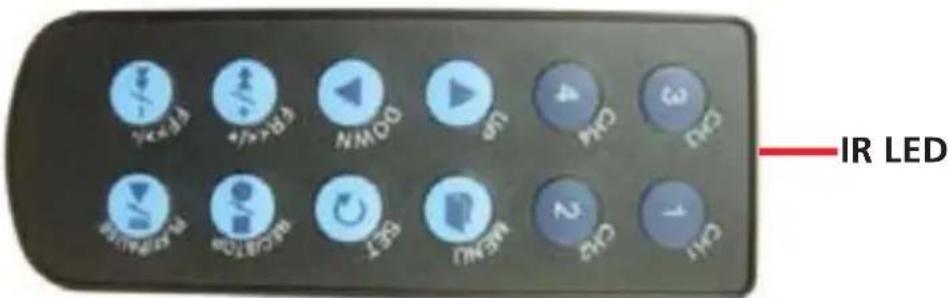
The remote control contains a battery that must be activated before use. Find and remove the clear plastic tab at the bottom of the remote. The remote will now be ready for use.
Removing the Remote Control
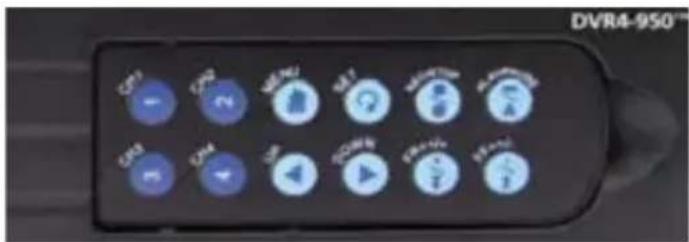
Use the indent to remove the control from the DVR unit
Note: To secure the DVR and prevent unauthorised use remove the remote and store in a secure place.
Rear Panel
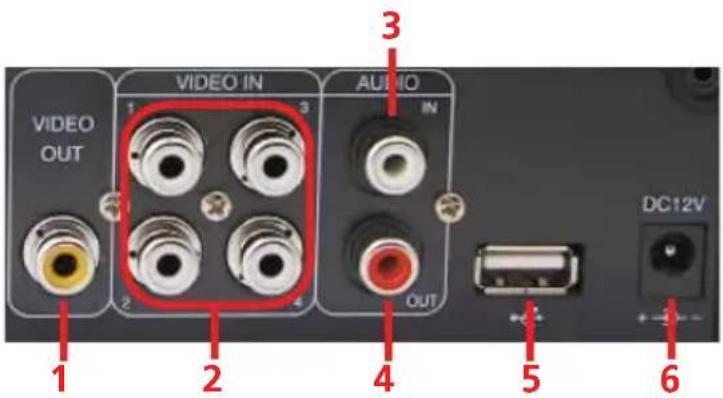
1. Video Output
Output to TV
2. Video Input
Inputs for cameras x 4 RCA
3. Audio Input
Input for microphone 1 x RCA
4. Audio Output
Output to speaker 1 x RCA
5. USB Connection
Download backup footage to Flash Drive (not included)
6. DC 12V Power Input
Power Adapter connection for DC 12V adapter only
Connecting Cameras and Power Adapter
Cameras and accessories optional
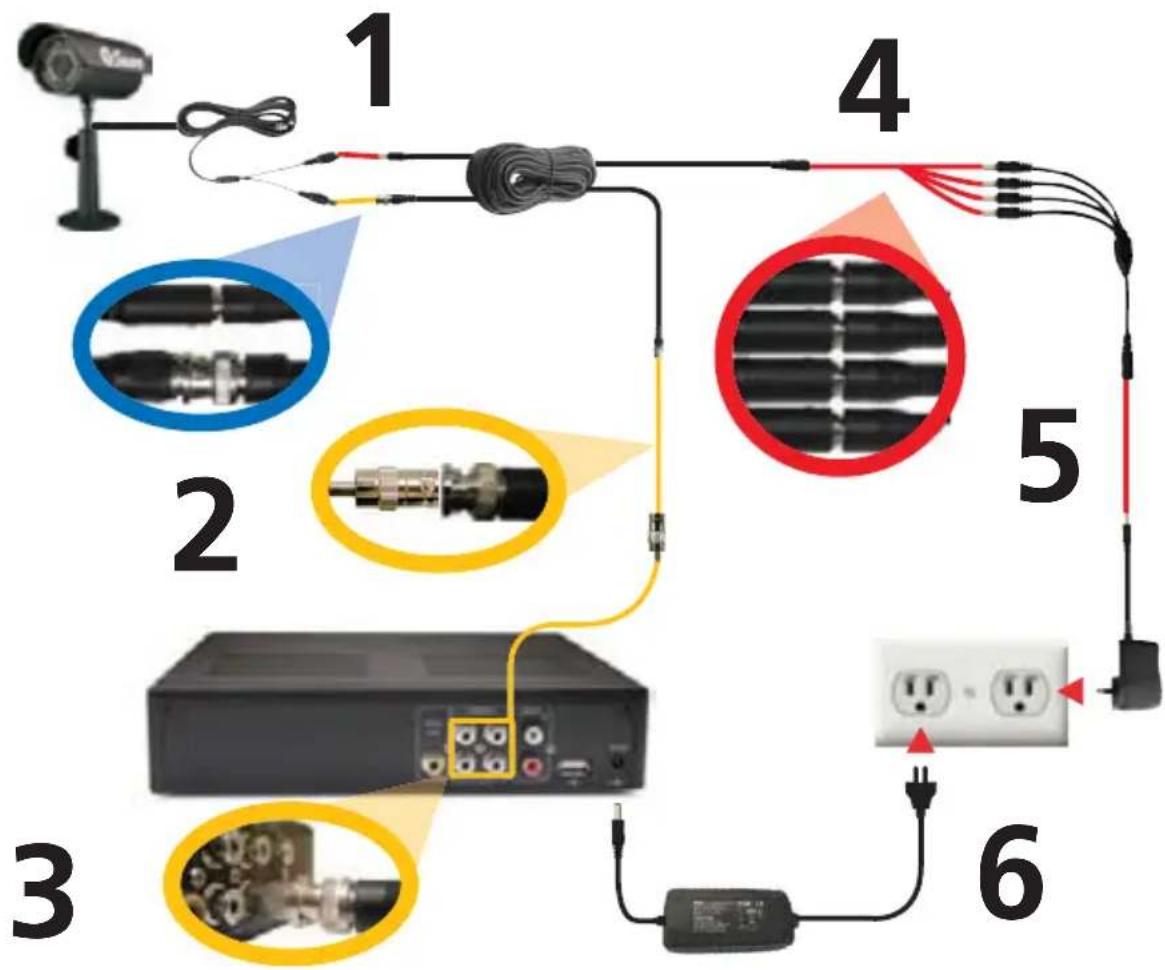
- Connect the Power and BNC ends of the Security Camera to an Extension Cable.
- Connect the BNC end of the Extension Cable to the RCA adapter.
- Connect the end of the RCA adapter to camera input on the back of the DVR.
- Connect the power end of the Extension Cable to the Power Splitters.
- Connect the Power Splitter to the Camera Power Adapter.
- Plug in the Camera Power Adapter and the DVR Power Adapter to mains power outlets.
Connecting the DVR to a TV Monitor
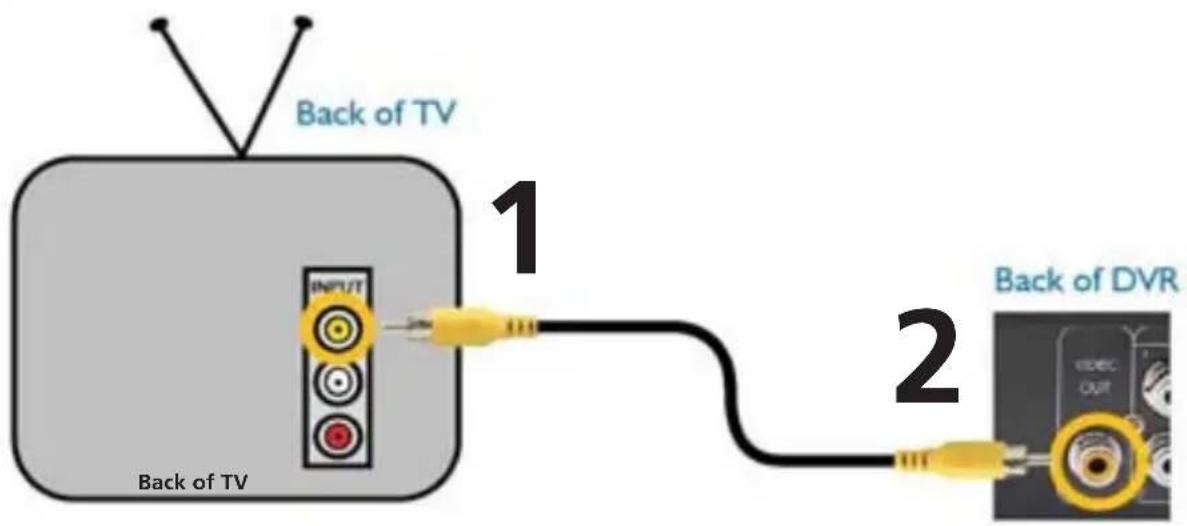
- Connect an RCA end of the Video Cable to the Yellow Video INPUT on the back of the TV Monitor.
- Connect the other RCA end of the Video Cable to the Video OUTPUT connection on the back of the DVR.
- Tune your TV to the correct input channel to view the DVR. Using your TV's Remote Control press the Input button until the DVR appears on screen. Most TVs will label this button as Input, Video, Source, AV, TV/AV, Line, Channel 0, etc. If you are unable to view your DVR on your TV contact your TV's manufacturer for assistance.
Turning the DVR On/Off and Auto Recovery
- Powering the DVR On/Off
To turn on your DVR connect the Power Adapter to the DC 12V input on the back of the unit. To turn the DVR off unplug the DVR from the wall outlet or power point.
If the DVR will not be in use for extended periods of time Swann recommends unplugging the unit.
Auto-Recovery Feature
The DVR4-950™ is equipped with an Auto-Recovery feature. Should a power outage occur while you are recording the DVR will automatically resume recording once power is restored.
Menu Operation
- Accessing and Navigating the Menu System
The main Setup Menu can be accessed by pressing the MENU Button

To navigate the menus press the directional arrow keys UP DOWN

To change selections use the REWIND & FAST FOWARD buttons
To select the highlighted option press the SET button
To return to the previous menu press the MENU button
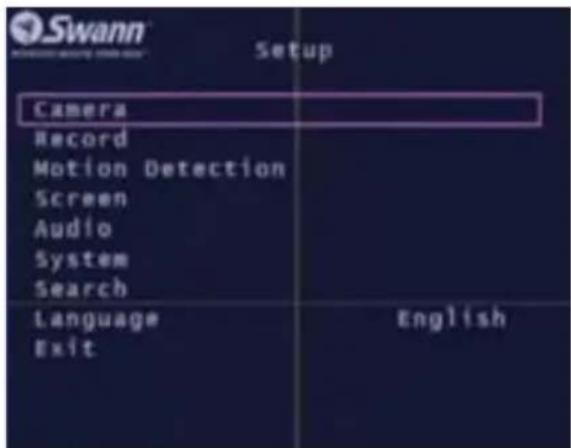
Main Setup Menu
Setting DVR Time
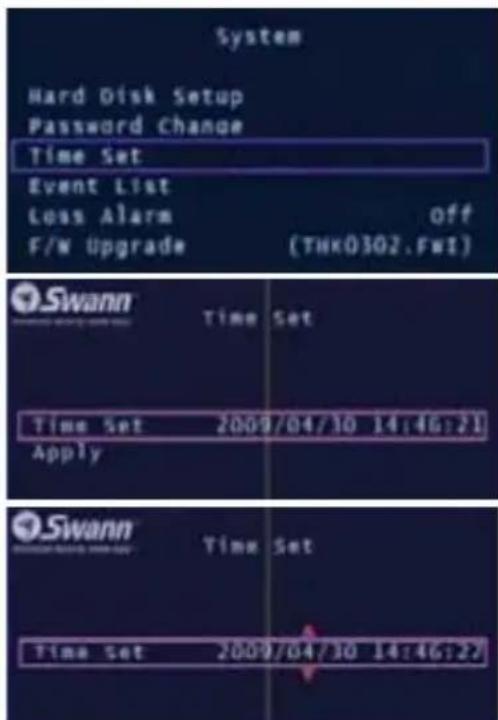
To change the DVR time, go into the SYSTEM menu and select TIME SET.
With TIME SET highlighted press the SET button to display the selection arrows.
Use the FAST FOWARD & REWIND buttons to select between the date (year, month, day) and time (hour, minute, seconds)
Using the UP & DOWN buttons change the selected option
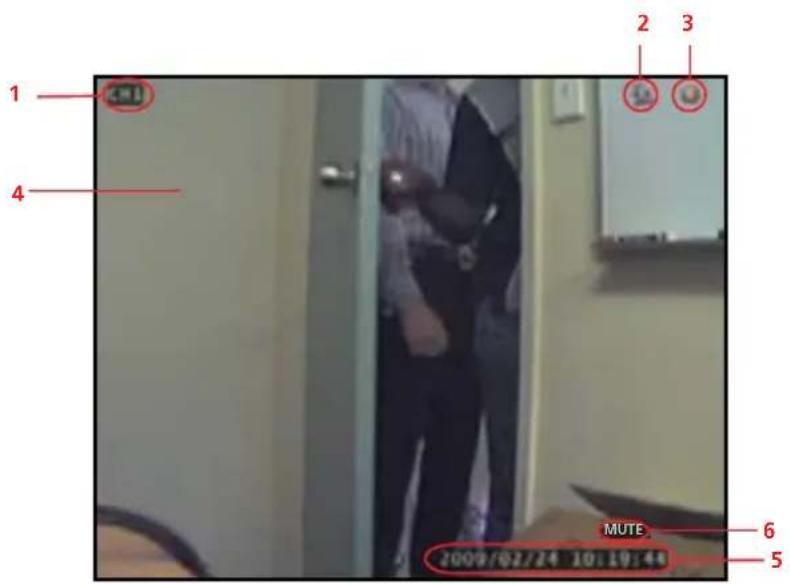
Single Camera View
- Current Camera Channel
- Motion Detection Icon
- Recording Icon
- Main Display
- Current Date & Time
- Mute Audio
- No Camera Signal Icon
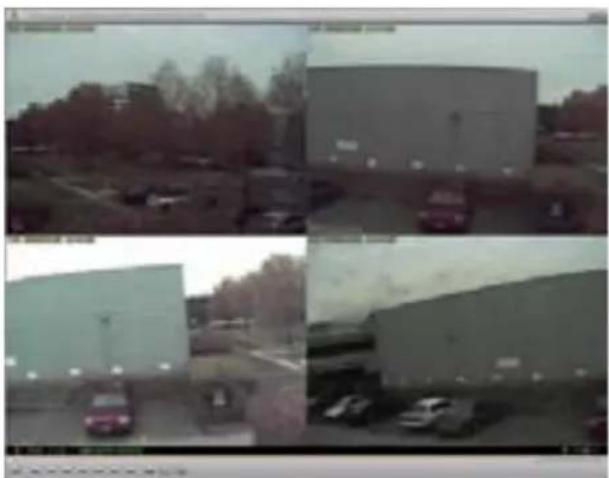
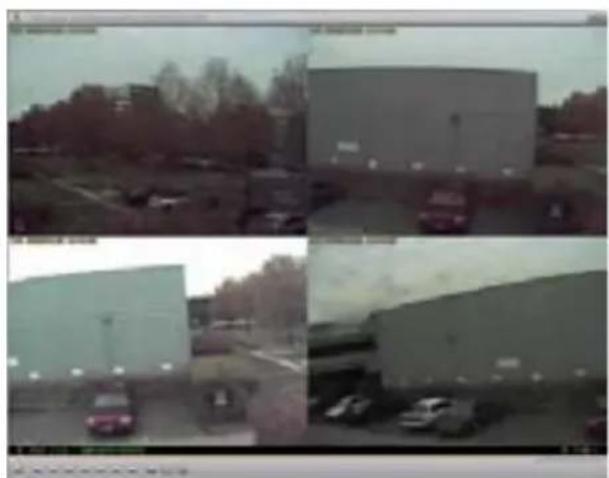
Multi Camera View
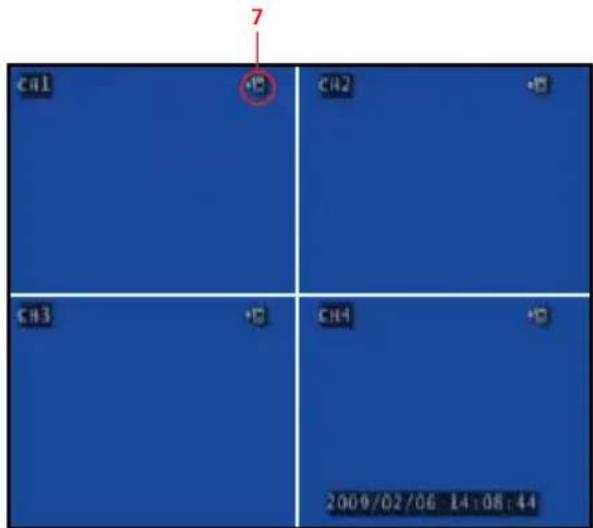
Multi Camera View with 4 Cameras Multi Camera View with No Cameras
Camera Menu
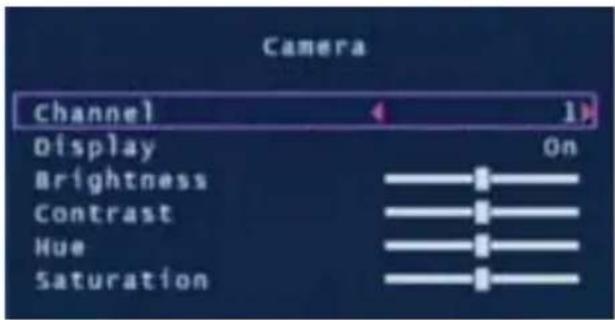
The Camera menu allows you to change visual attributes on each of the camera channels.
Channel: Display the attributes of currently selected camera 1-4.
Display: Turn the selected camera On or Off in the main display.
Brightness, Contrast, Hue, Saturation: Using the UP & DOWN buttons highlight the display option you want to change. Use the FAST FOWARD button to increase the settings and the REWIND button to decrease them.
Record Menu
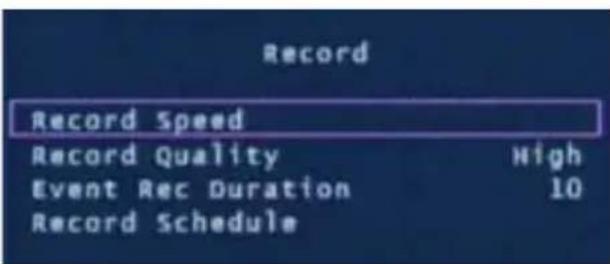
The Record Menu adjusts recording quality, timers and schedules.
Record Speed: Set the recording frame rate per camera. Note: higher frame rates provide smoother recordings but use more hard drive space.
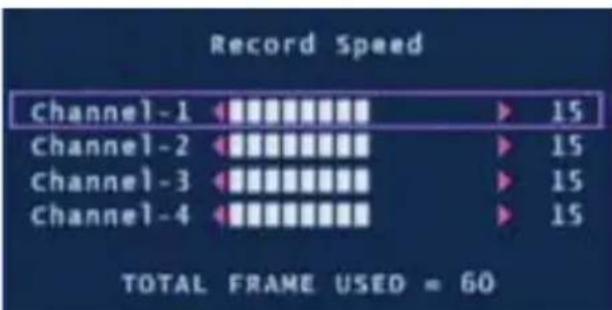
You may individually set the Record Speed of each camera. The total number of frames used can not exceed 60 for NTSC systems or 50 for PAL systems. Setting lower frame rates will consume less hard drive space.
Record Menu (cont)
Record Quality: Set the image quality of the recordings from Normal, High or Highest. Note: higher image quality settings use more hard drive space.
Event Rec Duration: When Motion Detection is active, Event Rec Duration is the length of time in seconds the DVR will record after motion stops, from 5, 10, 15, 20, 25 or 30 seconds. Default is set to 10 seconds.
Record Schedule: Set different recording modes depending on the time of day.
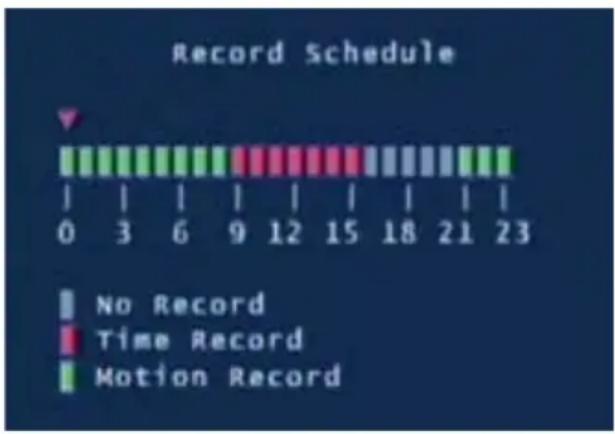
The Record Schedule allows you to set the recording mode for each hour of the day based on a 24 hour clock. Use the left / right keys to move and up / down keys to change the current selection.
No Record: will not record
Time Record: will record for the entire hour
Motion Record: will only record when motion is detected
Important: To enable Motion Recording you must set the hour to Motion Record (green) AND set the Sensitivity and Motion Area in the Motion Detection menu.
Motion Detection Menu
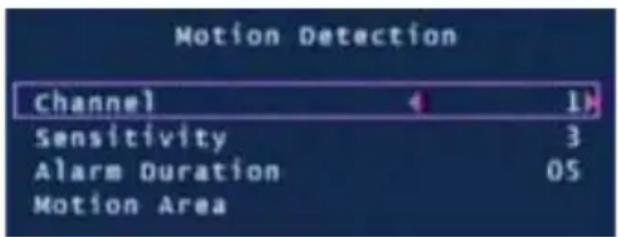
The Motion Detection menu allows you to set motion options for each camera.
Note: The DVR detects motion based on the level of change in the picture.
Channel: Select which camera attributes to change from camera 1-4.
Sensitivity: Set the amount of movement necessary before motion detection triggers recording. Set from 1 (most sensitive) to 4 (least sensitive), default Off. Note: this feature must be set from 1-4 to enable motion recording.
Alarm Duration: Set the length of time the alarm will sound when motion is detected. Set to Off, 5, 10, 15, 20, 25, 30 seconds or Continuous. Note: If the Alarm Duration is set to Continuous the alarm will continue to sound until this setting is changed.
Motion Detection Menu (cont)
Motion Area: Select the area of the Camera to detect motion. Motion occurring outside this designated area will not trigger a recording.
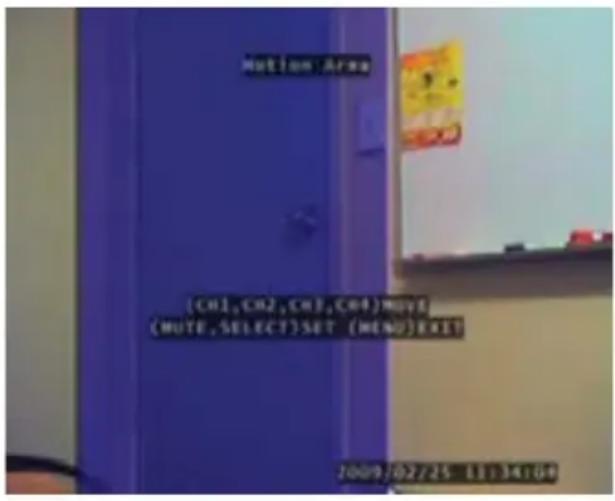
Use the UP, DOWN, REWIND & FAST FOWARD buttons to move the cursor. Press the SET button to begin to draw the motion detection area. Using the arrow buttons draw your desired motion area and press the SET button again once complete.
In the example to the left, the blue motion box is drawn over the door. Only motion occurring in this area will trigger recording i.e. the door opening.
This feature is helpful in high traffic areas where only a small portion of the screen needs to be monitored for example, looking down a driveway with a busy road next to it.
Important: To enable Motion Recording you must set the Sensitivity, Motion Area for each camera AND set Motion Record in the Record Schedule menu.
Screen Menu
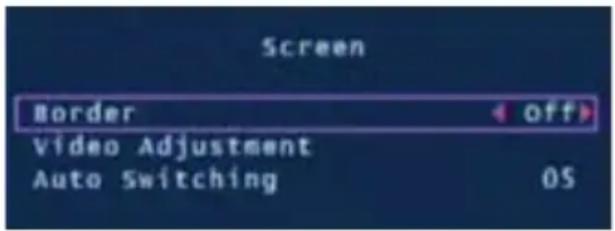
The Screen menu adjusts the display of cameras in the main camera view.
Border: Applies a border between the cameras in multi camera view.
Video Adjustment: Adjust the display to fit on your TV monitor.
Auto Switching: When active, in live view mode, the DVR will automatically switch between camera channels in full screen mode. Set the delay from 1-10 seconds between changes or Off. To activate Auto Switching, press the FAST FORWARD button when viewing your cameras. Press the button again to stop Auto Switching.
Audio Menu
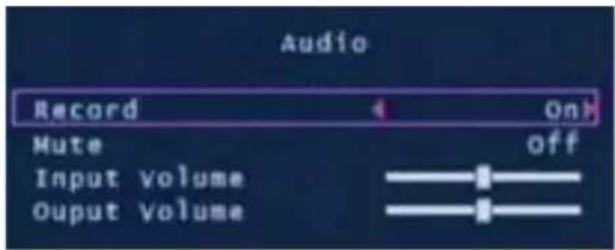
The Audio menu sets the audio recording and volume options.
Note: You must have a camera with audio or a powered microphone to record or monitor audio.
Record: Set to ON to record audio from the Audio Input on the back of the DVR.
Mute: Turns Audio output on or off when viewing or recording cameras. Alternatively, press the Mute button to turn Audio on or off while viewing your cameras.
Input Volume: Move the slider to change the volume of the audio recorded.
Output Volume: Move the slider to change the volume of audio playback.
System Menu
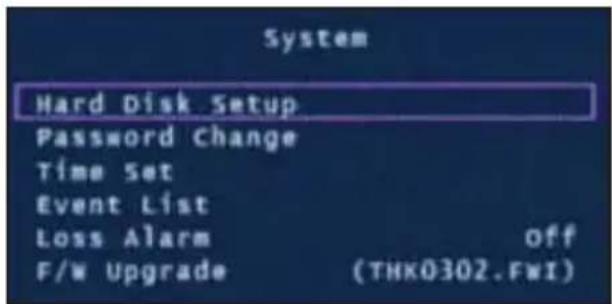
The System menu provides general setup options such as hard disk information, time, date and firmware settings.
Hard Disk Setup: Display information about the installed hard disk including total size and memory usage.
Overwrite Enable: If activated, when the hard disk is full the DVR will overwrite the oldest footage automatically. Default: Yes.
Format HDD: This option will permanently delete all data on the hard disk. The password must be correctly entered to format the hard disk.
Password Change: This option will change the current password. You will be prompted to enter the current password, the new password and then confirm the new password before the change is complete. Note: The default password is "11111". If you have lost or forgotten your password contact Swann Communications Technical Support for assistance.
System Menu (cont)
Event List: Displays a list of the last 127 recorded events from the most recent recording to the oldest. Use the Time Search feature for older events not in list.
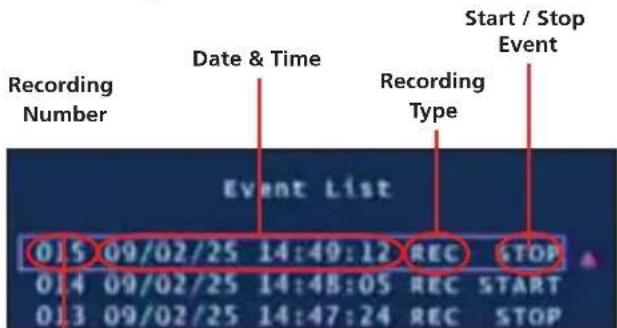
Use the arrow buttons to select and playback the highlighted Event. Press Stop to exit playback mode.
Hint: You can also access the Event List by pressing the Play button while viewing your cameras.
Loss Alarm: When enabled an audible alarm will sound indicating the DVR has lost the camera signal or a camera has been unplugged.
F/W Upgrade: Displays the current firmware version and allows future upgrades via a USB Flash Drive. Do not remove the Flash Drive while the firmware is updating as it may damage the DVR. Only use updates authorized by Swann. When complete, remove the Flash Drive and restart the DVR.
Time Search
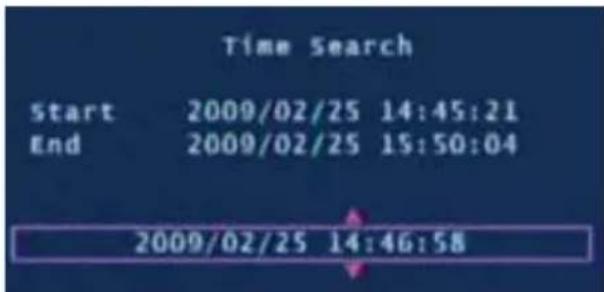
Time Search allows you to quickly jump to a specific time and date to view a recording.
Start time: This is the date and time of the oldest recording on the DVR.
Stop time: This is the date and time of the final recording on the DVR.
Enter a time between the Start and End time and press the Play button to view a recording.
Press the Fast Forward and Rewind buttons to quickly scan through recordings. Press Fast Forward or Rewind multiple times to speed up playback.
Press the Stop button to exit playback mode.
Language
With the Language option selected push the SET button to switch between English and Chinese.
Exit Menu
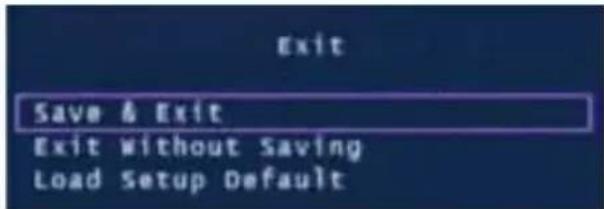
Save, Exit or Load Setup Defaults from the Exit menu.
Press SET to select the highlighted option.
Save & Exit: Use this option to save all settings that have been changed in the DVR menus. All changes made will be lost if you do not choose this option.
Exit Without Saving: Select to disregard any changes that have been made and return to camera view.
Load Setup Default: Reset all settings on the DVR to factory defaults.
Starting the DVR With a New Hard Drive
When starting the DVR4-950TM for the first time or starting the DVR after changing to a new hard drive, the DVR will config gure the hard drive for use. Follow the on screen prompts to config gure the hard drive.
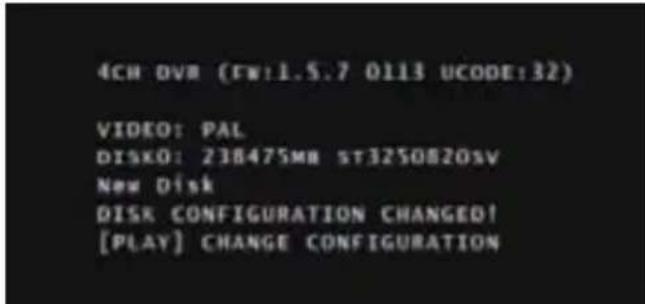
- After the DVR recognizes the new hard drive press PLAY to configure for use.
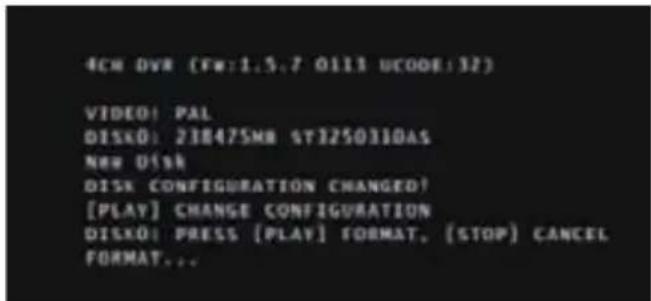
- When the hard drive is confi gured you will be asked to format or cancel. Press PLAY to confirm the format.
IMPORTANT NOTE: If format is chosen all existing data on the hard drive will be deleted and unrecoverable.
Installing or Changing a Hard Drive
IMPORTANT NOTE: The following instructions are for installing or changing the hard drive. If your DVR4-950™ already has a hard drive pre-installed disregard these steps.
Installing / Changing a Hard Drive in the DVR4-950TM
- Ensure the DVR4-950™ is unplugged and removed from mains power.
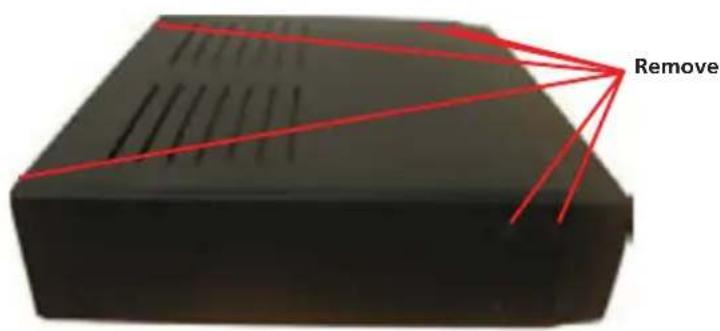
- Locate and remove the 6 screws 2 on each side at the front and 2 at the top on the back. (The bottom screws on the front do not need to be removed.
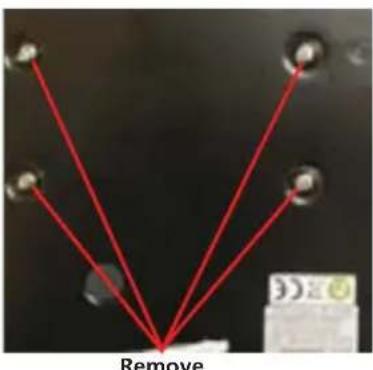
- Locate the screws below the hard drive. Secure the hard drive before removing the 4 screws to avoid damaging the hard drive
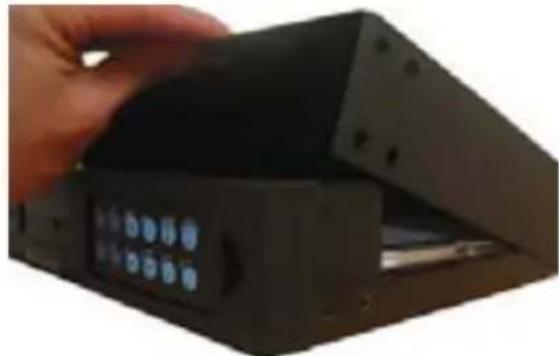
3.Pull up the top case of the DVR.
-
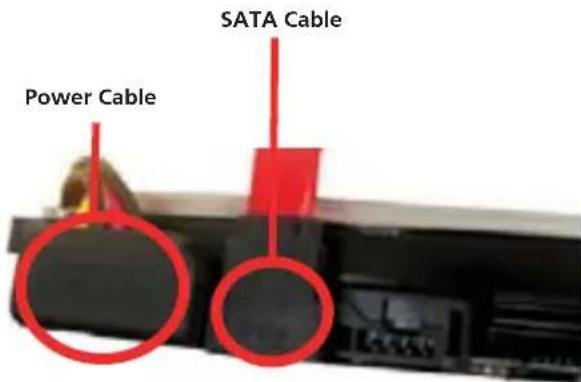
Push the metal clip on the SATA cable (single RED or ORANGE cable) to unplug the cable from the hard drive. Unplug the power cable (2 BLACK 1 YELLOW and 1 RED cable) from the back of the Hard Drive.
-
Replace the Hard Drive and plug in the SATA and the power cable as shown in step 5.
- Screw in the hard drive to the bottom of the case as in step 4.
- Replace the top of the case.
- Screw in the remaining screws to the sides and back of the DVR as in step 2
Backing Up Footage to PC
The DVR4-950™ has a backup feature via the USB port on the back of the DVR. The DVR accepts most flash drives or thumbdrives. The flash drive / thumbdrive must be formatted to the FAT32 file system. Please see your flash drive's / thumbdrive's instructions regarding formatting. Follow the steps below to backup footage:
- Insert a USB fI ash drive / thumbdrive (not included) to the USB port.
- Press Play to enter playback mode or use the Time Search feature to find a recording.
- Pause playback at the start of the footage you would like to backup.
-
Press the Menu / File button to display the USB Backup Mode.
-
Press the CH1 button to designate the start of a backup recording.
- Play and find the end of the footage you want to backup and press Pause.
- Press the CH2 button to indicate the end of a backup recording.
- When you have chosen the START and END time of the recording press the CH4 button to continue.
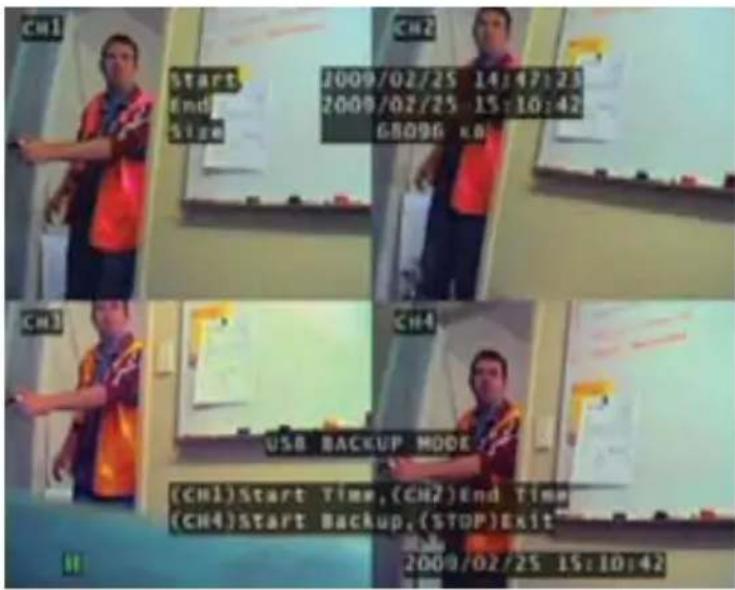
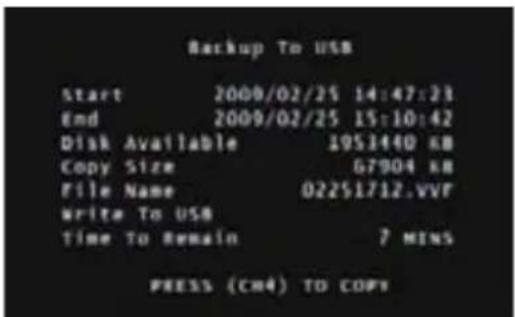
- The Backup to USB screen will appear with details of the USB device inserted, size requirements and file name. Press CH4 to begin copying.
- When the backup is complete press the Stop button and remove the USB device.
NOTE: USB back up can take up to the same amount of time as playing back the video on screen. Eg. 1 hour play back may take up to 1 hour to back up.
WARNING: Do not connect the DVR directly to a computer. Do not remove the USB Flash Drive while the DVR is copying footage. Damage may occur to attached devices if used improperly.
Viewing Backup Footage on a PC
Using the VVFPlayer software
View backed up footage from the DVR4-950™ with the included VVFPlayer software located on the CD.
- Put the CD in the CD drive. If it does not open automatically, click START open MY COMPUTER and Double click the CD drive.
- Copy the VVFPlayer_V2_6_4B software from the CD to your computer.
- Double click to open the VVFPlayer software.
- Click the File Folder (4) to bring up the open screen. Navigate to the video you want to view and press Open. The backup file will have a .VVF extension.
- Use the controls to view the video footage.
VVFPlayer Interface
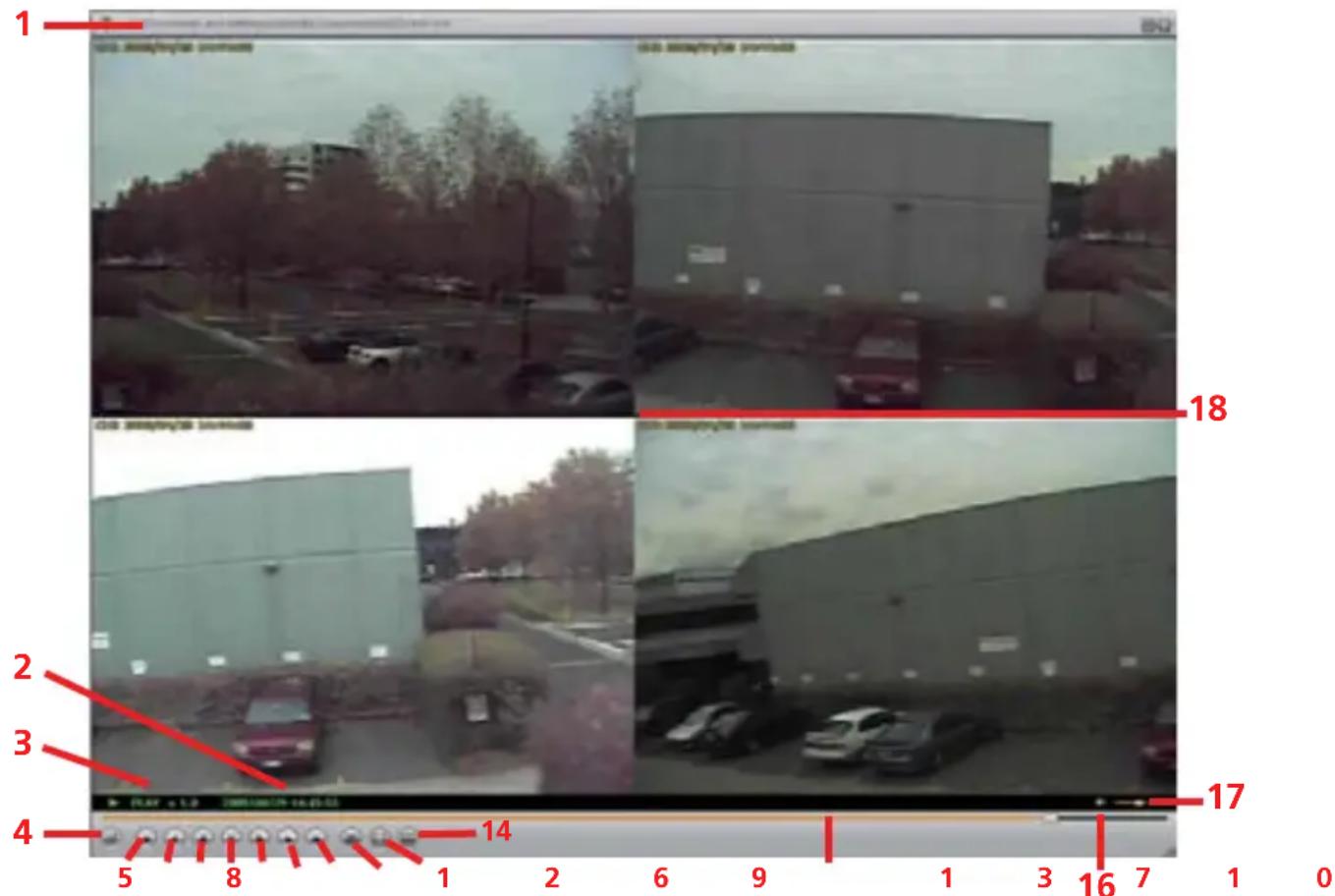
- File name
- Date & time of recording
- Current play state
- Open File
- Fast Reverse (16x, 32x, 64x)
- Reverse (1x)
- Previous frame
- Pause
-
Next frame
-
Play
- Fast Forward (16x, 32x, 64x)
- Photo snapshot
- Single Camera View
- Split screen view
- Timeline slider
- Sound / Mute
- Volume
- Camera view
- Extract footage from a larger video clip
When dealing with larger backup fi les it may be necessary to extract smaller clips. The following describes how to extract footage and export to a new .VVF fi le.
- Open and play the clip to extract from.
- Pause the clip where you want to start the extraction.
- Right-click the camera view and select Capture > Mark In
- Find and Pause the clip at the end of the extraction.
- Right-click the camera view and select Capture > Mark Out
- Right-click the camera view and select Capture > Export and save the file name and location. Note this export is in .VVF format.
- Exporting an AVI fi le
To view video footage on another computer create an AVI file using the built in export ability.
- Right-click the main Camera view and click Export > AVI
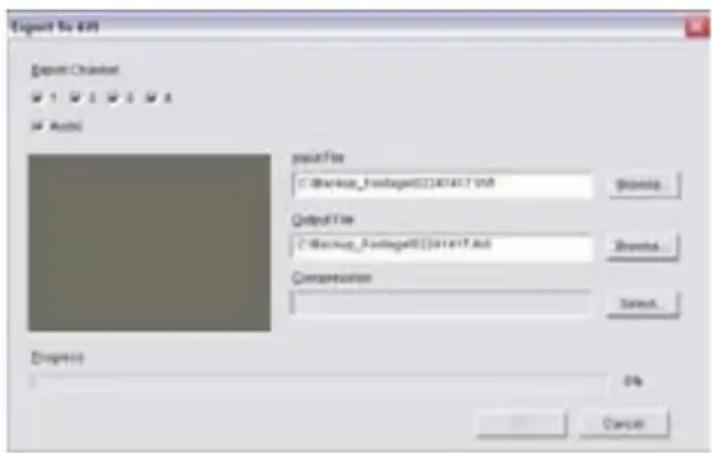
- Click "Browse..." next to Input File and select the video you want to convert.
- Click "Browse..." next to Output File to select a location to export.
- Choose your preferred compression method by clicking Select... If you are unsure which method to use, select the default uncompressed mode.
- Click OK to export the file.
- Playback the file in your preferred media player.
Troubleshooting Guid
Problem: The Power light keeps blinking red.
Solution: Ensure you are using the correct Power Adapter provided for the DVR. If you have purchased the DVR as part of a kit, make sure the cameras are operating on a separate Power Adapter. The larger power adapter with higher amps is designed specifically for the DVR.
Problem: The hard drive is not working.
Solution: Ensure the DVR is using the correct Power Adapter supplied. Open the DVR and ensure the SATA cable is connected to the DVR and Hard Drive.
Problem: The hard drive usage is at 100% and will not record.
Solution: Format the hard drive or set the hard drive to overwrite mode.
Problem: I can only see a blue screen where my camera should be.
Solution: If only 1 camera view is blue, the DVR is not receiving that camera's signal. Check that the camera connections on the back of the DVR are secure. Ensure the camera is plugged in and has power.
Problem: The DVR will not turn on.
Solution: Make sure you are using the correct Power Adapter for the DVR. Try a second power outlet. Check the connections on the back of the DVR.
Problem: My DVR does not save footage more than a few days old.
Solution: Change the quality settings to Normal, lower the camera frame rates or enable motion recording to conserve hard drive space.
Problem: I want to format my Hard Drive but I don't remember the password.
Solution: The default password is "11111". Swann recommends changing the default password to prevent tampering or unauthorized use.
Problem: I am using wireless cameras and the DVR keeps beeping and motion records all the time.
Solution: Analog wireless cameras suffer from interference. The DVR interprets the change of image as motion and records. Swann recommends the use of wired cameras or digital wireless cameras such as the ADW-300 for DVR recording.
Problem: I am unable to playback recorded footage.
Solution: Make sure when selecting footage to playback that you have highlighted the START time of that footage and not the STOP time
Technical Specifications
Video/Audio
Video Format: NTSC / PAL depending on region
Operating System: Embedded RTOS
Video Input: RCA x 4
Audio Input: RCA x 1, Line-In
Video Output: BNC x 1
Audio Output: RCA x 1, Line-Out
Display and Recording
Display Frame: NTSC: 120 fps (4 × 30 fps)
PAL: 100 fps (4 × 25 fps)
Global Recording Frame Rate: NTSC: Max. 60 fps
PAL: Max. 50 fps
Video Operation Duplex: Record, Playback
Display Resolution: NTSC: 640 x 448
PAL: 640 x 544
Recording Resolution: NTSC: 640x224
PAL: 640x272
Compression Format: Modifi ed MJPEG
Size per frame: Normal: 12K Bytes
High: 15K Bytes
Highest: 20K Bytes
General
HDD Interface: SATA HDD x 1
Backup Method: USB Flash Drive, Thumbdrive (up to 2GB max)
Search Mode: Time/Date, Event
Full Screen: Yes
Motion Detect: Yes
Loss Detect: Yes
Auto Switching: Yes
Buzzer Output: Yes
Brightness Adjust: Yes
Contrast Adjust: Yes
Recovery Mode: Auto Restore Record on power failure
DC Input: DC 12V
Dimensions: 8.9^ × 8.2^ × 2.1^
225mm X 208mm X 53m
Weight: 2.8lbs
1.3kg
Swann Communications USA Inc. 12636 Clark Street Santa Fe Springs CA 90670 USA
Swann Communications PTY. LTD. Building 4, 650 Church Street, Richmond, Victoria 3121 Australia
Limited Warranty Terms & Conditions
Swann Communications warrants this product against defects in workmanship and material for a period of one (1) year from it's original purchase date. You must present your receipt as proof of date of purchase for warranty validation. Any unit which proves defective during the stated period will be repaired without charge for parts or labour or replaced at the sole discretion of Swann. The end user is responsible for all freight charges incurred to send the product to Swann's repair centres. The end user is responsible for all shipping costs incurred when shipping from and to any country other than the country of origin.
The warranty does not cover any incidental, accidental or consequential damages arising from the use of or the inability to use this product. Any costs associated with the fitting or removal of this product by a tradesman or other person or any other costs associated with its use are the responsibility of the end user. This warranty applies to the original purchaser of the product only and is not transferable to any third party. Unauthorized end user or third party modifications to any component or evidence of misuse or abuse of the device will render all warranties void.
By law some countries do not allow limitations on certain exclusions in this warranty. Where applicable by local laws, regulations and legal rights will take precedence.
Swann Technical Support
All Countries E-mail: tech@swannsecurity.com
Telephone Helpdesk
USA toll free
1-800-627-2799
(Su, 2pm-10pm US PT)
(M-Th, 6am-10pm US PT)
(F 6am-2pm US PT)
USA Exchange & Repairs
I-800-627-2799 (option I)
(M-F, 9am-5pm US PT)
AUSTRALIA toll free
1300 138 324
(M 9am-5pm AUS ET)
(Tu-F I am-5pm AUS ET)
(Sa I am-9am AUS ET)
NEW ZEALAND toll free
0800479266
INTERNATIONAL
+61384124610
See http://www.worldtimeserver.com for information on time zones and the current time in Melbourne, Australia compared to your local time.
DVR4-950TM
- Current Camera Channel
- Motion Detection Icon
- Recording Icon
- Main Display
- Current Date & Time
- Mute Audio
- No Camera Signal Icon
Vue cameras multiples
Affi chage image: NTSC: 120 fps (4 × 30 fps)
PAL: 100 fps (4 × 25 fps)
Global Recording Frame Rate: NTSC: Max. 60 fps
PAL: Max. 50 fps
Video Operation Duplex: Enregistrement, Lecture
HDD Interface: SATA HDD x 1
Aide / Support Technique
Operating Instructions
Antes de Comenzar
PAL: 100 fps (4 × 25 fps)
Swann Communications USA Inc.
12636 Clark Street
Santa Fe Springs CA 90670
USA
Swann Communications PTY. LTD.
Building 4, 650 Church Street,
Richmond, Victoria 3121
Australia