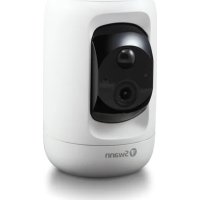
SWIFIPTCAM232GB - Surveillance Camera SWANN - Free user manual and instructions
Find the device manual for free SWIFIPTCAM232GB SWANN in PDF.


| Product Type | Indoor security camera |
| Brand | Swann |
| Model | SWIFIPTCAM232GB |
| Dimensions | Approx. 10 x 10 x 15 cm |
| Weight | Approx. 200 g |
| Power supply | Micro USB 5V power adapter |
| Night vision | Infrared LED up to 10 meters |
| Motion detection | PIR sensor |
| Audio | Built-in microphone and speaker |
| Storage | microSD card up to 128 GB (Class 10 recommended) |
| Connectivity | Wi-Fi 2.4 GHz |
| Viewing angle | Pan and tilt via app |
| App | Swann Security (iOS/Android) |
| LED indicator | Solid red (recording), blue flashing (pairing/connection) |
| Mounting | Tabletop or wall (mount included) |
| Operating temperature | 0°C to 40°C |
| Maintenance | Clean with a soft, dry cloth |
| Safety | Keep out of reach of children, do not expose to water |
| Included items | Camera, power adapter, micro USB cable, mounting bracket, quick start guide |
| Repairability | Technical support via support.swann.com |
Frequently Asked Questions - SWIFIPTCAM232GB SWANN
User questions about SWIFIPTCAM232GB SWANN
0 question about this device. Answer the ones you know or ask your own.
Ask a new question about this device
Download the instructions for your Surveillance Camera in PDF format for free! Find your manual SWIFIPTCAM232GB - SWANN and take your electronic device back in hand. On this page are published all the documents necessary for the use of your device. SWIFIPTCAM232GB by SWANN.
USER MANUAL SWIFIPTCAM232GB SWANN
NOTES
- Remove protective film from the front of the camera before use.
- Depending on the model, your camera may come with a pre-installed microSD card.
INSTALLING THE CAMERA
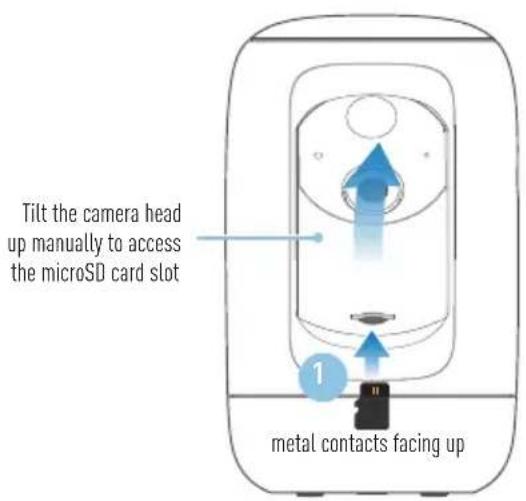
1 Insert a microSD card (up to 128GB, class 10 or higher recommended) into the microSD card slot on the camera. Skip this step if a microSD card has been pre-installed. The camera requires a microSD card for streaming video, saving recorded events, and performing firmware updates.
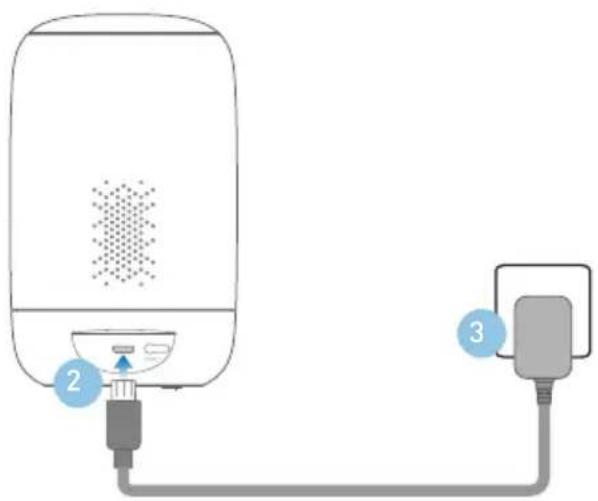
2 Insert the micro USB plug of the supplied power adapter into the micro USB port on the back of the camera.
3 Connect the power adapter to a power outlet. Make sure the camera is within range of the Wi-Fi network to which you want to connect.
GET THE SWANN SECURITY APP
1 Download the latest version of the Swann Security app from the Apple App Store® or Google Play™ Store on your iOS or Android device. Simply search for "Swann Security".
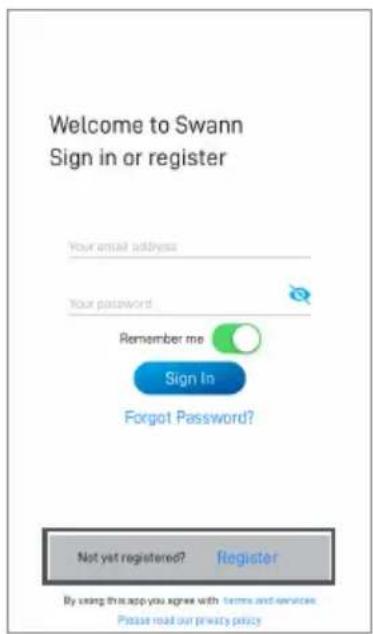
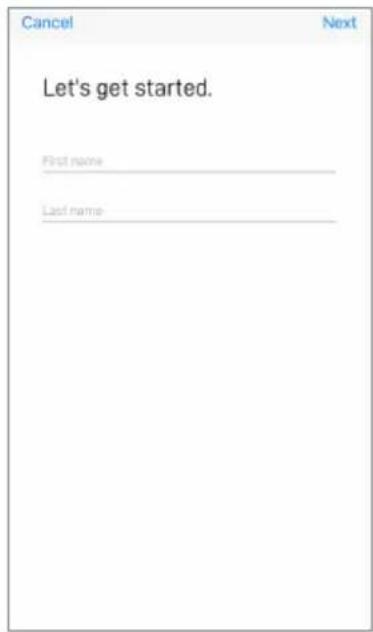
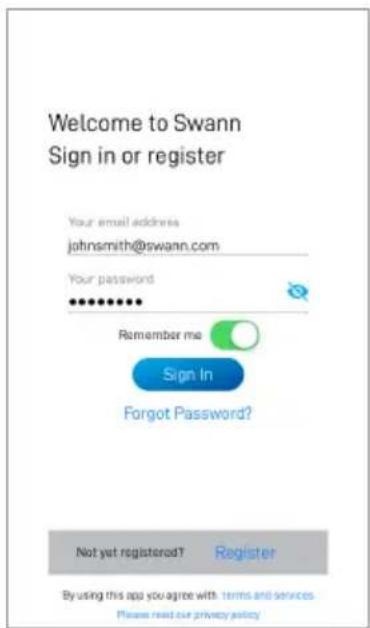
2 Open the app and create your Swann Security account. You will need to activate your account by confirming the email sent to the registered email account before you can sign in.
SET UP THE CAMERA
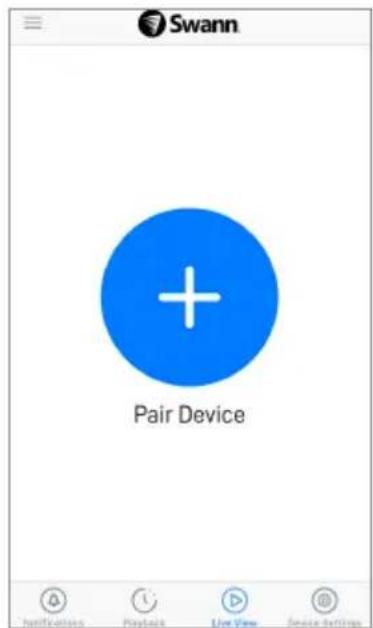
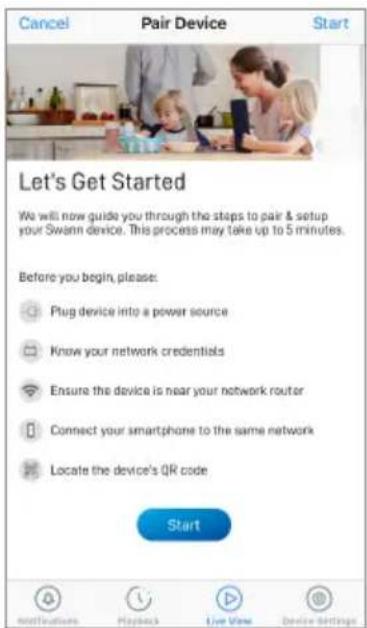
Open the Swann Security app on your phone and sign in. Tap the Pair Device button on the screen (or open Menu ≡ and select Pair Device) and follow the in-app instructions to set up your new camera. Before you begin, be close to your internet router or access point and have your Wi-Fi network information (including password) handy. Please note that the camera can connect to a 2.4GHz Wi-Fi network only.
CAMERA PLACEMENT
The camera can be conveniently placed on a table or shelf, or easily mounted on the wall. With the flexibility of pan and tilt operations using the app, you can freely rotate the camera around and monitor your home from any angle that you need. Pick a location with good, reliable Wi-Fi reception to ensure best video streaming performance. As a general rule, the nearer your camera is to your router, the better the wireless connection quality.
Mounting the camera (optional)
Simply attach the mounting stand to the wall (drill template supplied), then align the threaded hole on the bottom of the camera (as shown here) with the threaded stud on the mounting stand, and screw in the camera. Tighten the mounting stand knob to secure the camera.

TIPS
Motion detection
The camera's PIR motion sensor detects heat signatures of moving objects. You'll generally get good detection results by pointing the camera at an angle where people will be moving across the coverage area before heading directly towards the camera.
LED indicator guide
The LED light on the front of your camera helps inform you of what is happening with the device.
Solid Red Live streaming/Motion recording
Slow Blinking Blue Wi-Fi Pairing mode
Fast Blinking Blue Connecting to Wi-Fi
Swann Security app manual
Download the Swann Security app manual via the app menu to learn more about using the camera to view live video and recorded clips as well as the various camera settings that you can adjust.
Technical support
We're here to help! Visit our Support Center at support.swann.com. You can register your product for dedicated technical support, find answers to commonly asked questions, and more. You can also email us at any time via: tech@swann.com
SUGERENCIAS
ASTUCES
OTTENERE L'APP SWANN SECURITY
SUGGERIMENTI
TIPPS
Bewegungserkennung
Important Safety Warning
For pluggable equipment, the socket-outlet shall be installed near the equipment and shall be easily accessible.
FCC Statement
This equipment has been tested and found to comply with the limits for Class B digital device, pursuant to part 15 of the FCC Rules. These limits are designed to provide reasonable protection against harmful interference in a residential installation. This equipment generates, uses and can radiate radio frequency energy and, if not installed and used in accordance with the instructions, may cause harmful interference to radio communications. However, there is no guarantee that interference will not occur in a particular installation. If this equipment does cause harmful interference to radio or television reception, which can be determined by turning the equipment off and on, the user is encouraged to try to correct the interference by one or more of the following measures: • Reorient or relocate the receiving antenna • Increase the separation between the equipment and the receiver • Connect the equipment into an outlet on a circuit different from that to which the receiver is connected • Consult the dealer or an experienced radio/TV technician for help.
This device complies with Part 15 of the FCC Rules. Operation is subject to the following two conditions: (1) this device may not cause harmful interference, and (2) this device must accept any interference received, including interference that may cause undesired operation.
FCC RF Radiation Exposure Statement Caution: To maintain compliance with the FCC's RF exposure guidelines, place the product at least 20cm from nearby persons.
WARNING: Modifications not approved by the party responsible for compliance could void user's authority to operate the equipment.
WiFi Frequency:2412-2472MHz,Max RF POWER:18.37dBm
IC Statement
This device complies with Industry Canada license-exempt RSS standard(s). Operation is subject to the following two conditions: (1) this device may not cause interference, and (2) this device must accept any interference, including interference that may cause undesired operation of the device.
The device is compliance with RF field strength limits, users can obtain Canadian information on RF exposure and compliance.
This Class B digital apparatus complies with Canadian ICES-003. This equipment complies with IC radiation exposure limits set forth for an uncontrolled environment. This equipment should be installed and operated with minimum distance 20cm between the radiator & your body.
Déclaration IC
This product bears the selective sorting symbol for Waste electrical and electronic equipment (WEEE). This means that this product must be handed pursuant to European directive 2012/19/EU in order to be recycled or dismantled to minimize its impact on the environment. User has the choice to give his product to a competent recycling organization or to the retailer when he buys a new electrical or electronic equipment

Swann.


QSGSWIFIPTCAM2VER15L
© Swann Communications 2020
- INSTALLING THE CAMERA
- GET THE SWANN SECURITY APP
- SET UP THE CAMERA
- CAMERA PLACEMENT
- MOUNTING THE CAMERA (OPTIONAL)
- TIPS
- MOTION DETECTION
- LED INDICATOR GUIDE
- SWANN SECURITY APP MANUAL
- TECHNICAL SUPPORT
- SUGERENCIAS
- ASTUCES
- OTTENERE L'APP SWANN SECURITY
- SUGGERIMENTI
- TIPPS
- BEWEGUNGSERKENNUNG
- FCC STATEMENT
- IC STATEMENT
- DÉCLARATION IC
Brand : SWANN
Model : SWIFIPTCAM232GB
Category : Surveillance Camera