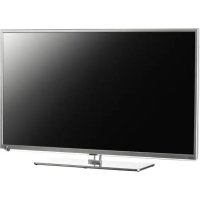
PTV552403S - TV PEAQ - Free user manual and instructions
Find the device manual for free PTV552403S PEAQ in PDF.



| Product Type | LED TV |
| Brand | PEAQ |
| Model | PTV552403S |
| Screen Size | 55 inches (139 cm) |
| Resolution | 1920 x 1080 pixels (Full HD) |
| Dimensions (without stand) | Approximately 124 x 72 x 8 cm |
| Weight (without stand) | Approximately 15 kg |
| Power Supply | 220-240 V~, 50/60 Hz |
| Power Consumption (standby) | Less than 0.5 W |
| Connectivity | HDMI (x4), USB (x2), VGA, YPbPr, AV, SPDIF, Ethernet, Built-in Wi-Fi |
| Main Functions | Smart TV, HbbTV, T-Link (CEC), PVR USB Recording, Timeshift, EPG, 3D (via glasses), USB Multimedia, DivX Certified |
| Supported Video Formats | AVI, MPG, MPEG, TS, DIVX, MKV |
| Supported Audio Formats | MP3 |
| Supported Photo Formats | JPEG |
| TV System | PAL/SECAM BG/DK/I/LL' |
| Channel Tuning | Automatic search DVB-T/C/S (satellite depending on model) |
| Maintenance and Cleaning | Clean the screen with a glass cleaner, the rest with a soft cloth and mild detergent. Do not use abrasive or alcohol-based products. |
| Safety | Wall mounting mandatory to prevent tipping. Do not expose to water or naked flames. Disconnect during storms or if burning smell is detected. |
| Spare Parts and Repairability | Contact PEAQ customer service. Do not open the TV yourself. Repair by authorized technician only. |
| General Information | Manual available in multiple languages. Software update via USB or network. Max ambient temperature 35°C, max humidity 85%. |
Frequently Asked Questions - PTV552403S PEAQ
User questions about PTV552403S PEAQ
0 question about this device. Answer the ones you know or ask your own.
Ask a new question about this device
Download the instructions for your TV in PDF format for free! Find your manual PTV552403S - PEAQ and take your electronic device back in hand. On this page are published all the documents necessary for the use of your device. PTV552403S by PEAQ.
USER MANUAL PTV552403S PEAQ
LED Backlight TV PTV552403
DE Bedienungsanleitung
π Manuale d'uso
NL Gebruikshandleiding
PT Manual do Utilizador
PL Instrukcja użytkownika
RU Руководство пользователя
sv Användarhandbok
EN User Manual
FR Guide d'utilisation
ES Manual de usuario
EL Fyxupidio xopatn
HU Felhasználói útmutató
TR Kullanım elkitabı
List of languages
| # Abbr. Language # Abbr. Language # Abbr. Language # Abbr. Language | ||||||||||
| 1 DE | Deutsch | 2 EN English 3 IT | Italiano | 4 FR Français | ||||||
| 5 NL | Nederlands | 6 ES Español | 7 PT Português 8 | EL Ελληνικά | ||||||
| 9 | PL | Polski | 10 | HU Magyar 11 | RU Русский | 12 TR Türkçe | ||||
| 13 | SV | Svenska | ||||||||
On screen display
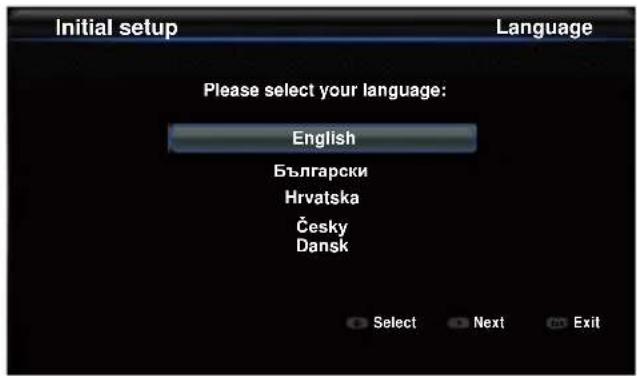
Figure 1 Figure 2
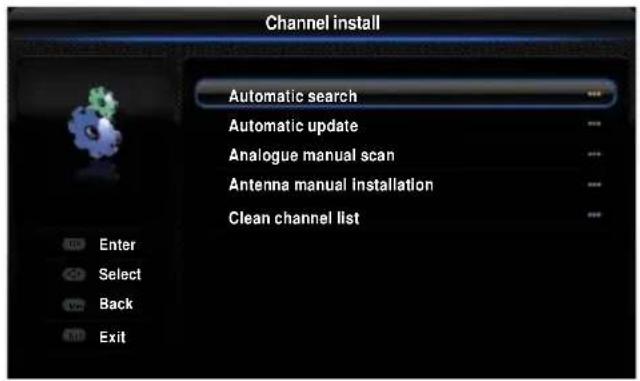
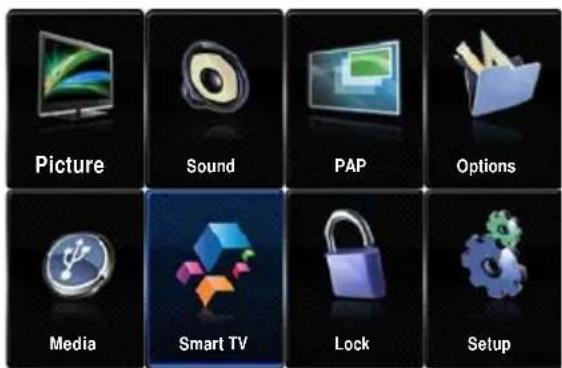
Figure 3 Figure 4
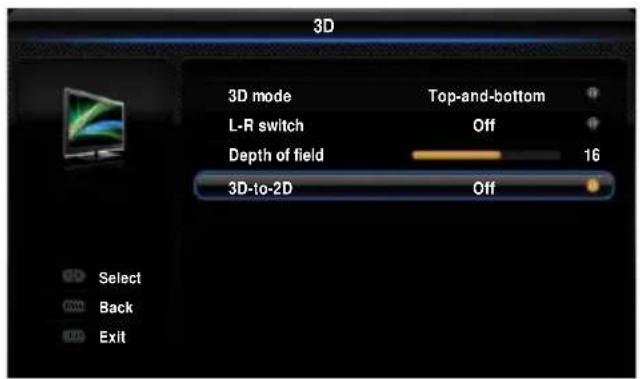
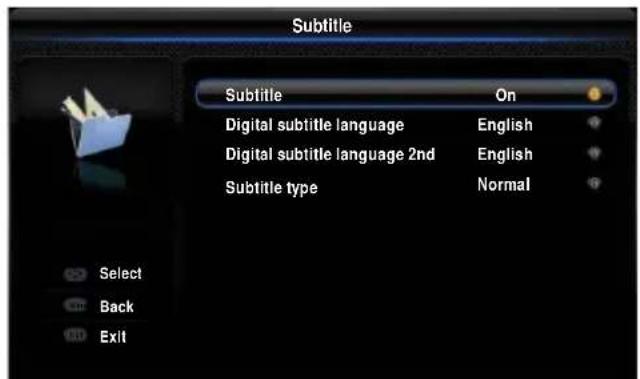
Figure 5
Sicherheit
PVR (Personal Video Recorder)
(Personal-Videorekorder) 15
Channel list selection
PVR (Personal Video Recorder) (Personal-Videorekorder)
Ensure that your domestic mains supply voltage matches the voltage indicated on the identification sticker located at the back of your set. Where the mains plug or an appliance coupler is used as disconnect device, it shall remain readily operable.
On certain models, the light indicator is located at the side of the TV set. The absence of a light indication at the front does not mean that the TV set is fully disconnected from the mains. To disconnect the TV set completely, the mains plug must be pulled out.
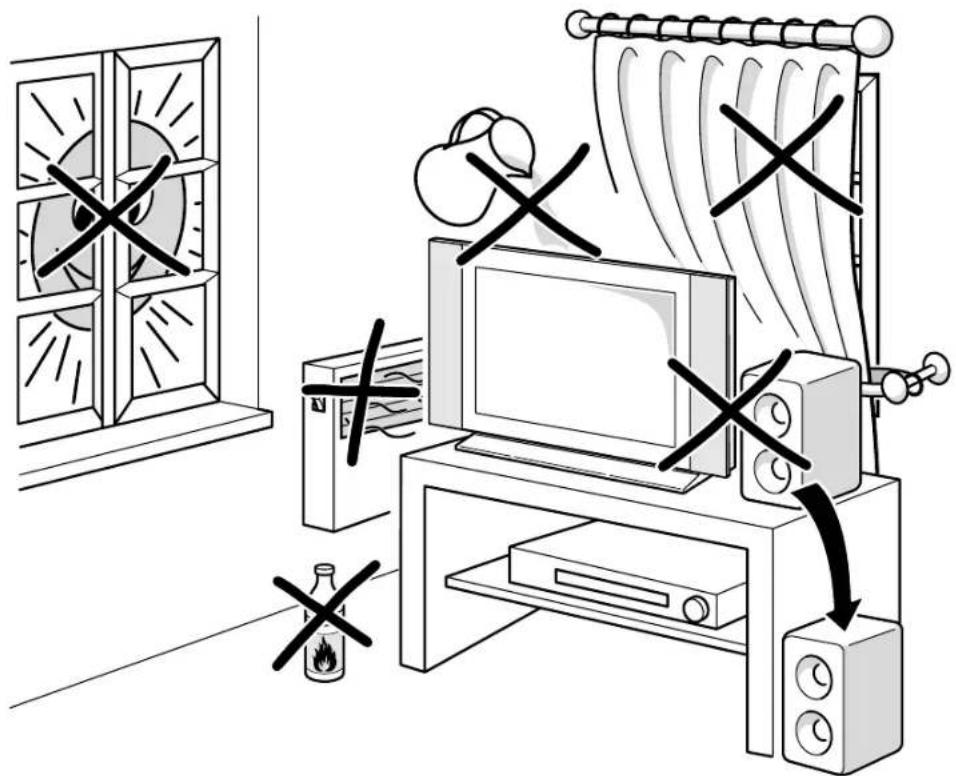
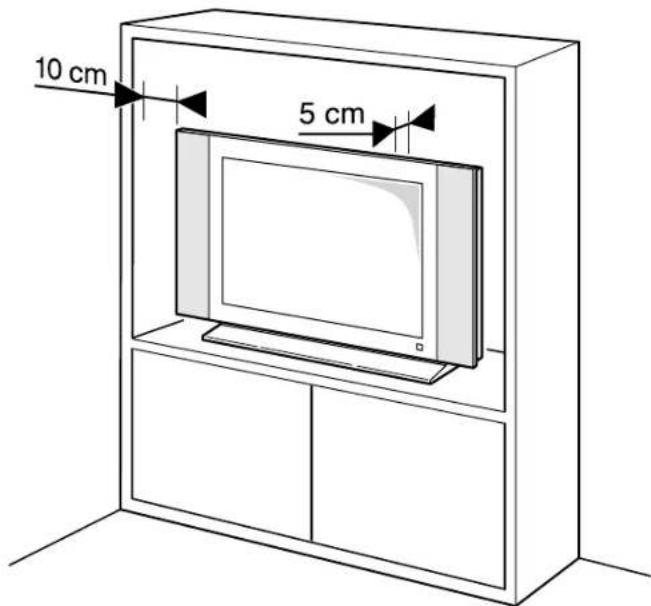
The TV set's components are sensitive to heat. The maximum ambient temperature should not exceed 35^ Celsius. Do not cover the vents at the back or sides of the TV set. Leave sufficient space around it to allow adequate ventilation. Install the appliance away from any source of heat (fireplace, etc.) or appliances creating strong magnetic or electric fields.
Moisture in rooms where the set is installed should not exceed 85% humidity. Moving the set from a cold place to a warm one can cause condensation on the screen (and on some components inside the TV set). Let the condensation evaporate before switching the TV set on again.
WARNINGS
This appliance is intended for domestic household use only and should not be used for any other application, such as for non-domestic use or in a commercial environment.
If the external flexible cable or cord of this transformer is damaged, it shall be replaced by the manufacturer or his service agent or a similar qualified person in order to avoid a hazard.
Leave more than 10cm clearance around the television to allow adequate ventilation. The ventilation should not be impeded by covering the ventilation openings with items, such as newspapers, table-cloths, curtains, etc.
The apparatus shall not be exposed to dripping or splashing and that no objects filled with liquids, such as vases shall be placed on the apparatus.

To prevent the spread of fire, keep candles or other open flames away from this product at all times.
WARNING: To prevent injury, this apparatus must be securely attached to the floor/wall in accordance with the installation instructions.
CAUTION: Connect headphones with the volume set low and increase if required. Prolonged listening through headphones at high volume settings can result in hearing damage.
Eye Fatigue
When using this product as a computer monitor, health and safety experts recommend short frequent breaks rather than occasional longer breaks. For example a 5-10 minute break after an hour of continuous screen work is considered to be better than a 15 minute break ever 2 hours.
Do not use the monitor against a bright background or where sunlight or other bright light sources will shine directly onto the screen.
The ⏻ or POWER/button on the TV set or the button on the remote control can be used to switch it on and put it into standby mode. If you are not going to be watching the
TV for a lengthy period of time, switch it off completely by removing the plug from the mains power socket.
During thunderstorms, we recommend that you disconnect the TV set from the mains and aerial so that it is not affected by electrical or electromagnetic surges that could damage it. For this reason, keep the mains and aerial sockets accessible so they can be disconnected, if necessary.
Unplug the TV set immediately if you notice it giving off a smell of burning or smoke. You must never, under any circumstances, open the TV set yourself, as you run the risk of an electric shock in doing so.
TV screen
The TV screen used in this product is made of glass.
Therefore, it can break when the product is dropped or impacted upon by other objects.
The TV screen is a very high technology product, giving you finely detailed pictures. Occasionally, a few nonactive pixels may appear on the screen as a fixed point of blue, green or red. This does not affect the performance of your product.
Care
Use a glass-cleaning product to clean the screen and a soft cloth and mild detergent to clean the rest of the set.
Important: Using strong detergents, alcohol-based and abrasive products may damage the screen.
Dust the vents at the back and sides regularly. Using solvents, abrasive or alcohol-based products could damage the TV set. If an object or liquid enters the appliance, unplug it immediately and have it checked by an authorized engineer.
Never open the appliance yourself since this may put you at risk or damage the appliance.
Hanging the TV set on the wall
Warning: This operation requires two people.
To ensure a safe installation, observe the following safety notes:
Check that the wall can support the weight of the TV set and • wall mount assembly.
Follow the mounting instructions provided with the wall • mount. For certain models, make sure to screw the hexagonal VESA wall mounting screw bosses ( and screws) provided with the set into the nuts for the wall mount at the back of your set before your wall mounting.
The TV set must be installed on a vertical wall.
Make sure to use only screws suitable for the material of the wall.
Make sure that the TV set cables are placed so that there is • not danger of tripping over them.
All other safety instructions about our TV sets are also applicable here.
Placing the TV on a table and other surfaces
Before setting up your television set, make sure that the surface you want to put the set on can support its weight.
Do not place the set on an unstable surface (e.g. moving shelf, very edge of a unit) and make sure that the front of the television set does not overhang the surface it is standing on. To avoid TV from falling please fasten TV to the wall by using necessary screws (in Vesa wall mount holes), clamps, anchors to be bought separately. Install TV near to the wall to avoid falling backwards.
The features described in this manual are common to most models. Some features may not be available on your TV and/or your TV may include features that are not described in this user manual. The illustrations in this manual may differ from the actual product. Please refer to the actual product.
Products

Pb
Battery
Notice:
The sign Pb
below the
symbol for
batteries
indicates that
this battery
contains lead
Information for Users on Disposal of Old Equipment and Batteries
[European Union]
These symbols indicate that the electrical and electronic equipment and the battery with this symbol should not be disposed of as general household waste at its end-of-life. Instead, the products should be handed over to the applicable collection points for the recycling proper treatment, of electrical and electronic equipment as well as batteries for recovery and recycling in accordance with your national legislation and the Directive 2002/96/EC and 2006/66/EC.
By disposing of these products correctly, you will help to conserve natural resources and will help to prevent potential negative effects on the environment and human health which could otherwise be caused by inappropriate waste handling of these products.
For more information about collection points and recycling of these products, please contact your local municipal office, your household waste disposal service or the shop where you purchased the product.
Penalties may be applicable for incorrect disposal of this waste, in accordance with national legislation.
[Business users]
If you wish to dispose of this product, please contact your supplier and check the terms and conditions of the purchase contract.
[Other Countries outside the European Union]
These symbols are only valid in the European Union. If you wish to dispose of these items, please do so in accordance with applicable national legislation or other rules in your country for the treatment of old electrical equipment and batteries.
Important Information .... 1
Chapter 1 - Connections
Connecting the power and antenna 4
DVD recorder, cable receiver 4
DVD player, home theatre system, PC 5
Game console, Blu-ray Disc player, headphones,
HD game console & HD camcorder 5
Chapter 2 - Getting started
Remote control functions 6
Switching the TV on and off 7
Chapter 3 - Installing channels
Initial setup 8
Performing an automatic channel search 8
Chapter 4 - Using your TV
Accessing channels 9
Watching connected devices 9
Volume 9
Using TV menus 9
Selecting menu language 9
Chapter 5 - Using more of your TV
Setting up your favourite channels 9
Energy saving 10
Viewing TV using the 3D function* 10
Audio description 10
PAP function 10
Using subtitles 10
Turning on/off subtitles 11
Enabling subtitle languages on digital TV channels 11
Selecting a subtitle type on digital TV channels 11
Selecting decoding page language in Teletext ... 11
Digital Teletext language.... 11
SPDIF type 11
T-Link 11
Enabling or disabling T-Link 11
Using one-touch play 11
Using system standby 11
Network update 11
Common interface 11
Using the common interface module 12
Accessing common interface services 12
Software update 12
Changing to Shop or Home mode 12
MHEG function 12
Viewing photos, playing music and watching videos
from a USB storage device 12
Photo 13
Music 13
Video 13
DivX video ^* 13
Time detection 14
Assigning a channel decoder 14
Diagnostics on digital TV channels 14
Time shift 14
Reset shop 14
Customising the input settings 14
Using Electronic programme guide 15
PVR (Personal Video Recorder) 15
Schedule list 15
Chapter 6 - Network connection
Connecting to a wired network 16
Connecting to a wireless network 16
Network setup 16
Chapter 7 - Share & See
Connecting to your PC 17
Adding media from your PC for sharing 17
Share & See application 17
Chapter 8 - Smart TV & HbbTV
Access Smart TV Applications (Apps) 17
HbbTV 18
Accessing HbbTV 18
Activation/deactivation of HbbTV 18
Chapter 9 - Other information
Troubleshooting 18
Television specifications 18
OSS Notice 18
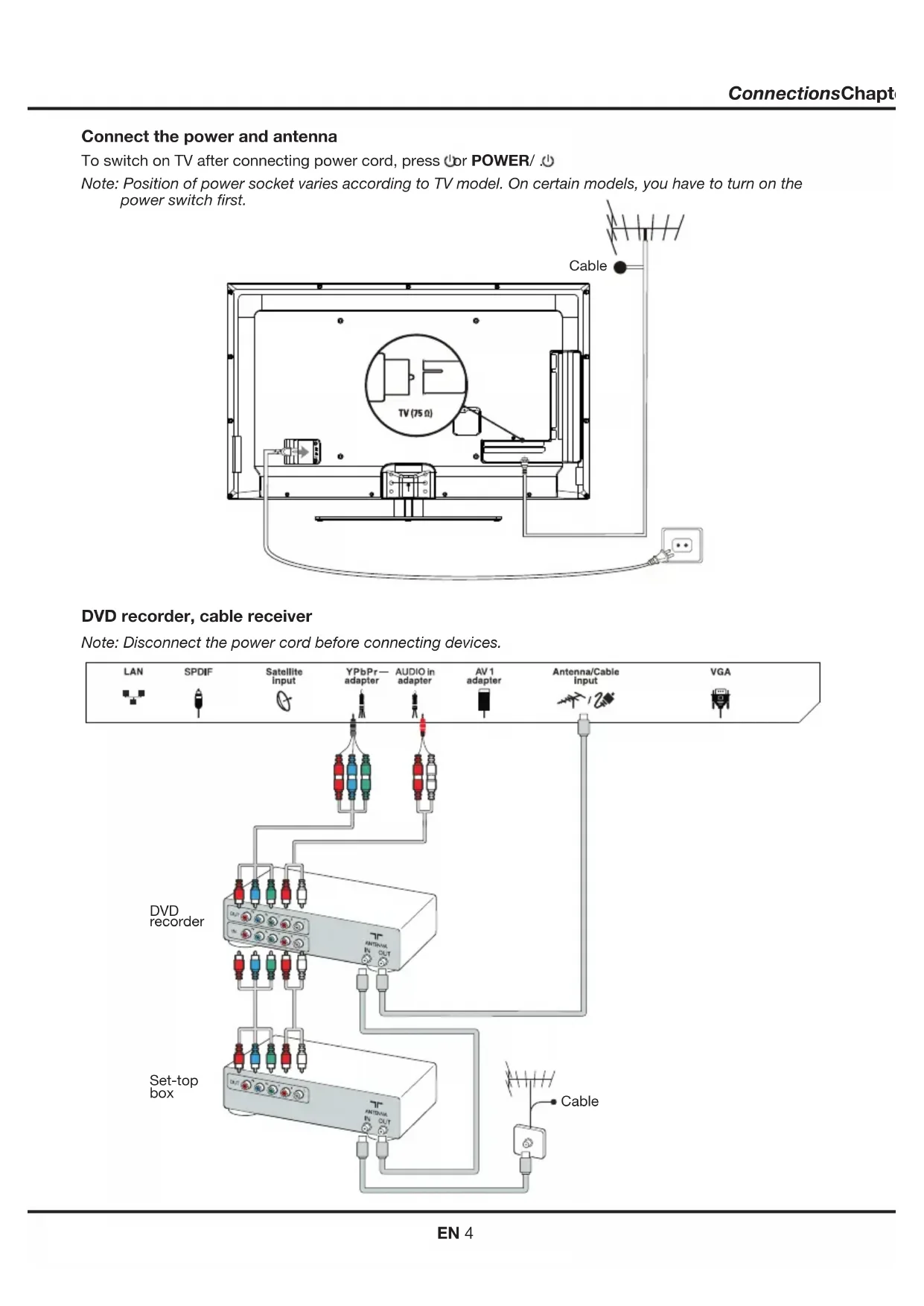
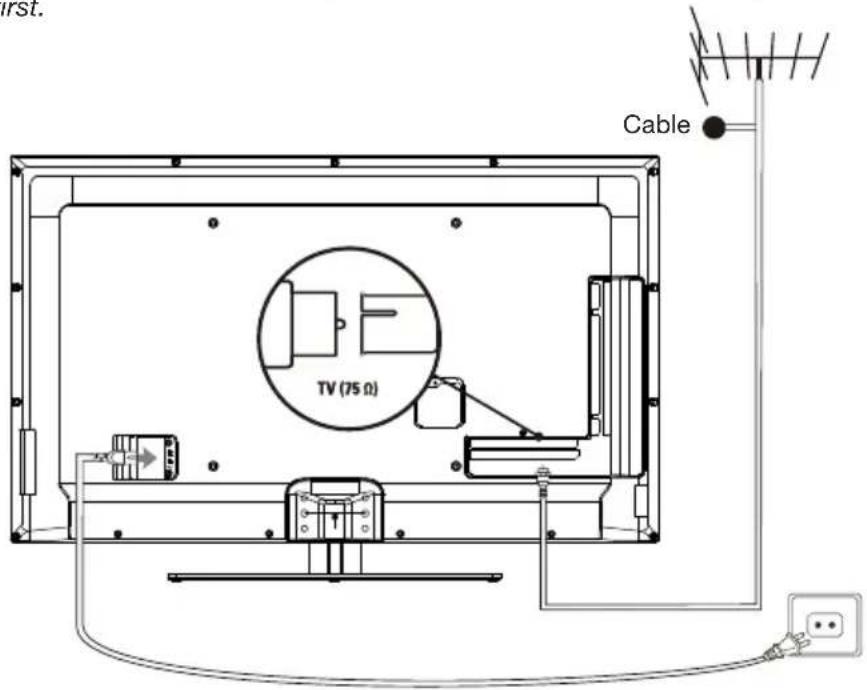
Connect the power and antenna
To switch on TV after connecting power cord, press ☐ or POWER/ ⏻
Note: Position of power socket varies according to TV model. On certain models, you have to turn on the power switch first.
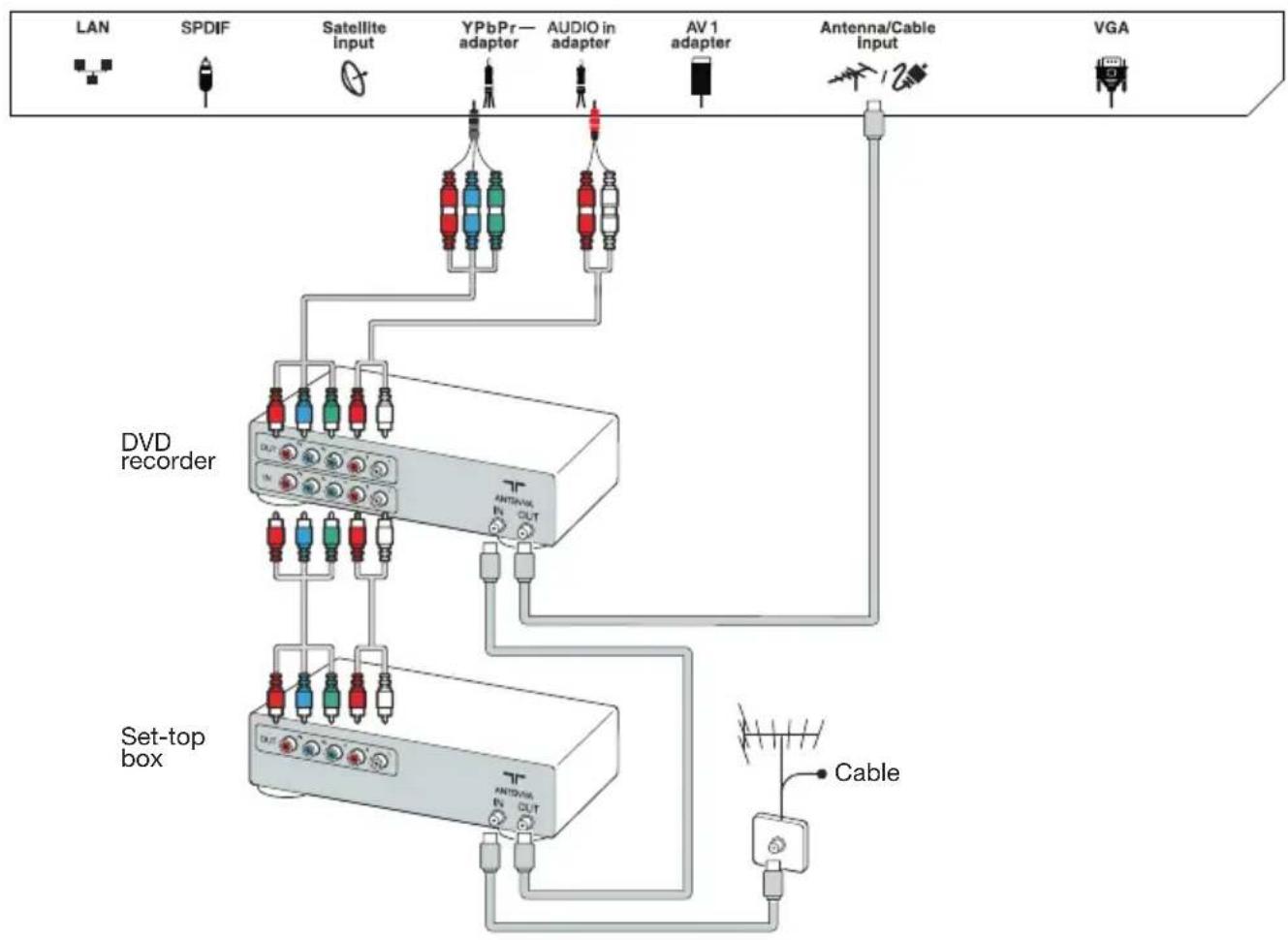
DVD recorder, cable receiver
Note: Disconnect the power cord before connecting devices.
flowchart
graph TD
    A["LAN"] --> B["SPDIF"]
    B --> C["Satellite input"]
    C --> D["YPbPr—adapter"]
    D --> E["AUDIO in adapter"]
    E --> F["AV 1 adapter"]
    F --> G["Antenna/Cable input"]
    G --> H["VGA"]
    I["DVD recorder"] --> J["Antenna/Cable input"]
    J --> K["Antenna/Cable output"]
    L["Set-top box"] --> M["Antenna/Cable output"]
    M --> N["Cable"]
    style A fill:#f9f,stroke:#333
    style H fill:#ccf,stroke:#333
    style I fill:#cfc,stroke:#333
    style L fill:#fcc,stroke:#333
    style M fill:#cff,stroke:#333
DVD player, home theatre system, PC
Note: Before connecting a PC, set the PC monitor refresh rate to 60Hz.

flowchart
graph TD
    A["LAN"] --> B["Network connection"]
    C["SPDIF"] --> D["DVD player/Home theater system"]
    E["Satellite input"] --> F["AV 1 adapter"]
    G["YPbPr—adapter"] --> H["AUDIO in adapter"]
    I["AV 2 adapter"] --> J["VGA audio in"]
    K["Antenna/Cable input"] --> L["VGA"]
    M["Or use an HDMI connection."] --> N["Analog device"]
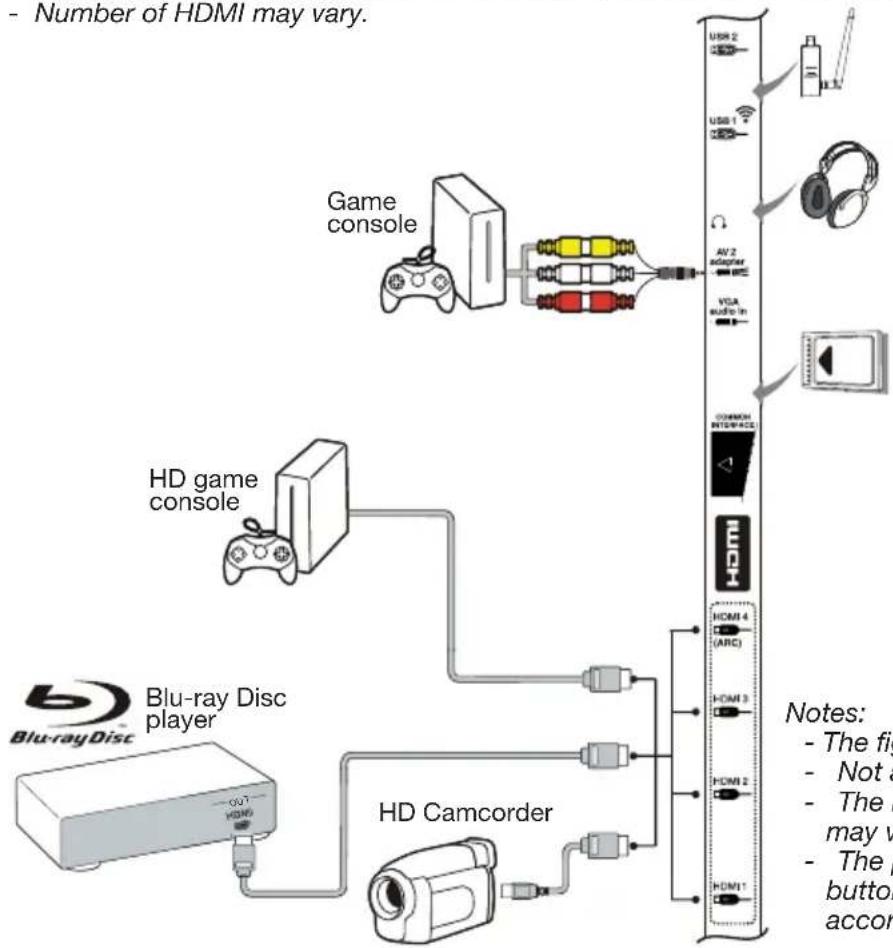
Game console, Blu-ray Disc player, headphones, HD game console & HD camcorder
Notes:
- USB connectors are for data input from USB storage devices. Only USB 1 port can be connected to your USB dongle.
- Excessive sound pressure from earphones and headphones can cause hearing loss.
- ARC(Audio Return Channel) function is only supported on HDMI 4 (ARC) port.
- Number of HDMI may vary.
flowchart
graph TD
    A["Game console"] --> B["HD game console"]
    B --> C["Blu-ray Disc player"]
    C --> D["HD Camcorder"]
    D --> E["USB 2"]
    D --> F["USB 1"]
    D --> G["AV 2 adapter"]
    D --> H["VGA audio in"]
    D --> I["HDMI 4 (ARC)"]
    D --> J["HDMI 3"]
    D --> K["HDMI 2"]
    D --> L["HDMI 1"]
    style A fill:#f9f,stroke:#333
    style B fill:#ccf,stroke:#333
    style C fill:#cfc,stroke:#333
    style D fill:#fcc,stroke:#333
    style E fill:#ffc,stroke:#333
    style F fill:#fcc,stroke:#333
    style G fill:#ffc,stroke:#333
    style H fill:#fcc,stroke:#333
    style I fill:#ffc,stroke:#333
    style J fill:#fcc,stroke:#333
    style K fill:#fcc,stroke:#333
    style L fill:#fcc,stroke:#333
Notes:
- The figures are for representation only.
- Not all connections available on all models.
- The location of the power socket on the TV may vary according to TV model.
- The positions and names of the function buttons and connectors on the TV may vary according to TV model.
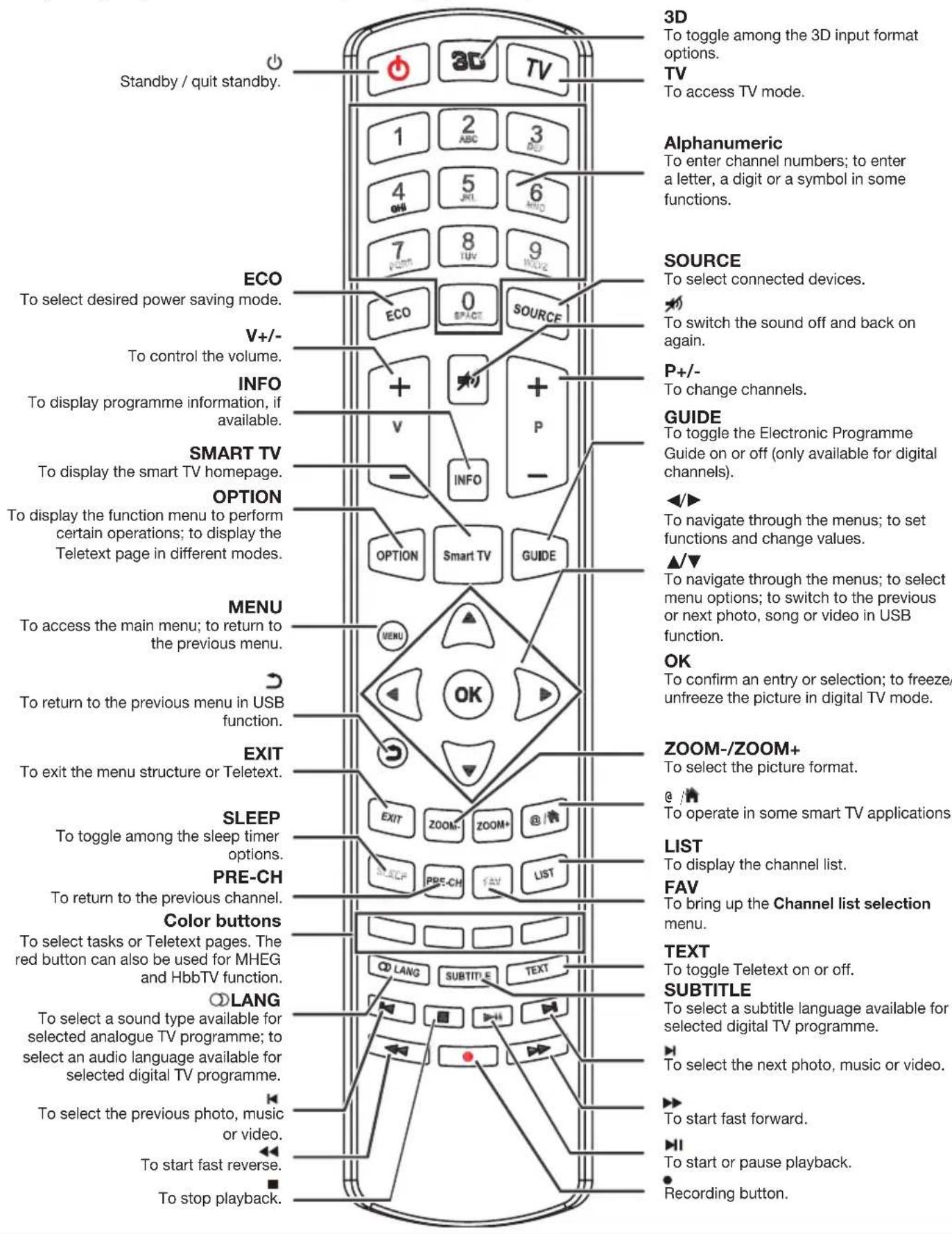
Remote control functions
Most of your television's functions are available via the menus that appear on the screen. The remote control supplied with your set can be used to navigate through the menus and to configure all the general settings.
Note: You are recommended to use the full screen mode. Do not use the display mode with black bars on both sides of the picture (such as 4:3) for long time; otherwise the TV screen may be damaged permanently.
Important:
Batteries shall not be exposed to excessive heat such as sunshine, fire or the like. Remove batteries when the remote control is not to be used for a long time. Batteries left in equipment may cause damage through deterioration and corrosive leakage, invalidating the guarantee.
To protect the environment use local recycling facilities for battery disposal. Dispose of used batteries according to the instructions.
CAUTION: Risk of explosion if batteries are replaced by an incorrect type. Replace only with the same or equivalent type recommended by the equipment manufacturer.
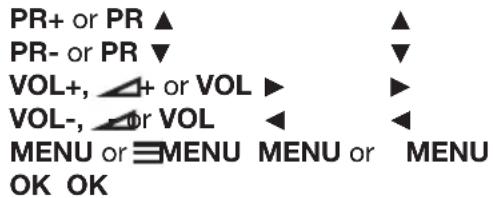
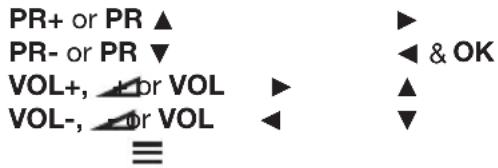
If the batteries in your remote control are run down, you can use the buttons on your TV set. In TV mode, they have the same functions as the corresponding buttons on the remote control. The OK button on the TV set can be pressed repeatedly to select the required source. In the menus they have the following functions:
For models with OK button on the set:
For models without OK button on the set:
Switch the TV on and off
- When the power cord is connected, the TV will be turned on directly or be in standby mode. If the TV is in standby mode, press the ⏻ or POWER/⏻ button on the set or the ⏻ button on the remote control to turn it on.
- To put the TV into standby mode, press the ⏻ or POWER/⌘ button on the set or the ⏻ button on the remote control. The TV set remains powered up, but with low energy consumption.
- To switch the TV off, unplug the mains plug from the mains outlet.
(*On certain models, you have to turn on the power switch first.)
Initial setup
Initial setup involves selecting all the settings required to be able to search for and store all the analogue and digital channels you can receive.
Make sure that the television is switched on and follow all the steps in turn specified hereafter.
Note: If the channel search retrieved only the analogue channels it could be caused by poor broadcasting and therefore is not covered by manufacturer warranty. Manufacturers cannot be held responsible for lack of or poor broadcasting in some areas.
The first time you switch the set on, the Initial setup wizard opens, which guides you through the initial setup process. (Refer to Figure 1.)
-
Press ▲/▼ to select your language, then press OK/▶ to enter the next step.
-
Press ▲/▼ to select your country, then press OK/▶ to enter the next step.
Note: If you select France, you will have to enter the Password setting menu here in order to set a password. Use the alphanumeric buttons to enter a four-digit number for your password. (0000 is too simple to be set as your password.) Re-enter the same code to confirm the password. After that, you will enter the next step automatically. (In this step, you can only press ◀ to return to the previous step.)
- Press ▲/▼ to select your tuner mode Antenna or Cable or Satellite. (Note: Satellite option may not be available for certain models.)
- Select Antenna.
- Press OK/▶ to enter.
- Select Digital & Analogue, Digital or Analogue, then press OK/▶.
- Press▲/▼ to select Scan, then press OK/▶ to start the automatic search for all DVB-T digital and/or analogue channels.
- Select Cable.
- Press OK/▶ to enter.
- Select Digital & Analogue, Digital or Analogue, then press OK/▶.
- Press▲/▼ to select Scan, then press OK/▶ to directly start your initial setup or enter below step.
- Select Full if available to search for and store all DVB-C digital and analogue channels.
- You may select another advanced scan mode if available (for example, Advanced), then configure the correct cable information as described below. Use the alphanumeric buttons to adjust the values for frequency,
symbol rate and network ID; use ◀/▶ to select a modulation mode.
- Press OK to start initial setup relating to all DVB-C digital and analogue channels.
- Select Satellite.
- Press OK/▶ to enter.
- Press▲/▼ to select Scan, then press OK/▶ to enter the next step to configure proper information relating to satellite and antenna.
- Press OK to start initial setup relating to all satellite channels.
Note: To prevent the channel setup process from being interrupted, wait for the message indicating that the setup is complete.
-
Before starting the scanning, you can also select Skip scan to skip the initial setup process.
-
During the setup, you can follow the hints available at the bottom of the screen to return to the previous step by pressing ◀. Or press EXIT to exit or interrupt the search halfway.
-
Once the automatic search ends, the set enters the next step automatically. Press ▲/▼ to select your location Shop or Home. Press OK/▶ to confirm your selection and enter the last step.
-
- In this step, you can press OK to exit the initial setup. The channels are arranged in a preset order. If you wish to skip channels, modify the preset order or rename channels, select Setup > Organiser and press OK/▶ to enter.
- In this step, you can also press ◀ to return to the previous step.
Performing an automatic channel search
This section describes how to search and store channels automatically. Instructions are for both analogue and digital channels.
-
Press MENU on the remote control and select Setup > Language > Menu language. Press ◀/▶ to select your desired menu language.
-
Press MENU to return to Setup, press ▲/▼ to select Country, then press ◀/▶ to select your country. The TV installs and arranges channels according to your country.
-
Press ▲/▼ to select Tuner mode, then press ◀/► to select Antenna, 2 capable or Satellite. (Note: Satellite option may not be available for certain models.)
- Select Antenna.
- Press▲/▼ to select Channel install, and press OK/▶ to enter.
- Select Automatic search (Refer to Figure 2.), then press OK/▶ to display Automatic search.
- Press OK to skip the country selection and enter the next step. Or use ◀/▶ to reselect your country, then press OK to enter.
- Select Digital & Analogue, Digital or Analogue, then press OK/▶ to start the automatic search, which relates to all DVB-T digital and/or analogue channels.
- Select Cable.
- Press▲/▼ to select Channel install, and press OK/▶ to enter.
- Select Automatic search, then press OK▶ to display Automatic search.
- Press OK to skip the country selection and enter the next step. Or use ◀/▶ to reselect your country, then press OK to enter.
-
- Select Digital & Analogue, then press OK to enter. Select your scan mode if available and configure proper cable information in the same way as in Initial setup. Select Scan and press OK/▶ to start your automatic search relating to all DVB-C digital and analogue channels.
-
Select Digital, then follow the same process as above to start your automatic search relating to all DVB-C digital channels.
- Select Analogue, then press OK▶ to start your automatic search relating to all analogue channels.
- Select Satellite.
- Press▲/▼ to select Satellite setup, and press OK/▶ to enter.
- Press▲/▼ to select a proper satellite or add new satellites if needed, then press OK to enter and configure the correct information relating to satellite and antenna.
-
Select Setup > Channel install > Automatic search, then press OK/▶ to enter.
-
Select Country, and use◀/▶ to reselect your desired country, if necessary.
-
Select Satellite tuning, press OK/▶ to display Automatic search. Configure the proper information. Select Scan, and press OK/▶ to start initial setup relating to all satellite channels.
-
The search may take a few minutes. During the process, you can press MENU to abort halfway.
- Once the automatic search ends, press MENU to return to the previous step or press OK to restart your channel search.
- After the automatic search, channels are arranged in a preset order. You can skip channels, modify the preset order or rename channels.
Using your TV
Accessing channels
Using the alphanumeric buttons: press the corresponding alphanumeric buttons to access the channels.
Using the PR+/- or P+/- buttons: scroll through the channels.
Watching connected devices
Repeatedly press SOURCE on the remote control or OK on the TV set to toggle between TV and other input sources. To resume TV viewing, press any numeric button to enter the channel, while P+/- will cycle through all TV channels and other input sources.
Note: Not all models have OK button on the set.
Volume
Volume control: use the VOL+/- or VOL◀/▶ buttons on the TV set or V+/- buttons on the remote control to increase or decrease the volume.
Sound mute: press the 📋 button to temporarily mute the sound. Press this button again or the V+ button to restore it.
Using TV menus
- Press MENU to display the main menu. (Refer to Figure 3.)
- Press ▲/▼/◄/► to select the desired item, then press OK to open the corresponding submenu.
- In submenus, use ▲/▼ to select menu options, use ◀/► to set functions or change values. Use OK to activate a setting. Use OK/► to open the corresponding submenu.
- Press MENU to return to the previous menu.
- Press EXIT to close the menu.
Note: Some options may not be available for certain signal sources.
Selecting menu language
You can choose your preferred menu language following the instructions below.
- Press MENU to display the main menu.
- Press ▲/▼/◄/► to select Setup, then press OK to enter.
- Select Language and press OK/▶ to enter.
- Select Menu language and press ◀/▶ to select your desired language to display the menus.
- Press EXIT to close the menu.
Using more of your TV
Setting up your favourite channels
You can create a list of your favourite TV channels.
- Press LIST.
- Press the yellow button to enter Channel list selection. Press ▲/▼ to select the favourite list and press OK to enter.
- Press the blue button to start editing your favourite list. Press ▲/▼ to scroll through the channel list and press OK to select or deselect it.
- Repeat this procedure to setup other favourite channels.
- Press LIST/EXIT to exit.
Shortcut operation: Press FAV on the remote control to directly enter Channel list selection.
Energy saving
- Press MENU on the remote control and select Picture > ECO Settings > Energy Saving.
- Press ◀/▶ to select a desired power saving mode to achieve the desired power saving effect.
- Press EXIT to close the menu.
Shortcut operation: Press ECO on the remote control to select a desired power saving mode directly.
Viewing TV using the 3D function
(* not available for some models)
WARNING:
Some viewers may experience discomfort while • viewing 3D TV such as dizziness, nausea and headaches. If you experience any such symptom, stop viewing 3D TV, remove your 3D glasses and rest.
Watching 3D videos too closely or for a long period • of time may harm your eyesight.
A responsible adult should frequently check on • children who are using the 3D function.
Do not use the 3D glasses for any other purpose • than viewing 3D videos on a 3D TV.
Do not use the 3D function or 3D glasses while • walking or moving around, otherwise it may result in injuries due to running into objects, tripping, and/or falling.
- Press MENU on the remote control and select Picture > 3D, then press OK/▶ to enter. (Refer to Figure 4.)
- 3D Mode: Wear the 3D glasses first, then press ◀/▶ to select the right 3D input format among Top and Bottom, Side-by-Side, 2D-to-3D, Line interleave and Frame sequential for the playing 3D video.
- L-R SwitchSelect On or Off to adjust the 3D video for the left and right eyes with better visibility.
- Depth of Field: Adjust the stereoscopic effect of the 3D image converted from 2D image.
- 3D-to-2D: Select Left or Right to display the image for the left or right eye only. This function is deactivated when 3D Mode is set to 2D-to-3D or Off.
- Press EXIT to close the menu.
Notes:
- 3D glasses from other manufacturers may not be supported.
- All photo functions are disabled in 3D mode.
- If changing to a different signal source or accessing the SmartTV, 3D mode will be automatically disabled.
- Some 3D modes may not be available depending on the input format of the 3D video source.
- Supported 3D modes: ATV, AV, YPbPr: 2D-to-3D DTV, HDMI, USB, Videos from the Internet: Top and Bottom, Side-by-Side, 2D-to-3D, Line interleave, Frame sequential
- 3D function in USB mode: During the playback of a selected video from USB, press MENU to display the video menu in the browser mode, then select 3D Mode. For more detail information, refer to the above related descriptions.
Audio description
Audio description refers to an additional narration track for Blind and visually impaired viewers of visual media, including television programmes and movies.
The description narrator talks through the presentation describing what is happening on the screen during the natural pauses in the audio (and during dialogue if deemed necessary).
You can use this feature if the current broadcast contains audio description.
- Press MENU on the remote control and select Sound.
- Press OK to enter.
- Use ▲/▼ to select Type and ◀/▶ to set Visually impaired. The speakers, headphones and volume level can be adjusted by using the visually impaired menu.
PAP function
Use this function to display the pictures from different source inputs side by side. Note that one window is for both analogue and digital TV inputs, the other is for VGA, HDMI and YPbPr inputs. (Note: Not available for AV-Scart on both windows.)
- Press MENU to display the main menu.
- Select PAP and press OK to enter.
- Select the PAP option, and press ◀/▶ to turn on/off PAP function.
- Select TV position, press ◀/▶ to reposition the TV window.
- Press ◀/▶ to toggle the focus window.
- When the focus is on the TV window, the alphanumeric buttons and P+/- work in TV. When the focus is on the other window, P+/- switches available external sources.
Using subtitles
You can enable subtitles for each TV channel. Subtitles are broadcast via Teletext or DVB-T/DVB-C digital broadcasts. With digital broadcasts, you have the additional option of selecting a preferred subtitle language.
Turning on/off subtitles
- Press MENU on the remote control and select Options > Subtitle.
- Press OK/▶ to enter. (Refer to Figure 5.)
- Select the Subtitle option, and press ◀/▶ to select On/Off to turn on/off subtitles.
Enabling subtitle languages on digital TV channels
- Press MENU on the remote control and select Options > Subtitle > Digital subtitle language.
- Press ◀/▶ to select a subtitle language as your preferred language.
- Press ▲/▼ to select Digital subtitle language 2nd.
- Press ◀/▶ to select a secondary subtitle language.
- Press EXIT to close the menu.
Shortcut operation: Press SUBTITLE on the remote control to directly select a subtitle language available for the selected digital TV programme.
Selecting a subtitle type on digital TV channels
- Press MENU on the remote control and select Options > Subtitle > Subtitle type.
- Press ◀/▶ to select a subtitle type. You can select Hearing impaired to display the hearing impaired subtitles with your selected language.
Selecting decoding page language in Teletext
Press MENU on the remote control and select Options > Teletext > Decoding page language. Select a proper type of language in which Teletext will display.
Digital Teletext language
For digital TV channels, your TV could change to a service with multiple initial Teletext pages in different languages. This function allows you to select an available language as primary language, which relates to different initial Teletext pages.
Press MENU on the remote control and select Options > Teletext > Digital teletext language. Press ◀/▶ to select.
SPDIF type
Connect to an audio device through the SPDIF output. Press MENU on the remote control and select Options > SPDIF type. Select a proper sound type from the list for digital programmes.
- If the current programme outputs sound in Dolby D format, then either PCM or Dolby D can be selected.
- If the current programme does not output sound in Dolby D format, only PCM can be selected. Otherwise no sound will be output.
- Select Off to turn off the audio output from the audio device connected to the SPDIF output.
Note: The options you may choose depend on the programme you are watching. If you select PCM and the sound is ahead of the picture, you can select SPDIF delay from the Options menu and press ◀/▶ to adjust the delay time to synchronize the sound with the picture.
T-Link
Use this function to search for CEC devices connected to the HDMI sockets in your TV and enable one-touch play and one-touch standby between CEC devices.
Enabling or disabling T-Link
- Press MENU on the remote control, then select Options > T-Link.
- Press ◀/▶ to select On or Off.
Using one-touch play
One-touch play enables you to press the play button on, for example, your DVD remote control. This starts playback on your DVD device and automatically switches your TV to the correct source, displaying DVD content.
Using system standby
System standby enables you to press the ⏻ button on, for example, your TV remote control. This switches your TV and all connected HDMI devices to standby mode.
Network update
Press MENU on the remote control, then select Options > Network update. Select On/off to enable or disable the Network update function.
- When this function is on, the TV will automatically update channels if your DTV service provider updates his DTV network.
- When this function is off, you need to run the channel search again to get new channels or remove unavailable channels if your DTV service provider adds or removes channels from their DTV network.
Common interface
Encrypted digital TV channels can be decoded with a common interface module and a card provided by a digital TV service operator.
The common interface module may enable several digital services, depending on the operator and services you choose (for example, pay TV). Contact your digital TV service operator for more information about services and terms.
Using the common interface module
WARNING: Switch off your TV before inserting a common interface module. Be sure to follow the instruction described below. Wrong insertion of a common interface module may damage both the module and your TV.
- Following the directions printed on the common interface module, gently insert the module into the common interface slot on the TV.
- Push the module in as far as it will go.
- Turn on the TV and wait for the common interface function to be activated. This may take several minutes.
Note: Do not remove the common interface module from the slot. Removing the module will deactivate the digital services.
Accessing common interface services
After inserting and activating the common interface module, press MENU on the remote control and select Options > Common interface.
This menu option is only available if the common interface module is correctly inserted and activated. On-screen applications and content are provided by your digital TV service operator.
Software update
Note: Connect a USB device with free capacity above 250MB before you start software update. Do not switch off the TV, unplug, or remove the USB device until the upgrade is completed.
Press MENU on the remote control and select Options > Software update. Press OK/▶ to enter.
- Current version: Checks the current version of the software.
- Product name: Displays the product name of your set.
- Serial number(if available): Displays the serial number of your set.
- By network: Enables you to download and install the latest software version from the Internet. Make sure to set up a wired or wireless network connection first then select By network and press OK/▶ to enter.
When new-version software is available, a progression bar appears. When the download finishes, the TV will go black and upgrade the software.
Note: Keep successful network connection during upgrade.
- By channel: Enables you to install the latest version of the software if available. Select By channel and press OK/▶ to enter.
- Use◀/▶ to select Yes under Auto download to automatically download the latest software
if available. After the software has been downloaded successfully, you will be prompted to decide if you want to install it right now. If yes, follow the on-screen instructions to complete your installation. You can also select to ignore the installation here.
- Select No under Auto download to decline the automatic download.
- Select Manual download and press OK/▶ to start manual scanning the latest software. Follow the on-screen instructions to complete. During the scan, press OK/EXIT to cancel or exit the process.
Changing to Shop or Home mode
- Press MENU on the remote control and select Options > Location.
- Press ◀/▶ to select your location Shop or Home.
- Press EXIT to exit.
Note: According to the regulation of European Commission 2009/125/EC, in Home mode, TV will be put into standby mode automatically if there is no operation in 4 hours. This feature can be deactivated in Options menu.
MHEG function
Some digital TV broadcasters offer dedicated digital text or interactive services (for example, BBC1). These services work like normal Teletext with the addition of number, colour and navigation buttons.
- Press MENU on the remote control and select Options > Subtitle > Subtitle.
- Press ◀/▶ to set Subtitle to Off.
Note: MHEG and subtitles are mutually exclusive and cannot coexist on the same screen. If Subtitle is set to On, MHEG will not appear.
- Press the red button or TEXT on the remote control.
- Press ▲/▼/◄/► to select or highlight items.
- Press OK to confirm or activate.
- Press one of the colour buttons to select an option.
- Press TEXT or EXIT to exit.
Viewing photos, playing music and watching videos from a USB storage device
Your TV is fitted with a USB connector that enables you to view photos, listen to music or watch videos stored on a USB storage device.
Supported file formats:
Photo JPEG
Music MP3
Video AVI, MPG, MPEG, TS, DIVX, MKV...
Notes: Some USB keys and USB products like digital cameras or mobile phones are not fully compatible with USB 2.0 standard so they may not work with the TV multimedia player. Not all USB keys or devices are compatible with the USB function. Not all above formats are recognised. The encoding formats of your files will determine whether or not they can be used.
When a USB device is detected, it enters the Media center menu directly. To enter the Media center manually, press MENU on the remote control and select Media.
Photo
Use this function to display photos, if available.
- Select Media center > Photo, then press OK to enter the main file content browser.
- In the main file content browser, use ▲/▼/◄/► to select a photo or an inner file folder.
- Select an inner file folder, press OK to enter a sub file content browser.
- Use ▲/▼/◄/► to select a photo in either main or sub file content browser, press MENU to display the photo menu in folder mode.
- Sort: Sort folders and photos by modification Date or Name.
- Edit: Copy, paste or delete a selected photo.
- Parser: You can select Recursive to display photos from all sub file folders.
- Select a photo, press OK to watch, and a slide show begins from the selected photo. Press OK to pause the photo if you want to rotate the paused photo. Press MENU to display the photo menu in the browser mode. You can play, pause or rotate the photo, select different play modes and displaying effects, etc.
- Press the related buttons on the remote control to perform the available functions shown on the function bar at the bottom of the TV screen. Press the INFO button to show or remove the function bar.
Music
Use this function to playback music, if available.
-
Select Media center > Music, then press OK to enter the main file content browser.
-
Use ▲/▼/◄/► to select a song in either main or sub file content browser in the same way as in photo display function, press MENU to display the music menu in folder mode.
- Sort: Sort folders and songs by Name, Genre, Artist or Album.
- Edit: Copy, paste or delete a selected song.
- Parser: You can select Recursive to display songs from all sub file folders.
- Select a song, press OK to play, and automatic playback begins from the selected song. Press MENU to display the music menu in the browser mode. You can play or pause the song, select different play modes, etc.
- Show lyrics: This option is available for the songs with lyrics. Select it and use ◀/▶ to turn on/off lyrics synchronized display.
- Audio only: Select and press OK to listen to the music with the screen turned off. Any key press will turn the screen on.
- Press the related buttons on the remote control to perform the available functions shown on the function bar at the bottom of the TV screen.
Video
Use this function to watch videos, if available.
- Select Media center > Video, then press OK to enter the main file content browser.
- Use ▲/▼/◄/► to select a video in either main or sub file content browser in the same way as in photo display function, press MENU to display the video menu in folder mode.
- Sort: Sort folders and videos by Type, modification Date or Name.
- Edit: Copy, paste or delete a selected video.
-
Parser: You can select Recursive to display videos from all sub file folders.
-
Select a video, press OK to watch, and automatic playback begins from the selected video. Press MENU to display the video menu in the browser mode. You can play or pause the video, select different play modes, screen modes and preset picture settings, etc.
-
Press the related buttons on the remote control to perform the available functions shown on the function bar at the bottom of the TV screen. Press the INFO button to show or remove the function bar.
DivX video (\* not available for some models)
ABOUT DIVX VIDEO: DivX® is a digital video format created by DivX, LLC, a subsidiary of Rovi Corporation. This is an official DivX Certified® device that plays DivX video. Visit divx.com for more information and software tools to convert your files into DivX videos.
ABOUT DIVX VIDEO-ON-DEMAND: This DivX Certified® device must be registered in order to play purchased DivX Video-on-Demand (VOD) movies.
Obtain your registration code:
- Press MENU on the remote control.
- Select Options > DivX(R) registration.
- Press OK▶ and your registration code will be displayed.
Go to vod.divx.com for more information on how to complete your registration.
Deregister your TV:
If you wish to deregister your TV,
- Press MENU on the remote control.
- Select Options > DivX(R) deregistration.
- Press OK▶ and a message will guide you.
DivX®, DivX Certified®, DivX Plus® HD and associated logos are trademarks of Rovi Corporation or its subsidiaries and are used under license.
Time detection
You can detect the time from digital channels using the following operations.
-
Press MENU on the remote control and select Options >Timer >Clock >Auto synchronization.
-
Press ◀/▶ to select On.
Assigning a channel decoder
Decoders that decode analogue channels can be connected to the AV connector. Assign the TV channel as a channel to be decoded. Then assign the connection where the decoder is connected.
- Press MENU on the remote control and select Setup > Decode.
- Press OK/▶ to enter the list.
- Press ▲/▼ to select the channel to decode.
- Press OK to select or unselect the channel.
- Press MENU to return to the previous menu.
Diagnostics on digital TV channels
- Press MENU on the remote control and select Setup > Diagnostics.
- Press OK/▶ to display some signal information on the current digital channel, such as signal strength, frequency, etc.
Time shift
Allows you to record the TV programme so that you will not miss the favourite part even if you go out. Before you use the function, connect a USB device to the TV first. For the first time, you should do the disk setup for the USB device.
Note: Feature is available only in selected products and, due to specific TV network limitations and country technical requirements, might not be available in product or place of installation. Feature might be also blocked by TV network due to copyright protection (HD content, recording protection). Please use OPTION on the remote control to check if feature is available in your product.
-
Press MENU on the remote control and select Setup > Time shift.
-
Press ◀/▶ to select On to switch on the time shift function, then press EXIT to close the menu.
-
Press OPTION on the remote control and select Time shift, then press OK to confirm.
-
Follow the directions on the screen to do the setup.
-
After the disk setup is done, press OPTION and select Time shift.
-
Press OK to display the time shift menu.
-
Press the red button to pause the picture and begin the time shift.
- Press the red button to play the recorded part.
- When the time shift menu disappears and only the timing of the time shift remains on the screen, you can press the red button or OK to access the time shift menu.
- Press the green button to fast backward or the yellow button to fast forward.
- Press the blue button to quit the time shift function. Notes:
- Before you connect the USB device to the TV, make sure you have backed up the data in the device to avoid the loss of your important data due to unforeseen malfunction.
- We recommend you use a USB device with free capacity above 1GB and disk speed faster than 5.0MB/sec.
- The bigger the file size for time shift, the longer the recording time.
- If you change the channel in time shift mode, a message prompts you to select Yes or No. You can select Yes to exit the time shift function and execute the channel change.
Reset shop
Allows you to reset the TV to factory default settings.
- Press MENU on the remote control and select Setup, then press OK to confirm.
- Select Reset shop and press OK/▶ to enter.
- Use the alphanumeric buttons to enter the password.
- Press ◀/▶ to select OK and press OK to confirm.
- The Initial setup menu appears. Follow the related instructions.
Customising the input settings
You can configure your TV according to the equipment you connect to it.
- Press MENU on the remote control and select Setup > Input settings.
- Press OK/▶ to enter Input settings.
- Press ▲/▼ to select a connector your equipment is connected to.
- Press ◀/▶ to select the type of apparatus attached to this connector.
5. Press MENU to return to the Setup menu.
After configuring, the selected source label will be displayed after the name of the related connector in the source list when pressing SOURCE on the remote control or OK on the TV set.
Note: Not all models have OK button on the set.
Using Electronic programme guide
EPG is an on-screen guide that displays scheduled TV programmes. You can navigate, select, view and record programmes.
- Press GUIDE on the remote control, the Now and Next EPG menu will appear, which allows you to get information about the current or next programme playing on each channel. Navigate through the different programmes using the navigation buttons on the remote control.
2. Use the colour buttons to view the 8 Days EPG.
- Prev day (Red): List the previous day's EPG.
- Next day (Green): List the next day's EPG.
- View detail (Yellow): Display the description of this programme if available.
-
Type filter (Blue): Programme guide filter for digital TV programmes.
-
Press the blue button to display the programmes' type and subtype lists.
- Navigate through the different types and subtypes using the navigation buttons on the remote control.
- Select one or more types, which you want to highlight from the Type list, press OK to select (or deselect). A checkmark will appear to the left of the type when selected. When you select a type, all its subtypes will be selected accordingly.
- Also, you can select some desired subtypes without selecting any type first.
- Press the blue button to exit the type and subtype list.
• After filtering, all your desired digital TV programmes will be highlighted.
- Add schedule (Option): Press OPTION on the remote control to bring up the Schedule list menu. For details on scheduled recording, refer to the Schedule list section.
3. Press GUIDE/EXIT to exit the EPG and switch to the selected channel.
PVR (Personal Video Recorder)
Allows you to record your favourite TV programme. Before you use the function, connect a USB memory device to the set first.
Note: Feature is available only in selected products and due to specific TV network limitations and country technical requirements might not be available in product or place of installation.
Feature might be also blocked by TV network due to copyright protection (HD content, recording protection). Please use OPTION on the remote control to check if feature is available in your product.
1. Press OPTION on the remote control and select Quick access > PVR.
2. Press OK/▶ to enter.
3. Press:
- the red button to start recording, the record file is put into a folder named after the channel number under the PVR folder in Media center > Video;
- the green button to stop recording manually; if the recording duration finishes, the recording will stop automatically.
- ▲/▼/◄/► to adjust the recording duration.
4. In recording, PVR mini pane will also show on the screen to indicate the recording progress.
5. To watch the recorded programme, exit PVR mode first and go to Media center > Video. Select the folder PVR, then select the related record file. Press OK to play. (It is the same if you record a digital radio programme).
Notes:
- Feature available only for digital non encrypted channels. Even when CICAM (CI or CI+) is inserted, feature is not available on encrypted channels.
- Only supports USB memory device of FAT32 format.
- Before you connect the USB device to the set, make sure you have backed up the data in the device to avoid the loss of your important data due to unforeseen malfunction.
- The bigger the USB device memory size for the PVR function, the longer the recording time.
- If you want to change channel or signal source during recording, store the recording data before changing the channel or source.
- The set cannot play files normally if the parameters of the file exceed the limitations of the system, the file format is not supported, the file is damaged, or the file cannot be decoded.
- Do not disconnect the USB memory device when the system is reading a file or transmitting data, otherwise the system or the device may be damaged.
Schedule list
This function is used to perform scheduled recording.
- Press OPTION on the remote control and select Quick access > Schedule list.
- Press OK to display the schedule list.
- To add a schedule into your schedule list, press the red button first to display Schedule list. Then,
- Channel number: use ◀/▶ to select the channel number.
- Start date: use the alphanumeric buttons to set the recording date.
- Start time: set the starting time of the recording.
- Stop time: set the stopping time of the recording.
- Schedule type:
- Set Reminder to be reminded that you can switch to the scheduled programme when the time you have set comes. When time is out and you do not execute any operation, the dialog box will disappear and no further operation will be executed.
- Set Record to check if you really want to start your scheduled recording when the time you have set comes. When time is out and you do not execute any operation, scheduled recording will start automatically.
- Repeat type: set different repeat modes for the recording.
- Press ▲/▼/◄/► to select Add, then press OK to add the schedule you set into your schedule list.
- Press the red button to repeat above procedures to add another schedule.
- If you wish to edit or delete a schedule, select it and press OK to enter.
- Press EXIT to close the menu.
Network connection
You can set up your TV so that it can access the Internet through your local area network (LAN) using a wired or wireless connection.
Connecting to a wired network
You can attach your TV to your LAN using cable in three ways:
- You can attach your TV to your LAN by connecting the LAN port on your TV to an external modem using a Cat 5 cable.
- You can attach your TV to your LAN by connecting the LAN port on your TV to an IP Sharer, which is connected to an external modem. Use Cat 5 cable for the connection.
- Depending on how your network is configured, you may be able to attach your TV to your LAN by connecting the LAN port on your TV directly to a network wall outlet using a Cat 5 cable. Note that the wall outlet is attached to a modem or router elsewhere in your house.
Select Setup > Network > Settings > Interface, then select Ethernet to connect to a wired network.
Connecting to a wireless network
To connect your TV to your network wirelessly, you need a wireless router or modem and a Wireless LAN Adapter. Connect your Wireless High-Gain USB Adapter (USB dongle) delivered with your TV to your TV's USB 1 port.
- Select Setup > Network > Settings > Interface, then select Wireless to connect to a wireless network.
- Select Wireless setting and press OK/▶ to enter.
- Connection Methods: You can setup the wireless network connection three ways.
- Scan
- Select Wireless setting > Scan, then press OK/▶, the TV will scan all access points within range. The access points found by the TV will be displayed.
- Select an available access point, then press OK/▶ to connect the TV.
Notes:
- If you select a protected access point, you will have to enter the corresponding password. Press OK on the remote control to display the virtual keyboard to enable you to enter the password.
- This set has a memory function of available access point, which enables your set to be connected to the network even if you switch on the TV after power off.
- Manual
Select Wireless setting > Manual, then press OK/▶, you will be prompted to enter the correct SSID of an available wireless router to set up the connection.
- Auto
If your AP supports WPS (Wi-Fi Protected Setup), you can connect to the network via PIN (Personal Identification Number) or PBC (Push Button Configuration). WPS will automatically configure the SSID and WPA key in either mode. Select Wireless setting > Auto, then press OK/▶ to enter.
- PIN: Select PIN and press OK▶ to enter. Generate a random PIN code. Make sure this code is installed on the AP. (For the procedures, refer to your router manual.) Press OK/▶ again to set up the connection.
- PBC: If your router has a PBC push button, select PBC, then press OK/▶ to enter. Press the PBC push button on your router within 2 minutes after you press OK/▶ again. Your TV will automatically acquire all the network setting values it needs and connect to your network.
Network setup
-
Press MENU on the remote control and select Setup > Network > Settings > Internet connection. Press ◀/▶ to select On. Wait until the connection is automatically established.
-
Select Setup > Network > Settings >
Connection test, then press OK/▶ to check the Internet connectivity. If it does not work, follow below steps to make sure of the connectivity.
- Select Setup > Network > Settings > IP setting, then press OK/▶ to enter the IP setting menu.
- Set Address type to Auto, it will acquire and enter the needed IP address automatically.
- You can follow below steps to enter your IP address manually.
- Set Address type to Manual, then press ▼ to go to the first entry field.
- Enter the IP address, Subnet mask, Default gateway, Primary DNS and Secondary DNS values. Use the alphanumeric buttons to enter numbers and the arrow buttons to move from one entry field to another.
- After setting, select Setup > Network > Settings > Connection test to check the Internet connectivity again.
- Select Setup > Network > Settings > Information, then press OK/▶ to display the information on current connection, such as Interface, Address type, IP address, etc.
Share & See
Note: This manual covers products with Share & See function. Share & See is DLNA-compatible.
Connecting to your PC
Make sure to set up a wired or wireless connection from your TV to a router first. Then connect your PC to your router either through a network cable or wirelessly. Also make sure Setup > Network > Settings > Internet Connection is On and your computer fireware won't block the connection.
Enabling Share & See function
Select Setup > Network > Applications > Share & See and set it to On.
Follow the steps in turn specified hereafter, then you can enjoy recorded video, image and music saved on your PC.
Adding media from your PC for sharing
Install a Share & See media server on your PC. The simple and familiar server you may install is Microsoft Windows Media Player 11. Allow your TV to share the designated files on your PC.
- Open the Microsoft Windows Media Player 11.
- Select Library > Media sharing.
- Check the checkbox Share my media to.
- Select the icon of the TV set connected to your PC.
- Select Allow to allow the TV set to access your PC, and select OK to enable your allowing.
Note: Use the Settings button to customize your desired settings.
-
- Select Library > Add to Library.
-
Select your personal folders or folders of other users that you can access for sharing.
- Select Add and press OK to enable your adding.
Share & See application
Select Media in the main menu and press OK to enter media center. Then you can view photos, listen to music or watch videos, which are stored on your PC.
Note: If Share & See is switched on, the TV will Display the list of available Share & See servers which are available in local network.
Smart TV
Allows you to enjoy Internet Applications (Apps), specially adapted internet websites for your TV. You can control the Apps with the TV remote control.
WARNING:
- Configure the network settings before using Smart TV. Slow responses and/or interruptions may occur, depending on your network conditions. If you experience a problem using an application, please contact the content provider. According to circumstances of the contents provider, an application's updates or the application itself may be discontinued. Depending on your country's regulations, some applications may have limited service or not be supported.
Access Smart TV Applications (Apps)
Select 1. Smart TV in the main menu and press OK to display the smart TV home page. The App services depend on the country. You can do the country setting as below: Press the red button to display all the available country options and use ▲/▼/◄/► to scroll through the options and press OK to confirm. Then select the “Home” button and press OK to go back to the smart TV homepage.
Shortcut operation: Press Smart TV on the remote control to display the smart TV home page directly.
- Use ▲/▼/◄/► to select an App and press OK to enter.
Internet browsing is available with SmartTV portal 3. application. It can be accessed via the icon in the portal or via the green button when TV portal page is displayed.
Note: Since the connection with internet takes time, it's recommended that you wait a few minutes to use the smart TV feature after activation of TV from standby.
HbbTV
Some broadcasters of digital channels (only DVB-T/C/S/S2 broadcasting) offer interactive HbbTV (Hybrid Broadcast Broadband TV).
With HbbTV, broadcasters combine their normal TV programme with all kinds of information or entertainment. You can browse this information interactively.
To fully enjoy HbbTV, you need to connect your TV to the Internet.
Note: You cannot download files to our TV with this feature.
Access HbbTV
When you tune to a TV channel that offers HbbTV, press the red button to open the interactive pages.
Then use ▲/▼/◄/► to navigate the HbbTV pages and OK to confirm.
Activation/deactivation of HbbTV
Since HbbTV broadcasting tests performed by some broadcasters' test applications might be annoying due to popping up menus, you can use the HbbTV on/off option in Options menu for better watching TV.
Other information
Password in Parental Control
- The default password is 1234. You can change it to a new one.
- The super password is 0423. If you forget your code, enter the super password to override any existing codes.
Troubleshooting
Please check the following list before requesting service.
There is no picture or sound.
- Make sure the power cord is properly inserted in the power outlet.
- Make sure the source type is set correctly.
- Make sure the antenna is properly connected.
- Make sure the volume is not set to minimum or the sound is not set to mute.
- Make sure the headphones are not connected.
- Reception other than those of broadcasting stations can be considered.
Picture is not clear.
- Make sure the antenna cable is properly connected.
- Consider whether your TV signal is being properly received.
- Poor picture quality can occur due to a VHS camera, camcorder, or other peripheral being connected at the same time. Switch off one of the other peripherals.
- The ‘ghost’ or double image may be caused by obstruction to the antenna due to high-rise buildings or hills. Using a highly directional antenna may improve the picture quality.
- The horizontal dotted lines shown on the pictures may be caused by electrical interference, e.g., hair dryer, nearby neon lights, etc. Turn off or remove these.
Picture is too dark, too light or tinted.
- Check the colour adjustment.
- Check the brightness setting.
- Check the sharpness function.
- The fluorescent lamp may have reached the end of its service life.
Remote control does not work.
- Check the batteries of the remote control.
- Make sure the remote sensor window is not under strong fluorescent lighting.
- Try to clean the remote control sensor lens on the TV with a soft cloth.
If the above suggestions do not solve your technical issue, please refer to the warranty card for service information.
Television specifications
TV Broadcasting PAL/SECAM BG/DK/I/LL'
Receiving channels VHF/UHF/Cable Tuner type Frequency synthesized
OSS Notice
This product uses some software programs which are distributed under the Independent JPEG Group. This product uses some software programs which are distributed under the Freetype Project.
This product uses some software programs which are distributed under the OpenSSL Project.
This product uses some software programs which are distributed under the zlib license.
This product uses UNICODE software programs which are distributed under IBM Open source license.
This product uses libpng software programs which are distributed under OSI Certified Open source license.
This product uses Expat, Libcurl, c-ares software programs which are distributed under MIT license.
This product uses some software programs which are distributed under the GPL/LGPL.
GPL software: Linux Kernel, Busybox, SquashFS, mtd-utils, e2fsprogs, BlueZ, Dbus, Glib, NTFS-3G Read/Write Driver, samba, iconv, Linux File System FTA.
LGPL software: DFB, SAWMAN, ALSA.
Due to the various capabilities of products featuring the SmartTV - Services, as well as limitations in the available content, certain features, applications, and services may not be available on all devices or in all territories. Some features on SmartTV may also require additional peripheral devices or membership fees that are sold separately. Please visit our website for more information on specific device information and content availability. The services and availability of content through SmartTV are subject to change from time to time without prior notice.
All content and services accessible through this device belong to third parties and are protected by copyright, patent, trademark and/or other intellectual property laws. Such content and services are provided solely for your personal noncommercial use. You may not use any content or services in a manner that has not been authorized by the content owner or service provider. Without limiting the foregoing, unless expressly authorized by the applicable content owner or service provider, you may not modify, copy, republish, upload, post, transmit, translate, sell, create derivative works, exploit, or distribute in any manner or medium any content or services displayed through this device.
Design and specifications are subject to change without notice.
Sicurezza
PVR (Personal Video Recorder)
Description audio.... 10
Fonction PAP 10
Activer/désactiver T-Link 11
PVR (Personal Video Recorder)
Activer/désactiver T-Link
Activation/désactivation de HbbTV
Activering/deactivering van HbbTV 18
| PR+ of PR ▲ | ▲ | PR+ of PR ▲ | ▶ |
| PR- of PR ▼ | ▼ | PR- of PR ▼ | ◀ & OK |
| VOL+, △ + of VOL ▶ | ▶ | VOL+, △ + of VOL ▶ | ▲ |
| VOL-, △ - of VOL ◀ | ◀ | VOL-, △ - of VOL ◀ | ▼ |
| MENU of ≡ MENU MENU of OK | OK | MENU ≡ |
- Selecteer "Cable" (Kabel).
- Selecteer "Satellite" (Satelliet).
- Selecteer "Cable" (Kabel).
- Selecteer "Satellite" (Satelliet).
- Selecteer "Library > Media sharing" (Bibliotheek > Media delen).
Activering/deactivering van HbbTV
LGPL-software: DFB, SAWMAN, ALSA.
Habilitar o inhabilitar T-Link 11
DVD grabador, cable receptor
Options > Teletext > Decoding page language
Options > Teletext > Digital teletext language
Habilitar o inhabilitar T-Link
PVR (Personal Video Recorder)
PVR (Personal Video Recorder)
PVR (Personal Video Recorder)
(Osobisty rejestrator wideo) 15
Lista audycji 16
PVR (Personal Video Recorder)
PVR (Personal Video Recorder)
(Personlig videobandspelare) 15
Schedule list 15
Välj Setup > Network > Settings > Interface (Installation