TAKE 6 IR - Remote control EBODE - Free user manual and instructions
Find the device manual for free TAKE 6 IR EBODE in PDF.



| Product Type | Universal Remote Control 6 in 1 |
| Brand | ebode |
| Model | TAKE 6 IR |
| Approximate Dimensions | 20 x 5 x 2 cm |
| Approximate Weight | 150 g (with batteries) |
| Power Supply | 2 CR2032 batteries (3 V) |
| Number of Controllable Devices | Up to 6 (TV, DVR, DVD, STB, AUDIO, AUX) |
| Infrared Range | Approximately 10 m |
| Programming Methods | Manual, auto search, brand search, manual search |
| Main Functions | Power, volume, channels, navigation, menu, teletext, transport (play, pause, etc.), mute, favorites, X10 (optional) |
| Mode Selection Buttons | TV, DVR, DVD, STB, AUDIO, AUX |
| FAV Button | Programmable to toggle between two favorite channels |
| X10 Compatibility | Yes, via IR7243 module (sold separately) |
| Care and Cleaning | Clean with a soft dry cloth. Avoid moisture and solvents. |
| Safety | Use only new CR2032 batteries. Observe polarity. Do not dispose of batteries in fire. |
| Available Spare Parts | CR2032 batteries, X10 IR7243 module |
| Repairability | Factory reset possible. No user-serviceable parts. |
| Operating Temperature | 0 °C to 40 °C |
| Operating Humidity | Max 80% RH non-condensing |
| Approval | Compliant with Directive 1999/5/EC |
Frequently Asked Questions - TAKE 6 IR EBODE
User questions about TAKE 6 IR EBODE
0 question about this device. Answer the ones you know or ask your own.
Ask a new question about this device
Download the instructions for your Remote control in PDF format for free! Find your manual TAKE 6 IR - EBODE and take your electronic device back in hand. On this page are published all the documents necessary for the use of your device. TAKE 6 IR by EBODE.
USER MANUAL TAKE 6 IR EBODE
6 in 1 universal remote control
| User | guide | |
| Bedienungsanleitung | 11 | |
| Gebruiksa anwijzing | ||
| Användermanual | 27 | |
| Guide | utilisateur | |
| Guía | del usario | |
| Manual | do utiliser | |
| Manuale | per l'utente | |
TAKE 6
UNIVERSAL REMOTE 6 in1
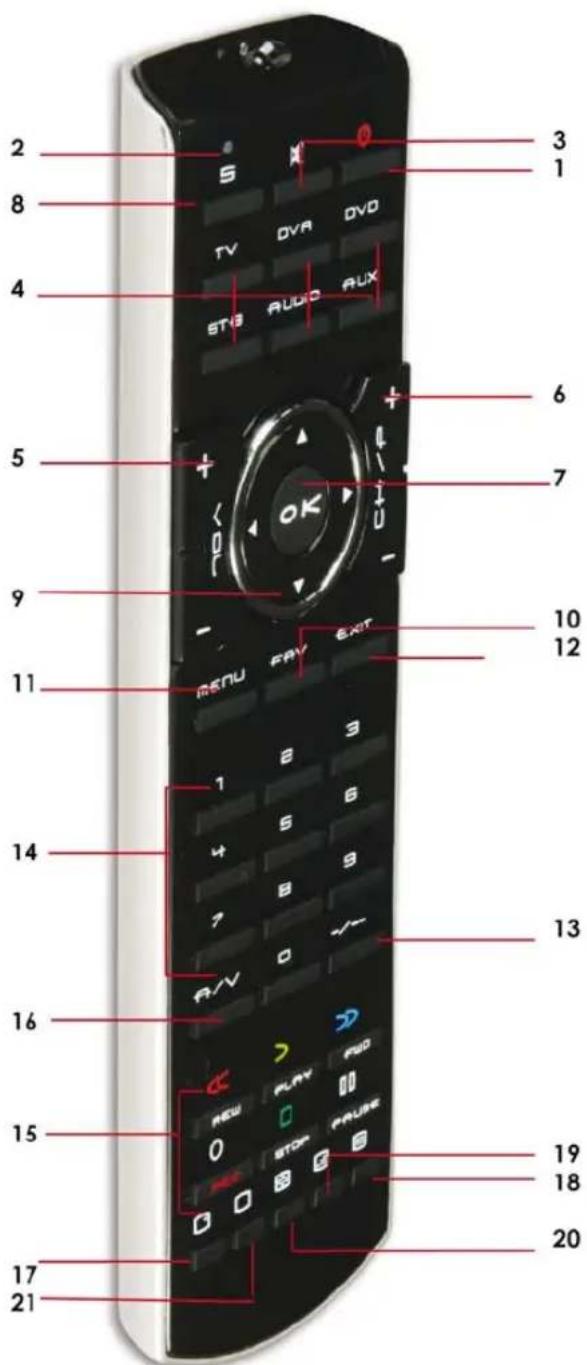
Button layout
General Security Note
Attention:
For carefree and safe use of this product, please read this manual and safety information carefully and follow the instructions. Technical manipulation of the product or any changes to the product are forbidden, due to security and approval issues. Please take care to set up the device correctly - consult your user guide. Children should use the device only under adult supervision.
Important: the TAKE 6 must be used according the instructions in this manual and is not suitable for other purposes.
Avoid the following
- strong mechanical wear and tear
high temperature - strong vibrations
high humidity
Please also respect the additional security notes in the various user guide chapters. To ensure correct set up please read the manual and security notes carefully.
Battery install and change
The device may only be used with CR02032 batteries - never try to connect to another power supply. When inserting batteries be sure the right polarity is used. Remove the batteries when the device is not used for a longer period. Make sure that the batteries are not short circuited and are not disposed in fire (danger of explosion). Batteries do not belong in children hands. Don't let batteries lay around openly - they might be swallowed by children or animals. If this happens see a doctor immediately.
Disposal of batteries:
Batteries are special waste and do not belong in general household waste disposal. Leaking or damaged batteries can upon contact with skin cause burning or acid damage – if necessary use suitable gloves. Please dispose of batteries in accordance with local bylaws.
Contents
Quick Start Guide
-
Introduction
-
Insert the
batteries
- Function of the remote's buttons
- Programming
4.1. Manual code entry
4.2. Automatic code search for some well-known brands
4.3. Automatic code search for all brands
4.4. Manual code search
4.5. Identifying codes found
4.6. Volume Control Punch Through
4.7.X10 Home Automation Control via IR7243
4.8 The FAV key
- Troubleshooting
- Tips & Tricks about learning IR codes to a remote
Quick start guide
1) Put the batteries in
- Open the cover on the back of the 6 in 1 Universal Remote Control
- Insert the two CR2032 batteries. Make sure the batteries are NEW.
2) Program your 6 in 1 Universal Remote Control
- Turn on the equipment that you wish to control (TV, DVR, DVD, STB, AUX, AUDIO).
- The AUX key allows you to program and control any equipment such as TV, DVR, DVD, CD, STB.
- Take the code book supplied with the 6 in 1 Universal Remote Control and find the brand of the equipment you wish to control. E.g. Thomson TV look for Thomson under the TV section.
- Press and hold on the key marked "S" (8) until the LED (2) stays permanently on. This takes about 3 seconds. Release the "S key".
- Press and release the TV, DVR, DVD, STB, AUX, AUDIO, mode key (4), in accordance with the appliance you wish to control.
- From the code book take the first number corresponding to your equipment and enter the number by pressing the 0-9 key pad (14). Each time you press a key the LED (2) will flash.
- If the number is correctly entered the LED will turn off. If the number is incorrect then the red LED will flash fast. If incorrect you will need to restart at 4.
Press the POWER key (1). If your equipment switches off you have found the right code. If it does not switch off, you will need to restart from 4.
Sometimes there are several codes that have similar features. If you find that your 6 in 1 Universal Remote Control does not work for some functions, you may need to try another code.
1. Introduction
The TAKE 6 is designed to control up to 6 devices:
TV, DVR, DVD, STB, AUDIO or any other device under AUX mode key. The TAKE 6 contains a library of codes that are preprogrammed into the remote control. This library covers nearly all the audio video products on the market today. The codes have to be programmed once before use. This can be done in different ways:
a. Manual entry of one of the codes displayed under the related brand and type of equipment in the attached code book (see 4.1)
b. Automatic code search for some well-known brands (4.2)
c. Automatic code search for all brands (4.3)
d. Manual search through all codes (4.4)
2. Insert the batteries (always use NEW CR2032 batteries)
- Open the cover on the back of the TAKE 6 Remote.
- Insert 2 CR2032 batteries, verify that they are placed correctly with the + on the battery in the same position as marked inside the battery compartment.
- Close the battery compartment carefully.
3. Function of the remote's buttons
[1] POWER (On/Off)
Allows you to switch off the last selected appliance. Some appliances can also be switched on with this button.
[2] LED indicator
The indicator light flashes when the remote is operating or lights continuously while you are programming the remote.
[3] MUTE
Allows you to turn on/off the sound. You can control the "Mute" function of your TV even when you are in DVR, DVD or STB mode. No need to select the TV mode.
[4] TV, DVR, DVD, STB, AUX, AUDIO
These keys allow you to select the appliance you wish to control.
[5] VOLUME +/-
Allows you to control the volume. You can control the volume of your TV even when you are in DVR, DVD or STB mode. No need to select the TV mode.
[6] CHAN +/- or PROG +/-
Select the next or the previous channel of your TV or STB.
In DVD mode: next or previous chapter.
[7] OK
Confirms menu selection.
[8] S
Allows you to program your remote before the first use. It also allows you to access to secondary functions of certain A/V appliances (Shift). Press the $ key followed by the function key you desire.
[9] Navigation Keys These buttons allow you to navigate into the menu of the selected device (if the device you selected has such a menu)
[10] Favorite button
Program this button to remember your two most often used buttons
[11] Menu
Menu On
[12] Exit
Menu OFF
[13]--
In connection with the numeric keys, this button allows you with some equipment to select directly channels higher than 9. If you are in programming mode - automatic code search - you can confirm the code.
[14] Numeric keys 0 - 9
Work the same way as your original remote.
[15] REW, PLAY, FWD, REC, STOP, PAUSE
REW (rewind)
In DVR, DVD or CD mode: This button works the same way as in your original remote.
IN TV mode: Coloured key (Red), control of videotext or special equipment functions.
PLAY
In DVR, DVD or CD mode: This button works the same way as in your original remote.
IN TV mode: Coloured key (Yellow), control of fasttext or special equipment functions.
FF (fast forward)
In DVR, DVD or CD mode: This button works the same way as in your original remote.
IN TV mode: Coloured key (Blue), control of fasttext or special equipment functions.
REC (record)
This key works the same way as the one on your original remote for your DVR. In order to avoid a mistake you have to press this key twice to activate this feature.
STOP
In DVR, DVD or CD mode: This button works the same way as in your original remote.
IN TV mode: Coloured key (Green), control of fasttext or special equipment functions.
PAUSE
In DVR, DVD or CD mode: This button works the same way as in your original remote.
IN TV mode: Coloured key (Magenta), control of fasttext or special equipment functions.
[16] AV
Selection of an external source (e.g. SCART input).
[17] INFO
Displays on screen information of the selected appliance (when available).
[18] Teletext
Teletext OFF: Stop Teletext / Fasttext.
[19] Teletext
Teletext Hold: Stop page change in Teletext / Fasttext mode.
[20] Teletext
Teletext Mix: Allows you to mix the Teletext / Fasttext and the picture of the selected channel.
[21] Teletext
Teletext ON: Start/stop Teletext / Fasttext.
4. Programming
To make your remote suitable for your own equipment, you have to program it once. You can do this by entering a code, related to the brand and type of equipment you want to control. You can program any equipment under any MODE key. For example, if you have three videorecorders, you can program videorecorder 1 under DVR, videorecorder 2 under AUX and videorecorder 3 under AUDIO.
4.1. Manual code entry
Take your code book and search for the list matching the equipment you are looking for, e.g. TV or DVR. Next, find the relevant brand (e.g. Sony). Now you will find one or more 4-digit codes. If there is more than one code, it depends on your equipment which code is correct. Generally, the codes are displayed in order of age of the equipment. Older equipment first, younger equipment at the end. Sometimes you will have to try several codes before you find the right code for your equipment.
- Make sure your equipment is switched on (for example TV).
- Press and hold the (8) key until the LED indicator lights continuously. Release the key.
- Press and release the mode key (4) of the device you want to control (for example TV).
- Enter the 4-digit code from the Code Book by using the key pad (14). The LED (2) turns off after the last digit is entered. If you entered a wrong code the LED blinks for 3 seconds and then goes off. You have to repeat from step 2.
-
Point the remote in the direction of your TV and press the POWER button (1). Your device should turn off. Check other functions (for example for a DVR FF or REW, etc.). If certain functions are not responding, this indicates that the entered code is not the correct one. In that case repeat the above procedure with the next corresponding code of your brand.
-
Repeat this procedure from step 1 for the other equipment you want to control (DVR, DVD, STB,...). If your equipment (TV, STB, etc...) does not respond, try the other codes for your brand. If it still doesn't respond, try the manual code search method (4.4 Manual code search).
4.2. Automatic code search for some well-known brands
If your brand is listed hereafter, you can use the brand search method (faster than the "manual" and the "automatic code search").
| BRAND | CODE | BRAND | CODE |
| Philips / Radiola | 1 | Telefunken / Saba / Normende | 4 |
| Akai / Daewoo / JVC / Panasonic / Sharp / Sony / Toshiba | 2 | Grundig / Blaupunkt | 5 |
| Brandt / Thomson | 3 Nokia / ITT 6 |
- Turn on the device you want to control.
- Press and hold S (8) until the LED indicator (2) lights steadily. Release S button.
- Press the mode button (4) that matches the equipment you wish to control. The LED (2) blinks once.
- Enter the code corresponding to your brand, point the TAKE 6 Remote in the direction of your equipment, press CHAN+ (6) once only. Continue to point the TAKE 6 Remote at your equipment until the equipment changes Channel (the remote control sends an IR signal every second. Please wait until your equipment reacts). When your equipment does react, press on the key -/-- (13) to confirm. If you accidentally miss the code, you can stop the autosearch by pressing CHAN- (6) and by repeatedly pressing this key return to the right code. Press -/-- (13) to confirm.
4.3 Automatic code search for all brands
When searching an unknown code, you can step through the library automatically (AutoSearch). When your equipment responds, you can stop the searching process and store the code you found.
Note: as you can dedicate any appliance (TV, DVD, STB...) to DVR, DVD, CD, STB, AUDIO or AUX key, you need first to enter any 4-digit code for the kind of appliance you wish to control (found in the code book), i.e.: If you want to program a STB under the DVR key, enter ANY STB code found in the code book and then follow the steps below:
- Turn on the device you want to control.
- Press and hold S (8) until the LED indicator (2) lights steadily. Release S button.
- Press the mode button (4) that matches the equipment you wish to control. The LED (2) blinks once.
- Press CHAN+ (6) once. After a few seconds the remote starts stepping through the code library (fast search, 1 code per second). When the device responds, you can press CHAN+ (6) to switch to slow search (1 code per 3 seconds). You can step back by pressing CHAN- (6) (you can step forward by pressing CHAN+ (6) in case you went too far back). As soon as the device responds again, press the -- key (13) to store the code you found.
Remark: if some functions of your equipment don't work, you need to try another code for your brand. The search function starts after the last confirmed code. For example, if it was 030, the search function starts at 031, and it will keep on trying until the last possible code.
4.4 Manual code search
Note: as you can dedicate any appliance TV, DVR, DVD, STB, AUDIO, AUX, keys, you first need to enter any 4-digit code for the kind of appliance you wish to control (found in the code book), i.e.: If you want to program a STB
under the AUX key, enter ANY STB code found in the code book and then follow the steps below:
- Make sure your equipment is switched on.
- Press and hold S (8) until the LED indicator lights steadily. Release S
- Press the mode key (4) that matches the equipment you want to control (for example TV).
- Press CHAN+ (6) repeatedly until the channel changes. If you step past the correct code use CHAN- (6) to go back to the right code.
- When the equipment you want to control reacts, press -- (13) to confirm the code.
Note: If your equipment doesn't have CHAN+ you can use PLAY (DVR or DVD) (15) or POWER (1) key. The search starts after the last registered code. If that was 030, the search starts at 031 until the last possible code and then goes from 000 to 029. Note: if certain functions of your equipment can't be controlled you will have to find a different code for your brand.
4.5 Identifying codes found
If you don't know the code (for example because you found the code by autosearch) you can identify it as described below:
- Press and hold S (8) until the LED indicator (2) lights steadily. Release S.
- Press the mode key (4) for the equipment you want to identify (DVR, DVD, CD, STB, AUDIO or AUX). The LED blinks once.
- Press again S. The LED blinks once.
- To identify the first digit press each number button from 0 - 9 (14) until the LED blinks. The number you pressed is the first digit of the code.
- Press each number key from 0 - 9 as above to find the second digit.
- Press each number key from 0 - 9 as above to find the third digit.
- Press each number key from 0 - 9 as above to find the fourth digit. When the fourth digit has been found the LED will go off.
4.6 Volume Control Punch Through
The TAKE 6 remote control allows you to select which Mode controls your volume/mute buttons. The volume buttons VOL+ (5), VOL- (5) and Mute (3) can be set for individual control by EACH device Mode or can be set for ALL device Modes to punch-through volume control to one specific single device Mode. The remote is initially set (Factory Default) for control by each specific device Mode.
Adjustment of ALL volume controls to one mode.
You can allocate volume control to one of the modes of the remote control providing that volume control exists on the corresponding device (e.g. control of TV sound in DVR, DVD, etc... mode).
-
Hold down the S (8) key until the LED remains lit.
-
Release the S (8) key.
-
Press and hold the MUTE (3) key until the LED flashes once, then release the MUTE key.
-
Press the required mode key, e.g. TV, corresponding to the device that will control the VOL and MUTE buttons for ALL the device Modes.
-
Press and release the MUTE (3) key and the LED turns off.
Adjustment of the volume controls for EACH mode.
You can allocate volume control to be individual for each mode selected, providing that volume control exists on the corresponding device (e.g. control of the television set sound in TV mode, the control of the sound of the STB receiver in STB mode, ...).
- Hold down the S (8) key until the LED remains lit.
- Release the S (8) key.
- Press and hold the MUTE (3) key until the LED flashes once, then release the MUTE key.
- Press the required mode key, e.g. DVD, corresponding to the device that will control its own VOL and MUTE keys.
- Press and release the VOL - (5) key once.
- Press and release the MUTE (3) key once and the LED turns off.
4.7 X10 Home Automation Control via IR7243
The TAKE 6 control allows you to command all electric appliances you have in your house.
Here are some examples that you can do with your 6 in 1 remote using X10:
-Switch on/off, dim lights while you watch TV.
-Switch on the lights at night to frighten intruders when you detect something suspicious.
-Switch on your electric blanket before the film ends to have it warm when you go to sleep.
For controlling your lamps or appliances, you will need an IR7243 and additional X10 home modules. The modules are simply plugged into a/c outlet with no additional wiring required.
Contact your retailer for additional information.
4.8 The FAV key
The FAV key allows you to program two specific channels and switch between them with a single key-press. The two channels can be up to 4 key-presses each and must be a minimum of 2. The first keypress must be a Mode key e.g. TV with the following keys being up to 3 digits. To program the FAV key:
a. Press and hold the S (8) button until the LED remains on (occurring after approximately 2-3 seconds).
b. Release S (8) button.
c. Press and release the FAV (10) key.
d. Press and release desired Mode (4) key (e.g. TV) followed by the 1, 2 or 3 digit keys in the correct order for the first channel selection. The LED will flash for each keypress.
e. Press and release the FAV (10) key.
f. Repeat Step "d" for the second device channel selection.
g. Press and release the FAV (10) key to store the channel selections. The LED will turn off and remote returns to normal.
To select between the two channels, press and release the FAV key.
5. Troubleshooting
The remote doesn't work or loses codes entered
- Confirm with your original remote that the equipment works correctly.
- Make sure that you have pressed the corresponding mode key of the equipment or device that you want to control.
- If the listed code does not work, try the AUTOSEARCH method or enter the next code of that brand.
- Check that the batteries have the correct polarity position.
- The programming of the remote requires 2 CR2032 batteries (new).
- If the LED is lit permanently, in general it will be necessary to replace the batteries.
- Set the remote back to factory default.
How to set the TAKE 6 Remote back to factory default
- Press and hold S (8) until the LED indicator (2) lights steadily. Release S.
Press and hold (8) until the LED indicator (2) lights steadily. Release - Press and release the 0 key (14) once.
- Press and release the S key (8).
The LED (2) turns off after few seconds.
Bedienungsanleitung
[15] REW, PLAY, FWD, REC, STOP, PAUSE
Schnellauf zürück
Teletext AUS: Stoppt Teletext.
[19] Teletext
Teletext AN: Startet/stopt Teletext.
4. Programmieren
[15] REW, PLAY, FWD, REC, STOP, PAUSE
REW (snel terug)
[15] REW, PLAY, FWD, REC, STOP, PAUSE
REW (spola tilbaks)
I DVR, DVD aller CD lage:enna knapp fungerar pa samma satt som din original fjarrkontroll.
The FAV key allows you to program two specific channels and switch between them with a single key-press. The two channels can be up to 4 key-presses each and must be a minimum of 2. The first keypress must be a Mode key e.g. TV with the following keys being up to 3 digits. To program the FAV key :
a. Press and hold the S (8) button until the LED remains on (occurring after approximately 2-3 seconds).
b. Release S (8) button.
c. Press and release the FAV (10) key.
d. Press and release desired Mode (4) key (e.g. TV) followed by the 1, 2 or 3 digit keys in the correct order for the first channel selection. The LED will flash for each keypress.
e. Press and release the FAV (10) key.
f. Repeat Step "d" for the second device channel selection.
g. Press and release the FAV (10) key to store the channel selections. The LED will turn off and remote returns to normal.
To select between the two channels, press and release the FAV key.
5. Felsökning
[4] TV, DVR, CBL, DVD, CD, DVR, STB, AUX
[15] REW, PLAY, FWD, REC, STOP, PAUSE
REW (Retour rapide)
[6] CHAN +/ - o PROG +/-
[15] REW, PLAY, FWD, REC, STOP, PAUSE
REW (rebobinado)
The FAV key allows you to program two specific channels and switch between them with a single key-press. The two channels can be up to 4 key-presses each and must be a minimum of 2. The first keypress must be a Mode key e.g.
TV with the following keys being up to 3 digits. To program the FAV key :
a. Press and hold the S (8) button until the LED remains on (occurring after approximately 2-3 seconds).
b. Release S (8) button.
c. Press and release the FAV (10) key.
d. Press and release desired Mode (4) key (e.g. TV) followed by the 1, 2 or 3 digit keys in the correct order for the first channel selection. The LED will flash for each keypress.
e. Press and release the FAV (10) key.
f. Repeat Step "d" for the second device channel selection.
g. Press and release the FAV (10) key to store the channel selections. The LED will turn off and remote returns to normal.
To select between the two channels, press and release the FAV key.
a) Cologne as bacterias
[6] CHAN +/- or PROG +/-
[15] REW, PLAY, FWD, REC, STOP, PAUSE
REW (rebobinar)
[18] Teletext (teletexto)
Teletext OFF: Interrompe o teletexto(Teletext) / Texto Rápido (Fasttext).
[19] Teletext (Teletexto)
Teletext Hold: Para de mudar a páginá no modo Teletexto / Texto Rápido.
[20] Teletext
4.6 Controlo de Volume "Punch Through"
[15] REW, PLAY, FWD, REC, STOP, PAUSE
REW (riavolgimento)
The FAV key allows you to program two specific channels and switch between them with a single key-press. The two channels can be up to 4 key-presses each and must be a minimum of 2. The first keypress must be a Mode key e.g. TV with the following keys being up to 3 digits. To program the FAV key:
a. Press and hold the S (8) button until the LED remains on (occurring after approximately 2-3 seconds).
b. Release S (8) button.
c. Press and release the FAV (10) key.
d. Press and release desired Mode (4) key (e.g. TV) followed by the 1, 2 or 3 digit keys in the correct order for the first channel selection. The LED will flash for each keypress.
e. Press and release the FAV (10) key.
f. Repeat Step "d" for the second device channel selection.
g. Press and release the FAV (10) key to store the channel selections. The LED will turn off and remote returns to normal.
To select between the two channels, press and release the FAV key.
CE DECLARATION OF CONFORMITY
UK - We, BMB Electronics BV, Kortakker 10 - 4264 AE Veen - The Netherlands, herewith declare that the following designated product TAKE 6 IR, is in compliance with the essential requirements and other relevant provisions of Directive 1999/5/EC.
Approval Engineer X10 Europe Product Manager BMB Electronics
product.
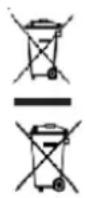
Device: The use of the symbol indicates that this product may not be treated as household waste. By ensuring this product is disposed of correctly, you help prevent potential negative consequences for the environment and human health, which could otherwise be caused by inappropriate waste handling of this product. For more detailed information about recycling of this product, please contact your local city office, your household waste disposal service or the shop where you purchased the

Also available from ebode: TAKE10
The TAKE10 is an elegant universal remote that is able to control up to 10 A/V devices, including TV, DVD, VCR, Cable, X10 Home Automation products and more.
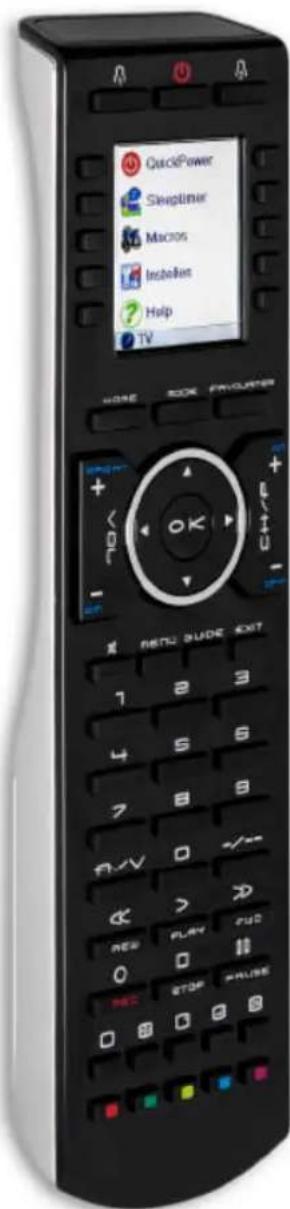
You don't even have to remember which TV station is on which button, as the brightly displayed icons on the fullcolour LCD display make it easy to find and surf all the channels, plus your own favourite 'personal' buttons for you and your partner also give you quick access to all your own favourite channels too.
The remote can be set-up within 5 minutes and is very easy to use and navigate.
As the TAKE10 features RF control, you can even control equipment which is out of sight - even through doors, walls and ceilings.
Features of the TAKE10
Familiar Channel Logos
Large, Easy-to-Use Buttons and LCD Screen
- His & Hers Favourite Buttons
- 5-Minute Setup
The Future-Proof Remote .... world's largest build-in IR library incl RF for controlling X10-PLC lighting control
No PC needed to program
- QuickPower Feature
Multilingual
Also available from ebode: 5.8 GHz Video Sender
If you have always wanted to distribute audio and video to a second room but have avoided doing so because of the cost and difficulties surrounding running cables, the easy answer has arrived. With this new product you avoid the interference from 2.4 GHz equipment like cordless phones and microwaves
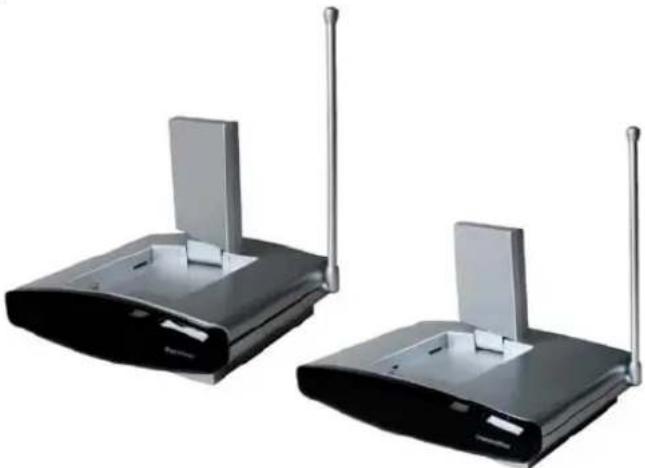
The VL58 5.8 GHz Video Sender is designed to transmit audio and video signals without running any wires. Watch and control movies and tv programs from up to two source devices (DVD player, VCR, Satellite, etc.) in another room.
You'll even be able to control your components using your existing remote, since the 5.8 GHz Wireless Video Sender includes an IR extender, transmitting your signals to the receiver in the room with your components.
Key Advantages
- New 5.8 GHz technology for superior quality
- No interference from 2.4 GHz equipment like cordless phones, WiFi, and microwaves
- Dual input for transmission of two sources
- Use your existing remote control to control the devices from the second room
- Listen to MP3 audio from your PC or your stereo in any room.
- Everything you need is included in the set. Just Plug & Play!
How it works
The Transmitter is connected to A/V equipment anywhere in your house. The Receiver is connected to a second TV, wherever desired around the home. The Transmitter sends audio and video wirelessly to the Receiver, (even through walls and ceilings). To control a source, simply aim the remote towards the Receiver, from whichever viewing location you choose.
Also available from ebode: Home Automation Modules
ebode offers a wide range of Home Automation products and solutions which help you control your 'electrical environment'. The home automation modules are ideal to (remotely) control blinds/rollers, home cinema screen, lighting, and other household appliances.
On-Wall Modules
| Product | Description | |
| EM 2-position RF wall switch, ideal for retro fit installations to e.g. control blinds, shutter, home cinema screens but also lighting or appliances. | ||
| IMRF | Single position RF wall switch, ideal for retro fit installations to e.g. control applications or an inside or outside light. | |
| RMV | Control your shutter, blind or e.g. cinema screen via the front panel keys, or remotely via any ebode / X10 compatible controller. | |
| RMA | Control your appliance, light or e.g. pump via the front panel keys, or remotely via any ebode/X10 compatible controller. | |
| RPA, RPL, RPT | Ideal for retro fit installations, the classic X10 plugin module in a new and stylish jacket. Control your appliance or lamps etc., via any ebode or X10 compatible controller via PLC AND RFI | |
| TPC / TMML | New stylish RF remote to control any ebode or X10 compatible RF receiver. | |
In-Wall Modules
| Product | Description | |
| EMML | 2-position RF in-wall module to install behind any mechanical wall switch. The EMML is battery operated. | |
| RMML | In-wall RF receiver, ideal for any switches lights and appliances up to 300W. |
ebode
www.ebodeelectronics.eu


- TAKE 6
- UNIVERSAL REMOTE 6 in1
- Button layout
- General Security Note
- Attention:
- Avoid the following
- Battery install and change
- Disposal of batteries:
- Contents
- Quick Start Guide
- 1) Put the batteries in
- 2) Program your 6 in 1 Universal Remote Control
- Introduction
- Insert the batteries (always use NEW CR2032 batteries)
- Function of the remote's buttons
- [1] POWER (On/Off)
- [2] LED indicator
- [3] MUTE
- [4] TV, DVR, DVD, STB, AUX, AUDIO
- [5] VOLUME +/-
- [6] CHAN +/- or PROG +/-
- [7] OK
- [8] S
- [10] Favorite button
- [11] Menu
- [12] Exit
- [13]--
- [14] Numeric keys 0 - 9
- [15] REW, PLAY, FWD, REC, STOP, PAUSE
- REW (rewind)
- PLAY
- FF (fast forward)
- REC (record)
- STOP
- PAUSE
- [16] AV
- [17] INFO
- [18] Teletext
- [19] Teletext
- [20] Teletext
- [21] Teletext
- Programming
- Manual code entry
- Automatic code search for some well-known brands
- Automatic code search for all brands
- Manual code search
- Identifying codes found
- Volume Control Punch Through
- Adjustment of ALL volume controls to one mode.
- Adjustment of the volume controls for EACH mode.
- X10 Home Automation Control via IR7243
- The FAV key
- Troubleshooting
- The remote doesn't work or loses codes entered
- How to set the TAKE 6 Remote back to factory default
- Bedienungsanleitung
- Schnellauf zürück
- Programmieren
- REW (snel terug)
- Felsökning
- [6] CHAN +/ - o PROG +/-
- REW (rebobinado)
- a) Cologne as bacterias
- REW (rebobinar)
- [18] Teletext (teletexto)
- [19] Teletext (Teletexto)
- Controlo de Volume "Punch Through"
- REW (riavolgimento)
- CE DECLARATION OF CONFORMITY
- Also available from ebode: TAKE10
- Features of the TAKE10
- Also available from ebode: 5.8 GHz Video Sender
- Key Advantages
- How it works
- Also available from ebode: Home Automation Modules
- ebode
Brand : EBODE
Model : TAKE 6 IR
Category : Remote control