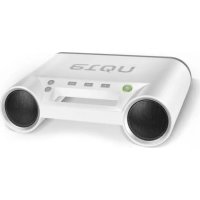
rukus - Loudspeaker ETON - Free user manual and instructions
Find the device manual for free rukus ETON in PDF.



| Product type | Portable speaker |
| Brand | ETON |
| Model | rukus |
| Power supply | Rechargeable lithium-ion battery |
| Charging methods | Integrated solar panel or AC adapter (via Micro USB port, USB cable included) |
| Battery life (playback) | Approximately 8 hours (depending on volume and conditions) |
| Charging time (adapter) | 2 to 2.5 hours |
| Charging time (solar) | 5 hours |
| Battery indicator | Built-in LED: press to show level (0-25%, 26-50%, 51-75%, 76-100%) |
| Wireless connectivity | Bluetooth (pairing by pressing and holding for 3 seconds) |
| Auxiliary input | 3.5mm AUX input |
| USB port | Yes, for charging external devices (dedicated button) |
| Controls | On/off switch, volume +/-, Bluetooth button, AUX button, USB button |
| Operating temperature | 0°C to 40°C |
| Water resistance | No: avoid rain, moisture, and immersion |
| Cleaning | Dry cloth only, no detergent or solvent |
| Disposal | Compliant with WEEE directive (2002/96/EC) - do not dispose of with household waste |
| Warranty | Limited, online registration recommended |
| Support and repairs | Contact Soulra customer service (phone or website) |
| Included accessories | USB cable |
Frequently Asked Questions - rukus ETON
User questions about rukus ETON
0 question about this device. Answer the ones you know or ask your own.
Ask a new question about this device
Download the instructions for your Loudspeaker in PDF format for free! Find your manual rukus - ETON and take your electronic device back in hand. On this page are published all the documents necessary for the use of your device. rukus by ETON.
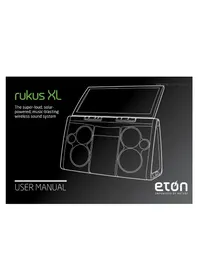
USER MANUAL rukus ETON
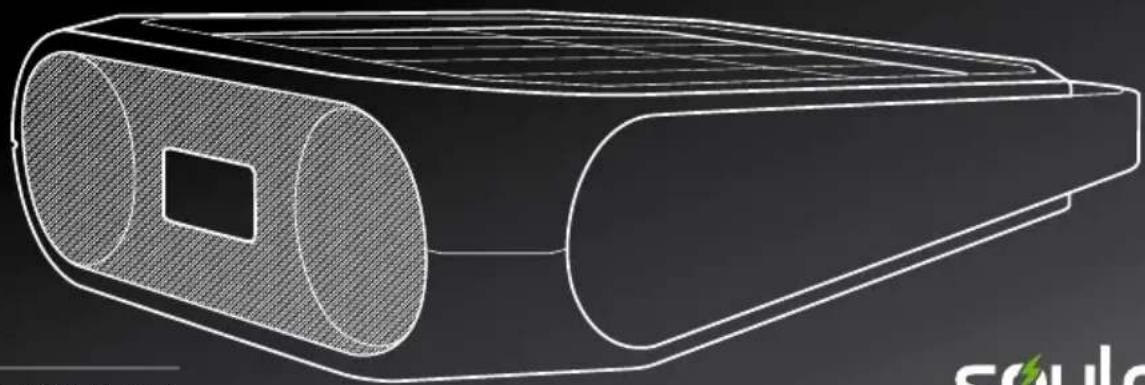
The All-Terrain, Solar-Powered, Music-Blasting Wireless Sound System
OWNER'S MANUAL
soulra
EMPOWERED BY NATURE
Thank you for purchasing the Soulra Rugged Rukus, a portable Bluetooth high-quality sound system featuring solar charging. The Rugged Rukus is powered from the rechargeable Li-ion battery charged by the solar panel or the AC adapter (USB cable included). Please read this user manual to get a good understanding of how the Rugged Rukus works and how to fully rock out with it!
Please visit www.soulracorp.com for latest updates on the manual.
NEED HELP? CONTACT US. ENVIRONMENT
Soulra Corporation; www.soulracorp.com.
WARNING
Do not expose this appliance to rain or moisture.
Do not submerge or expose for extended period to water.
Protect from high humidity and rain.
Only operate within specified temperature range.
(0°C to 40°C).
Unplug immediately if liquid has been spilled or any object has fallen into the apparatus.
Clean only with a dry cloth. Do not use detergents or chemical solvents as this might damage the finish. Unplug and disconnect during lightning storms.
Do not remove cover [or back].
Refer servicing to qualified service personnel.
DISPOSAL
According to the European Directive 2002/96/EC all electrical and electronic products must be collected separately by a local collection system.
Please act according to your local rules and do not dispose of your old products with your normal household waste.
Please dispose of all types of batteries per your Government, State or Local rules and/or regulations. If you are unsure, please call the appropriate local authority to find out how to dispose of them safely and help protect the environment.
RUGGED RUKUS FEATURES
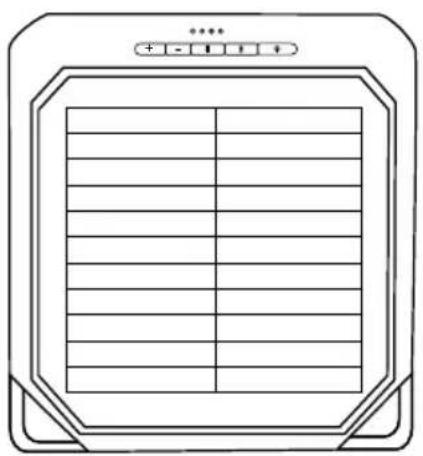
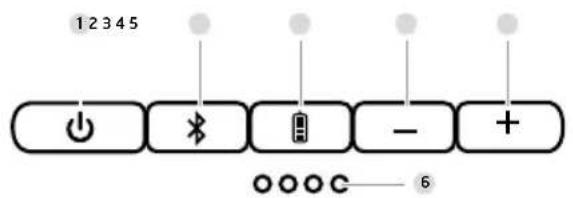
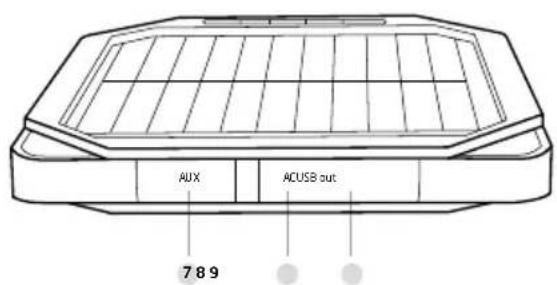
FUNCTIONS
1 PowerON/OFFbuntor
2 Suroooh button
3 BatteryIndicator
4 volume down button
5 Volume up/down
6 Battery life (ED indicator
7 AUX-n
8 Micro USB terminal (AC/DC power)
9 USEC
CHARGING THE BUILT-IN BATTERY BY THE AC POWER/SOLAR ENERGY
The unit has a built-in Lithium ion battery for portable power when not using the AC/DC power (connected to your smartphone USB AC adaptor - not included, or USB port on your computer). When the adapter is plugged in or the unit is exposed under the sunshine, the unit will start charging. During AC charging, the green Battery Life LED indicator on the display starts blinking.
When receiving a solar charge a RED LED will illuminate. The RED LED will be dimmer or brighter depending on how much solar power the unit is converting into energy. To check the overall battery level when solar charging, press
NOTE: If you have sunshine and the device is plugged in via micro-USB the RED LED will also be illuminated but may be only faintly visible behind the GREEN one.
TO FULLY CHARGE AN EMPTY BATTERY:
AC/DC: 2 to 2.5 hours
Solar: 5 hours*
*Change times may vary depending on solar conditions
BATTERY LIFE LED INDICATOR (BUILT IN LITHIUM ION BATTERY)
Press to check battery level
| 0-25% |
| 26-50% |
| 51-75% |
| 76-100% |
USB PORT FOR MOBILE DEVICE CHARGING
The USB jack can be used to charge most devices that allow for USB charging (including many mobile phones, smart phones and wireless headsets).
- Connect one end of the USB cord to your device and the other end to the USB jack of the unit.
- Press the button to start charging for your device. Press the button again to stop charging.
NOTE: Use the USB power cord that came with your device to connect to the unit. The USB light turns on indicating charging out to USB device
ADJUSTING THE VOLUME LEVEL
Press the nd buttons to adjust the volume levels.
- Press and hold for 3 seconds ON/OFF button to turn on the unit. A single blue Battery Life LED light will turn on to indicate the unit is on.
- Press the Bluetooth button to switch the sound source to Bluetooth mode.
- Hold the button for 3 seconds to place the unit in pairing mode. The indicator starts blinking rapidly. Unit will give off two short beeps.
NOTE: The unit beeps once more after the unit is successfully connected.
-
Open the Bluetooth settings menu on your Bluetooth-enabled mobile device or computer and connect it to the Rugged Rukus.
-
Once Bluetooth is connected, select the music and press the button on your device. The unit will playback music automatically.
NOTE: Playback time on built-in battery is ~8 hours, depending on music level and other factors.
PLAYING BACK VIA AUX
You can enjoy the sound from an external device such as a portable digital music player. Be sure to turn off the power of the external device before making any connections. For details, refer to the instruction manual of the device to be connected.
- Connect any device with headphone or line out jack with a 3.5mm line in cable to AUX IN jack on the back of the unit.
-
Press the button to turn on the unit.
-
Press the AUX button to switch the sound source to AUX mode, if the unit is not in AUX mode.
NOTE: The AUX LED light turns on.
- Turn on your external device and press button.
- The unit will play back the music from the external device automatically.
WARRANTY REGISTRATION
To ensure full warranty coverage or product updates, registration of your product should be completed as soon as possible after purchase or receipt.
Please go to http://www.soulracorp.com/productregistration to register your product.
LIMITED WARRANTY
Retain the warranty information from your warranty card with your proof of purchase or the Limited Warranty information can also be viewed at www.soulracorp.com.
SERVICE FOR YOUR PRODUCT
To obtain service for your product, we recommend first contacting an soulra service representative at 800-872-2228 US, 800-637-1648 Canada or (650) 903-3866 for problem determination and trouble- shooting. If further service is required, the technical staff will instruct how to proceed based on whether the radio is still under warranty or needs nonwarranty service.
PRODUCT WARRANTY
Visit http://www.soulracorp.com/productregistration to register your product and get warranty information.
WARRANTY
If your product is still in warranty and the soulra service representative determines that warranty service is needed, a return authorization will be issued and instructions for shipment to an authorized warranty repair facility. Do not ship your radio back without obtaining the return authorization number.
NON-WARRANTY
If your product is no longer under warranty and requires service our technical staff will refer you to the nearest repair facility that will be able to best handle the repair.
For service outside of north America, please refer to the distributor information included at time of purchase/receipt.
- NEED HELP? CONTACT US. ENVIRONMENT
- WARNING
- DISPOSAL
- RUGGED RUKUS FEATURES
- FUNCTIONS
- CHARGING THE BUILT-IN BATTERY BY THE AC POWER/SOLAR ENERGY
- TO FULLY CHARGE AN EMPTY BATTERY:
- BATTERY LIFE LED INDICATOR (BUILT IN LITHIUM ION BATTERY)
- USB PORT FOR MOBILE DEVICE CHARGING
- ADJUSTING THE VOLUME LEVEL
- PLAYING BACK VIA AUX
- WARRANTY REGISTRATION
- LIMITED WARRANTY
- SERVICE FOR YOUR PRODUCT
- PRODUCT WARRANTY
- WARRANTY
- NON-WARRANTY
Brand : ETON
Model : rukus
Category : Loudspeaker