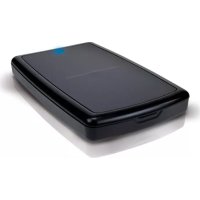
CHD2ULB160 - External hard drive CONCEPTRONIC - Free user manual and instructions
Find the device manual for free CHD2ULB160 CONCEPTRONIC in PDF.



| Product type | External hard drive enclosure 2.5" |
| Brand | Conceptronic |
| Model | CHD2ULB160 |
| Interface | USB 2.0 (mini-USB) / PATA |
| Compatible disk format | PATA 2.5" hard drive |
| Maximum supported capacity | 160 GB (depending on model) |
| Power supply | USB port (5 V); Y-cable for additional power |
| LED indicator | Power/operation LED |
| Supported operating systems | Windows Vista, Windows 7 (other USB mass storage compatible systems) |
| Installation | Plug and Play, no driver required |
| Formatting | Required if new disk; via Windows Disk Management |
| Dimensions (approx.) | 130 x 80 x 15 mm (estimate) |
| Weight (approx.) | 150 g (estimate) |
| Package contents | Enclosure, mini-USB Y-cable, travel case, manual, warranty card |
| Main functions | Portable storage, backup, data transfer |
| Maintenance | Clean with a soft dry cloth; avoid liquids |
| Safety | Disconnect via "Safely Remove Hardware" to avoid data loss |
| Spare parts | Not specified; contact Conceptronic support |
| Repairability | Enclosure designed for easy assembly; replaceable drive |
| Warranty | Refer to the included warranty card |
Frequently Asked Questions - CHD2ULB160 CONCEPTRONIC
User questions about CHD2ULB160 CONCEPTRONIC
0 question about this device. Answer the ones you know or ask your own.
Ask a new question about this device
Download the instructions for your External hard drive in PDF format for free! Find your manual CHD2ULB160 - CONCEPTRONIC and take your electronic device back in hand. On this page are published all the documents necessary for the use of your device. CHD2ULB160 by CONCEPTRONIC.
USER MANUAL CHD2ULB160 CONCEPTRONIC
Conceptronic CHD2ULB
Gebruiksaanwijzing
Conceptronic CHD2ULB
User Manual
Congratulations on the purchase of your
Conceptronic 2.5" Mobile USB to PATA Hard Disk Box.
This user manual gives you a step-by-step explanation of how to install and use the Conceptronic 2.5" mobile hard disk box on your computer.
If you need more information or support for your product, we advise you to visit our Service & Support website at www.conceptronic.net/support and select one of the following options:
- FAQ : Frequently Asked Questions database
- Downloads : Manuals, Drivers, Firmware and more downloads
- Contact : Contact Conceptronic Support
For general information about Conceptronic products visit the Conceptronic website at www.conceptronic.net.
When problems occur, we advise you to go to our support-site (go to www.conceptronic.net and click 'Support'). Here you will find the Frequently Asked Questions Database.
Note: The information in this manual is based on Windows Vista and Windows 7, but can differ from your computer when you are using a different operating system.
1. Package contents
The following items are present in the package of the Conceptronic 2.5" mobile hard disk box:
- Conceptronic 2.5" mobile hard disk box
- Mini-USB Y-cable (2x USB to Mini-USB)
- Travel bag
• This multi language user manual - Warranty card & CE declaration booklet
- Assembly guide *
* The assembly guide describes how you can install a 2.5" PATA hard disk in the Conceptronic 2.5" mobile hard disk box. If you bought the Conceptronic 2.5" mobile hard disk box with a hard disk pre-installed, the assembly guide is not included.
- Product overview
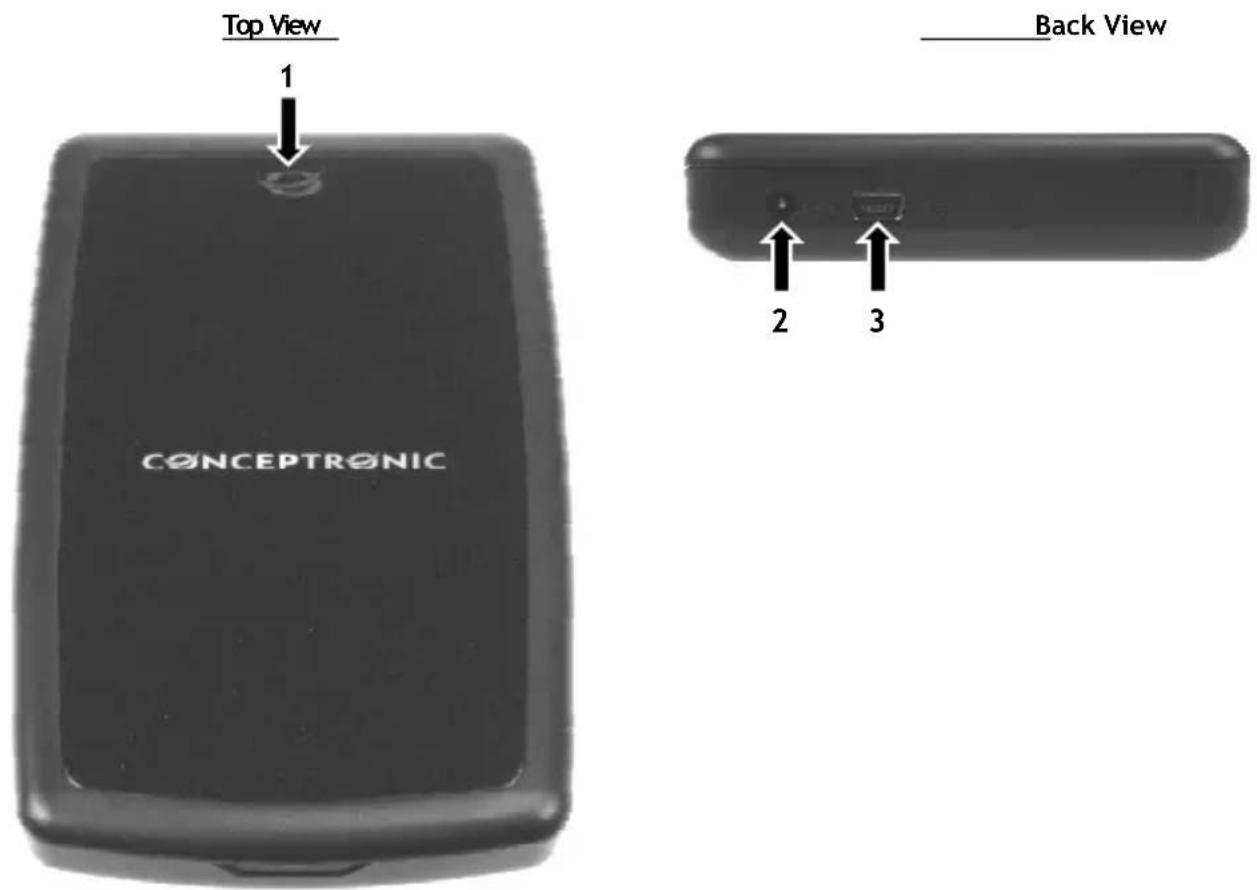
Description of the numbers:
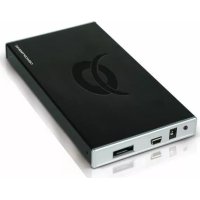
- Power / Activity LED
- DC input (5 volt)
- Mini-USB port
3. Using your 2.5" mobile hard disk box
3.1 Connect the 2.5" mobile hard disk box to your computer
- Turn on your computer.
- Connect the included mini-USB connector of the included mini-USB Y-cable to the mini-USB port of the 2.5" mobile hard disk box.
- Connect the unlabeled USB connector of the included mini-USB Y-cable to a free USB port on your computer.
The computer will automatically recognize and install the 2.5" mobile hard disk box. No driver installation is required.
Note : Some computers do not supply enough power on the USB port, which results in a not working 2.5" mobile hard disk box. When this occurs, you can connect the second USB connector of the USB Y-cable (labeled 'Power') to another free USB port to provide extra power to the 2.5" mobile hard disk box.
3.2 Disconnect the 2.5" mobile hard disk box from your computer
The 2.5" mobile hard disk box must be removed safely before you disconnect it from your computer, in order to prevent data loss.
- Double click on the “Safely Remove Hardware” icon in your system tray.
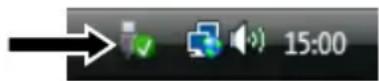
The "Safely Remove Hardware" window will be shown.
- Click on the connected 2.5" mobile hard disk box (often listed as "USB Mass Storage Device") and click the "Stop" button.
- Confirm the disconnection by clicking "OK".
The 2.5" mobile hard disk box is now safely removed from your computer. You can now disconnect the mobile hard disk box.
4. Formatting your hard disk
When the hard disk in your mobile hard disk box is not formatted, or you want to format it again, you can follow the format instructions below.
- Click on the "Start" button and select "All Programs", "Accessories", "Run".
- Enter the command "diskmgmt.msc" (without the quotes) and click "OK" to run the command.
The Disk Management tool of Windows will appear on your screen.
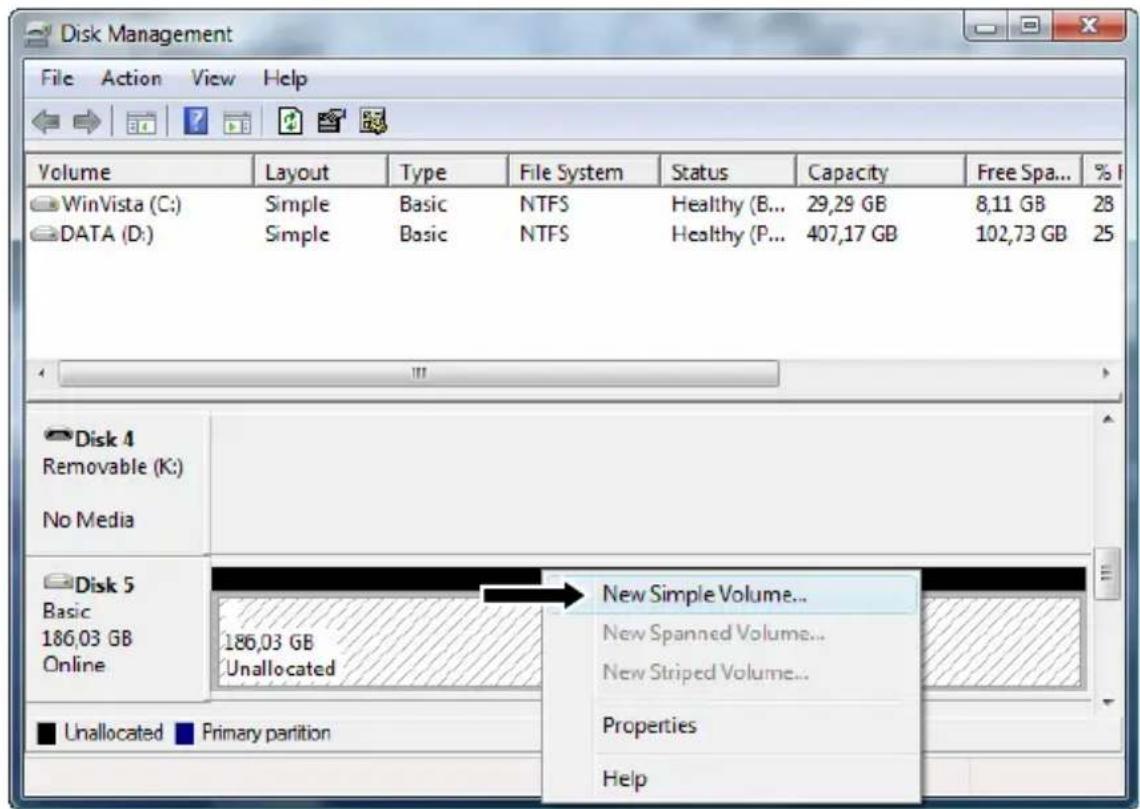
- Select your new hard disk (with unallocated disk space) from the bottom section of the list.
- Right click your new hard disk and select "New Simple Volume".
- The Format Wizard will appear on your screen. Click "Next" to continue.
- Select the size for your new hard disk.
By default, the maximum size is specified. If you want to create multiple volumes on your hard disk, reduce the size to the required size of your first volume. If you want to create 1 volume, keep the maximum size. Click "Next" to continue.
ENGLISH
- Select which drive letter you want to assign to the new volume. By default, the first available drive letter is shown. Click "Next" to continue.
- Select your format options. You can change the file system, change the volume label and choose for "Perform a quick format". Click "Next" to continue.
Note : Partitions bigger than 32GB can only be formatted with the NTFS file system when using the Windows Disk Management.
You will see a summary of the selected commands.
- Select "Finish" to close the Format Wizard and start formatting your hard disk.

When the format is completed, the hard disk will be shown in the Disk Management as "Healthy".

You can now use the formatted hard disk.
Enjoy the use of your Conceptronic 2.5" mobile hard disk box!
CHD2ULB de Conceptronic
Manual de usuario
Conceptronic CHD2ULB
Benutzerhandbuch
Conceptronic CHD2ULB
Conceptronic CHD2ULB
Manual do utilizador
- CONCEPTRONIC CHD2ULB
- GEBRUIKSAANWIJZING
- USER MANUAL
- CONGRATULATIONS ON THE PURCHASE OF YOUR
- CONCEPTRONIC 2.5" MOBILE USB TO PATA HARD DISK BOX
- PACKAGE CONTENTS
- DESCRIPTION OF THE NUMBERS
- USING YOUR 2.5" MOBILE HARD DISK BOX
- 3.1 CONNECT THE 2.5" MOBILE HARD DISK BOX TO YOUR COMPUTER
- 3.2 DISCONNECT THE 2.5" MOBILE HARD DISK BOX FROM YOUR COMPUTER
- FORMATTING YOUR HARD DISK
- ENGLISH
- CHD2ULB DE CONCEPTRONIC
- MANUAL DE USUARIO
- BENUTZERHANDBUCH
- MANUAL DO UTILIZADOR
Brand : CONCEPTRONIC
Model : CHD2ULB160
Category : External hard drive