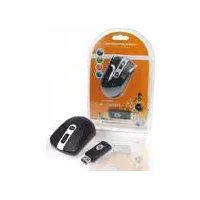
Optical Desktop Mouse - Mouse CONCEPTRONIC - Free user manual and instructions
Find the device manual for free Optical Desktop Mouse CONCEPTRONIC in PDF.


Pick your language and provide your email: we'll send you a specifically translated version.
| Product Type | Optical Desktop Mouse |
| Brand | Conceptronic |
| Model | Optical Desktop Mouse |
| Interface | USB wired connection |
| Sensor Type | Optical |
| Resolution | 1000 DPI |
| Number of Buttons | 3 (left, right, scroll wheel) |
| Scroll Wheel | Yes, clickable |
| Compatibility | Windows, macOS, Linux |
| Cable Length | Approximately 1.5 meters |
| Dimensions (W x H x D) | 120 x 40 x 65 mm |
| Weight | Approximately 100 g |
| Power Supply | USB bus-powered |
| Main Functions | Cursor control, click, double-click, scroll, middle-click |
| Ergonomic Design | Ambidextrous shape |
| Maintenance | Clean with a soft, dry cloth |
| Cleaning | Disconnect before cleaning |
| Safety | Keep away from liquids and direct sunlight |
| Spare Parts | Non-user-serviceable; contact support |
| Repairability | Limited; professional repair recommended |
| General Information | Plug-and-play installation, no drivers required |
Frequently Asked Questions - Optical Desktop Mouse CONCEPTRONIC
How do I connect the mouse to my computer?
Simply plug the USB connector into an available USB port on your computer. The mouse is plug-and-play, so it will be recognized automatically without needing to install additional drivers.
Why is my cursor not moving?
First, check that the USB cable is firmly connected. Try using a different USB port. Also ensure the optical sensor on the bottom is clean and not blocked. If the issue persists, restart your computer.
Does the mouse work with Mac?
Yes, the mouse is compatible with macOS as well as Windows and Linux. It works as a standard USB HID device without requiring special drivers.
How do I clean the optical lens?
Disconnect the mouse from your computer. Use a soft, lint-free cloth slightly dampened with water to gently wipe the lens and the bottom surface. Avoid using harsh chemicals or submerging the mouse in liquid.
Can I adjust the pointer speed?
Yes, you can adjust pointer speed in your operating system settings. On Windows, go to Control Panel > Mouse > Pointer Options. On macOS, go to System Preferences > Mouse. This allows you to customize the tracking speed and acceleration.
Is the mouse ambidextrous?
Yes, the mouse has a symmetrical shape and is designed to be comfortable for both left-handed and right-handed users. The buttons are positioned for easy access from either hand.
What should I do if the scroll wheel doesn't work?
Check if the scroll wheel is obstructed by dirt or debris. Gently clean around the wheel with a soft cloth. Ensure the mouse is properly connected. If the wheel still doesn't respond, try another USB port or restart your computer.
Does the mouse require batteries?
No, this is a wired mouse powered directly through the USB connection. It does not need batteries, which makes it convenient and environmentally friendly.
Is the mouse plug-and-play?
Absolutely. The mouse uses a standard USB interface and is recognized by most operating systems instantly. There is no need to install any software or drivers.
How can I extend the life of my mouse?
Keep the mouse on a clean, flat surface to avoid sensor issues. Regularly clean the exterior and sensor. Avoid pulling the cable sharply and unplug it gently. Store it in a dry, dust-free place when not in use.
User questions about Optical Desktop Mouse CONCEPTRONIC
0 question about this device. Answer the ones you know or ask your own.
Ask a new question about this device
No questions yet. Be the first to ask one.
Download the instructions for your Mouse in PDF format for free! Find your manual Optical Desktop Mouse - CONCEPTRONIC and take your electronic device back in hand. On this page are published all the documents necessary for the use of your device. Optical Desktop Mouse by CONCEPTRONIC.
USER MANUAL Optical Desktop Mouse CONCEPTRONIC

Manual assistant
Powered by Anthropic
Waiting for your message
Product information
Brand : CONCEPTRONIC
Model : Optical Desktop Mouse
Category : Mouse