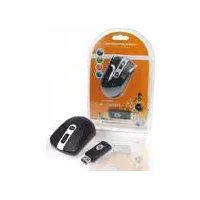
Lounge’n’Look - Mouse CONCEPTRONIC - Free user manual and instructions
Find the device manual for free Lounge’n’Look CONCEPTRONIC in PDF.


| Product type | Optical wireless mouse |
| Brand | Conceptronic |
| Model | Lounge’n’Look (CLLMTRAVWL) |
| Dimensions | Approximately 10 x 6 x 3 cm |
| Weight | Approximately 100 g (with batteries) |
| Power supply | 2 AAA batteries (included) |
| Connectivity | 2.4 GHz wireless with USB receiver |
| Range | Up to 10 meters |
| Buttons | Left button, right button, clickable scroll wheel, connection button |
| Main functions | Navigation, customization of buttons and pointer via Windows software |
| Energy saving | Automatic sleep mode, reactivation by double-clicking left button |
| Compatible operating systems | Windows (no driver required) |
| Maintenance and cleaning | Clean with a soft, dry cloth. Do not use abrasive products. |
| Safety | Do not expose to moisture, extreme temperatures. Keep out of reach of children. |
| Spare parts and repairability | Replacement batteries (AAA). The receiver is model-specific. |
| General information | Manual available in several languages. Technical support at www.conceptronic.net. |
Frequently Asked Questions - Lounge’n’Look CONCEPTRONIC
User questions about Lounge’n’Look CONCEPTRONIC
0 question about this device. Answer the ones you know or ask your own.
Ask a new question about this device
Download the instructions for your Mouse in PDF format for free! Find your manual Lounge’n’Look - CONCEPTRONIC and take your electronic device back in hand. On this page are published all the documents necessary for the use of your device. Lounge’n’Look by CONCEPTRONIC.
USER MANUAL Lounge’n’Look CONCEPTRONIC
Congratulations on the purchase of your Conceptronic Lounge'n'LOOK Mouse.
The enclosed Hardware Installation Guide gives you a step-by-step explanation of how to install the Conceptronic Lounge'n'LOOK Series Mouse.
When problems occur, we advise you to go to our support-site (go to www.conceptronic.net and click 'Support'. Here you will find the Frequently Asked Questions Database.
When you have other questions about your product and you cannot find it at our website, then contact us by e-mail: support@conceptronic.net
For more information about Conceptronic products, please visit the Conceptronic Web Site: www.conceptronic.net
1. Mouse installation
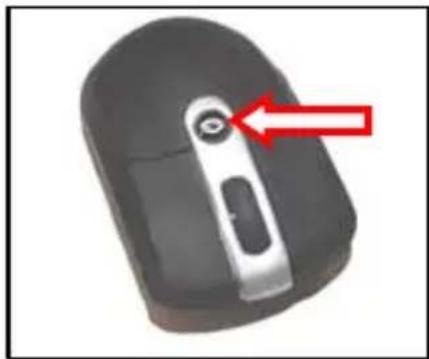
A. Open the battery cover by pressing the round button below the scroll wheel of the mouse.
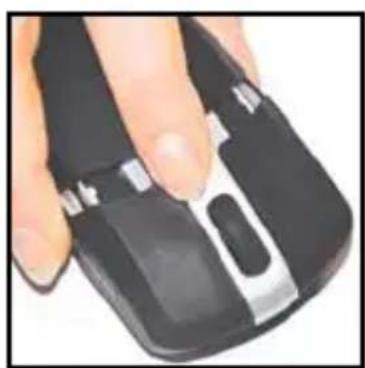
B. Insert the 2 supplied AAA batteries in the mouse.
ENGLISH
C. Replace the battery cover on the mouse.
D. Plug the USB receiver of the mouse in a free USB port of your computer.
The computer will automatically detect and install the Mouse. No drivers are needed.
E. Press the "connect" button on the receiver. The LED of the receiver will flash slowly.
F. Press the "connect" button on the bottom of the mouse. The LED on the receiver will flash quickly.
The mouse is now operational.
Note: The CLLMTRAVWL mouse has a power-saving function. When not used for a certain time the mouse will de-activate itself. Pressing the left mouse-button two times will re-activate the mouse again.
Note: If your mouse is not working properly, the batteries can be empty. Replace the batteries with the steps described in chapter 1.
2. Customizing the mouse settings
You can customize several mouse settings on your computer. These settings allow you to change the pointer speed, doubleclick speed, etc.
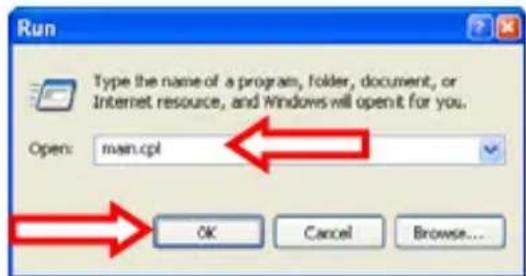
Click "Start", "Run", execute the command "MAIN.CPL" and click "OK".
The Mouse Properties will be shown on your display.
ENGLISH
2.1 Buttons settings
At the page "Buttons" you can configure the mouse for left and right hand usage & change the Double-Click speed.
- Enable the option "Switch primary and..." to configure the mouse for left handed use.
- Use the slider to adjust the speed and try it at the displayed folder on the right.
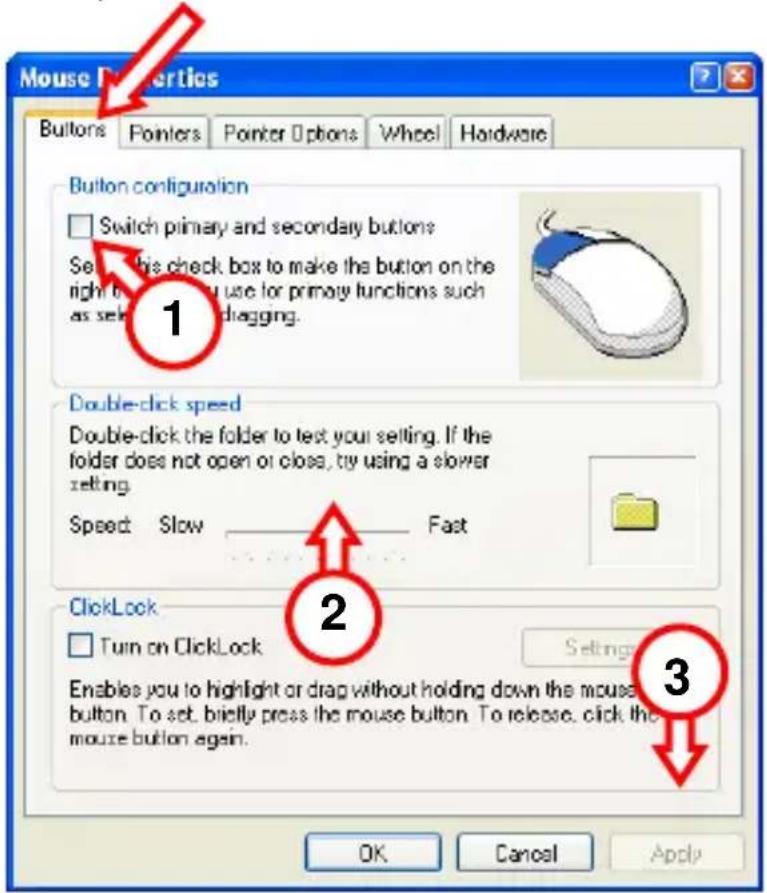
- Click "Apply" to save the speed when you adjusted it.
ENGLISH
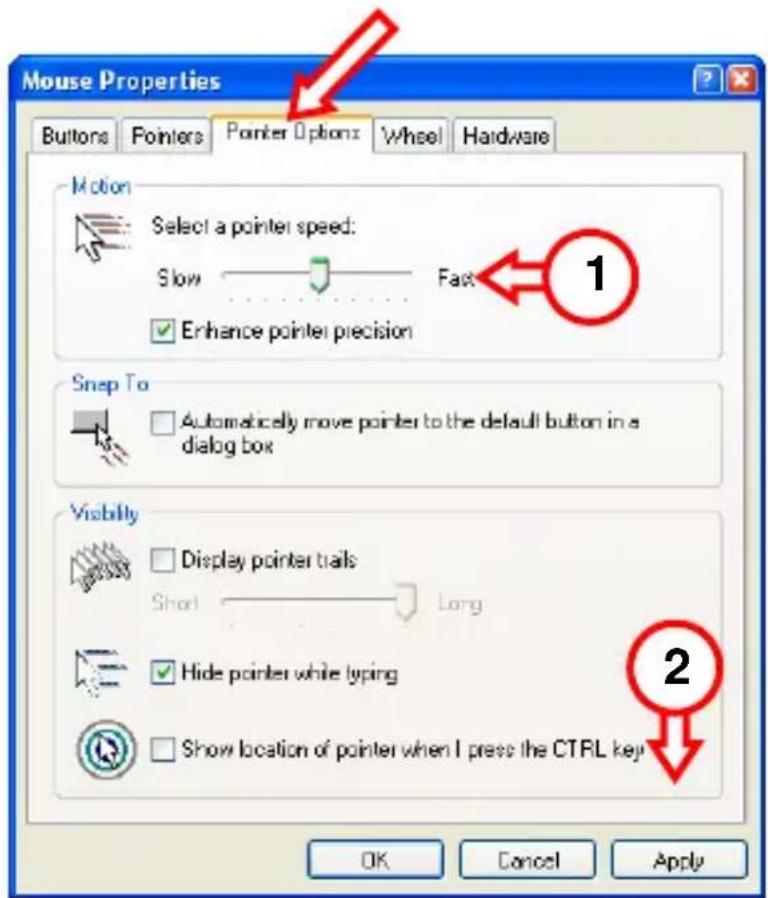
2.2 Pointer settings
At the page "Pointer Options" you can change for instance the speed (precision) of your mouse cursor on the screen.
- Use the slider to adjust the speed of your pointer. The change will be noticeable when you release the mouse button after you changed the slider.
- Click "Apply" to save the speed when you adjusted it.
Click "OK" to close the Mouse Properties.
Your Lounge'n'LOOK Mouse is now ready to use!