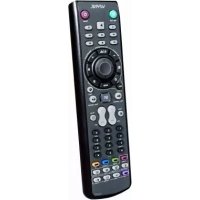
Multimedia Station Elite - Remote control ANTEC - Free user manual and instructions
Find the device manual for free Multimedia Station Elite ANTEC in PDF.



| Product type | Infrared remote control with internal receiver |
| Brand | Antec |
| Model | Multimedia Station Elite |
| Receiver dimensions (approx.) | 146 x 43 x 190 mm (5.25-inch bay) |
| Weight (receiver + remote, approx.) | 200 g |
| Receiver power supply | 24-pin power adapter via PC power supply |
| Remote control power supply | 2 AAA batteries (not included) |
| Main functions | Media control (play/pause, volume, navigation), TV control, mouse/keyboard, sleep, application launch, timer |
| Associated software | iMEDIAN HD (on included CD) |
| Receiver connectivity | Internal USB, power connector, PC power switch |
| Infrared range | Approximately 10 m |
| System compatibility | Windows (XP/Vista/7/8/10) with USB and free 5.25-inch bay |
| Maintenance and cleaning | Wipe with a soft, dry cloth; do not use liquids or abrasive products |
| Safety | Turn off and unplug the PC before installation; do not expose to moisture |
| Spare parts and repairability | Not user-serviceable; contact Antec support if issues |
| Package contents | Internal receiver, RM200 remote, 24-pin power adapter, USB cable, installation CD, mounting screws, installation guide |
| General information | Remote control designed for PC media control with advanced functions and iMEDIAN HD interface |
Frequently Asked Questions - Multimedia Station Elite ANTEC
User questions about Multimedia Station Elite ANTEC
0 question about this device. Answer the ones you know or ask your own.
Ask a new question about this device
Download the instructions for your Remote control in PDF format for free! Find your manual Multimedia Station Elite - ANTEC and take your electronic device back in hand. On this page are published all the documents necessary for the use of your device. Multimedia Station Elite by ANTEC.
USER MANUAL Multimedia Station Elite ANTEC
Multimedia Station Elite
Installation Guide
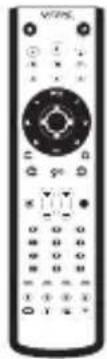
RM200

(2) AAA
RM200 Remote Control and Battery
24-pin Power Adapter
Multimedia Station Elite
-
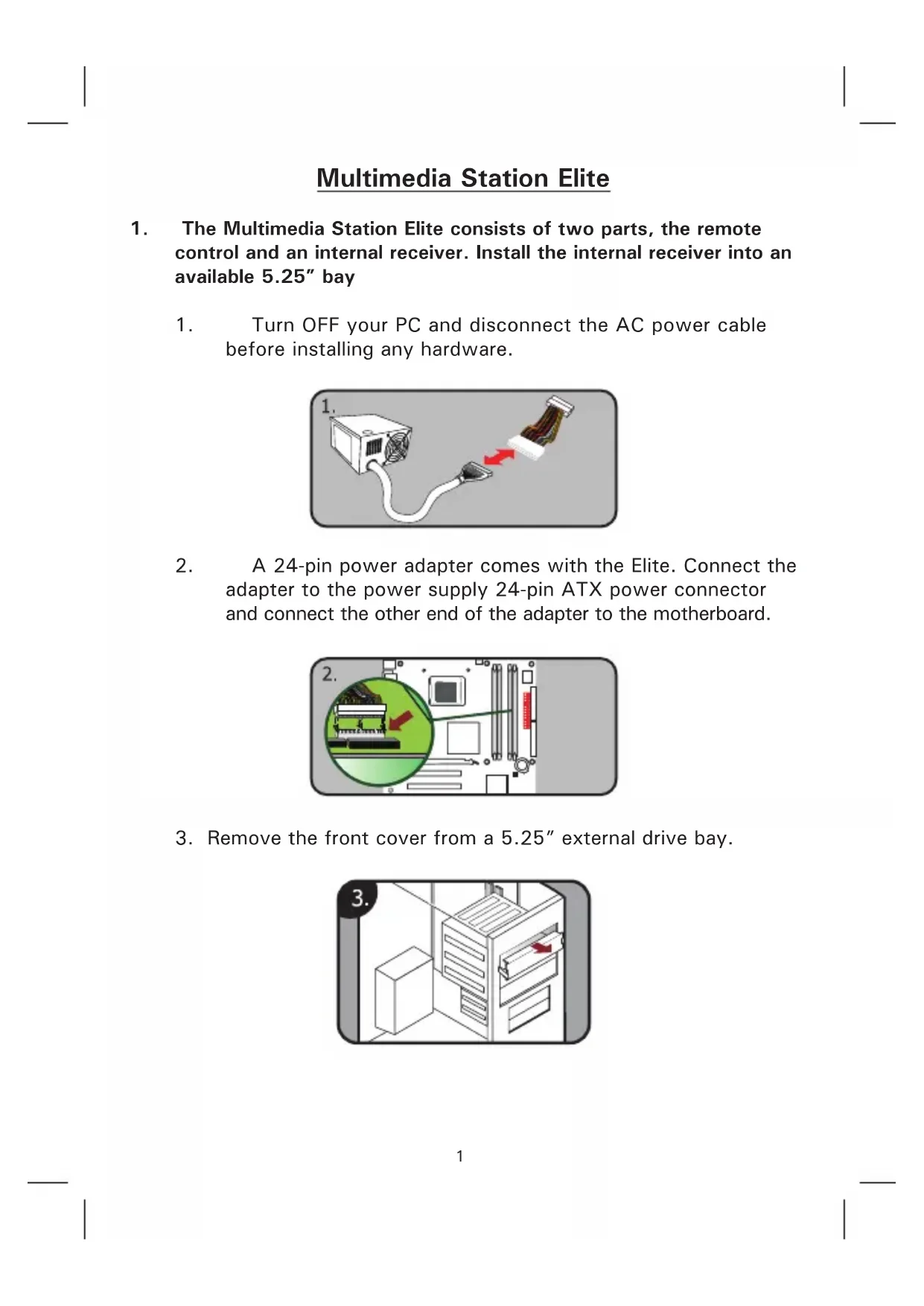
The Multimedia Station Elite consists of two parts, the remote control and an internal receiver. Install the internal receiver into an available 5.25" bay
-
Turn OFF your PC and disconnect the AC power cable before installing any hardware.
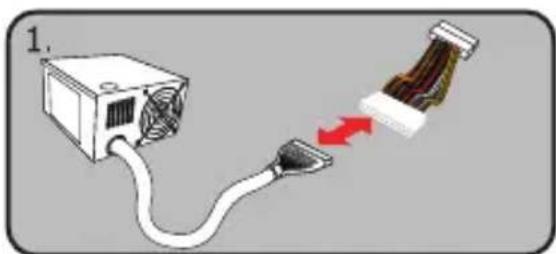
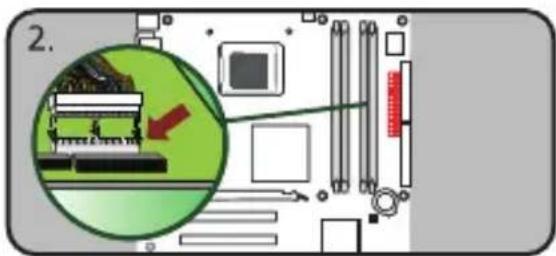
- A 24-pin power adapter comes with the Elite. Connect the adapter to the power supply 24-pin ATX power connector and connect the other end of the adapter to the motherboard.
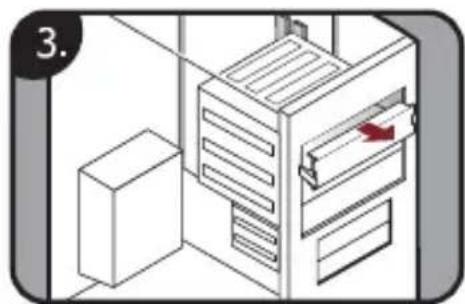
- Remove the front cover from a 5.25" external drive bay.
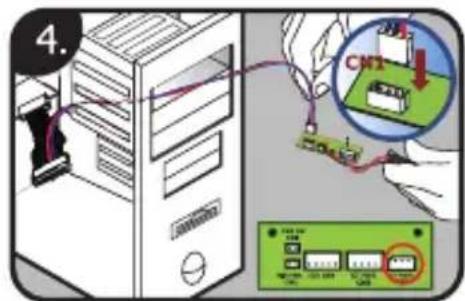
- Connect the 3pin standby power cable from the 24-pin power adapter to CN1 of the internal receiver. This connector is shaped so that it only fits one direction.
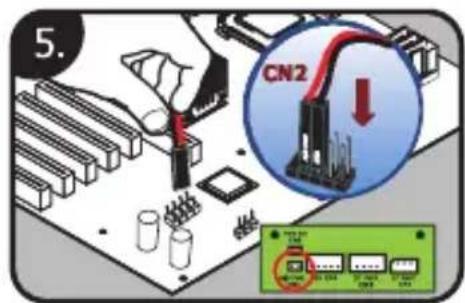
- Connect the wires from CN2 to the power switch (usually labeled PWR SW) connector on the motherboard. You may need to refer to the motherboard manual to determine the correct location. Polarity (positive and negative) does not matter for switches.
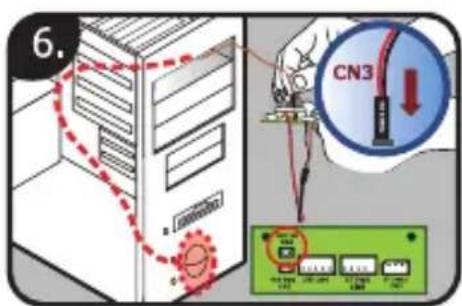
- Connect the cable from the PC power switch (usually labeled POWER SW) to CN3 of the internal receiver.
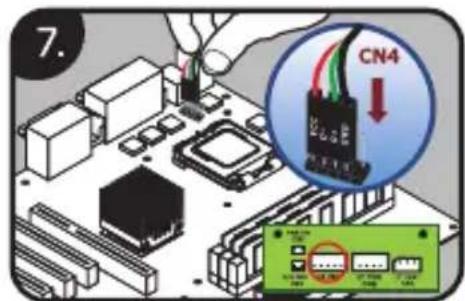
- Connect the USB cable of CN4 to either a USB pin header on the motherboard or an external USB port. If you use a motherboard header, check the motherboard manual to make sure you have the pinout correct. On the USB adapter cable, the black wire is ground (-) and the red wire is power (+5V)
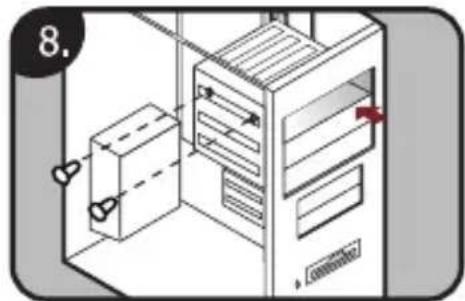
- Insert the Multimedia Station Elite receiver into the external 5.25'' drive bay and secure it with the supplied mounting screws.
2. Software Installation
Please insert the installation CD and then install the iMEDIAN HD software. If you see the "Auto Update" message after your installation, please update to the newest version. After the installation, you may need to tune the settings of your system for optimal performance.
Please visit www.soundgraph.com for more information on how to install.
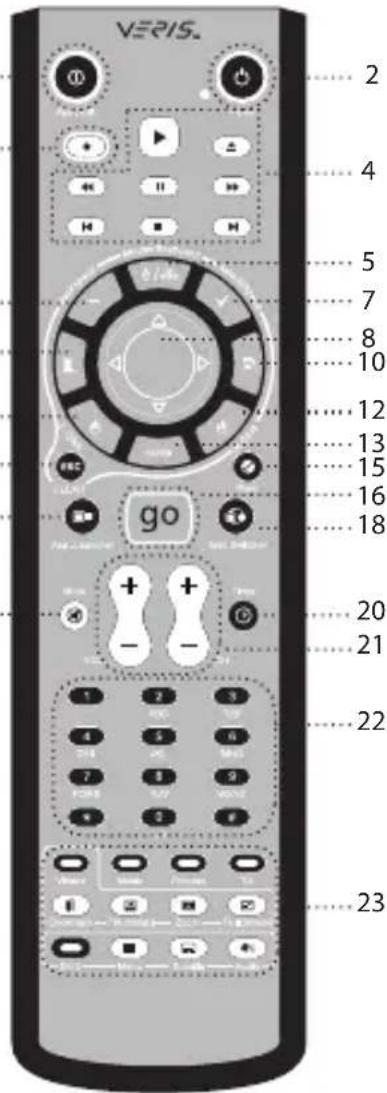
3. RM200 (IR Remote Control for PC)
- Application Exit: Close the active window or close iMEDIAN HD [ALT + F4]
- Power: Turn the PC on/off
- Record
- Media Control Group 1: Play/ Pause/Stop/Open/Prev/Next/ Rew/F.Fwd
- Mouse/Keyboard: Switch the use of a PAD controller between a mouse and a keyboard
- Backspace: View previous menu
- Select/Space
- PAD Controller: Mouse cursor control & 4-way arrow keys
- Windows Start
- Windows Menu
- Mouse left click
- Mouse right click
- ENTER
- Esc
- Open/Close: Open or close DVD or CD-ROM tray
- "go": Starts iMEDIAN HD application
- Application Launcher: Run an application
- Task Switch: Switch between running applications [ALT-TAB]
- Mute
- Timer: Use a timer to manage on/off and alarm schedule
- VOL/CH: Change the volume and TV channel
- Custom button group for user-customized commands
- Media Control Button Group 2
4. iMEDIAN HD
1. Running iMEDIAN HD
Press the "go" button to launch iMEDIAN HD
2. Navigating iMEDIAN HD
Use the 4-way buttons to navigate iMEDIAN HD. Holding the left and right buttons will take you to the "Home" and "Menu" screens Press Enter to select a choice.
3. Local Media
Users can easily enjoy music, videos, and pictures on their PC with only the remote control. IMEDIAN HD software supports every essential internal codec.
4. Network Media
Users can easily enjoy media files on networked PCs as well as Internet radio.
5. CD/DVD
Users can easily listen to CDs or watch DVDs
6. TV
Users can watch and record digital/analog TV channels if you have a TV tuner card in your PC.
7. Tasks
Users can check RSS news feeds, world city time and weather, manage their files, set an alarm, and shut down their system
8. Settings
Users can change and adjust settings such as GUI, Media Playback features, and more
Multimedia Station Elite
Multimedia Station Elite
Multimedia Station Elite
Multimedia Station Elite
Multimedia Station Elite
3. RM200 (PC用赤外線リモコン)
Multimedia Station Elite
customersupport@antec.com
Europe
+31 (0) 10462-2060
europe.techsupport@antec.com
www.antec.com