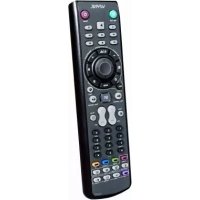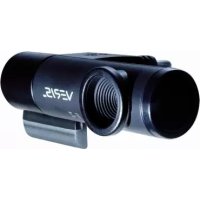
Multimedia Station EZ - Remote control ANTEC - Free user manual and instructions
Find the device manual for free Multimedia Station EZ ANTEC in PDF.



| Brand | Antec |
| Model | Multimedia Station EZ |
| Product Type | Infrared remote control for PC |
| Components | Remote control, external receiver, optional receiver base |
| Remote power supply | 2 AAA batteries (not included) |
| Range | Up to 10 meters (estimated) |
| Main Functions | PC power on/off, volume control, navigation, play/pause, media management |
| Software Compatibility | iMEDIAN HD |
| Receiver Connectivity | USB 2.0 |
| USB cable length (base) | Approximately 1.5 meters |
| Supported Operating Systems | Windows (estimated) |
| Advanced Functions | TV control, Internet radio, RSS, alarm, weather |
| Maintenance and Cleaning | Clean with a soft, dry cloth; avoid moisture |
| Safety | Do not expose to water, extreme temperatures or shocks |
| Spare Parts and Repairability | Replaceable batteries; receiver and base available separately |
| General Information | Remote control designed to control a multimedia PC remotely |
Frequently Asked Questions - Multimedia Station EZ ANTEC
User questions about Multimedia Station EZ ANTEC
0 question about this device. Answer the ones you know or ask your own.
Ask a new question about this device
Download the instructions for your Remote control in PDF format for free! Find your manual Multimedia Station EZ - ANTEC and take your electronic device back in hand. On this page are published all the documents necessary for the use of your device. Multimedia Station EZ by ANTEC.
USER MANUAL Multimedia Station EZ ANTEC
Multimedia Station E-Z
Installation Guide
RM100
CR2025

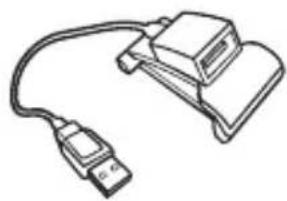
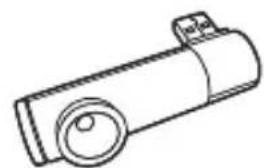
RM100 Remote Control and Battery
-
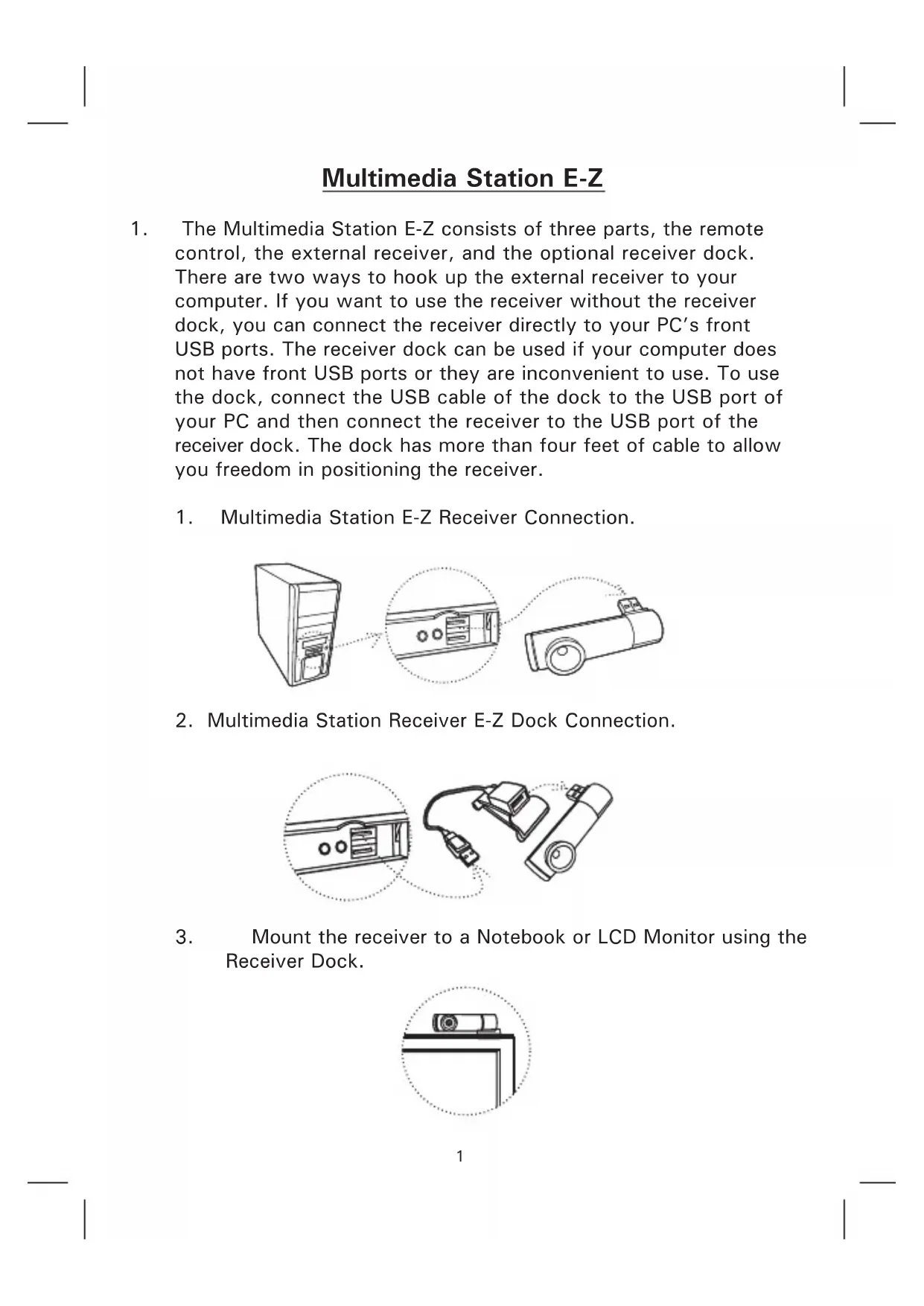
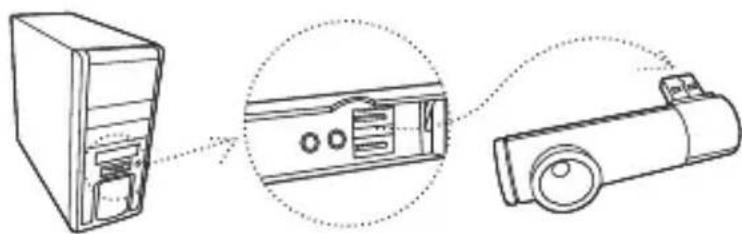
The Multimedia Station E-Z consists of three parts, the remote control, the external receiver, and the optional receiver dock. There are two ways to hook up the external receiver to your computer. If you want to use the receiver without the receiver dock, you can connect the receiver directly to your PC's front USB ports. The receiver dock can be used if your computer does not have front USB ports or they are inconvenient to use. To use the dock, connect the USB cable of the dock to the USB port of your PC and then connect the receiver to the USB port of the receiver dock. The dock has more than four feet of cable to allow you freedom in positioning the receiver.
-
Multimedia Station E-Z Receiver Connection.
- Multimedia Station Receiver E-Z Dock Connection.
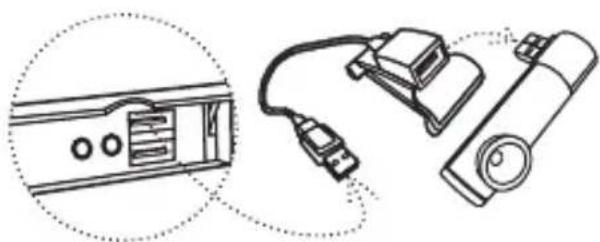
- Mount the receiver to a Notebook or LCD Monitor using the Receiver Dock.
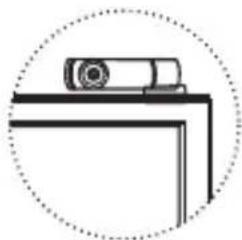
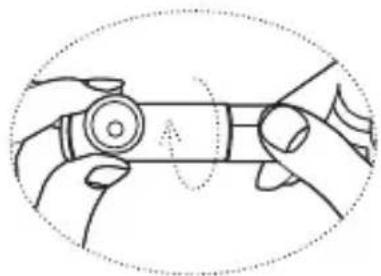
- Adjust the angle of the receiver vertically to find the optimal angle for the remote.
2. Software Installation
Please insert the installation CD and then install the iMEDIAN HD software. If you see the "Auto Update" message after your installation, please update to the newest version. After the installation, you may need to tune the settings of your system for optimal performance.
Please visit www.soundgraph.com for more information on how to install.
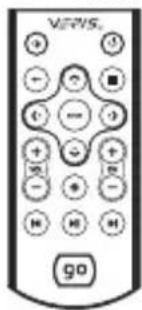
3. RM100 (IR Remote Control for PC)
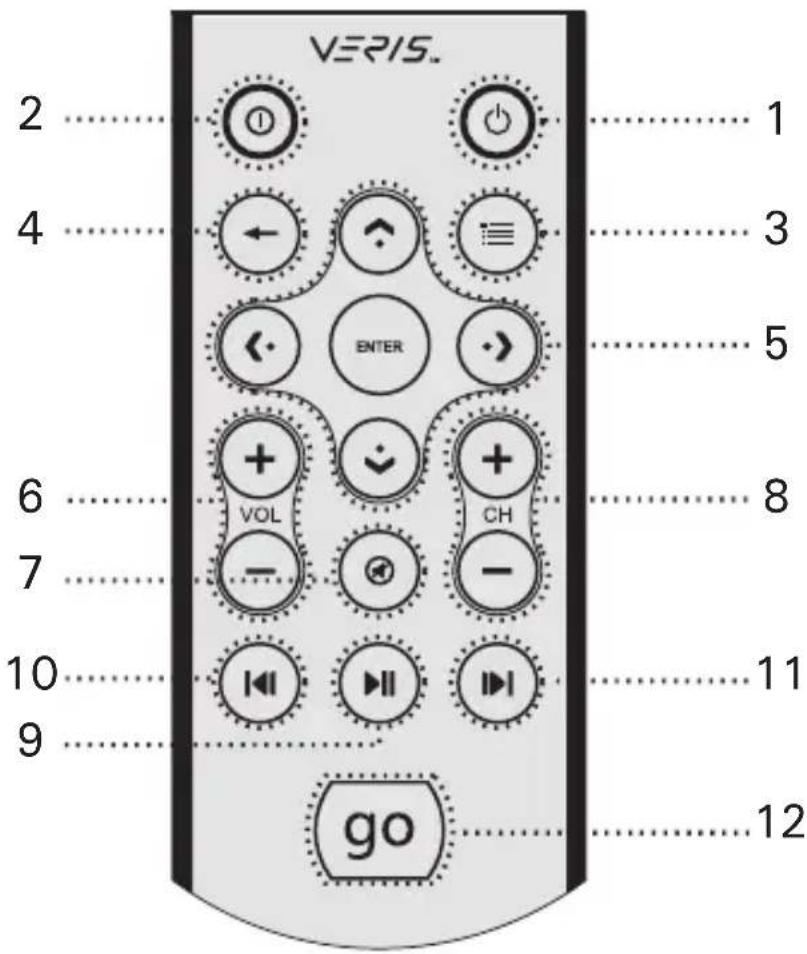
- Power: Turn the PC off
- Application Exit: Close the active window, closing iMEDIAN HD [ALT+F4]
- Menu: Go to the menu page of iMEDIAN HD.
- Back: Go back to the previous menu
- 4 Way Navigation and Enter: Up/Down/Right/Left buttons to navigate menus and Enter button to select a choice
- Volume + / - : Increase or decrease volume
- Mute: Mute or restore volume
- Channel + / - : Change TV channel/page up/down in jMEDIAN HD
- Play: Play/pause with a short press, stop with a long press
- Prev/Rewind: Previous button with a short press, rewind with a long press
- Next/Fast forward: Next button with a short press, fast forward with a long press
- "go": Starts iMEDIAN HD application
4. iMEDIAN HD
1. Running iMEDIAN HD
Press the "go" button to launch iMEDIAN HD
2. Navigating iMEDIAN HD
Use the 4-way buttons to navigate iMEDIAN HD. Holding the left and right buttons will take you to the "Home" and "Menu" screens Press Enter to select a choice.
3. Local Media
Users can easily enjoy music, videos, and pictures on their PC with only the remote control. IMEDIAN HD software supports every essential internal codec.
4. Network Media
Users can easily enjoy media files on networked PCs as well as Internet radio.
5. CD/DVD
Users can easily listen to CDs or watch DVDs
6. TV
Users can watch and record digital/analog TV channels if you have a TV tuner card in your PC.
7. Tasks
Users can check RSS news feeds, world city time and weather, manage their files, set an alarm, and shut down their system
8. Settings
Users can change and adjust settings such as GUI, Media Playback features, and more
Multimedia Station E-Z
3. RM100 (PC用赤外線リモコ)
customersupport@antec.com
Europe
+31 (0) 10462-2060
europe.techsupport@antec.com
www.antec.com