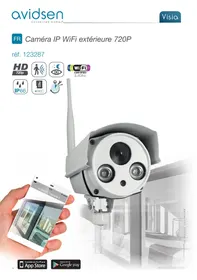
FIXE EXTERIEURE WIFI HD - Surveillance Camera AVIDSEN - Free user manual and instructions
Find the device manual for free FIXE EXTERIEURE WIFI HD AVIDSEN in PDF.



| Product type | Outdoor WiFi HD surveillance camera |
| Brand | AVIDSEN |
| Model | FIXED EXTERIOR WIFI HD (ref. 123287) |
| Maximum resolution | 1280 x 720 pixels (HD 720p) |
| Video compression | H.264 |
| Night vision | Automatic infrared, range 10 meters |
| Sensor | 1/4" CMOS, 0 lux minimum |
| Lens | f: 3.6 mm |
| Power supply | 12 VDC / 1 A (230 Vac 50 Hz power adapter included) |
| Network interface | WiFi IEEE 802.11 b/g/n 2.4 GHz, wired 10/100 Mbps |
| Local storage | 1 microSDHC card slot up to 128 GB (not included) |
| Protection rating | IP66 |
| Operating temperature | -20°C to 60°C |
| Operating humidity | 20% to 85% RH without condensation |
| Motion detection | Yes, adjustable sensitivity |
| Notifications | Mobile app (Visia / vioSein), email with attached photo |
| Audio | Built-in microphone and speaker |
| Reset | Reset button (press 10 seconds) |
| Warranty | 2 years parts and labor |
| Maintenance | Unplug before cleaning. Use a soft, slightly damp cloth. Do not use abrasive products. |
Frequently Asked Questions - FIXE EXTERIEURE WIFI HD AVIDSEN
User questions about FIXE EXTERIEURE WIFI HD AVIDSEN
0 question about this device. Answer the ones you know or ask your own.
Ask a new question about this device
Download the instructions for your Surveillance Camera in PDF format for free! Find your manual FIXE EXTERIEURE WIFI HD - AVIDSEN and take your electronic device back in hand. On this page are published all the documents necessary for the use of your device. FIXE EXTERIEURE WIFI HD by AVIDSEN.
USER MANUAL FIXE EXTERIEURE WIFI HD AVIDSEN
Available on the iPhone
App Store

Android APP ON
Google play
SOMMAIRE
A - CONSIGNES DE SECURITÉ 05
1 - PRECAUTIONS D'UTILISATION 05
2-ENTRETIENETNETTOYAGE 05
3 - RECYCLAGE 05
B - DESCRIPTION DU PRODUIT 06
1-CONTENU DU KIT 06
2-CAMERA 06
3-ADAPTATEUR SECTEUR 07
C - INSTALLATION 08
1- INSTALLATION DE LA CAMERA 08
2-CONNEXION DE LA CAMERA 08
3 - INSERTION D'UNE CARTE MICROSD (NON FOURNIE) 09
D-CONFIGURATION 10
1 - CONFIGURATION DE LA CAMERA ET AJOUT DANS L'APPLICATION 10
2-ACCES A L'ENSEMBLE DES REGLAGES 12
2.1 - CONFIGURATION 12
2.2 - EXAMPLE : MISE EN PLACE D'UNE ALERTTE PAR E-MAIL SUR
DET ECTION DE MOUVEMENT 12
E - UTILISATION 15
1 -VIDEO EN DIRECT 15
2 - LECTURE DES PHOTOS ET VIDEOS PRISES PAR LA CAMERA 15
F - REINITIALISATION 16
G - INFORMATIONS TECHNIQUES ET LÉGALES 17
1-CARACTERISTIQUES TECHNIQUES 17
2 - GARANTIE 17
3-ASSISTANCE ET CONSEILS 17
4-RETOUR PRODUIT-SAV 18
5 - DÉCLARATION DE CONFORMITE 18
1 - PRECAUTIONS D'UTILISATION
3 - INSERTION D'UNE CARTE MICROSD (NON FOURNIE)
Outdoor 720P WiFi IP camera
ref. 123287

720p


wiFi
CERTIFIED
2,4Ghz



Available on the iPhone
App Store

ANDROID APP ON
Google play
TABLE OF CONTENTS
A - SAFETY INSTRUCTIONS 05
1-OPERATING PRECAUTIONS 05
2 - MAINTENANCE AND CLEANING 05
3-RECYCLING 05
B - PRODUCT DESCRIPTION 06
1 - CONTENTS OF THE KIT 06
2-CAMERA 06
3 - MAINS ADAPTOR 07
C - INSTALLATION 08
1- INSTALLING THE CAMERA 08
2-CONNECTING THE CAMERA 08
3-INSERTING A MICROSD CARD (NOT INCLUDED) 09
D-CONFIGURATION 10
1 - CONFIGURING THE CAMERA AND ADDING IT TO THE APP 10
2 - ACCESS TO ALL SETTINGS 12
2.1 - CONFIGURATION 12
2.2 - EXAMPLE: PROGRAMMING AN EMAIL ALERT TO BE SENT WHEN
MOTION IS DETECTED 12
E - OPERATION 15
1-LIVEVIDEO 15
2 - VIEWING PHOTOS AND VIDEOS TAKEN BY THE CAMERA 15
F-RESETTING 16
G - TECHNICAL AND LEGAL INFORMATION 17
1-TECHNICAL CHARACTERISTICS 17
2 - WARRANTY 17
3- HELP AND ADVICE 17
4-PRODUCTRETURNS/AFTER-SALES SERVICE 18
5 - DECLARATION OF CONFORMITY 18
A - SAFETY INSTRUCTIONS
1 - OPERATING PRECAUTIONS
- The cameras must not be installed where the lens filter may be vulnerable to scratching and dirt.
- Do not expose the lens to direct sunlight or any reflected light source.
- Do not daisy-chain extension cords and/or multi-socket adapters.
- Do not install near acidic chemicals, ammonia or sources of toxic gases.
- The installation and use of the camera must comply with local laws.
2 - MAINTENANCE AND CLEANING
- Always unplug the product from the mains before carrying out any maintenance.
- Never use abrasive or corrosive substances to clean the products.
- Use a soft, slightly damp cloth.
- Never use an aerosol to spray the product as this may damage the internal workings.
3-RECYCLING
This logo indicates that devices which are no longer in use must not be disposed of as household waste. They are likely to contain hazardous substances which are dangerous to both health and the environment. Return the equipment to
your local distributor or use the recycling collection service provided by your local council.

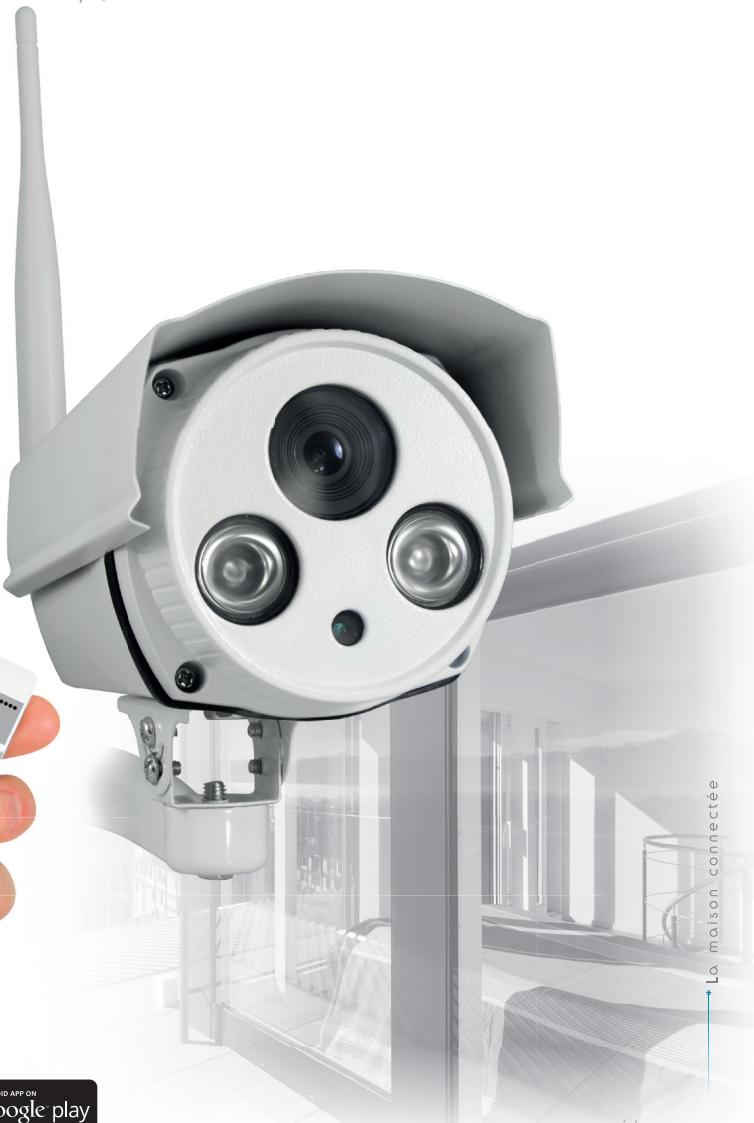
| 1 | Antenna |
| 2 | Protective hood |
| 3 | Lens |
| 4 | Infrared light for night vision |
| 5 | Brightness sensor |
| 6 | Camera mount |
| 7 | 12 VDC 1 A mains adaptor power supply included in the kit |
| 8 | Wired network socket |
| 9 | Reset button |
3 - MAINS ADAPTER
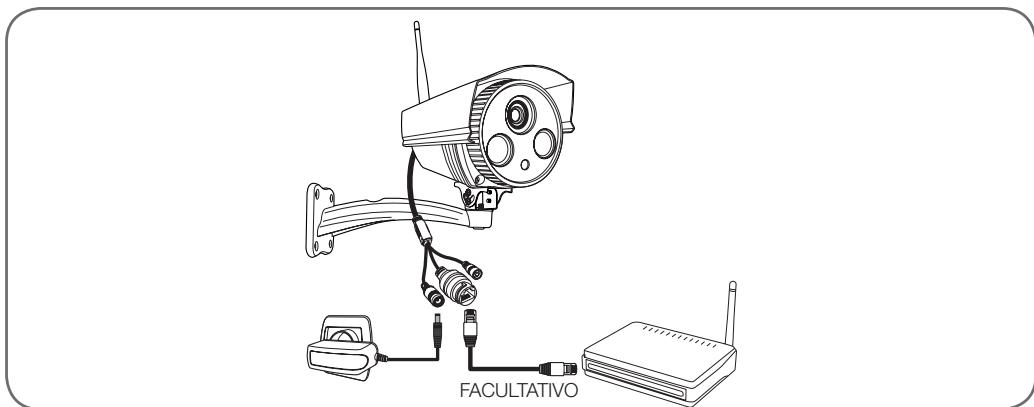
A 230Vac 50Hz / 12Vdc 1A mains adapter is supplied in the kit for the camera power supply. Do not use other power supplies as they could damage the camera and invalidate the warranty.
C - INSTALLATION
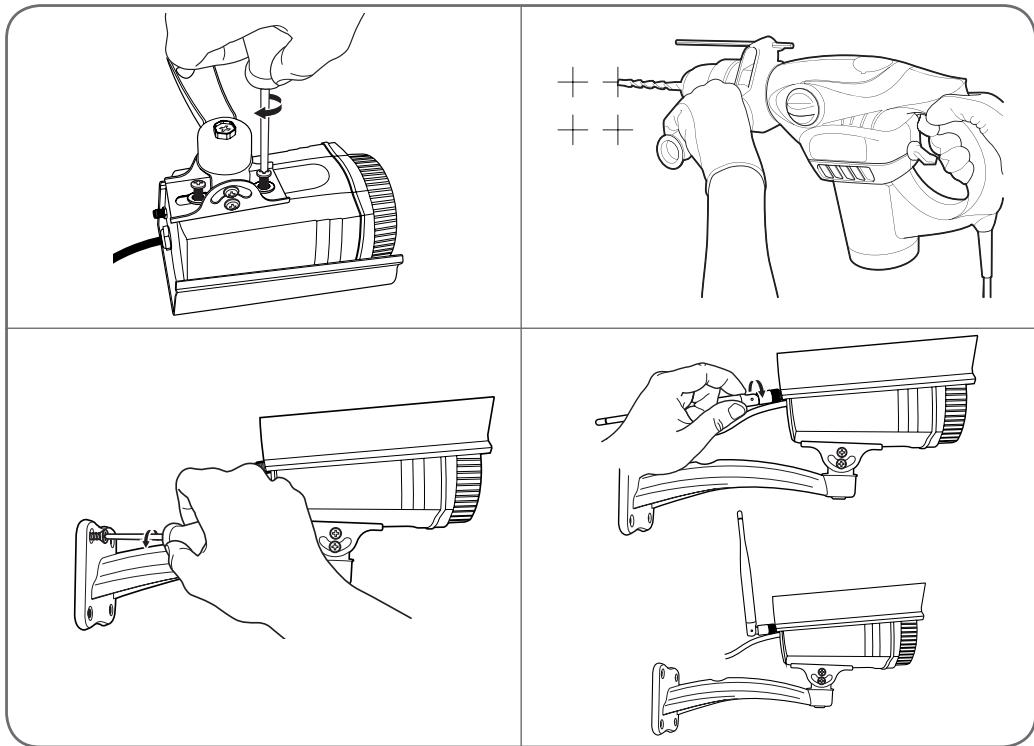
1 - INSTALLING THE CAMERA
Mount the camera using suitable screws and wall plugs for the type of surface (the screws and plugs supplied are suitable for solid walls).
Make sure the camera is properly secured to prevent it from falling. The stand's base is removable to enable access to the mounting holes.
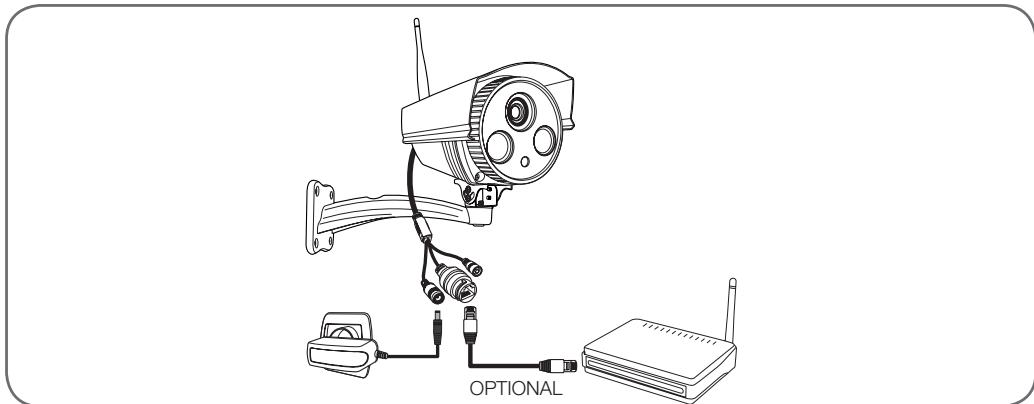
2 - CONNECTING THE CAMERA
3 - INSERTING A MICROSD CARD (NOT INCLUDED)
Your camera has a micro SD card slot, which provides it with an internal storage memory. The maximum size is 128 GB.
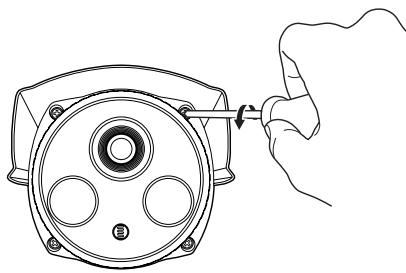
WARNING: Inserting a micro SD card into the camera requires opening the camera. To prevent making any marks or scratches on the camera (inside face of the glass, lens, etc.), it is strongly recommended that you disassemble it on a flat, clean and well-lit surface.
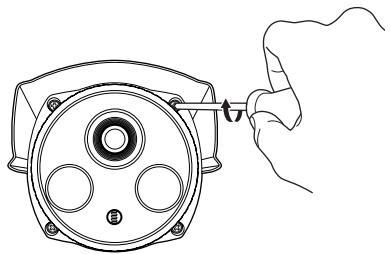
Remove the 4 screws on the front of the camera.
Remove the electronic card by pulling it out carefully.
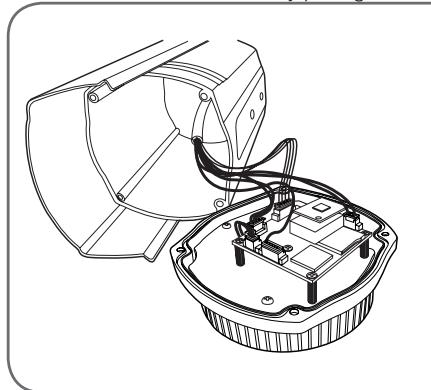
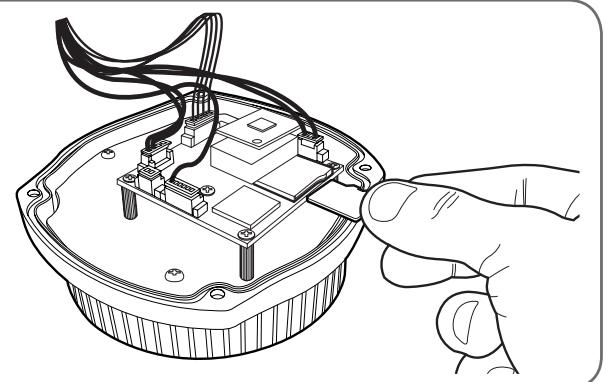
Carry out these steps in reverse to close the camera.
Ensure that the seal is correctly positioned to prevent any ingress of water.
D - CONFIGURATION
1 - CONFIGURING THE CAMERA AND ADDING IT TO THE APP

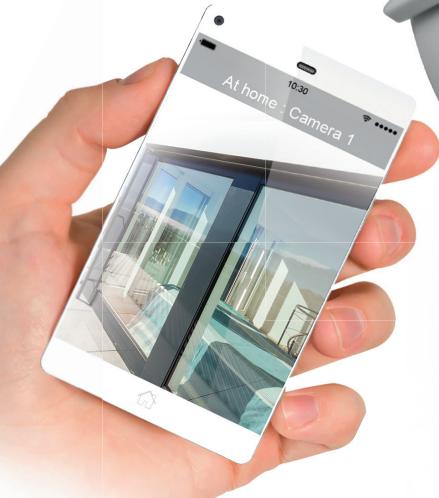
Download and install the Visia ovidsen app from the appstore or Google Play on your smartphone or tablet, then launch the app.
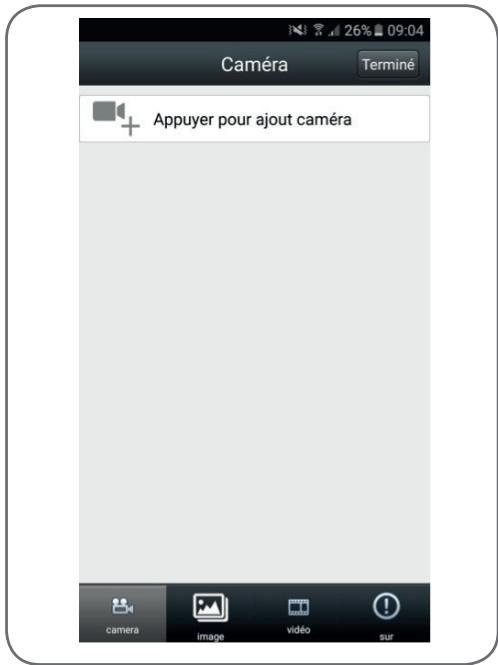
Important: connect your smartphone or tablet to the wifi network that your camera should be using.
Not compatible with HT40WiFi, not compatible with 5 GHzWiFi. Please check theWiFi parameters of your box with your internet service provider.
The special characters (#! “ &, etc.) in your security key may lead to difficulties connecting to theWiFi.
Then click on "Appuyer pour ajoutamera" (Press to add camera)
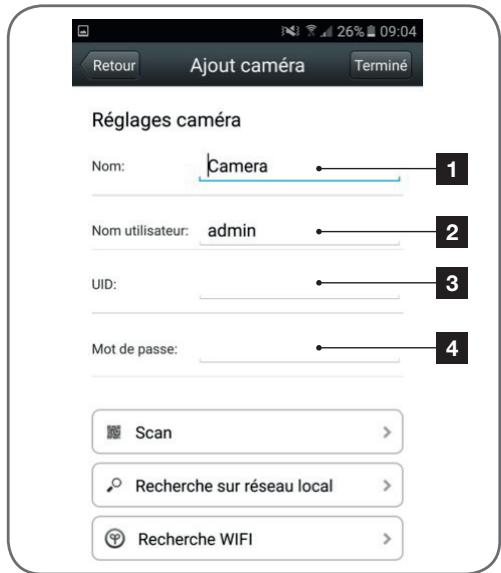
| 1 | The name of the camera in the app (according to your preference) |
| 2 | User name to log in to the camera ("admin", by default) |
| 3 | Camera UIID: unique code indicated on the camera. You are not required to enter it: the app will complete this information by itself. |
| 4 | Password to log in to the camera ("admin", by default) |
After indicating your camera's connection password ("admin", by default), click on
"Recherche WiFi" (Scan WiFi) so that the app scans for nearby cameras that are not yet connected.
Note: if your camera was already configured and connected, click on "Recherche sur réseau local" (search local network) to find it. (Useful for adding a camera to the app on a second smartphone or tablet).
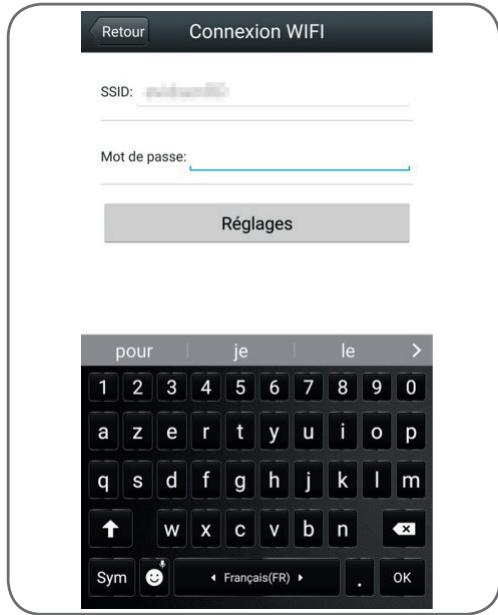
The app will the request the password for logging in to the WiFi network in order to send this information to your camera:
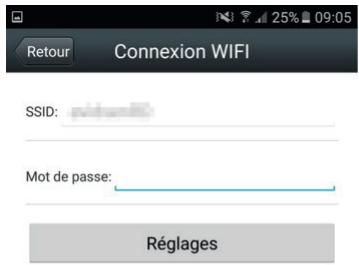
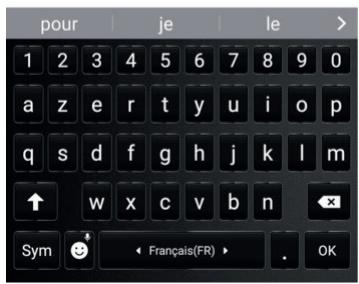
After entering the password for the WiFi network that the camera should be using, click on "Réglages" (Settings): your tablet or smartphone is asking if the camera is accessible and if it is ready to be configured.
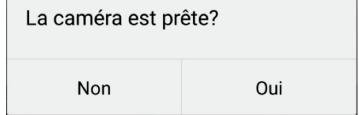
If your camera is nearby and not configured, click on Oui (Yes) to begin configuration using the app.
Note: the camera will take 30 seconds to load up after being switched on.
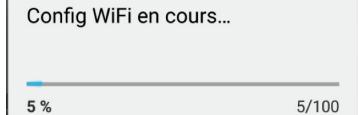
Once the WiFi connection information has been sent to the camera by the app, the camera will connect
to the network using WiFi.
Your smartphone or tablet will then display the cameras detected on the network:
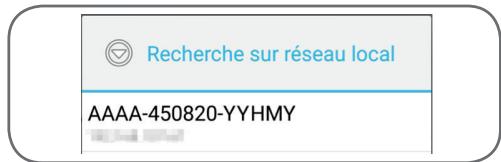
Click on the row corresponding to your camera.
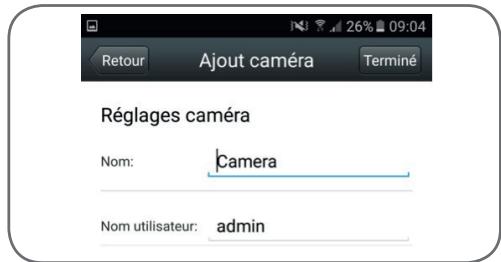
Finally, click on "Termine" (Done) on the upper right-hand side of the screen, to add the camera to the list of cameras recognized by the app.

Your camera will appear in the list and you access to its video and settings.
2 - ACCESS TO ALL SETTINGS
2.1 - Configuration
From the camera list, click on the icon

to the right of your camera's name to display the configuration menus:
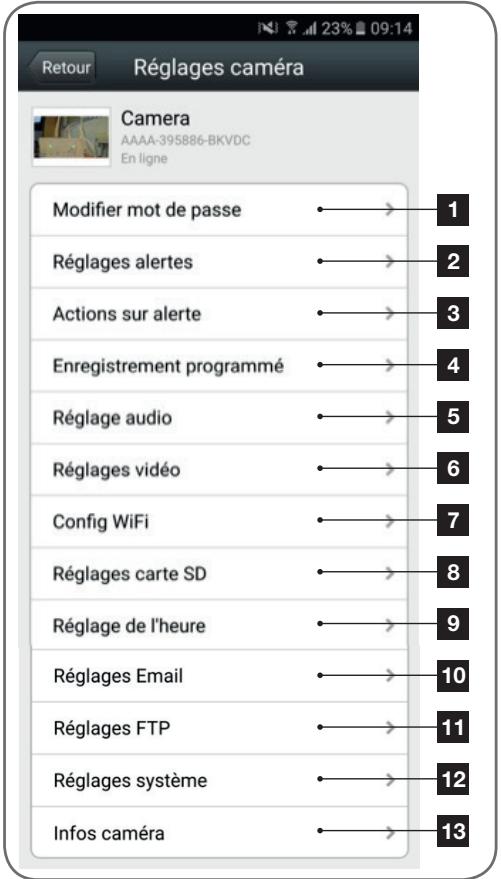
| 1 | Changing the password to log in to the camera ("admin", by default) |
| 2 | Activation/deactivation and sensitivity of the motion detector |
| 3 | Actions to take if motion is detected: notification, send an email, saving a file to the memory card (requires a micro SD card [not included] to be inserted into the camera) |
| 4 | Activation/deactivation of continuous recording to the microSD card and the length of videos (requires a micro SD card [not included] to be inserted into the camera) |
| 5 | Volume of the microphone and speaker |
| 6 | Video quality settings and number of frames per second. Warning: if you set the video quality to high with respect to the quality of the internet connection of your camera and smartphone or tablet, you may experience choppy video or loss of connection. Two streams can be adjusted: they correspond with the maximum resolution = "résolution Max", and low resolution = "résolution faible", which you can select from the live video display. |
| 7 | Configure the Camera's current WiFi settings |
| 8 | If a microSD card has been inserted into the camera, you can reformat it and display its total and free memory |
| 9 | Setting the date and time stamps on the camera's video |
| 10 | Settings for sending emails in the event of an alert (see the below example) |
| 11 | Settings for saving to an FTP server |
| 12 | Remote camera restart |
| 13 | Camera network information |
2.2 - Example: programming an email alert to be sent when motion is detected
To program an alert to be sent when motion is detected, you need 2 email addresses: the address of the sender which will be used by the camera, and the address which will receive the alerts. The camera uses the username and password of the sender address to connect and send the email. Configuration depends on the chosen email provider's settings.
Note: the 2 email addresses can be the same (you will simply be sending an email to yourself).
In our example, we use
www gmail.com:
sender-address@gmail.com sends the alerts, recipient@gmail.com receives the alerts. Both addresses need to have been created beforehand.
First, go to "Réglages Email" (Email settings):
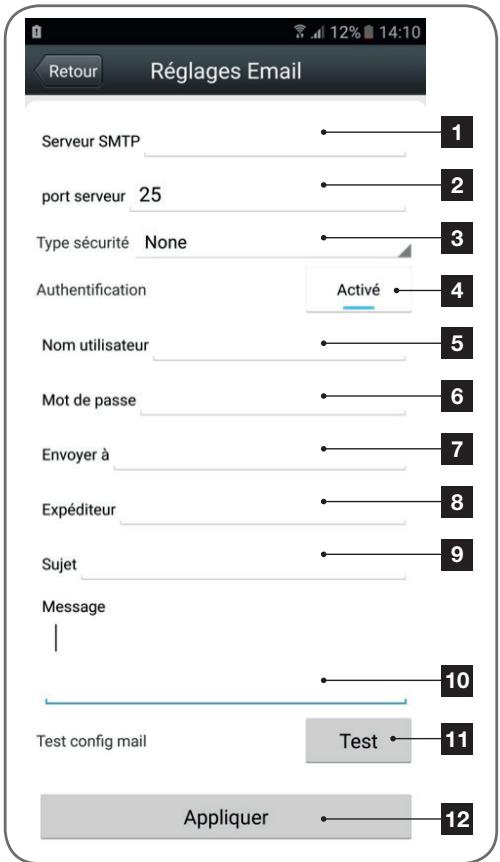
| 1 | SMTP server: varies with email provider used to send the alert. In our example using Gmail, smtp gmail.com |
| 2 | Server port: depends on the email provider of the address sending the alert. In our example using Gmail, 587 |
| 3 | Security type: security when logging in, associated with the email provider. In our example using gmail, STARTTLS |
| 4 | Authentication: indicates whether the SMTP server used requires a username or password to connect. In our example this must be activated. |
| 5 | Username: Name that you should enter to log in to the email box which will send the alerts. In our example using Gmail, this is the sender address: sender-address@gmail.com |
| 6 | Password: The password used to log in to sender-address@gmail.com, in our example |
| 7 | Send to: Enter the email address here that will receive the alerts. In our example: addressee@gmail.com |
| 8 | Sender: Name that you must enter to connect to the mailbox that will send out the alerts. In our example using Gmail, this is the sender address: sender-address@gmail.com |
| 9 | Subject: subject of the email alert |
| 10 | Message: body of the email |
| 11 | Test: allows you to simulate an alert, send an email and to check that your camera is correctly configured. |
| 12 | Click on “Appliquer” (Apply) to save your settings. |
Note: it does not matter who the email provider of the recipient is, as it is the email provider of the sender that dictates what needs to be entered. However, you must ensure that the alerts are not treated as spam by the recipient's inbox.
When you have finished configuring your camera, it will be able to send emails. Next, it is time to configure when it does so, in the
"Action sur alerte" (Action upon alert) menu in the camera settings:
D - CONFIGURATION
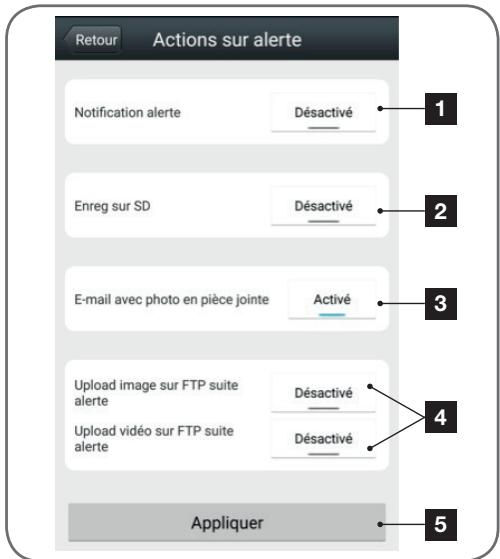
| 1 | App notification in the event of an alert: all devices on which the camera was added to the Visia app will be notified if there is movement (the app must be running in the background on the tablet or smartphone) |
| 2 | Saving to SD: if a micro SD card was inserted into the camera, any alert triggers a video, which is saved to the card. The video can be viewed remotely (see below) |
| 3 | Email with attached photo: if email was set up (see the previous paragraph), an email will be sent when movement is detected |
| 4 | FTP options, not discussed here |
| 5 | Click on “Appliquer” (Apply) to save your settings. |
Once this configuration has finished, simply activate motion detection in the "Réglages alertes (Set Alerts)" menu:
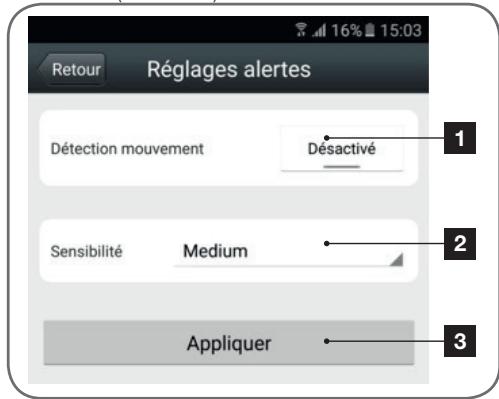
1 Click here to activate motion detection
2 Use this to adjust the sensitivity of the motion detector. When set to high sensitivity the smallest movement will send an alert, in low sensitivity, only large movements by the screen will send an alert
3 Click on "Appliquer" (Apply) to save your settings.
This completes the configuration. From this point on, any movement in front of the camera will result in an email alert, a Visia app notification and/or a file to be saved to the memory card, depending on your settings.
1-LIVEVIDEO
From the list of cameras, click on the image to the left of the name of your camera to display the live video:
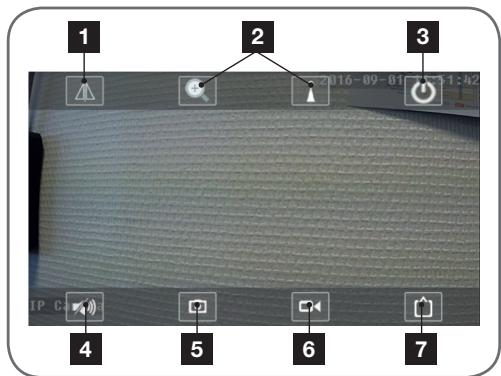
| 1 | Flipping/inverting the image |
| 2 | Not used on this model |
| 3 | Return to the list of cameras |
| 4 | Not used on this model |
| 5 | Take a snapshot and save to the smartphone/tablet |
| 6 | Record a video and save to the smartphone/tablet |
| 7 | Video quality selection (useful if the network or mobile connection is poor) |
2 - VIEWING PHOTOS AND VIDEOS TAKEN BY THE CAMERA
From the list of cameras, you have access to the photos taken by the camera and saved to the smartphone or tablet, videos saved to the smartphone or tablet and videos saved to the camera's microSD card (not included).
After receiving an alert, if you have activated memory card recording, you can view the video showing what was detected.
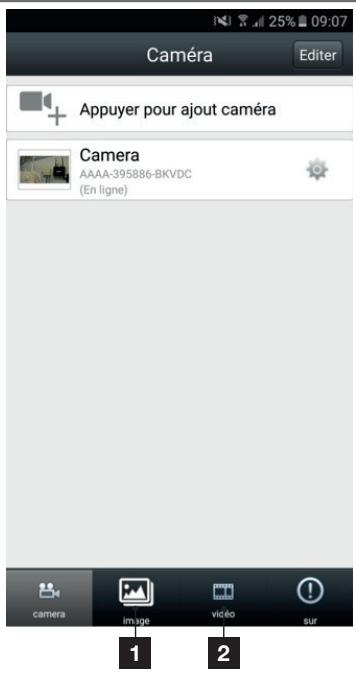
1 Viewing photos taken by the camera and saved to the smartphone or tablet (" icon on the camera's live view).
2 Viewing the videos taken by the camera and saved to the smartphone or tablet ("OK" on the camera's live view, "local" button in the Video [Video] menu) or to the microSD card inserted into the camera (following an alert or continuous recording, "en ligne" [online] button in the Video [Video] menu).
F - RESETTING
If there is a problem or the login details have been lost, the camera can be reset to its default settings by pressing the Reset button for 10 seconds. Once reset, the camera will start up again. After 30 seconds, it is available for reconfiguration.
G - TECHNICAL AND LEGAL INFORMATION
1 - TECHNICAL CHARACTERISTICS
| Camera | |
| Power supply | 12V DC/1A |
| Wireless network interface | WiFi IEEE 802.11b/g/n, wired 10/100 Mbps |
| Optical sensor | ¼" CMOS |
| Minimum luminous intensity | 0 lux |
| Night vision | Automatic (dusk-to-dawn sensor) Range: 10m |
| Lens | f: 3.6 mm |
| Buttons | Reset button: restores factory settings |
| Video compression | H.264 |
| Resolution | Primary stream: up to 1280x720 pixels Secondary stream: up to 640x352 pixels |
| Storage | 1 microSD card slot up to 128 GB memory for storing video via remote access |
| Protection rating | IP66 |
| Operating temperature and humidity | -20°C to 60°C, 20% to 85% RH non-condensing |
| Storage temperature and humidity | -20°C to 60°C, 0% to 90% RH, non-condensing |
2 - WARRANTY
- This product is under warranty for parts and labour for 2 years from the date of purchase. Proof of purchase must be retained for the duration of the warranty period.
- The warranty does not cover damage caused by negligence, knocks or accidents.
- The warranty will be void if the device is tampered with.
3 - HELP AND ADVICE
- If, despite the care we have taken in designing our products and drafting these instructions, you do encounter difficulties when installing your product or you have any questions, we recommend you contact one of our specialists who will be glad to help.
- If you encounter operating problems during the installation or a few days afterwards, it is essential that you are in front of your installation when contacting us, so that one of our technicians can diagnose the source of the problem, as it will probably be the result of a setting that is incorrect or an installation that is not to specification.
G - TECHNICAL AND LEGAL INFORMATION
Contact our after sales team technicians on:
Monday to Friday, 9AM to 12PM and 2PM to 6PM.
4 - PRODUCT RETURNS / AFTER SALES SERVICE
If, despite the care we have taken in designing and manufacturing your product, it needs to be returned to our customer service centre, you can check the progress of the work on our website at the following address: http://sav.avidsen.com
Avidsen undertakes to keep a stock of spare parts for this product throughout the contractual warranty period.
5 - DECLARATION OF CONFORMITY
With the R&TTE directive
Avidsen hereby declares that the equipment designated below:
720P WiFi IP outdoor camera 123287
Complies with the RED directive and its conformity has been assessed pursuant to the applicable standards in force:
EN 60065:2014
EN 62479:2010
EN301 489-1 V2.1.0:2016-04
EN 301 489-17 V3.1.0 :2016-04
EN 300 328 V2.0.20 :2016-03
Chambray les Tours, date: 26/10/2016
Alexandre Chaverot, CEO

WiFi IP-buitencamera 720P
ref. 123287



wiE
CERTIFIED
2,4Ghz


INHOUDSOPGAVE
A - VEILIGHEIDSVOORSCHRIFTEN 05
1 - GEBRUIKSVOORSCHRIFTEN 05
2-ONDERHOUD EN REINIGING 05
3 - RECYCLAGE 05
B-BESCHRIJVING VAN HET PRODUCT 06
1-INHOUD VAN DE KIT 06
2-CAMERA 06
3-LICHTNETADAPTER 07
C - INSTALLATIE 08
1-INSTALLATIE VAN DE CAMERA 08
2 - AANSLUITING VAN DE CAMERA 08
3 - EEN MICROSD-KAART PLAATSEN (NIET MEEGELEVERD) 09
D-CONFIGURATIE 10
1-CONFIGURATIE VAN DE CAMERA EN TOEVOEGEN IN DE TOEPASSING 10
2-TOEGANGTOTHETGEHEELVANINSTELLINGEN 12
2.1 - CONFIGURATION 12
2.2 - VOORBEELD: INSTELLING VAN EEN E-MAILALERT BIJ
Available on the iPhone
App Store

Android APP ON
Google play
INHALT
Available on the iPhone
App Store

Android APP ON
Google play
INDICE
Câmara IP WI-FI 720P exterior
ref. 123287






Available on the iPhone
App Store

Android APP ON
Google play
ÍNDICE
A - INSTRUÇÉS DE SEGURANÇA 05
1- INSTALLAÇAO DA CÁMARA
2 - LIGACAO DA CÁMARA
De segunda a sexta-feira entre as 9h e as 12h e entre as 14h e as 18h.
Available on the iPhone
App Store

Android APP ON
Google play
INDICE
A Anything's done. A question's done. A question's done. A question's done. A question's done.
Available on the iPhone
App Store

Android APP ON
Google play
ΠΕPIEXOMENA
A-METPA AΣΦΑΛEIAΣ 05
1- PPOΦYΛΞEΙΣ XPHΞHΞ 05
2 - ΣYNTHPHΣH KAI KAΘAPIΣMOΣ 05
3-ANAKYKΛΩΣH 05

- SOMMAIRE
- A - CONSIGNES DE SECURITÉ 05
- B - DESCRIPTION DU PRODUIT 06
- C - INSTALLATION 08
- D-CONFIGURATION 10
- E - UTILISATION 15
- F - REINITIALISATION 16
- G - INFORMATIONS TECHNIQUES ET LÉGALES 17
- - PRECAUTIONS D'UTILISATION
- - INSERTION D'UNE CARTE MICROSD (NON FOURNIE)
- Outdoor 720P WiFi IP camera
- TABLE OF CONTENTS
- A - SAFETY INSTRUCTIONS 05
- B - PRODUCT DESCRIPTION 06
- E - OPERATION 15
- F-RESETTING 16
- G - TECHNICAL AND LEGAL INFORMATION 17
- A - SAFETY INSTRUCTIONS
- - OPERATING PRECAUTIONS
- - MAINTENANCE AND CLEANING
- 3-RECYCLING
- - MAINS ADAPTER
- C - INSTALLATION
- - INSTALLING THE CAMERA
- - CONNECTING THE CAMERA
- - INSERTING A MICROSD CARD (NOT INCLUDED)
- D - CONFIGURATION
- - CONFIGURING THE CAMERA AND ADDING IT TO THE APP
- - ACCESS TO ALL SETTINGS
- - Configuration
- 1-LIVEVIDEO
- - VIEWING PHOTOS AND VIDEOS TAKEN BY THE CAMERA
- F - RESETTING
- G - TECHNICAL AND LEGAL INFORMATION
- - TECHNICAL CHARACTERISTICS
- - WARRANTY
- - HELP AND ADVICE
- - PRODUCT RETURNS / AFTER SALES SERVICE
- - DECLARATION OF CONFORMITY
- WiFi IP-buitencamera 720P
- INHOUDSOPGAVE
- A - VEILIGHEIDSVOORSCHRIFTEN 05
- B-BESCHRIJVING VAN HET PRODUCT 06
- C - INSTALLATIE 08
- D-CONFIGURATIE 10
- INHALT
- INDICE
- Câmara IP WI-FI 720P exterior
- ÍNDICE
- A - INSTRUÇÉS DE SEGURANÇA 05
- 1- INSTALLAÇAO DA CÁMARA
- - LIGACAO DA CÁMARA
- ΠΕPIEXOMENA
- A-METPA AΣΦΑΛEIAΣ 05
Brand : AVIDSEN
Model : FIXE EXTERIEURE WIFI HD
Category : Surveillance Camera