Pick your language and provide your email: we'll send you a specifically translated version.
This manual is not available in your language
User questions about RADIO6500W GRUNDIG
0 question about this device. Answer the ones you know or ask your own.
Ask a new question about this device
No questions yet. Be the first to ask one.
Download the instructions for your Radio in PDF format for free! Find your manual RADIO6500W -
GRUNDIG and take your electronic device back in hand. On this page are published all the documents necessary for the use of your device. RADIO6500W by GRUNDIG.
USER MANUAL RADIO6500W GRUNDIG
This device is designed for the playback of audio signals. Any other use is expressly prohibited.
Make sure the device is protected from dripping or splashing water.
Do not place any vessels such as vases on the device. These may be knocked over and spill fluid on the electrical components, thus presenting a safety risk.
Do not place any naked flames such as candles on the device.
Only use the device in a moderate climate.
Ensure that the device is adequately ventilated by placing it at least 10~cm from any other object. Do not cover the device with newspapers, table cloths, curtains, etc.
If malfunctions occur due to static electricity charges or fast transient (burst), reset the device. To do this, pull out the power plug and connect it again after a few seconds.
When deciding where to place the device, please note that furniture surfaces are covered by various types of varnish and plastic, most of which contain chemical additives. These additives can corrode the device supports, leaving residues on the furniture surfaces which can be difficult or impossible to remove.
Do not use any cleaning agent, as this may damage the casing. Clean the
device with a clean, dry cloth.
Never open the device casing. The manufacturer will not accept any liability for damage resulting from improper handling.
Make sure the power plug is freely accessible.
This equipment is a class II or double insulated electrical appliance. It has been designed in such a way that it does not require a safety connection to electrical earth.
RF Exposure Warning
This equipment must be installed and operated in accordance with provided manual. The device comprised a built-in antenna and must not be co-located or operating in conjunction with any other antenna or transmitter.
The only way to completely disconnect the device from the mains is to unplug the mains cable.
Warning
Risk of fire/short circuit!
Rising steam or heat can pose a risk of electric shock or fire if a short circuit occurs.
Risk of explosion if the battery is replaced by an incorrect type;
Disposal of a battery into fireor a hot oven, or mechanicallycrushing or cutting of a
battery, that can result in an explosion;
Leaving a battery in an extremely high temperature surrounding environment that can result in an explosion or the leakage of flammable liquid or gas;
A battery subjected to extremely low air pressure that may result in an explosion or the leakage of flammable liquid or gas.
Hearing safety
Listen at a moderate volume.
Warning: Excessive sound pressure from earphones and headphones can cause hearing loss.
To prevent possible hearing damage, do not listen at high volume levels for long periods.
Dear Customer,
Congratulations on the purchase of your GRUNDIG Portable Radio Music 6500.
Please read the following instructions carefully in order to enjoy the use of your product with the Grundig quality for many years.
Meanings of the Symbols
Following symbols are used in various sections of this manual:
1
The lightning flash represented by the arrow symbol in an equilateral triangle is intended to alert users to the presence of the high voltage within the device which could cause an electric shock.
Electrical insulation class.
i
Important information and useful hints about usage.
!
WARNING: Warnings against dangerous situations concerning the security of life and property.
This product has been produced in environmentally-friendly, state-of-the-art facilities.
Conforms to the WEEE Directive.
It does not contain PCB.
Controls and Parts
See the figure on page 3.
1
1
In DAB/FM mode:Long press to directly store to preset 1,2,3 or 4Short press to directly access preset 1,2,3 or 4
2
2
3
3
4
4
5
PRE/MEM
In DAB/FM mode: Short press to call preset store. Long press to preset store.
6
POWER
Long press to switch device on/off.Short press to switch to Standby mode.
7
OK/PLAY
Confirms the setting.In DAB/FM mode: Long press to starts ATS/AMS.Short press to mute Volume in playback.In BT mode: Long press to switch Bluetooth into searching mode. Short press to Start/Pause the playback.
8
^
In DAB mode: Short press to enter the station list.In FM mode: Short press to adjust station frequency. Long press to auto-search next station.In BT mode: Short press to switch to previous track.
9
M (MODE)
Switch between modes.
10
MENU/INFO
In DAB mode: Short press to show Information. Long press to call menu.In menu page: Short press to previous menu/option.Long press to exit the menu/option.
11
√
In DAB mode: Short press to enter the station list.In FM mode: Short press to adjust station frequency. Long press to auto-search previous station.In BT mode: Short press to switch to next track.
12
+
Short press to increase volume at one level.Long press to fast increase volume.
13
-
Short press to reduce volume at one level.Long press to fast reduce volume.
14
USB IN
Micro USB port for DC 5V, 1A -USB power supply connection.
15
B
Earphone jack for earphone output.
16
TELESCOPIC ANTENNA
For DAB/FM
17
BATTERY COMPARTMENT
For alkaline battery power supply.
18
LOUD SPEAKER
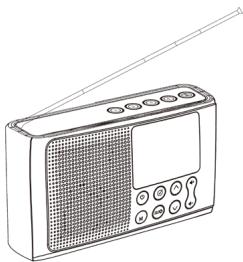
Adjusting/Fixing the antenna
The number and quality of broadcast stations depends on the reception conditions at the location of the device as well as the radio antenna. Optimum reception can be achieved with the metal type antenna when it is fixed and placed at the right position.
If the DAB/FM reception is not very good, please try to pull out telescopic antenna and point to an appropriate direction to get good DAB/FM reception.
If you still can not get good reception by adjusting the antenna, try to move another place where have robust DAB/ FM signal to listen to the radios.
Please refer to below example picture to use the antenna.
Radio reception may be restricted in bad weather.
Device mains power connection
Power supply of the portable radio
Regarding the alkaline battery power supply
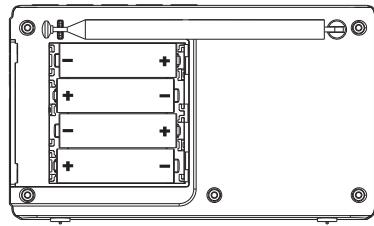
This portable radio has a replaceablealkaline battery compartment which
requires to load 4 pieces of alkaline battery (provided in the package) to supply power to the device.
Note:
Please pay attention to install the alkaline battery with correct polar plate to avoid short circuit.
Regarding the USB power supply
This portable radio also can work through USB power supply. Connect the portable radio [USB IN] with 5V/1A USB power source through USB cable.
Disconnect the USB cable when it is turn off.
First time use
When the device is connected power at first time, long press the 1 button for 3 seconds, the device starts at the standby mode.
Display: , and then <00:00:00 (blinking)>
In background operation, the device starts to search DAB and FM radio stations for auto time sync function in background.
The time will be updated automatically in minutes.
Display:
Note:
If the radio station signal is too weak, the time will not be sync. In this case, the blinking < 00:00> will keep show on the display.
Then the time need consider be set manually.
Tuning and storing radio stations (DAB and FM) – first installation
When the device is connected to power source for the first time or after factory reset; as defaulted the Auto Tuning System will start to scan the whole DAB bandwidth. The device will then scan the FM waveband. The time is updated automatically.
Once power source is connected,
long press the 1 button for 3 seconds, the device starts at the standby mode in the first time use. (The device will be at the standby mode after factory reset)
Short press the button to power on the device.
The device starts the Auto Tuning System functions to scan the whole DAB bandwidth and stores the found stations in the station list (program list).
Display:
After the full scan processing completed, the device is used DAB mode and the first received station for listen.
Press + or - to set the volume level when necessary.
Storing DAB radio stations to presets
After the automatic station search, all radio stations will be stored in the program list. You can store your favored DAB radio stations into presets memory 1-30.
Short press the «PRE/MEM« button to open the station list.
Display:
Again short press the or button repeatedly to select the desired station (e.g. BBC 6 Music) and short press the to confirm.
The selected station is used as current station.
Display: e.g.
Long press the «PRE/MEM« button to open the preset option.
Display: and
Select the desired preset number (1-30) by the or button, or press the button, short press the to confirm.
Display:
Repeat the same steps 2-5 for complete the others desired stations which you want to preset.
Store preset 1, 2, 3 or 4
Directly store to preset
When you found a favored DAB or FM station during listen.
You can simply long press one of the number buttons (1, 2, 3 or 4) to directly store the listening station into preset memory.
Display:
You can use this function whatever you want, however the previous record will be overwritten if used.
Access preset 1, 2, 3 or 4
Directly access preset
In DAB/FM mode, short press one of the number buttons (1, 2, 3 or 4) to
directly access the favored DAB/FM stations stored in presets memory for listen.
The device switch to the selected preset station at same time.
Programming DAB radio stations – manually
In DAB mode, long press the button to open the menu.
Display:
Select the option by the or button, short press the button to confirm.
Display: e.g. <5A 174.928MH > (a channel and frequency of a DAB radio station).
Select the desired station channel (from 5A 174.928MHz - 13F 239.200MHz) which you want by short press the or button repeatedly, short press the button to confirm.
Display:
Short press the again to confirm.
The DAB radio stations of the selected channel will be stored into Station list (program list).
Tuning and storing FM radio stations
In FM mode, long press the to start the Auto Tuning System (AMS) directly.
The automatic station scan starts and
searches the FM waveband and store the first 30 radio stations as presets 1 to 30 (if available).
After the scanning process completed, the device set the first received station for listen.
Note:
You can select whether the device will scan radio stations with Strong Station Only or All Stations from the menu of FM mode.
To do this;
Long press the button to open the menu.
Display:
Choose the option <Scan~setting> by short press the to confirm.
Display: or .
Select the desired option (e.g. Strong stations only) by short press the or button, short press the button to confirm.
Long press button to close the menu.
Now, long press the button to start the Auto Tuning System (AMS) again for scan the FM waveband and store the first 30 radio stations with a strong signal as presets 1 to 30 (if available).
or
Long press the or button to search the available previous/next radio stations.
The automatic station search starts, and stops at the next station with a strong signal.
or
Press briefly the or button until you have found the frequency you want.
The frequency changes in steps of 0.05 MHz .
Tuning and storing DAB and FM radio stations - after a removal
After the automatic station search, all radio stations will be stored in the program list. That is reasonable, if you will use the device in another place or search new DAB radio stations.
Short press the 1 to power on the device in standby mode.
Short press the «M« button to select the DAB/FM mode.
In DAB/FM mode, long press the » button to start the Auto Tuning System directly.
The automatic station scan starts to search and store the radio stations.
After the scanning process completed, the device set the first received station of DAB/FM for listen
RADIO MODE
Switching on and off
Short press the button to switch the device on (standby). Long press the button for 3 seconds to switch the device off.
Adjusting the volume
Press the + or - button repeatedly to set the volume.
Display: (shown for 3 seconds)
To mute/resume volume
In radio listening, short press the « to mute.
Display:
Short press the again to resume volume.
DAB Mode
Selecting DAB mode
Short press the «M« button to select DAB mode.
Display:
Selecting DAB radio station
Select the desired station from the station list (program list) step by step by short press the or button repeatedly and short press the button to confirm the selection.
The device switch to the desired station at same time.
Displaying DAB station information
To display information on the current DAB station, short press the _二 = 空 button repeatedly.
Display: The following display appears in succession: Information from the provider (e.g. the title of the song, the e-mail address), the signal strength, the genre, the ensemble (e.g. BR Bayern), the current channel and frequency, the bit rate, the broadcasting format, the current time and date.
Setting Dynamic Range Control (DRC) for DAB stations
When you activate Dynamic Range Control, you can hear lower sounds better in a loud environment.
In DAB mode, long press button to open the DAB menu.
Display:
Short press the or button to select the option DRC and short press the to confirm.
Display:
Select the option DRC (high or low) by short press the or button, short press the to confirm.
Note:
The DAB station must support DRC.
FM Mode
Selecting FM mode
Short press the «M« button to select FM mode.
Display: and
Selecting stored stations
Short press the «PRE/MEM« button to open the preset recall menu.
Display: and
Select the desired station you want by short press the or button, and short press the to confirm.
The device switch to the selected station at same time.
Displaying RDS station information
RDS (Radio Data System) is an information system which is transmitted additionally by most FM stations.
Note:
It may take some time before all RDS information is available. The brand has no influence on the correctness of such information.
To display information on the current FM station, short press the _E = 空 button repeatedly.
Display: The following display appears in succession: Radio text(if offered), station type(PTY), the name of the radio
station,mono/stereo,the current date.
BLUETOOTH MODE
You can use Bluetooth to play tracks wirelessly from external devices such as the MP3 players or mobile phones with Bluetooth on this device.
Selecting BT mode
In power on mode, short press the M button repeatedly to select BT mode.
Display: and
Connecting Bluetooth devices
Now enable the Bluetooth function on your external device and carry out the pairing process. Refer to the instructions for your external device for more information. This device system's name is "Grundig Music 6500".
The pairing process is now completed and the external device can now be used with the portable radio.
Display: and
Start the Bluetooth audio streaming playback from the external device by related player.
Press the + or - button to set the desired volume level when necessary.
To stop audio steaming via Bluetooth, either switch off the Bluetooth
function on the external device or switch the portable radio return to DAB /FM or Standby mode as wish.
Note:
For the best results, adjust the external device's volume to maximum, then uses the portable radio's volume control as main volume level adjustment.
Disconnect from paired external device (for new pairing)
Long press the button to disconnect the Bluetooth connection directly, in this case, the device will switch back into Bluetooth Searching mode.
Display:
Now you can pair the portable radio with another external device as want to.
Note:
In Bluetooth mode, the portable radio will be switched back to standby mode in 15 minutes if the Bluetooth function is in disconnected mode or no operation activity.
General Control
You can control how tracks are played and the volume range on your external device and on the portable radio. In principle, these buttons on the device are intended for control via Bluetooth:
+
Short press to increase volume.
-
Short press to reduce volume.
√
Short press to pause/resume playback.
✓
Short press to playback next file.
^
Short press to previous file.
(If you use Apple Music APP to play music, short press to playback current file from beginning, short press twice to previous file.)
Sleep timer
The device has a sleep timer, which switches it off at a preset time. The switch off time can be set in a range between 15 to 90 minutes or off.
Activating the sleep timer
In DAB/FM/BT on mode, long press the _二 = 空 button to open the menu.
Display:
Select the option <System> by short press the or button, short press the button to confirm.
Display:
Short press the to open the Sleep option.
Display: (15, 30, 45,
60 or 90 minutes)
Select the desired option (e.g. 90 minutes) by short press the or button, short press the button to confirm. (Choose < Sleep Off > will deactivated the sleep timer)
The sleep timer is activated. To close the set menu, long press the button.
The sleep timer symbol will be appeared at bottom side in display.
Deactivating the sleep timer
To switch off the sleep timer in advance, long press the button to turn off the device.
Alarm 1/2 set
In DAB/FM/BT mode, long press the _空^三 button to open the menu.
Display:
Select the option <System> by short press the or button, short press the button to confirm.
Display:
Select the option by short press the or button, short press the button to confirm.
Display: Alarm
Select the option to Alarm 1/2 (e.g. ) by press the or button, short press the to confirm.
Display:
Short press the button to open the option (Alarm 2) to set wake up time.
Display: < On 00:00> the hour flashes.
Select the desired hours by short press the or button, short press the button to confirm.
Display: < 0n 00:00> the minute flashes.
Select the desired minutes by short press the or button, short press the button to confirm.
Display: the numbers flashes (minutes).
Select the duration (15, 30, 45, 60, 90 minutes) by short press the « or « button, or press the « button, short press the « button to confirm.
Display: the source flashes.
Select the source of alarm by short press the or button, short press the button to confirm. ( = signal tone), = DAB station or = FM station)
Note:
If the alarm source is set to DAB or FM , then select the option Last listened> (the last listened station) or
the desired number of preset station (for those stations are stored on presets 1 to 30) by short press the or button or select and press to confirm.
Display: flashes.
Select the desired option (frequency: e.g. Daily) by short press the or button, short press the button to confirm.
Note:
If the alarm is set to <0Once> , select the date (day, month and year) by short press the or button, short press the button to confirm.
Display: .
Select the desired alarm volume level by short press the or or + or - button, and short press the to confirm.
Display: flashes.
Select the option by press the button to switch alarm on.
The alarm set is completed and activated. Long press the button to end the set menu
The Alarm 1 or Alarm 2 symbol will be appeared at left down corner on display.
Interrupting the alarm (Snoopze)
While the alarm is sound, short press the 空 button.
The alarm symbol (radio station, or signal) stops.
The alarm symbol goes on again at nine-minute intervals.
The snooze interface screen comes up and then the snooze time in count-down show in display.
End the alarm
Press the 1 button to end the alarm while it is sound.
Display:
The alarm signal (radio station, or signal) stops.
The alarm retains the set time.
Activating and deactivating the alarm
In DAB/FM/BT mode, long press the button to open the menu.
Display:
Select the option <System> by short press the or button, short press the button to confirm.
Display:
Select the option by short press the or button, short press the button to confirm.
Display: Alarm
Select the desired option (e.g. Alarm
2) by press the or button, short press the button to confirm.
Display: .
Press the button repeatedly to call and set alarm On and Off option.
Display: or
Choose to activate or choose to deactivate the Alarm 2.
Short press the button to confirm once chosen.
Equaliser settings:
In power on mode, long press the button to open the menu.
Select the option <System> by short press the or button, short press the button to confirm.
Display:
Select the option by short press the or button, short press the button to confirm.
Select the option by short press the or button, short press the button to confirm.
Adjusting the display backlight settings
In DAB/FM/BT mode, short press the button to open the menu.
Display:
Select the option < System> by pressing the or button and short press the button button to confirm.
Display:
Select the option by pressing the or button and short press the button to confirm.
Display: Backlight
Time Out
Press the or button to select option <Timeout> and short press the button to confirm.
Select the desired option by pressing the or button and short press the button to confirm. (Choose On to deactivated the time out)
On Level
Press the or button to select option < 0 on Level> and short press the button to confirm.
Display:
Select the desired option by pressing the or button button and short press the button to confirm.
Dim Level
Press the or button to select option < Dim Level > and short press
the 空 button to confirm.
Display:
Select the desired option by pressing the or button and short press the button to confirm.
The display backlight setting is completed. Long press the button to end the setting menu.
Changing Language
In power on mode, long press the button to open the menu.
Select the option <System> by short press the or button, short press the button to confirm.
Display:
Select the option by short press the or button, short press the button to confirm.
Display:
Select the desired language (e.g. English) by short press the or button, or press the button, short press the to confirm.
Long press the button to end the setting.
Call up the software version
In power on mode, long press the button to open the menu.
Select the option <System> by short press the or button, short press the button to confirm.
Display:
Select the option < SW version> by short press the or button, short press the button to confirm.
Display:
Long press the button to end the menu.
Deleting all settings (Reset)
In power on mode, long press the button to open the menu.
Select the option <System> by short press the or button, short press the button to confirm.
Display:
Select the option by short press the or button, short press the button to confirm.
Display: and
Select the option <Yes> by short press the or button, short press the button to confirm. (Choose <No> to abort)
Display: appear for seconds
The device will turn back to standby automatically.
Removing DAB radio stations from the program list
If you move to a different part of the country, you should remove DAB radio stations, which are no longer available
from the program list.
These DAB radio stations are marked with "?"
In power on mode, long press the button to open the menu.
Display:
Select the option by short press the or button, or press the button, short press the to confirm.
Display: and
Select the option by short press the or button, short press the to confirm. (Choose to abort)
Short press the to confirm.
Time settings
Setting the clock format (12 or 24 hours)
In power on mode, long press the button to open the menu.
Select the option <System> by short press the or button, short press the button to confirm.
Display:
Select the option <Time> by short press the or button, short press the button to confirm.
Display:
Select the option by short press the or button, short press the button to confirm.
Display: and .
Select the desired clock format (24/12 hour) by short press the or button, short press the button to confirm.
Set the Date format
In power on mode, long press the button to open the menu.
Select the option <System> by short press the or button, short press the button to confirm.
Display:
Select the option <Time> by short press the or button, short press the button to confirm.
Display:
Select the option by short press the or button, short press the button to confirm.
Display: and
Select the desired Date format (DD-MM-YYYY or MM-DD-YYYY) by short press the or button, short press the button to confirm.
Update the time - automatically
The device will normally update the time automatically, when a time signal is received. You can select from which source (DAB and/or FM) the update starts
or you can disable this function.
In power on model, long press the button to open the menu.
Select the option <System> by short press the or button, short press the button to confirm.
Display:
Select the option <Time> by short press the or button, short press the button to confirm.
Display:
Select the option by short press the or button, short press the button to confirm.
Display and
Select the desired source (e.g. Update from Any) by short press the or button, short press the to confirm. (Choose < No update> if you want to disable the auto time update function.
Long press the = 12 button to end the display.
Note:
All settings need be done in power on mode.
If a fault occurs, first see whether you can resolve the problem yourself. You might find this overview useful.
CAUTION!
Risk of injury!
Opening the device can cause injuries.
Error
Remedy
No function
·If the device has been disrupted by a thunderstorm, a static charge or another external factor, follow this procedure to resolve the problem: Disconnect the mains adapter and then plug it in again.
No sound
·The volume may be set too low or in mute mode.
·In Bluetooth mode: Set the volume of the external device to the maximum and then control the volume using the portable radio.
No radio signal for the time
No radio reception
·If necessary, select another location to improve the radio signal for the time. Adjust the wire antenna to optimize the radio reception.
No Bluetooth connection
·Take care to ensure that all settings have been made correctly on all devices. The Bluetooth® function may be deactivated on the external device. Activate this, if necessary.
·Check whether the device to be connected is switched on and is in search mode.
No sound is heard from earphone.
·Check whether Volume is set “0” and connect the headphone plugs firmly.
·Check whether the microphone plug is dirty.
·Corrupted earphone may make a static noise and the sound may cut off. Make sure that the music files are not corrupted.
Model number
Music 6500
Display
2.4" TFT color display, black backlight
Network supported
Bluetooth (BT 5.0, Supports A2DP profile)
Bluetooth frequency band
2402 - 2480 MHz
Maximum transmitted power
Bluetooth: < 5 dBm
DAB / DAB+ frequency range
174.928 - 239.200 MHz
FM frequency range
87.5 - 108 MHz support RDS
Station Memory
30 FM/30 DAB
Battery
4 x 1.5V = 6.0V AA battery
USB Port for power supply
Micro USB
Power Supply
DC IN 5.0 V = 1.0 A
Audio Output Power
2.5W RMS
Dimensions
151mm x 48mm x 88mm
Net Weight
0.28 kg
Compliance with the WEEE Directive and Disposing of the Waste Product:
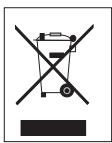
This product complies with EU WEEE Directive (2012/19/EU). This product bears a classification symbol for waste electrical and electronic equipment (WEEE).
This symbol indicates that this product shall not be disposed with other household wastes at the end of its service life. Used
device must be returned to
official collection point for recycling of electrical and electronic devices. To find these collection systems please contact to your local authorities or retailer where the product was purchased. Each household performs important role in recovering and recycling of old appliance. Appropriate disposal of used appliance helps prevent potential negative consequences for the environment and human health.
Compliance with RoHS Directive
The product you have purchased complies with EU RoHS Directive (2011/65/EU). It does not contain harmful and prohibited materials specified in the Directive.
Package information
Packaging materials of theproduct are manufactured fromrecyclable – materials – in
accordance with our National Environment Regulations. Do not dispose of the packaging materials together with the domestic or other wastes. Take them to the packaging material collection points designated by the local authorities.
Technical data
This device is noise-suppressed according to the applicable EU directives.
This product fulfils the European directives 2014/53/EU and 2011/65/EU.
Never open the device casing. The manufacturer will not accept any liability for damage resulting from improper handling.
You can find the CE declaration of conformity for the device in the form of a pdf file on the Grundig Homepage www. grundig.com/downloads/doc.
The type plate is located at the rear of the device.
RoHS Yonergesine Uyum
Other manuals GRUNDIG
Discover other manuals and user guides for the brand GRUNDIG
💬 Hi! I'm your manual assistant.I know your GRUNDIG RADIO6500W.
How can I help you? (use, settings, error codes, maintenance, explaining a step from the manual, etc.)💡 Examples :
• How do I use it ?
• Error code E3 ?
• How do I clean it ?