R703 - E-reader IT WORKS - Free user manual and instructions
Find the device manual for free R703 IT WORKS in PDF.



| Product type | E-book reader |
| Brand | iT WORKS |
| Model | R703 |
| Internal power supply | Lithium-polymer battery 3.7 V |
| External power supply | 5 V / 1.5 A (power adapter not included) |
| Supported book formats | Adobe DRM, PDF, EPUB, TXT, FB2, PDB, MOBI, RTF |
| Supported image formats | JPEG, GIF, BMP, PNG |
| Main functions | Reading books, viewing photos, built-in games, file explorer, reading history, display settings (zoom, rotation, font size), bookmarks (up to 5 per book), auto-scroll, landscape/portrait mode |
| Expandable storage capacity | Memory card slot (TF card) |
| DRM compatibility | Adobe Digital Editions (Adobe DRM) |
| Maintenance and cleaning | Wipe with a slightly damp cloth; do not use strong detergents or solvents; avoid water droplets on the screen |
| Safety instructions | Do not expose to moisture, shocks, extreme temperatures or dust; the battery must not be replaced; follow disposal procedures in accordance with instructions |
| Package contents | 1 e-reader, 1 USB cable, 1 user manual |
Frequently Asked Questions - R703 IT WORKS
User questions about R703 IT WORKS
0 question about this device. Answer the ones you know or ask your own.
Ask a new question about this device
Download the instructions for your E-reader in PDF format for free! Find your manual R703 - IT WORKS and take your electronic device back in hand. On this page are published all the documents necessary for the use of your device. R703 by IT WORKS.
USER MANUAL R703 IT WORKS
IMPORTANT SAFETY INSTRUCTIONS 2
PACKAGE CONTENTS 2
PRODUCT OVERVIEW 2
GETTING STARTED 3
Turning on and off the reader 4
Charging the reader. 4
Inserting a memory card into the reader 4
TRANSFERRING CONTENT FILES 4
READING BOOKS 9
Turning a Page 10
Rotating a Page 10
Zooming in/out. 10
Using the Option menu of the Book Page 11
VIEWING PHOTOS 13
BROWSER HISTORY 14
FILE EXPLORER 14
GAME 14
SETTINGSS 14
SPECIFICATIONS 16
DISPOSAL 17
WARNING
This appliance is intended for domestic household use only and should not be used for any other purpose or in any other application, such as for non domestic use or in a commercial environment.
CAUTION RISK OF EXPLOSION IF BATTERY IS REPLACED BY AN INCORRECT TYPE DISPOSE OF USED BATTERIES ACCORDING TO THE INSTRUCTIONS.
IMPORTANT SAFETY INSTRUCTIONS
This manual contains important safety instructions and information for proper use of the device. Please follow the instructions in this manual carefully.
- Avoid shocks and do not let the device fall.
- Avoid harsh conditions such as wet or damp places, rain, high humidity, strong vibration, extremely high or low temperatures, strong sunlight and places that are very dusty.
- To clean the product, gently wipe the product using only a slightly damp cloth. Do not use chemical solvents or strong detergents. Never allow water droplets to remain on the screen.
Symbol

This mark is applied to show the equipment conforms to European safety and electro-magnetic compatibility standards.
Battery handling and usage
The product is supplied with one rechargeable LI-Polymer 3.7V battery incorporated in the product which is not accessible and cannot be replaced. Therefore when the product reaches the end of its useful life it must be disposed of at a recycling centre.
PACKAGE CONTENTS
1 x EBook reader
1xUSB cable
1 x Instruction manual
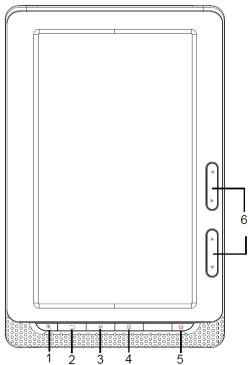
PRODUCT OVERVIEW
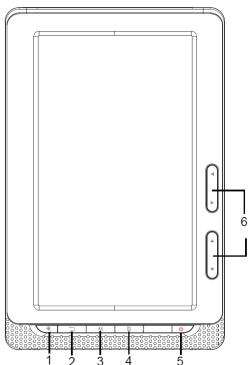
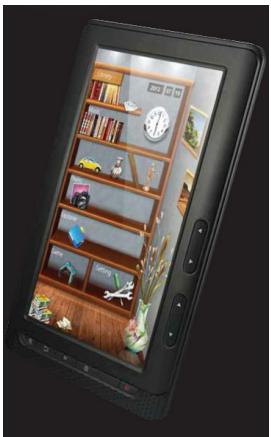
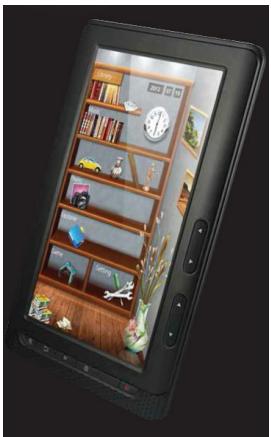
Front view
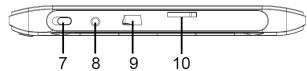
Bottom view
- Zoom in/out button
- Return button
- M button: to confirm
- Page orientation button
- power button
- / / / buttons
- Turn the page. You can turn multiple pages by pressing the buttons.
- Select the option.
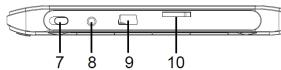
- ON-OFF power switch
- DCINjack
- USB port
- TF card slot
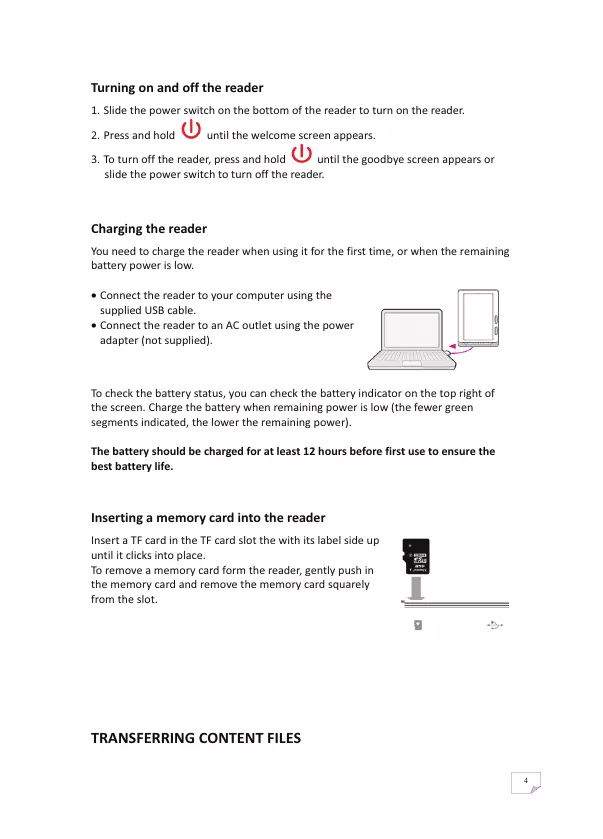
Turning on and off the reader
- Slide the power switch on the bottom of the reader to turn on the reader.
- Press and hold until the welcome screen appears.
- To turn off the reader, press and hold until the goodbye screen appears or slide the power switch to turn off the reader.
Charging the reader
You need to charge the reader when using it for the first time, or when the remaining battery power is low.
- Connect the reader to your computer using the supplied USB cable.
- Connect the reader to an AC outlet using the power adapter (not supplied).
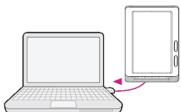
To check the battery status, you can check the battery indicator on the top right of the screen. Charge the battery when remaining power is low (the fewer green segments indicated, the lower the remaining power).
The battery should be charged for at least 12 hours before first use to ensure the best battery life.
Inserting a memory card into the reader
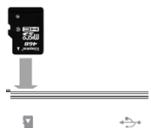
Insert a TF card in the TF card slot the with its label side up until it clicks into place.
To remove a memory card form the reader, gently push in the memory card and remove the memory card squarely from the slot.
TRANSFERRING CONTENT FILES
You can transfer content files stored on your computer or TF card into eBook.
You can transfer the following content files.
- eBook formats:
Adobe DRM, PDF, E-PUB, TXT, FB2, PDB, MOBI, RTF
- Picture formats:
JPEG,GIF,BMP,PNG
Compatible to Adobe digital editions
To transfer contents files stored on your computer into eBook,
- Connect the reader to your computer using the supplied USB cable.
- Double-click on My Computer.
- Double-click on ER703.
- Double-click on the folder "books".
- Transfer the content files in the folder.
Downloading eBooks
You can download eBooks from an online eBook store to your computer.

To download eBooks, an internet connection is required on your computer.
- Access the website http://www.adobe.com/products/digital Editions, and then install the Adobe Digital Editions software following the on-screen instructions.
- In Help>Authorization Computer option, authorise your computer with your Adobe ID and Password.
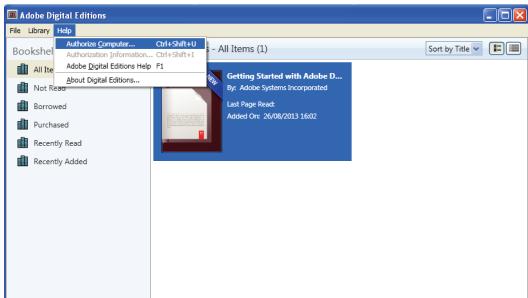
Computer Authorization

Adobe Digital Editions
Authorize Your Computer
Authorizing your computer enables you to:
- Easily transfer Adobe DRM protected items between multiple computers and mobile devices.
- Read Adobe DRM protected items on up to three computers and three mobile devices.
- Restore your content from backup should you ever need to re-install the OS.
Select eBook vendor, then enter your login ID and password below
eBook Vendor:
Adobe ID

Create an Adobe ID
Adobe ID:
Password:
I forgot my password.

I want to authorize my computer without an ID.
Cancel
Authorize
3. Activate the reader.
a) Connect the reader to your computer with the USB cable.
b) Select the [Data transfer] option.
c) Start up the Adobe Digital Editions.
d) Click and then click the "Authorization Device..." option to authorise the reader.
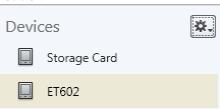

Devices - ET602 (4)
Authorize Device...
Device Authorization Information...
Erase Device Authorization...
- Download Adobe DRM-protected eBooks to your computer.
Note
Adobe DRM (Digital Rights Management) feature means any control and/or restriction on a PDF document that may include, but not be limited to, access rights, viewing, cutting, copying, pasting, printing, screen capturing, modifying, editing, watermarking, and/or document auditing (anonymous or authenticated).
a) Access an online eBook store (http://darty.numilog.com/) via PC/computer and search for eBooks.
b) Select your favourite eBooks and download them. If the eBook is protected by DRM, you should be prompted by DRM license information.
c) Click "Open" to start downloading the DRM-protected eBooks.
d) Follow the store instructions to purchase (download).
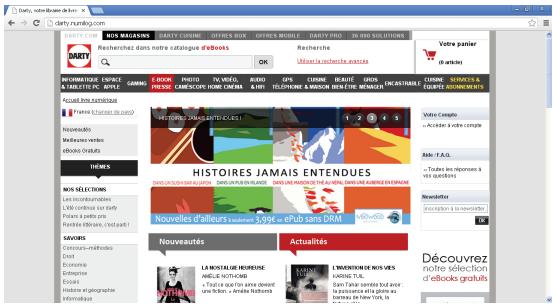
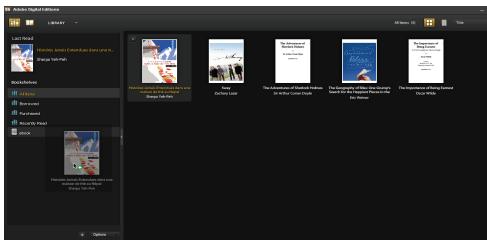
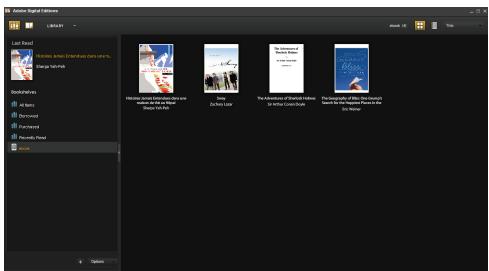
- Drag your downloaded eBook under "All Items".
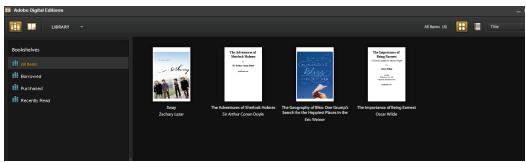
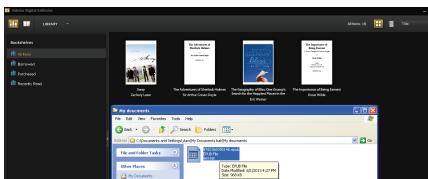
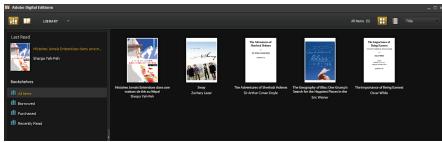
- When the reader is connected to your computer with the USB cable, and the Adobe Digital Editions should recognise the reader.
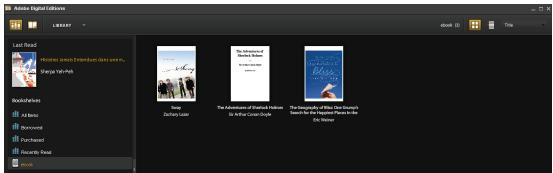
- Click "All Items" to see your downloaded eBooks and then drag it to the reader.
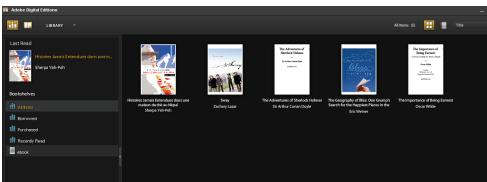
READING BOOKS
- From home screen, use
-
Press M.
-
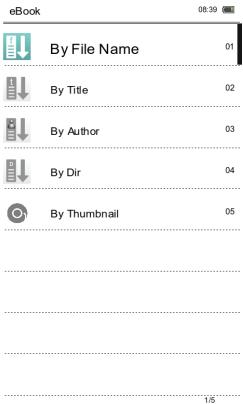
The menu will appear for you to sort the book list by File Name, Title or Author.
- You can view the books by thumbnail.
3.Use / / / to select the option and press M.
The book list will appear.
to select the [eBook] option.
- Use / / / to select a book. Press M to read the book.
Turning a Page
Use / / to turn a page.
Rotating a Page
Press to roate a page to landscape/portrait mode.
To lock the orientation while reading eBooks, press and hold To unlock the orientation, press
Zooming in/out
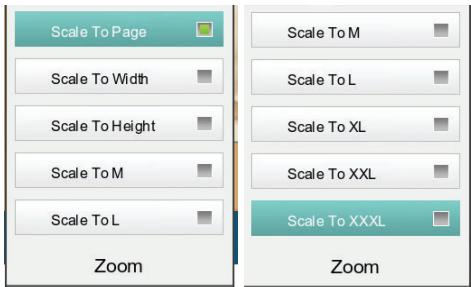
- In the book page, press

to enter the zoom menu.
2.Use / to select the desired font size.
3. Press M to confirm. The book will be re-scaled.
Using the Option menu of the Book Page
Press M and the option menu will appear.
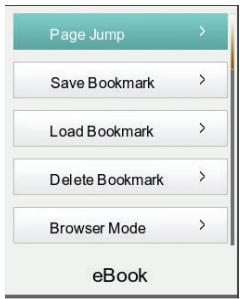
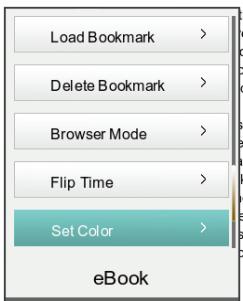
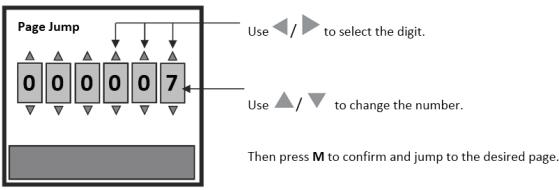
Page Jump
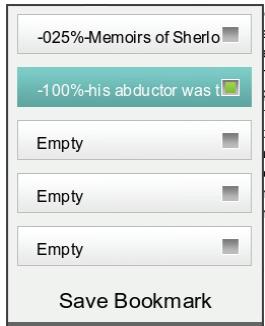
SaveBookmark
Use to select the bookmark box.
Press M to save the bookmark.
You can save up to 5 bookmarks for each book.
LoadBookmark
1.Use / to select the bookmark box.
2. Press M to go to the selected bookmark.
DeleteBookmark
1.Use / to select the bookmark box.
2. Press M to delete the bookmark.
Browser Mode
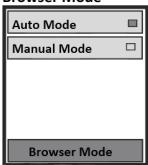
Flip Time
1.Use / to select the desired browser mode.
2. Press M to confirm.
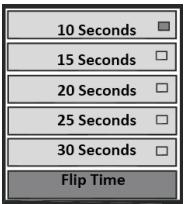
1.Use / to select an interval of auto flip.
2. Press M to confirm.
Re-alignment
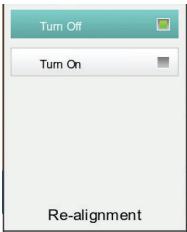
- Use / to turn on or off the re-alignment of page contents.
- Press M to confirm.
Information
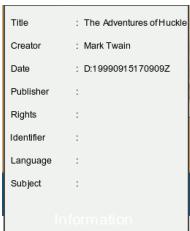
The information about the eBook will be shown. The information will depend on data that are input by the creator.
VIEWING PHOTOS
1.From home screen,use / △/ to select the [Photo] option.
2. Select the [Pictures] folder using / and press M.
The photo list will appear.
- Select the photo to display using
- Press M to show the photo.
- Zoom out/in a photo by repeatedly pressing
BROWSER HISTORY
You can view your reading history.
From home screen, use / / / to select the [Browser History] option and press M.
FILE EXPLORER
- From home screen, use / / / to select the [Explorer] option and press M.
- You can view all the content files stored both in the memory and TF card.
- Select the desired folder using / and press M.
- The list of content files will appear.
GAME
Select this option to play the game.
From home screen, use / / to select the [Game] option and press M.
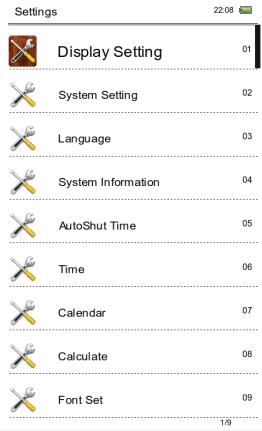
SETTINGS
From home screen, use / / ▲/ to select the [Settings] option and press M.
You can configure various settings in the Settings menu.
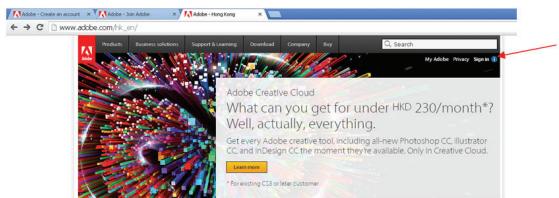
Adobe ID Set up
- Go to Adobe.com. On the top right corner of the page, click the "Sign In" button to enter into "My Adobe account" page.
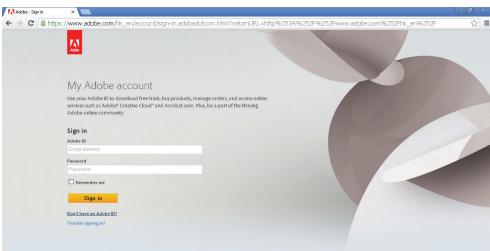
- Click the "Don't have an Adobe ID" button to enter the "Create an Adobe ID" page.
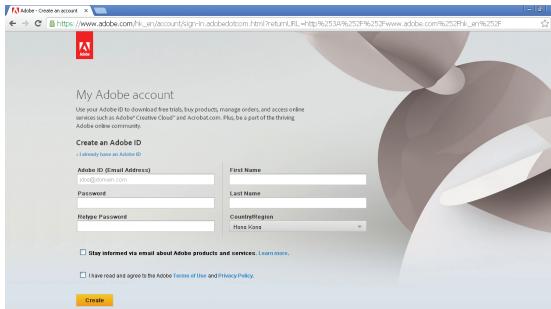
- Enter your personal details in the appropriate fields. You will need to provide your email address, name, location and communication preferences. You will also have to create a password for your Adobe ID. Click the "Create" button at the bottom on the page after completing the online form. You will be able to sign in using your Adobe ID the next time you visit the site or use it to sign in Adobe digital editions.
SPECIFICATIONS
Battery: Li-Polymer 3.7V
External DC power supply: 5V/1.5A
DISPOSAL
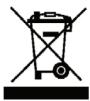
As a responsible retailer we care about the environment.
As such we urge you to follow the correct disposal procedure for the product, packaging materials and if applicable, accessories and batteries. This will help conserve natural resources and ensure that the materials are recycled in a manner that protects health and the environment.
You must follow laws and regulations about disposal. Waste electrical products and batteries must be disposed of separately from household waste when the product reaches the end of its life.
Contact the store where you bought the product and your local authority to learn about disposal and recycling.
The batteries must be disposed of at your local recycling point.
We apologise for any inconvenience caused by minor inconsistencies in these instructions, which may occur as a result of product improvement and development.
Kesa Electricals © UK: EC1N 6TE 25/09/2013
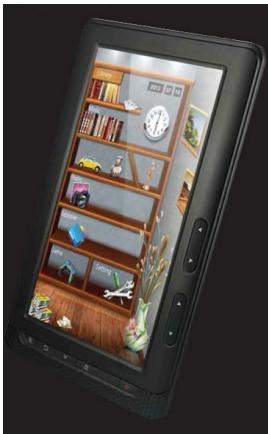
LISEUSE
MODELE ER703
NOTICE D'UTILISATION
Table des matieres
AVERTISSEMENTS 2
CONSIGNES DE SECURITE IMPORTANTES 2
CONTENU DE L'EMBALLAGE 2
DESCRIPTION DU PRODUIT 3
MISE EN SERVICE 4
Computer Authorization

Adobe+ Digital Editions
Authorize Your Computer
Authorizing your computer enables you to:
- Easily transfer Adobe DRM protected items between multiple computers and mobile devices.
- Read Adobe DRM protected items on up to three computers and three mobile devices.
- Restore your content from backup should you ever need to re-install the OS.
Select eBook vendor, then enter your login ID and password below
eBook Vendor:
Adobe ID

Create an Adobe ID
Adobe ID:
Password:
I forgot my password.

I want to authorize my computer without an ID.
Cancel
Authorize
- Activez la liseuse.
Kesa Electricals © UK: EC1N 6TE 25/09/2013
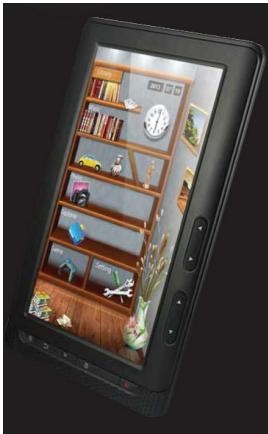
E-BOEKLER
MODELER703
Inhoudsopgave
WAARSCHUWINGEN 2
BELANGRIJKE VEILIGHEIDSINSTRUCTIES 2
INHOUD VAN DE VERPAKKING 2
BESCHRIJVING VAN HET PRODUCT 3
AAN DE SLAG 4
BESCHRIJVING VAN HET PRODUCT
Vooranzicht
Onderaanzicht
Computer Authorization

Adobe Digital Editions
Authorize Your Computer
Authorizing your computer enables you to:
- Easily transfer Adobe DRM protected items between multiple computers and mobile devices.
- Read Adobe DRM protected items on up to three computers and three mobile devices.
- Restore your content from backup should you ever need to re-install the OS.
Select eBook vendor, then enter your login ID and password below
eBook Vendor:
Adobe ID

Create an Adobe ID
Adobe ID:
Password:


I forgot my password

I want to authorize my computer without an ID.
Cancel
Authorize
- Activeer de lezer.
-100% his abductor was
Empty
Empty
Empty
SaveBookmark
Bladwijzer opvragen
Computer Authorization

Adobe Digital Editions
Authorize Your Computer
Authorizing your computer enables you to:
- Easily transfer Adobe DRM protected items between multiple computers and mobile devices.
- Read Adobe DRM protected items on up to three computers and three mobile devices.
- Restore your content from backup should you ever need to re-install the OS.
Select eBook vendor, then enter your login ID and password below
eBook Vendor:
Adobe ID

Create an Adobe ID
Adobe ID:
Password:
I forgot my password.
I want to authorize my computer without an ID
Cancel
Authorize
- Active el lector.
Device Authorization Information...
Erase Device Authorization...
-100%-his abductor was
Empty
Empty
Empty
SaveBookmark
Carga de marcadores
Kesa Electricals © UK: EC1N 6TE 25/09/2013
CTECKA eKNIH
MODELER703
NÁVOD K OBSLUZE
Obsah
VAROVÁNÍ 2
DULEZITE BEZPECNOSTNI POKNY 2
OBSAH BALENI 2
STRUCNYPOPISPRISTROJE 2
ZACINAME 3
Zapinani a vypinani ctecky 3
Nabijeni 4
Vlozeni pametové karty do ctecky 4
PRENOS SOUBORU 4
CTENI KNIH. 9
Computer Authorization

Adobe Digital Editions
Authorize Your Computer
Authorizing your computer enables you to:
- Easily transfer Adobe DRM protected items between multiple computers and mobile devices.
- Read Adobe DRM protected items on up to three computers and three mobile devices.
- Restore your content from backup should you ever need to re-install the OS.
Select eBook vendor, then enter your login ID and password below
eBook Vendor:
Adobe ID

Create an Adobe ID
Adobe ID:
Password:
I forgot my password.

I want to authorize my computer without an ID.
Cancel
Authorize
Device Authorization Information...
Erase Device Authorization...
(http://darty.numilog.com/)
Kesa Electricals © UK: EC1N 6TE 25/09/2013
CITACKA eKNIH
MODELER703
NÁVOD NA OBSLUHU
Obsah
UPOZORNENIA 2
DOLEZITE BEZPECNOSTNE POKNY 2
OBSAH BALENIA 2
PREHLAD VYROBku. 2
ZACINAME 3
Computer Authorization

Adobe Digital Editions
Authorize Your Computer
Authorizing your computer enables you to:
- Easily transfer Adobe DRM protected items between multiple computers and mobile devices.
- Read Adobe DRM protected items on up to three computers and three mobile devices.
- Restore your content from backup should you ever need to re-install the OS.
Select eBook vendor, then enter your login ID and password below
eBook Vendor:
Adobe ID

Create an Adobe ID
Adobe ID:
Password:
I forgot my password.

I want to authorize my computer without an ID.
Cancel
Authorize
Device Authorization Information...
Erase Device Authorization...
4. Stiahnite si Adobe DRM chranene knihi do poçaţa.
Poznámka
(http://darty.numilog.com/)
Kesa Electricals © UK EC1N 6TE 25/09/2013