TM1004 - Tablet IT WORKS - Free user manual and instructions
Find the device manual for free TM1004 IT WORKS in PDF.



| Product type | Tablet |
| Brand | IT WORKS |
| Model | TM1004 |
| Screen | 10.1-inch capacitive TFT LCD touchscreen, 1280x800 resolution |
| Processor | Amlogic 8276-MX Dual-core 1.5 GHz (Cortex A9) |
| RAM | 1 GB DDR3 |
| Internal storage | 16 GB Flash |
| Expandable storage | microSD/TF card up to 32 GB |
| Connectivity | Wi-Fi 802.11b/g/n, USB 2.0 high-speed |
| Front camera | 0.3 megapixels |
| Rear camera | 2 megapixels |
| Battery | Rechargeable lithium polymer, DC 5V 2A adapter |
| Battery life | 9 hours music, 4 hours video, 4 hours internet browsing |
| Operating system | Android 4.1 |
| Dimensions (estimated) | Approximately 240 x 170 x 10 mm |
| Weight (estimated) | Approximately 500 g |
| Main functions | Web browsing, multimedia playback, e-book (ePub), camera, Wi-Fi, TF card reader |
| Safety | Volume warning, explosion risk if incorrect battery, dispose properly |
| Power supply | DC 5V 2A power adapter (included) |
Frequently Asked Questions - TM1004 IT WORKS
User questions about TM1004 IT WORKS
0 question about this device. Answer the ones you know or ask your own.
Ask a new question about this device
Download the instructions for your Tablet in PDF format for free! Find your manual TM1004 - IT WORKS and take your electronic device back in hand. On this page are published all the documents necessary for the use of your device. TM1004 by IT WORKS.
USER MANUAL TM1004 IT WORKS
Keepintouchwithfriendsandfamily
WatchYouTube™ videos
Browsetheworld'smostpopular
video-sharingcommunity
Readyourfavouritebooks
Downloadthousandsofbookswith theincludedE-bookreader
Discoverthousandsoffappsfor
Android™ Gamesandapplications
ConnecttotheInternetwirelessly
High-speed Wi-Fi 802.11 b/g/n networking
Enjoyyourmedialibraryanywhere
Portablepowerhouseplayspopular
music, video, and photo formats
TFcardreader
Increaseyourstorageecapacity(upto
32GBsupported)
Built-incamera
Convenientfront-facingcamera
(0.3MP),rear2MP
Automaticorientationdetection
Readanywayyouwant;thedisplay
adjustsautomatically
ReadingbooksintheePubformat
requirestheincludedE-bookreader
application.
RequiresoptionalHDMlable
(Type A-to-Type C). 1080p HD video
playbackrequiresavideofileencoded at1080p Streamingvideoqualitywill
beaffectedbythesource,andthe
qualityandconditionofyournetwork
connection.
UNITATAGLANCE
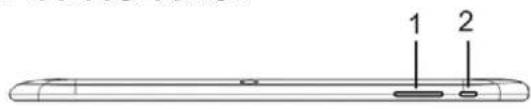
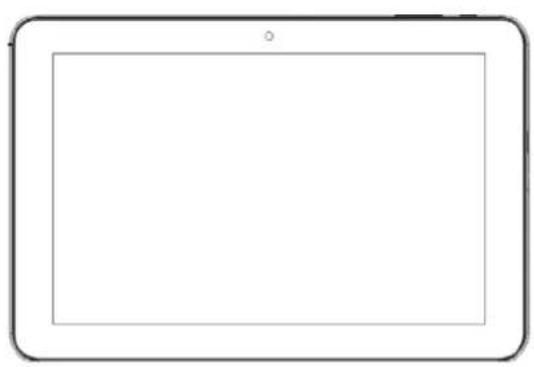
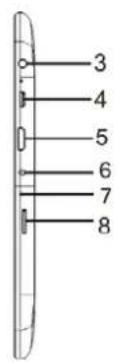
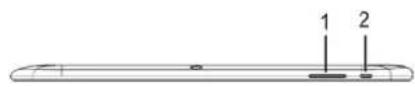
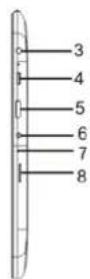
1.VOL+/VOL-
Remarks: WhentheSPL warningappears& youpress' cancel', thevolumecannot be increasedanymoreunlessyoureducethevolumeandthenincreasethevolumeagain.
- 0
Presstoturntheuniton,ortoturnthescreenonoroff.
- Pressandholdtopowerof ftheunit.
- 5.HDMlport
6.DCIN5V
7.R(reset)
8.TFCARD


Atfullpower,prolongedlisteningtotheplayercandamagetheearofthe user.
WARNING: To protect your hearing, it is important that any headphones or earphones used conjunction with this product are compliant with French Decree of 8 November 2005 implementing Article L.5232-1. This ensures that the sound level does not exceed 100 dB SPL. The prolonged listening at high volume form more than five hours a week can damage your hearing.

Topreventpossiblehearingdamage, donotlistenathighvolumelevelsfor longperiods.
GETTINGSTARTED
TurningtheTabletOnorOff
Toturnthetableton:
Pressandhold untilthescreenturnson.WaituntiltheHomescreenappears. Thetabletisnowreadyforuse.
Toturnthetabletoff:
- Press and hold until the DeviceOptionsmenu appears.
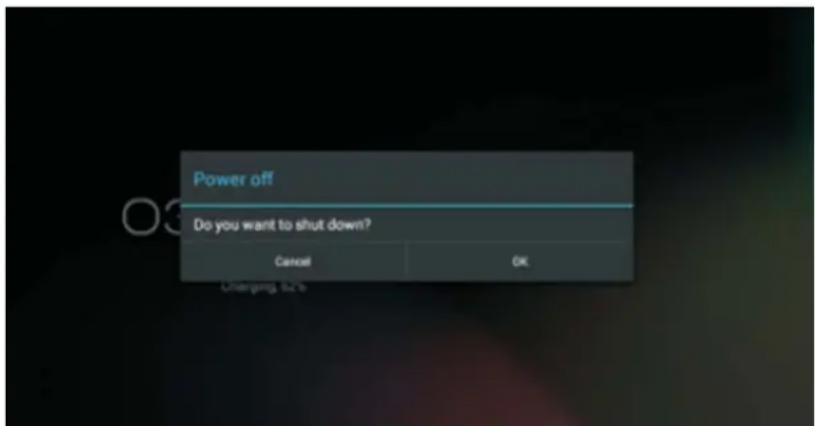
- Touch OK on the screen of the tablet.
TurningtheScreenOnoroff(Standby)
Whenthetabletison,youcanturnoffthescrentosavebatterypower.
Press oncetoturnthescreenoff.Pressagantoturnthescreenbackon.
NOTE: To save battery power, the screen can be set to turn off automatically when the tabletisnotinuse. Thescreenofftimeoutcanbesetinthe“Display” optionunder“Settings”menu.
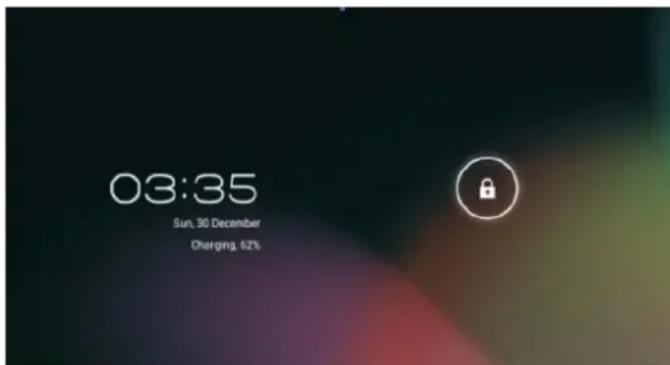
UnlockingtheScreen
Whenthescreenturnsoffandyouwanttounlockthescreen,dragthelockicon acrosssthescreentowardsthelockicon.
ABOUTAPPLICATIONS
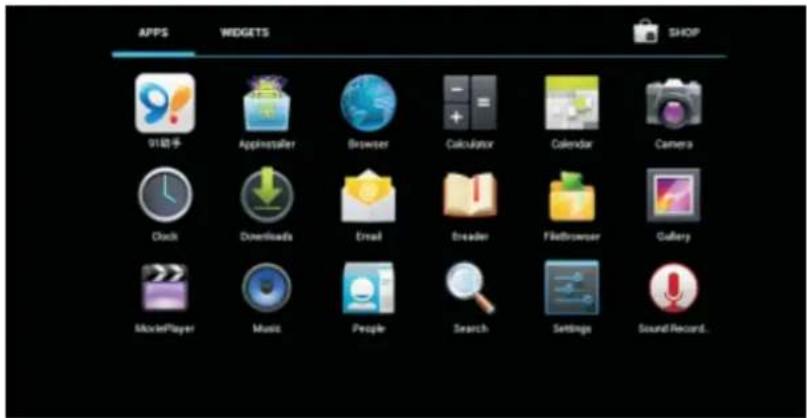
Toopenanapplication, touchtheapplicationicononthehomescreenorinthe Launcher(iconontheupperrightcorner)togetin.
Launcherscreen(onlyforIllustrativepurpose):
PreinstalledApplications
Someapplicationshavebeeninstalledonyourtabletforyourconvenience.
Theseapplicationsinclude:

Browsesetheweb.
Performsimplemathematicaloperations.

Takepicturesorvideoswiththefrontfacingcamera.

Checkyouremail.

Playmusic.
AccesstheSettingsmenutosetheoptions.
InstallingApplications
You canalsodownloadandinstallapplicationsfromthedevicessapplications marketplace, the web browser, orthersources.
CONNECTTINGTABLETOWAI-FINETWORK
- TurnnontheWi-Firadioi f itisnotalreadyon.ToturnnonWi-Fi:
a. Gotothe Homescreen: Pressthe Homekey.
b.OpentheSettingsmenu:taptheiconrightuponthomescreenentogetinto the launcher,thentouchSettingsicon.
c.OpentheWireless&networksmenu:SlidetheicontoONstatus.
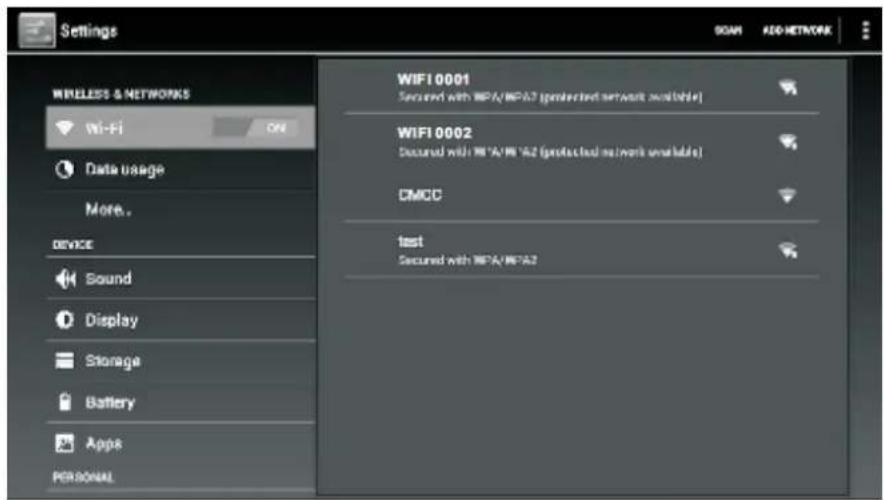
When Wi-Fi is on, the tablet will search and display a list of available Wi-Fi networks.
NOTE:Ifanetworkthatyouhaveconnectedtopreviouslyisfound,thetabletwill connecttoit.Ifyoudon'tseeyournetworkintheList,youcanforcethetablet to re-scan. To scan for networks, tap the Menu key, and then touch "SCAN".
- SelectanavailableWi-Finetetworktoconnectto:
In the same Wi-Fi settings menu above, touch a network in the list.
Ifthenetworkisopen, the tabletwillpromptyoutoconfirmconnectiontothe network. TouchConnecttoconfirm.
Ifthenetworkissecured(asindicatedbyaLockicon),thetabletwillpromptyouto enterapasswordorothercredentials.TouchtheWirelesspasswordboxtoshowthe on-screen keyboard and then use it to enter the password. Touch "Connect" to confirm.
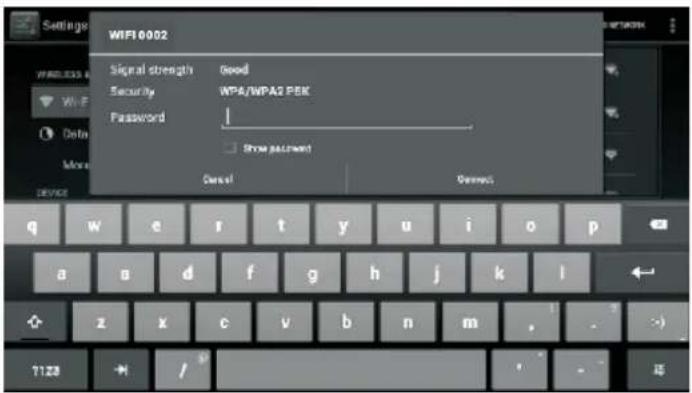
When the tablet has been connected to a Wi-Fi network, the Notifications bar at the thelelowofthescreenwillshowaWi-Fisignalindicator.

CONNECTINGTETABLETTOACOMPUTER/UDISK
-
Connect the tabletto the computer/ Udiskusingthesupplied USB cable.
2.SlidetheUSBiconuponthescreenandthentouch"USBconnected
3.Mountthestorage. -
Touch "Turn on USB storage" on the screen to mount the built-in storage of the tablet. When it is mounted, you can copy filestor from the tablet.
SPECIFICATIONS
| ProcessorAmlogic8276-M | XDualcore1.5GHz(cortexA9) |
| RMA1GBDDR3 | |
| Storage16GBflashbuilt-in | Supportupto32GBTfcard |
| Display10.1"TFTLCD(1280x800),Capacitivetouchscreen | |
| Wi-FiNetworkingIEEE802 | 11b/g/n |
| USB | USB2.0highspeed |
| AdditionalFeatures | Built-inmicrophone Frontfacingcamera(0.3MP),rear2MP 1x1.5Wspeaker |
| OperatingSystem | Android™ 4.1 |
| Power | Rechargeable Li-poly battery power Adapter(DC5V,2A) |
| PlaybackTime | Upto9-hourmusic, 4-hourvideo, 4-hourwebbrowsing |
Musicwastedwitha128kbpsMP3file;videowastedwitha1920x1080 MPEG-4/AVC file; browsing was tested with the screen brightness set to default. Actualplaybackresultsmayvary.

Asaresponsibileretailerwecareabouttheenvironment.
Assuchweurgeyoutofollowthecorrectdisposalprocedurefortheproduct, packagingmaterialsandifapplicable,accessoriesandbatteries.Thiswillhelp conservenaturalresourcesandensurethatthematerialsarerecycledinamanner thatprotectshealthandtheenvironment.
You must follow laws and regulations about disposal. Waste electrical products and batteries must be disposed separately from household wastes when the product reaches the end of its life.
Contactthestorewhereyouboughttheproductandyourlocalauthoritytolearn aboutdisposalandrecycling.
Thebatteriesmustbedisposedofatyourlocalrecyclingpoint.
Weapologiseforanyinconveniencecausedbyminorinconsistenciesinthese instructions,whichmayoccurasaresultofproductimprovementanddevelopment.
KesaElectricals©UK:EC1N6TE31/01/2013
Declaration of Conformity
The following product has been deemed to comply with the requirements of the listed European Directives:-
R&TTE Directive (1999/5/EC)
Electromagnetic Compatibility Directive (2004/108/EC)
Low Voltage Directive (2006/95/EC)
RoHS 2 (2011/65/EU)
Product Description: Multimedia Tablet
Brand: I.T. Works
Model numbers: TM 1004
The above listed product conforms to the following EU Standards:
ETSI EN 300 328 V1.7.1 (2006-10)
ETSI EN 301489-1 V.1.9.2 (2011-09)
ETSI EN 301489-17 V2.1.1 (2009-05)
EN 62479:2010
EN 55022:2010
EN 55024:2010
EN 61000-3-2:2006+A1:2009+A2:2009
EN 61000-3-3 :2008
EN 60950-1:2006+ A11:2009+ A1:2010+ A12:2011
The person responsible for this declaration is:
Name: Steve Connor
Position: General Manager of Direct Sourcing
Signature:
Date: 12.3.13.

it.works
TABLETTE
MODELETM1004
MODED'EMPLOI
ATTENTION
Consultervose-mails.

MANUALDEINSTRUCTIONS
ADVERTENCIAS
KesaElectricals@UK:EC1N6TE31/01/2013
it.works
TABLET
MODELLOTM1004
MANUULED'ISTRUZIONI
ATTENZIONE
COLPOD'OCCHIOSULL'UNITÀ
1.VOL+/VOL-
KesaElectricals@UK:EC1N6TE31/01/2013
it.works
TABLET
MODELTM1004
POKNYKPOUžITÍ
UPOZORNÉNÍ
Tento pristroj je navrzen pouze pro domaci pouziti, nesmi byt pouzit na zaadne jine uceley a nesmi se tedy pouzivat napr. mimo domacnosti nebo pro komercni uceley.
POZOR
V PRIPADE POUZITI NESPRAVNEHO TYPUBATERIE HROZINEBEZPECI VYBUCHU.
POUZITÉBATERIELIKVIDUJTEPODLEPOKYNÜ.
VLASTNOSTI
UPOZORNÉNI:proochranusluchu
KesaElectricals@UK:EC1N6TE31/01/2013
it.works
TABLET
MODELTM1004
NAVODNAPOUZITIE
VAROVANIA
KesaElectricals©UK:EC1N6TE31/01/2013
it.works
TABLETTE
MODELETM1004
MODED'EMPLOI
ATTENTION
Consultervose-mails.