
DOORBELL ELITE - Home Security System RING - Free user manual and instructions
Find the device manual for free DOORBELL ELITE RING in PDF.


User questions about DOORBELL ELITE RING
0 question about this device. Answer the ones you know or ask your own.
Ask a new question about this device
Download the instructions for your Home Security System in PDF format for free! Find your manual DOORBELL ELITE - RING and take your electronic device back in hand. On this page are published all the documents necessary for the use of your device. DOORBELL ELITE by RING.
USER MANUAL DOORBELL ELITE RING
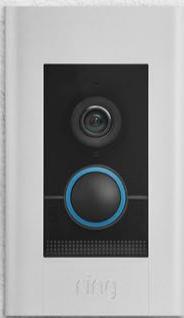
Installing and Setting Up Ring Video Doorbell Elite
ring
Welcome
Congratulations on your new Ring Video Doorbell Elite.
Ring Doorbell is the foundation of the Ring of Security around your home.
We hope your Ring Doorbell brings you an increased sense of security and convenience, as well as the joy that comes from being able to connect with visitors when you're not home.

Hi,
I'm Rochelle, a Ring Community Support Agent in Arizona. I've set up so many Ring Doorbells, I can probably do it in my sleep!
We’ve included all the tools you need, so setting it up by yourself should be a breeze. If you run into any problems, my colleagues and I can help. Just give us a call.
Don't feel like calling? Check out our online Help Center at ring.com/help.
Before you begin
Check out all the stuff in the box.
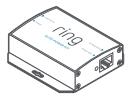
Elite Power Kit
Includes power adapter and plugs for different types of outlets
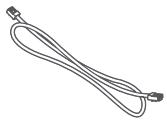
3' Ethernet Cable
Use this cable to connect the Elite Power Kit to your internet access point.
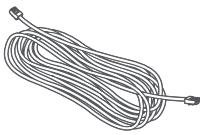
50' Ethernet Cable
Run this cable from the Elite Power Kit to your Ring Doorbell.
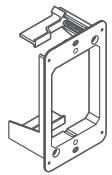
Elite Mounting Bracket (optional)
If installing Ring Elite on an existing junction box, you don't need to use this bracket. If you do use this bracket, you should remove the existing junction box.
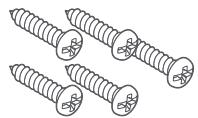
Mounting Screws (5)
Attach Ring Elite to the bracket with two screws. Use two other screws to attach the Elite Power Kit to your wall, if you'd like.
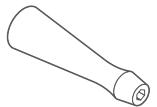
Screwdriver Handle
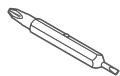
Screw Bit
Use the Phillips end for installation. If you are securing existing doorbell wires in the small connectors on the back of Ring Elite, use the flathead end.
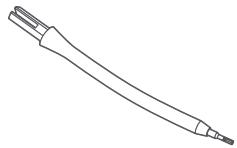
Flexible Bit
Use it for screwing the security screw into the bottom of Ring Doorbell Elite after installing the faceplate.
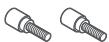
Security Screws (2)
Use one to secure the faceplate. Put the other one in your toolbox for the inevitable moment that the first one gets dropped in the bushes.
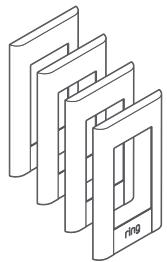
Faceplates (4)
Select the color that best matches your home...or your mood.
Wiring the Elite Power Kit
The Elite Power Kit is a PoE injector that converts internet in to Power Over Ethernet out.
To get started, connect the Elite Power Kit to AC, using the provided adapter.
Then, use the provided 3 foot ethernet cable to connect your access point to the Internet In port on the Elite Power Kit.
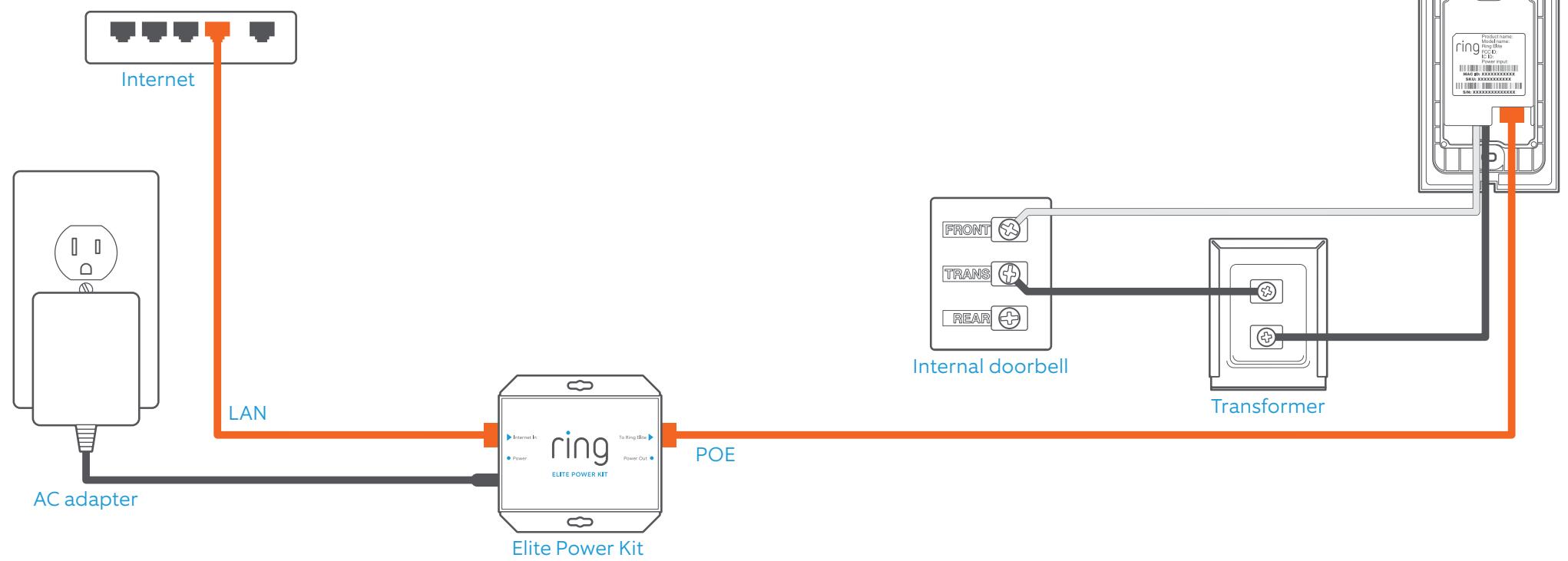
Run cable to your Ring Elite
Run the 50 foot cable to the location where you'll be installing Ring Elite.
Wiring Ring Elite to an internal doorbell is optional. If you do so, shut off power at the breaker before connecting your existing doorbell wires to the small wire terminals on the back of Ring Elite. Ring Elite
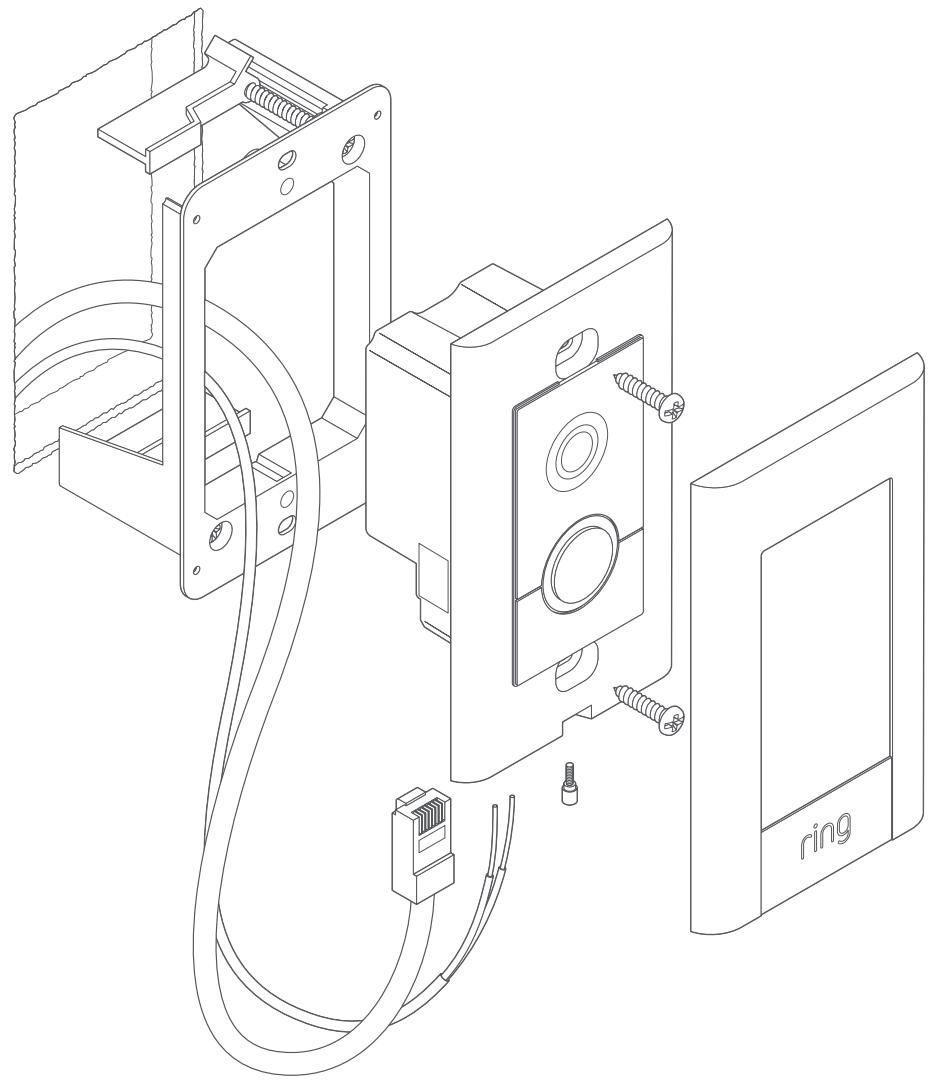
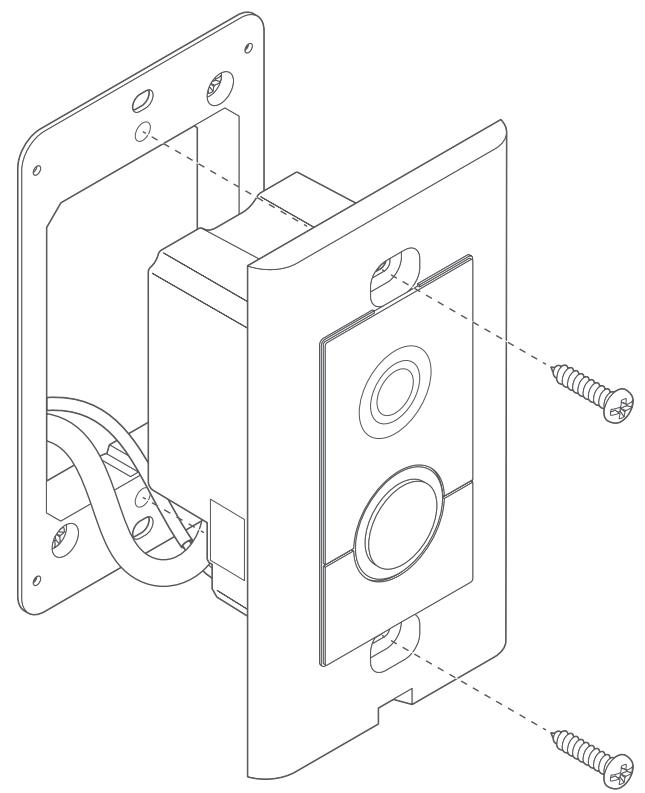
How it all fits together
If you need a visual overview, see the diagram to the right. This is how is all fits together.
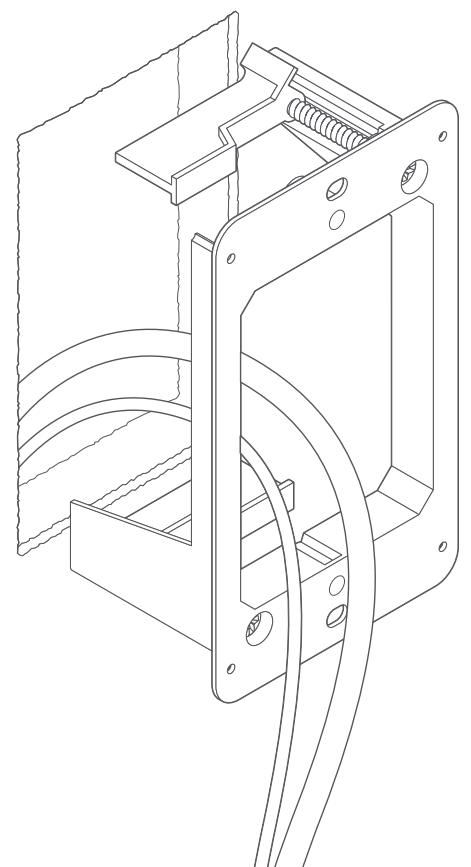
Note that as you screw the Elite Mounting Bracket into your wall, the "wings" will rotate and lock the bracket into place.
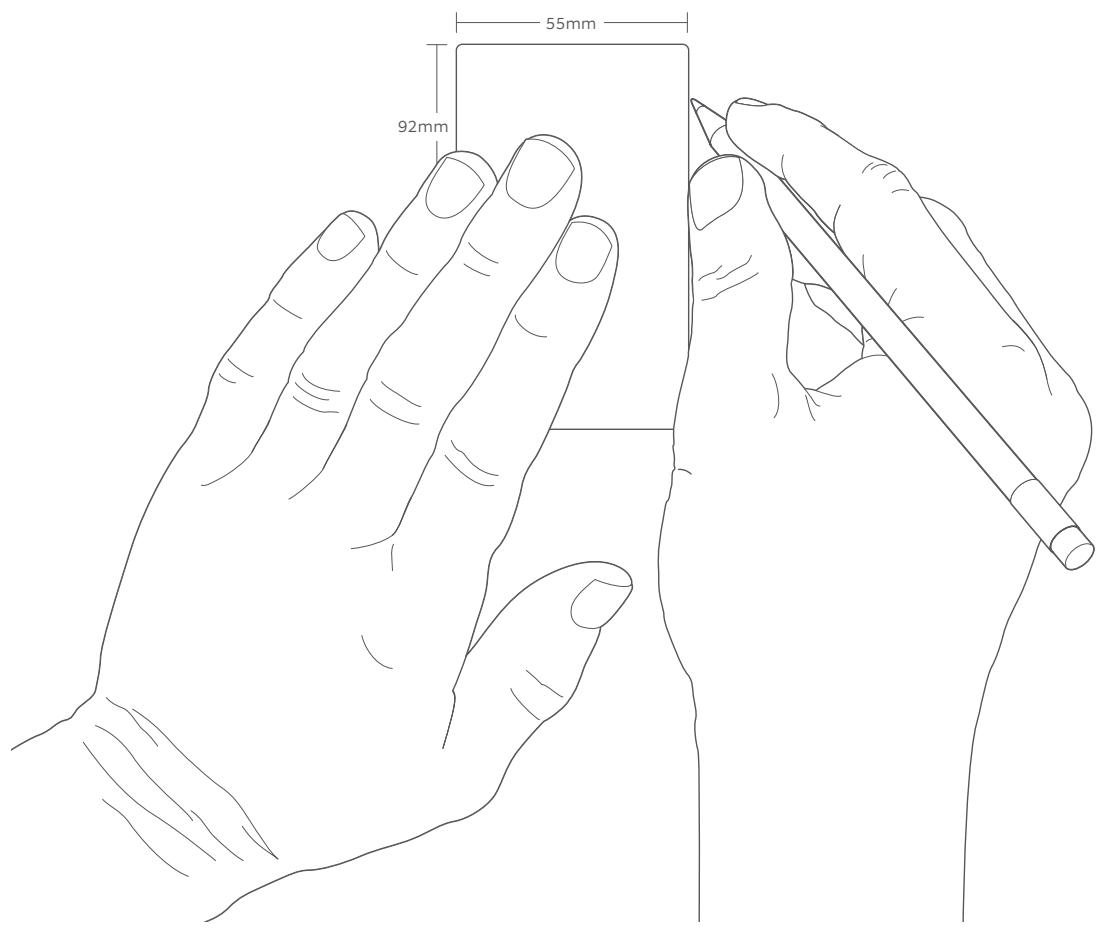
Mark the install location
If you already have a junction box at the location where you're installing your Ring Elite, skip the next couple of steps and screw it directly into that junction box.
If you don't have a junction box, trace the outline of the supplied template, then cut a rectangular hole in your wall to make room for the Elite Mounting Bracket.
Install the Elite Mounting Bracket
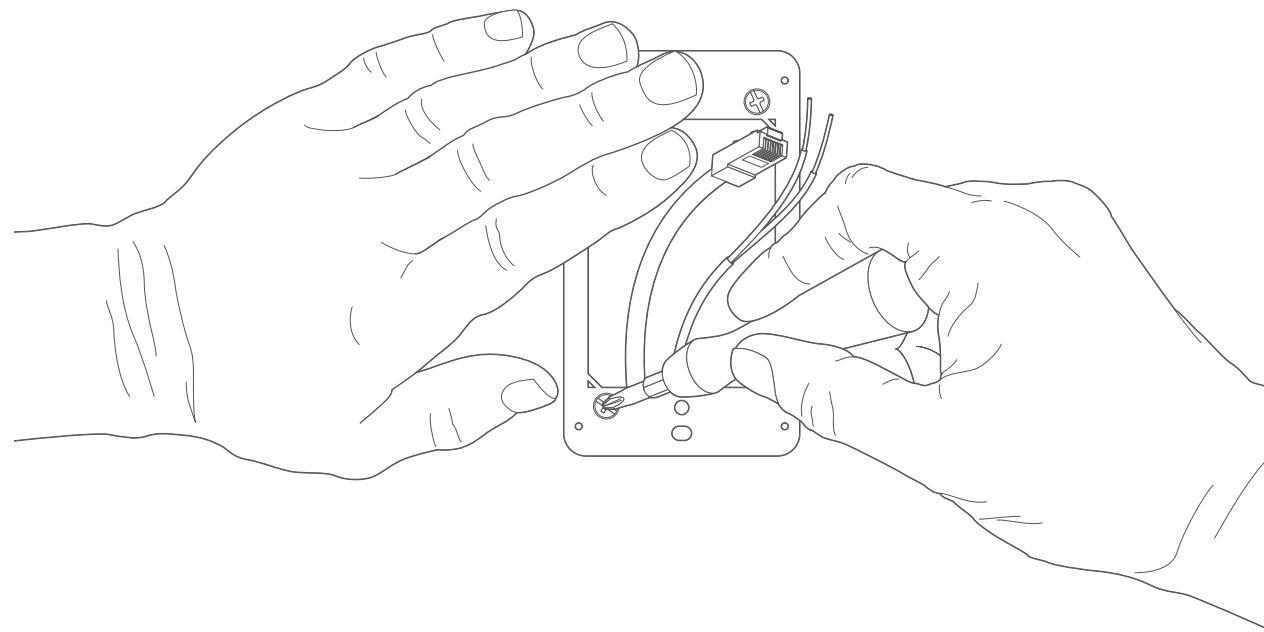
Make sure any wires in your wall come through the hole in the middle, and screw the bracket in using the two screws in the corners.
The wing clamps will rotate as the screws turn and lock the bracket into your wall.
Plug in the ethernet cable
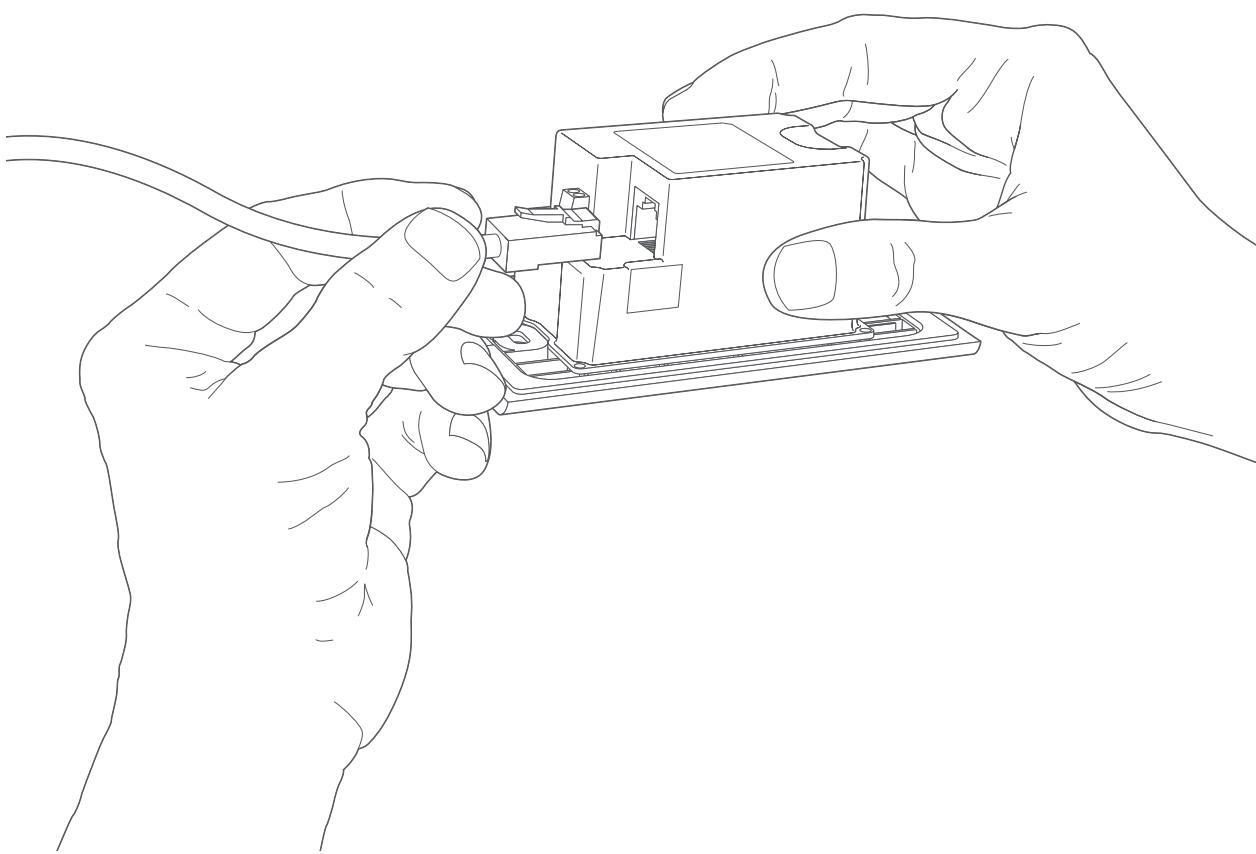
Plug the ethernet cable coming out of your wall into the ethernet port on the back of Ring Elite.
As long as this cable is connected to power, the front light on Ring Elite will begin spinning and it will begin talking to you to let you know that it is ready to be set up in the Ring app.
Connect doorbell wires (optional)
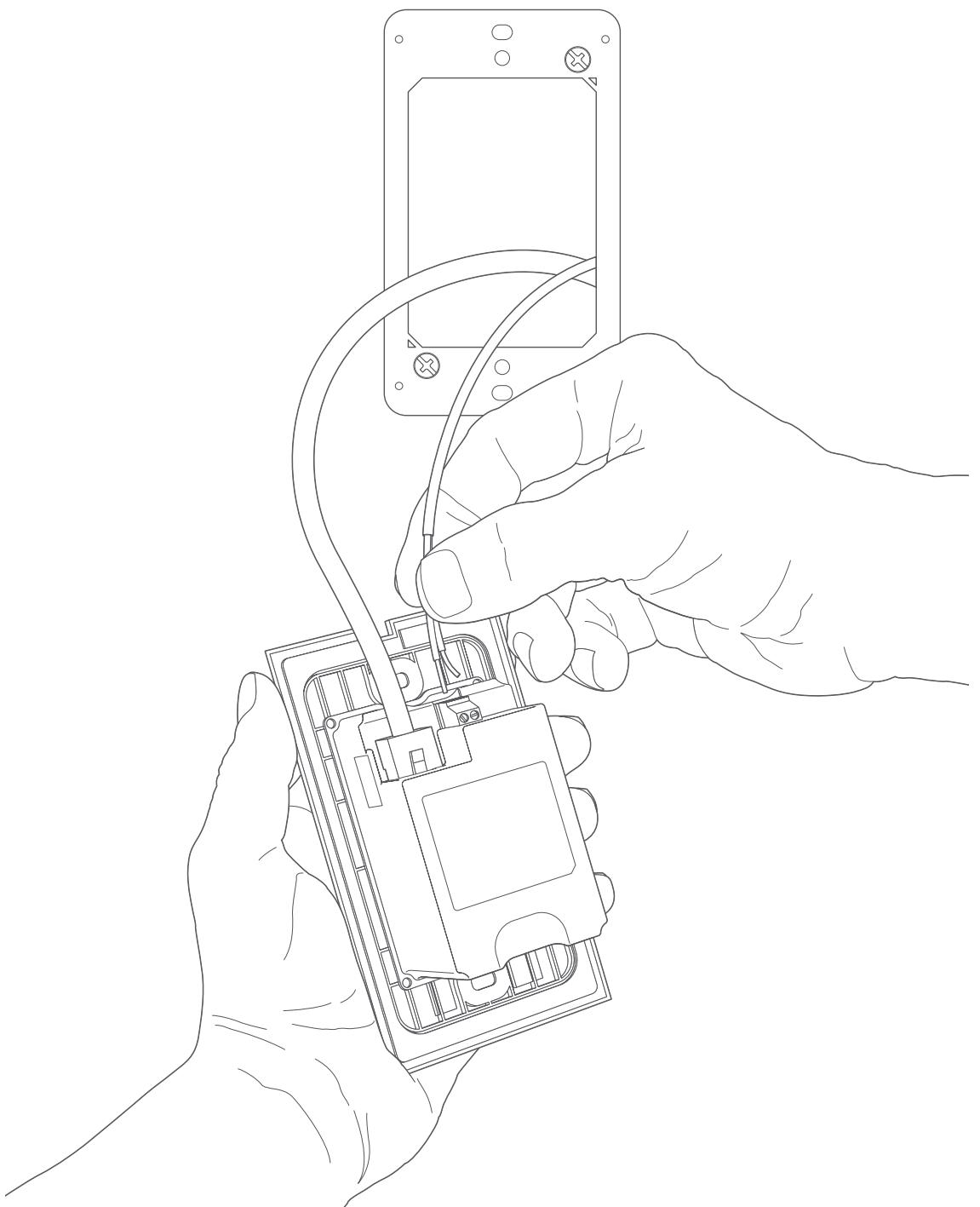
If wiring Ring Elite to an internal doorbell, first shut off power at the breaker, then connect your doorbell wires to the small wire connectors next to the ethernet port.
Then use the provided flat-head screwdriver to secure the wires in the screw holes.
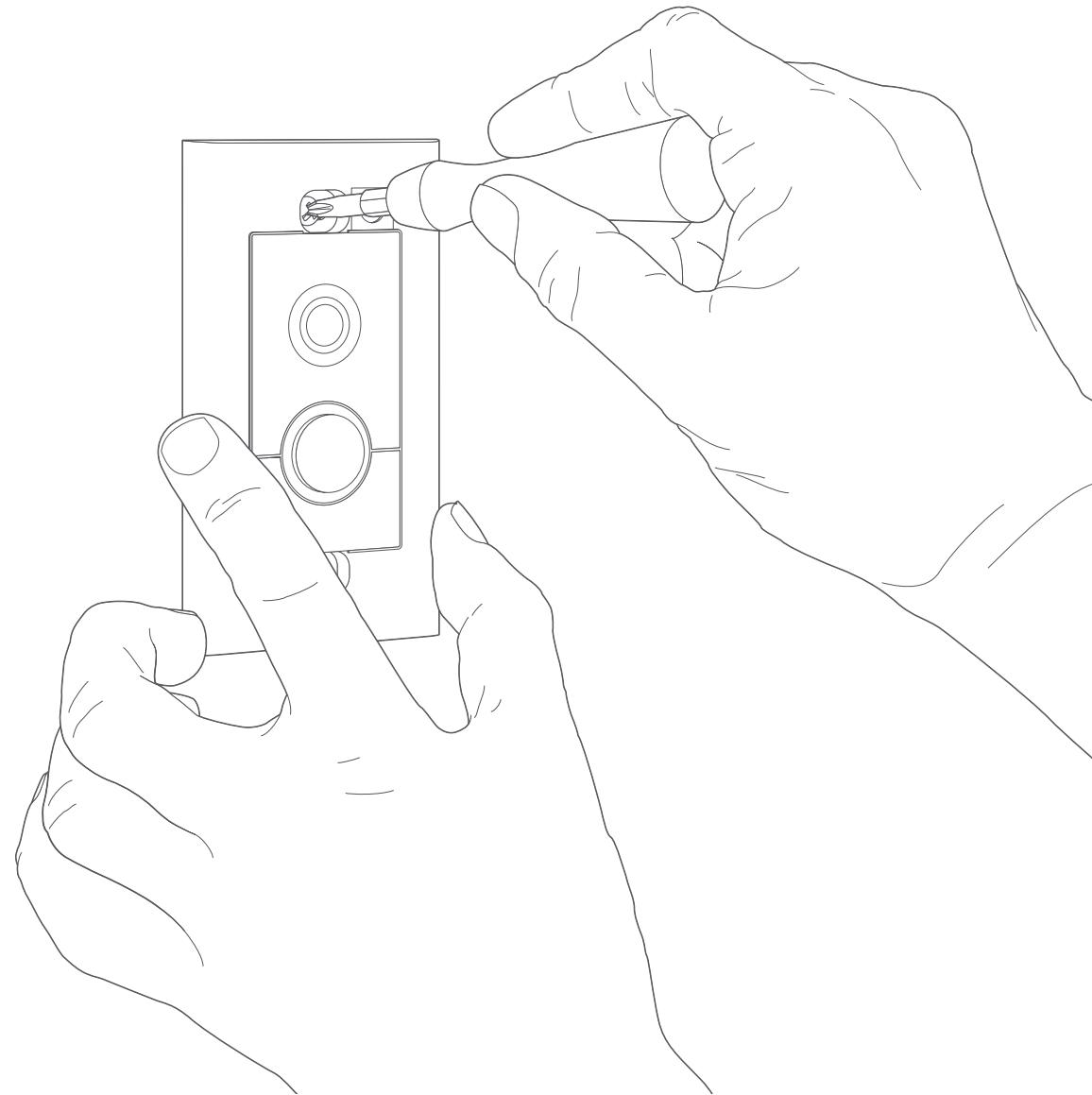
Screw Ring Elite into the bracket
Using two of the provided screws, screw Ring Elite into the bracket to secure it on your wall.
Perform the in-app setup
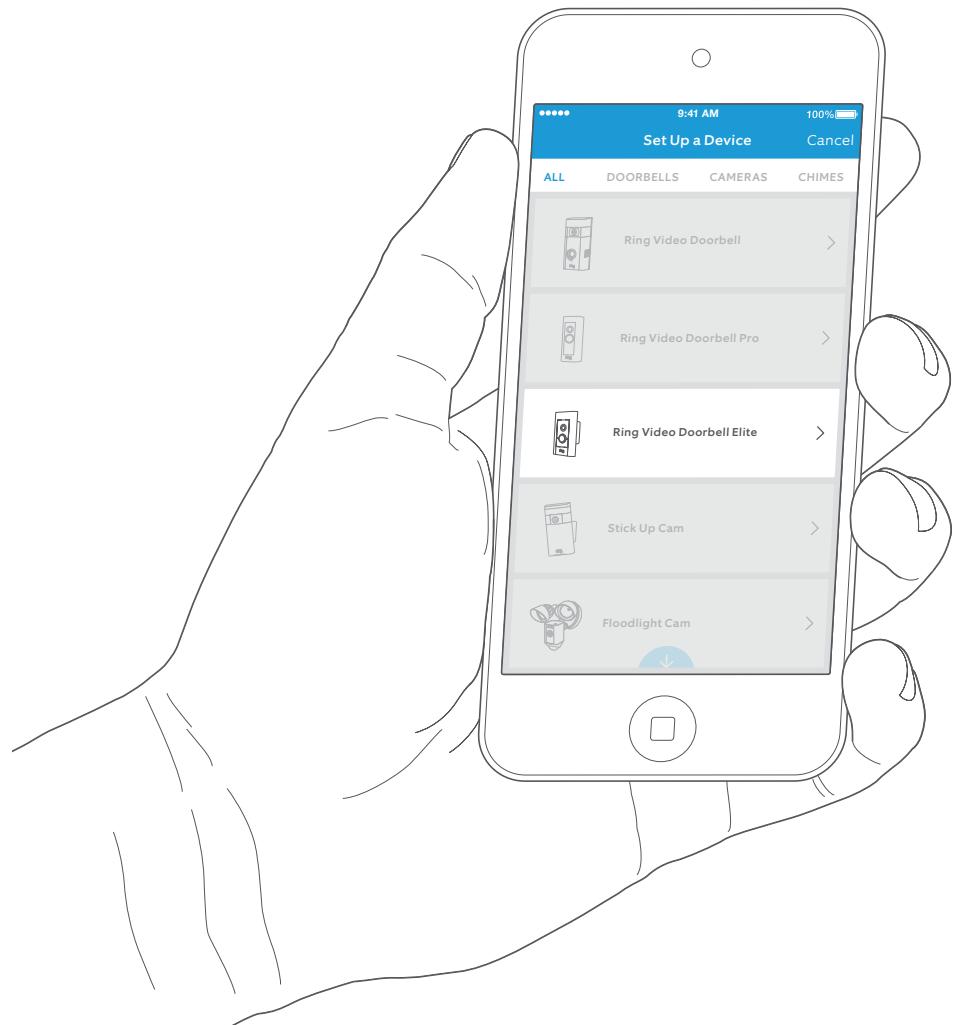
In the Ring app, select Set Up a Device, and follow the in-app instructions to connect Ring Elite to your Wi-Fi network.
When prompted, select ethernet as your connection method.
Secure the faceplate
After completing the in-app setup, place one of the provided faceplates on your Ring Elite.
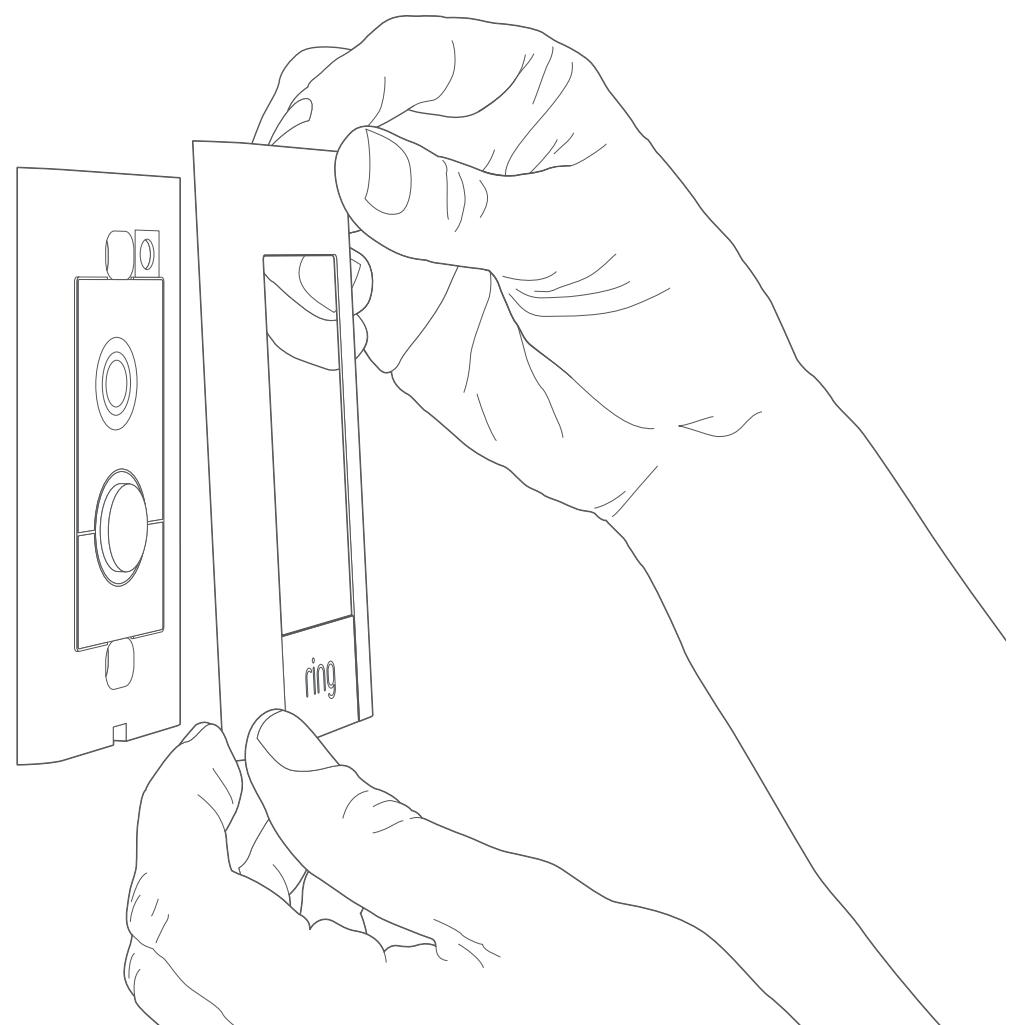

Then use one of the provided security screws and the flexible screwdriver bit to lock it into place.

After setting up Ring Elite in the app, select it
This will bring you to the Device Dashboard, where you can change settings and access various features.
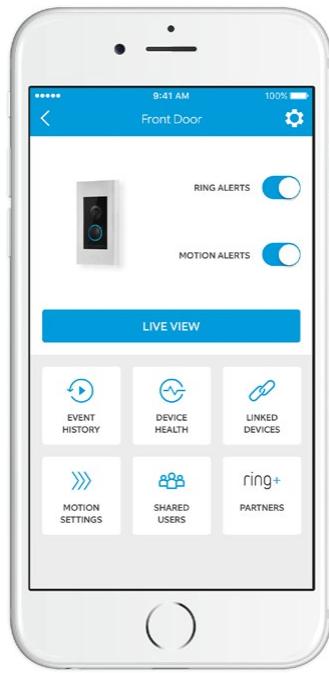
Ring Alerts are
notifications you receivewhen someone pressesthe button on the front ofyour Ring Doorbell.
Motion Alerts are
notifications you receive when movement is detected within your Motion Zones.
Switch these alerts on or off on this screen.

SHARED USERS
Shared Users
Select Shared Users to let family or friends answer live events and view recordings (if recording is enabled).

MOTION SETTINGS
Motion Settings
Select Motion Settings to enable and customize your motion detection settings.

DEVICE HEALTH
Device Health
If you ever run into a problem with your Ring Doorbell, visit Device Health to diagnose the issue.

EVENT HISTORY
Event History
View a log of all the events captured by your Ring Doorbell in Event History.
Answering your door
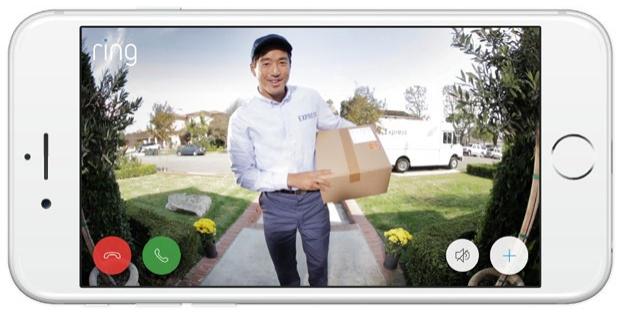
When someone is at your door, you can access the following features:

Two-way Talk - Speak to visitors and hear
what they have to say.

Microphone - Mute or unmute your mic.

Speaker - Mute or unmute audio in the app.

Ring Neighborhoods - Share suspicious
events with your neighbors.
Ring Video Recording
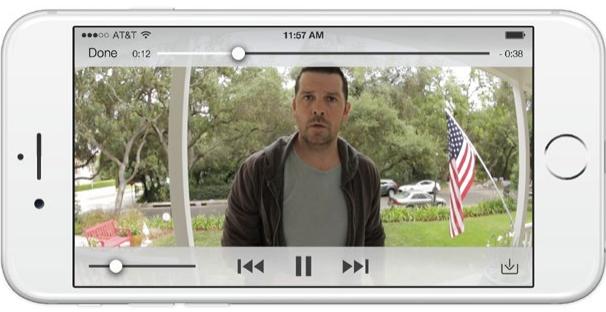
This optional feature saves recordings of every event your Ring Doorbell captures.
You can access these events on any device running the Ring app or by logging into your account at: ring.com/activity
Learn more at: ring.com/video-recording

Your new Ring Doorbell includes a free trial of Ring Recording for you to enjoy. Watch your email inbox for important announcements about this service.
I'm having trouble completing the in-app setup
Ethernet Setup
If you selected Ethernet Setup during the in-app setup, see the following tips.
Why did my ethernet setup fail?
Check to see that all your wires are securely connected and try again. Check to see that your Ring Doorbell has power by making sure that the light on the front is glowing. Make sure that your Elite Power Kit is connected correctly - with the ethernet cable plugged into the proper In and Out ports, and the power adapter plugged in and connected to a power outlet.
Wi-Fi Setup
I still can't set setup to complete. What now?
When prompted to choose your connection type in the app during setup, select Wi-Fi, and see if that works.
I'm having trouble with Wi-Fi setup
When Wi-Fi setup fails, look at the front of your Ring Doorbell. The light indicates the issue.

Top Flashing White means your Wi-Fi password was entered incorrectly. Select your Wi-Fi network in your phone settings, select the option to forget it, then reconnect to it again to confirm that you're using the correct password during setup.

Right Flashing White means your Ring Doorbell may be too far from your router to get a decent signal. If you are unable to connect Ring Elite via ethernet, then you may need to get a Chime Pro to boost the Wi-Fi signal to your Ring Doorbell.
Learn more at: ring.com/chime-pro.

Left Flashing White indicates a possible issue with your internet connection. Unplug your modem/ router for 40 seconds, plug it back in and then repeat setup.

Spinning White indicates that your Ring Doorbell is in setup mode. You'll need to follow the instructions in the Ring app. When prompted, connect to the Wi-Fi network being broadcast by your Ring Doorbell.

Nothing If the front light is not illuminated at all, check the connections to your Elite Power Kit, since it is likely that a cable is not connected.
Why can't I find the temporary Ring network on my phone?
Sometimes your phone fails to pick up the temporary Ring network. If this happens, go to your phone settings, turn off your Wi-Fi connection, wait 30 seconds and turn it back on. If the Ring network still fails to appear, check the connections to your Elite Power Kit, and ensure your Ring Doorbell is in setup mode.
If none of the above helped…
Perform a hard reset on your Ring Doorbell by holding down the setup button for 15 seconds, waiting 30 seconds and repeating the setup process.
Turn off cellular data and bluetooth on your mobile device and try again.
Try performing setup on a different mobile device.