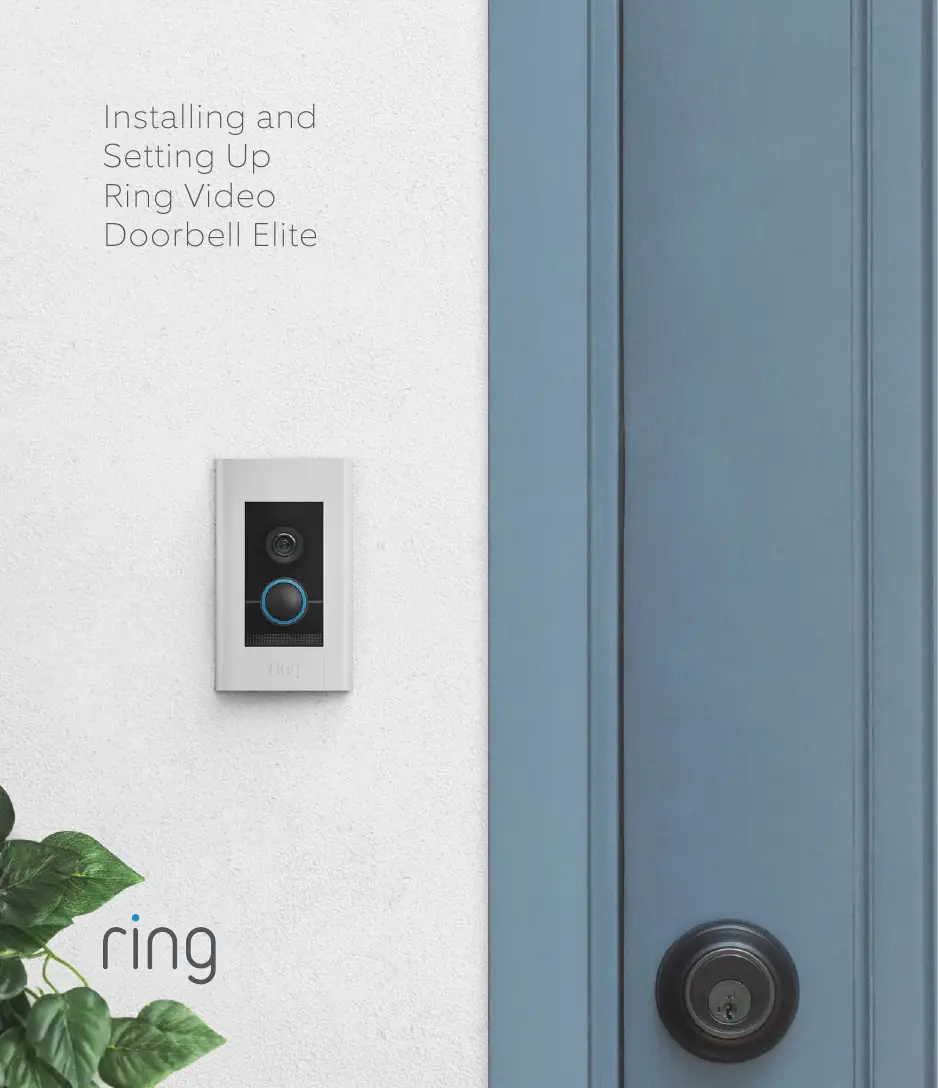
RING DOORBELL ELITE - Système de sécurité domestique

DOORBELL ELITE - Système de sécurité domestique RING - Notice d'utilisation et mode d'emploi gratuit

Retrouvez gratuitement la notice de l'appareil DOORBELL ELITE RING au format PDF.

📄 15 pages Français FR Télécharger 💬 Question IA 11 questions ⚙️ Specs
Notice RING DOORBELL ELITE - page 1
Voir la notice : Français FR English EN
Choisissez votre langue et indiquez votre email : nous vous enverrons une version traduite specifiquement.
Type de produit Sonnette vidéo connectée par Ethernet (PoE)
Marque Ring
Modèle Doorbell Elite
Alimentation Power over Ethernet (PoE) via Elite Power Kit (48V, injecteur inclus)
Connectivité Ethernet (PoE) et Wi-Fi (2,4 GHz)
Fonctions principales Audio bidirectionnel, détection de mouvement, vision nocturne, notifications push, zones de mouvement personnalisables, partage d'accès
Application mobile Ring App (iOS et Android) pour configuration et contrôle
Dimensions approximatives 10 x 6 x 3 cm (sonnette) ; 8 x 6 x 4 cm (kit d'alimentation)
Poids approximatif 200 g (sonnette) ; 150 g (kit d'alimentation)
Couleurs disponibles 4 façades interchangeables (noir, blanc, bronze, etc.)
Installation Murale, câblage Ethernet, compatible avec boîtier d'encastrement ou support fourni
Enregistrement vidéo En option, abonnement Ring Protect pour enregistrement cloud
Vision nocturne LED infrarouge intégrée
Angle de vue 150° horizontal, 90° vertical (valeur typique non précisée)
Résistance aux intempéries Conçu pour usage extérieur, non précisé
Sécurité Vis de sécurité antivol, connexions cryptées
Contenu de la boîte Sonnette, kit d'alimentation Elite, câble Ethernet 3 pi (0,9 m) et 50 pi (15,2 m), support de montage, vis, tournevis, 4 façades
Entretien et nettoyage Nettoyer avec un chiffon doux et sec ; éviter les produits abrasifs
Réparabilité Pièces détachées disponibles (façades, vis, câbles) ; support Ring pour réparations

FOIRE AUX QUESTIONS - DOORBELL ELITE RING

Comment installer Ring Doorbell Elite ?
Branchez le kit d'alimentation Elite au secteur et à votre box Internet via le câble Ethernet court. Connectez le câble long de 15 m au port Out du kit et passez-le jusqu'à l'emplacement de la sonnette. Fixez le support mural, branchez le câble à l'arrière de la sonnette, puis vissez-la. Suivez les instructions dans l'application Ring.
Comment connecter la sonnette en Wi-Fi si l'Ethernet ne fonctionne pas ?
Lors de la configuration dans l'application, choisissez Wi-Fi comme méthode de connexion au lieu d'Ethernet. Assurez-vous que votre réseau Wi-Fi fonctionne et que la sonnette est à portée du routeur.
Que faire si la configuration Wi-Fi échoue avec un voyant blanc clignotant en haut ?
Le voyant blanc clignotant en haut signifie que le mot de passe Wi-Fi est incorrect. Dans les paramètres Wi-Fi de votre téléphone, oubliez le réseau Ring, puis reconnectez-vous en saisissant le bon mot de passe.
Comment réinitialiser la Ring Doorbell Elite ?
Maintenez enfoncé le bouton de configuration (setup) à l'arrière de la sonnette pendant 15 secondes. Attendez 30 secondes, puis relancez la configuration dans l'application.
Puis-je utiliser la sonnette sans abonnement Ring Protect ?
Oui, la sonnette fonctionne sans abonnement : vous recevrez les notifications en temps réel et pourrez utiliser l'audio bidirectionnel. L'enregistrement vidéo nécessite un abonnement Ring Protect (essai gratuit inclus).
Comment partager l'accès avec d'autres membres de la famille ?
Dans l'application Ring, allez dans le tableau de bord de votre sonnette, sélectionnez Utilisateurs partagés, puis ajoutez les adresses e-mail des personnes souhaitées. Elles recevront une invitation pour accéder aux événements et à la vidéo en direct.
Que faire si la sonnette ne s'allume pas ?
Vérifiez que le kit d'alimentation Elite est branché sur secteur et que le câble Ethernet est bien inséré dans les ports In (depuis la box) et Out (vers la sonnette). Assurez-vous que la sonnette reçoit du courant : le voyant avant doit être allumé ou clignoter.
Comment changer la façade de la sonnette ?
Utilisez le tournevis flexible fourni pour retirer la vis de sécurité située sous la façade. Remplacez la façade par une autre couleur fournie, puis revissez la vis de sécurité.
Puis-je raccorder la sonnette à une sonnette filaire existante ?
Oui, vous pouvez connecter les fils de votre sonnette intérieure aux petits connecteurs à l'arrière de la Ring Elite. Avant de brancher, coupez le courant au niveau du disjoncteur pour des raisons de sécurité.
Comment optimiser la détection de mouvement ?
Dans l'application, accédez à Paramètres de mouvement. Vous pouvez ajuster les zones de mouvement, la sensibilité et programmer des horaires pour éviter les fausses alertes (par exemple, ignorer les zones de rue).

Questions des utilisateurs sur DOORBELL ELITE RING

1 question sur cet appareil. Repondez a celles que vous connaissez ou posez la votre.

Poser une nouvelle question sur cet appareil

L'email reste privé : il sert seulement à vous prévenir si quelqu'un répond à votre question.

Pourquoi mon Ring Doorbell Elite n'entre pas en mode configuration ?
FAQ fréquente - 11 j
Réponse Notice-Facile

Si votre Ring Doorbell Elite n'entre pas en mode configuration, vérifiez les points suivants dans cet ordre :

1. Vérifiez l'alimentation et le câblage

  • Connectez le kit d'alimentation Elite à une prise secteur via l'adaptateur fourni
  • Utilisez le câble Ethernet court (0,9 m) pour relier le kit à votre routeur Internet
  • Raccordez le câble long (15,2 m) à l'arrière de l'appareil
  • Assurez-vous que tous les connecteurs sont bien enfoncés

2. Interprétez les voyants LED avant

L'appareil doit afficher un voyant blanc tournoyant qui indique qu'il est en mode configuration et attend les instructions de l'application Ring. Si vous voyez :

  • Aucune lumière : vérifiez que l'alimentation est correctement branchée
  • Blanc clignotant en haut : problème de mot de passe Wi-Fi (si vous utilisez le mode Wi-Fi)
  • Blanc clignotant à droite : signal Wi-Fi faible, rapprochez le routeur
  • Blanc clignotant à gauche : problème de connexion Internet

3. Réinitialisez l'appareil

Maintenez enfoncé le bouton de configuration situé à l'arrière de la sonnette pendant 15 secondes. Attendez 30 secondes, puis relancez la configuration via l'application Ring en sélectionnant "Set Up a Device".

4. En cas d'échec de configuration Wi-Fi

Si vous configurez en Wi-Fi et que la connexion échoue, accédez aux paramètres Wi-Fi de votre téléphone, oubliez le réseau Ring, puis reconnectez-vous en saisissant le bon mot de passe.

Répondre (soyez le premier)

Téléchargez la notice de votre Système de sécurité domestique au format PDF gratuitement ! Retrouvez votre notice DOORBELL ELITE - RING et reprennez votre appareil électronique en main. Sur cette page sont publiés tous les documents nécessaires à l'utilisation de votre appareil DOORBELL ELITE de la marque RING.

MODE D'EMPLOI DOORBELL ELITE RING

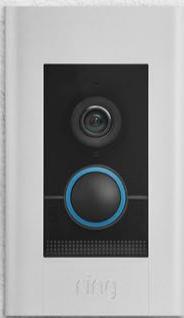
Installing and Setting Up Ring Video Doorbell Elite
RING DOORBELL ELITE - 1

ring

RING DOORBELL ELITE - 2

Welcome

Congratulations on your new Ring Video Doorbell Elite.

Ring Doorbell is the foundation of the Ring of Security around your home.

We hope your Ring Doorbell brings you an increased sense of security and convenience, as well as the joy that comes from being able to connect with visitors when you're not home.

RING DOORBELL ELITE - Welcome - 1

Hi,

I'm Rochelle, a Ring Community Support Agent in Arizona. I've set up so many Ring Doorbells, I can probably do it in my sleep!

We’ve included all the tools you need, so setting it up by yourself should be a breeze. If you run into any problems, my colleagues and I can help. Just give us a call.

Don't feel like calling? Check out our online Help Center at ring.com/help.

Before you begin

Check out all the stuff in the box.
RING DOORBELL ELITE - Before you begin - 1

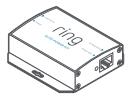
Elite Power Kit

Includes power adapter and plugs for different types of outlets
RING DOORBELL ELITE - Elite Power Kit - 1

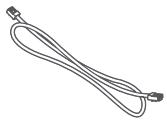
3' Ethernet Cable

Use this cable to connect the Elite Power Kit to your internet access point.
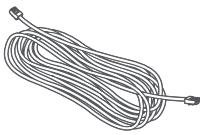
RING DOORBELL ELITE - 3' Ethernet Cable - 1

50' Ethernet Cable

Run this cable from the Elite Power Kit to your Ring Doorbell.
RING DOORBELL ELITE - 50' Ethernet Cable - 1

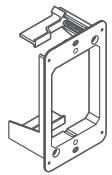
Elite Mounting Bracket (optional)

If installing Ring Elite on an existing junction box, you don't need to use this bracket. If you do use this bracket, you should remove the existing junction box.
RING DOORBELL ELITE - Elite Mounting Bracket (optional) - 1

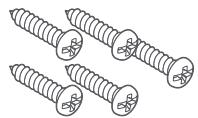
Mounting Screws (5)

Attach Ring Elite to the bracket with two screws. Use two other screws to attach the Elite Power Kit to your wall, if you'd like.
RING DOORBELL ELITE - Mounting Screws (5) - 1

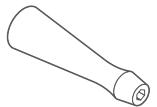
Screwdriver Handle

RING DOORBELL ELITE - Screwdriver Handle - 1

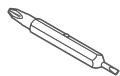
Screw Bit

Use the Phillips end for installation. If you are securing existing doorbell wires in the small connectors on the back of Ring Elite, use the flathead end.
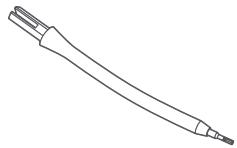
RING DOORBELL ELITE - Screw Bit - 1

Flexible Bit

Use it for screwing the security screw into the bottom of Ring Doorbell Elite after installing the faceplate.
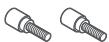
RING DOORBELL ELITE - Flexible Bit - 1

Security Screws (2)

Use one to secure the faceplate. Put the other one in your toolbox for the inevitable moment that the first one gets dropped in the bushes.
RING DOORBELL ELITE - Security Screws (2) - 1

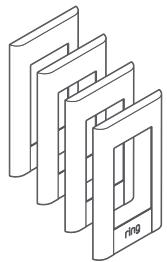
Faceplates (4)

Select the color that best matches your home...or your mood.

Wiring the Elite Power Kit

The Elite Power Kit is a PoE injector that converts internet in to Power Over Ethernet out.

To get started, connect the Elite Power Kit to AC, using the provided adapter.

Then, use the provided 3 foot ethernet cable to connect your access point to the Internet In port on the Elite Power Kit.
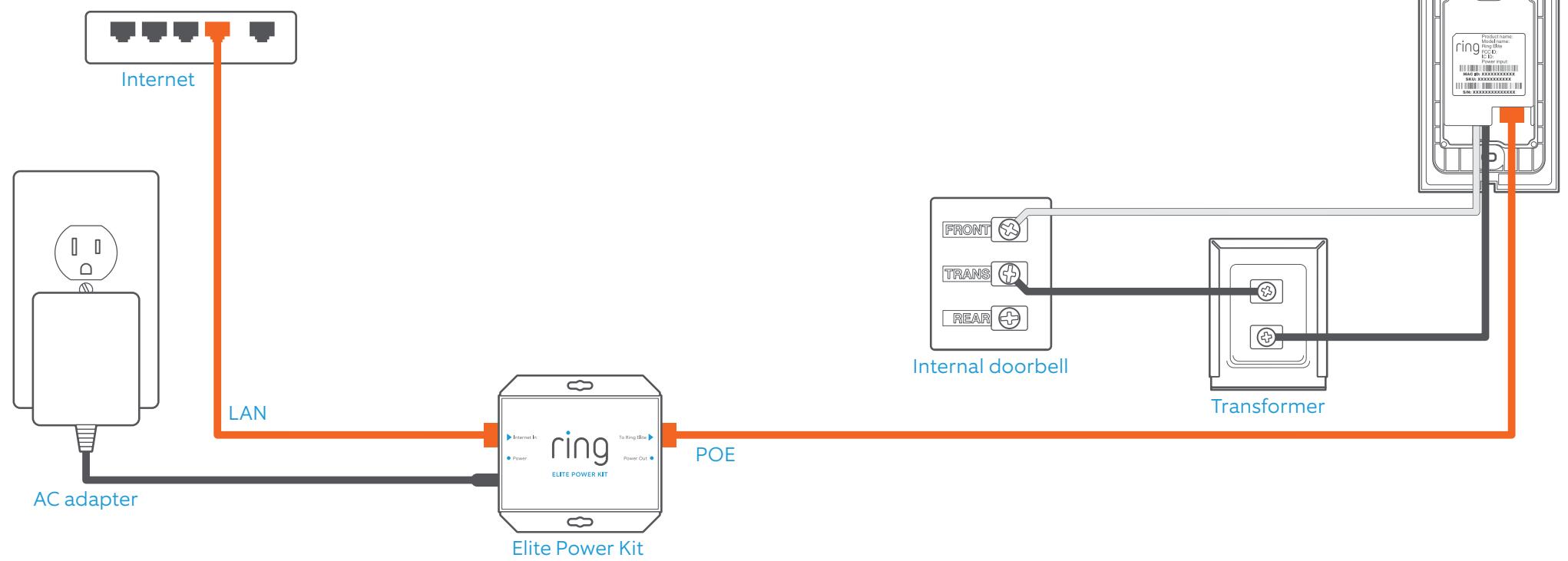
RING DOORBELL ELITE - Wiring the Elite Power Kit - 1

Run cable to your Ring Elite

Run the 50 foot cable to the location where you'll be installing Ring Elite.

Wiring Ring Elite to an internal doorbell is optional. If you do so, shut off power at the breaker before connecting your existing doorbell wires to the small wire terminals on the back of Ring Elite. Ring Elite

How it all fits together

If you need a visual overview, see the diagram to the right. This is how is all fits together.

Note that as you screw the Elite Mounting Bracket into your wall, the "wings" will rotate and lock the bracket into place.
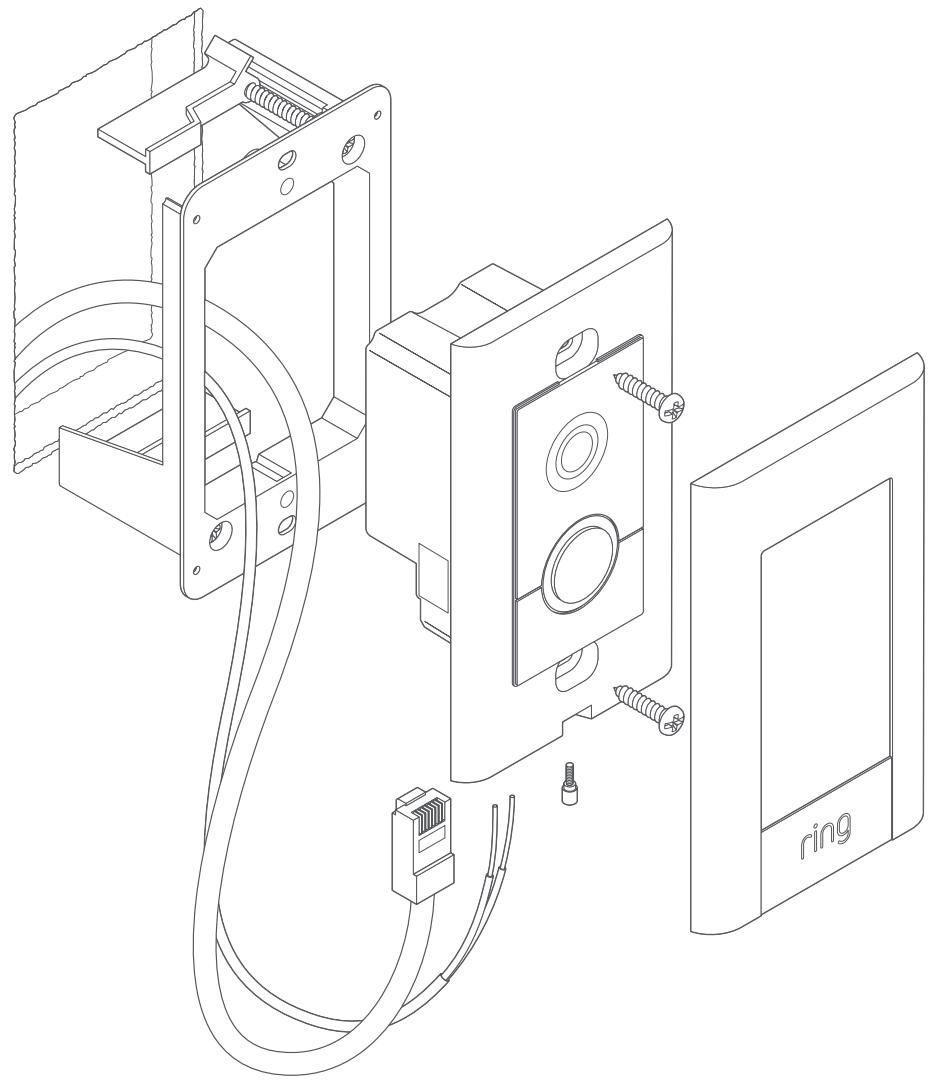
RING DOORBELL ELITE - How it all fits together - 1

Mark the install location

If you already have a junction box at the location where you're installing your Ring Elite, skip the next couple of steps and screw it directly into that junction box.

If you don't have a junction box, trace the outline of the supplied template, then cut a rectangular hole in your wall to make room for the Elite Mounting Bracket.
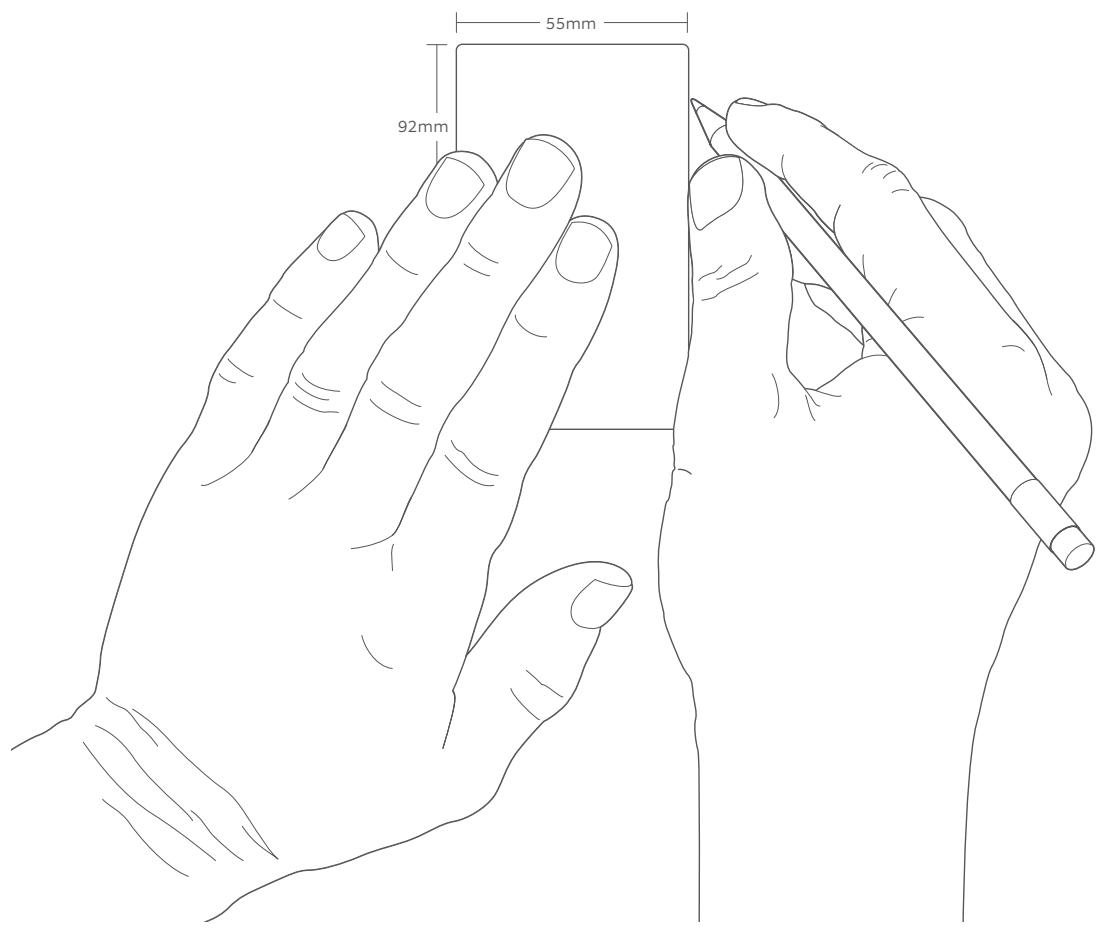
RING DOORBELL ELITE - Mark the install location - 1

Install the Elite Mounting Bracket

Make sure any wires in your wall come through the hole in the middle, and screw the bracket in using the two screws in the corners.

The wing clamps will rotate as the screws turn and lock the bracket into your wall.
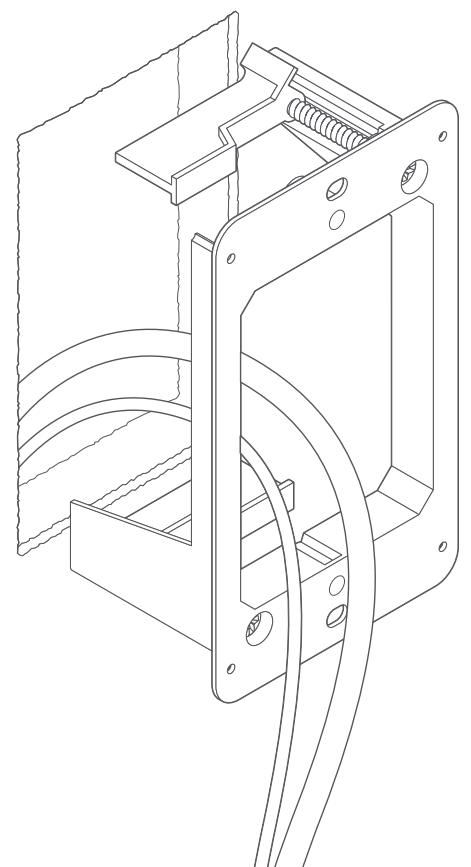
RING DOORBELL ELITE - Install the Elite Mounting Bracket - 1

RING DOORBELL ELITE - Install the Elite Mounting Bracket - 2

Plug in the ethernet cable

Plug the ethernet cable coming out of your wall into the ethernet port on the back of Ring Elite.

As long as this cable is connected to power, the front light on Ring Elite will begin spinning and it will begin talking to you to let you know that it is ready to be set up in the Ring app.
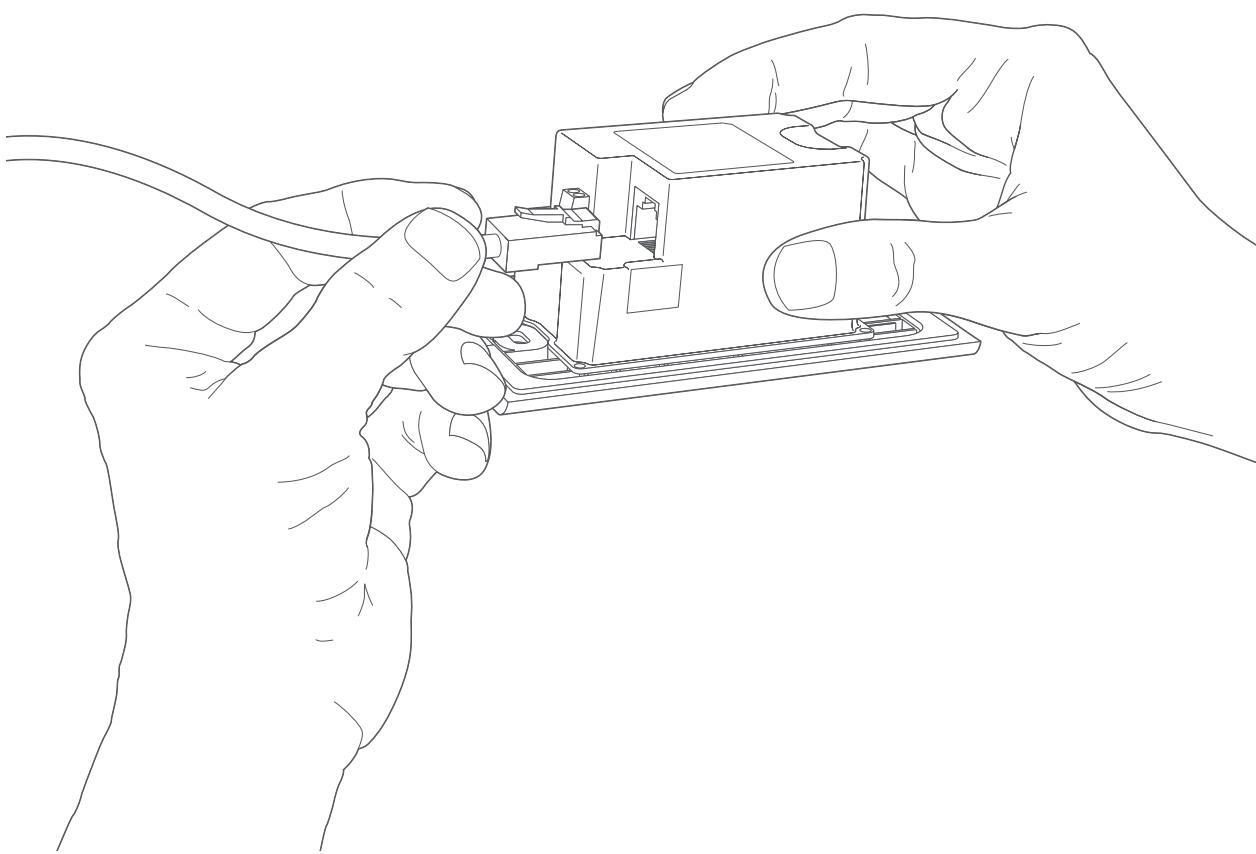
RING DOORBELL ELITE - Plug in the ethernet cable - 1

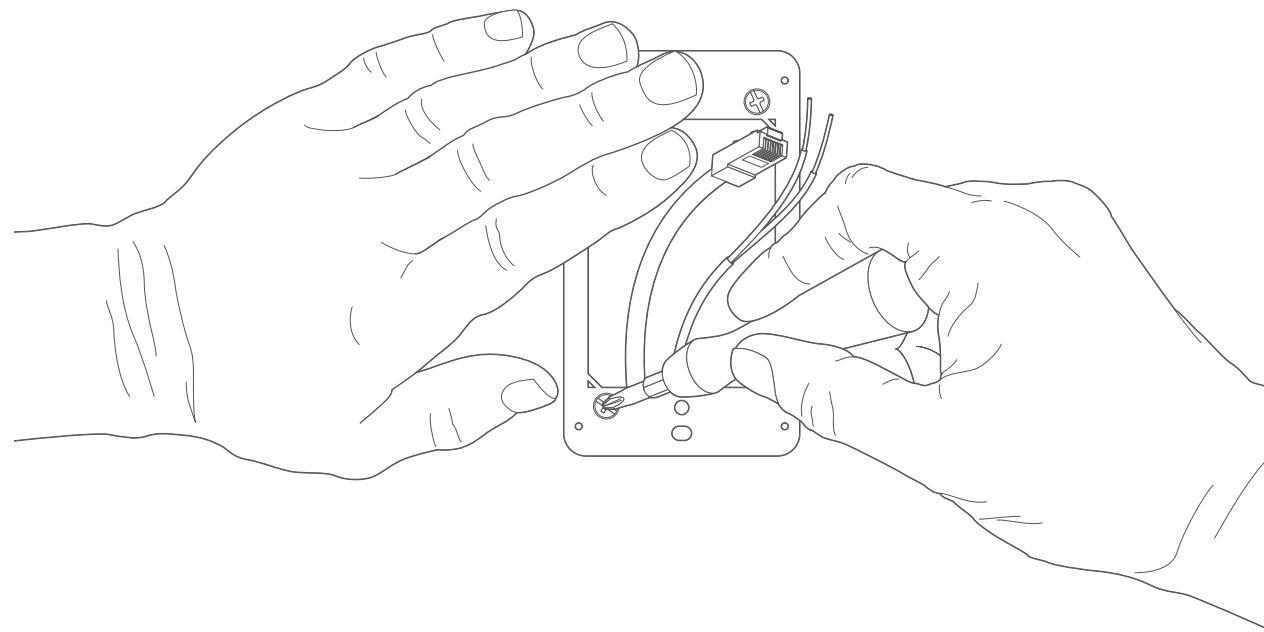
Connect doorbell wires (optional)

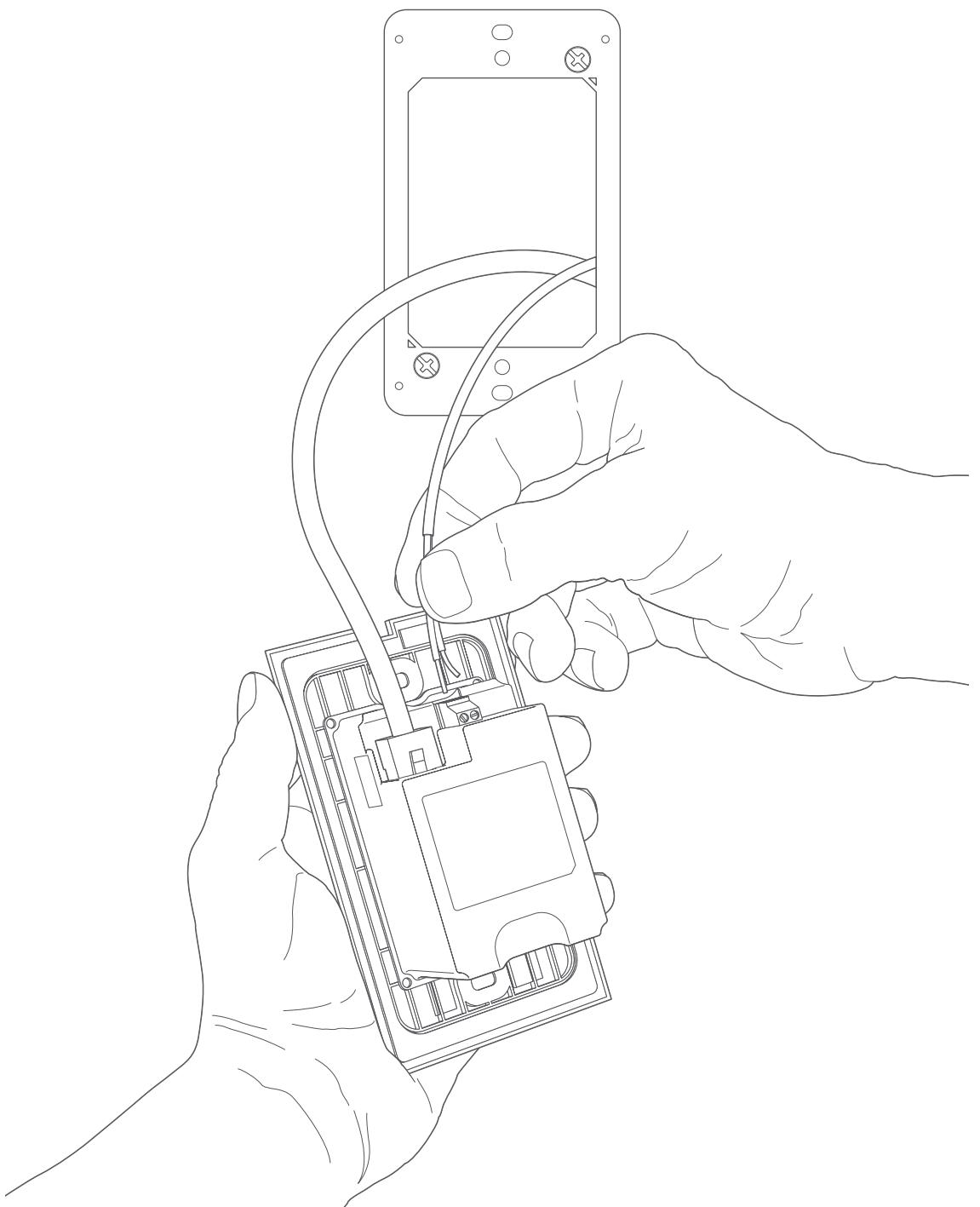
If wiring Ring Elite to an internal doorbell, first shut off power at the breaker, then connect your doorbell wires to the small wire connectors next to the ethernet port.

Then use the provided flat-head screwdriver to secure the wires in the screw holes.
RING DOORBELL ELITE - Connect doorbell wires (optional) - 1

Screw Ring Elite into the bracket

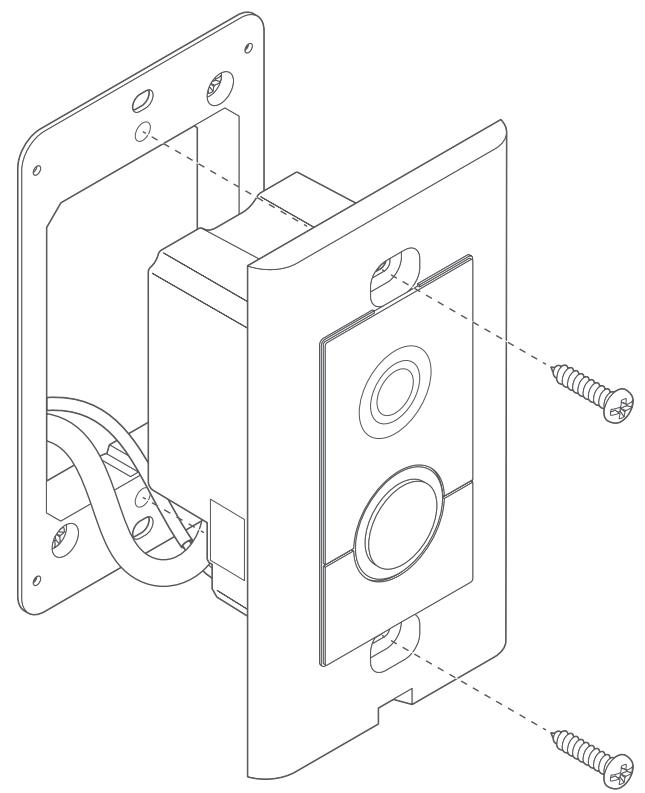
Using two of the provided screws, screw Ring Elite into the bracket to secure it on your wall.
RING DOORBELL ELITE - Screw Ring Elite into the bracket - 1

RING DOORBELL ELITE - Screw Ring Elite into the bracket - 2

Perform the in-app setup

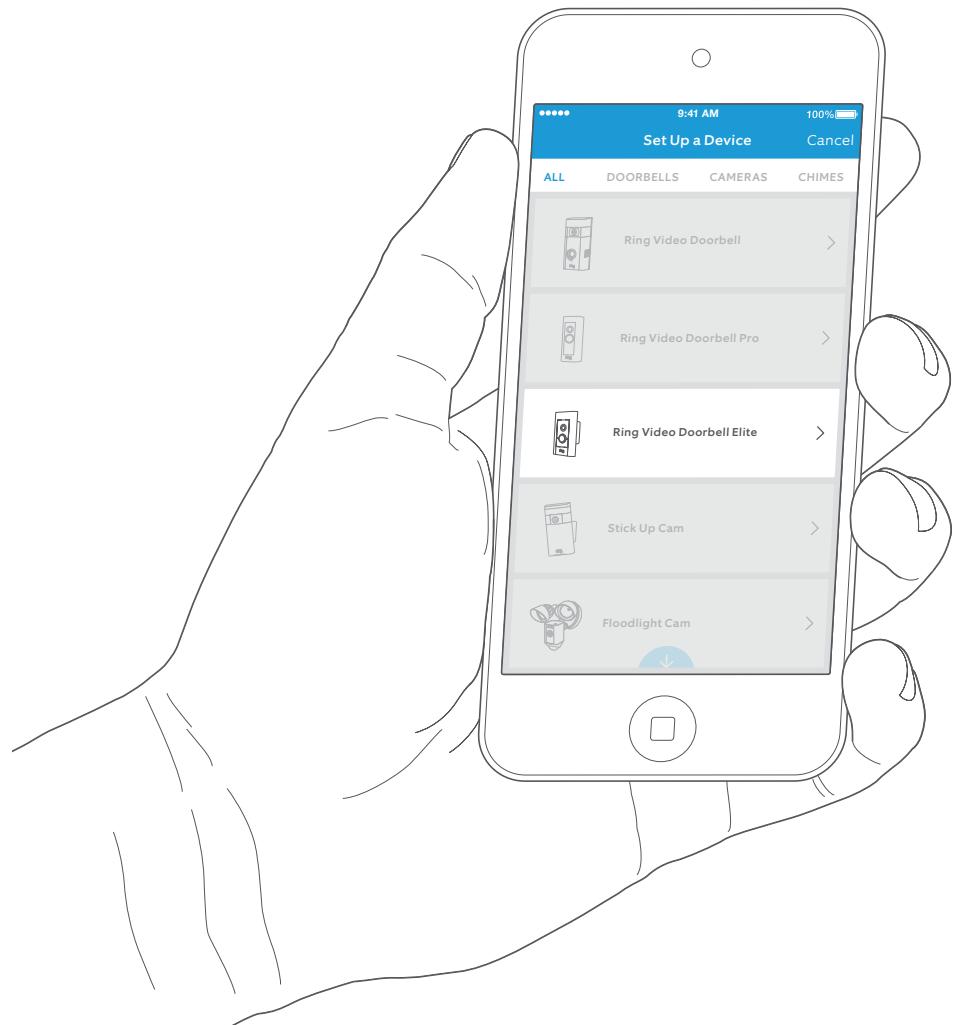
In the Ring app, select Set Up a Device, and follow the in-app instructions to connect Ring Elite to your Wi-Fi network.

When prompted, select ethernet as your connection method.
RING DOORBELL ELITE - Perform the in-app setup - 1

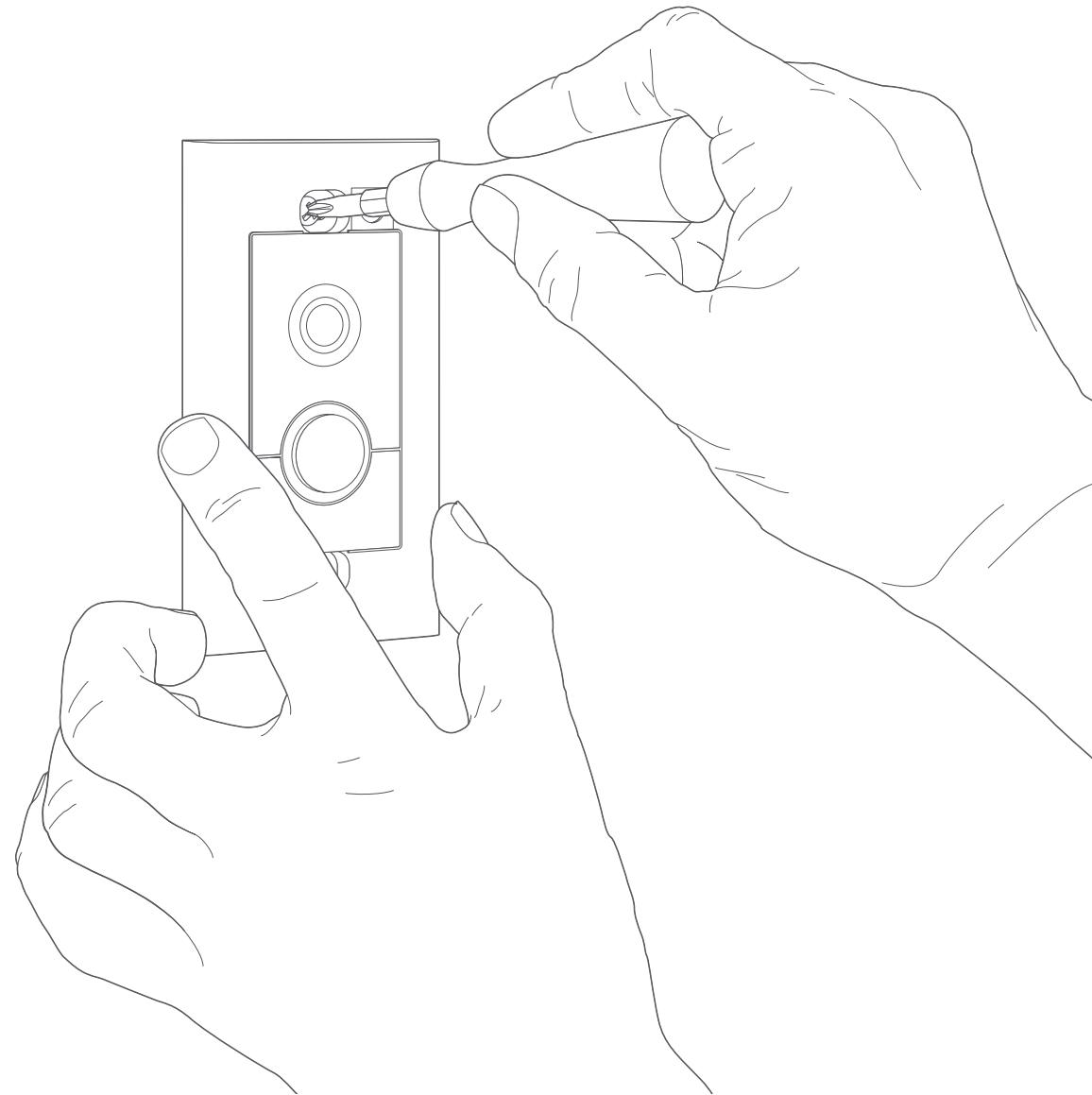
Secure the faceplate

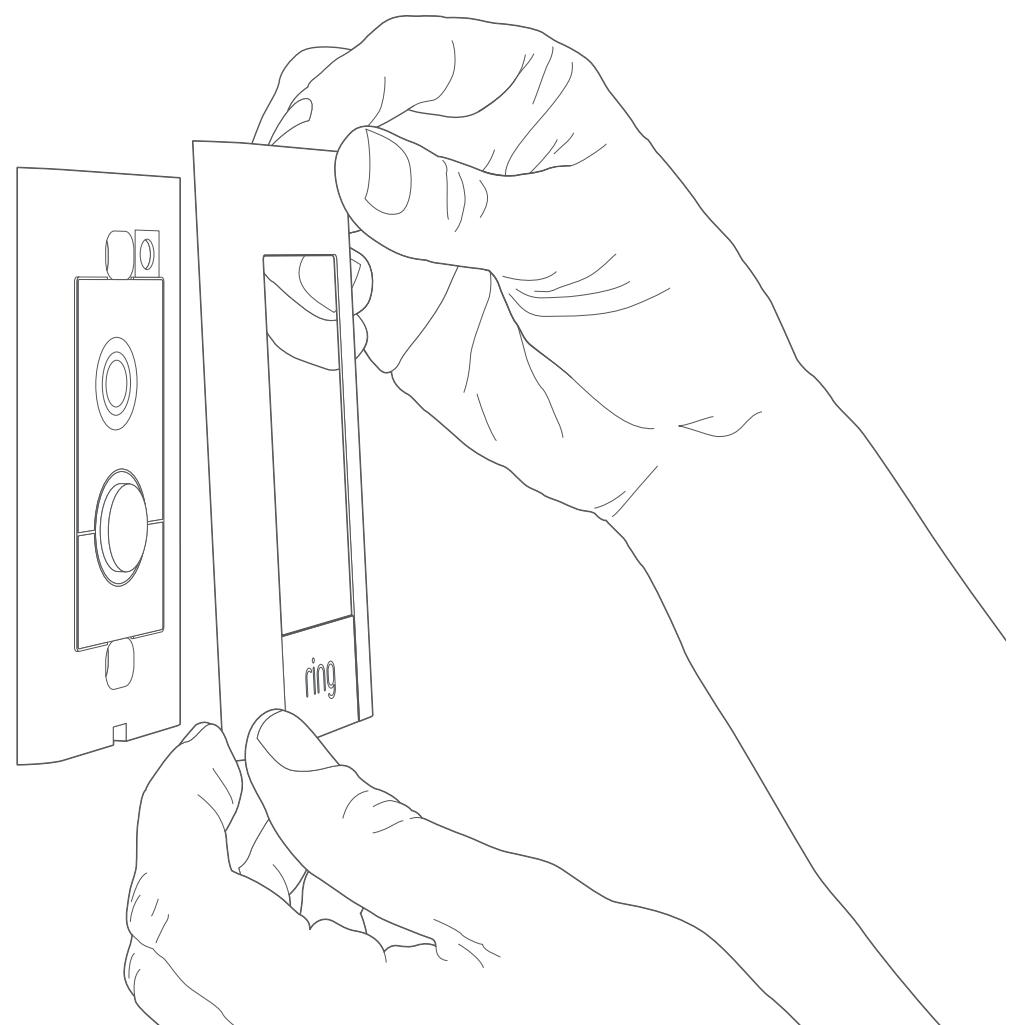
After completing the in-app setup, place one of the provided faceplates on your Ring Elite.
RING DOORBELL ELITE - Secure the faceplate - 1

RING DOORBELL ELITE - Secure the faceplate - 2

Then use one of the provided security screws and the flexible screwdriver bit to lock it into place.

RING DOORBELL ELITE - Secure the faceplate - 3

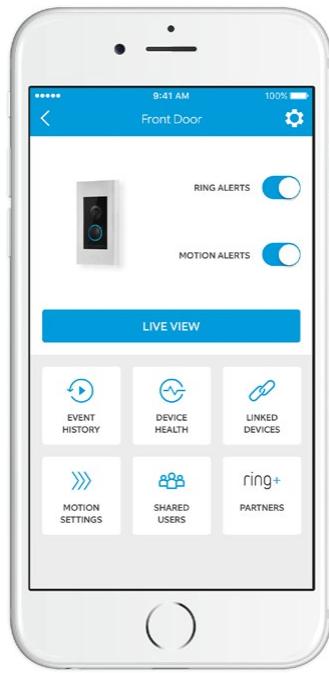
After setting up Ring Elite in the app, select it

This will bring you to the Device Dashboard, where you can change settings and access various features.
RING DOORBELL ELITE - After setting up Ring Elite in the app, select it - 1

Ring Alerts are

notifications you receivewhen someone pressesthe button on the front ofyour Ring Doorbell.

Motion Alerts are

notifications you receive when movement is detected within your Motion Zones.

Switch these alerts on or off on this screen.

RING DOORBELL ELITE - Motion Alerts are - 1

SHARED USERS

Shared Users

Select Shared Users to let family or friends answer live events and view recordings (if recording is enabled).

RING DOORBELL ELITE - Shared Users - 1

MOTION SETTINGS

Motion Settings

Select Motion Settings to enable and customize your motion detection settings.

RING DOORBELL ELITE - Motion Settings - 1

DEVICE HEALTH

Device Health

If you ever run into a problem with your Ring Doorbell, visit Device Health to diagnose the issue.

RING DOORBELL ELITE - Device Health - 1

EVENT HISTORY

Event History

View a log of all the events captured by your Ring Doorbell in Event History.

Answering your door
RING DOORBELL ELITE - Answering your door - 1

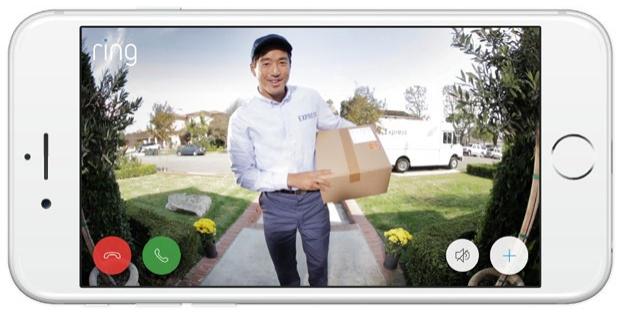
When someone is at your door, you can access the following features:

RING DOORBELL ELITE - Answering your door - 2

Two-way Talk - Speak to visitors and hear

what they have to say.

RING DOORBELL ELITE - Answering your door - 3

Microphone - Mute or unmute your mic.

RING DOORBELL ELITE - Answering your door - 4

Speaker - Mute or unmute audio in the app.

RING DOORBELL ELITE - Answering your door - 5

Ring Neighborhoods - Share suspicious

events with your neighbors.

Ring Video Recording
RING DOORBELL ELITE - Ring Video Recording - 1

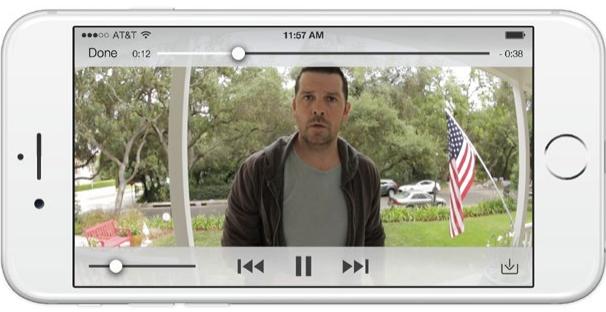
This optional feature saves recordings of every event your Ring Doorbell captures.

You can access these events on any device running the Ring app or by logging into your account at: ring.com/activity

Learn more at: ring.com/video-recording

RING DOORBELL ELITE - Ring Video Recording - 2

Your new Ring Doorbell includes a free trial of Ring Recording for you to enjoy. Watch your email inbox for important announcements about this service.

I'm having trouble completing the in-app setup

Ethernet Setup

If you selected Ethernet Setup during the in-app setup, see the following tips.

Why did my ethernet setup fail?

Check to see that all your wires are securely connected and try again. Check to see that your Ring Doorbell has power by making sure that the light on the front is glowing. Make sure that your Elite Power Kit is connected correctly - with the ethernet cable plugged into the proper In and Out ports, and the power adapter plugged in and connected to a power outlet.

Wi-Fi Setup

I still can't set setup to complete. What now?

When prompted to choose your connection type in the app during setup, select Wi-Fi, and see if that works.

I'm having trouble with Wi-Fi setup

When Wi-Fi setup fails, look at the front of your Ring Doorbell. The light indicates the issue.

RING DOORBELL ELITE - Wi-Fi Setup - 1

Top Flashing White means your Wi-Fi password was entered incorrectly. Select your Wi-Fi network in your phone settings, select the option to forget it, then reconnect to it again to confirm that you're using the correct password during setup.

RING DOORBELL ELITE - Wi-Fi Setup - 2

Right Flashing White means your Ring Doorbell may be too far from your router to get a decent signal. If you are unable to connect Ring Elite via ethernet, then you may need to get a Chime Pro to boost the Wi-Fi signal to your Ring Doorbell.

Learn more at: ring.com/chime-pro.

RING DOORBELL ELITE - Wi-Fi Setup - 3

Left Flashing White indicates a possible issue with your internet connection. Unplug your modem/ router for 40 seconds, plug it back in and then repeat setup.

RING DOORBELL ELITE - Wi-Fi Setup - 4

Spinning White indicates that your Ring Doorbell is in setup mode. You'll need to follow the instructions in the Ring app. When prompted, connect to the Wi-Fi network being broadcast by your Ring Doorbell.

RING DOORBELL ELITE - Wi-Fi Setup - 5

Nothing If the front light is not illuminated at all, check the connections to your Elite Power Kit, since it is likely that a cable is not connected.

Why can't I find the temporary Ring network on my phone?

Sometimes your phone fails to pick up the temporary Ring network. If this happens, go to your phone settings, turn off your Wi-Fi connection, wait 30 seconds and turn it back on. If the Ring network still fails to appear, check the connections to your Elite Power Kit, and ensure your Ring Doorbell is in setup mode.

If none of the above helped…

Perform a hard reset on your Ring Doorbell by holding down the setup button for 15 seconds, waiting 30 seconds and repeating the setup process.

Turn off cellular data and bluetooth on your mobile device and try again.

Try performing setup on a different mobile device.

Assistant notice
Powered by Anthropic
En attente de votre message
Informations produit

Marque : RING

Modèle : DOORBELL ELITE

Catégorie : Système de sécurité domestique