
THE FRAME QE49LS03RAUXXC - TV SAMSUNG - Free user manual and instructions
Find the device manual for free THE FRAME QE49LS03RAUXXC SAMSUNG in PDF.



| Product type | LED TV |
| Brand | Samsung |
| Model | QE49LS03RAUXXC |
| Screen size | 49 inches (124 cm) |
| Resolution | 4K UHD (3840 x 2160 pixels) |
| Display technology | QLED (Quantum Dot) |
| Dimensions without stand (W x H x D) | 109.5 x 63.2 x 4.7 cm |
| Weight without stand | 13.5 kg |
| Power supply | AC 100-240V, 50/60 Hz |
| Typical power consumption | 120 W |
| Main features | Smart TV Tizen, Ambiance Mode (Art Mode), Wi-Fi Direct, Bluetooth, HDMI (3), USB (2), Ethernet |
| Care and cleaning | Clean with a soft dry cloth, without solvents or abrasive products |
| Safety | Use a suitable wall mount, avoid heat sources and humidity |
| Spare parts and repairability | Remote control provided, parts available from authorized Samsung services |
| General information | 2-year warranty, frame-like design, intuitive user interface |
Frequently Asked Questions - THE FRAME QE49LS03RAUXXC SAMSUNG
User questions about THE FRAME QE49LS03RAUXXC SAMSUNG
0 question about this device. Answer the ones you know or ask your own.
Ask a new question about this device
Download the instructions for your TV in PDF format for free! Find your manual THE FRAME QE49LS03RAUXXC - SAMSUNG and take your electronic device back in hand. On this page are published all the documents necessary for the use of your device. THE FRAME QE49LS03RAUXXC by SAMSUNG.
USER MANUAL THE FRAME QE49LS03RAUXXC SAMSUNG
Thank you for purchasing this Samsung product.
To receive more complete service, please register your product at www.samsung.com
Model Serial No.
Before Reading This User Manual
This TV comes with this user manual and an embedded e-Manual.
Before reading this user manual, review the following:
| User Manual | Read this provided user manual to see information about product safety, installation, accessories, initial configuration, and product specifications. |
| e-Manual | For more information about this TV, read the e-Manual embedded in the product. • To open the e-Manual, >Settings >Support >Open e-Manual |
On the website (www.samsung.com), you can download the manuals and see its contents on your PC or mobile device.
Learning the e-Manual's assistance functions
- Some menu screens cannot be accessed from the e-Manual.
| Q | Search | Select an item from the search results to load the corresponding page. |
| A-Z | Index | Select a keyword to navigate to the relevant page. - The menus may not appear depending on the geographical area. |
| ← | Recent pages | Select a topic from the list of recently viewed topics. |
Learning the functions of the buttons that appear on e-Manual topic pages
| Try Now | Allows you to access the corresponding menu item and try out the feature right away. |
| Link | Access an underlined topic referred to on an e-Manual page immediately. |
Warning! Important Safety Instructions
Please read the Safety Instructions before using your TV.
Refer to the table below for an explanation of symbols which may be on your Samsung product.
| CAUTION | Class II product: This symbol indicates that a safety connection to electrical earth (ground) is not required. If this symbol is not present on a product with a mains lead, the product MUST have a reliable connection to protective earth (ground). | ||
| RISK OF ELECTRIC SHOCK. DO NOT OPEN. | |||
| CAUTION: TO REDUCE THE RISK OF ELECTRIC SHOCK, DO NOT REMOVE COVER (OR BACK). THERE ARE NO USER SERVICEABLE PARTS INSIDE. REFER ALL SERVICING TO QUALIFIED PERSONNEL. | ~ | AC voltage: Rated voltage marked with this symbol is AC voltage. | |
| This symbol indicates that high voltage is present inside. It is dangerous to make any kind of contact with any internal part of this product. | = = = | DC voltage: Rated voltage marked with this symbol is DC voltage. | |
| This symbol indicates that this product has included important literature concerning operation and maintenance. | i | Caution. Consult instructions for use: This symbol instructs the user to consult the user manual for further safety related information. | |
- The slots and openings in the cabinet and in the back or bottom are provided for necessary ventilation. To ensure reliable operation of this apparatus and to protect it from overheating, these slots and openings must never be blocked or covered.
- Do not place this apparatus in a confined space, such as a bookcase or built-in cabinet, unless proper ventilation is provided.
- Do not place this apparatus near or over a radiator or heat register, or where it is exposed to direct sunlight.
- Do not place vessels (vases etc.) containing water on this apparatus, as this can result in a fire or electric shock.
- Do not expose this apparatus to rain or place it near water (near a bathtub, washbowl, kitchen sink, or laundry tub, in a wet basement, or near a swimming pool, etc.). If this apparatus accidentally gets wet, unplug it and contact an authorised dealer immediately.
- This apparatus uses batteries. In your community, there might be environmental regulations that require you to dispose of these batteries properly. Please contact your local authorities for disposal or recycling information.
- Do not overload wall outlets, extension cords, or adaptors beyond their capacity, since this can result in fire or electric shock.
-
Power-supply cords should be placed so that they are not likely to be walked on or pinched by items placed upon or against them. Pay particular attention to cords at the plug end, at wall outlets, and at the point where they exit from the appliance.
-
To protect this apparatus from a lightning storm, or when left unattended and unused for long periods of time, unplug it from the wall outlet and disconnect the antenna or cable system. This will prevent damage to the set due to lightning and power line surges.
- Before connecting the AC power cord to the DC adaptor outlet, make sure that the voltage designation of the DC adaptor corresponds to the local electrical supply.
- Never insert anything metallic into the open parts of this apparatus. This may cause a danger of electric shock.
- To avoid electric shock, never touch the inside of this apparatus. Only a qualified technician should open this apparatus.
- Be sure to plug in the power cord until it is firmly seated. When unplugging the power cord from a wall outlet, always pull on the power cord's plug. Never unplug it by pulling on the power cord. Do not touch the power cord with wet hands.
- If this apparatus does not operate normally - in particular, if there are any unusual sounds or smells coming from it - unplug it immediately and contact an authorised dealer or Samsung service centre.
-
Be sure to pull the power plug out of the outlet if the TV is to remain unused or if you are going to leave the house for an extended period of time (especially when children, elderly, or disabled people will be left alone in the house).
-
Accumulated dust can cause an electric shock, an electric leakage, or a fire by causing the power cord to generate sparks and heat or by causing the insulation to deteriorate.
-
Be sure to contact an authorised Samsung service centre for information if you intend to install your TV in a location with heavy dust, high or low temperatures, high humidity, chemical substances, or where it will operate 24 hours a day such as in an airport, a train station, etc. Failure to do so may lead to serious damage to your TV.
-
Use only a properly grounded plug and wall outlet.
- An improper ground may cause electric shock or equipment damage. (Class I Equipment only.)
- To turn off this apparatus completely, disconnect it from the wall outlet. To ensure you can unplug this apparatus quickly if necessary, make sure that the wall outlet and power plug are readily accessible.
- Store the accessories (batteries, etc.) in a location safely out of the reach of children.
- Do not drop or strike the product. If the product is damaged, disconnect the power cord and contact a Samsung service centre.
- To clean this apparatus, unplug the power cord from the wall outlet and wipe the product with a soft, dry cloth. Do not use any chemicals such as wax, benzene, alcohol, thinners, insecticide, aerial fresheners, lubricants, or detergents. These chemicals can damage the appearance of the TV or erase the printing on the product.
- Do not expose this apparatus to dripping or splashing.
- Do not dispose of batteries in a fire.
- Do not short-circuit, disassemble, or overheat the batteries.
-
There is danger of an explosion if you replace the batteries used in the remote with the wrong type of battery. Replace only with the same or equivalent type.
-
Figures and illustrations in this User Manual are provided for reference only and may differ from the actual product appearance. Product design and specifications may change without notice.
CIS languages (Russian, Ukrainian, Kazakhs) are not available for this product, since this is manufactured for customers in EU region.
Contents
Before Reading This User Manual 2
Warning! Important Safety Instructions 3
01 What's in the Box?
02 Connecting the TV to the One Connect
03 TV Installation
Mounting the TV on a wall 9
Providing proper ventilation for your TV 10
Safety Precaution: Securing the TV to the wall to
prevent falling 11
Using the Cover Cap 12
Precautions when installing the TV with a stand 12
04 Using Art Mode
Viewing images 14
Setting the style of the selected image 16
Setting up Art mode 17
Using Art mode with the SmartThings app 18
05 The Samsung Smart Remote
About the Buttons on the Samsung Smart Remote 19
Pairing the TV to the Samsung Smart Remote 20
Installling batteries into the Samsung Smart Remote 20
06 Running the Initial Setup
Using the TV Controller 22
07 Connecting to a Network
Network Connection - Wireless 23
Network Connection - Wired 23
08 Troubleshooting and Maintenance
Troubleshooting 24
Precautions when using Art mode 26
What is Remote Support? 27
Eco Sensor and screen brightness 27
Caring for the TV 28
09 Specifications and Other Information
Specifications 29
Environmental Considerations 29
Decreasing power consumption 30
Licences 30
01 What's in the Box?
Make sure the following items are included with your TV. If any items are missing, contact your dealer.
Samsung Smart Remote & Batteries (AA x 2)
- User Manual
- Warranty Card / Regulatory Guide (Not available in some locations)
- One Connect Power Cable
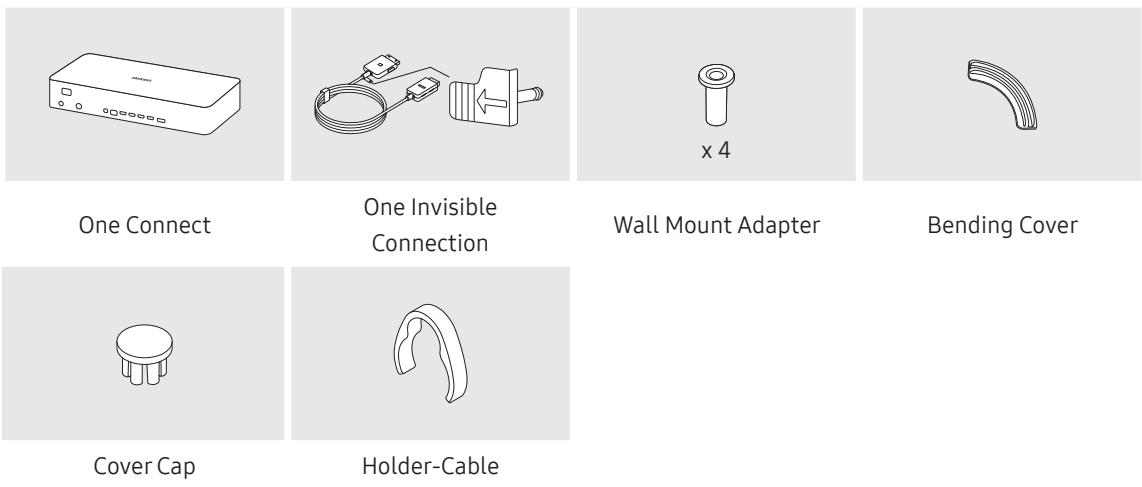
- The items' colours and shapes may vary depending on the models.
- Cables not included can be purchased separately.
- Check for any accessories hidden behind or in the packing materials when opening the box.
An administration fee may be charged in the following situations:
(a) An engineer is called out at your request, but it is found that the product has no defect (i.e., where the user manual has not been read).
(b) You bring the unit to a Samsung service centre, but it is found that the product has no defect (i.e., where the user manual has not been read).
You will be informed of the administration fee amount before a technician visits.

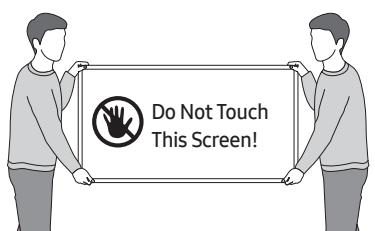
Warning: Screens can be damaged from direct pressure when handled incorrectly. We recommend lifting the TV at the edges, as shown.
02 Connecting the TV to the One Connect
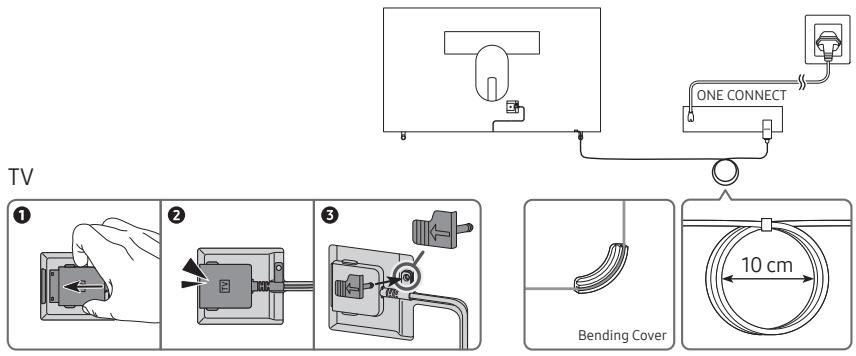
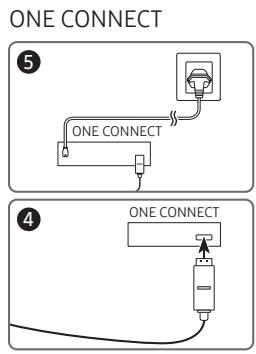
To connect the One Invisible Connection to the One Connect and your TV, follow these steps:
- After the TV is completely set up and placed in its final position, connect the One Invisible Connection to the One Connect and the TV as shown in Steps 1 to 4 above.
WARNING: Make sure that both connectors are fully and firmly connected. If either connector is not connected properly, there is a danger of severe electric shock.
- Connect the One Connect AC power cord to the One Connect, and then connect the cord to a wall outlet as shown in Step 5 above.
WARNING: Follow the directions exactly. Be sure to connect the power cord to the wall outlet as the last step. Always disconnect the power cord from the wall outlet before disconnecting the One Invisible Connection from the back of the TV or from the One Connect.
See the illustrated Quick Setup Guide for more information.
-
Connect your peripherals (aerial, cable box, Blu-ray player, etc.) to the One Connect. See the Accessory Kit for details.
-
Do not use the One Connect in the upside-down or upright position.
- When connecting the One Invisible Connection, use a Bending Cover, which prevents the cable of the One Invisible Connection from being bent at a 90 degree angle, to bend the cable. Failure to do so may cause damage to the cable.
- When connecting the One Invisible Connection, pay attention to the shapes and sizes of its connectors so that they are connected correctly. Failure to do so may cause product malfunction.
- When connecting the One Invisible Connection, be careful not to twist the cable of the One Invisible Connection. Failure to do so may cause performance degradation of the TV or damage to the cable.
- When arranging the remaining cable, refer to the figure on the previous page for the correct arrangement.
- Take care not to subject the cable to any of the actions below. The One Invisible Connection contains a power circuit. You could damage the cable and subject yourself to an electric shock.
- Handle the One Connect carefully. It is heavy.

Bending
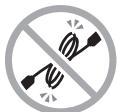
Twisting
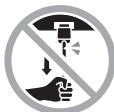
Pulling

Pressing on
Electric shock
CLASS 1 LASER PRODUCT (One Invisible Connection)
-
Caution - Invisible laser radiation when open. Do not stare into beam.
-
Do not bend the One Invisible Connection cable excessively. Do not cut the cable.
-
Do not place heavy objects on the cable.
-
Do not disassemble either of the cable connectors.
-
Caution - Use of controls, adjustments, or the performance of procedures other than those specified herein may result in hazardous radiation exposure.
03 TV Installation
Mounting the TV on a wall

If you mount this TV on a wall, follow the instructions exactly as set out by the manufacturer. Unless it is correctly mounted, the TV may slide or fall and cause serious injury to a child or adult and serious damage to the TV.
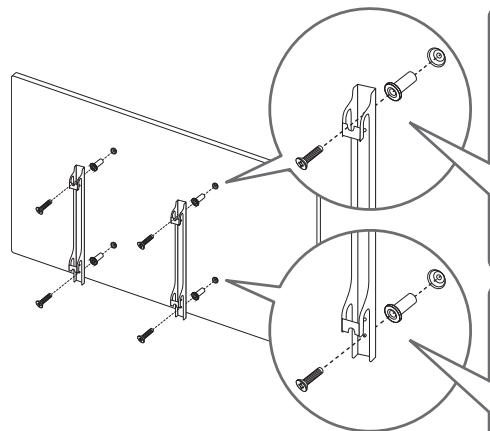
For models providing wall mount adapters, install them as shown in the figure below before installing the wall mount kit.
Refer to the installation manual included with the Samsung wall mount kit.
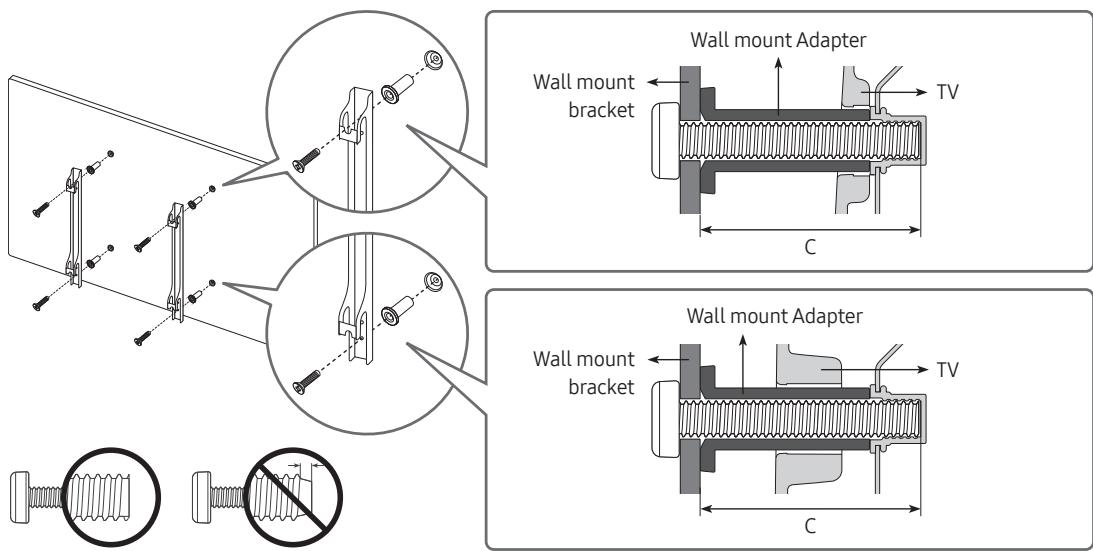
Samsung Electronics is not responsible for any damage to the product or injury to yourself or others if you choose to install the wall mount on your own.
- You can install your wall mount on a solid wall perpendicular to the floor. Before attaching the wall mount to surfaces other than plaster board, contact your nearest dealer for additional information. If you install the TV on a ceiling or slanted wall, it may fall and result in severe personal injury.
- Standard dimensions for wall mount kits are shown in the table on the next page.
- If you are installing a third-party wall mount, note that the length of the screws you can use to attach the TV to the wall mount is shown in column C in the table on the next page.
- When installing a wall mount kit, we recommend you fasten all four VESA screws.
- If you want to install a wall mount kit that attaches to the wall using two top screws only, be sure to use a Samsung wall mount kit that supports this type of installation. (You may not be able to purchase this type of wall mount kit, depending on the geographical region.)
| TV size in inches | VESA screw hole specs (A * B) in millimetres | C (mm) | Standard Screw | Quantity | A B |
| 43-49 | 200 x 200 | 43-45 | M8 | 4 | |
| 55-65 | 400 x 400 |

Do not install your wall mount kit while your TV is turned on. This may result in personal injury from electric shock.
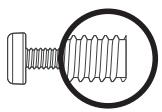
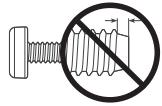
- Do not use screws that are longer than the standard dimension or do not comply with the VESA standard screw specifications. Screws that are too long may cause damage to the inside of the TV set.
- For wall mounts that do not comply with the VESA standard screw specifications, the length of the screws may differ depending on the wall mount specifications.
- Do not fasten the screws too firmly. This may damage the product or cause the product to fall, leading to personal injury. Samsung is not liable for these kinds of accidents.
Samsung is not liable for product damage or personal injury when a non-VESA or non-specified wall mount is used or when the consumer fails to follow the product installation instructions. - Do not mount the TV at more than a 15 degree tilt.
Always have two people mount the TV onto a wall.
Providing proper ventilation for your TV
When you install your TV and One Connect, maintain a distance of at least 10~cm between the One Connect with other objects (walls, cabinet sides, etc.) to ensure proper ventilation. Failing to maintain proper ventilation may result in a fire or a problem with the product caused by an increase in its internal temperature.
- When you install your TV with a stand or a wall mount, we strongly recommend you use parts provided by Samsung Electronics only. Using parts provided by another manufacturer may cause difficulties with the product or result in injury caused by the product falling.
Safety Precaution: Securing the TV to the wall to prevent falling
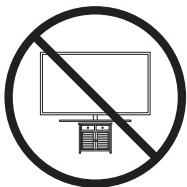
Caution: Pulling, pushing, or climbing on the TV may cause the TV to fall. In particular, ensure your children do not hang on or destabilise the TV. This action may cause the TV to tip over, causing serious injuries or death. Follow all safety precautions provided in the Safety Flyer included with your TV. For added stability and safety, you can purchase and install the anti-fall device as described below.

WARNING: Never place a television set in an unstable location. The television set may fall, causing serious personal injury or death. Many injuries, particularly to children, can be avoided by taking simple precautions such as:
- Using cabinets or stands recommended by the manufacturer of the television set.
- Only using furniture that can safely support the television set.
- Ensuring the television set is not overhanging the edge of the supporting furniture.
- Not placing the television set on tall furniture (for example, cupboards or bookcases) without anchoring both the furniture and the television set to a suitable support.
- Not placing the television set on cloth or other materials that may be located between the television set and supporting furniture.
- Educating children about the dangers of climbing on furniture to reach the television set or its controls.
If you are retaining and relocating the television set that you are replacing with this new set, you should apply the same precautions to the old set.
- When you have to relocate or lift the TV for replacement or cleaning, be sure not to pull out the stand.
Preventing the TV from falling
-
Using the appropriate screws, firmly fasten a set of brackets to the wall. Confirm that the screws are firmly attached to the wall.
-
You may need additional material such as wall anchors depending on the type of wall.
-
Using the appropriately sized screws, firmly fasten a set of brackets to the TV.
-
For the screw specifications, refer to the standard screw part in the table under "Mounting the TV on a wall".
-
Connect the brackets fixed to the TV and the brackets fixed to the wall with a durable, heavy-duty string, and then tie the string tightly.
Install the TV near the wall so that it does not fall backwards.
- Connect the string so that the brackets fixed to the wall are at the same height as or lower than the brackets fixed to the TV.
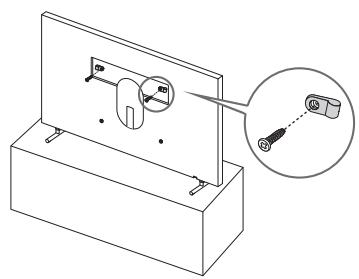
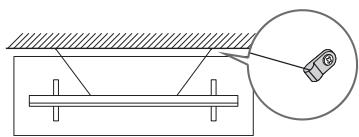
- The product colour and shape may vary depending on the model.
Using the Cover Cap
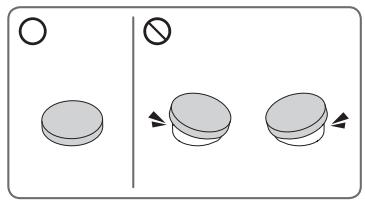
When you do not use the VESA wall mount, you can cover the wall mount screw holes with cover caps. See the image below.
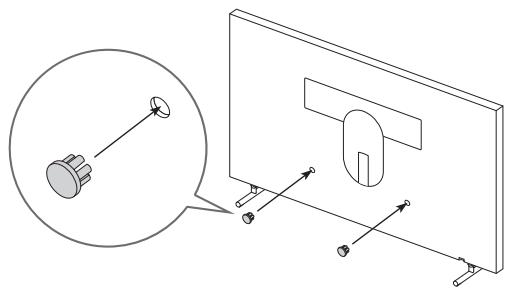
<43-49 inches>
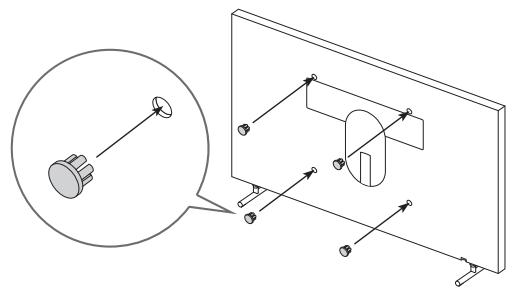
<55-65 inches>
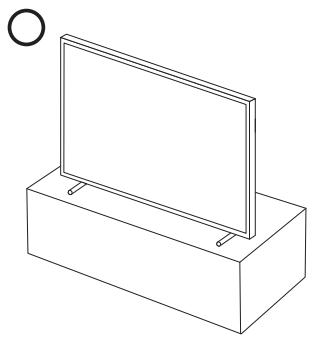
Precautions when installing the TV with a stand
When you install the TV with a stand, avoid placing the stand on the back part of the table surface. Failure to do so may cause the motion sensor at the bottom of the TV not to work properly.
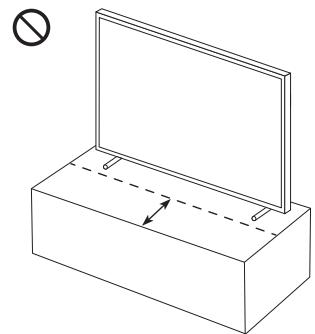
04 Using Art Mode
>Art
You can use Art mode function to display image content such as artworks or photos when you are not watching TV in full screen mode.
- Press the button on the remote control to switch to TV mode or Art mode.
- Press the button in Art mode to switch to TV mode.
-
To turn off the TV completely, press and hold the button on the remote control, or press the TV Controller button at the bottom of the TV.
-
If you use a remote control other than the Samsung Smart Remote, the TV may not be turned off completely.
-
In Art mode, the brightness and colour tone of your TV are automatically adjusted depending on the ambient, and the TV can be automatically turned on or off.
-
The TV is set by default so that the screen turns off automatically when the ambient light dims in Art mode.
-
You can use Art mode settings (Art > Settings) on the TV or SmartThings app on your mobile device to set the sensitivity of the motion detector so that the TV can detect visual changes including user movements and turn on or off automatically.
-
In Art mode, you can connect your mobile device to the TV using the SmartThings app on the mobile device to view photos on the mobile device.
-
This function may not be supported depending on the TV model or mobile device.
Supported features may differ depending on the version of the SmartThings app.
Viewing images
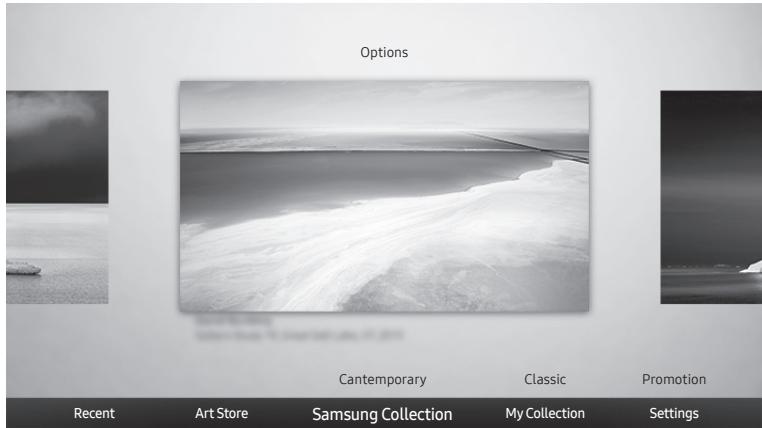
- The image on your TV may differ from the image above depending on the model and geographical area.
To view an image in Art mode, select one of the menus below. To switch to the sub menu where you can select images, press the Select button, one of the four directional buttons, or button in Art mode. Then, use the directional buttons on the remote control to move to desired image, and then press the Select button. Set appears at the top of the selected image, and you can view the selected image in Art mode.
Recent
You can manipulate the last selected images.
- Art Store
You can go to Art Store to purchase various images.
- The Art Store may not appear depending on the network connection status.
Samsung Collection
You can choose images from different topics.
My Collection
You can view a list of artworks and photos that you set as Favourite in Favourites. You can also select the desired ones among the images saved on an external storage device or a mobile device and save them in My Photos.
In order to fetch the images from your mobile device, the SmartThings app must have been installed in your mobile device.
Viewing images by time
- Use the directional buttons on the remote control to move to Samsung Collection or My Collection.
- Use the directional buttons to move to one of the sub menus.
- Use the directional buttons on the remote control to move to Options at the top of the screen.
- Press the Select button when the Start Slideshow item appears.
- Use the directional buttons on the remote control to select the time that images will be replaced, and then press the Select button.
Import images from an external storage device
- Connect an external storage device that contains images to the TV.
- Use the directional buttons on the remote control to move to My Collection, and then move to the connected external storage device.
- Use the directional buttons on the remote control to move to Options at the top of the screen, and then select Save.
- Use the directional buttons on the remote control to move to an image, and then press the Select button. - You can select multiple images.
- Use the directional buttons on the remote control to move to Save to My Photos at the top of the screen, and then press the Select button.
- The selected image or images are saved in My Photos.
Recommended resolutions: 3840 × 2160 (16:9)
Buying images from Art Store
- Use the directional buttons on the remote control to move to Art Store.
- Use the directional buttons on the remote control to move to a topic, and press the Select button. The images corresponding to the topic appear on the screen.
- Use the directional buttons on the remote control to move to an image, and press the Select button.
- Use the directional buttons on the remote control to move to Buy at the top of the screen, and then press the Select button to buy the selected image.
- Use the directional buttons on the remote control to select payment methods, and then press the Select button.
- Follow the on-screen instructions to procedure payment.
Subscribing to Art Store Membership
When you subscribe to Art Store Membership, you can use Art Store unlimitedly and enjoy various art works by replacing them with new ones according to your preferences.
- Use the directional buttons on the remote control to move to Art Store.
- Use the directional buttons on the remote control to move to Membership.
- Follow the on-screen instructions to enter your membership information.
Setting the style of the selected image
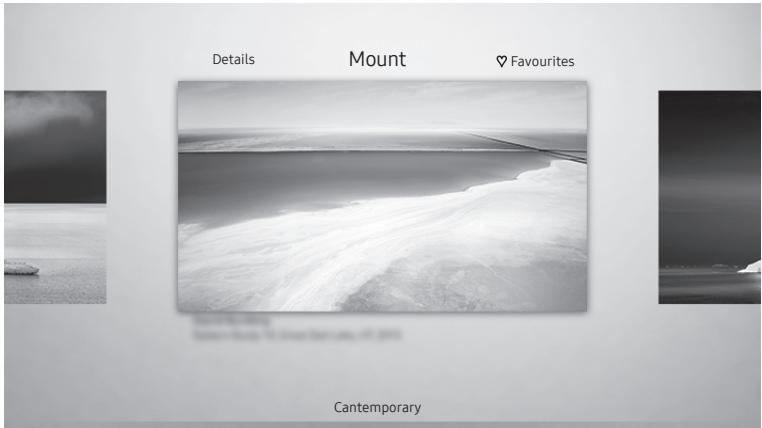
- The image on your TV may differ from the image above depending on the model and geographical area.
Use the directional buttons on the remote control to move to Options at the top of the screen. You can use the following menus:
- Details
You can find more information about the image.
- Mount
You can apply various border styles and colours to the image according to your preferences.
Favourite
You can set (or not set) an image that you prefer as a favourite item by pressing the Select button on the remote control. You can view a list of items set as your favourites in My Collection > Favourites.

Favourite: Not set as a favourite.

Favourite: Set as a favourite.
Apply a border style and a colour to an image
- Using the directional buttons on the remote control to move to the image whose border style and colour you want to change, move to Mount at the top of the screen, and then press the Select button.
- Use the directional buttons on the remote control to select the border style and colour that you want.
- Change the border style and colour, and then press the Select button to move the focus to the image. If you want to change only either the border style or the color, change it, and then press the Select button to save the changes.
- To save the selected border style and colour, press the Select button again.
- If you press the button to exit, the border style and colour you changed are not saved.
Setting up Art mode
In Art mode, use the directional buttons on the remote control to move to the Settings menu item at the bottom. You can adjust the following functions:
Colour & Brightness
Use the directional buttons on the remote control to move to Modify at the top, and then press the Select button. In the next screen, adjust the picture colour and brightness. After selecting the desired settings, press the Select button on the remote control.
-
To immediately set Colour & Brightness while enjoying Art mode, press the button on the remote control.
-
Sleep After
If no motion is detected around the TV for the set time, the TV turns off automatically. Use the directional buttons on the remote control to move to the top items. After selecting the desired time, press the Select button on the remote control.
Motion Detector
The sensitivity of the motion detector function can be adjusted. Use the directional buttons on the remote control to move to the top items. After selecting the desired sensitivity, press the Select button on the remote control.
Night Mode
When this function is turned on, the TV turns off automatically if no light is detected around the TV. Use the directional buttons on the remote control to move to the top items, and then turn this function on or off.
Remove images from My Collection
You can remove the saved images from My Collection.
- Use the directional buttons on the remote control to move to My Collection.
- Use the directional buttons on the remote control to move to Favourites or My Photos.
- Use the directional buttons on the remote control to move to Options at the top of the screen.
- Move the focus to Remove, and then press the Select button on the remote control.
- Use the directional buttons on the remote control to move to an image, and then press the Select button. - You can select multiple images.
- Use the directional buttons on the remote control to move to Remove Selected at the top of the screen, and then press the Select button.
Using Art mode with the SmartThings app
Once you have installed the SmartThings app on your mobile device, you can use the following functions: You can download the SmartThings app from Google Play Store, Samsung Apps, or the App Store.
- The features or terminology may vary depending on the version of the SmartThings app.
-
On tablet devices, Art mode features may not be supported by the SmartThings app.
-
Selecting images
- Subscribing to Art Store Membership
- Creating Collage: Combine multiple images into one image.
Applying border styles and colours to images - Setting the colour tone and the brightness for Art mode
- Setting Sleep After: When no motion is detected for the time specified in Art mode, the TV turns off automatically.
- Setting Night Mode: Set The Frame to turn off automatically if no light is detected in the room.
- Setting Motion Detector: Set the sensor sensitivity so that the TV turns on automatically when motion is detected in Art mode.
05 The Samsung Smart Remote
About the Buttons on the Samsung Smart Remote
- The images, buttons, and functions of the Samsung Smart Remote may differ depending on the model.
- The Universal Remote function operates normally only when you use the Samsung Smart Remote that comes with the TV.

(Power)
When watching TV, press to switch to Art mode. In Art mode, press to switch to watching TV.
- Press and hold to turn off the TV completely.

(Number button)
When pressed, a number strip appears on the bottom of the screen. Select numbers and then select Done to enter a numeric value. Use to change the channel, enter a PIN, enter a ZIP code, etc.
- When pressed for 1 second or more, the TTX menu appears.
Select
Selects or runs a focused item. When pressed while you are watching a broadcast programme, detailed programme information appears.

(Return)
Returns to the previous menu. When pressed for 1 second or more, the running function is terminated. When pressed while you are watching a programme, the previous channel appears.

Play/pause)
When pressed, the playback controls appear. Using these controls, you can control the media content that is playing.

(Smart Hub)
Returns to the Home Screen.
- Press in Art mode to switch to TV mode.
SAMSUNG

(Bixby)
Runs Bixby. Press and hold the button, say a command, and then release the button to run Bixby. When you press the button, the Explore Now menu appears at the bottom of the screen.
- The supported Bixby's languages and features may differ by geographical region.

(Colour button)
Use these coloured buttons to access additional options specific to the feature you are using.
- To immediately set Colour & Brightness while enjoying Art mode, press the button.
Directional pad (up/down/left/right)
Moves the focus and changes the values seen on the TV's menu.
VOL (Volume)
Move the button up or down to adjust the volume. To mute the sound, press the button. When pressed for 1 second or more, the Accessibility Shortcuts menu appears.
CH (Channel)
Move the button up or down to change the channel. To see the Guide screen, press the button.
- When pressed for 1 second or more, the Channel List screen appears.
Press each button to run its function.
Pairing the TV to the Samsung Smart Remote
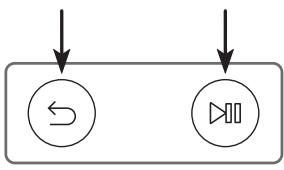
When you turn on the TV for the first time, the Samsung Smart Remote pairs to the TV automatically. If the Samsung Smart Remote does not pair to the TV automatically, point it at the remote control sensor of the TV, and then press and hold the buttons labelled and as shown in the figure on the left simultaneously for 3 seconds or more.
Installing batteries into the Samsung Smart Remote
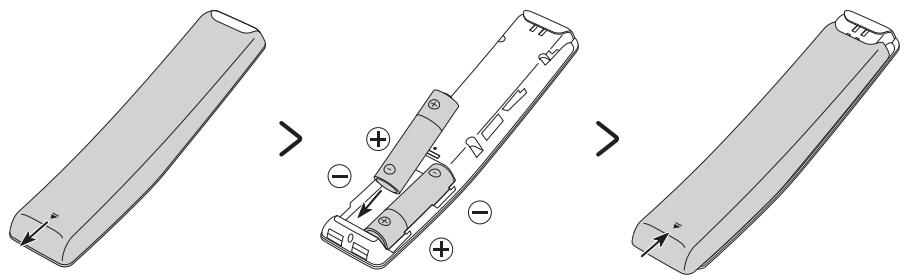
To install the batteries, push the rear cover open in the direction of the arrow at the bottom of the illustration, and then insert the batteries as shown in the figure. Make sure that the positive and negative ends are facing in the correct direction. Close the rear cover as shown.
- Alkaline batteries are recommended for longer battery life.
06 Running the Initial Setup
When you turn on your TV for the first time, it immediately starts the Initial Setup. The Initial Setup allows you to configure the basic settings for the TV to operate, such as broadcast reception, channel search, and network connection, at one time.
- Before starting the Initial Setup, be sure to connect external devices first.
- To use the TV's smart features, the TV must be connected to the Internet.
- To perform Initial Setup using the SmartThings app, you must connect your mobile device via Wi-Fi.
- If the pop-up for setup does not appear automatically in the SmartThings app on your mobile device, continue setup manually after adding the TV using Add Device on the dashboard of the SmartThings app.
- The SmartThings app is available for mobile devices running Android 6.0 or higher or iOS 10 or higher.
- Noise may occur temporarily when the TV communicates with mobile devices.
You can also start the Initial Setup using the TV's menu (Settings > General > Reset).
Follow the instructions displayed on the Initial Setup screen and configure the TV's basic settings to suit your viewing environment.
Using the TV Controller
You can turn on the TV with the TV Controller button at the bottom of the TV, and then use the Control menu. The Control menu appears when the TV Controller button is pressed while the TV is On. For more information about its usage, refer to the figure below.
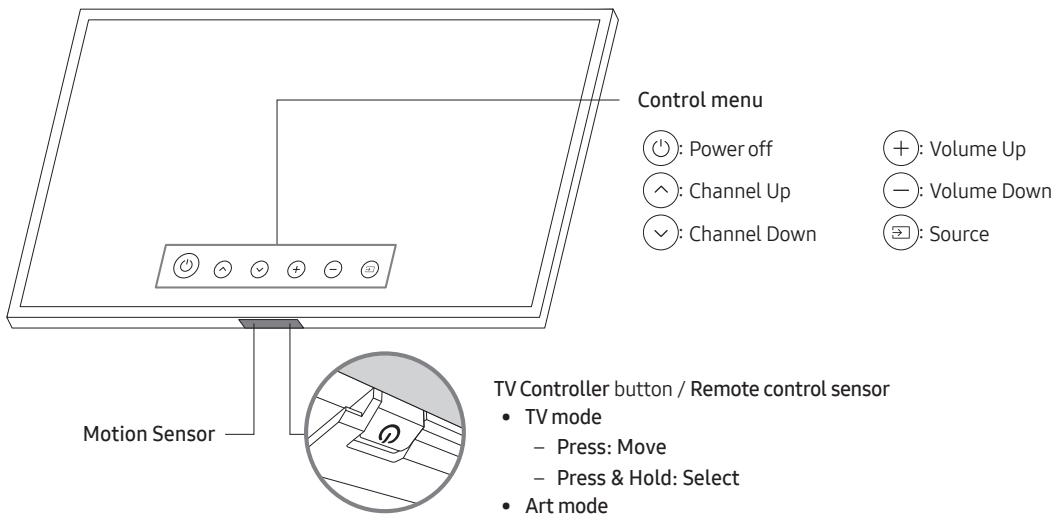
TV Controller button / Remote control sensor
-
TV mode
-
Press: Move
-
Press & Hold: Select
-
Art mode
-
Press: Switch to the TV mode
The TV Controller button is located on the bottom of the TV.
- When you press the TV Controller button, be careful not to press the motion sensor close to it.
- In Art mode, the power indicator at the bottom of the TV remains off.
-
After detaching the Customizable Frame (sold separately) from the TV, push up the remote control sensor so that it returns to its original position.
-
Do not push up the remote control sensor strongly. There is a risk of damage.
07 Connecting to a Network
Connecting the TV to a network gives you access to online services, such as Smart Hub, as well as software updates.
Network Connection - Wireless
Connect the TV to the Internet using a standard access point or modem.
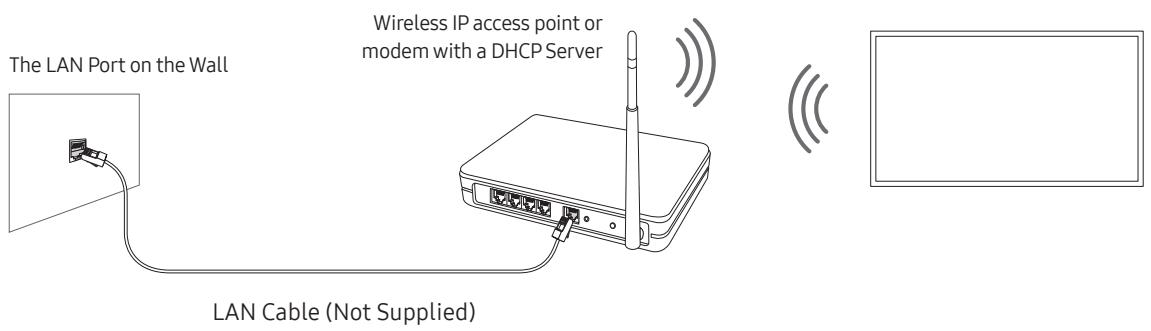
Network Connection - Wired
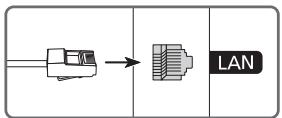
Connect your TV to the network using a LAN cable.
- The TV will not be able to connect to the Internet if your network speed is below 10 Mbps.
- Use Cat7 (*STP Type) cable for the connection.
- Shielded Twisted Pair
08 Troubleshooting and Maintenance
Troubleshooting
If the TV seems to have a problem, first review this list of possible problems and solutions. Alternatively, review the Troubleshooting Section in the e-Manual. If none of these troubleshooting tips apply, please visit "www.samsung.com" and click on Support, or contact the Samsung service centre listed on the back cover of this manual.
- This TFT LED panel is made up of sub pixels which require sophisticated technology to produce. There may be, however, a few bright or dark pixels on the screen. These pixels will have no impact on the performance of the product.
- To keep your TV in optimum condition, upgrade to the latest software. Use the Update Now or Auto update functions on the TV's menu (Settings > Support > Software Update > Update Now or Auto update).
The TV won't turn on.
- Make sure that the AC power cord is securely plugged in to the One Connect and the wall outlet.
- Make sure that the wall outlet is working and the power indicator at the bottom of the TV is lit and glowing a solid red.
- Try pressing the TV Controller button at the bottom of the TV to make sure that the problem is not with the remote control. If the TV turns on, refer to "The remote control does not work".
There is no picture/video/sound, or a distorted picture/video/sound from an external device, or "Weak or No Signal" is displayed on the TV, or you cannot find a channel.
- Make sure the connection to the device is correct and that all cables are fully inserted.
- Remove and reconnect all cables connected to the TV and the external devices. Try new cables if possible.
- Confirm that the correct input source has been selected (Source).
- Perform a TV self diagnosis to determine if the problem is caused by the TV or the device (Settings > Support > Self Diagnosis > Start Picture Test or Start Sound Test).
- If the test results are normal, reboot the connected devices by unplugging each device's power cord and then plugging it in again. If the issue persists, refer to the connection guide in the user manual of the connected device.
-
If you are not using a cable box or satellite box, and your TV is receiving TV signals from an antenna or a cable wall connector, run Auto Tuning to search for channels (Settings > Broadcasting > (Auto Tuning Settings) > Auto Tuning).
-
The Auto Tuning Settings may not appear depending on the model or geographical area.
If you are using a cable box or satellite box, please refer to the cable box or satellite box manual.
The Cl+ does not work.
- Your Samsung TV conforms to the CI+1.4 standards.
- Where a Cl+ Common Interface module is incompatible with this device, then please remove the module and contact the Cl+ operator for assistance.
The remote control does not work.
- Check if the power indicator at the bottom of the TV blinks when you press the remote's Power button. If it does not, replace the remote control's batteries.
- Make sure that the batteries are installed with their poles (+/−) in the correct direction.
- Try pointing the remote directly at the TV from 1.5-1.8 m away.
- If your TV came with a Samsung Smart Remote (Bluetooth Remote), make sure to pair the remote to the TV.
The cable box or satellite box remote control doesn’t turn the TV on or off or adjust the volume.
- Programme the cable box or satellite box remote control to operate the TV. Refer to the cable box or satellite box user manual for the SAMSUNG TV code.
The TV settings are lost after 5 minutes.
- The TV is in the Retail Mode. Change the Usage Mode in the General Menu to Home Mode (Settings > Settings > System Manager > Usage Mode > Home Mode).
Intermittent Wi-Fi
- Make sure the TV has a network connection (Settings > General > Network > Network Status).
- Make sure the Wi-Fi password is entered correctly.
- Check the distance between the TV and the modem or access point. The distance should not exceed 15.2 m .
- Reduce interference by not using or turning off wireless devices. Also, verify that there are no obstacles between the TV and the modem or access point. (The Wi-Fi strength can be decreased by appliances, cordless phones, stone walls/fireplaces, etc.)
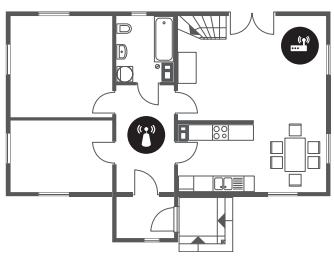
Single story
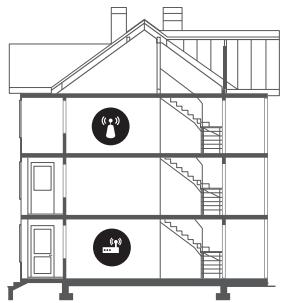
Multi story

Wireless access point

Wireless repeater
- Contact your Internet Service Provider (ISP) and ask them to reset your network circuit to re-register the MAC addresses of your new modem or access point and the TV.
Video Apps problems (Youtube etc)
- Change the DNS to 8.8.8.8. Select > Settings > General > Network > Network Status > IP Settings > DNS setting > Enter manually > DNS Server > enter 8.8.8.8 > OK.
- Reset by selecting > Settings > Support > Self Diagnosis > Reset Smart Hub.
The TV remains on or does not turn on automatically.
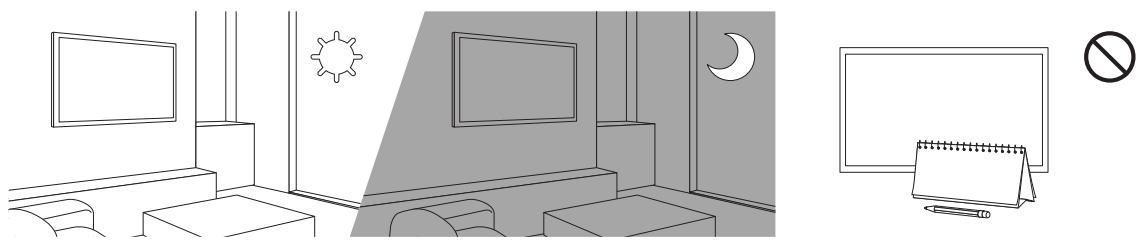
- If the surrounding area is too dark or bright, the motion sensor may not work normally. The performance of the motion sensor may be affected by the installation environment (height, tilt, obstacles). If the clothes you wear or your skin colour is similar to the surrounding shading, the motion sensor may not work properly.
- The TV responds to all visual changes around it (lights, displays, dogs, out-of-window changes, and other occurrences). You can adjust the response level by adjusting the sensitivity of the motion detector.
(Art > Settings > Motion Detector)
Precautions when using Art mode
- The motion sensor is located at the bottom of the TV. Do not block the sensor at the front of the TV. The motion sensor as well as the brightness and colour tone of the screen can be affected.
- Art mode uses algorithms to minimise image burn-in that can be caused by displaying still images on the screen for long periods of time.
-
The performance of the sensor may vary depending on the TV installation and operating environment.
-
The screen brightness and colour tone may be affected depending on the colour of the floor on which the TV stands.
- In an environment where special light sources other than standard light sources (halogen, fluorescent) are used, the sensor's motion recognition performance may vary depending on the positions, types, and number of the light sources.
- If the area around the TV is too dark or bright, the screen brightness may be limited or the sensor may not work normally.
- If the TV is installed too high or too low, the sensor may not work normally.
-
The motion sensor may sense motion from a flashing LED, a pet, a car moving outside the window, or other occurrence and start operating.
-
Depending on the Auto Power Off (Settings > Eco Solution > Auto Power Off) function settings, the TV may turn off when there is no user input in Art mode, such as inputs from the remote control.
-
Settings > General > System Manager > Time > Sleep Timer and Off Timer function does not work in Art mode.
Settings > General > System Manager > Auto Protection Time function does not work in Art mode.
What is Remote Support?
Samsung Remote Support service offers you one-on-one support with a Samsung Technician who can remotely:
- Diagnose your TV
- Adjust the TV settings for you
- Perform a factory reset on your TV
Install recommended firmware updates
How does Remote Support work?
You can easily get Samsung Remote Support service for your TV:
- Call the Samsung service centre and ask for remote support.
- Open the menu on your TV and go to the Support section. (Settings > Support)
- Select Remote Management, then read and agree to the service agreements. When the PIN screen appears, provide the PIN number to the technician.
- The technician will then access your TV.
Eco Sensor and screen brightness
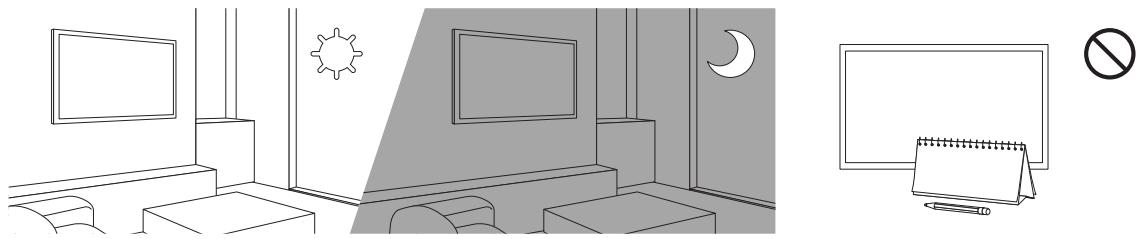
Eco Sensor adjusts the brightness of the TV automatically. This feature measures the light in your room and optimises the brightness of the TV automatically to reduce power consumption. If you want to turn this off, go to Settings > General > Eco Solution > Ambient Light Detection.
- If the screen is too dark while you are watching TV in a dark environment, it may be due to the Ambient Light Detection function.
- The eco sensor is located at the bottom of the TV. Do not block the sensor with any object. This can decrease picture brightness.
Caring for the TV
- If a sticker was attached to the TV screen, some debris can remain after you remove the sticker. Please clean the debris off before watching TV.
- The exterior and screen of the TV can get scratched during cleaning. Be sure to wipe the exterior and screen carefully using a soft cloth to prevent scratches.
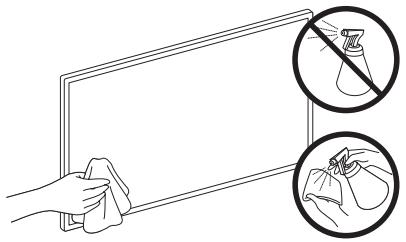
- Do not spray water or any liquid directly onto the TV. Any liquid that goes into the product may cause a failure, fire, or electric shock.
- To clean the screen, turn off the TV, then gently wipe away smudges and fingerprints on the panel with a micro-fiber cloth. Clean the body or panel of the TV with a micro-fiber cloth dampened with a small amount of water. After that, remove the moisture with a dry cloth. While cleaning, do not apply strong force to the surface of the panel because it can damage the panel. Never use flammable liquids (benzene, thinner, etc.) or a cleaning agent. For stubborn smudges, spray a small amount of screen cleaner on a micro-fiber cloth, and then use the cloth to wipe away the smudges.
09 Specifications and Other Information
Specifications
| Model Name | QE43LS03R | QE49LS03R |
| Display Resolution | 3840 x 2160 | 3840 x 2160 |
| Screen Size | 43 inches | 49 inches |
| Measured Diagonally | 108 cm | 123 cm |
| Sound (Output) | 20 W | 20 W |
| Dimensions (W x H x D) | ||
| Body | 966.6 x 556.8 x 42.5 mm | 1099.2 x 631.4 x 45.8 mm |
| With stand | 966.6 x 599.8 x 200.0 mm | 1099.2 x 674.3 x 200.0 mm |
| Weight | ||
| Without Stand | 11.5 kg | 14.1 kg |
| With Stand | 12.0 kg | 14.6 kg |
| Model Name | QE55LS03R | QE65LS03R |
| Display Resolution | 3840 x 2160 | 3840 x 2160 |
| Screen Size | 55 inches | 65 inches |
| Measured Diagonally | 138 cm | 163 cm |
| Sound (Output) | 40 W | 40 W |
| Dimensions (W x H x D) | ||
| Body | 1235.0 x 707.8 x 42.5 mm | 1453.9 x 830.9 x 42.5 mm |
| With stand | 1235.0 x 750.7 x 200.0 mm | 1453.9 x 875.5 x 294.0 mm |
| Weight | ||
| Without Stand | 18.9 kg | 25.7 kg |
| With Stand | 19.4 kg | 26.5 kg |
Environmental Considerations
| Operating Temperature | 10°C to 40°C (50°F to 104°F) |
| Operating Humidity | 10% to 80%, non-condensing |
| Storage Temperature | -20°C to 45°C (-4°F to 113°F) |
| Storage Humidity | 5% to 95%, non-condensing |
- The design and specifications are subject to change without prior notice.
- For information about the power supply, and more information about power consumption, refer to the label-rating attached to the product.
Typical power consumption is measured according to IEC 62087. - You can see the label-rating attached to the bottom of the One Connect.
- You can see the label-rating attached to the back of the TV. (For some models, you can see the label-rating inside the cover terminal.)
Decreasing power consumption
When you shut the TV off, it enters Standby mode. In Standby mode, it continues to draw a small amount of power. To decrease power consumption, unplug the power cord when you don't intend to use the TV for a long time.
Licences
POWERED BY
DOLBY AUDIO
QUICKSET
rovi guide
HEVCAdvance ™ Covered by Patents at patentlist.hevcadvance.com
HOMI
HIGH-DEFINITION MULTIMEDIA INTERFACE
The terms HDMI and HDMI High-Definition Multimedia Interface, and the HDMI Logo are trademarks or registered trademarks of HDMI Licensing LLC in the United States and other countries.
Recommendation - EU Only
CE
Hereby, Samsung Electronics, declares that this equipment is in compliance with Directive 2014/53/EU. The full text of the EU declaration of conformity is available at the following internet address: http://www.samsung.com go to Support > Search Product Support and enter the model name.
This equipment may be operated in all EU countries.
The 5 GHz WLAN(Wi-Fi) function of this equipment may only be operated indoors.
BT max transmitter power : 100mW at 2.4GHz - 2.4835GHz
Wi-Fi max transmitter power : 100mW at 2.4GHz- 2.4835GHz, 5.15GHz- 5.35GHz & 5.47GHz- 5.725GHz
For information on Samsung's environmental commitments and product-specific regulatory obligations, e.g. REACH, WEEE, Batteries, visit http://www.samsung.com/uk/aboutsamsung/samsungelectronics/corporatecitizenship/data-corner.html
WARNING - TO PREVENT THE SPREAD OF FIRE, KEEP CANDLES OR OTHER ITEMS WITH OPEN FLAMES AWAY FROM THIS PRODUCT AT ALL TIMES.

This marking on the product, accessories or literature indicates that the product and its electronic accessories (e.g. charger, headset, USB cable) should not be disposed of with other household waste at the end of their working life. To prevent possible harm to the environment or human health from uncontrolled waste disposal, please separate these items from other types of waste and recycle them responsibly to promote the sustainable reuse of material resources.
Household users should contact either the retailer where they purchased this product, or their local government office, for details of where and how they can take these items for environmentally safe recycling.
Business users should contact their supplier and check the terms and conditions of the purchase contract. This product and its electronic accessories should not be mixed with other commercial wastes for disposal.
Correct disposal of the batteries in this product
(Applicable in countries with separate collection systems)
This marking on battery, manual or packaging indicates that the batteries in this product should not be disposed of with other household waste at the end of their working life. Where marked, the chemical symbols Hg, Cd or Pb indicate that the battery contains mercury, cadmium or lead above the reference levels in EC Directive 2006/66. If batteries are not properly disposed of, these substances can cause harm to human health or the environment.
To protect natural resources and to promote material reuse, please separate batteries from other types of waste and recycle them through your local, free battery return system.

Fali adapter
Bending Cover
One Connect
One Invisible Connection

Fedokupak
Tartokabel
HEVCAdvance ™ Covered by Patents at patentlist.hevcadvance.com
HOMI
HIGH-DEFINITION MULTIMEDIA INTERFACE
The terms HDMI and HDMI High-Definition Multimedia Interface, and the HDMI Logo are trademarks or registered trademarks of HDMI Licensing LLC in the United States and other countries.
PRODUKT LASEROWY KLASY 1 (One Invisible Connection)
HEVCAdvance ™ Covered by Patents at patentlist.hevcadvance.com
HOMI
HIGH-DEFINITION MULTIMEDIA INTERFACE
The terms HDMI and HDMI High-Definition Multimedia Interface, and the HDMI Logo are trademarks or registered trademarks of HDMI Licensing LLC in the United States and other countries.
HEVCAdvance ™ Covered by Patents at patentlist.hevcadvance.com
HOMI
HIGH-DEFINITION MULTIMEDIA INTERFACE
The terms HDMI and HDMI High-Definition Multimedia Interface, and the HDMI Logo are trademarks or registered trademarks of HDMI Licensing LLC in the United States and other countries.
Σuσταση - Móvov EU
CE
JIa3EPEH IPOJyKT OT KJIAC 1 (One Invisible Connection)
BhImaHne - npn OTbaprHe n3JIbYBa HeBnDmMa Ia3epHa paIaIauJr. He ce B3npaIe TbIbya.
-
He orьайтпекомерно каба на One Invisible Connection. He срзвайт Каба.
-
He noctabray Te texknn npedmetn Bbpxky ka6eJa.
-
He pa3rIIO6BaIte HnKO oK Ka6eJInte KOHeKToPn.
BnmaHne - n3noJ3BaHeTo Ha KOHTpOJIu nn HAcTPOJKn nn N3BbPbBaHeTo Ha npoceDpyn, pa3nnHn OT Te3n, OnpcaHn BHaCTOaIg JOKyMeH, MoKe da doBeJe Do OnacHo n3JaRaHe Ha padnaucn.
03 MoNTipaHe Ha TeJIeBn3Opa
MOnTnpaHe HaTeJIeBn3Opa Ha CTeHa

Ako MOHTIpaTe TOni TeJIeBn3Op Ha CToHa, CJeDbaiTe ToCHNte HNCTpyKcHn OTo pOn3BOJnteJa. Ako He Ce MoHTIpa IpaBnJHo, TeJIeBn3OpbT MoKe Da Ce PJIb3He NLI da NaIHe N da PruHiNc cepNo3Hn HapaHЯBaHIna Ha Deca NLI Bb3pactHn, KaKTo N da Ce NOBpeDi.
3a MoJenIte, KOInTo ce npedocTabrT c aadnTepn 3a CTHeH MOHTaK: MOHTpaJIte aadnTepnTe, KaKTo e nokaHO Ha fngypata No-dOly, npdei da MOHTnpate KOMPJIeKTA 3a CTHeH MOHTaK.
- HanpaBeTe cnpaBka B pBkoBoDCTBOTo 3a MOHTnpaHe, npeIOCTaBeHO C KOMnIeKta 3a MOHTnpaHe Ha CteHa ha Samsung.
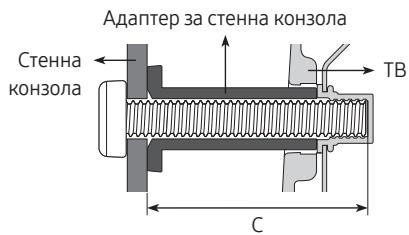
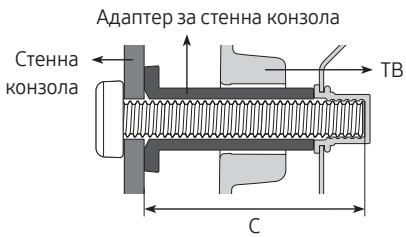
Samsung Electronics He hocn otrobohpocst 3a nobpei Ha n3dJIeTo To nIi HapaHbAHnHa Bac nIi npuI Iuca, cne KaTO CTe ONITaII Da MOHTnpate Camn CTehHaT KOH3OJa.
- MojkeTe da MOHTnPaTe CTeHHATA KOH3OJa Bbpyx 3dpaBa CTeHa, nepHeNdkyIrpHa Ha nOda. IpeDu Da MOHTnPaTe CTeHHATA KOH3OJa Ha dpyr cTpOnTeHN MaTePnAIn, CbByPxTe Ce c Hau-6n3Kn TaBpRoBeu Ha dpe6Ho 3a dOpblHntelHa nHΦopMaua. Ako TeLeBn3OpbT 6bJe MOHTnPaHa Ha TabaHa Nn NaKLoHeHa CTeHa, MoJce Da PaDHe N da PnUHH TelencH NOBpeDi.
- Cтандартупе размери за комплейкпге за стени монтыж за пokазань таблцараз на следвацастраниц.
-
- Ako moHTnpaTe cTeHHa KOH3OJa OT dpyr npOn3BODnTEJI, mMaIte ppeBnID, ye DbJxHaTa Ha BVHTOBeTe, KOnTO MoKTe Da n3POn3BaTe 3a φnKcnpaHe Ha TeJeBn3Opa KbM cTeHHaTa KOH3OJa, e POKa3aHa B KOnoHa C Ha Ta6nUcaT a Ha cNeDbaUcaT a CTpaHnua.
Korato MOHTnPaTe KOMPJIeKT 3a CteHEn MOHTaK, IpeOpBcVbAme Da 3aTeHHe T uYeTnpuTe BnHTa VESA.
- Ako nckate da mOHTnPaTe KOMnIeKT 3a cTeHeH MOHTaK, KOITo ce 3akpeBa KbM cTeHaTa cMoC cDba TOpHb BnHTa, HENPeMeHHO n3POn3BaIte KOMnIeKT 3a cTeHeH MOHTaK Ha Samsung, KOITo noDbprka TOnN TIn MONTaK. (To3n TIN KOMnIeKT 3a cTeHeH MOHTaK MOnKe Da He Ce ppeJana BvB BCNUKr reOrpaΦcKn perNoHn.)
| Размер на телевизора в Инчове | Спесифikuаси на OTвориte за ВИNTObe VESA S (A*B) в міліметри | С (ММ) | Стандартон ВИNT | КоличесТВО | A В |
| 43-49 | 200 x 200 | 43-45 | M8 | 4 | |
| 55-65 | 400 x 400 |

He MoHTnpaIte KOMnJIeKTe 3a CTeHEn MOHTax, DOKaTO TeLeBn3OpbTe BkLIOueH. ToBa MoKe da IOBeDe Do TeLeCHa NOBpeDa NopaDi eNeKTpnueCKn yIap.
- He n3no3BaIte BnHTObe, no-dbIgN OT cTaHdapTHnepa3Mep nnHeCbOTBeTcBAuHa CneuKauNTe 3a BnHTObe Ha cTaHdapTa VESA. IpeKaJeHO dIbIg N BnHTObe MoRat da npuHnT nobpeDn BB BbTpueHoCTTa Ha TeLeBn3Opa.
3a KOH30JI 3a CTeHa, KOIto He OTROBAPrT Ha CNeuΦHKaCUNTE 3a BInHTObe Ha cTaHApTa VESA, JbJxHnHaTa Ha BInTOBeTe MoKe Ja e pa3JIuHa, B 3aBvCIMoCT OT CNeuΦHKaCUNTE Ha KOMJIeKTA 3a MOHTipaHe Ha CTeHa. - He 3aTRAaIe BnHTOBeTe TBbPde MHOr. TOba MoKe Ja Nobpei npOyKta Nll Da CTAHe npuHa 3a HerOBOTo naDaHe I Da IOBeJe Do TeleCna NobpeJa. Samsung He Hocn OTROBOPHoc 3a TaKbTn 3IIOJOnyKn.
- Samsung He hocn otrobopnoct 3a noBpeHn Ha npOyKta nIi HapaHraBaHnHa X opa, B cIyauy e I3POn3BaHa cTeHnHa KOH3oJa, HeOTROBapAua Ha cTaNdApTa VESA nIi OT HeN3BeCTeH DoCTaBvNK, IIN B cIyauy che notpe6nteJrHe e CnaII INHcTpyKcUnte 3a MoNTaK Ha npOyKta.
- He mONTnpaTte TeIeBvI3opa nO hAknloN, no-roJyM oT 15 rpaIyca.
- MoNTnIpaHTo Ha cTeHa Ha TeteBUN3Opa BInaHr Tp8Ba Da ca n3BbPbSbA O T dBaMa dyuN.
OcngypaBHe Ha aKeBbTHo npoBETpBaHe 3a BaSIn TneBn3Op
Korato mONTnpate TeleBn3opa n One Connect, octabete nohe 10 cm pa3ctoHne Mejdy One Connect n npynte npedmetn (cTeHn, shkafoBe n T.H.), 3a da ocunpyrnte doctaTbUHO do6pa BENTnlaucn. HeocunpyraBaHeTo Ha doCTaTbUHO npobetpbaHe moKeJa npuHHn noXap Nll npO6Iem C npOdykTa, CBbp3an C nobuShaBaHe Na BtpeShata TemnepaTypa.
- Пи монтupaне на телевизора, независим doданузпалоьдамсг STOйк ani nCTeHna KoH3oJa, преничаме rapeшо ду уллольайтесамо части, пpeюстaven ot Samsung Electronics. Ако уллольдат часту DTpyr pronuzbODINTeL, може ду вьзнокот поблемс с рpoуктua ил nHa paаняваны поради падане на рpoукта.
IpeDToBpaTbAHe Ha nFaHa He Ha TeLeBn3Opa
1.ИЗполз Bavай Te рдхоядши винтоBE,зда зakpenITE 3драBOСКOBNTe Kьм CTehata.Проверете дали винтоBEte ca 3драBO 3axBaHaTNВCTehata.
- Mojke da ca Bn Heo6xOaMm IOnbIbnHTeHn MaTepuaI, HapnpMepeIIO6eIi, B 3aBcImOCT OT BNuI cTeHa..
Mokete da MaHnIyInpate nocLeIHOTo n36paHo n3o6paKHeHne.
- MaRa3nH 3a n3KyCTBO
Mozhe Ta OTiTeB MaRa3Hn 3a n3KcYbTO, 3a Da 3aKynIte pa3nUHn n3o6paXeHn.
- Mara3nH 3a n3KcTB0 MoKe Da He Ce Np8Bn B 3aBnCmOCT O CbCToHNeTO Ha MpeXOBaTb3Ka.
Kollekuzia ot Samsung
Mozte da n36paate n306paqheny ot pa3nunH TeMn.
MoryaKoJekzua
MozheTe Da BnDte CnncBc N3O6paXeHnN CHmKn, KOnto Cte 3aDaJI NaTo PpeIOnuHTaHO B
PpeonuHa. MoKeTe cBso Da n36epeTe JekalHnte N3mEky 3o6paJehnra, 3aIncan Ha BbHoo yctpoiCTBO C NaMeT NnMo6uHno yctpoiCTBO, n da rN 3aPiWte B MOnTe ChmKn.
- 3a da n3BleueTe n3o6paXeHnraTa OT Mo6uHTo ycTpoiCTBO, npInOxKeHneTo SmartThings trp6Ba da e HCTaInpaHO ha Mo6uHTo ycTpoiCTBO.
TlEaHHe Ha n306paXeHnI NO BpeMe
- Μιπολbaite 6bytoHnTe CbC cTpeKn HaДиctaHcnoHhTo ynpaBHeHne, 3a da OTnDeTe Ha KoIekzna oT Samsung nII MoTa KaIekzua.
2.Изпалзваite 6byToHnTe CbC StpeKIn,3aДа OTиДeTe Ha eJNo OTIoMehIOTata. - Изпольваite 6утонITE сбсстpeлки на дисанционно уралдени, за за отundete на Onци otrope на ekpaHA.
- Hatnche 6yToHa IV36epn, Korato Ce nOaBn eIemEnTbT Haayao Ha 3aBbPtaHe.
- Използвашие 6утонITE сьс CTpeлки на дисанционно упральенье, за ддададente Времeto, korаготиЗобразженита щсе се сменит, и пося на ratис悔ete 6утона Избери.
IIMnOpTnpaHe Ha n3o6paJKeHnO T BbHsHo yCtpoiCTBO 3a CbXpaHneHne
- Cbpxke Te BnHNO yctpoiCTBO 3a cxbpnaHHe, KoTo CbIbpxka n3O6paXeHn, KbM TeJeBn30pa.
2.ИЗползваite 6byToHnTe CbC StpeKи Ha ДиStaHcHOnHnTO ynpaBHeHne,3aДа ce npemeCTte Ha MoTa KОл ekця,И поlete OTiDeTe Ha CBbP3aHOTo BbHShO yCTpoIcTBO 3a CbXpaHHeHne.
3.Изпольваite 6утонITE CBС CTpeлки Ha Дистанционно упавлиен,За до OTидete Ha Onци OTrope Ha ekpaHa,И посе ИЗберete 3aПСВаHe.
4.ИЗползваite 6утонITE сбсстелк Ha Дистанционно упавлени,зд отundete Ha Изображени,п пося наюншete 6утона Избери. -Можeteда Изберete Няковko Изображени. - Излобаи Te 6уToHnTe CBc STpeKn Ha ДИstctaHUnOHnTo ynpaBnEHe, 3a DA OTuIeTe Ha 3aIIuB N „MonTe ChIMKn" OTrope Ha ekpaHa, И наTNCHe Te 6уToHa 136epn.
-
ɪnʒəpɑhʊtɪŋɪsɪðpɑjæŋHɪŋnɪ nɪsɪðpɑjæŋHɪe ce 3aʌnæmɪrBA B Mɔnte chɪmʌkɪ.
-
Перорьчтелни раденителни способости: 3840 x 2160 (16:9)
3aKyynBaHe Ha n3o6paXeHn oT MaRa3nH 3a n3KcyCTBO
- Изпольваite 6утонITE сбсстpeлки на дисанционно упавлике, за за отundete на Магашини здкустBO.
2.Излбайтse 6утонite CBС CTpeкин Ha Дистанционноу упраьгене,За за OTидete Ha TeMa, И нашсichte 6утона Избери.На ekранca SE NOявВВAT N3OБрахжениТа,КОТС CBOTВETCTBAt Ha TemaTа.
3.Излэвіte 6утоніte сьсстрелкін Ндіnstанционноу упраьен,请,За за отundete на Изображени,посліе�atncheTe 6утона Избэрп.
4.ИЗползваite 6byToHnTe c bC stpeKnHa ДистанциоHToуnpaBleHne,зда OTиDEte Ha Kyn otrope Ha ekpaHa,и habtncheTe 6byToHa 36epn,зда зakynITE n36paHOTo n36paJaceHne. - Изполлвашие 6byToHnTe CBc StpeКи Ha ДИстанцInOHnTo ynpaBnEHe, 3a Да ИЗбeрTe Ha MeToД Ha Пlaшан, И НATСнЧЕ 6byToHa ИЗбeри.
- CneDbaiTe ekpaHnITE nHCTpykCUN, 3a da OcbIeCTBNTe PnaaHaHeTO.
A6ohnpaHe 3a YIeHCTBOTo B MaRa3INHa 3a I3KcyCTBO
Korato ce a6oHnpate 3a YIeHCTBOTO B Mara3nHa 3a n3KycTBO, MoXeTe Da n3POn3BaTe Mara3nH 3a n3KycTBO 6e3 orpaHnueHne i da ce hacnaDte Ha pa3JIuHn rpaΦnKn, KaTO fN 3aMeHrTe C HOBn cNopei npEiPoHTaHnra TcN.
1.Изпольвайтбутонiteсьсстелки на дисанционно уралене,зд оtnideт ha Mara3n 3a n3kyCTBO.
2.Излбайе 6утонite CBС CTpeки Ндпсанционноту упраьене,зд отдerte Ha YleнстBO.
3. CneIbaiTe nHCTpyKcunITE ha ekpaHa, 3a Da BbBeJeTe INHΦOpMaζηraTa 3a YJHeNCTBO.
HacrtpoiBaHe Ha zBeta Ha n36paHTo n3o6paXeHne
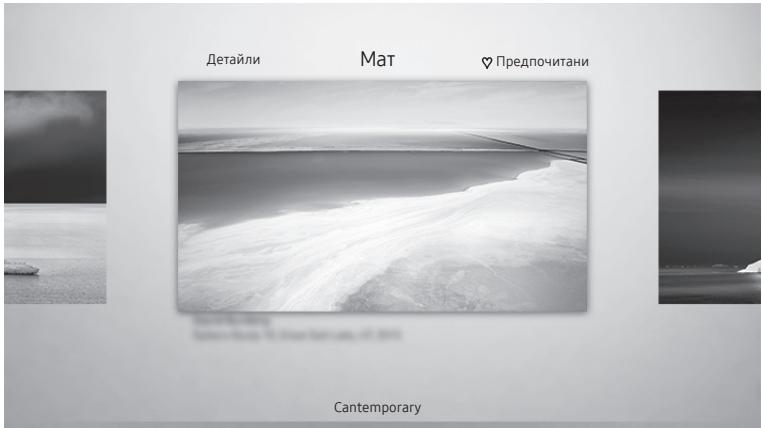
- I3o6paJaeHnTo Ha TeIeBn3Opa MoJc Ja ce pa3JIuYaBa OT NOKa3aHOTo NO-rope B 3aBnCmOCT OT MOneJa n reOrpaΦckn pyrnoH.
I3noJI3BaIte 6yToHInTe cbc StpeNkn Ha ndctaHcNoHHoTo ynpabLeHne, 3a da OTnDeTe Ha OnuN oTrope Ha ekpaHa. MoKTe Da n3noJI3BaTe cIeDnHte MeHOTa:
- DeTaIaN
Mokete da hamepinte noBee uHΦopMaζη 3a u3o6paJxéHneTo.
Mat
Mozete da npinloxite pa3nunu n ctnlobe u zBeTOBE paMKn KbM n3o6paXeHnaTc cnopei npednoHTaHnra Tc.
- Праздочино
Mожete Да 3аадеTe (илд Да He 3aадeTe)npdpoHTaHO n3o6paJHne KaTo LIObIM eIeMeHT, KaTO hATINCHeTe 6byToHa N36epn HaДИCTaHcUHnHOTO ynpabJIeHne.Можete Да BnDITe CnICbK C eIeMeHTnte, KOnTO CTe 3aДALN KATO npdpoHTaHI, B MoTЯ KoJIeKzua > PpeDpoHTaHI.
- ΠpeДноЧТANO: He e 3aДeн kaTo ПpeДноЧТAN.
-преданоунно:зададен Като преданоуннон.
Ppnilarahe Ha cTnla Ha paMa Ka N CByT KbM n306paXeHne
- Използваite 6утонITE сбсстpeлки на дисанционно уnpавлени, за за OTидete на ИЗОБражениTo, чИТо STИн на рамka и цвг NTСКATEда поменITE, OTидete на Мат OTROpe Ha ekpaHa и посile habtchete 6утона ИЗбери.
- Изпольвашие 6byToHHTe cbc Stpeлки Ha дистанцioHHOTo ynpabLnEne, 3a за ИЗберete CTILA и CBeta ha paMKata, KONTOИСКаTe.
-
CmHeTe cTnla nCbeta Ha pamKaTa nHaTncHete 6yToHa IV36epn, 3a da npemeCTte Mapkepa Bbpxu N3o6paKeHHeTo.
-
Ako nckate da npomeHnte camo ctnla ha paMKata nnu beta, npomeHeTe ro n noCne haTnchete 6ytoHa N36epn, 3a da 3anaMeNTe npomeHnte.
-
3a da 3aapanMeTne n36paHn YCBRT n CTnHa paMkata, HATNCHeTe OTHO6yToHa N36epn.
-
Ako haTncheTe 6yToHa 3a n3XoD, CTnIbT n CBetbT Ha paMkata, KOINTO CTE CMeHInu, He ce 3apanamETraBt.
HactpoKaHapeKIMN3KycTBo
BpeKIM N3KycTBo n3IPOJI3BaIte 6yToHInTe cIc CTpeJIkn Ha IINCTaHcNIOHHOTO ynpabJIeHne, 3a da ce IpeMeCtnte Ha eIemEHTa OT MeHIO To HAcTpoIKn OToJy. MoKeTe da peryInpaTe CLeDnHte fynKcIIN:
LcBToBeH npKoCT
I3noJI3BaIte 6yToHInTe CbC CTpeKn Ha IINCTaHcNIOHHTO ynpabLeHne, 3a Da OTnIeTe Ha IpomHa otrope Ha ekpaHa, n HATncHete 6yToHa N36epn. Ha cIeDbaIg Ekpan perynpaIte ZBeta n JRPKOCTTa Ha kaptinHata. Cled KaTO n36epTe JeJALHTE NaCTPOkN, HATncHete 6yToHa N36epn Ha IINCTaHcNIOHHTO ynpabLHeHne.
- 3aДанасчрпгЕвдагаLьсевеияркocT,ДOKaTOce habлждавATEHa peЖIMИЗКуctBO,HaTNCHETe 6byToHa HAnДиСТанцINHNOHToУnpabLHeHne.
3acnBaHe cIeI
Ako 3a onpeJeIeHTo BpeMe He ce yctaHOBn DvNKeHne OKOTo TeLeBn3Opa, TeLeBn3OpbT Ce n3KJIIOUBa ABTOMATNUHO. N3PON3BaIte 6yTOHnte CbC CTpeKN Ha dNCTaHcNoHHTo UnpaBNeHne, 3a da OTnDETe Ha rOpHnTe eIemEn. CneI KaTo I36epTe JekalHO To BpeMe, HATNCHeTe 6yToHa I36epn Ha dNCTaHcNoHHTo UnpaBLeHne.
-Далаваяндаижени.
UyBCTBnTeJIHOCCTTHa yHKnIaTa Ha ceH3Opa 3a dNIXeHne MoKe Da cepeYnipa. N3no3BaIte 6yToHnTe CbC cTpeKn Ha nCTaHcUNOHnTO ynpAIBeHne, 3a da OTnDEte Ha rOpHnTe eIemEn. CneJ kato n36epTe JekHaHa Ta UyBCTBnTeJIHocT, HATNCHEte 6yToHa N36epn Ha nDcTaNIOHnTO ynpAIBeHne.
Night Mode
Korato fynkuzeta e BkLoohe, teLeBn3OpbTe Ce n3knOuBa ABTomaTnH0, aKO OKoJIo Hero He 6bJe OTuTeHOOCBtIeHne. I3noI3BaIte 6yToHnte cbc CtpelKn Ha ndTaHcUHOHOTO ynpabIeHne, 3a da ce npemectHe ha rohpHnte enementn i nocNe n3knOuTe nn BkLooTe Ta3N fynKzua.
Ipemaxbahe Ha n3o6paXeHnO t MoTa kOleKcIa
Mokete da npemaxbate 3aapanu Hn 306paXeHn oT MoTa kOleKcua.
1.ИЗПОЛЗВаITE 6уTOHITe CBС CTpeLКи HAДИСТAHCUHNOHOTO ynpaBNeHne,3aДа OТиDEte Ha MoЯТа кОLEKцЯ.
2.Изпольваite 6byToHnTe cbc StpeKn HaДиStaHcHOnHnTO ynpaBHeHne,3a Da OTuJeTe HaПpeДночтани Ил МоITE ChmMkn.
3.Изпольваite 6утонITE CBС CTpeлки Ha Дистанционно упавлиен,За за OTидete Ha Onци OTrope Ha ekpaHa.
4. Ппеместete Маркера на Мхи и посте натуншете 6утона ИЗберни достанционноу npравлени.
5.Изпольвашие 6утонITE сбс CTpeлки Ha діstанционноу упраьенne,за за отundete Ha ИЗОБражени,п пося натус悔ete 6утона ИЗбери.
-
MojkeTe Da n36epeTe HЯколko n3o6paJxehn.
-
Използвашие 6утонITE сбс CTpeлки Н дистанционно упраьени, за да OTидete Ha Премaxbahe Ha ИзбразнITE otrope на ekрара, И натушete 6утона Избери.
- Hatachete He 3aapb8Ke 3a pblno n3kIIOuBaHe Ha TeleBn30pa.

(6yToH Homep)
Пинатиcke Heпяьявцфрова lenta otdoIy ha ekpaHa.Изберete zuфprn И сеД тoba ИЗберete ГотоBO, 3a Да ВьБeDETe zuфpoBa CTоHocT. Изпальт, Ze Да СмЕнITE KaHana, BьБeDETe PIN nIIZ ZIP kOД n.T.H.
Korato ce hatnche 3a1 cekynda nIIOBueye,ce noRBA meHIO TTX.
U36epn
Избира Или старпра Маркіран elenement. Пи ratиcaн, дokato rleate Ильчына nporpama, ce порьва порбна Информача за nporpa мatura.

(Bpbuane)
Bpbua KbM npeduHOTo MeHIO. Korato ce HATNCHe 3a1 cekyHda nIIN NOBEue, pa6oteaata fynkunia cnnpa. PnHATNCKaHe,doKATO rIeIaTe nporpama, ceNoBBA npeduHnIaT KaHaI.

(Bb3pnon3Bewkdahe/Phay3a)
07 CBbp3BaHe KbM Mpeka
Cbbp3BaHeTo Ha TeleBn3Opa KbM Mpeka Bn DaBa DoocTbN Do OHnaH ycnyr, HapnpMeP Smart Hub, KaKTo Ndo akTyaln3aunn Ha coΦTyepa.
MpekoBa Bpb3ka - 6e3knuHa
CbpxeTe TeIeBn3opa KbM INHTepHET, KaTo I3NoI3BaTe CTAHdApTHa TOka 3a DOCTbn NII MOnem.
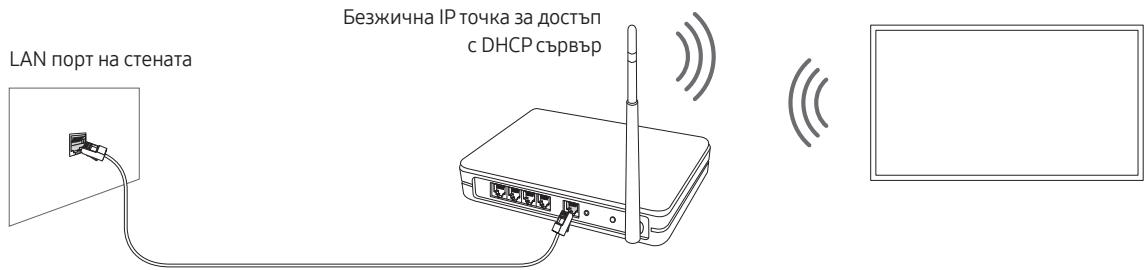
LAN Ka6eJ (He e BkIIOueH)
MpekoBa Bpb3ka - ka6eHa
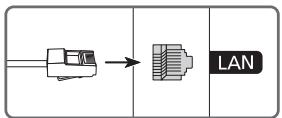
CbpxkTe TeIeBn3opa cn KbM BaIaTa mpeka Upe3 LAN Ka6en.
- TeLeBn3OpbT HЯMaДа ce CBbPxe C INHTepHeT, aKO cKOpocTtHa MpeXkata Bn e noiD 10 Mbps.
-
3a Bpb3kata n3no3BaIte ka6e Cat 7 (TnI *STP).
-
Shielded Twisted Pair
08 OTeTpaHЯBaHe Ha Heu3PpABHocTn I POpIrpbXka
OTCTpaHЯBaHe Ha HeN3npaBHOCTn
Ako n3rIeJka, ye TeIeBn3OpbT Ima npo6JIeM, nbpBO npereJaTe To3N cCnCSbK C Bb3MoKHN npo6JIeMn peWeHn. Dpyr hauH e Da npereJaTe pa3dela 3a OTcPraHBaHe Ha Heu3npaBHOCTN B eJeKtpOHNOTo pBkoBOdCTBO. Ako HTO eINH OT cBbETIne 3a OTcPraHBaHe Ha Heu3npaBHOCTN, HAnCaHn Tuk, He MoKe da 6bJe npINOxKeH, nocetete cTpaHncaTa "www.samsung.com"и сLed TOBa UppaKaHte BbPxY "IodpBxKa", IINI ce CBpKxeTe cBc cepBn3HnI ueHTbp Ha Samsung ot cNcsbKa ha noCneDHaTc PraHnca Ha TOBa pBkoBOdCTBO.
To3n TFT LED naneIe ce c6ctOu OT cy6nnKcEi, 3a queto npou3BOoCTBO e Heo6xoJMa cnoJHa texHoiogna. Bbnpekn ToBa Ha ekpaHa moKe da Ima HraKoIc CBetIIN nn TbMn nn KcEla. Te3n nnKcEIn Hma da noBnJaT ha KaueCTBOTo Ha pa60Ta Ha npOdykta.
3a da noДьржATE TeleBn3Opa CN B ONTmAlH O cbCToHne, HAnCTpoIte Do HaN-HOBnCoΦTyep. ⅢpoI3BaIte fynKcUnITE AkTuAIn3InpaHe cera nI IN ABTomAtuH o AKTuAIn3InpaHe OT MeHIO To Ha TeleBn3Opa ( > HacToPoIKN > POnDpBxKKa > AkTuAIn3InpaHe h CoΦTyep > AkTuAIn3InpaHe cera nI IN ABTomAtuH o AkTuAIn3InpaHe).
TeVeBn3OpbT He NsKa Da Ce BkJIIOuN.
- Ybepete ce, ye ka6eJIbT 3a npomEnIb TOK e BkIIOUeH 3dpaB O One Connect n KohtakTa.
- YBepTe Ce, Ye eIeKtpnuecknT KOHTaKT pa6OTn Uye INDnKaTOpBT 3a 3axpaHbAne OTdOly Ha TeIeBn3Opa CBETN HENpeKbCHaTO B cepBeHO.
- OnintaIte da hataChete 6yToHa KoHTpOJIep Ha TeJIeBn3Opa OTdoLy Ha TeJIeBn3Opa, 3a da ce yBepnte, Ye npo6JIembT He e B dInctaHcIOHHOT OynpaBJIeHne. Ako TeJIeBn3OpbT Ce BKJIouN, BK. "IinCTaHcIOHHOT ynpaBJIeHne He pa6OT".
HЯма KapTUHa/BnIeO/3Byk nII KapTuHaTa/BnIeOTo/3ByKbT OT BbHShO yCTpoiCTBO Ca n3KpNBHeN, nII Na TeJIeBn3Opa e pOKa3aHo "Cna6 nII NnKaKbB CnIHaJ", nII He MoJce da 6bJe Hamepeh KaHaI.
- Поберета далс CBьрзовeto кьм устороството e npавилно и далс BCИчк Кабел с вклочендокрай.
- I3BaIeTe n CbPKeTe IOBTOPOHO BcUChKn CbP3aHn Ka6eN KbM TeLeBUN3Opa N BbHNHTe yCTpOJCTBa. Ako e Bb3MOxH0, ONITaIe Tc HOBN Ka6eN.
- Пюверете дално визбразионьхденинизточник (Източник).
- PycnheTc CamoDnarHocTnKa Ha TeJeBn3Opa, 3a Da pa36epTe daJI np6IeMbTe npuHHeN OT TeJeBn3Opa, nIOnOT yCTpoiCtBOTo ( > HacTroPouKn > POnpBjKka > CamoDnarHocTnKa > HaayAoHa Tect Ha kaptNaTa IJn HauJoHa Tect Ha 3Byka).
- Ako pezyntaTnte OTe TceTa c HopMaIHH, pectaptnaIte Cbbp3aHnte yctpoiCTBa, kato n3KlHouHte 3axpaHbaunia Ka6eJI Ha BCaKO OT TEx I Go BKJIIOUHTe OTHOBO. Ako npo6JeMbt He n3ye3He, HApPaBeTcnpabKa C HanbTCTBnTA 3a CbP3BaHe B PbKOBoCTBOTo 3a NOTpe6nteJHa CbP3aHOTO yCTPOICTBO.
- Ako He I3noI3BaTe Ka6eHna IIIN CaTeIInTHa npIcTAbKa IN TeIeBnIOpbT pIpeMa CnHaII ON aHTeHEn IIIN Ka6eHn KoHeKToP Ha CTeHata, CTapTnpaiTe ABTOHAcTpoJa YecToTA, 3a Da Tbpcnte KaHAn (HacTpoKn > N3lbUbaHene > (HacTpoKn 3a ABTOHAcTpoJa YecToTA) > ABTOHAcTpoJa YecToTA).
Bb3moKHOe HAcToPouKn 3a ABToHAcTpoNka YecToTa Da He Ce NpOBn B 3aBVCIMoCT OT MoJeLa nnreorpaΦcKN perNoH.
- Ako n3noI3BaTe Ka6eJIHa nnCateJIInTHa npIcTAbKa, HApPabTe CnpaBka B CbOTBeHTHe m pKoBOJCTBa.
Cl+He pa6oTn.
- Baшсят телевизор Samsung отrosьара на сандартente Cl+1.4.
BcnyaeyMoynbTCl+Common Interface He e cbbmecTm C TOBa yctpoiCTBO,IN3BaJeTe Moyna n ce cbbpjxete CCI+ onepaTopa 3a nomo.
HactpoynKeHa TeleBn3opa ce 3ary6BaT cIeI 5 MInHyTN.
- Teilebni3opbTe bpexim Pexim 3a mara3HH. Cmehe Tpexim Ha n3noJI3BaHe B meHIOTo O6uHa DomaWepe xim (Hactpoyn > O6u> Incneep H a cncTeMaTa > Pexim Ha n3noJI3BaHe > DomaWeH pexim).
Wi-Fi e c npkekbcbHnra
-УBEReTeCe,ЧeТeLEBn3OpbTe cBbP3aH cMpejata (HAcTpoiKn>06uN>Mpejxa>CbCToHneHa MPeJATA).
- Поверете далу napола за Wi-Fi вьveдана павилно.
- Поберете растаянно мжду телевизори и мдема плп точката за достьп. Рабтойно He Трабба на с пооче OT 15,2 m.
- HamaIate cMyuIeHnIa, kato He n3Pon3BaTe IINn N3KJIuOHTe dpyrInte 6e3JNCHyCTpoIcTbA. CbIto TaKe ce yBepTe, ye mexkdy TeJeBn3Opa n MoIema nIIN TockTa 3a DoCTbN hMa npeIaTCTBn. (Cunlata Ha Wi-Fi MOKeJa 6bJeNoHNKeHa OT UpeNi, 6e3JNCHN TeneΦOnH, KaMeHHn CTehN/KaMHn N dp.)
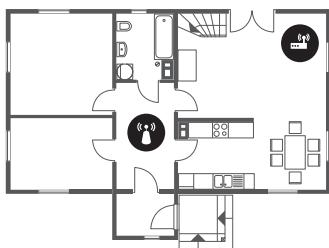
Eduh etax

HЯковоетажа

БeЗЖИЧАТОЧКаЗДОCTВП

Бezдуен nobToPteI
- Cbpxkete ce c nHTepHET doctabuNka cn Ha nHTepHET ycIytn I nonckaIte da pectapTnpa MpexOBn Bn kOHTyp, 3a da ce pernctpnP aHaHOBO MAC aIpcnte Ha HOBN Bu MoEm Nll TocKa 3a DoCTbN TeLeBn30pa.
ПюбLEMи с пиложеня за вдю (Youtube u np.)
- Поменетe DNS ha 8.8.8.8. Изберete > Hac troйи > O6и > Мржа > Cьстяне ha мржатa > IP hactp. > DNS hactp. > Рыно Вьеведе > DNS сьрвьр > Вьеведeу 8.8.8.8 > OK.
- PecaptnpaTe, kaTo n36epTe > Hactpoyni> PoDpBxka > CamOdnarHocTnka > HyInpaHe ha Smart Hub.
TeJIeBn3OpbT OCTaba BkIIOueH IIN He Ce BkJIIOUyBa aBTOMaTHUHO.
- Ako okolnoto ocBteIeHne e Tbpe cIa6o nIu Tbpe cIuIHO, ceH3OpBT 3a DnBxKHeMoJe da He pa6OTn HopMaIHo. KaueCTBOTo Ha pa6Ota Ha ceH3OpBT 3a DnBxKHeMoJe da Ce NOBIIre OT CpeDaTa Ha MOHTnpaHe (BncoUHa, NaKIoH, npEpyTcTBn). Ako dpexNt, KOnTO HocNt, IInu CBeTbT Ha KOxAta Bn e CXOden C OKOLHnte ZBeTOBE, ceH3OpBT 3a DnBxKHeMoJe da He pa6OTn PpaBnIHO.
- TeLeBn3OpbT pearnpa Ha BCNUKn Bn3yaJIHn npomeHn OKoIHO hero (cBETNIHN, DncJIeN, KUHeTa, npomeHn ppe3 npO3opeua n dpyrnu ycNoBna). MoKeTe da peryInpaTe HnBOTo ha pearnpaHe, KaTo peryInpaTe yBCTBnTEJIHoCTTa Ha ceH3Opa 3a dBiJxKeHne.
HEVCAdvance ™ Covered by Patents at patentlist.hevcadvance.com
HOMI
HIGH-DEFINITION MULTIMEDIA INTERFACE
The terms HDMI and HDMI High-Definition Multimedia Interface, and the HDMI Logo are trademarks or registered trademarks of HDMI Licensing LLC in the United States and other countries.
Ppenopbka -camo 3a EC
CE
HEVCAdvance ™ Covered by Patents at patentlist.hevcadvance.com
HOMI
HIGH-DEFINITION MULTIMEDIA INTERFACE
The terms HDMI and HDMI High-Definition Multimedia Interface, and the HDMI Logo are trademarks or registered trademarks of HDMI Licensing LLC in the United States and other countries.
Preporuka - samo za EU
CE
Tvrtka Samsung Electronics ovime izjavljuje kako je ova oprema u skladu s Direktivom 2014/53/EU.
Cjelokupan tekst EU izjave o sukladnosti dostupan je na sljedećoj internetskoj adresi: http://www.samsung.com odaberite Podrška > Potraži podršku i unesite naziv modela.
Ova se oprema smije koristiti u svim državama EU-a.
Funkcija WLAN(Wi-Fi) od 5 GHz ove opreme moze se koristiti samo u zatvorenim prostorima.
BT maks. snaga odašiljača: 100 mW pri 2,4GHz - 2,4835 GHz
Wi-Fi maks. snaga odašiljača: 100 mW pri 2,4 GHz - 2,4835 GHz, 5,15 GHz - 5,35 GHz & 5,47 GHz - 5,725 GHz
Informacije o obvezama tvrtke Samsung u vezi s okolišem i regulatornim obvezama specificnim za uredağ, npr. REACH, WEEE ili onima o baterijama, potražite na adresi http://www.samsung.com/uk/aboutsamsung/samsungelectronics/corporatecitizenship/data-corner.html
UPOZORENJE - KAKO NE BI DOSLO DO POZARA, UVIJEK DRZITE SVJECE I DRUGE IZVORE OTVORENOG PLAMENA PODALJE OD UREDAJA.

Pravilno odlaganje ovog uredaja (otpadna elektricna & elektronicka oprema)
HEVCAdvance ™ Covered by Patents at patentlist.hevcadvance.com
HOMI
HIGH-DEFINITION MULTIMEDIA INTERFACE
The terms HDMI and HDMI High-Definition Multimedia Interface, and the HDMI Logo are trademarks or registered trademarks of HDMI Licensing LLC in the United States and other countries.
HEVCAdvance ™ Covered by Patents at patentlist.hevcadvance.com
HOMI
HIGH-DEFINITION MULTIMEDIA INTERFACE
The terms HDMI and HDMI High-Definition Multimedia Interface, and the HDMI Logo are trademarks or registered trademarks of HDMI Licensing LLC in the United States and other countries.
HEVCAdvance ™ Covered by Patents at patentlist.hevcadvance.com

HIGH-DEFINITION MULTIMEDIA INTERFACE
The terms HDMI and HDMI High-Definition Multimedia Interface, and the HDMI Logo are trademarks or registered trademarks of HDMI Licensing LLC in the United States and other countries.
LASERSKI UREDAJ KLASE 1 (One Invisible Connection)
HEVCAdvance ™ Covered by Patents at patentlist.hevcadvance.com
HOMI
HIGH-DEFINITION MULTIMEDIA INTERFACE
The terms HDMI and HDMI High-Definition Multimedia Interface, and the HDMI Logo are trademarks or registered trademarks of HDMI Licensing LLC in the United States and other countries.
Preporuka - samo za EU
CE
Ovim putem kompanija Samsung Electronics izjavljue da je ova oprema usklaëdna sa direktivom 2014/53/EU. Celokupan tekst EU izjave o usklaëdenosti dostupan je na sledećoj internetskoj adresi: http://www.samsung.com izaberite „Podrška > Pretraži podršku za proizvod" iunesite naziv modela.
HEVCAdvance ™ Covered by Patents at patentlist.hevcadvance.com

HIGH-DEFINITION MULTIMEDIA INTERFERENCE
The terms HDMI and HDMI High-Definition Multimedia Interface, and the HDMI Logo are trademarks or registered trademarks of HDMI Licensing LLC in the United States and other countries.
Rekomandim - vetem per BE-né
CE
AaTep 3a MoHTnpaHbE Ha SnD
- Bojataи oblinikot ha npeДmetite може да се pa3nykyaat BO 3aBnCHOCT OД moJeIte.
Ka6nIte kon He ce nCnpaUyBaAT MoKaT da Ce Kynat OndeHNO. - Поберете дали Има скрина галантейда зд по во пakуbaьeto кога ke ja отворпесукту的对象。
Moxho e da Bn HapnaTat DOpONHHTeJHO BO CneDHNTe CNTyaun:
(a) Ako noBnKaTe nHKeHep, Ho He e npOHaJdE DeΦeKT Ha npOn3BoIoT (T.e., BO cIyuaJ KOra He cTe ro npOHTane npRpaunHKoT 3a KopncTeHe).
(b) Ako ro odhece Te ypeIOT BO cepBcH eHTap Ha Samsung, kaJe wTo Ke ce yTbprn deKa Hema deΦeKT Ha npOn3BODOT (T.e., BO clyuj Kora He CTe ro npOHTaJIe npRuPAHNIKOT 3a KopINCTeHe).
Ipei Da Be Nocetu Texnukoto liue, Ke 6nTe n3BcTeHN 3a cyMaTa Ha aDMNHCTpaTbHNTe TPOJOUoN.

- DeTeKToP Ha nBnJxKeHe
UyBCTBnTeHIOCTa Ha DeTEKTopOT 3a DvNKeHb Ma Moje Da ce npilafoi. NckopncTeTe rKoPunHbata 3a Hacoka Ha daJeunHcKnOT ynpabYbau 3a Da ro NomeCTte O3NaUbHeTo Bp3 onCInTe nOrope. Otkako ke ja I36epete cakahata UyBCTBnTeHIOCT, npntncHeTo ro KOnyeTo I36epeTe Ha daJeunHcKnOT ynpabYbau.
Night Mode
Kora obaa fynkunja e BknyeHa, TeleBn3OpOT ce NckluyBa aTOMaTCKN IOKoIky ToJ He OTKpne CBeTlnHa OKoIy Hero. NckopncTe Tn KOnuHbTa 3a Hacoka Ha daleuHcKnOT ynpabYbua 3a da Tn Pnomctnte O3NaUyBaHeTo Bp3 oIcuNTe nOrope, a nOToa BknyeTe ja nn NckLyte je oBaa fynKznaJa.
Otctpahe Te cNIkn oJ Moja KoIekunja
Mozete da ng otctpaHnte 3aUyBaHnte cInkn oJ Moja koJeKunja.
- NcKOpncTeTgN KOnuHbata 3a HAcOka Ha daJeunHcknOT ynpabByBaY 3a Da npemHeTe BO Moja KoIekznaJa.
2.Искорисе Ги КОПЧИБАТа 3a HAcOka Ha ДалЕчнСКnot упраВьач 3a Да пренит eHa ФункциJaTа Oмлели Или Мон Фотографи. - NcKOpncTeTe rN KOJIHbata 3a HAcOka Ha dJIeUHcKnOT yIpaBvBauch 3a da npemHeTe BO OIcII BOr TropHnOt DeI Ha ekpaHot.
4.ПомecteTe ro 03haUbaHbeTo Bp3 OToTpaHn,a notoa npitncheTe ro konueTo N36epeTe Ha danleuHcknOt ynpaByBaH. -
NcKOpncTeTe rN KOChHbTa 3a HacOka Ha daleuHcknOt ynpabYBauch 3a da ro nomeCTte O3HaCyBaBeTo BP3 Hekoja cIInKa, a noToa npntchete ro konyeTo I36epete.
-
Moze da n36epete noBeke cnilkn.
6.Искорисе Ги КОПЧИБАТа 3a HAcOka Ha ДалЕЧИСКNot управьч 3a Да примнeTe Ha onциJAТа Острави Ги ИЗбарно BO ropHNot DeI Ha ekpaHOT, a noToa npintuCheTe ro Konqueto ИЗбepete.
Kopinstehe Ha pejximot Ymetnoct co apnkaunjata SmartThings
Отakо ке ѳинсталпате anecdлкада SmartThings bo вашно Тобилен урд, ке можete за Ги Кориспеслдппсфункци:
Алликацьа SmartThings може за ѳ праземete od Google Play Store, Samsung Apps улл App Store.
LTo npetctabyBa Remote Support?
Ycnyrata Remote Support od Samsung Bn hydn noDprka liue-BO-liue co texnnap od Samsung koj moxe daJeunckn da BV nomorhe:
-ДиJaTHeOCTnKaHaBaSInOTeJIeBn3Op
- Пилагувае на постува对接а на Телегизорот HaMeCTO BaC
- Pecetupahe Na Baunot TeleBn3Op Ha abpnuKu BpeHocTn
-ИнсталраиеHa npenopauанaЖурupaьаHa Фпмверот
Kako yHKnCuOnHa Remote Support?
Ппстanie до услгату Remote Support od Samsung за вшиот телевиор на сдноctавен Наун:
- Jabete ce Bo cepBnCHno TcHap Ha Samsung n no6apajTe daJeuHsKa noDprka.
- OTBOPeTe ro MeHTo Ha BaIInOT TeJIeBn3Op n OJeTe Bo JeIot 3a POnApShka. (O> PocTaByBaHe > POnDprShka)
- N36epete DalaeeHcKO ynpaByBaHe, a notoa npoHTajTe rH u corlaCe ce co dOrOBopnte Ha ycLyraT. Kora Ke ce nojabn ekpaHot 3a PIN, kajete My ro PIN 6pojot ha texHHapOT.
- ItoTaTexHnUapOt Ke npuCTaHa BaAinot TeJeBn3Op.
Eko ceH3Op n OCBetIeHocT ha ekpaHOT
ФункцидаЕкocсentоравTomatckn ja npinlaоуваocbetлесот ha TelebeN3opot.Оьафункциja ja мери CBETlnHaTo BO bawata coba n abTomatckn ja onTmMn3npa ocBetlneHOCTa ha TelebeN3opot 3a ja haMaIIN NOTPOswBaUkata ha eHepriJa.Ako caKaTe da ja ncknyuHte OBaOnuJa, OdeTe Bo >ПocTabyBaHe> OnшTO>Eko peшенe>OTkpnbAbe am6nENTalHa CBETlinHa.
- Ako ekpaHOT e npemHORY temeHdoIeKa rIeIaTe TeIeBUNa JBO TEMHO ONKpyKByBaHe, 3a Toa MoKe da 6nJe OndroBOpHa fynKcunjata OTKpnbAbe ambneHTaHa CBetTnHa.
- Eko ceh3opot ce haofa ha doJHaTc stpaHa ha TeleBn3opOT. He ro 6loKupajte ceh3opot co kaKbN 6nI npedmetn. Oba moKe da npeDn3Bnka hamanyBaHc Ha OCBeTneHocTa Ha cnKaTata.
Гржka 3a TeleBn3OpOT
- Ako ha TB ekpanot 6nla 3aIeneHa HeKoJa HalaenHua, Ha Toa MeCTO MoKe Da ce nojabat HeuNCTOTn OTKaKO Ke ja OTcPaHnTe HalaENHnCata. Be MOJIme NcUHTe Tn HeuNCTOTnTE nped da 3aNoCHte Da rIeDaTe TeLeBnJa.
- HaIbOpeuHnOt DeI n ekpaHOT Ha TeIeBn3OpOT MoKe Ja Ce n3rpe6at npn YncTeHbe. He 3a6opabajTe BnImaTeJHo Da ro n36pniWeTe HaIbOpeuHnOt DeI n ekpaHOT Co MeKa KpNa 3a Da He HaIpaBIne rpe6HaTUnHn.
- He npckajte Boa nIи KaKBa 6nIo TeuHoc TnpeKTHo Ha TeJeBn3OpOT. Cekoja TeuHoc KoJa Ke HabIe3e Bo npOn3BoDoT MoKe Da npEdn3BnKa HeNCnPabHocT, Noxap nIи eNeKtpnueH ydap.
3a da ro ucsnnte ekpanot Tpe6a da ro nckluynte Telebnzopot, a notoa BHNMaTeJIHO da rN n36pnWte DaMKnTe N OTneuatoiTe Od npCTn Ha ekpanOT co TkaehnHa oMnkpoΦn6ep. Ncunctete ja HndBopewHocTa ha TelenBn3OpOT mNn ekpanOT co MeKa TkaehnHa oMnkpoΦn6ep HAToneHa co MaNo KOInueCTBO Ha BOda. Notoa, oTcpanHe ja BnAraTa co cyBa TkaehnHa. He ynpontpe6ybajTe rOlemacnila Bp3 NobpUnHa ta ekpanOT 3a Bpeme Ha cInCTbeTo 6ndejKn Taka MOnkTe da rO owTeNTe ekpanOT. Hnkoraush he KopncTe 3aapanBn TeuHocTsi (6en3eH, pa3peDyBauchn.) nIi CpeDCTBO 3a ChnCteHBe. 3a TBpdoKOpHn DAMKn, INcpckajTe mALo KOnUeCTBO cpeDCTBO 3a ChnCteHbe ekpanHa TkaehnHa oMnkpoΦn6ep, a notoa n36pnWte rN DAMKNTE CO TkaehnHaTa.
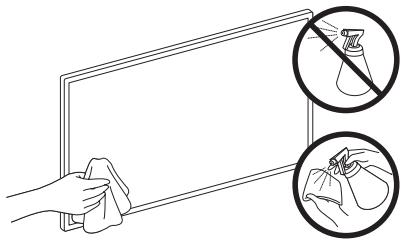
09 Cpeunokauu n npynnHopmaun
CpeunΦnKaun
| Име на м odeел | QE43LS03R | QE49LS03R |
| Рezолуцija на ekpanот | 3840 x 2160 | 3840 x 2160 |
| Гolemina на ekpane | 43 Инч | 49 Инч |
| Мерен дожагонално | 108 cm | 123 cm |
| Звк (иztileз) | 20 W | 20 W |
| Димензий (Ш x В x Д) | ||
| Тelo | 966,6 x 556,8 x 42,5 mm | 1099,2 x 631,4 x 45,8 mm |
| Со дожач | 966,6 x 599,8 x 200,0 mm | 1099,2 x 674,3 x 200,0 mm |
| Текина | ||
| Бezдржач | 11,5 kg | 14,1 kg |
| Со дожач | 12,0 kg | 14,6 kg |
| Име на м odeел | QE55LS03R | QE65LS03R |
| Рezолуцija на ekpanот | 3840 x 2160 | 3840 x 2160 |
| Гolemina на ekpane | 55 Инч | 65 Инч |
| Мер的效果дожагонално | 138 cm | 163 cm |
| Звк (иztileз) | 40 W | 40 W |
| Димензий (Ш x В x Д) | ||
| Тelo | 1235,0 x 707,8 x 42,5 mm | 1453,9 x 830,9 x 42,5 mm |
| Со дожач | 1235,0 x 750,7 x 200,0 mm | 1453,9 x 875,5 x 294,0 mm |
| Текина | ||
| Бezдржач | 18,9 kg | 25,7 kg |
| Со дожач | 19,4 kg | 26,5 kg |
YcNoBn 3a 3aWtnta OJ ONKpyKyBaHbeto
| РабOTна Temпература | 10°C до 40°C (50°F до 104°F) |
| РабOTна Влajхност | 10% до 80%, 6e3 кондэнзашиja |
| Temпература на чуваьe | -20°C до 45°C (-4°F до 113°F) |
| Влajхност на чуваьe | 5% до 95%, 6e3 кондэнзашиja |
-Дизajhotиспeцификадитeme moжатабидатпоменетибe3претхоюизвecуbahe.
- 3a noBeke nHΦopMaζηn 3a hanojyBaHéTo n ΠoTpoUyBaUkKaTa ha eHeprNiJa, nOgIeIhete ja hAneHnIzata co nOdaTOuz 3aJIepeHa npOn3BOIoT.
TinuHaTa NtpoUyBaUka Ha eHeprJa ce Mepi cNopeI EC 62087.
- IorneHeTe ja haneHncaTa co noaToOn ce Haofa Ha doHaTa ctpaHa Ha One Connect.
- IorneHte ja HaneHncaTa co noaToOn ce HaoraHa 3aHaTcpaHa Na TeleBnOpor. (Kaj heKoMoei, HaneHncaTa co noaToOn ce HaoraHa BHaTpeWHaTa cTpaHa Kaapanok 3a npnkUOoi.)
Hama lyBaHe Ha nToPoShyBaUkKaTa Ha eHeprNiJa
Kora ke ro nckluynte TeleBn3OpOT, toj npeminyBa BO pekIM Ha noIroTbeHocT. Kora e BO pekIM Ha noIroTBeHocT, npodoljkyBa Da TpoSh Majo KoInuCeTBo Ha eHeprJia. 3a da ja haMaJIte IotpoUyBaYkata Ha eHeprJia, nckluyte ro Ka6eIot 3a HanojyBaHbE kora He PnaHnpate Da ro KopIcTne TeleBn3OpOT noIodJIg BpeMeHcN nepNoD.
JIuueHcN
POWERED BY
DOLBY AUDIO
QUICKSET
rovi guide
HEVCAvance ™ Covered by Patents at patentlist.hevcadvance.com
HOMI ™
The terms HDMI and HDMI High-Definition Multimedia Interface, and the HDMI Logo are trademarks or registered trademarks of HDMI Licensing LLC in the United States and other countries.
Пpenopaka-camo EY
CE
Co oba, Samsung Electronics, n3jabyba deka oba onpema e BO corlachoct co dinpektnbata 2014/53/EU.
Zeiochnot tekct ha deklapaunjata 3a ycorlacehoct od EY e doctanha ha cnehdata nHTephe aDpeca: http www.samsung.com, odeTe BO Pndrpka > Ppe6apyBaHe ha noDprpkka 3a npOn3BOD i BheceTe ro IMeTo Ha MOdeIOT.
Obaa onpema moKe da ce ynoTpe6yBa BO cnte npkabn Ha EY.
Функцида за 5 GHz WLAN(Wi-Fi) на obaa onрема може за се корости само bo за Творец посторп. Марс. мокноct на пераавелот за BT: 100 mW пи 2,4 GHz - 2,4835 GHz
MaKc. MoKhoCt ha npEaBaTeIot 3a Wi-Fi: 100 mW npn 2,4 GHz-2,4835 GHz, 5,15 GHz-5,35 GHz & 5,47 GHz-5,725 GHz
HEVCAdvance ™ Covered by Patents at patentlist.hevcadvance.com
HOMI
The terms HDMI and HDMI High-Definition Multimedia Interface, and the HDMI Logo are trademarks or registered trademarks of HDMI Licensing LLC in the United States and other countries.
Priporočilo - samo EU
CE
Samsung Electronics izjavlja, da je ta oprema v skladu z direktivo 2014/53/EU.
HEVCAdvance ™ Covered by Patents at patentlist.hevcadvance.com
HBMI
HIGH-DEFINITION MULTIMEDIA INTERFACE
The terms HDMI and HDMI High-Definition Multimedia Interface, and the HDMI Logo are trademarks or registered trademarks of HDMI Licensing LLC in the United States and other countries.
leteikumi - tikai ES
CE
1 KLASES LAZERINIS GAMINYS (One Invisible Connection)
-
Démesio -atidarytas jrenqinys spinduliujoa nematoma lazerio spindulj. Neziúrekite j spindulj.
-
Per stipriai nelankstykite One Invisible Connection kabelio. Neperpjaukite kabelio.
-
Ant laido nedekite sunkiu daiktu.
-
Neisardykite jokiu kabeliu jungciu.
-
Lspejimas - naudojant kitus valdiklius, koreguojant ar atliekant proceduras kitaip, nei nurodytica, gali kilti pavojingos spinduliuotës poveikio pavojus.
HEVCAdvance ™ Covered by Patents at patentlist.hevcadvance.com
HOMI
HIGH-DEFINITION MULTIMEDIA INTERFACE
The terms HDMI and HDMI High-Definition Multimedia Interface, and the HDMI Logo are trademarks or registered trademarks of HDMI Licensing LLC in the United States and other countries.
Rekomendacija (tik ES)
CE
"Samsung Electronics" pareiskia, kad ši jranga atitinka direktyva 2014/53/ES.
Hoiatus! Olulised ohutussuinised 3
01 Mis on karbis?
One Invisible Connection
Seinakinnituse adapter

Kattekork
Kaablihoidik
KCLASS 1 LASERTOODE (One Invisible Connection)
HEVCAdvance ™ Covered by Patents at patentlist.hevcadvance.com
HOMI
The terms HDMI and HDMI High-Definition Multimedia Interface, and the HDMI Logo are trademarks or registered trademarks of HDMI Licensing LLC in the United States and other countries.
If you have any questions or comments relating to Samsung products, please contact the Samsung service centre.
| Country | Samsung Service Centre | Web Site |
| AUSTRIA | 0800 72 67 864 (0800-SAMSUNG) | www.samsung.com/at/support |
| BELGIUM | 02-201-24-18 | www.samsung.com/be/support (Dutch) www.samsung.com/be_fr/support (French) |
| BOSNIA | 055 233 999 | www.samsung.com/support |
| ALBANIA | 045 620 202 | www.samsung.com/al/support |
| BULGARIA | *3000 Βeна в мреката 0800 111 31, Беэлална телегонna линь | www.samsung.com/bg/support |
| CROATIA | 072 726 786 | www.samsung.com/hr/support |
| CZECH | 800 - SAMSUNG (800-726786) | www.samsung.com/cz/support |
| Samsung Electronics Czech and Slovak, s.r.o. V Parku 2323/14, 148 00 - Praha 4 | ||
| DENMARK | 707 019 70 | www.samsung.com/dk/support |
| FINLAND | 030-6227 515 | www.samsung.com/fi/support |
| FRANCE | 01 48 63 00 00 | www.samsung.com/fr/support |
| GERMANY | 06196 77 555 77 | www.samsung.com/de/support |
| CYPRUS | 8009 4000 only from landline, toll free | www.samsung.com/gr/support |
| GREECE | 80111-SAMSUNG (80111 726 7864) only from land line (+30) 210 6897691 from mobile and land line | |
| HUNGARY | 0680SAMSUNG (0680-726-7864) | www.samsung.com/hu/support |
| ITALIA | 800-SAMSUNG (800.7267864) | www.samsung.com/it/support |
| LUXEMBURG | 261 03 710 | www.samsung.com/be_fr/support |
| MONTENEGRO | 020 405 888 | www.samsung.com/support |
| SLOVENIA | 080 697 267 (brezplačna številka) | www.samsung.com/si/support |
| NETHERLANDS | 088 90 90 100 | www.samsung.com/nl/support |
| NORWAY | 21629099 | www.samsung.com/no/support |
| POLAND | 801-172-678* lub +48 22 607-93-33* * (optata wedlung taryfy operadora) | www.samsung.com/pl/support |
| PORTUGAL | 808 207 267 | www.samsung.com/pt/support |
| ROMANIA | *8000 (apel in retea) 08008-726-78-64 (08008-SAMSUNG) Apel Gratisuit Atentje: Dacă efectuţi apelul din rețeaua Digi (RCS/RDS), vă rugăm și ne contactuţi formânnd numărul Telverde fãră ultimele două cître, astfel: 0800872678. | www.samsung.com/ro/support |
| SERBIA | 011 321 6899 | www.samsung.com/rs/support |
| SLOVAKIA | 0800 - SAMSUNG (0800-726 786) | www.samsung.com/sk/support |
| SPAIN | 91175 00 15 | www.samsung.com/es/support |
| SWEDEN | 0771 726 786 | www.samsung.com/se/support |
| SWITZERLAND | 0800 726 78 64 (0800-SAMSUNG) | www.samsung.com/ch/support (German) www.samsung.com/ch_fr/support (French) |
| UK | 0330 SAMSUNG (7267864) | www.samsung.com/uk/support |
| IRELAND (EIRE) | 0818 717100 | www.samsung.com/ie/support |
| LITHUANIA | 8-800-77777 | www.samsung.com/lt/support |
| LATVIA | 8000-7267 | www.samsung.com/lv/support |
| ESTONIA | 800-7267 | www.samsung.com/ee/support |
| TURKEY | 444 77 11 | www.samsung.com/tr/support |