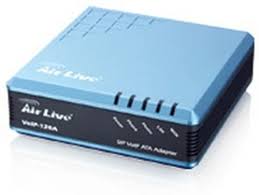
VOIP-120A - VoIP Phone AIRLIVE - Free user manual and instructions
Find the device manual for free VOIP-120A AIRLIVE in PDF.



| Product Type | VoIP Phone with Built-in ATA Adapter |
| Brand | AirLive |
| Model | VOIP-120A |
| Power Supply | 9V DC power adapter (not included in manual) |
| Network Ports | 1 LAN port 10/100M, 1 WAN port 10/100M |
| Phone Port | 1 RJ-11 port for analog phone |
| Supported SIP Accounts | Up to 3 accounts |
| Audio Codecs | Adjustable priority, VAD support |
| Phone Features | Call waiting, call pickup, 3-way conference |
| Default IP Address (LAN) | 192.168.100.1 |
| Default Subnet Mask | 255.255.255.0 |
| Default Username | airlive |
| Default Password | airlive |
| Default WAN Mode | DHCP client |
| Built-in DHCP Server | Yes, enabled by default |
| STUN Support | Yes, for operation behind NAT |
| LED Indicators | Power, PSTN (if present), Phone, LAN, WAN |
| Configuration | Web interface HTTP |
| Operating Temperature | 0°C to 40°C (estimate) |
| Weight | Approximately 0.5 kg (estimate) |
| Dimensions (L x W x H) | Approximately 15 x 10 x 4 cm (estimate) |
Frequently Asked Questions - VOIP-120A AIRLIVE
User questions about VOIP-120A AIRLIVE
0 question about this device. Answer the ones you know or ask your own.
Ask a new question about this device
Download the instructions for your VoIP Phone in PDF format for free! Find your manual VOIP-120A - AIRLIVE and take your electronic device back in hand. On this page are published all the documents necessary for the use of your device. VOIP-120A by AIRLIVE.
USER MANUAL VOIP-120A AIRLIVE
SIP VoIP ATA Adapter
Quick Setup Guide
Table of Contents
List of Languages
English 1 Magyar. 56
Česky. 11 Polski 65
Deutsch 20 Slovensky. 74
Eλληνικός……… 29
38
Italiano. 47
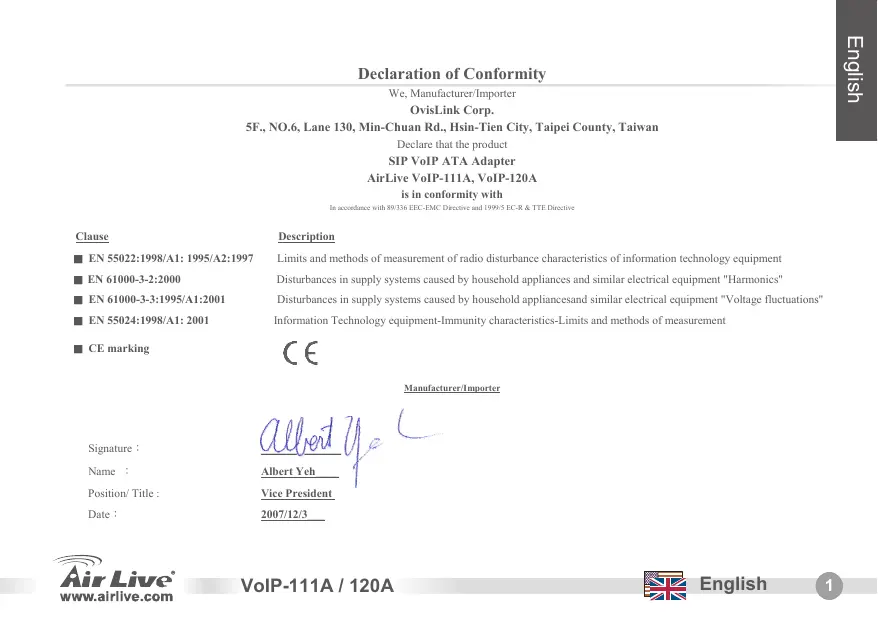
Declaration of Conformity
We, Manufacturer/Importer
OvisLink Corp.
5F., NO.6, Lane 130, Min-Chuan Rd., Hsin-Tien City, Taipei County, Taiwan
Declare that the product
SIP VoIP ATA Adapter
AirLive VoIP-111A, VoIP-120A
is in conformity with
In accordance with 89/336 EEC-EMC Directive and 1999/5 EC-R & TTE Directive
Clause
EN 55022:1998/A1:1995/A2:1997
EN 61000-3-2:2000
EN 61000-3-3:1995/A1:2001
EN 55024:1998/A1:2001
CE marking
Description
Limits and methods of measurement of radio disturbance characteristics of information technology equipment
Disturbances in supply systems caused by household appliances and similar electrical equipment "Harmonics"
Disturbances in supply systems caused by household appliances and similar electrical equipment "Voltage fluctuations"
Information Technology equipment-Immunity characteristics-Limits and methods of measurement

Manufacturer/Importer
Signature :
Name :
Position/ Title :
Date :

Albert Yeh
Vice President
2007/12/3

Note on the FCC standard
This equipment has been tested and found to comply with the limits for a Class B digital device pursuant to Part 15 of the FCC Rules. These limits are designed to provide reasonable protection against harmful interferences when the equipment is operating in a commercial area. This equipment generates, uses and may radiate radio frequency energy, and if not installed in accordance with the user guide, may cause interference in the transmission of radio communications. If operating in a residential area, it is probable this equipment will cause harmful interference, in which case the user will be required to try to correct this interference using his own means.
Note on CE Marking
This is a Class B product. In a residential area this product may cause radio interference, in which case the user can be required to take the appropriate measures. OvisLink Corp. hereby declares that AirLive VoIP-111A / 120A meets the basic requisites of directive 99/05/CE, and is therefore liable for the accuracy of these data:
OvisLink Corp.
5F, No.6 Lane 130
Min-Chuan Rd, Hsin-Tien City,
Taipei, Taiwan
TEL: +886-2-2218-6888
Warranties
This product has undergone various quality controls to ensure proper operation.
This product is covered by a two-year warranty for countries inside European Union. For other countries, the warranty period is one year only. In the event of any manufacturing fault or breakdown, it will be repair by OvisLink Corp. Please contact your supplier for details on the procedure to follow. This warranty shall not be applicable in the event of damage caused by improper use of the product, accidents, faulty handling or manipulation nor any future incompatibility with third party products.
Basic Information
Default Setting:
IP Address: 192.168.100.1
Subnet Mask: 255.255.255.0
User Name: airlive
Password: airlive
LED Indicators
| LED Indicator | Color | Status |
| Power | On | Power is applied to this device. |
| PSTN (VoIP-111A) | On | The PSTN is in use.(off-hook) |
| Off | The PSTN is idle (on-hook) | |
| Phone (VoIP-120A) | flash | The Phone is in use.(off-hook) |
| On | The Phone is idle.(on-hook) | |
| LAN 10/100M | On | LAN port is connected |
| Off | LAN port is not connected. | |
| WAN 10/100M | On | WAN port is connected. |
| Off | WAN port is not connected. |

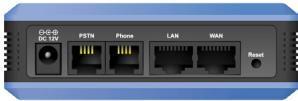


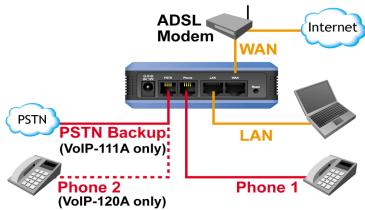
Hardware Installation
- Setup LAN connection: connect an Ethernet cable from ATA's LAN port to your computer's Ethernet port.
- Setup WAN connection: connect an ethernet cable from ATA's WAN port to your cable (xDSL) modem's ethernet port
- Setup Phone/PSTN connection: connect an RJ-11 cable from ATA's phone port to your analog phone or PSTN line.
Setup the ATA by the Web
- Please make sure your computer's network setting is DHCP mode (obtain IP address automatically).
- Connect the ATA's power and LAN cable on the back.
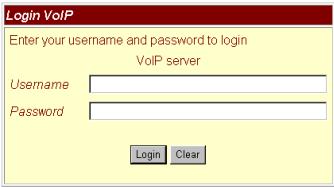
- Open your web browser and in the address field, input the following IP address "http://192.168.100.1":
Web Login
- Please input the username and password into the blank field, the default username is "airlive", and password is "airlive".
- Click the "Login" button will move into the web management page.
- If you change the setting in the Web Management interface, please do remember to click the "submit" button in this page. After finishing all the settings, please click the "Save" function on the left side and click the Reboot button.

http://192.168.100.1 (LAN Port's default IP)
System Information
When you login the web page, you can see the ATA current system information in this page.

System Information
This page illustrate the system related information
Model Name: VolP
Firmware Version: p_703201
Codec Version: Tue Feb 13 18:35:12 2007.
Network-WAN and LAN setting
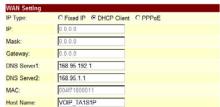
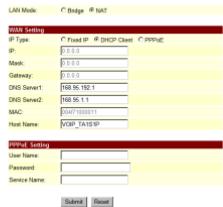
- The WAN port IP address is in DHCP client by default.
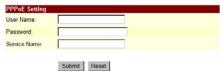
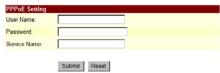
- If you change the WAN port's setting to Fix IP mode or PPPoE mode, then you have to make sure that all parameters are suitable for your current network environment.
- The LAN port's default IP address is 192.168.100.1. Default Mask is 255.255.255.0, and the DHCP server is enabled.

WAN Settings
You could configure the VAN settings in this page.
LAN Mode: C Bridge NAT
SIP Setting-Service domain
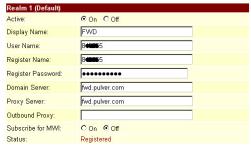
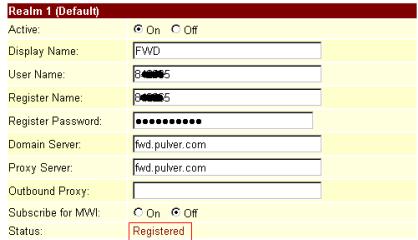
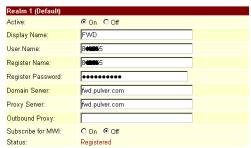
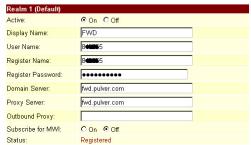
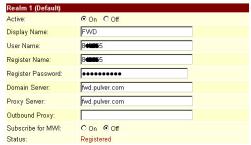
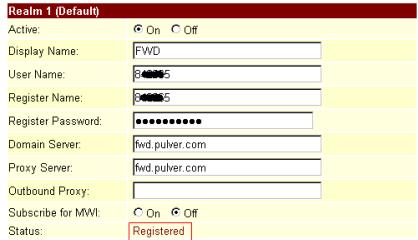
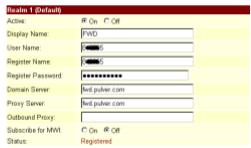
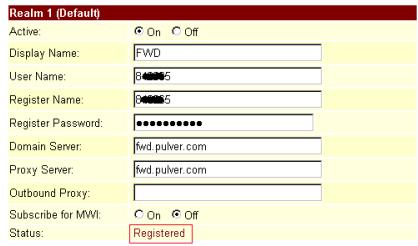
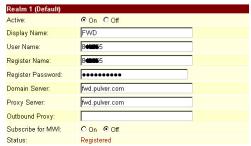
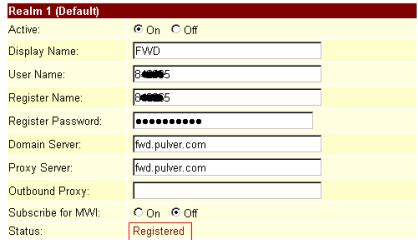
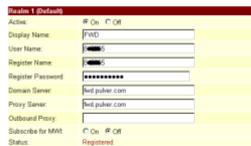
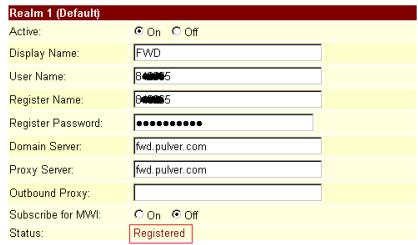
In Service Domain Function, you need to input the account and the related information in this page. Please refer to your ITSP (Internet Telephony Service Provider). You can register up to three SIP accounts in the ATA for mark or receive the phone call from three SIP accounts.
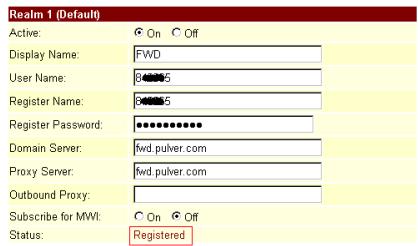
After the settings are done, you can see the Register Status in the Status item showing "Registered" — then you can make calls directly. When the settings are finished, please click the Submit button and Save Change item on the left side.
SIP setting-Codec setting
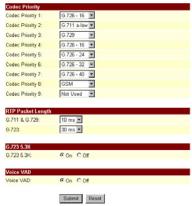
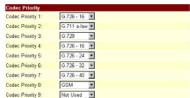
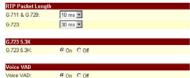
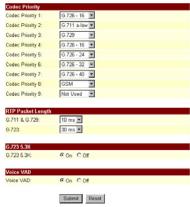
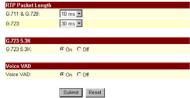
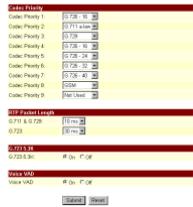
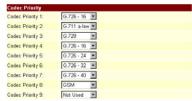
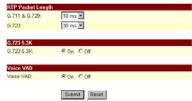
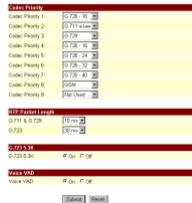
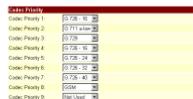
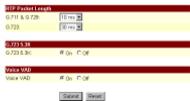
You can setup the codec priority, RTP packet length, and VAD function in this page. You need to follow the ITSP suggestion to setup these items. When you finish the setting, please click the Submit button and Save Change item on the left side.

Service Domain Settings
You could set information of service domains in this page.


Codec Settings
You could get the code settings in this page.
| Code Property 1 |
| Code Property 2 |
| Code Property 3 |
| Code Property 4 |
| Code Property 5 |
| Code Property 6 |
| Code Property 7 |
| Code Property 8 |
| Code Property 9 |
| Code Property 10 |
| Code Property 11 |
| IP Address | |
| 013 & 028 | 10m+23 |
| 0729 | 10m+32 |
| DNS | |
| 0.025.36 | |

NAT Trans-STUN setting
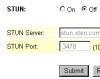
You can setup the STUN Enable/Disable and STUN Server address in this page. This function can help ATA working properly behind NAT. To change these settings please follow your ITSP information. When you have finished the setting, please click the Submit and Save Change button on the left side.

STUN Setting
You could set the IP of STUN server in this page.
STUN: COn @ Off
STUN Server: slun.x1en.com
STUNPar: 3478(1024-65535)
Submit
图
How to make a phone call
When the ATA is configured properly, you can make a phone call to your friend in the same Service provider. If you want to make a phone call, you can dial the phone number and press "#" button to start to dial the phone number.
The ATA also provides some function that list as below:
- Call Waiting: When a new call is coming while you are talking, you can push the Flash button to switch to the new call. You can push the Flash button to switch between the two calls.
- Call Hold: You can push the Hold key to hold the current call for a while, then push Hold key again to keep talking.
- 3-way conference: If you want to make 3-way conference call, you can make a phone call to the first phone number. After the call is established, push the Flash button then you can hear the Dial tone, then make a phone call to the second phone number. When the second call is established, press the Flash button again.
Supplement: Using FWD Free SIP Service
Note: OvsLink Corp. is not affiliated with FWD service. The ATA also works with majority of other SIP proxy services. The following instructions are for your own information only.
- Apply a FWD account at http://account2.freeworlddialup.com/index.php?section_id=94
- As shown below, fill in your personal information (First Name / Last Name / email ...), then click "Next" until all steps are finished.
Note: Please make sure that your email address is correct in order for you to receive the account support Information.
Here is the Quick Start Guide: http://www.freeworlddialup.com/help/?p=userguides
- After you have registered with the FWD, you will see the following confirmation message:
Sign UP
EndUser Registration:
Finalize Registration
Congratulations airlive, you are registered with FWD Number: 8^**321
Please fill in your profile here
- Go to ATA's service domain setting. Input the account and related information in this page. After completing all the settings, the Status field will show Registered — then you can make a call directly. (example: 613# for echo test) Note: if the ATA is working behind NAT, please enable the STUN setting.
Service Domain Settings
You could set information of service domains in this page.
Min-Chuan Rd, Hsin-Tien City,
Taipei, Taiwan
TEL: +886-2-2218-6888
Záruka
This page illustrate the system related information.
| Model Name: | VolP |
| Firmware Version: | 2.8/2001 |
| Codec: Version | Tux Fad 13 10 35 12 00 2017 |
Nastavení WAN a LAN
You could configure the VAN settings in this page.
| API Type: | C#F#de #P#DCH Class C# PPI#E |
| IP: | B 2.0.0 |
| Mask: | B 15.0 |
| Category: | B 1.0.0 |
| DNS Server: | 986 96.1021 |
| DNS Server2: | 06 95.11 |
| MAC: | 0007100011 |
| Host Name: | VOR 'TASSEP' |
| VLAN ID: setting | |
| User Name: | |
| Password: | |
| Source Name: | |
| Scenario | New |
Service Domain Settings
You could set information of service domains in this page.


Codec Settings
You could eat the codec settings in this page.
You could set the IP of STUN server in this page.
STUM:
C0n 00
STUN Server
stun.tian.com
STUN Part:
3478(1024-65535)
Submit
Rcsl
EndUser Registration:
Finalize Registration
Congratulations airlive, you are registered with FWD Number: 8^**321
Please fill in your profile here
- Zvolte sekci nastaveni Domain Service.
Zadejte učet aouvisejici informace. Po
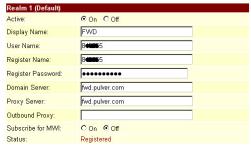
Service Domain Settings
You could set information of service domains in this page
| Realm 1 (Default) | |
| Active: | On Off |
| Display Name: | FWD |
| User Name: | 8456 |
| Register Name: | 84565 |
| Register Password: | ********** |
| Domain Sever: | fwd pulver.com |
| Proxy Server: | fwd pulver.com |
| Outbound Proxy: | |
| Subscribe for MWI: | On Off |
| Status: | Registered |
Min-Chuan Rd, Hsin-Tien City,
Taipei, Taiwan
TEL: +886-2-2218-6888
Garantiebestimmungen
This page illustrate the system related information
Model Name: VolP
Firmware Version: p_703201
Codec Version: Tue Feb 13 18:35:12 2007.
You could configure the WIAN settings in this page.
LAN Mode: C Bridge NAT
| Wild Coding | |
| IP Type | C Fixed IP C DHCP Class C PPPVE |
| IP | 6.1.2.0 |
| Mask: | 6.5.1.0 |
| Gateway: | 8.5.3.0 |
| DNS Server1 | RSB 192.1 |
| DNS Server2 | RSB 55.1.1 |
| MAC: | 0007100011 |
| Host Name: | WOR JASBP |
Service Domain Settings
You could set information of service domains in this page.


Codec Settings
You could get the code settings in this page.

You could set the IP of STUN server in this page.
STUN: COn @Off
STUN Server: stun.xlen.com
STUNPar: 3478(1024-65535)
Submit
Resort
Einen Anruf tätigen
Sign UP EndUser Registration: Finalize Registration Congratulations airlive, you are registered with FWD Number: 8**321 Please fill in your profile here
Service Domain Settings
You could set information of service domains in this page.
| Realm 1 (Default) | |
| Active: | On Off |
| Display Name: | FWD |
| User Name: | B |
| Register Name: | B |
| Register Password: | ********** |
| Domain Sever: | Fwd pulver.com |
| Proxy Server: | Fwd pulver.com |
| Outbound Proxy: | |
| Subscribe for MVI: | On Off |
| Status: | Registered |
Min-Chuan Rd, Hsin-Tien City,
Taipei, Taiwan
TEL: +886-2-2218-6888
Eyyunoeis
Auto to Tpoiov exi UTOBAnei OEiaopouc TIOIOTKOC EeYxOu Via TnV EaPaian Tns OawTNS AIToupyiac. Auto to Tpoiov KAUTETAI aTO iua (2)Diety Eyyunon via TIG Xwpec Evtoc EupwtaknE EvwnC. IaTic aAees xwpe, n TEPIOOg Eyyunons Eivai eva (1) ETOS. SE TepiTTWU ONIOAODHTOTE EAATTWATOC n diakotnKATAKEUns, BA ETIKEUAATEI aTO Tnv OvisLink Corp. Papakaw EALATE eTIAqH me ToTPOUNeUTN ac via TIs AEITTOpeIECS OTIaIDkAia Tou AOKoAUeITai. H Eyyun an Dey ixue e TEPiTTWAN Znuiac Tou a TpokAnei aTO nTv avapmoTn XpHn Tou Tpoiovtoc, Twv atuxmAtuv, Tou EAATTWATIKOU xeipioou n Tou Xeipioou OTE TOIOUONTOTE MAAovtIKou aoumbaTou ME Ta Tpoiovtataiwv.
Baogéπλnpoφopie
PpoetIIeYmuEve Ppuuioeic:
IP: 192.168.100.1
Maoka δικύου: 255.255.255.0
Ovopa xprnt: Airlive
Kwokoc npoos: Airlive
Luxviεc LED
This page illustrate the system related information
Model Name: VolP
Firmware Version: p_703201
Codec Version: Tue Feb 13 18:35:12 2007.
You could configure the VAN settings in this page.
LAN Mode:
C.Hedge S.NAT
1 + u7 = 70%
WAN Setting
IP Type: CFixed IP CCHCP Client C PPPoe
Mask:
Gateway
DNS Server1
DNG Server2
MAG
Host Name:
168.95 192.1
169号11
0471856911
NOIP TA181P
PPPof Setting
User Name:
Password:
Service Name


Submit Period
Service Domain Settings
You could set information of service domains in this page.


Codec Settings
You could get the code settings in this page.
NAT Trans-STUN setting
Mtopeite va thee n va diaokoyete tny aeitoupyia tou STAN Server. Autn n eapuoyn bono atav n ouakeun leiotopyei tiow atno NAT. Tia va kavete autcTis puthetaie, 0aTTPEe va akolouhoetete TIC potaieicu Tou paoxouac. Otav TEaiwote je tic puthetaie, mnv exaoe te vatnoe Submit kai Save change.

STUN Setting
You could set the IP of STUN server in this page.
STUN: COn @ Off
STUN Server: slun.x1en.com
STUNPar: 3478(1024-65535)
Submit Reset
PiwCs va TpaaymuatoTioInoTe μia kλhON
Otauapaeptpotoiog ookpwtheta tntuxw, Tpoeite va npaypatotoinoeteknoeic e pilous trBpiokovtai etavw stov idio npoxo.
Tia va kavete iia klnon, TlAnktpoayote To apiOu kai TatnoTe " # ia va ekteleote n Evtoan.
Papalnla n oukeun npoepeir ts npakatw utnpoeies
- Evalayn kno; otav oac kaouv tvn wpa tou mate, mtopeite e to ntau taou koupiou Flash va evaalaootee etagu twdou knaewv.
- Avaovn klnons: PntnoTE To Koumti Hold TIV OTIymu TIO UAIATE KAI KpatnoTE TIV KAn Oe avaovn meXpi va to cavaTATnoTe.
- Tnεδiακην: Eav θελενa κανετηλεδιακην, kαλεοτe tov πρωτο φιθμό πατηοτe to kouμπi Flash kαλεοτe tov δεύτερο αριθό και πατηοτe πάλι Flash.
EndUser Registration:
Finalize Registration
Congratulations airlive, you are registered with FWD Number: 8^**321
Please fill in your profile here
- AvatéEeT OIc puθiαεI c Tn Σ oukeunc KAI EIOAYETa aattaitouμεva δoμεva.Metato TTepac Tn SiaikαiαIac θa diakpivTe Tny θeAn Registered, OTN ouvexia μTPOeTE va TTpayaTOITOINoEe KλnαεIc.
Service Domain Settings
You could set information of service domains in this page.
Min-Chuan Rd, Hsin-Tien City,
Taipei, Taiwan
TEL: +886-2-2218-6888
Garanties
This page illustrate the system related information.
Model Name: VolP
Firmware Version: p_703201
Codec Version: Tue Feb 13 18:35:12 2007.
You could configure the VAN settings in this page.
LAN Mode:
C. Bridge G. NAT
WAN Setting
IP Type: C Fixed IP @ DHCP Client C PPPoE
P 0000
Mask
Gateway.
DNS Server1: 168.95.192.1
CHS Served2
MAC:
Host Name:
164%1.1
504719661
VCPA181P
PPPoe Setting
User Name:
Password
Service Name
Submit Reret

Service Domain Settings
You could set information of service domains in this page.


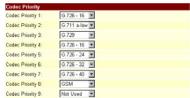
Codec Settings
You could eat the codice settings in this page.
Réglage NAT TRANS-STUN
You could set the IP of STUN server in this page.
Comment Appeler
Supplement: Utiliser le FWD Service gratuite
EndUser Registration:
Finalize Registration
Congratulations airlive, you are registered with FWD Number: 8**321
Please fill in your profile here.
Service Domain Settings
You could set information of service domains in this page.
| Realm 1 (Default) | |
| Active: | On Off |
| Display Name: | FWD |
| User Name: | B### |
| Register Name: | ### |
| Register Password: | ********** |
| Domain Server: | w#d pulver com |
| Proxy Server: | w#d pulver com |
| Outbound Proxy: | |
| Subscribe for MWI: | On Off |
| Status: | Registered |
Notasullo standard FCC
Min-Chuan Rd, Hsin-Tien City,
Taipei, Taiwan
TEL: +886-2-2218-6888
Garanzia
This page illustrate the system related information.
Model Name VolP
Firmware Version: p_703201
Codec Version Tue Feb 13 18:35:12 2007
Setup del Network-WAN e LAN
You could configure the WAN settings in this page.
Service Domain Settings
You could tell information of service domains in this page


Codec Settings
You could set the code settings in this page.
You could set the IP of STUN server in this page.
STUN:
COn @C@
STUN SIner
stun.stcn.com
STUN Port:
3470(1024-65635)
Submit
Rasor
EndUser Registration:
Finalize Registration
Congratulations airlive, you are registered with FWD Number: 8**321
Please fill in your profile here.
Service Domain Settings
You could set information of service domains in this page.
Min-Chuan Rd, Hsin-Tien City,
Taipei, Taiwan
TEL: +886-2-2218-6888
Jotallas
This page illustrate the system related information.
Model Name: VolF
Firmware Version: p_703201
Codec Version: Tue Feb 13 18:35:12 2007.
You could configure the VIAN settings in this page.
LAN Mode: Bndge NAT
WAN Setting
IP Type C Fixed IP CHCP Client PPPoe
D. 0000
Mask: 0.0.0.0
Gateway 0.000
DNS Server1 168.95.192.1
CNServed: 168.95.1.1
MAC: 00471000011
Host Name: VOP-TA181P
IP 100
Mask: 100
Color:
100
DOS Version: 1
DNS Version: 100.6.11
MAC: 100.0011
Host Name: VAP_03159
PPPoe Scaling
User Name:
Password:
Service Name


Service Domain Settings
You could set information of service domains in this page.

You could set the codec settings in this page.
You could set the IP of STUN server in this page.
STUN:
C0n 00
STUN Sartur
stun sten com
STUN Part
34.78(1024-65535)
Submit
Resol
EndUser Registration:
Finalize Registration
Congratulations airlive, you are registered with FWD Number: 8**321
Please fill in your profile here
Service Domain Settings
You could set information of service domains in this page.
Ostrzeżenie FCC
Min-Chuan Rd, Hsin-Tien City,
Taipei, Taiwan
TEL: +886-2-2218-6888
Gwarancje
This page illustrate the system related information.
Model Name VolP
Firmware Version: p_703201
Codec Version Tue Feb 13 18:35:12 2007
You could configure the WAN settings in this page.
LAN Mode
C. Bridge @ NAT
| IP Address | |
| IP Type | C Fixed IP # DHCP Client C PRVNC |
| IP | 0.1.0.0 |
| Mask | 0.1.0.0 |
| Gateway | 0.1.0.0 |
| DNS Service1 | R68 95.162.1 |
| DNS Service2 | R68 95.1.1 |
| MAC | 0x071000011 |
| Host Name | VORP TALISVP |
| Local Server | |
| Use Name | |
| Password | |
| Service Name | |
| Subtotal | Used |
Service Domain Settings
You could set information of service domains in this page.


Codec Settings
You could set the codec settings in this page.
You could set the IP of STUN server in this page.
STUN

@
STUN Sinner
stun.stcn.com
STUNPen:

(1024-65535)
Submit


EndUser Registration:
Finalize Registration
Congratulations airlive, you are registered with FWD Number: 8^**321
Please fill in your profile here
Service Domain Settings
You could set information of service domains in this page.
Pozn. o standarde FCC
Toto zariadenie splina limity digitaleho zariadenia Class B zodpovedajuceho ccasti cislo 15 pravidiel FCC. Tieto pravidla bolviyvorene za ucelom ochrny proti skodivym interferenciam pre zariadenia pracujce v komercnom sektoe. Toto zariadenie generuje, pouziva a moze vyzarovat ysvokofrekvencnu energiu an ak Nie jne nainstalovanene podfa navodu na pouzitie, moze sposobit'interferencie r radiovej komunikacii. Ak je pouzivan e oyvvanej oblasti, moze sposobit'ohrozujuce interferencie, ktoré moze pouzivate' odstrani' podla vlastneho uvazenia.
Min-Chuan Rd, Hsin-Tien City,
Taipei, Taiwan
TEL: +886-2-2218-6888
Zaruky
This page illustrate the system related information.
Model Name: VolF
Firmware Version:
Codec Version
p_703201
Tue Feb 13 18:35:12 2007
Nastavenie Rozhrani WAN a LAN
You could configure the WAN settings in this page.
LAN Mode
C Bridge # NAT
WAN Setting
IP Type: CFixed IP @DHCP Class PPPoC
印: 0000
Mask: 0.0.0.0
Gateway: 0.0.0.0
DNS Server1: 168.95.192.1
DNS Server2: 168.95.1.1
MAC: 0467132211
Host Name: VOP_TA15P
PPTol Scale
User Name:
Password
Service Name
Submit Reset
Nastavenie domény SIP
Service Domain Settings
You could set information of service domains in this page.
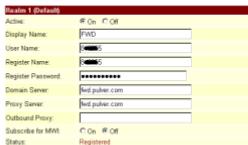

Nastavenie kodeku SIP
Na tejto stranke mozte zemenit prioritu kodekov, dlizku RTP, a funkciu VAD. Ak chcete zmenit tieto nastavenia, nasledujte pokyny poskytovatefa telefonnych sluzieb. Po ukoncheni nastavenia prosim kliknite na tlacidlo Submit a nasledne na tlacidlo Save Change, ktoré sa nachadza na l'avej strane.

Codec Settings
You could set the codec settings in this page.
Nastavenie NAT Trans-STUN
You could set the IP of STUN server in this page.
STUN: COn @C#
STUN Sener: stun.xlen.com
STUN Port: 3478 (1024-66535)


Ako Telefonovat
EndUser Registration:
Finalize Registration
Congratulations airlive, you are registered with FWD Number: 8^**321
Please fill in your profile here
Service Domain Settings
You could set information of service domains in this page.
Memo
Memo
EN
OvisLink Corporation declares that this device is in compliance with the essential requirements and other relevant provisions of directive 1999/5/EC.
RU
KOMNAHORA OvIsLink Corporation 3A8BJAE, YTO 3TO UYCTOHNBO T0BEAUEO CHOBHBM TpeBOBAHIMN IPOUCHM POJCTBEHBM yCLOBHBM,NJIOXEHBM B DInPekTHBE 1999/EC.
SK
OviLink Corporation potvdrzujne, ze toto zariadenie vyhovue poziadvakam a'dalsim predispom smerince 1999/5/EC.
FR
5F, NO.6, LANE 130, MIN CHUAN RD., HSIEN-TIEN CITY, TAIPEI COUNTY, TAIWAN
This equipment may be used in AT, BE, CY, CZ, DK, EE, FI, FR, DE, GR, HU, IE, IT, LV, LT, LU, MT, NL,PL,PT, SK, SI, ES, SE, GB, IS, LI, NO, CH, BG, RO, TR

OvisLink Corporation declares that this device is in use and the company will continue to work with other relevant provisions of directive 1999/5/EC.

Tested to Comply HOTEL 1000, THE FOR HOME OR OFFICE USE


- Table of Contents
- Declaration of Conformity
- Clause
- Description
- Manufacturer/Importer
- Note on the FCC standard
- Note on CE Marking
- Warranties
- Basic Information
- Default Setting:
- LED Indicators
- Hardware Installation
- Setup the ATA by the Web
- Web Login
- System Information
- Network-WAN and LAN setting
- WAN Settings
- SIP Setting-Service domain
- SIP setting-Codec setting
- Service Domain Settings
- Codec Settings
- NAT Trans-STUN setting
- STUN Setting
- How to make a phone call
- Supplement: Using FWD Free SIP Service
- Sign UP
- Záruka
- Nastavení WAN a LAN
- Garantiebestimmungen
- Einen Anruf tätigen
- Eyyunoeis
- Baogéπλnpoφopie
- PpoetIIeYmuEve Ppuuioeic:
- PiwCs va TpaaymuatoTioInoTe μia kλhON
- Garanties
- WAN Setting
- PPPoe Setting
- Réglage NAT TRANS-STUN
- Comment Appeler
- Supplement: Utiliser le FWD Service gratuite
- Notasullo standard FCC
- Garanzia
- Setup del Network-WAN e LAN
- Jotallas
- PPPoe Scaling
- Ostrzeżenie FCC
- Gwarancje
- Pozn. o standarde FCC
- Zaruky
- Nastavenie Rozhrani WAN a LAN
- Nastavenie domény SIP
- Nastavenie kodeku SIP
- Nastavenie NAT Trans-STUN
- Ako Telefonovat
- Memo
- EN
- RU
- SK
- FR
Brand : AIRLIVE
Model : VOIP-120A
Category : VoIP Phone