
CPD-512ER - Printing calculator OLYMPIA - Free user manual and instructions
Find the device manual for free CPD-512ER OLYMPIA in PDF.



| Product type | Printing calculator |
| Brand | OLYMPIA |
| Model | CPD-512ER |
| Dimensions (W x D x H) | 295 x 210 x 72 mm |
| Weight | 1.53 kg |
| Power supply | 230 V~, 50/60 Hz |
| Power consumption | 11 W |
| Display capacity | 12 digits |
| Printing capacity | 12 digits |
| Print colors | 2 colors (black and red) |
| Paper width | 57.5 mm ± 0.5 mm |
| Operating temperature | 0° to 40°C |
| Main functions | Basic calculations, percentage, margin, tax, currency conversion (3 currencies + Euro), memory, item counter, rounding, decimal selector, printing |
| Selectors | Decimal, rounding, grand total (GT), print mode (ON/OFF/P/CONV) |
| Memory | Independent memory (M+/-), grand total memory (GT) |
| Currency conversion | 3 currencies (C1, C2, C3) + Euro |
| Printing | Automatic or manual via paper feed key |
| Warranty | 24 months |
| Maintenance and cleaning | Wipe with a damp cloth; do not use solvents |
| Safety | Unplug before cleaning; do not open; avoid heat, moisture, dust |
| Spare parts and repairability | Paper roll (57.5 mm) and ink ribbon user-replaceable; telephone support +49(0)1805007514; return for service |
| Included accessories | User manual, paper roll, ink ribbon |
Frequently Asked Questions - CPD-512ER OLYMPIA
User questions about CPD-512ER OLYMPIA
0 question about this device. Answer the ones you know or ask your own.
Ask a new question about this device
Download the instructions for your Printing calculator in PDF format for free! Find your manual CPD-512ER - OLYMPIA and take your electronic device back in hand. On this page are published all the documents necessary for the use of your device. CPD-512ER by OLYMPIA.
USER MANUAL CPD-512ER OLYMPIA
Operating Instructions
Mode d'emploi
[x] Taste Multiplication
Service-Center Hattingen
Please read this operating instruction manual thoroughly.
Your calculator is a highly sophisticated piece of equipment. Never try to repair it yourself. If repairs are necessary, give the calculator to an authorized service center or your sales outlet. Never insert metallic objects such as screwdrivers, paper clips, etc. into the calculator. They may damage the cash register and present the danger of causing an electric shock. Always switch off the calculator after having finished your work. Clean the calculator by dusting it with a dry cloth. Never use water or solvents, such as paint thinner or alcohol, to clean the calculator. In order to completely disconnect the cash register from the power supply, disconnect the power plug from the mains socket. Do not expose the cash register to excessive heat.
- Before connecting the calculator to the power supply, check that the voltage and frequency specifications on the rating plate correspond to the local power supply.
- Do not cover the calculator when it is switched on, this can lead to over-heating.
- Do not use organic thinners, such as alcohol when cleaning the outside of this calculator.
- Do not leave or use this calculator in direct sunlight. Rapid temperature changes, high humidity and a dirty environment should also be avoided.
This calculator may only be repaired by a competent service technician. - Please switch on the printer when using the calculation examples listed in the last part of this user guide. A drawing will show you the correct switch position when the switch position needs changing during a calculation.
- The OFF/ON/P/CONV switch is situated above the keypad numbers. The internal memory will be deleted when the calculator is switched on. The calculator is now ready for use.
- Hazard of electrical shock. No user serviceable parts are contained inside. All servicing must be done by qualified service person.
- The power socket must be located close to the calculator and be easily accessible. This enables the calculator to be disconnected from the power supply quickly in an emergency.
- Prevent excessive exposure to smoke, dust, dirt, vibration, hard impacts, chemicals, moisture, heat and direct sunlight.

Attention: All data is retained following disconnection from the power supply.
Intended use
This printing calculator should be used exclusively for business indoors. Any other use is considered unintended use.
Important transport note
In the case of damage caused during transport, the unit must be returned with the packaging, operating instructions and accessories.
Cleaning
Clean the device occasionally with a damp cloth. Never use any aggressive cleaning agents or chemicals.
Disposal
In order to dispose of your device, bring it to a collection point provided by your local public waste authorities (e.g. recycling centre). The adjacent symbol indicates that the device must not be disposed of in normal domestic waste! According to laws on the disposal of electronic and electrical devices, owners are obliged to dispose of old electronic and electrical devices in a separate waste container.

Packaging materials must be disposed of according to local regulations.
Batteries must not be disposed of in domestic waste. Special collection containers are provided at certain sites (supermarkets, electric shops).
Inserting or changing the paper roll
- Using a pair of scissors to cut the end of the paper roll at a right angle and insert into the paper slot.
- Switch on the POWER ON switch and press the key for the paper feed until the paper appears from the other end of the calculator.
- Open the paper roll holder and slightly pull apart the roll holders. Now insert the paper roll in the holder.
- Removing the paper roll: Cut the paper at the roll and pull the paper towards the front of the calculator. Then remove the roll.

Attention: The printer can be damaged when pulling the paper from the back of the machine.
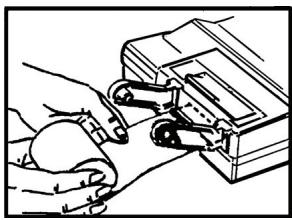
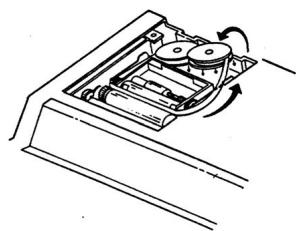
Replacing the ink roll
- Switch off the POWER OFF switch.
- Remove printer cover.
- Move spool holder to remove both spools.
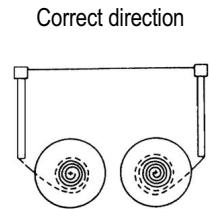
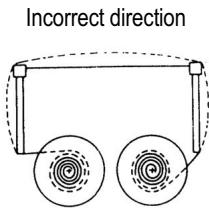
- Insert new spools. Making sure that black side ribbon is up, ribbon to go through ribbon guide, and with right direction.
2 Keyboard, Display and Switches Keyboard
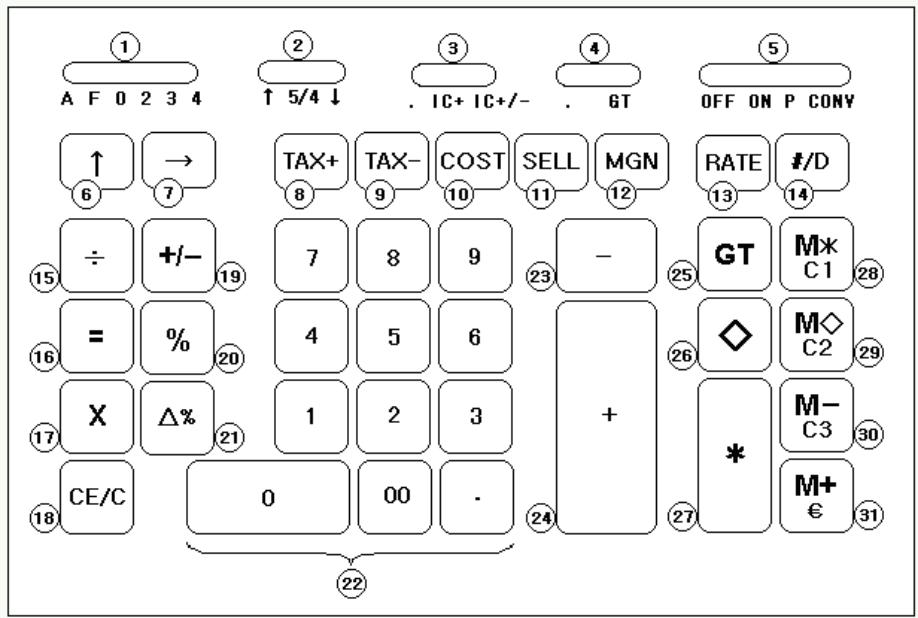
| 1. Decimal Point Selector | 11. Sell | 22. Numeric Key Pad |
| 2. Rounding Selector | 12. Margin | 23. Subtraction |
| 3. Item Count Switch | 13. Rate | 24. Addition |
| 4. Grand Total Switch | 14. Non-add / Date | 25. Grand Total |
| 5. Off, On, Print, Currency Conversion Switch | 15. Division | 26. Subtotal |
| 6. Paper Feed | 16. Equal | 27. Total |
| 7. Back Space | 17. Multiplication | 28. Memory Total / C1 |
| 8. Tax + | 18. Clear/Clear Entry | 29. Memory Subtotal / C2 |
| 9. Tax - | 19. Sign Change | 30. Memory Subtraction / C3 |
| 10. Cost | 20. Percentage | 31. Memory Addition / € |
| 21. Delta Percentage |
Display
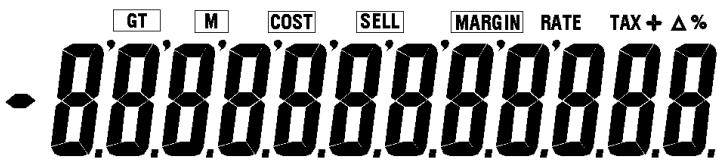
Indicators
"-" Minus sign:
Negative results are shown using a minus sign on the display and indicated by using red writing on the printer.
"M" Memory indicator:
"M" appears on the display to show that a figure is stored in the memory.
"E" Error/Overflow
"E" appears when dividing by zero or when the sign capacity is not sufficient.
Switches
Decimal Point Selector
A0234F
Decimal point Selector
Determines the number of decimal points show on the display or the printer.
A
(Add mode)
Decimal point is automatically set two places to the left in an addition or subtraction calculation. It is also possible to set the position of decimal point individually by pressing the decimal point key at the desired position. All results are given with two positions to the right of the decimal point.
F
This setting will show floating decimal points (maximum 12).
If the result adds to more than 12 figures, the overflow will be dropped. The rounding function is switched off in this mode.
0,2,3,4
Fixed decimal point mode.
This setting determines the number of decimal points to the right of the decimal point. In this mode, the automatic rounding function is activated.
Rounding Selector
↑5/4↓
Rounding switch
↑
Absolute rounding up.
5/4
In this setting, figure will automatically be rounded up or down.
If the last figure is followed by a value between 0 and 4, this last figure will remain unchanged. If this figure is followed by a figure between 5 and 9, this figure will be rounded up.
↓
Absolute rounding down.
Item Counter Selector
- IC+ IC+/- Item count switch
Calculation without Item Count.
IC+ Calculation with increment Item Counter.
IC + / - Calculation with increment/decrement Item Counter.
| Example for IC+: | Example for IC+/-: |
| 1. + | 1. + |
| 2. + | 2. + |
| 3. + | 3. + |
| 4. - | 4. - |
| 5. - | 5. - |
| 005 | 001 |
| 3. -T | 3. -T |
Grand Total switch
- GT Grand Total switch
Normal Calculation mode with memory keys.
GT Grand Total
Final results of additions and subtractions are automatically accumulated in the GT memory according to sign. The GT memory can be recalled by pressing the [GT] key.
Operating mode, Sigma or Grand Total mode Selector
OFF ON P CONV Off, Non print, Print, Currency conversion mode selector
OFF Turn off the calculator.
ON Turn on the calculator in non-print mode.
Printer is activated only when feed key or [#/D] key is pressed.
P Printer is activated as long as calculator is turned on.
CONV Currency conversion mode.
Memory keys will be function as [C1], [C2], [C3], and [€].
3 Key functions
| [↑] | Paper feed key This key forwards the paper from the paper roll. |
| [→] | Back space key This key is used to delete the last key in number. This function enable user to correct mistakes without keying in the whole number again. |
| [TAX +] | Tax plus key Calculate amount including TAX with TAX rate preset by [RATE] & [TAX+] key. |
| [TAX -] | Tax minus key Calculate amount excluding TAX with TAX rate preset by [RATE] & [TAX+] key. |
| [COST] | Cost key This key is for enter Cost price, or calculate amount exclude profit margin. |
| [SELL] | Sell key This key is for enter Selling price, or calculate amount include profit margin. |
| [MGN] | Margin key This key is for enter profit margin, or calculate the profit margin. |
| [RATE] | TAX rate preset keys This key is used to setting TAX rate. |
| [#/D] | Non add / Date key It will print a live entry as an identifier as an invoice number with “#” mark on left most side of roll paper. |
| [÷] | Division key The division key divides, automatically and constantly. It also carries out logical intermediate steps. With the [÷] key, the calculator will also divide, when the [%], [M+], [M-], [x] or [÷] keys are pressed. Every dividing factor will be carried as a constant (except [M+] and [M-] sums), until the [x], [÷] or [CE/C] keys are pressed. |
| [=] | Equal key To get the result in delta percent, gross profit margin, multiplication or division. |
| [x] | Multiplication key The multiplication key multiplies, automatically and constantly. It also carries out logical intermediate steps. It uses the keyed or printed number as a constant multiplication factor. With the [x]key, the calculator will also multiply when the [%], [M+], [M-], [x] or [÷] keys are pressed. Every multiplication factor will be carried as a constant (Except [M+] and [M-] sums) until the [x], [÷] or [CE/C] keys are pressed. |
| [C/CE] | Clear / Clear Entry key Cleared live entry by pressing this key once. Clear Accumulator and calculation status (except Memory accumulator: [M:</M◇]) by pressing this key twice. |
| [+/-] | Sign change key Reverse the sign on display. |
| [%] | Percent key Completes percent calculation when [x] or [÷] key is used. |
[ %]
Delta Percent key
Automatically compares two amounts and calculates the percent change.
[0]-[9],[00] & [•] Numeric keys and Decimal Point key
This calculator uses the common 10 digit keypad with a double zero and a decimal point key. Numbers are keyed in as they are written.
When Decimal Point key is pressed more than one time in a live entry, the first decimal point will be considered as effective.
[-]
Minus key
To subtract the same amount more than one time (repeat subtraction), enter that amount once and depress the [-] key as many times as necessary. If this key is depressed immediately after [%] key, it works as percent minus key.
[+]
Plus key
Add an amount to accumulator. To add the same amount more than one time (repeat addition), enter that amount once and depress the [+] key as many times as necessary.
If this key is depressed immediately after [% ] key, it works as percent plus key.
[GT]
Grand Total key
Print and clear the Grand Total memory.
[◇]
Subtotal key
It prints but does not clear the accumulator.
[*]
Total key
Prints and clears the accumulator. When this key is pressed with the "GT" switch engaged, the result will be automatically accumulated in the GT memory register.
[M*/C1]
Memory total key
Display and print the contents of the independent memory and clears it.
C1 key
Currency 1 key. This key can be used to enter number to C1, and convert C1 to Euro Currency, C2, or C3 currency.
If Home Currency (€ key), C2, or C3 is pressed in prior, it converts the display number to C1 currency.
[M/D/C2]
Memory subtotal key
Display and print the contents of the independent memory.
C2 key
Currency 2 key. This key can be used to enter number to C2, and convert C2 to Euro Currency, C1, or C3 currency.
If Home Currency (€ key), C1, or C3 is pressed in prior, it converts the display number to C2 currency.
[M-/C3]
Memory Minus key
Subtracts an amount from memory. If there is a live calculation pending, the Memory Minus key will complete the calculation and subtract the amount from Memory.
C3 key
Currency 3 key. This key can be used to enter number to C3, and convert C3 to Euro Currency, C1, or C2 currency.
If Home Currency (€ key), C1, or C2 is pressed in prior, it converts the display number to C3 currency.
[ \left[\mathsf{M} + / \mathsf{\epsilon}\right] ]
Memory Plus key
Adds an amount to memory. If there is a live calculation pending, the Memory plus key will complete the calculation and accumulate the result to Memory.
€ key
Home currency key. This key can be used to enter number to Euro, and convert Euro to C1, C2, or C3 currency.
If C1, C2, or C3 is pressed in prior, it converts the display number to Euro currency.
4 Technical Data
| Mains electricity supply: | 230 V~, 50/60 Hz |
| Power consumption: | 11 W |
| Capacity: | Calculation: 12 Digits Figures printed out: 12 Digits |
| Printer: | 2 colours |
| Paper size: | 57.5 mm ± 0.5 mm |
| Operating temperature: | 0° — 40°C |
| Size: | 295 x 210 x 72 mm |
| Weight: | 1.53 kg |
Guarantee
In the unlikely event that the device should develop a technical problem please observe the following points:
The guarantee period for the device is 24 months.
Make sure that you store the purchasing receipt and the original packaging.
Should a problem occur, please call our hotline first:
+49(0)1805007514
(Fee for connections outside Germany: additional Euro 0.14 per call for the connection within Germany.)
Our personnel are often able to provide helpful advice over the phone.
- If it is not possible to clear up the problem over the phone, please send the device back to the following address:
Service-Center Hattingen
45525 Hattingen, Germany
Guarantee repairs will only be performed if the purchase receipt is enclosed with the device.
Thank you for your understanding.
Yours faithfully,
Your Olympia Business Systems partner
[TAX +] Touche taxa plus
[TAX -] Touche taxa moins
[RATE] Touche taux de taxa
[x] Touche multiplication
Service-Center Hattingen
Service-Center Hattingen
Service-Center Hattingen
Service-Center Hattingen
10 Calculation Examples
Back space
| Dezimalpunkt Decimal point Virgule décimale Punto decimale Punto decimal Decimale punt Desetinnà tečka | Rundung Rounding Arrondi Arrotondamento Redondeo Afronding Zaokrouhleni | Postenzahler Item count Comteur d'artic. Conteggio posiz. Cuentapartidas Postenteller Poçitalo položek | Gesamt Grand total Total Importo totale Suma total Totaal general Celková Častka | Druck Print Imprimer Stampa Imprimir Printen Tisk | ||
| 4 | 5/4 | . | . | P | ||
| Calculation 5.4321 + 2.34567 = ? | Eingabe Input Saisie Immissione Entrada Invoer Zadání | Anzeige Display Affichage Visualizzazione Indicación Weergave Zobrzení | Ausdruck Print out Sortie impriméee Tabulato Impresión Afdukken Výtisk | |||
| 5.4321 [+] 2.3457 [→] 67 [+] [+] | 5.4321 2.345 7.77777 7.7778 | 5.4321 + 2.34567 + 7.7778 T | ||||
Rounding for Addition / Subtraction
| 0 | ↓ | . | . | P | |
| Calculation3.4 + 2.1 = ? | 3.4 [+] | 3.4 | 3.4 + | ||
| 2.1 [+] [+] | 5.55. | 2.1 +5. T | |||
| 0 | 5/4 | . | . | P | |
| Calculation3.4 + 2.1 = ? | 3.4 [+] | 3.4 | 3.4 + | ||
| 2.1 [+] [+] | 5.56. | 2.1 +6. T | |||
Addition & Subtraction
| F | 5/4 | . | . | P | ||
| Calculation2 + 3.1415926 - 6 = ? | 2 [+] | 2. | 2. + | |||
| 3.1415926 [+]6 [-][*] | 5.1415926- 0.8584074- 0.8584074 | 3.1415926 +6. -0.8584074 | 0.8584074 -T | |||
Addition / Subtraction in Add Mode
| Dezimalpunkt Decimal point Virgule décimale Punto decimal Punto decimal Decimale punt Desetinná tečka | Rundung Rounding Arrondi Arrotondamento Redondeo Afronding Zaokrouhleni | Postenzahler Item count Comteur d'artic. Conteggio posiz. Cuentapartidas Postenteller Poçitalo položek | Gesamt Grand total Total Importo totale Suma total Totaal general Celková Častka | Druck Print Imprimer Stampa Imprimir Printen Tisk | ||
| A | ↓ | . | . | P | ||
| Calculation2.06 + 4.52 -1 = ? | Eingabe Input Saisie Immissione Entrada Invoer Zadání | Anzeige Display Affichage Visualizzazione Indicación Weergave Zobrazeni | Ausdruck Print out Sortie impriméee Tabulato Impresión Afdukken Vytisk | |||
| 206 [+] 452 [+] 1. [-] [*] | 2.06 6.58 5.58 5.58 | 2.06 + 4.52 + 1.00 - 5.58 T | ||||
Addition / Subtraction with Item Count
| 2 | ↓ | IC + | . | P | ||
| Calculation0.6 + 4.5 + 2.3 - 1 = ? | 0.6 [+] | 0.60 | 0.60 + | |||
| 4.5 [+] | 5.10 | 4.50 + | ||||
| 2.3 [+] | 7.40 | 2.30 + | ||||
| 1 [-] | 6.40 | 1.00 - | ||||
| [+] | 6.40 | 004 | 6.40 T | |||
| 2 | ↓ | IC +/- | . | P | |
| Calculation0.6 + 4.5 + 2.3 - 1 = ? | 0.6 [+] | 0.60 | 0.60 + | ||
| 4.5 [+] | 5.10 | 4.50 + | |||
| 2.3 [+] | 7.40 | 2.30 + | |||
| 1 [-] | 6.40 | 1.00 - | |||
| [*] | 6.40 | 002 | |||
| 6.40 T | |||||
Repeat Calculation
| Dezimalpunkt Decimal point Virgule decimale Punto decimal Punto decimal Decimale punt Desetinná tečka | Rundung Rounding Arrondi Arrotondamento Redondeo Afronding Zaokrouhleni | Postenzahler Item count Comteur d'artic. Conteggio posiz. Cuentapartidas Postenteller Poçitalo položek | Gesamt Grand total Total Importo totale Suma total Totaal generala Celkova Častka | Druck Print Imprimer Stampa Imprimir Printen Tisk | ||
| F | 5/4 | . | . | P | ||
| Calculation 400 - 13 - 13 - 13 = ? | Eingabe Input Saisie Immissione Entrada Invoer Zadáni | Anzeige Display Affichage Visualizzazione Indicación Weergave Zobrazeni | Ausdruck Print out Sortie impriméee Tabulato Impresión Afdukken Vytisk | |||
| 400 [+] 13 [-] [-] [-] [+] | 400. 387. 374. 361. 361. | 400. + 13. - 13. - 13. - 361. T | ||||
Grand Total Memory
| A | 5/4 | . | GT | P | |
| Calculation13.20 + 8.30 + 2.95 = 24.459.55 + 7.36 + 18.33 = 35.2424.45 + 35.24 = T ? | [C/CE] | 0. | 0. C | ||
| 13.2 [+]8.3 [+]2.95 [+][*] | 13.2021.5024.4524.45 | 13.208.30+2.95+24.45T+ | |||
| 9.55 [+]7.36 [+]18.33 [+][*] | GTGTGTGTGT | 9.5516.9135.2435.24 | 9.55+7.36+18.33+35.24T+ | ||
| [GT] | 59.69 | 59.69 GT | |||
Repetitive Calculation with Reference To Date
| DezimalpunktDecimal pointVirgule décimalePunto decimalPunto decimalDecimale punitDesetinnä tečka | RundungRoundingArrondiArrotondamentoRedondeoAfrondingZaokrouhleni | PostenzählerItem countConteur d'articlConteggio posiz.CuentapartidasPostentellerPočitalo položek | GesamtGrand totalTotalImporto totaleSuma totalTotaal generalCelková Častka | DruckPrintImprimerStampaImprimirPrintenTisk | |
| A | 5/4 | . | . | P | |
| Calculation6.54 + 6.54 + 6.54 -7.89 - 7.89 = ? | EingabeInputSaisieImmessioneEntradaInvoerZadāni | AnzeigeDisplayAfficheVisualizzazioneIndicaciónWeergaveZobrazeni | AusdruckPrint outSortie impriméeeTabulatoImpresiónAfdrukkenVytisk | ||
| 4.25.2004 [#/D]654 [+][+][+]789 [-][-][+] | 4.2520046.5413.0819.6211.733.843.84 | # 4.25.20046.54+6.54+6.54+7.89-7.89-3.84 | |||
Multiplication
| 2 | ↓ | . | . | P | |
| Calculation 1.238 x 456 = ? | 1.238 [x] | 1.238 | 1.238 x | ||
| 456[=] | 564.52 | 456.00 = 564.52 * | |||
Sequential (Chain) Multiplication
| 3 | ↑ | . | . | P | |
| Calculation3.21 x 4.5 x 6.324 = ? | 3.21 [x] | 3.210 | 3.210 x | ||
| 4.5 [x] | 14.445 | 4.500 x | |||
| 6.324 [=] | 91.351 | 6.324 =91.351 * | |||
Constant Multiplication
| Dezimalpunkt Decimal point Virgule décimale Punto decimal Punto decimal Decimale punt Desetinnà tečka | Rundung Rounding Arrondi Arrotondamento Redondeo Afonding Zaokrouhleni | Postenzahler Item count Comteur d'artic. Conteggio posiz. Cuentapartidas Postenteller Počitalo položek | Gesamt Grand total Total Importo totale Suma total Totaal generala Celková Častka | Druck Print Imprimer Stampa Imprimir Printen Tisk | |
| 2 | 5/4 | . | . | P | |
| Calculation | Eingabe Input Saisie Immissione Entrada Invoer Zadāni | Anzeige Display Affichage Visualizzazione Indicación Weergave Zobrazeni | Ausdruck Print out Sortie impriméee Tabulato Impresión Afdrukken Vytisk | ||
| 2 [x] 4 [=] | 2.00 8.00 | 2.00 x 4.00 = 8.00 * | |||
| 5 [=] | 10.00 | 5.00 = 10.00 * | |||
| 6 [=] | 12.00 | 6.00 = 12.00 * | |||
Division
| 3 | ↓ | . | . | P | |
| Calculation178÷6=? | 178 [÷] | 178.000 | 178.000 ÷ | ||
| 6 [=] | 29.666 | 6.000 =29.666 * | |||
Constant Division
| 2 | 5/4 | . | . | P | |
| Calculation755÷4=188.75409÷4=102.2532÷4=8.00 | 755 [÷] | 755.00 | 755.00÷ | ||
| 4 [=] | 188.75 | 4.00=188.75* | |||
| 409 [=] | 102.25 | 409.00=102.25* | |||
| 32 [=] | 8.00 | 32.00=8.00* | |||
Tax Rate setting
| Dezimalpunkt Decimal point Virgule decimale Punto decimal Punto decimal Decimale sunt Desetinnä tečka | Rundung Rounding Arrondi Arrotdamento Redondeo Afonding Zaokrouhleni | Postenzähler Item count Comteur d'articl. Conteggio posiz. Cuentapartidas Postenteller Poçitalo polžek | Gesamt Grand total Total Importo totale Suma total Totaal generaal Celkova Častka | Druck Print Imprimer Stampa Imprimer Printen Tisk | |
| 2 | ↓ | . | . | P | |
| Calculation Preset TAX = 18.6% | Eingabe Input Saisie Immissione Entrada Inveer Zadāni | Anzeige Display Affichage Visualizzazione Indicación Weergave Zobrazeni | Ausdruck Print out Sortie imprimée Tabulato Impresión Afdrukken Výtisk | 0.C 18.6 R% | |
| [CE/C] [RATE] (Press and hold for 3 Sec.) 18.6 [TAX+] | 0. RATE (blinking) 18.6 | 0.0% 18.6 | 0.C 18.6 R% | ||
Tax Calculation
| 2 | ↓ | . | . | P | |
| CalculationPrice without Tax | 300 [TAX+] | TAX+ 355.80 | 300.00 | ||
| [TAX-] | TAX- 300.00 | 18.6%55.80 Δ355.80 T355.8018.6%55.80 Δ-300.00 T | |||
Percent Add On
| 2 | ↓ | . | . | P | |
| Calculation Price = $3.95 | 3.95 [x] | 3.95 | 3.95 x | ||
| Discount = 5% Tax Amount = $0.19 Net Amount = $4.14 | 5 [%] | 0.19 | 5.00 % | ||
| [+] | 4.14 | 0.19 * | |||
Percent Calculation
| 2 | 5/4 | . | . | P | |
| Calculation Price = $169.50 | 169.5 [x] | 169.50 | 169.50 x | ||
| Discount = 14% Discount Amount = $23.73 Net = $145.77 | 14 [%] | 23.73 | 14.00% 23.73 * | ||
| [-] | 145.77 | 145.77 -% | |||
Memory Calculation
| Dezimalpunkt Decimal point Virgule décimale Punto decimal Punto decimal Decimale punt Desetinnä tečka | Rundung Rounding Arrondi Arrotdamento Redondeo Afronding Zaokrouhleni | Postenzahler Item count Comteur d'articl. Conteggio posiz. Cuentapartidas Postenteller Počíltalo položek | Gesamt Grand total Total Importo totale Suma total Totaal general Celková Častka | Druck Print Imprimer Stampa Imprimir Printen Tisk | |
| F | 5/4 | . | . | P | |
| Calculation100 + 200 = ?900 - 500 = ?20 x 7 = ?12 x 5 = ?Total | Eingabe Input Saisie Immissione Entrada Invoer Zadāni | Anzeige Display Affiche Visualizzazione Indicación Weergave Zobrazeni | Ausdruck Print out Sortie impriméee Tabulato Impresión Afdrukken Vytisk | ||
| [CE/C] | 0. | 0. | C | ||
| 100 [+] | 100. | 100. | + | ||
| 200 [+] | 300. | 200. | + | ||
| [*] | 300. | 300. | T | ||
| [M+] | M | 300. | 300. | M+ | |
| 900 [+] | M | 900. | 900. | + | |
| 500 [-] | M | 400. | 500. | - | |
| [*] | M | 400. | 400. | T | |
| [M+] | M | 400. | 400. | M+ | |
| 20 [x] | M | 20. | 20. | x | |
| 7 [=] | M | 140. | 7. | = | |
| 140. | * | ||||
| [M+] | M | 140. | 140. | M+ | |
| 12 [x] | M | 12. | 12. | x | |
| 5 [M+] | M | 60. | 5. | = | |
| 60. | M+ | ||||
| [M+] | M | 900. | 900. | MS | |
| [M*] | 900. | 900. | MT | ||
| [CE/C] | 0. | 0. | C | ||
Delta Percentage Calculation
| Dezimalpunkt Decimal point Virgule decimale Punto decimale Punto decimal Decimale punt Desetinnà tečka | Rundung Rounding Arrondi Arrotondamento Redondeo Afronding Zaokrouhleni | Postenzahler Item count Comteur d'articl. Conteggio posiz. Cuentapartidas Postenteller Počitalo položek | Gesamt Grand total Total Importo totale Suma total Totaal general Celkova căstka | Druck Print Imprimer Stampa Imprimir Printen Tisk | ||
| 2 | 5/4 | . | . | P | ||
| Calculation | Eingabe Input Saisie Immissione Entrada Invoer Zadán | Anzeige Display Affichage Visualizziatione Indicación Weergave Zobrazeni | Ausdruck Print out Sortie imprimee Tabulato Impresión Afrodukken Vytisk | |||
| Last Year's Expense 60.00 This Year's Expense130.00 Amount of Difference $70.00 Percent of Chance 116.67% | 60 [△%] 130 [=] or [%] | Δ% | 60.00 116.67 | 60.00 △ 130.00 = 70.00 △* 116.67 △% | ||
Selling Price, Markup margin, and Cost
| 0 | 5/4 | . | . | P | |
| Calculation | |||||
| Cost = 100 | 100 [COST] | COST | 100. | 100. C | |
| Margin = 20% | 20 [MGN] | SELL | 125. | 20. M% | |
| Sell = ? | 25. Δ* | ||||
| 125. S | |||||
| Cost = 100 | 100 [COST] | COST | 100. | 100. C | |
| Sell = 125 | 125 [SELL] | MARGIN | 20. | 125. S | |
| Margin = ? | 25. Δ* | ||||
| 20. M% | |||||
| Sell = 125 | [CE/C] | 0. | 0. C | ||
| Margin = 20% | 125 [SELL] | SELL | 125. | 125. S | |
| Cost = ? | 20 [MGN] | COST | 100. | 20. M% | |
| 25. Δ* | |||||
| 100. C | |||||
Markdown and Selling Price
| Dezimalpunkt Decimal point Virgule décimale Punto decimale Punto decimal Decimale punt Desetinna tečka | Rundung Rounding Arrondi Arrotondamento Redondeo Afronding Zaokrouhleni | Postenzahler Item count Comteur d'articl. Conteggio posiz. Cuentapartidas Postenteller Počitalo položek | Gesamt Grand total Total Importo totale Suma total Totaal generala Celkova căstka | Druck Print Imprimer Stampa Imprimir Printen Tisk | |
| 2 | 5/4 | . | . | P | |
| Calculation Item Cost = $100 Markdown (Percent) 6.5% (Base on to be determined selling price) Markdown (Amount) $6.10 Selling Price $93.90 | Eingabe Input Saisie Immissione Entrada Invoer Zadání | Anzeige Display Affiche Visualizzazione Indicación Weergave Zobrazeni | Ausdruck Print out Sortie imprimée Tabulato Impresión Afdukrken Vytisk | ||
| 100 [COST] 6.5 [+/-] [MGN] | COST 100.00 -6.5 SELL 93.90 | 100.00 C 6.50 M% 6.10 Δ* 93.90 S | |||
D
GB
FR
IT
ES
NL
CZ
Currency Conversion Rate setting
| Dezimalpunkt Decimal point Virgule décimale Punto decimal Punto decimal Decimale sunt Desetinnà tečka | Rundung Rounding Arondi Arrondonamento Redondeo Afonding Zaokrouhleni | Postenzähler Item count Comteur d'articl. Conteggio posiz. Cuentapartidas Postenteller Počitalo položek | Gesamt Grand total Total Importo totale Suma total Totaal generala Celkova Častka | Druck Print Imprimer Stampa Imprimir Printen Tisk | |
| 2 | ↓ | . | . | CONV | |
| Calculation Assume Home = Euro C1 = USD, C2 = GBP, C3 = JPY Assume 1 Euro = 1.35739 USD 1 Euro = 0.898599 GBP 1 Euro = 132.819 JPY | Eingabe Input Saisie Immissione Entrada Invoer Zadāni | Anzeige Display Affiche Visualizzazione Indicazione Weergave Zobrazeni | Ausdruck Print out Sortie impriméee Tabulato Impresión Afdrukken Vytisk 0.C #1 #2 #3 #3 132.819 | ||
| [CE/C] [RATE] (Press and hold for 3 Sec.) 1.35739 [C1] [RATE] (Press and hold for 3 Sec.) 0.898599 [C2] [RATE] (Press and hold for 3 Sec.) 132.819 [C3] | RATE (blinking) 0.RATE 1.35739 RATE (blinking) 0.RATE 0.898599 RATE (blinking) 0.RATE 132.819 | ||||
Currency Conversion
| 2 | ↓ | . | . | CONV | |
| Calculation Convert 800 USD to Euros | 800 [C1] | 589.36 | #1 | ||
| 800.00 589.36* | |||||
Currency Conversion
| Dezimalpunkt Decimal point Virgule décimale Punto decimal Punto decimal Decimale punt Desetinnà tečka | Rundung Rounding Arondi Arrofondamento Redondeo Afronding Zaokrouhleni | Postenzahler Item count Comteur d'artcl. Conteggio posiz. Cuentapartidas Postenteller Poçitalo položek | Gesamt Grand total Total Importo totale Suma total Totaal general Celkovaćstáka | Druck Print Imprimer Stampa Imprimir Printen Tisk | |
| 2 | ↓ | . | . | CONV | |
| Calculation Convert 355 Euros to GBP | Eingabe Input Saisie Immissione Entrada Invoer Zadāni | Anzeige Display Affiche Visualizzazione Indicación Weergave Zobrazeni | Ausdruck Print out Sortie imprimée Tabulato Impresión Afdrukken Vytisk | ||
| 355 [€] [C2] | 355.00 319.00 | # 355.00 319.00* | |||
| 2 | ↓ | . | . | CONV | |
| Calculation Convert 3000 USD to JPY | 3000 [C1] | 2'210.12 | #1 | ||
| [C3] | 293'545.92 | 3,000.00 2,210.12* #3 2,210.12 293,545.92* | |||
GB The manufacturer hereby declares that the equipment complies with the stipulations defined in the following guidelines and standards:
D Der Hersteller erklart hiermit, dass das Gerät mit den Bestimmungen der Richtlinien und Normen übereinstimmt:
F Le fabricant declare par la presente que l'appareil est conforme aux règlements et normes en vigueur:
E Por medio de la presente, el fabricante declara que este aparato está conforme a lo dispuesto en las directivas y normas vigentes:
NL De fabrikant verklaart hierbij dat het apparaat voldoet aan de bepalingen in de richtlijnen en normen:
Il costruttore dichiara con la presente che la macchina sotto descririta è conforme alle norme delle direttive:
CS Vyrobce tímo prohlasuj, ze priistroj odpovidá ustanovením směrnica norem:
Compatibility, EMC): EN 55022:2006+A1:2007
EN 55024:1998+A1:2001+A2:2003
EN 61000-3-2:2006
EN 61000-3-3:1995+A1:2001+A2:2005
Hattingen, December 2009
Heinz Prygoda, Managing Director