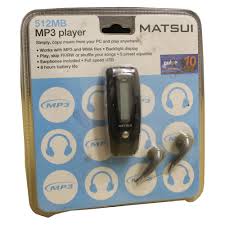
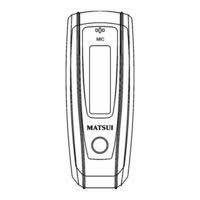
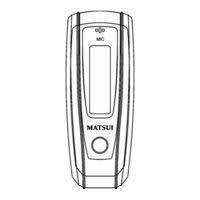
MAT 105MR - Digital audio player MATSUI - Free user manual and instructions
Find the device manual for free MAT 105MR MATSUI in PDF.



| Product Type | Digital MP3/WMA Audio Player |
| Brand | MATSUI |
| Model | MAT 105MR |
| Dimensions | 86 × 33 × 20 mm |
| Weight | 27.5 g (without battery) |
| Power | 1 AAA alkaline battery 1.5 V |
| Display | FSTN LCD screen 128×32 pixels, backlit |
| Internal Memory | 128 MB / 256 MB / 512 MB / 1 GB / 2 GB (NAND Flash) |
| Supported Audio Formats | MP3, WMA, WAV |
| Supported Lyrics Formats | LRC |
| Voice Recording | WAV format, sampling 8 kHz or 32 kHz |
| Connectivity | USB 2.0 full speed (PC/Mac compatible) |
| Playback Functions | Normal, repeat one, repeat all, shuffle, intro |
| Equalizer | Normal, Rock, Jazz, Classic, Pop |
| Recording Functions | Pause, optimized or long duration recording |
| DRM | Windows Media DRM compatible (requires Windows Media Player 9+) |
| Safety | Do not disassemble, do not expose to moisture or heat, do not block vents |
| Maintenance | Clean with a soft dry cloth, do not use abrasive products |
| Operating Temperature | 0 to 50 °C |
| Compatible Operating Systems | Windows 98SE/ME/NT/2000/XP, Mac OS |
| Spare Parts | No user-serviceable parts; battery replaceable |
Frequently Asked Questions - MAT 105MR MATSUI
User questions about MAT 105MR MATSUI
0 question about this device. Answer the ones you know or ask your own.
Ask a new question about this device
Download the instructions for your Digital audio player in PDF format for free! Find your manual MAT 105MR - MATSUI and take your electronic device back in hand. On this page are published all the documents necessary for the use of your device. MAT 105MR by MATSUI.
USER MANUAL MAT 105MR MATSUI
Attention : if the player is used for illegally copying or distributing the software and music that are protected by intellectual property rights, the user must take all legal responsibility for such actions .
The manufacturer importer or dealer cannot be held responsible for accidental damage due to inappropriate use of the player.
Safety Warning
- Do read the operating instructions before you attempt to use the equipment.
- Do ensure that all electrical connections (including the mains plug, extension leads and inter-connections between the pieces of equipment) are properly made and in accordance with the manufacturers instructions.
- Do consult your dealer if you are ever in doubt about the installation, operation or safety of your equipment.
- Don't remove any fixed covers as this may expose dangerous voltages.
- Don't obstruct the ventilation openings of the equipment with items such as newspapers, tablecloths, curtains, etc. Overheating will cause damage and shorten the life of the equipment.
- Don't allow electrical equipment to be exposed to dripping or splashing, or objects filled with liquids, such as vases, to be placed on the equipment.
- Don't place hot objects or naked flame sources such as lighted candles or nightlights on, or close to equipment. High temperatures can melt plastic and lead to fires.
- Don't continue to operate the equipment if you are in any doubt about it working normally, or if it is damaged in any way-switch off, withdraw the mains plug and consult our dealer.
- Don't use equipment so that you are distracted from the requirements of traffic safety.
Content
Controls 4
Player 5
The MP3 player supports lyric files in LRC format 5
Power On & Power off 6
Main menu 7
Music 7
- Play list 7
- Enter 7
- Modes switch 8
4 Tracks select 8 - Control Menu at playing, pause mode 8
Volume 9
Loop 9
A-B loop 9
Sound effect mode 9
File Delete 10
Delete all 10
- Control Menu at stop mode 11
Record 11
1.Start recording 11
2. File Types 11
3.Pause 12
Play 12
- Play 12
- Control Menu under playing, pause mode 13
- Control Menu at stop mode 12
System 13
- Enter 13
- Select & enter each options 13
Time of recording 13
Backlight time 13
Languages 13
Power off setting 13
Contrast 13
Record file types 13
Storage 14
Firmware vision 14
USB disk 14
Software upgrading 14
Disconnecting from the PC 17
DRM. 18
Trouble shooting and specifications 21
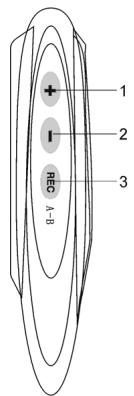
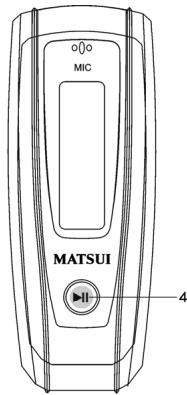
Controls
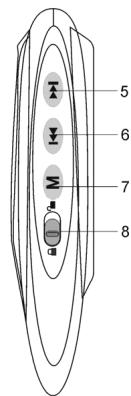
-
- Volume up: Press to increase the volume during playback.
- Volume down: Press to decrease the volume during playback.
- REC Record
- Play/Power on/Power off
- FFWD/Next
- Rew/Last
- M Menu: Enter the selected submenu or return to the main menu
-
Lock: Lock or unlock the keys.
-
Player
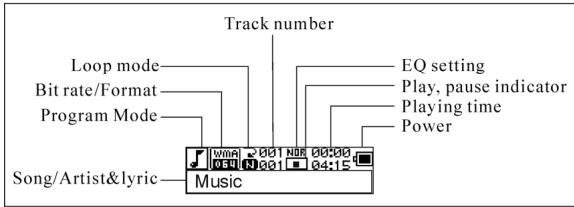
Display
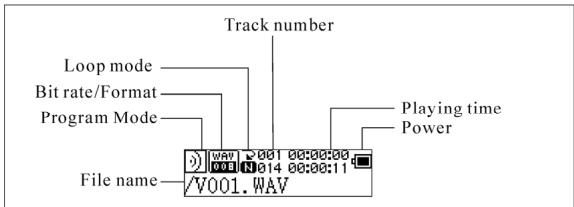
Record files player
Lyric display
This player supports LRC files to display the lyrics with the music(MP3 files only).
How to know the lyric file exists or not?
The icon will change to if the song has a LRC file.
The MP3 player supports lyric files in LRC format.
- Prepare a MP3 or WMA music, for example, happymusic.mp3.
-
Download a lyric file from internet. The lyric file must have to be with an extension file name LRC. For example, happymusic-2004.lrc.
-
Rename the lyric file. For example, happymusic.1rc. It is to make sure the lyric filename is same as the corresponding music filename.
- Copy the lyric file & music file to the MP3 player.
- Disconnect the MP3 player.
- Use Skip buttons to select the music file, for example, adc.mp3. Press play button to play.
- The LRC icon would appear, and the lyric would display Synchronously on OLED while the music is being playback.
Note: The MP3 player supports LRC format only.
Note: If the lyric does not synchronize with the music, please download one better lyric file from internet and try again.
Note: Make sure the MP3 music and LRC file is located in same directory and the filename is same. If not, the MP3 player can not recognize the lyric file.
Power Display
■ Indicates the power is full at 1.5v; indicates the power is decreasing; indicates you need replace the battery immediately.
Power on/Power off
Power on: Turn power on by pressing . A welcome picture is displayed on LCD, as:
MATSUI
Notice: Music mode is the default mode after power on action.
Power off: To power off press and hold. A strip is displayed on LCD, as:
Powering off

Release the key when the strip is full.
Notice: Power off action is invalid while recording.
- Main Menu
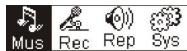
To enter the main menu press and hold M or press M briefly while recording. Music Recording Play System

Music
1. Play list
Choose "Music" in the menu to enter the folder.
Play list information, As the picture under.
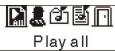
Press / to select 4 mode: Play all,Artist, Album, Songs..
Four mode:
| Play all | Play all songs starting from "Artist" type, then"Album", then"Songs" |
| Artist | Songs in the selected artist list |
| Album | Songs in the selected album list |
| Songs | Songs in the selected ID3 list |
| Exit | Exit play list menu |
The submenu "play all" under "Artist"Album"Songs" mode :
Enter "Artist"Album"Songs" mode and press / to select one, and then press "menu"to enter "play all", the unit will play all songs which sorted out according to filter orders of each mode.
2. Enter
To select 'Music' by pressing or at main menu then press Music Recording Play System
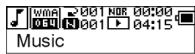
The music file exists, the display shows as:
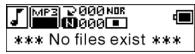
No music file exists, the display shows as
To return to menu mode press and hold M. Notice:After power on action, the music mode is the default mode.
3. Modes switch
While stop or pause, press to play.
Stop mode
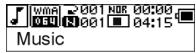
Pause mode
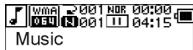
Playing mode
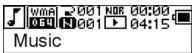
Press to pause while playing
4. Tracks select:
While stop, pause or playing, press for last track, press for next track; press and hold for FF, press and hold for REW.
While stop, press to play the selected track.
While pause, the selected track is played automatically.
5. Control Menu in playback or in pause mode
While playing or pause, press M to enter the Control Menu, as:
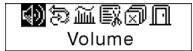
Press or to select the sub-menu and press M to enter. Choose 'exit', press M to exit the Control Menu and return to play mode.
Volume
Enter the interface of 'Volume adjusting', press + or - to adjust the volume.
Press M to return to Play mode.(Press and hold M to return to the Main Menu.)
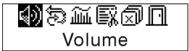
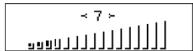
To change Volume value directly press + or - while playing.
Loop
Enter the interface of 'Loop' mode, as the picture shows:

Loop
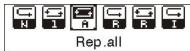
| Normal | Stop playing after the current file finished. |
| Rep one | repeat playing a single music |
| Rep all | repeat playing all the music |
| Random | playing the music in current file folder randomly |
| Shuffle | playing the music in current file folder randomly. It will not stop if you are not press the key. |
| Intro | Play the first 15 seconds of all the music in current file folder |
Press or to select the right mode. Press M to return to the Playmode. (Press and hold M to return to the Main Menu.)
A-B loop
Press REC (A-B) to set a start point, then press the same key to set an end point in the course of playing or recording. The machine will be in A-B mode and Start A-B play track. Cancel it by pressing REC (A-B) again.
Sound effect mode
Enter the interface of 'Sound effect mode', as the picture under:
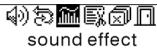
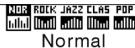
Five kinds of sound effects can be chosen. Press or to select a mode.
Normal., Rock, Jazz, Clasic, Pop, Press M to return to the Playmode. (Press and hold M to return to the Main Menu.)
File Delete
Select the 'Delete the file', as the picture under:

Delete the file
Press M to enter the interface as the picture shows. (Press and hold M to return to the Main Menu.)
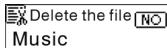
Press 串 or 串 to select'YES'or 'NO'. Choosing 'YES', press M to ensure deleting the selected file and then return to the Playmode. (It will not delete the file and return to the Main Menu if you press and hold M.)
Deleting
Succeed!
Choosing 'No', press M, the machine will not delete the selected current file and then return to the Playmode.
Delete All
Note: Deleting files will only delete the MP3/WMA files the unit can find. It will not delete the folder or files in folders that exceed the file limitation. To delete these file/folders you will need to use Windows Explorer delete function.
Select the 'Delete All', as the picture under:

delete all
Press M to enter the interface as the picture shows. (Press and hold M to return to the Main Menu.)
Press or to select 'YES' or 'NO'. Choosing 'YES', press M to start deleting all files and then return to the Play mode. (Press and hold M to return to the Main Menu.)
Deleting

*** no file ***
6. Control Menu at stop mode
Press M to enter the control menu at stop mode.
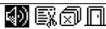
Volume
Not all control menu option will be available. To see all control menu option see chapter 4.
Record
1. Start recording
There are two ways to start recording.
A. Press or key to select 'Record' in the Main Menu. As the picture under:
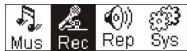
Press M to start recording. As the picture under:
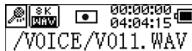
B. Press (A-B) to start recording directly from stop mode.
Press M to stop recording.
2. Record file types
There are two types of recording Optimized and Longest. Optimized is for general use but has a larger file size, Longest is suitable for voice recording only.
3. Pause
Press (A-B) to pause recording:
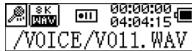
Press (A-B) again to continue recording:
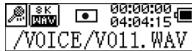
- Play recorded
To play the recorded files.
1. Play
Press or to select 'Replay' in the Main Menu. Press M to enter replay mode.
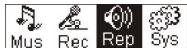
There are recorded files stored in the machine.
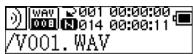
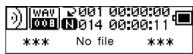
Press to play the recorded file, and press key again to pause. Press to select the previous file, press and hold for fast backwards. Press to select the next file, press and hold for fast forward.
Press and hold M to return to the Main Menu while of playing recorded files.
2. Control Menu under playing, pause mode
Please read chapter 'Music' for further references of being related with the particular operations.
3. Control Menu at stop mode
Please read chapter 'Music' for further references of being related with the particular operations.
- System
1. Enter
At Main Menu, press K or M to select 'System' or press and hold M to enter the 'System' menu.

At 'System' menu, press and hold M to return to the Main Menu.
2. Select & enter each options
At 'system' menu, press or to select menu items. Press M to enter the setting interface. (for example: Choosing 'Exit', then press M to exit 'System' menu and return to the Main Menu.)
Backlight time
Press or to set. Press M to save and return to the 'system setting'. (Press and hold M to save and return to the Main Menu.)
Languages
Press or to set. Press M to save and return to the 'system setting'. (Press and hold M to save and return to the Main Menu.)
Power off setting
Press or to set. Press M key to save and return to the 'system setting'. (Press and hold M to save and return to the Main Menu.)
Contrast
Press or to set the contrast level of the screen. Press M key to save and return to 'system setting'.
Record file types
Press or to set the types of record. Press M to save and return to 'system setting'.
Storage space
Check the storage space available. Press M to return to the interface of 'system setting'. (Press and hold M to return to the Main Menu.)
Software version
Check model and version of the machine. Press M to return to the interface of 'system setting'. (Press and hold M to save and return to the Main Menu.)
USB disk
This machine has a function as a standard USB disk and it can support Windows ME,2000,XP system without installing drivers. If you use Win98, you should install the driver first.
How to connect with PC? Connect the MP3 and PC with the USB plug. There are three status screens you can see when the connection is successful.
1. waiting
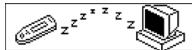
2. download

3. upload
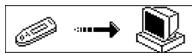
- Software upgrading
This machine can use the software tool that installs in the computer when installing the drivers to upgrade and maintain the system firmware.
- Run the firmware upgrade software.
Initializing SigmaTel MSCN firmware download
Searching for the MP3 player
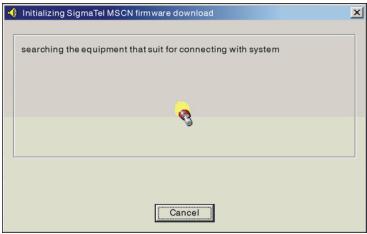
- Connect the player to the USB port and ensure the connection is successful. Press the power on/off key and click the 'Start' of PC software, the system begins to upgrade automatically. As the picture shows:
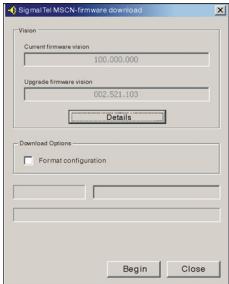
- upgrading. As the picture shows:
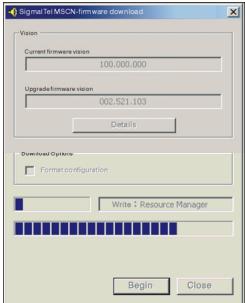
- upgrading is done. There will be a notice appeared on the player as follows:
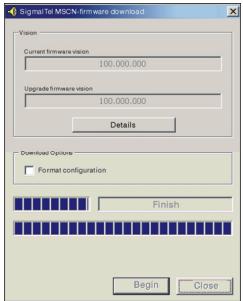
Firmware upgrading is used for improving and maximising the capability of the product. It will not affect the normal running if you do not use the firmware upgrading. Do not disconnect the product while upgrading as this could damage the product.
Disconnecting from the PC
- Click the icon the PC tray.
- Click the stop USB Mass storage Device-Drive(E:) pop-up message.
- Click the "OK" button and physically disconnect the USB cable.
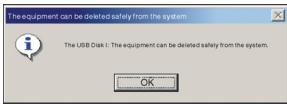
Note:
- If the tray icon is hidden. Click the "Display hidden icon" to the left of the system tray to view it.
- When using some application programs such as Windows Explorer or Windows Media Player, safe removal may not be available. Please close the applications before doing safe removal.
Recording and replaying DRM-licensed files
i NOTE:
The use of Digital Rights Management (DRM) determines which rights on a file, e.g. a song, the user purchases. It is thus possible to specify how often or how long a piece of music can be used and whether it may be transferred to a portable player. For this purpose the file is encrypted. The user requires a licence to be able to use the file.
This player is DRM-compatible and thus enables the replay of licence protected music downloads.
Further information on DRM can be obtained through the Windows Media Player - website (http://www.microsoft.com/windows/ windows media/de/drdr/default.aspx) or from your Online-MusicDownload provider.
DRM-protected files can be transferred to your Audio-Player with the Windows Media Player (from version 9.0).
Operation
- Connect the player to the PC.
2.Install the latest version of the Windows Media Player on your PC. - Purchase the desired title from an Online-Music-Download provider of your choice.
- Download the desired pieces of music by following the instructions of the chosen provider. We recommend the folder "My Own Files\My Own Music" as storage location.
- Open the Windows Media Player, e.g. Windows Media Player 10 (Fig.10 to Fig.12).
6.From the menu bar choose the "Tools" menu and here the menu option "Options".
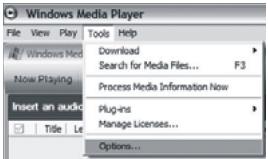
- In the menu window choose the tab "Devices".
- Select the unit "Portable Device" and confirm your selection with "OK".

- In the Windows Media Player choose the menu option "Synch" followed by "Edit Playlist".
- Click on the music pieces to be transferred to the player with the mouse and confirm your selection with "OK".
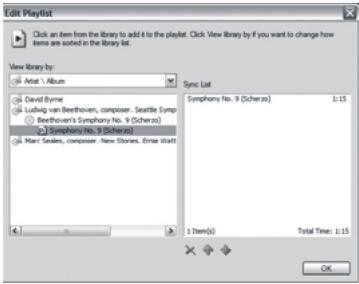
- Select "Start Synch". After the synchronizing process is finished the music is available on your player.
- Trouble shooting and specifications
| No power supply. | 1.To ensure the battery is inserted correctly. |
| 2.To ensure the machine is power on.. | |
| No sound from theearphone. | 1.Checked the volume to see if it is set to 0 value . |
| 2. Ensure there is no problem with the connection of theearphone. | |
| 3.If there is only noise left without normal sound, please checkthe MP3 files to see if it was damaged. | |
| Something wrong with thecharacters on the screen. | Ensure that you choose the correct language. |
| Music can not bedownloaded properly | 1.Checked the USB lead to ensure it is not been damaged andthe connection is fine. |
| 2.The installation of driver is OK. | |
| 3. No more space available. | |
| Shape & Size | 86x33x20mm |
| Weight | 27.5g (Batteries are not included.) |
| Display | FST LCD (128x32), backlight, |
| USB format | USB full speed |
| Memory | (128M,256M,512M,1G,2G)NAND Flash |
| Power supply | AAA alkaline battery |
| Record | Sampling make:8KHZ, 32KHZ |
| Record format: WAV format | |
| Music format | MP3, WMA, WAV |
| Suitable temperature | 0-50 degree |
| Language selecting | English, French, Spanish, Italian, Czech, Hungarian, Polish, Danish, Norwegian, Finnish, Swedish |
| Operating system | Win98SE/WinME/WinNT/Win2000/WinXP/Mac |

This symbol on the product or in the instructions means that your electrical and electronic equipment should be disposed at the end of life separately from your household waste.
There are separate collection systems for recycling in the EU.
For more information, please contact the local authority or your retailer where you purchased the product.

Visit Partmaster.co.uk today for the easiest way to buy electrical spares and accessories. With over 50,000 products in stock we can deliver direct to your door the very next day.
Visit www/partmaster.co.uk
or call
08706001338
(UK customers only)
Calls charged at National Rate.
CS
MATSUI
DIGITÁLNI AUDIOPřEHRÁVAC
MAT 101MR/102MR/105MR/110MR/120MR
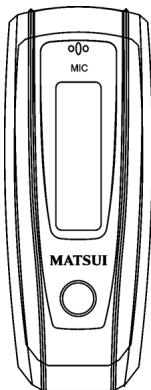
NAVOD KPOUZITI
Choose "Music" in the menu to enter the folder. Play list information, As the picture under.

Play all
Press / to select 4 mode: Play all,Artist,Album,Songs.. Four mode:
| Play all | Play all songs starting from "Artist" type, then"Album", then"Songs" |
| Artist | Songs in the selected artist list |
| Album | Songs in the selected album list |
| Songs | Songs in the selected ID3 list |
| Exit | Exit play list menu |
Doba podsviceni (Backlight)
Choose "Music" in the menu to enter the folder. Play list information, As the picture under.
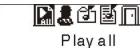
Press / to select 4 mode: Play all,Artist,Album,Songs.. Four mode:
| Play all | Play all songs starting from "Artist" type, then"Album", then"Songs" |
| Artist | Songs in the selected artist list |
| Album | Songs in the selected album list |
| Songs | Songs in the selected ID3 list |
| Exit | Exit play list menu |
Undermenuen "play all" (Spil alle) under tilstandene "Artist" (Kunstner), "Album" (Album) og "Songs" (Sange):
Delete All [slet alt]
Bemerk: När du vælger at slette filer, slettes kun de MP3/WMA-filer, afspilleren kan Ende. Mapper erler filer i mapper, der overstiger filbegraensningen, slettes/DD. Hvis du vil slette disse filer/mapper, skal du bruge sletteftekutionen i Windows Stifinder.
Tryk pā M for at abne kontrolmenui i stoptilstand.
![MATSUI MAT 105MR - Delete All [slet alt] - 1](/content/2020/04/20317/images/143715f9c0e3a49243ff42b5ab9d82741577745f2e4f29a6b076ce885b9e4921.jpg)
Choose "Music" in the menu to enter the folder.
Play list information, As the picture under.
![MATSUI MAT 105MR - Delete All [slet alt] - 2](/content/2020/04/20317/images/e7b86411e74738ac0343dc859a9865dc163f1fa4268e5f14568058479d3d4818.jpg)
Press / to select 4 mode: Play all,Artist,Album,Songs.
Four mode:
| Play all | Play all songs starting from "Artist" type, then"Album", then"Songs" |
| Artist | Songs in the selected artist list |
| Album | Songs in the selected album list |
| Songs | Songs in the selected ID3 list |
| Exit | Exit play list menu |
Choose "Music" in the menu to enter the folder.
Play list information, As the picture under.
![MATSUI MAT 105MR - Delete All [slet alt] - 3](/content/2020/04/20317/images/85407b2e1f5531805e3c523cdd10d2f394d8410df5844cf5d2ac3118f8155f9b.jpg)
Play all
Press / to select 4 mode: Play all,Artist, Album, Songs.
Four mode:
| Play all | Play all songs starting from "Artist" type, then"Album", then"Songs" |
| Artist | Songs in the selected artist list |
| Album | Songs in the selected album list |
| Songs | Songs in the selected ID3 list |
| Exit | Exit play list menu |
Choose "Music" in the menu to enter the folder.
Play list information, As the picture under.
![MATSUI MAT 105MR - Delete All [slet alt] - 4](/content/2020/04/20317/images/5589400dc7092741b6923975a45fb114b442cad36e0978b8b2f38dbcc9e42f8d.jpg)
Play all
Press / to select 4 mode: Play all,Artist, Album, Songs..
Four mode:
| Play all | Play all songs starting from "Artist" type, then"Album", then"Songs" |
| Artist | Songs in the selected artist list |
| Album | Songs in the selected album list |
| Songs | Songs in the selected ID3 list |
| Exit | Exit play list menu |
Mindet torol [Delete All] 11
Choose "Music" in the menu to enter the folder.
Play list information, As the picture under.
![MATSUI MAT 105MR - Delete All [slet alt] - 5](/content/2020/04/20317/images/1740db05507edb6213be33484c2ba88019774f428551f7853d876e960133779d.jpg)
Press / to select 4 mode: Play all,Artist, Album, Songs.
Four mode:
| Play all | Play all songs starting from "Artist" type, then"Album", then"Songs" |
| Artist | Songs in the selected artist list |
| Album | Songs in the selected album list |
| Songs | Songs in the selected ID3 list |
| Exit | Exit play list menu |
IIlettore MP3 supporta i lyric file in fornato LRC 5
Comefareasapere seesisteomenoil filelyric?
Choose "Music" in the menu to enter the folder.
Play list information, As the picture under.
![MATSUI MAT 105MR - Delete All [slet alt] - 6](/content/2020/04/20317/images/e2dc1b24aa47c08f3d95f73fc066542ac992f8d9cd2ffd4862fadfc5b7d75bb1.jpg)
Play all
Press / to select 4 mode: Play all,Artist, Album, Songs.
Four mode:
| Play all | Play all songs starting from "Artist" type, then"Album", then"Songs" |
| Artist | Songs in the selected artist list |
| Album | Songs in the selected album list |
| Songs | Songs in the selected ID3 list |
| Exit | Exit play list menu |
Delete All (slett allele)
Choose "Music" in the menu to enter the folder. Play list information, As the picture under.

Play all
Press / to select 4 mode: Play all,Artist,Album,Songs..
Four mode:
| Play all | Play all songs starting from "Artist" type, then"Album", then"Songs" |
| Artist | Songs in the selected artist list |
| Album | Songs in the selected album list |
| Songs | Songs in the selected ID3 list |
| Exit | Exit play list menu |
Podmenu "play all" (Odtwarzaj wzystko) w trybie "Artist" (Wykonawca), "Album", i "Songs" (Utwory):
Choose "Music" in the menu to enter the folder.
Play list information, As the picture under.

Play all
Press / to select 4 mode: Play all,Artist,Album,Songs.
Four mode:
| Play all | Play all songs starting from "Artist" type, then"Album", then"Songs" |
| Artist | Songs in the selected artist list |
| Album | Songs in the selected album list |
| Songs | Songs in the selected ID3 list |
| Exit | Exit play list menu |
Undermenyn "Spela upp alla" under "Artist", "Album" och "Songs" (Spar):


- Safety Warning
- Content
- Controls
- Lyric display
- The MP3 player supports lyric files in LRC format.
- Power Display
- Power on/Power off
- MATSUI
- - Main Menu
- Music
- Play list
- Enter
- Modes switch
- Tracks select:
- Control Menu in playback or in pause mode
- Volume
- Loop
- A-B loop
- Sound effect mode
- File Delete
- Delete All
- Control Menu at stop mode
- Record
- Start recording
- Record file types
- Pause
- - Play recorded
- Play
- Control Menu under playing, pause mode
- Control Menu at stop mode
- - System
- Enter
- Select & enter each options
- Backlight time
- Languages
- Power off setting
- Contrast
- Record file types
- Storage space
- Software version
- USB disk
- waiting
- download
- upload
- - Software upgrading
- Disconnecting from the PC
- Note:
- i NOTE:
- Operation
- - Trouble shooting and specifications
- DIGITÁLNI AUDIOPřEHRÁVAC
- MAT 101MR/102MR/105MR/110MR/120MR
- Doba podsviceni (Backlight)
- Delete All [slet alt]
- Delete All (slett allele)
Brand : MATSUI
Model : MAT 105MR
Category : Digital audio player