CALIBER PDVBT 101 - TV

PDVBT 101 - TV CALIBER - Free user manual and instructions

Find the device manual for free PDVBT 101 CALIBER in PDF.

📄 91 pages PDF ⬇️ English EN 💬 AI Question 🖨️ Print
Notice CALIBER PDVBT 101 - page 5
Manual assistant
Powered by ChatGPT
Waiting for your message
Product information

Brand : CALIBER

Model : PDVBT 101

Category : TV

Download the instructions for your TV in PDF format for free! Find your manual PDVBT 101 - CALIBER and take your electronic device back in hand. On this page are published all the documents necessary for the use of your device. PDVBT 101 by CALIBER.

USER MANUAL PDVBT 101 CALIBER

GB • F • D • I • E • P • SW • PL • NL Technical Specifications Item Sub Item Parameter Tuner Input Frequency 170~230MHz 470~860MHz RF Input level

QPSK,16QAM,64QAM,256QAM

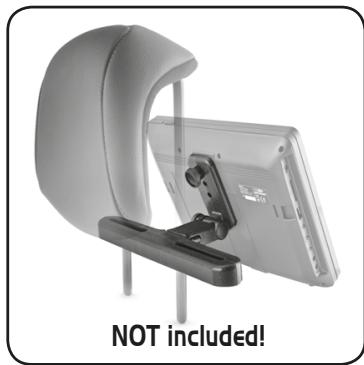
Decoder Format Headrest Bracket (sold separately) NOT included! Product code: “DVD-Bracket” EAN: 87.14505.04516.0 Only sound, no No or incorrect connection with AV cable image on the screen Safety Precautions WARNING The program is a radio program

Remote Control The battery is exhausted C isthenot

Warning:

when unitresponding is directly used by ainto child, thelaser parents must make sure

Warning:

Never stare the beam. to let the child understand all contents in Instruction book how to use the Remote Control issure not battery to guarantee of battery correctly all themust time. make

Warning:

when theuseage unit using by child, parents to let the child understand all contents in Instruction book how facing or close enough battery using guarantee using battery correctly all the time.

Warning: when find battery overheat, swellto

or dour, please the Set Top Box stop using the battery and contact service centre for getting

Warning: when find battery overheat, swell or dour, please

replacement. stop using battery and contact service centre for getting replacement.

Warning: do not charge the battery on the place of insufficient

image sofa, stopped signal is too weak ventilation as: mattress, cushion , softplace mat......

Warning:such

doThe not charging battery on The the of insufficient ventilation such as: mattress, sofa, cushion , soft mat...... suddenly or mosaic

Warning: we will not take any responsibility if user incorrectly

Warning:

we will take any if user incorrectly uses the battery, notnot following our responsibility warning instruction label on the use battery, not following our warning instruction label on the battery case. battery case.

1. SETUP

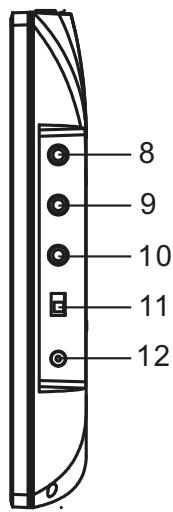
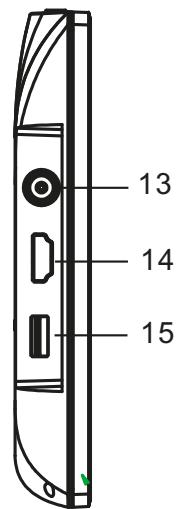
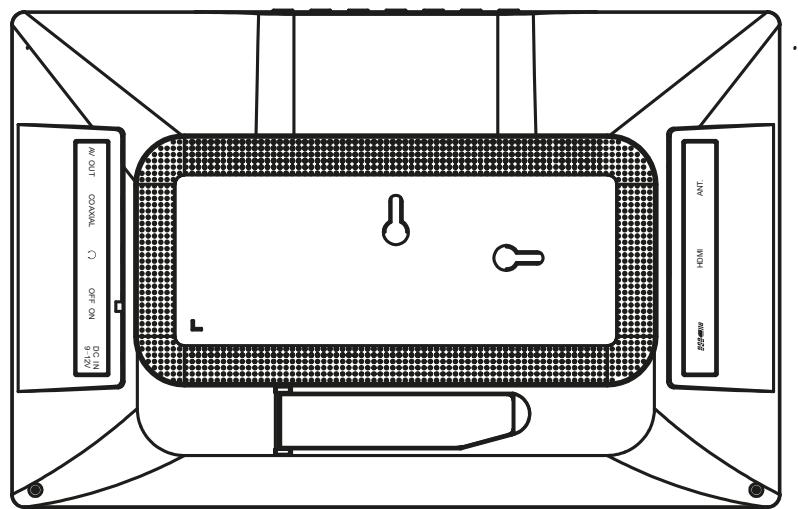
10. Earphone Socket

11. ON/OFF

12. DC IN 9-12V

13. ANT.

Connect the Antenna for reception HDMI COAXIAL ANT. AV OUT

15. USB slot

ENGLISH ENGLISH Identification of Controls Remote control unit
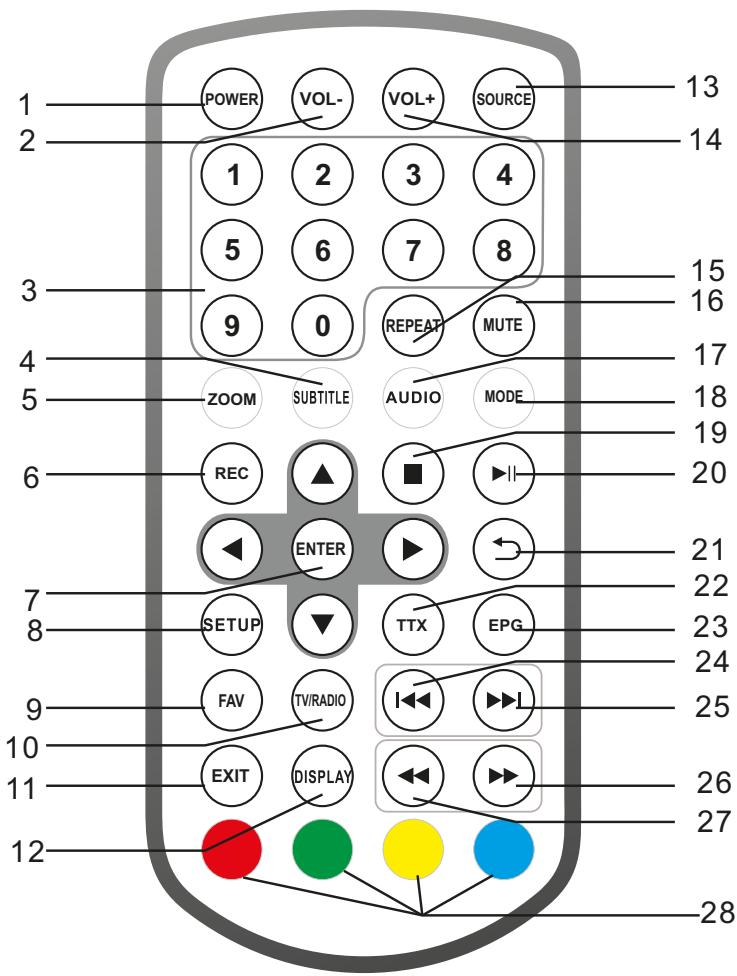
POWER VOL- VOL+ SOURCE

REPEAT MUTE MODE REC ENTER

TTX FAV TV/RADIO EXIT

14. VOL +

15. REPEAT

Repeat Play mp3 and video VOL Adjust VOLUME. 4.SUBTITLE

1. POWER

On/off the power supply EPG Press SUBTITLE repeatedly during playback to viwe a different

3. 0-9 NUMBER BUTTON

16. MUTE

subtitleSelects languages , if avilable. numbered items in a menu. Mute the sound

4. SUBTITLE

17. AUDIO

JPEG: enlargeduring or shrink the picture. Use Press ZOOM SUBTITLEto repeatedly Press AUDIO repeatedly during playplayback to view a different hear a different audio Each press of the ZOOM button change theback TVtoscreen

5. ZOOM

Record digital service.

JPEG: Use ZOOM to enlarge or shrink the picture. 7.ENTER Each press of the ZOOM button Confirmchanges and Enter the TV screen 8.SETUP

6. REC

Record digital service. Main Menu/Return

7. ENTER

9.FAV Confirm and Enter Open Favorite Programs List Menu

19. STOP

20. PLAY/PAUSE

21. RETURN

22. TTX

24. BUTTON

Previous option. 11.EXITOpen favorite programs list menu

18. MODE

10.TV/RADIAO Main Menu/Return Switch between TV and Radio source

language or audio track, if available.

10. TV/RADIO

25. BUTTON

12.DISPLAY Switch between and radio Next option. Display the information of the current signal 1.POWER On/off the power supply

11. EXIT

26. BUTTON

Fast forward Display the information of the cur- 13.SOURCE DVD/USB

12. DISPLAY

2.VOL Adjust VOLUME. 14.VOLrent + signal Adjust VOLUME.

13. SOURCE

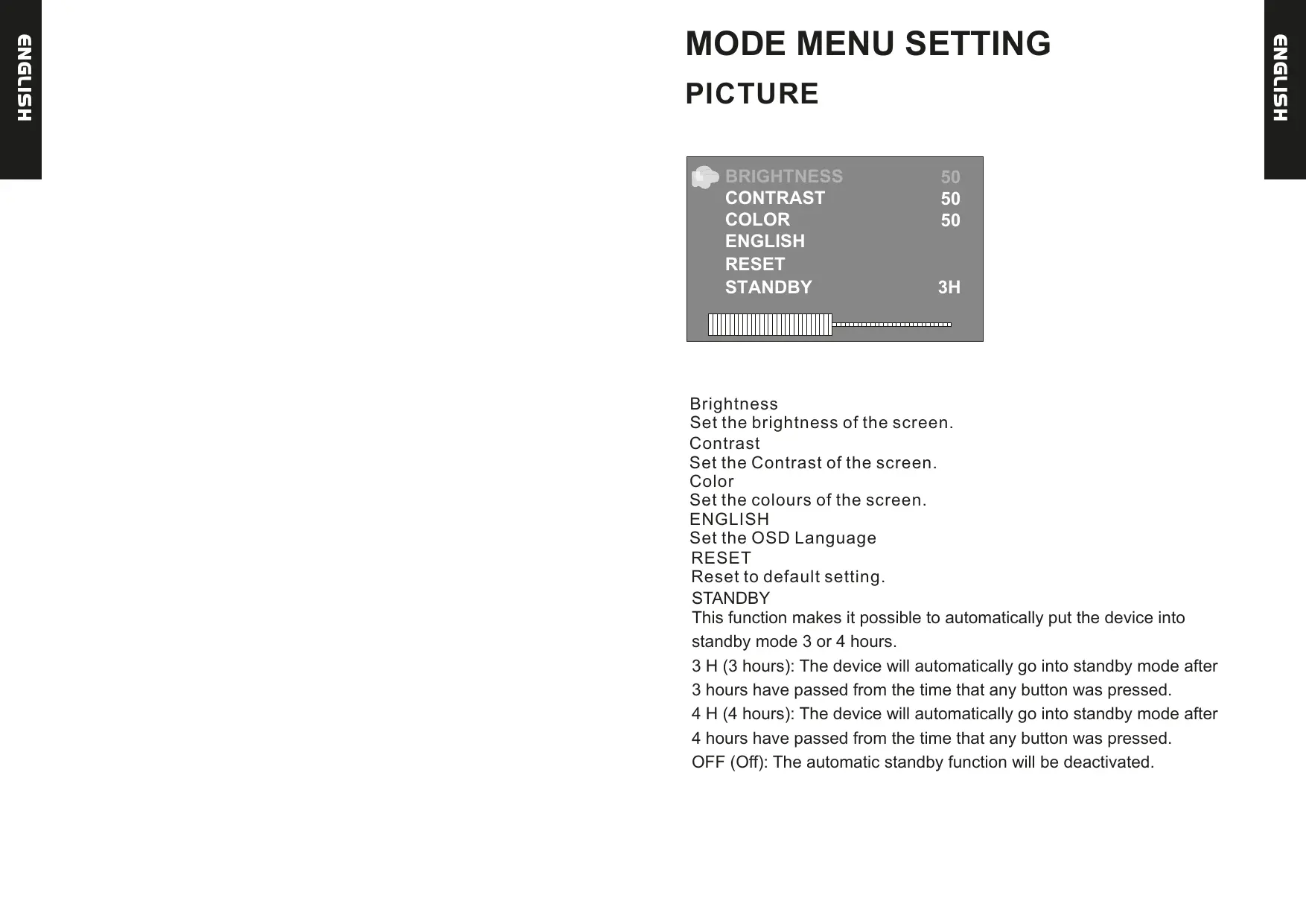
USB/TV 15.REPEAT Repeat Play mp3 and video Identification of Controls Remote control unit PICTURE 16.MUTE Mute the sound 17.AUDIO Press AUDIO repeatedly during playback to hear a different audio language or audio track, if avilable. 18.MODE Mode menu setting

19.STOP 20.PLAY/PAUSE Brightness Set the brightness of the screen. Contrast Set the Contrast of the screen. Color Set the colours of the screen. ENGLISH Set the OSD Language RESET Reset to default setting. STANDBY This function makes it possible to automatically put the device into standby mode 3 or 4 hours. 3 H (3 hours): The device will automatically go into standby mode after 3 hours have passed from the time that any button was pressed. 4 H (4 hours): The device will automatically go into standby mode after 4 hours have passed from the time that any button was pressed. OFF (Off): The automatic standby function will be deactivated. 21.RETURN 22.TTX 23.EPG Show EPG information BUTTON Previous option. BUTTON Next option. BUTTON Fast forward BUTTON Fast backward

28. RED/GREEN

Some specific function

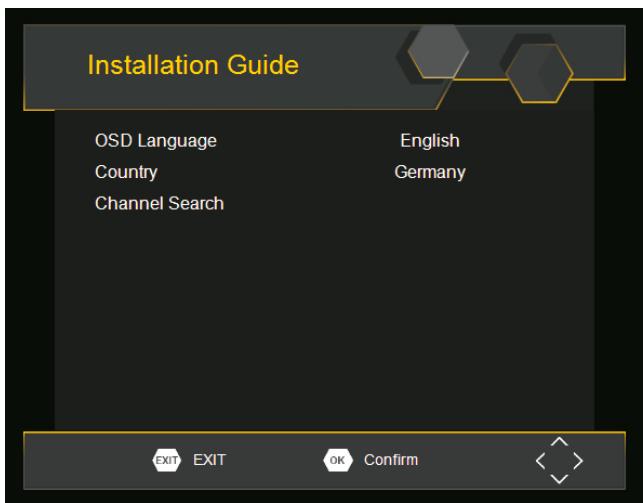
ENGLISH ENGLISH Identification of Controls Basic Basic Operation Operation Program Program Manage Manage Settings Settings Tothe access the Menu, press thethe SETUP button and and select [Program]. To access access Menu, thepress Menu, the press SETUP button SETUP and button select [Program]. select [Program]. The Menu adjust Program Manage Settings. The Menu The provides Menu provides provides options options options adjusttoto theProgram adjustthe theProgram Manage Manage Settings. Settings. Select option and press or or RIGHT to adjust thatthat setting. Select anSelect optionan and option press and press or RIGHT toRIGHT adjust that adjust setting. setting. Press EXIT button toto exit the Menu. Press thePress EXITthe the button EXIT tobutton exit the Menu. exit the Menu. After all connections have been made properly, switch ON TV and After all connections After all connections have been have made been properly, madePower. properly, switch onswitch and on TV and make sure the receiver is connected the Main Press Power make sure make the sure receiver the receiver connected connected the Main the Power. Main Press Power. Power button to switch receiver ON. If you are using the receiver for the firstPress Power button tobutton switchtoreceiver switch receiver on. If youon. areIf using you are theusing receiver the receiver for the first for the first time or restored to Factory Default, the Main Menu will appear on time or restored time or restored to Factory to Default, Factory the Default, Mainthe Menu Main willMenu appear willon appear on your your TV TVscreen. screen. your TV screen. (1) elect(1) [OSD Language] press RIGHT/LEFT to key select language. (1)S Select [OSD Select Language] [OSD and Language] and press and RIGHT/LEFT presskey RIGHT/LEFT toan select key anselect an (2)

elect [Country] and press RIGHT/LEFT key select your country language. language. (2) residence. Select(2)[Country] Select [Country] and press and RIGHT/LEFT press RIGHT/LEFT key to select key to your select your To edit your preferences (lock, skip, favourite, or or your program program preferences (lock, skip, favourite, To edit your program preferences (lock, skip, favourite, movemove or move (3) S electof [Channel and press RIGHT or OK key to begin Automatic country country residence. ofSearch] residence. delete), youwill will needto toenter enter theProgram Program Edit Menu. Menu delete), you will need to need enter the Program Edit Menu. This Menu delete), you the Edit Menu. ThisThis Menu (3) channel Select(3)[Channel Select [Channel Search] and Search] press and RIGHT pressorRIGHT OK key orto begin key to begin search. requires password access. Enter the default password '000000'. requires password access. Enter the default password '000000'. requires password access. Enter the default password ‘000000’ Automatic Automatic channel search. channel search.you are now ready to watch TV. (4) Once channel tuning is complete, (4) Once(4) channel Once tuning channel is tuning complete, is complete, you are now you are ready now to ready watch to TV. watch TV. Program Program Edit Edit Program Program Edit Edit
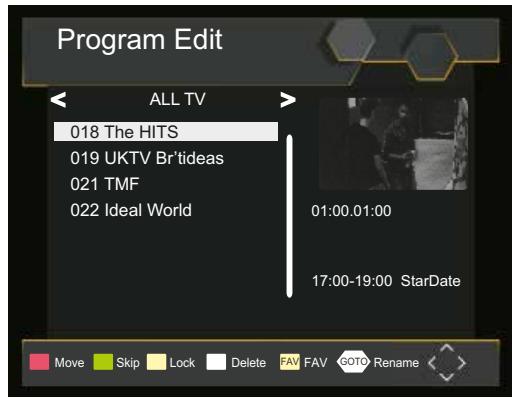
GOTO FAV FAV Delete Rename GOTO Rename ENGLISH ENGLISH FirstFirst TimeTime Installation Installation Set favourite programsProgram/s Set Favourite You canYou create a shortlist favourite of programs thatprograms you can easily Seteasily can create aofshortlist favourite thataccess. you can favourite

radio program: access.Set Favourite TV or Radio program:

1. Select1.Select

the preferred program then press the FAVOURITE button. A heart-shathe preferred program then press the PAVOURITE button. ped symbol will appear symbol and the program is marked as aprogram favourite.is marked as a A heart-shaped will appear and the favourite.

2. Repeat

the previous step to select more Favourite programs. 2.Repeat thethe previous stepthe to EXIT select

3. To confirm

and exit Menu,press key.more Favourite programs. 3.To confirm and exit the Menu,press the EXIT key. Disable Favourite TV or Radio Program: Disable Favourite TV or Radio Press the FAV buton on the Remote ControlProgram: with the heart-shaped symbol. Press the FAV buton on the Remote Control with the heart-shaped symbol. View Favourite Programs:

1. Press View

the Fav button and the Favourite Menu will appear. Favourite Programs:

2. Press 1.Press

UP/DOWN to Fav selestbutton your Favourite the and thePrograms. Favourite Menu will appear.

3. Press2.Press

OK to select your favourite program. UP/DOWN to selest your Favourite Programs. 3.Press OK to select your favourite program. Delete a TV or radio program Delete a TV or Radio Program/s

1. Select the Program and then press the BLUE button A message will appear.

1.Select the Program and then press the BLUE button A message Press OK to delete the program. will appear.Press OK to delete the program.

2. Repeat

the previous to select more programs to delete. 2.Repeat the step previous step to select more programs to delete. Lock Program/s Lock Program/s You can selected programs for restricted view. view. You canlock lock selected programs for restricted Lock Radio Program: Lock aaTV oror Radio Program: 1.Select thepreferred preferred program the YELLOW

1. Select the

program thenthen presspress the YELLOW button. Abutton. A lock-shaped displayed. program now marked lock-shaped symbol symbol isisdisplayed. TheThe program is nowismarked locked. locked.

2. Repeat

Repeat the previous to select programs

the previous stepstep to select more more programs

3. To confirm and exit the menu, press the EXIT button.

3. To confirm and exit the menu, press the EXIT button.

4. Press the YELLOW button to disable the locked program.

4. Press

the YELLOW button to disable the locked program. To view the locked program, you will be require to enter either

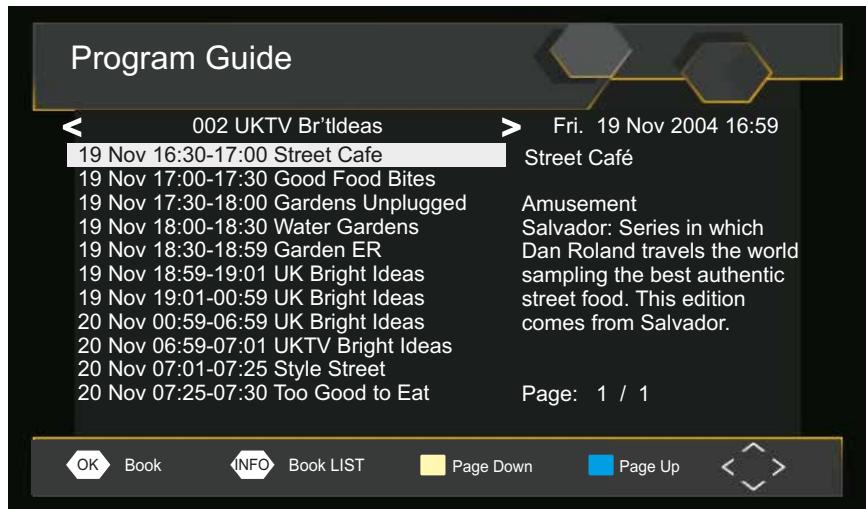
view the locked program, you will required to enter the the default. password. EPG (Electronic program program guide) EPG (Electronic guide) The EPG anan on-screen TV guide thatthat shows scheduled programs The EPGis is on-screen TV guide shows scheduled programs seven days forfor every tuned channel. Press the EPG seven daysininadvance advance every tuned channel. Press the EPG button RemoteControl Controltotoaccess access guide. button on on the Remote guide. Program Guide

TV or Radio Program/s Skip TVSkip or Radio Program/s the you program would likepress to skip press the AGREEN

1. Select1.Select

the program wouldyou like to skip and theand GREEN button skip button skip symbol displayed. The program marked

symbol is displayed. The program is marked as a skip. skip.

2. Repeat the previous step to select more programs.

2.Repeat thethemenu,press previous step to key. select more programs.

3. To confirm

and exit EXIT 3.To confirm and exit themenu,press EXIT key. Disable Disable a skip TV aorskip Radio Program: or Radio Program: Press the GREEN button skip program with program the skip symbol. Press the GREENthe button on the skip with the skip symbol.

Move aMove TV or Radio Program/s a TV or Radio Program/s

1. Select1.the

preferred program then press the REDpress button. movebutton. symbolwill Select the preferred program then theA RED appear. move symbolwill appear. Press UP/DOWN move the program.

2. Press2.

UP/DOWN to move theto program. OK to confirm.

3. Press3.

4. the

Repeat above steps to move more channels .

4. Repeat

abovethe steps to move more channels. Book INFO Book LIST

Fri. 19 Nov 2004 16:59 Street Café Amusement Salvador: Series in which Dan Roland travels the world sampling the best authentic street food. This edition comes from Salvador. Page: 1 / 1 Page Down Page Up You keykey to select the the preferred program. If If Youcan canuse usethe theUP/DOWN UP/DOWN to select preferred program. there more than one page information, use the BLUE button there is more than one page of information, use the BLUE button for button forfor page down. for page page up upand andthe theYELLOW YELLOW button page down.

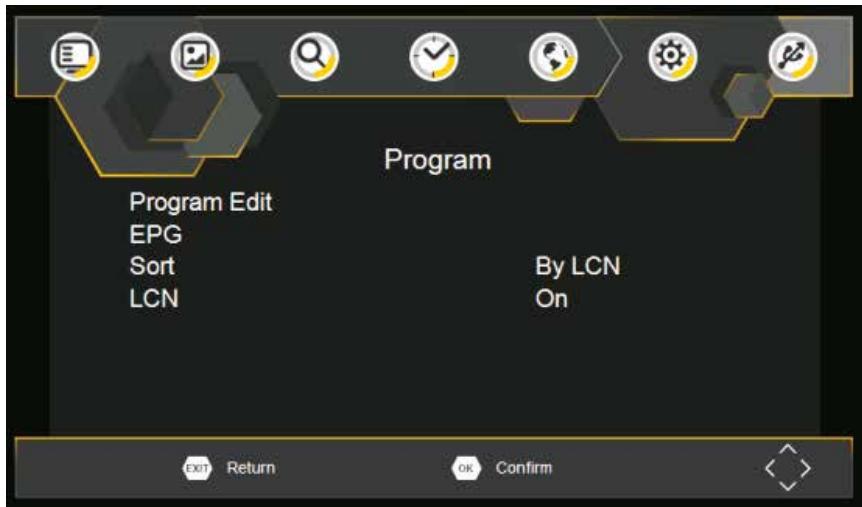
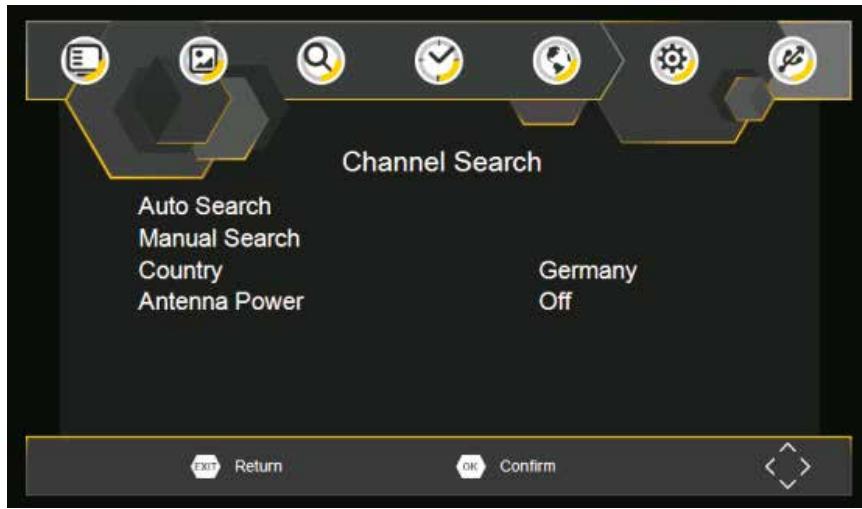
ENGLISH ENGLISH Installation FirstFirst timeTime installation Sort Sort Sort your channels from the following options: [LCN] Sort the channels in ascending order. options: Sort -your channels from the following [Name] Sort the channels alphabetical order. [LCN] - Sort the channels in ascending order. [Service - Sortthe the channels channels according to the station. [Name]ID] - Sort in alphabetical order. [Service ID] - Sort the channels according to the station. LCN (Logical channel number) LCN (Logical channel number) Set LCN on or off. Set LCN on or off. [1080I]: for NTSC or PAL system TV. [1080P]: formatfor NTSC or PAL system TV. Video Setting If the video does not appear correctly, you need to change the TV format settings. Thisdoes should thecorrectly, most common setting for TVs in your If the video notmatch appear you need to change the country. settings. This should match the most common setting for TVs in your [NTSC]: for NTSC system TV. country. [NTSC]: for NTSC TV. [PAL]: for PAL systemsystem TV. Video Setting To access the Menu, press SETUP then select [Picture]. The Menu provides options to adjust the video settings. Press UP/DOWN to To access the Menu, press SETUP then select [Picture]. The Menu select an option and press RIGHT/LEFT to adjust that setting. Press provides to adjust the video settings. Press UP/DOWN to EXIT to exitoptions the menu. select an option and press RIGHT/LEFT to adjust that setting. Press EXIT to exit the menu. [PAL]: for PAL system TV. Channel search Channel Search access the menu, press SETUP and select [Search Channel]. To access the menu, press SETUP and select [Search Channel]. The Menu provides options to adjust the Search Channel settings. The Menu provides options to adjust the Search Channel settings. Select RIGHT/LEFT to adjust the settings. Selectananoption optionand andpress press RIGHT/LEFT to adjust the settings. Press EXIT to exit thethe Menu. Press EXIT to exit Menu. Aspect Ratio Aspect Ratio You must PanScan, 4:3 4:3 You must set setthe thedisplay displayformat formattotoeither either4:3 4:3 PanScan, 4:3 Full, Wide Screen , 16:9 PillarBox or Auto to to Letter Box, Box,4:3 Full,16:9 16:9 Wide Screen , 16:9 PillarBox or Auto get whenwatching watchingTV. TV. get the maximum display display when
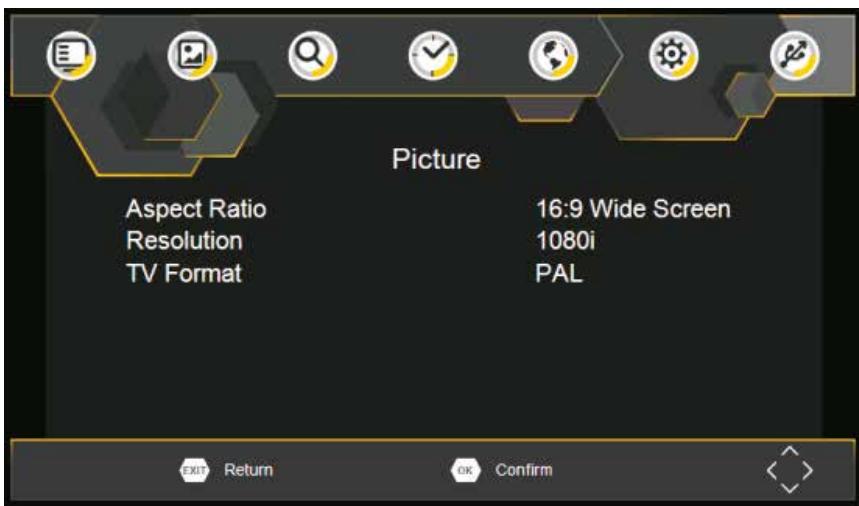
ENGLISH ENGLISH Resolution If the video does not appear correctly, change the setting. This setting is to match the most common setting for HDMI. [480i]: for NTSC system TV. Resolution [480P]: for NTSC system TV. correctly, change the setting. This setting If the video does not appear is to match most TV. common setting for HDMI. [576i]: for PALthe system 480i] for NTSC system [576P]: for PAL system TV. TV. [480P]: for NTSC system TV. [720P]: for NTSC or PAL system TV. [576i] for PAL system TV. [1080I]: or PAL system [576P]:for forNTSC PAL system TV. TV. [1080P]: for NTSC PAL system TV.TV. [720P]: for NTSC or PAL system

2. Press the RIGHT/LEFT key to select the channel frequency.

3. Press OK to start searching channels.

If a channel is found, it is saved and added to the channels list. If

2. Press the

RIGHT/LEFT key exit to select the channel frequency. channels cant be found, then the menu.

3. Press OK to start searching channels.

Country If a channel is found, it is saved and added to the channels list. If Country Select your country of residence. channels cant found, then exit the menu. Select your country of residence. Press the RIGHT/LEFT key to select the channel frequency. Time Setting Country Press

start searching channels. To access the Menu, press MENU then select [Time].

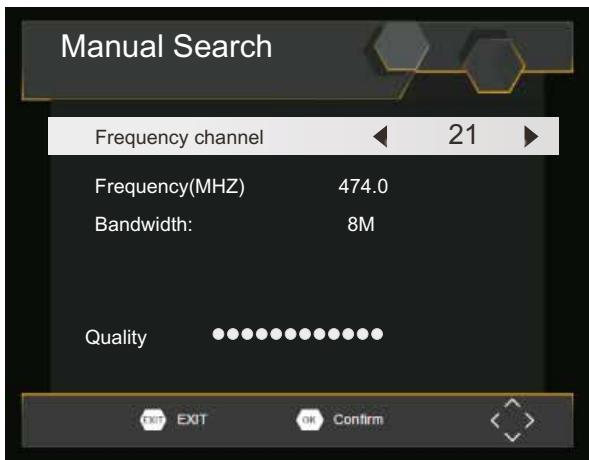
saved and added to the channels list. If Select your country residence. The Menu provides options to adjust the time settings. channels cant be found, then exit the menu. Select an option and press RIGHT/LEFT to adjust settings. To access the Menu,press MENU then select the [Time]. The Menu Press EXIT exit the menu. Press UP/DOWN to provides Country options to adjust the time settings. sSelect elect an option and press RIGHT/LEFT adjust the yourthe country of residence. access Menu,press MENU then select [Time]. The Menu settings.Press EXIT to exit the menu. Press UP/DOWN to provides options to adjust the time settings. s elect an option and press RIGHT/LEFT to adjust the settings.Press EXIT to exit the menu. To access the Menu,press MENU then select [Time]. The Menu Press UP/DOWN to provides options to adjust the time settings. s elect an option and press RIGHT/LEFT to adjust the settings.Press EXIT to exit the menu. Time Setting Time Setting adds new channels without changing the current channels list. Manual Search Progress Manual Search Select [Manual then press OKadds or RIGHT. The channel Install new channelsSearch] manually. This option new channels without EXIT Exit Skip Install new channels manually. This option adds new channels search screen will appear. changing the current channels list. without the current channels Select changing [Manual Search] then press OK orlist. RIGHT. The channel search screen Manual Searchthen press OK or RIGHT. The channel

1. Select [Manual

Search] will appear. search will appear. Manualscreen Search

2. Press the RIGHT/LEFT key to select the channel frequency.

Install new channels manually. This option adds new channels Frequency channel

Press OK toManual start searching Search without changing the currentchannels. channels list.

saved and added toRIGHT. the channels list. If channels Frequency(MHZ)

474.0 OK or

1. Select [Manual

Search] then press The channel can’t be found, then exit the menu. search screen will appear. Bandwidth: MENU

Frequency channel Manual Search Frequency(MHZ) Bandwidth: Quality

Frequency channel Frequency(MHZ) Quality Bandwidth: Quality

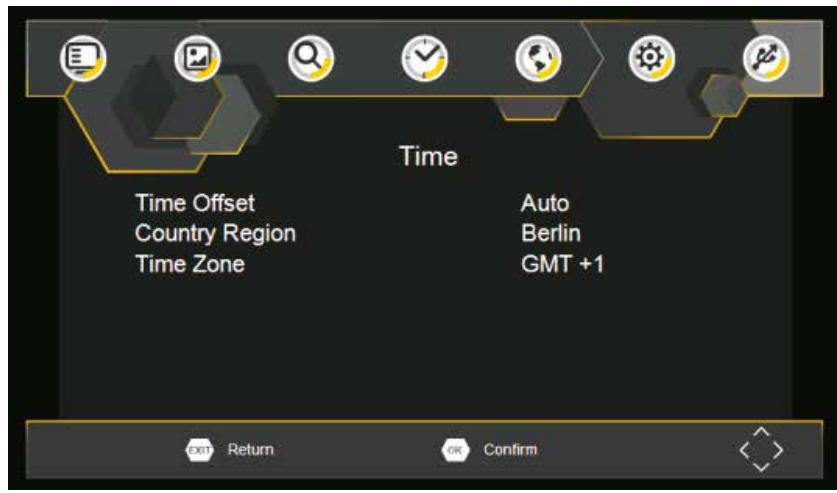
Time offset Time offset Select auto or manual for GMT offset adjustments. Select auto or manual for GMT offset adjustments. Country Region Time offset Country Region is set automatically you set the country at channel Select auto or manual for GMT offsetwhen adjustments. Country Region search menu. Country Region is set automatically when you set the country at channel Country Region search menu. Time Zone Country Region is set automatically when you set the country at channel Time offset search menu. Select the Zone Offset when [Time Offset] is set to Manual. Select autoTime or manual for GMT offset adjustments. Time Zone Time Zone Select the Time Zone Offset when [Time Offset] is set to Manual. Country Region Select Time is Zone when [Time set country to Manual. Countrythe Region set Offset automatically whenOffset] you setisthe at channel search menu. Time Zone Select the Time Zone Offset when [Time Offset] is set to Manual. ENGLISH ENGLISH Auto Search Search and install all channels automatically. This option overwrites all preset channels. Auto Search

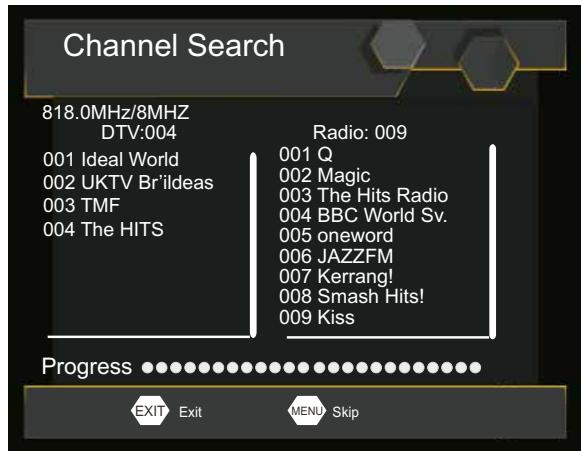
1. Select [Auto Search] and press OK or RIGHT to start channel

Auto Search Search and install all channels automatically. This option search. Search and install all channels automatically. This option overwrites all preset overwrites all preset channels.

2. To cancel channel search, press EXIT.

1. Select [Auto Search] and press OK or RIGHT to start channel

Auto Search Select [Auto Search] and press OK or RIGHT to start channel search. search. Channel Search Search andchannel install all channels This option To cancel search, pressautomatically. EXIT.

cancel channel search, press EXIT. overwrites all preset channels. 818.0MHz/8MHZ Radio: OK 009 or RIGHT to start channel

1. Select [AutoDTV:004

Search] and press Channel Search001 Q 001 Ideal World search. 002 UKTV Br’ildeas 002 Magic 003 The Hits Radio 003 TMF 818.0MHz/8MHZ

2. To cancel

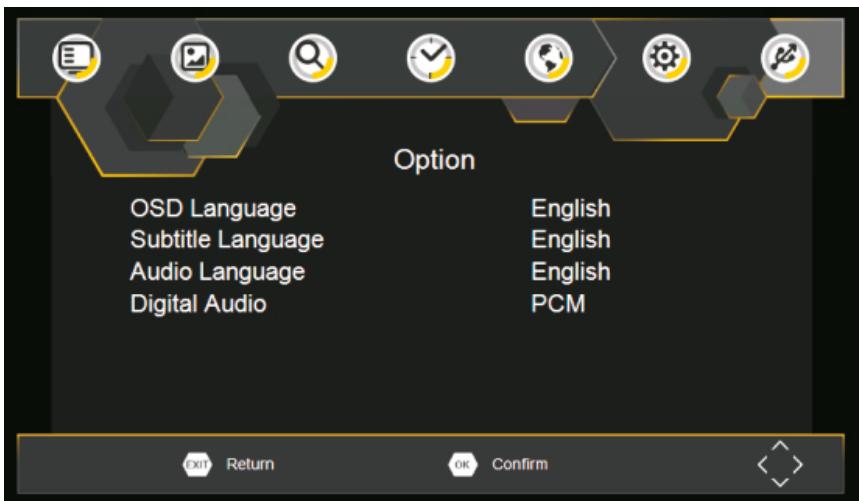
channel search, EXIT. 004press BBC World Sv. 004 The HITS ENGLISH ENGLISH Option Option Option To access the Menu,press SETUP and select [Option]. The menu To accessoptions the Menu, press SETUP and Language, select [Option]. The menu provides provides to adjust the OSD Subtitle Language options to adjust the OSD Language, Subtitle Language and Audio Language. access the Menu,press SETUP and select [Option]. The menu and Audio Language. Select an option and press RIGHT/LEFT provides options adjust the OSD Language, Subtitle Language Select option and press RIGHT/LEFT adjust the setting. adjust the setting.Press EXIT to exit The Menu. and Language. Select an option and press RIGHT/LEFT to PressAudio EXIT to exit The Menu. adjust the setting.Press EXIT to exit The Menu. OSD Language Select an OSD language. OSD OSDLanguage Language Audioan Language Select OSD language. Select OSD language. Select the preferred audio language for watching TV channels.If Audio Language the language is not available, the default program language will be Audio Language Select the preferred audio language for watching TV channels.If used. Select the preferred language for watching TV channels.If the language is notaudio available, the default program language will be the language not available, the default program language will be used. Language Subtitle used. Select the preferred subtitle language. Subtitle Language Select preferred subtitle language. Subtitle Language Digitalthe Audio Select preferred subtitle language. Set thethe desired audio format at the HDMI slot: PCM, Raw HDIM On, Digital Audio Raw HDMI Off, Off (if available). Set theAudio desired audio format at the HDMI slot: PCM, Raw HDIM On, Digital Raw HDMI Off, Off (if available). Set the desired audio format at the HDMI slot: PCM, Raw HDMI On, Raw HDMI Off, Off (if available). To access the Menu,press SETUP and select [System].The menu. Provides options to adjust the system settings. Press the System Setting To access the andpress selectRIGHT/LEFT [System].Thetomenu. UP/DOWN keyMenu,press to select anSETUP option and adjust access the Menu, press SETUP and select [System]. Thethe menu provides Provides options adjust the system settings. Press the setting.Press EXIT to exit the Menu. options to adjust system Press the UP/DOWN key to select UP/DOWN key tothe select ansettings. option and press RIGHT/LEFT adjustan the setting.Press EXIT to exit Menu. option and press RIGHT/LEFT tothe adjust the setting. Press EXIT to exit the menu. System Setting System Setting
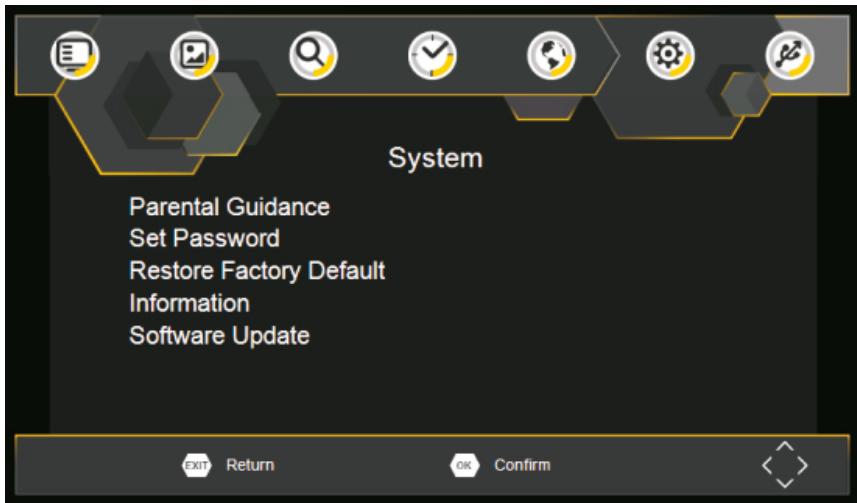
Parental Guidance Parental You can Guidance restrict access to channels that are unsuitable for children. Parental Guidance You can restrict access to channels thatneed are unsuitable for children. restrict/lock the channel you will to enter either the default You can restrict access to channels thatto are unsuitable fordefault children. restrict / '000000' lock the channel you need enter either the password or your ownwill password. To restrict/lock the will need to enter either the default password ‘000000’ orchannel your ownyou password. Set Password password '000000' or your own password. Set or change the password for Locked programs. Enter your old Set SetPassword Password Password or the default password '000000'. You will then be asked Set change forfor Locked programs. Enter your Set change thepassword password Locked programs. Enter your old to enter your the new password. confirm re-enter your newold Password the default password ‘000000’ You will then asked Password the default password '000000'. You will then be asked password. Once it is confirmed, press EXIT to exit the Menu. ToTo confirm re-enter youryour newnew to enter enteryour yournew newpassword. password. confirm re-enter password. Once itDefault confirmed, press to the exitMenu. the Menu. password. Once it is confirmed, press EXITEXIT to exit Restore Factory Reset your Set Top Box to the Default Factory Settings.In Main Restore Factory Default Restore Factory Default Menu select [Restore Factory Default] and press OK or RIGHT to Reset your Set Top Box to the Factory Settings.In select. Enter your password or Default the default password and Reset your Set Top Box to the Default Factory Settings. In'000000' MainMain Menu select [Restore Factory Default] and press

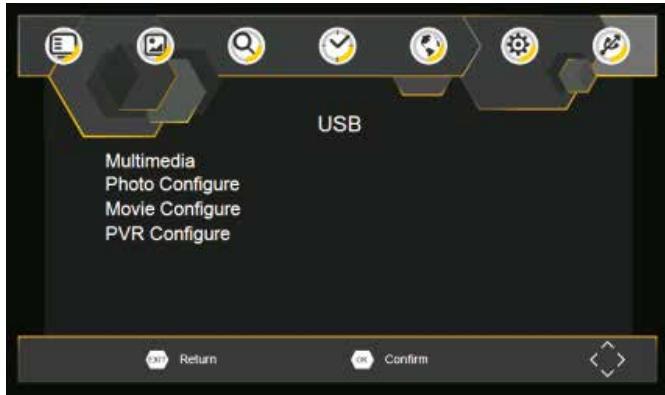
confirm. This option will delete all preset channels and Menu select [Restore Factory Default] and press OK or RIGHT to select. Enter your password or the default password '000000' and settings. select. Enter your password or the default password ‘000000’ and press OK to confirm. This option will delete all preset channels and press OK to confirm. This option will delete all preset channels and settings. Information settings. View model, hardware and software information. Information Information Software update View model, hardware and software information. View model, hardware and software information. Software update Software update Software update update Software Software update. USB USB To access the Menu, press the SETUP button and select USB. To access the Menu, press the SETUP button and select USB. USB USB No picture Problem Problem No picture No picture Screen shows To access the Menu, press the SETUP button and select USB. To access the Menu, press the SETUP button and select USB. No Signal Screen shows No Signal Screen shows No Signal No sound from speaker No sound from speaker No sound from speaker Multi-Media Multi-Media Switch to USB mode and plug in USB to view files. SwitchConfigure to USB mode and plug in USB to view files. Photo Multi-Media Photo Configure Set the parameters for viewing photographs. Multi-Media Switch toparameters USB mode and plug in USB to view files. Movie Set theConfigure for viewing photographs. Photo Configure Switch USB mode for anddisplaying plug in USB to view files. Set theto parameters movie subtitles. Movie Configure Set parameters for viewing photographs. PVRthe Configure Photo Configure Set theConfigure parameters for record displaying movie subtitles. Movie device. Set the parameters for viewing photographs. Set the parameters for displaying movie subtitles. PVR Configure Movie Configure PVRthe Configure the parameters for record device. Set parameters for displaying movie subtitles. Technical Specifications Only sound, no image on the screen Only sound, no image on theno Only sound, screen image on the screen Remote Control is not responding Remote Control not responding Remote Control is not responding Technical Specifications 170~230MHz Tuner Input Frequency 470~860MHz Technical Item SubSpecifications Item Parameter Item Tuner Tuner Video Video Video Audio RF Input level Sub Item Input Frequency IF Bandwidth Input Frequency RF Input level Modulation RFBandwidth Input level Decoder Format IF Bandwidth Modulation Modulation Output Port Decoder Format Decoder Format Decoder Format Output Port Audio output -25~-80dBm (64QAM) -10~-75dBm (256QAM) Parameter 170~230MHz 470~860MHz 7MHz and 8MHz 170~230MHz -25~-80dBm (64QAM) 470~860MHz
QPSK,16QAM,64QAM,256QAM

-10~-75dBm (256QAM) -25~-80dBm (64QAM) 7MHz and 8MHz -10~-75dBm (256QAM) MPEG4 AVC/H.264 HP@L4 HEVC/H.265 HT@L4 7MHz and 8MHz

QPSK,16QAM,64QAM,256QAM

MPEG2 MP@ML.HL

QPSK,16QAM,64QAM,256QAM

MPEG4 AVC/H.264 HP@L4

HEVC/H.265 HT@L4

MPEG4 MP@ML.HL

AVC/H.264 HP@L4

MPEG2 MPEG-1 (layer1&2 &3) HEVC/H.265 HT@L4 CVBS,HDMI MPEG2 MP@ML.HL Stereo Power Decoder Format Output Port Voltage Decoder Format Audio output Working Power Audio output Voltage Voltage Working Power

9V (1.5 A) 10W Audio Power Audio Working Power 10W

Power isn't connected Potential Reasons The power switch Potential Reasons is not on Power isn't connected Power isn't connected The power switch DVB-T cable not not connected The power switch is not on DVB-T cable not Incorrect setting connected DVB-T cable not connected connection No or incorrect Incorrect setting Incorrect with audiosetting cable No or incorrect connection Sound on mute connection incorrect withoraudio cable with audio cable Sound on mute Incorrect Sound onsound mute track What to do Connect the power What to do Switch on the power What to do Connect the power Connect the power Plug in on thethe DVB-T cable Switch power Switch on the power Plug in the DVB-T cable Reset setting Plug in the DVB-T cable Connect the audio cable Reset setting correctly Reset setting Connect the audio cable Turn off the mute function correctly cable Connect audio correctly Turn off mute function Try sound track Turnanother off mute function Incorrect sound track Try another sound track Incorrect sound track Try another sound track No or incorrect connection Make sure cables are with AV cable connected correctly No or incorrect connection Make sure cables are The a radio Press key with cableisconnection connected No orprogram incorrect Make<TV/RADIO> sure correctly cables are program shift into mode with AV cable connected correctly The program is a radio Press <TV/RADIO> key The battery is is exhausted Change battery program shift<TV/RADIO> into TV modekey The program a radio to Press program to shift into TV mode The battery is exhausted Change Remote Control is not Adjust thebattery position of the The battery is exhausted battery facing or close enough Change Remote Control and to the Set Top Box to the of unit Remote Control is not move Adjustcloser the position the facing close enough Remote Control is not Remote Control and Adjust the position of the the Set Top Box facing or close enough move closer to the Remote Control andunit to the Set Top Box closerthe to the unit The signal is too weak move Strengthen signal The image stopped suddenly or mosaic The image stopped The signal is too weak suddenly mosaic The signal is too weak The imageorstopped suddenly or mosaic Strengthen the signal Strengthen the signal ENGLISH ENGLISH Troubleshooting Troubleshooting Troubleshooting Problem Potential Reasons

COAXIAL ANT. AV OUT HDMI FRANÇAIS FRANÇAIS 13.SOURCE TV / USB 018 The HITS 019 UKTV Br’tideas 021 TMF 022 Ideal World 01:00.01:00 17:00-19:00 StarDate Move FRA-5 Skip Lock Delete FAV FAV GOTO Rename FRANÇAIS FRANÇAIS Première installation Progress EXIT Exit MENU Skip Frequency channel

Quality FRA-8 FRANÇAIS FRANÇAIS Première installation FRANÇAIS FRANÇAIS 018 The HITS 019 UKTV Br’tideas 021 TMF 022 Ideal World 01:00.01:00 17:00-19:00 StarDate Move GER-5 Skip Lock Delete FAV FAV GOTO Rename DEUTSCH DEUTSCH Erstinstallation Progress EXIT Exit MENU Skip Frequency channel Frequency(MHZ) Bandwidth: Quality

QPSK, 16QAM, 64QAM, 256QAM

Decoderformat 018 The HITS 019 UKTV Br’tideas 021 TMF 022 Ideal World 01:00.01:00 17:00-19:00 StarDate Move ITA-5 Skip Lock Delete FAV FAV GOTO Rename ITALIANO ITALIANO Prima installazione Progress EXIT Exit MENU Skip Frequency channel Frequency(MHZ) Bandwidth:

QPSK, 16QAM, 64QAM, 256QAM

018 The HITS 019 UKTV Br’tideas 021 TMF 022 Ideal World 01:00.01:00 17:00-19:00 StarDate Move ESP-5 Skip Lock Delete FAV FAV GOTO Rename ESPAÑOL ESPAÑOL Progress EXIT Exit MENU Skip Frequency channel Frequency(MHZ) Bandwidth: 018 The HITS 019 UKTV Br’tideas 021 TMF 022 Ideal World 01:00.01:00 17:00-19:00 StarDate Move POR-5 Skip Lock Delete FAV FAV GOTO Rename PORTUGUÊS PORTUGUÊS Primeira Instalação Progress EXIT Exit MENU Skip Frequency channel Frequency(MHZ) Bandwidth: Quality

QPSK, 16QAM, 64QAM, 256QAM

018 The HITS 019 UKTV Br’tideas 021 TMF 022 Ideal World 01:00.01:00 17:00-19:00 StarDate Move SWE-5 Skip Lock Delete FAV FAV GOTO Rename SVENSK SVENSK Förstagångsinstallation LCN (logiska kanalnummer) Progress EXIT Exit MENU Skip Frequency channel Frequency(MHZ) Bandwidth: Quality

QPSK, 16QAM, 64QAM, 256QAM

Avkodarformat 018 The HITS 019 UKTV Br’tideas 021 TMF 022 Ideal World 01:00.01:00 17:00-19:00 StarDate Move POL-5 Skip Lock Delete FAV FAV GOTO Rename POLSKI POLSKI Pierwsza instalacja POLSKI POLSKI Progress EXIT Exit MENU Skip Frequency channel Frequency(MHZ) Bandwidth:

QPSK,16QAM,64QAM,256QAM

Format dekodera Identification of Controls Remote control unit

POWER VOL- VOL+ SOURCE

REPEAT MUTE MODE ZOOM REC ENTER

TTX FAV TV/RADIO EXIT

Display the information of the current signal 1.POWER On/off the power supply

12. DISPLAY

2.VOL Adjust VOLUME. Eerste installatie FirstFirst Time Time Installation Installation Program Program Edit Edit

GOTO FAV FAV Delete Rename GOTO Rename NEDERLANDS NEDERLANDS Basis operatie EPG (Electronic program guide) Fri. 19 Nov 2004 16:59 Street Café Amusement Salvador: Series in which Dan Roland travels the world sampling the best authentic street food. This edition comes from Salvador. Page: 1 / 1 Page Down Page Up Sort your channels from the following Sorteer uw kanalen uit de volgende opties: options: Sort your channels from the following options: [LCN] - Sort the channels in ascending order. [LCN] - Sorteer kanalen in oplopende volgorde. [LCN] Sort the channels ascending order. [Name] - Sort the channels in alphabetical order. [Naam] Sorteer kanalen alfabetische volgorde. [Name] Sort the channels alphabetical order. [Service ID] - Sort the channels according to the station. [Service - Sortde the channels according to the station. [Service ID]ID] - Sorteer kanalen op basis van het station. LCN LCN (Logical (Logical channel channel number) number) Video Video Setting Setting Channel Channel Search Search

NEDERLANDS NEDERLANDS

2. Press the RIGHT/LEFT key to select the channel frequency.

3. Press OK to start searching channels.

channel found, it is saved added the channels list. If 2.aPress the is RIGHT/LEFT key toand select the to channel frequency. channels cant found, then exit the menu.

3. Press OK to start searching channels.

Land If a channel is found, it is saved and added to the channels list. If Country Selecteer land verblijf. channelsuw cant bevan found, then exit the menu. Select your country of residence.

2. Press

the RIGHT/LEFT key to select the channel frequency. Tijd instelling Country Press OKtetokrijgen start searching channels. toegang het Menu, drukt u op MENU en selecteert u [Tijd]. Select your country oftot residence. If a channel is found, it is saved and added to the channels list. If Het menu biedt opties om de tijdinstellingen aan te passen. channels cant be found, then exit the menu. Selecteer een optie en druk op RECHTS / LINKS de instellingen aan te passen. To access the Menu,press MENU then selectom [Time]. The Menu Druk EXIT het menu verlaten. Press UP/DOWN to provides Country options to adjust the time settings. sTo elect option and press RIGHT/LEFT adjust the The Menu access the Menu,press MENU then select [Time]. Select your country of residence. settings.Press EXIT to exitthe thetime menu. Press UP/DOWN to provides options to adjust settings. s elect an option and press RIGHT/LEFT to adjust the settings.Press EXIT to exit the menu. To access the Menu,press MENU then select [Time]. The Menu Press UP/DOWN to provides options to adjust the time settings. s elect an option and press RIGHT/LEFT to adjust the settings.Press EXIT to exit the menu. Time Setting Time Setting Time Setting Frequency channel Quality Frequency(MHZ) Bandwidth: Quality

Time offset Tijdverschuiving Select auto or manual for GMT offset adjustments. Selecteer auto of handmatig voor aanpassingen van GMT-offset. Time offset Country Region Select auto or manual for GMT offsetwhen adjustments. Country Region is set automatically you set the country at channel Land Regio search menu. Country Region Landregio wordt automatisch ingesteld wanneer u het land instelt in het ‘kanaal Country Region is set automatically when you set the country at channel zoek menu’. Time Time Zone offset search menu. Select Zone Offset when [Time Offset] is set to Manual. Select the autoTime or manual for GMT offset adjustments. Tijdzone Time Zone Selecteer de tijdzone-offset wanneer [Tijdverschuiving] is ingesteld op Handmatig. Country Select theRegion Time Zone Offset when [Time Offset] is set to Manual. Country Region is set automatically when you set the country at channel search menu. Time Zone Select the Time Zone Offset when [Time Offset] is set to Manual. NEDERLANDS NEDERLANDS Option Optie Option To access the Menu,press SETUP and select [Option]. The menu System Setting System SettingSETUP and select [System].The menu. access the Menu,press Screen shows No Signal Technical Specifications Item Sub Item Parameter Tuner Input Frequency 170~230MHz 470~860MHz RF Input level

QPSK,16QAM,64QAM,256QAM

Decoder Format No sound from speaker Power isn't connected Connect the power The power switch is not on Switch on the power DVB-T cable not connected Plug in the DVB-T cable Incorrect setting Reset setting No or incorrect connection Connect the audio cable correctly with audio cable screen The program is a radio program Press <TV/RADIO> key to shift into TV mode Remote Control The battery is exhausted Change battery is not responding Remote Control is not facing or close enough to the Set Top Box The image stopped The signal is too weak suddenly or mosaic NED 10-10 Adjust the position of the Remote Control and move closer to the unit Strengthen the signal NED-10 PDVBT 101 Declaration of conformity Latest declaration form can be found at: www.caliber.nl/media/forms/DeclarationPDVBT101.pdf

WWW.CALIBER.NL

CALIBER EUROPE BV • Kortakker 10 • 4264 AE Veen • The Netherlands