
ILEAD CONTROLLER - Light Controller JBSYSTEMS LIGHT - Free user manual and instructions
Find the device manual for free ILEAD CONTROLLER JBSYSTEMS LIGHT in PDF.


| Product Type | DMX Light Controller |
| Brand | JBSYSTEMS LIGHT |
| Model | ILEAD CONTROLLER |
| Dimensions | 485 × 135 × 80 mm |
| Weight | 2.5 kg |
| Power Supply | DC 9-12V, 300 mA min |
| DMX Channels | Up to 192 channels |
| Number of controllable scans | 24 scans (up to 8 channels per fixture) |
| Chase program memory | 24 programs, up to 485 scenes |
| Control functions | Joystick Pan/Tilt, Speed and X-Fade/Value sliders |
| Operating modes | Program, Black-out, Stand Alone, Auto, Sound, MIDI |
| MIDI control | Yes, via MIDI notes (C3 to G6) |
| Audio input | Built-in microphone or line input |
| Connectors | DMX In/Out (XLR 3-pin), MIDI input, fog machine output (DIN 5-pin), strobe output (12V DC) |
| Included accessories | Power adapter, instruction manual |
| Maximum operating temperature | 40°C |
| Usage | Indoor only |
| Maintenance | Clean with a damp cloth; internal maintenance by professional |
| Safety | Do not open the device, do not expose to moisture, use certified cables |
| Repairability | Repair by qualified technician only |
| Special function | Remote DMX address setting for iRock, iShow, iMove devices |
| Automatic memory | In case of power failure |
Frequently Asked Questions - ILEAD CONTROLLER JBSYSTEMS LIGHT
User questions about ILEAD CONTROLLER JBSYSTEMS LIGHT
0 question about this device. Answer the ones you know or ask your own.
Ask a new question about this device
Download the instructions for your Light Controller in PDF format for free! Find your manual ILEAD CONTROLLER - JBSYSTEMS LIGHT and take your electronic device back in hand. On this page are published all the documents necessary for the use of your device. ILEAD CONTROLLER by JBSYSTEMS LIGHT.
USER MANUAL ILEAD CONTROLLER JBSYSTEMS LIGHT
Your integrated Solution
ILEAD
CONTROLLER
WWW.BEGLEC.COM
Copyright © 2005-2007 by BEGLEC cva.
Reproduction or publication of the content in any manner, without express permission of the publisher, is prohibited.
Version: 1.1
Operation Manual
Mode d'emploi
Gebruiksaanwijzing
Bedienungsanleitung
Dispose of the unit and used batteries in an environment friendly manner according to your country regulations.
FR-DECLASSES L'APPAREIL
Thank you for buying this JB Systems® product. To take full advantage of all possibilities, please read these operating instructions very carefully.
FEATURES
This unit is radio-interference suppressed. This product meets the requirements of the current European and national guidelines. Conformity has been established and the relevant statements and documents have been deposited by the manufacturer.
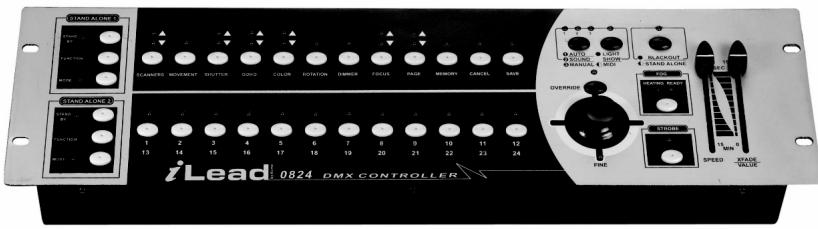
- Standard 19-inch rack mount
Controls up to 192 DMX channels
Controls 24 scanners with up to 8 DMX channels per fixture.
12 preset movements for instant show editing - Sets DMX address of iSolution effects remotely
24 chases with up to 485 scenes - Auto program (scenes and chases) controlled by Speed and X-Fade sliders
- Scanners control with Pan/Tilt joystick or Speed and X-Fade sliders
Pan/Tilt joystick with Fine adjustment function - Blackout function
- Override function gives complete control of selected fixtures
- Built-in microphone for Music triggering or (Audio) line in
- MIDI control for Chases, Blackout, Sound, Auto, Speed and X-Fade
Power failure memory - 2 extra easy controllers incorporated for immediate pre-programmed shows
- Fog Machine trigger button with "Heating" and "Ready" LED indicators
- Strobe trigger button with adjustable speed
BEFORE USE
Check the contents:
Check that the carton contains the following items:
- iLEAD Controller
- AC/DC adapter
- Operating instructions
Some important instructions:
- Before you start using this unit, please check if there's no transportation damage. Should there be any, do not use the device and consult your dealer first.
- Important: This device left our factory in perfect condition and well packaged. It is absolutely necessary for the user to strictly follow the safety instructions and warnings in this user manual. Any damage caused by mishandling is not subject to warranty. The dealer will not accept responsibility for any resulting defects or problems caused by disregarding this user manual.
- Keep this booklet in a safe place for future consultation. If you sell the fixture, be sure to add this user manual.
- To protect the environment, please try to recycle the packing material as much as possible.
SAFETY INSTRUCTIONS:

CAUTION
RISK OF ELECTRIC SHOCK DO NOT OPEN

CAUTION: To reduce the risk of electric shock, do not remove the top cover. No user-serviceable parts inside. Refer servicing to qualified service personnel only.

The lightning flash with arrowhead symbol within the equilateral triangle is intended to alert the use or the presence of un-insulated "dangerous voltage" within the product's enclosure that may be of sufficient magnitude to constitute a risk of electric shock.

The exclamation point within the equilateral triangle is intended to alert the user to the presence of important operation and maintenance (servicing) instructions in the literature accompanying this appliance.

This symbol means: indoor use only.
This symbol means: Read instructions.
- To prevent fire or shock hazard, do not expose this appliance to rain or moisture.
- To avoid condensation to be formed inside, allow the unit to adapt to the surrounding temperatures when bringing it into a warm room after transport. Condense sometimes prevents the unit from working at full performance or may even cause damages.
This unit is for indoor use only. - Don't place metal objects or spill liquid inside the unit. No objects filled with liquids, such as vases, shall be placed on this appliance. Electric shock or malfunction may result. If a foreign object enters the unit, immediately disconnect the mains power.
- No naked flame sources, such as lighted candles, should be placed on the appliance.
- Don't cover any ventilation openings as this may result in overheating.
- Prevent use in dusty environments and clean the unit regularly.
- Keep the unit away from children.
- Inexperienced persons should not operate this device.
Maximum save ambient temperature is 40C. Don't use this unit at higher ambient temperatures. - Always unplug the unit when it is not used for a longer time or before you start servicing.
- The electrical installation should be carried out by qualified personal only, according to the regulations for electrical and mechanical safety in your country.
- Check that the available voltage is not higher than the one stated on the rear panel of the unit.
- The socket inlet shall remain operable for disconnection from the mains.
- The power cord should always be in perfect condition: switch the unit immediately off when the power cord is squashed or damaged.
- Never let the power-cord come into contact with other cables!
- In order to prevent electric shock, do not open the cover. Apart from the mains fuse there are no user serviceable parts inside.
- Never repair a fuse or bypass the fuse holder. Always replace a damaged fuse with a fuse of the same type and electrical specifications!
- In the event of serious operating problems, stop using the appliance and contact your dealer immediately.
- Please use the original packing when the device is to be transported.
- Due to safety reasons it is prohibited to make unauthorized modifications to the unit.
FUNCTIONS (FRONT)
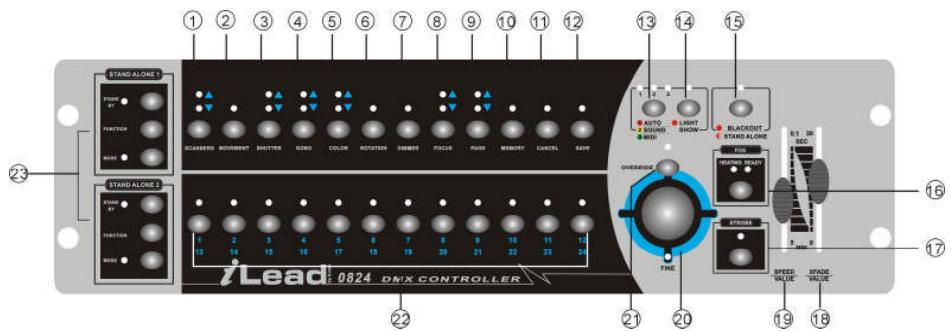
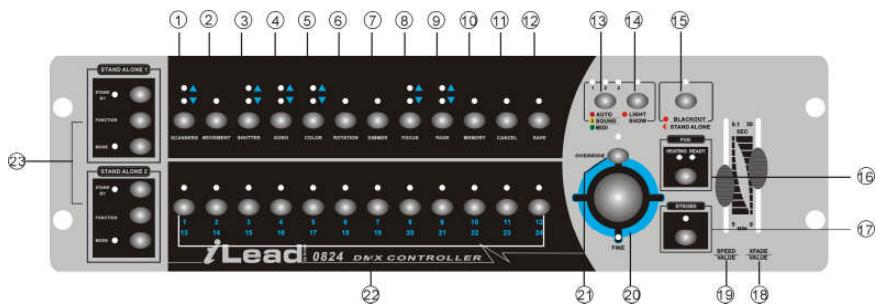
- Scanners: To select one or more fixtures.
- Movement: To select/set the pan & tilt movement.
- Shutter: To set the strobe speed, shaking effect and open.
- Gobo: To select gobo.
- Color: To select color
- Rotation: To set the rotation speed and direction.
- Dimmer: To set the dimmer intensity.
- Focus: To adjust the appropriate focus.
- Page/ Copy: To select memory 1~12 or 13~24 or activate memory copy.
- Memory: To edit exist scenes or delete a chase.
- Cancel: To delete a scene.
- Save: To save or insert or overwrite a scene.
- Auto/Sound/Midi: To set Auto/Sound/Midi three modes.
- Light show: To run the Light Show.
- Blackout/Stand Alone: To select Program/Blackout/Stand Alone three modes.
- Fog: To activate Fog Machine.
- Strobe: To activate Non-DMX Strobe. Hold on the Strobe button and press button 1 ~ 12 separately to change the strobe speed.
-
X-Fade: Controls with two different functions:
-
To set fade time when running Light shows. Fade time is the amount of time it takes for a scanner (or scanners) to move from one position to another.
-
To set the tilt position of the Scanners when programming or to set the tilt movement range for Movement function or to set DMX value 0~255 for channels of Shutter/Gobo/ Color/Rotation/Dimmer/Focus.
-
Speed (Wait time) Controls with two different functions:
-
To set chase speed ( wait time between scenes ) within the range of 0.1 second to 5 minutes when running light shows. The fade time of scenes will be always completed, Speed slider decides the wait time ( interval time ) between scenes.
-
To set the pan position of the Scanners or to set pan movement range for Movement function when programming.
-
Fine: To control the pan or tilt movement of the fixture in the smallest increments. Push down the joystick to activate Fine function, push again to disable the function.
- Override: To override the fixture/ fixtures when the show is running.
- Button(1-24): Set DMX value 0-255 for channels of Shutter / Gobo / color / Rotation / Dimmer / Focus, or save 24 memories into the buttons.
- Stand alone: 2 extra easy controllers Incorporated for Master/Slave immediate pre-programmed light shows.
- Program Mode: Activate Program mode by pressing Blackout/Stand Alone button. When the LED above the button is off, it's in Program mode.
FUNCTIONS (rear)

- POWER: Turns On/Off the power.
- DC INPUT: DC 9~12V, 300mA min.
- FOG MACHINE: 5 pin din socket for connecting DC Fog Machine.
Fog machine diagram
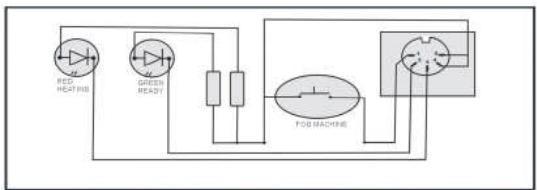
Compatible with Antari Z800 & Z1000
- STROBE: Trigger non-DMX strobe. Signal +12V DC.
- AUDIO IN: By build-in microphone or line in.
- MIDI IN: To receive MIDI data input.
- DMX IN: This connector accepts DMX signals input.
- DMX OUT: Two connectors sends DMX signals to DMX fixtures, use 3 pin XLR plug cable to link the fixture together.
- STAND ALONE: The connectors are used only in master/slave mode, using 5 pin XLR cable microphone jack of the first fixture, you will find that the remote control on the first unit will control all the other units for Stand by, Function and Mode.
HOW TO USE
You can easily control pan, tilt, shutter, gobo, color, rotation, dimmer and focus functions on the lighting fixtures by pressing the relevant buttons showing on the control panel. With the use of joystick/ sliders, you will be able to quickly set the fixtures' Pan or Tilt position to make scenes. You can then save all these scenes step by step in a memory to create a chase (show). The controller allows you to program 24 chases with 485 programmable scenes maximum.
PROGRAM MODE
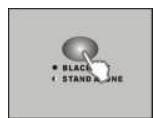
When power is turned on, the controller enters Programming mode automatically. The LED above this button lights off indicating Program mode in active.
BLACKOUT MODE
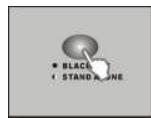
Press the BLACKOUT/STAND ALONE button, the LED above this button lights up indicating Blackout in active.
STAND ALONE MODE
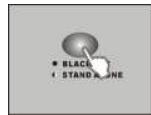
Hold on the BLACKOUT/STAND ALONE for 3 seconds, the LED above this button will blink indicating Stand-Alone mode in active.
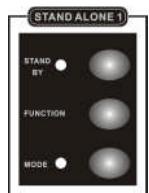
The Stand Alone 1 and Stand Alone 2 are designed for iSolution lighting fixtures in Stand Alone ( Master/ Slave ) mode.
Stand By: To blackout the lighting fixtures.
Mode selection: Different run modes, e.g. fast / slow, audio / manual / auto, position, latch, etc., correspond to different functions.
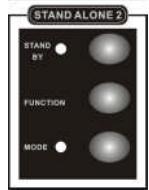
Function selection: Implements a wide variety of effects, like strobe, X/Y moving pattern selection, gobo/ color changing, X/Y position setting, dimmer, etc. Functions vary with different fixtures.
Different lights have different modes and different functions, which can be triggered by Stand Alone mode. Please refer to each lighting fixture's user manual for more details.
REMOTELY SET DMX ADDRESS
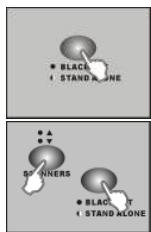
- Hold on the BLACKOUT/STAND ALONE button for 3 seconds to enter Stand-Alone mode.
- Hold down the SCANNERS button and then press BLACKOUT/ STAND ALONE button. You will see the pan & tilt of all the fixtures in the chain stopping at the central position. The shutter & LED of the first fixture will open/ blink indicating the fixture is active, ready to be designated a new position (the number in the chain).
- If you have two chains in the venue, you can jog (push) joystick Left/Right to select chain 1 or chain 2, and jog joystick Up / Down to select next fixture or last fixture.
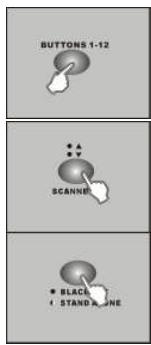
- Select 1~12 button to set DMX address.
- Press SCANNERS to next page to select 13~24 button for setting DMX address.
- Press the BLACKOUT/STAND ALONE button again to return to the program mode.
| Fixtures No. | 1 | 2 | 3 | 4 | 5 | 6 | 7 | 8 | 9 | 10 | 11 | 12 |
| DMX channel for Moving Head Scanner Barrel | 1 | 9 | 17 | 25 | 33 | 41 | 49 | 57 | 65 | 73 | 81 | 89 |
| Color changer Multi-Gobo projector | 3 | 11 | 19 | 27 | 35 | 43 | 51 | 59 | 67 | 75 | 83 | 91 |
| Fixtures No. | 13 | 14 | 15 | 16 | 17 | 18 | 19 | 20 | 21 | 22 | 23 | 24 |
| DMX channel for Moving Head Scanner Barrel | 97 | 105 | 113 | 121 | 129 | 137 | 145 | 155 | 161 | 169 | 177 | 185 |
| Color changer Multi-gobo projector | 99 | 107 | 115 | 123 | 131 | 139 | 147 | 157 | 163 | 171 | 179 | 187 |
SELECT THE FIXTURES YOU WANT TO CONTROL
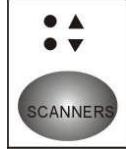
Press SCANNERS button
- You can choose one or more than one fixtures by pressing the 1~12 buttons
- When the buttons' LED (1 ~ 12) are lit, you can control the fixtures.
- To select fixture 13~24, press SCANNERS to next page, the lower LED will be on.
| Upper | 1 | 2 | 3 | 4 | 5 | 6 | 7 | 8 | 9 | 10 | 11 | 12 |
| Lower | 13 | 14 | 15 | 16 | 17 | 18 | 19 | 20 | 21 | 22 | 23 | 24 |
You will see the button's LED turned on when you select it. When the LEDs above the buttons are lit, you can control the fixtures using joystick or control sliders. To exit control of a fixture, press the number buttons again so the buttons LED light goes out. You can control multiple fixtures at the same time. To select multiple fixtures, press the button of each fixture one by one.
SETTING PAN/TILT POSITION
Move joystick Left/Right to control the Pan movement, Up/Down to control the Tilt movement. You can also use the Speed slider and X-Fade/Value slider to control Pan or Tilt movement of the fixture.
SETTING MOVEMENT
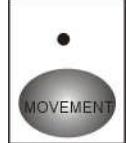
- Select the fixtures you want to control
- Press MOVEMENT button
- Select preset Movement patterns by pressing 1~12 buttons, and use the X-Fade/Value slider to adjust movement range
- Press MOVEMENT again to return to Program mode
12 preset Movement patterns are as below:
When programming, you can select a movement pattern to create a scene. Use the Speed slider to set pan movement range, and use the X-Fade/Value slider setting tilt movement range. On the other hand, use Joystick to set the position of movement. When in Light show mode, you can use the Speed slider to set running time within the range of 0.1 second to 5 minutes, and use X-Fade/Value slider to set fade time.
SETTING SHUTTER
- Select the fixtures you want to control
Press SHUTTER button - Select a shutter value with the 1~12 buttons, or use the X-Fade/Value slider
- To select strobing speed 13~24, press SHUTTER again to next page the lower LED will be on.
24 shutter values have been programmed into the controller, which you can select by pressing the relevant button (1 ~ 24) as showing below:
| 1 | 2 | 3 | 4 | 5 | 6 | 7 | 8 | 9 | 10 | 11 | 12 | |
| Upper | Blackout | Open | Slow Strobe | Strobe 1 | Strobe 2 | Strobe 3 | Strobe 4 | Strobe 5 | Strobe 6 | Strobe 7 | Strobe 8 | Fast Strobe |
| 13 | 14 | 15 | 16 | 17 | 18 | 19 | 20 | 21 | 22 | 23 | 24 | |
| Lower | Shaking | Shaking | Shaking | Shaking | Shaking | Shaking | Shaking | Shaking | Shaking | Shaking | Shaking | Open |
SETTING GOBO
- Select the fixtures you want to control
Press GOBO button - Select a goto value with the 1~12 buttons, or use the X-Fade/Value slider
- To select gobos 13~24, press GOBO again to next page, the lower LED will be on.
The Gobos setting are as below:
7 Gobos
| 1 | 2 | 3 | 4 | 5 | 6 | 7 | 8 | 9 | 10 | 11 | 12 | |
| Upp er | Ope n | Ope n | Gob o | Gob o | Gob o | Gob o | Gob o | Gob o | Gob o | Gob o | Gob o | Gob o |
| 1 | 1 | 2 | 2 | 3 | 3 | 4 | 4 | 5 | 5 | |||
| 13 | 14 | 15 | 16 | 17 | 18 | 19 | 20 | 21 | 22 | 23 | 24 | |
| Low er | Gob o 6 | Gob o 6 | Gob o 7 | Slow scroll l | Scro II 1 | Scroll I 2 | Scro II 3 | Scro II 4 | Scro II 5 | Scro II 6 | Scro II 7 | Fast scroll l |
14 Gobos
| 1 | 2 | 3 | 4 | 5 | 6 | 7 | 8 | 9 | 10 | 11 | 12 | |
| Upper | Ope n | Gob o | Gob o | Gob o | Gob o | Gob o | Gob o | Gob o | Gob o | Gob o | Gob o | Gob o |
| 1 | 2 | 3 | 4 | 5 | 6 | 7 | 8 | 9 | 10 | 11 | ||
| 13 | 14 | 15 | 16 | 17 | 18 | 19 | 20 | 21 | 22 | 23 | 24 | |
| Lower | Gob o | Gob o | Gob o | Slow scroll l | Scroll l | Scroll l | Scroll l | Scroll l | Scroll l | Scroll l | Scroll l | Fast scroll l |
| 12 | 13 | 14 | 1 | 2 | 3 | 4 | 5 | 6 | 7 |
SETTING COLOR
- Select the fixtures you want to control
- Press COLOR button
- Select a color value with the 1~12 buttons, or move the X-Fade/Value slider.
- To select colors 13~24, press COLOR again to next page, the lower LED will be on.
The Color settings are as below:
9 colors (full color)
| 1 | 2 | 3 | 4 | 5 | 6 | 7 | 8 | 9 | 10 | 11 | 12 | |
| Upper | White | White | Green | Green | Magenta | Magenta | Light Blue | Yellow | Yellow | Orange | Orange | Blue |
| 13 | 14 | 15 | 16 | 17 | 18 | 19 | 20 | 21 | 22 | 23 | 24 | |
| Lower | UV Purple | Light Green | Light Green | Pink | Slow scroll | Scroll 1 | Scroll 2 | Scroll 3 | Scroll 4 | Scroll 5 | Scroll 6 | Fast scroll |
9 colors (split color)
| 1 | 2 | 3 | 4 | 5 | 6 | 7 | 8 | 9 | 10 | 11 | 12 | |
| Upper | White | Green | Green + Magenta | Magenta | Magenta + Light Blue | Light Blue | Light Blue + Yellow | Yellow | Yellow + Orange | Orange | Orange + Blue | Blue |
| 13 | 14 | 15 | 16 | 17 | 18 | 19 | 20 | 21 | 22 | 23 | 24 | |
| Lower | Blue + UV Purple | UV Purple + Light Green | Light Green | Pink | Slow scroll | Scroll 1 | Scroll 2 | Scroll 3 | Scroll 4 | Scroll 5 | Scroll 6 | Fast scroll |
11 colors (full color)
| 1 | 2 | 3 | 4 | 5 | 6 | 7 | 8 | 9 | 10 | 11 | 12 | |
| Upper | White | White | Green | Magenta | Magenta | Light Blue | Amber | Amber | Red | Blue | UV Purple | UV Purple |
| 13 | 14 | 15 | 16 | 17 | 18 | 19 | 20 | 21 | 22 | 23 | 24 | |
| Lower | Light Green | Orange | Yellow | Pink | Slow scroll | Scroll 1 | Scroll 2 | Scroll 3 | Scroll 4 | Scroll 5 | Scroll 6 | Fast scroll |
11 colors (split color)
| 1 | 2 | 3 | 4 | 5 | 6 | 7 | 8 | 9 | 10 | 11 | 12 | |
| Upper | White | Green | Green + Magenta | Magenta | Light Blue | Amber | Red | Red + Blue | Blue | UV Purple | Light Green | Light Green + Orange |
| 13 | 14 | 15 | 16 | 17 | 18 | 19 | 20 | 21 | 22 | 23 | 24 | |
| Lower | Orange | Yellow | Yellow + Pink | Pink | Slow scroll | Scroll 1 | Scroll 2 | Scroll 3 | Scroll 4 | Scroll 5 | Scroll 6 | Fast scroll |
SETTING GOBO ROTATION
- Select the fixtures you want to control
Press ROTATION button - Select a rotation speed value with 1~12 buttons, or move the X-Fade/Value slider
Below is the Gobo Rotation settings: ( CCW- Counterclockwise; CW- Clockwise)
| 1 | 2 | 3 | 4 | 5 | 6 | 7 | 8 | 9 | 10 | 11 | 12 | |
| Rotation | Stop | Fast CCW Speed | CCW. Speed 1 | CCW. Speed 2 | CCW. Speed 3 | Slow CCW. Speed | Slow CW. Speed | CW. Speed 3 | CW. Speed 2 | CW. Speed 1 | Fast CW. Speed | Stop |
SETTING DIMMER
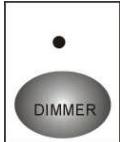
- Select the fixtures you want to control
- Press DIMMER button
- Select a dimmer value with 1~12 buttons, or move the X-Fade/Value slider
- You can adjust dimmer value of fixtures between 0% 100% .
The Dimmer settings are as below:
| 1 | 2 | 3 | 4 | 5 | 6 | 7 | 8 | 9 | 10 | 11 | 12 | |
| Dimmer | 100% | 90% | 82% | 74% | 64% | 55% | 46% | 37% | 28% | 19% | 10% | 0% |
SETTING FOCUS
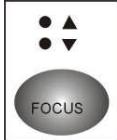
- Select the fixtures you want to control
- Press FOCUS button
- Select a focus value with 1~12 buttons, or move the X-Fade/Value slider
- To select focus 13~24, press FOCUS again to next page, the lower LED will be on.
CREATE A SCENE
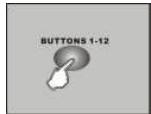
- Enter Program mode.
- a) Press Scanners button to choose the fixtures you want to control b) Use Joystick or sliders to locate the positions of pan/tilt to create a scene.
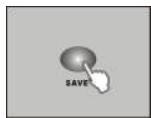
- Press SAVE. The 1~12 buttons will light up if they have memory already saved into them.
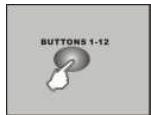
- Press a button to store your desired scene.
- The scene is saved into the selected button.
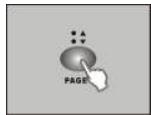
- By pressing Page, you can also store scenes into 13~24 button.
CREATE A CHASE
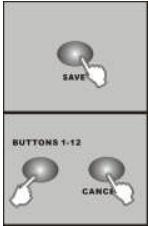
- Enter Program mode.
- Create a scene.
-
Press SAVE button. Select a position (1 ~ 24) where you want to store the scene.
-
Repeat steps 2 & 3 as many times as you want until the controller's memory is full. The SAVE LED will blink when the memory is full.
- A chase (The controller) can store up to 485 scenes.
RUNNING SCENES
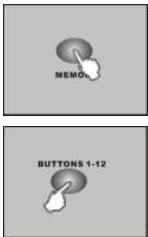
- Enter Program mode.
-
Press MEMORY button.
-
Press a button 1~12 or press PAGE select button 13~24 for manually running a scene.
- Press the same button again. The second scene will be run after the first scene.
Note:
The SAVE button is used to store the current status into memory.
The PAGE button is used to select the position of memory. The controller has 24 position in which you can save chases (shows) into them. When the upper LED is on, then button 1 = memory 1, button 2= memory 2... etc, when the lower LED is on then button 1 = memory 13, button 2 = memory 14... etc.
The MEMORY button is used to read exiting scenes. The LEDs will light up if there is memory saved into the buttons.
INSERT A SCENE
- Enter Program mode.
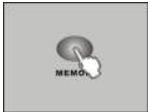
- Press the MEMORY button, choose the desired position (1 ~ 24) in which you want to insert a scene.
- Select the scene where you want to insert a scene. Press the same button (e.g. 6) repeatedly, you can view the scene one by one.
- Create a new scene.
- Press SAVE.
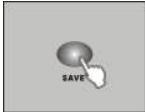
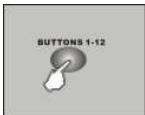
- Press the desired position (1~24) you selected again to insert the new scene.
OVERWRITE A SCENE
- Enter Program mode.
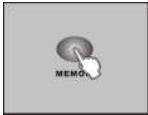
- Press the MEMORY button.
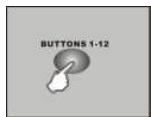
- Press the button ( 1 ~ 24 ) where the memory ( chase ) is saved and select the scene that you wish to overwrite.
- Press the same button ( e.g. 6 ) repeatedly, you can view the scene one by one.
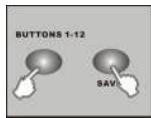
- Create a desired scene.
- Hold down the SAVE button and then press former selected button (1 ~ 24) to overwrite a scene.
DELETE A SCENE
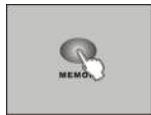
- Enter Program mode.
- Press the MEMORY button, choose the desired position (1~24) in which you want to delete a scene.
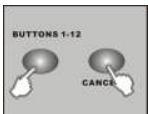
- Select the scene that you want to delete.
- Hold down CANCEL and then press the former selected button to delete a scene.
COPY A CHASE
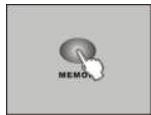
- Enter Program mode.
- Press the MEMORY button.
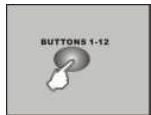
- Select an existed chase which you want to copy.
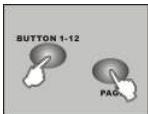
- Hold down PAGE and then press a button (1 ~ 24) where you want to copy the chase into it.
DELETE A CHASE
- Enter Program mode.
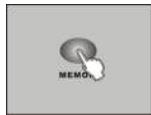
- Press MEMORY button.
- Hold down MEMORY button and then press a 1~12 button or press PAGE to select a 13-24 button to delete a chase.
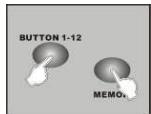
CLEAR ALL MEMORY
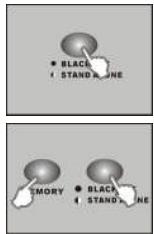
- Press the BLACKOUT/STAND ALONE for 3 seconds, into Stand-Alone mode.
- Hold down the MEMORY button and then press BLACKOUT / STAND ALONE button, all memory will be deleted.
LIGHT SHOW
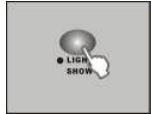
- Press LIGHT SHOW button. The LIGHT SHOW LED will light up, indicating light show mode is active.
- Press AUTO/SOUND/MIDI to activate Auto, Sound or MIDI mode. The LEDs indicate which mode is activated.
- Press the button (1~24) to run a desired lighting show.
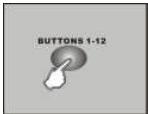
When in Auto mode, you can set the light speed and fade time by using the sliders. These settings will be kept when next time you run the same light show. When in Sound mode activation, the Light show will be triggered by music, however, you can still set the fade time of the light show.
OVERRIDE CONTROL
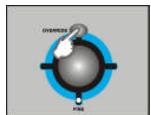
When running light shows, you can press the Override button to control the fixture manually, the LED lights up indicating Override function is activated. Press "Scanners" button to select the fixtures you want to override.
MIDI OPERATION
You can run a chase, set speed and fade time, light show auto or sound, and blackout using MIDI commands. This allows you to pre-program a light show to match a sequenced backing track. You cannot perform live head control or programming functions by MIDI.
The controller will only respond to MIDI commands on the MIDI channel which it is set to full stop. All MIDI control is performed using Note on commands. All other MIDI instructions are ignored. To stop a chase, send the blackout on note.
When programming a MIDI controlled sequence, you should always start by sending a page command, as you don't know what the current page setting will be on the controller.
When you recall a chase by MIDI, the chase will run at its programmed speed, fade and sound activation settings. If you want to change the speed, fade and sound activation by MIDI command you need to do this after you have started the chase. The speed, fade and sound setting which you set by MIDI will not be remembered as part of the chase.
| MIDI note | Note name | Function |
| 36 | C3 | Chase 1 |
| 37 | C#3 | Chase 2 |
| 38 | D3 | Chase 3 |
| 39 | D#3 | Chase 4 |
| 40 | E3 | Chase 5 |
| 41 | F3 | Chase 6 |
| 42 | F#3 | Chase 7 |
| 43 | G3 | Chase 8 |
| 48 | C4 | Chase 9 |
| 49 | C#4 | Chase 10 |
| 50 | D4 | Chase 11 |
| 51 | D#4 | Chase 12 |
| 52 | E4 | Chase 13 |
| 53 | F4 | Chase 14 |
| 54 | F#4 | Chase 15 |
| 55 | G4 | Chase 16 |
| 56 | G#4 | Chase 17 |
| 57 | A4 | Chase 18 |
| 58 | A#4 | Chase 19 |
| 59 | B4 | Chase 20 |
| 60 | C5 | Chase 21 |
| 61 | C#5 | Chase 22 |
| 62 | D5 | Chase 23 |
| 63 | D#5 | Chase 24 |
| 74 | D6 | SPEED |
| 75 | D#6 | X-FADE |
| 76 | E6 | AUTO MODE |
| 77 | F6 | SOUND MODE |
| 78 | F#6 | BLACKOUT ON |
| 79 | G6 | BLACKOUT OFF |
MAINTENANCE
The unit should be cleaned regularly using a wet cloth. We recommend internal cleaning to be carried out by qualified personnel.
SPECIFICATIONS
Power Input: DC 9-12V 300 mA min
DMX Input: 3 pin male XLR
DMX Output: 3 pin female XLR
Stand Alone: 5 pin male XLR
MIDI Signal: 5 pin standard interface
Audio Input: By built-in microphone or line in
Dimensions: 485× 135× 80mm
Weight: 2.5 kg
Every information is subject to change without prior notice
You can download the latest version of this user manual on our website: www.beglec.com
MODE D'EMPLOI
FONCTIONS (FACE AVANT)
| 1 | 2 | 3 | 4 | 5 | 6 | 7 | 8 | 9 | 10 | 11 | 12 | |
| Dimmer | 100% | 90% | 82% | 74% | 64% | 55% | 46% | 37% | 28% | 19% | 10% | 0% |
REGLAGE FOCUS
Entree DMX: 3 pin XLR male
Sortie DMX: 3 pin XLR femelle
Stand Alone: 5 pin XLR male
Signal MIDI: 5 pin interface standard
| 1 | 2 | 3 | 4 | 5 | 6 | 7 | 8 | 9 | 10 | 11 | 12 | |
| Dimmer | 100% | 90% | 82% | 74% | 64% | 55% | 46% | 37% | 28% | 19% | 10% | 0% |
FOCUS INSTELLEN
| 1 | 2 | 3 | 4 | 5 | 6 | 7 | 8 | 9 | 10 | 11 | 12 | |
| Dimmer | 100% | 90% | 82% | 74% | 64% | 55% | 46% | 37% | 28% | 19% | 10% | 0% |
9 colors (color complete)
11 colors (color complete)
| 1 | 2 | 3 | 4 | 5 | 6 | 7 | 8 | 9 | 10 | 11 | 12 | |
| Dimmer | 100% | 90% | 82% | 74% | 64% | 55% | 46% | 37% | 28% | 19% | 10% | 0% |


- ILEAD
- CONTROLLER
- FR-DECLASSES L'APPAREIL
- FEATURES
- BEFORE USE
- CHECK THE CONTENTS
- SOME IMPORTANT INSTRUCTIONS
- SAFETY INSTRUCTIONS
- CAUTION
- FUNCTIONS (FRONT)
- FUNCTIONS (REAR)
- HOW TO USE
- PROGRAM MODE
- BLACKOUT MODE
- STAND ALONE MODE
- REMOTELY SET DMX ADDRESS
- SELECT THE FIXTURES YOU WANT TO CONTROL
- SETTING PAN/TILT POSITION
- SETTING MOVEMENT
- SETTING SHUTTER
- SETTING GOBO
- SETTING COLOR
- SETTING GOBO ROTATION
- SETTING DIMMER
- SETTING FOCUS
- CREATE A SCENE
- CREATE A CHASE
- RUNNING SCENES
- NOTE
- INSERT A SCENE
- OVERWRITE A SCENE
- DELETE A SCENE
- COPY A CHASE
- DELETE A CHASE
- CLEAR ALL MEMORY
- LIGHT SHOW
- OVERRIDE CONTROL
- MIDI OPERATION
- MAINTENANCE
- SPECIFICATIONS
- MODE D'EMPLOI
- FONCTIONS (FACE AVANT)
- REGLAGE FOCUS
- FOCUS INSTELLEN
Brand : JBSYSTEMS LIGHT
Model : ILEAD CONTROLLER
Category : Light Controller