
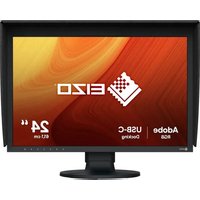
FLEXSCAN S2100 - Monitor EIZO - Free user manual and instructions
Find the device manual for free FLEXSCAN S2100 EIZO in PDF.



| Product Type | LCD Monitor |
| Brand | EIZO |
| Model | FlexScan S2100 |
| Screen Size | 21 inches (diagonal) |
| Native Resolution | 1600 x 1200 |
| Video Inputs | DVI-I (digital), D-Sub 15 (analog) |
| Connectors | 1 x DVI-I, 1 x D-Sub, 2 x USB (1 upstream, 1 downstream) |
| Power Supply | 100-240 V AC, 50/60 Hz |
| Power Consumption | Less than 60 W |
| Dimensions (W x H x D) | Approx. 450 x 450 x 200 mm (with stand) |
| Weight | Approx. 7 kg |
| Height Adjustment | Yes, adjustable |
| Tilt Adjustment | Yes, adjustable |
| Pivot Adjustment | Yes, vertical rotation |
| Brightness Sensor | Built-in BrightRegulator |
| Display Presets | FineContrast : Custom, sRGB, Text, Picture, Movie |
| Security | Kensington lock slot |
| Cleaning | Soft dry cloth; avoid solvents |
| Package Contents | Monitor, power cable, USB cable, DVI-D cable, CD-ROM, manuals, mounting screws |
Frequently Asked Questions - FLEXSCAN S2100 EIZO
User questions about FLEXSCAN S2100 EIZO
0 question about this device. Answer the ones you know or ask your own.
Ask a new question about this device
Download the instructions for your Monitor in PDF format for free! Find your manual FLEXSCAN S2100 - EIZO and take your electronic device back in hand. On this page are published all the documents necessary for the use of your device. FLEXSCAN S2100 by EIZO.
USER MANUAL FLEXSCAN S2100 EIZO
Important: Please read this Setup Manual and the User's Manual stored on the CD-ROM carefully to familiarize yourself with safe and effective usage. Please retain this manual for future reference.
Installationshandbuch
The monitor supports the following resolutions.
This manual uses the safety symbols below. They denote critical information. Please read them carefully.
| WARNING Failure to abide by the information in a WARNING may result in serious injury and can be life threatening. | CAUTION Failure to abide by the information in a CAUTION may result in moderate injury and/or property or product damage. | |
| Indicates a prohibited action. | ||
| Indicates to ground for safety. | ||
PRECAUTIONS

WARNING

If the unit begins to emit smoke, smells like something is burning, or makes strange noises, disconnect all power connections immediately and contact your dealer for advice.
Attempting to use a malfunctioning unit may result in fire, electric shock, or equipment damage.

Keep small objects or liquids away from the unit.
Small objects accidentally falling through the ventilation slots into the cabinet or spillage into the cabinet may result in fire, electric shock, or equipment damage. If an object or liquid falls/spills into the cabinet, unplug the unit immediately. Have the unit checked by a qualified service engineer before using it again.

Use the enclosed power cord and connect to the standard power outlet of your country.
Be sure to remain within the rated voltage of the power cord. Not doing so may result in fire or electric shock.

Set the unit in an appropriate location.
Not doing so may result in fire, electric shock, or equipment damage.
- Do not place outdoors.
- Do not place in the transportation system (ship, aircraft, trains, automobiles, etc.).
- Do not place in a dusty or humid environment.
- Do not place in a location where the steam comes directly on the screen.
- Do not place near heat generating devices or a humidifier.

The equipment must be connected to a grounded main outlet.
Not doing so may result in fire or electric shock.

CAUTION

Do not block the ventilation slots on the cabinet.
- Do not place any objects on the ventilation slots.
- Do not install the unit in a closed space.
- Do not use the unit laid down or upside down. Blocking the ventilation slots prevents proper airflow and may result in fire, electric shock, or equipment damage.

Use an easily accessible power outlet.
This will ensure that you can disconnect the power quickly in case of a problem.
About Setup Manual and User's Manual
| Setup Manual (this manual) | Describes basic information ranging from connection of the monitor to a PC to using the monitor. |
| User's Manual (•PDF file on the CD-ROM*) | Describes application information such as screen adjustments, settings, and specifications. |
- Installation of Adobe Reader is required.
- Product specifications vary with sales areas. Confirm that the manual is written in the language of the area of purchase.
Package Contents
Check that all the following items are included in the packaging box. If any items are missing or damaged, contact your local dealer.
NOTE
- Please keep the packaging box and materials for future movement or transport of the monitor.
Monitor
EIZO USB cable (MD-C93)
Power cord

Digital signal cable (FD-C39)

EIZO LCD Utility Disk (CD-ROM)
- User's Manual
Setup Manual (this manual)
□ Limited warranty
Fixing screws: M4 × 12 mm 4PCS
Analog signal cable (MD-C87)

Controls and Functions
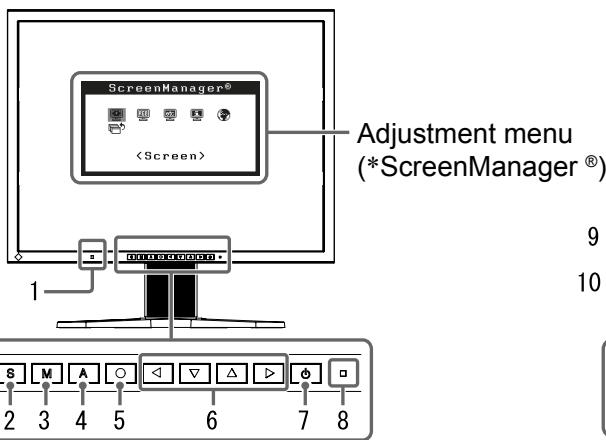
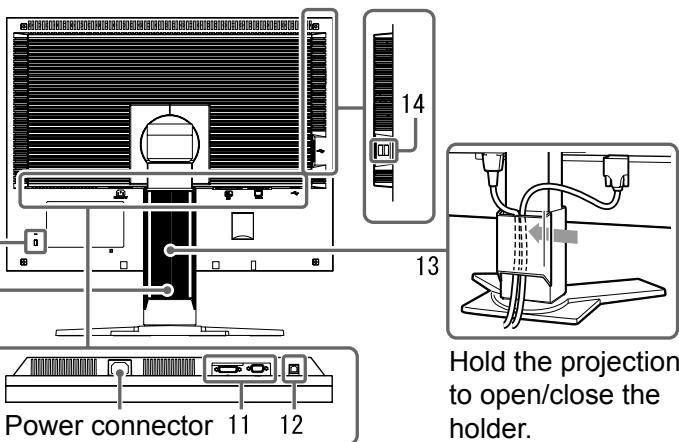
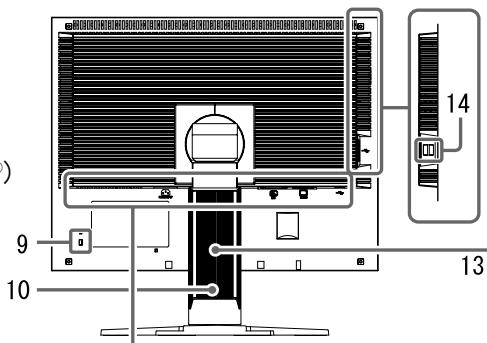
| 1 | Sensor | The sensor detects ambient brightness. BrightRegulator function (page 5) |
| 2 | Input Signal Selection button | Switches input signals for display when two PCs are connected to the monitor. |
| 3 | Mode button | The M button allows you to switch the display mode (page 4). |
| 4 | Auto Adjustment button | Performs the function to adjust the screen automatically. (analog input only) |
| 5 | Enter button | Displays the Adjustment menu, determines an item on the menu screen, and saves values adjusted. |
| 6 | Control buttons (Left, Down, Up, Right) | • Chooses an adjustment item or increases/decreases adjusted values for advanced adjustments using the Adjustment menu (page 5). • ▲ or ▲ button: Displays the brightness adjustment window (page 5). |
| 7 | Power button | Turns the power on or off. |
| 8 | Power indicator | Indicates monitor's operation status. Blue : Operating Off : Power off Yellow : Power saving |
| 9 | Security lock slot | Complies with Kensington's MicroSaver security system. |
| 10 | Height adjustable stand | Adjusts the height and angle of the monitor screen. |
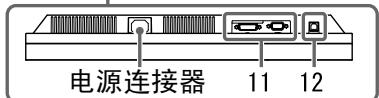
| 11 | Input signal connectors | Left: DVI-I connector/Right: D-sub mini 15-pin connector. |
| 12 | USB upstream port | Connects the USB cable when using ScreenManager Pro for LCD Software (for Windows). For how to use the software, refer to the User's Manual on the CD-ROM. |
| 13 | Cable holder | Covers the monitor cables. |
| 14 | USB downstream port | Connects the monitor to a USB peripheral device. |
- ScreenManager® is an EIZO's nickname of the Adjustment menu. (For how to use ScreenManager, refer to the User's Manual on the CD-ROM.)
Connecting Cables
Attention
- When replacing the current monitor with an S2100 monitor, be sure to change the PC settings for resolution and vertical frequency to those which are available for the S2100 monitor referring to the resolution table (back of cover page) before connecting the PC.
NOTE - When connecting two PCs to the monitor, refer to the User's Manual on the CD-ROM.
1 Check that the monitor and the PC are powered off.
2 Connect the monitor to the PC with a signal cable that matches the connectors.
After connecting the cable connectors, tighten the screws of the connectors to secure the coupling.
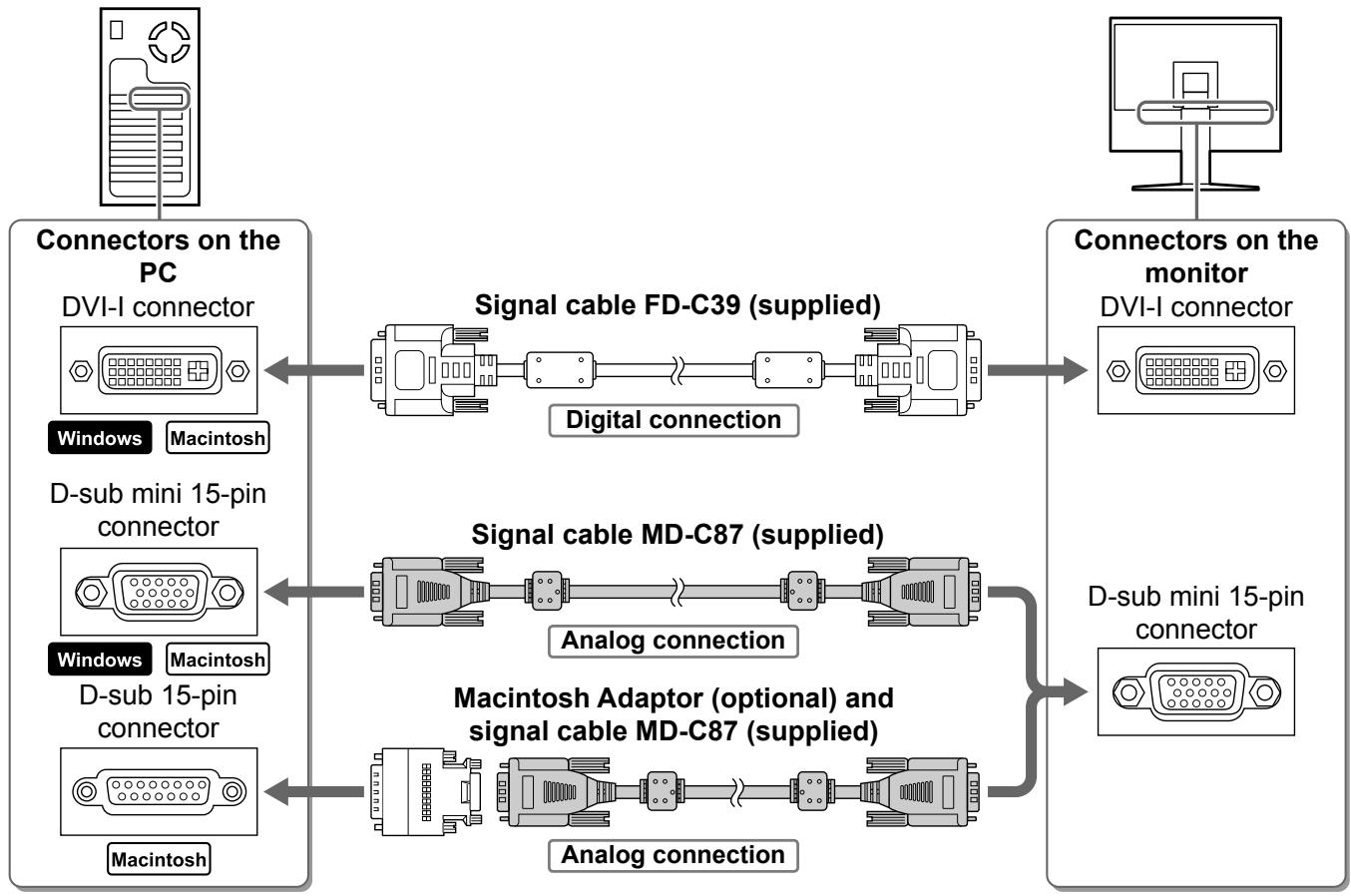
3 Plug the power cord into a power outlet and the Power connector on the monitor.
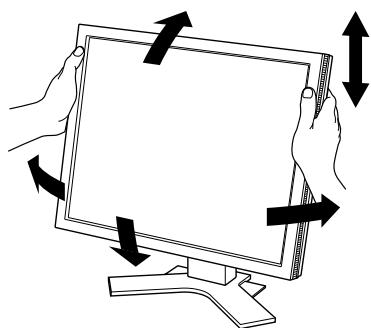
Adjusting Screen Height and Angle
Adjust the screen height, tilt and swivel the screen to the best condition for working.
Displaying Screen
1 Press to turn on the monitor.
2 Turn on the PC.
The monitor's Power indicator lights up blue and the screen image appears.
3 When using analog input signals, perform the Auto Adjustment function. (Refer to "Performing Auto Adjustment function" below.)
The Auto Adjustment function is not necessary when digital signals are input because images are displayed correctly based on the preset data of the monitor.
Attention
- Turn off the monitor and PC after using them.
- For the maximum power saving, it is recommended that the Power button be turned off. Unplugging the power cord completely shuts off power supply to the monitor.
Performing Auto Adjustment Function (Analog input only)
When analog signals are input, the Auto Adjustment function enables the automatic adjustment of clock, phase, screen position, and resolution.
For details of the Auto Adjustment function, refer to the User's Manual on the CD-ROM.
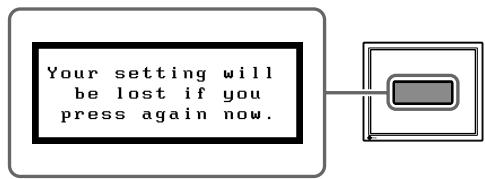
1 Press A.
A message window appears.
2 Press A again while the message is displayed.
The Auto Adjustment function is activated and clock, phase, and screen position are adjusted automatically.
Message window
Attention
- The Auto Adjustment function works correctly when an image is fully displayed over the display area of a Macintosh or Windows PC screen.
It does not work properly when an image is displayed only on a part of the screen (DOS prompt window, for example) or when a black background (wallpaper, etc.) is in use. - The Auto Adjustment function may not work properly with some graphics boards.
Selecting Display Mode
FineContrast allows you to select the best display mode easily according to monitor's application.
For details of FineContrast, refer to the User's Manual on the CD-ROM.
FineContrast Mode
| Custom | Available for making desired setting. |
| sRGB | Suitable for color matching with sRGB compatible peripherals. |
| Text | Suitable for displaying texts for word processing or spreadsheets. |
| Picture | Suitable for displaying images such as photos or picture images. |
| Movie | Suitable for playing back animated images. |
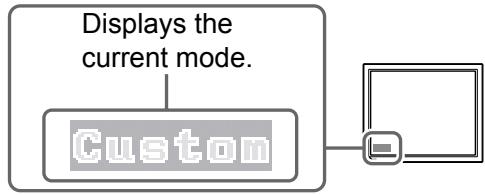
1 Press M.
The FineContrast mode name appears.
2 Press M again while the FineContrast mode name is displayed.
Each time the button is pressed, the mode on the screen switches. (Refer to the FineContrast Mode table.)
3 Press at the desired mode.
The selected mode is set.
FineContrast mode name
Adjusting Brightness
BrightRegulator
Screen brightness is adjusted automatically as the sensor on the lower side of the monitor detects the surrounding brightness.
When adjusting the brightness manually.
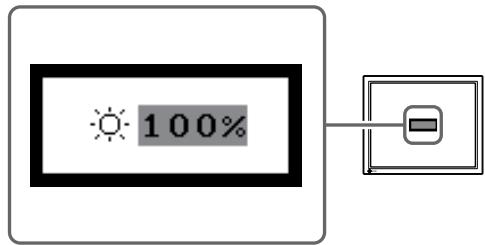
1 Press or .
The brightness adjustment window appears.
2 Adjust the brightness with or .
Press to increase screen brightness or press to decrease.
3 Press at the desired brightness.
The specified brightness is saved.
Brightness adjustment window
Attention
- Do not block the sensor.
- BrightRegulator automatically adjusts screen brightness according to the surrounding brightness based on the manual brightness adjustment.
Performing Advanced Settings/Adjustments
Advanced adjustments for the screen or color and various settings are available using the Adjustment menu.
For details of each adjustment function, refer to the User's Manual on the CD-ROM.
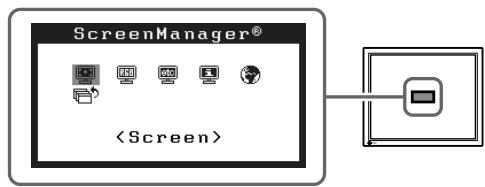
Adjustment menu
The basic settings and adjustments are completed. For advanced settings/adjustments, refer to the User's Manual on the CD-ROM.
No-Picture Problem
If no picture is displayed on the monitor even after the following remedial action is taken, contact your local dealer.
1. Check the Power indicator.
| Symptom | Status | Possible cause and remedy |
| No picture | Power indicator does not light up. | Check whether the power cord is correctly connected. If the problem persists, turn off the monitor for a few minutes, and then turn it on again. Turn on the PC. |
| Power indicator lights blue. | Check the brightness setting. | |
| Power indicator lights yellow. | Switch the input signal with S . |
2. Check the error message on the screen.
These messages appear when the input signal is incorrect even if the monitor is functioning.
| Symptom | Status | Possible cause and remedy |
| Signal Check Signal 1 No Signal | The input signal is not received correctly. (This is displayed for about 40 seconds.) | Check whether the PC is turned on. |
| Check whether the signal cable is properly connected to the PC. | ||
| Switch the input signal with S. | ||
| Signal Error Signal 1 fD:165.0MHz fH:75.0kHz fU:60.0Hz | The signal frequency is outside the specification. Incorrect signal frequency is shown in red. | Change the mode to an appropriate mode using the graphics board's utility software. Refer to the manual of the graphics board for details. |
FlexScan®S2100
LCD-Farbmonitor
SICHERHEITSSYMBOLE
Cable de signal analogue (MD-C87)

Cable debralalanalogica (MD-C87)

Cable USB EIZO (MD-C93)

MEPbI INPEDOCTOPOXHOCTN

PPEyPPEKDEHNE

Pn noBHeHn DbIma, nCXoJaIeO n3 yCTpoiCTBa, 3aNaXa rapn nn HeoBbUHbIX 3ByKOB HemeJeHNO oBeCTOyTe yCTpoiCTBO n 6bpaTntecb K npoDaBu 3a NOMOuHIO.
Пиьтka 3кслуataин HeHcIpaBHorO yctpoIcTbMaKoKeT IIpNBecTH K IIOkapy, IIopaJKeHnIO 3JIeKtpNueCkMTOKOM HIN IOBpeJDeHnIO O6OpyIDOBaHnI.

IcnoJb3yIte BXOJaIeB KOMJIeKT shHyp nTahnI, NOKJIIOHaembl K CTaHdapTHoN dJa BaWei CTPaHbI WTeNCeJIbHO p03eTke.
Y6eIHTecb C06JIIOHeHHI IpeJeIOB HOMHHaJIbHOHaIIpJxKeHHa HA KOTOpoe paccuHTaH IIHyp IITaHHa. HeBbIIOJIHeHHe 3TOrTO Tpe6OBaHHa MoKet IprHBeCTn K IIOkApy HIN IIOpaJKeHHO 3JIeKtpHuYeCKHM TOKOM.

XpaHnTe MeJIKne npeDMeTbI N KnIkoCTN BdaJIH OT yCtpoiCTBa.
ClyuhaHoe IOnaJaHHe MeJIKx IIpeIMeTOB HJIN
IpoJIInTOJ KHNKoCTN BHyTb KOpIIyCa Hepe3
BEHTNJIAUHOHHBe OTBepCTH MaKeT PnHBecTH KIOKApY,
IopAkeHHIO 3JIeKtpHuYeCKHM TOKOM HJIN IOBpeKJeHHIO
O6bpyIOBaHHa. B Clyuae IOnaJaHHa KaKOrO-JH60
IpeIMeta HJIN JKNKoCTN BHyTb KOpIIyCa HeMeJlEHHO
O6cToCbTe yctPoHCTBO. IpePe IocJIeDuOUIe
3KcIIyatauHei O6paTHtecb K KBaJIHfHUnpOBaHHOMy
CIEUHaJIHCTy IIO peMOHTy HTexHHueCKOMY
O6cLyJKBaHHIO IJI BblIOJIHeHHI IpOBepKn.

YctaHOBnTe yCTPOINCTBO B NOxOJaEM MeCTe. HebIIOJIHeHne 3TOrO Tpe6OBaHHa MoKET IpiNBecTH K IIOKApy, IopAkeHHIO 3JIeKtPrHcckHM TOKOM HJIN IOBpeKdEHHIO O6OpUoBaHHa.
- He yctaHabJIHBaiTe Ha OTKpbITOM BO3dyxe.
- He yctaHabJIbAaTe B TpaHcIOpTHbIX CpeIcTBax (Ha Kopa6Jiax, B cAmOJIeTAX, Ioe3Jax, aBTOMo6JIJx H T. J.)
- He yctaHaBJIHBaIte B IIbJIbHbIX N BJIaJXbIX MecTax.
- He yctaHabJIHbAte B MeCe, Ie 3KpaH IODbepKeH IIpRMOy DeIcTBnIO napa.
- He yctaHaBJIHbAaIte B6JIH3n ycItpoIcTb, BblJeJIaHOIIHX TeJIIO, HJIIN yBJIAJXHHTeJI.

O6opydoBaHne doJxHo 6bIb noKlnUoyeHO K 3a3emLeHHo WTeNceJIbHO p03eTke nHTaHOe ceTN.
HeBbIIOJIHeHne 3TOrO Tpe6OBaHHa MoKeT IIpNBecTH K IIOKApy IIN IopAkaKeHHo 3JIeKtpuYeCKHM TOkOM.

BHIMAHNE

He 3akpbiaeBentnlaonHbte OTBepctn B Kopnyce.
- He IOMeIaIte KaKHe-JIb6 OpeIMetbI Ha BeHTHJIaIIHOHHbIe OTBepCTHIA.
- He yctaHabJIHbaiTe yctpoIcTBO B 3aMKHyTom IpoCTpaHcTBe.
He 3KcIIyataHpyIte yctpOCTBO B rOpH3OHTaJIbHOM HIN IIpeBepHYTOM IOJIOKeHHN.
3aKpbIthe BeHTHJIaIIHOHHbIX OTBepCTNI HApYIIaET IpaBJIbHbI BO3dYIIIbI IIOtOK H MoKET IIpHBeCTN IIOkapy, IopAkeHNIO 3JIeKTPrHueckHM TOKOM HJIH IOBpeKDeHNIO O6OpyIDoBaHnI.

NcnoB3yIte wTeNCeJIbHyIO po3eTKy c BO3MOXHOCTbIO JERKORO DOCTyna.
BlaIogIapra 3TOMy Iprn Heo6xOJHMOCTN MoKHO 6yIeT 6bICTPO 06cToHTb yCTPOICTBO B CJIyuae BO3HNKHOBeHHa KaOJI-JIN6O IIpo6JIembl.
O pykoBODCTBe NO yCTaHOBKe i pykoBODCTBe NOJIb3ObaTeJIa
调整菜单
(*ScreenManager®)
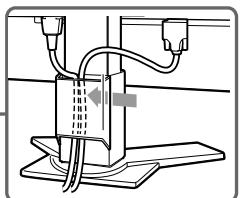
握住突出部分打开/关闭固定器。
- Installationshandbuch
- PRECAUTIONS
- WARNING
- CAUTION
- About Setup Manual and User's Manual
- Package Contents
- NOTE
- Controls and Functions
- Connecting Cables
- Attention
- Adjusting Screen Height and Angle
- Displaying Screen
- Performing Auto Adjustment Function (Analog input only)
- Selecting Display Mode
- Adjusting Brightness
- BrightRegulator
- When adjusting the brightness manually.
- Performing Advanced Settings/Adjustments
- No-Picture Problem
- Check the Power indicator.
- Check the error message on the screen.
- FlexScan®S2100
- LCD-Farbmonitor
- SICHERHEITSSYMBOLE
- MEPbI INPEDOCTOPOXHOCTN
- PPEyPPEKDEHNE
- BHIMAHNE
- O pykoBODCTBe NO yCTaHOBKe i pykoBODCTBe NOJIb3ObaTeJIa
Brand : EIZO
Model : FLEXSCAN S2100
Category : Monitor