
G-PEN M712 - Graphic tablet GENIUS - Free user manual and instructions
Find the device manual for free G-PEN M712 GENIUS in PDF.



| Product type | Graphics tablet |
| Brand | GENIUS |
| Model | G-PEN M712 |
| Dimensions (approx.) | 300 x 450 x 20 mm |
| Weight (approx.) | 500 g |
| Power supply | USB |
| Active area | 7 x 12 inches |
| Number of macro keys | 16 keys |
| Pen | Wireless pen with 2048 pressure levels |
| Side buttons | 2 customizable buttons |
| Compatible operating systems | Windows 2000/XP/Vista/7/8/10 |
| Main functions | Macro key manager, customizable profiles, pressure adjustment, keyboard shortcut and hyperlink configuration |
| Care and cleaning | Clean with a soft dry cloth |
| Safety | Use in accordance with standard norms |
| Spare parts and repairability | Replacement pen, USB cable available |
| General information | GENIUS G-PEN M712 graphics tablet, comes with pen and USB cable |
Frequently Asked Questions - G-PEN M712 GENIUS
User questions about G-PEN M712 GENIUS
0 question about this device. Answer the ones you know or ask your own.
Ask a new question about this device
Download the instructions for your Graphic tablet in PDF format for free! Find your manual G-PEN M712 - GENIUS and take your electronic device back in hand. On this page are published all the documents necessary for the use of your device. G-PEN M712 by GENIUS.
USER MANUAL G-PEN M712 GENIUS
Symbol in das Symbol ,
Macro Key Manager is a kind of special tablet application software. Through Macro Key Manager, you can set up the keyboard events (Copy=“Ctrl+C”) or hyperlinks which you use mostly. And then, save it as your favorite macro key profile.
We have several default profiles. Part of macro keys are default macro keys which the settings are fixed already and can not be modified. Other macro keys are Non-default macro keys and the setting of which can be defined and modified. However, if these default profiles can not meet your requirements, you can create new profiles by yourself.
Due to the keyboard events are not unified in different software, we provide the function of "open.exe" to enable the macro key manager profile according to the right software. If you do not set the "open.exe", the macro key manager may work unexpectedly in different software.
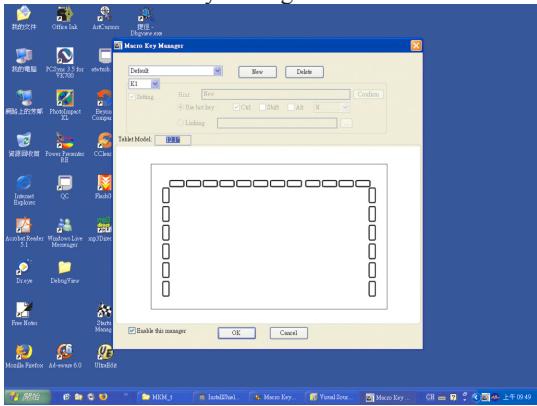
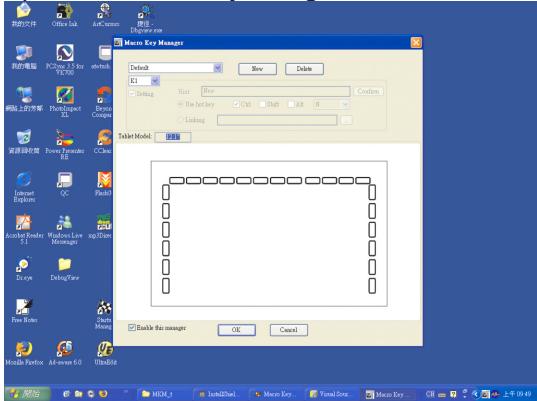
Macro Key Manager Control Panel Introduction
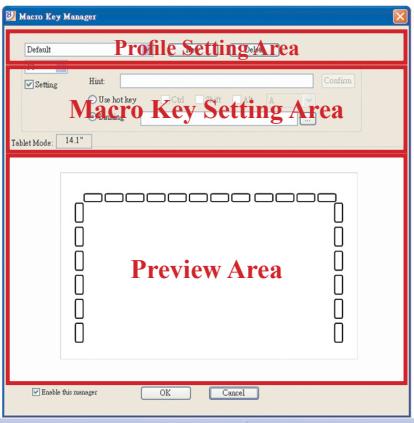
- Profile Setting Area
You can select, create or modify macro key profiles
Macro Key Setting Area
You can set the function of an individual Macro Key here. There are two kinds of setting. One is keyboard event setting and the other is hyperlink setting. Also, you have to name the hint as you like to finish setting process.
Preview Area
You can see the tablet image and the macro keys of your tablet. By hovering to the macro key, the macro key hint will pop up next to the key.
Installation
Once you install "Macro Key Manager" and plug the tablet
to your PC, the icon " R " will be showed in System Tray. However, you can choose to disable the Macro Key Manager by click the right button. Once you disable Macro Key Manager or un Plug your tablet from PC, the original icon will
be changed into icon
How to Set up a New Profile
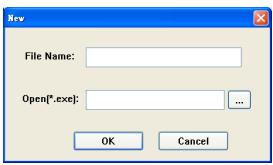
- Click "New" and name the profile.
- If a profile is set for particular software, click the browser icon . If not, please skip this process and click "OK" to finish setting a new profile.
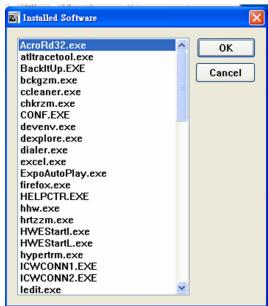
- All installed software is showed. Click the right software. Click "OK"
- Click "OK" to finish this setting.
How to Modify a Profile
- select the profile you want to modify
- following macro key setting steps to modify
- click "OK"
How to Delete a Profile
- select the profile you want to delete
- click "Delete"
How to Set Up Macro Key Function

a. click "Setting" to enable the setting function
b. key-in the name you want to be as the macro key function hint (necessary)
c. define the function as hot key or hyperlink
d. click "Confirm"
Setting:
Hover the cursor to the macro key manager icon in the system tray, and then click the right button.
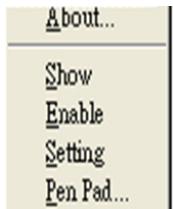
Windows 2000/XP/Vista Basic
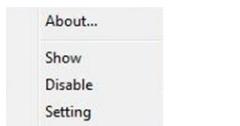
Above Windows Vista Premium
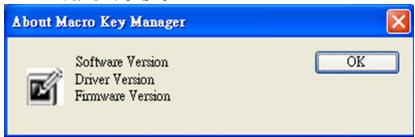
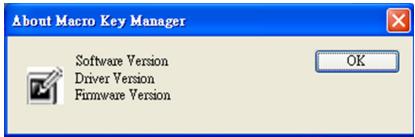
ABOUT
Showing Macro Key Manager Version , Driver Version and Firmware Version
Show
Show the Macro Key Manager User Interface.
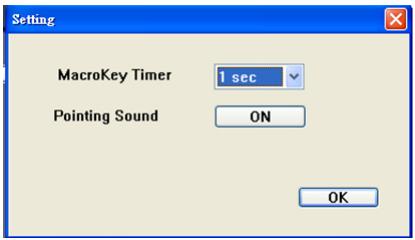
Setting
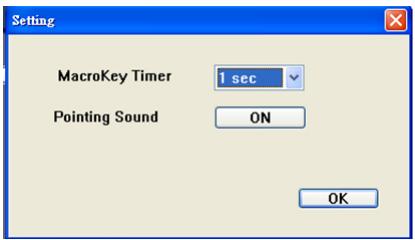
Macro Key Time
You can set timer for how long macro key function will work. There are four different choices-- 0, 1, 1.5 and 3 seconds can be your alternatives which mean that only when you use a pen to point the macro key area for 0, 1, 1.5, or 3 seconds, the macro key works.
Pointing Sound:
You can choose to get the pointing sound or not while the pen tip is pointing on the tablet.
Pen Pad (only in Windows 2000/XP/Vista basic)
This is tablet driver. Please reference the driver usage with driver manual.
Start Use
After setting profiles process, you can start to use macro key manager now.
Please select the profile you want to use and click "OK" and then this selected profile will be the active profile always.
PEN PAD DRIVER
Using the pen
— Pen
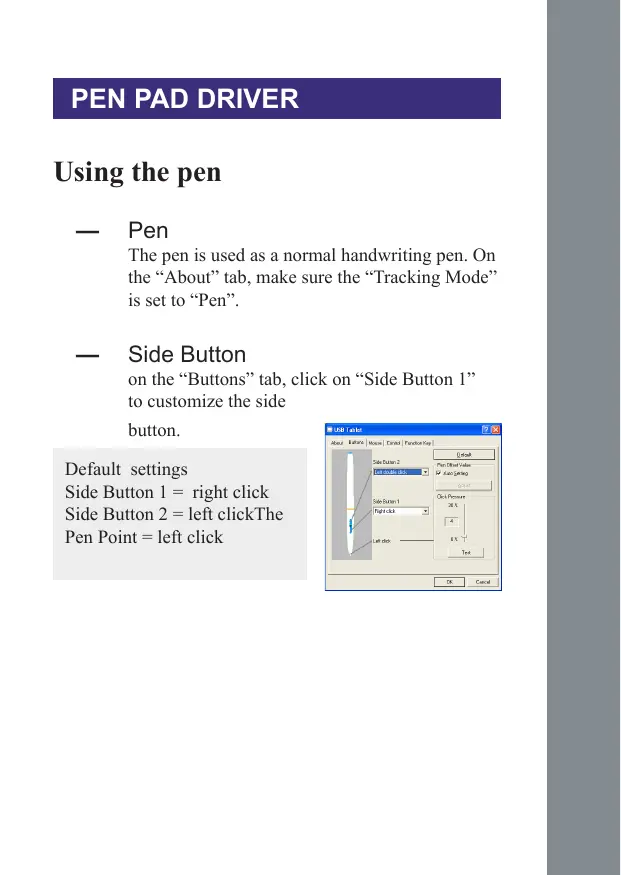
The pen is used as a normal handwriting pen. On the "About" tab, make sure the "Tracking Mode" is set to "Pen".
SideButton
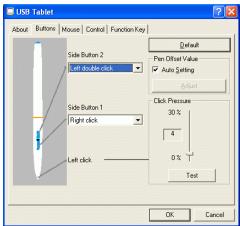
on the "Buttons" tab, click on "Side Button 1" to customize the side
button.
Default settings
Side Button 1 = right click
Side Button 2 = left clickThe
Pen Point = left click
Pen Offset Value
When using the tablet, if you want to use a new pen without restarting the computer, you need to perform the "Pen Offset Value" setting.
- On the "Buttons" tab, uncheck the "Auto Setting" box to remove the former value.
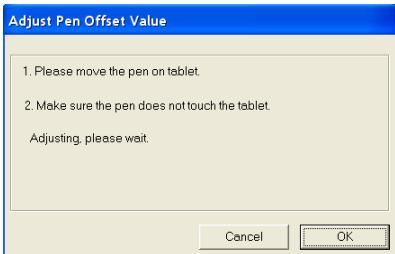
- Click the "Adjust" button. Then follow the on-screen instructions for adjustment. Tap the "OK" button when the "OK" message appears.
- Check the "Auto Setting" box for your computer to detect the new pen offset value automatically when restarted.
- Click Pressure
- On the "Buttons" tab, move the slider up and down to adjust the pen pressure from 0 to 30 (0 is the lightest, and 30 is the heaviest).
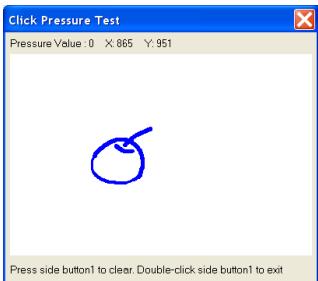
- Click the "Test" button to launch the "Click Pressure Test" writing area. Then you can test if the setting is correct.
- Profile Setting Area
Pode seleccionar, criar ou alterar perfis de tecla de macro.
Macro Key Setting Area
Apresenta a Macro Key Manager Version, Driver Version e Firmware Version.
Show
Apresenta a Macro Key Manager User Interface.
Setting
Macro Key Time
- Profile Setting Area
IpoΦHJIIM MaKpOKJIaBHNMOKHO BbIbHpA Tb, CO3JaBaTb H3MeHrTb
Macro Key Setting Area
3Jecb MOKHO 3aIaTb yHKHIO OTeJIbHOmAKpOKJIaBHNH.CuIeCTByET DBA BnDa HAcTpOKn. IepBbI - HacTpOka CObITN KJIaBHaTpybl, BTOPO - HacTpOka rHIIepCbIJKN.ДЯ 3aBePiHeHn IpoUeccaHAcTpOKn Heo6XoIMMo YkA3aTb HM NODcKa3Kn.
Preview Area