
CT-S801 - Thermal printer CITIZEN - Free user manual and instructions
Find the device manual for free CT-S801 CITIZEN in PDF.



| Product Type | Thermal Printer |
| Brand | CITIZEN |
| Model | CT-S801 |
| Dimensions (W × D × H) | CT-S801S: 145 × 192 × 148 mm; CT-S801A: 145 × 192 × 120 mm |
| Weight | CT-S801S: approx. 2 kg; CT-S801A: approx. 1.6 kg |
| Power Supply | DC 24 V ±5 %; built-in power supply type or AC adapter 36AD2/36AD3 (input 100-240 V AC, 50/60 Hz, 150 VA) |
| Print Method | Thermal line dot matrix |
| Print Speed | Up to 300 mm/s (100% density) |
| Resolution | 8 × 8 dots/mm (203 dpi) |
| Print Width | 80 mm / 640 dots, 72 mm / 576 dots, 64 mm / 512 dots, etc. |
| Paper | Roll 83/80/60/58 mm × max. φ83 mm; thickness 65-150 μm |
| Available Interfaces | RS-232C Serial, IEEE 1284 Parallel, USB, USB with Hub, Ethernet, USB Power (depending on model) |
| Display & Controls | LCD 128 × 32 dots, 4 buttons, FEED button, MENU button, LED (green/red/orange), buzzer |
| Cutter | Automatic and manual; fast and quiet system |
| Special Features | 1D/2D barcodes (UPC-A/E, EAN, CODE128, QR Code…), user-defined logos, two-color printing (special paper), cash drawer (2 outputs), external peripheral port RJ-45 |
| Maintenance and Cleaning | Clean the print head with a cotton swab moistened with alcohol; roller and sensor protection sheet with a damp cloth; recommended frequency: every 2-3 months |
| Operating Temperature | 5 °C to 45 °C, humidity 10% to 90% non-condensing |
| Storage Temperature | -20 °C to 60 °C, humidity 10% to 90% non-condensing |
| Reliability | Print head: 150 km or 200 million pulses; cutter system: 2 million cycles |
| Safety Standards | UL, C-UL, FCC Class A, TÜV-Bauart, CE Marking (with Citizen Systems adapter) |
| Warranty and Repairability | Do not attempt to repair yourself; contact your Citizen Systems dealer |
Frequently Asked Questions - CT-S801 CITIZEN
User questions about CT-S801 CITIZEN
0 question about this device. Answer the ones you know or ask your own.
Ask a new question about this device
Download the instructions for your Thermal printer in PDF format for free! Find your manual CT-S801 - CITIZEN and take your electronic device back in hand. On this page are published all the documents necessary for the use of your device. CT-S801 by CITIZEN.
USER MANUAL CT-S801 CITIZEN
LINE THERMAL PRINTER
MODEL CT-S801
User's Manual
Mode d'emploi
Benutzerhandbuch
Manuale dell'utente
Manual de Nombre
WEEE MARK
En
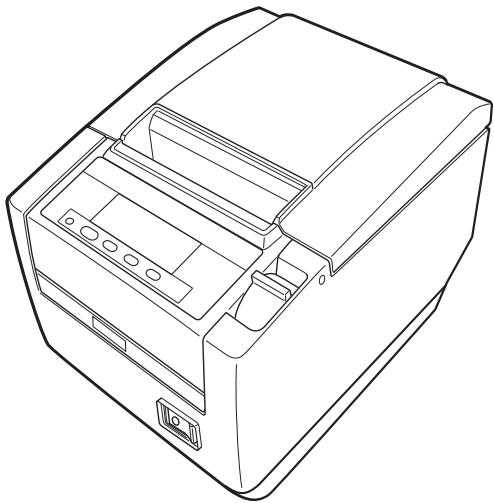
If you want to dispose of this product, do not mix it with general household waste. There is a separate collection systems for used electronics products in accordance with legislation under the WEEE Directive (Directive 2002/96/EC) and is effective only within European Union.
Ge
Declaration of Conformity
This printer conforms to the following Standards:
The Low Voltage Directive 2006/95/EC, the EMC Directive 2004/108/EC, the RoHS Directive 2002/95/EC, and the WEEE Directive 2002/96/EC.
LVD:EN60950-1
EMC:EN55022
Class A
EN61000-3-2
EN61000-3-3
EN55024
This declaration applies only to the 230-V model.
IMPORTANT: This equipment generates, uses, and can radiate radio frequency energy and if not installed and used in accordance with the instruction manual, may cause interference to radio communications. It has been tested and found to comply with the limits for a Class A computing device pursuant to Subpart J of Part 15 of FCC Rules, which are designed to provide reasonable protection against such interference when operated in a commercial environment. Operation of this equipment in a residential area is likely to cause interference, in which case the user at his own expense will be required to take whatever measures may be necessary to correct the interference.
CAUTION: Use shielded cable for this equipment.
Sicherheitshinweis
This Class A digital apparatus complies with Canadian ICES-003.
This digital apparatus does not exceed the Class A limits for radio noise emissions from digital apparatus, as set out in the radio interference regulations of the Canadian department of communications.
- Before using this product, be sure to read through this manual. After having read this manual, keep it in a safe, readily accessible place for future reference.
- The information contained herein is subject to change without prior notice.
- Reproduction or transfer of part or all of this document in any means is prohibited without permission from Citizen Systems.
- Note that Citizen Systems is not responsible for any operation results regardless of omissions, errors, or misprints in this manual.
- Note that Citizen Systems is not responsible for any trouble caused as a result of using options or consumables that are not specified in this manual.
- Except explained elsewhere in this manual, do not attempt to service, disassemble, or repair this product.
- Note that Citizen Systems is not responsible for any damage attributable to incorrect operation/handling or improper operating environments that are not specified in this manual.
- Data is basically for temporary use and not stored for an extended period of time or permanently. Please note that Citizen Systems is not responsible for damage or lost profit resulting from the loss of data caused by accidents, repairs, tests or other occurrences.
- If you find omissions, errors, or have questions, please contact your Citizen Systems dealer.
- If you find any pages missing or out of order, contact your Citizen Systems dealer for a replacement.
SAFETY PRECAUTIONS...WHICH SHOULD BE STRICTLY OBSERVED
Before using this product for the first time, carefully read these SAFETY PRECAUTIONS. Improper handling may result in accidents (fire, electric shock or injury).
In order to prevent injury to operators, third parties, or damage to property, special warning symbols are used in the User's Manual to indicate important items to be strictly observed.
- After having read this Manual, keep it in a safe, readily accessible place for future reference.
- Some of the descriptions contained in this manual may not be relevant to some printer models.
The following describes the degree of hazard and damage that could occur if the printer is improperly operated by ignoring the instructions indicated by the warning symbols.

WARNING
Neglecting precautions indicated by this symbol may result in fatal or serious injury.

CAUTION
Neglecting precautions indicated by this symbol may result in injury or damage to property.

This symbol is used to alert your attention to important items.

This symbol is used to alert you to the danger of electric shock or electrostatic damage.

This symbol denotes a request to unplug the printer from the wall outlet.

This symbol is used to indicate that the power supply must be grounded.

This symbol is used to indicate useful information, such as procedures, instructions or the like.

This symbol is used to indicate prohibited actions.
| PRECAUTIONS ON PRINTER INSTALLATION | |
| WARNING | |
| ■ Do not use or store this product in a place where it will be exposed to: * Flames or moist air. * Direct sunlight. * Hot airflow or radiation from a heating device. * Salty air or corrosive gases. * Ill-ventilated atmosphere. * Chemical reactions in a laboratory. * Airborne oil, steel particles, or dust. * Static electricity or strong magnetic fields. · Neglecting these warnings may result in printer failure, overheating, emission of smoke, fire, or electric shock. | |
| ■ Do not drop any foreign object nor spill liquid into the printer. Do not place any object on the printer either. ■ Do not drop any metallic object such as paper clips, pins or screws into the printer. ■ Do not place a flower vase, pot, or anything containing water on the printer. ■ Do not spill coffee, soft drinks, or any other liquid into the printer. ■ Do not spray insecticide or any other chemical liquid over the printer. · Dropping a metallic foreign object into the printer, may cause printer failure, fire, or electric shock. Should it occur, immediately turn the printer off, unplug it from the supply outlet, and call your local Citizen Systems dealer. | |
| Do not handle the printer in the following ways: ■ Do not subject the printer to strong impacts or hard jolts (e.g., being stepped on, dropped or struck). ■ Never attempt to disassemble or modify the printer. · Neglecting to handle properly may result in printer failure, overheating, emission of smoke, fire, or electric shock. | |
| ■ Install, use, or store the printer out of the reach of children. · Electric appliances could cause an unexpected injury or accident if they are handled or used improperly. · Keep the power cord and signal cables out of the reach of children. Also children should not be allowed to gain access to any internal part of the printer. · The plastic bag the printer came in must be disposed of properly or kept away from children. Wearing it over the head may lead to suffocation. | |
| CAUTION | |
| Do not use the printer under the following conditions. ■ Avoid locations subject to vibration or instability. ■ Avoid locations where the printer is not level. · The printer may fall and cause an injury. · The quality of printing may deteriorate. ■ Do not obstruct the printer's air vents. ■ Do not place anything on the printer. ■ Do not cover or wrap the printer in cloth or blankets. · Doing so could cause heat to build up and deform the case or start a fire. ■ Avoid using the printer near a radio or TV set or from supplying it from the same electric outlet as these appliances. ■ Avoid using the printer interconnected with a cable or cord that has no protection against noise. (For interconnections, use shielded or a twisted pair of cables and ferrite cores, or other anti-noise devices.) ■ Avoid using the printer with a device that is a strong source of noise. · The printer may have an adverse effect on nearby radio or TV transmissions. There may also be cases when nearby electrical appliances adversely influence the printer, causing data errors or malfunction. ■ Installed in any orientation other than those specified. · Malfunction, failure, or electric shock may result. | |
| Connect the printer to a ground. · Electric leakage may cause an electric shock. ■ Do not connect the printer's ground to any of the following: * Gas piping · A gas explosion could result. * Telephone line ground * Lightning rod · If lightning strikes a large surge of current may cause fire or shock. * Water pipes · Plastic water pipes should not be used for grounding. (Those approved by a Waterworks Department may be used.) ■ Before connecting or disconnecting the grounding lead to or from the printer, always unplug it from the electric outlet. | |
PRECAUTIONS IN HANDLING THE PRINTER

WARNING
Please observe the following precautions for power source and power cord:
- Do not plug or unplug the power cord with a wet hand.
■ Use the printer only at the specified supply voltage and frequency.
Use only the specified AC adapter with the printer. - Check to make sure that the supply outlet from which the printer is powered has a sufficient capacity.
- Do not supply the printer from a power strip or current tap shared with other appliances.
- Do not plug the power cord into an electric outlet with dust or debris left on the plug.
Do not use a deformed or damaged power cord.
Do not move the printer while its power is on. - Neglecting to handle it properly may result in printer failure, emission of smoke, fire, or electric shock.
- An overload may cause the power cord to overheat, catch fire, or the circuit breaker to trip.
- Do not allow anything to rest on the power cord. Do not place the printer where the power cord may be stepped on.
■ Do not use or carry the printer with its power cord bent, twisted, or pulled.
■ Do not attempt to modify the power cord unnecessarily. - Do not place the power cord near any heating device.
- Neglecting these cautions may cause wires or insulation to break, which could result in electric leakage, electric shock, or printer failure. If the power cord sustains damage, contact your Citizen Systems dealer.
■ Do not leave things around the electric outlet.
Supply power to the printer from a convenient electric outlet, readily accessible in an emergency. - Pull the plug to immediately shut it down in an emergency.
Insert the power plug fully into the outlet.
■ If the printer will not be used for a long time, disconnect it from its electric outlet.
Hold the plug and connector when plugging or unplugging the power cord or signal cable after turning off the printer and the appliance connected to it.








| CAUTION |
| Caution label is attached in the position shown in the following figure. Carefully read the handling precautions before using the printer. THIS LABEL INDICATES THE RISK OF BURNS DUE TO THE HIGH TEMPERATURE OF THE PRINT HEAD AND A RISK OF BEING CUT BY THE MANUAL AND AUTO CUTTERS WHILE THE PAPER COVER IS OPEN. |
| ■ Do not transport this printer with the paper roll inside. • Printer failure or damage may occur. |
| To prevent possible malfunction or failure observe the following. ■ Avoid operating the printer without paper properly loaded. ■ Avoid the use of paper not complying with specifications. ● May result in poor print quality. ■ Avoid using torn pieces of paper or paper spliced with plastic adhesive tape. ■ Avoid forcibly pulling already loaded paper by hand. ■ Avoid using a sharp pointed device to operate panel buttons. |
| ■ Be sure to firmly insert the cable plugs into their mating sockets. ● A cross connection may damage the printer's internal electronics or the host system's hardware. ■ Only use the printer with devices that have designated solenoid specifications for the cash drawer interface connector. ● Neglecting this caution may result in malfunction or failure. |

CAUTION
To prevent injury and printer failures from worsening, observe the following:
■ While the paper cover is open, be careful to not touch the manual cutter that is in the paper eject slot.

■ Do not touch the printing surface of the thermal head.
- Do not touch any of the moving parts (e.g., paper cutter, gears, active electric parts) while the printer is working.
In case of trouble do not attempt to repair the printer. Ask Citizen Systems service for repair.
■ Be careful that the covers do not pinch your hands or fingers.
■ Be careful of the sharp edges on the printer. Do not allow them to injure you or damage property.
- May result in electric shock, burn, or injury.

If the printer emits smoke, an odd smell, or unusual noise while printing, immediately abort the current print session and unplug the printer from the electric outlet.

DAILY MAINTENANCE
Observe the following precautions for daily maintenance.
■ When cleaning the printer, always turn it off and unplug it from the electric outlet.
- Use a soft, dry cloth for cleaning the surface of the printer case. For severe stains, use a soft cloth slightly dampened with water. Never use organic cleaning solvent such as alcohol, paint thinner, trichloroethylene, benzene, or ketone. Never use a chemically processed cleaning cloth.
To remove paper dust, use a soft brush.


CAUTION

- The thermal head is at a dangerously high temperature immediately after printing. Allow it to cool off before starting maintenance work.
Visit the following site to get documentation, drivers, utilities, and other information.
http://www.citizen-systems.co.jp/english/support/index.html
THE TABLE OF CONTENTS
1. GENERAL OUTLINE 9
1.1 Features 9
1.2 Unpacking 10
1.3 Model Classification 10
1.4 Basic Specifications 11
2. EXPLANATION OF PRINTER PARTS 12
2.1 Printer Appearance 12
2.2 Inside the paper cover 15
2.3 Other Built-in Functions 16
3. SETUP 17
3.1 Connecting the AC Power Cord 17
3.2 Connecting Interface Cables 18
3.3 Connecting the CashDrawer 19
3.4 Connecting an External Device 21
3.5 Precautions for Installing the Printer 22
3.6 Partition for Paper Roll 23
3.7 Setting the DIP Switch on the Serial Interface Board 24
3.8 Adjusting the Paper Near-end Sensor 25
3.9 Setting Paper Thickness 26
3.10 Loading Paper 27
3.11 Attaching the Power Switch Cover 28
3.12 Attaching the Interface Cover 29
3.13 Removing the Interface Cover 29
4. MAINTENANCE AND TROUBLESHOOTING 30
4.1 Periodic Cleaning 30
4.2 Clearing a Cutter Lock (1) 31
4.3 Clearing a Cutter Lock (2) 32
4.4 Function Test Mode 33
4.5 Hexadecimal Dump Printing 35
4.6 Error Messages 36
5. OTHER 38
5.1 External Views and Dimensions 38
5.2 Printing Paper 39
5.3 Manual Setting of Memory Switches 40
1. GENERAL OUTLINE
The CT-S801 line thermal printer series is designed for use with a broad array of terminal equipment including data, POS, and kitchen terminals.
These printers have extensive features so they can be used in a wide range of applications.
1.1 Features
- High-speed (300 mm/s) printing.
- Design so compact it can be installed anywhere (maximum 3-inch (83-mm) paper roll size)
- Versatile design supports 3-inch (83/80 mm) and 2-inch (60/58 mm) wide paper rolls
- Built-in power supply or AC adapter types available
- Printer status and errors indicated by LCD, LED, and a buzzer
- LCD and four buttons make it easy to change settings
Equipped with a fast and quiet cutter - Easy to clear cutter jams
- Interchangeable interface
Built-in cash drawer kick-out interface
Equipped with a serial interface for external devices - Memory switches make customization possible
- Store user-defined characters and logos on user memory
- Barcode and 2D barcode printing supported
- 2-color printing supported (when specified paper used)
- Driver and utility software included
1.2 Unpacking
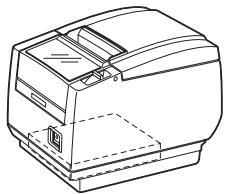
Make sure the following items are included with your printer.
Printer: 1
- Interface cover: 1
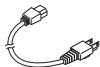
- AC power cord: 1
Power switch cover: 1
Sample paper roll: 1 roll
CD-ROM: 1
Quick Start Guide: 1
- AC adapter1: 1
USB cable2: 1
Notes:
1: CT-S801A only
2: USB interface types only In designated markets
CT-S801S
(Built-in power supply type)
AC power cord

USB cable

Sample paper roll
Quick Start Guide

Power switch cover

CD-ROM

Interface cover
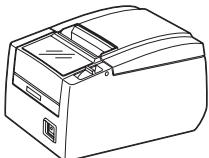
CT-S801A
(AC adapter type)
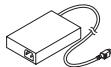
AC adapter (36AD2)
Quick Start Guide

AC power cord

Power switch cover

USB cable

CD-ROM

Sample paper roll

Interface cover
1.3 Model Classification
Model numbers indicate printer features according to the following system.
CT - S801S 3 RS
E-BK-PLM1
Power supply
DC:No power source
S: Built-in power supply type
A: AC adapter type
Paper width
3: 3 inch (80/83 mm)
2: 2 inch (58/60 mm)
Interface
PA: Parallel
RS: Serial RS-232C
UB: USB only
UH: USB with hub
ET: Ethernet (standard type)
ES: Ethernet (multi-function type)
UP: Powered USB
Market: *
J:Japanese
U: North America
C: China
E: Europe/Asia
BM sensor
:No
M1: Left side
M2: Right
side
PNE sensor
No
P: PNE sensor
Body case color
WH: Cool white
BK: Black
Note:
*: AC power cord, serial I/F screw, firmware and other specifications vary according to markets.
1.4 Basic Specifications
| Item | Specifications | |||||
| Model | CT-S801 | |||||
| Print method | Line thermal dot print method | |||||
| Print width *1 | 80 mm/640 dots, 72 mm/576 dots, 64 mm/512 dots, 54.5 mm/436 dots, 54 mm/432 dots, 52.5 mm/420 dots, 48 mm/384 dots, 45 mm/360 dots, 48.75 mm/390 dots, 68.25 mm/546 dots | |||||
| Dot density | 8 × 8 dots/mm (203 dpi) | |||||
| Print speed | 300 mm/s (fastest, print density 100%), 2400 dot-lines/s | |||||
| Number of print columns *2 | - | Maximum number of characters (columns) | Dot configuration (dots) | |||
| Paper width Font | 83 mm | 80 mm | 60 mm | 58 mm | ||
| Font A | 53 | 48 | 36 | 35 | 12 × 24 | |
| Font B | 71 | 64 | 48 | 46 | 9 × 17 | |
| Font C | 80 | 72 | 54 | 52 | 8 × 16 | |
| Character size*3 | Font A: 1.50 × 3.00 mmFont B: 1.13 × 2.13 mmFont C: 1.00 × 2.00 mm | |||||
| Character type | Alphanumeric, international, PC437/850/852/857/858/860/863/864/865/866/WPC1252/katakana/Thai code 18 | |||||
| Liquid crystal display (LCD) | 128 × 32 dots STN liquid crystal, white/red LED backlight | |||||
| User memory | 384 KB (capable of storing user-defined characters and logos) | |||||
| Bar code types | UPC-A/E, JAN (EAN) 13/8 columns, ITF, CODE39, CODE128, CODABAR (NW-7), CODE93, PDF417, OR Code | |||||
| Line spacing | 4.23 mm (1/6 inch) (changeable using commands) | |||||
| Paper roll | Paper roll: 83+0-1 mm/80+0-1 mm/60+0-1 mm/58+0-1 mm × maximum φ83 mmPaper thickness: 65-75 μm (core tube diameter: inner 12 mm/outer 18 mm)75-150 μm (core tube diameter: inner 25.4 mm/outer 32 mm) | |||||
| Interface | Serial (RS-232C compliant), parallel (IEEE 1284 compliant), USB, USB with hub, Ethernet, powered USB | |||||
| Cash drawer kick-out | Supports 2 cash drawers | |||||
| External device port | RJ-45, 8-pin connector | |||||
| Buffer size | 4 k bytes/45 bytes | |||||
| Supply voltage | DC 24 V ±5% | |||||
| Power consumption | Approximately 45 W (normal printing), 3 W (standby) | |||||
| AC adapter(36AD2, 36AD3) | Rated input: AC 100 to 240 V, 50/60 Hz, 150 VARated output: DC 24 V, 2.1 A | |||||
| Weight | CT-S801S: Approx. 2 kg, CT-S801A: Approx. 1.6 kg | |||||
| Outside dimensions | CT-S801S: 145 (W) × 192 (D) × 148 (H) mmCT-S801A: 145 (W) × 192 (D) × 120 (H) mm | |||||
| Operating temperature and humidity | 5 to 45°C, 10 to 90% RH (no condensation) | |||||
| Storage temperature and humidity | -20 to 60°C, 10 to 90% RH (no condensation) | |||||
| Reliability | Print head life: 150 km, 200 million pulses (at normal temperature and humidity using recommended paper)Auto cutter life: 2 million cuts (at normal temperature/humidity, using recommended paper and paper thickness) | |||||
| Safety standard *4 | UL, C-UL, FCC Class A, TÜV-Bauart, CE Marking | |||||
Notes:
1: When paper width is 83, 80, 60, or 58 mm.
2: The number of printable columns is selected using a memory switch.
The number of columns noted in this table refer to typical models. The number of columns varies depending on specifications.
3: Characters appear small because the dimensions include a blank area surrounding each character.
4: Compliant if the Citizen Systems AC adapter (36AD2/36AD3) is used.
2. EXPLANATION OF PRINTER PARTS
2.1 Printer Appearance
Names of parts
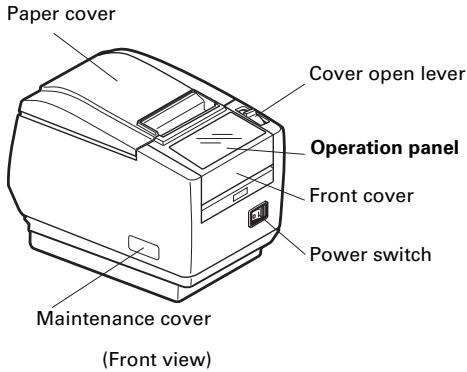
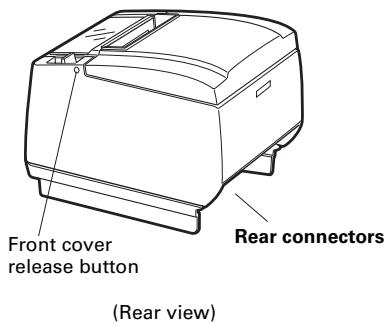
- Paper cover Open to load paper.
- Cover open lever Use this lever to open the paper cover.
- Front cover
- Open and close this cover to clear a cutter lock.

Refer to 4.3 Clearing a Cutter Lock (2)
- Front cover release button Press this button to open the front cover.
-
Power switch Press this button to turn the power on or off.
-
Maintenance cover
Not applicable for this product.

CAUTION
Do not open the maintenance cover.
Operation panel
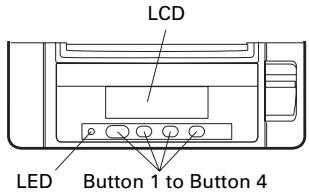
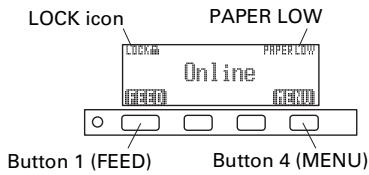
Examples are shown in the diagram of the LCD above on the right.
LCD
Indicates the printer's status, button names, types of errors, and messages.
- LED
Lights green when the power is on, turns off when the power is off.
Lights red in special modes and in case of errors.
Lights orange when paper is low (paper near-end) or the print head is hot.
- Button 1 to Button 4
Functions assigned to these buttons vary depending on the active mode. The buttons are called button 1, button 2, button 3, and button 4 in order from left to right.
- FEED button
Press this button to feed paper.
In case of a cutter lock, remove the cause of the lock and then press the FEED button.

Refer to 4.6 Error Messages
- MENU button
Press and hold this button (for at least two seconds) to access the memory switch setting mode.

Refer to 5.3 Manual Setting of Memory Switches
PAPER LOW
Appears when the paper roll is near its end.
- LOCK icon
This icon indicates that the MENU button is inoperative.
LCD in the vertical or wall mounted position
You can change the memory switch settings to invert the LCD if the printer is used in a vertical position or installed on a wall.


Refer to 5.3 Manual Setting of Memory Switches
Rear connectors
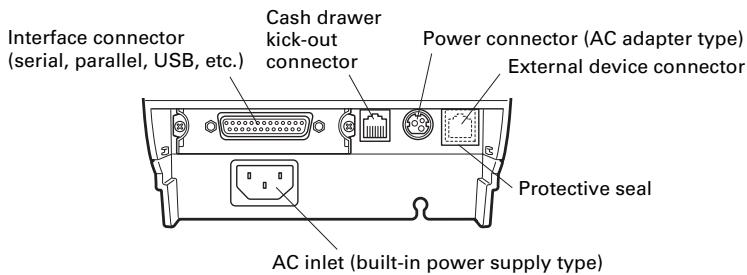
- Interface connector (serial, parallel, USB, etc.) Connects to the interface cable. The serial interface board is equipped with a DIP switch.
- Cash drawer kick-out connector Connects to the cable from the cash drawer.
- Power connector (AC adapter type) Connects to the AC adapter cable.
- External device connector Connects to the cable from an external device. *Remove the protective seal from the external device connector to use it.
- AC inlet (built-in power supply type) Connects to the AC power cord.
2.2 Inside the paper cover
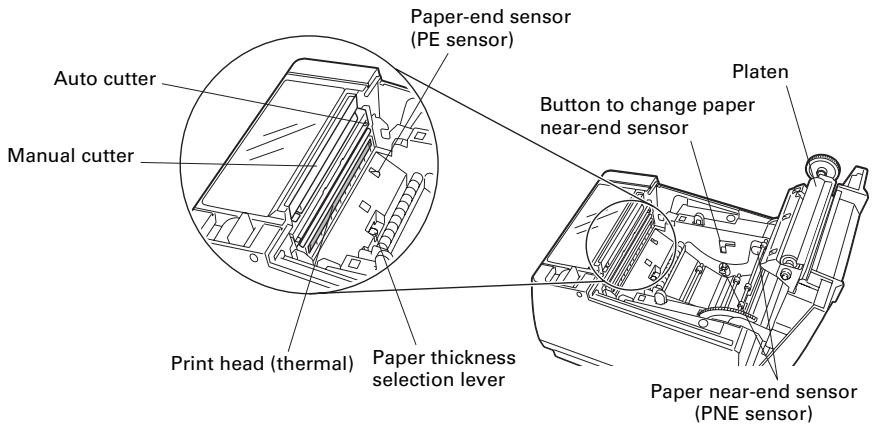
- Platen
Feeds the paper.
- Paper near-end sensor (PNE sensor)
Detects when the paper is near the end of the roll. Adjust the position of the sensor to determine when it detects the end of the paper is near.
- Button to change paper near-end sensor
Change the position of the paper near-end sensor to match the paper being used.

Refer to 3.8 Adjusting the Paper Near-end Sensor
- Manual cutter
For cutting the paper manually when printing is finished.
- Auto cutter
Automatically cuts the paper when printing is finished.

Refer to 5.3 Manual Setting of Memory Switches
- Print head (thermal)
Prints characters and graphic data on paper (paper rolls).
- Paper end sensor (PE sensor)
Detects when there is no paper. Printing stops when this sensor detects there is no paper.
- Paper thickness selection lever
Use this lever to select regular or thick paper according to the thickness of the paper being loaded.
2.3 Other Built-in Functions
Buzzer
Buzzes when errors occur or when operations or command operations are performed.

Refer to 4.6 Error Messages
- User memory
You can save user-defined logo and character data in this memory. Data remains stored in this memory even if the printer is turned off. For information on how to save data, refer to the Command Reference.
- Memory switch
Setting of various kinds of functions can be stored in memory. Settings remain stored in the memory even if the printer is turned off.
3.1 Connecting the AC Power Cord
- Turn off the power.
- For the built-in power type printer, connect the AC power cord to the AC inlet, and insert the plug into an electric outlet.
- For the AC adapter type printer, connect the cable connector of the AC adapter to the power connector. Next, connect the AC power cord to the AC inlet, and insert the plug into an electric outlet.
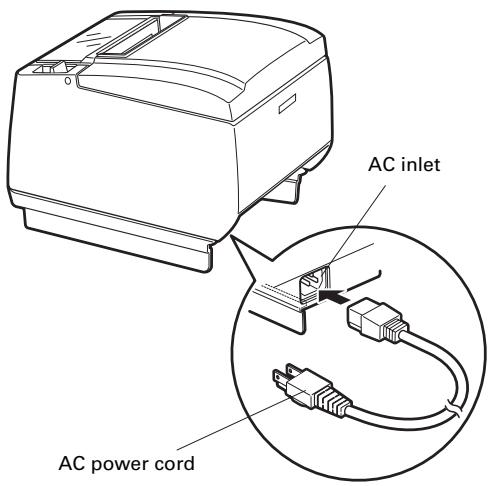
Built-in power supply type
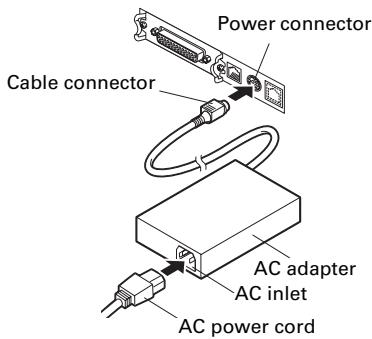
AC adapter type

CAUTION
Use only an AC adapter that complies with the specified ratings.
Always hold the AC adapter's cable connector by the connector when removing or inserting it.
■ Use an AC power source that does not also supply power to equipment that generates electromagnetic noise.
Pulling on the AC power cord may damage it, cause a fire, electric shock, or break a wire.
If a lightning storm is approaching, unplug the AC power cord from the electric outlet. A lightning strike may cause a fire or electric shock.
- Keep the AC power cord away from heat generating appliances. The insulation on the AC power cord may melt and cause a fire or electric shock.
■ If the printer is not going to be used for a long time, unplug the AC power cord from the electric outlet.
Place the AC power cord so that people do not trip on it.
3.2 Connecting Interface Cables
- Turn off the power.
- Orient the interface cable correctly and insert it into the interface connector.
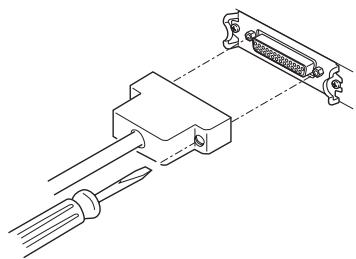
Serial interface
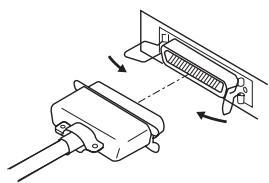
Parallel interface
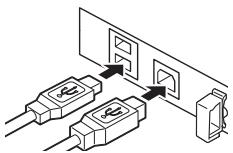
USB interface (hub type)
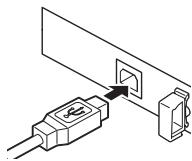
USB interface
Ethernet and powered USB interfaces are available as options in addition to those listed here.

CAUTION
■ When disconnecting the cable, always hold the connector.
■ Be careful not to insert the USB interface cable into the cash drawer kick-out connector.
- To connect more than one printer to a single computer via a USB interface you must change the serial number of the USB interface.
Use a serial interface cable with the connection layout shown below.
25-pin - 25-pin cable
9-pin - 25-pin cable
| Signal | Pin |
| FG | 1 |
| TXD | 2 |
| RXD | 3 |
| CTS | 5 |
| DSR | 6 |
| SG | 7 |
| DTR | 20 |
| Signal | Pin |
| RXD | 2 |
| TXD | 3 |
| DTR | 4 |
| SG | 5 |
| DSR | 6 |
| CTS | 8 |
| Pin | Signal |
| 2 | TXD |
| 3 | RXD |
| 4 | RTS |
| 6 | DSR |
| 7 | SG |
| 20 | DTR |

CAUTION
Place the interface cable so people do not trip on it.
3.3 Connecting the Cash Printer
- Turn off the power.
- Confirm the orientation of the cash drawer kick-out cable connector and connect it to the cash drawer kick-out connector at the back of the printer.
- Remove the screw for the ground wire.
- Screw the cash drawer's ground wire to the body of the printer.
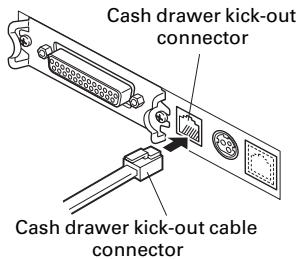
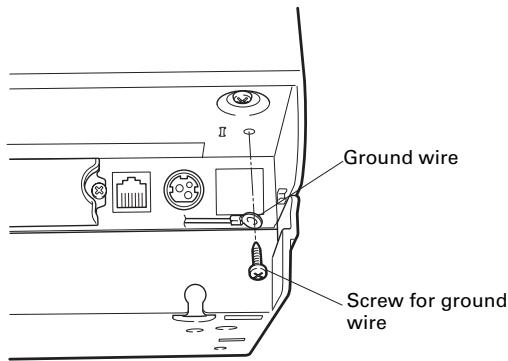

CAUTION
- Connect only the cash drawer kick-out cable connector to the cash drawer kick-out connector. (Do not connect a telephone line.)
Signals cannot be output from the cash drawer kick-out connector while printing.
(1) Connector pin configuration
| No. | Signal | Function |
| 1 | FG | Frame ground |
| 2 | DRAWER1 | Cash drawer 1 drive signal |
| 3 | DRSW | Cash drawer switch input |
| 4 | VDR | Cash drawer drive power supply |
| 5 | DRAWER2 | Cash drawer 2 drive signal |
| 6 | GND | Signal ground (common ground on circuits) |
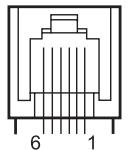
Connector used: TM5RJ3-66 (Hirose) or equivalent
Applicable connector: TM3P-66P (Hirose) or equivalent
(2) Electric characteristics
1) Drive voltage: 24 VDC
2) Drive current: Approx. 1 A max. (not to exceed 510 ms.)
3) DRSW signal: Signal levels: "L" = 0 to 0.8 V, "H" = 2 to 3.3 V
(3) DRSW signal
DRSW signal status can be tested with the DLE+EOT, GS+a, or GS+r command or at pin 34 on the parallel interface port.
(4) Drive circuit
Cash drawer kick-out connector
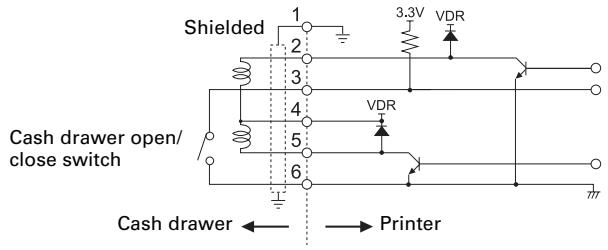

CAUTION
Cash drawers 1 and 2 cannot be operated at the same time.
The solenoid used for the cash drawer should be 24 or more. Do not allow the electric current to exceed 1 A. Excessive current could damage or burn out the circuits.
3.4 Connecting an External Device
- Turn off the power.
- Remove the protective seal from the external device connector.
- Confirm the orientation of the external device cable connector and connect it to the external device connector at the back of the printer.
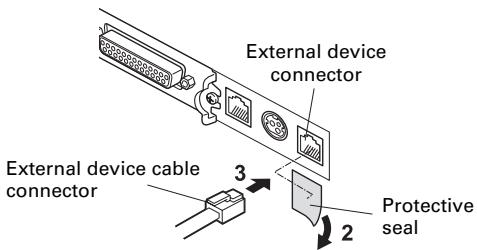

CAUTION
Use only the specified external device cable to connect to the external device connector (do not use phone, LAN, or USB cables).
(1) Connector pin configuration
| No. | Signal | I/O | Function |
| 1 | FG | - | Frame ground |
| 2 | TXD | Output | Data sent to printer |
| 3 | RXD | Input | Data received from external device |
| 4 | DSR | Input | Indicates that the printer can receive data. MARK: Printer cannot receive SPACE: Printer can receive |
| 5 | DTR | Output | Indicates that the external device can receive. MARK: External device cannot receive SPACE: External device can receive |
| 6 | SG | - | Signal ground (common ground on circuits) |
| 7 | PS | - | Power supply terminal (24 VDC) |
| 8 | PG | - | Flyback line for power supply |
Connector used: RJ-45 Applicable connector: RJ-45
Transmission to external devices done at 19200 bps, 8-bit, no parity.
3.5 Precautions for Installing the Printer
The printer can be used horizontally, vertically, or installed on a wall. However, the CT-S801S (built-in power supply type) cannot be used vertically or installed on a wall.
Use the optional stand for vertical applications, and the optional brackets for wall installations. Please refer to the manual for further details.
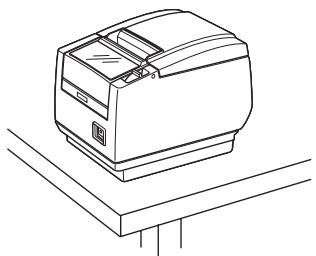
Horizontal position
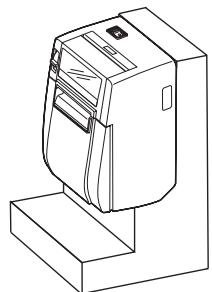
Vertical position
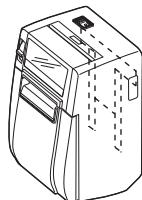
Wall installation
You can change the memory switch settings to invert the LCD if the printer is used in a vertical position or installed on a wall.

Refer to 5.3 Manual Setting of Memory Switches

Refer to 2.1 Printer Appearance (LCD in the vertical or wall mounted position)
Change the paper near-end sensor settings for vertical and wall installations. (The factory setting for the paper near-end sensor is for horizontal installations.)

Refer to 3.8 Adjusting the Paper Near-end Sensor

CAUTION
Do not use the printer under the following conditions.
Locations subject to vibration or instability.
Locations that are very dirty or dusty
Locations where the printer is not level.
- The printer may fall and cause an injury.
- The quality of printing may deteriorate.
Oriented other than as specified.
- The printer may malfunction, be damaged, or cause an electric shock.
Precautions for horizontal installations
■ Do not set cutting to full cut. Doing so may cause cutter jams.
Precautions for vertical/wall installations
Adjust the paper near-end sensor.
3.6 Partition for Paper Roll
Set the partition to the width of the paper roll you are loading. The partition is set at the factory to the position shown below.
For 3-inch type: 80-mm wide paper roll
For 2-inch type: 58-mm wide paper roll
- Turn off the power.
- Press the cover open lever.
- Open the paper cover.
- Set the partition in a slot that matches the size of the paper roll you are using. However, to use an 83-mm wide paper roll, remove the partition.
- Refer to "5.3 Manual Setting of Memory Switches" to change the paper width settings.
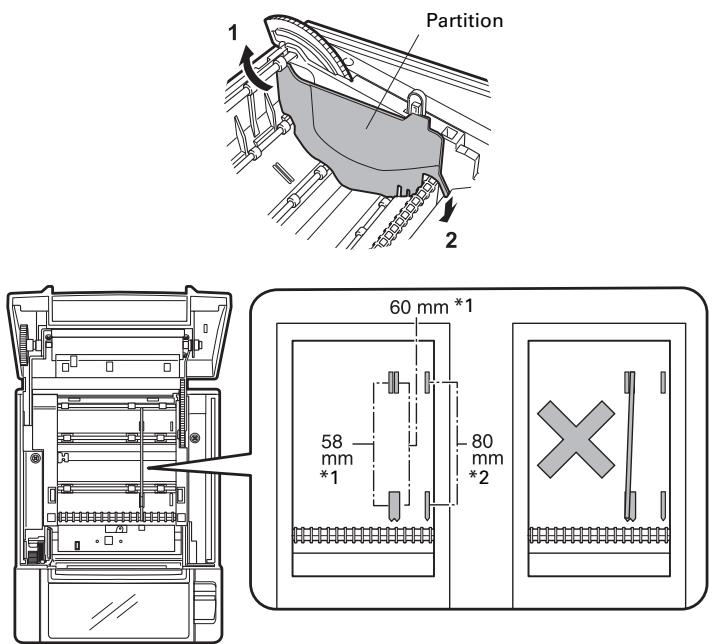
Notes:
1: 2-inch type (58/60 mm)
2: 3-inch type (80/83 mm)

CAUTION
Make sure the partition is not slanted when setting it for 58-mm or 60-mm paper rolls.
3.7 Setting the DIP Switch on the Serial Interface Board
- Turn off the printer and unplug the power cord from the electric outlet.
- Remove the mounting screws of the serial interface board.
- Remove the serial interface board from the printer.
- Set the DIP switch according to the following table.
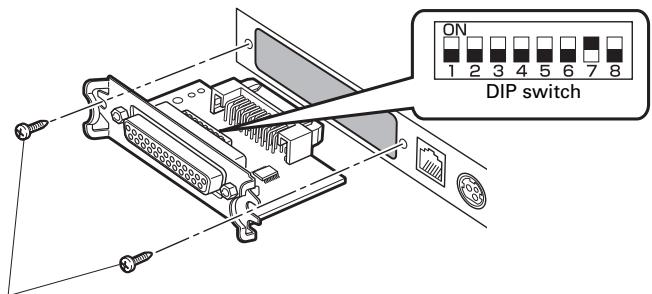
Serial interface board mounting screws

CAUTION
When setting the DIP switch, do not remove any screws except the serial interface board mounting screws.
The function of each switch is shown below. (Shaded values are factory settings. However, factory settings differ depending on the destination market.)
| Switch no. | Function | ON | OFF |
| 1 | Communication condition setting | According to DIP switch settings | According to memory switch settings |
| 2 | Hand shake | XON/XOFF | DTR/DSR |
| 3 | Bit length | 7 bits | 8 bits |
| 4 | Parity check | Yes | No |
| 5 | Parity selection | Even parity | Odd parity |
| 6 | Baud rate selection | Refer to table below. | |
| 7 | |||
| 8 | INIT | Reset | Invalid |
Baud rate selection
| Baud rate (bps) | Switch no. | |
| 6 | 7 | |
| 2400 | OFF | OFF |
| 4800 | ON | OFF |
| 9600 | OFF | ON |
| 19200 | ON | ON |
When switch no. 1 is set to OFF, you can use a command or a memory switch to select 1200, 38400, 57600, or 115200 bps.
3.8 Adjusting the Paper Near-end Sensor
Change the settings of the paper near-end sensor to set the position at which the near-end of the paper is detected.
- Use a pointed object, such as a pen, to gently press the button to change the paper near-end sensor.
- Press and hold down the button while moving the paper near-end sensor up, down, right and left. The sensor positions are shown below for the various diameters of the paper roll used.
(Unit: mm)
| Sensor position | Diameter when detected as near end | Diameter of core of paper roll used |
| A, a | φ31 | φ18 |
| B*, b | φ23 | φ18 |
| C | Paper near-end sensor function is off | |
Note:
*: Position of sensor when shipped from factory. However, factory settings differ depending on the destination market.

CAUTION
The amount of paper remaining on the roll (diameter of the roll) depends on the type of paper used.
The paper roll diameters in the table are guidelines.
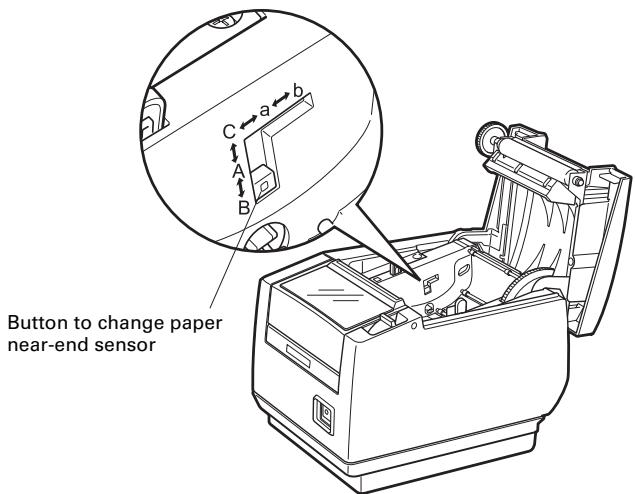
("A" and "B" are for horizontal installations, and "a" and "b" are for vertical or wall installations.)
3.9 Setting Paper Thickness
Set the paper thickness selection lever to the thickness of the paper.
- Turn off the power.
- Press the cover open lever.
- Open the paper cover.
- Set the paper thickness selection lever to A for thick paper or B for regular paper. Gently press on the side of the lever with a pointed object, such as a pen, to move the paper thickness selection lever.
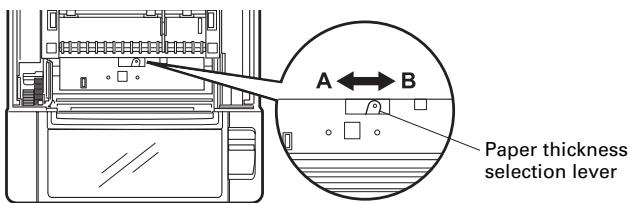
A: Thick paper 85 m - 150~ m , B: Regular paper 65~ - 85~
The paper thicknesses shown above are guidelines. Adjust the position of the lever to get the best printout.
3.10 Loading Paper
- Press the cover open lever while the power is on.
- Open the paper cover.
- Load the paper roll so that the printable side of the paper is facing down, as shown by arrow A.
- Pull a few cm of paper straight out in the direction of arrow B.
- Close the paper cover in the direction of arrow C until you hear a click. Paper is fed and cut automatically, if the factory settings are set.

Refer to 5.3 Manual Setting of Memory Switches
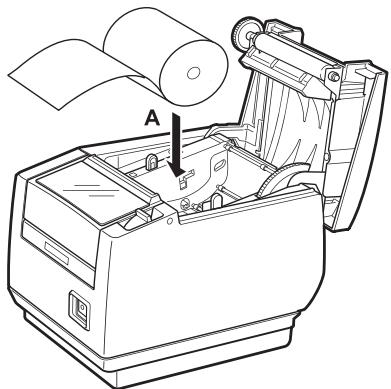
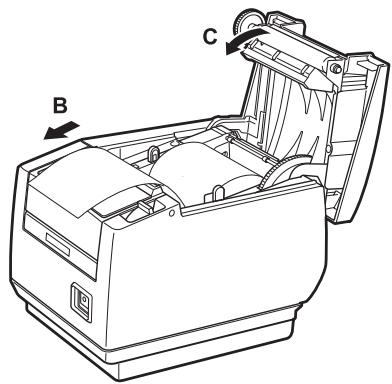

CAUTION
Always use the specified types of paper rolls.
■ Confirm that the paper roll is set correctly.
■ If the paper is skewed and not coming straight out of the paper cover, open it and straighten the paper.
Always pull a few cm of paper straight out of the printer if you open the paper cover while paper is loaded.
Press on the center of the paper cover to close it securely.
■ Be careful of paper cuts while loading the paper.
- Do not touch the print head, manual cutter, or auto cutter while the paper cover is open. Doing so may cause a burn or cut.
3.11 Attaching the Power Switch Cover
Attach this cover to prevent the power switch from being used.
- Press the power switch cover onto the power switch compartment until it clicks.
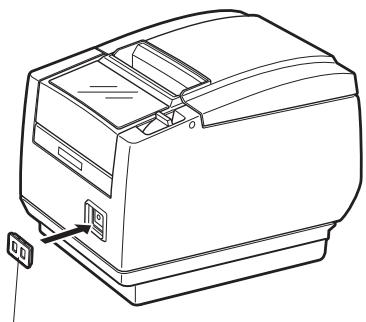
Power switch cover
Put a screwdriver or other pointed object into the grooves on the power switch cover to remove it.
3.12 Attaching the Interface Cover
Attach the interface cover to the back of the printer.
The shape of the interface cover is different depending on the type of power source.
- Press the interface cover as shown in the diagram until you hear it click.
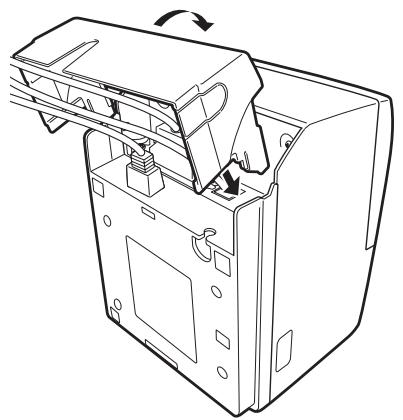
CT-S801S
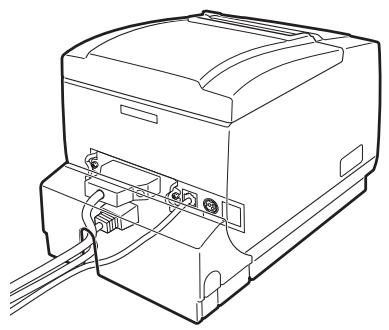
3.13 Removing the Interface Cover
Press in on both sides at the point indicated by A to remove the interface cover.
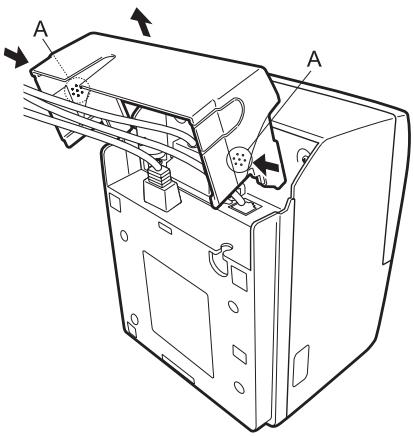
CT-S801S
4.1 Periodic Cleaning
A dirty print head or platen may reduce printing quality or cause malfunctions. Also, if paper dust collects on the sensor's protective sheet, paper cannot be detected correctly. We recommend cleaning the printer periodically (every 2 to 3 months) as shown below.
- Turn off the power.
- Press the cover open lever.
- Open the paper cover. Wait a few minutes until the print head cools.
- Use a cotton swab dampened with ethyl alcohol to wipe off any dirt and dust that is on the print head and platen.
- Use a cotton swab dampened with a little water to wipe off the sensor's protective sheet.
Make sure there are no water drops on the cotton swab before wiping.
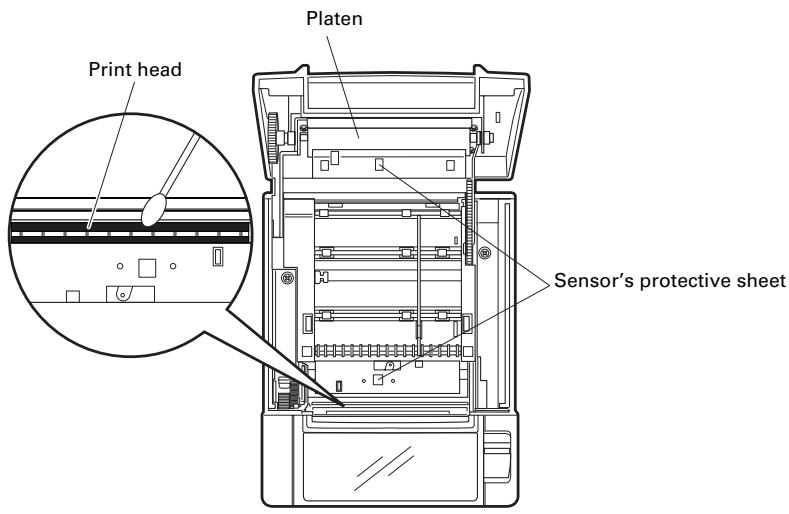

CAUTION
The print head is hot immediately after printing. Do not touch it.
■ Do not touch the print head with bare hands or metal objects.
- Do not use alcohol or cleansers to clean the surface of the sensor's protective sheet. Doing so may fog the sensor's protective sheet.
■ Paper scraps may stick to the platen when adhesive labels are full cut depending on the printer's environment, the diameter of the paper roll, and the quality of the label backing.
4.2 Clearing a Cutter Lock (1)
The message "Cutter lock" may appear and the auto cutter blade may remain extended because a foreign object or paper jam is obstructing it.
Cutter lock Open paper cover

If "Cutter lock" is displayed, clear the locked cutter as shown below.
- Press the cover open lever while the power is on.
- Open the paper cover.
- Remove any jammed paper including any scraps of paper. (Remove the paper roll that is loaded in the holder also.)
- Reload the paper roll and close the paper cover.

CAUTION
The print head is hot immediately after printing. Do not touch it.
■ Do not touch the print head with bare hands or metal objects.
If the paper cover does not open, the auto cutter blade is still extended (cutter lock).

Refer to 4.3 Clearing a Cutter Lock (2)
4.3 Clearing a Cutter Lock (2)
The paper cover is designed to be opened if the cutter locks by pressing the cover open lever. If this does not open the paper cover, use the following procedure to clear the locked cutter.
- Turn off the printer and unplug the power cord from the electric outlet.
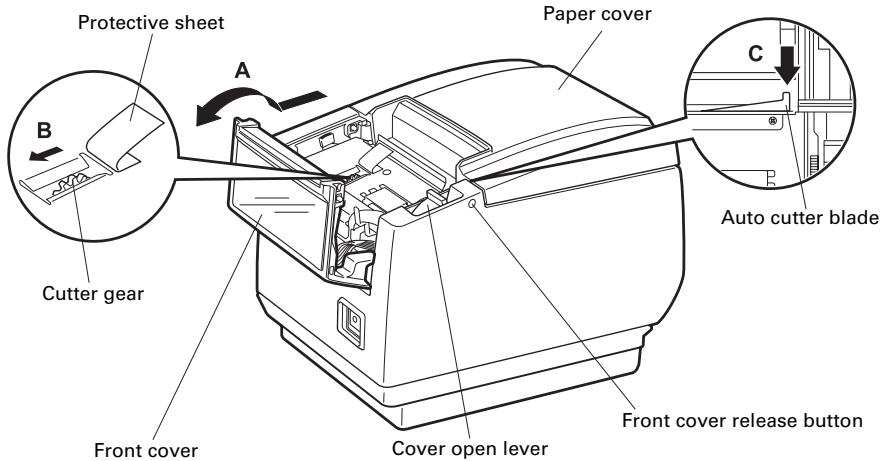
- Press the front cover release button with a pointed object, such as a pen, and open the front cover in the direction of arrow A.
Slide the front cover 3 to 4mm in the direction of arrow A and rotate it forward.
- Lift the protective sheet and turn the cutter gear in the direction of arrow B to return the auto cutter to a position where the paper cover can be opened.
Turn the cutter gear until the auto cutter blade retracts in the direction of arrow C. If the blade of the auto cutter does not move when you turn the cutter gear in the direction of arrow B, turn it in the other direction.
- Press the cover open lever.
- Open the paper cover.
- Remove whatever caused the cutter to lock.
- Close the front cover.
Rotate the front cover in the opposite direction of arrow A and then slide it until it clicks.
- Load a paper roll and close the paper cover.
- Insert the power cord plug into an electric outlet and turn the power on.
Check that the LED lights green.
Before starting to do maintenance work, be sure to turn off the printer and unplug the power cord from the electric outlet.
■ Be careful not to touch the manual cutter while the front cover is open.
■ Be careful not to touch the opening for the auto cutter while the paper cover is open.
The print head is hot immediately after printing. Do not touch it.
■ Do not touch the print head with bare hands or metal objects.
■ If the above procedure does not retract the auto cutter, contact your Citizen Systems dealer.
4.4 Function Test Mode
Press and hold button 1 while turning on the printer to access the function test mode.
Use button 3 (▼) to select a function, use button 4 (■) to execute the function. Except for the self test and memory switch settings, all functions are for service personnel only. Do not operate those functions.
Self test
- While paper is loaded, press and hold button 1 while turning the power on.
The function test mode starts and "Self test" appears on the LCD.
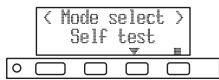
- Press button 4 (■).
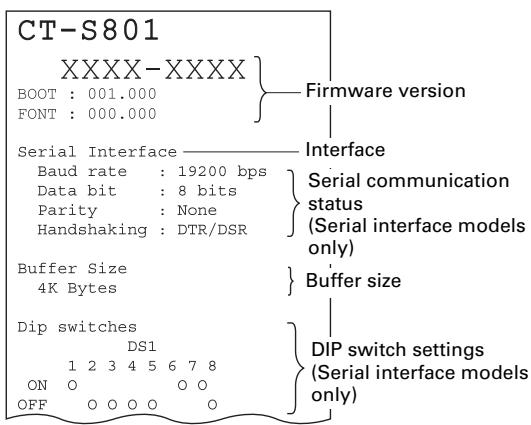
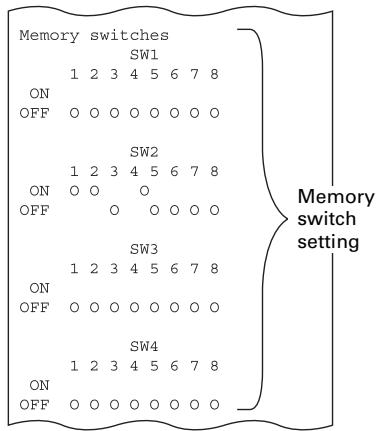
Self test starts. The printer prints its model name, version, DIP switch settings, memory switch settings, and a list of built-in fonts.
Print memory switch settings
- While paper is loaded, press and hold button 1 while turning the power on. The function test mode starts and "Self test" appears on the LCD.
- Press button 3 (▼). "Printing MSW" appears on the LCD.
- Press button 4 (■). A list of the current memory switch settings starts printing.
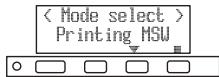
The function test mode has the following sub modes.
| Function | Description |
| Self test | Runs self test |
| Printing MSW | Prints memory switch settings |
| Quick Setting * | Sets the memory switches to be compatible with specific models. |
Note:
*: The memory switches are automatically set to their optimum settings by selecting the manufacturer and model of the printer being replaced.
Selected item
| Manufacturer | Model | Paper width | Character Space |
| CITIZEN | CBM1000 | 58 mm | - |
| 80 mm | - | ||
| CT-S300 | 58 mm | - | |
| 80 mm | - | ||
| CT-S2000 | 58 mm | - | |
| 60 mm | - | ||
| 80 mm | - | ||
| 83 mm | - | ||
| EPSON | T88 | 58 mm | 0dot |
| 1dot | |||
| 80 mm | 0dot | ||
| 1dot | |||
| 203dpi | 58 mm | - | |
| 60 mm | - | ||
| 80 mm | - |
Automatic memory switch settings
| MSW2-4 Full Col Print | MSW3-7 CBM1000 Mode | MSW8-1 Print Width | MSW6-2 Character Space |
| Auto linefeed | Valid | 432dots | — |
| Auto linefeed | Valid | 576dots | — |
| WaitData | Invalid | 384dots | — |
| WaitData | Invalid | 576dots | — |
| Auto linefeed | Valid | 432dots | — |
| Auto linefeed | Valid | 436dots | — |
| Auto linefeed | Valid | 576dots | — |
| Auto linefeed | Valid | 640dots | — |
| WaitData | Invalid | 360dots | 0dot |
| WaitData | Invalid | 390dots | 1dot |
| WaitData | Invalid | 512dots | 0dot |
| WaitData | Invalid | 546dots | 1dot |
| WaitData | Invalid | 420dots | — |
| WaitData | Invalid | 436dots | — |
| WaitData | Invalid | 576dots | — |
4.5 Hexadecimal Dump Printing
Print received data in hexadecimal. If problems such as missing or duplicated data occur, this function allows you to check whether or not the printer is receiving data correctly.
How to do hexadecimal dump printing
- Load paper.
- While the paper cover is open, press and hold button 1 while turning the power on, and then close the paper cover.
Enter HEX dump print mode. - The printer prints "HEX dump print mode" followed by the received data printed in hexadecimal numbers and some characters.
How to stop hexadecimal dump printing
Do one of the following to stop printing.
- Press button 1 (FEED) three times in a row
- Turn off the power
- Receive a reset command from an interface

CAUTION
The printer prints ". ." if there is no character corresponding to the data.
None of the commands function during hexadecimal dump printing.
■ If print data does not cover a complete line, press button 1 (FEED) to advance the paper.
Print example
HEX dump print mode
61 62 63 64 65 66 67 0A 0D 0D 0D 0D abcdefg....
OD OD OD
4.6 Error Messages
- Paper end
The end of the roll of paper is detected at two stages, paper near-end and paper-end.
When paper near-end is detected, "PAPER LOW" appears on the LCD and the LED lights orange. Prepare a new paper roll.
When paper-end is detected, "Paper end" appears on the LCD and the LED lights red. Load a new paper roll.
- Paper cover open
Do not open the paper cover during printing. If the paper cover is opened, the LED and LCD light red. Check the paper and always pull a few cm of paper straight out of the printer before closing the paper cover. Printing resumes. Sending a command to resume printing may be required depending on the memory switch setting.
- Cutter lock
If the auto cutter cannot move because of a paper jam or something else, the LED and LCD light red. Remove the cause of the trouble and press button 1 (FEED). If the auto cutter still does not operate and the paper cover does not open, refer to "4.3 Clearing a Cutter Lock (2)".

Refer to 4.3 Clearing a Cutter Lock (2)
Head overheat
When you print dense characters, dark images, or for an extended time in a hot environment, the print head temperature increases. If the print head exceeds a specified temperature, the printer stops printing and waits for the print head to cool. When this happens, the LED and LCD light orange. Printing resumes automatically when the print head cools.
The situation during various errors is shown below.
The LCD's top line is the type of error, the bottom line is the remedy. Scroll through messages that are longer than 16 characters.
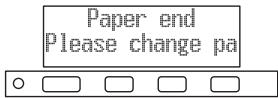
| Status | Message | LED | Backlight | Buzzer*2 |
| Paper near-end | PAPER LOW | Orange | - | - |
| Paper-end | Paper end Please replace paper roll. | Red | Red | Yes |
| Front cover open | Front cover open Please close front cover. | Red | - | Yes |
| Paper cover open | Paper cover open Please close paper cover. | Red | - | Yes |
| Cutter locked | Cutter lock Open paper cover & remove jam. | Red | Red | Yes |
| Cutter lock Then close paper cover | Red | Red | Yes | |
| Black mark error | Black mark error Please check paper | Red | Red | Yes |
| Print head hot | Head overheat Please wait, will continue | Orange | - | - |
| Memory error | Memory Error | Red | Red | Yes |
| Print head error | Head Error Please contact your dealer | Red | Red | Yes |
| Motor error | Motor Error Please contact your dealer | Red | Red | Yes |
| Low-voltage error | L Voltage Error Please contact your dealer | Red | Red | Yes |
| High-voltage error | H Voltage Error Please contact your dealer | Red | Red | Yes |
| Cash drawer voltage error | Drawer Error Please contact your dealer | Red | Red | Yes |
| Waiting for macro to execute *1 | - | - | - | - |
Notes:
1: LED may light while macro is executing.
2: Buzzer sounds when MSW5-1 (buzzer setting) is set to ON.
5.1 External Views and Dimensions
(Unit: mm)
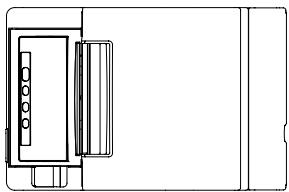
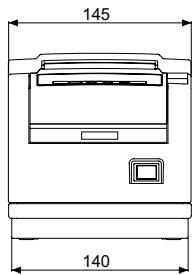
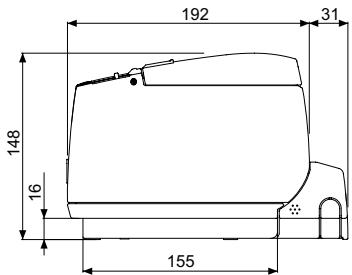
Built-in power supply type
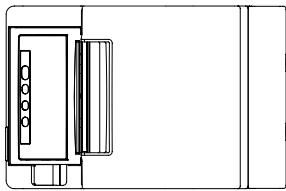
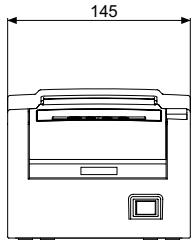
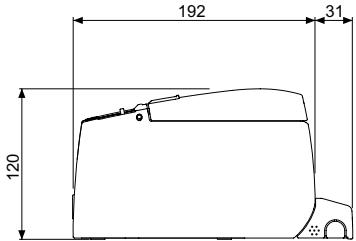
AC adapter type
5.2 Printing Paper
Use the paper shown in the following table or paper of the same quality.
| Paper type | Product name |
| Recommended paper roll | TF50KS-E2D from Nippon Paper PD150R or PD160R from Ohji Paper PA220AG, HP220A, HP220AB-1, F230AA, P220AB, or PB670 (2-color paper) from Mitsubishi Paper |
(Unit: mm)
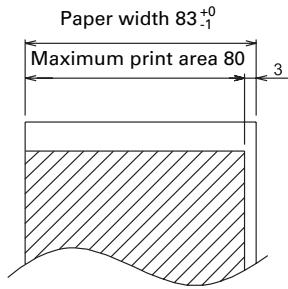
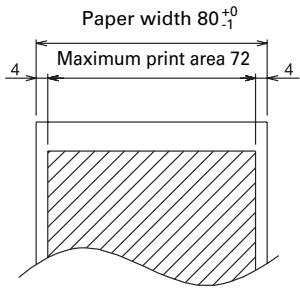
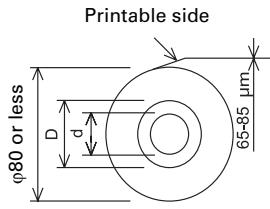
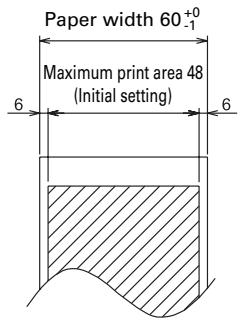
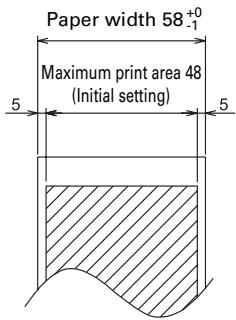
| Paper thickness (μm) | 65-75 | 75-150 |
| Core inner diameter d (mm) | φ12 | φ25.4 |
| Core outer diameter D (mm) | φ18 | φ32 |

CAUTION
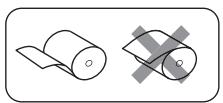
Use paper that is wound as follows:
Not creased and fits tight to the core.
Not folded.
Not glued to the core.
■Rolled with the printable side out.
5.3 Manual Setting of Memory Switches
Memory switches are used to set various printer settings. The memory switches can be set manually (set by hand on the printer) or by commands. This section explains how to perform manual settings.
Memory switch settings are done in memory switch setting mode or virtual DIP switch setting mode. In the memory switch setting mode, you can set the values for MSW1 to MSW10. In the virtual DIP switch setting mode, you can set the values for MSW1 to MSW6.
For information on how to set the memory switches using commands, please refer to the Command Reference.
Outline of procedure
- Enter memory switch setting mode or virtual DIP switch setting mode.
- Change settings that need to be changed.
- Go to the save settings menu.
- Save settings.
Memory switch setting mode
While "Online" is displayed, press and hold button 4 (MENU) for at least two seconds. Or, while paper is loaded, press and hold button 3 and then turn on the power.
Enter memory switch setting mode.
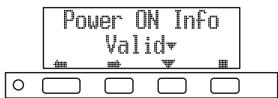
- Press button 1 (←) or button 2 (→) to select items to set.
- Press button 3 (▼) to select a value for the selected item.
-
Press button 4 (■), to go to the save settings menu.
-
To set all the memory switches to the factory settings:
Press button 1 until "Factory Setting /Set" appears (after MSW10-8).
Press button 4 for at least two seconds. All memory switches change to the factory settings.
Virtual DIP switch setting mode
While paper is loaded, press and hold button 2 while turning the power on. Enter virtual DIP switch setting mode.
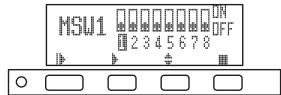
- Press button 1(|▶) to select a memory switch number. (Switches cycle in the following order: MSW1 → MSW2 → ... → MSW6 → MSW1)
- Press button 2 (▶), to move from switch 1 towards switch 8. (The selection loops from 8 back to 1.)
- Press button 3 (▲) to change between ON and OFF.
- Press button 4 (■), to go to the save settings menu.
Save settings menu
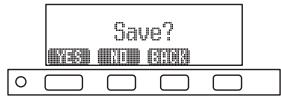
- Press button 1 (YES) to save the settings and return to the "Online" display.
- Press button 2 (NO) to not save the settings and return to the "Online" display.
- Press button 3 (BACK) to return to the previous mode.
The function of each memory switch is shown in the following table. (Shaded values are factory settings.)
| Switch no. | Function | OFF | ON |
| MSW1-1 | Power ON Info | Valid | Not Send |
| MSW1-2 | Buffer Size | 4K bytes | 45 bytes |
| MSW1-3 | Busy Condition | Full/Err | Full |
| MSW1-4 | Receive Error | Print“?” | No Print |
| MSW1-5 | CR Mode | Ignored | LF |
| MSW1-6 | Reserved | Fixed | — |
| MSW1-7 | DSR Signal | Invalid | Valid |
| MSW1-8 | Init Signal | Invalid | Valid |
| MSW2-1 | Reserved | — | Fixed |
| MSW2-2 | Auto Cutter | Invalid | Valid |
| * MSW2-3 | Spool Print | Invalid | Valid |
| MSW2-4 | Full Col Print | LineFeed | WaitData |
| MSW2-5 | Resume aft PE | Next | Top |
| MSW2-6 | Reserved | Fixed | — |
| MSW2-7 | Reserved | Fixed | — |
| MSW2-8 | PNE Sensor | Valid | Invalid |
| MSW3-1 | Resume Cttr Err | Valid | Invalid |
| MSW3-2 | PE signal by PNE | Valid | Invalid |
| MSW3-3 | Parallel 31 Pin | Valid | Invalid |
| MSW3-4 | Reserved | Fixed | — |
| MSW3-5 | Reserved | Fixed | — |
| MSW3-6 | Reserved | Fixed | — |
| MSW3-7 | CBM1000 Mode | Invalid | Valid |
| MSW3-8 | Resume Open Err | Close | Command |
| MSW4-1 | Reserved | Fixed | — |
| MSW4-2 | Reserved | Fixed | — |
| MSW4-3 | Feed&Cut at TOF | Invalid | Valid |
| MSW4-4 | Reserved | Fixed | — |
| MSW4-5 | Reserved | Fixed | — |
| MSW4-6 | Reserved | Fixed | — |
| MSW4-7 | Reserved | Fixed | — |
| MSW4-8 | Partial Only | Invalid | Valid |
| MSW5-1 | Buzzer | Valid | Invalid |
| MSW5-2 | Line Pitch | 1/360 | 1/406 |
| MSW5-3 | USB Mode | Virtual COM | Printer Class |
| MSW5-4 | Reserved | Fixed | — |
| MSW5-5 | Reserved | Fixed | — |
| MSW5-6 | Reserved | Fixed | — |
| MSW5-7 | Reserved | Fixed | — |
| MSW5-8 | Reserved | Fixed | — |
| MSW6-1 | Act. For Driver | Invalid | Valid |
| MSW6-2 | Character Space | Invalid | Valid |
| MSW6-3 | Reserved | Fixed | - |
| MSW6-4 | Reserved | Fixed | - |
| MSW6-5 | Reserved | Fixed | - |
| MSW6-6 | Reserved | Fixed | - |
| MSW6-7 | Reserved | Fixed | - |
| MSW6-8 | Reserved | Fixed | - |
| Switch no. | Function | Initial setting | Setting value |
| MSW7-1 | Baud Rate | 9600 bps | 1200 bps, 2400 bps, 4800 bps, 9600 bps, 19200 bps, 38400 bps, 57600 bps, 115200 bps |
| MSW7-2 | Data Length | 8bits | 7bits, 8bits |
| MSW7-3 | Stop Bit | 1bit | 1bit, 2bits |
| MSW7-4 | Parity | NONE | NONE, EVEN, ODD |
| MSW7-5 | Flow Control | DTR/DSR | DTR/DSR, XON/XOFF |
| MSW7-6 | DMA Control | Valid | Valid, Invalid |
| MSW7-7 | VCom Protocol | PC Setting | PC Setting, DTR/DSR, XON/XOFF |
| MSW8-1 | Print Width | 576dots(3-inch type)384dots(2-inch type) | 640dots, 576dots, 512dots, 436dots, 432dots, 420dots, 384dots, 360dots, 390dots, 546dots, 390dots, 546dots |
| MSW8-2 | Paper Type | 1 Color Normal | 1 Color Normal, 2 Color Normal |
| MSW9-1 | Code Page | PC 437 | PC 437, Katakana, PC 850,858, PC 860, PC 863,PC 865, PC 852, PC 866, PC 857, WPC1252,Space page, PC 864, Thai Code 18 |
| MSW9-2 | Int’Char Set | USA | USA, France, Germany, England, Denmark,Sweden, Italy, Spain, Japan, Norway, Denmark 2,Spain 2, Latin America, Korea, Croatia, China |
| MSW9-3 | Kanji | OFF | ON, OFF |
| MSW9-4 | JIS/Shift JIS | JIS | JIS, Shift JIS |
| MSW9-6 | LCD Language | English | English, Français, Deutsch, Italiano, Espanol,Japanese |
| MSW9-7 | LCD Ext Char | Valid | Invalid, Valid |
| MSW9-8 | LCD Auto Off | Never | Never, 30seconds, 5minutes |
| MSW10-1 | Print Density | 100 % | 70%, 75%, 80%, 85%, 90%, 95%, 100%, 105%,110%, 115%, 120%, 125%, 130%, 135%, 140% |
| MSW10-2 | Print Speed | Level 9 | Level 1, Level 2, Level 3, Level 4, Level 5, Level 6,Level 7, Level 8, Level 9 |
| MSW10-3 | ACK Timing | Before Busy | Before Busy, Same Period, After Busy |
| MSW10-4 | Reserved | ||
| MSW10-5 | Reserved | ||
| MSW10-6 | Buzzer Volume | Level 2 | Level 1, Level 2, Level 3, Level 4 |
| MSW10-7 | Key Lock | Invalid | Invalid, Valid |
| MSW10-8 | LCD Direction | Normal | Normal, Inverted |
Note:
*: If print data is very dense, the print head is hot, data transmission is slow, or some other conditions, the motor and printing may occasionally stop which causes white stripes in the printout. To print high-density data, set MSW2-3 (Spool Print) to ON to reduce striping, although this increases the time before printing starts.
For a serial interface, increase the transmission speed to prevent the motor from stopping.
FRANÇAIS
PRECAUTIONS GENÉRALES
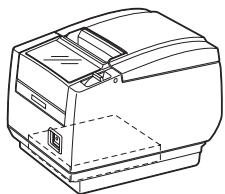
CT-S801S (type a alimentation integree)
| Signal | Broche |
| FG | 1 |
| TXD | 2 |
| RXD | 3 |
| CTS | 5 |
| DSR | 6 |
| SG | 7 |
| DTR | 20 |
Cable 9 broches - 25 broches
| Signal | Broche |
| RXD | 2 |
| TXD | 3 |
| DTR | 4 |
| SG | 5 |
| DSR | 6 |
| CTS | 8 |
| Broche | Signal |
| 2 | TXD |
| 3 | RXD |
| 4 | RTS |
| 6 | DSR |
| 7 | SG |
| 20 | DTR |

ATTENTION
| No du commutateur | Fonction | OFF | ON |
| MSW1-1 | Power ON Info | Valid | Not Send |
| MSW1-2 | Buffer Size | 4K bytes | 45 bytes |
| MSW1-3 | Busy Condition | Full/Err | Full |
| MSW1-4 | Receive Error | Print“?” | No Print |
| MSW1-5 | CR Mode | Ignored | LF |
| MSW1-6 | Reserved | Fixed | — |
| MSW1-7 | DSR Signal | Invalid | Valid |
| MSW1-8 | Init Signal | Invalid | Valid |
| MSW2-1 | Reserved | — | Fixed |
| MSW2-2 | Auto Cutter | Invalid | Valid |
| * MSW2-3 | Spool Print | Invalid | Valid |
| MSW2-4 | Full Col Print | LineFeed | WaitData |
| MSW2-5 | Resume aft PE | Next | Top |
| MSW2-6 | Reserved | Fixed | — |
| MSW2-7 | Reserved | Fixed | — |
| MSW2-8 | PNE Sensor | Valid | Invalid |
| MSW3-1 | Resume Cttr Err | Valid | Invalid |
| MSW3-2 | PE signal by PNE | Valid | Invalid |
| MSW3-3 | Parallel 31 Pin | Valid | Invalid |
| MSW3-4 | Reserved | Fixed | — |
| MSW3-5 | Reserved | Fixed | — |
| MSW3-6 | Reserved | Fixed | — |
| MSW3-7 | CBM1000 Mode | Invalid | Valid |
| MSW3-8 | Resume Open Err | Close | Command |
| MSW4-1 | Reserved | Fixed | — |
| MSW4-2 | Reserved | Fixed | — |
| MSW4-3 | Feed&Cut at TOF | Invalid | Valid |
| MSW4-4 | Reserved | Fixed | — |
| MSW4-5 | Reserved | Fixed | — |
| MSW4-6 | Reserved | Fixed | — |
| MSW4-7 | Reserved | Fixed | — |
| MSW4-8 | Partial Only | Invalid | Valid |
| MSW5-1 | Buzzer | Valid | Invalid |
| MSW5-2 | Line Pitch | 1/360 | 1/406 |
| MSW5-3 | USB Mode | Virtual COM | Printer Class |
| MSW5-4 | Reserved | Fixed | — |
| MSW5-5 | Reserved | Fixed | — |
| MSW5-6 | Reserved | Fixed | — |
| MSW5-7 | Reserved | Fixed | — |
| MSW5-8 | Reserved | Fixed | — |
| MSW6-1 | Act. For Driver | Invalid | Valid |
| MSW6-2 | Character Space | Invalid | Valid |
| MSW6-3 | Reserved | Fixed | - |
| MSW6-4 | Reserved | Fixed | - |
| MSW6-5 | Reserved | Fixed | - |
| MSW6-6 | Reserved | Fixed | - |
| MSW6-7 | Reserved | Fixed | - |
| MSW6-8 | Reserved | Fixed | - |
| No du commutateur | Fonction | Réglage initial | Valeur régée |
| MSW7-1 | Baud Rate | 9600 bps | 1200 bps, 2400 bps, 4800 bps, 9600 bps, 19200 bps, 38400 bps, 57600 bps, 115200 bps |
| MSW7-2 | Data Length | 8bits | 7bits, 8bits |
| MSW7-3 | Stop Bit | 1bit | 1bit, 2bits |
| MSW7-4 | Parity | NONE | NONE, EVEN, ODD |
| MSW7-5 | Flow Control | DTR/DSR | DTR/DSR, XON/XOFF |
| MSW7-6 | DMA Control | Valid | Valid, Invalid |
| MSW7-7 | VCom Protocol | PC Setting | PC Setting, DTR/DSR, XON/XOFF |
| MSW8-1 | Print Width | 576dots (type 3 pouces) 384dots (type 2 pouces) | 640dots, 576dots, 512dots, 436dots, 432dots, 420dots, 384dots, 360dots, 390dots, 546dots, 390dots, 546dots |
| MSW8-2 | Paper Type | 1 Color Normal | 1 Color Normal, 2 Color Normal |
| MSW9-1 | Code Page | PC 437 | PC 437, Katakana, PC 850,858, PC 860, PC 863, PC 865, PC 852, PC 866, PC 857, WPC1252, Space page, PC 864, Thai Code 18 |
| MSW9-2 | Int'Char Set | USA | USA, France, Germany, England, Denmark, Sweden, Italy, Spain, Japan, Norway, Denmark 2, Spain 2, Latin America, Korea, Croatia, China |
| MSW9-3 | Kanji | OFF | ON, OFF |
| MSW9-4 | JIS/Shift JIS | JIS | JIS, Shift JIS |
| MSW9-6 | LCD Language | English | English, Français, Deutsch, Italiano, Espanol, Japanese |
| MSW9-7 | LCD Ext Char | Valid | Invalid, Valid |
| MSW9-8 | LCD Auto Off | Never | Never, 30seconds, 5minutes |
| MSW10-1 | Print Density | 100 % | 70 %, 75 %, 80 %, 85 %, 90 %, 95 %, 100 %, 105 %, 110 %, 115 %, 120 %, 125 %, 130 %, 135 %, 140 % |
| MSW10-2 | Print Speed | Level 9 | Level 1, Level 2, Level 3, Level 4, Level 5, Level 6, Level 7, Level 8, Level 9 |
| MSW10-3 | ACK Timing | Before Busy | Before Busy, Same Period, After Busy |
| MSW10-4 | Reserved | ||
| MSW10-5 | Reserved | ||
| MSW10-6 | Buzzer Volume | Level 2 | Level 1, Level 2, Level 3, Level 4 |
| MSW10-7 | Key Lock | Invalid | Invalid, Valid |
| MSW10-8 | LCD Direction | Normal | Normal, Inverted |
Remarque:
CITIZEN is a registered trade mark of Citizen Holdings Co., Japan
CITIZEN es unamarca registrada de Citizen Holdings Co.,Japon
Company names and product names in this manual are trademarks or registered trademarks of relevant companies.
Copyright © 2009 by CITIZEN SYSTEMS JAPAN CO., LTD.
| Schalter Nr. | Funktion | OFF | ON |
| MSW1-1 | Power ON Info | Valid | Not Send |
| MSW1-2 | Buffer Size | 4K bytes | 45 bytes |
| MSW1-3 | Busy Condition | Full/Err | Full |
| MSW1-4 | Receive Error | Print“?” | No Print |
| MSW1-5 | CR Mode | Ignored | LF |
| MSW1-6 | Reserved | Fixed | — |
| MSW1-7 | DSR Signal | Invalid | Valid |
| MSW1-8 | Init Signal | Invalid | Valid |
| MSW2-1 | Reserved | — | Fixed |
| MSW2-2 | Auto Cutter | Invalid | Valid |
| * MSW2-3 | Spool Print | Invalid | Valid |
| MSW2-4 | Full Col Print | LineFeed | WaitData |
| MSW2-5 | Resume aft PE | Next | Top |
| MSW2-6 | Reserved | Fixed | — |
| MSW2-7 | Reserved | Fixed | — |
| MSW2-8 | PNE Sensor | Valid | Invalid |
| MSW3-1 | Resume Cttr Err | Valid | Invalid |
| MSW3-2 | PE signal by PNE | Valid | Invalid |
| MSW3-3 | Parallel 31 Pin | Valid | Invalid |
| MSW3-4 | Reserved | Fixed | — |
| MSW3-5 | Reserved | Fixed | — |
| MSW3-6 | Reserved | Fixed | — |
| MSW3-7 | CBM1000 Mode | Invalid | Valid |
| MSW3-8 | Resume Open Err | Close | Command |
| MSW4-1 | Reserved | Fixed | — |
| MSW4-2 | Reserved | Fixed | — |
| MSW4-3 | Feed&Cut at TOF | Invalid | Valid |
| MSW4-4 | Reserved | Fixed | — |
| MSW4-5 | Reserved | Fixed | — |
| MSW4-6 | Reserved | Fixed | — |
| MSW4-7 | Reserved | Fixed | — |
| MSW4-8 | Partial Only | Invalid | Valid |
| MSW5-1 | Buzzer | Valid | Invalid |
| MSW5-2 | Line Pitch | 1/360 | 1/406 |
| MSW5-3 | USB Mode | Virtual COM | Printer Class |
| MSW5-4 | Reserved | Fixed | — |
| MSW5-5 | Reserved | Fixed | — |
| MSW5-6 | Reserved | Fixed | — |
| MSW5-7 | Reserved | Fixed | — |
| MSW5-8 | Reserved | Fixed | — |
| MSW6-1 | Act. For Driver | Invalid | Valid |
| MSW6-2 | Character Space | Invalid | Valid |
| MSW6-3 | Reserved | Fixed | - |
| MSW6-4 | Reserved | Fixed | - |
| MSW6-5 | Reserved | Fixed | - |
| MSW6-6 | Reserved | Fixed | - |
| MSW6-7 | Reserved | Fixed | - |
| MSW6-8 | Reserved | Fixed | - |
| Schalter Nr. | Funktion | Voreinstellung | Einstellwert |
| MSW7-1 | Baud Rate | 9600 bps | 1200 bps, 2400 bps, 4800 bps, 9600 bps, 19200 bps, 38400 bps, 57600 bps, 115200 bps |
| MSW7-2 | Data Length | 8bits | 7bits, 8bits |
| MSW7-3 | Stop Bit | 1bit | 1bit, 2bits |
| MSW7-4 | Parity | NONE | NONE, EVEN, ODD |
| MSW7-5 | Flow Control | DTR/DSR | DTR/DSR, XON/XOFF |
| MSW7-6 | DMA Control | Valid | Valid, Invalid |
| MSW7-7 | VCom Protocol | PC Setting | PC Setting, DTR/DSR, XON/XOFF |
| MSW8-1 | Print Width | 576dots(3-Zoll-Ausführung)384dots(2-Zoll-Ausführung) | 640dots, 576dots, 512dots, 436dots, 432dots, 420dots, 384dots, 360dots, 390dots, 546dots, 390dots, 546dots |
| MSW8-2 | Paper Type | 1 Color Normal | 1 Color Normal, 2 Color Normal |
| MSW9-1 | Code Page | PC 437 | PC 437, Katakana, PC 850,858, PC 860, PC 863,PC 865, PC 852, PC 866, PC 857, WPC1252,Space page, PC 864, Thai Code 18 |
| MSW9-2 | Int'Char Set | USA | USA, France, Germany, England, Denmark,Sweden, Italy, Spain, Japan, Norway, Denmark 2,Spain 2, Latin America, Korea, Croatia, China |
| MSW9-3 | Kanji | OFF | ON, OFF |
| MSW9-4 | JIS/Shift JIS | JIS | JIS, Shift JIS |
| MSW9-6 | LCD Language | English | English, François, Deutsch, Italiano, Española,Japanese |
| MSW9-7 | LCD Ext Char | Valid | Invalid, Valid |
| MSW9-8 | LCD Auto Off | Never | Never, 30seconds, 5minutes |
| MSW10-1 | Print Density | 100 % | 70 %, 75 %, 80 %, 85 %, 90 %, 95 %, 100 %, 105 %,110 %, 115 %, 120 %, 125 %, 130 %, 135 %, 140 % |
| MSW10-2 | Print Speed | Level 9 | Level 1, Level 2, Level 3, Level 4, Level 5, Level 6,Level 7, Level 8, Level 9 |
| MSW10-3 | ACK Timing | Before Busy | Before Busy, Same Period, After Busy |
| MSW10-4 | Reserved | ||
| MSW10-5 | Reserved | ||
| MSW10-6 | Buzzer Volume | Level 2 | Level 1, Level 2, Level 3, Level 4 |
| MSW10-7 | Key Lock | Invalid | Invalid, Valid |
| MSW10-8 | LCD Direction | Normal | Normal, Inverted |
Hinweis:
| N. switch | Funzione | OFF | ON |
| MSW1-1 | Power ON Info | Valid | Not Send |
| MSW1-2 | Buffer Size | 4K bytes | 45 bytes |
| MSW1-3 | Busy Condition | Full/Err | Full |
| MSW1-4 | Receive Error | Print“?” | No Print |
| MSW1-5 | CR Mode | Ignored | LF |
| MSW1-6 | Reserved | Fixed | — |
| MSW1-7 | DSR Signal | Invalid | Valid |
| MSW1-8 | Init Signal | Invalid | Valid |
| MSW2-1 | Reserved | — | Fixed |
| MSW2-2 | Auto Cutter | Invalid | Valid |
| * MSW2-3 | Spool Print | Invalid | Valid |
| MSW2-4 | Full Col Print | LineFeed | WaitData |
| MSW2-5 | Resume aft PE | Next | Top |
| MSW2-6 | Reserved | Fixed | — |
| MSW2-7 | Reserved | Fixed | — |
| MSW2-8 | PNE Sensor | Valid | Invalid |
| MSW3-1 | Resume Ctrr Err | Valid | Invalid |
| MSW3-2 | PE signal by PNE | Valid | Invalid |
| MSW3-3 | Parallel 31 Pin | Valid | Invalid |
| MSW3-4 | Reserved | Fixed | — |
| MSW3-5 | Reserved | Fixed | — |
| MSW3-6 | Reserved | Fixed | — |
| MSW3-7 | CBM1000 Mode | Invalid | Valid |
| MSW3-8 | Resume Open Err | Close | Command |
| MSW4-1 | Reserved | Fixed | — |
| MSW4-2 | Reserved | Fixed | — |
| MSW4-3 | Feed&Cut at TOF | Invalid | Valid |
| MSW4-4 | Reserved | Fixed | — |
| MSW4-5 | Reserved | Fixed | — |
| MSW4-6 | Reserved | Fixed | — |
| MSW4-7 | Reserved | Fixed | — |
| MSW4-8 | Partial Only | Invalid | Valid |
| MSW5-1 | Buzzer | Valid | Invalid |
| MSW5-2 | Line Pitch | 1/360 | 1/406 |
| MSW5-3 | USB Mode | Virtual COM | Printer Class |
| MSW5-4 | Reserved | Fixed | — |
| MSW5-5 | Reserved | Fixed | — |
| MSW5-6 | Reserved | Fixed | — |
| MSW5-7 | Reserved | Fixed | — |
| MSW5-8 | Reserved | Fixed | — |
| MSW6-1 | Act. For Driver | Invalid | Valid |
| MSW6-2 | Character Space | Invalid | Valid |
| MSW6-3 | Reserved | Fixed | - |
| MSW6-4 | Reserved | Fixed | - |
| MSW6-5 | Reserved | Fixed | - |
| MSW6-6 | Reserved | Fixed | - |
| MSW6-7 | Reserved | Fixed | - |
| MSW6-8 | Reserved | Fixed | - |
| N. switch | Funzione | Impostazione iniziale | Valore impostato |
| MSW7-1 | Baud Rate | 9600 bps | 1200 bps, 2400 bps, 4800 bps, 9600 bps, 19200 bps, 38400 bps, 57600 bps, 115200 bps |
| MSW7-2 | Data Length | 8bits | 7bits, 8bits |
| MSW7-3 | Stop Bit | 1bit | 1bit, 2bits |
| MSW7-4 | Parity | NONE | NONE, EVEN, ODD |
| MSW7-5 | Flow Control | DTR/DSR | DTR/DSR, XON/XOFF |
| MSW7-6 | DMA Control | Valid | Valid, Invalid |
| MSW7-7 | VCom Protocol | PC Setting | PC Setting, DTR/DSR, XON/XOFF |
| MSW8-1 | Print Width | 576dots (Tipido da 3 pollici) 384dots (Tipido da 2 pollici) | 640dots, 576dots, 512dots, 436dots, 432dots, 420dots, 384dots, 360dots, 390dots, 546dots, 390dots, 546dots |
| MSW8-2 | Paper Type | 1 Color Normal | 1 Color Normal, 2 Color Normal |
| MSW9-1 | Code Page | PC 437 | PC 437, Katakana, PC 850,858, PC 860, PC 863, PC 865, PC 852, PC 866, PC 857, WPC1252, Space page, PC 864, Thai Code 18 |
| MSW9-2 | Int'Char Set | USA | USA, France, Germany, England, Denmark, Sweden, Italy, Spain, Japan, Norway, Denmark 2, Spain 2, Latin America, Korea, Croatia, China |
| MSW9-3 | Kanji | OFF | ON, OFF |
| MSW9-4 | JIS/Shift JIS | JIS | JIS, Shift JIS |
| MSW9-6 | LCD Language | English | English, Francais, Deutsch, Italiano, Espanol, Japanese |
| MSW9-7 | LCD Ext Char | Valid | Invalid, Valid |
| MSW9-8 | LCD Auto Off | Never | Never, 30seconds, 5minutes |
| MSW10-1 | Print Density | 100 % | 70 %, 75 %, 80 %, 85 %, 90 %, 95 %, 100 %, 105 %, 110 %, 115 %, 120 %, 125 %, 130 %, 135 %, 140 % |
| MSW10-2 | Print Speed | Level 9 | Level 1, Level 2, Level 3, Level 4, Level 5, Level 6, Level 7, Level 8, Level 9 |
| MSW10-3 | ACK Timing | Before Busy | Before Busy, Same Period, After Busy |
| MSW10-4 | Reserved | ||
| MSW10-5 | Reserved | ||
| MSW10-6 | Buzzer Volume | Level 2 | Level 1, Level 2, Level 3, Level 4 |
| MSW10-7 | Key Lock | Invalid | Invalid, Valid |
| MSW10-8 | LCD Direction | Normal | Normal, Inverted |
Nota:
Conector aplicable: RJ-45
| N° de interruptor | Función | OFF | ON |
| MSW1-1 | Power ON Info | Valid | Not Send |
| MSW1-2 | Buffer Size | 4K bytes | 45 bytes |
| MSW1-3 | Busy Condition | Full/Err | Full |
| MSW1-4 | Receive Error | Print“?” | No Print |
| MSW1-5 | CR Mode | Ignored | LF |
| MSW1-6 | Reserved | Fixed | - |
| MSW1-7 | DSR Signal | Invalid | Valid |
| MSW1-8 | Init Signal | Invalid | Valid |
| MSW2-1 | Reserved | - | Fixed |
| MSW2-2 | Auto Cutter | Invalid | Valid |
| * MSW2-3 | Spool Print | Invalid | Valid |
| MSW2-4 | Full Col Print | LineFeed | WaitData |
| MSW2-5 | Resume aft PE | Next | Top |
| MSW2-6 | Reserved | Fixed | - |
| MSW2-7 | Reserved | Fixed | - |
| MSW2-8 | PNE Sensor | Valid | Invalid |
| MSW3-1 | Resume Cttr Err | Valid | Invalid |
| MSW3-2 | PE signal by PNE | Valid | Invalid |
| MSW3-3 | Parallel 31 Pin | Valid | Invalid |
| MSW3-4 | Reserved | Fixed | - |
| MSW3-5 | Reserved | Fixed | - |
| MSW3-6 | Reserved | Fixed | - |
| MSW3-7 | CBM1000 Mode | Invalid | Valid |
| MSW3-8 | Resume Open Err | Close | Command |
| MSW4-1 | Reserved | Fixed | - |
| MSW4-2 | Reserved | Fixed | - |
| MSW4-3 | Feed&Cut at TOF | Invalid | Valid |
| MSW4-4 | Reserved | Fixed | - |
| MSW4-5 | Reserved | Fixed | - |
| MSW4-6 | Reserved | Fixed | - |
| MSW4-7 | Reserved | Fixed | - |
| MSW4-8 | Partial Only | Invalid | Valid |
| MSW5-1 | Buzzer | Valid | Invalid |
| MSW5-2 | Line Pitch | 1/360 | 1/406 |
| MSW5-3 | USB Mode | Virtual COM | Printer Class |
| MSW5-4 | Reserved | Fixed | - |
| MSW5-5 | Reserved | Fixed | - |
| MSW5-6 | Reserved | Fixed | - |
| MSW5-7 | Reserved | Fixed | - |
| MSW5-8 | Reserved | Fixed | - |
| MSW6-1 | Act. For Driver | Invalid | Valid |
| MSW6-2 | Character Space | Invalid | Valid |
| MSW6-3 | Reserved | Fixed | - |
| MSW6-4 | Reserved | Fixed | - |
| MSW6-5 | Reserved | Fixed | - |
| MSW6-6 | Reserved | Fixed | - |
| MSW6-7 | Reserved | Fixed | - |
| MSW6-8 | Reserved | Fixed | - |
| N° de interruptor | Función | Valor inicial | Valor de configuración |
| MSW7-1 | Baud Rate | 9600 bps | 1200 bps, 2400 bps, 4800 bps, 9600 bps, 19200 bps, 38400 bps, 57600 bps, 115200 bps |
| MSW7-2 | Data Length | 8bits | 7bits, 8bits |
| MSW7-3 | Stop Bit | 1bit | 1bit, 2bits |
| MSW7-4 | Parity | NONE | NONE, EVEN, ODD |
| MSW7-5 | Flow Control | DTR/DSR | DTR/DSR, XON/XOFF |
| MSW7-6 | DMA Control | Valid | Valid, Invalid |
| MSW7-7 | VCom Protocol | PC Setting | PC Setting, DTR/DSR, XON/XOFF |
| MSW8-1 | Print Width | 576dots(Tipo de 3 pulgadas)384dots(Tipo de 2 pulgadas) | 640dots, 576dots, 512dots, 436dots, 432dots, 420dots, 384dots, 360dots, 390dots, 546dots, 390dots, 546dots |
| MSW8-2 | Paper Type | 1 Color Normal | 1 Color Normal, 2 Color Normal |
| MSW9-1 | Code Page | PC 437 | PC 437, Katakana, PC 850,858, PC 860, PC 863, PC 865, PC 852, PC 866, PC 857, WPC1252, Space page, PC 864, Thai Code 18 |
| MSW9-2 | Int'Char Set | USA | USA, France, Germany, England, Denmark, Sweden, Italy, Spain, Japan, Norway, Denmark 2, Spain 2, Latin America, Korea, Croatia, China |
| MSW9-3 | Kanji | OFF | ON, OFF |
| MSW9-4 | JIS/Shift JIS | JIS | JIS, Shift JIS |
| MSW9-6 | LCD Language | English | English, Français, Deutsch, Italiano, Español, Japanese |
| MSW9-7 | LCD Ext Char | Valid | Invalid, Valid |
| MSW9-8 | LCD Auto Off | Never | Never, 30seconds, 5minutes |
| MSW10-1 | Print Density | 100 % | 70%, 75%, 80%, 85%, 90%, 95%, 100%, 105%, 110%, 115%, 120%, 125%, 130%, 135%, 140% |
| MSW10-2 | Print Speed | Level 9 | Level 1, Level 2, Level 3, Level 4, Level 5, Level 6, Level 7, Level 8, Level 9 |
| MSW10-3 | ACK Timing | Before Busy | Before Busy, Same Period, After Busy |
| MSW10-4 | Reserved | ||
| MSW10-5 | Reserved | ||
| MSW10-6 | Buzzer Volume | Level 2 | Level 1, Level 2, Level 3, Level 4 |
| MSW10-7 | Key Lock | Invalid | Invalid, Valid |
| MSW10-8 | LCD Direction | Normal | Normal, Inverted |
Nota:
- LINE THERMAL PRINTER
- WEEE MARK
- En
- Ge
- Declaration of Conformity
- Sicherheitshinweis
- SAFETY PRECAUTIONS...WHICH SHOULD BE STRICTLY OBSERVED
- WARNING
- CAUTION
- PRECAUTIONS IN HANDLING THE PRINTER
- DAILY MAINTENANCE
- THE TABLE OF CONTENTS
- GENERAL OUTLINE 9
- EXPLANATION OF PRINTER PARTS 12
- SETUP 17
- MAINTENANCE AND TROUBLESHOOTING 30
- OTHER 38
- GENERAL OUTLINE
- Features
- Unpacking
- Model Classification
- CT - S801S 3 RS
- E-BK-PLM1
- Basic Specifications
- Notes:
- EXPLANATION OF PRINTER PARTS
- Printer Appearance
- Names of parts
- Operation panel
- LCD
- - LED
- - Button 1 to Button 4
- - FEED button
- - MENU button
- PAPER LOW
- LCD in the vertical or wall mounted position
- Rear connectors
- Inside the paper cover
- Refer to 3.8 Adjusting the Paper Near-end Sensor
- Refer to 5.3 Manual Setting of Memory Switches
- Other Built-in Functions
- Connecting the AC Power Cord
- Connecting Interface Cables
- Connecting the Cash Printer
- Connector pin configuration
- Electric characteristics
- DRSW signal
- Drive circuit
- Connecting an External Device
- Precautions for Installing the Printer
- Partition for Paper Roll
- Setting the DIP Switch on the Serial Interface Board
- Adjusting the Paper Near-end Sensor
- Note:
- Setting Paper Thickness
- Loading Paper
- Attaching the Power Switch Cover
- Attaching the Interface Cover
- Removing the Interface Cover
- Periodic Cleaning
- Clearing a Cutter Lock (1)
- Clearing a Cutter Lock (2)
- Function Test Mode
- Self test
- Print memory switch settings
- Hexadecimal Dump Printing
- How to do hexadecimal dump printing
- How to stop hexadecimal dump printing
- Print example
- HEX dump print mode
- Error Messages
- - Paper end
- - Paper cover open
- - Cutter lock
- Head overheat
- External Views and Dimensions
- Printing Paper
- Manual Setting of Memory Switches
- Outline of procedure
- Memory switch setting mode
- Virtual DIP switch setting mode
- Save settings menu
- FRANÇAIS
- PRECAUTIONS GENÉRALES
- ATTENTION
- Remarque:
- Hinweis:
Brand : CITIZEN
Model : CT-S801
Category : Thermal printer