
CT-S281 - Thermal printer CITIZEN - Free user manual and instructions
Find the device manual for free CT-S281 CITIZEN in PDF.

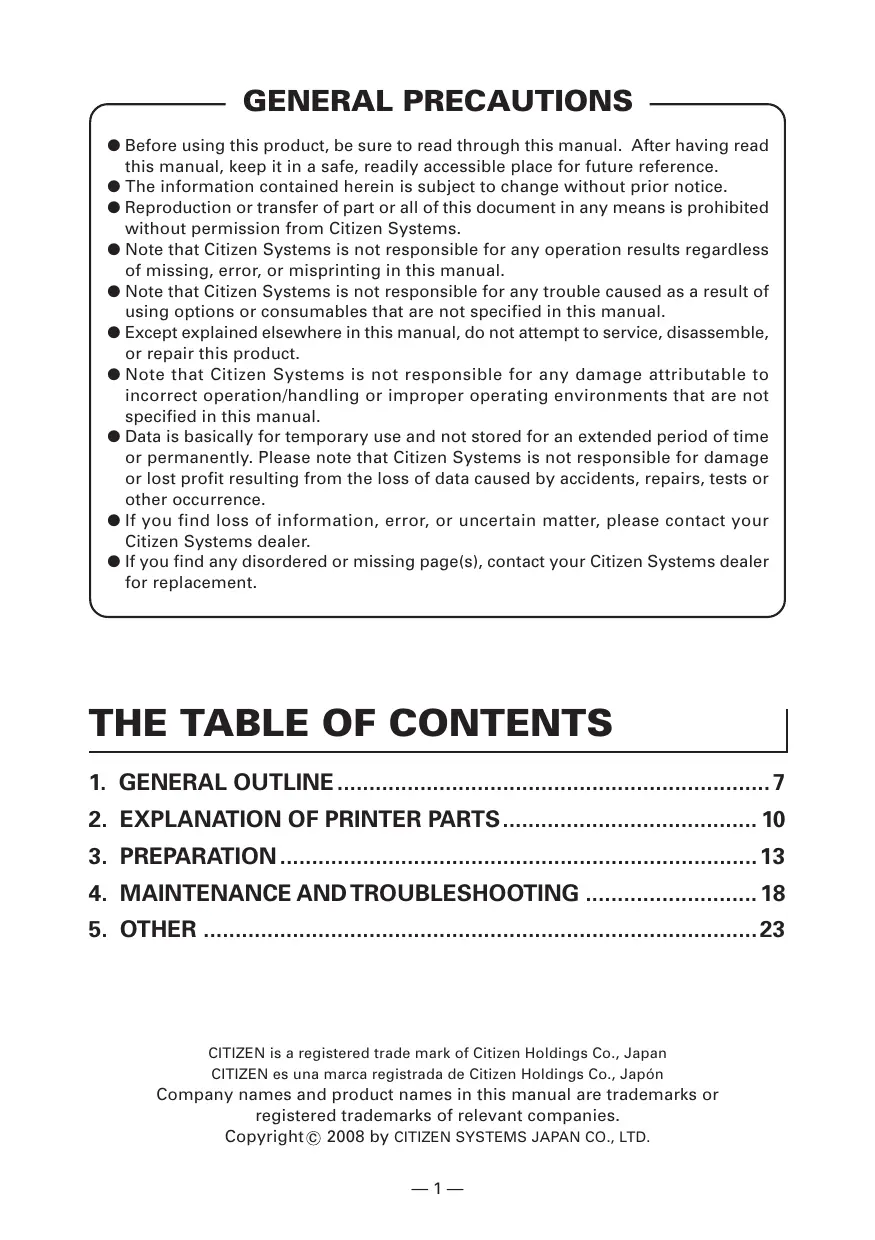


| Product Type | Compact thermal printer |
| Brand | CITIZEN |
| Model | CT-S281 |
| Dimensions (W × D × H) | 106 × 180 × 105 mm |
| Weight | Approx. 630 g |
| Printing Method | Thermal line dot |
| Print Width | 48 mm / 384 dots |
| Print Speed | Up to 80 mm/s |
| Resolution | 203 dpi (8 dots/mm) |
| Fonts | Font A, B, C; alphanumeric, international, PC codepages, Kanji, Thai |
| Barcodes | UPC-A/E, EAN, CODE 39, CODE 128, PDF417, QR Code |
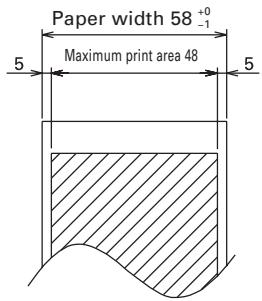
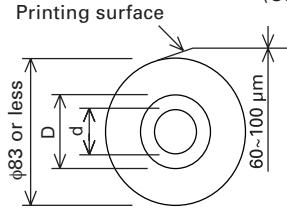
| Paper | Thermal roll 58 mm × φ83 mm, thickness 0.06–0.1 mm |
| Interfaces | RS-232C (serial) and USB |
| Power Supply | Power adapter 100–240 V AC, 50/60 Hz; output 8.5 V DC, 3.0 A |
| Power Consumption | Standby: ~2 W, printing: ~18 W (max 26 W) |
| Main Functions | Auto cutter (full/partial), two-color printing, user logos, wall mounting |
| Maintenance and Cleaning | Clean the case with a soft dry cloth; thermal head with a cotton swab dipped in ethyl alcohol after cooling |
| Safety | Use only the specified adapter; do not expose to moisture, heat or shock; unplug before maintenance |
| Spare Parts and Repairability | Do not disassemble or repair yourself; contact Citizen Systems dealer |
| Operating Temperature | 5 to 40 °C, 10–85% RH (non-condensing) |
| Reliability | Print head: 50 km or 10^8 pulses; cutter: 1,000,000 cuts |
| Certifications | UL, c-UL, FCC Class B (Americas); TUV, GS, CE (Europe) |
Frequently Asked Questions - CT-S281 CITIZEN
User questions about CT-S281 CITIZEN
0 question about this device. Answer the ones you know or ask your own.
Ask a new question about this device
Download the instructions for your Thermal printer in PDF format for free! Find your manual CT-S281 - CITIZEN and take your electronic device back in hand. On this page are published all the documents necessary for the use of your device. CT-S281 by CITIZEN.
USER MANUAL CT-S281 CITIZEN
LINE THERMAL PRINTER
MODEL CT-S281
User's Manual
Mode d'emploi
Benutzerhandbuch
Manuale dell'utente
Manual de Nombre
Declaration of Conformity
This printer conforms to the following Standards:
The Low Voltage Directive 2006/95/EC, formerly 72/23/EEC, the EMC Directive 2004/108/EC, formerly 89/336/EEC, the RoHS Directive 2002/95/EC, and the WEEE Directive 2002/96/EC.
LVD : EN60950-1
EMC:EN55022 Class B
EN61000-3-2
EN61000-3-3
EN55024
This declaration is applied only for 230V model.
IMPORTANT: This equipment generates, uses, and can radiate radio frequency energy and if not installed and used in accordance with the instruction manual, may cause interference to radio communications. It has been tested and found to comply with the limits for a Class B computing device pursuant to Subpart J of Part 15 of FCC Rules, which are designed to provide reasonable protection against such interference when operated in a commercial environment. Operation of this equipment in a residential area is likely to cause interference, in which case the user at his own expense will be required to take whatever measures may be necessary to correct the interference.
CAUTION: Use shielded cable for this equipment.
Sicherheitshinweis
This Class A digital apparatus complies with Canadian ICES-003. This digital apparatus does not exceed the class B limits for radio noise emissions from digital apparatus, as set out in the radio interference regulations of the Canadian department of communications.
- Before using this product, be sure to read through this manual. After having read this manual, keep it in a safe, readily accessible place for future reference.
The information contained herein is subject to change without prior notice. - Reproduction or transfer of part or all of this document in any means is prohibited without permission from Citizen Systems.
- Note that Citizen Systems is not responsible for any operation results regardless of missing, error, or misprinting in this manual.
- Note that Citizen Systems is not responsible for any trouble caused as a result of using options or consumables that are not specified in this manual.
- Except explained elsewhere in this manual, do not attempt to service, disassemble, or repair this product.
- Note that Citizen Systems is not responsible for any damage attributable to incorrect operation/handling or improper operating environments that are not specified in this manual.
- Data is basically for temporary use and not stored for an extended period of time or permanently. Please note that Citizen Systems is not responsible for damage or lost profit resulting from the loss of data caused by accidents, repairs, tests or other occurrence.
- If you find loss of information, error, or uncertain matter, please contact your Citizen Systems dealer.
- If you find any disordered or missing page(s), contact your Citizen Systems dealer for replacement.
THE TABLE OF CONTENTS
- GENERAL OUTLINE 7
- EXPLANATION OF PRINTER PARTS 10
- PREPARATION 13
- MAINTENANCE AND TROUBLESHOOTING 18
- OTHER 23
CITIZEN is a registered trade mark of Citizen Holdings Co., Japan
CITIZEN es unamarca registrada de Citizen Holdings Co.,Japon
Company names and product names in this manual are trademarks or registered trademarks of relevant companies.
Copyright © 2008 by CITIZEN SYSTEMS JAPAN CO., LTD.
SAFETY PRECAUTIONS... WHICH SHOULD BE STRICTLY OBSERVED
Before using this product for the first time, carefully read these SAFETY PRECAUTIONS. Improper handling may result in accidents (fire, electric shock or injury).
In order to prevent injury to operators, third parties, or damage to property, special warning symbols are used in the User's Manual to indicate important items to be strictly observed.
- After having read this Manual, keep it in a safe, readily accessible place for future reference.
- Some of the descriptions contained in this manual may not be relevant to some printer models.
The following describes the degree of hazard and damage that could occur if the printer is improperly operated by ignoring the instructions indicated by the warning symbols.

WARNING
Neglecting precautions indicated by this symbol may result in fatal or serious injury.

CAUTION
Neglecting precautions indicated by this symbol may result in injury or damage to properties.

This symbol is used to alert your attention to important items.

This symbol is used to alert you to the danger of electric shock or electrostatic damage.

This symbol denotes a request to unplug the printer from the wall outlet.

This symbol is used to indicate useful information, such as procedures, instructions or the like.

This symbol is used to indicate prohibited actions.
| WARNING | |
| ■ Do not use or store this product in a place where it will be exposed to: * Flames or moist air. * Direct sunlight. * Hot airflow or radiation from a heating device. * Salty air or corrosive gases. * Ill-ventilated atmosphere. * Chemical reactions in a laboratory. * Airborne oil, steel particles, or dust. * Static electricity or strong magnetic field. · Neglecting these warnings may result in printer failure, overheating, emission of smoke, fire, or electric shock. | |
| ■ Do not drop any foreign object nor spill liquid into the printer. Do not place any object on the printer either. ■ Do not drop any metallic object such as paper clip, pin or screw into the printer. ■ Do not place a flower vase, pot or cup containing water on the printer. ■ Do not spill coffee, soft drinks or any other liquid into the printer. ■ Do not spray insecticide or any other chemical liquid over the printer. · A metallic foreign object, if accidentally dropped into the printer, may cause printer failure, fire, or electric shock. Should it occur, immediately turn the printer off, unplug it from the supply outlet, and call your local Citizen Systems dealer. | |
| Do not handle the printer in the following ways: ■ Do not allow the printer to sustain strong impacts or hard jolts (e.g., trampling, dropping, striking with a hard edge). ■ Never attempt to disassemble or modify the printer. · Neglecting to handle properly may result in printer failure, overheating, emission of smoke, fire, or electric shock. | |
| ■ Install, use, or store the printer out of the reach of children. · Electric appliances could cause an unexpected injury or accident if they are handled or used improperly. · Keep the power cord and signal cables out of the reach of children. Also children should not be allowed to gain access to any internal part of the printer. · The plastic bag the printer came in must be disposed of properly or kept away from children. Wearing it over the head may lead to suffocation. | |

WARNING
Please observe the following precautions for power source and power cord:
- Do not plug or unplug the power cord with a wet hand.
Use the printer only at the specified supply voltage and frequency.
Use only the specified AC adapter with the printer. - Check to make sure that the supply outlet from which the printer is powered has a sufficient capacity.
- Do not supply the printer from a power strip or current tap shared with other appliances.
■ Do not plug the power cord into a supply outlet with dust or debris left on its plug.
Do not use a deformed or damaged power cord.
Do not move the printer while the printer power is on. - Neglecting to handle properly may result in printer failure, emission of smoke, fire, or electric shock.
- An overload may cause the power cord to overheat or fire or the circuit breaker to trip.
- Do not allow anything to rest on the power cord. Do not place the printer where the power cord will be trampled on.
■ Do not use or carry the printer with its power cord bent, twisted, or pulled.
■ Do not attempt to modify the power cord unnecessarily.
■ Do not lay the power cord in the neighbor of a heating device. - Neglecting these cautions may cause wires or insulation to break, which could result in leakage, electric shock, or printer failure. If the power cord sustains damage, contact your Citizen Systems dealer.
■ Do not leave things around the supply outlet.
Supply power to the printer from a convenient wall outlet, readily accessible in an emergency. - The printer may not be immediately shut down in an emergency.
Insert the power plug fully into the outlet.
If the printer will not be used for a long time, leave it disconnected from its supply outlet.
Hold the plug and connector when plugging or unplugging the power cord or signal cable after turning off the printer and the appliance connected to it.


| CAUTION | |
| Do not use the printer under the following conditions. ■ A state subject to vibration or unstable state. ■ A state with this product slanted. · Otherwise dropping may cause injury. · Poor print quality may occur. ■ A state where the printer ventilation holes are obstructed by a nearby wall or other equipment. ■ A state where any object is placed on the printer ■ A state where the printer is covered or wrapped by a cloth or bed clothing · Be careful about internal heat buildup, which could cause fire and deform the case. ■ Avoid using the printer near a radio or TV set or from supplying it from the same outlet as these appliances. ■ Avoid using the printer interconnected with a cable or cord that has no protection against noise. (For interconnections, use shielded or a twisted pair of cables and ferrite cores, or other anti-noise devices.) ■ Avoid using the printer with a device that is a strong source of noise. · The printer may have an adverse effect on nearby radio or TV transmissions. There may also be cases when nearby electrical appliances adversely influence the printer, causing data errors or malfunction. ■ A state where this product is installed vertically or sidelong. · Malfunction, failure, or electric shock may result. | |
| Use the printer with its grounding post connected to a convenient grounding facility. · If leakage occurs electric shock may result. ■ Do not connect the printer's grounding post onto any of the following facilities: * Utility gas piping · A gas explosion could result. * Telephone line ground * Lightning rod · If lightning strikes a large surge of current may cause fire or shock. * Utility water pipes · Plastic water pipes should not be used for grounding. (Those approved by a Waterworks Department may be used.) ■ Before connecting or disconnecting the grounding lead to or from the printer, always unplug it from supply outlet. | |
| Caution label is attached on the position shown in the following figure. Carefully read the precautions in handling before using the printer. THESE LABELS INDICATE THE RISK OF ANY INJURY DUE TO "HIGHTEMPERATURE" OF THE PRINT HEAD AND "SAW-TOOTHED EDGE" OF THE MANUAL CUTTER. | |
| ■ Do not transport this printer with the paper roll inside. ■ Printer failure or breakage may occur. | |
| To prevent possible malfunction or failure observe the following. ■ Avoid operating the printer without paper properly loaded. ■ Avoid the use of paper not complying with specifications. ■ May result in poor print quality. ■ Avoid using torn pieces of paper or spliced with plastic adhesive tapes. ■ Avoid forcibly pulling already loaded paper by hand. ■ Avoid wedging the paper into the printer. ■ May jam paper. To release, refer to “Removing Jammed Paper” in this manual. ■ Avoid using a sharp pointed device to operate panel keys. | |
| ■ Be sure to firmly insert the cable plug into its mating socket. ■ A cross connection may damage the printer's internal electronics or the host system's hardware. ■ Only use the printer with devices that have designated solenoid specifications for the cash drawer interface connector. ■ Neglecting this caution may result in malfunction or failure. | |
| To prevent injury and printer failures from worsening, observe the following: ■ Do not touch the printing surface of the thermal head. ■ Do not touch any of the moving parts (e.g., paper cutter, gears, active electrical parts) while the printer is working. ■ In case of trouble do not attempt to repair the printer. Ask Citizen Systems service for repair. ■ Be careful that the printer cover does not entrap your hands or fingers. ■ Be careful with sharp edges on the printer. Do not allow them to injure you or damage property. ■ May result in electric shock, burn, or injury. If the printer emits smoke, an odd smell, or unusual noise while printing, immediately abort the current print session and unplug the printer from the supply outlet. |
| ① DAILY MAINTENANCE | |
| Observe the following precautions for daily maintenance. ■ When cleaning the printer, always turn it off and unplug it from the supply outlet. ■ Use a soft, dry cloth for cleaning the surface of the printer case. ■ For severe stains, use a soft cloth slightly dampened with water. ■ Never use organic cleaning solvent such as alcohol, paint thinner, trichloroethylene, benzene, or ketone. Never use a chemically processed cleaning cloth. ■ To remove paper dust, use a soft brush. ■ When transporting the printer, remove the paper roll from the printer. | |
| CAUTION · The thermal head is at a dangerously high temperature immediately after printing. Allow it to cool off before launching maintenance work. |
1. GENERAL OUTLINE
The CT-S281 is a thermal line printer designed for use with a broad array of terminal equipment including, data, POS, and kitchen terminals.
With extensive features, it can be used in a wide range of applications.
1.1 Features
- Compact design.
- The printer allows horizontal or wall mounting installation.
- Auto Cutter provided as a standard unit (performs full cut or partial cut).
- Paper drop-in mechanism facilitating easy paper handling and head cleaning.
Highly reliable printer mechanism.
High speed (80 mm/s) printing.
Fast graphic printing. - Printer class or Virtual COM can be selected for USB port.
A variety of functions selectable by memory switches. - Registration of user-defined characters and logos into flash memory.
- Barcode & 2D Barcode printing is supported.
2-color printing is supported.
Can use paper roll with a maximum thickness of 100 m
1.2 Unpacking
When unpacking the printer, confirm that the following are provided:
Printer: 1
AC adapter: 1
AC power cord: 1
Sample paper roll: 1 roll
USB cable clamp(USB Interface model): 1
Operation panel(for wall mounting): 1
Quick start guide: 1
CD-ROM: 1
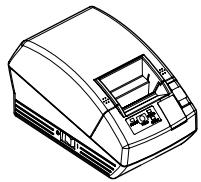
Printer

Sample paper roll
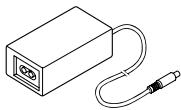
AC adapter

CD-ROM

USB cable clamp (USB Interface model)
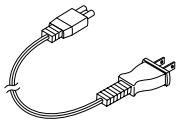
AC power cord
Quick start guide

Operation panel (for wall mounting)
- The AC power cord plug will vary depending of the region.
1.3 Model Classification
The printer models are classified by the following designation method:
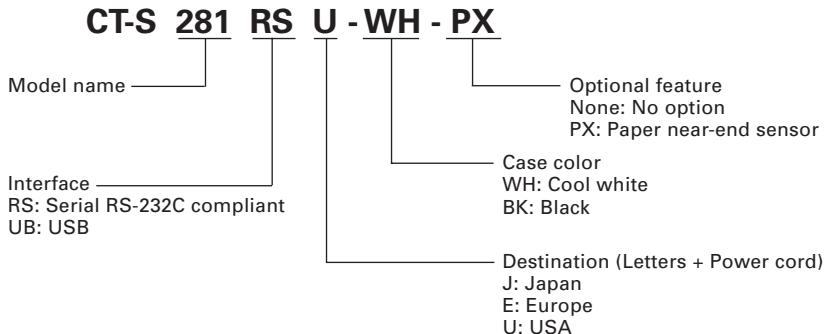
1.4 Basic Specifications
| Item | Specifications | |
| Model | CT-S281RSU CT-S281UBU | CT-S281RSE CT-S281UBE |
| Print method | Line thermal dot print method | |
| Print width | 48 mm/384 dots | |
| Dot density | 8 (horizontal) × 8 (vertical) dots/mm (203 dpi) | |
| Print speed | 80 mm/s (Fastest, print density: Standard level) | |
| Number of print columns | Font A: 32 columns; 12 × 24 dots horizontal and vertical Font B: 42 columns; 9 × 24 dots Font C: 48 columns; 8 × 16 dots | |
| Character size | Font A: 1.50 × 3.00 mm Font B: 1.13 × 3.00 mm Font C: 1.00 × 2.00 mm | |
| Character type | Alphanumeric, International, PC437/850/852/857/858/860/863/864/865/866/WPC1252/Katakana/Thai code 18 | |
| Kanji (JIS level 1, level 2), Kana, JIS C 6226-1983 | ||
| User-defined logo/character | User-defined characters and logos can be registered in flash memory. | |
| Types of bar code | UPC-A/E, JAN (EAN) 13/8 columns, ITF, CODE 39, CODE 128, CODABAR, CODE 93, PDF417, QRCODE | |
| Line spacing | 4.23 mm (1/6 inch) settable with command | |
| Paper roll | Thermal paper roll: 58 mm × φ83 mm Paper thickness: 0.06 to 0.1 mm | |
| Interfacing | Serial (RS-232C compliant), USB | |
| Input buffer | 4k bytes/45 bytes | |
| Supply voltage | DC 8.5 V ±5% | |
| Power consumption | Standby: Approx. 2 W, Printing: Approx. 18 W (Approx. 26 W max.) | |
| AC adapter | Rated input: AC 100 to 240 V, 50/60 Hz Rated output: DC 8.5 V, 3.0 A | |
| Weight | Approx. 630 g | |
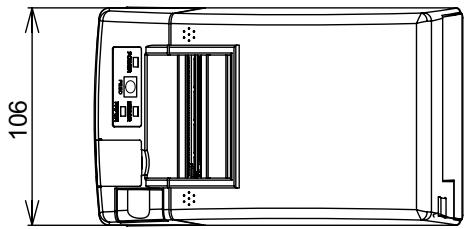
| Outside dimensions | 106 (W) × 180 (D) × 105 (H) mm | |
| Operating temperature and humidity | 5 to 40°C, 10 to 85% RH (No condensation) | |
| Storage temperature and humidity | -20 to 60°C, 10 to 90% RH (No condensation) | |
| Reliability | Print head life: 50 km, 1 × 10⁸pulses (At normal temperature/humidity with recommended paper used) Auto cutter life: 1million cuts(At normal temperature/humidity with recommended paper used) | |
| Safety standard * | UL, C-UL, FCC Class B | TUV, GS, CE marking |
*Represents the safety standards acquired when CITIZEN SYSTEMS-made adapters (28AD series) are used.
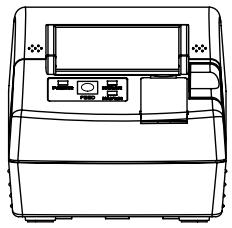
2.1 Printer Appearance
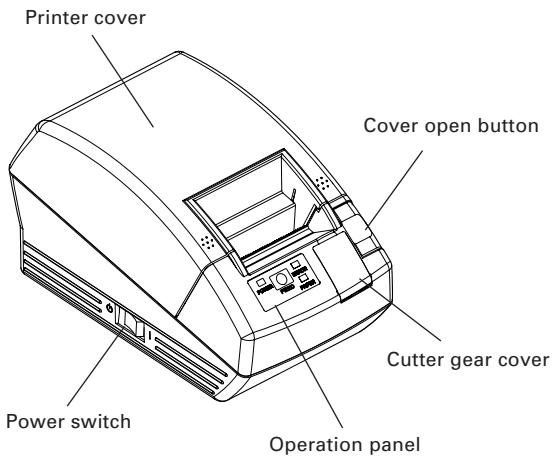
Printer cover
Paper is located inside this cover.
Cover open button
To refill or replace paper, open the paper cover by pushing this button.
Power switch
This switch turns the printer power ON/OFF.
Cutter gear cover
To Reliece the cutter lock, open this cover and rotate cutter gear.
Operation Panel
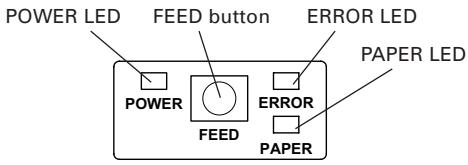
POWER LED
Lights when the printer power is on and goes off when the printer power is off. May blink or light in a special mode or in case of a failure.
- FEED button
Pressing this button once causes a paper feed of one line. Pressing the button continuously causes the paper to feed continuously.
ERROR LED
Lights or blinks when paper is empty or in case of a failure.
The interval length of blinking shows the type of error.
PAPER LED
Lights when there is no paper or the paper is low with the optional PNE sensor.
Rear Connectors
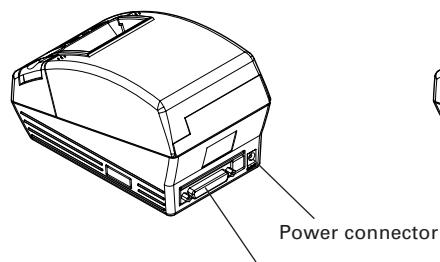
Serial interface Type
Serial interface connector
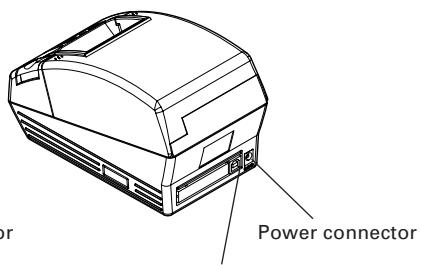
USB interface Type
USB Interface connector
Power connector
Connects to the cable from AC adapter.
- USB Interface connector
Connects to the USB interface cable.
- Serial interface connector
Connects to the serial interface cable.
2.2 Paper Cover Inside
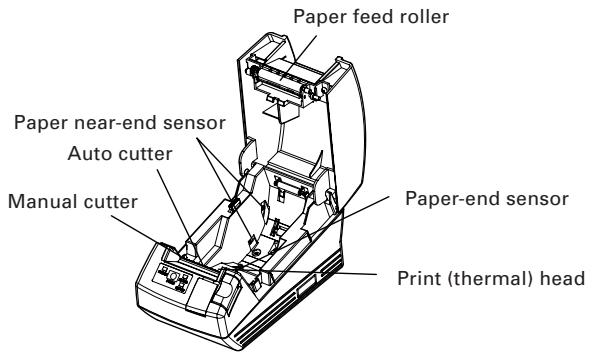
- Auto Cutter
Cuts the paper when software command is sent to the printer. Cutting method could be partial cut or full cut, "Partial Only" is set to valid by the default memory switch 4-8, so that the full cut command will execute as partial cut operation.
- Manual cutter
Tears the paper by hand.
To cut the printed paper, gently pull the paper from the edge of the paper at the angle so that paper firmly contacts the manual cutter. Improper direction of pull may result in poor cutting or excessive unwinding of paper. In some case, characters may be destroyed at the first printing after the paper is cut.
- Paper near-end sensor (Factory option)
If installed, detects when paper roll goes low. The external diameter of paper roll remainder will vary depending on the position of the paper near-end sensor lever.
Paper-end sensor
Stops printing when this sensor detects paper end.
Print(thermal)head
Prints characters and/or graphics data on thermal paper.
Paper feed roller
Feeds paper as part of print mechanism.
2.3 Other Built-in Functions
User memory
Allows registration of user-defined characters and logo data on the nonvolatile memory. Data registered remains even after the printer power is off.
Memory switch
Allow printer configuration, could be set by software command or manually on the printer, changes remain registered in nonvolatile memory even if the printer is OFF.
3.1 Connecting the AC Adapter and AC Power Cord
- Turn off the printer power.
- Plug in the cable connector of the AC adapter to the power connector at the rear of the printer.
- Connect the AC power cord to the inlet of the of AC adapter, and insert the AC power-cord plug into a suitable wall outlet.
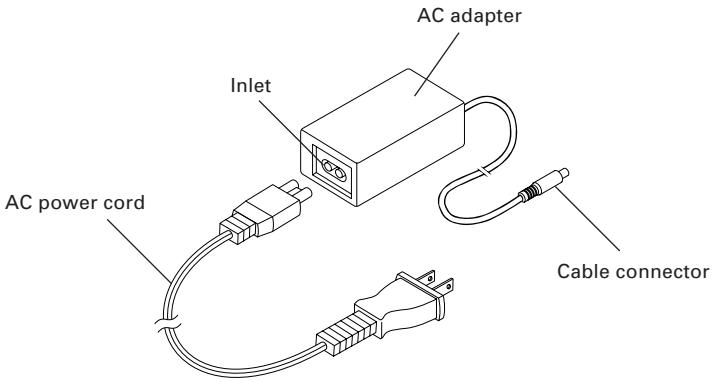

CAUTION!
- Use only the specified AC adapter with the printer.
- When disconnecting a cable, do not pull out by the cable. Always hold the plug.
- Always keep the AC power supply away from other noise generating equipment.
- Do not pull the power cord. Otherwise fire, electric shock, or power disconnection may result.
- If lightning is approaching, unplug the AC power cord from the wall outlet. Otherwise fire or electric shock may result.
- Keep the power cord away from heat generating appliances. Otherwise the shield of power cord may be fused resulting in a fire or electric shock.
- If the printer is not to be used for a long time, leave it disconnected from its supply outlet.
- Lay the cable not to be caught by the leg or the like.
3.2 Connecting Interface Cables
Turn off the printer and unplug the power connector. Then follow the procedure for interface cable connection.
Orient the interface cable terminal correctly and insert it into the interface connector.
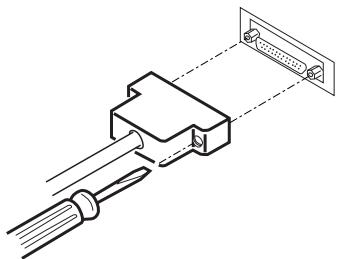
Serial Interface
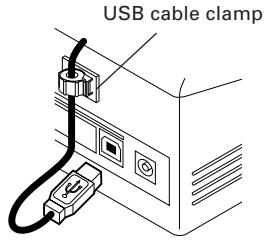
USB Interface

CAUTION!
- When disconnecting the cable, always hold the connector.
- Lay the cable not to be caught by the leg or the like.
For serial interface cable, use the one with the following connection.
9-pin - 25-pin cable
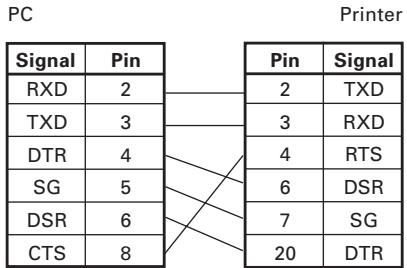
3.3 Installing the Printer
The printer can be installed horizontally or mounted vertically on the wall. At the time of shipment, the printer is set for horizontal installation. To install the printer on the wall, put the accessory operation panel on to the original one. This will allow easy operation panel reading when printer is wall mounted.

CAUTION!
- No screw for wall mounting is provided. Check the structure and strength of the wall (plaster board or stronger one) and prepare two appropriate screws (round-head wood screws of 3.1 , 16mm or more). And fix the printer by tightening the screws in accordance with the specified dimensions.
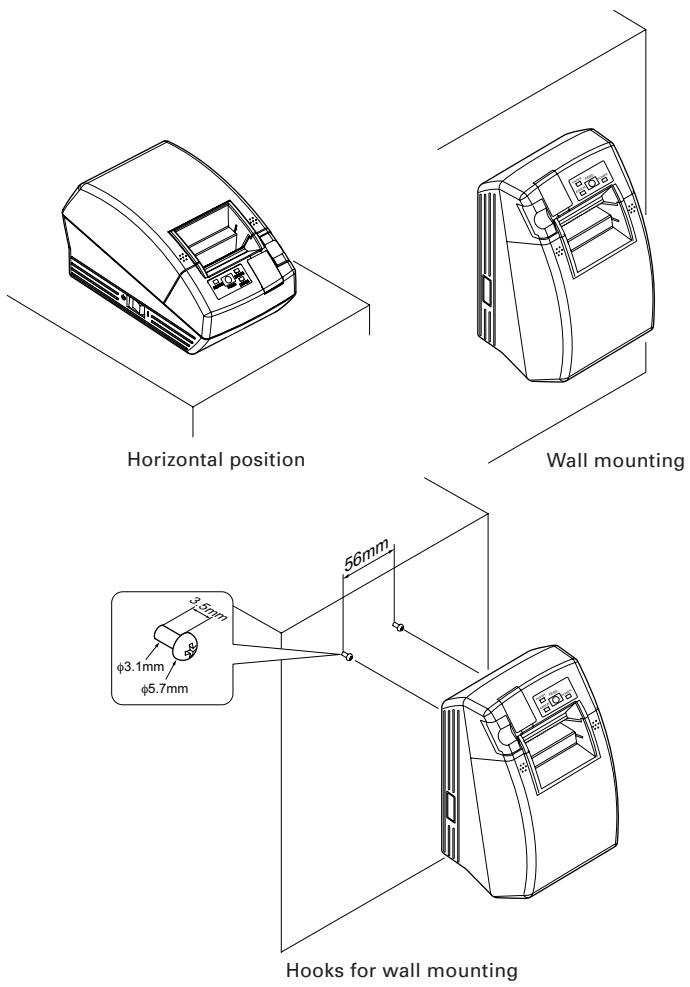
3.4 Setting DIP Switch (Only serial interface type)
DIP switch is provided only for serial interface specification.
The DIP switch is located at the bottom of the paper holder. To set the DIP switch open the printer cover and remove the paper.
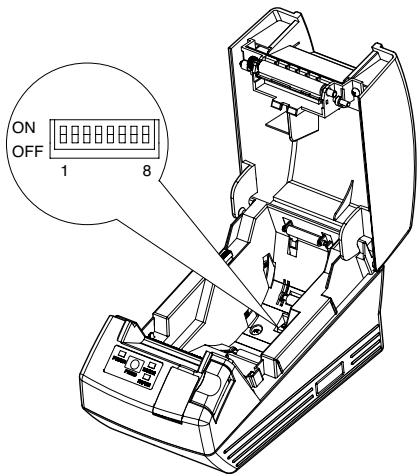
Selecting baud rate
| Switch No. | Function | ON | OFF | Initial Settings |
| 1 | Communication condition setting method | DIP switch setting | Internal memory setting | ON |
| 2 | Hand shake | XON/XOFF | DTR/DSR | OFF |
| 3 | Bit length | 7 bits | 8 bits | OFF |
| 4 | Parity check | With parity | None | OFF |
| 5 | Parity selection | Even parity | Odd parity | OFF |
| 6 | Baud rate selection | See Table below. | OFF | |
| 7 | ON | |||
| 8 | Reserved | - | Fixed | OFF |
| Baud Rate (bps) | Switch No. | |
| 6 | 7 | |
| 2400 | OFF | OFF |
| 4800 | ON | OFF |
| 9600 | OFF | ON |
| 19200 | ON | ON |
1200 bps and 38400 bps can also be selected by a command or the memory switch. 9600bps is factory setting.
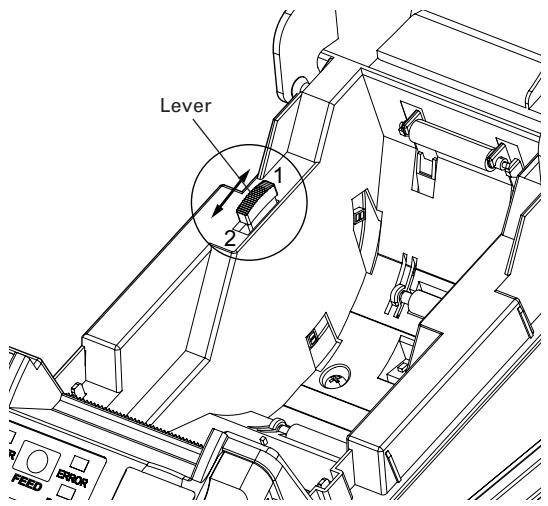
3.5 Adjusting the Paper Near-end Sensor
Move the paper near-end sensor lever to forward or backward. The position to be set varies in accordance with the paper roll as shown in the following table.
unit: mm
| Lever Position | External Diameter of Paper Poll Remainder |
| 1 | φ24 |
| 2 | φ34 |

CAUTION!
- Paper remainder (outside diameter of roll) differs by the type of paper roll used.
- The external diameter of the paper roll is only for reference.
- In the wall-mount status, you cannot use the paper near-end sensor.
4.1 Setting/Replacing Paper Rolls
- Press the cover open button down.
- Open the printer cover.
- Insert a paper roll with is print area facing down as shown in the figure and pull out the paper end straight forward by several cm out of the printer.
- Close the printer cover until a click can be heard.
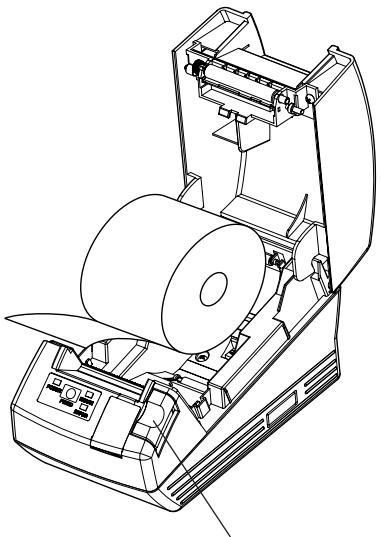
Cover open button

WARNING
- When opening the printer cover, take care not to touch the print head or cutter blade. Otherwise, burning or injury of hand may result.

CAUTION!
Always use the specified types of paper roll.
- Confirm that the paper roll is set correctly.
- When the paper is skewed and not extended straightforward from under the cover, open the cover and adjust the paper correctly.
- When closing the cover, press on the both front sides marked or the center of the cover to close it firmly.
- When setting paper, pay attention not to let your fingers get injured by the edge of paper.
4.2 Removing Jammed Paper
- Turn the printer power off.
- Open the printer cover. If the cutter blade remains protruded with paper jammed, do not open the printer cover forcibly. Referring to section 4.4, restore the blade to the normal position and then open the cover.
- Remove the jammed paper including any paper chips remaining. (Also take out the paper roll from the holder.)
- Turn on the printer. The auto cutter mechanism is initialized and the alarm is cleared.

CAUTION!
- The print head is hot immediately after printing. Do not touch it with your hand. Do not touch the heating element of the head with a bare hand or metal object either.
4.3 Cleaning the Print Head
- Turn the printer power off.
- Open the printer cover.
- Wait several minutes. Wipe off any debris on the heating element of the head using a cotton swab soaked in ethyl alcohol.

CAUTION!
- The print head is hot immediately after printing. Do not touch it with your hand. Do not touch the heating element of the head with a bare hand or metal object either.
4.4 When the Printer Cover Cannot Be Opened
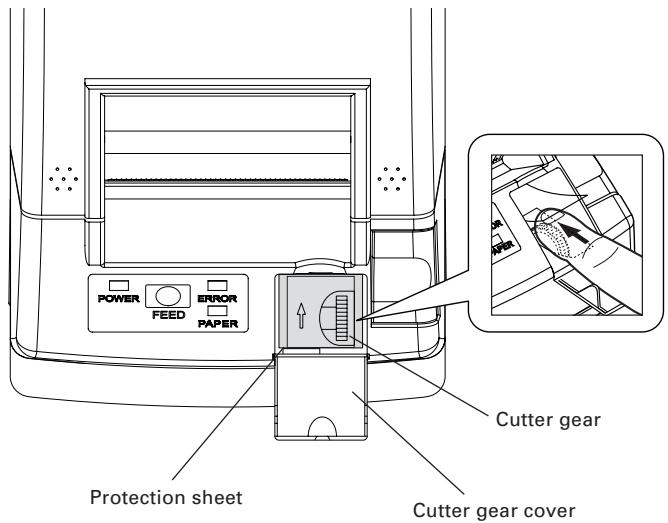
Cutter lock error may occur with the Auto Cutter due to dropping of foreign object, paper jam, etc. If the cutter blade remains protruded with cutter lock error, the printer cover does not open.
The Auto Cutter can also be restored to the initial position by turning the printer on again or by pressing the FEED button, when the memory SW3-1 is set to OFF.
If the cutter lock error cannot be recovered by the above method, release cutter lock in the following procedure.
- Turn the printer power off.
- If a cutter lock error occurs, the printer cover is held unopened. To open the cover, open the cutter gear cover on the front of the printer, turn the cutter gear under the protection sheet in the arrow direction, and return the movable blade to the initial position. (Return the movable blade to the position where the printer cover can open.)
- Open the printer cover and remove the cause of the cutter lock.
- Set paper correctly, close the printer cover, and turn the printer power on. (Check to make sure ERROR LED goes off.)

CAUTION!
- Do not touch the printer head by hand just after printing because high temperature remains on it.
- Do not touch the surface of the heating element of the print head by bare hand or by metal.
- Do not touch the blade of the cutter.
4.5 Self-printing
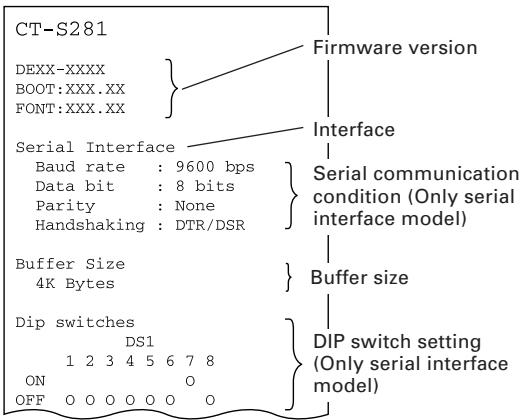
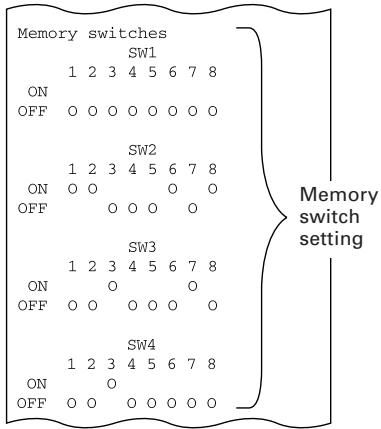
Insert paper into the printer. With the FEED button pressed and held, turn the printer power on, keep the FEED button held for about 1 second, and then release the FEED button. The printer starts self-printing. The printer prints model name, version, DIP switch setting, memory switch setting, and built-in fonts.
4.6 Hexadecimal Dump Printing
This function is to print all received data in hexadecimal numbers. If problems such as missing data, data duplication, etc. should occur, this function allows checking whether or not the printer is receiving data correctly. Set paper to the printer and keep the paper cover open.
With the FEED button pressed and held, turn the printer power on and then close the paper cover.
The printer prints "HEX dump print mode" followed by the received data printed in hexadecimal numbers and some characters.

CAUTION!
The printer prints "." if there is no characters corresponding to data.
- During hexadecimal dump, functions except some command will be disabled.
- If print data does not cover a line, press the FEED button to print the line.
When you press the FEED button three times consecutively, or you turn the printer power off, or the printer receives a reset signal from the interface, the hexadecimal dump printing is terminated.
Print example
| HEX | DUMP | MODE | ||||||||
| 1B | 21 | 00 | 1B | 20 | 04 | 41 | 42 | 43 | 44 | ... . ABCD |
| 45 | 46 | 47 | 48 | 49 | 4A | 4B | 4C | 4D | 4E | EFGHIJKLMN |
| 4F | 50 | 0D | 0A | 31 | 32 | 33 | 0D | 0A | OP..123.. |
4.7 Error Indication
Paper-end
Paper empty is detected in two steps: paper-end and paper near-end(factory option). It causes the PAPER LED to light. If paper-end is detected, replace the paper roll.
Cover open error
When the printer cover is opened, Printer cover open is detected and the ERROR LED goes on.
During printing, do not open the printer cover. If you open the printer cover accidentally, the ERROR LED blinks. Confirm the paper and close the cover. Printing resumes automatically.
Head overheat error
When you print dense characters or dark image, the head temperature rises. If the head temperature exceeds a specified level, the printer stops printing operation and waits till the head temperature is lowered. During waiting, the ERROR LED blinks. When the head temperature is lowered, printing resumes automatically.
- Cutter lock error
If the cutter blade stops operating due to paper jam or the like, the ERROR LED blinks.
Remove the cause of the trouble and press the FEED button. If the blade does not move and the cover does not open yet even in the above procedure, follow the procedure in section 4.4 to open the paper cover.
Lighting and blinking status of each error including the above is shown below.
| Status | POWER LED | ERROR LED | PAPER LED |
| Paper-end | Lights | Lights | Lights |
| Paper near-end | Lights | Turning off | Lights |
| Cover open error | Lights | Lights | Turning off |
| Cover open error *1 | Lights | Turning off | |
| Cutter lock error | Lights | Turning off | |
| Head overheat error | Lights | Turning off | |
| Memory check error | Turning off | Turning off | |
| Low voltage error | Lights | Turning off | |
| High voltage error | Lights | Turning off | |
| Macro execution wait *2 | Lights | Turning off |
1: When the printer is printing.
2: The ERROR LED may blink even in the execution of macro function.
5.1 External Views and Dimensions
(Unit: millimeter)

5.2 Manual Setting of Memory Switch
Memory switches can be set manually or by a command.
For manual setting, refer to the next page.
The function of each memory switch is shown in the following table. (The white-on-black characters are factory setting.)
| Switch No. | Setting | 0 (OFF) | 1 (ON) |
| Memory SW1-1 | Power ON Info | Valid | Not Send |
| SW1-2 | Buffer Size | 4k bytes | 45 bytes |
| SW1-3 | Busy Condition | Full/Err | Full |
| SW1-4 | Receive Error | Print "?" | No Print |
| SW1-5 | CR Mode | Ignored | LF |
| SW1-6 | Reserved | Fixed | - |
| SW1-7 | DSR Signal | Invalid | Valid |
| SW1-8 | Reserved | Fixed | - |
| Memory SW2-1 | Reserved | - | Fixed |
| SW2-2 | Auto Cutter | Invalid | Valid |
| SW2-3 | Spool Print | Invalid | Valid |
| SW2-4 | Full Col Print | LineFeed | WaitData |
| SW2-5 | Resume aft PE | Next | Top |
| SW2-6 | Reserved | - | Fixed |
| SW2-7 | Reserved | Fixed | - |
| SW2-8 | PNE Sensor | * Valid | Invalid |
| Memory SW3-1 | Resume Ctrr Err | Valid | Invalid |
| SW3-2 | Reserved | Fixed | - |
| SW3-3 | Reserved | - | Fixed |
| SW3-4 | Reserved | Fixed | - |
| SW3-5 | Reserved | Fixed | - |
| SW3-6 | Reserved | Fixed | - |
| SW3-7 | CBM-270 Mode | Invalid | Valid |
| * SW3-8 | Resume Open Err | Close | Command |
| Memory SW4-1 | Reserved | Fixed | - |
| SW4-2 | Reserved | Fixed | - |
| SW4-3 | Feed&Cut at TOF | Invalid | Valid |
| SW4-4 | Reserved | Fixed | - |
| SW4-5 | Reserved | Fixed | - |
| SW4-6 | Reserved | Fixed | - |
| SW4-7 | Reserved | Fixed | - |
| SW4-8 | Partial Only | Invalid | Valid |
*Factory option
| Switch No. | Setting | 0 (OFF) | 1 (ON) |
| Memory SW5-1 | Reserved | - | Fixed |
| SW5-2 | Reserved | Fixed | - |
| SW5-3 | USB Mode | Virtual COM | Printer Class |
| SW5-4 | Reserved | Fixed | - |
| SW5-5 | Reserved | Fixed | - |
| SW5-6 | Reserved | Fixed | - |
| SW5-7 | Clear PNE LED | Auto | Set Paper |
| SW5-8 | Reserved | Fixed | - |
| Switch No. | Setting | Default | Set Values |
| Memory SW7-1 | Baud Rate | 9600 bps | 1200 bps, 2400 bps, 4800 bps, 9600 bps, 19200 bps, 38400 bps |
| SW7-2 | Data Length | 8bits | 7bits, 8bits |
| SW7-3 | Stop Bit | 1bit | 1bit, 2bits |
| SW7-4 | Parity | NONE | NONE, EVEN, ODD |
| SW7-5 | Flow Control | DTR/DSR | DTR/DSR, XON/XOFF |
| SW7-6 | Reserved | - | |
| SW7-7 | VCom Protocol | PC Setting | PC Setting, DTR/DSR, XON/XOFF |
| Memory SW8-1 | Reserved | - | |
| SW8-2 | Paper Type | 1 Color Normal | 1 Color Normal, 2 Color Normal |
| Memory SW9-1 | Code Page | PC437 | PC437/Katakana/PC850,858/PC860/PC863/PC865/PC852/PC866/PC857/WPC1252/PC864/Thai Code 18 |
| Memory SW9-2 | Int' char Set | U.S.A | U.S.A, France, Germany, England, Denmark, Sweden, Italy, Spain, Japan, Norway, Denmark 2, Spain 2, Latin America, Korea, Croatia, China |
| Memory SW9-3 | Kanji | OFF | ON, OFF |
| SW9-4 | JIS/Shift JIS | JIS | JIS, Shift JIS |
| Memory SW10-1 | Print Density | 100% | 70%, 75%, 80%, 85%, 90%, 95%, 100%, 105%, 110%, 115%, 120%, 125%, 130%, 135%, 140% |
| SW10-2 | Print Speed | Level 9 | Level 1, Level 2, Level 3, Level 4, Level 5, Level 6, Level 7, Level 8, Level 9 |
| SW10-3 | Reserved | - | |
| SW10-4 | Reserved | - |
Manual Setting of Memory Switch (Memory SW)
The memory switch can be selected, changed, or written by the combination of three actions: pressing the FEED button, pressing and holding the FEED button, and opening or closing the printer cover.
- Entering memory switch setting mode.
Set paper to the printer and keep the printer cover open. With the FEED button pressed and held, turn the printer power on, and then press the FEED button twice. Close the cover. If the current settings of the memory switch etc. are printed, the printer is now in the memory switch setting mode.

- Selecting memory switch
When the FEED button is pressed short (within 2 seconds), printing occurs in the order of "Memory SW1" → "Memory SW2" → "Memory SW3" → "Write/Factory Setting" → "Memory SW1" → ....... repeatedly. When the memory switch you want to change is reached, press and hold the FEED button (for more than 2 seconds). The reserved memory switch setting will be skipped and not printed.
- Selecting each switch item
There are eight setting items for each switch. Press and hold the FEED button for long, the printer goes to the next item and prints the current setting of the item. Repeat pressing and holding till the item you want to change setting is reached.

- Changing the setting
When the item you want to change is reached, press the FEED button short. The changed set value is printed. (To return to the previous setting press the FEED button short). When you press the FEED button long, the set value is accepted and then the printer goes to the next setting item.
- Returning to the memory switch select mode
When the setting of the desired content is completed, open the printer cover and then close the printer cover. This allows the printer to print the setting of the changed memory switch.
- Saving the setting and exiting the memory switch setting mode
Press the FEED button short to move to "Write/Factory Setting". Then press and hold the FEED button. The printer prints the content of new setting and exits the memory switch setting mode to return to the normal standby state.
-
Unless saving the setting is executed, the changed setting cannot be enabled.
-
Initializing the memory switch
When you want to return the memory switch setting to the initial state, go to "Write/Factory Setting" in the above procedure. Here, open the paper cover and press and hold the FEED button till buzzer sounds. This allows the printer to return to the initial state.
- All the memory switches settings are returned to the factory set values.
5.3 Printing Paper
Use the print paper shown in the following table or the paper with equivalent quality.
| Paper Type | Product Name |
| Recommended thermal paper roll | TF50KS-E2D, TF77KS-EY from Nippon Paper PD160R from Ohji Paper F230AA, PB670 (2-color) from Mitsubishi Paper |
(Unit: millimeter)
| Paper thickness t (μm) | d | D |
| 60μm≤t≤75μm | φ12 | φ18 |
| 75μm<t≤100μm | φ25.4 | φ32 |

CAUTION!
Use the paper with the start of winding to roll core is as shown below.
No fold line is present and paper is along the inner diameter.
No turnup is present.
No pasting to core is present.
- Outer winding (print side out) is used.
FRANÇAIS
PRECAUTIONS GENÉRALES
CITIZEN is a registered trade mark of Citizen Holdings Co., Japan
CITIZEN es unamarca registrada de Citizen Holdings Co.,Japon
Company names and product names in this manual are trademarks or registered trademarks of relevant companies.
Copyright © 2008 by CITIZEN SYSTEMS JAPAN CO., LTD.
PRECAUTIONS DE SECURITE ... OUI DEVRAIENT ETRE OBSERVÉES RIGOUREusement
4.2 Removing Jammed Paper
| No. commutateur | Réglage | 0 (OFF) | 1 (ON) |
| Memory SW1-1 | Power ON Info | Valid | Not Send |
| SW1-2 | Buffer Size | 4k bytes | 45 bytes |
| SW1-3 | Busy Condition | Full/Err | Full |
| SW1-4 | Receive Error | Print “?” | No Print |
| SW1-5 | CR Mode | Ignored | LF |
| SW1-6 | Reserved | Fixed | - |
| SW1-7 | DSR Signal | Invalid | Valid |
| SW1-8 | Reserved | Fixed | - |
| Memory SW2-1 | Reserved | - | Fixed |
| SW2-2 | Auto Cutter | Invalid | Valid |
| SW2-3 | Spool Print | Invalid | Valid |
| SW2-4 | Full Col Print | LineFeed | WaitData |
| SW2-5 | Resume aft PE | Next | Top |
| SW2-6 | Reserved | - | Fixed |
| SW2-7 | Reserved | Fixed | - |
| SW2-8 | PNE Sensor | * Valid | Invalid |
| Memory SW3-1 | Resume Ctrr Err | Valid | Invalid |
| SW3-2 | Reserved | Fixed | - |
| SW3-3 | Reserved | - | Fixed |
| SW3-4 | Reserved | Fixed | - |
| SW3-5 | Reserved | Fixed | - |
| SW3-6 | Reserved | Fixed | - |
| SW3-7 | CBM-270 Mode | Invalid | Valid |
| * SW3-8 | Resume Open Err | Close | Command |
| Memory SW4-1 | Reserved | Fixed | - |
| SW4-2 | Reserved | Fixed | - |
| SW4-3 | Feed&Cut at TOF | Invalid | Valid |
| SW4-4 | Reserved | Fixed | - |
| SW4-5 | Reserved | Fixed | - |
| SW4-6 | Reserved | Fixed | - |
| SW4-7 | Reserved | Fixed | - |
| SW4-8 | Partial Only | Invalid | Valid |
*Option de fabrique
| No. commutateur | Réglage | 0 (OFF) | 1 (ON) |
| Memory SW5-1 | Reserved | - | Fixed |
| SW5-2 | Reserved | Fixed | - |
| SW5-3 | USB Mode | Virtual COM | Printer Class |
| SW5-4 | Reserved | Fixed | - |
| SW5-5 | Reserved | Fixed | - |
| SW5-6 | Reserved | Fixed | - |
| SW5-7 | Clear PNE LED | Auto | Set Paper |
| SW5-8 | Reserved | Fixed | - |
| No. commutateur | Réglage | Réglage par défaut | Valeurs de réglage |
| Memory SW7-1 | Baud Rate | 9600 bps | 1200 bps, 2400 bps, 4800 bps, 9600 bps, 19200 bps, 38400 bps |
| SW7-2 | Data Length | 8bits | 7bits, 8bits |
| SW7-3 | Stop Bit | 1bit | 1bit, 2bits |
| SW7-4 | Parity | NONE | NONE, EVEN, ODD |
| SW7-5 | Flow Control | DTR/DSR | DTR/DSR, XON/XOFF |
| SW7-6 | Reserved | - | |
| SW7-7 | VCom Protocol | PC Setting | PC Setting, DTR/DSR, XON/XOFF |
| Memory SW8-1 | Reserved | - | |
| SW8-2 | Paper Type | 1 Color Normal | 1 Color Normal, 2 Color Normal |
| Memory SW9-1 | Code Page | PC437 | PC437/Katakana/PC850,858/PC860/PC863/PC865/PC852/PC866/PC857/WPC1252/PC864/Thai Code 18 |
| Memory SW9-2 | Int' char Set | U.S.A | U.S.A, France, Germany, England, Denmark, Sweden, Italy, Spain, Japan, Norway, Denmark 2, Spain 2, Latin America, Korea, Croatia, China |
| Memory SW9-3 | Kanji | OFF | ON, OFF |
| SW9-4 | JIS/Shift JIS | JIS | JIS, Shift JIS |
| Memory SW10-1 | Print Density | 100% | 70%, 75%, 80%, 85%, 90%, 95%, 100%, 105%, 110%, 115%, 120%, 125%, 130%, 135%, 140% |
| SW10-2 | Print Speed | Level 9 | Level 1, Level 2, Level 3, Level 4, Level 5, Level 6, Level 7, Level 8, Level 9 |
| SW10-3 | Reserved | - | |
| SW10-4 | Reserved | - |
| Switch-Nr. | Einstellung | 0 (AUS) | 1 (AN) |
| Memory SW1-1 | Power ON Info | Valid | Not Send |
| SW1-2 | Buffer Size | 4k bytes | 45 bytes |
| SW1-3 | Busy Condition | Full/Err | Full |
| SW1-4 | Receive Error | Print "?" | No Print |
| SW1-5 | CR Mode | Ignored | LF |
| SW1-6 | Reserved | Fixed | - |
| SW1-7 | DSR Signal | Invalid | Valid |
| SW1-8 | Reserved | Fixed | - |
| Memory SW2-1 | Reserved | - | Fixed |
| SW2-2 | Auto Cutter | Invalid | Valid |
| SW2-3 | Spool Print | Invalid | Valid |
| SW2-4 | Full Col Print | LineFeed | WaitData |
| SW2-5 | Resume aft PE | Next | Top |
| SW2-6 | Reserved | - | Fixed |
| SW2-7 | Reserved | Fixed | - |
| SW2-8 | PNE Sensor | * Valid | Invalid |
| Memory SW3-1 | Resume Ctrr Err | Valid | Invalid |
| SW3-2 | Reserved | Fixed | - |
| SW3-3 | Reserved | - | Fixed |
| SW3-4 | Reserved | Fixed | - |
| SW3-5 | Reserved | Fixed | - |
| SW3-6 | Reserved | Fixed | - |
| SW3-7 | CBM-270 Mode | Invalid | Valid |
| * SW3-8 | Resume Open Err | Close | Command |
| Memory SW4-1 | Reserved | Fixed | - |
| SW4-2 | Reserved | Fixed | - |
| SW4-3 | Feed&Cut at TOF | Invalid | Valid |
| SW4-4 | Reserved | Fixed | - |
| SW4-5 | Reserved | Fixed | - |
| SW4-6 | Reserved | Fixed | - |
| SW4-7 | Reserved | Fixed | - |
| SW4-8 | Partial Only | Invalid | Valid |
*Werkseitige Option
| Switch-Nr. | Einstellung | 0 (AUS) | 1 (AN) |
| Memory SW5-1 | Reserved | - | Fixed |
| SW5-2 | Reserved | Fixed | - |
| SW5-3 | USB Mode | Virtual COM | Printer Class |
| SW5-4 | Reserved | Fixed | - |
| SW5-5 | Reserved | Fixed | - |
| SW5-6 | Reserved | Fixed | - |
| SW5-7 | Clear PNE LED | Auto | Set Paper |
| SW5-8 | Reserved | Fixed | - |
| Switch-Nr. | Einstellung | Vorgabe | Einstellwerte |
| Memory SW7-1 | Baud Rate | 9600 bps | 1200 bps, 2400 bps, 4800 bps, 9600 bps, 19200 bps, 38400 bps |
| SW7-2 | Data Length | 8bits | 7bits, 8bits |
| SW7-3 | Stop Bit | 1bit | 1bit, 2bits |
| SW7-4 | Parity | NONE | NONE, EVEN, ODD |
| SW7-5 | Flow Control | DTR/DSR | DTR/DSR, XON/XOFF |
| SW7-6 | Reserved | - | |
| SW7-7 | VCom Protocol | PC Setting | PC Setting, DTR/DSR, XON/XOFF |
| Memory SW8-1 | Reserved | - | |
| SW8-2 | Paper Type | 1 Color Normal | 1 Color Normal, 2 Color Normal |
| Memory SW9-1 | Code Page | PC437 | PC437/Katakana/PC850,858/PC860/PC863/PC865/PC852/PC866/PC857/WPC1252/PC864/Thai Code 18 |
| Memory SW9-2 | Int' char Set | U.S.A | U.S.A, France, Germany, England, Denmark, Sweden, Italy, Spain, Japan, Norway, Denmark 2, Spain 2, Latin America, Korea, Croatia, China |
| Memory SW9-3 | Kanji | OFF | ON, OFF |
| SW9-4 | JIS/Shift JIS | JIS | JIS, Shift JIS |
| Memory SW10-1 | Print Density | 100% | 70%, 75%, 80%, 85%, 90%, 95%, 100%, 105%, 110%, 115%, 120%, 125%, 130%, 135%, 140% |
| SW10-2 | Print Speed | Level 9 | Level 1, Level 2, Level 3, Level 4, Level 5, Level 6, Level 7, Level 8, Level 9 |
| SW10-3 | Reserved | - | |
| SW10-4 | Reserved | - |
- USB Interface connector
Si collega al cavo d'interfaccia USB.
| No. Microinterrutture | Impostazione | 0 (OFF) | 1 (ON) |
| Memory SW1-1 | Power ON Info | Valid | Not Send |
| SW1-2 | Buffer Size | 4k bytes | 45 bytes |
| SW1-3 | Busy Condition | Full/Err | Full |
| SW1-4 | Receive Error | Print "?" | No Print |
| SW1-5 | CR Mode | Ignored | LF |
| SW1-6 | Reserved | Fixed | - |
| SW1-7 | DSR Signal | Invalid | Valid |
| SW1-8 | Reserved | Fixed | - |
| Memory SW2-1 | Reserved | - | Fixed |
| SW2-2 | Auto Cutter | Invalid | Valid |
| SW2-3 | Spool Print | Invalid | Valid |
| SW2-4 | Full Col Print | LineFeed | WaitData |
| SW2-5 | Resume aft PE | Next | Top |
| SW2-6 | Reserved | - | Fixed |
| SW2-7 | Reserved | Fixed | - |
| SW2-8 | PNE Sensor | * Valid | Invalid |
| Memory SW3-1 | Resume Ctrr Err | Valid | Invalid |
| SW3-2 | Reserved | Fixed | - |
| SW3-3 | Reserved | - | Fixed |
| SW3-4 | Reserved | Fixed | - |
| SW3-5 | Reserved | Fixed | - |
| SW3-6 | Reserved | Fixed | - |
| SW3-7 | CBM-270 Mode | Invalid | Valid |
| * SW3-8 | Resume Open Err | Close | Command |
| Memory SW4-1 | Reserved | Fixed | - |
| SW4-2 | Reserved | Fixed | - |
| SW4-3 | Feed&Cut at TOF | Invalid | Valid |
| SW4-4 | Reserved | Fixed | - |
| SW4-5 | Reserved | Fixed | - |
| SW4-6 | Reserved | Fixed | - |
| SW4-7 | Reserved | Fixed | - |
| SW4-8 | Partial Only | Invalid | Valid |
| No. microinterrutto | Regolazione | 0 (OFF) | 1 (ON) |
| Memory SW5-1 | Reserved | - | Fixed |
| SW5-2 | Reserved | Fixed | - |
| SW5-3 | USB Mode | Virtual COM | Printer Class |
| SW5-4 | Reserved | Fixed | - |
| SW5-5 | Reserved | Fixed | - |
| SW5-6 | Reserved | Fixed | - |
| SW5-7 | Clear PNE LED | Auto | Set Paper |
| SW5-8 | Reserved | Fixed | - |
| No. microinterruptore | Regolazione | Regolazione implicita | Valori di regolazione |
| Memory SW7-1 | Baud Rate | 9600 bps | 1200 bps, 2400 bps, 4800 bps, 9600 bps, 19200 bps, 38400 bps |
| SW7-2 | Data Length | 8bits | 7bits, 8bits |
| SW7-3 | Stop Bit | 1bit | 1bit, 2bits |
| SW7-4 | Parity | NONE | NONE, EVEN, ODD |
| SW7-5 | Flow Control | DTR/DSR | DTR/DSR, XON/XOFF |
| SW7-6 | Reserved | - | |
| SW7-7 | VCom Protocol | PC Setting | PC Setting, DTR/DSR, XON/XOFF |
| Memory SW8-1 | Reserved | - | |
| SW8-2 | Paper Type | 1 Color Normal | 1 Color Normal, 2 Color Normal |
| Memory SW9-1 | Code Page | PC437 | PC437/Katakana/PC850,858/PC860/PC863/PC865/PC852/PC866/PC857/WPC1252/PC864/Thai Code 18 |
| Memory SW9-2 | Int' char Set | U.S.A | U.S.A, France, Germany, England, Denmark, Sweden, Italy, Spain, Japan, Norway, Denmark 2, Spain 2, Latin America, Korea, Croatia, China |
| Memory SW9-3 | Kanji | OFF | ON, OFF |
| SW9-4 | JIS/Shift JIS | JIS | JIS, Shift JIS |
| Memory SW10-1 | Print Density | 100% | 70%, 75%, 80%, 85%, 90%, 95%, 100%, 105%, 110%, 115%, 120%, 125%, 130%, 135%, 140% |
| SW10-2 | Print Speed | Level 9 | Level 1, Level 2, Level 3, Level 4, Level 5, Level 6, Level 7, Level 8, Level 9 |
| SW10-3 | Reserved | - | |
| SW10-4 | Reserved | - |
| No. de Conmutador | Ajuste | 0 (OFF) | 1 (ON) |
| Memory SW1-1 | Power ON Info | Valid | Not Send |
| SW1-2 | Buffer Size | 4k bytes | 45 bytes |
| SW1-3 | Busy Condition | Full/Err | Full |
| SW1-4 | Receive Error | Print "?" | No Print |
| SW1-5 | CR Mode | Ignored | LF |
| SW1-6 | Reserved | Fixed | - |
| SW1-7 | DSR Signal | Invalid | Valid |
| SW1-8 | Reserved | Fixed | - |
| Memory SW2-1 | Reserved | - | Fixed |
| SW2-2 | Auto Cutter | Invalid | Valid |
| SW2-3 | Spool Print | Invalid | Valid |
| SW2-4 | Full Col Print | LineFeed | WaitData |
| SW2-5 | Resume aft PE | Next | Top |
| SW2-6 | Reserved | - | Fixed |
| SW2-7 | Reserved | Fixed | - |
| SW2-8 | PNE Sensor | * Valid | Invalid |
| Memory SW3-1 | Resume Ctrr Err | Valid | Invalid |
| SW3-2 | Reserved | Fixed | - |
| SW3-3 | Reserved | - | Fixed |
| SW3-4 | Reserved | Fixed | - |
| SW3-5 | Reserved | Fixed | - |
| SW3-6 | Reserved | Fixed | - |
| SW3-7 | CBM-270 Mode | Invalid | Valid |
| * SW3-8 | Resume Open Err | Close | Command |
| Memory SW4-1 | Reserved | Fixed | - |
| SW4-2 | Reserved | Fixed | - |
| SW4-3 | Feed&Cut at TOF | Invalid | Valid |
| SW4-4 | Reserved | Fixed | - |
| SW4-5 | Reserved | Fixed | - |
| SW4-6 | Reserved | Fixed | - |
| SW4-7 | Reserved | Fixed | - |
| SW4-8 | Partial Only | Invalid | Valid |
- Oportun de fabrica
| No. de Conmutador | Ajuste | 0 (OFF) | 1 (ON) |
| Memory SW5-1 | Reserved | - | Fixed |
| SW5-2 | Reserved | Fixed | - |
| SW5-3 | USB Mode | Virtual COM | Printer Class |
| SW5-4 | Reserved | Fixed | - |
| SW5-5 | Reserved | Fixed | - |
| SW5-6 | Reserved | Fixed | - |
| SW5-7 | Clear PNE LED | Auto | Set Paper |
| SW5-8 | Reserved | Fixed | - |
| No. de Conmutador | Ajuste | Por omission | Valores de Ajuste |
| Memory SW7-1 | Baud Rate | 9600 bps | 1200 bps, 2400 bps, 4800 bps, 9600 bps, 19200 bps, 38400 bps |
| SW7-2 | Data Length | 8bits | 7bits, 8bits |
| SW7-3 | Stop Bit | 1bit | 1bit, 2bits |
| SW7-4 | Parity | NONE | NONE, EVEN, ODD |
| SW7-5 | Flow Control | DTR/DSR | DTR/DSR, XON/XOFF |
| SW7-6 | Reserved | - | |
| SW7-7 | VCom Protocol | PC Setting | PC Setting, DTR/DSR, XON/XOFF |
| Memory SW8-1 | Reserved | - | |
| SW8-2 | Paper Type | 1 Color Normal | 1 Color Normal, 2 Color Normal |
| Memory SW9-1 | Code Page | PC437 | PC437/Katakana/PC850,858/PC860/PC863/PC865/PC852/PC866/PC857/WPC1252/PC864/Thai Code 18 |
| Memory SW9-2 | Int' char Set | U.S.A | U.S.A, France, Germany, England, Denmark, Sweden, Italy, Spain, Japan, Norway, Denmark 2, Spain 2, Latin America, Korea, Croatia, China |
| Memory SW9-3 | Kanji | OFF | ON, OFF |
| SW9-4 | JIS/Shift JIS | JIS | JIS, Shift JIS |
| Memory SW10-1 | Print Density | 100% | 70%, 75%, 80%, 85%, 90%, 95%, 100%, 105%, 110%, 115%, 120%, 125%, 130%, 135%, 140% |
| SW10-2 | Print Speed | Level 9 | Level 1, Level 2, Level 3, Level 4, Level 5, Level 6, Level 7, Level 8, Level 9 |
| SW10-3 | Reserved | - | |
| SW10-4 | Reserved | - |
Ajuste Manual de los "Memory Switches" (Memory SW)
If you want to dispose this product, do not mix with general household waste. There is a separate collection systems for used electronics products in accordance with legislation under the WEEE Directive (Directive 2002/96/EC) and is effective only within European Union.
Ge
- LINE THERMAL PRINTER
- MODEL CT-S281
- User's Manual
- Mode d'emploi
- Benutzerhandbuch
- Manuale dell'utente
- Manual de Nombre
- Declaration of Conformity
- Sicherheitshinweis
- THE TABLE OF CONTENTS
- SAFETY PRECAUTIONS... WHICH SHOULD BE STRICTLY OBSERVED
- WARNING
- GENERAL OUTLINE
- Features
- Unpacking
- Model Classification
- Basic Specifications
- Printer Appearance
- Operation Panel
- POWER LED
- - FEED button
- ERROR LED
- PAPER LED
- Rear Connectors
- Power connector
- - USB Interface connector
- - Serial interface connector
- Paper Cover Inside
- - Auto Cutter
- - Manual cutter
- - Paper near-end sensor (Factory option)
- Paper-end sensor
- Print(thermal)head
- Paper feed roller
- Other Built-in Functions
- User memory
- Memory switch
- Connecting the AC Adapter and AC Power Cord
- CAUTION!
- Connecting Interface Cables
- Installing the Printer
- Setting DIP Switch (Only serial interface type)
- Adjusting the Paper Near-end Sensor
- Setting/Replacing Paper Rolls
- Removing Jammed Paper
- Cleaning the Print Head
- When the Printer Cover Cannot Be Opened
- Self-printing
- Hexadecimal Dump Printing
- Print example
- Error Indication
- Paper-end
- Cover open error
- Head overheat error
- - Cutter lock error
- External Views and Dimensions
- Manual Setting of Memory Switch
- Manual Setting of Memory Switch (Memory SW)
- Printing Paper
- FRANÇAIS
- PRECAUTIONS GENÉRALES
- PRECAUTIONS DE SECURITE ... OUI DEVRAIENT ETRE OBSERVÉES RIGOUREusement
- Ajuste Manual de los "Memory Switches" (Memory SW)
- Ge
Brand : CITIZEN
Model : CT-S281
Category : Thermal printer