
TWILIGHT - Alarm clock radio PURE - Free user manual and instructions
Find the device manual for free TWILIGHT PURE in PDF.



| Product type | Clock radio |
| Brand | PURE |
| Model | TWILIGHT |
| Dimensions (W x H x D) | 360 x 180 x 120 mm |
| Weight | 1.65 kg |
| Power supply | 100-240 V AC, 50/60 Hz (external power adapter 5.5 V DC, 4.3 A) |
| Digital radio | DAB/DAB+/DMB-R, bit rate up to 256 kb/s |
| FM radio | 87.5 - 108 MHz |
| Speakers | 2 x 2.5" extended range speakers |
| Output power | 5 W RMS |
| Display | FSTN LCD graphical display 128 x 64 pixels |
| Lamp | 6 high-power LEDs with Daylight and Mood modes (colour themes) |
| Alarms | 4 programmable alarms (Once, Daily, Weekdays, Weekends, etc.) with progressive lamp option |
| Sleep timer | 15, 30, 45 min, 1 h, 1 h 30 |
| Audio sources | Digital radio, FM, PURE Sounds, Lullabies, Auxiliary input (3.5 mm) |
| Connections | Auxiliary input 3.5 mm, headphone socket 3.5 mm, USB port (mini-AB for updates), USB power port (500 mA) |
| Presets | 30 presets (digital and FM combined) |
| Care and cleaning | Clean with a dry cloth. Do not use liquid products. |
| Safety | Do not use near water, do not block ventilation openings, unplug during storms. Do not open the casing. |
| Spare parts and repairability | Contact PURE support at support.pure.com. No user-serviceable parts. |
| Warranty | 2 years |
| General information | EcoPlus product, eco-friendly design. Documentation printed on recycled paper. |
Frequently Asked Questions - TWILIGHT PURE
User questions about TWILIGHT PURE
0 question about this device. Answer the ones you know or ask your own.
Ask a new question about this device
Download the instructions for your Alarm clock radio in PDF format for free! Find your manual TWILIGHT - PURE and take your electronic device back in hand. On this page are published all the documents necessary for the use of your device. TWILIGHT by PURE.
USER MANUAL TWILIGHT PURE
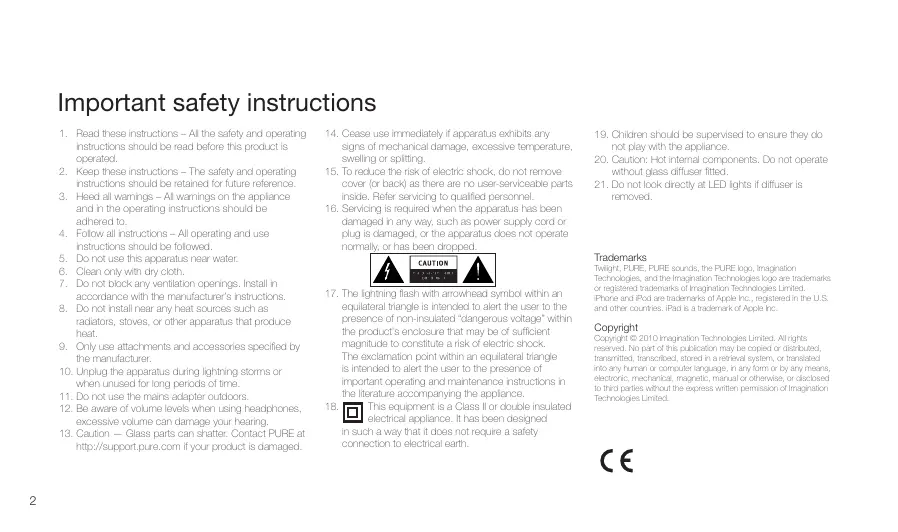
Important safety instructions
- Read these instructions - All the safety and operating instructions should be read before this product is operated.
- Keep these instructions - The safety and operating instructions should be retained for future reference.
- Heed all warnings - All warnings on the appliance and in the operating instructions should be adhered to.
- Follow all instructions - All operating and use instructions should be followed.
- Do not use this apparatus near water.
- Clean only with dry cloth.
- Do not block any ventilation openings. Install in accordance with the manufacturer's instructions.
- Do not install near any heat sources such as radiators, stoves, or other apparatus that produce heat.
- Only use attachments and accessories specified by the manufacturer.
- Unplug the apparatus during lightning storms or when unused for long periods of time.
- Do not use the mains adapter outdoors.
- Be aware of volume levels when using headphones, excessive volume can damage your hearing.
-
Caution — Glass parts can shatter. Contact PURE at http://support.pure.com if your product is damaged.
-
Cease use immediately if apparatus exhibits any signs of mechanical damage, excessive temperature, swelling or splitting.
- To reduce the risk of electric shock, do not remove cover (or back) as there are no user-serviceable parts inside. Refer servicing to qualified personnel.
- Servicing is required when the apparatus has been damaged in any way, such as power supply cord or plug is damaged, or the apparatus does not operate normally, or has been dropped.
- The lightning flash with arrowhead symbol within an equilateral triangle is intended to alert the user to the presence of non-insulated "dangerous voltage" within the product's enclosure that may be of sufficient magnitude to constitute a risk of electric shock. The exclamation point within an equilateral triangle is intended to alert the user to the presence of important operating and maintenance instructions in the literature accompanying the appliance.
-
This equipment is a Class II or double insulated electrical appliance. It has been designed in such a way that it does not require a safety connection to electrical earth.
-
Children should be supervised to ensure they do not play with the appliance.
- Caution: Hot internal components. Do not operate without glass diffuser fitted.
- Do not lock directly at LED lights if diffuser is removed.
Trademarks
Twilight, PURE, PURE sounds, the PURE logo, Imagination Technologies, and the Imagination Technologies logo are trademarks registered with the U.S. Copyright Clearance Center (CCC), 222 Rosewood Drive, Danvers, MA 01764. iPhone and iPad are trademarks of Apple Inc., registered in the U.S. and other countries. iPad is a trademark of Apple Inc.
Copyright
Copyright © 2010 Imagination Technologies Limited. All rights reserved. No part of this publication may be copied or distributed, transmitted, transcribed, stored in a retrieval system, or translated into a computer language in any form or by any means, electronic, mechanical, magnetic, manual or otherwise, or disclosed to third parties without the express written permission of Imagination Technologies Limited.

Contents
Rear Connectors 4
Getting started 5
Using the controls 6
About the icon bar 8
Listening to digital radio 9
Listening to FM radio 10
Listening to Lullabies 10
Listening to PURE Sounds 11
Connecting an iPod or auxiliary device 12
Using the Lamp - Daylight 13
Using the Lamp -Moods 14
Using the Lamp -Moods-Colour chooser 15
Options 19
Time settings 19
Display settings 20
Additional settings 22
FM radio settings 23
Digital radio settings 24
Technical Specifications 26

Rear Connectors
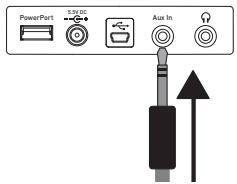
PowerPort

5.5V DC


Aux In


PowerPort
Power PURE Choice USB accessories, or other USB devices* such as mobile phone chargers.
5.5V DC input
Input for mains adapter.
Mini USB

Aux In (3.5mm)
Connect auxiliary devices, such as an iPod, to Twilight.
Headphones

3.5 mm socket for headphones.
For software updates only.
*Not suitable for use with a USB hub or for charging items which draw more than 500mA of current (such as an iPhone 4 or iPad). Please check your product is suitable for use with PowerPort.
Getting started
Straighten and position the aerial for good reception. Insert the connector of the supplied mains adapter into the 5.5V DC input on the rear of the radio. Plug the adapter into the mains supply and switch on. The Twilight logo is displayed briefly. Do not touch Twilight during this time, as touch sensitivity may be affected.
Choose your on-screen language (English, French, German or Italian) by pressing the + and - buttons to highlight the language you want. Press Select to confirm your choice. Twilight will then perform an autotune and tune into a digital radio station (see page 9).
Press Source to select an audio source from the following options:
Digital radio FM radio
PURE Sounds
Lullabies
Auxiliary input
The audio source screen
Digital radio See page 9
FM radio See page 10
PURE Sounds See page 11
Lullabies See page 10
Auxiliary input See page 12
GB
Using the controls
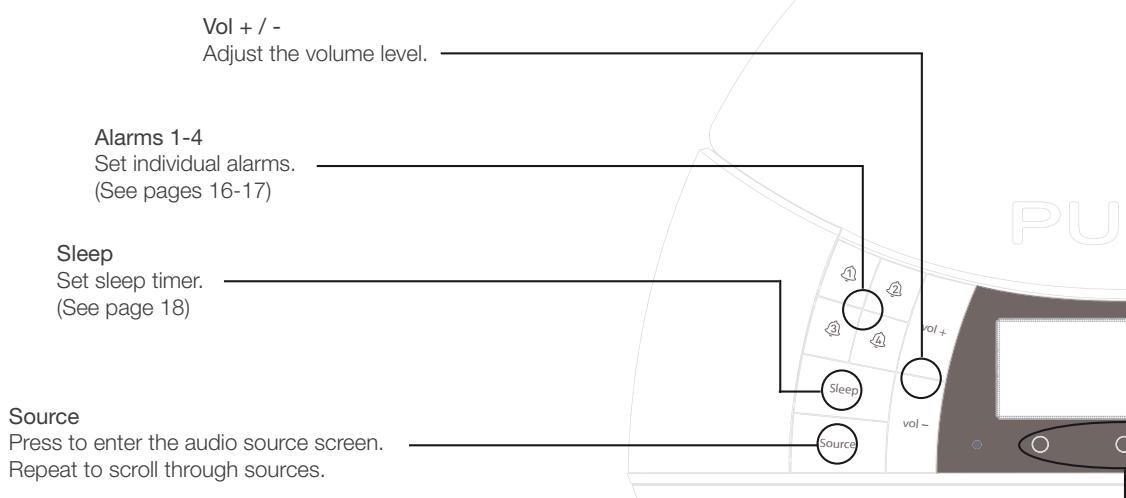
Touch-sensitive lamp area
Touch to switch lamp on or off, or to snooze an alarm.
Select, + / -
Navigation buttons. Use + / - to scroll through menus, stations and options. Press Select to confirm choices.
Daylight
Switch on the lamp to the last used white setting. Use + / - or context-sensitive touch buttons to adjust brightness. (See page 13)
Mood
Select a pre-programmed colour sequence (mood) from the list, or choose a colour scheme of your own. (See pages 14-15)
Standby
Switch between standby and on.
Back
Tap to go back to the previous menu.
Context-sensitive touch buttons
Function is displayed above buttons on-screen. Tap to use.
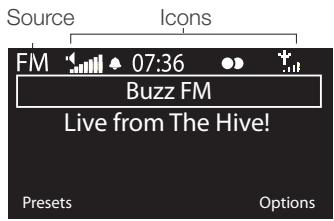
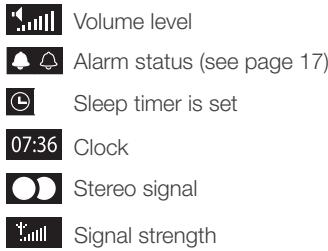
About the icon bar
Source
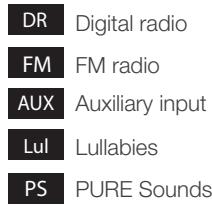
Icons
Listening to digital radio
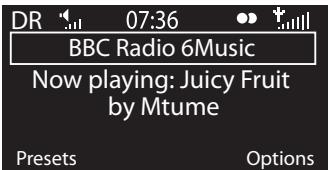
Press Source and select Digital radio from the audio source screen. To change station, use the +/- buttons to browse the list of stations and press Select to tune to the highlighted station.
For information about digital radio settings (Options), see pages 24-25.
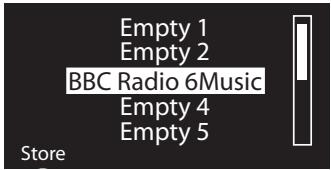
To store a digital station as a preset
Tune to the station you want to store as a preset and tap Presets. Use the navigation buttons to highlight a preset number between 1 and 30. Tap Store to store the preset. (You can replace existing presets.)
To listen to a preset
Tap Presets, then use the +/- and Select buttons to choose a preset.
GB
Listening to FM radio
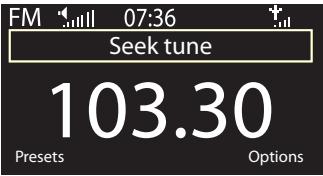
Press Source and select FM radio from the audio source screen. Use the + and - buttons to seek to the next or previous FM station. You can also store and recall presets in the same way as digital radio presets (see page 9).
For information on FM settings (Options), see page 23.
Listening to Lullabies
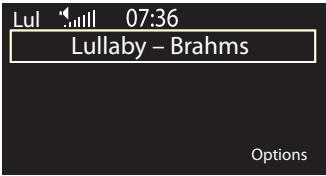
Press Source and select Lullabies from the audio source screen. Use the + and - buttons to browse Twilight's built-in lullabies and press Select to listen. Lullabies play repeatedly until another lullaby or source is selected.
Ocean ambiance Rain with thunder and Crackling Fire Church bell Cockerel
Listening to PURE Sounds
Press Source and Select PURE Sounds from the audio source screen. Use the + / - and Select buttons to browse and listen to a selection of PURE Sounds from a crackling fire to ocean waves.
GB
Connecting an iPod or auxiliary device
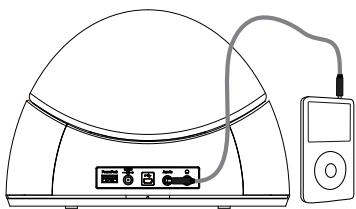
You can use Twilight to play the music stored on an iPod or other portable music player. You will need a suitable auxiliary lead (not supplied).
Connect an auxiliary device
Insert one end of the auxiliary lead into the headphone or line out connector on the iPod or portable music player. Connect the other end into the Aux In connector on the rear of Twilight.
Play an auxiliary device
Press Source and select Auxiliary input from the audio source screen. Press play on the auxiliary device and adjust the volume on both your radio and the device to a comfortable level.
Using the Lamp - Daylight
Twilight has six powerful LED lights capable of creating a rainbow of colours for you to choose from. Daylight is a preset white colour tone available directly by pressing the Daylight button.
Daylight brightness
Press Daylight to switch on the lamp on to the last used daylight setting. You can adjust the brightness in three ways:
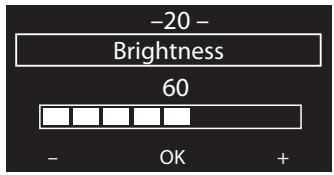
Hold your hand on the touch sensitive area of the lamp, this will raise the brightness if the lamp was off previously, or lower it if the lamp was on. Alternatively, use the +/- and Select, or context-sensitive (+, - and OK) buttons to adjust the brightness.
GB
Using the Lamp - Moods
Mood
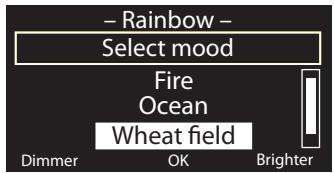
Press Mood to select a predefined colour theme, or create your own using the colour chooser.
Themes available:
Rainbow All colours cycle slowly
Fire Warm oranges and reds
Ocean Turquoise and aquamarine to help you relax
Party Bright colours cycle quickly, like disco lighting
Wheat Field Yellows and greens
When choosing a theme, you might like to select a PURE Sound to complement it. For example, Fire (mood) with Crackling Fire (PURE Sound).
You can adjust the brightness of a mood with the context-sensitive buttons (Brighter, Dimmer and OK).
Using the Lamp - Moods - Colour chooser
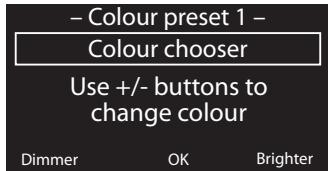
You can save up to three favourite colours as colour presets in the Moods menu. For example, set up a nightlight using the colour chooser and save it as a preset.
- Use the +/- buttons to scroll to a colour preset (1-3) and press Select to change that preset
- Follow the instructions on-screen (use +/- buttons to adjust the colour).
- Tap Dimmer or Brighter to adjust the brightness and tap OK or press Select to store your preset.
To recall a colour preset, select it from the Mood menu.
GB
Alarm 1 On
07:00
DR
Last tuned
Daily (Mon-Sun) Edit
Setting an alarm
To set an alarm press the button for the alarm you want to set (1-4). You will see a summary of the current settings for that alarm.
Tap to move forward and backwards through alarm settings. Tap Save at any point to save alarm settings and exit
- Tap Edit to adjust the alarm settings (or OK to exit alarm setup).
- Switch the alarm On, Off or to Skip once (Alarm is set, but will not sound the next time it is scheduled. For example, if you do not need to wake up at the same time the next day).
- Adjust the hours and minutes for your alarm time using the +/- and Select buttons.
- Select how often the alarm will sound: Once, Daily, Weekdays, Weekends, Every Saturday or Every Sunday.
- Choose either Digital radio, PURE Sounds, FM radio or Tone for your alarm: Digital radio Select a station or Last tuned.
PURE Sounds Select a sound to wake up to.
FM Plays the last FM station tuned to.
Tone Sounds a beeping tone.
- Set the alarm volume (radio and PURE Sounds alarms only).
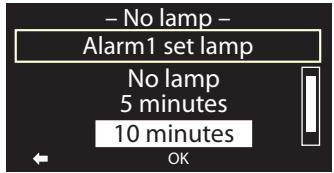
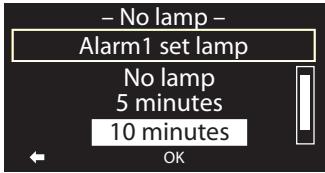
- Set the Lamp time. Lamp time is the length of time the lamp will take to reach full brightness before the alarm sounds (from No lamp to 1 hour). For example, setting a lamp time of 30 minutes means the lamp will switch on and slowly get brighter in the 30 minutes before the alarm sounds.
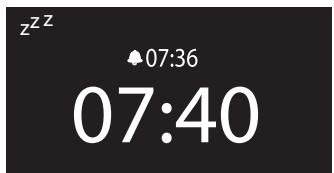
- Tap Save, the icon in the icon bar indicates a set alarm. Alarm time(s) are also displayed on-screen in standby. An outlined icon means it is set to skip once.
Snoozing or cancelling a sounding alarm
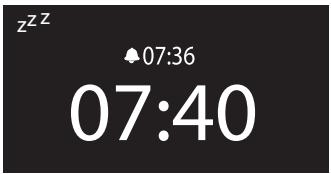
Snoopze an alarm by touching the top of the lamp or tapping Snooze. The alarm will sound again in nine minutes by default. A snoozed alarm is indicated in standby by an animated 'Z'. (See page 19 for snooze options.) To cancel a sounding or snoozed alarm, press Standby.
GB
Fade lamp
Sleep timer (hh:mm)
00:15
Clear
Save
Lamp
Setting the sleep timer
Set a sleep timer to switch your Twilight into standby after a set period of time. Choose to also dim the lamp for a great way to drift off to sleep.
- Press Sleep and repeat (or use the +/- buttons) to select the length of time until Twilight switches off. Choose from 15, 30, 45 minutes, 1 hour or 1 hour 30 minutes.
- Tap Lamp to toggle between Fade lamp or Keep lamp on:
- Fade lamp Lamp fades off during the sleep timer
- Keep Lamp on Lamp remains on (ideal for a nightlight).
- Tap Save (or press Select) to confirm, the icon will be displayed in the icon bar
Options
Tap Options to enter the options menu at any time. In the Options menu you can edit general settings, or source specific settings that will only affect the current source, for example, the tuning mode for FM radio.
Time settings
| Snoopze Time | Adjust the length of time an alarm snoozes for (from 5 minutes to 1 hour). |
| Set Clock | Twilight updates the time and date automatically when it receives a digital or FM radio signal. If no time is available you can use this option to set the current time and date. |
| Set 12/24hr clock | Choose how to display the current time. |
GB
Display settings
Information
Different information displays are available for digital and FM radio:
Digital radio
Text information broadcast by the current station. May include song titles, news, etc.
Broadcast info Station multiplex, programme type, bitrate and stereo/mono indicator.
Reception info The current channel and frequency, signal quality and signal strength.
Time and date Date and a full-screen clock (as in standby).
FM radio
Scrolling text Text information broadcast by the current station. (As above.
Reception info Displays the current frequency and signal strength. Time and date Date and a full-screen clock (as in standby).
Active/Standby operation
Select Active operation to adjust the display settings that apply when Twilight is switched on, or Standby operation to adjust the display settings that apply when Twilight is in standby.
Brightness
By default, the display brightness is set to 'Automatic', which means that the brightness adjusts to suit the light level around your radio. If you want to change this setting, Tap Manual and use the +/- buttons to adjust the brightness from 1 (low) to 10 (high). Push Select to confirm, or tap OK. You can switch back to automatic brightness by tapping Automatic.
Screen duration
The length of time the display stays illuminated after a button is pressed or context-sensitive button is tapped. Choose between Always on (default) or Off after 7 seconds.
GB
Additional settings
Upgrade
Language
Warning: do not switch off your radio while it is upgrading.
Additional settings
Upgrade
Software updates may be issued in the future to provide new features and functions.
To upgrade
- Visit http://support.pure.com to check if an update is available for Twilight.
- If updates are listed on the website, download the most recent update to your computer.
- Tap Options, select Additional settings > Upgrade > USB
- Connect your radio to your PC's USB port using a USB cable (not supplied). Run the update software on your computer and follow the on-screen instructions.
Language
Switch the menu language between English, French, German and Italian.
FM settings
FM tuning
FM stereo
FM radio settings
These settings are only available when listening to FM radio. Tap Options, then select FM settings.
FM tuning
Switch between Seek tune and Manual tune.
Seek tune Pressing ^+ or - scans to the next station with a strong signal.
Manual tune Pressing ^+ or - tunes up or down in steps of 0.05 MHz.
FM stereo
Switch between receiving FM stations in Mono or Stereo (default).
Mono may improve clarity when listening to a station with a weaker signal.
GB
Digital radio settings
Autotune
Station order Trim station list
Digital radio settings
These settings are only available when listening to digital radio. Tap Options, then select Digital radio settings.
Autotune
Search for new digital radio stations. You can stop an autotune before it has finished by tapping Cancel. When an autotune has finished your radio will tune to the last station you listened to.
Station order
Change the order in which digital radio stations are displayed:
Alphanumeric Alphanumeric order (0-9, then A-Z).
Active station Stations that are active (currently broadcasting) appear at the top of the station list.
Multiplex Displays stations in groups according to their Multiplex (a group of national or local stations broadcast by the same operator).
Trim station list
Quickly remove inactive stations (marked with ?) from the station list.
Dynamic Range Control
Change the Dynamic Range Control (DRC) settings. DRC makes the quieter sounds in a digital broadcast easier to hear at a low volume or in a noisy environment.
Off (default) Any DRC broadcast sent by the station is ignored Half DRC level is set to half that sent with the broadcast Full DRC level is applied as sent with the broadcast
Check with broadcasters to see if a station broadcasts DRC information
GB
Technical Specifications
Radio: Digital and FM
Frequencies: DAB/DAB ^+ /DMB-R/Parametric stereo decode up to 256 kbps. FM 87.5-108 MHz.
Speakers: 2 × 2.5 full range drive units.
Audio power output: 5W RMS.
Input connectors: 5.5V DC power adaptor socket. 3.5mm Line-in for auxiliary devices. USB (mini-AB type) for product updates.
Output connectors: 3.5mm headphone (16-32 Ohm), USB PowerPort (500 mA).
Presets: 30 digital radio and FM presets in a combined list.
Display: Graphical 128 x 64 pixel FSTN LCD display.
Lamp: 6 High-power LEDs for simulated daylight and mood lighting.
Power: 100-240V, 50/60Hz. Output 5.5VDC, 4.3A external power adapter.
Approvals: Compliant with the EMC and Low Voltage Directives (2004/108/EC and 2006/95/EC). ETSI EN 300 401 compliant.
Dimensions: 360mm wide x 180mm high x 120mm deep.
Weight: 1.65kg.
Warranty: Comprehensive two year warranty.
Warranty information
Imagination Technologies Ltd. warrants to the end user that this product will be free from defects in materials and workmanship in the course of normal use for a period of two years from the date of purchase. This guarantee covers breakdowns due to manufacturing or design faults; it does not apply in cases such as accidental damage, however caused, wear and tear, negligence, adjustment, modification or repair not authorised by us. Please visit www.pure.com/register to register your product with us. Should you have a problem with your unit please contact your supplier or contact PURE Support at the address shown on the rear of this manual.
Disclaimer
Imagination Technologies Limited makes no representation or warranties with respect to the content of this document and specifically disclaims any implied warranties of merchantability or fitness for any particular purpose. Further, Imagination Technologies Limited reserves the right to revise this publication and to make changes in it from time to time without obligation of Imagination Technologies Limited to notify any person or organization of such revisions or changes.
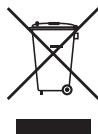
Disposal of Waste Electrical & Electronic Equipment
This symbol on the product or on its packaging indicates that this product should not be treated as household waste. Instead it should be handed over to a suitable collection point for the recycling of electrical and electronic equipment. By ensuring this product is disposed of correctly, you will help prevent potential negative consequences for the environment and human health, which could otherwise be caused by inappropriate waste handling of this product. The recycling of materials will help to conserve natural resources. For more detailed information about recycling of this product, please contact your local council office, your household waste disposal service or the shop where you purchased the product.
GB
Radio FM Cf. page 36
PURE Sounds Cf. page 37
Berceuses Cf. page 37
Ocean ambiance Rain with thunder and Crackling Fire Church bell Cockerel
FM Ouvre la derniere station FM ecoutee.
Active/Standby operation
Dynamic Range Control (DRC)
Ocean ambiance Rain with thunder and Crackling Fire Church bell Cockerel
Dynamic Range Control
Twilight, PURE,PURE sounds, it logo PURE. Imagination Technologies Limited. Pure sound, pure sound, pure sound, pure sound, pure sound, pure sound, pure sound, pure sound, pure sound, pure sound, pure sound, pure sound, pure sound, pure sound, pure sound, pure sound, pure sound, pure sound, pure sound, pure sound, pure sound, pure sound, pure sound, pure sound, pure sound, pure sound, pure sound, pure sound, pure sound, pure sound, pure sound, pure sound, pure sound, pure sound, puresound, pure sound, pure sound, pure sound, pure sound, pure sound, pure sound, pure sound, pure sound, pure sound, pure sound, pure sound, pure sound, pure sound, pure sound, pure sound, pure sound, pure sound, pure sound, pure sound, pure sound, pure sound, pure sound, pure sound, pure sound, pure sound, pure sound, pure sound, pure sound, pure sound, pure sound, pure sound, pure sound, pure sound
iPhone e iPod are many registrats of Apple Computer, Inc., registrateliNGA in E and als piata. Pad e um registrato regiatro de Apple Inc.
Copyright
Ocean ambiance Rain with thunder and Crackling Fire Church bell Cockerel
Wheat Field Gialle verdi
Active/Standby operation
Dynamic Range Control (DRC)
Ocean ambiance Rain with thunder and Crackling Fire Church bell Cockerel
Vaelg en station aller Last tuned (Senest valgt).
Trim station list (Reducer stationsliste)
Dynamic Range Control
Ocean ambiance Rain with thunder and Crackling Fire Church bell Cockerel
Audición de PURE Sounds
Use + / - buttons to change colour
Dimmer
OK
Brighter
Uso de la lámpara - Moods- Presets/Nightlight
Dynamic Range Control (DRC)
Twilight is a member of the PURE EcoPlus™ product family. All EcoPlus products are designed and manufactured to minimize their environmental impact.
- Documentation is printed on 80% recycled paper using soya-based ink.
- The retail carton protecting your product is printed on at least 70% recycled card finished using a water-based varnish and sized for maximum transport efficiency.
www.pure.com/ecoplus

EcoPlus

Imagination Technologies Ltd.
Home Park Estate
Kings Langley
Herts,WD4 8LZ
Reino Unido
http://support.pure.com
PURE
Karl-Marx Strasse 6
64589 Stockstadt/Rhein
Alemania
sales_gmbh@pure.com
http://support.pure.com/de
- Important safety instructions
- Trademarks
- Copyright
- Contents
- Rear Connectors
- PowerPort
- 5.5V DC input
- Mini USB
- Aux In (3.5mm)
- Headphones
- Getting started
- Using the controls
- Touch-sensitive lamp area
- Select, + / -
- Daylight
- Mood
- Standby
- Back
- Context-sensitive touch buttons
- About the icon bar
- Source
- Icons
- Listening to digital radio
- To store a digital station as a preset
- To listen to a preset
- Listening to FM radio
- Listening to Lullabies
- Listening to PURE Sounds
- Connecting an iPod or auxiliary device
- Connect an auxiliary device
- Play an auxiliary device
- Using the Lamp - Daylight
- Daylight brightness
- Using the Lamp - Moods
- Themes available:
- Using the Lamp - Moods - Colour chooser
- Alarm 1 On
- Setting an alarm
- Snoozing or cancelling a sounding alarm
- Fade lamp
- Sleep timer (hh:mm)
- 00:15
- Setting the sleep timer
- Options
- Time settings
- Display settings
- Information
- Digital radio
- FM radio
- Active/Standby operation
- Brightness
- Screen duration
- Additional settings
- Upgrade
- Language
- To upgrade
- FM radio settings
- FM tuning
- FM stereo
- Digital radio settings
- Autotune
- Station order Trim station list
- Station order
- Trim station list
- Dynamic Range Control
- Technical Specifications
- Warranty information
- Disclaimer
- Disposal of Waste Electrical & Electronic Equipment
- Dynamic Range Control (DRC)
- Trim station list (Reducer stationsliste)
- Audición de PURE Sounds
- Uso de la lámpara - Moods- Presets/Nightlight
- PURE
Brand : PURE
Model : TWILIGHT
Category : Alarm clock radio