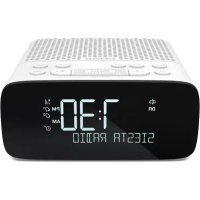
Siesta S2 - Alarm clock radio PURE - Free user manual and instructions
Find the device manual for free Siesta S2 PURE in PDF.



| Product type | Clock radio |
| Brand / Model | Pure / Siesta S2 |
| Dimensions | 130 mm x 137 mm x 57 mm (W x D x H) |
| Weight | 0.362 kg |
| Power supply | External micro USB power adapter 100-240 V AC / 5.5 V DC (900 mA) |
| Speaker | 2.5" full-range, 2 W effective amplifier |
| Radio | DAB/DAB+ and FM (87.5 - 108 MHz) |
| Presets | 5 digital + 5 FM |
| Connectivity | Micro USB port (power/update), mini-jack headphone socket |
| Main functions | Two alarms (radio or sound), sleep timer (15-90 min), timer, night light |
| Display | Screen with brightness settings (5 levels + auto) and backlight duration |
| Display languages | English, French, German, Italian, Norwegian, Dutch |
| Clock sync | Automatic via FM or DAB, manual adjustment possible |
| Warranty | 3 years full warranty |
| Certifications | Compliant with EMC, low voltage, RoHS, RED |
| Maintenance and cleaning | Clean with a dry cloth only |
| Safety | Do not immerse, use provided power supply, do not open the casing |
| Spare parts and repairability | Repair by qualified personnel only; support via support.pure.com |
| General information | Non-removable wire antenna; USB port for charging (output not specified) |
Frequently Asked Questions - Siesta S2 PURE
User questions about Siesta S2 PURE
0 question about this device. Answer the ones you know or ask your own.
Ask a new question about this device
Download the instructions for your Alarm clock radio in PDF format for free! Find your manual Siesta S2 - PURE and take your electronic device back in hand. On this page are published all the documents necessary for the use of your device. Siesta S2 by PURE.
USER MANUAL Siesta S2 PURE
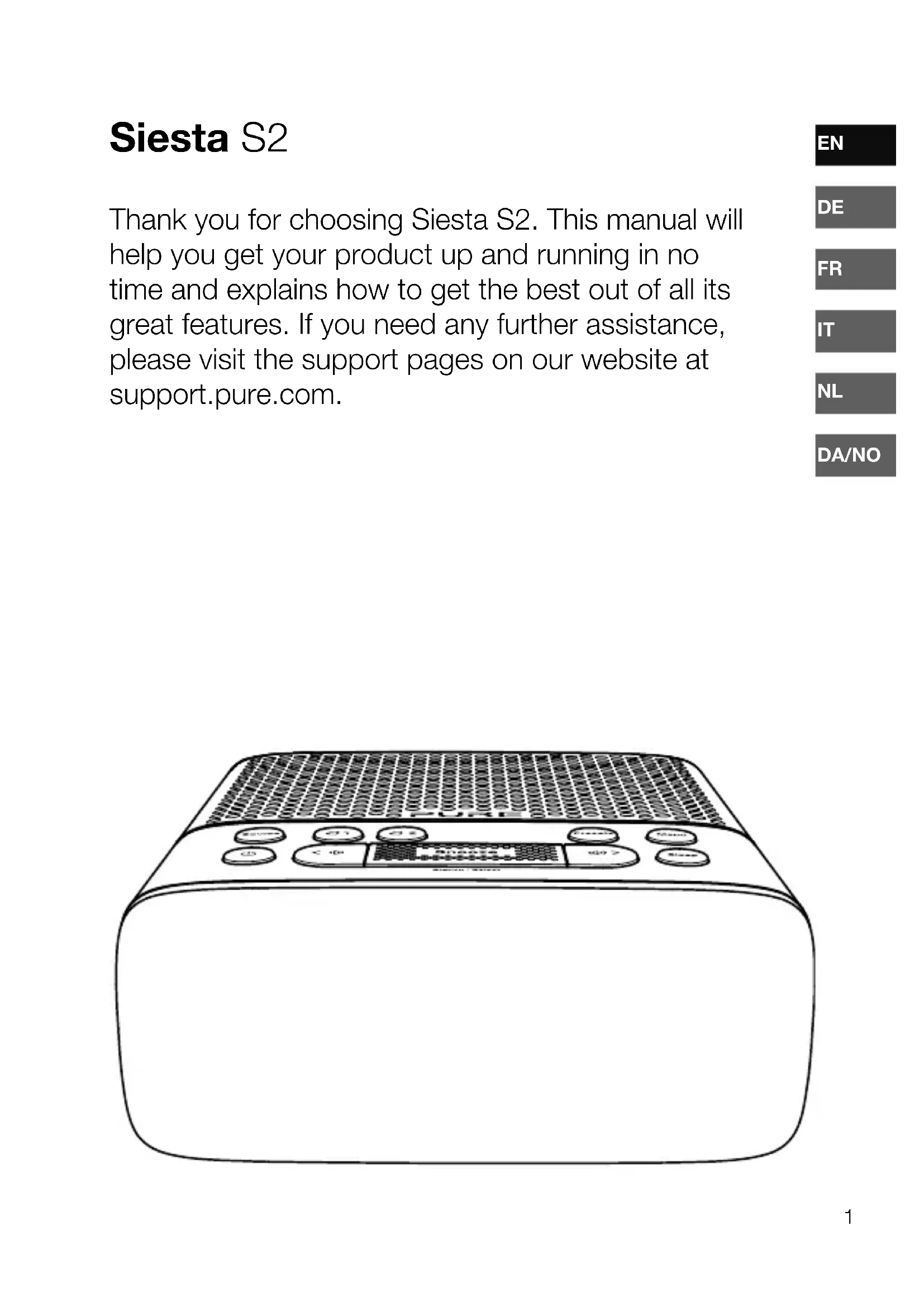
Thank you for choosing Siesta S2. This manual will help you get your product up and running in no time and explains how to get the best out of all its great features. If you need any further assistance, please visit the support pages on our website at support.pure.com.

natural_image
Line drawing of a portable electronic device with control buttons and a mesh grille (no text or symbols)
Safety instructions and cautions
Symbols used on this product
| Symbol Description | |
 | This WARNING symbol is used throughout this manual to indicate a potentially serious risk to your personal safety. Obey all safety notices that accompany this symbol to avoid possible injury or death. |
 | This symbol is used on the product to indicate a caution and that instructions should be read before use. |
 | This symbol indicates DC voltage. |
| [0436] | This symbol indicates where the product is switched on or put into standby. |
Note: For information on all the other symbols used on the product, download the Siesta S2 user guide from support.pure.com.
- Read, heed and retain these instructions – All the safety and operating instructions should be read before this product is used and retained for future reference. All warnings on the appliance and in the operating instructions should be followed.
- Failure to install or use the product in accordance with these instructions may impair the safety of the product and invalid the warranty.
- Use only power supply listed in these user manual/user instructions (supplied by Pure with model number: SW055-900-AM and SW055-900-A01) to power the equipment and do not use the power supply for any other purpose.
- The direct plug-in adapter is used as a disconnect device, the disconnect device shall remain readily operable and accessible.
- Do not immerse in water or use in a wet / moist environment, such as in the shower or bathroom if plugged into the mains supply. The power supply shall not be exposed to dripping or splashing and no objects filled with liquids, such as vases, placed above it.
- Do not remove screws from or open the product casing. Product repairs are only to be carried out by competent and authorised personnel. Do not use the product if any damage is noticed.
- Keep the product away direct sunlight and from heat sources such as radiators, heaters or other appliances that produce heat.
- Do not expose the product to naked flame sources, such lighted candles which should not be placed on or near the product.
- Ventilation should not be impaired by covering the product or power supply.
- Clean only with a dry cloth.
- This product is intended for use in moderate climates.
- If the product is used in a manner not specified by the instructions, the product's protection could be impaired.
- Do not use the product if any damage is noticed.
- Product repairs are only allowed to be carried out by competent and authorised personnel.
Contents
EN
4 Introduction
4 Top panel controls
5 Rear panel connectors
6 Display
7 Getting started
7 Quick set up
8 Listening to radio
9 Storing and selecting presets
10 Using the alarms
10 Setting a radio alarm
11 Setting a tone alarm
12 Switching an alarm on/off
12 Snoozing a sounding alarm
12 Cancelling a sounding alarm
13 Setting the sleep timer
13 Setting the kitchen timer
14 Options and settings
14 General settings
15 Display settings
16 Clock settings
18 Autotune
18 FM stereo
19 Technical specifications
Introduction
Top panel controls
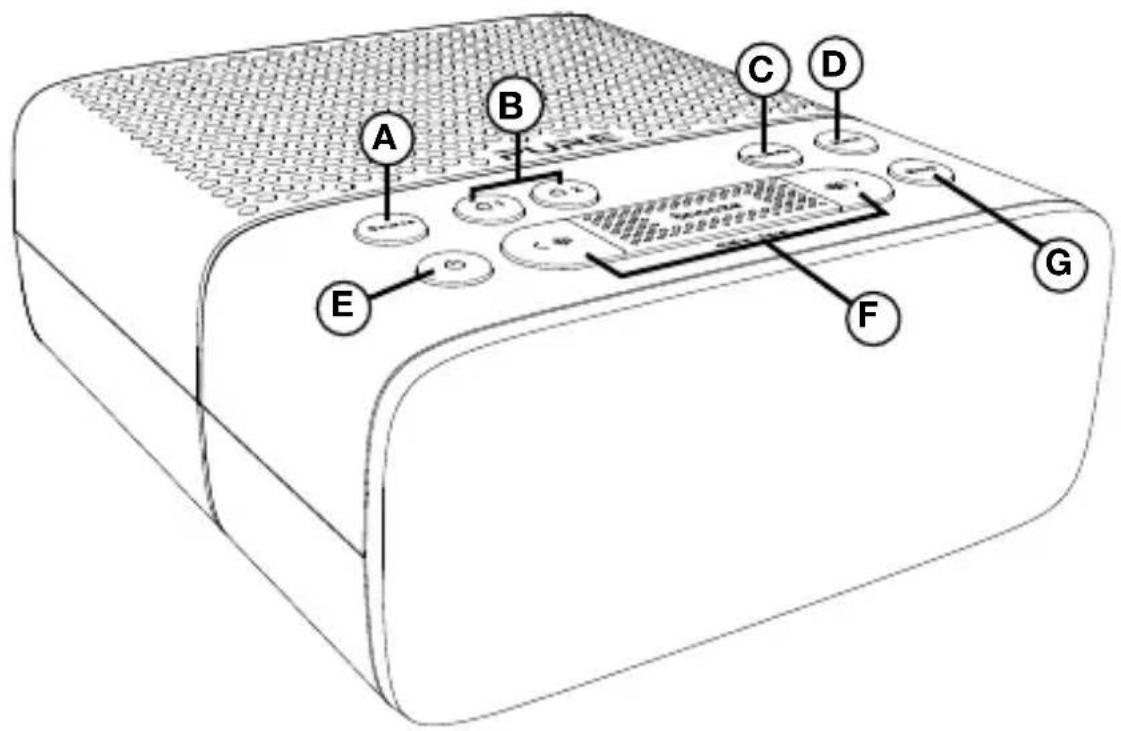
A. Source button: Press to switch between listening to digital radio and FM radio.
B. Alarm buttons: Set or cancel individual alarms.
C. Preset button: Store up to 5 digital or 5 FM radio preset stations (see page 9 for more information).
D. Menu button: Press to change various settings on Siesta (see page 14).
E. Power button: Push to switch Siesta between on and standby.
F. Volume and Station/Select buttons: Press < / to adjust volume. Press the Station button and then < to navigate radio stations (see page 8) or scroll and select menu options.
G. Sleep button: Press to set the sleep timer (see page 13).
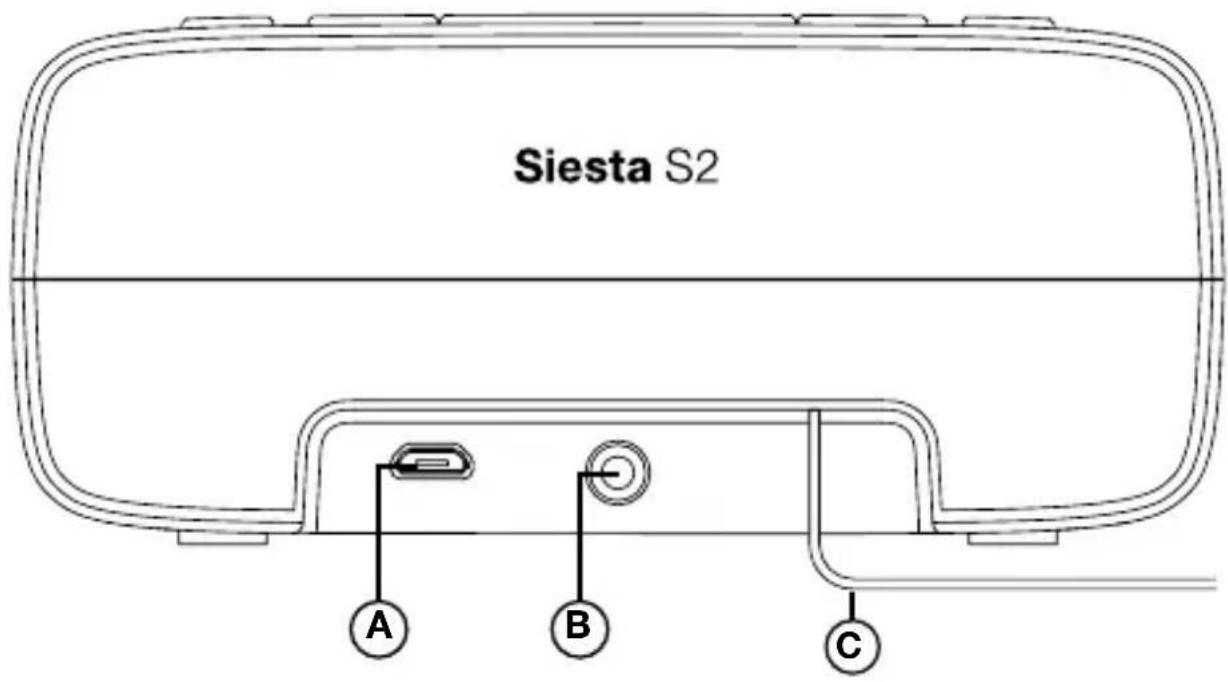
Rear panel connectors
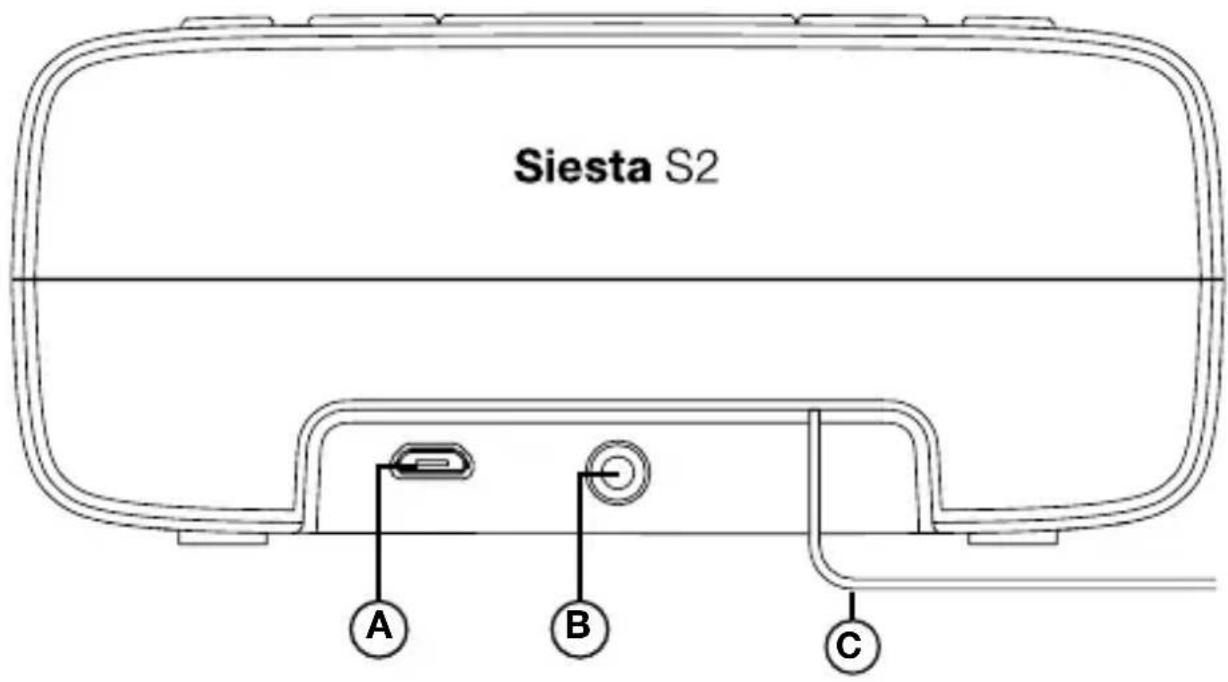
A. USB power connector
B. Stereo headphone socket
C. Aerial
Display
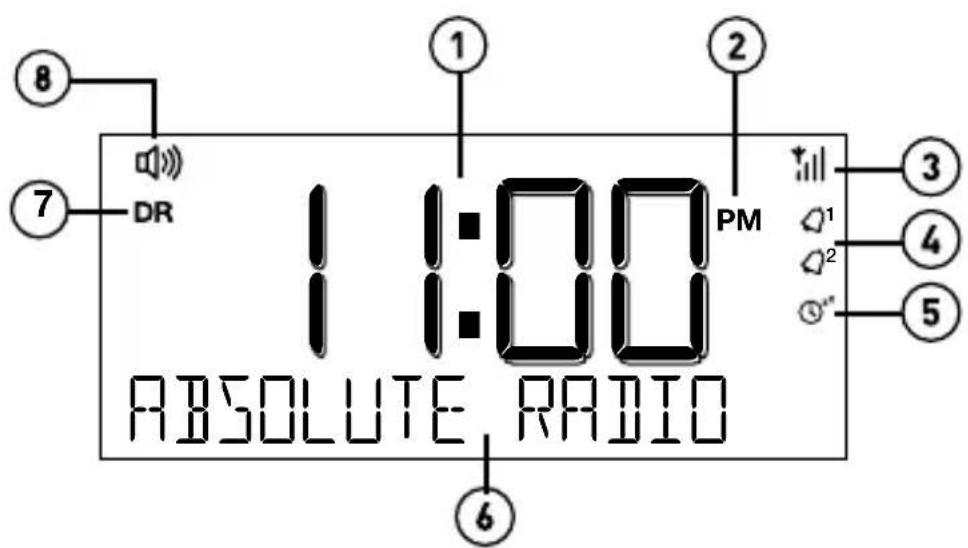
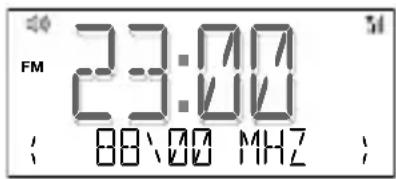
- Displays current time
- AM/PM indicator
- Signal strength
- Alarm set indicators
- (⑧) Kitchen timer indicator, (⑨) Sleep timer indicator
- Displays station name, information and menu options
- Source indicator (DR= digital radio, FM= FM radio)
- Volume indicator
Getting started
EN
Quick set up
1

- Position aerial (A) and connect power (B). Ensure aerial is not positioned close to power cable
2
natural_image
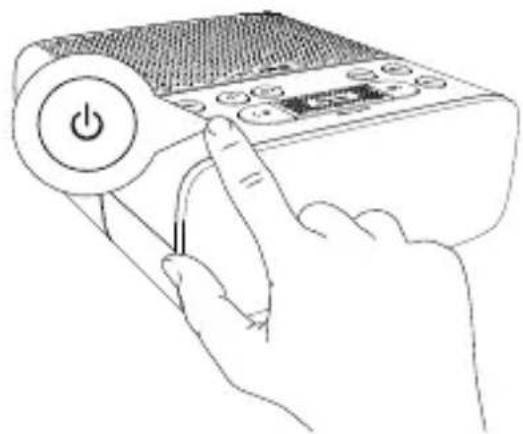
Line drawing of a hand using a remote control device to press a power button (no text or symbols present)- Push (⏻) to switch on.
3
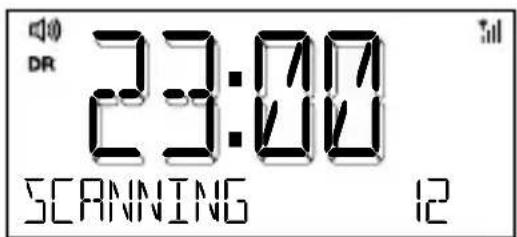
- Wait for Autotune to complete.
Listening to radio
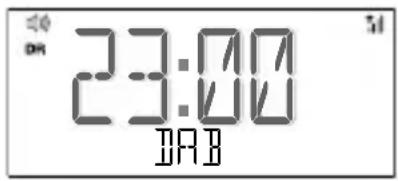
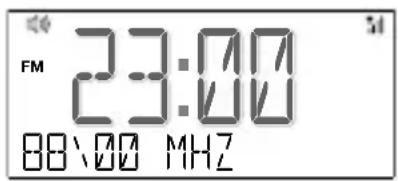
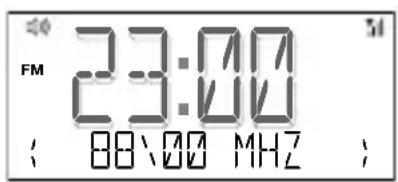
Listening to digital radio
Press the Source button to switch to 'DAB'.
Changing digital stations
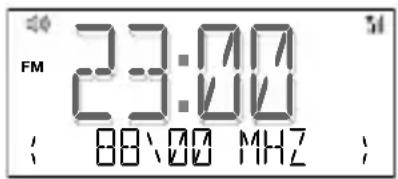
- Press the Station button so that the <> symbols are shown on the display.
- Scroll <> to the desired station.
- Press the Station button to tune into the station.
Listening to FM radio
Press the Source button to switch to 'FM'.
Seek tuning
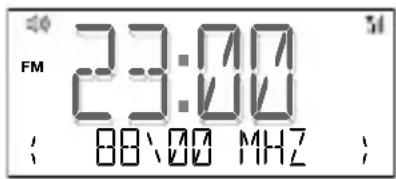
- Press the Station button so that the <> symbols are shown on the display.
- Hold either the scroll up or scroll down < > button until Siesta starts to automatically scan for the next station. The scan will stop when a station with a strong signal is found.
Manual tuning
- Press the Station button so that the < > symbols are shown on the display.
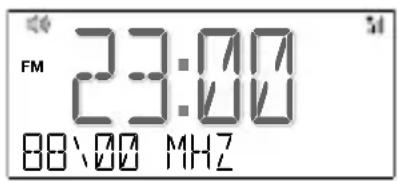
- Press < or > to scroll to the required frequency.
Storing and selecting presets
EN
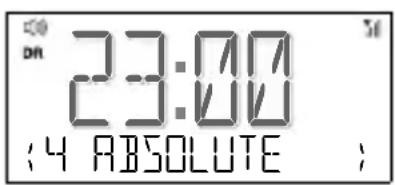
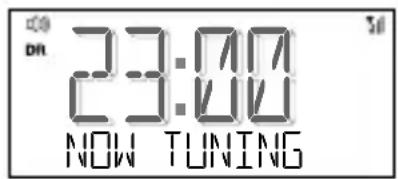
You can store up to 5 digital and 5 FM radio stations for quick access and for use when setting a radio alarm.

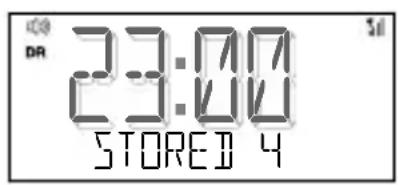
Storing a radio preset
- Tune into the station that you want to store.
-
Press the Presets buttons so that the <> symbols are shown on the display.
-
Scroll <> to the required Preset (1-5).
-
Press and hold the Select button to store the radio station as a preset.
Note: To overwrite a radio preset, tune into the station that you want to store and follow the above steps.
Selecting a radio preset
- Press the Presets button.
- Scroll <> to the station that you want to listen to.
- Press the Select button to tune to the station.
Using the alarms
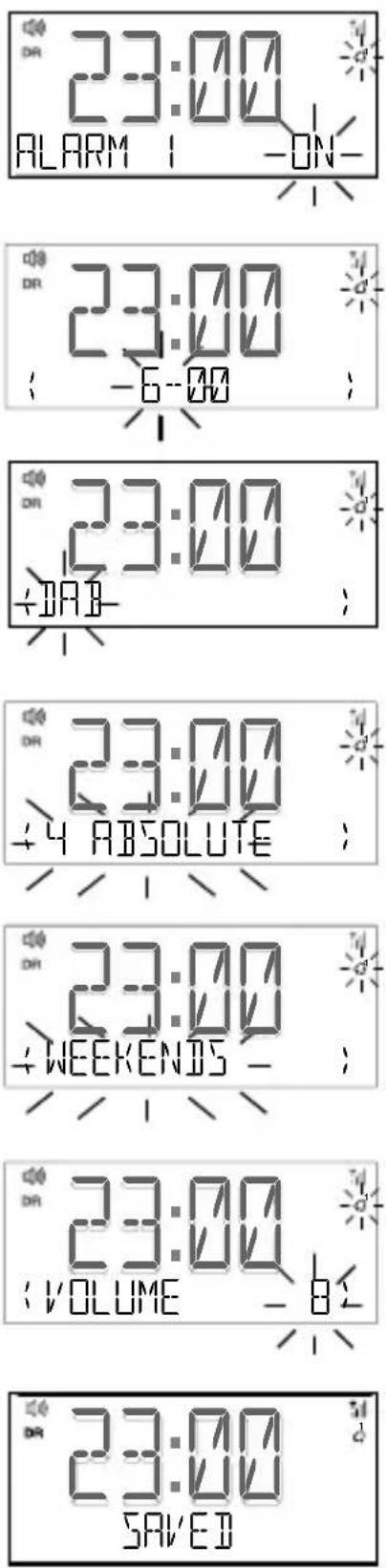
Siesta S2 has two alarms. The alarms switch the radio on (if in standby) and tune to a digital or FM radio station or sound a tone.
Setting a radio alarm
- Press the ^1 or ^2 button.
- Scroll <> to 'On' and press the Select button.
- Scroll <> to set the hour for the alarm and press the Select button.
- Scroll <> to set the minute for the alarm and press the Select button.
- Scroll <> to specify 'DIGITAL RADIO' or 'FM' and press the Select button to confirm.
- Scroll <> to specify the radio station that you want to play when the alarm goes off. You have the option of selecting one of your preset stations or you can select 'LAST USED' to select the station that you were last listening to. Press the Select button to confirm.
Note: See page 9 to find out how to set up a preset station. - Scroll <> to specify one of the following alarm frequency options: DAILY, WEEKDAYS, WEEKENDS and ONCE and press the Select button to confirm.
- Press the 🔔 and 🔒 buttons to set the volume of the radio station when the alarm sounds and press the Select button to confirm.
- The icon of the alarm you have set will appear on the display.
Setting a tone alarm
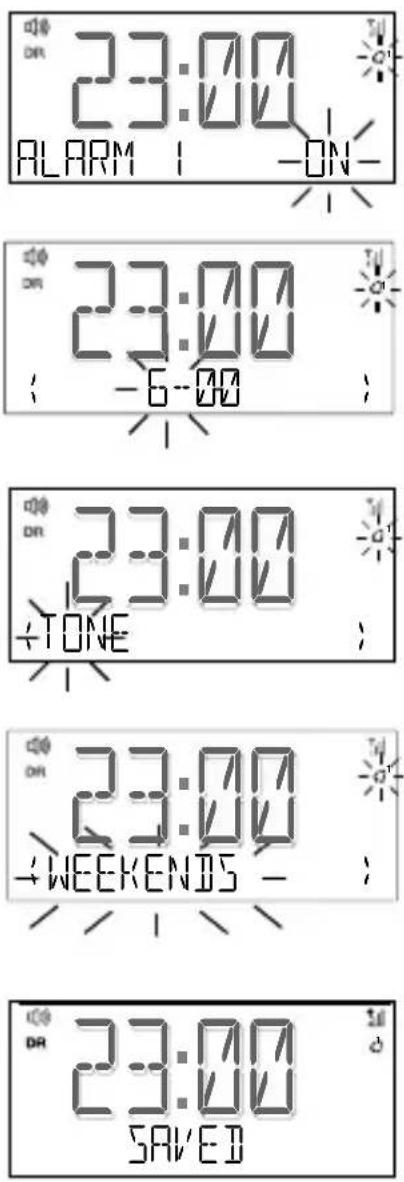
- Press the ^1 or ^2 button.
- Scroll <> to 'ON' and press the Select button.
- Scroll <> to set the hour for the alarm and press the Select button.
- Scroll <> to set the minute for the alarm and press the Select button.
- Scroll <> to specify 'TONE' and press the Select button to confirm.
- Scroll <> to specify one of the following alarm frequency options: 'DAILY', 'ONCE', 'WEEKENDS' and 'WEEKDAYS' and press the Select button to confirm.
- The icon of the alarm you have set will appear on the display.
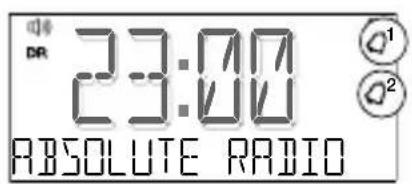
Switching an alarm on/off
Press the Q^1 or Q^2 button to toggle an alarm on or off.
The icon of the alarm that you have switched on will display to indicate that an alarm is set.
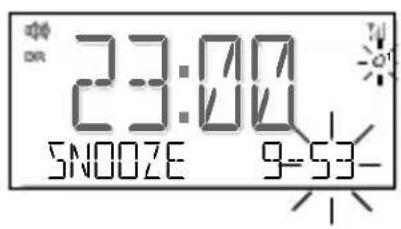
Snoozing a sounding alarm
Press the Snooze button to snooze a sounding alarm (default 10 minutes). See page 17 for more information on setting the snooze time. Siesta will display a countdown timer to show how long the alarm will snooze for.
The alarm will reactivate after the snooze time has expired.
Cancelling a sounding alarm
Press any back row button to cancel a sounding alarm.
Press the Standby ( ⏻ ) button to turn Siesta off.
Setting the sleep timer
EN
You can set the sleep timer to switch Siesta off after a specified period of time.
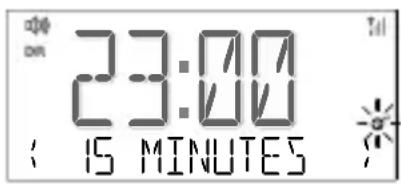
- Press the Sleep button.
- Scroll <> until the amount of time that you want to set the sleep timer to is displayed (15-90 minutes) and press the Select button to confirm.
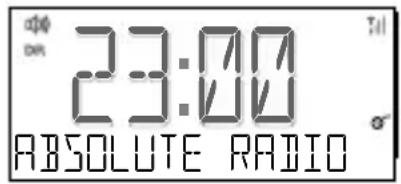
The sleep timer icon Ⓤ ^2 will appear when a sleep timer is set.
Setting the kitchen timer
Siesta includes a countdown kitchen timer which will sound an alarm after a set time period.
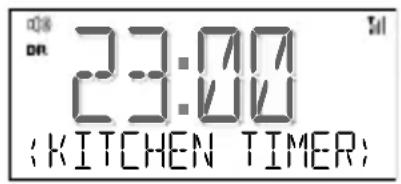
- Press the Menu button.
- Scroll <> to 'KITCHEN TIMER' and press the Select button.
- Scroll <> to change the hours and press the Select button.
- Scroll <> again to change the minutes and push to confirm and start the countdown timer.
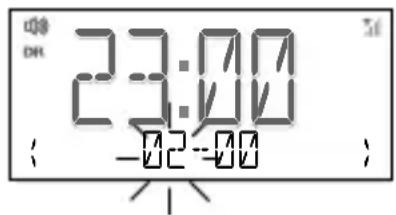
The alarm will sound after the time period you have set whether the radio is on or in standby. Cancel the beeping alarm tone by pressing any button on the back row. Press the Standby ( ⏻ ) button to turn Siesta off.
Options and settings
General settings
Changing the language shown on the display
To switch the display language on Siesta between English, French, German, Italian, Norwegian and Dutch:
- Press the Menu button.
- Scroll <> to 'SETTINGS' and press the Select button.
- Scroll <> to 'LANGUAGE' and press the Select button.
- Scroll < > and press the Select button to choose the language that you want Siesta to display.
Resetting Siesta to factory settings
Resetting your Siesta radio removes all presets, clears the station list and resets all options to defaults. To carry out a factory reset:
- Press the Menu button.
- Scroll <> to 'SETTINGS' and press the Select button.
- Scroll <> to 'FACTORY RESET' and press the Select button.
- Scroll <> to 'CONFIRM' and press the Select button.
Displaying Siesta's software version
To display software version that is currently running on Siesta:
- Press the Menu button.
- Scroll <> to 'SETTINGS' and press the Select button.
- Scroll <> to 'VERSION' and press the Select button. Press the Select button again to display the long software version.
Updating Siesta to the latest version of software
Contact Pure technical support (http://support.pure.com) for more information on how to update Siesta to the latest software version.
Display settings
Adjusting the display brightness
You can adjust the brightness of the display when Siesta is switched on or in standby. To change the brightness of Siesta's display:
- Press the Menu button.
- Scroll <> to 'DISPLAY' and press the Select button.
- Scroll <> to 'BACKLIGHT' and press the Select button.
- Scroll <> to 'ACTIVE' and press the Select button to change the settings that apply when Siesta is switched on, or scroll to <> 'STANDBY' and press the Select button to change settings that apply in standby.
- Scroll <> to 'BRIGHTNESS' and press the Select button.
- Scroll <> to choose a brightness level between '1' and '5' or Auto.
- Press the Select button to confirm the brightness setting.
Adjusting how long the display backlight stays on for
You can adjust how long Siesta's display backlight stays on for:
- Press the Menu button.
- Scroll <> to 'DISPLAY' and press the Select button.
- Scroll <> to 'BACKLIGHT' and press the Select button.
- Scroll <> to 'ACTIVE' and press the Select button to change the settings that apply when Siesta is switched on, or scroll to <> 'STANDBY' and press the Select button to change settings that apply in standby.
- Scroll <> to 'DURATION' and press the Select button.
- Scroll <> and press the Select button to choose one of the following options: ALWAYS ON: Choose this option if you want the backlight to always stay on. TIMED OFF: Choose this option if you want the backlight to turn off after 10 seconds.
Changing the information shown on Siesta's display
If you are listening to a digital or FM radio station, you can change the information that is shown on Siesta's display:
- Press the Menu button.
- Scroll <> to 'DISPLAY' and press the Select button.
- Scroll <> to 'INFORMATION' and press the Select button.
- Scroll <> to 'ACTIVE' and press the Select button to change the settings that apply when Siesta is switched on, or scroll to <> 'STANDBY' and press the Select button to change settings that apply in standby.
The following options are available in ‘ACTIVE’ mode:
STATION NAME: Scroll <> to this option and press the Select button if you want to display the name of the radio station that is currently playing.
SCROLLING TEXT: Scroll <> to this option and press the Select button if you want to display the information broadcast by the station you are currently listening to. The information displayed may include song titles, programme details, news, etc.
SIGNAL STRENGTH: Scroll <> to this option and press the Select button if you want to display the signal strength of the radio station you are currently listening to. The number of asterisks indicate the reliable reception level.
DATE: Scroll <> to this option and press the Select button if you want to display the current date.
The following options are available in 'STANDBY' mode only.
TIME: Scroll <> to this option and press the Select button if you only want to display the time when Siesta is in standby.
TIME AND DATE: Scroll <> to this option and press the Select button if you want to display the time and date when Siesta is in standby.
Clock settings
Setting the time and date
The time and date on Siesta are automatically set by the FM or digital radio signal. If the time/date on Siesta is not updating automatically, you can manually set it.
- Press the Menu button.
- Scroll <> to 'CLOCK' and press the Select button.
- Scroll <> to 'SET TIME/DATE' and press the Select button.
- Scroll <> to set the hour and press the Select button. Repeat to set the minutes.
- Scroll <> to set the day and press the Select button. Repeat to set the month and the year.
Changing the time format
- Press the Menu button.
- Scroll <> to 'CLOCK' and press the Select button.
- Scroll <> to 'SET 12/24 HOUR' and press the Select button.
- Scroll <> to choose between '12 HOUR' and '24 HOUR' and press the Select button to confirm.
Changing the date format
- Press the Menu button.
- Scroll <> to 'CLOCK' and press the Select button.
- Scroll <> to 'SET DATE FORMAT' and press the Select button.
- Scroll <> to choose between 'DD-MM-YYYY' and 'MM-DD-YYYY' and press the Select button to confirm.
Clock synchronization options
You can select the radio sources that you want to use for setting the time. By default, Siesta uses both the FM and digital radio signals to synchronize the time.
To specify the clock synchronization options:
- Press the Menu button.
- Scroll <> to 'CLOCK' and press the Select button.
- Scroll <> to 'CLOCK SYNC' and press the Select button.
- Scroll <> to choose the required clock synchronization option and press the Select button to confirm.
Changing the alarm snooze time
You can change the amount of time an alarm will snooze for when you press Siesta's Snooze button during a sounding alarm. By default, Siesta's snooze time is set to 10 minutes.
To change Siesta's snooze time:
- Press the Menu button.
- Scroll <> to 'CLOCK' and press the Select button.
- Scroll <> to 'SNOOZE' and press the Select button.
- Scroll <> to choose a snooze time between '5' and '59' minutes and press the Select button to confirm.
Autotune
You can use the autotune function to automatically scan for new digital radio stations and remove inactive ones.
Note: The ‘Autotune’ function is only visible when you have selected ‘DAB’ as the radio source.
- Press the Menu button.
- Scroll <> to 'AUTOTUNE' and press the Select button.
- The number of stations found will be displayed during the autotune.
- When the autotune has finished, Siesta will tune to the last station that you were listening to.
FM stereo
You can use the FM stereo menu to make switch between stereo and mono reception. You may want to select ‘STEREO’ if you are listening to Siesta using headphones.
Note: The ‘FM STEREO’ option is only visible when you have selected ‘FM’ as the radio source.
To change Siesta's FM stereo setting:
- Press the Menu button.
- Scroll <> to 'FM STEREO' and press the Select button.
- Scroll <> to choose between 'STEREO' and 'MONO' and press the Select button to confirm.
Technical specifications
EN
Radio Digital and FM radio
Frequencies DAB/DAB+, FM radio 87.5-108 MHz
Speaker Full-range 2.5" drive unit. 2W RMS amplifier.
Input connectors Micro USB power adapter socket (also for software updates)
Output connectors 3.5mm headphone socket
Controls Power on/Standby, Volume/Snooze/Select, Source, Alarms, Presets, Menu, Sleep
Presets 5 digital radio and 5 FM presets
Power 100-240V AC to 5.5V (900mA) DC Micro USB external power adapter
Dimensions 130 mm wide x 137 mm deep x 57 mm high
Weight 0.362 kg
Aerial Wire aerial attached
Warranty Comprehensive three year warranty
Approvals CE Compliant with the EMC, Low Voltage and RoHS Recast Directives (2014/30/EU, 2014/35/EU and 2011/65/EU)
Note: Will comply with RED (2014/53/EU) after 12th July 2017.

Warranty information
Imagination Technologies Limited warrants to the end user that this product will be free from defects in materials and workmanship in the course of normal use for a period of three years from the date of purchase. This guarantee covers breakdowns due to manufacturing or design faults; it does not apply in cases such as accidental damage, however caused, wear and tear, negligence, adjustment, modification or repair not authorised by us. Should you have a problem with your unit please contact your supplier or contact Pure Support at http://support.pure.com.
Disclaimer
Imagination Technologies Limited makes no representation or warranties with respect to the content of this document and specifically disclaims any implied warranties of merchantability or fitness for any particular purpose. Further, Imagination Technologies Limited reserves the right to revise this publication and to make changes in it from time to time without obligation of Imagination Technologies Limited to notify any person or organization of such revisions or changes.
Trademarks
Siesta S2, Pure, the Pure logo, Imagination Technologies, and the Imagination Technologies logo are trademarks or registered trademarks of Imagination Technologies Limited.
Copyright
Copyright © 2016 Imagination Technologies Limited. All rights reserved. No part of this publication may be copied or distributed, transmitted, transcribed, stored in a retrieval system, or translated into any human or computer language, in any form or by any means, electronic, mechanical, magnetic, manual or otherwise, or disclosed to third parties without the express written permission of Imagination Technologies Limited. Version 1 August 2016.
Disposal of Waste Electrical & Electronic Equipment

This symbol on the product or on its packaging indicates that this product should not be treated as household waste. Instead it should be handed over to a suitable collection point for the recycling of electrical and electronic equipment. By ensuring this product is disposed of correctly, you will help prevent potential negative consequences for the environment and human health, which could otherwise be caused by inappropriate waste handling of this product. The recycling of materials will help to conserve natural resources. For more detailed information about recycling of this product, please contact your local council office, your household waste disposal service or the shop where you purchased the product.
Siesta S2
natural_image
Line drawing of a portable electronic device with control buttons and a mesh grille (no text or symbols)
natural_image
Line drawing of a hand holding a remote control device with a power button (no text or symbols)natural_image
Line drawing of a portable electronic device with control buttons and ventilation grille (no text or symbols)
natural_image
Line drawing of a hand using a remote control device to press a power button (no text or symbols present)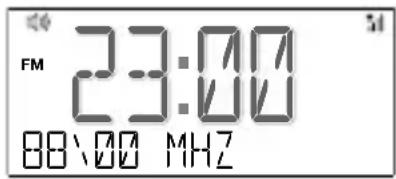
natural_image
Line drawing of a portable electronic device with control buttons and a mesh grille (no text or symbols)
natural_image
Line drawing of a hand holding a remote control device with a power button (no text or symbols)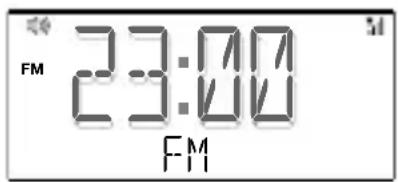
Frequenze DAB/DAB+, radio FM 87,5-108 MHz
Comandi Power on/Standby, Volume/Snooze/Select, Source, Alarms, Presets, Menu, Sleep
natural_image
Line drawing of a portable electronic device with control buttons and a mesh grille (no text or symbols)
natural_image
Line drawing of a hand using a remote control device to press a power button (no text or symbols present)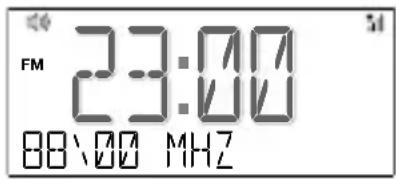
natural_image
Line drawing of a portable electronic device with control buttons and a mesh grille (no text or symbols)
A. Knappen Source: Tryk for at skifte mellem DAB- og FM-radio.
B. Alarmknapper: Indstil eller annuller individuelle alarmer.
C. Knappen Preset: Du kan gemme op til 5 faste DAB-stationer eller 5 FM-stationer (se flere oplysninger på side 9).
D. Knappen Menu: Tryk for at ændre diverse indstillinger på Siesta (se side 14).
E. Tænd/sluk-knap: Tryk for at skifte mellem tændt og standby på Siesta.
F. Volum- og Stasjons-/Select-knapper: Trykk på < / for å justere volum. Trykk på Stasjonsknappen og deretter på < for å navigere mellom radiostasjoner (se side 8) eller velg alternativer fra rullegardinmenyen.
G. Knappen Sleep: Tryk for at indstille sleep-timeren (se side 13).
Stik på bagpanel
DA/NO
A. USB-strømstik

natural_image
Line drawing of a hand holding a remote control device with a power button (no text or symbols)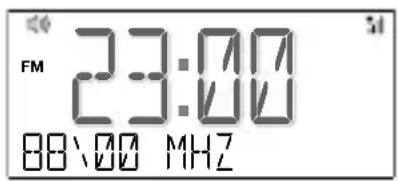
Imagination Technologies Limited
Home Park Estate
Kings Langley
Herts, WD4 8LZ
United Kingdom
www.pure.com
http://support.pure.com
Pure
Deutschland
sales_gmbh@pure.com
http://support.pure.com

- Safety instructions and cautions
- Symbols used on this product
- Contents
- Introduction
- Getting started
- Listening to radio
- Storing and selecting presets
- Using the alarms
- Setting the sleep timer
- Setting the kitchen timer
- Options and settings
- Technical specifications
- Introduction
- Top panel controls
- Rear panel connectors
- Display
- Getting started
- Quick set up
- Listening to radio
- Listening to digital radio
- Changing digital stations
- Listening to FM radio
- Seek tuning
- Manual tuning
- Storing and selecting presets
- Storing a radio preset
- Selecting a radio preset
- Using the alarms
- Setting a radio alarm
- Setting a tone alarm
- Switching an alarm on/off
- Snoozing a sounding alarm
- Cancelling a sounding alarm
- Setting the sleep timer
- Setting the kitchen timer
- Options and settings
- General settings
- Changing the language shown on the display
- Resetting Siesta to factory settings
- Displaying Siesta's software version
- Updating Siesta to the latest version of software
- Display settings
- Adjusting the display brightness
- Adjusting how long the display backlight stays on for
- Changing the information shown on Siesta's display
- Clock settings
- Setting the time and date
- Changing the time format
- Changing the date format
- Clock synchronization options
- Changing the alarm snooze time
- Autotune
- FM stereo
- Technical specifications
- Warranty information
- Disclaimer
- Trademarks
- Copyright
- Disposal of Waste Electrical & Electronic Equipment
- Siesta S2
- Stik på bagpanel
- Pure
Brand : PURE
Model : Siesta S2
Category : Alarm clock radio