
SIESTA IDOCK - Alarm clock radio PURE - Free user manual and instructions
Find the device manual for free SIESTA IDOCK PURE in PDF.



| Product type | Clock radio with DAB and FM reception |
| Brand | PURE |
| Model | SIESTA IDOCK |
| Dimensions (H x W x D) | 66 x 180 x 166 mm |
| Power supply | External transformer 100-240 V AC / 9 V DC, 1.5 A |
| Power consumption | Standby: 0.6 W; Operating: 2.2 W |
| Display | LCD 16 x 2 characters with adjustable backlight and light sensor |
| Speakers | Two 2-inch midrange speakers |
| Radio reception | DAB Band III (174-240 MHz) and FM (87.5-108 MHz) |
| Presets | 15 DAB and 15 FM stations |
| Connectivity | iPod/iPhone dock (5 adapters included), 3.5mm headphone jack, PowerPort USB (5 V, max 500 mA), mini USB port for updates |
| Alarm functions | 4 alarms with DAB, FM, iPod or beep modes; repeat: once, daily, weekdays or weekends |
| Additional functions | Adjustable snooze (5-30 min), sleep timer (15-90 min), autotune, bass and treble adjustment |
| Menu languages | English, French, German, Italian |
| Antenna | Non-detachable antenna wire |
| Safety | Do not expose to water, do not open the casing, leave at least 10 cm of ventilation |
| Certifications | CE, compliant with EMC and low voltage directives |
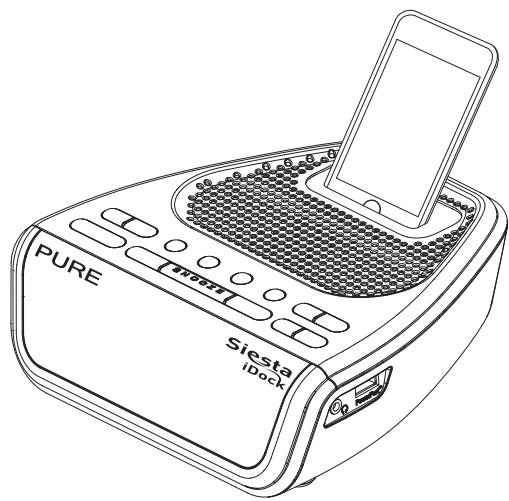
| Package contents | Siesta iDock radio, mains adapter, 5 iPod/iPhone dock adapters, user manual |
Frequently Asked Questions - SIESTA IDOCK PURE
User questions about SIESTA IDOCK PURE
0 question about this device. Answer the ones you know or ask your own.
Ask a new question about this device
Download the instructions for your Alarm clock radio in PDF format for free! Find your manual SIESTA IDOCK - PURE and take your electronic device back in hand. On this page are published all the documents necessary for the use of your device. SIESTA IDOCK by PURE.
USER MANUAL SIESTA IDOCK PURE
Keep the radio away from heat sources, such as naked flames or candles.
Ensure that the unit has adequate ventilation (at least 10cm space all round).
Do not use the radio near water.
Avoid liquids dripping or splashing onto the radio.
Do not place any objects containing liquids on the unit, such as vases.
When plugged in, Siesta iDock remains connected to mains power, even in standby with the display backlight off.
To disconnect completely, unplug from the mains socket.
Ensure that the mains plug is readily accessible in case isolation from the mains is required.
Do not remove screws from or open the radio casing.
Damage to hearing can occur with consistent exposure to high volume when using headphones.

Overview of the controls and connectors 2
Items displayed on-screen 3
Quick set up 3
Select your language 4
Select your source 4
Listening to DAB 4
Changing stations 4
Changing the information shown on-screen. 4
Autotune 5
Listening to FM 5
Changing stations 5
Changing the information shown on-screen. 5
FM Stereo mode 5
Listening to your iPod or iPhone 6
Fitting an iPod/iPhone dock adapter 6
Docking your iPod/iPhone 7
iPod/iPhone controls 7
Using Presets (DAB & FM only) 8
To set a preset 8
To select a preset 8
Setting the clock. 8
PowerPort 8
Setting the Alarms 9
How to set an alarm. 9
To snooze an alarm 9
Changing the alarm snooze time. 10
To stop an alarm 10
Toggle an alarm on or off. 10
Using the sleep timer 10
To cancel the sleep timer. 10
General settings 11
Audio options. 11
Backlight options 11
Software version/upgrade 11
Hints and tips 12
Technical Specifications 13
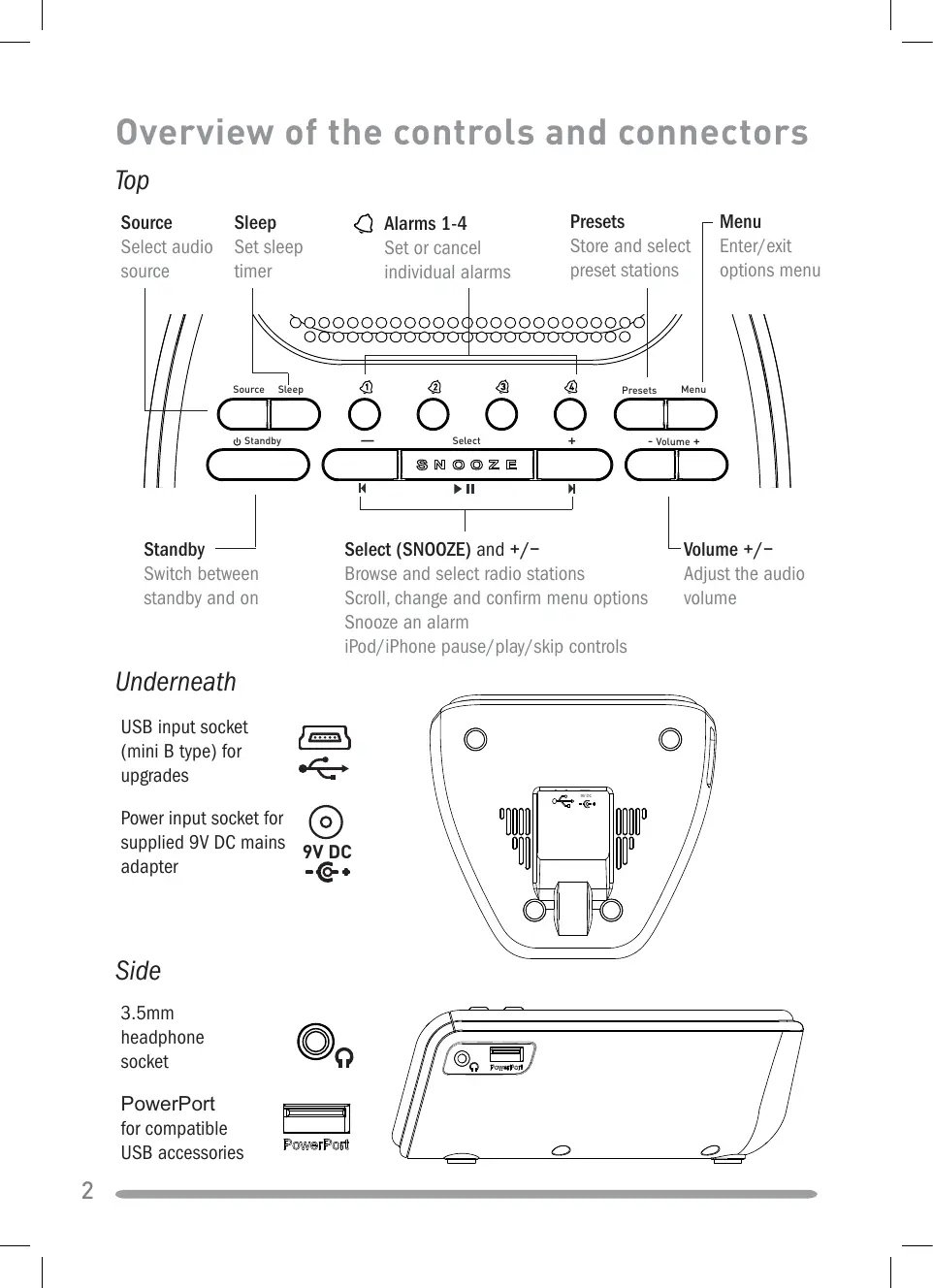
Overview of the controls and connectors
Top
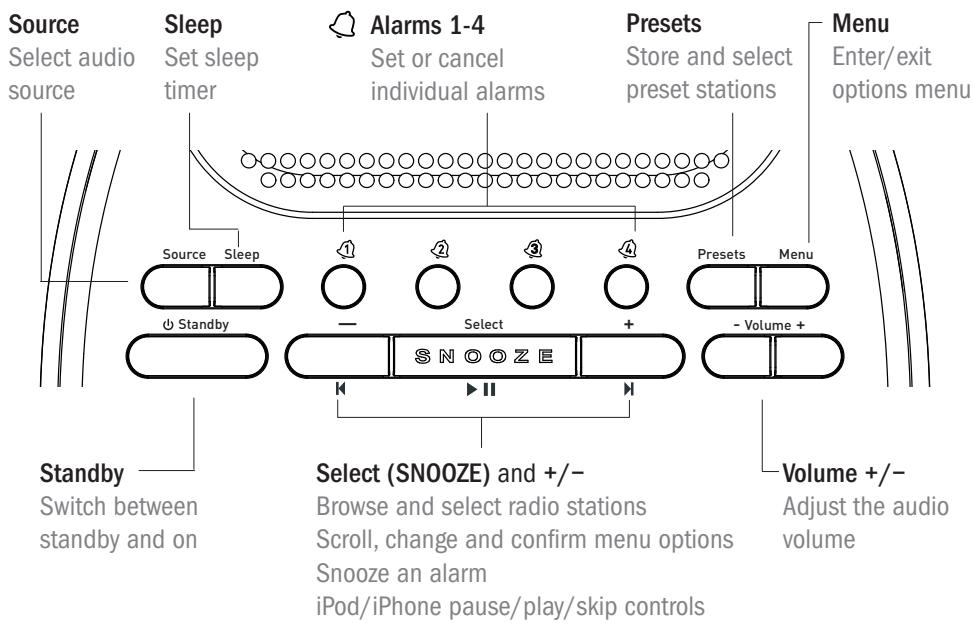
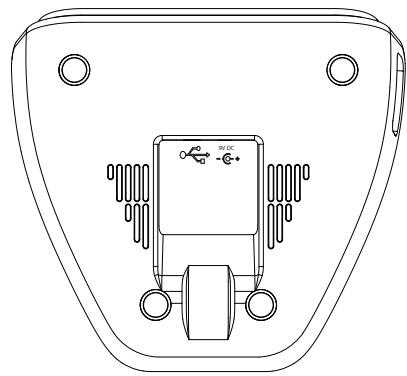
Underneath
USB input socket (mini B type) for upgrades
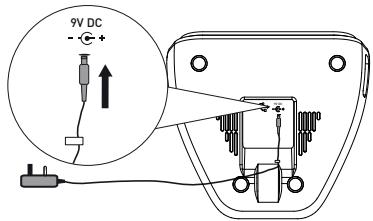
Power input socket for supplied 9V DC mains adapter


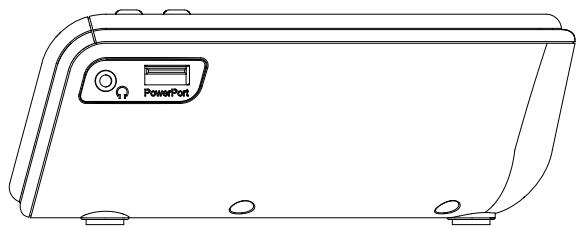
Side
3.5mm
headphone
socket
PowerPort for compatible USB accessories


Items displayed on-screen

Quick set up
1 Uncoil the aerial wire and hang it vertically, then connect the mains adapter to the bottom of the unit as shown.
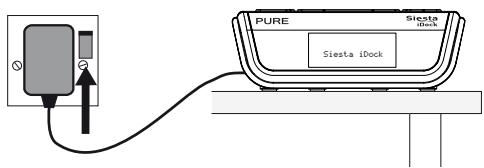
Plug the mains adapter into the mains supply.
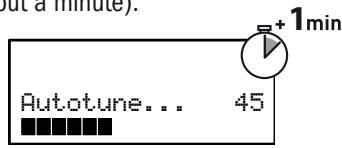
3 Wait until Siesta iDock completes an Autotune for available DAB radio stations (about a minute).
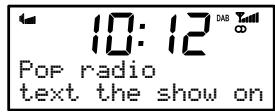
Select your language
Siesta iDock has four available languages: English, French, German and Italian.
- Press Menu, then use the + and - buttons to scroll to 'Language'. Press Select.
- Choose your Language using the + and - buttons and press Select to confirm. The language will change immediately.

Select your source
Press the Source button and repeat to change the audio source: DAB/FM/iPod
Listening to DAB
Changing stations
- Press the + and - buttons to browse through the list of available stations.
- Press Select to tune.
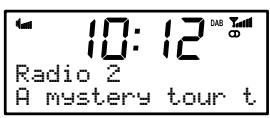
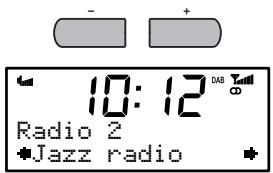
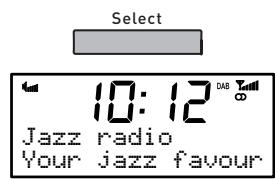
Changing the information shown on-screen
Siesta iDock can display different information relating to the DAB station you are listening to. To change the information shown:
- Press Menu and select 'Display'.
- Use the + and - buttons to cycle through the following options available:
Scrolling text Information broadcast by the station.
Signal Strength A bar indicating the current DAB signal strength.
Signal Quality The quality of the signal received.
Date The current date.
Autotune
If you lose a station signal, or wish to update your station list, you can perform an Autotune to retune all DAB stations. Press Menu, then select 'Autotune'.
Listening to FM
Changing stations
When listening to FM there are two tuning modes, Manual and Seek (default):
Manual Pressing + or - tunes up or down in steps of 0.05 MHz
Seek Pressing ^+ or - scans to the next/previous station.
By default, Siesta iDock is set to Seek.
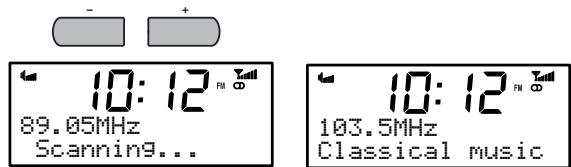
To change the tuning mode, press Menu when listening to FM and select 'FM tuning mode'.
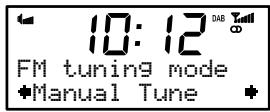
Changing the information shown on-screen
Siesta iDock can display different information relating to the FM station you are listening to. To change the information shown:
- Press Menu and select 'Display'.
- Use the + and - keys to cycle through the following options (stations with RDS only):
Radio Text Scrolling text and information broadcast by the station.
Date The current date.
FM Stereo mode
Select Stereo (default) or Mono signal mode - Mono may improve audio clarity where stereo signals are weak.
To switch between FM Stereo and Mono modes, Press Menu and select 'FM stereo mode'.
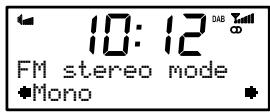
Listening to your iPod or iPhone
Siesta iDock can play music files stored on your iPod or iPhone through its stereo speakers.
Fitting an iPod/iPhone dock adapter
Siesta iDock is compatible with all iPod and iPhone models that connect to the iPod Universal Dock.
Select the adapter that is compatible with your model of iPod/iPhone (see table).
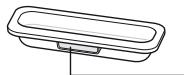
Dock Adapter number *
| Dock Adapter number | iPod nano 4th generation | iPod classic | iPod touch 2nd generation | iPhone 3G | iPhone 3GS |
| 9 | 80/120 GB | ||||
| 10 | 160 GB | ||||
| 15 | 8/16 GB | 16/32 GB | |||
| 16 | 8/16/32 GB | ||||
| 17 | 8/16 GB |
Remove the protective cover on the connector (A).
Fit the iPod adapter with the dock adapter number facing towards the rear (B).
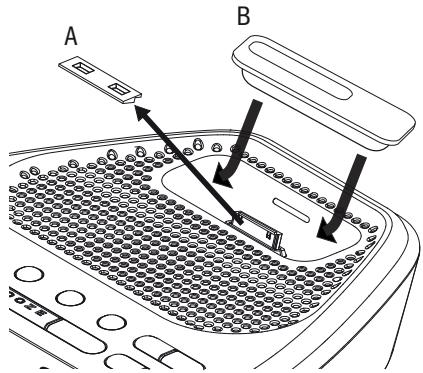
- A compatible Dock Adapter is provided with most iPod models. If your model of iPod is not listed in the table of those included, and if you do not already have a compatible Dock Adapter, we recommend that you purchase the correct type from Apple.
Docking your iPod/iPhone
- Insert your iPod/iPhone into the correct Dock Adapter on the top of the unit. If you have not fitted the Dock Adapter, see the table on page 6. Siesta iDock will begin to charge your iPod/iPhone if necessary. Charging will stop when the iPod/iPhone is fully charged (check the iPod/iPhone screen).
- Press the Source button and repeat to change the audio source to 'iPod'. Your iPod/iPhone will play from the last track listened to. If this is not possible it will play the first track available.
iPod/iPhone controls
Skip to next/previous track (hold down to fast forward or rewind)
Play/Pause current track
You can also use the controls on your iPod or iPhone as normal.
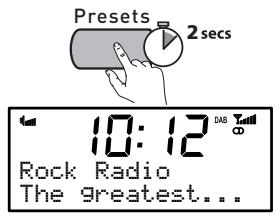
Using Presets (DAB & FM only)
Store up to 15 DAB and 15 FM radio stations for quick access to your favourites.
To set a preset
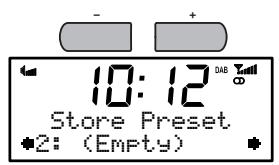
- Tune to the station you want to store. Press and hold the Presets button until you see 'preset store' on the screen.
- Use the + / - buttons to select the preset number you wish to save the station to.
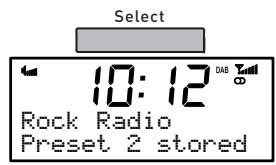
- Press the Select button to confirm. The display will change to a confirmation message, e.g., 'Preset 1 stored'.
To select a preset
To listen to a station you have stored to a preset, press the Presets button once to access the 'preset recall' screen. Use the + / - and Select buttons to scroll to and select the relevant preset.
Setting the clock
Your Siesta iDock will set its clock using a DAB or FM signal. If these are not available, it is possible to set the clock manually by selecting 'Clock' from the menu at any time. Choose 12 or 24 hour clock, set the date and select a date format: day-month-year or month-day-year.
PowerPort
Your Siesta iDock features a PowerPort, which is able to power standard USB devices such as fans and mobile phone chargers. PURE Choice approved PowerPort accessories will be available soon.

PLEASE NOTE: PowerPort does not support USB hubs of any kind.
Setting the Alarms
Siesta iDock has four alarms. When activated, an alarm either switches the radio on (if in standby) and tunes to a DAB or FM radio station, activates and plays your iPod/iPhone (if docked) or sounds a beeping alarm tone.
How to set an alarm
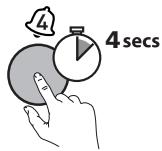
- Press and hold the Alarm button (1-4) that you wish to store the alarm to. This will start the alarm setup.
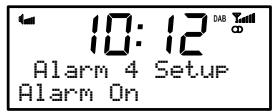
- Using the + / - and Select buttons, set the following options for your alarm:
| On/Off | Switch the alarm on or off |
| On time | Set the time you want the alarm to start (hours:mins) |
| Source | Choose DAB, FM, iPod or tone as the sound source you want to use for the alarm |
| Last Used/Preset | For DAB and FM source, choose a station for the alarm to play. ‘Last Used’ will tune to the last station received by the radio. ‘Preset’ lets you select one of your saved stations. |
| Once | The alarm will sound at the time you have selected and not repeat. |
| Daily | Every day |
| Weekdays | Monday to Friday, every week |
| Weekends | Saturday and Sunday only |
Finally, adjust the volume level for the alarm (represented by a bar on-screen) using the + / - buttons and Select to confirm.
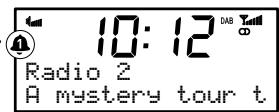
That's it! You can see which alarms are currently switched on by looking at the numbered alarm icons on the screen.
For example:
Alarm 1 is currently
To snooze an alarm
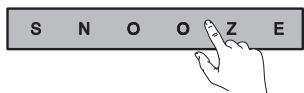
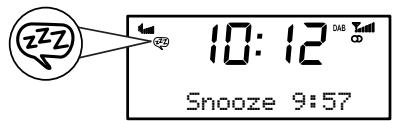
When an alarm is sounding press the Select/Snoopze button or the - / + buttons to silence the alarm for ten minutes (the default snooze time). The remaining time left until the alarm sounds again is shown at the bottom of the display.
Changing the alarm snooze time
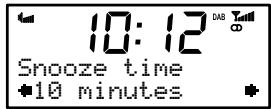
You can change how long the alarm snoozes for. Press Menu, scroll to 'Snoopze time' and press Select, then adjust the snooze time between 5 and 30 minutes using +/- and Select to confirm.
To stop an alarm
When an alarm is sounding press either the Standby or corresponding Alarm button to stop the alarm sounding. Pressing Standby when a radio alarm is sounding will also switch the unit off.
Toggle an alarm on or off
You can quickly toggle an alarm on or off by pressing the corresponding Alarm button when Siesta iDock is switched on or in standby.

Using the sleep timer
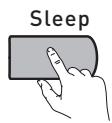
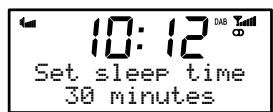
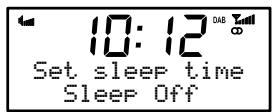
The sleep timer switches your radio into standby after a number of minutes has elapsed. Press the Sleep button and repeat to choose the duration of the sleep timer (Off/15/30/45/60/90 minutes), then press Select to confirm.
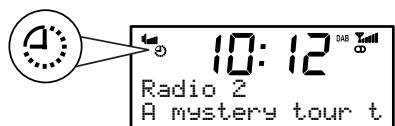
Sleep timer is active
To cancel the sleep timer
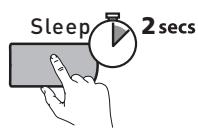
Press and hold the Sleep button for 2 seconds.
General settings
Audio options
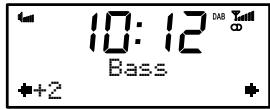
To adjust the bass and treble output of your Siesta iDock, press Menu, then scroll and select 'Audio'. Select either 'Bass' or 'Treble' and use the + / - buttons to adjust from -3 to +3. Press Select to confirm.
Backlight options
To adjust screen backlight of your Siesta iDock, press Menu, then scroll and select 'Backlight'. The backlight menu has two options:
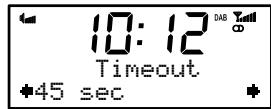
Timeout
Set the length of time that the backlight remains on after a button press, from 0-180 seconds.
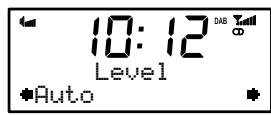
Level
Set the brightness level of the backlight, from 1-5 or Auto. In Auto mode the backlight will be adjusted by the light sensor on the front of your radio.
Software version/upgrade
To check the software version of your Siesta iDock, press Menu then scroll and select 'SW version'. This will display the current version on screen. Press any button to exit.
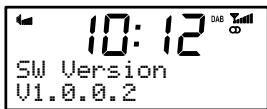
Software upgrades may be issued to provide enhanced functions or improve performance. To upgrade, press Menu, then scroll and select 'Software Upgrade' and follow the instructions provided with the upgrade software. Register your product and include an e-mail address to receive notification of upgrades or visit our website at http://support.pure.com.
Note: USB upgrade requires a PC running Windows XP/Vista and a suitable USB cable (not included).
Hints and tips
The message on screen says 'No stations available'
DAB reception is not strong enough to receive any stations. Check that your aerial is fully uncoiled and use Autotune (page 5) to search for stations. Try adjusting your aerial and radio position.
The screen is very dark
Check the Backlight options (page 11). Check that the light sensor (to the left of the screen) is not obstructed if auto dimming is selected.
The on-screen clock does not appear
If you disconnect the unit from the mains whilst listening to your iPod/iPhone and then plug it in again, you may need to change the audio source to DAB or FM so that the time can be acquired from the signal.
The bass/treble on iPod/iPhone tracks is too high
Check the bass and treble controls on the iPod/iPhone, which will affect the sound from Siesta iDock when playing tracks.
The volume control on the iPod/iPhone does not affect the volume level
When your iPod/iPhone is docked, the volume level must be adjusted on Siesta iDock, not the iPod/iPhone. Do not turn up the iPod/iPhone volume: it should be left at the volume level you normally use for portable listening.
Tone alarm safety net
If you set an alarm to 'iPod' mode but then forget to insert your iPod/iPhone into the dock before the alarm time is reached, the tone alarm will sound instead.
Resetting your Siesta iDock
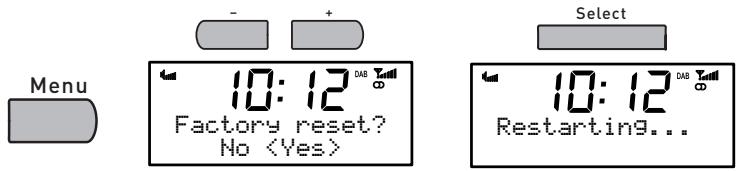
Resetting your radio removes all presets, stored stations and alarm settings and resets all options to defaults. To reset:
- Press the Menu button and select 'Factory reset'.
- Choose 'Yes' and press Select to confirm the reset.
Trim stations
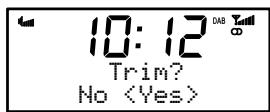
Unavailable DAB stations are indicated by ‘?’ before the station name (e.g. ?Rock radio) To trim unavailable stations:
- Press the Menu button and select 'Trim stations'.
- Choose 'Yes' and press Select to confirm.
Technical Specifications
| Specifications: | Stereo digital radio with full Band III and FM reception. ETSI EN 300 401 compliant and capable of decoding all DAB transmission modes 1-4 up to and including 384 kbps (DAB+ up to 192kbps). Supports FM RDS and RadioText. DAB+ available in certain territories. |
| Frequency ranges: | DAB Band III 174-240 MHz, FM 87.5-108 MHz. |
| Speakers: | Twin 2" mid-range drivers. |
| Input connectors: | 9V DC power adapter socket. iPod/iPhone connector with 5 supplied dock adapters. |
| Output connectors: | 3.5mm stereo output for headphones. PowerPort for compatible USB accessories. (5V, max 500mA). |
| Presents: | 15 DAB and 15 FM presets. |
| LCD display: | 16 x 2 character LCD display, large clock and feature icons, light sensor. |
| Mains power supply: | 100-240V AC to 9V (1.5A) DC external power adapter (supplied). |
| Power consumption: | In standby: 0.6W. In operation: 2.2W. |
| Approvals: | CE marked. Compliant with the EMC and Low Voltage Directives (2004/108/EC and 2006/95/EC). |
| Dimensions: | 66 mm high x 180 mm wide x 166 mm deep. |
| Aerial: | Wire aerial attached. |

Disposal of Waste Electrical & Electronic Equipment
This symbol on the product or on its packaging indicates that this product should not be treated as household waste. Instead it should be handed over to a suitable collection point for the recycling of electrical and electronic equipment. By ensuring this product is disposed of correctly, you will help prevent potential negative consequences for the environment and human health, which could otherwise be caused by inappropriate waste handling of this product. The recycling of materials will help to conserve natural resources. For more detailed information about recycling of this product, please contact your local council office, your household waste disposal service or the shop where you purchased the product.

Made for iPod

Works with iPhone
"Made for iPod" means that an electronic accessory has been designed to connect specifically to iPod and has been certified by the developer to meet Apple performance standards.
"Works with iPhone" means that an electronic accessory has been designed to connect specifically to iPhone and has been certified by the developer to meet Apple performance standards.
Apple is not responsible for the operation of this device or its compliance with safety and regulatory standards.
iPod is a trademark of Apple Computer, Inc., registered in the U.S. and other countries. iPhone is a trademark of Apple Inc.

Inhalt
Softwareversion/Upgrade 11
Tipps und Tricks 12
Technische Daten 13
Softwareversion/Upgrade
iPod/iPhone-knapper 7
Brug forudindstillinger (kun DAB & FM) 8
Sadan lagres en station 8
Sadan vaelges en tidigere gemt station 8
Indstilling af ur 8
PowerPort 8
Softwareversion/opgrading. 11
Gode rad og tip. 12
iPod/iPhone-knapper.
Weekdays Mandag-Fredag,hver uge
Weekends Kun weekend (Ior-son)
Softwareversion/opgradering.
Warranty information
Imagination Technologies Ltd. warrants to the end user that this product will be free from defects in materials and workmanship in the course of normal use for a period of two years from the date of purchase. This guarantee covers breakdowns due to manufacturing or design faults; it does not apply in cases such as accidental damage, however caused, wear and tear, negligence, adjustment, modification or repair not authorised by us. Please visit www.pure.com/register to register your product with us. Should you have a problem with your unit please contact your supplier or contact PURE Support at the address shown on the rear of this manual.
Imagination Technologies Limited makes no representation or warranties with respect to the content of this document and specifically disclaims any implied warranties of merchantability or fitness for any particular purpose. Further, Imagination Technologies Limited reserves the right to revise this publication and to make changes in it from time to time without obligation of Imagination Technologies Limited to notify any person or organization of such revisions or changes.
Ausschlusshinweis
Imagination Technologies Ltd.
+44 (0)845 148 9002
trade sales and support
Home Park Estate
+44 (0)845 148 9003
fax
Kings Langley
Herts,WD4 8LZ
support.pure.com
United Kingdom
sales@pure.com
PURE
+49 (0)6158 878872
sales
Karl-Marx Strasse 6
+49 (0)6158 878874
fax
64589 Stockstadt/Rhein
Germany
sales_gmbh@pure.com
Siesta iDock is a member of the PURE EcoPlus™ product family. All EcoPlus products are designed and manufactured to minimize their environmental impact, with:
- Reduced power consumption in operation and standby
- Components selected to minimize environmental impact
- Use of materials from recycled and sustainable sources
The smallest possible packaging
For more information please visit www.pure.com/ecoplus
101PN
- Overview of the controls and connectors
- Top
- Underneath
- Side
- Items displayed on-screen
- Quick set up
- Select your language
- Select your source
- Listening to DAB
- Changing stations
- Changing the information shown on-screen
- Autotune
- Listening to FM
- FM Stereo mode
- Listening to your iPod or iPhone
- Fitting an iPod/iPhone dock adapter
- Docking your iPod/iPhone
- iPod/iPhone controls
- Using Presets (DAB & FM only)
- To set a preset
- To select a preset
- Setting the clock
- PowerPort
- Setting the Alarms
- How to set an alarm
- To snooze an alarm
- Changing the alarm snooze time
- To stop an alarm
- Toggle an alarm on or off
- Using the sleep timer
- To cancel the sleep timer
- General settings
- Audio options
- Backlight options
- Timeout
- Level
- Software version/upgrade
- Hints and tips
- Trim stations
- Technical Specifications
- Disposal of Waste Electrical & Electronic Equipment
- Inhalt
- Softwareversion/Upgrade
- iPod/iPhone-knapper.
- Softwareversion/opgradering.
- Warranty information
- Ausschlusshinweis
- Siesta iDock is a member of the PURE EcoPlus™ product family. All EcoPlus products are designed and manufactured to minimize their environmental impact, with:
Brand : PURE
Model : SIESTA IDOCK
Category : Alarm clock radio