
IES-1248-51 - Network switch ZYXEL - Free user manual and instructions
Find the device manual for free IES-1248-51 ZYXEL in PDF.


| Product Type | Network Switch |
| Brand | ZYXEL |
| Model | IES-1248-51 |
| Dimensions (W x D x H) | 440 x 220 x 44 mm |
| Weight | 3.5 kg |
| Power Supply | 100-240 V AC, 50/60 Hz |
| Power Consumption | 30 W maximum |
| Interfaces | 48 ports Ethernet 10/100 Mbps (RJ45), 2 slots SFP Gigabit |
| Operating Temperature | 0°C to 50°C |
| Operating Humidity | 10% to 90% non-condensing |
| Main Functions | VLAN Management, Quality of Service (QoS), IGMP Snooping, Link Aggregation |
| Supported Protocols | IEEE 802.1Q, IEEE 802.1p, IEEE 802.3ad |
| Security | ACL, 802.1X Authentication |
| Maintenance and Cleaning | Clean with a dry, soft cloth. Do not use solvents. |
| Spare Parts and Repairability | Spare parts available from the manufacturer. Repair by a qualified technician. |
| General Information | Layer 2 switch, suitable for enterprise networks. 2-year warranty. |
Frequently Asked Questions - IES-1248-51 ZYXEL
User questions about IES-1248-51 ZYXEL
0 question about this device. Answer the ones you know or ask your own.
Ask a new question about this device
Download the instructions for your Network switch in PDF format for free! Find your manual IES-1248-51 - ZYXEL and take your electronic device back in hand. On this page are published all the documents necessary for the use of your device. IES-1248-51 by ZYXEL.
USER MANUAL IES-1248-51 ZYXEL
Copyright © 2006 by ZyXEL Communications Corporation.
The contents of this publication may not be reproduced in any part or as a whole, transcribed, stored in a retrieval system, translated into any language, or transmitted in any form or by any means, electronic, mechanical, magnetic, optical, chemical, photocopying, manual, or otherwise, without the prior written permission of ZyXEL Communications Corporation.
Published by ZyXEL Communications Corporation. All rights reserved.
Disclaimer
ZyXEL does not assume any liability arising out of the application or use of any products, or software described herein. Neither does it convey any license under its patent rights nor the patent rights of others. ZyXEL further reserves the right to make changes in any products described herein without notice. This publication is subject to change without notice.
Trademarks
ZyNOS (ZyXEL Network Operating System) is a registered trademark of ZyXEL Communications, Inc. Other trademarks mentioned in this publication are used for identification purposes only and may be properties of their respective owners.
Certifications
Federal Communications Commission (FCC) Interference Statement
This device complies with Part 15 of FCC rules. Operation is subject to the following two conditions:
- This device may not cause harmful interference.
- This device must accept any interference received, including interference that may cause undesired operations.
FCC Warning
This device has been tested and found to comply with the limits for a Class A digital switch, pursuant to Part 15 of the FCC Rules. These limits are designed to provide reasonable protection against harmful interference in a commercial environment. This device generates, uses, and can radiate radio frequency energy and, if not installed and used in accordance with the instruction manual, may cause harmful interference to radio communications. Operation of this device in a residential area is likely to cause harmful interference in which case the user will be required to correct the interference at his own expense.
CE Mark Warning:
This is a class A product. In a domestic environment this product may cause radio interference in which case the user may be required to take adequate measures.
Taiwanese BSMI (Bureau of Standards, Metrology and Inspection) A Warning:
警告使用者
Changes or modifications not expressly approved by the party responsible for compliance could void the user's authority to operate the equipment.
This Class A digital apparatus complies with Canadian ICES-003.
Viewing Certifications
1 Go to http://www.zyxel.com.
2 Select your product from the drop-down list box on the ZyXEL home page to go to that product's page.
3 Select the certification you wish to view from this page.
SafetyWarnings
For your safety, be sure to read and follow all warning notices and instructions.
- Do NOT use this product near water, for example, in a wet basement or near a swimming pool.
- Do NOT expose your device to dampness, dust or corrosive liquids.
- Do NOT store things on the device.
- Do NOT install, use, or service this device during a thunderstorm. There is a remote risk of electric shock from lightning.
- Connect ONLY suitable accessories to the device.
- ONLY qualified service personnel should service or disassemble this device.
- Make sure to connect the cables to the correct ports.
- Place connecting cables carefully so that no one will step on them or stumble over them.
- Always disconnect all cables from this device before servicing or disassembling.
- Use ONLY an appropriate power adaptor or cord for your device.
- Connect the power adaptor or cord to the right supply voltage (for example, 110V AC in North America or 230V AC in Europe).
- Do NOT allow anything to rest on the power adaptor or cord and do NOT place the product where anyone can walk on the power adaptor or cord.
- Do NOT use the device if the power adaptor or cord is damaged as it might cause electrocution.
- If the power adaptor or cord is damaged, remove it from the power outlet.
- Do NOT attempt to repair the power adaptor or cord. Contact your local vendor to order a new one.
- Do not use the device outside, and make sure all the connections are indoors. There is a remote risk of electric shock from lightning.
- CAUTION: RISK OF EXPLOSION IF BATTERY (on the motherboard) IS REPLACED BY AN INCORRECT TYPE. DISPOSE OF USED BATTERIES ACCORDING TO THE INSTRUCTIONS. Dispose them at the applicable collection point for the recycling of electrical and electronic equipment. For detailed information about recycling of this product, please contact your local city office, your household waste disposal service or the store where you purchased the product.
- Do NOT obstruct the device ventilation slots, as insufficient airflow may harm your device.
- Use only No. 26 AWG (American Wire Gauge) or larger telecommunication line cord.
- Fuse Warning! Replace a fuse only with a fuse of the same type and rating.
- Warning! To avoid risk of electric shock, remove only one card at a time and do not place fingers or objects inside the chassis. Cover empty slots with slot covers.
- The length of exposed (bare) power wire should not exceed 7mm .
- Fan Module Warning! Use the fan module handle when pulling out or pushing in the fan module. Be careful not to put fingers or objects inside the fan module.
This product is recyclable. Dispose of it properly.

ZyXEL Limited Warranty
ZyXEL warrants to the original end user (purchaser) that this product is free from any defects in materials or workmanship for a period of up to two years from the date of purchase. During the warranty period, and upon proof of purchase, should the product have indications of failure due to faulty workmanship and/or materials, ZyXEL will, at its discretion, repair or replace the defective products or components without charge for either parts or labor, and to whatever extent it shall deem necessary to restore the product or components to proper operating condition. Any replacement will consist of a new or re-manufactured functionally equivalent product of equal or higher value, and will be solely at the discretion of ZyXEL. This warranty shall not apply if the product has been modified, misused, tampered with, damaged by an act of God, or subjected to abnormal working conditions.
Note
Repair or replacement, as provided under this warranty, is the exclusive remedy of the purchaser. This warranty is in lieu of all other warranties, express or implied, including any implied warranty of merchantability or fitness for a particular use or purpose. ZyXEL shall in no event be held liable for indirect or consequential damages of any kind to the purchaser.
To obtain the services of this warranty, contact ZyXEL's Service Center for your Return Material Authorization number (RMA). Products must be returned Postage Prepaid. It is recommended that the unit be insured when shipped. Any returned products without proof of purchase or those with an out-dated warranty will be repaired or replaced (at the discretion of ZyXEL) and the customer will be billed for parts and labor. All repaired or replaced products will be shipped by ZyXEL to the corresponding return address, Postage Paid. This warranty gives you specific legal rights, and you may also have other rights that vary from country to country.
Registration
Register your product online to receive e-mail notices of firmware upgrades and information at www.zyxel.com for global products, or at www.us.zyxel.com for North American products.
Customer Support
Please have the following information ready when you contact customer support.
Product model and serial number.
Warranty Information.
- Date that you received your device.
- Brief description of the problem and the steps you took to solve it.
| METHOD LOCATION | SUPPORT E-MAIL | TELEPHONE | WEB SITE | REGULAR MAIL |
| SALES E-MAIL | FAX | FTP SITE | ||
| CORPORATE HEADQUARTERS (WORLDWIDE) | support@zyxel.com.tw | +886-3-578-3942 | www.zyxel.com www.europe.zyxel.com | ZyXEL Communications Corp. 6 Innovation Road II Science Park Hsinchu 300 Taiwan |
| sales@zyxel.com.tw | +886-3-578-2439 | ftp.zyxel.com ftp.europe.zyxel.com | ||
| COSTA RICA | soporte@zyxel.co.cr | +506-2017878 | www.zyxel.co.cr | ZyXEL Costa Rica Plaza Roble Escazú Etapa El Patío, Tercer Piso San José, Costa Rica |
| sales@zyxel.co.cr | +506-2015098 | ftp.zyxel.co.cr | ||
| CZECH REPUBLIC | info@cz.zyxel.com | +420-241-091-350 | www.zyxel.cz | ZyXEL Communications Czech s.r.o. Modranská 621 143 01 Praha 4 - Modrany Ceská Republika |
| info@cz.zyxel.com | +420-241-091-359 | |||
| DENMARK | support@zyxel.dk | +45-39-55-07-00 | www.zyxel.dk | ZyXEL Communications A/S Columbusvej 2860 Soeborg Denmark |
| sales@zyxel.dk | +45-39-55-07-07 | |||
| FINLAND | support@zyxel.fi | +358-9-4780-8411 | www.zyxel.fi | ZyXEL Communications Oy Malminkaari 10 00700 Helsinki Finland |
| sales@zyxel.fi | +358-9-4780 8448 | |||
| FRANCE | info@zyxel.fr | +33-4-72-52-97-97 | www.zyxel.fr | ZyXEL France 1 rue des Vergers Bat. 1 / C 69760 Limonest France |
| +33-4-72-52-19-20 | ||||
| GERMANY | support@zyxel.de | +49-2405-6909-0 | www.zyxel.de | ZyXEL Deutschland GmbH. Adenauerstr. 20/A2 D-52146 Wuerselen Germany |
| sales@zyxel.de | +49-2405-6909-99 | |||
| HUNGARY | support@zyxel.hu | +36-1-3361649 | www.zyxel.hu | ZyXEL Hungary 48, Zoldlomb Str. H-1025, Budapest Hungary |
| info@zyxel.hu | +36-1-3259100 | |||
| KAZAKHSTAN | http://zyxel.kz/support | +7-3272-590-698 | www.zyxel.kz | ZyXEL Kazakhstan 43, Dostyk ave.,Office 414 Dostyk Business Centre 050010, Almaty Republic of Kazakhstan |
| sales@zyxel.kz | +7-3272-590-689 | |||
| NORTH AMERICA | support@zyxel.com | 1-800-255-4101 | www.us.zyxel.com | ZyXEL Communications Inc. 1130 N. Miller St. Anaheim |
| sales@zyxel.com | +1-714-632-0882 | ftp.us.zyxel.com | CA 92806-2001 U.S.A. | |
| NORWAY | support@zyxel.no | +47-22-80-61-80 | www.zyxel.no | ZyXEL Communications A/S Nils Hansens vei 13 0667 Oslo Norway |
| sales@zyxel.no | +47-22-80-61-81 | |||
| POLAND | info@pl.zyxel.com | +48 (22) 333 8250 | www.pl.zyxel.com | ZyXEL Communications ul. Okzei 1A 03-715 Warszawa Poland |
| +48 (22) 333 8251 | ||||
| RUSSIA | http://zyxel.ru/support | +7-095-542-89-29 | www.zyxel.ru | ZyXEL Russia Ostrovityanova 37a Str. Moscow, 117279 Russia |
| sales@zyxel.ru | +7-095-542-89-25 | |||
| SPAIN | support@zyxel.es | +34-902-195-420 | www.zyxel.es | ZyXEL Communications Arte, 21 5thplanta 28033 Madrid Spain |
| sales@zyxel.es | +34-913-005-345 | |||
| SWEDEN | support@zyxel.se | +46-31-744-7700 | www.zyxel.se | ZyXEL Communications A/S Sjöporten 4, 41764 Göteborg Sweden |
| sales@zyxel.se | +46-31-744-7701 | |||
| UKRAINE | support@ua.zyxel.com | +380-44-247-69-78 | www.ua.zyxel.com | ZyXEL Ukraine 13, Pimenenko Str. Kiev, 04050 Ukraine |
| sales@ua.zyxel.com | +380-44-494-49-32 | |||
| UNITED KINGDOM | support@zyxel.co.uk | +44-1344 303044 08707 555779 (UK only) | www.zyxel.co.uk | ZyXEL Communications UK Ltd.,11 The Courtyard, Eastern Road, Bracknell, Berkshire, RG12 2XB, United Kingdom (UK) |
| sales@zyxel.co.uk | +44-1344 303034 | ftp.zyxel.co.uk |
+” is the (prefix) number you enter to make an international telephone call.
Table of Contents
Copyright 3
Certifications 4
SafetyWarnings 5
ZyXEL Limited Warranty 7
Customer Support 8
Table of Contents 11
List of Figures 27
List of Tables 35
Preface 39
Chapter 1
Getting to Know the IES-1248 41
1.1 System Description 41
1.2 Applications 45
1.2.1 MTU Application 45
1.2.2 Curbside Application 46
Chapter 2 Hardware Installation 47
2.1 General Installation Instructions 47
2.2 Installation Scenarios 47
2.2.1 Desktop Installation Procedure 47
2.2.2 Rack-Mounted Installation 48
2.2.2.1 Rack-mounted Installation Requirements 48
2.2.2.2 Rack-Mounted Installation Procedure 49
2.3 Connecting the Frame Ground 50
Chapter 3 Front Panel Connections 53
3.1 Front Panel 53
3.1.1 Front Panel Ports 53
3.1.2 LEDs 54
3.2 1000/100M Auto-Sensing Ethernet .55
3.2.1 Ethernet Default Settings 55
3.3 SFP Mini GBIC Slots 55
3.3.1 Transceiver Installation 56
3.3.2 Transceiver Removal 57
3.4 Console Port Connection 58
3.5 ALARM Connections 58
3.6 ADSL Connections 59
Chapter 4 MDF Connections 61
4.1 MDF Connections Overview 61
4.2 MDF (Main Distribution Frame) 61
4.3 Telco-50 Cables 62
4.4 Telco-50 Connections 62
4.5 MDF Scenarios 63
4.6 Typical MDF Scenarios 63
4.6.1 Installation Scenario A 63
4.6.1.1 Procedure to Connect to an MDF 64
4.6.2 Installation Scenario B 64
4.6.2.1 Procedure to Connect to MDFs 65
4.6.3 Installation Scenario C 66
4.6.3.1 Procedure to Connect to MDFs 67
Chapter 5 Power Connections 69
5.1 Power Connections Overview 69
5.2 Power Connections 69
5.2.1 AC Power Connections (IES-1248-51A only) 69
5.2.2 DC Power Connections (IES-1248-51, IES-1248-53) 70
5.3 Procedure to Turn on the IES-1248 Power 70
Chapter 6 Fan Maintenance 71
6.1 Fan Maintenance Introduction 71
6.2 Removing and Installing the Fan Module 71
Chapter 7 Introducing the Web Configurator 73
7.1 Web Configurator Overview 73
7.2 Screen Privilege Levels 73
7.3 Accessing the Web Configurator 73
7.4 Navigation Panel 75
7.5 Changing Your Password 77
7.6 Saving Your Configuration 78
7.7 Logging Out of the Web Configurator 78
Chapter 8 Initial Configuration 81
8.1 Initial Configuration Overview 81
8.2 Initial Configuration 81
Chapter 9 Home and Port Statistics Screens 87
9.1 Home Screen 87
9.1.1 Ethernet Port Statistics Screen 88
9.1.2 ADSL Port Statistics Screen 91
9.1.3 RMON Statistics Screen 93
9.1.4 RMON History Screen 95
9.1.5 RMON History Detail Screen 96
Chapter 10 System Information 99
Chapter 11 General Setup 103
Chapter 12 User Account 105
12.1 User Account Screen 105
12.2 Authentication Screen 106
Chapter 13 Switch Setup. 109
13.1 GARP Timer Setup 109
13.2 Switch Modes 109
13.2.1 Standalone Switch Mode 109
13.2.2 Port Isolation with Standalone Switch Mode Example 110
13.2.3 Daisychain Switch Mode 110
13.2.4 Port Isolation with Daisychain Switch Mode Example 111
13.3 Switch Setup Screen 111
Chapter 14
IP Setup 115
Chapter 15
ENET Port Setup 117
Chapter 16
xDSL Port Setup 119
16.1 ADSL Standards Overview 119
16.2 Downstream and Upstream 119
16.3 Profiles 120
16.4 Interleave Delay 120
16.4.1 Fast Mode 120
16.5 Configured Versus Actual Rate 120
16.6 Default Settings 121
16.7 xDSL Port Setup Screen 121
16.7.1 xDSL Port Setting Screen 123
16.8 Virtual Channels 127
16.8.1 Super Channel 127
16.8.2 LLC 128
16.8.3 VC Mux 128
16.8.4 Virtual Channel Profile 128
16.9 VC Setup Screen 128
16.10 Priority-based PVCs 132
16.11 PPVC Setup Screen 133
16.11.1 PPVC Setup Members Screen 134
Chapter 17
xDSL Profiles Setup 137
17.1 Port Profile Screen 137
17.2 ATM QoS 140
17.3 Traffic Shaping 140
17.3.1 ATM Traffic Classes 140
17.3.1.1 Constant Bit Rate (CBR) 140
17.3.1.2 Variable Bit Rate (VBR) 140
17.3.1.3 Unspecified Bit Rate (UBR) 141
17.3.2 Traffic Parameters 141
17.3.2.1 Peak Cell Rate (PCR) 141
17.3.2.2 Sustained Cell Rate (SCR) 141
17.3.2.3 Maximum Burst Size (MBS) 141
17.3.2.4 Cell Delay Variation Tolerance (CDVT) 142
17.3.2.5 Burst Tolerance (BT) 142
17.3.2.6 Theoretical Arrival Time (TAT) 142
17.4 Upstream Policing 143
17.5 VC Profile Screen 143
17.6 Alarm Profile Screen 145
17.7 IGMP Filtering 147
17.8 IGMP Filter Profile Screen 148
Chapter 18
xDSL Line Data 151
18.1 xDSL Line Rate Info Screen 151
18.2 xDSL Performance Screen 153
18.3 xDSL Line Data Screen 155
Chapter 19
VLAN 157
19.1 Introduction to VLANs 157
19.2 Introduction to IEEE 802.1Q Tagged VLAN 157
19.2.1 Forwarding Tagged and Untagged Frames 158
19.3 VLAN Status Screen 158
19.4 Static VLAN Setting Screen 160
19.5 VLAN Port Setting Screen 161
Chapter 20
IGMP 165
20.1IGMP 165
20.2 IP Multicast Addresses 165
20.2.1 IGMP Snooping 165
20.2.2 IGMP Proxy 165
20.3IGMP Status Screen 166
20.4IGMP Bandwidth Screen 168
20.4.1 Bandwidth Port Setup Screen 169
20.5 IGMP Setup Screen 170
20.6IGMPFilter Setup Screen 171
20.7 IGMP Count Screen 171
20.8IGMP Port Info Screen 172
20.9IGMP Port Group Screen 173
Chapter 21
Static Multicast 175
21.1 Static Multicast 175
21.2 Static Multicast Screen 175
Chapter 22
Multicast VLAN 177
22.1 Multicast VLAN Overview 177
22.2 MVLAN Status Screen 177
22.3 MVLAN Setup Screen 178
22.4 MVLAN Group Screen 180
Chapter 23
Filtering 183
23.1 Packet Filter Screen 183
Chapter 24
MAC Filter 185
24.1 MAC Filter Introduction 185
24.2 MAC Filter Screen 185
Chapter 25
Spanning Tree Protocol 187
25.1 RSTP and STP 187
25.2 Spanning Tree Protocol Status Screen 189
25.3 Spanning Tree Protocol Screen 191
Chapter 26
Port Authentication 193
26.1 Introduction to Authentication 193
26.1.1 RADIUS 193
26.1.2 Introduction to Local User Database 193
26.2 RADIUS Screen 194
26.3 802.1x Screen 195
Chapter 27
Port Security 197
27.1 Port Security Overview 197
27.2 Port Security Screen 197
Chapter 28
DHCP Relay 199
28.1 DHCP Relay 199
28.2 DHCP Relay Agent Information Option (Option 82) 199
28.2.1 DHCP Relay Agent Circuit ID and Remote ID Sub-option Formats ....199
28.3 DHCP Relay Screen 200
Chapter 29
DHCP Snoop 203
29.1 DHCP Snoop Overview 203
29.2 DHCP Snoop Screen 203
29.3 DHCP Snoop Status Screen 204
29.4 DHCP Counter Screen 205
Chapter 30
2684 Routed Mode 207
30.1 2684 Routed Mode 207
30.1.1 2684 Routed Mode Example 207
30.2 2684 Routed PVC Screen 208
30.3 2684 Routed Domain Screen 210
30.4 RPVC Arp Proxy Screen 211
30.5 2684 Routed Gateway Screen 212
Chapter 31
PPPoA to PPPoE 215
31.1 PPPoA to PPPoE Overview 215
31.2 PPPoA to PPPoE Screen 215
31.3 PPPoA to PPPoE Status Screen 218
Chapter 32
DSCP 221
32.1 DSCP Overview 221
32.2 DSCP Setup Screen 221
32.3 DSCP Map Screen 222
Chapter 33
TLS PVC 223
33.1 Transparent LAN Service (TLS) Overview 223
33.1.1 TLS Network Example 223
33.2 TLS PVC Screen 224
Chapter 34
ACL 227
34.1 Access Control Logic (ACL) Overview 227
34.1.1 ACL Profile Rules 227
34.1.2 ACL Profile Actions 228
34.2 ACL Setup Screen 228
34.3 ACL Profile Setup Screen 230
34.4 ACL Profile Map Screen 232
Chapter 35
Downstream Broadcast 233
35.1 Downstream Broadcast 233
35.2 Downstream Broadcast Screen 233
Chapter 36
Syslog 235
36.1 Syslog 235
36.2 SysLog Screen 235
Chapter 37
Access Control 237
37.1 Access Control Screen 237
37.2 Access Control Overview 237
37.3 SNMP 237
37.3.1 Supported MIBs 239
37.3.2 SNMP Traps 239
37.4 SNMP Screen 241
37.5 Service Access Control Screen 242
37.6 Remote Management Screen 243
Chapter 38
Static Routing 245
Chapter 39
Alarm 247
39.1 Alarm 247
39.2 Alarm Status Screen 247
39.3 Alarm Descriptions 248
39.4 Alarm Event Setup Screen 249
39.4.1 Edit Alarm Event Setup Screen 251
39.5 Alarm Port Setup Screen 252
Chapter 40
Maintenance 255
40.1 Maintenance Screen 255
40.2 Firmware Upgrade Screen 255
40.3 Restore Configuration Screen 256
40.4 Backing Up a Configuration File 256
40.5 Load Factory Defaults 257
40.6Reboot System 257
40.7 Command Line FTP 258
Chapter 41
Diagnostic 259
41.1 Diagnostic Screen 259
41.2 Log Format 261
41.2.1 Log Messages 262
41.3 LDM Test Parameters 263
41.4 ToneDiag Parameters 264
Chapter 42
MAC Table 265
42.1 Introduction to MAC Table 265
42.2 MAC Table Screen 266
Chapter 43
ARP Table 267
43.1 Introduction to ARP Table 267
43.1.1 How ARP Works 267
43.2 ARP Table Screen 267
Chapter 44
Commands 269
44.1 Command Line Interface Overview 269
44.2 Command Privilege Levels 269
44.3 Saving Your Configuration 270
44.4 Commands 270
Chapter 45
Command Examples 289
45.1 Command Examples Overview 289
45.2 Sys Commands 289
45.2.1 Log Show Command 289
45.3 Log Format 289
45.3.1 Log Messages 290
45.3.2 Log Clear Command 292
45.3.3 Info Show Command 292
45.4 Isolation Commands 293
45.4.1 Isolation Show Command 293
45.4.2 Isolation Enable Command 293
45.4.3 Isolation Disable Command 294
45.5 Statistics Monitor Command 294
45.6 Statistics Port Command 295
Chapter 46
Alarm Commands 297
46.1 Alarm Commands 297
46.2 General Alarm Command Parameters 297
46.3 Alarm Show Command 297
46.4 Alarm Port Show Command 298
46.5 Alarm Port Set Command 299
46.6 Alarm Tablelist Command 300
46.7 Log Format 301
46.8 Alarm History Show Command 301
46.9 Alarm History Clear Command 302
46.10 Alarm XEdit Command 302
46.11 Alarm Cutoff Command 303
46.12 Alarm Clear Command 303
Chapter 47
DHCP Commands 305
47.1 DHCP Relay Commands 305
47.1.1 Show Command 305
47.1.2 Enable Command 305
47.1.3 Disable Command 306
47.1.4 Server Set Command 306
47.1.5 Server Delete Command 306
47.1.6 Server Active Command 307
47.1.7 Relaymode Command 307
47.2 DHCP Relay Option 82 (Agent Information) Sub-option 1 (Circuit ID) .....307
47.2.1 Option 82 Sub-option 1 Enable Command 308
47.2.2 Option 82 Sub-option 1 Disable Command 308
47.2.3 Option 82 Sub-option 1 Set Command 308
47.3 DHCP Relay Option 82 (Agent Information) Sub-option 2 (Remote ID) .....308
47.3.1 Option 82 Sub-option 2 Enable Command 308
47.3.2 Option 82 Sub-option 2 Disable Command 309
47.3.3 Option 82 Sub-option 2 Set Command 309
47.4 DHCP Snoop Commands 309
47.4.1 DHCP Snoop Enable Command 309
47.4.2 DHCP Snoop Disable Command 310
47.4.3 DHCP Snoop Flush Command 310
47.4.4 DHCP Snoop Show Command 311
47.4.5 DHCP Counter Statistics Command 311
47.4.6 DHCP Snoop Statistics Command 312
Chapter 48
IEEE 802.1Q Tagged VLAN Commands 313
48.1 Introduction to VLANs 313
48.2 IEEE 802.1Q Tagging Types 313
48.3 Filtering Databases 313
48.3.1 Static Entries (SVLAN Table) 313
48.4 IEEE VLAN1Q Tagged VLAN Configuration Commands 314
48.4.1 VLAN Port Show Command 314
48.4.2 VLAN PVID Command 314
48.4.3 VLAN Priority Command 315
48.4.4 VLAN Set Command 315
48.4.4.1 Modify a Static VLAN Table Example 316
48.4.4.2 Forwarding Process Example 316
48.4.5 VLAN Frame Type Command 317
48.4.6 VLAN CPU Show Command 317
48.4.7 VLAN CPU Set Command 318
48.4.8 Configuring Management VLAN Example 318
48.4.9 VLAN Delete Command 319
48.5 VLAN Enable 319
48.6 VLAN Disable 319
48.6.1 VLAN Show Command 320
Chapter 49
MAC Commands 321
49.1 MAC Commands Overview 321
49.2 MAC Filter Commands 321
49.2.1 MAC Filter Show Command 321
49.2.2 MAC Filter Enable Command 322
49.2.3 MAC Filter Disable Command 322
49.2.4 MAC Filter Mode Command 322
49.2.5 MAC Filter Set Command 323
49.2.6 MAC Filter Delete Command 323
49.3 MAC Count Commands 324
49.3.1 MAC Count Show Command 324
49.3.2 MAC Count Enable Command 325
49.3.3 MAC Count Disable Command 325
49.3.4 MAC Count Set Command 326
Chapter 50
IGMP Commands 327
50.1 Multicast Overview 327
50.2IGMP Snoop Commands 327
50.2.1IGMP Snoop Show Command 327
50.2.2IGMP Snoop Enable Command 327
50.2.3IGMP Snoop Disable Command 328
50.3IGMPFilterCommands 328
50.3.1IGMPFilterShowCommand 328
50.3.2IGMPFilterSetCommand 329
50.3.3IGMPFilterProfileSetCommand 329
50.3.4 IGMP Filter Profile Delete Command 330
50.3.5IGMPFilterProfileShowCommand 330
50.4IGMP Bandwidth Commands 331
50.4.1IGMP Bandwidth Default Command 331
50.4.2IGMP Bandwidth Set Command 332
50.4.3IGMP Bandwidth Delete Command 332
50.5IGMP Bandwidth Port Commands 332
50.5.1IGMP Bandwidth Port Disable Command 332
50.5.2IGMP Bandwidth Port Enable Command 333
50.5.3IGMP Bandwidth Port Set Command 333
50.5.4IGMP Bandwidth Port Show Command 333
50.6IGMP Count Limit Commands 334
50.6.1IGMP Count Disable Command 334
50.6.2IGMP Count Enable Command 335
50.6.3IGMP Count Set Command 335
50.6.4IGMP Count Show Command 336
50.7IGMP Snoop Statistics Commands 336
50.7.1 IGMP Snoop Info Statistics Command 336
50.7.2 IGMP Group Statistics Command 337
50.7.3IGMP Port Info Statistics Command 337
50.7.4 IGMP Port Group Statistics Command 338
50.8 Multicast VLAN Commands 338
50.8.1 Multicast VLAN Set Command 338
50.8.2 Multicast VLAN Delete Command 339
50.8.3 Multicast VLAN Disable Command 339
50.8.4 Multicast VLAN Enable Command 340
50.8.5 Multicast VLAN Show Command 340
50.8.6 Multicast VLAN Group Set Command 341
50.8.7 Multicast VLAN Group Delete Command 341
50.8.8 Multicast VLAN Group Show Command 341
Chapter 51
Packet Filter Commands 343
51.1 Packet Filter Commands 343
51.1.1 Packet Filter Show Command 343
51.1.2 Packet Filter Set Command 344
51.1.3 Packet Filter PPPoE Only Command 345
Chapter 52
IP Commands 347
52.1 IP Commands Introduction 347
52.2 IP Settings and Default Gateway 347
52.3 General IP Commands 348
52.3.1 Show 348
52.3.2 Ping Command 348
52.3.3 Route Set Command 349
52.3.4 Route Delete Command 349
52.3.5 Route Show Command 349
52.3.6 ARP Show Command 350
52.3.7 ARP Flush Command 350
52.4 Statistics IP Command 350
Chapter 53
Firmware and Configuration File Maintenance 353
53.1 Firmware and Configuration File Maintenance Overview 353
53.2 Filename Conventions 353
53.3 Editable Configuration File 354
53.3.1 Editable Configuration File Backup 354
53.3.2 Edit Configuration File 355
53.3.3 Editable Configuration File Upload 356
53.4 Firmware File Upgrade 357
Chapter 54
SNMP 359
54.1 SNMP Commands 359
54.1.1 Get Community Command 359
54.1.2 Set Community Command 359
54.1.3 Trusted Host Set Command 359
54.1.4 Trap Community Command 360
54.1.5 Trap Destination Set Command 360
54.1.6 Show SNMP Settings Command 360
Chapter 55
ADSL Commands 363
55.1 ADSL Commands 363
55.1.1 ADSL Show Command 363
55.1.2 ADSL Enable Command 363
55.1.3 ADSL Disable Command 364
55.1.4 ADSL Profile Show Command 364
55.1.5 ADSL Profile Set Command 365
55.1.6 ADSL Profile Delete Command 367
55.1.7 ADSL Profile Map Command 368
55.1.8 ADSL Name Command 369
55.1.9 ADSL Tel Command 369
55.1.10 ADSL Loopback Command 370
55.1.11 ADSL Upstream PSD Command 370
55.1.12 ADSL Downstream PSD Command 371
55.1.13 ADSL Upstream Carrier Command 371
55.1.14 ADSL Downstream Carrier0 Command 372
55.1.15 ADSL Downstream Carrier1 Command 373
55.1.16 PMM Parameters Command 375
55.1.17 Impulse Noise Protection Command 376
55.1.18 Annex L Enable Command 377
55.1.19 Annex L Disable Command 377
55.1.20 Annex M Enable Command 378
55.1.21 Annex M Disable Command 378
55.1.22 Annex I Enable Command 379
55.1.23 Annex I Disable Command 379
55.2 Statistics ADSL Commands 379
55.2.1 ADSL Show Command 380
55.2.2 Linedata Command 380
55.2.3 Lineinfo Command 381
55.2.4 Lineperf Command 383
55.2.5 15 Minute Performance Command 384
55.2.6 1 Day Performance Command 386
55.2.7 Line Diagnostics Set Command 387
55.2.8 Line Diagnostics Get Command 388
55.2.9 Line Diagnostics Get 992.3 Command 389
55.2.10 Selt Diagnostic Set Command 391
55.2.11 Selt Diagnostic Get Command 392
55.2.12 Tone Diagnostics 992.3 Command 392
55.3 Alarm Profile Commands 394
55.3.1 Alarm Profile Show Command 394
55.3.2 Alarm Profile Set Command 395
55.3.3 Alarm Profile Delete Command 397
55.3.4 Alarm Profile Map Command 397
55.3.5 Alarm Profile Showmap Command 397
Chapter 56
Virtual Channel Management 399
56.1 Virtual Channel Management Overview 399
56.2 Virtual Channel Profile Commands 399
56.2.1 Show Virtual Channel Profile Command 399
56.2.2 Set Virtual Channel Profile Command 399
56.2.3 Delete Virtual Channel Profile Command 401
56.3 PVC Channels 401
56.3.1 PVC Show Command 401
56.3.2 PVC Set Command 402
56.3.3 PVC Delete Command 403
56.4 Priority-based PVCs 403
56.4.1 PPVC Set Command 404
56.4.2 PPVC Member Set Command 404
56.5 PPVC Member Delete Command 405
56.6 PPVC Member Show Command 406
56.6.1 PPVC Show Command 407
56.6.2 PPVC Delete Command 407
56.7 2684 Routed Mode Commands 408
56.7.1 2684 Routed Mode Example 409
56.7.2 RPVC Gateway Set Command 410
56.7.3 RPVC Gateway Show Command 410
56.7.4 RPVC Gateway Delete Command 411
56.7.5 RPVC Set Command 411
56.7.6 RPVC Show Command 412
56.7.7 RPVC Delete Command 413
56.7.8 RPVC Route Set Command 414
56.7.9 RPVC Route Show Command 414
56.7.10 RPVC Route Delete Command 415
56.7.11 RPVC ARP Agingtime Set Command 416
56.7.12 RPVC ARP Agingtime Show Command 416
56.7.13 RPVC ARP Show Command 417
56.7.14 RPVC ARP Flush Command 417
56.8 PPPoA to PPPoE (PAE) Commands 417
56.8.1 PAE PVC Delete Command 417
56.8.2 PAE PVC Set Command 418
56.8.3 PAE PVC Show Command 419
56.8.4 PAE PVC Session Command 419
56.8.5 PAE PVC Counter Command 420
56.9 Transparent LAN Service (TLS) Commands 421
56.9.1 TLS PVC Delete Command 421
56.9.2 TLS PVC Set Command 422
56.9.3 TLS PVC Show Command 422
Chapter 57
ACL Commands 425
57.1 ACL Profile Commands 425
57.1.1 ACL Profile Set Command 425
57.1.2 ACL Profile Delete Command 427
57.1.3 ACL Profile Show Map Command 427
57.1.4 ACL Profile Show Command 427
57.2 ACL Assignment Commands 428
57.2.1 ACL Assignment Set Command 428
57.2.2 ACL Assignment Delete Command 429
57.2.3 ACL Assignment Show Command 429
Chapter 58
Troubleshooting 431
58.1 The SYS or PWR LED Does Not Turn On 431
58.2 The ALM LED Is On 431
58.3 SFP LNK LEDs Do Not Turn On 432
58.4 100/1000 LEDs Do Not Turn On 432
58.5 100/1000 Ethernet Port Data Transmission 432
58.6 DSL Data Transmission 433
58.7 There Is No Voice on an ADSL Connection 433
58.8 Testing Wiring 434
58.9 Local Server 436
58.10 Data Rate 436
58.11 Configured Settings 437
58.12 Password 437
58.13 System Lockout 437
58.14 SNMP 437
58.15 Telnet 438
58.16 Resetting the Defaults 438
58.16.1 Resetting the Defaults Via Command 438
58.16.2 Uploading the Default Configuration File 439
58.17 Recovering the Firmware 440
Appendix A
Default Settings 443
Appendix B
IES-1248 Specifications 445
Appendix C
Pin Assignments 449
Appendix D
Removing and Installing a Fuse 453
Index 455
List of Figures
Figure 1 MTU Application 45
Figure 2 Curbside Application 46
Figure 3 Attaching Rubber Feet 48
Figure 4 Attaching Mounting Brackets and Screws 49
Figure 5 Rack Mounting 50
Figure 6 IES-1248 Frame Ground 51
Figure 7 IES-1248 Front Panel 53
Figure 8 IES-1248-51A Front Panel 53
Figure 9 SFP Mini GBIC Slot 56
Figure 10 Transceiver Installation 56
Figure 11 Installed Transceivers 57
Figure 12 Opening the Transceiver Latch 57
Figure 13 Removing the Transceiver 58
Figure 14 ALARM Pins Layout 59
Figure 15 MDF (Main Distribution Frame) Wiring 61
Figure 16 Telco-50 Cable with RJ-11 Connectors 62
Figure 17 Installation Overview Example 63
Figure 18 Installation Scenario A 64
Figure 19 One MDF for End-user and CO Connections 64
Figure 20 Installation Scenario B 65
Figure 21 Two Separate MDFs for End-user and CO Connections 66
Figure 22 Installation Scenario C 67
Figure 23 Fan Module Thumbscrews 71
Figure 24 Removing the Fan Module 72
Figure 25 Fan Module Removed 72
Figure 26 Login 74
Figure 27 Home 74
Figure 28 User Account 77
Figure 29 User Account 78
Figure 30Logout 79
Figure 31 IP Setup 81
Figure 32 xDSL Port Setup 82
Figure 33 VC Setup 83
Figure 34 VC Setup, Delete 83
Figure 35 Select Ports 84
Figure 36 VC Setup 84
Figure 37 VC Setup 85
Figure 38 Select Ports 85
Figure 39 VC Setup 86
Figure 40 Config Save 86
Figure 41 Config Save, Save Successful 86
Figure 42 Home 87
Figure 43 Port Statistics (Ethernet) 89
Figure 44 Port Statistics (ADSL) 92
Figure 45 Port Statistics (RMON) 94
Figure 46 Port Statistics (RMON History)) 96
Figure 47 Port Statistics (RMON History Detail)) 97
Figure 48 System Info 100
Figure 49 General Setup 103
Figure 50 User Account 105
Figure 51 Authentication 106
Figure 52 Port Isolation with Standalone Switch Mode Example 110
Figure 53 Port Isolation with Daisychain Switch Mode Example 111
Figure 54 Switch Setup 112
Figure 55 IP Setup 115
Figure 56 ENET Port Setup 117
Figure 57 xDSL Port Setup 121
Figure 58 Select Ports 122
Figure 59 xDSL Port Setting 124
Figure 60 VC Setup 129
Figure 61 Basic Setting, xDSL Port Setup, VC Setup, Delete 131
Figure 62 Select Ports 131
Figure 63 Select Ports 132
Figure 64 PPVC Setup 133
Figure 65 PPVC Setup, Edit 135
Figure 66 Port Profile 137
Figure 67 PCR, SCR and MBS in Traffic Shaping 142
Figure 68 TAT, CDVT and BT in Traffic Shaping 142
Figure 69 VC Profile 144
Figure 70 Alarm Profile 146
Figure 71 IGMP Filter Profile 149
Figure 72 xDSL Line Rate Info 151
Figure 73 xDSL Performance 153
Figure 74 xDSL Line Data 155
Figure 75 VLAN Status 159
Figure 76 Static VLAN Setting 160
Figure 77 VLAN Port Setting 162
Figure 78 Select Ports 163
Figure 79 IGMP Proxy Network Example 166
Figure 80 IGMP (Status) 167
Figure 81 IGMP Bandwidth 168
Figure 82 Bandwidth Port Setup 170
Figure 83 IGMP Setup 171
Figure 84 IGMP Count 172
Figure 85 IGMP Port Info 173
Figure 86 IGMP Port Group 173
Figure 87 Static Multicast 175
Figure 88 MVLAN Status 177
Figure 89 MVLAN Setup 179
Figure 90 MVLAN Group 180
Figure 91 Packet Filter 183
Figure 92 MAC Filter 185
Figure 93 STP Root Ports and Designated Ports 188
Figure 94 Spanning Tree Protocol Status 189
Figure 95 Spanning Tree Protocol 191
Figure 96 RADIUS Server 193
Figure 97 RADIUS 194
Figure 98 802.1x 195
Figure 99 Port Security 197
Figure 100 Select Ports 198
Figure 101 DHCP Relay Agent Circuit ID Sub-option Format 199
Figure 102 DHCP Relay Agent Remote ID Sub-option Format 200
Figure 103 DHCP Relay 200
Figure 104 DHCP Snoop 203
Figure 105 DHCP Snoop Status 204
Figure 106 DHCP Counter 205
Figure 107 2684 Routed Mode Example 208
Figure 108 2684 Routed PVC 209
Figure 109 2684 Routed Domain 210
Figure 110 RPVC Arp Proxy 212
Figure 111 2684 Routed Gateway 213
Figure 112 Mixed PPPoA-to-PPPoe Broadband Network Example 215
Figure 113 PPPoA to PPPoE 216
Figure 114 PPPoA to PPPoE Status 218
Figure 115 DSCP Setup 221
Figure 116 DSCP Map 222
Figure 117 Transparent LAN Service Network Example 224
Figure 118 TLS PVC 225
Figure 119 ACL Setup 229
Figure 120 ACL Profile Setup 230
Figure 121 ACL Profile Map 232
Figure 122 Downstream Broadcast 233
Figure 123 SysLog 235
Figure 124 Access Control 237
Figure 125 SNMP Management Model 238
Figure 126 SNMP 241
Figure 127 Service Access Control 242
Figure 128 Remote Management (Secured Client Setup) 243
Figure 129 Static Routing 245
Figure 130 Alarm Status 247
Figure 131 Alarm Event Setup 250
Figure 132 Alarm Event Setup Edit 251
Figure 133 Alarm Port Setup 252
Figure 134 Maintenance 255
Figure 135 Firmware Upgrade 255
Figure 136 Restore Configuration 256
Figure 137 Restore Default Configuration 257
Figure 138 Restore Factory Default Settings, Reboot 257
Figure 139 Reboot System 258
Figure 140 Diagnostic 259
Figure 141 MAC Table Filtering Flowchart 265
Figure 142 MAC Table 266
Figure 143 ARP Table 268
Figure 144 Log Show Command Example 289
Figure 145 Info Show Example 293
Figure 146 Isolation Show Example 293
Figure 147 Statistics Monitor Command Example 294
Figure 148 Statistics Port Command Example 295
Figure 149 Alarm Show Command Example 298
Figure 150 Alarm Port Show Command Example 299
Figure 151 Alarm Port Set Command Example 300
Figure 152 Alarm Tablelist Command Example 300
Figure 153 Alarm History Show Command Example 302
Figure 154 Alarm History Clear Command Example 302
Figure 155 Alarm Xedit Command Example 303
Figure 156 Show Command Example 305
Figure 157 DHCP Snoop Enable Command Example 310
Figure 158 DHCP Snoop Show Command Example 311
Figure 159 DHCP Counter Statistics Command Example 311
Figure 160 DHCP Snoop Statistics Command Example 312
Figure 161 VLAN Port Show Command Example 314
Figure 162 VLAN PVID Command Example 315
Figure 163 VLAN CPU Set Command Example 315
Figure 164 Modifying the Static VLAN Example 316
Figure 165 VLAN Frame Type Command Example 317
Figure 166 VLAN CPU Set Command Example 318
Figure 167 VLAN CPU Set Command Example 318
Figure 168 CPU VLAN Configuration and Activation Example 318
Figure 169 Deleting Default VLAN Example 319
Figure 170 VLAN Delete Command Example 319
Figure 171 VLAN Show Command Example 320
Figure 172 MAC Filter Show Command Example 321
Figure 173 MAC Filter Enable Command Example 322
Figure 174 MAC Filter Disable Command Example 322
Figure 175 MAC Filter Mode Command Example 323
Figure 176 MAC Filter Set Command Example 323
Figure 177 MAC Filter Delete Command Example 324
Figure 178 MAC Count Show Command Example 324
Figure 179 MAC Count Enable Command Example 325
Figure 180 MAC Count Disable Command Example 325
Figure 181 MAC Count Set Command Example 326
Figure 182 IGMP Snoop Show Command Example 327
Figure 183 IGMP Snoop Enable Command Example 328
Figure 184 IGMP Snoop Disable Command Example 328
Figure 185 IGMP Filter Show Command Example 329
Figure 186 IGMP Filter Set Command Example 329
Figure 187 IGMP Filter Profile Set Command Example 330
Figure 188 IGMP Filter Profile Delete Command Example 330
Figure 189 IGMP Filter Show Command Example 331
Figure 190 IGMP Bandwidth Port Show Command Example 334
Figure 191 IGMP Count Disable Command Example 335
Figure 192 IGMP Count Enable Command Example 335
Figure 193 IGMP Count Set Command Example 336
Figure 194 IGMP Count Show Command Example 336
Figure 195 IGMP Snoop Info Statistics Command Example 337
Figure 196 IGMP Group Statistics Command Example 337
Figure 197 IGMP Port Info Statistics Command Example 338
Figure 198 IGMP Port Group Statistics Command Example 338
Figure 199 Multicast VLAN Disable Command Example 340
Figure 200 Multicast VLAN Show Command Example 340
Figure 201 Multicast VLAN Group Set Command Example 341
Figure 202 Packet Filter Show Command Example 343
Figure 203 Packet Filter Set Command Example 345
Figure 204 Packet Filter PPPoE Only Command Example 345
Figure 205 IP Settings and Default Gateway Address Commands 347
Figure 206 IP Settings and Default Gateway Address Command Example 348
Figure 207 Route Show Command Example 350
Figure 208 ARP Show Command Example 350
Figure 209 Statistics IP Command Example 351
Figure 210 FTP Put Configuration File Example 353
Figure 211 FTP Get Configuration File Example 353
Figure 212 Example: Use an FTP Client to Connect to the IES-1248 354
Figure 213 Example: Enter the Management Password 355
Figure 214 Example: Get the Configuration File config-0 355
Figure 215 Example: Close FTP Client 355
Figure 216 Configuration File Example 356
Figure 217 Example: Use an FTP Client to Connect to the IES-1248 356
Figure 218 Example: Enter the Management Password 357
Figure 219 Example: Upload the Configuration File config-0 357
Figure 220 Example: Close FTP Client 357
Figure 221 Example: Use an FTP Client to Connect to the IES-1248 357
Figure 222 Example: Enter the Management Password 357
Figure 223 Example: Transfer the Firmware File 358
Figure 224 Example: Close FTP Client 358
Figure 225 ADSL Show Command Example 363
Figure 226 ADSL Profile Show Command Example 365
Figure 227 ADSL Profile Set Command Example 1 367
Figure 228 ADSL Profile Set Command Example 2 367
Figure 229 ADSL Profile Delete Command Example 367
Figure 230 ADSL Profile Delete Command Example 368
Figure 231 ADSL Name Command Example 369
Figure 232 ADSL Tel Command Example 369
Figure 233 ADSL Loopback Command Example 370
Figure 234 ADSL Upstream PSD Command Example 371
Figure 235 ADSL Downstream PSD Command Example 371
Figure 236 ADSL Upstream Carrier Command Example 372
Figure 237 ADSL Upstream Carrier Command Display Example 372
Figure 238 ADSL Downstream Carrier0 Command Example 1 373
Figure 239 ADSL Downstream Carrier0 Command Display Example 373
Figure 240 ADSL Downstream Carrier0 Command Example 2 373
Figure 241 ADSL Downstream Carrier1 Command Example 1 374
Figure 242 ADSL Downstream Carrier1 Command Example 2 374
Figure 243 ADSL Downstream Carrier1 Command Display Example 375
Figure 244 PMM Parameters Command Example 376
Figure 245 Impulse Noise Protection Command Example 377
Figure 246 Annex L Enable Command Example 377
Figure 247 Annex L Disable Command Example 378
Figure 248 Annex M Enable Command Example 378
Figure 249 Annex M Disable Command Example 378
Figure 250 Annex I Enable Command Example 379
Figure 251 Annex I Disable Command Example 379
Figure 252 ADSL Show Command Example 380
Figure 253 Linedata Command Example 381
Figure 254 Lineinfo Command Example 382
Figure 255 Lineperf Command Example 383
Figure 256 15 Minute Performance Command Example 385
Figure 257 1Day Performance Command Example 387
Figure 258 Line Diagnostics Set Command Example 387
Figure 259 Line Diagnostics Get Command Example 388
Figure 260 Line Diagnostics Get 992.3 Command Example 390
Figure 261 Selt Diagnostic Set Command Example 392
Figure 262 Line Diagnostics Get Command Example 392
Figure 263 Tone Diagnostics Command Example 393
Figure 264 Alarm Profile Show Command Example 395
Figure 265 Alarm Profile Set Command Example 396
Figure 266 Alarm Profile Delete Command Example 397
Figure 267 Alarm Profile Map Command Example 397
Figure 268 Alarm Profile Showmap Command Example 398
Figure 269 Set Virtual Channel Profile Command Example 1 400
Figure 270 Set Virtual Channel Profile Command Example 2 400
Figure 271 Set Virtual Channel Profile Command Example 3 401
Figure 272 Delete Virtual Channel Profile Command Example 401
Figure 273 PVC Set Command Example 403
Figure 274 PPVC Set Command Example 404
Figure 275 PPVC Member Set Command Example 405
Figure 276 PPVC Member Delete Command Example 406
Figure 277 PPVC Member Show Command Example 407
Figure 278 PPVC Show Command Example 407
Figure 279 PPVC Delete Command Example 408
Figure 280 2684 Routed Mode Example 409
Figure 281 2684 Routed Mode Commands Example 410
Figure 282 RPVC Gateway Set Command Example 410
Figure 283 RPVC Gateway Show Command Example 411
Figure 284 RPVC Gateway Delete Command Example 411
Figure 285 RPVC Set Command Example 412
Figure 286 RPVC Show Command Example 413
Figure 287 RPVC Delete Command Example 413
Figure 288 RPVC Route Set Command Example 414
Figure 289 RPVC Route Show Command Example 415
Figure 290 RPVC Route Delete Command Example 416
Figure 291 RPVC ARP Agingtime Command Example 416
Figure 292 RPVC ARP Agingtime Show Command Example 416
Figure 293 RPVC ARP Agingtime Show Command Example 417
Figure 294 PAE PVC Set Command Example 418
Figure 295 PAE PVC Show Command Example 419
Figure 296 PAE PVC Session Command Example 420
Figure 297 PAE PVC Counter Command Example 420
Figure 298 TLS PVC Set Command Example 422
Figure 299 TLS PVC Show Command Example 423
Figure 300 ACL Profile Set Command Example 427
Figure 301 ACL Profile Show Map Command Example 427
Figure 302 ACL Profile Show Command Example 428
Figure 303 ACL Assignment Set Command Example 429
Figure 304 ACL Assignment Show Command Example 429
Figure 305 Testing In-house Wiring 435
Figure 306 Resetting the Switch Via Command 439
Figure 307 Example Xmodem Upload 440
Figure 308 Example Xmodem Upload 441
Figure 309 USER Telco-50 Pin Assignments 449
Figure 310 CO Telco-50 Pin Assignments 450
Figure 311 Console Cable RJ-11 Male Connector 451
Figure 312 Console Cable DB-9 Female Connector 451
List of Tables
Table 1 IES-1248 Front Panel Ports 53
Table 2 LED Descriptions 54
Table 3 Navigation Panel Submenu Links 75
Table 4 Web Configurator Screens 75
Table 5 Home 87
Table 6 Port Statistics (Ethernet) 89
Table 7 Port Statistics (ADSL) 92
Table 8 Port Statistics (RMON) 94
Table 9 Port Statistics (RMON History) 96
Table 10 Port Statistics (RMON History Detail) 97
Table 11 System Info 100
Table 12 General Setup 103
Table 13 User Account 105
Table 14 User Account 107
Table 15 Switch Setup 112
Table 16 IP Setup 115
Table 17 ENET Port Setup 117
Table 18 ADSL Standards Maximum Transfer Rates 119
Table 19 xDSL Port Setup 121
Table 20 xDSL Port Setting 124
Table 21 VC Setup 129
Table 22 IEEE 802.1p Priority to PPVC Mapping 132
Table 23 PPVC Setup 133
Table 24 PPVC Setup, Edit 135
Table 25 Port Profile 138
Table 26 VC Profile 144
Table 27 Alarm Profile 146
Table 28 IGMP Filter Profile 149
Table 29 xDSL Line Rate Info 151
Table 30 xDSL Performance 154
Table 31 xDSL Line Data 156
Table 32 VLAN Status 159
Table 33 Static VLAN Setting 161
Table 34 VLAN Port Setting 162
Table 35 IGMP (Status) 167
Table 36 IGMP Bandwidth 169
Table 37 Bandwidth Port Setup 170
Table 38 IGMP Setup 171
Table 39 IGMP Count 172
Table 40 IGMP Port Info 173
Table 41 IGMP Port Group 174
Table 42 Static Multicast 175
Table 43 MVLAN Status 178
Table 44 MVLAN Setup 179
Table 45 MVLAN Group 181
Table 46 Packet Filter 183
Table 47 MAC Filter 185
Table 48 Path Cost 187
Table 49 RSTP Port States 188
Table 50 Spanning Tree Protocol Status 190
Table 51 Spanning Tree Protocol 191
Table 52 RADIUS 194
Table 53 802.1x 196
Table 54 Port Security 197
Table 55 DHCP Relay 201
Table 56 DHCP Snoop 203
Table 57 DHCP Snoop Status 204
Table 58 DHCP Counter 205
Table 59 2684 Routed PVC 209
Table 60 2684 Routed Domain 211
Table 61 RPVC Arp Proxy 212
Table 62 2684 Routed Gateway 213
Table 63 PPPoA to PPPoE 216
Table 64 PPPoA to PPPoE Status 218
Table 65 DSCP Setup 221
Table 66 DSCP Map 222
Table 67 TLS PVC 225
Table 68 ACL Setup 229
Table 69 ACL Profile Setup 231
Table 70 ACL Profile Map 232
Table 71 Downstream Broadcast 233
Table 72 SysLog 235
Table 73 Access Control Summary 237
Table 74 SNMP Commands 238
Table 75 SNMPv2 Traps 239
Table 76 SNMP 242
Table 77 Service Access Control 242
Table 78 Remote Management (Secured Client Setup) 243
Table 79 Static Routing 245
Table 80 Alarm Status 247
Table 81 Alarm Descriptions 248
Table 82 Alarm Event Setup 250
Table 83 Alarm Event Setup Edit 251
Table 84 Alarm Port Setup 253
Table 85 Diagnostic 260
Table 86 Log Format 261
Table 87 Log Messages 262
Table 88 LDM Test Parameters 263
Table 89 ToneDiag Parameters 264
Table 90 MAC Table 266
Table 91 ARP Table 268
Table 92 Commands 270
Table 93 Log Format 289
Table 94 Log Messages 290
Table 95 General Alarm Command Parameters 297
Table 96 Log Format 301
Table 97 Filename Conventions 354
Table 98 Line Performance Counters 383
Table 99 15 Minute Performance Counters 385
Table 100 Line Diagnostics Get Command 389
Table 101 Line Diagnostics Get 992.3 Command 391
Table 102 ToneDiag Command 393
Table 103 SYS LED Troubleshooting 431
Table 104 ALM LED Troubleshooting 431
Table 105 SFP LNK LED Troubleshooting 432
Table 106 100/1000 LED Troubleshooting 432
Table 107 Troubleshooting Data Transmission 432
Table 108 DSL Data Transmission Troubleshooting 433
Table 109 ADSL Voice Troubleshooting 433
Table 110 Wiring Tests 434
Table 111 Testing In-house Wiring 435
Table 112 Troubleshooting a Local Server 436
Table 113 Troubleshooting the SYNC-rate 436
Table 114 Troubleshooting the IES-1248's Configured Settings 437
Table 115 Troubleshooting the SNMP Server 437
Table 116 Troubleshooting Telnet 438
Table 117 Default Settings 443
Table 118 Wire Gauge Specifications 445
Table 119 Power Input Specifications 446
Table 120 Power Input Specifications 446
Table 121 Fuse Specifications (IES-1248-51A only) 446
Table 122 Fuse Specifications (IES-1248-51, IES-1248-53) 446
Table 123 Hardware Telco-50 Connector Port and Pin Numbers 450
Table 124 Console Cable Connector Pin Assignments 451
Preface
Congratulations on your purchase of the IES-1248.
This preface introduces you to the IES-1248 and discusses the conventions of this User's Guide. It also provides information on other related documentation.
About This User's Guide
This manual is designed to guide you through the configuration of your IES-1248 for its various applications.
Related Documentation
ZyXEL Glossary and Web Site
Please see www.zyxel.com for an online glossary of networking terms and additional support documentation.
Syntax Conventions
- "Enter" means for you to type one or more characters. "Select" or "Choose" means for you to use one of the predefined choices.
- Command and arrow keys are enclosed in square brackets. [ENTER] means the Enter, or carriage return key; [ESC] means the Escape key and [SPACE BAR] means the Space Bar.
- Mouse action sequences are denoted using a comma. For example, "In Windows, click Start, Programs, Acrobat Reader" means first click the Start button, then move your mouse pointer to Programs and then click Acrobat Reader.
- "e.g.," is a shorthand for "for instance", and "i.e.," means "that is" or "in other words".
- The IES-1248 may be referred to as the "IES-1248", the "IES", the "device" or the "system" in this User's Guide.
- "IES-1248" refers to the IES-1248-51 for ADSL over POTS (Annex A), the IES-1248-51A for ADSL over POTS that uses AC power, and the IES-1248-53 for ADSL over ISDN (Annex B). Differentiation is made where needed.
Graphics Icons Key
| IES-1248 | Computer | Server |
| Computer | DSLAM | Gateway |
| Central Office/ ISP | Internet | Hub/Switch |
Firmware Naming Conventions
A firmware version includes the model code and release number as shown in the following example.
Firmware Version: V3.52 (ABQ.0)
"ABQ" is the model code.
- "ABQ" denotes the IES-1248-51 for ADSL over POTS (Annex A).
- "ABR" denotes the IES-1248-53 for ADSL over ISDN (Annex B).
"0" is this firmware's release number. This varies as new firmware is released. Your firmware's release number may not match what is displayed in this User's Guide.
User Guide Feedback
Help us help you. E-mail all User Guide-related comments, questions or suggestions for improvement to techwriters@zyxel.com.tw or send regular mail to The Technical Writing Team, ZyXEL Communications Corp., 6 Innovation Road II, Science-Based Industrial Park, Hsinchu, 300, Taiwan. Thank you.
CHAPTER 1 Getting to Know the IES-1248
This chapter describes the system features, specifications and applications of your IES-1248.
The IES-1248 is an IP-based DSLAM (Internet Protocol Digital Subscriber Line Access Multiplexer) that connects ADSL subscribers to the Internet. As a high-performance but yet compact platform, it can conveniently deliver broadband Internet access to telephone company central offices, multi-tenant units (MTUs), hospitals, hotels, schools, university campuses and ISPs. The IES-1248's low cost and easy management make it a perfect DSL-provider solution.
The IES-1248 platform allows for convenient management and support of ADSL technology. Up to 48 ADSL subscribers can simultaneously utilize a wide range of powerful broadband services.
1.1 System Description
Four Telco-50 Connectors
There are four Telco-50 connectors for ADSL and POTS connections.
1000/100 Mbps Ethernet Ports
The IES-1248 has two 1000/100Mbps auto-sensing Ethernet ports.
They allow you to:
- Connect the IES-1248 to a second-level switch
- Daisy-chain other IES-1248
Two Slots for Mini GBIC Modules
The mini GBIC (Gigabit Interface Converter) module transceivers allow flexibility in connection options. You can use mini GBIC transceivers for fiber connections to backbone Ethernet switches.
Stacking
Daisy-chain up to three IES-1248 (or other Ethernet devices).
Integrated Splitters
The integrated DSL splitter eliminates the need to use external splitters that separate the voice-band and ADSL signals.
Console Port
Use the console port for local management of the IES-1248.
Fans
The fans cool the IES-1248 sufficiently to allow reliable operation of the IES-1248 in even poorly ventilated rooms or basements. To conserve energy and reduce noise, the fan speed depends on the temperature.
IP Protocols
- IP Host (No routing)
- Telnet for configuration and monitoring
SNMP for management
SNMP MIB II (RFC 1213)
SNMP v1 RFC 1157
- SNMPv2, SNMPv2c or later version
- Bridge MIBs (RFC 1493, 2674)
SMIRFC1155
ADSL Line MIB (RFC 2662)
ADSL Extension Line MIB (RFC2449)
- Private MIBs
ADSL Encapsulation
Multiple Protocols over AAL5 (RFC 1483)
ADSL Compliance
- Multi-Mode ADSL standard (some IES-1248 models do not support all of these)
G.dmt (ITU-T G.992.1)
G.lite (ITU-T G.992.2)
G.hs (ITU-T G.994.1)
ETSI
ANSI T1.413 issue 2
ADSL2:G.992.3,G.992.4
ADSL2+: G.992.5
- Rate adaptation support
IEEE 802.1p Priority
Your IES-1248 uses IEEE 802.1p Priority to assign priority levels to individual PVCs.
Multiple PVC and ATM QoS
The IES-1248 allows you to use different channels (also called Permanent Virtual Circuits or PVCs) for different services or subscribers. Define channels1 on each DSL port for different services or levels of service and assign each channel a priority. ATM Quality of Service (QoS) allows you to regulate the average rate and fluctuations of data transmission. This helps eliminate congestion to allow the transmission of real time data (such as audio and video).
IEEE 802.1x Port-based Authentication
The IES-1248 supports the IEEE 802.1x standard for centralized user authentication and accounting management through an optional network authentication (RADIUS) server.
2684 Routed Mode
The IES-1248 can handle 2684 routed mode traffic.
Downstream Broadcast
The IES-1248 can block downstream broadcast packets from being sent to specified VLANs on specified ports.
Management
- Remote configuration backup/restore and firmware upgrade
- SNMP manageable
- Text-based management locally via console port and remotely via telnet
- Editable plain text based configuration file
Security
- Password protection for system management
VLAN
MAC (Media Access Control) Filter
Use the MAC filter to accept or deny incoming frames based on MAC (Media Access Control) address(es) that you specify. You may enable/disable the MAC filter on specific ports. You may specify up to ten MAC addresses per port.
MAC (Media Access Control) Count Filter
You can limit the number of MAC addresses that may be dynamically learned on a port. You may enable/disable the MAC count filter on individual ports.
Static Multicast
Use static multicast to allow incoming frames based on multicast MAC address(es) that you specify. This feature can be used in conjunction with IGMP snooping and IGMP proxy to allow multicast MAC address(es) that are not learned by IGMP snooping or IGMP proxy.
IGMP Proxy
In a simple tree network, the system can proxy multicast traffic in order to improve network performance.
IGMP Snooping
With IGMP snooping, group multicast traffic is only forwarded to ports that are members of that group. IGMP Snooping generates no additional network traffic, allowing you to significantly reduce multicast traffic passing through your IES-1248.
System Monitoring
- System status (link status, rates, statistics counters)
- Temperatures, voltage reports and alarms.
System Error Logging
The IES-1248's system error log will record error logs locally. These logs may be viewed again after a warm restart.
Alarm LED
An ALM (alarm) LED lights when the IES-1248 is overheated, the fans are not working properly, the voltage readings are outside the tolerance levels or an alarm has been detected on the ALARM input pins.
Bandwidth Control
The IES-1248 supports rate limiting in 32 Kbps increments allowing you to create different service plans
Quality of Service
- Four priority queues for ENET and eight priority queues for downstream PVC so you can ensure mission-critical data gets delivered on time.
- Follows the IEEE 802.1p priority setting standard.
STP (Spanning Tree Protocol) / RSTP (Rapid STP)
(R)STP detects and breaks network loops and provides backup links between switches, bridges or routers. It allows a switch to interact with other (R)STP -compliant switches in your network to ensure that only one path exists between any two stations on the network.
1.2 Applications
These are the main applications for the IES-1248:
- Internet access and multimedia services for Multiple Tenant Units (MTU).
- Other applications include telemedicine, surveillance systems, remote servers systems, cellular base stations and high-quality teleconferencing.
1.2.1 MTU Application
The following diagram depicts a typical application of the IES-1248 with ADSL modems, in a large residential building, or multiple tenant unit (MTU), that leverages existing phone line wiring to provide Internet access to all tenants. Note that ADSL service can coexist with voice service on the same line.
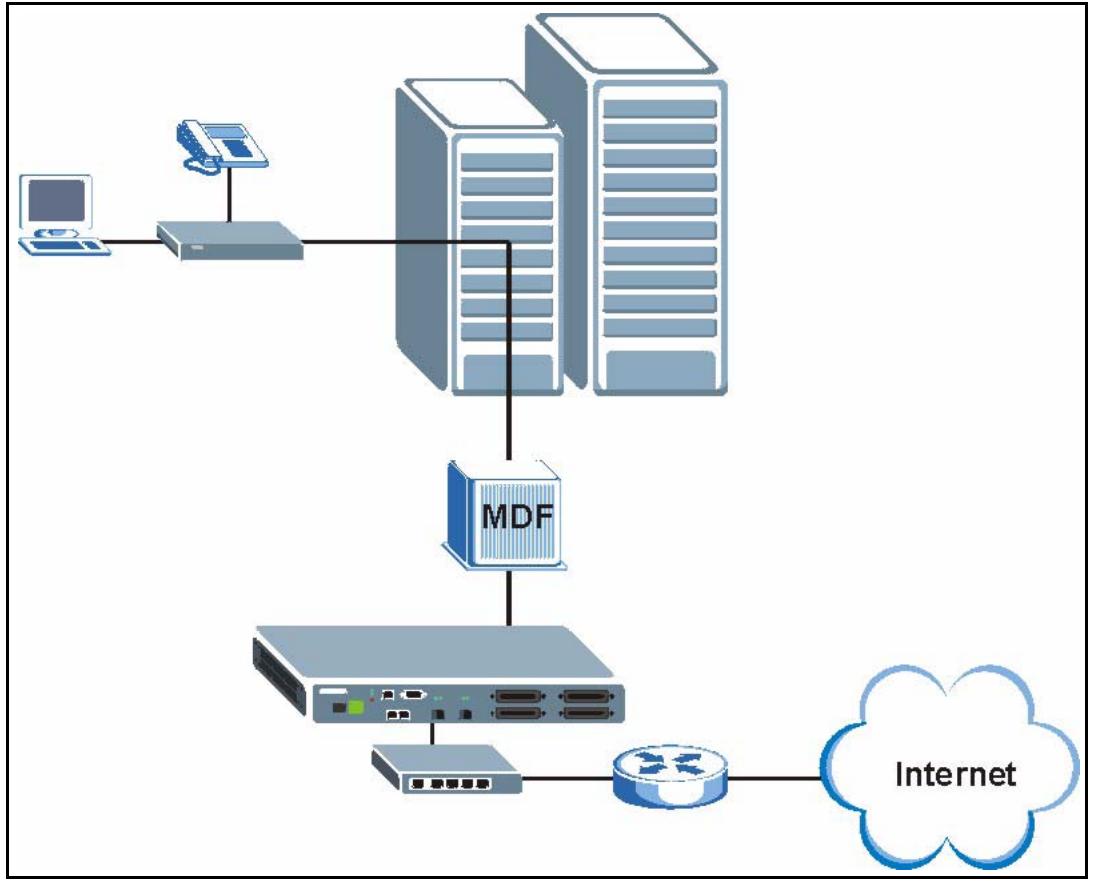
Figure 1 MTU Application
1.2.2 Curbside Application
The IES-1248 can also be used by an Internet Service Provider (ISP) in a street cabinet to form a "mini POP (Point-of-Presence)" to provide broadband services to residential areas that are too far away from the ISP to avail of DSL services. Residents need an ADSL modem, connected as shown in the previous figure.
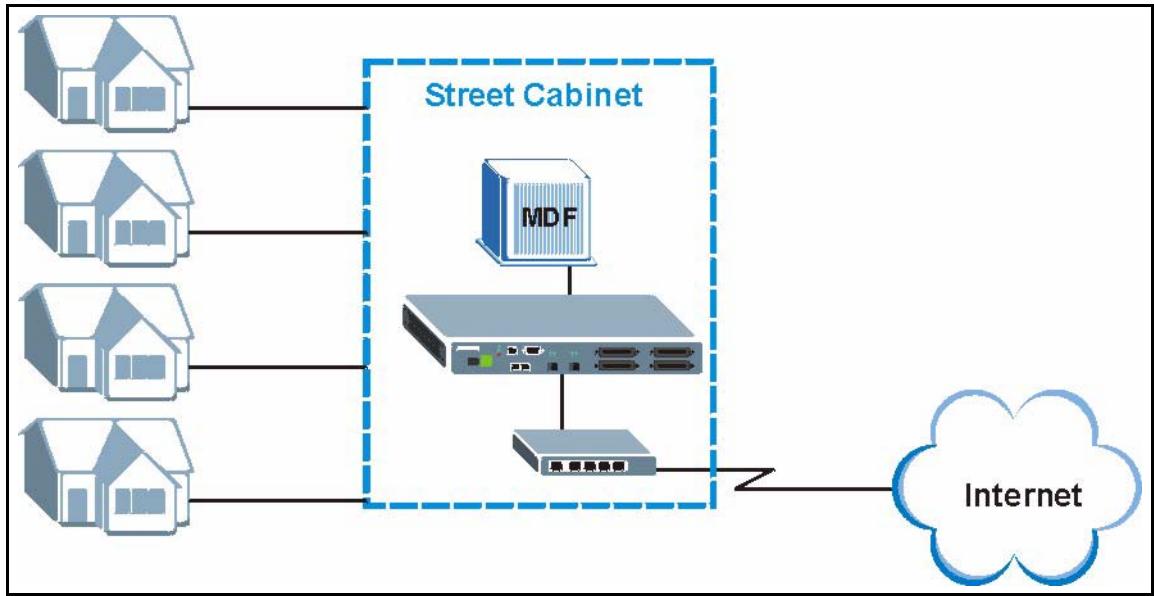
Figure 2 Curbside Application
CHAPTER 2 Hardware Installation
This chapter explains how to install the IES-1248.
2.1 General Installation Instructions
Before you begin, read all the safety warnings in SafetyWarnings on page 5, and make sure you follow them.
Perform the installation as follows:
1 Make sure the IES-1248 power switch is in the OFF position.
2 Install the hardware. See Section 2.2 on page 47.
3 Connect the frame ground. See Section 2.3 on page 50.
4 See Chapter 3 on page 53 for instructions on making front panel connections.
5 See Chapter 4 on page 61 for instructions on connecting the Telco-50 connectors.
6 See Chapter 5 on page 69 for instructions on making power connections and turning on the IES-1248.
2.2 Installation Scenarios
The IES-1248 can be placed on a desktop or rack-mounted on a standard EIA rack. Use the rubber feet in a desktop installation and the brackets in a rack-mounted installation.
For proper ventilation, allow at least 4 inches (10 cm) of clearance at the front and 3.4 inches (8 cm) at the back of the IES-1248. This is especially important for enclosed rack installations.
2.2.1 Desktop Installation Procedure
1 Make sure the IES-1248 is clean and dry.
2 Set the IES-1248 on a smooth, level surface strong enough to support the weight of the IES-1248 and the connected cables. Make sure there is a power outlet nearby.
3 Make sure there is enough clearance around the IES-1248 to allow air circulation and the attachment of cables and the power cord.
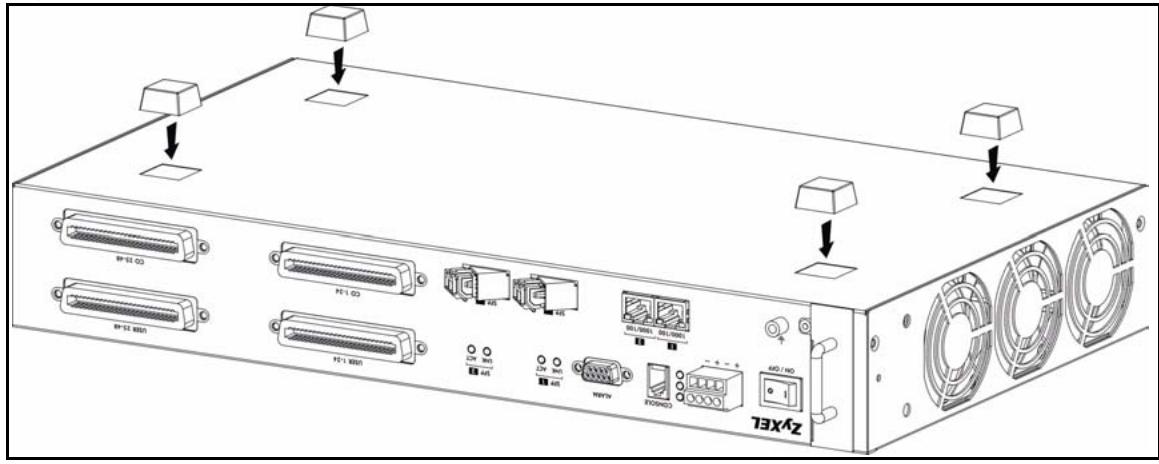
4 Remove the adhesive backing from the rubber feet.
5 Attach the rubber feet to each corner on the bottom of the IES-1248. These rubber feet help protect the IES-1248 from shock or vibration and ensure space between IES-1248 when stacking.
Figure 3 Attaching Rubber Feet
Note: Do not block the ventilation holes. Leave space between IES-1248 when stacking.
2.2.2 Rack-Mounted Installation
2.2.2.1 Rack-mounted Installation Requirements
The IES-1248 can be mounted on an EIA standard size, 19-inch rack or in a wiring closet with other equipment. Follow the steps below to mount your IES-1248 on a standard EIA rack using a rack-mounting kit.
Note: Make sure the rack will safely support the combined weight of all the equipment it contains.
Note: Make sure the position of the IES-1248 does not make the rack unstable or top-heavy. Take all necessary precautions to anchor the rack securely before installing the unit.
- Use a #2 Philips screwdriver to install the screws.
- See Appendix B on page 445 for the gauge of wire to use for the frame ground connections.
See Appendix B on page 445 for the hardware that is required to mount the IES-1248.
Note: Failure to use the proper screws may damage the unit.
Note: Do not block the ventilation holes. Leave space between IES-1248 when stacking.
2.2.2.2 Rack-Mounted Installation Procedure
1 Align one bracket with the holes on one side of the IES-1248 and secure it with the bracket screws smaller than the rack-mounting screws.
2 Attach the other bracket in a similar fashion.
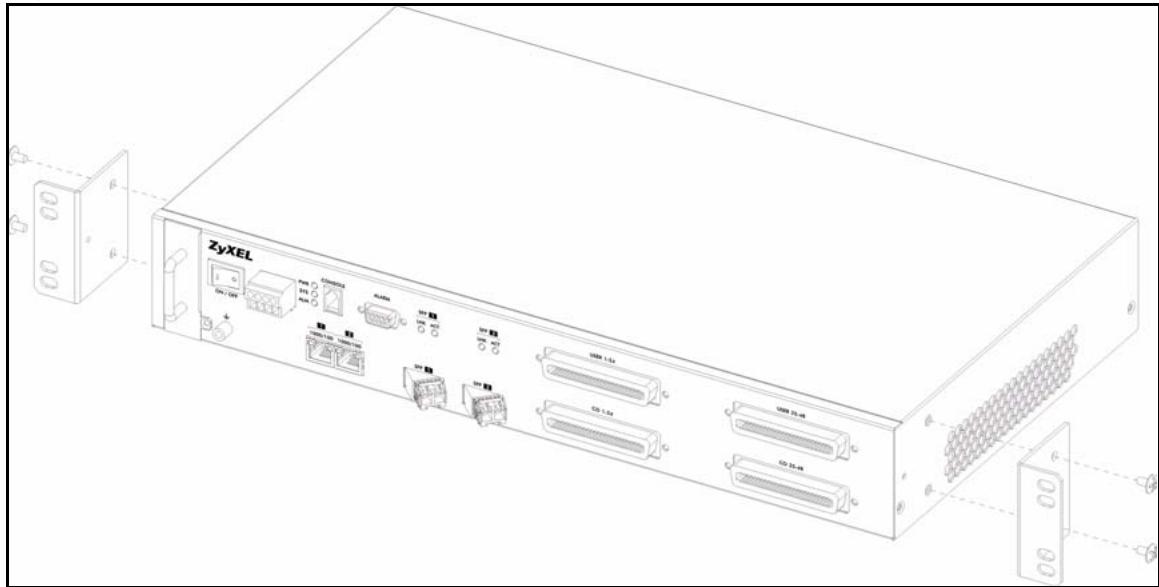
Figure 4 Attaching Mounting Brackets and Screws
3 After attaching both mounting brackets, position the IES-1248 in the rack by lining up the holes in the brackets with the appropriate holes on the rack. Secure the IES-1248 to the rack with the rack-mounting screws.
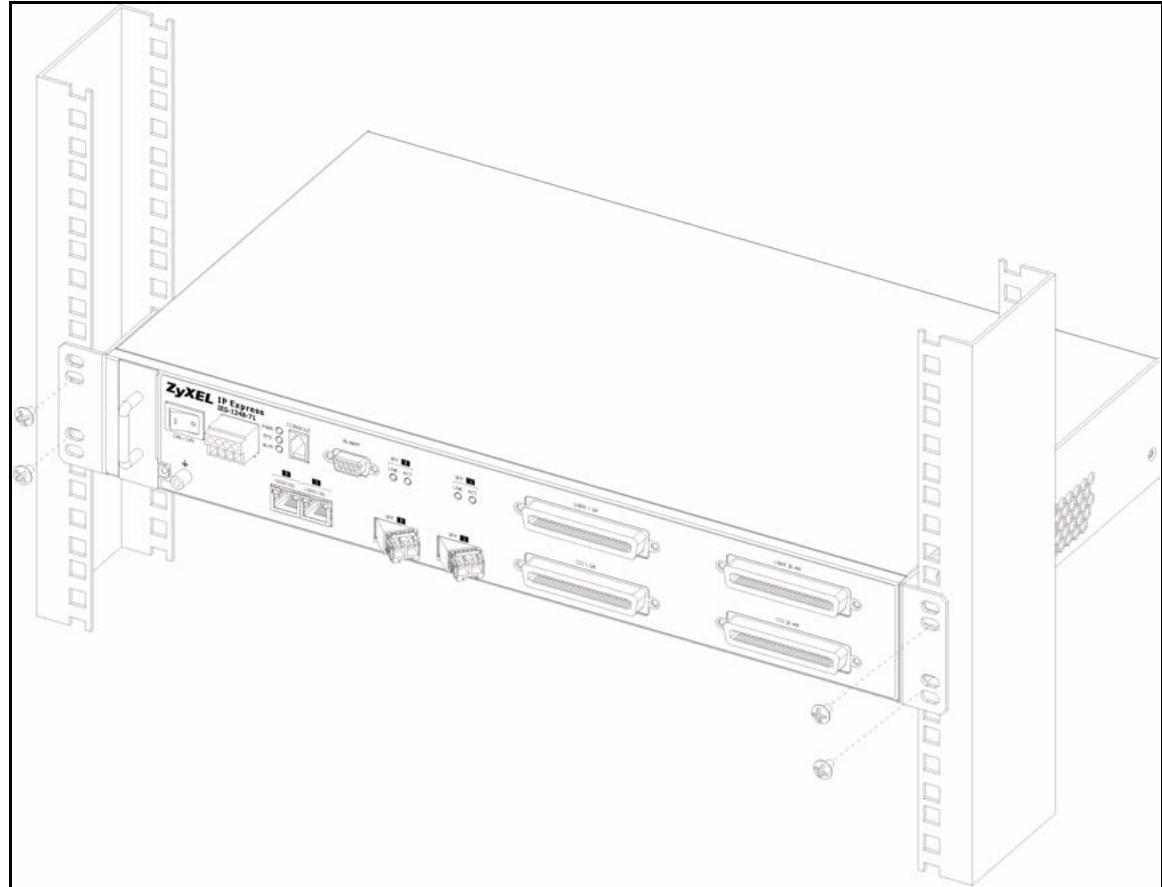
Figure 5 Rack Mounting
2.3 Connecting the Frame Ground
Follow the directions in this section for the IES-1248-51 and IES-1248-53. This section is not applicable for the IES-1248-51A.
Note: See Appendix B on page 445 for the ground wire gauge.
- The IES-1248 frame ground is on the lower left corner of the front panel.
- Connect the frame grounds to a building's protective earthing terminals using a green-and-yellow frame ground wire.
Note: Warning! Connect the frame ground before you connect any other cables or wiring.
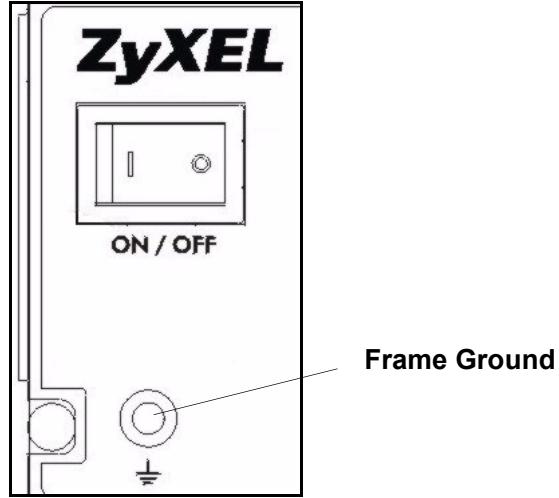
Figure 6 IES-1248 Frame Ground
CHAPTER 3
Front Panel Connections
The following table briefly describes the ports on the front panel. Then, the rest of this chapter explains how to make connections to the IES-1248's front panel.
3.1 Front Panel
The following figure shows the front panel of the IES-1248.

Figure 7 IES-1248 Front Panel

Figure 8 IES-1248-51A Front Panel
3.1.1 Front Panel Ports
The following table describes the ports on the front panel of the IES-1248.
Table 1 IES-1248 Front Panel Ports
| CONNECTOR | DESCRIPTION |
| CONSOLE | Connect this mini-RJ-11 port to a computer for local management. |
| 1000/100 1/2 | Use these RJ-45 ports for subtending. You can daisy chain more IES-1248's or other Ethernet switches. This is an electrical Ethernet interface for use with the following copper Ethernet cables: • 100Base-Tx 2 pair UTP Cat. 5, up to 100m • 1000Base-T 4-pair UTP Cat. 5, up to 100m Note: For better performance and lower radiation noise, use shielded Ethernet cables. |
| ALARM | This DB9 connector has alarm input pins and alarm output pins. Connect the alarm input pins to alarm output terminals on other pieces of equipment. Connect the alarm output pins to an alarm input terminal on another piece of equipment. |
| SFP 1, 2 | Each of these Small Form-factor Pluggable (SFP) slots can house a mini GBIC (Gigabit Interface Converter) transceiver. |
| USER 1-24, 25-48 | Connect these Telco-50 connectors to subscribers 1-24 and 25-48 respectively. |
| CO 1-24, 25-48 | Connect these Telco-50 connectors to the telephone company for subscribers 1-24 and 25-48 respectively. |
3.1.2 LEDs
The following table describes the LED indicators on the IES-1248.
Table 2 LED Descriptions
| LED | COLOR | STATUS | DESCRIPTION |
| PWR | Green | On | The power is turned on. |
| Off | The power is off. | ||
| SYS | Green | Blinking | The system is rebooting and performing self-diagnostic tests. |
| On | The system is on and functioning properly. | ||
| Off | The system is not ready/malfunctioning. | ||
| ALM | Red | On | There is a hardware failure, or there is ALM input. |
| Off | The system is functioning normally. | ||
| 1000/100 1,2 | Yellow | On | The link to a 100 Mbps Ethernet network is up. |
| Blinking | The link is transmitting/receiving 100 Mbps Ethernet traffics. | ||
| Off | The link to a 100 Mbps Ethernet network is down. | ||
| Green | On | The link to a 1000 Mbps (1Gbps) Ethernet network is up. | |
| Blinking | The link is transmitting/receiving 1000 Mbps (1Gbps) Ethernet traffics. | ||
| Off | The link to a 1000 Mbps (1Gbps) Ethernet network is down. | ||
| SFP 1,2 LNK | Green | On | The link to a 1000 Mbps (1 Gbps) Ethernet network is up. |
| Off | There is not a link to a 1000 Mbps (1 Gbps) Ethernet network or the 1000 Mbps network link is down. | ||
| SFP 1,2 ACT | Green | Blinking | The system is transmitting/receiving Ethernet traffic. |
| Off | The system is not transmitting/receiving Ethernet traffic. |
3.2 1000/100M Auto-Sensing Ethernet
The IES-1248 has two 1000/100Mbps auto-sensing Ethernet ports. There are two factors related to Ethernet: speed and duplex mode. In 1000/100Mbps Fast Ethernet, the speed can be 100Mbps or 1000Mbps and the duplex mode can be half duplex or full duplex. The auto-negotiation capability makes one Ethernet port able to negotiate with a peer automatically to obtain the connection speed and duplex mode that both ends support.
When auto-negotiation is turned on, an Ethernet port on the IES-1248 negotiates with the peer automatically to determine the connection speed and duplex mode. If the peer Ethernet port does not support auto-negotiation or turns off this feature, the IES-1248 determines the connection speed by detecting the signal on the cable and using half duplex mode. When the IES-1248's auto-negotiation is turned off, an Ethernet port uses the pre-configured speed and duplex mode when making a connection, thus requiring you to make sure that the settings of the peer Ethernet port are the same in order to connect.
Use the Ethernet ports for subtending. You can daisy chain more IES-1248 or other Ethernet switches.
Use with the following copper Ethernet cables: 1000Base-T 4-pair UTP Cat. 5, up to 100m
Note: For better performance and lower radiation noise, use shielded Ethernet cables.
Each 1000/100M port is paired with a mini GBIC slot. The IES-1248 uses up to one connection for each pair for a total of two possible gigabit connections (one from each of the two pairs). The IES-1248 uses the mini GBIC transceiver whenever it has a connection.
3.2.1 Ethernet Default Settings
- Speed: Auto
- Duplex: Auto
3.3 SFP Mini GBIC Slots
The SFP slots can each house a mini GBIC (Gigabit Interface Converter) transceiver. A transceiver is a single unit that houses a transmitter and a receiver. The IES-1248 does not come with a transceiver. You must use a transceiver that complies with the Small Form-factor Pluggable (SFP) Transceiver MultiSource Agreement (MSA). See the SFF committee's INF-8074i specification Rev 1.0 for details.
You can change transceivers while the IES-1248 is operating. You can use different transceivers to connect to Ethernet switches with different types of fiber-optic connectors.
Note: To avoid possible eye injury, do not look directly into an operating fiber-optic module's connectors.
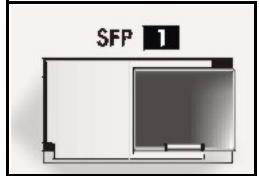
Figure 9 SFP Mini GBIC Slot
- Type: SFP connection interface
- Connection speed: 1 Gigabit per second (Gbps)
3.3.1 Transceiver Installation
Use the following steps to install a mini GBIC transceiver (SFP module) in the SFP slot.
Note: The SFP slot is at an angle. Do not attempt to straighten it.
1 Remove the dust cover from the transceiver.
2 For transceivers with a flip-up or flip-down latch, close the latch.
3 Insert the fiber-optic cables into the transceiver (you may need to remove cable dust covers).
4 Insert the transceiver into the IES-1248's SFP slot with the exposed section of PCB board facing down.
5 Press the transceiver firmly until it clicks into place.
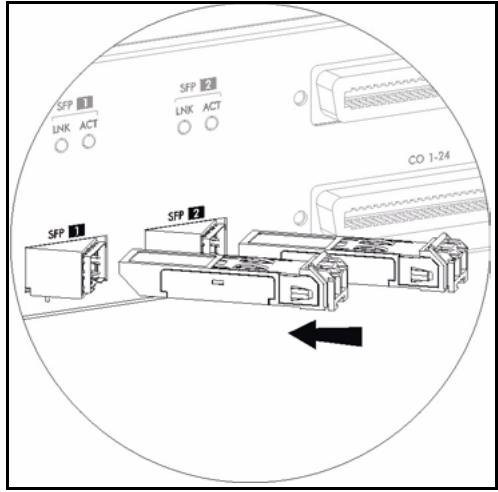
Figure 10 Transceiver Installation
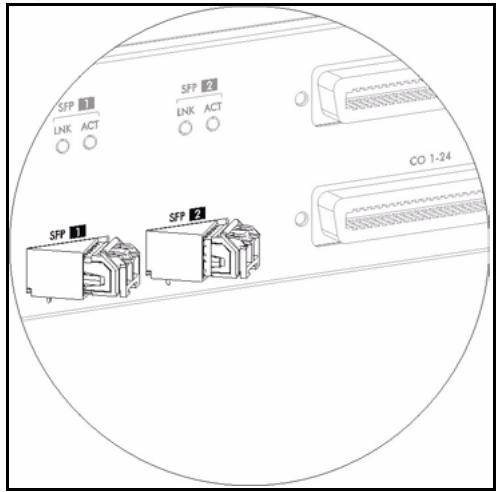
Figure 11 Installed Transceivers
3.3.2 Transceiver Removal
Use the following steps to remove a mini GBIC transceiver (SFP module) from the IES-1248.
1 Remove the fiber-optic cables from the transceiver.
2 Unlock the transceiver's latch (latch styles vary).
3 Pull the transceiver out of the slot.
4 Put the transceiver's dust cover on the transceiver.
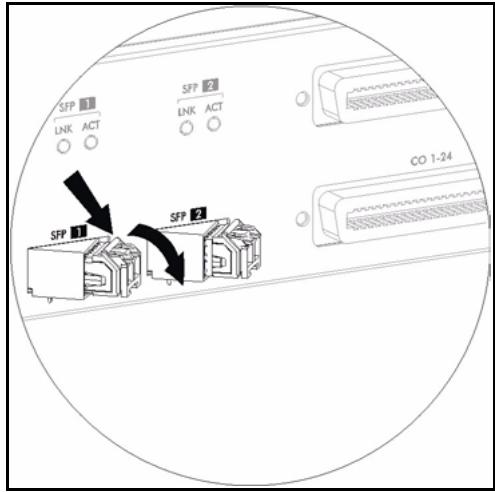
Figure 12 Opening the Transceiver Latch
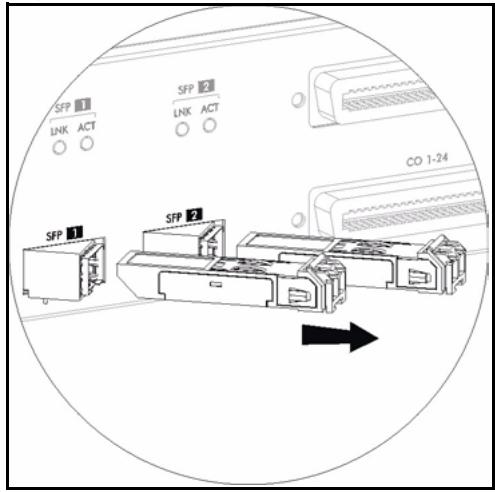
Figure 13 Removing the Transceiver
3.4 Console Port Connection
For local management, you can use a computer with terminal emulation software configured to the following parameters:
- VT100 terminal emulation
9600 bps - No parity, 8 data bits, 1 stop bit
- No flow control
Connect the mini-RJ-11 male end of the console cable to the console port of the IES-1248. Connect the female end to a serial port (COM1, COM2 or other COM port) of your computer.
3.5 ALARM Connections
A closed circuit on the ALARM input pins indicates an alarm. Pins 7 and 3 are alarm input one. Pins 8 and 4 are alarm input two. Pins 9 and 5 are alarm input 3.
The IES-1248 signals an alarm when it detects an alarm on the ALARM input pins or the IES-1248.
To signal an alarm, the IES-1248 opens the circuit for pins 1 and 6 (the common pin) and closes the circuit for pins 2 and 6.
Examples of an alarm on the IES-1248 are when the IES-1248's voltage or temperature is outside of the normal range.
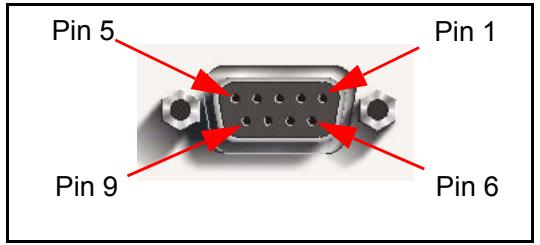
Figure 14 ALARM Pins Layout
3.6 ADSL Connections
Connect the lines from the user equipment (ADSL modems) to the USER Telco-50 connector and the lines from the central office switch or PBX (Private Branch Exchange) to the CO Telco-50 connector. Make sure that the USER line and the CO lines are not shorted on the MDF (Main Distribution Frame).
The line from the user carries both the ADSL and the voice signals. For each line, the IES-1248 has a built-in splitter that separates the high frequency ADSL signal from the voice band signal and feeds the ADSL signal to the IES-1248, while the voice band signal is diverted to the CO port. See Chapter 4 on page 61 for more information on the Telco-50 connections.
CHAPTER 4
MDF Connections
This chapter shows you how to connect the Telco-50 connectors to an MDF.
4.1 MDF Connections Overview
Observe the following before you start:
- See Appendix B on page 445 for the gauge of telephone wire to use.
- Follow the pin assignments shown in Appendix C on page 449 to wire Telco-50 cables to Telco-50 connectors.
- See Chapter 1 on page 41 and Appendix C on page 449 for details on how to make the management connections.
4.2 MDF (Main Distribution Frame)
An MDF is usually installed between subscribers' equipment and the telephone company (CO) in a basement or telephone room. The MDF is the point of termination for the outside telephone company lines coming into a building and the telephone wiring in the building.
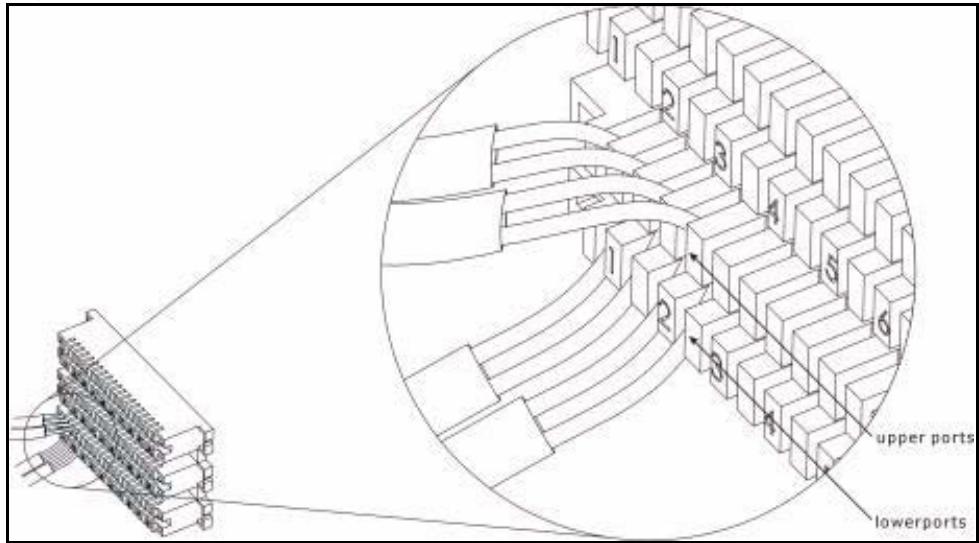
Figure 15 MDF (Main Distribution Frame) Wiring
- Connect wiring to end-user equipment to the lower ports of an MDF and connect wiring from the telephone company to the upper ports of an MDF (see the previous figure).
-
Some MDFs have surge protection circuitry built in between the two banks; thus, do not connect telephone wires from the telephone company directly to your IES-1248.
-
Use a punch-down tool to seat telephone lines into MDF blocks.
- Multiple upper and lower MDF port connections are shown as one line in the following figures.
4.3 Telco-50 Cables
Telco-50 cables are used for data and voice applications with MDFs (Main Distribution Frame), patch panels and distribution boxes. They can also be used as extension cables. Telco-50 cables are made up of 25 twisted-pair copper wires.
Connect a Telco-50 connector to one end of the cable (see Appendix C on page 449 for pin assignments) and connect the other end directly to an MDF; alternatively attach RJ-11 connectors and connect directly to DSL modem(s).
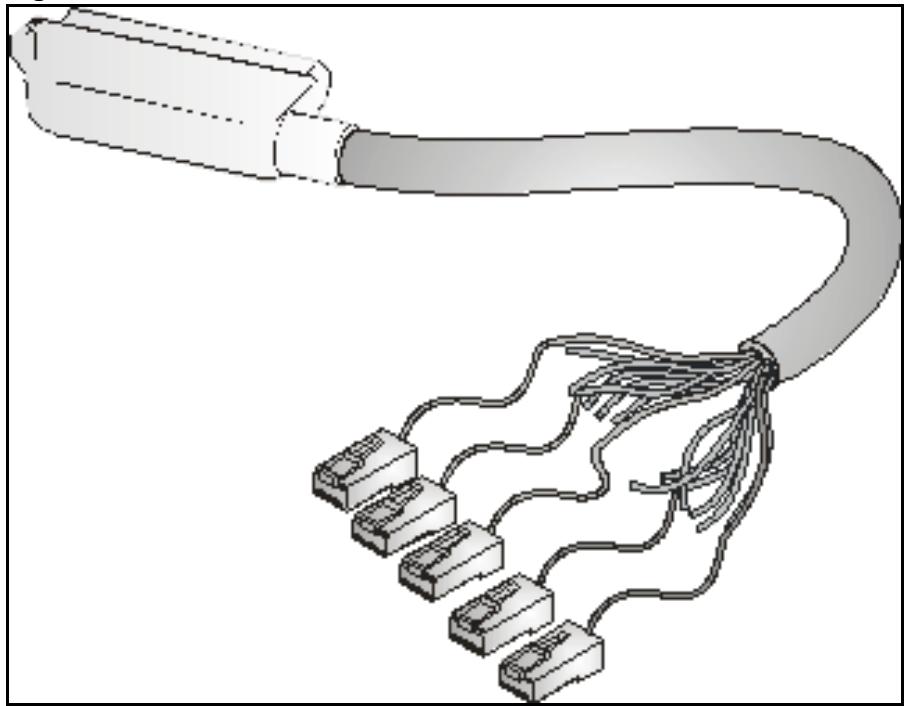
Figure 16 Telco-50 Cable with RJ-11 Connectors
4.4 Telco-50 Connections
The internal DSL splitters separate the voice signals from the DSL signals. They feed the DSL signals to the IES-1248 and divert the voice signals to the CO Telco-50 connectors.
Connect the CO Telco-50 connectors to the PBX or PSTN/ISDN switch.
Connect the USER Telco-50 connectors to the subscribers' telephone wiring. In most multi-tenant unit applications, the USER pins connect to the subscribers' telephone wiring via Main Distribution Frame (MDF).
See the pin assignments in Appendix C on page 449 and Section 4.5 on page 63 for details on Telco-50 connections.
4.5 MDF Scenarios
The following figure gives an overview on a possible installation scenario for the IES-1248. Data and voice signals can coexist on the same telephone wiring.
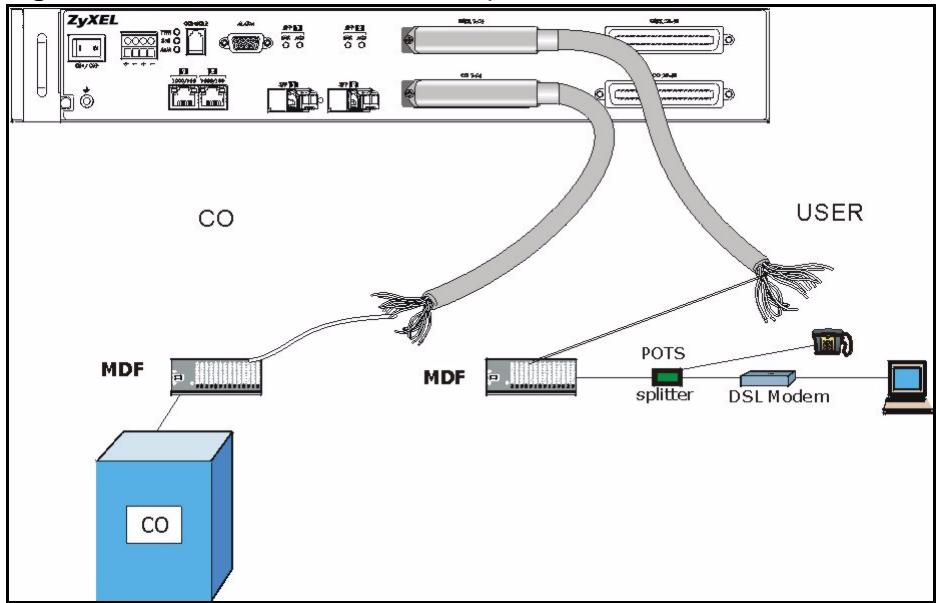
Figure 17 Installation Overview Example
You can also attach RJ-11 connectors to the Telco-50 cable and connect directly to a DSL modem(s) or patch panel. This chapter discusses connections using MDFs.
4.6 Typical MDF Scenarios
This section describes typical installation scenarios.
4.6.1 Installation Scenario A
You want to install the IES-1248 in an environment where there are no previously installed MDFs. There is no phone service and you want to install the IES-1248 for data-access only.
You may connect using an MDF or attach RJ-11 connectors to the non-IES-1248 end of the Telco-50 cable and then connect to DSL modems directly.
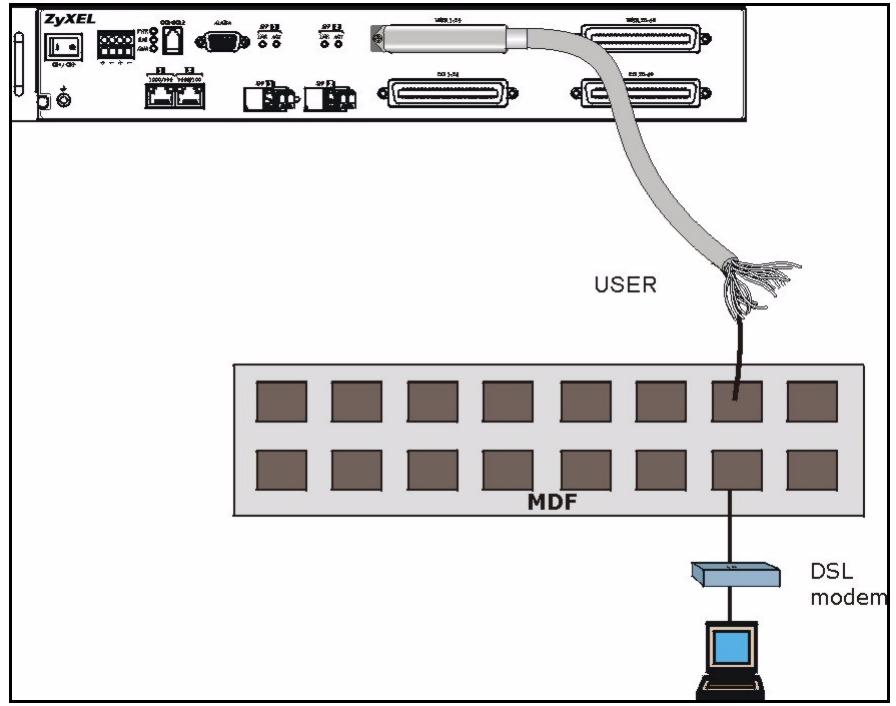
Figure 18 Installation Scenario A
4.6.1.1 Procedure to Connect to an MDF
1 Connect the Telco-50 connector end of the cable to the Telco-50 connector labeled USER.
2 Connect the wiring on the other end of the Telco-50 cable to the upper ports of the MDF using a punch-down tool.
3 Connect the telephone wiring from each end-user's DSL modem to the lower ports of the MDF.
4.6.2 Installation Scenario B
Phone service is available. There is one MDF from which end-users CO connections are made (see the next figure).
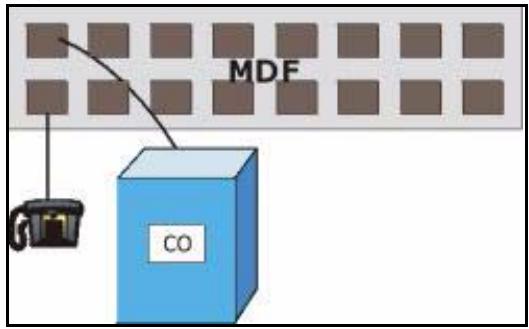
Figure 19 One MDF for End-user and CO Connections
This installation scenario requires three MDFs. Please see the following figure for the connection schema.
- MDF 1 is the original MDF used for telephone connections only.
- MDF 2 is used for telephone connections only.
- MDF 3 is for DSL service connections.
Note: Change the wiring from MDF 1 to MDF 3 for telephone subscribers who want DSL service.
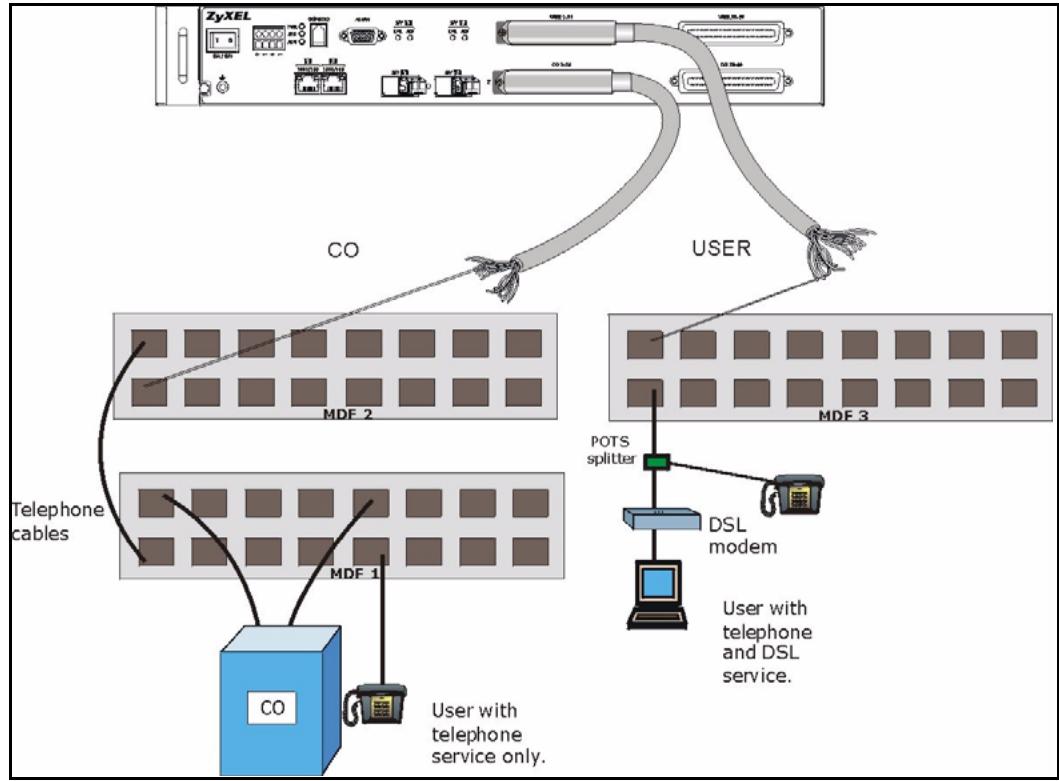
Figure 20 Installation Scenario B
4.6.2.1 Procedure to Connect to MDFs
1 Connect the Telco-50 connector end of the cable you want for DSL service to the Telco-50 connector labeled USER.
2 Connect the wiring on the other side of the Telco-50 cable to the upper ports of MDF 3 using a punch-down tool.
3 Connect the telephone wiring from the end-user's DSL modem(s) to the lower ports of MDF 3.
4 Connect the Telco-50 connector end of the cable you want for phone service to the Telco-50 connector labeled CO.
5 Connect the wiring on the other side of the Telco-50 cable to the lower ports of MDF 2 using a punch-down tool.
6 Connect the upper ports of MDF 2 to the lower ports of MDF 1 using telephone wires.
7 Connect the upper ports of MDF 1 to the telephone company.
8 Telephone subscribers only (non-DSL subscribers) retain connections to the lower ports of MDF 1.
9 Change the wiring from MDF 1 to MDF 3 for telephone subscribers who want DSL service.
4.6.3 Installation Scenario C
Phone service is also available but there are two MDFs; one for end-user telephone line connections and the other one for CO telephone wiring connections (see the following figure).
Note: Users A and B have telephone (only) service.
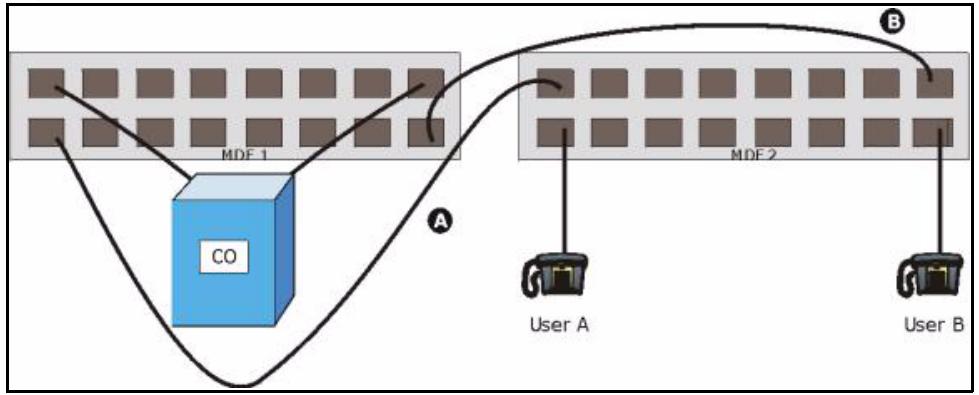
Figure 21 Two Separate MDFs for End-user and CO Connections
This installation scenario requires four MDFs. Please see the following figure for the DSL connection schema.
- MDFs 1 and 2 are the two original MDFs.
- MDFs 3 and 4 are two additional MDFs you need.
Note: User A still has telephone service only. User B now has telephone and DSL service (see the following figure)
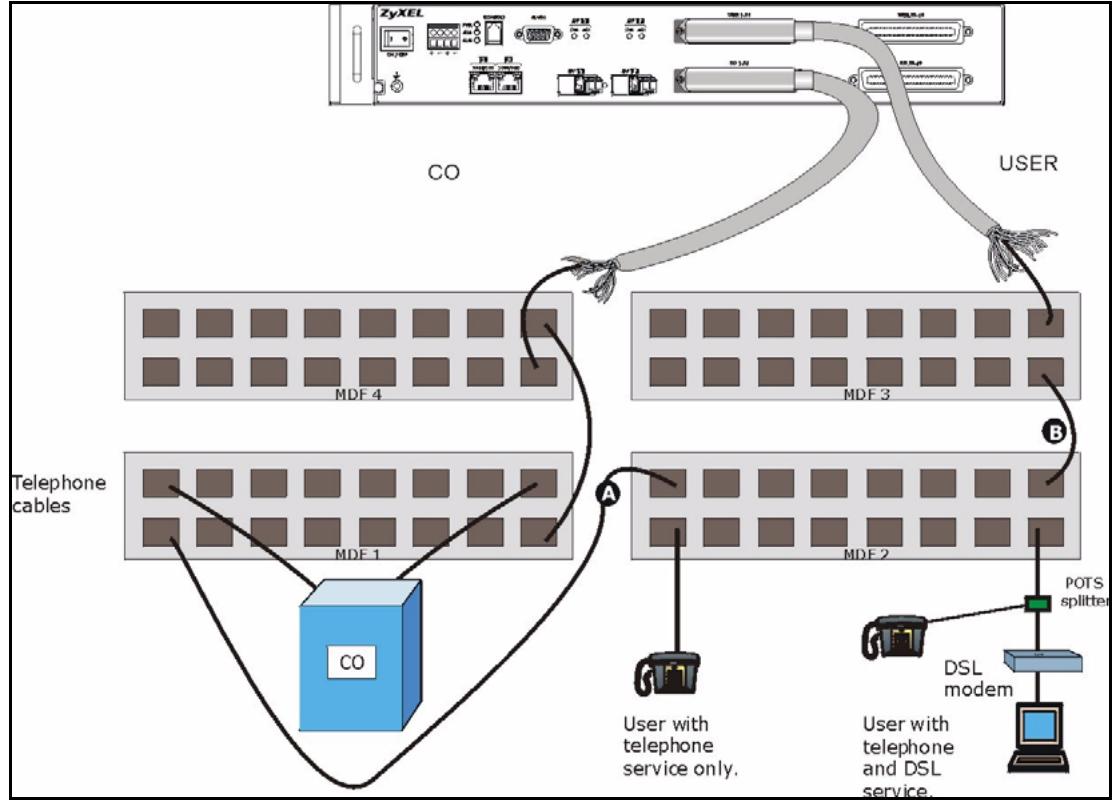
Figure 22 Installation Scenario C
4.6.3.1 Procedure to Connect to MDFs
1 Connect the Telco-50 connector end of the cable you want for DSL service to the Telco-50 connector labeled USER.
2 Connect the wiring on the other side of the Telco-50 cable to the upper ports of MDF 3 using a punch-down tool.
3 Connect the lower ports of MDF 3 to the upper ports of MDF 2 for those users that want DSL service. (Users who want telephone service only, retain the original connection from the top port of MDF 2 to the bottom port of MDF 1.)
4 Connect the telephone wiring from the end-user's DSL equipment to the lower ports of MDF 2.
5 Connect the Telco-50 connector end of the cable you want for phone service to the Telco-50 connector labeled CO.
6 Connect the wiring on the other side of the Telco-50 cable to the lower ports of MDF 4 using a punch-down tool.
7 Connect the top ports of MDF 4 to the bottom ports of MDF 1 using telephone wires.
8 Connect the top ports of MDF 1 to the telephone company.
CHAPTER 5
Power Connections
This chapter shows you how to connect the IES-1248 to a power source.
5.1 Power Connections Overview
Use the following procedures to connect the IES-1248 to a power source after you have installed it in a rack.
Note: Check the power supply requirements in Appendix B on page 445, and make sure you are using an appropriate power source.
Observe the following before you start:
- See Appendix B on page 445 for the gauge of wire to use for the IES-1248 power connections.
- (IES-1248-51A only) Use the included power cord for the IES-1248's power connections.
- Keep the IES-1248 power switch in the OFF position until you come to the procedure for turning on the power.
- Keep the power supply switch in the OFF position until you come to the procedure for turning on the power.
Note: Use only power wires of the required diameter for connecting the IES-1248 to a power supply (see Appendix B on page 445 for the required wire diameter).
5.2 Power Connections
The IES-1248 power connections are at the lower-left corner of the front panel.
5.2.1 AC Power Connections (IES-1248-51A only)
Connect the female end of the power cord to the power socket of your IES-1248. Connect the other end of the cord to a power outlet. Make sure that no objects obstruct the airflow of the fans.
5.2.2 DC Power Connections (IES-1248-51, IES-1248-53)
Note: When installing the IES-1248 power wire, push the wire firmly into the terminal as deep as possible and make sure that no exposed (bare) wire can be seen or touched.
1 Connect one end of a power wire to the - power terminal on the front panel of your IES-1248 and tighten the terminal screw.
2 Connect the other end of the power wire to the -36 to -72 VDC terminal on the power supply.
3 Repeat the previous step for the terminal labeled +
5.3 Procedure to Turn on the IES-1248 Power
1 Turn on the power supply.
2 Move the IES-1248 power switch to the ON position.
CHAPTER 6
Fan Maintenance
This chapter describes how to change a fan module.
6.1 Fan Maintenance Introduction
The IES-1248 has a hot-swappable fan module. Use the following procedures to remove the fan module. Replace the entire fan module. Return any malfunctioning fan modules to the manufacturer.
6.2 Removing and Installing the Fan Module
The IES-1248 fan module is at the left on the front panel. Perform the following procedure to remove the fan module.
1 Loosen the thumbscrew on the front of the fan module.
2 Slide out the fan module.
3 Use a different fan module from the manufacturer.
4 Slide the fan module into the fan module slot.
5 Tighten the thumbscrew.
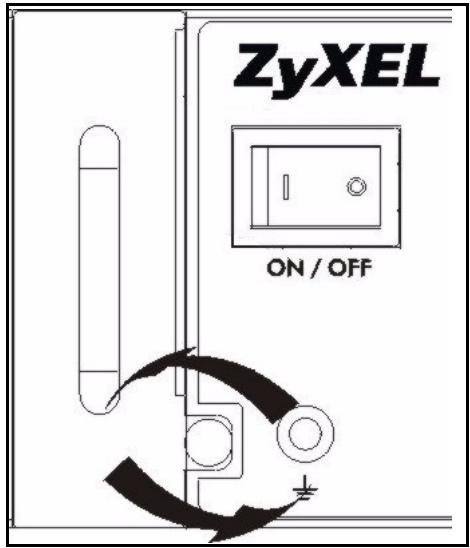
Figure 23 Fan Module Thumbscrews
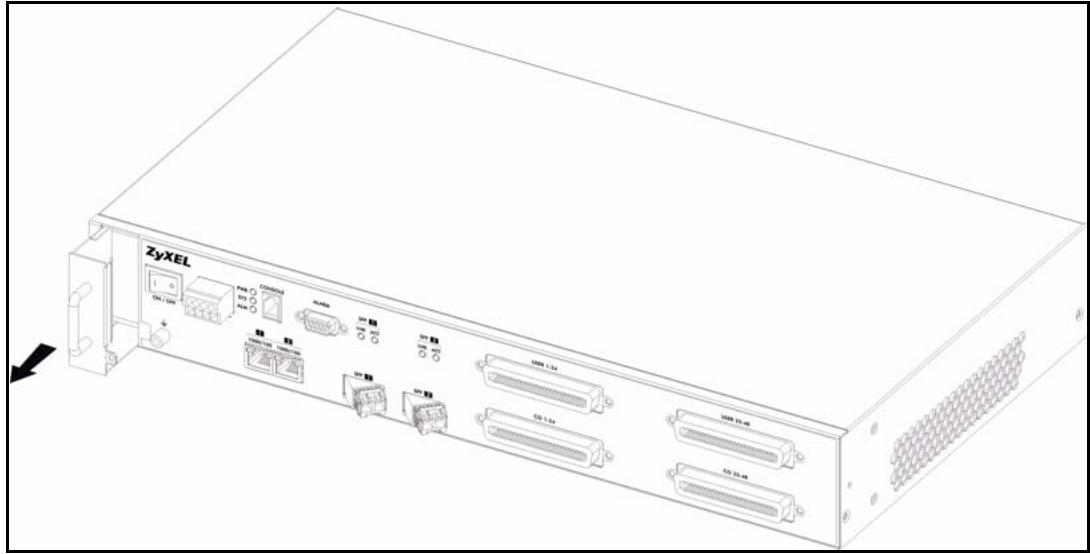
Figure 24 Removing the Fan Module
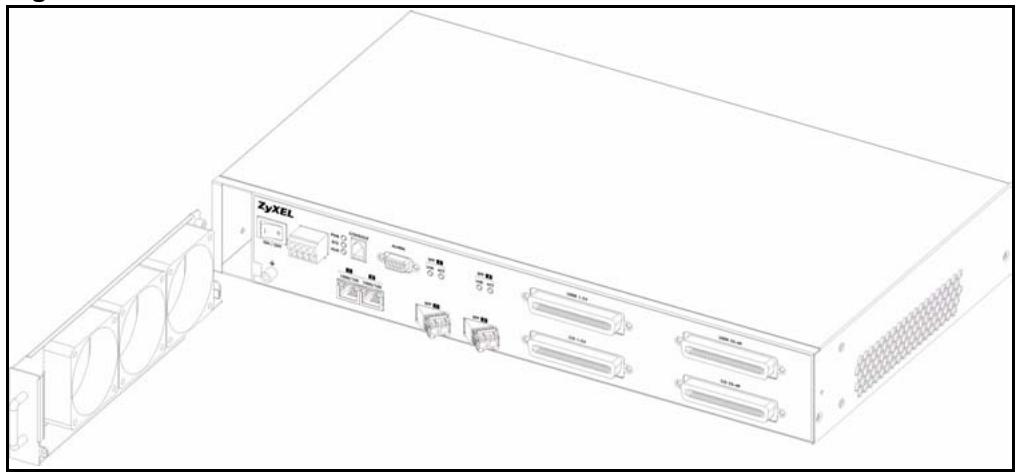
Figure 25 Fan Module Removed
CHAPTER 7 Introducing the Web Configurator
This chapter tells how to access and navigate the web configurator.
7.1 Web Configurator Overview
The web configurator allows you to use a web browser to manage the IES-1248.
7.2 Screen Privilege Levels
There is a high or low privilege level for each screen.
High privilege screens are only available to administrators with high privilege access. High privilege screens include things like creating administrator accounts, restarting the system, saving changes to the nonvolatile memory and resetting to factory defaults. Nonvolatile memory refers to the IES-1248's storage that remains even if the IES-1248's power is turned off. Administrators with high privilege access can use all screens including the lower privilege screens.
Administrators with the low privilege level are restricted to using only low privilege screens. Low privilege screens are read only.
7.3 Accessing the Web Configurator
Use Internet Explorer 6 and later versions with JavaScript enabled.
Use the following instructions to log on to the web configurator.
1 Launch your web browser, and enter the IP address of the IES-1248 (default: 192.168.1.1 is the factory default) in the Location or Address field. Press Enter. The Login screen appears.
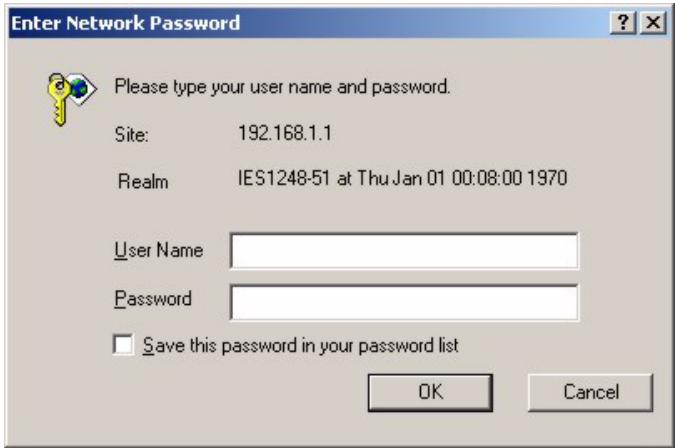
Figure 26 Login
2 Type admin in the User Name field and your password (default: 1234) in the Password field. Click OK. The main screen appears.
This is the web configurator's main screen.
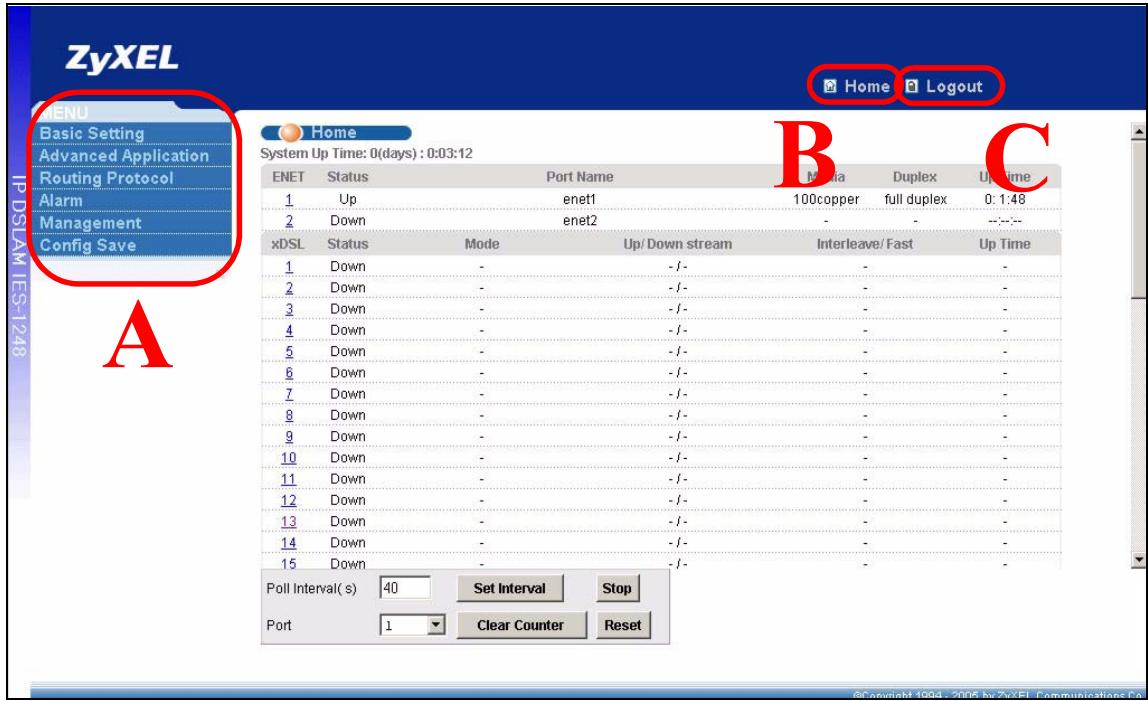
Figure 27 Home
A - Click the menu items to open submenu links, and then click on asubmenu link to open the screen in the main window. See Section 7.4 on page 75 for more information.
B - Click this to open the Home screen. (This is the same screen that is displayed above.) See Chapter 9 on page 87 for more information.
C - Click this to log out of the web configurator.
7.4 Navigation Panel
In the navigation panel, click a menu item to reveal a list of submenu links. Click a submenu link to go to the corresponding screen.
Table 3 Navigation Panel Submenu Links
| BASIC SETTING | ADVANCED APPLICATION | ROUTING PROTOCOL |
| System Information | VLAN | Static Routing |
| General Setup | IGMP | |
| User Account | Static Multicast | |
| Switch Setup | Multicast VLAN | |
| IP Setup | Filtering | |
| ENET Port Setup | MAC Filter | |
| xDSL Port Setup | Spanning Tree Protocol | |
| xDSL Profiles Setup | Port Authentication | |
| xDSL Line Data | Port Security | |
| DHCP Relay | ||
| DHCP Snoop | ||
| 2684 Routed Mode | ||
| PPPoA to PPPoE | ||
| DSCP | ||
| TLS PVC | ||
| ACL | ||
| Downstream Broadcast | ||
| SysLog | ||
| Access Control | ||
| ALARM | MANAGEMENT | CONFIG SAVE |
| Alarm Status | Maintenance | Config Save |
| Alarm Event Setup | Diagnostic | |
| Alarm Port Setup | MAC Table | |
| ARP Table |
The following table briefly describes the functions of the screens that you open by clicking the navigation panel's sub-links.
Table 4 Web Configurator Screens
| LABEL | DESCRIPTION |
| Basic Setting | |
| System Information | Use this screen to display general system and hardware monitoring information. |
| General Setup | Use this screen to configure general identification information about the device and the time and date settings. |
| User Account | Use this screen to configure system administrator accounts. |
| Switch Setup | Use this screen to set up system-wide parameters such as MAC address learning and priority queues. |
| IP Setup | Use this screen to configure the system and management IP addresses and subnet masks. |
| ENET Port Setup | Use this screen to configure settings for the Ethernet ports. |
| xDSL Port Setup | Use these screens for configuring settings for individual DSL ports. |
| xDSL Profiles Setup | Use these screens for configuring profiles for the DSL ports. |
| xDSL Line Data | Use these screens for viewing DSL line operating values, bit allocation and performance counters. |
| Advanced Application | |
| VLAN | Use these screens for viewing and configuring the VLAN settings. |
| IGMP | Use these screens to view IGMP status information and configure IGMP settings and IGMP filters. You can also use these screens to set up bandwidth requirements by multicast group or port and to set up limits on the number of multicast groups to which a port can subscribe. |
| Static Multicast | Use this screen to configure static multicast entries. |
| Multicast VLAN | Use these screens to set up multicast VLANs that can be shared among different subscriber VLANs on the network. |
| Filtering | Use this screen to configure packet filtering. |
| MAC Filter | Use this screen to configure MAC filtering for each port. |
| Spanning Tree Protocol | Use these screens to display Rapid Spanning Tree Protocol (RSTP) information and configure RSTP settings. |
| Port Authentication | Use these screens to configure RADIUS and IEEE 802.1x security settings. |
| Port Security | Use this screen to limit the number of MAC address that can be learned on a port. |
| DHCP Relay | Use this screen to configure the DHCP relay settings. |
| DHCP Snoop | Use these screens to drop traffic from IP addresses not assigned by the DHCP server and to look at a summary of the DHCP packets on each port. |
| 2684 Routed Mode | Use this screen to configure the IES-1248 to handle 2684 routed mode traffic. |
| PPPoA to PPPoE | Use this screen to enable PPPoA-to-PPPoE conversions on each port. |
| DSCP | Use this screen to set up DSCP on each port and to convert DSCP values to IEEE 802.1p values. |
| TLS PVC | Use this screen to set up Transparent LAN Service (VLAN stacking, Q-in-Q) on each port. |
| ACL | Use this screen to set up Access Control Logic profiles and to assign them to each PVC. |
| Downstream Broadcast | Use this screen to block downstream broadcast packets from being sent to specified VLANs on specified ports. |
| SysLog | Use this screen to configure the syslog settings. |
| Access Control | Use this screen to configure service access control and configure SNMP and remote management. |
| Routing Protocol | |
| Static Routing | Use this screen to configure static routes. A static route defines how the IES-1248 should forward traffic by configuring the TCP/IP parameters manually. |
| Alarm | |
| Alarm Status | Use these screens to view the alarms that are currently in the system. |
| Alarm Event Setup | Use these screens to view and set the severity levels of the alarms and where the system is to send them. |
| Alarm Port Setup | Use this screen to set the alarm severity threshold for recording alarms on an individual port(s). |
| Management | |
| Maintenance | Use this screen to perform firmware and configuration file maintenance as well as restart the system. |
| Diagnostic | Use this screen to view system logs and test port(s). |
| MAC Table | Use this screen to view the MAC addresses of devices attached to what ports. |
| ARP Table | Use this screen to view the MAC address to IP address resolution table. |
| Config Save | |
| Config Save | Use this screen to save the device's configuration into the nonvolatile memory (the IES-1248's storage that remains even if the IES-1248's power is turned off). |
7.5 Changing Your Password
After you log in for the first time, it is recommended you change the default administrator password. Click Basic Setting and then User Account to display the User Account screen.
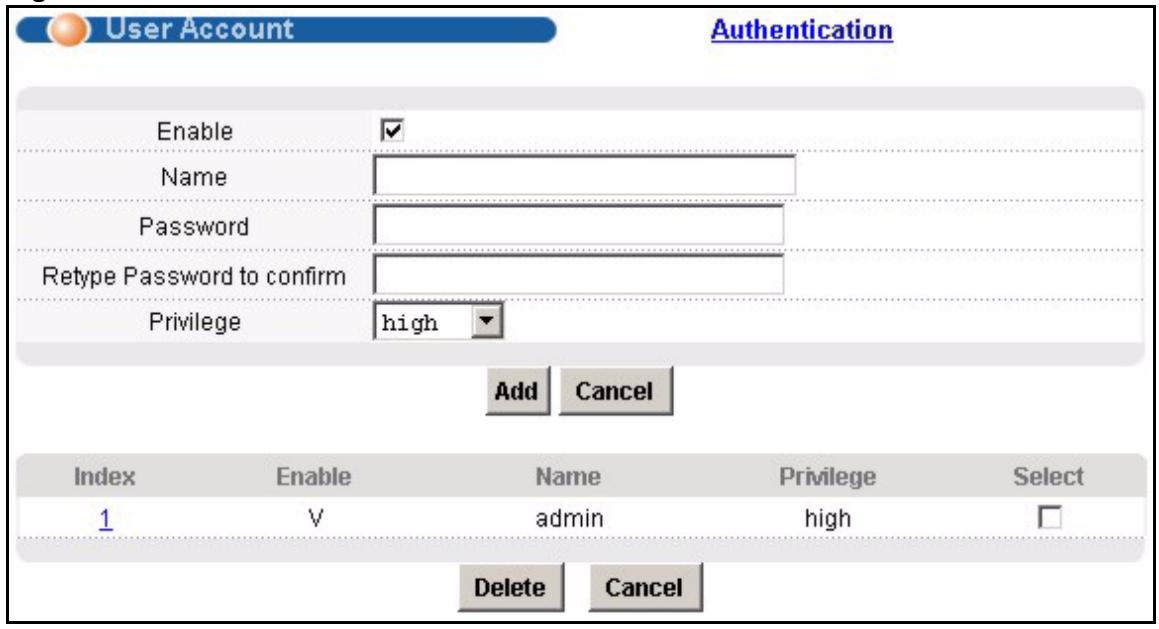
Figure 28 User Account
Click the index number 1 to edit the default administrator account settings.
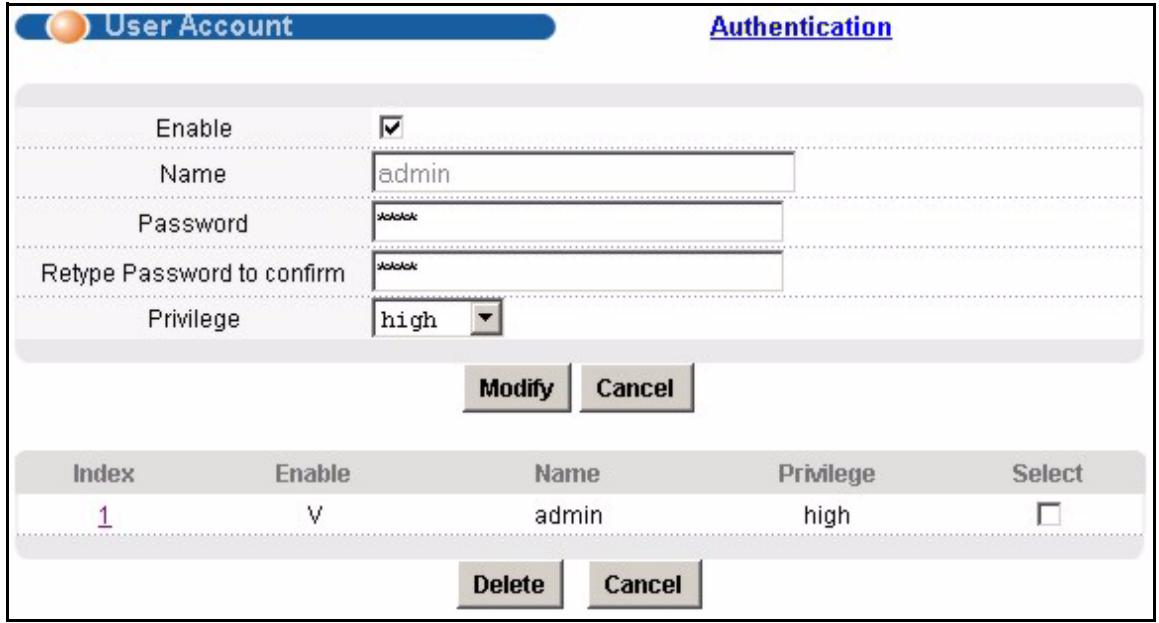
Figure 29 User Account
Enter the new password in the Password and Retype Password to confirm fields, and click Modify. Do not forget to click Config Save before you exit the web configurator. See Section 7.6 on page 78.
7.6 Saving Your Configuration
Click Apply in a configuration screen when you are done modifying the settings in that screen to save your changes back to the run-time memory. Settings in the run-time memory are lost when the IES-1248's power is turned off.
Click Config Save in the navigation panel to save your configuration to nonvolatile memory. Nonvolatile memory refers to the IES-1248's storage that remains even if the IES-1248's power is turned off.
Note: Use Config Save when you are done with a configuration session.
7.7 Logging Out of the Web Configurator
Click Logout in any screen to exit the web configurator. You have to log in with your password again after you log out. This is recommended after you finish a management session both for security reasons and so you do not lock out other device administrators.
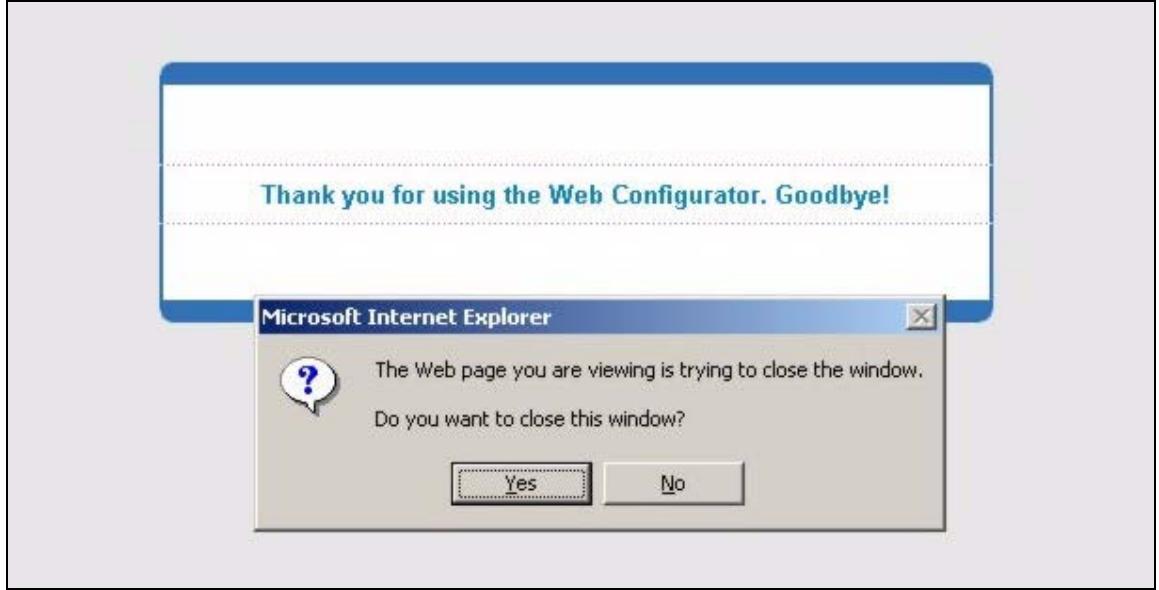
Figure 30Logout
CHAPTER 8
Initial Configuration
This chapter describes initial configuration for the IES-1248. See Appendix A on page 443 for various default settings of the IES-1248.
8.1 Initial Configuration Overview
This chapter shows what you first need to do to provide service to ADSL subscribers.
8.2 Initial Configuration
This chapter uses the web configurator for initial configuration. See the CLI chapters for information on the commands. Use Internet Explorer 6 and later versions with JavaScript enabled.
1 Log in to the web configurator. See Section 7.3 on page 73 for instructions.
2 In the navigation panel, click Basic Setting, IP Setup. The IP Setup screen appears.
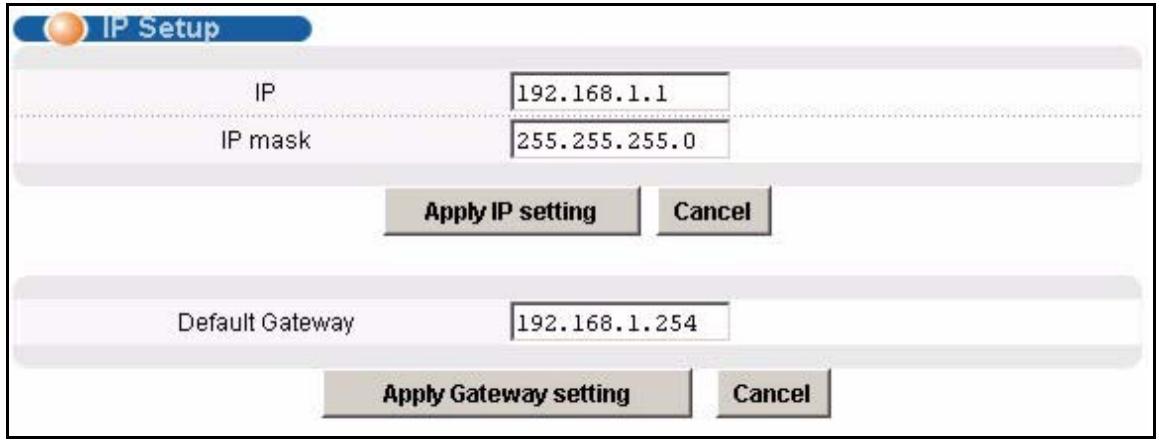
Figure 31 IP Setup
3 Use this screen to change the IP address, subnet mask, and default gateway IP address for your network. Apply the settings.
Note: If you change the IP address of the IES-1248, after you click Apply IP setting, you have to use the new IP address to log into the web configurator again.
4 If your subscribers use VPI 0 and VCI 33 (the default for all of the ADSL ports), go to step 13. Otherwise, use the following steps to change the VPI and VCI settings for all of the ADSL ports.
First, you will delete the default virtual channel from all of the ADSL ports. (You cannot edit it). Then, you will configure a new virtual channel for a port and copy it to the other ADSL ports.
Adding another virtual channel without deleting the default virtual channel is not recommended since you cannot set the new channel to be the port's super channel. The super channel can forward frames belonging to multiple VLAN groups (that are not assigned to other channels). A channel that is not the super channel can only forward frames with a single VLAN ID (that is configured on that channel). In this case, the IES-1248 drops any frames received from the subscriber that are tagged with another VLAN ID.
5 In the navigation panel, click Basic Setting, xDSL Port Setup. The xDSL Port Setup screen appears.
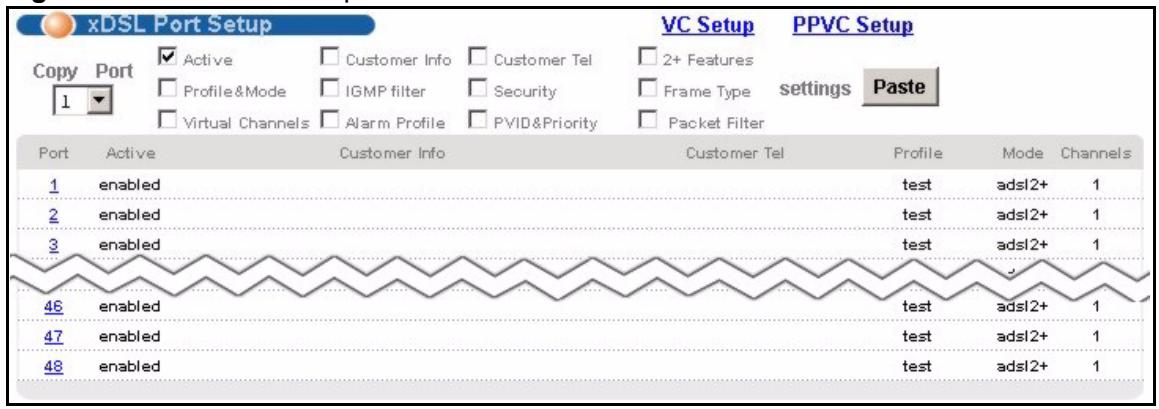
Figure 32 xDSL Port Setup
6 Click VC Setup. The following screen appears.
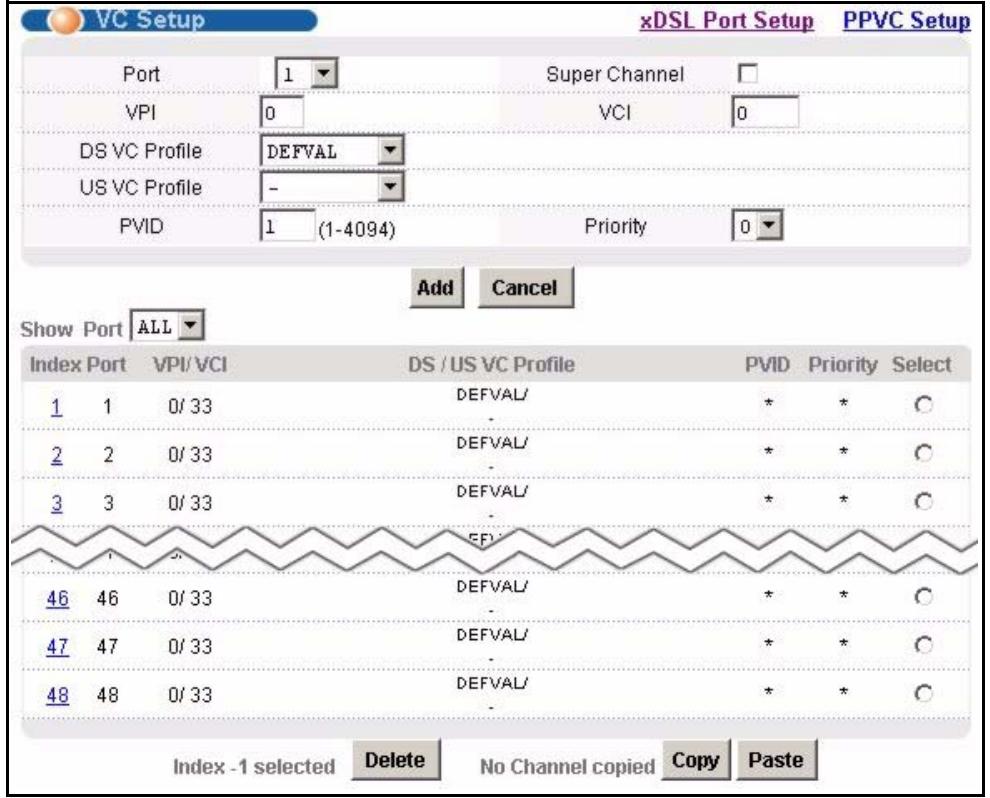
Figure 33 VC Setup
7 Select any virtual channel's Select radio button, and click Delete. The following screen appears.
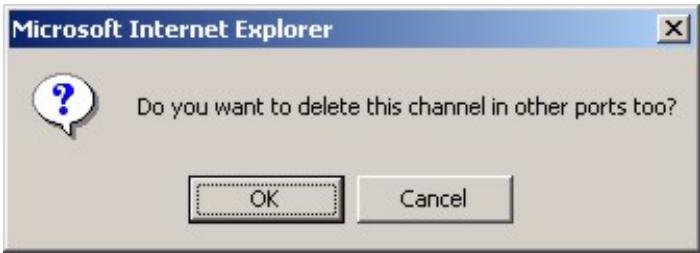
Figure 34 VC Setup, Delete
8 Click OK. The following screen appears.
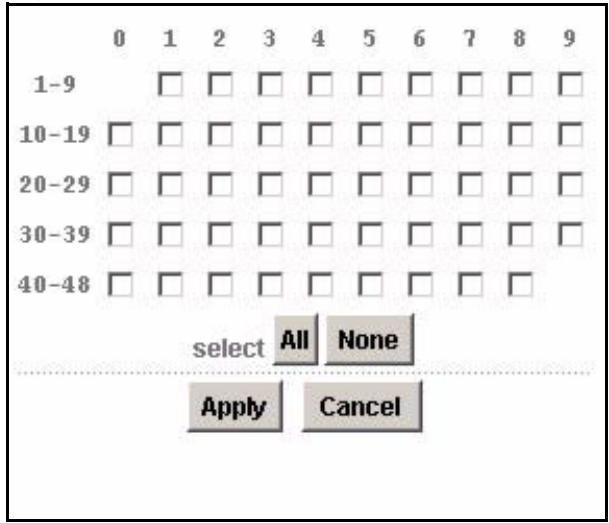
Figure 35 Select Ports
9 Click All, and then click Apply. The VC Setup screen is updated.
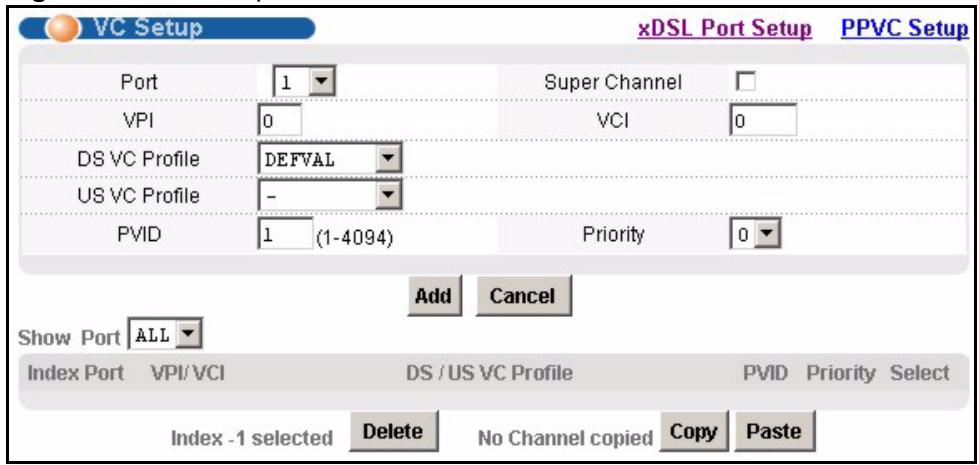
Figure 36 VC Setup
10Select Super Channel to allow the channel to forward frames belonging to multiple VLAN groups (that are not assigned to other channels). Then, enter the VPI and VCI that you use. Leave the other default settings, and click Add. The VC Setup screen is updated.
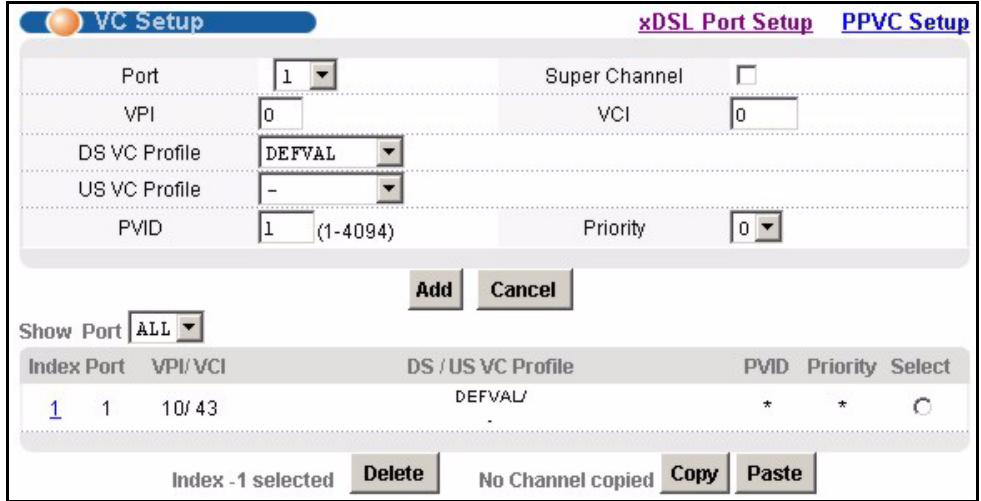
Figure 37 VC Setup
11Select the new channel's Select radio button. Click Copy, and then click Paste. The following screen appears. The following screen appears.
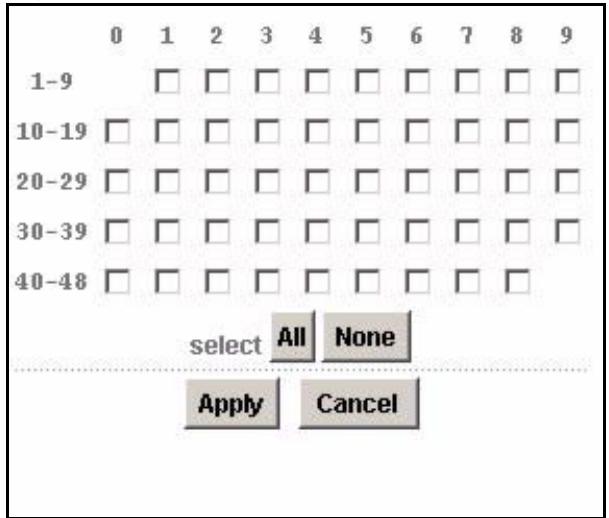
Figure 38 Select Ports
12Click All, and then click Apply. The VC Setup screen is updated.
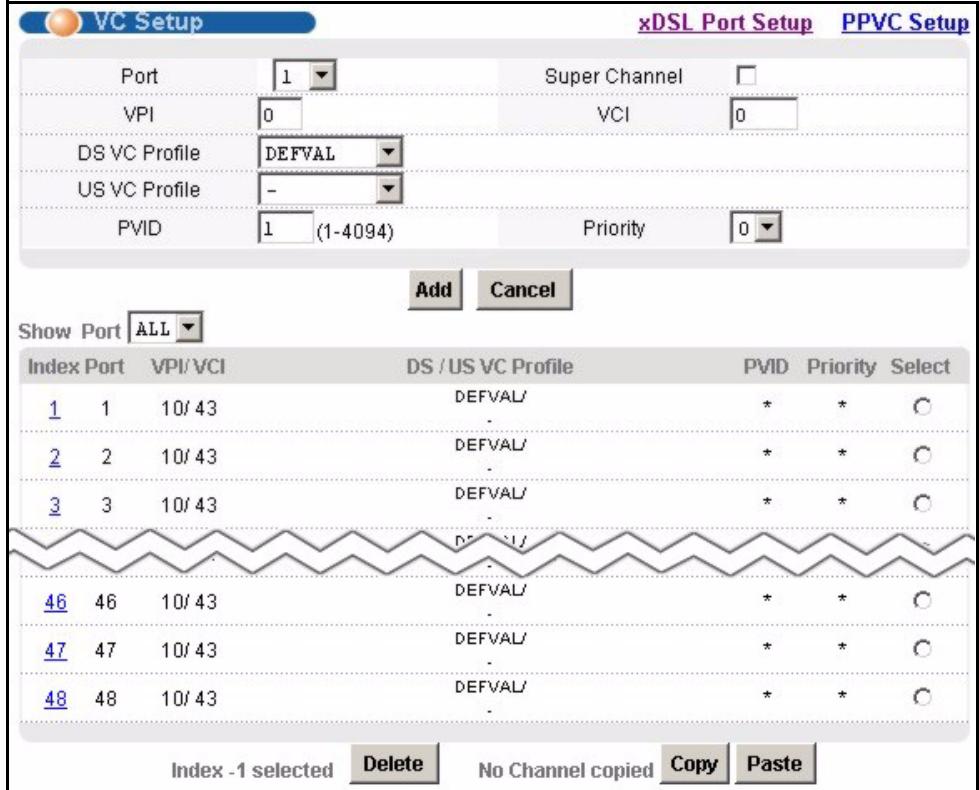
Figure 39 VC Setup
13Click Config Save, Config Save. The Config Save screen appears.

Figure 40 Config Save
14Click Save. The following screen should appear.
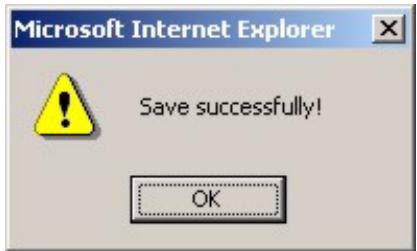
Figure 41 Config Save, Save Successful
You can now use the device (with the other settings set to the defaults) to provide service to ADSL subscribers. See Appendix A on page 443 for information on other default settings.
CHAPTER 9
Home and Port Statistics
Screens
This chapter describes the Home (status), Port Statistics, and RMON screens.
9.1 Home Screen
The Home screen of the web configurator displays a port statistical summary with links to each port showing statistical details.
To open this screen, click Home in any web configurator screen.
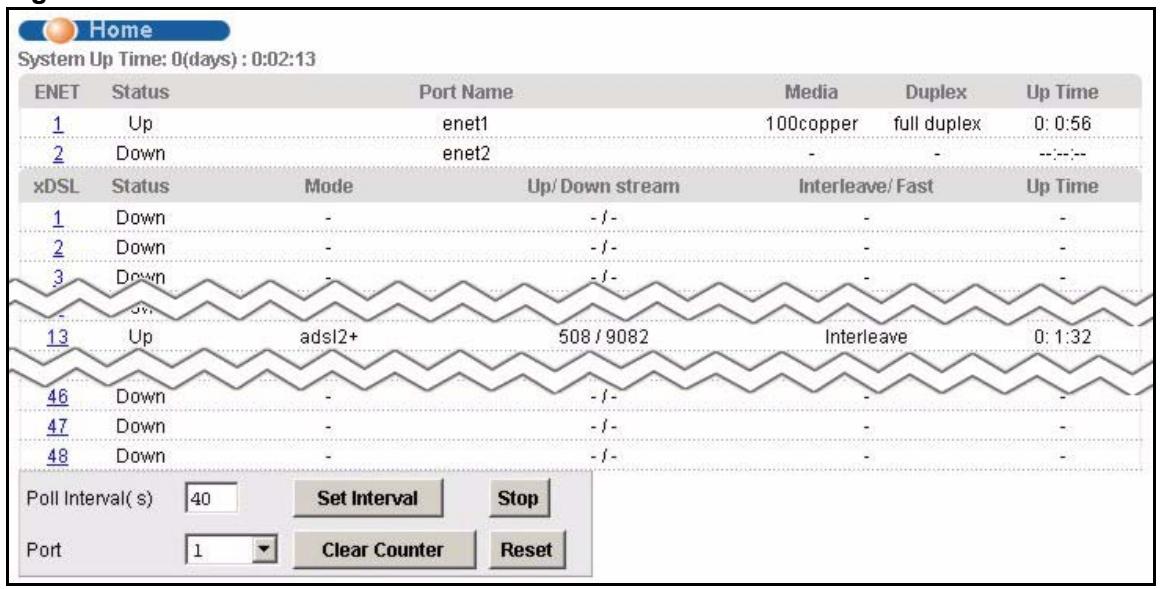
Figure 42 Home
The following table describes the labels in this screen.
Table 5 Home
| LABEL | DESCRIPTION |
| System up Time | This field shows how long the system has been running since the last time it was started. |
| The following fields are related to the Ethernet ports. | |
| ENET | This field displays the number of the Ethernet port. Click a port number to display that port's statistics screen. The Ethernet Port Statistics Screen appears. See Section 9.1.1 on page 88. |
| Status | This field displays whether the Ethernet port is connected (Up) or not (Down). |
| Port Name | This field displays the name of the Ethernet port. |
| Media | This field displays the type of media that this Ethernet port is using for a connection (Copper or Fiber). “-” displays when the port is disabled or not connected. |
| Duplex | This field displays whether the port is using half or full-duplex communication. “-” displays when the port is disabled or not connected. |
| Up Time | This field shows the total amount of time in hours, minutes and seconds the port's connection has been up. “---:---:---” displays when the port is disabled or not connected. |
| The following fields are related to the ADSL ports. | |
| xDSL | This identifies the ADSL port. Click a port number to display that port's statistics screen. The ADSL Port Statistics Screen appears. See Section 9.1.2 on page 91. |
| Status | This field shows whether the port is connected (Up) or not (Down). |
| Mode | This field shows which ADSL operational mode the port is set to use. “-” displays when the port is not connected. |
| Up/Down stream | This field shows the number of kilobits per second that a port is set to transmit and receive. |
| Interleave/Fast | This field shows the port's ADSL latency mode (fast or interleave). |
| Up Time | This field shows the total amount of time in hours, minutes and seconds the port's connection has been up. “-” displays when the port is not connected. |
| The following fields and buttons apply to the whole screen. | |
| Poll Interval(s) | The text box displays how often (in seconds) this screen refreshes. You may change the refresh interval by typing a new number in the text box and then clicking Set Interval. |
| Set Interval | Click Stop to halt system statistic polling. |
| Stop | Select a port from the Port drop-down list box and then click Clear Counter to erase the recorded statistical information for that port. |
| Port Clear Counter | Select a port from the Port drop-down list box and then click Clear Counter to erase the recorded statistical information for that port. |
| Reset | Click this to set the Poll Interval(s) and Port fields to their default values and to refresh the screen. |
9.1.1 Ethernet Port Statistics Screen
Use this screen to display statistics about an Ethernet port. To open this screen, click an Ethernet port's number in the Home screen.
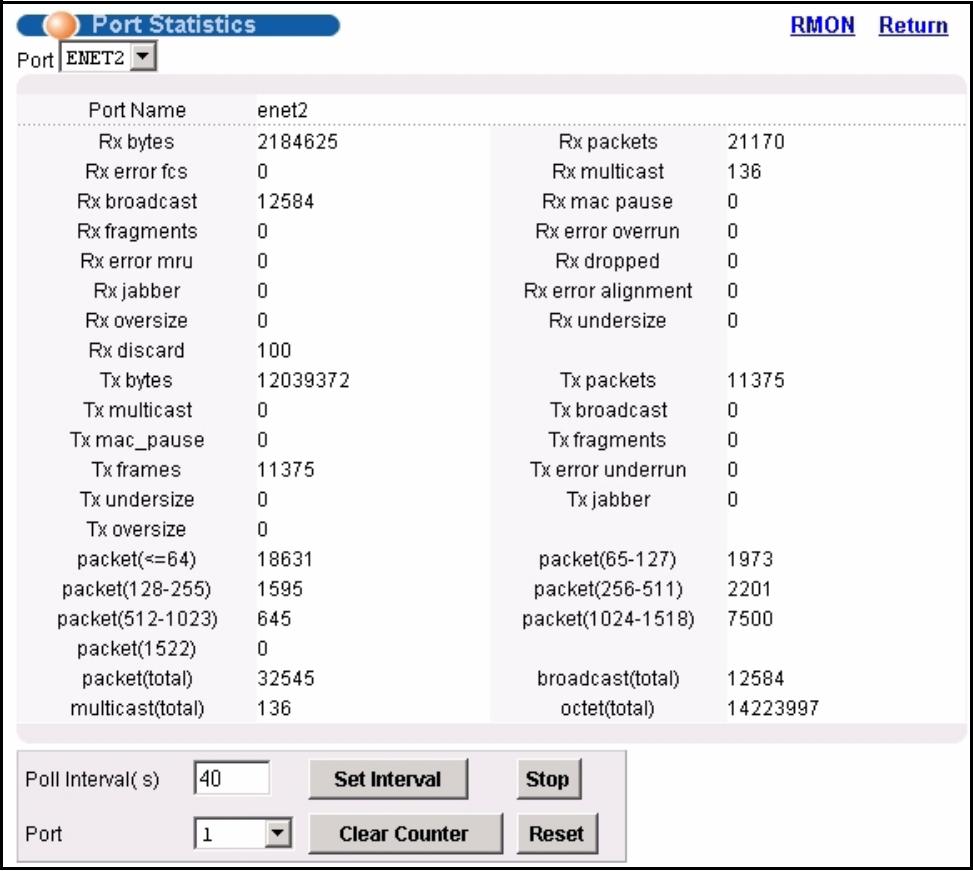
Figure 43 Port Statistics (Ethernet)
The following table describes the labels in this screen.
Table 6 Port Statistics (Ethernet)
| LABEL | DESCRIPTION |
| RMON | Click this to open the RMON Statistics screen. |
| Return | Click this to go back to the Home screen. |
| Port | Use this drop-down list box to select a port for which you wish to view statistics. This field identifies the port described in this screen. |
| Port Name | This field displays the name that you have configured for the port. |
| Rx bytes | This field shows the number of octets of Ethernet frames received that are from 0 to 1518 octets in size, counting the ones in bad packets, not counting framing bits but counting FCS (Frame Check Sequence) octets. An octet is an 8-bit binary digit (byte). |
| Rx packets | This field shows the number of packets received on this port (including multicast, unicast, broadcast and bad packets). |
| Rx error fcs | This field shows the number of frames received with an integral length of 64 to 1518 octets and containing a Frame Check Sequence error. |
| Rx multicast | This field shows the number of good multicast frames received of 64 to 1518 octets in length (for non VLAN) or 1522 octets (for VLAN), not including Broadcast frames. Frames with range or length errors are also not taken into account. |
| Rx broadcast | This field shows the number of good broadcast frames received of 64 to 1518 octets in length (for non VLAN) or 1522 octets (for VLAN), not including multicast frames. Frames with range or length errors are also not taken into account. |
| Rx mac pause | This field shows the number of valid IEEE 802.3x Pause frames received on this port. |
| Rx fragments | This field shows the number of frames received that were less than 64 octets long, and contained an invalid FCS, including non-integral and integral lengths. |
| Rx error overrun | This field shows how many times an Ethernet transmitter overrun occurred. |
| Rx error mru | This field shows the number of received frames that were dropped due to exceeding the Maximum Receive Unit frame size. |
| Rx dropped | This field shows the number of received frames that were received into the IES-1248, but later dropped because of a lack of system resources. |
| Rx jabber | This field shows the number of frames received that were longer than 1518 octets (non VLAN) or 1522 octets (VLAN) and contained an invalid FCS, including alignment errors. |
| Rx error alignment | This field shows the number of frames received that were 64 to 1518 (non VLAN) or 1522 (VLAN) octets long but contained an invalid FCS and a non-integral number of octets. |
| Rx oversize | This field shows the number of frames received that were bigger than 1518 (non VLAN) or 1522 (VLAN) octets and contained a valid FCS. |
| Rx undersize | This field shows the number of frames received that were less than 64 octets long and contained a valid FCS. |
| Tx bytes | This field shows the number of bytes that have been transmitted on this port. This includes collisions but not jam signal or preamble/SFD (Start of Frame Delimiter) bytes. |
| Tx packets | This field shows the number of packets transmitted on this port. |
| Tx multicast | This field shows the number of good multicast frames transmitted on this port (not including broadcast frames). |
| Tx broadcast | This field shows the number of broadcast frames transmitted on this port (not including multicast frames). |
| Tx mac Pause | This field shows the number of valid IEEE 802.3x Pause frames transmitted on this port. |
| Tx fragments | This field shows the number of transmitted frames that were less than 64 octets long, and with an incorrect FCS value. |
| Tx frames | This field shows the number of complete good frames transmitted on this port. |
| Tx error overrun | This field shows the number of outgoing frames that were less than 64 octets long. |
| Tx undersize | This field shows the number of frames transmitted that were less than 64 octets long and contained a valid FCS. |
| Tx jabber | This field shows the number of frames transmitted that were longer than 1518 octets (non VLAN) or 1522 octets (VLAN) and contained an incorrect FCS value. |
| Tx oversize | This field shows the number of frames transmitted that were bigger than 1518 octets (non VLAN) or 1522 (VLAN) and contained a valid FCS. |
| packet(<=64) | This field shows the number of frames received and transmitted (including bad frames) that were 64 octets or less in length (this includes FCS octets but excludes framing bits). |
| packet(65-127) | This field shows the number of frames received and transmitted (including bad frames) that were 65 to 127 octets in length (this includes FCS octets but excludes framing bits). |
| packet(128-255) | This field shows the number of frames received and transmitted (including bad frames) that were 128 to 255 octets in length (this includes FCS octets but excludes framing bits). |
| packet(256-511) | This field shows the number of frames received and transmitted (including bad frames) that were 256 to 511 octets in length (this includes FCS octets but excludes framing bits). |
| packet(512-1023) | This field shows the number of frames received and transmitted (including bad frames) that were 512 to 1023 octets in length (this includes FCS octets but excludes framing bits). |
| packet(1024-1518) | This field shows the number of frames received and transmitted (including bad frames) that were 1024 to 1518 octets in length (this includes FCS octets but excludes framing bits). |
| packet(1522) | This field shows the number of frames received and transmitted (including bad frames) that were 1519 to 1522 octets in length (this includes FCS octets but excludes framing bits). |
| packet(total) | This field shows the total number of received and transmitted packets. |
| broadcast(total) | This field shows the total number of received and transmitted broadcast frames. |
| multicast(total) | This field shows the total number of received and transmitted multicast frames. |
| octet(total) | This field shows the total number of received and transmitted octets (unicast, multicast and broadcast). |
| Poll Interval(s) Set Interval | The text box displays how often (in seconds) this screen refreshes. You may change the refresh interval by typing a new number in the text box and then clicking Set Interval. |
| Stop | Click Stop to halt system statistic polling. |
| Port Clear Counter | Select a port from the Port drop-down list box and then click Clear Counter to erase the recorded statistical information for that port. |
| Reset | Click this to set the Poll Interval(s) and Port fields to their default values and to refresh the screen. |
9.1.2 ADSL Port Statistics Screen
Use this screen to display statistics about an ADSL port. To open this screen, click an ADSL port's number in the Home screen.
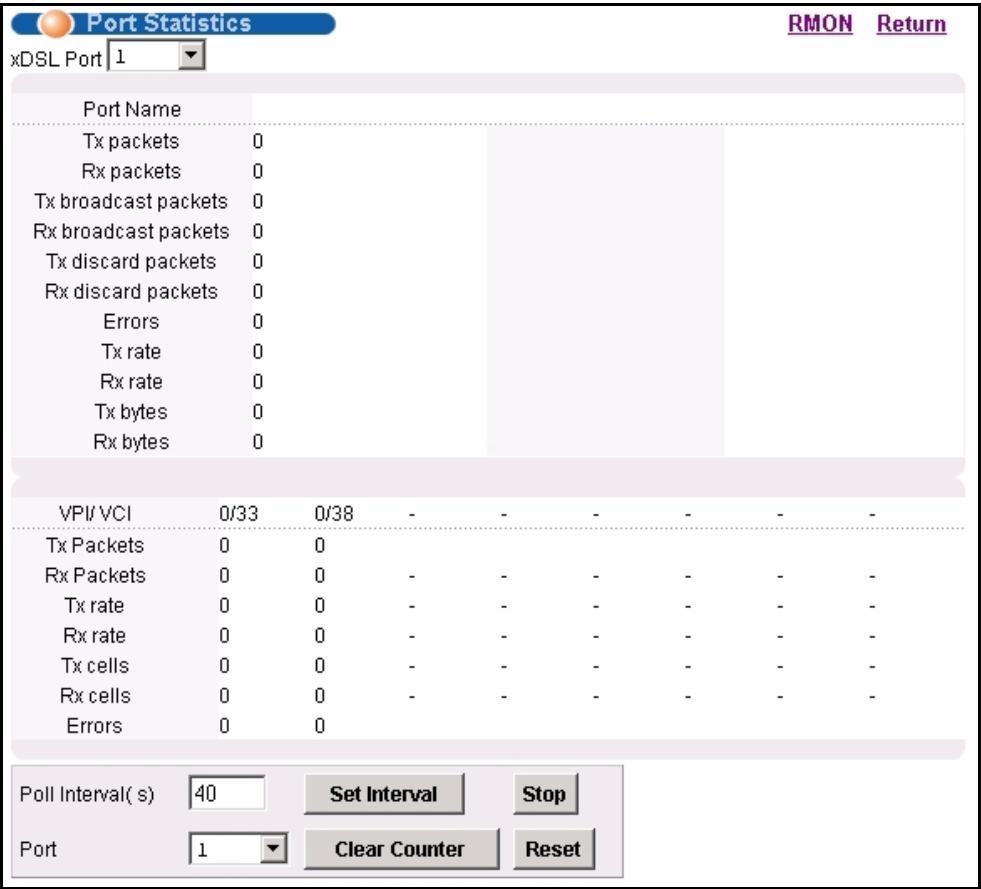
Figure 44 Port Statistics (ADSL)
The following table describes the labels in this screen.
Table 7 Port Statistics (ADSL)
| LABEL | DESCRIPTION |
| RMON | Click this to open the RMON Statistics screen. |
| Return | Click this to go back to the Home screen. |
| xDSL Port | Use this drop-down list box to select a port for which you wish to view statistics. This field identifies the port described in this screen. |
| Port Name | This field displays the name that you have configured for the port. If you have not configured a name, it is blank. |
| Tx packets | This field shows the number of packets transmitted on this port. |
| Rx packets | This field shows the number of packets received on this port. |
| Tx broadcast packets | This field shows the number of broadcast packets transmitted on this port. |
| Rx broadcast packets | This field shows the number of broadcast packets received on this port. |
| Tx discard packets | This field shows the number of outgoing packets that were dropped on this port. The “Tx discard packets” counter always displays “0” because the IES-1248 does not discard packets that it sends. |
| Rx discard packets | This field shows the number of received packets that were dropped on this port. Some of the possible reasons for the discarding of received (rx) packets are: • The packet filter is enabled and the packets matched a packet filter. • The MAC filter is enabled and the IES-1248 dropped the packets according to the MAC filter's configuration. • The packets contained frames with an invalid VLAN ID. |
| Errors | This field shows the number of AAL5 frames received with CRC errors. |
| Tx rate | This field shows the number of kilobytes per second transmitted on this port. |
| Rx rate | This field shows the number of kilobytes per second received on this port. |
| Tx bytes | This field shows the number of bytes that have been transmitted on this port. |
| Rx bytes | This field shows the number of bytes that have been received on this port. |
| VPI/VCI | This field displays the Virtual Path Identifier (VPI) and Virtual Circuit Identifier (VCI) of channels on this port. |
| Tx Packets | This field shows the number of packets transmitted on each channel. |
| Rx Packets | This field shows the number of packets received on each channel. |
| Tx rate | This field shows the number of bytes per second transmitted on each channel. |
| Rx rate | This field shows the number of bytes per second received on each channel. |
| Tx cells | This field shows the number of ATM cells transmitted on each channel. |
| Rx cells | This field shows the number of ATM cells received on each channel. |
| Errors | This field shows the number of error packets on each channel. |
| Poll Interval(s) Set Interval | The text box displays how often (in seconds) this screen refreshes. You may change the refresh interval by typing a new number in the text box and then clicking Set Interval. |
| Stop | Click Stop to halt system statistic polling. |
| Port Clear Counter | Select a port from the Port drop-down list box and then click Clear Counter to erase the recorded statistical information for that port. |
| Reset | Click this to set the Poll Interval(s) and Port fields to their default values and to refresh the screen. |
9.1.3 RMON Statistics Screen
Use this screen to display RMON statistics about a port. To open this screen, click RMON in the ADSL Port Statistics screen or Ethernet Port Statistics screen.
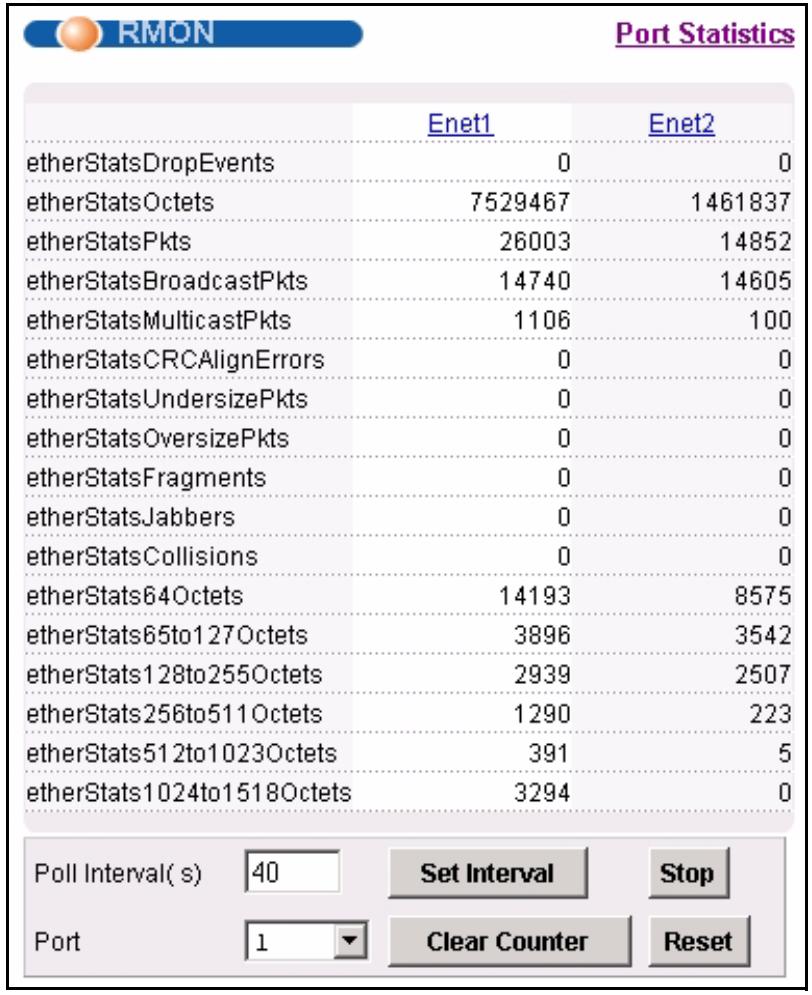
Figure 45 Port Statistics (RMON)
The following table describes the labels in this screen.
Table 8 Port Statistics (RMON)
| LABEL | DESCRIPTION |
| Port Statistics | Click this to go back to the previous screen. |
| Enet1 | Click this to look at the RMON history for this port. |
| Enet2 | Click this to look at the RMON history for this port. |
| EtherStatsDropEvents | This field displays the total number of packets that were dropped on this port. |
| EtherStatsOctets | This field displays the total number of octets received/transmitted on this port. |
| EtherStatsPkts | This field displays the total number of good packets received/transmitted on this port. |
| EtherStatsBroadcastPkts | This field displays the total number of broadcast packets received/transmitted on this port. |
| EtherStatsMulticastPkts | This field displays the total number of multicast packets received/transmitted on this port. |
| EtherStatsCRCAlignErrors | This field displays the total number of CRC (Cyclical Redundancy Check) alignment errors on this port. |
| EtherStatsUndersizePkts | This field displays the total number of packets that were too small received/transmitted on this port. |
| EtherStatsOversizePkts | This field displays the total number of packets that were too big received/transmitted on this port. |
| EtherStatsFragments | This is the number of frames received/transmitted that were less than 64 octets long, and contained an invalid FCS, including non-integral and integral lengths. |
| EtherStatsJabbers | This is the number of frames received/transmitted that were longer than 1518 octets (non VLAN) or 1522 octets (VLAN) and contained an invalid FCS, including alignment errors. |
| EtherStatsCollisions | This is the number of frames for which transmission failed due to excessive collisions. Excessive collision is defined as the number of maximum collisions before the retransmission count is reset. |
| EtherStats64Octets | This is the number of frames received/transmitted (including bad frames) that were 64 octets or less in length (this includes FCS octets but excludes framing bits). |
| EtherStats65to127Octets | This is the number of frames received/transmitted (including bad frames) that were 65 to 127 octets in length (this includes FCS octets but excludes framing bits). |
| EtherStats128to255Octets | This is the number of frames received and transmitted (including bad frames) that were 128 to 255 octets in length (this includes FCS octets but excludes framing bits). |
| EtherStats256to511Octets | This is the number of frames received/transmitted (including bad frames) that were 256 to 511 octets in length (this includes FCS octets but excludes framing bits). |
| EtherStats512to1023Octets | This is the number of frames received/transmitted (including bad frames) that were 512 to 1023 octets in length (this includes FCS octets but excludes framing bits). |
| EtherStats1024to1518Octets | This is the number of frames received/transmitted (including bad frames) that were 1024 to 1518 octets in length (this includes FCS octets but excludes framing bits). |
| Poll Interval(s)Set Interval | The text box displays how often (in seconds) this screen refreshes. You may change the refresh interval by typing a new number in the text box and then clicking Set Interval. |
| Stop | Click Stop to halt system statistic polling. |
| PortClear Counter | Select a port from the Port drop-down list box and then click Clear Counter to erase the recorded statistical information for that port. |
| Reset | Click this to set the Poll Interval(s) and Port fields to their default values and to refresh the screen. |
9.1.4 RMON History Screen
Use this screen to display general information (such as sample time) on history samples. To open this screen, click any port number in the RMON Statistics screen.
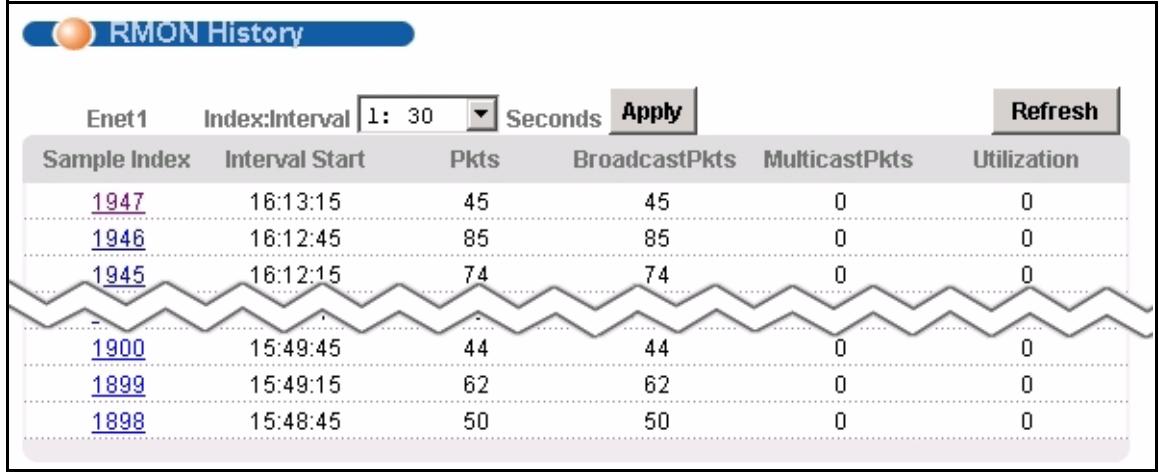
Figure 46 Port Statistics (RMON History))
The following table describes the labels in this screen.
Table 9 Port Statistics (RMON History)
| LABEL | DESCRIPTION |
| Index:Interval | Select the index of the sample interval and the desired data sampling time (in seconds). |
| Apply | Click this to use the selected data sampling time. |
| Refresh | Click this to update this screen. |
| Sample Index | This field display the sample number. |
| Interval Start | This field displays the data sampling time. |
| Pkts | This field displays the number of packets received or transmitted since the last sample time. |
| BroadcastPkts | This field displays the number of broadcast packets received or transmitted since the last sample time. |
| MulticastPkts | This field displays the number of multicast packets received/transmitted since the last sample time. |
| Utilization | This field displays the port utilization status. |
9.1.5 RMON History Detail Screen
Use this screen to display detailed RMON history. To open this screen, click any index number in the RMON History screen.
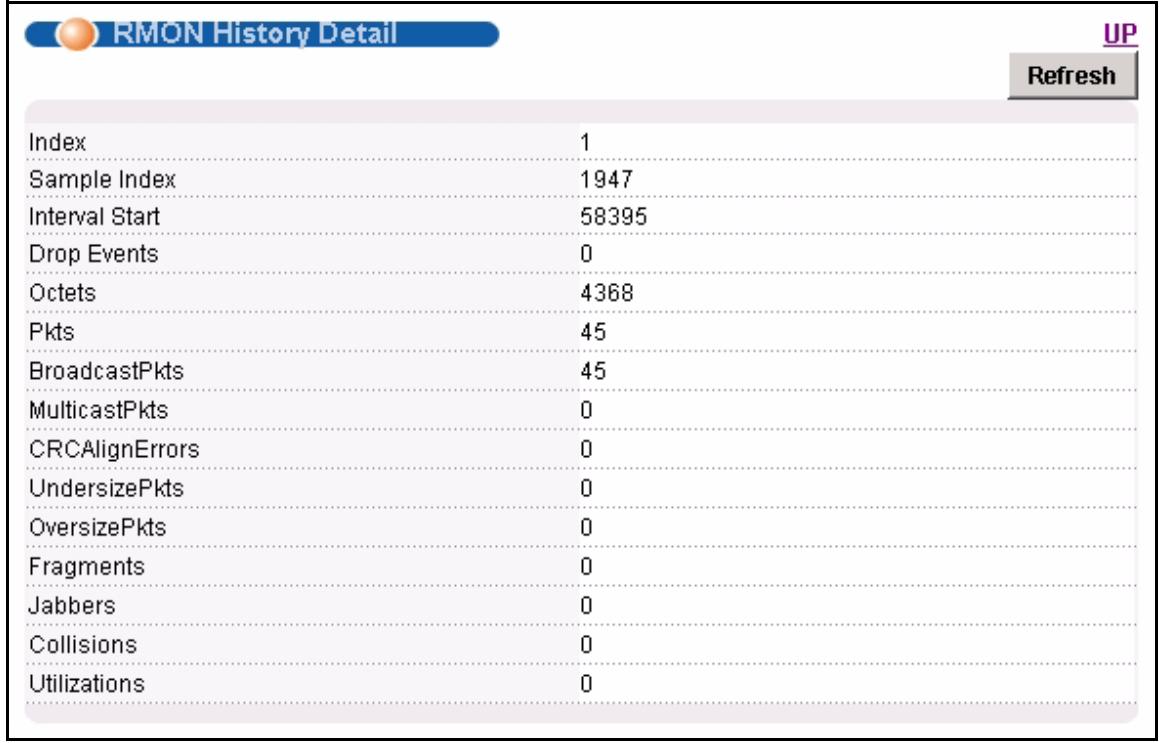
Figure 47 Port Statistics (RMON History Detail))
The following table describes the labels in this screen.
Table 10 Port Statistics (RMON History Detail)
| LABEL | DESCRIPTION |
| UP | Click this to return to the previous screen. |
| Refresh | Click this to update this screen. |
| Index | This field displays the index of the sample interval. |
| Sample Index | This field displays the sample number. |
| Interval Start | This field displays the data sampling time. |
| Drop Events | This field displays the total number of packets that were dropped in the sampling period. |
| Octets | This field displays the total number of octets received/transmitted in the sampling period. |
| Pkts | This field displays the total number of good packets received/transmitted in the sampling period. |
| BroadcastPkts | This field displays the total number of broadcast packets received/transmitted in the sampling period. |
| MulticastPkts | This field displays the total number of multicast packets received/transmitted in the sampling period. |
| CRCAlignErrors | This field displays the total number of CRC (Cyclical Redundancy Check) alignment errors in the sampling period. |
| UndesizePkts | This field displays the total number of packets that were too small received/transmitted in the sampling period. |
| OversizePkts | This field displays the total number of packets that were too big received/transmitted in the sampling period. |
| Fragments | This is the number of frames received/transmitted that were less than 64 octets long, and contained an invalid FCS, including non-integral and integral lengths. |
| Jabbers | This is the number of frames received/transmitted that were longer than 1518 octets (non VLAN) or 1522 octets (VLAN) and contained an invalid FCS, including alignment errors. |
| Collisions | This is the number of frames for which transmission failed due to excessive collisions. Excessive collision is defined as the number of maximum collisions before the retransmission count is reset. |
| Utilizations | This field displays the port utilization status in the sampling period. |
CHAPTER 10
System Information
The System Information screen displays general device information (such as firmware version number) and hardware polling information (such as fan status). You can check the firmware version number and monitor the hardware status in this screen.
To open this screen, click Basic Setting, System Information.
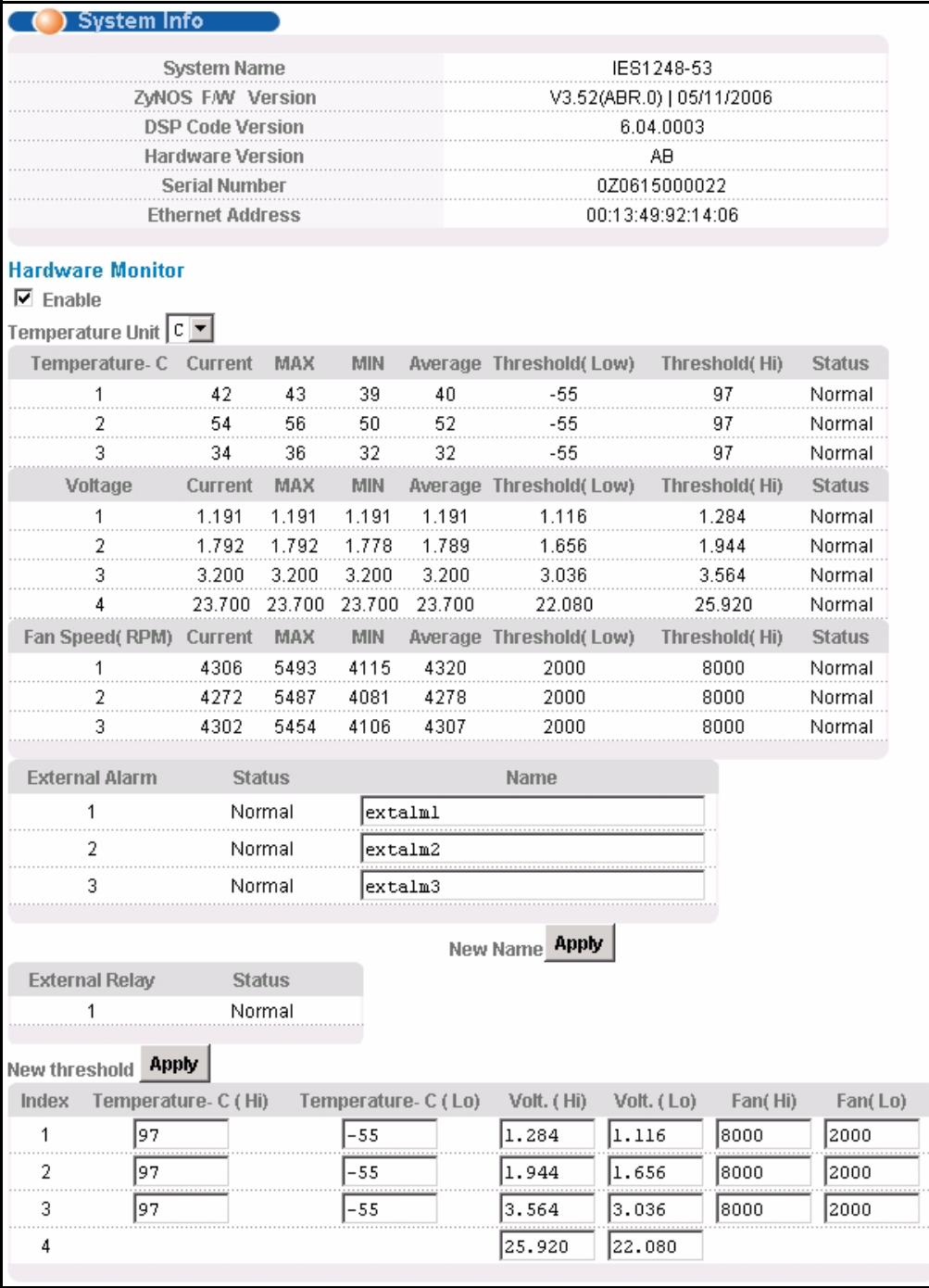
Figure 48 System Info
The following table describes the labels in this screen.
Table 11 System Info
| LABEL | DESCRIPTION |
| System Name | This field displays the device 's model name. |
| ZyNOS F/W Version | This field displays the version number of the device's current firmware including the date created. |
| DSP Code Version | This field displays the Digital Signal Processor firmware version number. This is the modem code firmware. |
| Hardware Version | This is the version of the physical device hardware. This field may be blank. |
| Serial Number | This is the individual identification number assigned to the device at the factory. This field may be blank. |
| Ethernet Address | This field refers to the Ethernet MAC (Media Access Control) address of the device. |
| Hardware Monitor | |
| Enable | Select this check box to turn the hardware monitor on or clear it to turn the hardware monitor off. |
| Temperature Unit | Select C to display all temperature measurements in degrees Celsius. Select F to display all temperature measurements in degrees Fahrenheit. |
| Temperature | Each temperature sensor can detect and report the temperature. Temperature sensor 1 is near the ADSL chipset. Temperature sensor 2 is near the central processing unit. Temperature sensor 3 is at the hardware monitor chip. |
| Current | This shows the current temperature at this sensor. |
| MAX | This field displays the maximum temperature measured at this sensor. |
| MIN | This field displays the minimum temperature measured at this sensor. |
| Average | This field displays the average temperature measured at this sensor. |
| Threshold (Low) | This field displays the lowest temperature limit at this sensor. |
| Threshold (Hi) | This field displays the highest temperature limit at this sensor. |
| Status | This field displays Normal for temperatures below the threshold and Over for those above. |
| Voltage(V) | The power supply for each voltage has a sensor that can detect and report the voltage. |
| Current | This is the current voltage reading. |
| MAX | This field displays the maximum voltage measured at this point. |
| MIN | This field displays the minimum voltage measured at this point. |
| Average | This field displays the average voltage measured at this sensor. |
| Threshold (Low) | This field displays the lowest voltage limit at this sensor. |
| Threshold (Hi) | This field displays the highest voltage limit at this sensor. |
| Status | Normal indicates that the voltage is within an acceptable operating range at this point; otherwise Abnormal is displayed. |
| Fan Speed (RPM) | A properly functioning fan is an essential component (along with a sufficiently ventilated, cool operating environment) in order for the device to stay within the temperature threshold. Each fan has a sensor that can detect and report the fan's RPM (Rotations Per Minute). |
| Current | This is the current RPM reading. |
| MAX | This field displays the maximum RPM measured at this point. |
| MIN | This field displays the minimum RPM measured at this point. |
| Average | This field displays the average RPM measured at this sensor. |
| Threshold (Low) | This field displays the lowest RPM limit at this sensor. |
| Threshold (Hi) | This field displays the highest RPM limit at this sensor. |
| Status | Normal indicates that the RPM is within an acceptable operating range at this point; otherwise Abnormal is displayed. |
| External Alarm Status Name Apply | The IES-1248 is able to detect alarm input from other equipment connected to the ALARM connector.The Status column displays Normal when no alarm input has been detected from other equipment. It displays Abnormal when alarm input has been detected from other equipment.Use the Name column to configure a title for each external alarm for identification purposes. Use up to 31 characters.Click Apply to save the name changes to the IES-1248's volatile memory. The IES-1248 loses these changes if it is turned off or loses power, so use the Config Save link on the navigation panel to save your changes to the non-volatile memory when you are done configuring. |
| External Relay Status | The IES-1248 is able to send alarm output to another piece of equipment connected to the ALARM connector.The Status column displays Normal when the IES-1248 is not sending alarm output to another piece of equipment. It displays Abnormal when the IES-1248 is sending alarm output to another piece of equipment. |
| Use this section of the screen to configure the hardware monitor threshold settings. | |
| New threshold Apply | Configure new threshold settings in the fields below and click Apply to use them. |
| Index | This field is a sequential value. |
| Temperature (Hi) | Use these fields to configure the highest temperature limit at each sensor. |
| Temperature (Lo) | Use these fields to configure the lowest temperature limit at each sensor. |
| Volt. (Hi) | Use these fields to configure the highest voltage limit at each sensor. |
| Volt. (Lo) | Use these fields to configure the lowest voltage limit at each sensor. |
| Fan (Hi) | Use these fields to configure the highest RPM limit at each sensor. |
| Fan (Low) | Use these fields to configure the lowest RPM limit at each sensor. |
| Poll Interval(s) Set Interval | The text box displays how often (in seconds) this screen refreshes. You may change the refresh interval by typing a new number in the text box and then clicking Set Interval. |
| Stop | Click Stop to halt statistic polling. |
CHAPTER 11
General Setup
The General Setup screen allows you to configure general device identification information. It also allows you to set the system time manually or get the current time and date from an external server when you turn on your device. The real time is then displayed in the logs.
To open this screen, click Basic Setting, General Setup.
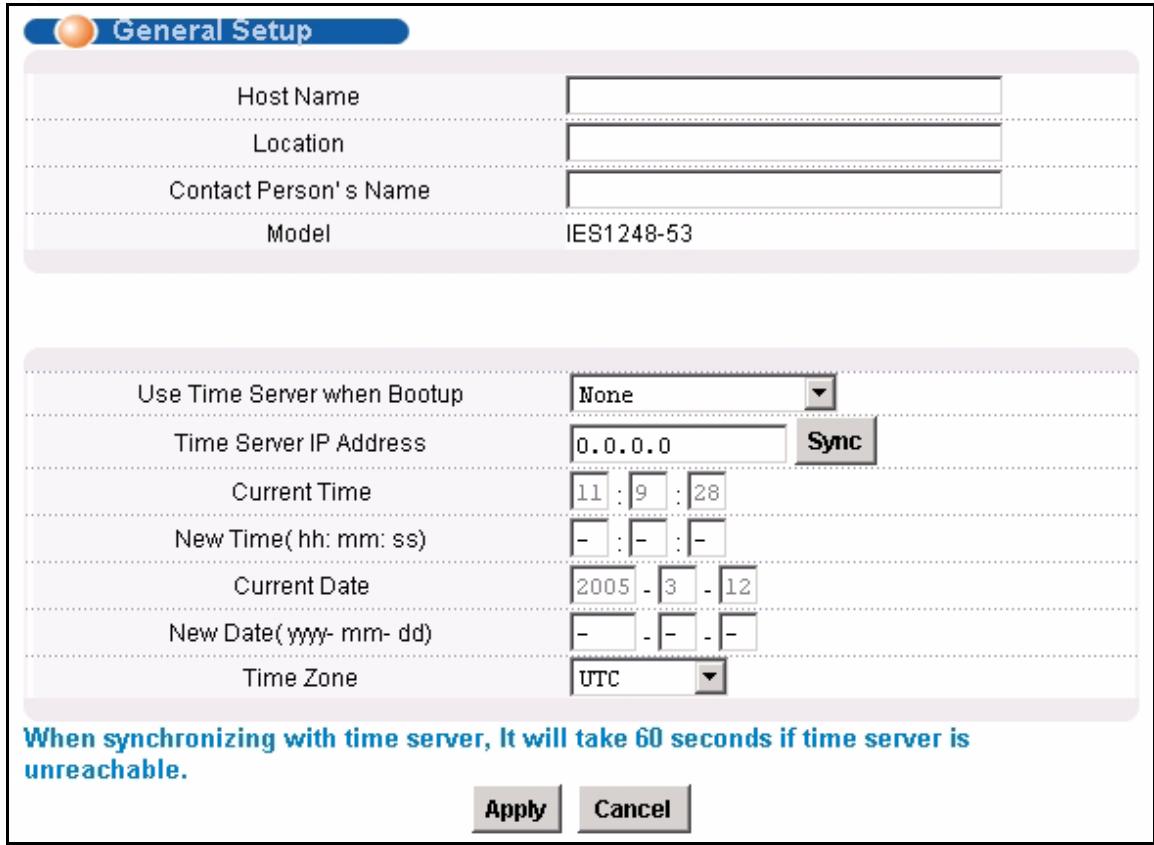
Figure 49 General Setup
The following table describes the labels in this screen.
Table 12 General Setup
| LABEL | DESCRIPTION |
| Host Name | Choose a descriptive name for identification purposes. This name consists of up to 31 ASCII characters; spaces are not allowed. |
| Location | Enter the geographic location of your device. You can use up to 31 ASCII characters; spaces are not allowed. |
| Contact Person's Name | Enter the name of the person in charge of this device. You can use up to 31 ASCII characters; spaces are not allowed. |
| Model | This field displays your device type. |
| Use Time Server When Bootup | Select the time service protocol that the timeserver uses. Not all time servers support all protocols, so you may have to use trial and error to find a protocol that works. The main differences between them are the time format.When you select the Daytime (RFC 867) format, the switch displays the day, month, year and time with no time zone adjustment. When you use this format it is recommended that you use a Daytime timeserver within your geographical time zone. Time (RFC-868) format displays a 4-byte integer giving the total number of seconds since 1970/1/1 at 0:0:0.NTP (RFC-1305) is similar to Time (RFC-868).None is the default value. Enter the time manually. Each time you turn on the device, the time and date will be reset to 2000-1-1 0:0. |
| Time Server IP Address | Enter the IP address of your timeserver. The device searches for the timeserver for up to 60 seconds. |
| Current Time | This field displays the time you open this menu (or refresh the menu). |
| New Time (hh:min:ss) | Enter the new time in hour, minute and second format. The new time then appears in the Current Time field after you click Apply. |
| Current Date | This field displays the date you open this menu. |
| New Date (yyyy-mm-dd) | Enter the new date in year, month and day format. The new date then appears in the Current Date field after you click Apply. |
| Time Zone | Select the time difference between UTC (Universal Time Coordinated, formerly known as GMT, Greenwich Mean Time) and your time zone from the drop-down list box. |
| Apply | Click Apply to save your changes to the IES-1248's volatile memory. The IES-1248 loses these changes if it is turned off or loses power, so use the Config Save link on the navigation panel to save your changes to the non-volatile memory when you are done configuring. |
| Cancel | Click Cancel to start configuring the screen again. |
CHAPTER 12 User Account
The User Account screens allows you to set up and configure system administrator accounts for the IES-1248. You can also configure the authentication policy for IES-1248 administrators. This is different than port authentication in Chapter 26 on page 193.
See Chapter 26 on page 193 for background information on authentication.
12.1 User Account Screen
To open this screen, click Basic Setting, User Account.
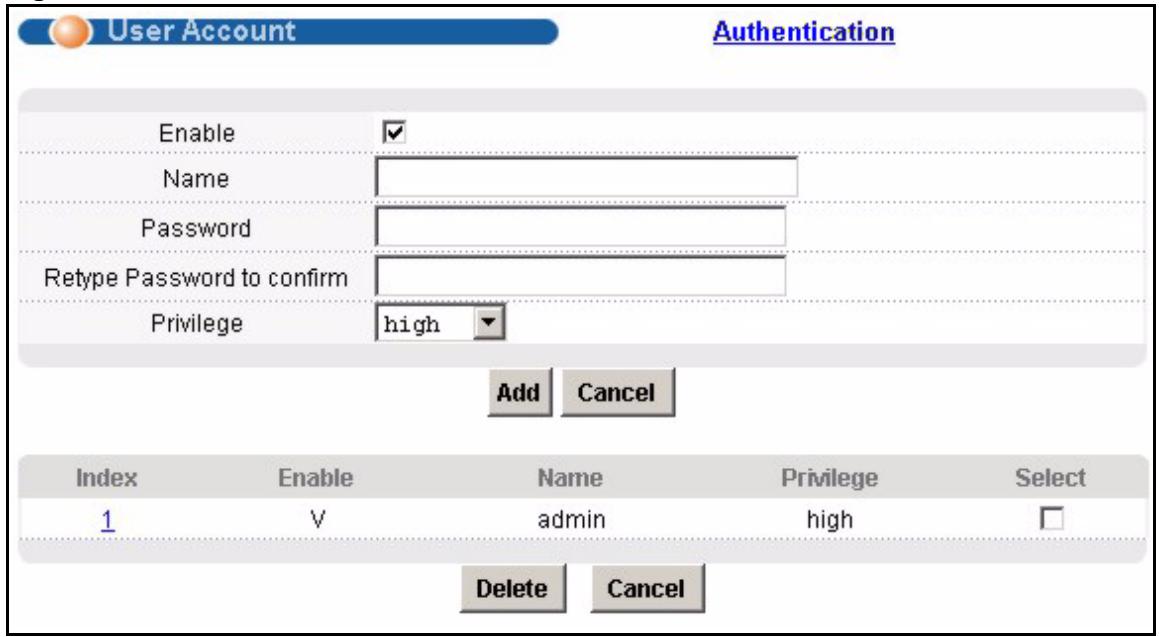
Figure 50 User Account
The following table describes the labels in this screen.
Table 13 User Account
| LABEL | DESCRIPTION |
| Authentication | Click this to open the Authentication screen. See Section 12.2 on page 106. |
| Enable | Select this check box to turn on the administrator account. |
| Name | Enter a user name for the administrator account. |
| Password | Enter a password for the administrator account. |
| Retype Password to Confirm | Re-enter the administrator account's password to verify that you have entered it correctly. |
| Privilege | Select a privilege level to determine which screens the administrator can use. There is a high, medium or low privilege level for each command. Select high to allow the administrator to use all commands including the lower privilege commands. High privilege commands include things like creating administrator accounts, restarting the system and resetting the factory defaults. Select middle to allow the administrator to use middle or low privilege commands. Select low to allow the administrator to use only low privilege commands. Low privilege commands are read only. |
| Add | Click Add to save your changes to the IES-1248's volatile memory. The IES-1248 loses these changes if it is turned off or loses power, so use the Config Save link on the navigation panel to save your changes to the non-volatile memory when you are done configuring. |
| Cancel | Click Cancel to begin configuring the fields again. |
| Index | This field displays the number of the user account. Click an account's index number to use the top of the screen to edit it. |
| Enable | This field displays a “V” if you have the administrator account turned on. It displays a “-” if the administrator account is turned off. |
| Name | This field displays the administrator account's user name. |
| Privilege | This field displays the administrator account's access level (high, middle or low). |
| Select | Select this check box and click the Delete button to remove an administrator account. |
| Delete | Select an administrator account's check box and click this button to remove the administrator account. |
| Cancel | Click Cancel to start configuring the screen afresh. |
12.2 Authentication Screen
Use this screen to set up the authentication policies and settings by which administrators can access the IES-1248.
To open this screen, click Basic Setting, User Account, Authentication.
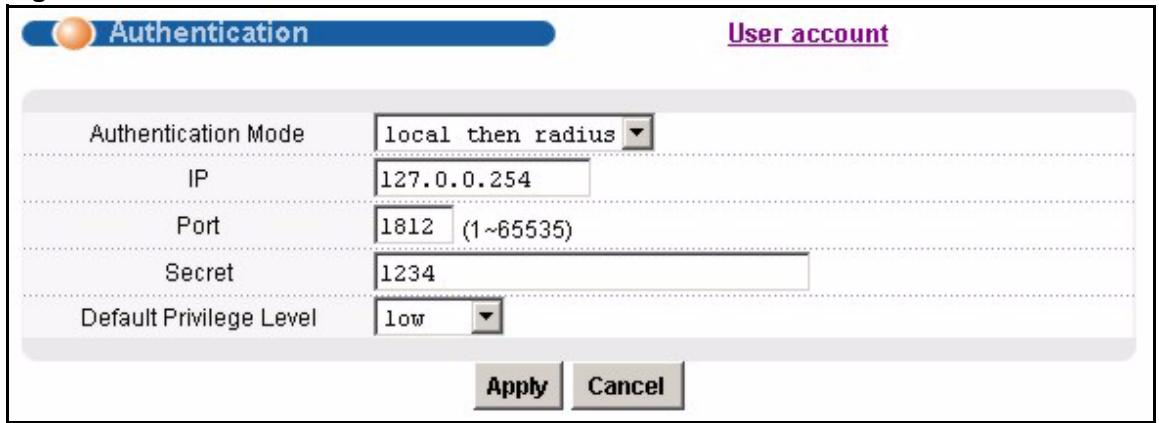
Figure 51 Authentication
The following table describes the labels in this screen.
Table 14 User Account
| LABEL | DESCRIPTION |
| User account | Click this to open the User Account screen. See Section 12.1 on page 105. |
| Authentication Mode | Select the process by which the IES-1248 authenticates administrators. local - Search the local database. You maintain this database in the User Account screen. radius - Check an external RADIUS database using the settings below. local then radius - Search the local database; if the user name is not found, check an external RADIUS database using the settings below. |
| IP | Enter the IP address of the external RADIUS server in dotted decimal notation. |
| Port | The default UDP port of the RADIUS server for authentication is 1812. You need not change this value unless your network administrator instructs you to do so. |
| Secret | Specify a password (up to 31 alphanumeric characters) as the key to be shared between the external RADIUS server and the switch. This key is not sent over the network. This key must be the same on the external RADIUS server and the switch. |
| Default Privilege Level | Select the privilege level assigned to administrators in case the external RADIUS database does not provide one. The privilege level determines which screens the administrator can use. There is a high, medium or low privilege level for each command. You can also choose to deny access to the IES-1248. Select high to allow the administrator to use all commands including the lower privilege commands. High privilege commands include things like creating administrator accounts, restarting the system and resetting the factory defaults. Select middle to allow the administrator to use middle or low privilege commands. Select low to allow the administrator to use only low privilege commands. Low privilege commands are read only. Select deny to prevent the administrator from accessing the IES-1248. |
CHAPTER 13 Switch Setup
The Switch Setup screen allows you to set up and configure global device features.
13.1 GARP Timer Setup
GARP (Generic Attribute Registration Protocol) allows network devices to register and de-register attribute values with other GARP participants within a bridged LAN. GARP is a protocol that provides a generic mechanism for protocols that serve a more specific application, for example, GVRP (GARP VLAN Registration Protocol). GARP and GVRP are the protocols used to automatically register VLAN membership across switches.
Switches join VLANs by making a declaration. A declaration is made by issuing a Join message using GARP. Declarations are withdrawn by issuing a Leave message. A Leave All message terminates all registrations. GARP timers set declaration timeout values.
13.2 Switch Modes
The IES-1248 supports standalone and daisychain switch modes.
13.2.1 Standalone Switch Mode
"Standalone switch mode" relates to the IES-1248's operational behavior, not a standalone network topology. The standalone switch mode allows either or both of the IES-1248's Ethernet ports to connect to the backbone Ethernet network. You can also connect one of the IES-1248's Ethernet ports to the Ethernet network and the other to another IES-1248 (see Figure 52 on page 110 for an example). When the IES-1248 is in standalone mode, you can use it in a network topology that uses loops (you should also enable RSTP). You can have multiple IES-1248 connected on the same network and set both of them to use standalone mode in order to use them with a network topology that uses loops.
Standalone switch mode with port isolation enabled blocks communications between subscriber ports on an individual IES-1248. However, one IES-1248's subscribers can communicate with another IES-1248's subscribers if the two IES-1248's Ethernet ports are connected to each other (see Figure 52 on page 110 for an example). If you have multiple IES-1248 connected on the same network and set to standalone mode, they do not all need to have the same port isolation setting.
13.2.2 Port Isolation with Standalone Switch Mode Example
The following graphic shows IES-1248 1 and 2 connected to each other and the Ethernet backbone switch (3) in a network topology that creates a loop. The IES-1248 are using the standalone switch mode and have RSTP enabled.
In this example, both IES-1248 have port isolation turned on. Communications between A and B must first go through another switch (3 in the figure). However, A and B can communicate with C without their communications going through another switch or router.
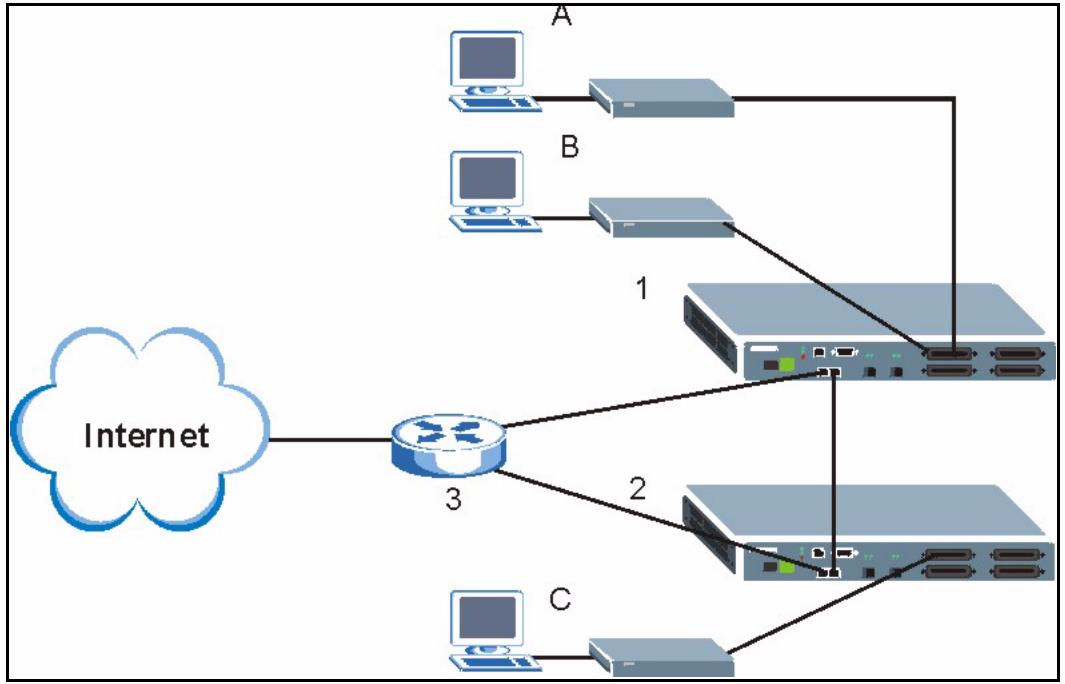
Figure 52 Port Isolation with Standalone Switch Mode Example
13.2.3 Daisychain Switch Mode
Daisychain switch mode sets the IES-1248 to use Ethernet port one (ENET 1) as an uplink port to connect to the Ethernet backbone and Ethernet port two (ENET 2) to connect to another (daisychained or subtending) IES-1248. The daisychain switch mode is recommended for use in a network topology that does not have loops. When you daisychain multiple IES-1248 they must all be set to daisychain mode.
Daisychain switch mode with port isolation enabled blocks communications between subscriber ports on an individual IES-1248 and between the subscribers of any daisychained IES-1248 (see Figure 53 on page 111 for an example). Use the same port isolation setting on all IES-1248 that you set up in a daisychain.
13.2.4 Port Isolation with Daisychain Switch Mode Example
In the example below, the IES-1248 1 has its Ethernet port one (ENET 1) connected to the Ethernet backbone switch (3) and it's Ethernet port two (ENET2) connected to Ethernet port one (ENET 1) of the daisychained IES-1248 (2).
With port isolation turned on, communications between A and B must first go through another switch or router (3 in the figure). A and B also cannot communicate with C without their communications going through another switch or router.
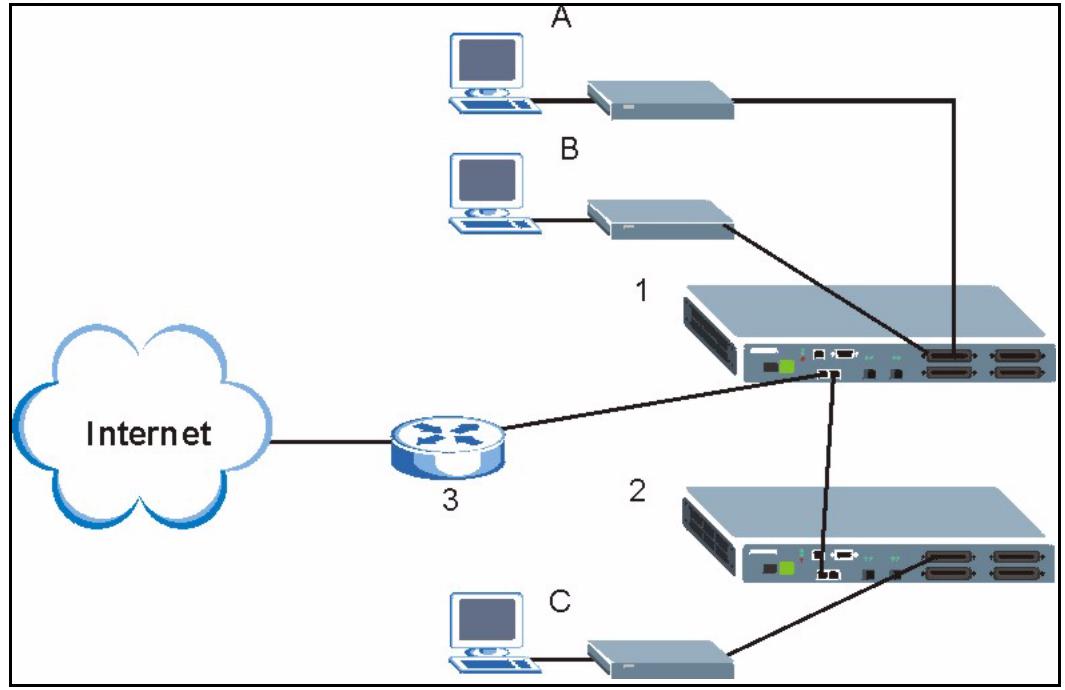
Figure 53 Port Isolation with Daisychain Switch Mode Example
13.3 Switch Setup Screen
To open this screen, click Basic Setting, Switch Setup.
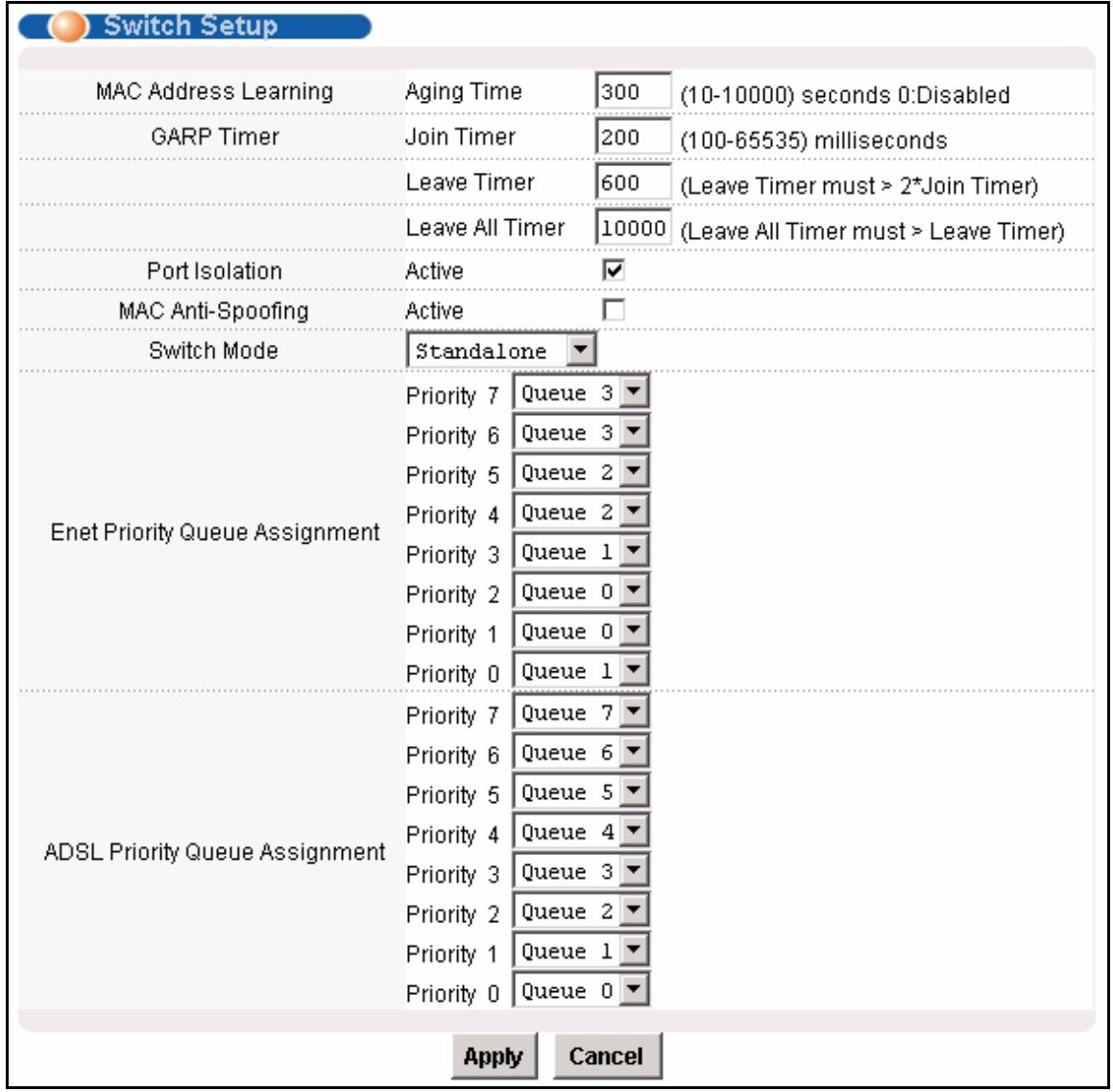
Figure 54 Switch Setup
The following table describes the labels in this screen.
Table 15 Switch Setup
| LABEL | DESCRIPTION |
| MAC Address Learning Aging Time | Enter a time from 10 to 10,000 seconds. This is how long all dynamically learned MAC addresses remain in the MAC address table before they age out (and must be relearned). Enter 0 to disable the aging out of MAC addresses. |
| GARP Timer: Switches join VLANs by making a declaration. A declaration is made by issuing a Join message using GARP. Declarations are withdrawn by issuing a Leave message. A Leave All message terminates all registrations. GARP timers set declaration timeout values. Click here for more information on VLANs. | |
| Join Timer | Join Timer sets the duration of the Join Period timer for GVRP in milliseconds. Each port has a Join Period timer. The allowed Join Time range is between 100 and 65535 milliseconds; the default is 200 milliseconds. |
| Leave Timer | Leave Timer sets the duration of the Leave Period timer for GVRP in milliseconds. Each port has a single Leave Period timer. Leave Time must be two times larger than Join Timer; the default is 600 milliseconds. |
| Leave All Timer | Leave All Timer sets the duration of the Leave All Period timer for GVRP in milliseconds. Each port has a single Leave All Period timer. Leave All Timer must be larger than Leave Timer. |
| Port Isolation Active | Turn on port isolation to block communications between subscriber ports. When you enable port isolation you do not need to configure the VLAN to isolate subscribers. |
| MAC Anti-Spoofing | Select this if you want the IES-1248 to generate an alarm and issue a SNMP trap when an existing MAC address appears on another port. |
| Switch Mode | Select Standalone to use both of the IES-1248's Ethernet ports (ENET 1 and ENET 2) as uplink ports.Note: Standalone mode is recommended for network topologies that use loops.Use Daisychain mode to cascade (daisychain) multiple IES-1248. The IES-1248 uses Ethernet port one (ENET 1) as an uplink port to connect to the Ethernet backbone and uses Ethernet port two (ENET 2) to connect to another (daisychained or subtending) IES-1248.Note: Daisychain mode is recommended for network topologies that do not use loops. |
| Priority Queue Assignment | IEEE 802.1p defines up to 8 separate traffic types by inserting a tag into a MAC-layer frame that contains bits to define class of service. Frames without an explicit priority tag are given the default priority of the ingress port. Use the next two fields to configure the priority level-to-physical queue mapping.The device has 4 physical queues that you can map to the 8 priority levels for outgoing Ethernet traffic. The device has 8 physical queues that you can map to the 8 priority levels for outgoing ADSL traffic. Traffic assigned to higher index queues gets through the device faster while traffic in lower index queues is dropped if the network is congested. |
| Priority Level | The following descriptions are based on the traffic types defined in the IEEE 802.1d standard (which incorporates IEEE 802.1p). |
| Priority 7 | Typically used for network control traffic such as router configuration messages. |
| Priority 6 | Typically used for voice traffic that is especially sensitive to jitter (jitter is the variations in delay). |
| Priority 5 | Typically used for video that consumes high bandwidth and is sensitive to jitter. |
| Priority 4 | Typically used for controlled load, latency-sensitive traffic such as SNA (Systems Network Architecture) transactions. |
| Priority 3 | Typically used for "excellent effort" or better than best effort and would include important business traffic that can tolerate some delay. |
| Priority 2 | This is for "spare bandwidth". |
| Priority 1 | This is typically used for non-critical "background" traffic such as bulk transfers that are allowed but that should not affect other applications and users. |
| Priority 0 | Typically used for best-effort traffic. |
| Apply | Click Apply to save your changes to the IES-1248's volatile memory. The IES-1248 loses these changes if it is turned off or loses power, so use the Config Save link on the navigation panel to save your changes to the non-volatile memory when you are done configuring. |
| Cancel | Click Cancel to begin configuring this screen afresh. |
CHAPTER 14 IP Setup
The IP Setup screen allows you to configure a device IP address, subnet mask and DNS (domain name server) for management purposes.
To open this screen, click Basic Setting, IP Setup.
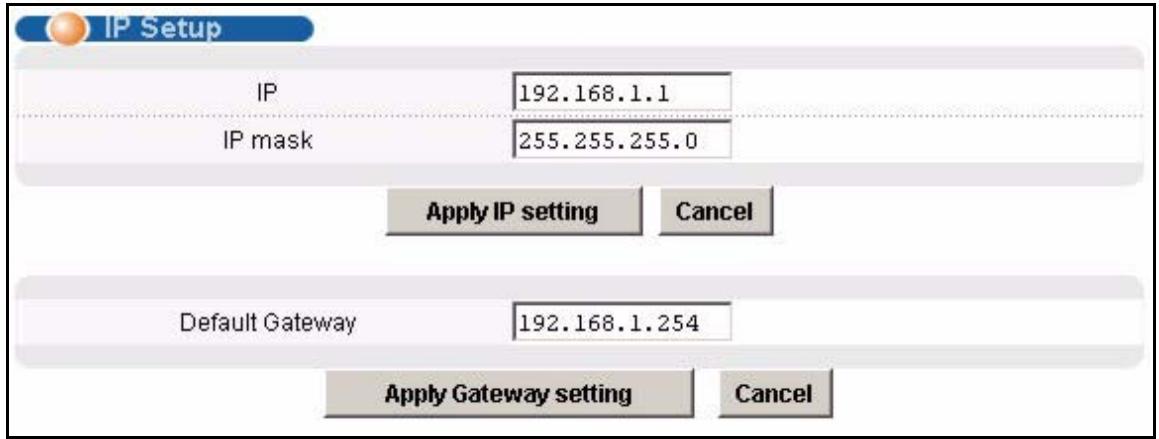
Figure 55 IP Setup
The following table describes the labels in this screen.
Table 16 IP Setup
| LABEL | DESCRIPTION |
| IP | Enter the IP address of your IES-1248 in dotted decimal notation for example 1.2.3.4. |
| IP Mask | Enter the IP subnet mask of your IES-1248 in dotted decimal notation for example 255.255.255.0. |
| Apply IP setting | Click Apply IP setting to save your changes to the device's IP address and/or subnet mask to the IES-1248's volatile memory. The IES-1248 loses these changes if it is turned off or loses power, so use the Config Save link on the navigation panel to save your changes to the non-volatile memory when you are done configuring. |
| Cancel | Click Cancel to begin configuring the fields again. |
| Default Gateway | Enter the IP address of the default outgoing gateway in dotted decimal notation. |
| Apply Gateway setting | Click Apply Gateway setting to save your changes to the device's IP address and/or subnet mask to the IES-1248's volatile memory. The IES-1248 loses these changes if it is turned off or loses power, so use the Config Save link on the navigation panel to save your changes to the non-volatile memory when you are done configuring. |
| Cancel | Click Cancel to begin configuring the fields again. |
CHAPTER 15
ENET Port Setup
The ENET Port Setup screen allows you to configure settings for the Ethernet ports.
To open this screen, click Basic Setting, ENET Port Setup.
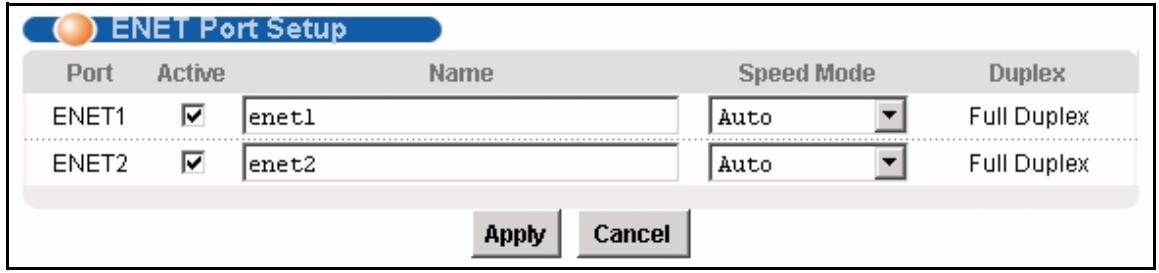
Figure 56 ENET Port Setup
The following table describes the labels in this screen.
Table 17 ENET Port Setup
| LABEL | DESCRIPTION |
| Port | This is the port index number. |
| Active | Select the check box to turn on the port. Clear it to disable the port. |
| Name | Enter a descriptive name that identifies this port. You can use up to 31 ASCII characters; spaces are not allowed. |
| Speed Mode | Select the type of Ethernet connection for this port. When you don't use auto-negotiation, you must make sure that the settings of the peer Ethernet port are the same in order to connect. Select Auto (auto-negotiation) to have the IES-1248 automatically determine the type of connection that the Ethernet port has. When the peer Ethernet device has auto-negotiation turned on, the IES-1248 negotiates with the peer to determine the connection speed. If the peer Ethernet port does not have auto-negotiation turned on, the IES-1248 determines the connection speed by detecting the signal on the cable and using full duplex. When an Ethernet port is set to Auto, the IES-1248 tries to make a fiber connection first and does not attempt to use the RJ-45 port if the fiber connection is successful. Select 100 Copper if the Ethernet port has a 100 MB electrical connection. Select 1000 Copper if the Ethernet port has a 1000 MB (1 gigabit) electrical connection. Select 1000 Fiber if the Ethernet port has a 1000 MB (1 gigabit) fiber optic connection. |
| Duplex | The IES-1248 uses full duplex Ethernet connections. |
| Apply | Click Apply to save your changes to the IES-1248's volatile memory. The IES-1248 loses these changes if it is turned off or loses power, so use the Config Save link on the navigation panel to save your changes to the non-volatile memory when you are done configuring. |
| Cancel | Click Cancel to begin configuring this screen afresh. |
CHAPTER 16 xDSL Port Setup
This chapter explains how to configure settings for profiles and individual ADSL ports. It also covers how to configure virtual channels and virtual channel profiles.
16.1 ADSL Standards Overview
These are the ADSL standards and rates that the IES-1248 supports at the time of writing. The actual transfer rates will vary depending on what the subscriber's device supports, the line conditions and the connection distance.
Table 18 ADSL Standards Maximum Transfer Rates
| STANDARD | MAXIMUM DOWNSSTREAM | MAXIMUM UPSTREAM |
| G.dmt (IES-1248-51/51A) | 8160 Kbps | 1024 Kbps |
| G.dmt Annex B (IES-1248-53) | 8160 Kbps | 1024 Kbps |
| ETSI (IES-1248-53) | 8160 Kbps | 1024 Kbps |
| ANSI T1.413 issue 2 (IES-1248-51/51A) | 8160 Kbps | 1024 Kbps |
| ADSL2 | 12000 Kbps | 1200 Kbps |
| ADSL2 Annex M (IES-1248-51/51A) | 12000 Kbps | 2400 Kbps |
| ADSL2+ | 25000 Kbps | 1200 Kbps |
| ADSL2+ Annex M (IES-1248-51/51A) | 25000 Kbps | 2400 Kbps |
16.2 Downstream and Upstream
Downstream refers to traffic going out from the IES-1248 to the subscriber's ADSL modem or router. Upstream refers to traffic coming into the IES-1248 from the subscriber's ADSL modem or router.
16.3 Profiles
A profile is a table that contains a list of pre-configured ADSL settings. Each ADSL port has one (and only one) profile assigned to it at any given time. You can configure multiple profiles, including profiles for troubleshooting. Profiles allow you to configure ADSL ports efficiently. You can configure all of the ADSL ports with the same profile, thus removing the need to configure the ADSL ports one-by-one. You can also change an individual ADSL port by assigning it a different profile.
For example, you could set up different profiles for different kinds of accounts (for example, economy, standard and premium). Assign the appropriate profile to an ADSL port and it takes care of a large part of the port's configuration maximum and minimum transfer rates. You still get to individually enable or disable each port, as well as configure its channels and operational mode.
16.4 Interleave Delay
Interleave delay is the wait (in milliseconds) that determines the size of a single block of data to be interleaved (assembled) and then transmitted. Interleave delay is used when transmission error correction (Reed-Solomon) is necessary due to a less than ideal telephone line. The bigger the delay, the bigger the data block size, allowing better error correction to be performed.
Reed-Solomon codes are block-based error correcting codes with a wide range of applications. The Reed-Solomon encoder takes a block of digital data and adds extra "redundant" bits. The Reed-Solomon decoder processes each block and attempts to correct errors and recover the original data.
16.4.1 Fast Mode
Fast mode means no interleaving takes place and transmission is faster (a "fast channel"). This would be suitable if you have a good line where little error correction is necessary.
16.5 Configured Versus Actual Rate
You configure the maximum rate of an individual ADSL port by modifying its profile (see Chapter 17 on page 137) or assigning the port to a different profile (see Section 16.7.1 on page 123). However, due to noise and other factors on the line, the actual rate may not reach the maximum that you specify.
Even though you can specify arbitrary numbers using the Edit Profile screen, the actual rate is always a multiple of 32 Kbps. If you enter a rate that is not a multiple of 32 Kbps, the actual rate will be the next lower multiple of 32Kbps. For instance, if you specify 60 Kbps for a port, the actual rate for that port will not exceed 32 Kbps, and if you specify 66 Kbps, the actual rate will not be over 64Kbps.
Regardless of a profile's configured upstream and downstream rates, the IES-1248 automatically limits the actual rates for each individual port to the maximum speeds supported by the port's ADSL operational mode. For example, if you configure a profile with a maximum downstream rate of 25000 Kbps, and apply it to a port set to use G.dmt, the IES-1248 automatically uses a maximum downstream rate of 8160 Kbps. This means that if you configure a profile with very high rates, you can still use it with any port. See Table 18 on page 119 for a list of the maximum rates supported by the different ADSL standards.
16.6 Default Settings
The default profile always exists and all of the ADSL ports use the default profile settings when the IES-1248 is shipped. The default profile's name is set to DEFVAL_MAX.
See Appendix A on page 443 for the settings of the default profile and ADSL port default settings.
16.7 xDSL Port Setup Screen
To open this screen, click Basic Setting, xDSL Port Setup.
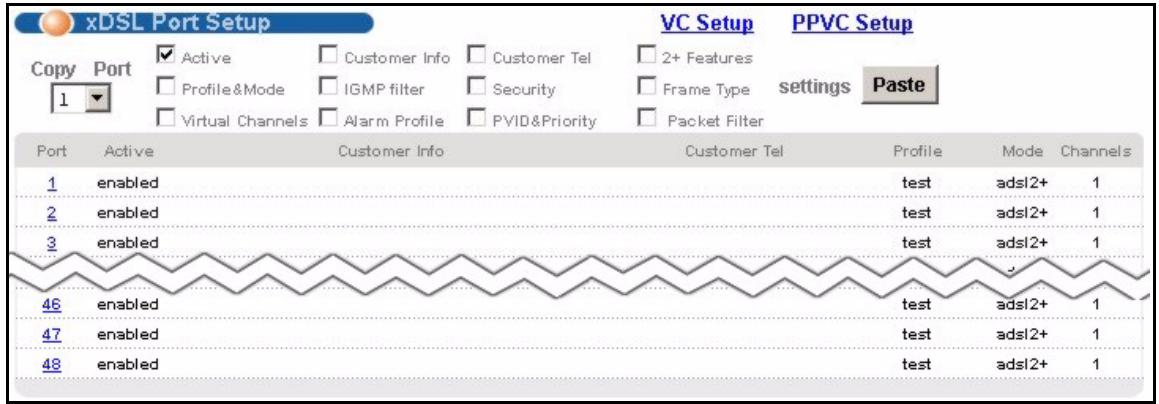
Figure 57 xDSL Port Setup
The following table describes the labels in this screen.
Table 19 xDSL Port Setup
| LABEL | DESCRIPTION |
| VC Setup | Click VC Setup to open the VC Setup screen where you can configure VC settings for the DSL ports (see Section 16.9 on page 128). |
| PPVC Setup | Click PPVC Setup to open the PPVC Setup screen where you can configure priority PVC settings for the DSL ports (see Section 16.11 on page 133). |
| Copy Port Paste | Do the following to copy settings from one DSL port to another DSL port or ports.1 Select the number of the DSL port from which you want to copy settings.2 Select the settings that you want to copy.3 Click Paste and the following screen appears.4 Select to which ports you want to copy the settings. Use All to select every port. Use None to clear all of the check boxes.5 Click Apply to paste the settings. |
| Figure 58 Select Ports | |
| 0 1 2 3 4 5 6 7 8 91-9☐☐☐☐☐☐☐☐☐☐☐☐☐☐☐☐☐☐☐☐☐☐☐☐☐☐☐☐☐☐☐☐☐☐☐☐☐☐☐☐☐☐☐☐☐☐☐☐☐☐☐☐☐☐☐☐☐☐☐☐☐☐☐☐☐☐☐☐☐☐☐☐☐☐☐☐☐☐☐☐☐☐☐☐☐☐☐☐☐☐☐☐☐☐☐☐☐☐☐☐ ☞☐☐☐☐☐☐☐☐☐☐☐☐☐☐☐☐☐☐☐☐☐☐☐☐☐☐☐☐☐☐☐☐☐☐☐☐☐☐☐☐☐☐☐☐☐☐☐☐☐☐☐☐☐☐☐☐☐☐☐☐☐☐☐☐☐☐☐☐☐☐☐☐☐☐☐☐☐☐☐☐☐☐☐☐☐☐☐☐☐☐☐☐☐☐☐☐☐☐☐ | |
| Active | Select this check box to copy this port's active setting. This is configured in the xDSL Port Setting screen (see Section 16.7.1 on page 123). |
| Customer Info | Select this check box to copy this port's subscriber information. This is configured in the xDSL Port Setting screen (see Section 16.7.1 on page 123). |
| Customer Tel | Select this check box to copy this port's subscriber's telephone number. This is configured in the xDSL Port Setting screen (see Section 16.7.1 on page 123). |
| 2+ Features | Select this check box to copy this port's ADSL2+ feature settings. These are configured in the xDSL Port Setting screen (see Section 16.7.1 on page 123). |
| Profile & Mode | Select this check box to copy this port's port profile settings and ADSL operational mode. The port profile settings are configured in the xDSL Port Profile Setup screens (see Chapter 17 on page 137). The ADSL operational mode is configured in the xDSL Port Setting screen (see Section 16.7.1 on page 123). |
| IGMP Filter | Select this check box to copy this port's IGMP filter settings. These are configured in the IGMP Filter Profile screen (see Section 17.8 on page 148). |
| Security | Select this check box to copy this port's security settings. This is configured in the Port Security screen (see Chapter 27 on page 197). |
| Frame Type | Select this check box to copy this port's allowed frame type. This is configured in the Static VLAN Setting screen (see Chapter 25 on page 187). |
| Virtual Channels | Select this check box to copy this port's virtual channel settings. These are configured in the VC Setup screen (see Section 16.9 on page 128). |
| Alarm Profile | Select this check box to copy this port's alarm profile. This is configured in the Alarm Profile Setup screen (see Section 17.6 on page 145). |
| PVID & Priority | Select this check box to copy this port's PVID and priority settings. These are configured in the VLAN Port Setting screen (see Chapter 19 on page 157). |
| Packet Filter | Select this check box to copy this port's packet filter settings. These are configured in the Packet Filtering screen (see Chapter 23 on page 183). |
| Paste | See Copy Port. |
| Port | This field shows each ADSL port number. |
| Active | This field shows the active status of this port. The port may be enabled or disabled. This is configured in the xDSL Port Setting screen (see Section 16.7.1 on page 123). |
| Customer Info | This field shows the customer information provided for this port. This is configured in the xDSL Port Setting screen (see Section 16.7.1 on page 123). |
| Customer Tel | This field shows the customer telephone number provided for this port. This is configured in the xDSL Port Setting screen (see Section 16.7.1 on page 123). |
| Profile | This field shows which profile is assigned to this port. This is configured in the xDSL Port Setting screen (see Section 16.7.1 on page 123). |
| Mode | This field shows which ADSL operational mode the port is set to use. This is configured in the xDSL Port Setting screen (see Section 16.7.1 on page 123). |
| Channels | This field displays the number of PVCs (Permanent Virtual Circuits) that are configured for this port. This is configured in the VC Setup screen (see Section 16.9 on page 128). |
16.7.1 xDSL Port Setting Screen
To open this screen, click Basic Setting, xDSL Port Setup, and then click a port's index number.
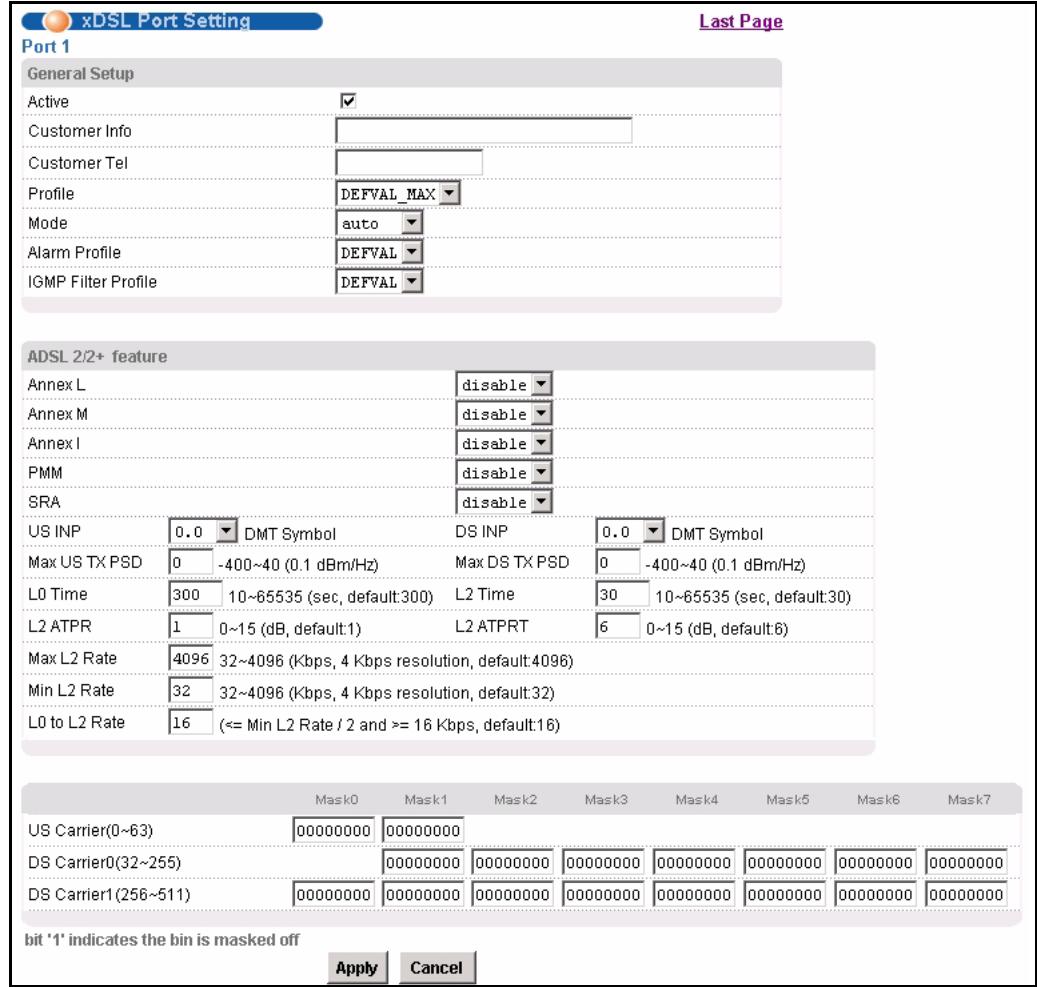
Figure 59 xDSL Port Setting
The following table describes the labels in this screen.
Table 20 xDSL Port Setting
| LABEL | DESCRIPTION |
| Last Page | Click this to return to the previous screen. |
| General Setup | |
| Active | Select this check box to turn on this ADSL port. |
| Customer Info | Enter information to identify the subscriber connected to this ADSL port. You can use up to 31 printable ASCII characters (including spaces and hyphens). |
| Customer Tel | Enter information to identify the telephone number of the subscriber connected to this ADSL port. You can use up to 15 ASCII characters (including spaces and hyphens). |
| Profile | Select a profile of ADSL settings (such as the transfer rate, interleave delay and signal to noise ratio settings) to assign to this port. Use the Port Profile screen to configure port profiles (see Chapter 17 on page 137). |
| Mode | Select the port's ADSL operational mode. Select the mode that the subscriber's device uses or auto to have the IES-1248 automatically determine the mode to use. See Table 18 on page 119 for information on the individual ADSL modes. |
| Alarm Profile | Select the port's alarm profile. The alarm profile defines alarm thresholds for the ADSL port. The IES-1248 sends an alarm trap and generates a syslog entry when the thresholds of the alarm profile are exceeded (see Section 17.6 on page 145). |
| IGMP Filter Profile | The IGMP filter profile defines which multicast groups a port can join. Select a profile of IGMP filter settings to assign to this port. Use the IGMP Filter Profile screen to configure IGMP filter profiles (see Section 17.8 on page 148). |
| ADSL2/2+ feature | These are features available with ADSL2/2+. The subscriber's ADSL device must also support the individual features in order to use them. At the time of writing these features have not been fully tested and their performance and interoperability cannot be guaranteed. |
| Annex L | This field is not available for the IES-1248-53. Enable Annex L to use reach extended ADSL2. This allows increased connection distances. |
| Annex M | This field is not available for the IES-1248-53. Enable Annex M to use double upstream mode. This has the upstream connection use tones 6 to 63. |
| Annex I | This field is not available for the IES-1248-53. Enable Annex I to use all digital mode. With Annex I, the ADSL connection uses the full spectrum of the physical line and the user can not use POTS or ISDN service. This increases the upstream data rate.Note: The subscriber cannot use POTS or ISDN services when you enable Annex I. |
| PMM | Enable the Power ManageMent (PMM) feature to reduce the amount of power used overall and reduce the instances of the connection going down. PMM increases or decreases the transmission power based on line conditions. PMM also decreases the number of service interruptions.Select L2 to have the ADSL connection use power saving mode and reduce the rate when there is no traffic. The rate comes back up when there is traffic SELECT L3 to use both power management modes L2 and L3. L3 puts the ADSL connection to sleep mode.L0 power mode uses no power reduction. See the ITU-T G.992.3 standard for more on PMM and the power modes (states). |
| SRA | Enable Seamless Rate Adaptation (SRA) to have the IES-1248 automatically adjust the connection's data rate according to line conditions without interrupting service. |
| Sudden spikes in the line's noise level (impulse noise) can cause errors and result in lost packets. Set the impulse noise protection minimum to have a buffer to protect the ADSL physical layer connection against impulse noise. This buffering causes a delay that reduces transfer speeds. It is recommended that you use a non-zero setting for real time traffic that has no error correction (like videoconferencing). | |
| US INP | Set the minimum upstream (US) impulse noise protection setting. |
| DS INP | Set the minimum downstream (DS) impulse noise protection setting. |
| Max US TX PSD | Specify the maximum upstream transmit power. The unit of measure is 0.1 dBm/Hz; for example, to set the maximum upstream transmit power to -10 dBm/Hz, set this value to -100. |
| Max DS TX PSD | Specify the maximum downstream transmit power. The unit of measure is 0.1 dBm/Hz; for example, to set the maximum downstream transmit power to -10 dBm/Hz, set this value to -100. |
| L0 Time | Set the minimum time (in seconds) that the ADSL line must stay in L0 power mode before changing to the L2 power mode. |
| L2 Time | Set minimum time (in seconds) that the ADSL line must stay in the L2 power mode before reducing the power again in the L2 power mode. |
| L2 ATPR | Set the maximum Aggregate Transmit Power Reduction (ATPR) in decibels (dB) that is permitted in a L2 power reduction. The system can gradually decrease the ADSL line transmission power while it is in the L2 power mode. This is the largest individual power reduction allowed in the L2 power mode. |
| L2 ATPRT | Set the maximum Aggregate Transmit Power Reduction Total (ATPRT) in decibels (dB) that is permitted in the L2 power mode. This is the total transmit power decrease that is allowed to occur in the L2 power mode. |
| Max L2 Rate | Set the maximum transfer rate (in Kilobits per second) that is permitted while the port is in the L2 power mode. The supported range is 32~4096 Kbps in 4 Kbps increments. If you enter a number that is not a multiple of 4, the system uses the next lower multiple of 4. If you enter 39, for example, the system will use 36. |
| Min L2 Rate | Set the minimum transfer rate (in Kilobits per second) that is permitted while the port is in the L2 power mode. The supported range is 32~4096 Kbps in 4 Kbps increments. If you enter a number that is not a multiple of 4, the system uses the next lower multiple of 4. If you enter 39, for example, the system will use 36. |
| L0 to L2 Rate | Set the down stream transfer rate (in Kilobits per second) that serves as the threshold for whether the port is to use the L0 or the L2 power mode. The system changes from L0 mode to L2 mode when the downstream transfer rate stays below this threshold for L0 Time. The system changes back from L2 mode to L0 mode when the downstream transfer rate goes above this threshold. This rate must be less than or equal to one half of the Min L2 Rate and at least 16 Kbps. |
| Use this part of the screen to mask carrier tones. Masking a carrier tone disables the use of that tone on the ADSL port. Do this to have the system not use an ADSL line's tones that are known to have a high noise level. Each mask can use up to 8 hexadecimal digits (00000000~FFFFFF). Each hexadecimal digit represents 4 tones. The hexadecimal digit is converted to binary and a '1' masks (disables) the corresponding tone. The most significant bit defines the lowest tone number in a mask. | |
| US Carrier | Mask0 represents tones 0~31. Mask1 represents tones 32~63. The most significant bit defines Tone 0. In other words, 0x0000001 means tone 31. For example, you could use 0xFFFFFF00 to disable upstream carrier tones 0~19 and leave tones 20~31 enabled. |
| DS Carrier(32~255) | Mask1 represents tones 32~63 Mask2 represents tones 64~95 Mask3 represents tones 96~127 Mask4 represents tones 128~159 Mask5 represents tones 160~191 Mask6 represents tones 192~223 Mask7 represents tones 224~255 For example, use 0x01000000 in Mask2 to disable downstream carrier tone 71. Use 0x03000000 in Mask2 to disable downstream carrier tones 70 and 71. |
| DS Carrier(256~511) | Mask0 represents tones 256~287 |
| Mask1 represents tones 288~319 | |
| Mask2 represents tones 320~351 | |
| Mask3 represents tones 352~383 | |
| Mask4 represents tones 384~415 | |
| Mask5 represents tones 416~447 | |
| Mask6 represents tones 448~479 | |
| Mask7 represents tones 480~511 | |
| For example, use 0x00001000 in Mask1 to disable downstream carrier tone 307. Use 0x0000f000 in Mask1 to disable downstream carrier tones 304 to 307. | |
| Apply | Click Apply to save your changes to the IES-1248's volatile memory. The IES-1248 loses these changes if it is turned off or loses power, so use the Config Save link on the navigation panel to save your changes to the non-volatile memory when you are done configuring. |
| Cancel | Click Cancel to begin configuring the fields again. |
16.8 Virtual Channels
Defining virtual channels (also called Permanent Virtual Circuits or PVCs) allows you to set priorities for different services or subscribers. You can define up to eight channels on each DSL port and use them for different services or levels of service. You set the PVID that is assigned to untagged frames received on each channel. You also set an IEEE 802.1p priority for each of the PVIDs. In this way you can assign different priorities to different channels (and consequently the services that get carried on them or the subscribers that use them).
For example, you want to give high priority to voice service on one of the ADSL ports.
Use the Edit Static VLAN screen to configure a static VLAN on the IES-1248 for voice on the port.
Use the ADSL Edit Port Channel Setup screen to:
- Configure a channel on the port for voice service.
- Set the channel to use the PVID of the static VLAN you configured.
- Assign the channel a high priority.
16.8.1 Super Channel
The IES-1248 forwards frames belonging to VLAN groups that are not assigned to specific channels to the super channel. Enable the super channel option to allow a channel forward frames belonging to multiple VLAN groups (that are not assigned to other channels). The super channel functions in the same way as the channel in a single channel environment. One port can have only one super channel.
16.8.2 LLC
LLC is a type of encapsulation where one VC (Virtual Circuit) carries multiple protocols with each packet header containing protocol identifying information. Despite the extra bandwidth and processing overhead, this method may be advantageous if it is not practical to have a separate VC for each carried protocol, for example, if charging heavily depends on the number of simultaneous VCs.
16.8.3 VC Mux
VC Mux is a type of encapsulation where, by prior mutual agreement, each protocol is assigned to a specific virtual circuit, for example, VC1 carries IP, VC2 carries IPX, and so on. VC-based multiplexing may be dominant in environments where dynamic creation of large numbers of ATM VCs is fast and economical.
16.8.4 Virtual Channel Profile
Virtual channel profiles allow you to configure the virtual channels efficiently. You can configure all of the virtual channels with the same profile, thus removing the need to configure the virtual channels one-by-one. You can also change an individual virtual channel by assigning it a different profile.
The IES-1248 provides two default virtual channel profiles: DEFVAL (for LLC encapsulation) and DEFVAL_VC (for VC encapsulation). By default, all virtual channels are associated to DEFVAL.
16.9 VC Setup Screen
Use this screen to view and configure a port's channel (PVC) settings.
To open this screen, click Basic Setting, xDSL Port Setup, VC Setup.
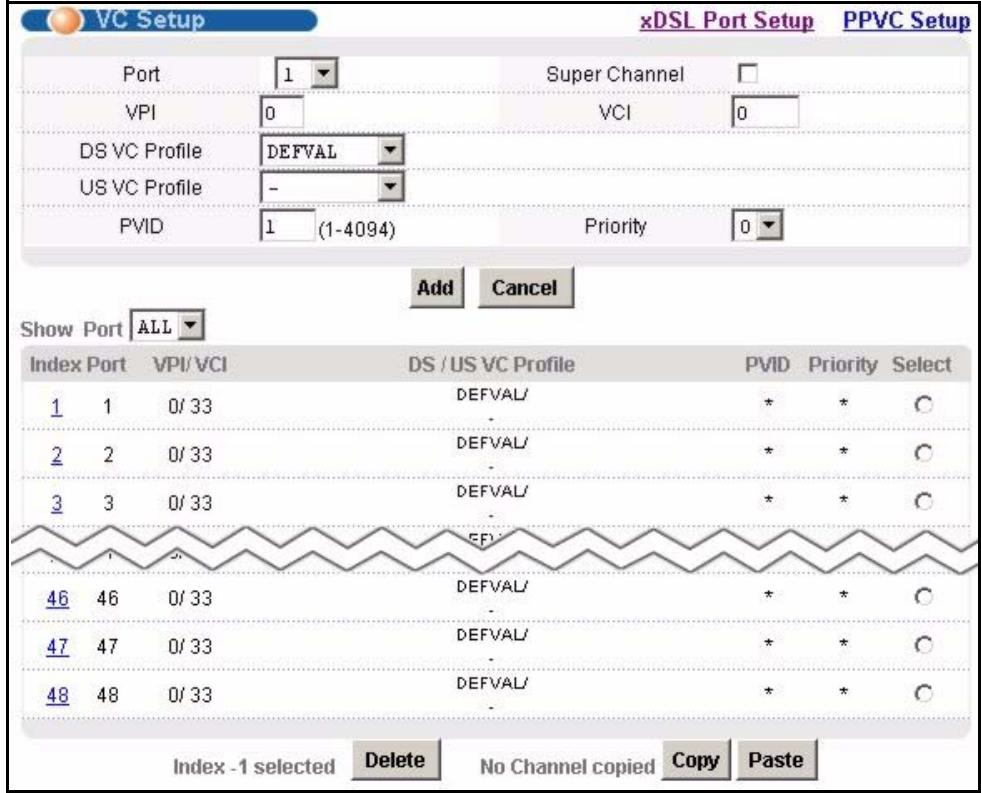
Figure 60 VC Setup
The following table describes the labels in this screen.
Table 21 VC Setup
| LABEL | DESCRIPTION |
| xDSL Port Setup | Click xDSL Port Setup to go to the screen where you can configure DSL port settings (see Section 16.7 on page 121). |
| PPVC Setup | Click PPVC Setup to open the PPVC Setup screen where you can configure priority PVC settings for the DSL ports (see Section 16.11 on page 133). |
| Port | Use this drop-down list box to select a port for which you wish to view or configure settings. This field is read-only once you click on a port number below. |
| Super Channel | The IES-1248 forwards frames belonging to VLAN groups that are not assigned to specific channels to the super channel. Enable the super channel option to have this channel forward frames belonging to multiple VLAN groups (that are not assigned to other channels). The super channel functions in the same way as the channel in a single channel environment. |
| VPI | Type the Virtual Path Identifier for a channel on this port. |
| VCI | Type the Virtual Circuit Identifier for a channel on this port. |
| DS VC Profile | Use the drop-down list box to select a VC profile to use for this channel's downstream traffic shaping. |
| US VC Profile | Use the drop-down list box to select a VC profile to use for this channel's upstream traffic. The IES-1248 does not perform upstream traffic policing if you do not specify an upstream VC profile.Note: Upstream traffic policing should be used in conjunction with the ATM shaping feature on the subscriber's device. If the subscriber's device does not apply the appropriate ATM shaping, all upstream traffic will be discarded due to upstream traffic policing. |
| PVID | Type a PVID (Port VLAN ID) to assign to untagged frames received on this channel. |
| Priority | Use the drop-down list box to select the priority value (0 to 7) to add to incoming frames without a (IEEE 802.1p) priority tag. An asterisk (*) denotes a super channel. |
| Add Apply | Click this to add or save channel settings on the selected port. (The name of the button depends on whether or not you have clicked on a PVC number in the Index column.)This saves your changes to the IES-1248's volatile memory. The IES-1248 loses these changes if it is turned off or loses power, so use the Config Save link on the navigation panel to save your changes to the non-volatile memory when you are done configuring. |
| Cancel | Click Cancel to start configuring the screen again. |
| Show Port | Select the number of an ADSL port for which to display VC settings (or display all of them). |
| Index | This field displays the number of the PVC. Click a PVC's index number to use the top of the screen to edit the PVC.Note: At the time of writing, you cannot edit the VPI and VCI. If you want to change them, add a new PVC with the desired settings. Then you can delete any unwanted PVCs. |
| Port | This field displays the number of the ADSL port on which the PVC is configured. |
| VPI/VCI | This field displays the Virtual Path Identifier (VPI) and Virtual Circuit Identifier (VCI). The VPI and VCI identify a channel on this port. |
| US / DS VC Profile | This shows which VC profile this channel uses for downstream traffic shaping. The VC profile for upstream policing also displays if the channel is configured to use one. |
| PVID | This is the PVID (Port VLAN ID) assigned to untagged frames or priority frames (0 VID) received on this channel. An asterisk (*) denotes a super channel. |
| Priority | This is the priority value (0 to 7) added to incoming frames without a (IEEE 802.1p) priority tag. An asterisk (*) denotes a super channel. |
| Select Delete | Do the following to remove one or more PVCs. 1 Select a PVC's Select radio button. 2 Click Delete. 3 Click OK if you want to remove the PVC from other ports. Click Cancel to only remove the one you selected. |
| Figure 61 Basic Setting, xDSL Port Setup, VC Setup, Delete | |
| Microsoft Internet Explorer ? Do you want to delete this channel in other ports too? OK Cancel | |
| 4 If you clicked OK, the following screen appears. 5 Select to which ports you want to copy the settings. Use All to select every port. Use None to clear all of the check boxes. 6 Click Apply to delete the channels. | |
| Figure 62 Select Ports | |
| 0 1 2 3 4 5 6 7 8 9 1-9 □ □ □ □ □ □ □ □ 10-19 □ □ □ □ □ □ □ □ 20-29 □ □ □ □ □ □ □ □ 30-39 □ □ □ □ □ □ □ □ 40-48 □ □ □ □ □ □ □ select All None Apply Cancel | |
| Select Copy Paste | Do the following to copy settings from one PVC to another port or ports.1 Click the Select radio button of the PVC from which you want to copy settings.2 Click Paste.3 The following screen appears.4 Select to which ports you want to copy the settings. Use All to select every port. Use None to clear all of the check boxes.5 Click Apply to copy the settings. |
| Figure 63 Select Ports0 1 2 3 4 5 6 7 8 91-9 10-19 20-29 30-39 40-48 select All NoneApply Cancel |
16.10 Priority-based PVCs
A PPVC (Priority-based PVC) allows you to give different priorities to PVCs that are members of the same VLAN.
The IES-1248 uses eight priority queues (also called levels) for the member PVCs. The system maps frames with certain IEEE 802.1p priorities to a PVC with a particular priority queue. The following table gives the factory default mapping.
Table 22 IEEE 802.1p Priority to PPVC Mapping
| IEEE 802.1 PRIORITY | MAPS TO: | PPVC 0/33, PRIORITY QUEUE |
| 7 | -> | level 7 |
| 6 | -> | level 6 |
| 5 | -> | level 5 |
| 4 | -> | level 4 |
| 3 | -> | level 3 |
| 2 | -> | level 2 |
| 1 | -> | level 1 |
| 0 | > | level 0 |
16.11 PPVC Setup Screen
Use this screen to view and configure PPVCs.
To open this screen, click Basic Setting, xDSL Port Setup, PPVC Setup.

Figure 64 PPVC Setup
The following table describes the labels in this screen.
Table 23 PPVC Setup
| LABEL | DESCRIPTION |
| xDSL Port Setup | Click xDSL Port Setup to go to the screen where you can configure DSL port settings (see Section 16.7 on page 121). |
| VC Setup | Click VC Setup to open the VC Setup screen where you can configure VC settings for the DSL ports (see Section 16.9 on page 128). |
| Port | Use this drop-down list box to select a port for which you wish to configure settings. |
| Encap. | Select the encapsulation type (Ilc or vc) for this PPVC. |
| VPI | Type the Virtual Path Identifier for this PPVC. |
| VCI | Type the Virtual Circuit Identifier for this PPVC. The IES-1248 uses this PVC channel internally. This PVC is not needed on the subscriber's device. This PVC cannot overlap with any existing PVCs on this port. |
| PVID | Type a PVID (Port VLAN ID) to assign to untagged frames received on this PPVC. |
| Priority | Use the drop-down list box to select the priority value (0 to 7) to add to incoming frames without a (IEEE 802.1p) priority tag. |
| Add / Modify | Click Add / Modify to save PPVC settings for a port. In order to change a port's PPVC settings, just select the port from the Port drop-down list box and then configure the settings you want. These settings replace the port's old settings when you click Add / Modify. Clicking Add / Modify saves your changes to the IES-1248's volatile memory. The IES-1248 loses these changes if it is turned off or loses power, so use the Config Save link on the navigation panel to save your changes to the non-volatile memory when you are done configuring. |
| Cancel | Click Cancel to start configuring the screen again. |
| Show Port | Select the number of an ADSL port for which to display PPVC settings (or display all of them). |
| Index | This field displays the number of the PPVC. |
| Port | This field displays the number of the ADSL port on which the PPVC is configured. |
| VPI/CCI | This field displays the Virtual Path Identifier (VPI) and Virtual Circuit Identifier (VCI). The VPI and VCI identify a channel on this port. The IES-1248 uses this PVC channel internally. This PVC is not needed on the subscriber's device. |
| Encap | This field displays the PPVC's type of encapsulation (IIc or vc). |
| PVID | This is the PVID (Port VLAN ID) assigned to untagged frames or priority frames (0 VID) received on this channel. |
| Priority | This is the priority value (0 to 7) added to incoming frames without a (IEEE 802.1p) priority tag. |
| Members | This field displays how many PVCs belong to this PPVC has. Click the number to open a screen where you can configure the PPVC's member PVCs. |
| Delete | Click Delete to remove a PPVC. Clicking Delete saves your changes to the IES-1248's volatile memory. The IES-1248 loses these changes if it is turned off or loses power, so use the Config Save link on the navigation panel to save your changes to the non-volatile memory when you are done configuring. |
16.11.1 PPVC Setup Members Screen
Use this screen to add and remove member PVCs.
Note: The member PVCs must be created on the subscriber's device.
To open this screen, click Basic Setting, xDSL Port Setup, PPVC Setup. Then, click a PPVC's member number to open the PPVC Setup Members screen.
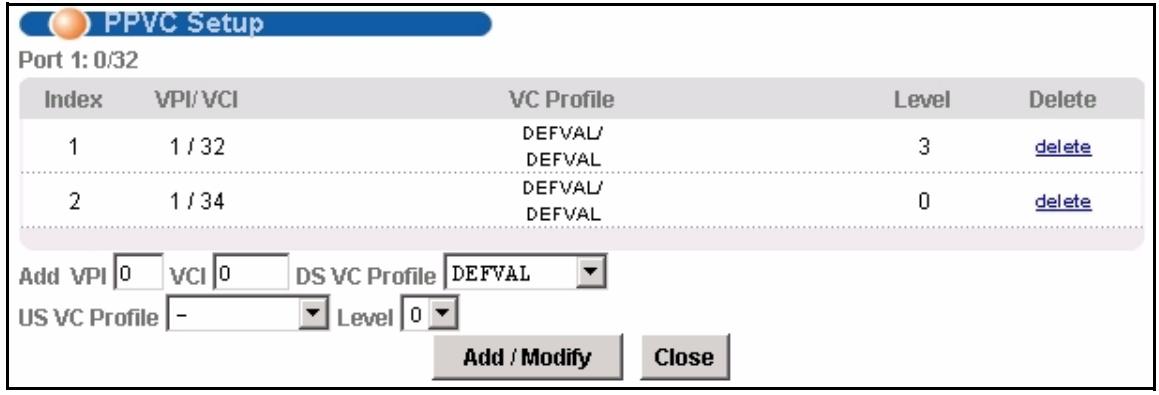
Figure 65 PPVC Setup, Edit
The following table describes the labels in this screen.
Table 24 PPVC Setup, Edit
| LABEL | DESCRIPTION |
| Port | This is the port for which you are viewing or configuring settings. |
| Index | This field displays the number of the member PVC. |
| VPI/VCI | This field displays the Virtual Path Identifier (VPI) and Virtual Circuit Identifier (VCI). The VPI and VCI identify a channel on this port. The subscriber's device must create this PVC. |
| VC Profile | This shows which VC profile this channel uses for downstream traffic shaping. The VC profile for upstream policing also displays if the channel is configured to use one. |
| Level | This field displays the number of the member PVC's priority queue. |
| Delete | Click Delete to remove a member PVC from the PPVC. Clicking Delete saves your changes to the IES-1248's volatile memory. The IES-1248 loses these changes if it is turned off or loses power, so use the Config Save link on the navigation panel to save your changes to the non-volatile memory when you are done configuring. |
| Add | Use this section of the screen to add or modify a member PVC. |
| VPI | Type the Virtual Path Identifier for this member PVC. |
| VCI | Type the Virtual Circuit Identifier for this member PPVC. This PVC cannot overlap with any existing PVC's on this port. |
| DS VC Profile | Use the drop-down list box to select a VC profile to use for this channel's downstream traffic shaping. |
| US VC Profile | Use the drop-down list box to select a VC profile to use for this channel's upstream traffic. The IES-1248 does not perform upstream traffic policing if you do not specify an upstream VC profile. |
| Level | Use the drop-down list box to select the priority queue (0 to 7) to add to use for the PVC. 7 is the highest level. |
| Add / Modify | Click Add / Modify to save member PVC settings for a PPVC. In order to change a member PVC 's settings, just enter the PVC's VPI and VCI, and configure the settings you want. These settings replace the PVC's old settings when you click Add / Modify. Clicking Add / Modify saves your changes to the IES-1248's volatile memory. The IES-1248 loses these changes if it is turned off or loses power, so use the Config Save link on the navigation panel to save your changes to the non-volatile memory when you are done configuring. |
| Close | Click Close to exit the screen without saving your changes. |
CHAPTER 17
xDSL Profiles Setup
A profile is a list of settings that you define. Then you can assign them to one or more individual ports. For background information about many of these settings, see Chapter 16 on page 119.
17.1 Port Profile Screen
To open this screen, click Basic Setting, xDSL Profiles Setup.

Figure 66 Port Profile
The following table describes the labels in this screen.
Table 25 Port Profile
| LABEL | DESCRIPTION |
| VC Profile | Click VC Profile to open the VC Profile screen where you can configure virtual channel profiles (see Section 17.5 on page 143). |
| Alarm Profile | Click Alarm Profile to open the Alarm Profile screen where you can configure limits that trigger an alarm when exceeded (see Section 17.6 on page 145) |
| IGMP Filter Profile | Click IGMP Filter Profile to open the IGMP Filter Profile screen where you can configure IGMP multicast filter profiles (see Section 17.8 on page 148). |
| Index | This is the port profile index number. |
| Name | These are the names of individual profiles. The DEFVAL profile always exists and all of the DSL ports have it assigned to them by default. You can use up to 31 ASCII characters; spaces are not allowed. |
| Latency Mode | This is the ADSL latency mode (Fast or Interleave) for the ports that belong to this profile. |
| Down/Up Stream Rate (kbps) | These are the maximum downstream and upstream transfer rates for the ports that belong to this profile. |
| Select Modify | Select a profile's Select radio button and click Modify to edit the profile. |
| Select Delete | Select a profile's Select radio button and click Delete to remove the profile. |
| The rest of the screen is for profile configuration. | |
| Name | When editing a profile, this is the name of this profile. When adding a profile, type a name (up to 31 characters) for the profile. |
| Latency Mode | This field sets the ADSL latency mode for the ports that belong to this profile. Select Fast mode to use no interleaving and have faster transmission (a “fast channel”). This would be suitable if you have a good line where little error correction is necessary. Select Interleave mode to use interleave delay when transmission error correction (Reed-Solomon) is necessary due to a less than ideal telephone line. See Section 16.4 on page 120 for more on interleave delay. |
| Up Stream | The following parameters relate to upstream transmissions. |
| Max Rate | Type a maximum upstream transfer rate (64 to 4096 Kbps) for this profile. Configure the maximum upstream transfer rate to be less than the maximum downstream transfer rate. |
| Min Rate | Type the minimum upstream transfer rate (32 to 4096 Kbps) for this port. Configure the minimum upstream transfer rate to be less than the maximum upstream transfer rate. |
| Interleave Delay | Configure this field when you set the Latency Mode field to Interleave. Type the number of milliseconds (1-255) of interleave delay to use for upstream transfers. It is recommended that you configure the same latency delay for both upstream and downstream. |
| Max SNR | Type the maximum upstream signal to noise margin (0-31 dB). |
| Min SNR | Type the minimum upstream signal to noise margin (0-31 dB). Configure the minimum upstream signal to noise margin to be less than or equal to the maximum upstream signal to noise margin. |
| Target SNR | Type the target upstream signal to noise margin (0-31 dB). Configure the target upstream signal to noise margin to be greater than or equal to the minimum upstream signal to noise margin and less than or equal to the maximum upstream signal to noise margin. |
| Up Shift SNR | The upstream up shift signal to noise margin (0-31 dB). When the channel's signal to noise margin goes above this number, the device can attempt to use a higher transfer rate. Configure the upstream up shift signal to noise margin to be greater than or equal to the target upstream signal to noise margin and less than or equal to the maximum upstream signal to noise margin. |
| Down Shift SNR | The upstream down shift signal to noise margin (0-31 dB). When the channel's signal to noise margin goes below this number, the device shifts to a lower transfer rate. Configure the upstream down shift signal to noise margin to be less than or equal to the target upstream signal to noise margin and greater than or equal to the minimum upstream signal to noise margin. |
| Down Stream | The following parameters relate to downstream transmissions. |
| Max Rate | Type a maximum downstream transfer rate (64 to 32000 Kbps) bps for this port. Configure the maximum downstream transfer rate to be greater than the maximum upstream transfer rate. |
| Min Rate | Type the minimum downstream transfer rate (32 to 32000 Kbps) for this port. Configure the minimum downstream transfer rate to be less than the maximum downstream transfer rate. |
| Interleave Delay | Configure this field when you set the Latency Mode field to interleave. Type the number of milliseconds (1-255) of interleave delay to use for upstream transfers. It is recommended that you configure the same latency delay for both upstream and downstream. |
| Max SNR | Type the maximum downstream signal to noise margin (0-31 dB). |
| Min SNR | Type the minimum downstream signal to noise margin (0-31 dB). Configure the minimum downstream signal to noise margin to be less than or equal to the maximum downstream signal to noise margin. |
| Target SNR | Type the target downstream signal to noise margin (0-31 dB). Configure the target downstream signal to noise margin to be greater than or equal to the minimum downstream signal to noise margin and less than or equal to the maximum downstream signal to noise margin. |
| Up Shift SNR | The downstream up shift signal to noise margin (0-31 dB). When the channel's signal to noise margin goes above this number, the device can attempt to use a higher transfer rate. Configure the downstream up shift signal to noise margin to be greater than or equal to the target downstream signal to noise margin and less than or equal to the maximum downstream signal to noise margin. |
| Down Shift SNR | The downstream down shift signal to noise margin (0-31 dB). When the channel's signal to noise margin goes below this number, the device shifts to a lower transfer rate. Configure the downstream down shift signal to noise margin to be less than or equal to the target downstream signal to noise margin and greater than or equal to the minimum downstream signal to noise margin. |
| Add | Click Add to save your changes to the IES-1248's volatile memory. The IES-1248 loses these changes if it is turned off or loses power, so use the Config Save link on the navigation panel to save your changes to the non-volatile memory when you are done configuring. |
| Cancel | Click Cancel to start configuring the screen again. |
17.2 ATM QoS
ATM Quality of Service (QoS) mechanisms provide the best service on a per-flow guarantee. ATM network infrastructure was designed to provide QoS. It uses fixed cell sizes and built-in traffic management (see Section 17.3 on page 140). This allows you to fine-tune the levels of services on the priority of the traffic flow.
17.3 Traffic Shaping
Traffic shaping is an agreement between the carrier and the subscriber to regulate the average rate and fluctuations of data transmission over an ATM network. This agreement helps eliminate congestion, which is important for transmission of real time data such as audio and video connections.
Note: Traffic shaping controls outgoing (downstream) traffic, not incoming (upstream).
17.3.1 ATM Traffic Classes
These are the basic ATM traffic classes defined by the ATM Forum Traffic Management 4.0 Specification.
17.3.1.1 Constant Bit Rate (CBR)
Constant Bit Rate (CBR) is an ATM traffic class that provides fixed bandwidth. CBR traffic is generally time-sensitive (doesn't tolerate delay). CBR is used for connections that continuously require a specific amount of bandwidth. Examples of connections that need CBR would be high-resolution video and voice.
17.3.1.2 Variable Bit Rate (VBR)
The Variable Bit Rate (VBR) ATM traffic class is used with bursty connections. Connections that use the Variable Bit Rate (VBR) traffic class can be grouped into real time (rt-VBR) or non-real time (nrt-VBR) connections.
The rt-VBR (real-time Variable Bit Rate) type is used with bursty connections that require closely controlled delay and delay variation. An example of an rt-VBR connection would be video conferencing. Video conferencing requires real-time data transfers and the bandwidth requirement varies in proportion to the video image's changing dynamics.
The nrt-VBR (non real-time Variable Bit Rate) type is used with bursty connections that do not require closely controlled delay and delay variation. An example of an nrt-VBR connection would be non-time sensitive data file transfers.
17.3.1.3 Unspecified Bit Rate (UBR)
The Unspecified Bit Rate (UBR) ATM traffic class is similar to the ABR traffic class for bursty data transfers. However, while ABR gives subscribers a set amount of bandwidth, UBR doesn't guarantee any bandwidth and only delivers traffic when the network has spare bandwidth.
17.3.2 Traffic Parameters
These are the parameters that control the flow of ATM traffic.
17.3.2.1 Peak Cell Rate (PCR)
Peak Cell Rate (PCR) is the maximum rate at which the sender can send cells. This parameter may be lower (but not higher) than the maximum line speed. 1 ATM cell is 53 bytes (424 bits), so a maximum speed of 832Kbps gives a maximum PCR of 1962 cells/sec. This rate is not guaranteed because it is dependent on the line speed.
17.3.2.2 Sustained Cell Rate (SCR)
Sustained Cell Rate (SCR) is the mean cell rate of each bursty traffic source. It specifies the maximum average rate at which cells can be sent over the virtual connection. SCR may not be greater than the PCR.
17.3.2.3 Maximum Burst Size (MBS)
Maximum Burst Size (MBS) is the maximum number of cells that can be sent at the PCR. After MBS is reached, cell rates fall below SCR until cell rate averages to the SCR again. At this time, more cells (up to the MBS) can be sent at the PCR again.
Note: If the PCR, SCR or MBS is set to the default of "0", the system will assign a maximum value that correlates to your upstream line rate.
The following figure illustrates the relationship between PCR, SCR and MBS.
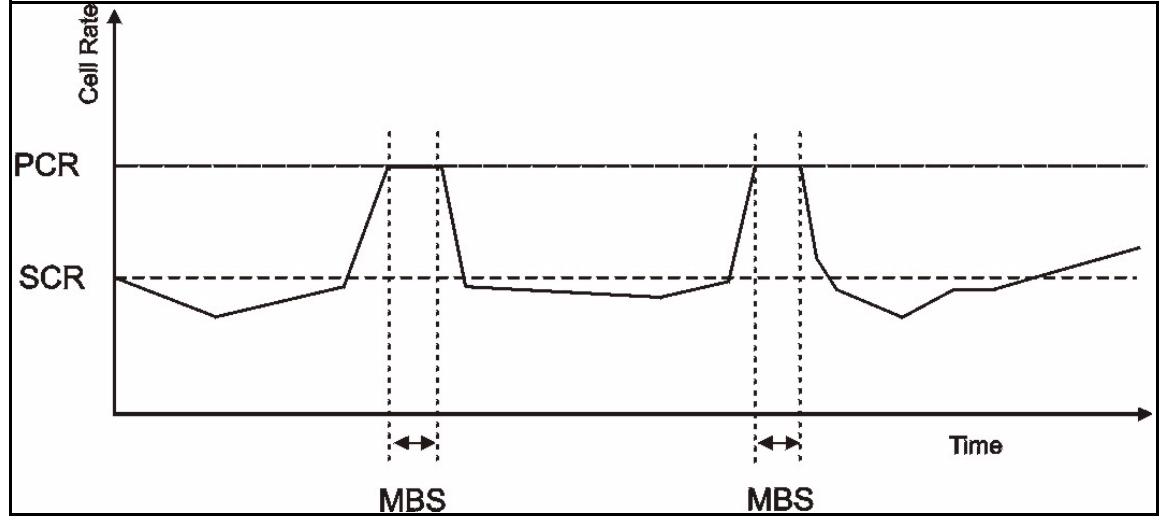
Figure 67 PCR, SCR and MBS in Traffic Shaping
17.3.2.4 Cell Delay Variation Tolerance (CDVT)
Cell Delay Variation Tolerance (CDVT) is the accepted tolerance of the difference between a cell's transfer delay and the expected transfer delay. CDVT controls the time scale over which the PCR is enforced. CDVT is used to determine if a cell arrived too early in relation to PCR.
17.3.2.5 Burst Tolerance (BT)
Burst Tolerance (BT) is the maximum number of cells that the port is guaranteed to handle without any discards. BT controls the time scale over which the SCR is enforced. BT is used to determine if a cell arrived too early in relation to SCR. Use this formula to calculate BT: (MBS - 1) x (1 / SCR - 1 / PCR) = BT.
17.3.2.6 Theoretical Arrival Time (TAT)
The Theoretical Arrival Time (TAT) is when the next cell (in an ATM connection's stream of cells) is expected to arrive. TAT is calculated based on the PCR or SCR.
The following figure illustrates the relationship between TAT, CDVT and BT. If a cell arrives at time A, then according to PCR or SCR, the next cell is expected to arrive at time B. If the next cell arrives earlier than time C, it is discarded or tagged for not complying with the TAT. Time C is calculated based on the CDVT or BT.
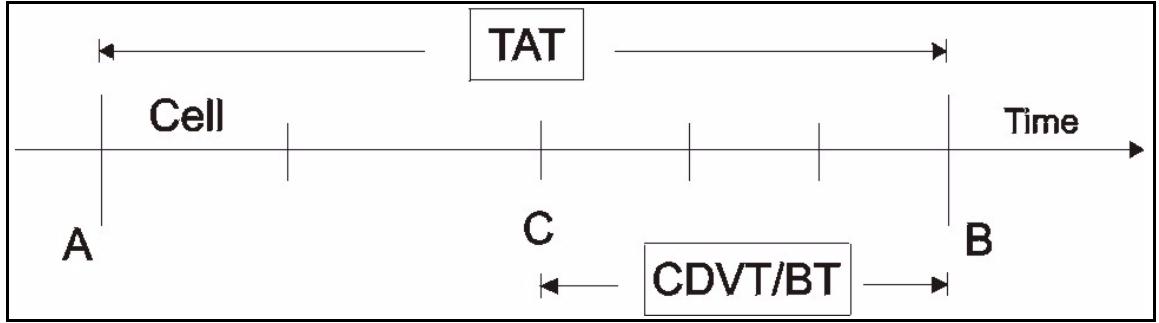
Figure 68 TAT, CDVT and BT in Traffic Shaping
17.4 Upstream Policing
Upstream policing is an agreement between the carrier and the subscriber to regulate the average rate and fluctuations of data transmission coming from the subscriber's device to the IES-1248.
Note: Upstream policing controls incoming (upstream) traffic, not outgoing (downstream).
The ATM traffic classes and parameters are identical with downstream shaping.
Upstream policing can control the upstream incoming traffic rate on specific PVCs. Upstream ATM cell traffic that violates the policing profile will be discarded. Traffic shaping must also be enabled on the subscriber's device in order to use upstream policing. If a subscriber attempts to enlarge his device's PVC shaping parameters in order to get more upstream traffic bandwidth, it will violate the IES-1248's upstream policing profile and the traffic will be discarded. Operators can use this feature to prevent subscribers from changing their device settings.
Note: Traffic shaping must also be enabled on the subscriber's device in order to use upstream policing.
Note that since the IES-1248 uses ATM QoS, if the subscriber device's upstream shaping rate is larger than the IES-1248's upstream policing rate, some ATM cells will be discarded. In the worst case, none of the Ethernet packets from the CPE will be able to be reassembled from AAL5, so no packets from the subscriber's device can be received by the IES-1248.
The upstream policing feature can be enabled/disabled per PVC. No matter which ATM traffic class is used for the PVC's upstream traffic (CBR, VBR, or UBR), the IES-1248 will drop any upstream traffic that violates the specified ATM VC profile.
17.5 VC Profile Screen
To open this screen, click Basic Setting, xDSL Profiles Setup, VC Profile.
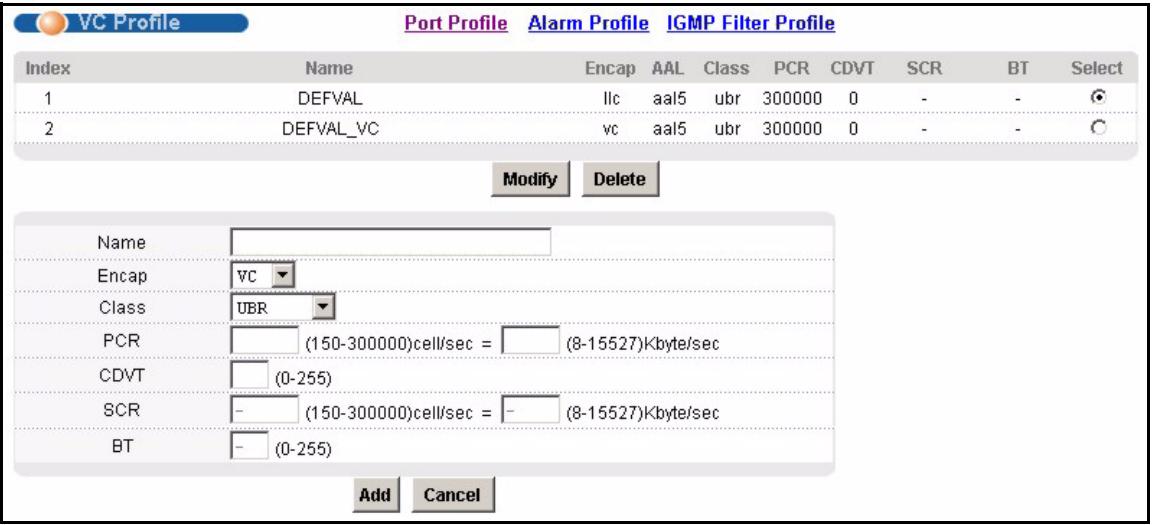
Figure 69 VC Profile
The following table describes the labels in this screen.
Table 26 VC Profile
| LABEL | DESCRIPTION |
| Port Profile | Click Port Profile to configure port profiles and assign them to individual ports (see Section 17.1 on page 137). |
| Alarm Profile | Click Alarm Profile to open the Alarm Profile screen where you can configure limits that trigger an alarm when exceeded (see Section 17.6 on page 145) |
| IGMP Filter Profile | Click IGMP Filter Profile to open the IGMP Filter Profile screen where you can configure IGMP multicast filter profiles (see Section 17.8 on page 148). |
| Index | This is the number of the VC profile. |
| Name | This name identifies the VC profile. |
| Encap | This field displays the profile's type of encapsulation (I1c or vc). |
| AAL | This field displays the ATM adaptation layer used by the VC profile. aa15 - The VC profile uses ATM adaptation layer 5. |
| Class | This field displays the type of ATM traffic class: cbr (constant bit rate), vbr (real-time variable bit rate), nrt-vbr (non-real time variable bit rate) or ubr (unspecified bit rate). |
| PCR | This is the Peak Cell Rate (PCR), the maximum number of cells that the sender can send per second. |
| CDVT | This field displays the accepted tolerance of the difference between a cell's transfer delay and the expected transfer delay. |
| SCR | The Sustained Cell Rate (SCR) sets the average cell rate (long-term) in cells per second that can be transmitted. SCR applies with the vbr traffic class. |
| BT | Burst Tolerance (BT) is the maximum number of cells that the port is guaranteed to handle without any discards. BT applies with the vbr traffic class. |
| Select Modify | Select a VC profile's Select radio button and click Modify to edit the VC profile |
| Delete | Select a VC profile's Select radio button and click Delete to remove the VC profile |
| The rest of the screen is for PVC configuration. | |
| Name | When editing a profile, this is the name of this profile. When adding a profile, type a name for the profile. You can use up to 31 ASCII characters; spaces are not allowed. |
| Encap | Select the encapsulation type (LLC or VC) for this port. |
| Class | Select CBR (constant bit rate) to specify fixed (always-on) bandwidth for voice or data traffic. Select UBR (unspecified bit rate) for applications that are non-time sensitive, such as e-mail. Select VBR (real time variable bit rate) or NRT-VBR (non real time variable bit rate) for bursty traffic and bandwidth sharing with other applications. |
| PCR | The Peak Cell Rate (PCR) is the maximum rate at which the sender can send cells. PCR applies with all of the ATM traffic classes. You can type a number of (ATM) cells per second in the first field or type a number of kilobytes per second in the second field to have the system automatically compute the number of ATM cells per second. |
| CDVT | Cell Delay Variation Tolerance (CDVT) is the accepted tolerance of the difference between a cell's transfer delay and the expected transfer delay. CDVT applies with all of the ATM traffic classes. Type the CDVT here. |
| SCR | The Sustained Cell Rate (SCR) sets the average cell rate (long-term) that can be transmitted. Type the SCR, which must be less than the PCR. SCR applies with the VBR traffic classes. You can type a number of (ATM) cells per second in the first field or type a number of kilobytes per second in the second field to have the system automatically compute the number of ATM cells per second. |
| BT | Burst Tolerance (BT) sets a maximum number of cells that the port is guaranteed to handle without any discards. Type the BT here. BT applies with the VBR traffic classes. |
| Add | Click Add to save your changes to the IES-1248's volatile memory. The IES-1248 loses these changes if it is turned off or loses power, so use the Config Save link on the navigation panel to save your changes to the non-volatile memory when you are done configuring. |
| Cancel | Click Cancel to start configuring the screen again. |
17.6 Alarm Profile Screen
Alarm profiles define ADSL port alarm thresholds. The IES-1248 sends an alarm trap and generates a syslog entry when the thresholds of the alarm profile are exceeded.
To open this screen, click Basic Setting, xDSL Profiles Setup, Alarm Profile.
Use the top part of the screen (with the Add and Cancel buttons) to add or edit alarm profiles. The rest of the screen displays the configured alarm profiles.
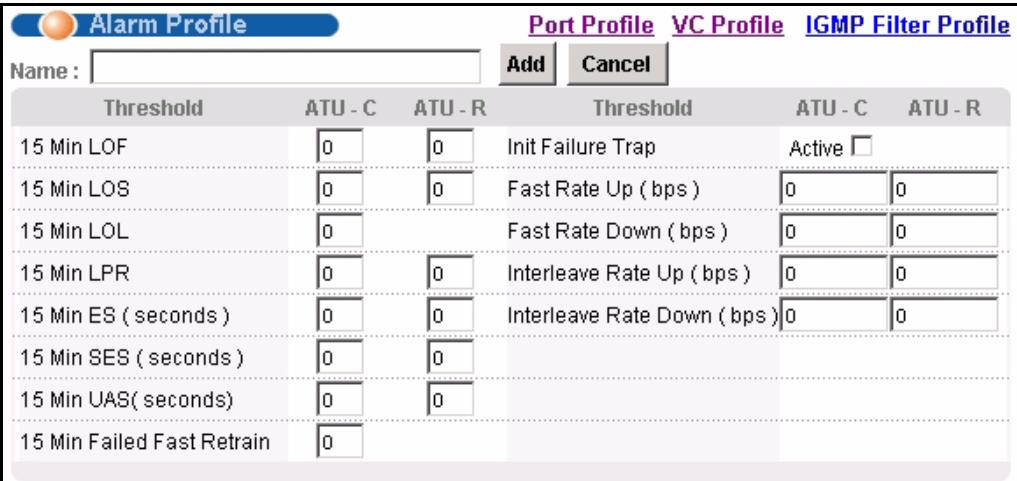
Figure 70 Alarm Profile
Alarm profiles with xDSL port mapping
Please click the"-" to mapping a xDSL port to a new alarm profile.
| Index | Name | Modify | Delete | ||||||||||||||||||||
| 1 | 2 | 3 | 4 | 5 | 6 | 7 | 8 | 9 | 10 | 11 | 12 | 13 | 14 | 15 | 16 | 17 | 18 | 19 | 20 | 21 | 22 | 23 | 24 |
| 25 | 26 | 27 | 28 | 29 | 30 | 31 | 32 | 33 | 34 | 35 | 36 | 37 | 38 | 39 | 40 | 41 | 42 | 43 | 44 | 45 | 46 | 47 | 48 |
| 1 | DEFVAL | Modify | Delete | |||||||||||||||||||
| V | - | V | V | V | V | V | V | V | - | - | V | V | V | V | V | - | V | V | V | V | V | V |
| V | V | V | V | V | V | V | V | V | V | V | V | V | V | V | V | V | V | V | V | V | V | |
The following table describes the labels in this screen.
Table 27 Alarm Profile
| LABEL | DESCRIPTION |
| Port Profile | Click Port Profile to open the Port Profile screen (see Section 17.1 on page 137). Use the Port Profile screen to configure profiles of ADSL port settings (such as the transfer rate, interleave delay and signal to noise ratio settings). |
| VC Profile | Click VC Profile to open the VC Profile screen where you can configure virtual channel profiles (see Section 17.5 on page 143). |
| IGMP Filter Profile | Click IGMP Filter Profile to open the IGMP Filter Profile screen where you can configure IGMP multicast filter profiles (see Section 17.8 on page 148). |
| Name | This field is read-only if you click Modify to edit a port profile. Type a name to identify the alarm profile (you cannot change the name of the DEFVAL profile). You can use up to 31 ASCII characters; spaces are not allowed. |
| Add | Click Add to save your changes to the IES-1248's volatile memory. The IES-1248 loses these changes if it is turned off or loses power, so use the Config Save link on the navigation panel to save your changes to the non-volatile memory when you are done configuring. |
| Cancel | Click Cancel to start configuring the screen again. |
| Threshold | Specify limits for the individual performance counters. The IES-1248 sends an alarm trap and generates a syslog entry when one of these thresholds is exceeded. A value of 0 disables the alarm threshold. |
| ATU-C | These fields are for traffic coming from the subscriber's device to the IES-1248. |
| ATU-R | These fields are for traffic going from the IES-1248 to the subscriber's device. |
| 15 Min LOF | This field sets the limit for the number of Loss Of Frame seconds that are permitted to occur within 15 minutes. |
| 15 Min LOS | This field sets the limit for the number of Loss Of Signal seconds that are permitted to occur within 15 minutes. |
| 15 Min LOL | This field sets the limit for the number of Loss Of Link seconds that are permitted to occur within 15 minutes. |
| 15 Min LPR | This field sets the limit for the number of Loss of Power seconds (on the ATUR) that are permitted to occur within 15 minutes. |
| 15 Min ES (seconds) | This field sets the limit for the number of Errored Seconds that are permitted to occur within 15 minutes. |
| 15 Min SES (seconds) | This field sets the limit for the number of Severely Errored seconds that are permitted to occur within 15 minutes. |
| 15 Min UAS (seconds) | This field sets the limit for the number of UnAvailable seconds that are permitted to occur within 15 minutes. |
| 15 Min Failed Fast Retrain | This field sets the limit for the number of failed fast retrans that are permitted within 15 minutes. |
| Init Failure Trap | Select Active to trigger an alarm for an initialization failure trap. |
| Fast Rate Up (bps) | Specify a rate in kilobits per second (kbps). If a fast mode connection's upstream transmission rate increases by more than this number, then a trap is sent. |
| Fast Rate Down (bps) | Specify a rate in kilobits per second (kbps). If a fast mode connection's downstream transmission rate decreases by more than this number, then a trap is sent. |
| Interleave Rate Up (bps) | Specify a rate in kilobits per second (kbps). If an interleave mode connection's upstream transmission rate increases by more than this number, then a trap is sent. |
| Interleave Rate Down (bps) | Specify a rate in kilobits per second (kbps). If an interleave mode connection's upstream transmission rate decreases by more than this number, then a trap is sent. |
| Alarm profiles with xDSL port mapping | After you add an alarm profile, you can click a port number's “-” symbol to map the xDSL port to that alarm profile. The port's “V” symbol in the alarm profile where it was previously mapped changes to “-”. |
| Modify | Click Modify to edit a profile. |
| Delete | Click Delete to remove a profile. |
17.7 IGMP Filtering
With the IGMP filtering feature, you can limit the multicast channel number of IGMP groups a subscriber on a port can join. This allows you to control the distribution of multicast services (such as content information distribution) based on service plans and types of subscription.
You can set the device to filter the multicast group join reports on a per-port basis by configuring an IGMP filtering profile and associating the profile to a port.
17.8 IGMP Filter Profile Screen
You can use the IGMP filter profiles to control access to a service that uses a specific multicast group (like a SIP server for example). Configure an IGMP filter profile that allows access to that multicast group. Then assign the IGMP filter profile to ADSL ports that are allowed to use the service.
The DEFVAL IGMP filter profile is assigned to all of the ADSL ports by default. It allows a port to join all multicast IP addresses (224.0.0.0~239.255.255.255). If you want to allow an ADSL subscriber access to only specific IGMP multicast groups, use the IGMP Filter Profile screen to configure a different profile and then assign it to the subscriber's ADSL port in the XDSL Port Setting screen (see Section 16.7.1 on page 123).
To open this screen, click Basic Setting, xDSL Profiles Setup, IGMP Filter Profile.
The top of the screen displays the configured IGMP filter profiles. Use the bottom part of the screen (with the Add and Cancel buttons) to add or edit alarm profiles.
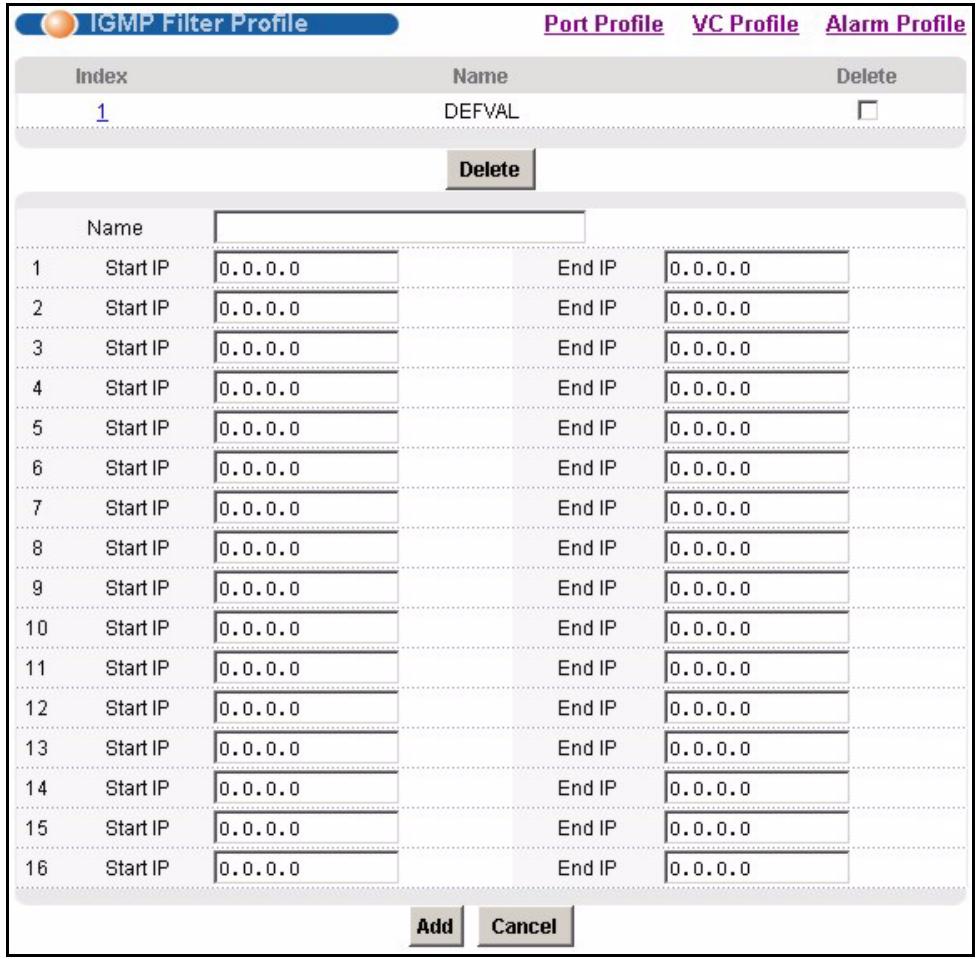
Figure 71 IGMP Filter Profile
The following table describes the labels in this screen.
Table 28 IGMP Filter Profile
| LABEL | DESCRIPTION |
| Port Profile | Click Port Profile to configure port profiles and assign them to individual ports (see Section 17.1 on page 137). |
| VC Profile | Click VC Profile to open the VC Profile screen where you can configure virtual channel profiles (see Section 17.5 on page 143). |
| Alarm Profile | Click Alarm Profile to open the Alarm Profile screen where you can configure limits that trigger an alarm when exceeded (see Section 17.6 on page 145) |
| Index | This is the number of the IGMP filter profile. Click a profile's index number to edit the profile. You cannot edit the DEFVAL profile. |
| Name | This name identifies the IGMP filter profile. |
| Delete | Select the Delete check box and click Delete to remove an IGMP filter profile. You cannot delete the DEFVAL profile. |
| Name | Type a name to identify the IGMP filter profile (you cannot change the name of the DEFVAL profile). You can use up to 31 ASCII characters; spaces are not allowed. |
| Start IP | Enter the starting multicast IP address for a range of multicast IP addresses to which you want this IGMP filter profile to allow access. |
| End IP | Enter the ending multicast IP address for a range of IP addresses to which you want this IGMP filter profile to allow access. If you want to add a single multicast IP address, enter it in both the Start IP and End IP fields. |
| Add | Click Add to save your changes to the IES-1248's volatile memory. The IES-1248 loses these changes if it is turned off or loses power, so use the Config Save link on the navigation panel to save your changes to the non-volatile memory when you are done configuring. |
| Cancel | Click Cancel to start configuring the screen again. |
CHAPTER 18 xDSL Line Data
18.1 xDSL Line Rate Info Screen
This screen displays an ADSL port's line operating values. Information obtained prior to training to steady state transition will not be valid or will be old information.
To open this screen, click Basic Setting, xDSL Line Data.
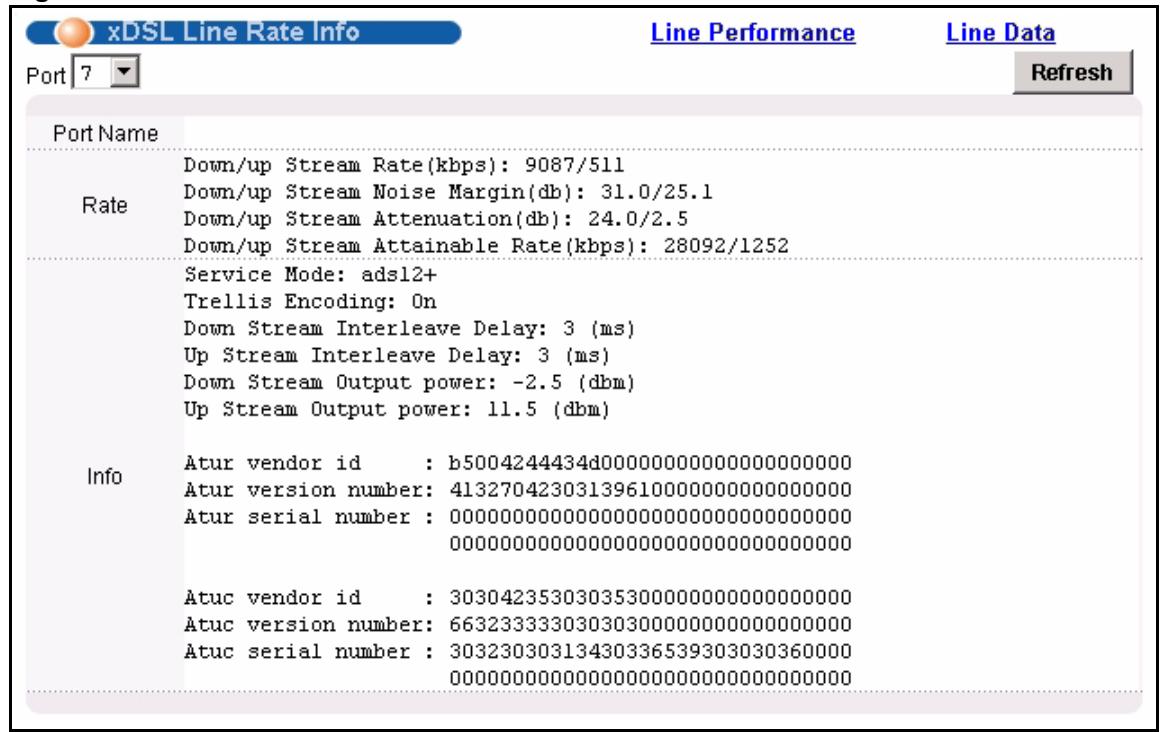
Figure 72 xDSL Line Rate Info
The following table describes the labels in this screen.
Table 29 xDSL Line Rate Info
| LABEL | DESCRIPTION |
| Line Performance | Click Line Performance to display an ADSL port's line performance counters (see Section 18.2 on page 153). |
| Line Data | Click Line Data to display an ADSL port's line bit allocation (see Section 18.3 on page 155). |
| Port | Use this drop-down list box to select a port for which you wish to view information. |
| Refresh | Click Refresh to display updated information. |
| Port Name | This section displays the name of the port. |
| Rate | The rate fields display the transmission rates. “Line Down” indicates that the ADSL port is not connected to a subscriber. |
| Down/up Stream Rate | These are the rates (in Kbps) at which the port has been sending and receiving data. |
| Down/up Stream Noise Margin | These are the DSL line's downstream and upstream noise margins. Measured in decibels (dB). |
| Down/up Stream Attenuation | These are the reductions in amplitude of the downstream and upstream DSL signals. Measured in decibels (dB). |
| Down/up Stream Attainable Rate | These are the highest theoretically possible transfer rates (in Kbps) at which the port could send and receive data. |
| Info | |
| Service Mode | This field displays the ADSL standard that the port is using: G.dmt (IES-1248-51/51A), G.dmt Annex B (IES-1248-53), ETSI (IES-1248-53), G.lite, ANSI T1.413 issue 2 (IES-1248-51/51A), ADSL2, or ADSL2+. |
| Trellis Encoding | This field displays whether Trellis encoding is turned on or off. Trellis encoding helps to reduce the noise in ADSL transmissions. Trellis may reduce throughput but it makes the connection more stable.a |
| Down Stream Interleave Delay | This field displays the number of milliseconds of interleave delay for downstream transmissions. |
| Up Stream Interleave Delay | This field displays the number of milliseconds of interleave delay for upstream transmissions. |
| Down Stream Output Power | This field displays the amount of power that this port is using to transmit to the subscriber's ADSL modem or router. The total output power of the transceiver varies with the length and line quality. The farther away the subscriber's ADSL modem or router is or the more interference there is on the line, the more power is needed. |
| Up Stream Output Power | This field displays the amount of power that the subscriber's ADSL modem or router is using to transmit to this port. The total output power of the transceiver varies with the length and line quality. The farther away the subscriber's ADSL modem or router is or the more interference there is on the line, the more power is needed. |
| Info Atur Info Atuc | The Info Atur fields show data acquired from the ATUR (ADSL Termination Unit – Remote), in this case the subscriber's ADSL modem or router, during negotiation/provisioning message interchanges. This information can help in identifying the subscriber's ADSL modem or router.The Info Atuc fields show data acquired from the ATUC (ADSL Termination Unit – Central), in this case IES-1248, during negotiation/provisioning message interchanges.The vendor ID, vendor version number and product serial number are obtained from vendor ID fields (see ITU-T G.994.1) or R-MSGS1 (see T1.413). |
a. At the time of writing, the IES-1248 always uses Trellis coding.
18.2 xDSL Performance Screen
These counters display line performance data that has been accumulated since the system started. The definitions of near end/far end are always relative to the ATU-C (ADSL Termination Unit-Central Office). ATU-C refers to downstream traffic from the IES-1248. ATU-R (ADSL Termination Unit-Remote) refers to upstream traffic from the subscriber.
To open this screen, click Basic Setting, xDSL Line Data, Line Performance.
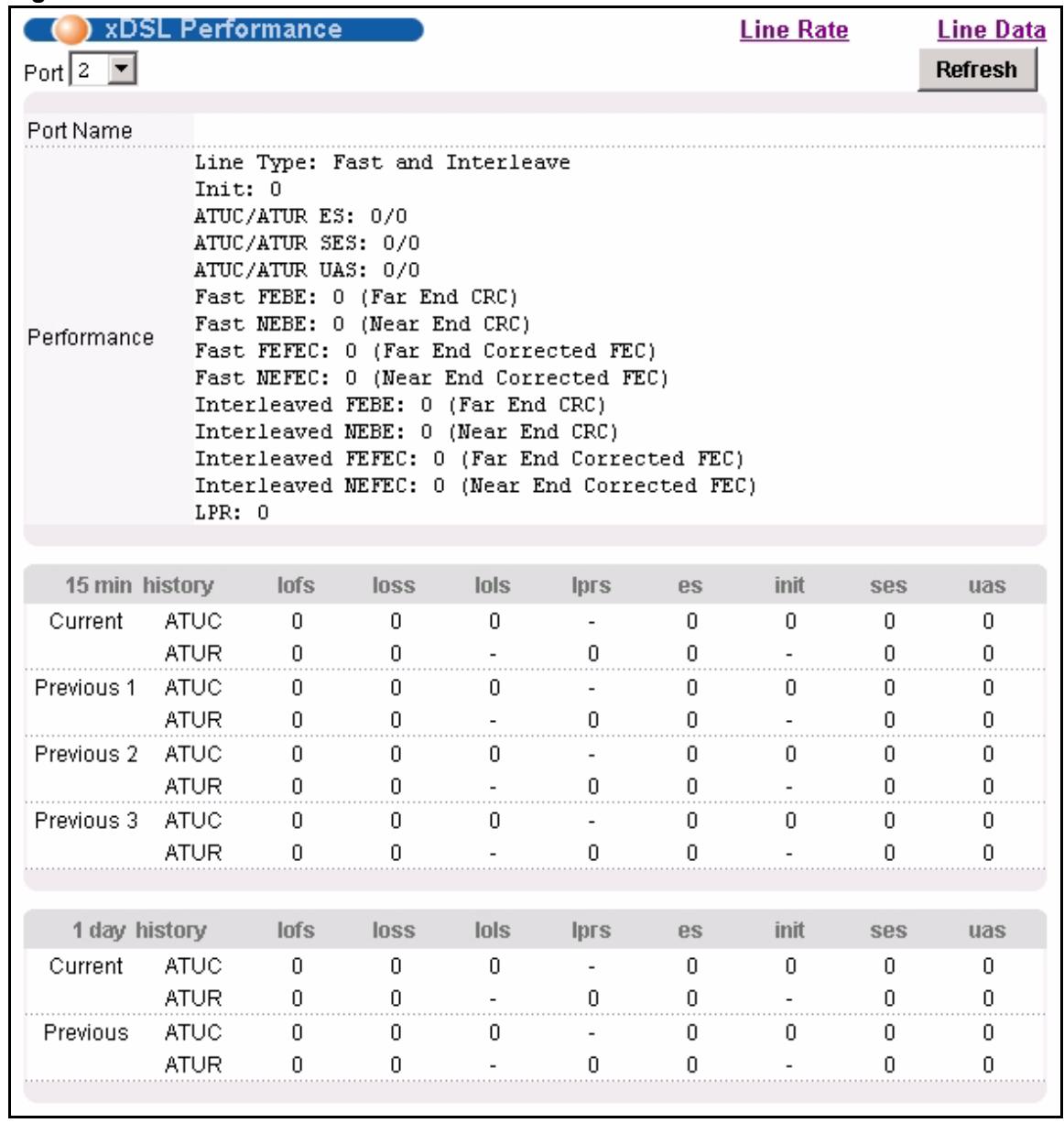
Figure 73 xDSL Performance
The following table describes the labels in this screen.
Table 30 xDSL Performance
| LABEL | DESCRIPTION |
| Line Rate | Click Line Rate to display an ADSL port's line operating values (see Section 18.1 on page 151). |
| Line Data | Click Line Data to display an ADSL port's line bit allocation (see Section 18.3 on page 155). |
| Port | Use this drop-down list box to select a port for which you wish to view information. |
| Refresh | Click Refresh to display updated information. |
| Port Name | This section displays the name of the port. |
| Performance | |
| Line Type | “Fast” stands for non-interleaved (fast mode) and “Interleaved” stands for interleaved mode. |
| Init | This field displays the number of link-ups and link-downs. |
| ATUC/ATUR ES | The Number of Errored Seconds transmitted (downstream) or received (upstream) on this ADSL port. |
| ATUC/ATUR SES | The Number of Severely Errored Seconds transmitted (downstream) or received (upstream) on this ADSL port. Severely errored seconds contained 30% or more errored blocks or at least one defect. This is a subset of the Down/Up Stream ES. |
| ATUC/ATUR UAS | The downstream or upstream number of UnAvailable Seconds. |
| Fast FEBE | In fast mode, the number of Far End Block Errors (Far End Cyclic Redundancy Checks). |
| Fast NEBE | In fast mode, the number of Near End Block Errors (Near End Cyclic Redundancy Checks). |
| Fast FEFEC | In fast mode, the Far End number of ADSL frames repaired by Forward Error Correction. |
| Fast NEFEC | In fast mode, the Near End number of ADSL frames repaired by Forward Error Correction. |
| Interleaved FEBE | In interleaved mode, the number of Far End Block Errors (Far End Cyclic Redundancy Checks). |
| Interleaved NEBE | In interleaved mode, the number of Near End Block Errors (Near End Cyclic Redundancy Checks). |
| Interleaved FEFEC | In interleaved mode, the Far End number of ADSL frames repaired by Forward Error Correction. |
| Interleaved NEFEC | In interleaved mode, the Near End number of ADSL frames repaired by Forward Error Correction. |
| LPR | This is the number of times that the subscriber's ADSL device has experienced a Loss of Power (been off). |
| 15 min, 1day history | This section of the screen displays line performance statistics for the current and previous 15-minute periods, as well as for the current and previous 24 hours. |
| Iofs | The number of Loss Of Frame Seconds that have occurred within the period. |
| loss | The number of Loss Of Signal Seconds that have occurred within the period. |
| Iols | The number of Loss Of Link Seconds that have occurred within the period. |
| Iprs | The number of Loss of Power Seconds that have occurred within the period. |
| es | The number of Errored Seconds that have occurred within the period. |
| init | The number of successful initializations that have occurred within the period. |
| ses | The number of Severely Errored Seconds that have occurred within the period. |
| uas | The number of UnAvailable Seconds that have occurred within the period. |
18.3 xDSL Line Data Screen
This screen displays an ADSL port's line bit allocation.
Discrete Multi-Tone (DMT) modulation divides up a line's bandwidth into tones. This screen displays the number of bits transmitted for each tone. This can be used to determine the quality of the connection, whether a given sub-carrier loop has sufficient margins to support ADSL transmission rates, and possibly to determine whether certain specific types of interference or line attenuation exist. See the ITU-T G.992.1 recommendation for more information on DMT.
The better (or shorter) the line, the higher the number of bits transmitted for a DMT tone. The maximum number of bits that can be transmitted per DMT tone is 15.
The bit allocation contents are only valid when the link is up.
To open this screen, click Basic Setting, xDSL Line Data, Line Data.
In the screen shown, the downstream channel is carried on tones 48 to 255 and the upstream channel is carried on tones 16 to 31 (space is left between the channels to avoid interference).
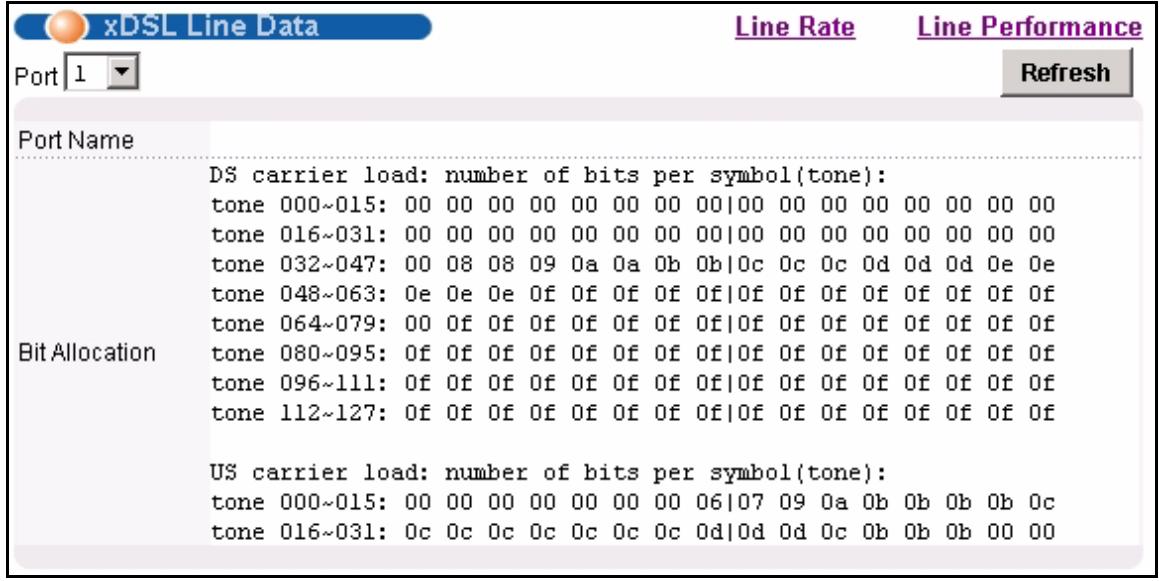
Figure 74 xDSL Line Data
The following table describes the labels in this screen.
Table 31 xDSL Line Data
| LABEL | DESCRIPTION |
| Line Rate | Click Line Rate to display an ADSL port's line operating values (see Section 18.1 on page 151). |
| Line Performance | Click Line Performance to display an ADSL port's line performance counters (see Section 18.2 on page 153). |
| Port | Use this drop-down list box to select a port for which you wish to view information. |
| Refresh | Click Refresh to display updated information. |
| Port Name | This section displays the name of the port. |
| Bit Allocation | “DS carrier load” displays the number of bits transmitted per DMT tone for the downstream channel (from the IES-1248 to the subscriber's DSL modem or router). “US carrier load” displays the number of bits received per DMT tone for the upstream channel (from the subscriber's DSL modem or router to the IES-1248). |
CHAPTER 19
VLAN
This chapter shows you how to configure IEEE 802.1Q tagged VLANs.
19.1 Introduction to VLANs
A VLAN (Virtual Local Area Network) allows a physical network to be partitioned into multiple logical networks. Devices on a logical network belong to one group. A device can belong to more than one group. With VLAN, a device cannot directly talk to or hear from devices that are not in the same group(s); the traffic must first go through a router.
In MTU (Multi-Tenant Unit) applications, VLAN is vital in providing isolation and security among the subscribers. When properly configured, VLAN prevents one subscriber from accessing the network resources of another on the same LAN, thus a user will not see the printers and hard disks of another user in the same building.
VLAN also increases network performance by limiting broadcasts to a smaller and more manageable logical broadcast domain. In traditional switched environments, all broadcast packets go to each and every individual port. With VLAN, all broadcasts are confined to a specific broadcast domain.
Note that a VLAN is unidirectional, it only governs outgoing traffic.
19.2 Introduction to IEEE 802.1Q Tagged VLAN
Tagged VLAN uses an explicit tag (VLAN ID) in the MAC header to identify the VLAN membership of a frame across bridges - they are not confined to the device on which they were created. The VLANs can be created statically by hand or configured dynamically using GVRP.2 The VLAN ID associates a frame with a specific VLAN and provides the information that devices need to process the frame across the network. A tagged frame is four bytes longer than an untagged frame and contains two bytes of TPID (Tag Protocol Identifier, residing within the type/length field of the Ethernet frame) and two bytes of TCI (Tag Control Information, starts after the source address field of the Ethernet frame).
The CFI (Canonical Format Indicator) is a single-bit flag, always set to zero for Ethernet switches. If a frame received at an Ethernet port has a CFI set to 1, then that frame should not be forwarded as it is to an untagged port. The remaining twelve bits define the VLAN ID, giving a possible maximum number of 4,096 (212) VLANs. Note that user priority and VLAN
ID are independent of each other. A frame with VID (VLAN Identifier) of null (0) is called a priority frame, meaning that only the priority level is significant and the default VID of the ingress port is given as the VID of the frame. Of the 4096 possible VIDs, a VID of 0 is used to identify priority frames and value 4095 (FFF) is reserved, so the maximum possible VLAN configurations are 4,094.
| TPID 2 Bytes | User Priority 3 Bits | CFI 1 Bit | VLAN ID 12 bits |
The IES-1248 handles up to 4094 VLANs (VIDs 1-4094). The device accepts incoming frames with VIDs 1-4094.
19.2.1 Forwarding Tagged and Untagged Frames
Each port on the device is capable of passing tagged or untagged frames. To forward a frame from an 802.1Q VLAN-aware switch to an 802.1Q VLAN-unaware switch, the IES-1248 first decides where to forward the frame and then strips off the VLAN tag. To forward a frame from an 802.1Q VLAN-unaware switch to an 802.1Q VLAN-aware switch, the IES-1248 first decides where to forward the frame, and then inserts a VLAN tag reflecting the ingress port's default VID. The default PVID is VLAN 1 for all ports, but this can be changed.
The egress (outgoing) port(s) of a frame is determined on the combination of the destination MAC address and the VID of the frame. For a unicast frame, the egress port (based on the destination MAC address) must be a member of the VID, also; otherwise, the frame is blocked. For a broadcast frame, it is duplicated only on ports (except the ingress port itself) that are members of the VID, thus confining the broadcast to a specific domain.
Whether to tag an outgoing frame depends on the setting of the egress port on a per-VLAN, per-port basis (recall that a port can belong to multiple VLANs). If the tagging on the egress port is enabled for the VID of a frame, then the frame is transmitted as a tagged frame; otherwise, it is transmitted as an untagged frame.
19.3 VLAN Status Screen
To open this screen, click Advanced Application, VLAN.
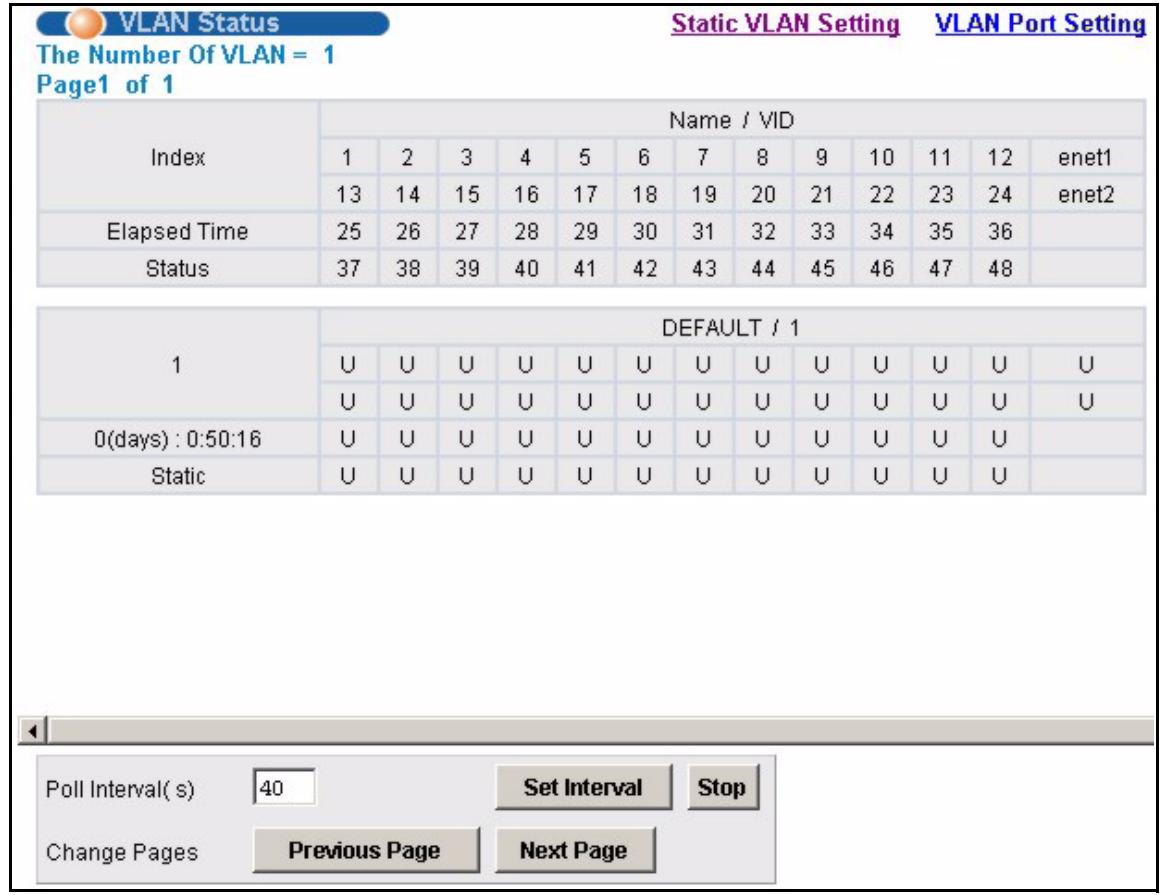
Figure 75 VLAN Status
The following table describes the labels in this screen.
Table 32 VLAN Status
| LABEL | DESCRIPTION |
| Static VLAN Setting | Click Static VLAN Setting to configure ports to dynamically join a VLAN group or permanently assign ports to a VLAN group or prohibit ports from joining a VLAN group (see Section 19.4 on page 160). |
| VLAN Port Setting | Click VLAN Port Setting to specify Port VLAN IDs (PVIDs). See Section 19.5 on page 161. |
| The Number of VLAN | This is the number of VLANs configured on the IES-1248. |
| Page X of X | This identifies which page of VLAN status information is displayed and how many total pages of VLAN status information there are. |
| The first table displays the names of the fields. The subsequent tables show the settings of the VLANs. | |
| Index | This is the VLAN index number. |
| Name / VID | The name identifies an individual VLAN. The vid is the PVID, the Port VLAN ID assigned to untagged frames or priority-tagged frames received on this port. |
| 1~48, enet1, enet2 | These columns display the VLAN's settings for each port. A tagged port is marked as T, an untagged port is marked as U and ports not participating in a VLAN are marked as “-”. |
| Elapsed Time | This field shows how long it has been since a normal VLAN was registered or a static VLAN was set up. |
| Status | This field shows that this VLAN was added to the IES-1248 statically, that is, added as a permanent entry. |
| Poll Interval(s) | The text box displays how often (in seconds) this screen refreshes. You may change the refresh interval by typing a new number in the text box and then clicking Set Interval. |
| Set Interval | |
| Stop | Click Stop to halt polling statistics. |
| Previous Page | Click one of these buttons to show the preceding/following screen if the information cannot be displayed in one screen. |
| Next Page |
19.4 Static VLAN Setting Screen
You can assign a port to be a member of a VLAN group or prohibit a port from joining a VLAN group in this screen. This is an IEEE 802.1Q VLAN.
To open this screen, click Advanced Application, VLAN, Static VLAN Setting.
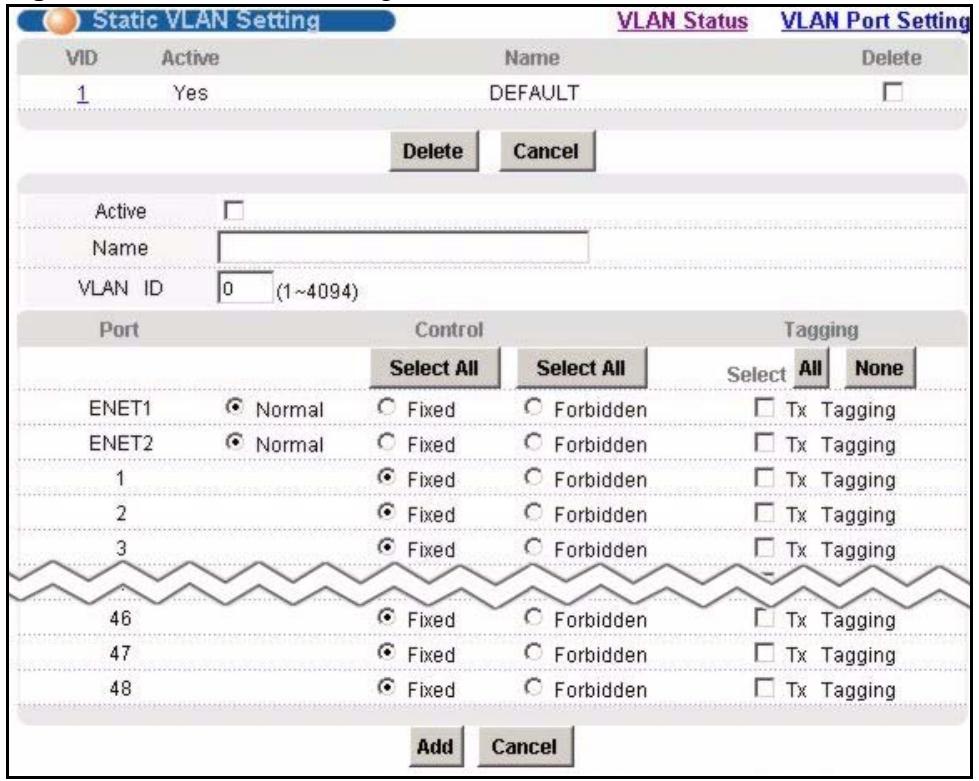
Figure 76 Static VLAN Setting
The following table describes the labels in this screen.
Table 33 Static VLAN Setting
| LABEL | DESCRIPTION |
| VLAN Status | Click VLAN Status to see which of the IES-1248's ports are members of which VLANs (see Section 19.3 on page 158) |
| VLAN Port Setting | Click VLAN Port Setting to specify Port VLAN IDs (PVIDs). See Section 19.5 on page 161. |
| VID | This field displays the ID number of the VLAN group. Click the number to edit the VLAN settings. |
| Active | This field indicates whether the VLAN settings are enabled (Yes) or disabled (No). |
| Name | This field displays the descriptive name for this VLAN group. |
| Delete | Select the check boxes of the rule(s) that you want to remove in the Delete column and then click the Delete button. You cannot delete a VLAN if any PVIDs are set to use the VLAN or the VLAN is the CPU (management) VLAN. |
| Cancel | Click Cancel to clear the Delete check boxes. |
| Active | Select this check box to enable the VLAN. You cannot disable a VLAN if any PVIDs are set to use the VLAN or the VLAN is the CPU (management) VLAN. |
| Name | Enter a descriptive name for this VLAN group for identification purposes. Spaces are not allowed. |
| VLAN ID | Enter the VLAN ID for this static VLAN entry; the valid range is between 1 and 4094. |
| Port | The port numbers identify the IES-1248's ports. |
| Control | Select Fixed for the port to be a permanent member of this VLAN group. Use the Select All button to include every port. Select Forbidden if you want to prohibit the port from joining this VLAN group. Use the Select All button to include every port. |
| Tagging | Select TX Tagging if you want the port to tag all outgoing frames transmitted with this VLAN ID. Use the All button to include every port. Use the None button to clear all of the ports check boxes. |
| Add | Click Add to save your settings. The VLAN then displays in the summary table at the top of the screen. Clicking Add saves your changes to the IES-1248's volatile memory. The IES-1248 loses these changes if it is turned off or loses power, so use the Config Save link on the navigation panel to save your changes to the non-volatile memory when you are done configuring. |
| Cancel | Click Cancel to begin configuring the fields afresh. |
19.5 VLAN Port Setting Screen
Use this screen to specify port VLAN IDs and to set whether or not Ethernet ports propagate VLAN information to other devices.
To open this screen, click Advanced Application, VLAN, VLAN Port Setting.
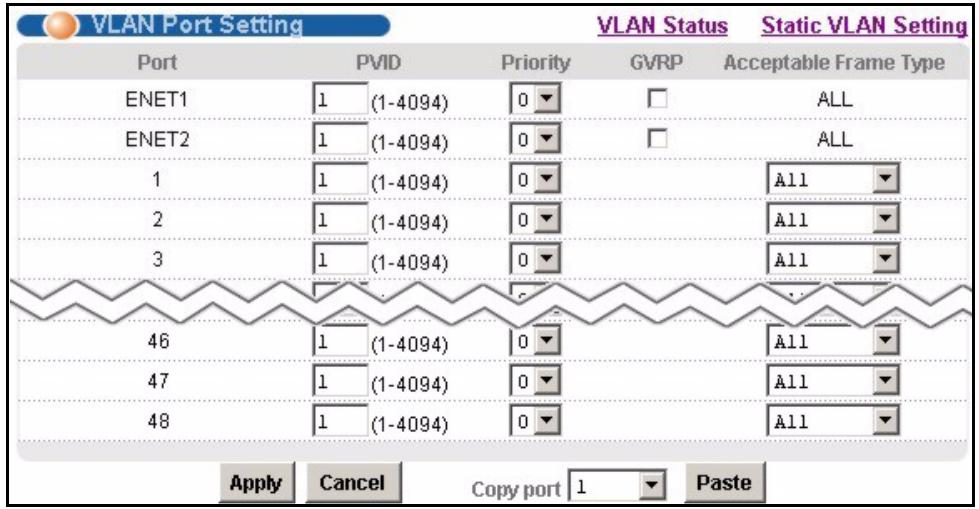
Figure 77 VLAN Port Setting
The following table describes the labels in this screen.
Table 34 VLAN Port Setting
| LABEL | DESCRIPTION |
| VLAN Status | Click VLAN Status to see which of the IES-1248's ports are members of which VLANs (see Section 19.3 on page 158). |
| Static VLAN | Click Static VLAN to configure ports to dynamically join a VLAN group or permanently assign ports to a VLAN group or prohibit ports from joining a VLAN group (see Section 19.4 on page 160). |
| Port | The port numbers identify the IES-1248's ports. |
| PVID | Type the Port VLAN ID (PVID) from 1 to 4094. The IES-1248 assigns the PVID to untagged frames or priority frames (0 VID) received on this port. |
| Priority | Select an IEEE 802.1p priority to assign to untagged frames or priority frames (0 VID) received on this port. |
| GVRP | Select this check box if the IES-1248 should use GVRP to automatically register and configure VLAN membership. |
| Acceptable Frame Type | Select All to have the port accept both tagged and untagged incoming frames. a Select Tag Only to have the port only accept incoming frames that have a VLAN tag. |
| Apply | Click Apply to save your changes to the IES-1248's volatile memory. The IES-1248 loses these changes if it is turned off or loses power, so use the Config Save link on the navigation panel to save your changes to the non-volatile memory when you are done configuring. |
| Cancel | Click Cancel to begin configuring this screen afresh. |
| Copy port Paste | Do the following to copy settings from one port to another port or ports. 1 Select the number of the port from which you want to copy settings. 2 Click Paste and the following screen appears. 3 Select to which ports you want to copy the settings. Use All to select every port. Use None to clear all of the check boxes. 4 Click Apply to paste the settings. Figure 78 Select Ports |
a. At the time of writing, the VLAN Acceptable Frame Type field is read-only for the Ethernet ports. The IES-1248 accepts both tagged and untagged incoming frames on the Ethernet ports.
CHAPTER 20 IGMP
This chapter describes the IGMP screens.
20.1 IGMP
Traditionally, IP packets are transmitted in one of either two ways - Unicast (1 sender to 1 recipient) or Broadcast (1 sender to everybody on the network). Multicast delivers IP packets to just a group of hosts on the network.
IGMP (Internet Group Multicast Protocol) is a network-layer protocol used to establish membership in a multicast group - it is not used to carry user data. See RFC 1112 and RFC 2236 for information on IGMP versions 1 and 2, respectively.
20.2 IP Multicast Addresses
In IPv4, a multicast address allows a device to send packets to a specific group of hosts (multicast group) in a different sub-network. A multicast IP address represents a traffic receiving group, not individual receiving devices. IP addresses in the Class D range (224.0.0.0 to 239.255.255.255) are used for IP multicasting. Certain IP multicast numbers are reserved by IANA for special purposes (see the IANA web site for more information).
20.2.1 IGMP Snooping
A layer-2 switch can passively snoop on IGMP Query, Report and Leave (IGMP version 2) packets transferred between IP multicast routers/switches and IP multicast hosts to learn the IP multicast group membership. It checks IGMP packets passing through it, picks out the group registration information, and configures multicasting accordingly. IGMP snooping allows the IES-1248 to learn multicast groups without you having to manually configure them.
The IES-1248 forwards multicast traffic destined for multicast groups (that it has learned from IGMP snooping or that you have manually configured) to ports that are members of that group. The IES-1248 discards multicast traffic destined for multicast groups that it does not know. IGMP snooping generates no additional network traffic, allowing you to significantly reduce multicast traffic passing through your device.
20.2.2 IGMP Proxy
To allow better network performance, you can use IGMP proxy instead of a multicast routing protocol in a simple tree network topology.
In IGMP proxy, an upstream interface is the port that is closer to the source (or the root of the multicast tree) and is able to receive multicast traffic. There should only be one upstream interface (also known as the query port) for one query VLAN on the IES-1248. A downstream interface is a port that connects to a host (such as a computer).
The following figure shows a network example where A is the multicast source while computers 1, 2 and 3 are the receivers. In the figure A is connected to the upstream interface and 1, 2 and 3 are connected to the downstream interface.
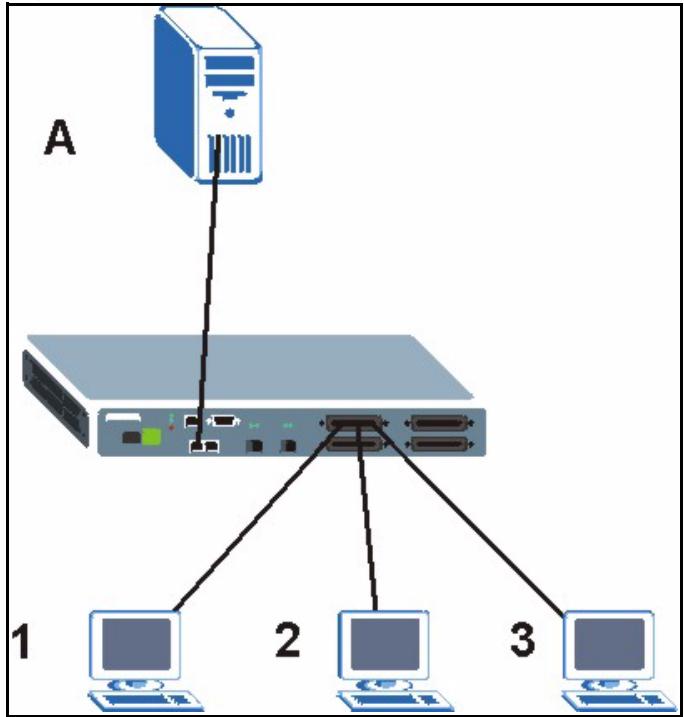
Figure 79 IGMP Proxy Network Example
The IES-1248 will not respond to IGMP join and leave messages on the upstream interface. The IES-1248 only responds to IGMP query messages on the upstream interface. The IES-1248 sends IGMP query messages to the hosts that are members of the query VLAN.
The IES-1248 only sends an IGMP leave messages via the upstream interface when the last host leaves a multicast group.
In daisychain mode, Ethernet interface 1 is set as the upstream interface and Ethernet interface 2 and the DSL ports are set as downstream interfaces.
20.3 IGMP Status Screen
Use this screen to view current IGMP information.
To open this screen, click Advanced Application, IGMP.
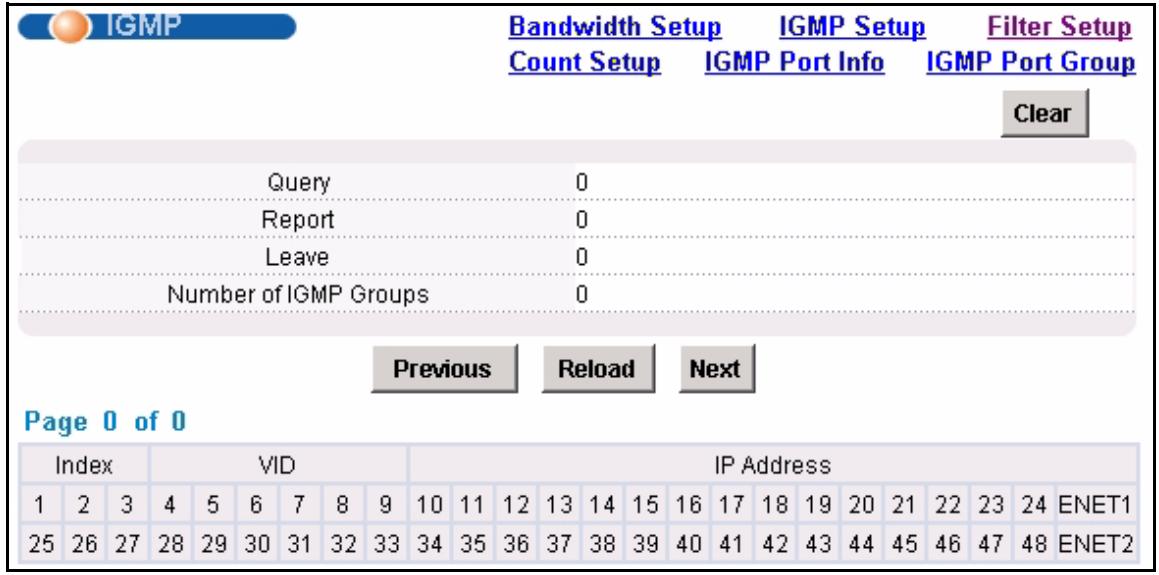
Figure 80 IGMP (Status)
The following table describes the labels in this screen.
Table 35 IGMP (Status)
| LABEL | DESCRIPTION |
| Bandwidth Setup | Click Bandwidth Setup to open the IGMP Bandwidth screen where you can set up bandwidth requirements for multicast channels (see Section 20.4 on page 168). You can also open the Bandwidth Port Setup screen to set up multicast bandwidth requirements for selected ports (see Section 20.4.1 on page 169). |
| IGMP Setup | Click IGMP Setup to open the IGMP Setup screen where you can configure IGMP settings (see Section 20.5 on page 170). |
| Filter Setup | Click Filter Setup to open the IGMP Filter Profile screen where you can configure IGMP multicast filter profiles (see Section 20.6 on page 171). |
| Count Setup | Click Count Setup to open the IGMP Count screen where you can limit the number of IGMP groups a subscriber on a port can join (see Section 20.7 on page 171). |
| IGMP Port Info | Click IGMP Port Info to open the IGMP Port Info screen where you can look at the current number of IGMP-related packets received on each port (see Section 20.8 on page 172). |
| IGMP Port Group | Click IGMP Port Group to open the IGMP Port Group screen where you can look at the current list of multicast groups each port has joined (see Section 20.9 on page 173). |
| Clear | Click Clear to delete the information the IES-1248 has learned about multicast groups. This resets every counter in this screen. |
| Query | This is the total number of Query packets received. |
| Report | This is the total number of Report packets received. |
| Leave | This is the total number of Leave packets received. |
| Number of IGMP Groups | This is how many IGMP groups the IES-1248 has identified on the local network. |
| Previous Next | Click one of these buttons to show the previous/next screen if all of the information cannot be seen in one screen. |
| Reload | Click this button to refresh the screen. |
| Page X of X | This identifies which page of information is displayed and the total number of pages of information. |
| The first table displays the names of the fields. The subsequent tables show the settings of the IGMP groups. | |
| Index | This is the IGMP group index number. |
| VID | The VID is the VLAN ID on which the IGMP group is created. |
| IP Address | This is the IP address of an IP multicast group member. |
| 1~48, enet1, enet2 | These columns display the ports that are members of the IGMP snooping group. |
20.4 IGMP Bandwidth Screen
Use this screen to set up bandwidth requirements for multicast channels. To open this screen, click Advanced Application, IGMP, Bandwidth Setup.
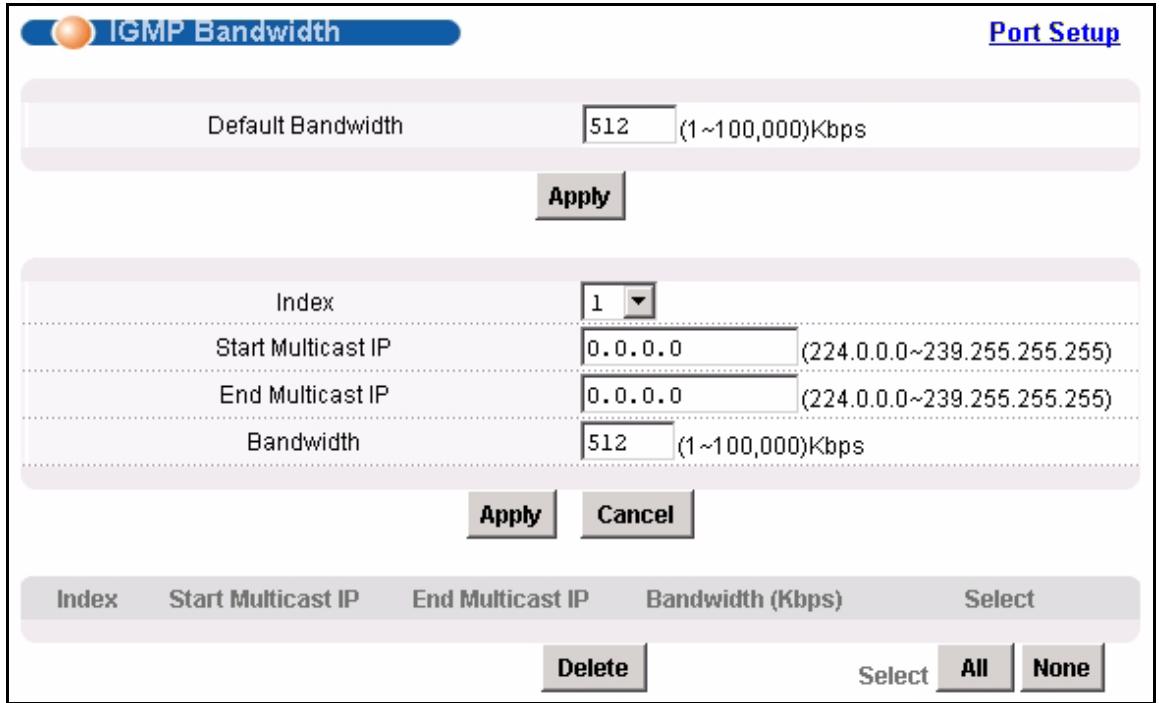
Figure 81 IGMP Bandwidth
The following table describes the labels in this screen.
Table 36 IGMP Bandwidth
| LABEL | DESCRIPTION |
| Port Setup | Click Port Setup to open the Bandwidth Port Setup screen where you can set up multicast bandwidth requirements on specified ports (see Section 20.4.1 on page 169). |
| Default Bandwidth | Enter the default bandwidth for multicast channels for which you have not configured bandwidth requirements. |
| Apply | Click Apply to save your changes to the IES-1248's volatile memory. The IES-1248 loses these changes if it is turned off or loses power, so use the Config Save link on the navigation panel to save your changes to the non-volatile memory when you are done configuring. |
| Index | Select a unique number for this setting. If you select a number that is already used, the new setting overwrites the old one when you click Apply. |
| Start Multicast IP | Enter the beginning of the multicast range. |
| End Multicast IP | Enter the end of the multicast range. For one multicast address, enter the start of the multicast range again. |
| Bandwidth | Enter the bandwidth requirement for the specified multicast range. |
| Apply | Click Apply to save the filter settings. The settings then display in the summary table at the bottom of the screen. Clicking Apply saves your changes to the IES-1248's volatile memory. The IES-1248 loses these changes if it is turned off or loses power, so use the Config Save link on the navigation panel to save your changes to the non-volatile memory when you are done configuring. |
| Cancel | Click Cancel to begin configuring the fields afresh. |
| This table shows the multicast range settings. | |
| Index | This field displays the number that identifies this setting. |
| Start Multicast IP | This field displays the beginning of the multicast range. |
| End Multicast IP | This field displays the end of the multicast range. |
| Bandwidth | This field displays the allowed bandwidth for the specified multicast range. |
| Select | Select this, and click Delete to remove the setting. |
| Delete | Click this to remove the selected settings. |
| Select All | Click this to select all entries in the table. |
| Select None | Click this to un-select all entries in the table. |
20.4.1 Bandwidth Port Setup Screen
Use this screen to set up multicast bandwidth requirements for specific ports. To open this screen, click Advanced Application, IGMP, Bandwidth Setup, Port Setup.
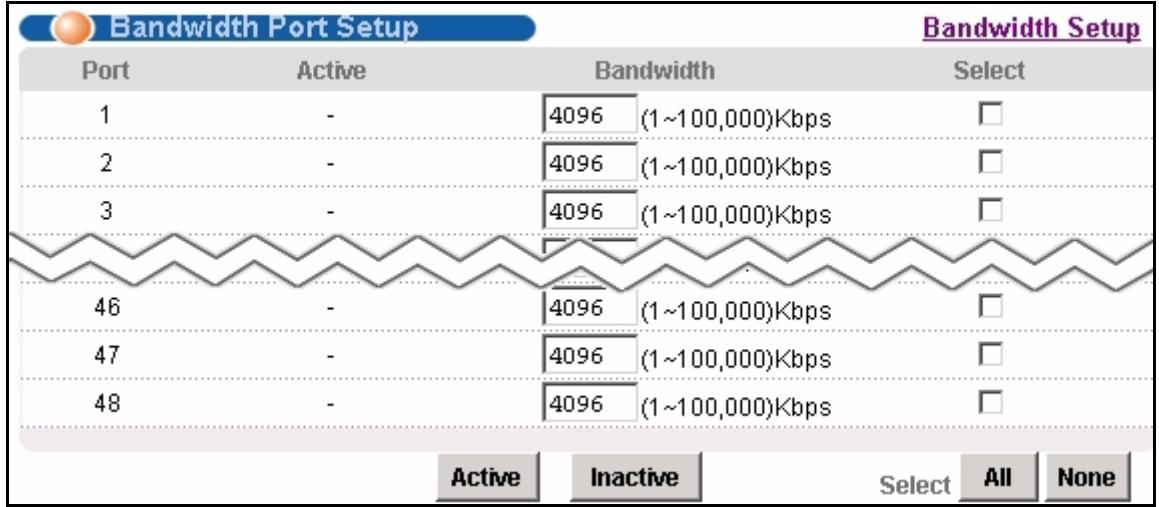
Figure 82 Bandwidth Port Setup
The following table describes the labels in this screen.
Table 37 Bandwidth Port Setup
| LABEL | DESCRIPTION |
| Bandwidth Setup | Click Bandwidth Setup to open the IGMP Bandwidth screen where you can set up bandwidth requirements for multicast channels (see Section 20.4 on page 168). |
| Port | This field shows each ADSL port number. |
| Active | This field shows whether or not multicast bandwidth requirements are enabled on this port. “V” displays if it is enabled and “-” displays if it is disabled. |
| Bandwidth | Enter the maximum acceptable multicast bandwidth for this port. This has no effect if bandwidth requirements are disabled. |
| Select | Select this, and click Active or Inactive to enable or disable the specified multicast bandwidth requirements on this port. |
| Active | Click this to enable the specified multicast bandwidth requirements on the selected port. |
| Inactive | Click this to disable the specified multicast bandwidth requirements on the selected port. |
| Select All | Click this to select all entries in the table. |
| Select None | Click this to un-select all entries in the table. |
20.5 IGMP Setup Screen
Use this screen to configure your IGMP settings.
To open this screen, click Advanced Application, IGMP, IGMP Setup.

Figure 83 IGMP Setup
The following table describes the labels in this screen.
Table 38 IGMP Setup
| LABEL | DESCRIPTION |
| IGMP Status | Click IGMP Status to open the IGMP Setup screen where you can view current IGMP information (see Section 20.3 on page 166). |
| Filter Setup | Click Filter Setup to open the IGMP Filter Profile screen where you can configure IGMP multicast filter profiles (see Section 20.6 on page 171). |
| IGMP Mode | Select Proxy to have the device use IGMP proxy. Select Snooping to have the device passively learn multicast groups. Select Disable to have the device not use either IGMP proxy or snooping. |
| Apply | Click Apply to save your IGMP mode settings. Clicking Apply saves your changes to the IES-1248's volatile memory. The IES-1248 loses these changes if it is turned off or loses power, so use the Config Save link on the navigation panel to save your changes to the non-volatile memory when you are done configuring. |
20.6 IGMP Filter Setup Screen
To open this screen, click Advanced Application, IGMP, Filter Setup. This screen is discussed in Section 17.7 on page 147.
20.7 IGMP Count Screen
Use this screen to limit the number of IGMP groups a subscriber on a port can join. This allows you to control the distribution of multicast services (such as content information distribution) based on service plans and types of subscription.
IGMP count is useful for ensuring the service quality of high bandwidth services like video or Internet Protocol television (IPTV). IGMP count can limit how many channels (IGMP groups) the subscriber connected to a DSL port can use at a time. If each channel requires 4~5 Mbps of download bandwidth, and the subscriber's connection supports 11 Mbps, you can use IGMP count to limit the subscriber to using just 2 channels at a time. This also effectively limits the subscriber to using only two IPTVs with the DSL connection.
To open this screen, click Advanced Application, IGMP, Count Setup.
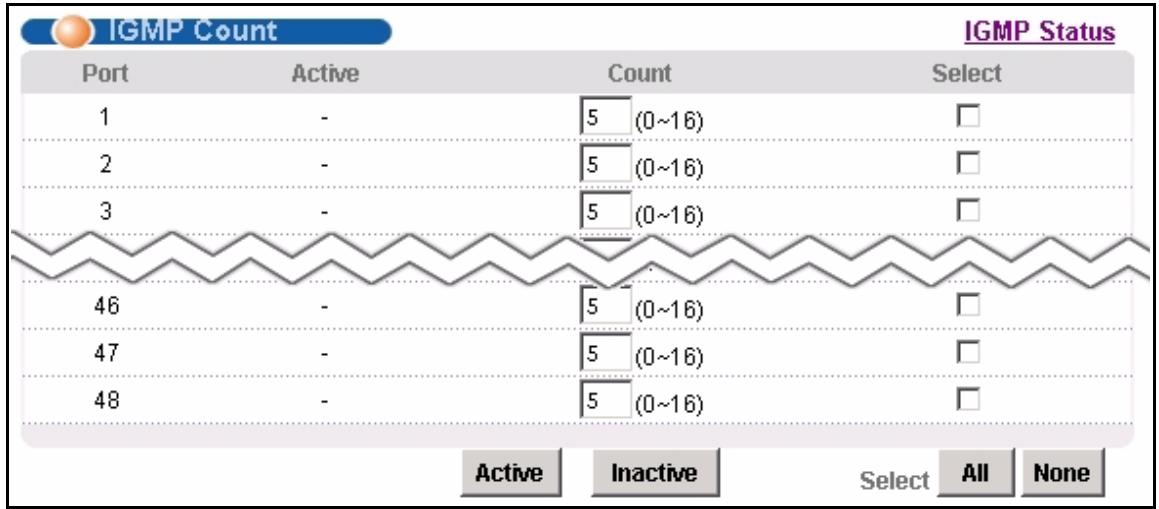
Figure 84 IGMP Count
The following table describes the labels in this screen.
Table 39 IGMP Count
| LABEL | DESCRIPTION |
| IGMP Status | Click IGMP Status to open the IGMP Setup screen where you can view current IGMP information (see Section 20.3 on page 166). |
| Port | This field shows each ADSL port number. |
| Active | This field shows whether or not the IGMP count limit is enabled on this port. “V” displays if it is enabled and “-” displays if it is disabled. |
| Count | Enter the maximum number of IGMP groups a subscriber on this port can join. This has no effect if the IGMP count limit is disabled. |
| Select | Select this, and click Active or Inactive to enable or disable the specified IGMP count limit on this port. |
| Active | Click this to enable the specified IGMP count limits on the selected ports. |
| Inactive | Click this to disable the specified IGMP count limits on the selected ports. |
| Select All | Click this to select all entries in the table. |
| Select None | Click this to un-select all entries in the table. |
20.8 IGMP Port Info Screen
Use this screen to display the current number of IGMP-related packets received on each port. To open this screen, click Advanced Application, IGMP, IGMP Port Info.
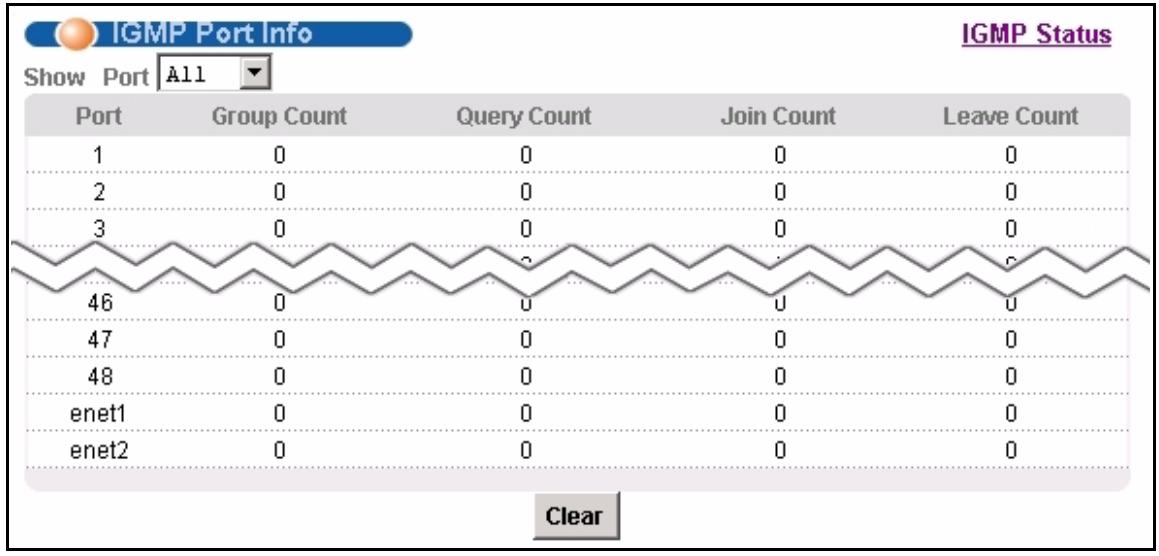
Figure 85 IGMP Port Info
The following table describes the labels in this screen.
Table 40 IGMP Port Info
| LABEL | DESCRIPTION |
| IGMP Status | Click IGMP Status to open the IGMP Setup screen where you can view current IGMP information (see Section 20.3 on page 166). |
| Show Port | Select a port for which you wish to view information. |
| Port | This field shows each port number. |
| Group Count | This is the total number of Group packets received on this port. |
| Query Count | This is the total number of Query packets received on this port. |
| Join Count | This is the total number of Join packets received on this port. |
| Leave Count | This is the total number of Leave packets received on this port. |
| Clear | Click Clear to delete the information the IES-1248 has learned about multicast groups. This resets every counter in this screen. |
20.9 IGMP Port Group Screen
Use this screen to display the current list of multicast groups each port joins. To open this screen, click Advanced Application, IGMP, IGMP Port Group.

Figure 86 IGMP Port Group
The following table describes the labels in this screen.
Table 41 IGMP Port Group
| LABEL | DESCRIPTION |
| IGMP Status | Click IGMP Status to open the IGMP Setup screen where you can view current IGMP information (see Section 20.3 on page 166). |
| Show Port | Select a port for which you wish to view information. |
| Port | This field shows each port number. |
| VID | This field shows the associated VLAN ID. |
| Multicast IP | This field shows the IP address of the multicast group joined by this port. |
| Source IP | This field shows the IP address of the client that joined the multicast group on this port. |
| Refresh | Click Refresh to display updated information. |
CHAPTER 21 Static Multicast
This chapter describes the Static Multicast screen.
21.1 Static Multicast
Use static multicast to allow incoming frames based on multicast MAC address(es) that you specify. This feature can be used in conjunction with IGMP snooping/proxy to allow multicast MAC address(es) that are not learned by IGMP snooping or IGMP proxy. Use static multicast to pass routing protocols, such as RIP and OSPF.
21.2 Static Multicast Screen
To open this screen, click Advanced Application, Static Multicast.
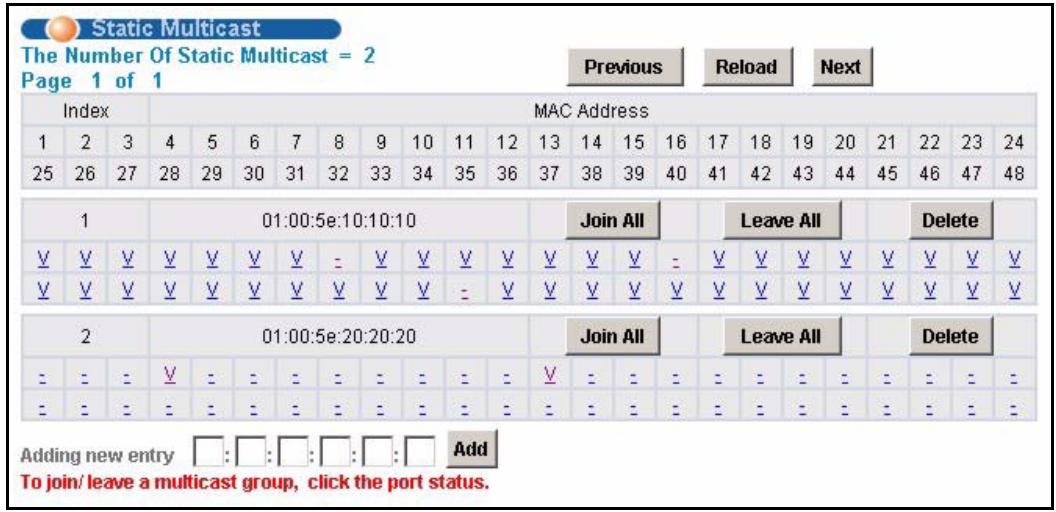
Figure 87 Static Multicast
The following table describes the labels in this screen.
Table 42 Static Multicast
| LABEL | DESCRIPTION |
| The Number of Static Multicast | This is the number of static multicast entries configured on the IES-1248. |
| Page X of X | This identifies which page of information is displayed and the total number of pages of information. |
| Previous Next | Click one of these buttons to show the previous/next screen if all status information cannot be seen in one screen. |
| Reload | Click this button to refresh the screen. |
| The first table displays the names of the fields. The subsequent tables show the settings of the IGMP groups. | |
| Index | This is the static multicast group index number. |
| MAC Address | This is the multicast MAC address. |
| 1~48 | These fields display the static multicast group membership status of the ADSL ports. “V” displays for members and “-” displays for non-members. Click an ADSL port's status to change it (clicking a “V” changes it to “-” and vise versa). |
| Join All | Click Join All to make all of the ADSL ports members of the static multicast group. |
| Leave All | Click Leave All to remove all of the ADSL ports from the static multicast group. |
| Delete | Click Delete to remove a static multicast group. |
| Adding new entry Add | Type a multicast MAC address in the field, and click the Add button to create a new static multicast entry. Multicast MAC addresses must be 01:00:5E:xx:xx:xx, where x is a “don't care” value. For example, 01:00:5E:10:10:10 is a valid multicast MAC address. Clicking Add saves your changes to the IES-1248's volatile memory. The IES-1248 loses these changes if it is turned off or loses power, so use the Config Save link on the navigation panel to save your changes to the non-volatile memory when you are done configuring. |
CHAPTER 22
Multicast VLAN
This chapter describes the Multicast VLAN screens.
22.1 Multicast VLAN Overview
Multicast VLAN allows one single multicast VLAN to be shared among different subscriber VLANs on the network. This improves bandwidth utilization by reducing multicast traffic in the subscriber VLANs and simplifies multicast group management.
When the IES-1248 forwards traffic to a subscriber port, it tries to forward traffic to a normal PVC with the same VLAN ID. If this PVC does not exist, the IES-1248 uses the super channel instead. This applies to all downstream traffic, not just multicast traffic.
It is suggested to use a super channel for multicast VLAN. If a normal PVC is used and the multicast VLAN ID is not the same as the PVC's VID, the IES-1248 does not forward traffic to this PVC even if the subscriber's port has joined the multicast VLAN.
Since the IES-1248 might change the subscriber's VLAN ID to the multicast VLAN ID, both the subscriber's port and the Ethernet port should join the multicast VLAN.
22.2 MVLAN Status Screen
Use this screen to look at a summary of all multicast VLAN on the IES-1248. To open this screen, click Advanced Application, Multicast VLAN.
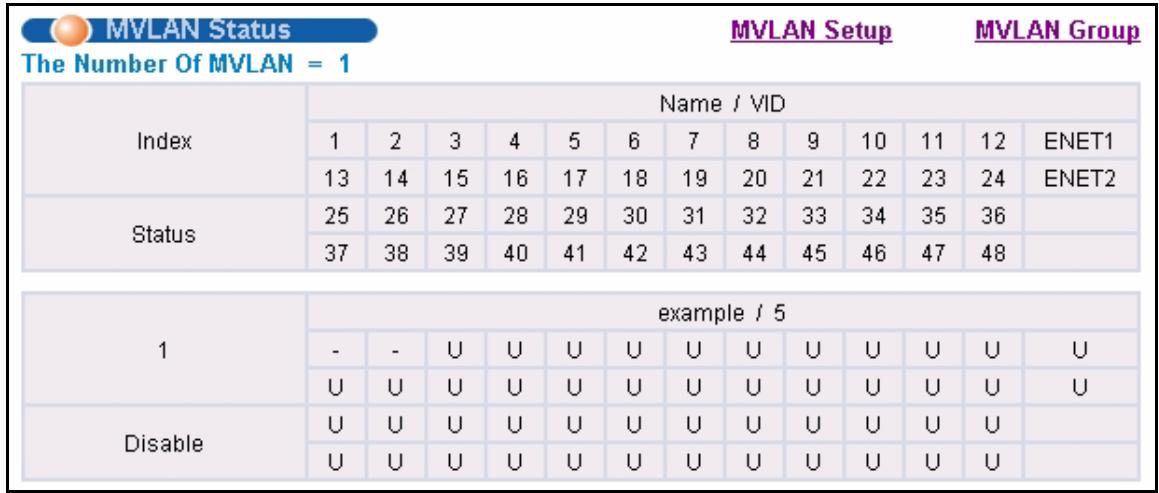
Figure 88 MVLAN Status
The following table describes the labels in this screen.
Table 43 MVLAN Status
| LABEL | DESCRIPTION |
| MVLAN Setup | Click MVLAN Setup to open the MVLAN Setup screen where you can configure basic settings and port members for each multicast VLAN (see Section 22.3 on page 178). |
| MVLAN Group | Click MVLAN Group to open the MVLAN Group screen where you can configure ranges of multicast IP addresses for each multicast VLAN (see Section 22.4 on page 180). |
| The Number of MVLAN | This is the number of multicast VLAN configured on the IES-1248. |
| The first table displays the names of the fields. The subsequent tables show the settings for each multicast VLAN. | |
| Index | This is a sequential value and is not associated with this multicast VLAN. |
| Name / VID | This field shows the name and VLAN ID of this multicast VLAN. |
| 1~48 ENET1-2 | These fields display whether or not each port is a member of this multicast VLAN. “V” displays for members and “-” displays for non-members. You can change these settings in the MVLAN Setup screen. |
| Status | This field shows whether this multicast VLAN is active (Enable) or inactive (Disable). |
22.3 MVLAN Setup Screen
Use this screen to configure basic settings and port members for each multicast VLAN. To open this screen, click Advanced Application, Multicast VLAN, MVLAN Setup.
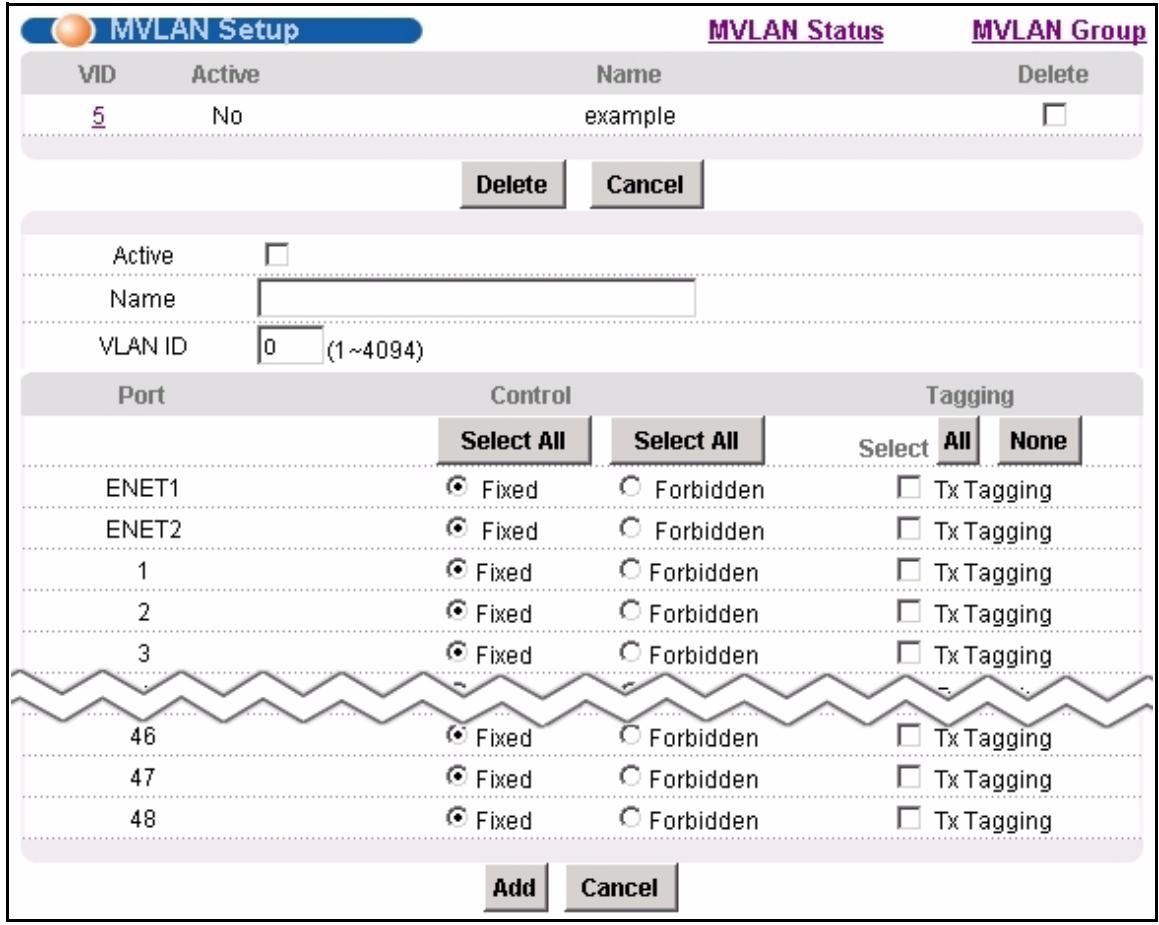
Figure 89 MVLAN Setup
The following table describes the labels in this screen.
Table 44 MVLAN Setup
| LABEL | DESCRIPTION |
| MVLAN Status | Click MVLAN Status to open the MVLAN Status screen where you can view a summary of all multicast VLAN on the IES-1248 (see Section 22.2 on page 177). |
| MVLAN Group | Click MVLAN Group to open the MVLAN Group screen where you can configure ranges of multicast IP addresses for each multicast VLAN (see Section 22.4 on page 180). |
| VID | This field shows the VLAN ID of each multicast VLAN. Click it to edit its basic settings and port members in the fields below. |
| Active | This field shows whether this multicast VLAN is active (Yes) or inactive (No). |
| Name | This field shows the name of this multicast VLAN. |
| Delete | Select the check boxes of the rule(s) that you want to remove in the Delete column and then click the Delete button. You cannot delete a VLAN if any PVIDs are set to use the VLAN or the VLAN is the CPU (management) VLAN. |
| Cancel | Click Cancel to begin configuring the fields afresh. |
| Active | Select this if you want the multicast VLAN to be active. Clear this if you want the multicast VLAN to be inactive. |
| Name | Enter a descriptive name for the multicast VLAN. The name can be 1-31 printable ASCII characters long. Spaces are not allowed. |
| VLAN ID | Enter the VLAN ID of the multicast VLAN; the valid range is between 1 and 4094. |
| Port | This field displays each port number. |
| Control | Select Fixed for the port to be a permanent member of this multicast VLAN. Use the Select All button to include every port. Select Forbidden if you want to prohibit the port from joining this multicast VLAN. Use the Select All button to include every port. |
| Tagging | Select TX Tagging if you want the port to tag all outgoing frames transmitted with this VLAN ID. Use the All button to include every port. Use the None button to clear all of the ports check boxes. |
| Add | Click Add to save your changes to the IES-1248's volatile memory. The IES-1248 loses these changes if it is turned off or loses power, so use the Config Save link on the navigation panel to save your changes to the non-volatile memory when you are done configuring. |
| Cancel | Click Cancel to begin configuring the fields afresh. |
22.4 MVLAN Group Screen
Use this screen to configure ranges of multicast IP addresses for each multicast VLAN. To open this screen, click Advanced Application, Multicast VLAN, MVLAN Group.
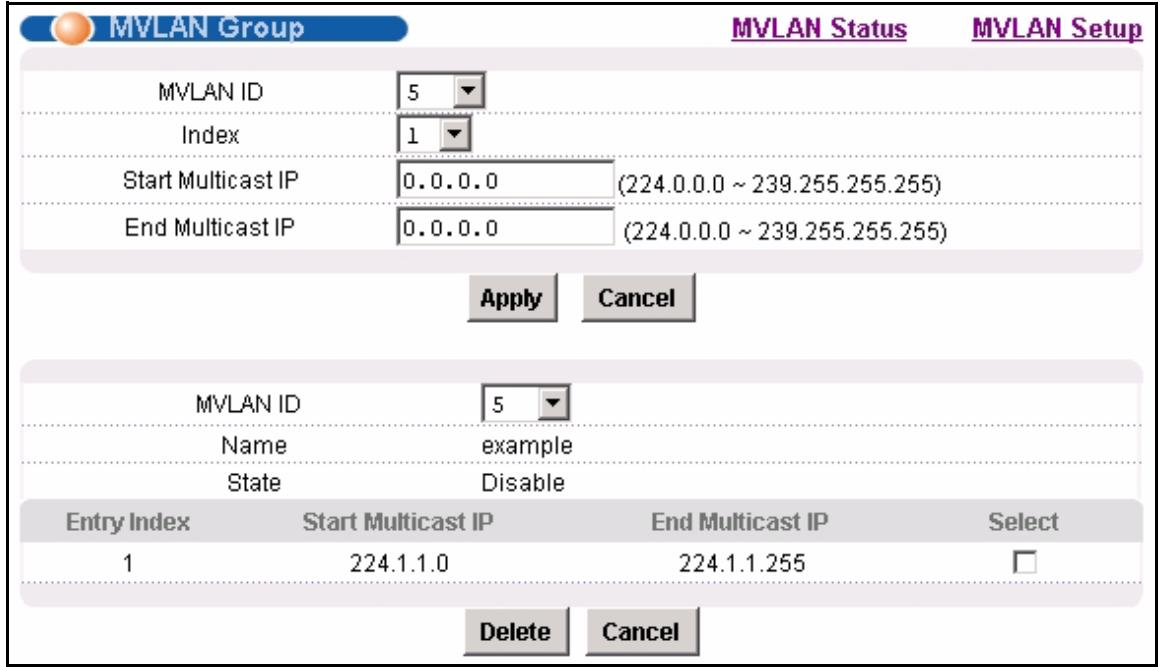
Figure 90 MVLAN Group
The following table describes the labels in this screen.
Table 45 MVLAN Group
| LABEL | DESCRIPTION |
| MVLAN Status | Click MVLAN Status to open the MVLAN Status screen where you can view a summary of all multicast VLAN on the IES-1248 (see Section 22.2 on page 177). |
| MVLAN Setup | Click MVLAN Setup to open the MVLAN Setup screen where you can configure basic settings and port members for each multicast VLAN (see Section 22.3 on page 178). |
| MVLAN ID | Select the VLAN ID of the multicast VLAN for which you want to configure a range of multicast IP addresses. |
| Index | Select the index number of the multicast VLAN group (the range of multicast IP addresses) you want to configure for this multicast VLAN. If you want to change the current settings, select an index number that already exists. If you want to add a new multicast VLAN group, select an index number that does not exist. |
| Start Multicast IP | Enter the beginning of the range of multicast IP addresses. The IP address must be a valid multicast IP address, between 224.0.0.0 and 239.255.255.255. |
| End Multicast IP | Enter the end of the range of multicast IP addresses. The IP address must be a valid multicast IP address, between 224.0.0.0 and 239.255.255.255. |
| Apply | Click Apply to save your changes to the IES-1248's volatile memory. The IES-1248 loses these changes if it is turned off or loses power, so use the Config Save link on the navigation panel to save your changes to the non-volatile memory when you are done configuring. |
| Cancel | Click Cancel to begin configuring the fields afresh. |
| MVLAN ID | Select the VLAN ID of the multicast VLAN for which you want to look at or remove the multicast IP addresses currently added to it. |
| Name | This field displays the name of this multicast VLAN. |
| State | This field shows whether this multicast VLAN is active (Enable) or inactive (Disable). |
| Entry Index | This field displays the index number of each multicast VLAN group (the range of multicast IP addresses) configured for this multicast VLAN. |
| Start Multicast IP | This field displays the beginning of this range of multicast IP addresses. |
| End Multicast IP | This field displays the end of this range of multicast IP addresses. |
| Select | Select this, and click Delete to remove the multicast VLAN group. |
| Delete | Click this to remove the selected multicast VLAN groups. |
| Cancel | Click Cancel to begin configuring the fields afresh. |
CHAPTER 23
Filtering
This chapter describes how to configure the Packet Filter screen.
23.1 Packet Filter Screen
Use this screen to set which types of packets the IES-1248 accepts on individual ADSL ports.
To open this screen, click Advanced Application, Filtering.
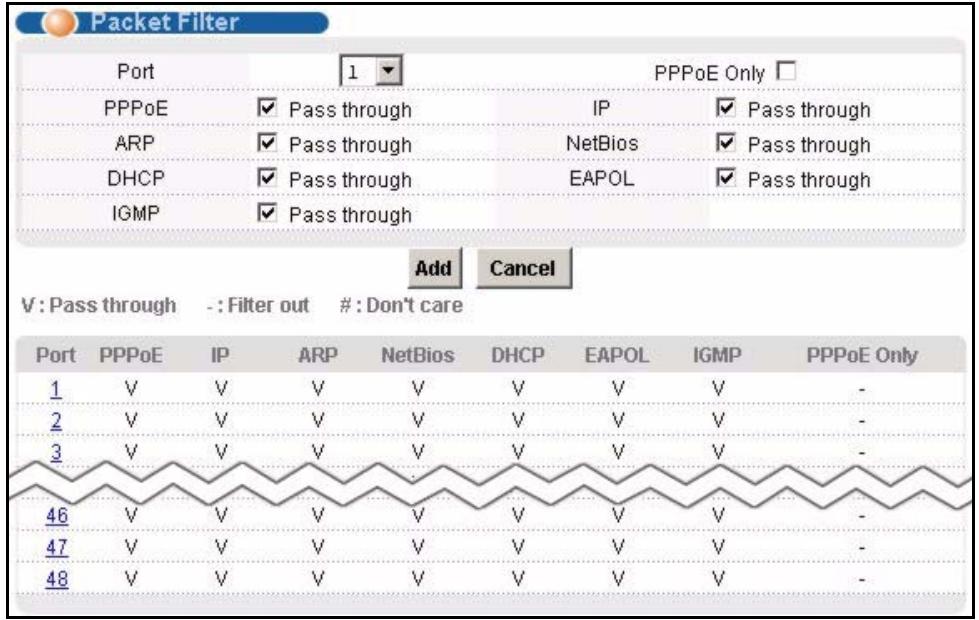
Figure 91 Packet Filter
The following table describes the labels in this screen.
Table 46 Packet Filter
| LABEL | DESCRIPTION |
| Port | Use this drop-down list box to select an ADSL port for which you wish to configure packet type filtering. This box is read-only after you click on one of the port numbers in the table below. |
| PPPoE Only | Select this to allow only PPPoE traffic. This will gray out the check boxes for other packet types and the system will drop any non-PPPoE packets. |
| Select the check boxes of the types of packets to accept on the ADSL port. When you clear one of these check boxes, the field label changes to Filter Out and the system drops the corresponding type of packets | |
| PPPoE Pass through | Point-to-Point Protocol over Ethernet relies on PPP and Ethernet. It is a specification for connecting the users on an Ethernet to the Internet through a common broadband medium, such as a single DSL line, wireless device or cable modem. |
| IP Pass through | Internet Protocol. The underlying protocol for routing packets on the Internet and other TCP/IP-based networks. |
| ARP Pass through | Address Resolution Protocol is a protocol for mapping an Internet Protocol address (IP address) to a physical computer address that is recognized in the local network. |
| NetBios Pass through | NetBIOS (Network Basic Input/Output System) are TCP or UDP packets that enable a computer to find other computers. |
| DHCP Pass through | Dynamic Host Configuration Protocol automatically assigns IP addresses to clients when they log on. DHCP centralizes IP address management on central computers that run the DHCP server program. DHCP leases addresses, for a period of time, which means that past addresses are "recycled" and made available for future reassignment to other systems. |
| EAPOL Pass through | EAP (Extensible Authentication Protocol, RFC 2486) over LAN. EAP is used with IEEE 802.1x to allow additional authentication methods (besides RADIUS) to be deployed with no changes to the access point or the wireless clients. |
| IGMP Pass through | Internet Group Multicast Protocol is used when sending packets to a specific group of hosts. |
| Apply | Click Apply to save the filter settings. The settings then display in the summary table at the bottom of the screen. Clicking Apply saves your changes to the IES-1248's volatile memory. The IES-1248 loses these changes if it is turned off or loses power, so use the Config Save link on the navigation panel to save your changes to the non-volatile memory when you are done configuring. |
| Cancel | Click Cancel to begin configuring the fields afresh. |
| This table shows the ADSL port packet filter settings. | |
| Port | These are the numbers of the ADSL ports. Click this number to edit the port's filter settings in the section at the top. |
| PPPoE, IP, ARP, NetBios, DHCP, EAPOL, IGMP, PPPoE Only | These are the packet filter settings for each port. “V” displays for the packet types that the IES-1248 is to accept on the port. “-” displays for packet types that the IES-1248 is to reject on the port (packet types that are not listed are accepted). When you select PPPoE Only, “#” appears for all of the packet types. With PPPoE Only, the IES-1248 rejects all packet types except for PPPoE (packet types that are not listed are also rejected). |
CHAPTER 24 MAC Filter
This chapter introduces the MAC filter.
24.1 MAC Filter Introduction
Use the MAC filter to control from which MAC (Media Access Control) addresses frames can (or cannot) come in through a port.
24.2 MAC Filter Screen
To open this screen, click Advanced Application, MAC Filter.
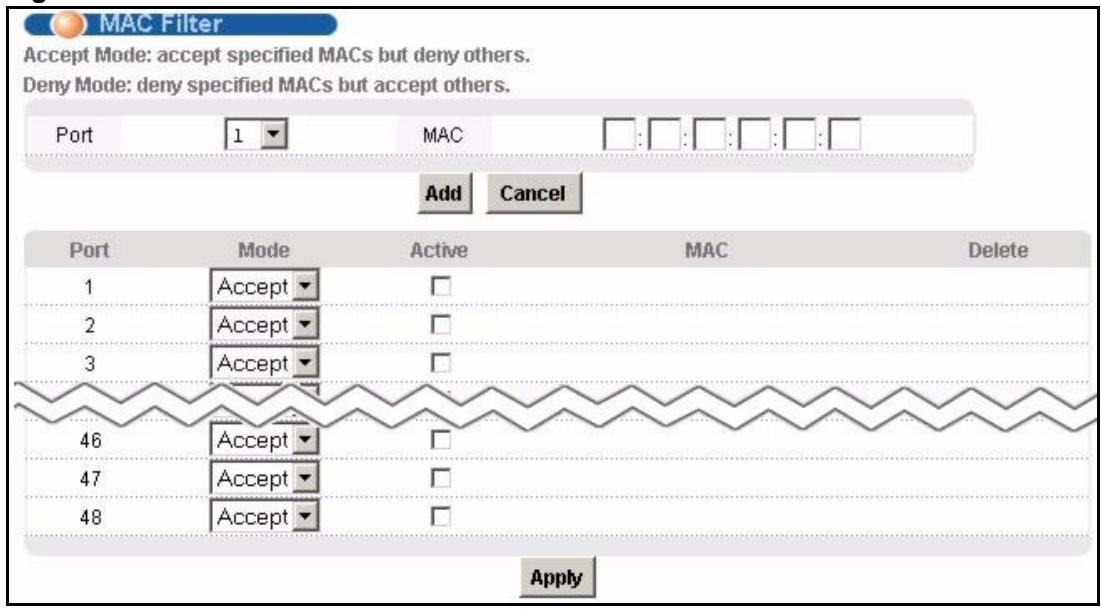
Figure 92 MAC Filter
The following table describes the labels in this screen.
Table 47 MAC Filter
| LABEL | DESCRIPTION |
| Port | Use this drop-down list box to select an ADSL port for which you wish to configure MAC filtering. |
| MAC | Type a device's MAC address in hexadecimal notation (xx:xx:xx:xx:xx:xx, where x is a number from 0 to 9 or a letter from a to f) in this field. The MAC address must be a valid MAC address. |
| Add | Click Add to save your changes to the IES-1248's volatile memory. The IES-1248 loses these changes if it is turned off or loses power, so use the Config Save link on the navigation panel to save your changes to the non-volatile memory when you are done configuring. |
| Cancel | Click Cancel to begin configuring this screen afresh. |
| Port | These are the numbers of the ADSL ports. |
| Mode | Select Accept to only allow frames from MAC addresses that you specify and block frames from other MAC addresses. Select Deny to block frames from MAC addresses that you specify and allow frames from other MAC addresses. |
| Active | Select this check box to turn on MAC filtering for a port. |
| MAC | This field lists the MAC addresses that are set for this port. |
| Delete | Click Delete to remove a MAC address from the list. |
| Apply | Click Apply to save your changes to the IES-1248's volatile memory. The IES-1248 loses these changes if it is turned off or loses power, so use the Config Save link on the navigation panel to save your changes to the non-volatile memory when you are done configuring. |
CHAPTER 25
Spanning Tree Protocol
This chapter introduces the Spanning Tree Protocol (STP) and Rapid Spanning Tree Protocol (RSTP).
25.1 RSTP and STP
RSTP adds rapid reconfiguration capability to STP. The IES-1248 supports RSTP and the earlier STP. RSTP and STP detect and break network loops and provide backup links between switches, bridges or routers. They allow a device to interact with other RSTP or STP-aware devices in your network to ensure that only one path exists between any two stations on the network. The Integrated Ethernet Switch uses RSTP by default but can still operate with STP switches (although without RSTP's benefits).
The root bridge is the base of the spanning tree; it is the bridge with the lowest identifier value (MAC address). Path cost is the cost of transmitting a frame onto a LAN through that port. It is assigned according to the speed of the link to which a port is attached. The slower the media, the higher the cost, as illustrated in the following table.
Table 48 Path Cost
| LINK SPEED | RECOMMENDED VALUE | RECOMMENDED RANGE | ALLOWED RANGE | |
| Path Cost | 4Mbps | 250 | 100 to 1000 | 1 to 65535 |
| Path Cost | 10Mbps | 100 | 50 to 600 | 1 to 65535 |
| Path Cost | 16Mbps | 62 | 40 to 400 | 1 to 65535 |
| Path Cost | 100Mbps | 19 | 10 to 60 | 1 to 65535 |
| Path Cost | 1Gbps | 4 | 3 to 10 | 1 to 65535 |
| Path Cost | 10Gbps | 2 | 1 to 5 | 1 to 65535 |
On each bridge, the root port is the port through which this bridge communicates with the root. It is the port on this Integrated Ethernet Switch with the lowest path cost to the root (the root path cost). If there is no root port, then this Integrated Ethernet Switch has been accepted as the root bridge of the spanning tree network.
For each LAN segment, a designated bridge is selected. This bridge has the lowest cost to the root among the bridges connected to the LAN.
After a bridge determines the lowest cost-spanning tree with RSTP, it enables the root port and the ports that are the designated ports for the connected LANs, and disables all other ports that participate in RSTP. Network packets are therefore only forwarded between enabled ports, eliminating any possible network loops.
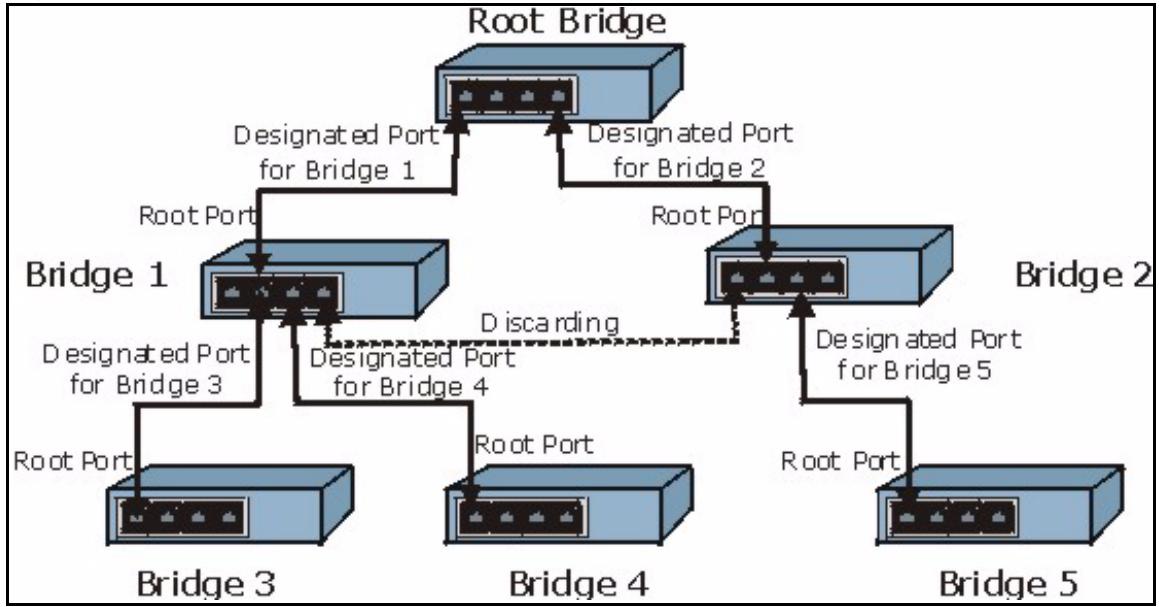
Figure 93 STP Root Ports and Designated Ports
RSTP-aware devices exchange Bridge Protocol Data Units (BPDUs) periodically. When the bridged LAN topology changes, a new spanning tree is constructed.
In RSTP, the devices send BPDUs every Hello Time. If an RSTP-aware device does not get a Hello BPDU after three Hello Times pass (or the Max Age), the device assumes that the link to the neighboring bridge is down. This device then initiates negotiations with other devices to reconfigure the network to re-establish a valid network topology.
In STP, once a stable network topology has been established, all devices listen for Hello BPDUs transmitted from the root bridge. If an STP-aware device does not get a Hello BPDU after a predefined interval (Max Age), the device assumes that the link to the root bridge is down. This device then initiates negotiations with other devices to reconfigure the network to re-establish a valid network topology.
RSTP assigns three port states to eliminate packet looping while STP assigns five (see Table 49 on page 188). A device port is not allowed to go directly from blocking state to forwarding state so as to eliminate transient loops.
Table 49 RSTP Port States
| RSTP PORT STATE | STP PORT STATE | DESCRIPTION |
| Discarding | Disabled | RSTP or STP is disabled (default). |
| Discarding | Blocking | In RSTP, BPDUs are discarded. In STP, only configuration and management BPDUs are received and processed. |
| Discarding | Listening | In RSTP, BPDUs are discarded. In STP, all BPDUs are received and processed. |
| Learning | Learning | All BPDUs are received and processed. Information frames are submitted to the learning process but not forwarded. |
| Forwarding | Forwarding | All BPDUs are received and processed. All information frames are received and forwarded. |
See the IEEE 802.1w standard for more information on RSTP. See the IEEE 802.1D standard for more information on STP.
25.2 Spanning Tree Protocol Status Screen
To open this screen, click Advanced Application, Spanning Tree Protocol.
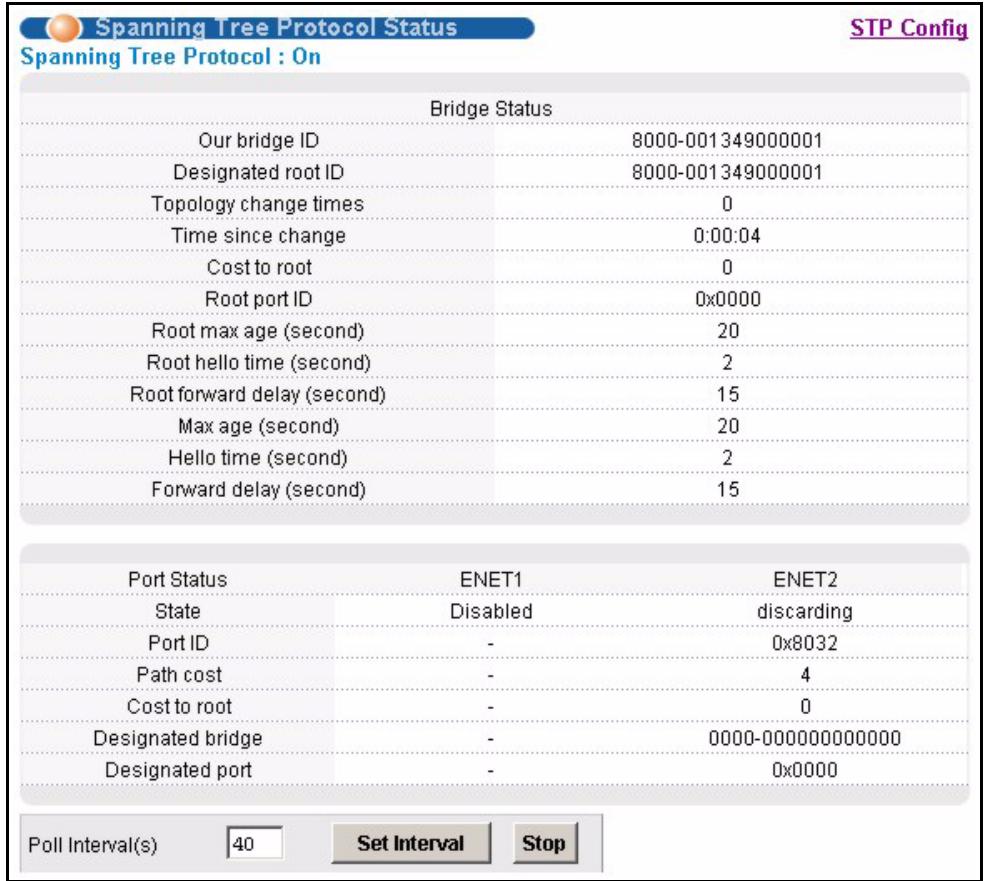
Figure 94 Spanning Tree Protocol Status
The following table describes the labels in this screen.
Table 50 Spanning Tree Protocol Status
| LABEL | DESCRIPTION |
| STP Config | Click STP Config to modify the IES-1248's STP settings (see Section 25.3 on page 191). |
| Spanning Tree Protocol | This field displays On if STP is activated. Otherwise, it displays Off. |
| Bridge Status | If STP is activated, the following fields appear. If STP is not activated, Disabled appears. |
| Our bridge ID | This is the unique identifier for this bridge, consisting of bridge priority plus MAC address. This ID is the same in Designated root ID if the IES-1248 is the root switch. |
| Designated root ID | This is the unique identifier for the root bridge, consisting of bridge priority plus MAC address. This ID is the same in Our bridge ID if the IES-1248 is the root switch. |
| Topology change times | This is the number of times the spanning tree has been reconfigured. |
| Time since change | This is the time since the spanning tree was last reconfigured. |
| Cost to root | This is the path cost from the root port on this switch to the root switch. |
| Root port ID | This is the priority and number of the port on the switch through which this switch must communicate with the root of the Spanning Tree. "0x0000" displays when this device is the root switch. |
| Root max age (second) | This is the maximum time (in seconds) the root switch can wait without receiving a configuration message before attempting to reconfigure. |
| Root hello time (second) | This is the time interval (in seconds) at which the root switch transmits a configuration message. The root bridge determines Hello Time, Max Age and Forwarding Delay. |
| Root forward delay (second) | This is the time (in seconds) the root switch will wait before changing states (that is, listening to learning to forwarding). |
| Max age (second) | This is the maximum time (in seconds) the IES-1248 can wait without receiving a configuration message before attempting to reconfigure. |
| Hello time (second) | This is the time interval (in seconds) at which the IES-1248 transmits a configuration message. The root bridge determines Hello Time, Max Age and Forwarding Delay. |
| Forward delay (second) | This is the time (in seconds) the IES-1248 will wait before changing states (that is, listening to learning to forwarding). |
| Port Status | This identifies the IES-1248's ports that support the use of STP. If STP is activated, the following fields appear. If STP is not activated, Disabled appears. |
| State | This field displays the port's RSTP (or STP) state. With RSTP, the state can be discarding, learning or forwarding. With STP, the state can be disabled, blocking, listening, learning, or forwarding. Disabled appears when RSTP has not been turned on for the individual port or the whole device. |
| Port ID | This is the priority and number of the port on the switch through which this switch must communicate with the root of the Spanning Tree. "0x0000" displays when this device is the root switch. |
| Path cost | This is the path cost from this port to the root switch. |
| Cost to root | This is the path cost from the root port on this switch to the root switch. |
| Designated bridge | This is the unique identifier for the bridge that has the lowest path cost to reach the root bridge, consisting of bridge priority plus MAC address. |
| Designated port | This is the port on the designated bridge that has the lowest path cost to reach the root bridge, consisting of bridge priority. |
| Poll Interval(s) Set Interval | The text box displays how often (in seconds) this screen refreshes. You may change the refresh interval by typing a new number in the text box and then clicking Set Interval. |
| Stop | Click Stop to halt STP statistic polling. |
25.3 Spanning Tree Protocol Screen
To open this screen, click Advanced Application, Spanning Tree Protocol, STP Config.
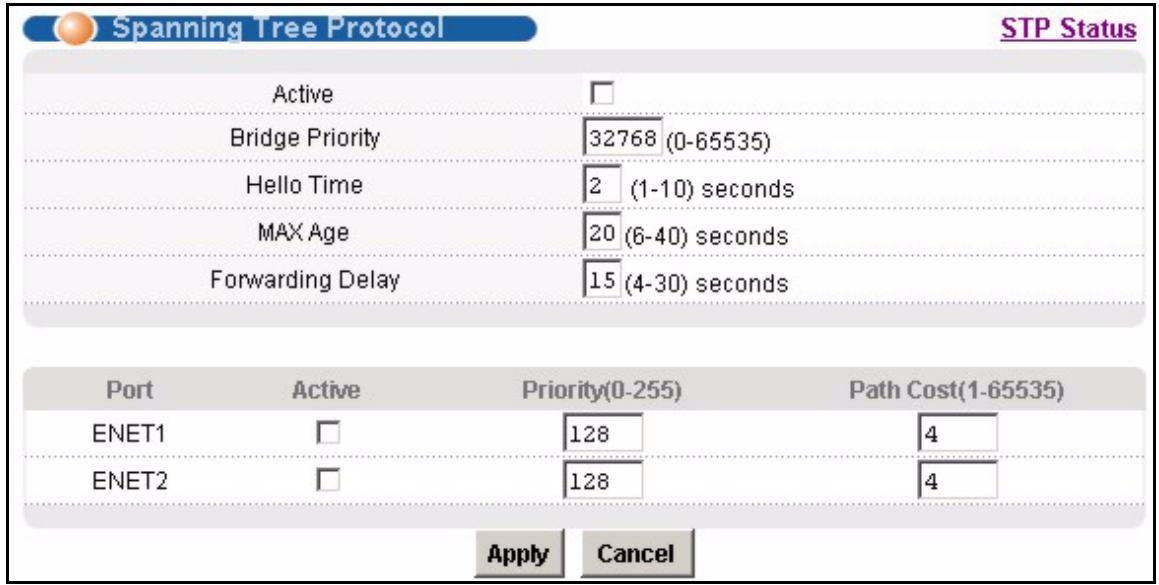
Figure 95 Spanning Tree Protocol
The following table describes the labels in this screen.
Table 51 Spanning Tree Protocol
| LABEL | DESCRIPTION |
| STP Status | Click STP Status to display the IES-1248's STP status (see Section 25.2 on page 189). |
| Active | Select this check box to turn on RSTP.Note: It is recommended that you only use STP when you use the IES-1248 in standalone mode with a network topology that has loops. |
| Bridge Priority | Bridge priority is used in determining the root switch, root port and designated port. The switch with the highest priority (lowest numeric value) becomes the STP root switch. If all switches have the same priority, the switch with the lowest MAC address will then become the root switch. The allowed range is 0 to 61440. The lower the numeric value you assign, the higher the priority for this bridge. Bridge Priority determines the root bridge, which in turn determines Hello Time, Max Age and Forwarding Delay. |
| Hello Time | This is the time interval in seconds between BPDU (Bridge Protocol Data Units) configuration message generations by the root switch. The allowed range is 1 to 10 seconds. |
| MAX Age | This is the maximum time (in seconds) a switch can wait without receiving a BPDU before attempting to reconfigure. All switch ports (except for designated ports) should receive BPDUs at regular intervals. Any port that ages out STP information (provided in the last BPDU) becomes the designated port for the attached LAN. If it is a root port, a new root port is selected from among the switch ports attached to the network. The allowed range is 6 to 40 seconds. |
| Forwarding Delay | This is the maximum time (in seconds) a switch will wait before changing states. This delay is required because every switch must receive information about topology changes before it starts to forward frames. In addition, each port needs time to listen for conflicting information that would make it return to a blocking state; otherwise, temporary data loops might result. The allowed range is 4 to 30 seconds.As a general rule:Note: 2* (Forward Delay - 1) >= Max Age >= 2* (Hello Time + 1) |
| Port | This field identifies the Ethernet port. |
| Active | Select this check box to activate STP on this port. |
| Priority | Configure the priority for each port here.Priority decides which port should be disabled when more than one port forms a loop in a switch. Ports with a higher priority numeric value are disabled first. The allowed range is between 0 and 255 and default value is 128. |
| Path Cost | Path cost is the cost of transmitting a frame on to a LAN through that port. It is assigned according to the speed of the bridge. The slower the media, the higher the cost. |
| Apply | Click Apply to save your changes to the IES-1248's volatile memory. The IES-1248 loses these changes if it is turned off or loses power, so use the Config Save link on the navigation panel to save your changes to the non-volatile memory when you are done configuring. |
| Cancel | Click Cancel to begin configuring this screen afresh. |
CHAPTER 26 Port Authentication
This chapter describes the 802.1x authentication method and RADIUS server connection setup.
26.1 Introduction to Authentication
IEEE 802.1x is an extended authentication protocol3 that allows support of RADIUS (Remote Authentication Dial In User Service, RFC 2138, 2139) for centralized user profile management on a network RADIUS server.
26.1.1 RADIUS
RADIUS (Remote Authentication Dial-In User Service) authentication is a popular protocol used to authenticate users by means of an external server instead of (or in addition to) an internal device user database that is limited to the memory capacity of the device. In essence, RADIUS authentication allows you to validate an unlimited number of users from a central location.
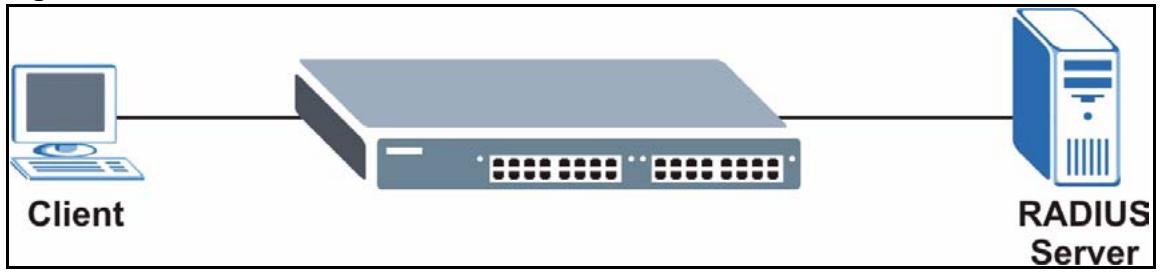
Figure 96 RADIUS Server
26.1.2 Introduction to Local User Database
By storing user profiles locally on the IES-1248, your IES-1248 is able to authenticate users without interacting
26.2 RADIUS Screen
To open this screen, click Advanced Application, Port Authentication.
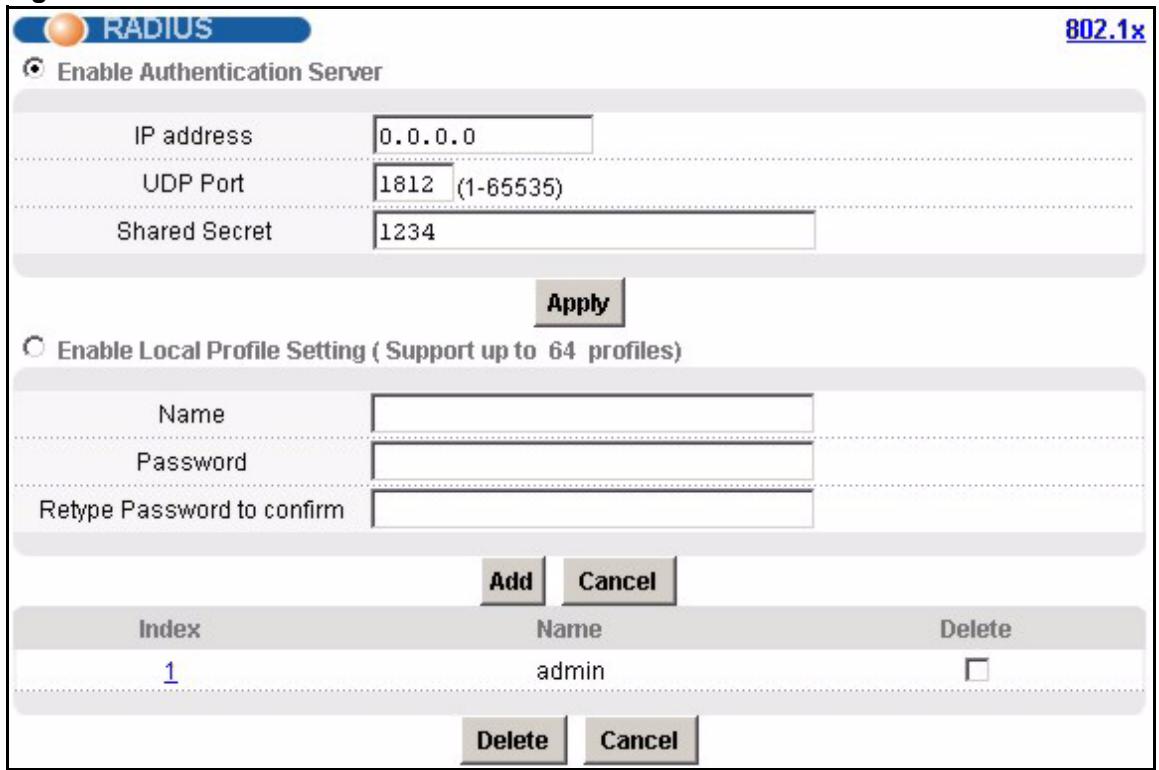
Figure 97 RADIUS
The following table describes the labels in this screen.
Table 52 RADIUS
| LABEL | DESCRIPTION |
| 802.1x | Click 802.1x to configure individual port authentication settings (see Section 26.3 on page 195). |
| Enable Authentication Server | Select this check box to have the IES-1248 use an external RADIUS server to authenticate users. |
| IP Address | Enter the IP address of the external RADIUS server in dotted decimal notation. |
| UDP Port | The default port of the RADIUS server for authentication is 1812. You need not change this value unless your network administrator instructs you to do so. |
| Shared Secret | Specify a password (up to 31 alphanumeric characters) as the key to be shared between the external RADIUS server and the switch. This key is not sent over the network. This key must be the same on the external RADIUS server and the switch. |
| Apply | Click Apply to save your changes to the IES-1248's volatile memory. The IES-1248 loses these changes if it is turned off or loses power, so use the Config Save link on the navigation panel to save your changes to the non-volatile memory when you are done configuring. |
| Enable Local Profile Setting | Select this check box to have the IES-1248 use its internal database of user names and passwords to authenticate users. |
| Name | Type the user name of the user profile. |
| Password | Type a password up to 31 characters long for this user profile. |
| Retype Password to confirm | Type the password again to make sure you have entered it properly. |
| Add | Click Add to save your changes to the IES-1248's volatile memory. The IES-1248 loses these changes if it is turned off or loses power, so use the Config Save link on the navigation panel to save your changes to the non-volatile memory when you are done configuring. |
| Cancel | Click Cancel to begin configuring this screen afresh. |
| This table displays the configured user profiles. | |
| Index | These are the numbers of the user profiles. Click this number to edit the user profile. |
| Name | This is the user name of the user profile. |
| Delete | Select a user profile's Delete check box and click Delete to remove the user profile. |
| Cancel | Click Cancel to begin configuring this screen afresh and clear any selected Delete check boxes. |
26.3 802.1x Screen
To open this screen, click Advanced Application, Port Authentication, 802.1x.
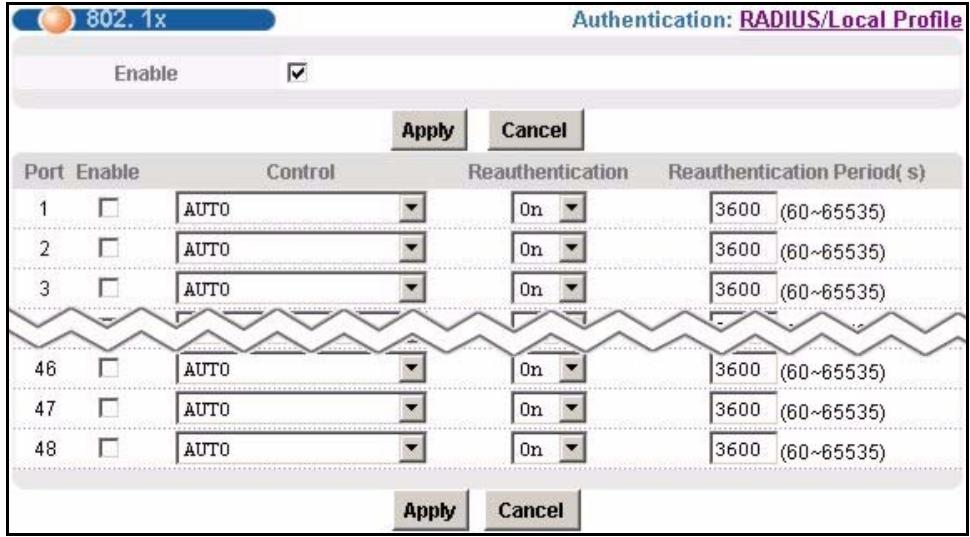
Figure 98 802.1x
The following table describes the labels in this screen.
Table 53 802.1x
| LABEL | DESCRIPTION |
| RADIUS/Local Profile | Click this link to configure the RADIUS server or local profile settings (see Section 26.2 on page 194). |
| Enable | Select this check box to turn on IEEE 802.1x authentication on the switch. |
| Apply | Click Apply to save your changes to the IES-1248's volatile memory. The IES-1248 loses these changes if it is turned off or loses power, so use the Config Save link on the navigation panel to save your changes to the non-volatile memory when you are done configuring. |
| Cancel | Click Cancel to begin configuring this screen afresh. |
| Port | This field displays a port number. |
| Enable | Select this check box to turn on IEEE 802.1x authentication on this port. |
| Control | Select AUTO to authenticate all subscribers before they can access the network through this port. Select FORCE AUTHORIZATION to allow all connected users to access the network through this port without authentication. Select FORCE UNAUTHORIZED to deny all subscribers access to the network through this port. |
| Reauthentication | Specify if a subscriber has to periodically re-enter his or her username and password to stay connected to the port. |
| Reauthentication Period(s) | Specify how often a client has to re-enter his or her username and password to stay connected to the port. |
| Apply | Click Apply to save your changes to the IES-1248's volatile memory. The IES-1248 loses these changes if it is turned off or loses power, so use the Config Save link on the navigation panel to save your changes to the non-volatile memory when you are done configuring. |
| Cancel | Click Cancel to begin configuring this screen afresh. |
CHAPTER 27 Port Security
This chapter shows you how to set up port security.
27.1 Port Security Overview
Port security allows you to restrict the number of MAC addresses that can be learned on a port.
27.2 Port Security Screen
To open this screen, click Advanced Application, Port Security.
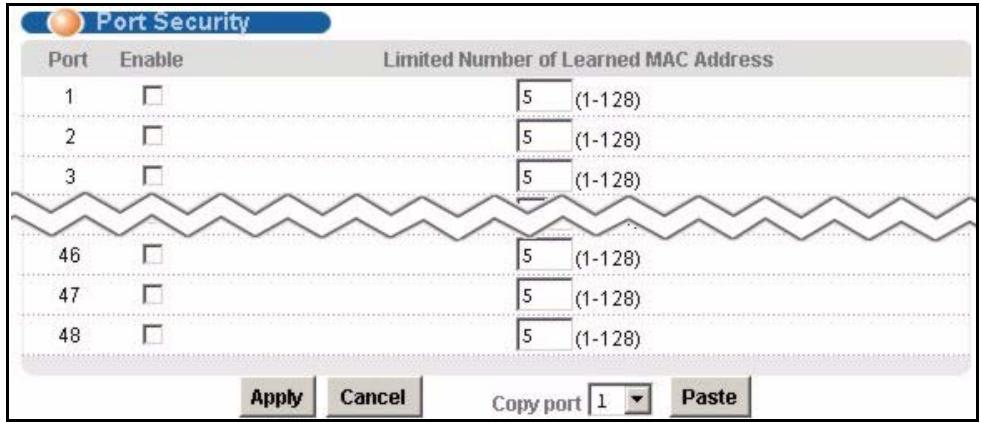
Figure 99 Port Security
The following table describes the labels in this screen.
Table 54 Port Security
| LABEL | DESCRIPTION |
| Port | This field displays a port number. |
| Enable | Select this check box to restrict the number of MAC addresses that can be learned on the port. Clear this check box to not limit the number of MAC addresses that can be learned on the port. |
| Limited Number of Learned MAC Address | Specify how many MAC addresses the IES-1248 can learn on this port. The range is 1~128.Note: If you also use MAC filtering on a port, it is recommended that you set this limit to be equal to or greater than the number of MAC filter entries you configure. |
| Apply | Click Apply to save your changes to the IES-1248's volatile memory. The IES-1248 loses these changes if it is turned off or loses power, so use the Config Save link on the navigation panel to save your changes to the non-volatile memory when you are done configuring. |
| Cancel | Click Cancel to begin configuring this screen afresh. |
| Copy port Paste | Do the following to copy settings from one port to another port or ports. 1 Select the number of the port from which you want to copy settings. 2 Click Paste and the following screen appears. 3 Select to which ports you want to copy the settings. Use All to select every port. Use None to clear all of the check boxes. 4 Click Apply to paste the settings. Figure 100 Select Ports 0 1 2 3 4 5 6 7 8 9 1-9 □ □ □ □ □ □ □ □ 10-19 □ □ □ □ □ □ □ □ 20-29 □ □ □ □ □ □ □ □ 30-39 □ □ □ □ □ □ □ □ 40-48 □ □ □ □ □ □ □ select All None Apply Cancel |
CHAPTER 28 DHCP Relay
This chapter shows you how to set up DHCP relays for each VLAN.
28.1 DHCP Relay
DHCP (Dynamic Host Configuration Protocol, RFC 2131 and RFC 2132) allows individual clients to obtain TCP/IP configuration at start-up from a DHCP server. You can configure the IES-1248 to relay DHCP requests to one or more DHCP servers and the server's responses back to the clients. You can specify default DHCP servers for all VLAN, and you can specify DHCP servers for each VLAN.
28.2 DHCP Relay Agent Information Option (Option 82)
The IES-1248 can add information to DHCP requests that it relays to a DHCP server. This helps provide authentication about the source of the requests. You can also specify additional information for the IES-1248 to add to the DHCP requests that it relays to the DHCP server. Please see RFC 3046 for more details.
28.2.1 DHCP Relay Agent Circuit ID and Remote ID Sub-option Formats
The DHCP relay agent information feature adds an Agent Information field to the option 82 field of the DHCP headers of DHCP request frames that the IES-1248 relays to a DHCP server. The Agent Information field that the IES-1248 adds contains an "Agent Circuit-ID suboption" that includes the port number, VLAN ID and optional information about the port where the DHCP request was received.
The following figure shows the format of the Agent Circuit ID sub-option. The 1 in the first field identifies this as an Agent Circuit ID sub-option. The length N gives the total number of octets in the Agent Information Field. If the configuration request was received on a DSL port, a 2-byte Port No field specifies the ingress port number (the first byte is always 0, the second byte is in hexadecimal format). The next field is 2 bytes and displays the DHCP request packet's VLAN ID. The last field (A) can range from 0 to 24 bytes and is optional information (that you specify) about this relay agent.
Figure 101 DHCP Relay Agent Circuit ID Sub-option Format
| 1 | N | Port No | VLAN ID | A |
The Agent Information field that the IES-1248 adds also contains an "Agent Remote-ID suboption" of information that you specify.
The following figure shows the format of the Agent Remote ID sub-option. The 2 in the first field identifies this as an Agent Remote ID sub-option. The length N gives the total number of octets in the Agent Information Field. Then there is the number of the port (in plain text format) upon which the DHCP client request was received. The next field (B in the figure) is 0 to 23 bytes of optional information that you specify. This is followed by the name and telephone number configured for the ADSL port. The port number, optional information (B in the figure), ADSL name and ADSL telephone number fields are separated by forward slashes.
Figure 102 DHCP Relay Agent Remote ID Sub-option Format
| 2 | N | Port Number | / | B | / | Name | / | Telephone |
28.3 DHCP Relay Screen
To open this screen, click Advanced Application, DHCP Relay.
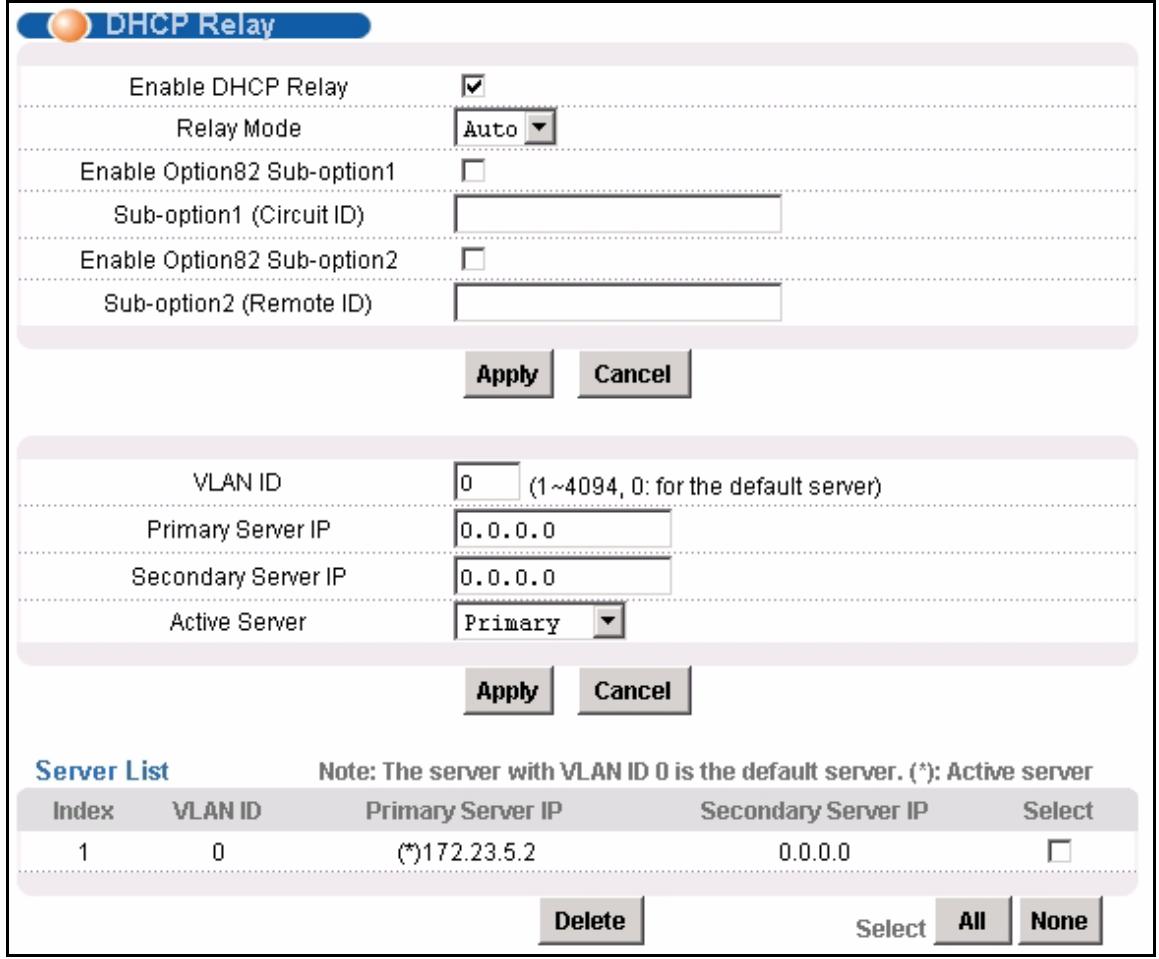
Figure 103 DHCP Relay
The following table describes the labels in this screen.
Table 55 DHCP Relay
| LABEL | DESCRIPTION |
| Enable DHCP Relay: | Enable DHCP relay to have the IES-1248 relay DHCP requests to a DHCP server and the server's responses back to the clients. |
| Relay Mode | Specify how the IES-1248 relays DHCP requests. Auto - The IES-1248 routes DHCP requests to the active server for each VLAN. Both - The IES-1248 routes DHCP requests to the primary and secondary server for each VLAN, regardless of which one is active. |
| Enable Option82 Sub-option1 | Enable DHCP relay info to have the IES-1248 add the originating port numbers to DHCP requests regardless of whether the DHCP relay is on or off. |
| Sub-option1 (Circuit ID) | Use this field to specify up to 23 ASCII characters of additional information for the IES-1248 to add to the DHCP requests that it relays to a DHCP server. Examples of information you could add would be the chassis number of the IES-1248 or the ISP's name. |
| Enable Option82 Sub-option2 | Enable DHCP relay info to have the IES-1248 add the sub-option 2 (Remote ID) to DHCP requests regardless of whether the DHCP relay is on or off. |
| Sub-option2 (Remote ID) | Use this field to specify up to 23 ASCII characters of additional information for the IES-1248 to add to the DHCP requests that it relays to a DHCP server. |
| Apply | Click Apply to save your changes to the IES-1248's volatile memory. The IES-1248 loses these changes if it is turned off or loses power, so use the Config Save link on the navigation panel to save your changes to the non-volatile memory when you are done configuring. |
| Cancel | Click Cancel to begin configuring this screen afresh. |
| VLAN ID | Enter the ID of the VLAN served by the specified DHCP relay(s). Enter 0 to set up the IP address(es) of the default DHCP relay(s). |
| Primary Server IP | Enter the IP address of one DHCP server to which the switch should relay DHCP requests for the selected VLAN. |
| Secondary Server IP | Enter the IP address of a second DHCP server to which the switch should relay DHCP requests for the selected VLAN. Enter 0.0.0.0 if there is only one DHCP relay for the selected VLAN. |
| Active Server | This field has no effect if the Relay Mode is Both. If the Relay Mode is Auto, select which DHCP server (the primary one or the secondary one) to which the IES-1248 should relay DHCP requests for the selected VLAN. |
| Apply | Click Apply to save your changes to the IES-1248's volatile memory. The IES-1248 loses these changes if it is turned off or loses power, so use the Config Save link on the navigation panel to save your changes to the non-volatile memory when you are done configuring. |
| Cancel | Click Cancel to begin configuring this screen afresh. |
| Server List | This section lists the DHCP servers that are already set up for each VLAN. An asterisk in parentheses (*) indicates which DHCP server is active for each VLAN. |
| Index | This is a sequential value, and it is not associated with any entry. The entries are sorted by VLAN ID. |
| VLAN ID | This field displays the ID of the VLAN served by the specified DHCP relay(s). |
| Primary Server IP | This field displays the IP address of one DHCP server to which the switch should relay DHCP requests. |
| Secondary Server IP | This field displays the IP address of a second DHCP server to which the switch should relay DHCP requests. This field is 0.0.0.0 if the primary server is the only DHCP relay. |
| Select Delete | Select the check box in the Select column for an entry, and click Delete to remove the entry. |
| Select All | Click this to select all entries in the Server List. |
| Select None | Click this to un-select all entries in the Server List. |
CHAPTER 29 DHCP Snoop
This chapter shows you how to set up DHCP snooping settings on the subscriber ports.
29.1 DHCP Snoop Overview
DHCP snooping prevents clients from assigning their own IP addresses. The IES-1248 can store every (ADSL port, MAC address, IP address) tuple offered by the DHCP server. Then, it only forwards packets from clients whose MAC address and IP address are recorded. Packets from unknown IP addresses are dropped.
29.2 DHCP Snoop Screen
Use this screen to activate or deactivate DHCP snooping on each port. To open this screen, click Advanced Application, DHCP Snoop.
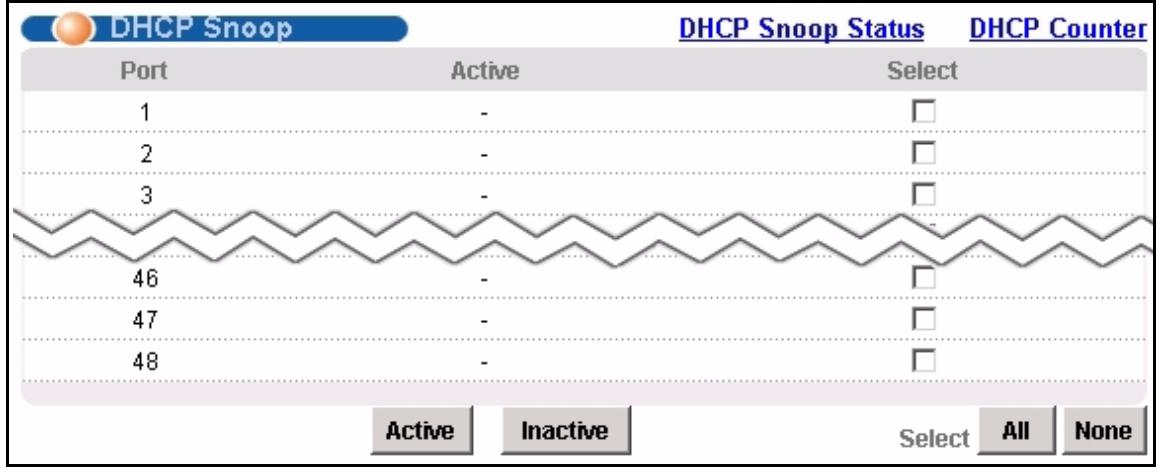
Figure 104 DHCP Snoop
The following table describes the labels in this screen.
Table 56 DHCP Snoop
| LABEL | DESCRIPTION |
| DHCP Snoop Status | Click DHCP Snoop Status to open the screen where you can look at or clear the current DHCP snooping table on each port (see Section 29.3 on page 204). |
| DHCP Counter | Click DHCP Counter to open the screen where you can look at a summary of the DHCP packets on each port (see Section 29.4 on page 205). |
| Port | This field displays each ADSL port number. |
| Active | This field displays whether DHCP snooping is active ("V") or inactive ("-") on this port. |
| Select | Select this, and click Active or Inactive to enable or disable the DHCP snooping on this port. |
| Active | Click this to enable DHCP snooping on the selected ports. |
| Inactive | Click this to disable DHCP snooping on the selected ports. |
| All | Click this to select all entries in the table. |
| None | Click this to un-select all entries in the table. |
29.3 DHCP Snoop Status Screen
Use this screen to look at or to clear the DHCP snooping table on each port. To open this screen, click Advanced Application, DHCP Snoop, DHCP Snoop Status.
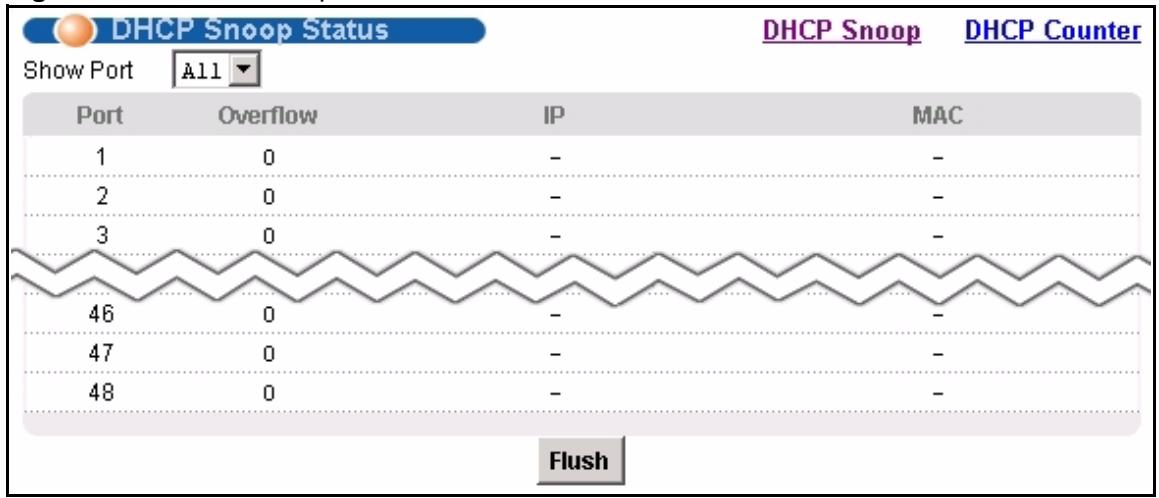
Figure 105 DHCP Snoop Status
The following table describes the labels in this screen.
Table 57 DHCP Snoop Status
| LABEL | DESCRIPTION |
| DHCP Snoop | Click DHCP Snoop to open the screen where you can activate or deactivate DHCP snooping on each port (see Section 29.2 on page 203). |
| DHCP Counter | Click DHCP Counter to open the screen where you can look at a summary of the DHCP packets on each port (see Section 29.4 on page 205). |
| Show Port | Select a port for which you wish to view information. |
| Port | This field displays the selected ADSL port number(s). |
| Overflow | The DHCP server can assign up to 32 IP addresses at one time to each port. This field displays the number of requests from DHCP clients above this limit. |
| IP | This field displays the IP address assigned to a client on this port. |
| MAC | This field displays the MAC address of a client on this port to which the DHCP server assigned an IP address. |
| Flush | Click Flush to remove all of the entries from the DHCP snooping table for the selected port(s). |
29.4 DHCP Counter Screen
Use this screen to look at a summary of the DHCP packets on each port. To open this screen, click Advanced Application, DHCP Snoop, DHCP Counter.
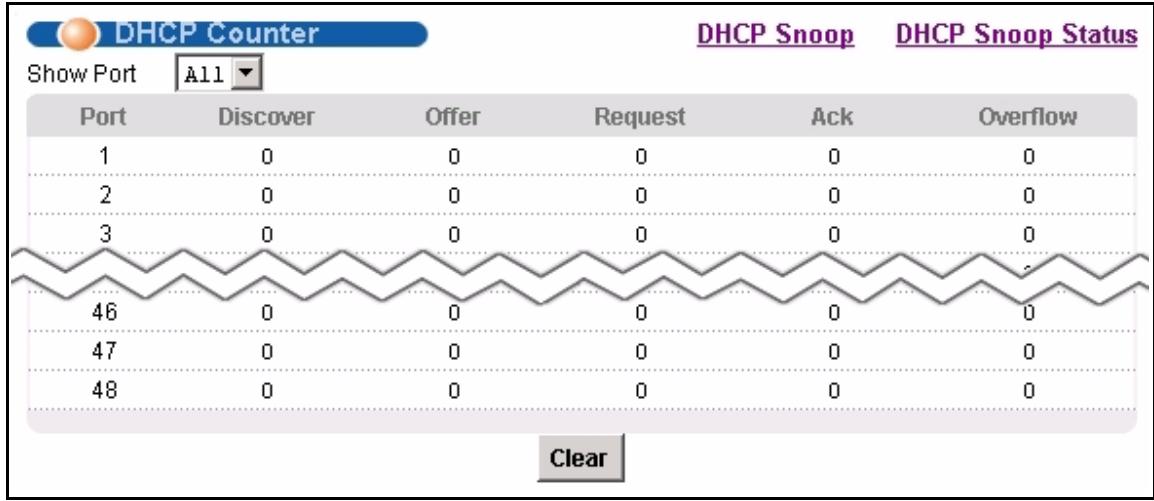
Figure 106 DHCP Counter
The following table describes the labels in this screen.
Table 58 DHCP Counter
| LABEL | DESCRIPTION |
| DHCP Snoop | Click DHCP Snoop to open the screen where you can activate or deactivate DHCP snooping on each port (see Section 29.2 on page 203). |
| DHCP Snoop Status | Click DHCP Snoop Status to open the screen where you can look at or clear the current DHCP snooping table on each port (see Section 29.3 on page 204). |
| Show Port | Select a port for which you wish to view information. |
| Port | This field displays the selected ADSL port number(s). |
| Discover | This field displays the number of DHCP Discover packets on this port. |
| Offer | This field displays the number of DHCP Offer packets on this port. |
| Request | This field displays the number of DHCP Request packets on this port. |
| Ack | This field displays the number of DHCP Acknowledge packets on this port. |
| Overflow | The DHCP server can assign up to 32 IP addresses at one time to each port. This field displays the number of requests from DHCP clients above this limit. |
| Clear | Click Clear to delete the information the IES-1248 has learned about DHCP packets. This resets every counter in this screen. |
CHAPTER 30
2684 Routed Mode
This chapter shows you how to set up 2684 routed mode service.
30.1 2684 Routed Mode
Use the 2684 (formerly 1483) routed mode to have the IES-1248 add MAC address headers to 2684 routed mode traffic from a PVC that connects to a subscriber device that uses 2684 routed mode. You also specify the gateway to which the IES-1248 sends the traffic and the VLAN ID tag to add. See RFC-2684 for details on routed mode traffic carried over AAL type 5 over ATM.
- Use the 2684 Routed PVC Screen to configure PVCs for 2684 routed mode traffic.
- Use the 2684 Routed Domain Screen to configure domains for 2684 routed mode traffic. The domain is the range of IP addresses behind the subscriber's device (the CPE or Customer Premises Equipment). This includes the CPE device's LAN IP addresses and the IP addresses of the LAN computers.
- Use the RPVC Arp Proxy Screen to view the Address Resolution Protocol table of IP addresses of CPE devices using 2684 routed mode and configure how long the device is to store them.
- Use the 2684 Routed Gateway Screen to configure gateway settings.
- For upstream traffic: Since the subscriber's device will not send out a MAC address, after the IES-1248 reassembles the Ethernet packets from the AAL5 ATM cells, the IES-1248 will append the routed mode gateway's MAC address and the IES-1248's MAC address as the destination/source MAC address.
- For downstream traffic: When the IES-1248 sees the destination IP address is specified in the RPVC (or RPVC domain), the IES-1248 will strip out the MAC header and send them to the corresponding RPVC.
30.1.1 2684 Routed Mode Example
The following figure shows an example 2684 routed mode set up. The gateway server uses IP address 192.168.10.102 and is in VLAN 1. The IES-1248 uses IP address 192.168.20.101. The subscriber's device (the CPE) is connected to DSL port 1 on the IES-1248 and the 2684 routed mode traffic is to use the PVC identified by VPI 8 and VCI 35. The CPE device's WAN IP address is 192.168.10.200. The routed domain is the LAN IP addresses behind the CPE device. The CPE device's LAN IP address is 10.10.10.10 and the LAN computer's IP address is 10.10.10.1. This includes the CPE device's LAN IP addresses and the IP addresses of the LAN computers.
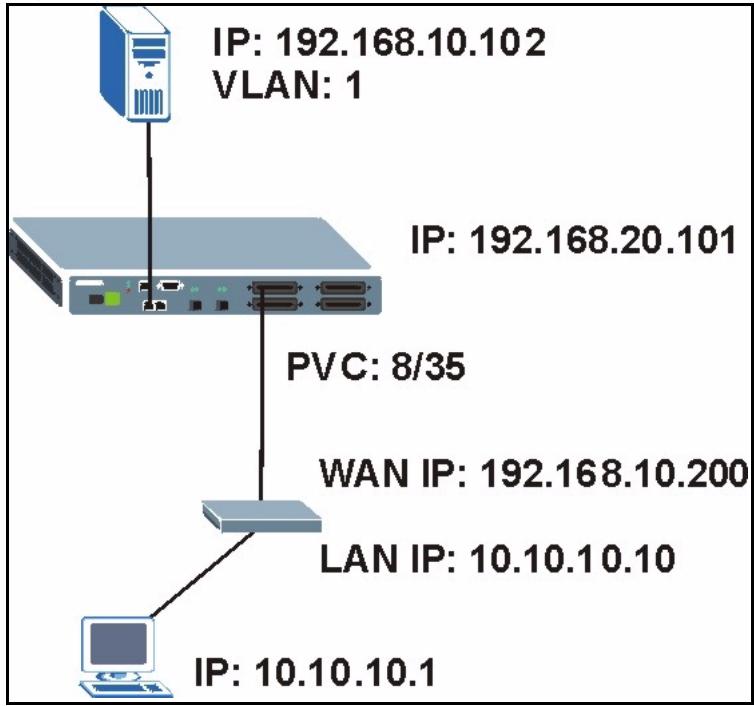
Figure 107 2684 Routed Mode Example
Note the following.
- The CPE device's WAN IP (192.168.10.200 in this example) must be in the same subnet as the gateway's IP address (192.168.10.102 in this example).
- The IES-1248's management IP address can be any IP address, it doesn't have any relationship to the WAN IP address or routed gateway IP address.
- The IES-1248's management IP address should not be in the same subnet as the one defined by the WAN IP address and netmask of the subscriber's device. It is suggested that you set the netmask of the subscriber's WAN IP address to 32 to avoid this problem.
- The IES-1248's management IP address should not be in the same subnet range of any RPVC and RPVC domain. It will make the IES-1248 confused if the IES-1248 receives a packet with this IP as destination IP.
- The IES-1248's management IP address also should not be in the same subnet as the one defined by the LAN IP address and netmask of the subscriber's device. Make sure you assign the IP addresses properly.
- In general deployment, the computer must set the CPE device's LAN IP address (10.10.10.10 in this example) as its default gateway.
- The subnet range of any RPVC and RPVC domain must be unique.
30.2 2684 Routed PVC Screen
Use this screen to configure PVCs for 2684 routed mode traffic.
To open this screen, click Advanced Application, 2684 Routed Mode.

Figure 108 2684 Routed PVC
The following table describes the labels in this screen.
Table 59 2684 Routed PVC
| LABEL | DESCRIPTION |
| Routed Domain | Click Routed Domain to open this screen where you can configure domains for 2684 routed mode traffic (see Section 30.3 on page 210). |
| RPVC ARP Proxy | Click RPVC ARP Proxy to go to the screen where you can view the Address Resolution Protocol table of IP addresses of CPE devices using 2684 routed mode and configure how long the device is to store them (see Section 30.4 on page 211). |
| Routed Gateway | Click Routed Gateway to go to the screen where you can configure gateway settings (see Section 30.5 on page 212). |
| Port | Use this drop-down list box to select a port for which you wish to configure settings. |
| Gateway IP | Enter the IP address of the gateway to which you want to send the traffic that the system receives from this PVC. Enter the IP address in dotted decimal notation. |
| VPI | Type the Virtual Path Identifier for this routed PVC. |
| VCI | Type the Virtual Circuit Identifier for this routed PVC. |
| IP | Enter the subscriber's CPE WAN IP address in dotted decimal notation. |
| NetMask | The bit number of the subnet mask of the subscriber's WAN IP address. To find the bit number, convert the subnet mask to binary and add all of the 1's together. Take “255.255.255.0” for example. 255 converts to eight 1's in binary. There are three 255's, so add three eights together and you get the bit number (24). Make sure that the routed PVC's subnet does not include the IES-1248's IP address. |
| DS VC Profile | Use the drop-down list box to select a VC profile to use for this channel's downstream traffic shaping. |
| US VC Profile | Use the drop-down list box to select a VC profile to use for this channel's upstream traffic. The IES-1248 does not perform upstream traffic policing if you do not specify an upstream VC profile. |
| Add | Click Add to save your changes to the IES-1248's volatile memory. The IES-1248 loses these changes if it is turned off or loses power, so use the Config Save link on the navigation panel to save your changes to the non-volatile memory when you are done configuring. |
| Cancel | Click Cancel to start configuring the screen again. |
| Index | This field displays the number of the routed PVC. |
| Port | This field displays the number of the ADSL port on which the routed PVC is configured. |
| VPI | This field displays the Virtual Path Identifier (VPI) The VPI and VCI identify a channel on this port. |
| VCI | This field displays the Virtual Circuit Identifier (VCI). The VPI and VCI identify a channel on this port. |
| IP | This field displays the subscriber's IP address. |
| DS / US VC Profile | This shows which VC profile this channel uses for downstream traffic shaping. The VC profile for upstream policing also displays if the channel is configured to use one. |
| NetMask | This field displays the bit number of the subnet mask of the subscriber's IP address. |
| Gateway IP | This field displays the IP address of the gateway to which you want to send the traffic that the system receives from this PVC. |
| Delete | Select an entry's Delete check box and click Delete to remove the entry. Clicking Delete saves your changes to the IES-1248's volatile memory. The IES-1248 loses these changes if it is turned off or loses power, so use the Config Save link on the navigation panel to save your changes to the non-volatile memory when you are done configuring. |
| Cancel | Click Cancel to start configuring the screen again. |
30.3 2684 Routed Domain Screen
Use this screen to configure domains for 2684 routed mode traffic. The domain is the range of IP addresses behind the subscriber's device (the CPE). This includes the CPE device's LAN IP addresses and the IP addresses of the LAN computers.
To open this screen, click Advanced Application, 2684 Routed Mode, Routed Domain.
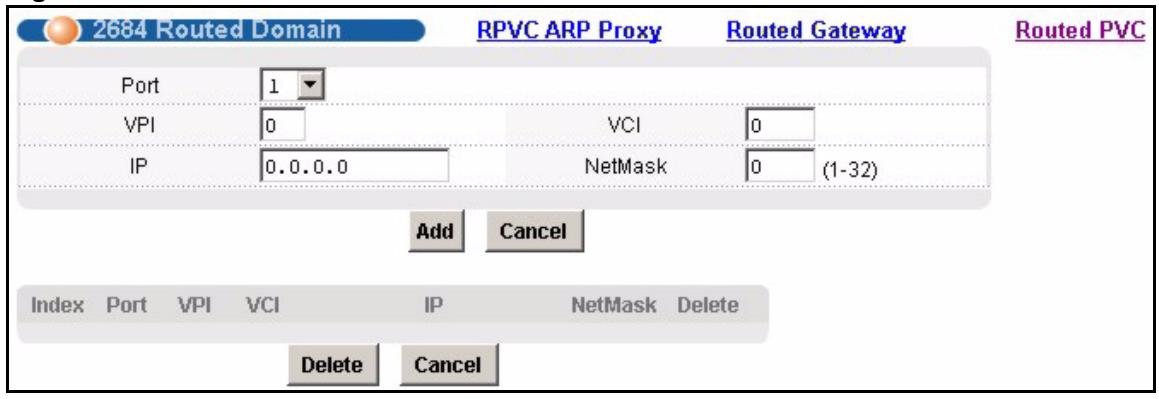
Figure 109 2684 Routed Domain
The following table describes the labels in this screen.
Table 60 2684 Routed Domain
| LABEL | DESCRIPTION |
| RPVC ARP Proxy | Click RPVC ARP Proxy to go to the screen where you can view the Address Resolution Protocol table of IP addresses of CPE devices using 2684 routed mode and configure how long the device is to store them (see Section 30.4 on page 211). |
| Routed Gateway | Click Routed Gateway to go to the screen where you can configure gateway settings (see Section 30.5 on page 212). |
| Routed PVC | Click Routed PVC to go to the screen where you can configure routed PVC settings (see Section 30.2 on page 208). |
| Port | Use this drop-down list box to select a port for which you wish to configure settings. |
| VPI | Type the Virtual Path Identifier for this routed PVC. |
| VCI | Type the Virtual Circuit Identifier for this routed PVC. |
| IP | Enter the subscriber's CPE LAN IP address in dotted decimal notation. |
| NetMask | The bit number of the subnet mask of the subscriber's IP address. To find the bit number, convert the subnet mask to binary and add all of the 1's together. Take "255.255.255.0" for example. 255 converts to eight 1's in binary. There are three 255's, so add three eights together and you get the bit number (24). |
| Add | Click Add to save your changes to the IES-1248's volatile memory. The IES-1248 loses these changes if it is turned off or loses power, so use the Config Save link on the navigation panel to save your changes to the non-volatile memory when you are done configuring. |
| Cancel | Click Cancel to start configuring the screen again. |
| Index | This field displays the number of the routed PVC. |
| Port | This field displays the number of the ADSL port on which the routed PVC is configured. |
| VPI | This field displays the Virtual Path Identifier (VPI) The VPI and VCI identify a channel on this port. |
| VCI | This field displays the Virtual Circuit Identifier (VCI). The VPI and VCI identify a channel on this port. |
| IP | This field displays the subscriber's IP address. |
| NetMask | This field displays the bit number of the subnet mask of the subscriber's LAN IP address. |
| Delete | Select an entry's Delete check box and click Delete to remove the entry. Clicking Delete saves your changes to the IES-1248's volatile memory. The IES-1248 loses these changes if it is turned off or loses power, so use the Config Save link on the navigation panel to save your changes to the non-volatile memory when you are done configuring. |
| Cancel | Click Cancel to start configuring the screen again. |
30.4 RPVC Arp Proxy Screen
Use this screen to view the Address Resolution Protocol table of IP addresses of CPE devices using 2684 routed mode and configure how long the device is to store them.
To open this screen, click Advanced Application, 2684 Routed Mode, RPVC ARP Proxy.
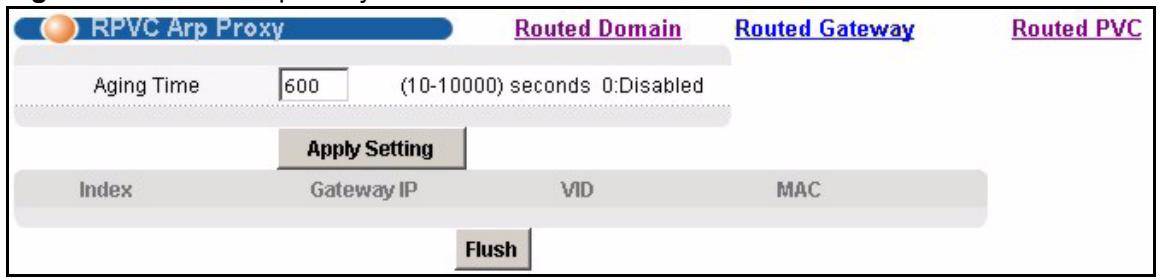
Figure 110 RPVC Arp Proxy
The following table describes the labels in this screen.
Table 61 RPVC Arp Proxy
| LABEL | DESCRIPTION |
| Routed Domain | Click Routed Domain to open this screen where you can configure domains for 2684 routed mode traffic (see Section 30.3 on page 210). |
| Routed Gateway | Click Routed Gateway to go to the screen where you can configure gateway settings (see Section 30.5 on page 212). |
| Routed PVC | Click Routed PVC to go to the screen where you can configure routed PVC settings (see Section 30.2 on page 208). |
| Aging Time | Enter a number of seconds (10~10000) to set how long the device keeps the Address Resolution Protocol table's entries of IP addresses of CPE devices using 2684 routed mode. Enter 0 to disable the aging time. |
| Apply Setting | Click Apply Setting to save your changes to the IES-1248's volatile memory. The IES-1248 loses these changes if it is turned off or loses power, so use the Config Save link on the navigation panel to save your changes to the non-volatile memory when you are done configuring. |
| Index | This field displays the number of the IP address entry. |
| Gateway IP | This field displays the IP address of the gateway to which the device sends the traffic that it receives from this entry's IP address. |
| VID | This field displays the VLAN Identifier that the device adds to Ethernet frames that it sends to this gateway. |
| MAC | This field displays the subscriber's MAC (Media Access Control) address. |
| Flush | Click Flush to remove all of the entries from the ARP table. |
30.5 2684 Routed Gateway Screen
Use this screen to configure gateway settings.
To open this screen, click Advanced Application, 2684 Routed Mode, Routed Gateway.

Figure 111 2684 Routed Gateway
The following table describes the labels in this screen.
Table 62 2684 Routed Gateway
| LABEL | DESCRIPTION |
| Routed PVC | Click Routed PVC to go to the screen where you can configure routed PVC settings (see Section 30.2 on page 208). |
| Routed Domain | Click Routed Domain to open this screen where you can configure domains for 2684 routed mode traffic (see Section 30.3 on page 210). |
| RPVC ARP Proxy | Click RPVC ARP Proxy to go to the screen where you can view the Address Resolution Protocol table of IP addresses of CPE devices using 2684 routed mode and configure how long the device is to store them (see Section 30.4 on page 211). |
| Gateway IP | Enter the IP address of the gateway to which you want to send the traffic that the system receives from this PVC. Enter the IP address in dotted decimal notation. |
| VID | Specify a VLAN Identifier to add to Ethernet frames that the system routes to this gateway. |
| Priority | Select the IEEE 802.1p priority (0~7) to add to the traffic that you send to this gateway. |
| Add | Click Add to save your changes to the IES-1248's volatile memory. The IES-1248 loses these changes if it is turned off or loses power, so use the Config Save link on the navigation panel to save your changes to the non-volatile memory when you are done configuring. |
| Index | This field displays the number of the gateway entry. |
| Gateway IP | This field displays the IP address of the gateway. |
| VID | This field displays the VLAN Identifier that the system adds to Ethernet frames that it sends to this gateway. |
| Priority | This field displays the IEEE 802.1p priority (0~7) that is added to traffic sent to this gateway. |
| Delete | Select an entry's Delete check box and click Delete to remove the entry. Clicking Delete saves your changes to the IES-1248's volatile memory. The IES-1248 loses these changes if it is turned off or loses power, so use the Config Save link on the navigation panel to save your changes to the non-volatile memory when you are done configuring. |
| Cancel | Click Cancel to start configuring the screen again. |
CHAPTER 31 PPPoA to PPPoE
This chapter shows you how to set up the IES-1248 to convert PPPoA frames to PPPoE traffic and vice versa.
31.1 PPPoA to PPPoE Overview
Before migrating to an Ethernet infrastructure, a broadband network might consist of PPPoA connections between the CPE devices and the DSLAM and PPPoE connections from the DSLAM to the Broadband Remote Access Server (BRAS). The following figure shows a network example.

Figure 112 Mixed PPPoA-to-PPPoe Broadband Network Example
In order to allow communication between the end points (the CPE devices and the BRAS), you need to configure the DSLAM (the IES-1248) to translate PPPoA frames to PPPoE packets and vise versa.
When PPPoA packets are received from the CPE, the ATM headers are removed and the IES-1248 adds PPPoE and Ethernet headers before sending the packets to the BRAS. When the IES-1248 receives PPPoE packets from the BRAS, PPPoE and Ethernet headers are stripped and necessary PVC information (such as encapsulation type) is added before forwarding to the designated CPE.
31.2 PPPoA to PPPoE Screen
Use this screen to set up PPPoA to PPPoE conversions on each port. This conversion is set up by creating a PAE PVC. See Chapter 16 on page 119 for background information about creating PVCs. To open this screen, click Advanced Application, PPPoA to PPPoE.
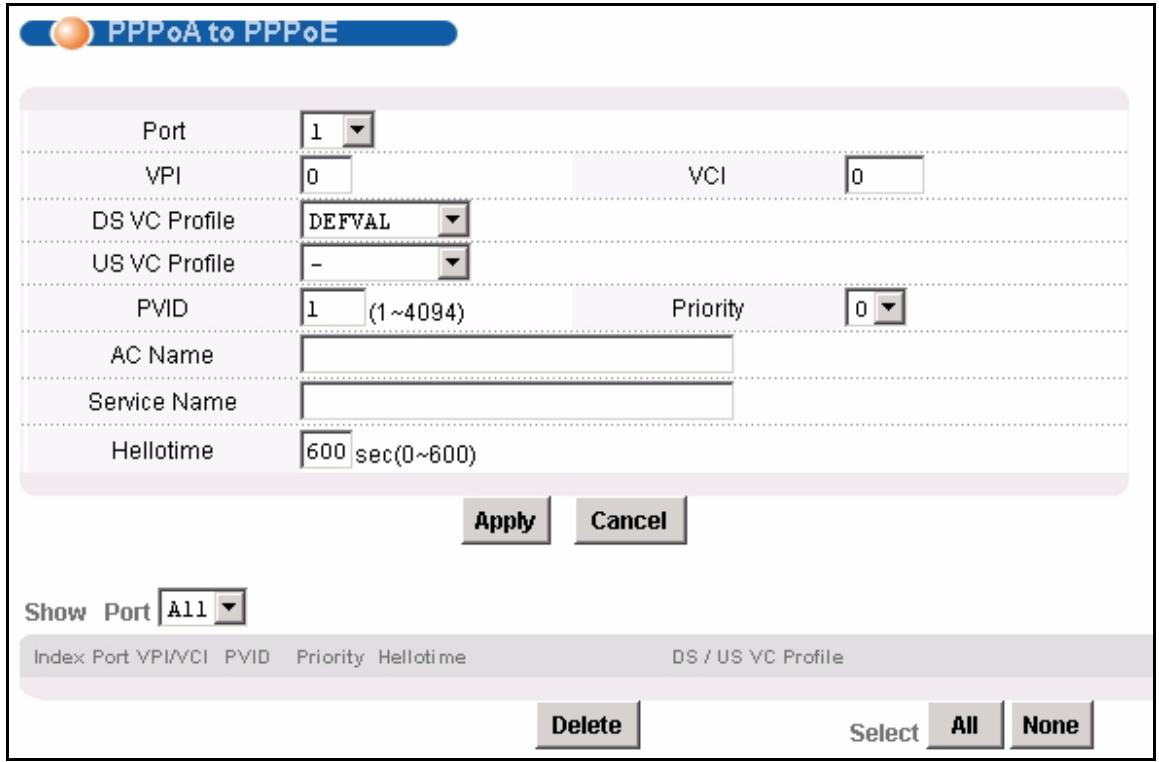
Figure 113 PPPoA to PPPoE
The following table describes the labels in this screen.
Table 63 PPPoA to PPPoE
| LABEL | DESCRIPTION |
| Port | Use this drop-down list box to select a port for which you wish to set up PPPoA to PPPoE conversions. This field is read-only once you click on a port number below. |
| VPI | Type the Virtual Path Identifier for a channel on this port. |
| VCI | Type the Virtual Circuit Identifier for a channel on this port. |
| DS VC Profile | Use the drop-down list box to select a VC profile to use for this channel's downstream traffic shaping. |
| US VC Profile | Use the drop-down list box to select a VC profile to use for this channel's upstream traffic. The IES-1248 does not perform upstream traffic policing if you do not specify an upstream VC profile.Note: Upstream traffic policing should be used in conjunction with the ATM shaping feature on the subscriber's device. If the subscriber's device does not apply the appropriate ATM shaping, all upstream traffic will be discarded due to upstream traffic policing. |
| PVID | Type a PVID (Port VLAN ID) to assign to untagged frames received on this channel.Note: Make sure the VID is not already used for multicast VLAN or TLS PVC. |
| Priority | Use the drop-down list box to select the priority value (0 to 7) to add to incoming frames without a (IEEE 802.1p) priority tag. |
| AC Name | This field is optional. Specify the hostname of a remote access concentrator if there are two access concentrators (or BRAS) on the network or if you want to allow PAE translation to the specified access concentrator. In this case, the IES-1248 checks the AC name field in the BRAS's reply PDU. If there is a mismatch, the IES-1248 drops this PDU. (This is not recorded as an PPPoE AC System Error in the PPPoA to PPPoE Status screen, however.) |
| Service Name | This field is optional. Specify the name of the service that uses this PVC. This must be a service name that you configure on the remote access concentrator. |
| Hellotime | Specify the timeout, in seconds, for the PPPoE session. Enter 0 if there is no timeout. |
| Apply | Click this to add or save channel settings on the selected port. This saves your changes to the IES-1248's volatile memory. The IES-1248 loses these changes if it is turned off or loses power, so use the Config Save link on the navigation panel to save your changes to the non-volatile memory when you are done configuring. |
| Cancel | Click Cancel to start configuring the screen again. |
| Show Port | Select which ADSL port(s) for which to display PPPoA to PPPoE conversion settings. |
| Index | This field displays the number of the PVC. Click a PVC's index number to open the screen where you can look at the current status of this PPPoA-to-PPPoE conversion. (See Section 31.3 on page 218.)Note: At the time of writing, you cannot edit the VPI and VCI. If you want to change them, add a new PVC with the desired settings. Then, delete any unwanted PVCs. |
| Port | This field displays the number of the ADSL port on which the PVC is configured. |
| VPI/VCI | This field displays the Virtual Path Identifier (VPI) and Virtual Circuit Identifier (VCI). The VPI and VCI identify a channel on this port. |
| PVID | This is the PVID (Port VLAN ID) assigned to untagged frames or priority frames (0 VID) received on this channel. |
| Priority | This is the priority value (0 to 7) added to incoming frames without a (IEEE 802.1p) priority tag. |
| Hellotime | This field displays the timeout for the PPPoE session, in seconds. |
| DS / US VC Profile | This shows which VC profile this channel uses for downstream traffic shaping. The VC profile for upstream policing also displays if the channel is configured to use one. |
| Access Concentrator Name | This field displays the name of the specified remote access concentrator, if any. |
| Service Name | This field displays the name of the service that uses this PVC on the remote access concentrator. |
| Select Delete | Select the check box in the Select column for an entry, and click Delete to remove the entry. |
| Select All | Click this to select all entries in the table. |
| Select None | Click this to un-select all entries in the table. |
31.3 PPPoA to PPPoE Status Screen
Use this screen to look at the current status of each PPPoA to PPPoE conversion. To open this screen, click Advanced Application, PPPoA to PPPoE, and then click an index number.
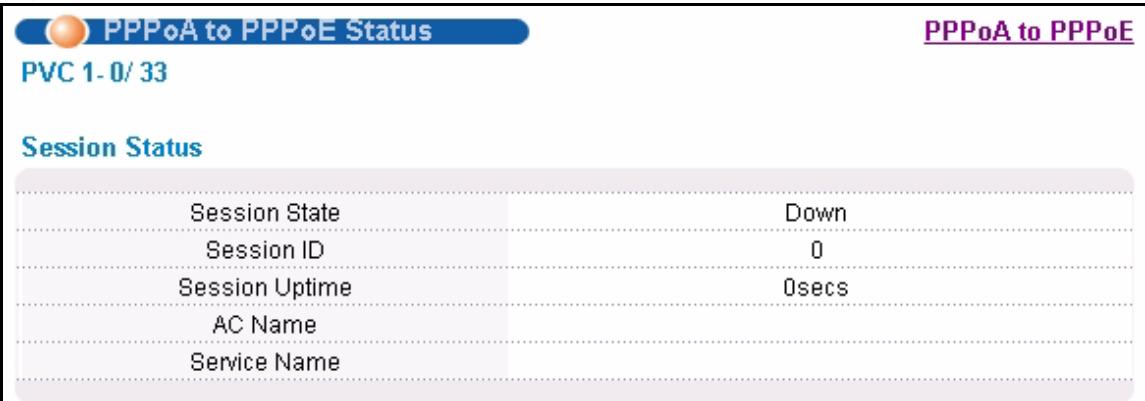
Figure 114 PPPoA to PPPoE Status
Counter Status
| Tx | Rx | |
| PPP LCP Config-Request | - | 0 |
| PPP LCP Echo-Request | - | 0 |
| PPP LCP Echo-Reply | - | 0 |
| PPPoePADI | 0 | - |
| PPPoePADO | - | 0 |
| PPPoePADR | 0 | - |
| PPPoePADS | - | 0 |
| PPPoePADT | 0 | 0 |
| PPPoeService Name Error | - | 0 |
| PPPoeAC System Error | - | 0 |
| PPPoeGeneric Error | 0 | 0 |
The following table describes the labels in this screen.
Table 64 PPPoA to PPPoE Status
| LABEL | DESCRIPTION |
| PPPoA to PPPoE | Click PPPoA to PPPoE to open the screen where you can set up PPPoA-to- PPPoE conversions on each port (see Section 31.2 on page 215). |
| PVC | This field displays the port number, VPI, and VCI of the PVC. |
| Session Status | |
| Session State | This field displays whether or not the current session is Up or Down. |
| Session ID | This field displays the ID of the current session. It displays 0 if there is no current session. |
| Session Uptime | This field displays how long the current session has been up. |
| AC Name | This field displays the hostname of the remote access concentrator if there are two access concentrators (or BRAS) on the network or if you want to allow PAE translation to the specified access concentrator. |
| Service Name | This field specifies the name of the service that uses this PVC. |
| Counter Status | |
| Tx/Rx | The values in these columns are for packets transmitted (tx) or received (rx) by the IES-1248. |
| PPP LCP Config-Request | This field displays the number of config-request PDUs received by the IES-1248 from the CPE (client) device. |
| PPP LCP Echo-Request | This field displays the number of echo-request PDUs received by the IES-1248 from the CPE (client) device. |
| PPP LCP Echo-Reply | This field displays the number of echo-reply PDUs received by the IES-1248 from the CPE (client) device. |
| PPPoe PADI | This field displays the number of padi PDUs sent by the IES-1248 to the BRAS. |
| PPPoe PADO | This field displays the number of pado PDUs sent by the BRAS to the IES-1248. |
| PPPoe PADR | This field displays the number of padr PDUs sent by the IES-1248 to the BRAS. |
| PPPoe PADS | This field displays the number of pads PDUs sent by the BRAS to the IES-1248. |
| PPPoe PADT | This field displays the number of padt PDUs sent and received by the IES-1248. |
| PPPoe Service Name Error | This field displays the number of service name errors; for example, the IES-1248's specified service is different than the BRAS's setting. |
| PPPoe AC System Error | This field displays the number of times the access concentrator experienced an error while performing the Host request; for example, when resources are exhausted in the access concentrator. This value does not include the number of times the IES-1248 checks the AC name field in the BRAS's reply PDU and finds a mismatch, however. |
| PPPoe Generic Error | This field displays the number of other types of errors that occur in the PPPoE session between the IES-1248 and the BRAS. |
CHAPTER 32 DSCP
This chapter shows you how to set up DSCP on each port and how to convert DSCP values to IEEE 802.1p values.
32.1 DSCP Overview
DiffServ Code Point (DSCP) is a field used for packet classification on DiffServ networks. The higher the value, the higher the priority. Lower-priority packets may be dropped if the total traffic exceeds the capacity of the network.
32.2 DSCP Setup Screen
Use this screen to activate or deactivate DSCP on each port. To open this screen, click Advanced Application, DSCP.
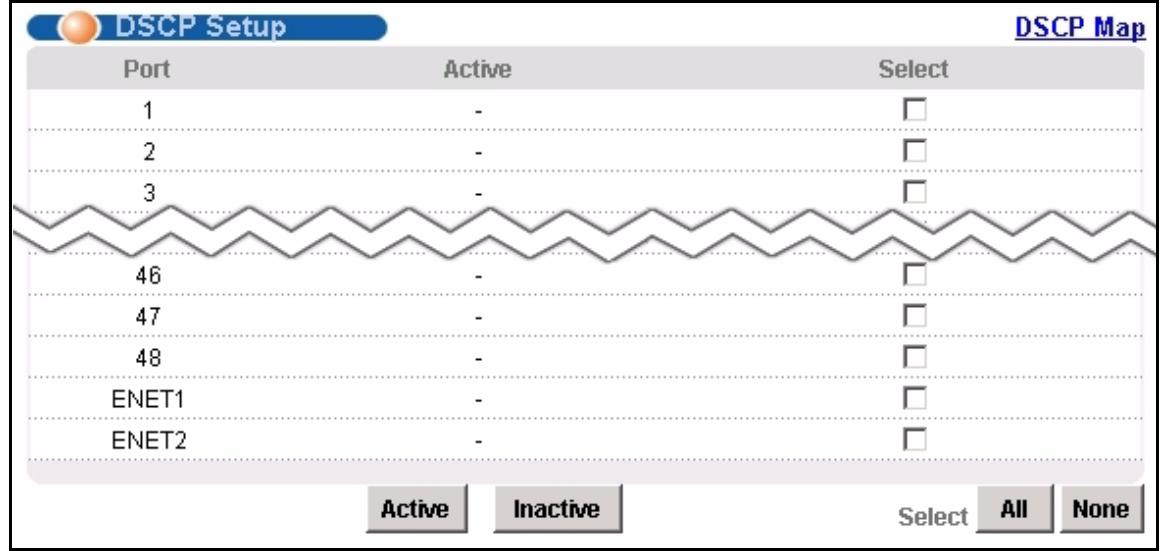
Figure 115 DSCP Setup
The following table describes the labels in this screen.
Table 65 DSCP Setup
| LABEL | DESCRIPTION |
| DSCP Map | Click DSCP Map to open the screen where you can set up the mapping between source DSCP priority and IEEE 802.1p priority (see Section 32.3 on page 222). |
| Port | This field displays each port number. |
| Active | This field displays whether DSCP is active ("V") or inactive ("-") on this port. |
| Select | Select this, and click Active or Inactive to enable or disable the DSCP on this port. |
| Active | Click this to enable DSCP on the selected ports. |
| Inactive | Click this to disable DSCP on the selected ports. |
| All | Click this to select all entries in the table. |
| None | Click this to un-select all entries in the table. |
32.3 DSCP Map Screen
Use this screen to convert DSCP priority to IEEE 802.1p priority. To open this screen, click Advanced Application, DSCP, DSCP Map.
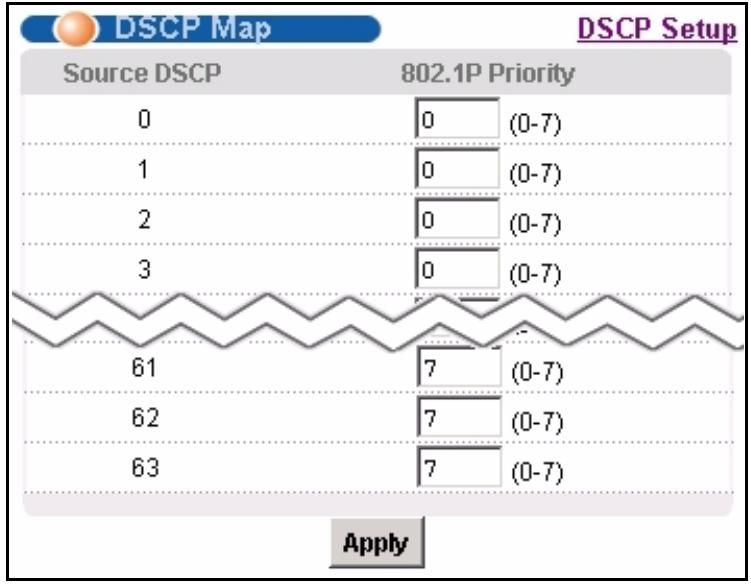
Figure 116 DSCP Map
The following table describes the labels in this screen.
Table 66 DSCP Map
| LABEL | DESCRIPTION |
| DSCP Map | Click DSCP Setup to open the screen where you can activate or deactivate DSCP on each port (see Section 32.2 on page 221). |
| Source DSCP | This field displays each DSCP value. |
| 802.1P Priority | Enter the IEEE 802.1p priority to which you would like to map this DSCP value. |
| Apply | Click Apply to save your changes to the IES-1248's volatile memory. The IES-1248 loses these changes if it is turned off or loses power, so use the Config Save link on the navigation panel to save your changes to the non-volatile memory when you are done configuring. |
CHAPTER 33 TLS PVC
This chapter shows you how to set up Transparent LAN Service (VLAN stacking, Q-in-Q) on each port.
33.1 Transparent LAN Service (TLS) Overview
Transparent LAN Service (also known as VLAN stacking or Q-in-Q) allows a service provider to distinguish multiple customers VLANs, even those with the same (customer-assigned) VLAN ID, within its network.
Use TLS to add an outer VLAN tag to the inner IEEE 802.1Q tagged frames that enter the network. By tagging the tagged frames ("double-tagged" frames), the service provider can manage up to 4,094 VLAN groups with each group containing up to 4,094 customer VLANs. This allows a service provider to provide different services, based on specific VLANs, for many different customers.
A service provider's customers may require a range of VLANs to handle multiple applications. A service provider's customers can assign their own inner VLAN tags to traffic. The service provider can assign an outer VLAN tag for each customer. Therefore, there is no VLAN tag overlap among customers, so traffic from different customers is kept separate.
Before the IES-1248 sends the frames from the customers, the VLAN ID is added to the frames. When packets intended for specific customers are received on the IES-1248, the outer VLAN tag is removed before the traffic is sent.
33.1.1 TLS Network Example
In the following example figure, both A and B are Service Provider's Network (SPN) customers with VPN tunnels between their head offices and branch offices, respectively. Both have an identical VLAN tag for their VLAN group. The service provider can separate these two VLANs within its network by adding tag 37 to distinguish customer A and tag 48 to distinguish customer B at edge device 1 and then stripping those tags at edge device 2 as the data frames leave the network.
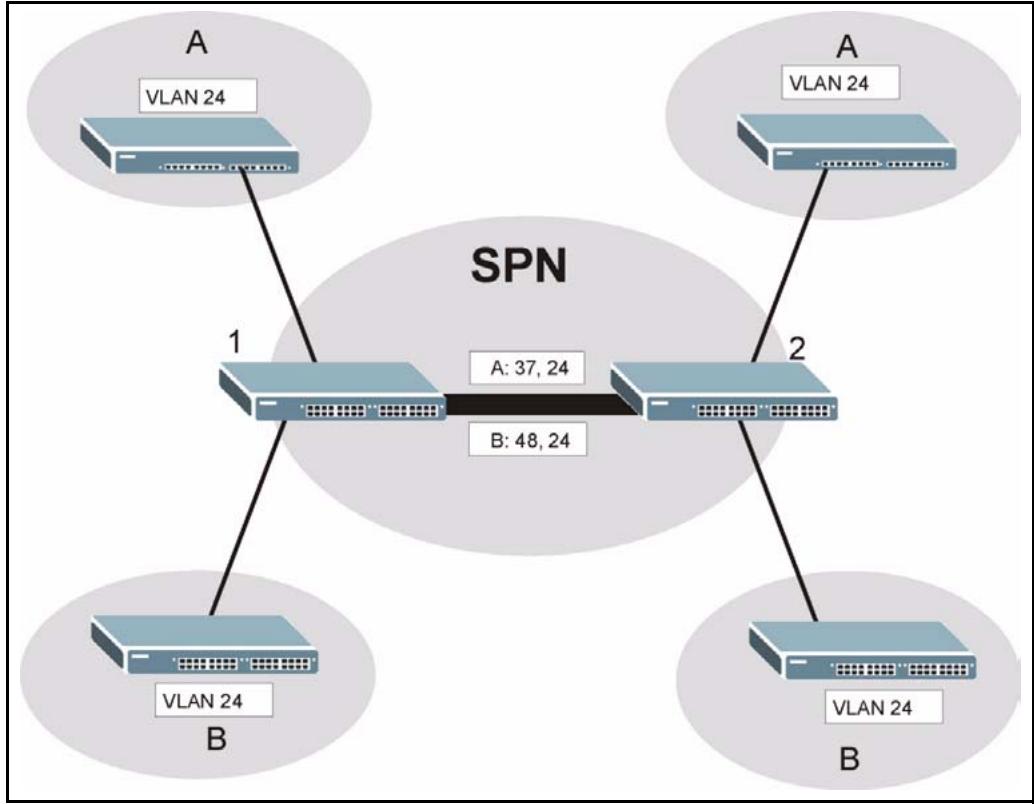
Figure 117 Transparent LAN Service Network Example
33.2 TLS PVC Screen
Use this screen to set up Transparent LAN Services on each port. This is set up by creating a TLS PVC. See Chapter 16 on page 119 for background information about creating PVCs. To open this screen, click Advanced Application, TLS PVC.
Note: You can NOT configure PPPoA-to-PPPSoE and TLS settings on the same PVC.
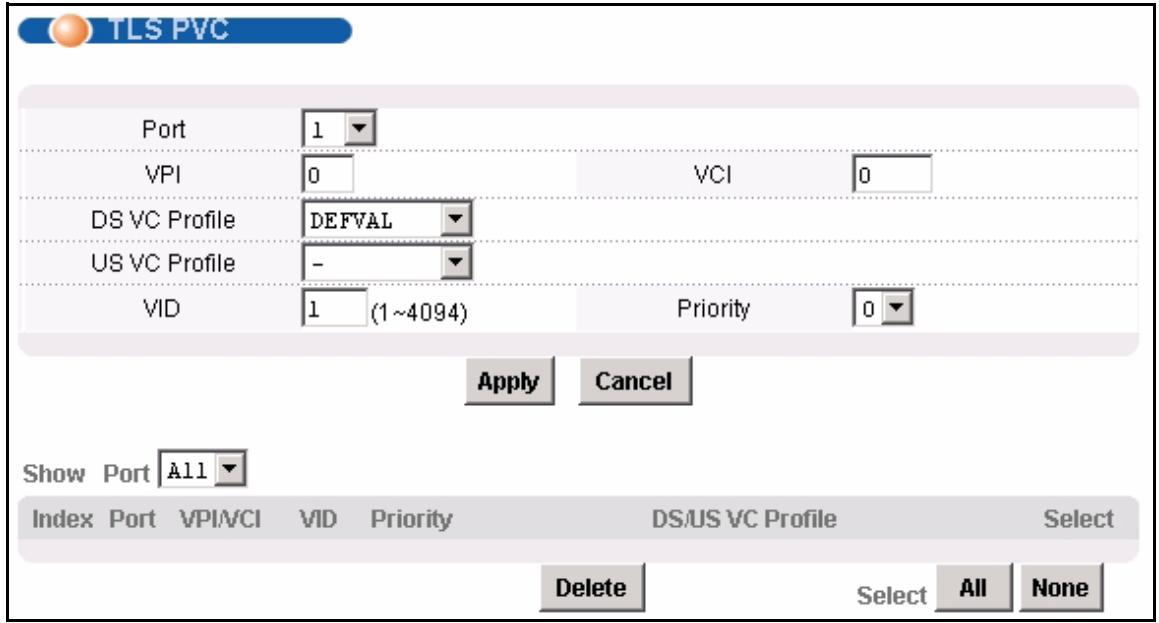
Figure 118 TLS PVC
The following table describes the labels in this screen.
Table 67 TLS PVC
| LABEL | DESCRIPTION |
| Port | Use this drop-down list box to select a port for which you wish to set up a TLS PVC. This field is read-only once you click on a port number below. |
| VPI | Type the Virtual Path Identifier for a channel on this port. |
| VCI | Type the Virtual Circuit Identifier for a channel on this port. |
| DS VC Profile | Use the drop-down list box to select a VC profile to use for this channel's downstream traffic shaping. |
| US VC Profile | Use the drop-down list box to select a VC profile to use for this channel's upstream traffic. The IES-1248 does not perform upstream traffic policing if you do not specify an upstream VC profile.Note: Upstream traffic policing should be used in conjunction with the ATM shaping feature on the subscriber's device. If the subscriber's device does not apply the appropriate ATM shaping, all upstream traffic will be discarded due to upstream traffic policing. |
| VID | Type a VLAN ID to assign to frames received on this channel.Note: Make sure the VID is not already used for PPPoA-to-PPPoE conversions. |
| Priority | Use the drop-down list box to select the priority value (0 to 7) to add to incoming frames without a (IEEE 802.1p) priority tag. |
| Apply | Click this to add or save channel settings on the selected port. This saves your changes to the IES-1248's volatile memory. The IES-1248 loses these changes if it is turned off or loses power, so use the Config Save link on the navigation panel to save your changes to the non-volatile memory when you are done configuring. |
| Cancel | Click Cancel to start configuring the screen again. |
| Show Port | Select which ADSL port(s) for which to display TLS PVC settings. |
| Index | This field displays the number of the PVC. Click a PVC's index number to use the top of the screen to edit the PVC.Note: At the time of writing, you cannot edit the VPI and VCI. If you want to change them, add a new PVC with the desired settings. Then you can delete any unwanted PVCs. |
| Port | This field displays the number of the ADSL port on which the PVC is configured. |
| VPI/VCI | This field displays the Virtual Path Identifier (VPI) and Virtual Circuit Identifier (VCI). The VPI and VCI identify a channel on this port. |
| VID | This is the VLAN ID assigned to frames received on this channel. |
| Priority | This is the priority value (0 to 7) added to incoming frames without a (IEEE 802.1p) priority tag. |
| DS/US VC Profile | This shows which VC profile this channel uses for downstream traffic shaping. The VC profile for upstream policing also displays if the channel is configured to use one. |
| Select Delete | Select the check box in the Select column for an entry, and click Delete to remove the entry. |
| Select All | Click this to select all entries in the table. |
| Select None | Click this to un-select all entries in the table. |
CHAPTER 34 ACL
This chapter shows you how to set up ACL profiles on each port.
34.1 Access Control Logic (ACL) Overview
An ACL (Access Control Logic) profile allows the IES-1248 to classify and perform actions on the upstream traffic. Each ACL profile consists of a rule and an action, and you assign ACL profiles to PVCs.
34.1.1 ACL Profile Rules
Each ACL profile uses one of 14 rules to classify upstream traffic. These rules are listed below by rule number.
1 etype
2 etype
3 etype
4 vlan
5 vlan
6 smac
7 vlan
8 etype
9 vlan
10smac
11dmac
12priority
13protocol
14{srcip 一 i p > / < m a s k > {|dstip 一 i p > / < m a s k > {|tos 一 s t o s > |etos> {|s r c p o r t
The input values for these values have the following ranges.
If you apply multiple profiles to a PVC, the IES-1248 checks the profiles by rule number. The lower the rule number, the higher the priority the rule (and profile) has. For example, there are two ACL profiles assigned to a PVC. Profile1 is for VLAN ID 100 (rule number 9) traffic, and Profile2 is for IEEE 802.1p priority 0 traffic (rule number 12). The IES-1248 checks Profile1 first. If the traffic is VLAN ID 100, the IES-1248 follows the action in Profile1 and does not check Profile2. You cannot assign profiles that have the same rule numbers to the same PVC.
34.1.2 ACL Profile Actions
The IES-1248 can perform the following actions after it classifies upstream traffic.
- rate < rate>: change the rate to the specified value (1~6535 kbps)
- rvlan
: change the VLAN ID to the specified value (1~4094) - rpri
: change the IEEE 802.1p priority to the specified value (0~7) - deny: do not forward the packet
The IES-1248 can apply more than one action to a packet, unless you select deny.
If you select the rvlan action, the IES-1248 replaces the VLAN ID before it compares the VLAN ID of the packet to the VID of the PVC. As a result, it is suggested that you replace VLAN ID on super channels, not normal PVC, since super channels accept any tagged traffic. If you replace the VLAN ID for a normal PVC, the IES-1248 drops the traffic because the new VLAN ID does not match the VID of the PVC. This is illustrated in the following scenario.
There is a normal PVC, and its PVID is 900. You create an ACL rule to replace the VLAN ID with 901. Initially, the traffic for the PVC belongs to VLAN 900. Then, the IES-1248 checks the ACL rule and changes the traffic to VLAN 901. When the IES-1248 finally compares the VLAN ID of the traffic (901) to the VID of the PVC (900), the IES-1248 drops the packets because they do not match.
34.2 ACL Setup Screen
Use this screen to assign ACL profiles to each PVC. To open this screen, click Advanced Application, ACL.
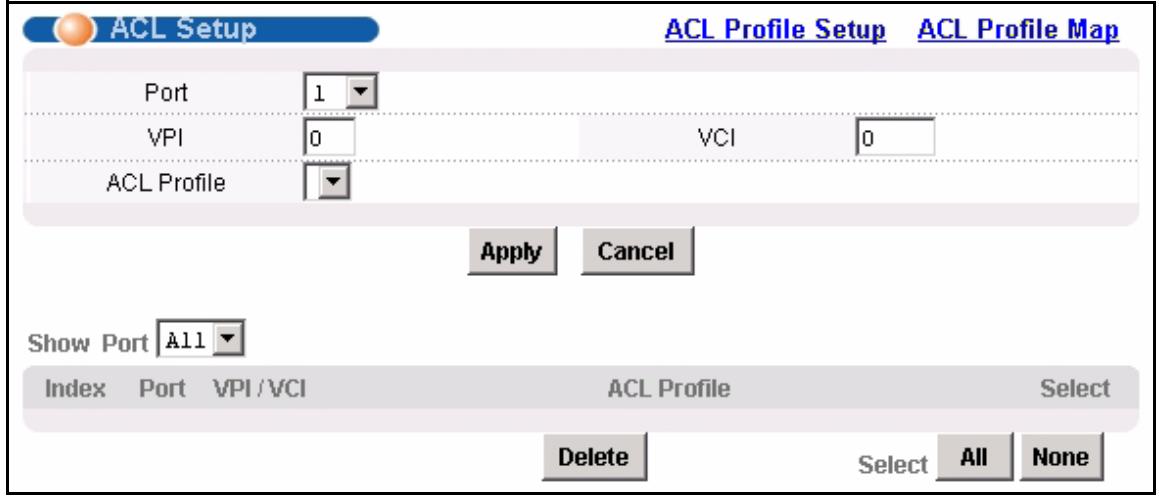
Figure 119 ACL Setup
The following table describes the labels in this screen.
Table 68 ACL Setup
| LABEL | DESCRIPTION |
| ACL Profile Setup | Click ACL Profile Setup to open the screen where you can set up ACL profiles (see Section 34.3 on page 230). |
| ACL Profile Map | Click ACL Profile Map to open the screen where you can look at which ACL profiles are assigned to which PVCs (see Section 34.4 on page 232). |
| Port | Use this drop-down list box to select a port to which you wish to assign an ACL profile. This field is read-only once you click on a port number below. |
| VPI | Type the Virtual Path Identifier for a channel on this port. |
| VCI | Type the Virtual Circuit Identifier for a channel on this port. |
| ACL Profile | Use the drop-down list box to select the ACL profile you want to assign to this PVC. |
| Apply | Click this to save your changes to the IES-1248's volatile memory. The IES-1248 loses these changes if it is turned off or loses power, so use the Config Save link on the navigation panel to save your changes to the non-volatile memory when you are done configuring. |
| Cancel | Click Cancel to start configuring the screen again. |
| Show Port | Select which ADSL port(s) for which to display ACL profile settings. |
| Index | This field displays the number of the PVC. Click a PVC's index number to use the top of the screen to edit the PVC.Note: At the time of writing, you cannot edit the VPI and VCI. If you want to change them, add a new PVC with the desired settings. Then you can delete any unwanted PVCs. |
| Port | This field displays the number of the ADSL port on which the PVC is configured. |
| VPI/CCI | This field displays the Virtual Path Identifier (VPI) and Virtual Circuit Identifier (VCI). The VPI and VCI identify a channel on this port. |
| ACL Profile | This field shows the ACL profile assigned to this PVC. |
| Select Delete | Select the check box in the Select column for an entry, and click Delete to remove the entry. |
| Select All | Click this to select all entries in the table. |
| Select None | Click this to un-select all entries in the table. |
34.3 ACL Profile Setup Screen
Use this screen to set up ACL profiles. To open this screen, click Advanced Application, ACL, ACL Profile Setup.
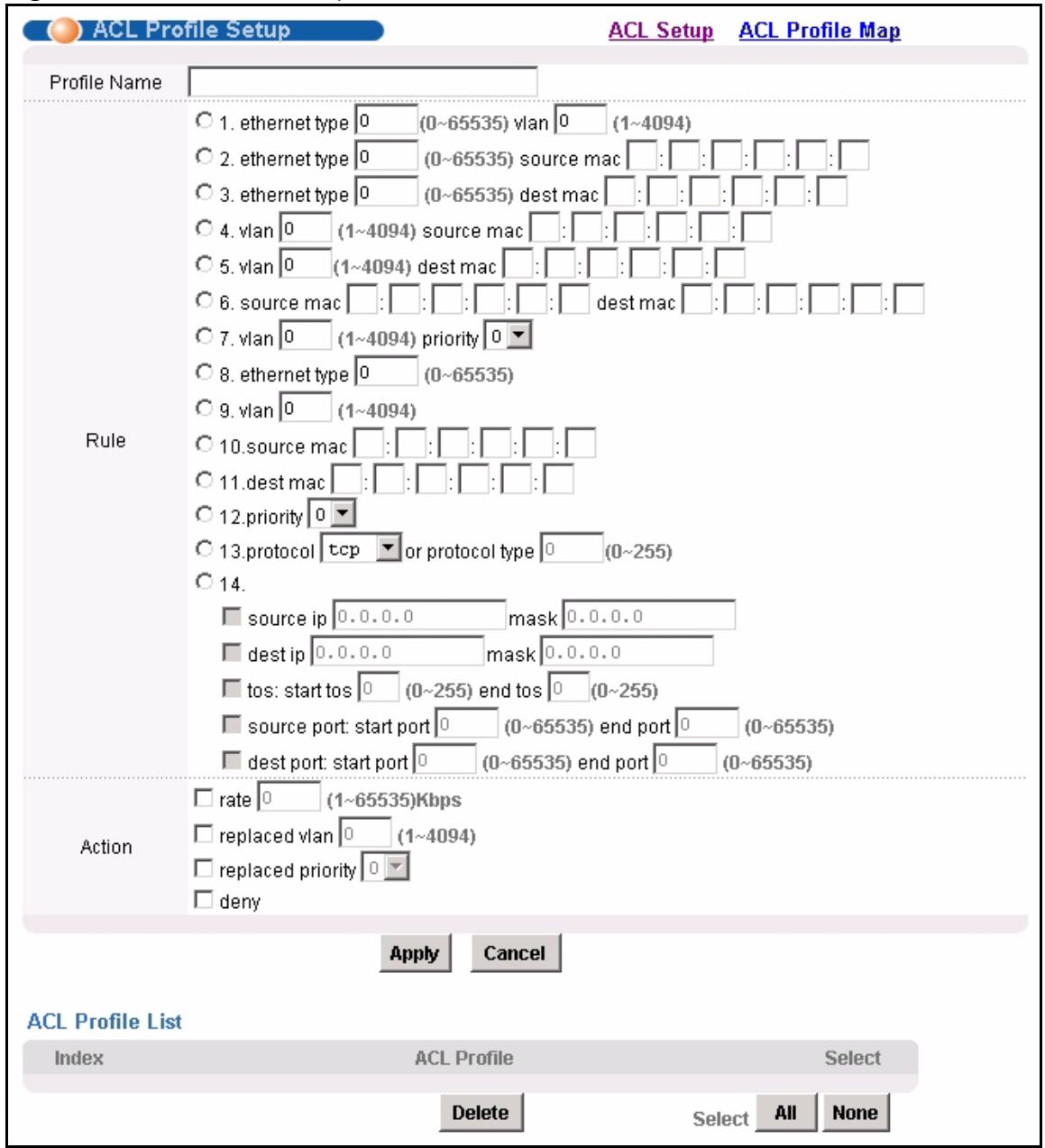
Figure 120 ACL Profile Setup
The following table describes the labels in this screen.
Table 69 ACL Profile Setup
| LABEL | DESCRIPTION |
| ACL Setup | Click ACL Setup to open the screen where you can assign ACL profiles to PVCs (see Section 34.2 on page 228). |
| ACL Profile Map | Click ACL Profile Map to open the screen where you can look at which ACL profiles are assigned to which PVCs (see Section 34.4 on page 232). |
| Profile Name | Enter a descriptive name for the ACL profile. The name can be 1-31 printable ASCII characters long. Spaces are not allowed. |
| Rule | Select which type of rule to use.Note: The lower the number (1-14), the higher the priority the rule has.Provide additional information required for the selected rule. Additional rules consist of one or more of the following criteria. |
| ethernet type | Enter the 16-bit EtherType value between 0 and 65535. |
| vlan | Enter a VLAN ID between 1 and 4094. |
| source mac | Enter the source MAC address. |
| dest mac | Enter the destination MAC address. |
| priority | Select the IEEE 802.1p priority. |
| protocol | Select the IP protocol used. |
| protocol type | Enter the IP protocol number (between 0 and 255) used. |
| source ip | Enter the source IP address and subnet mask in dotted decimal notation. |
| dest ip | Enter the source IP address and subnet mask in dotted decimal notation. |
| tos | Enter the start and end Type of Service between 0 and 255. |
| source port | Enter the source port or range of source ports. |
| dest port | Enter the destination port or range of destination ports. |
| Action | Select which action(s) the IES-1248 should follow when the criteria are satisfied. |
| rate | Enter the maximum bandwidth this traffic is allowed to have. |
| replaced vlan | Enter the VLAN ID that this traffic should use. |
| replaced priority | Select the IEEE 802.1p priority that this traffic should have. |
| deny | Select this if you want the IES-1248 to reject this kind of traffic. |
| ACL Profile List | |
| Index | This field displays a sequential value. The sequence in this table is not important. Click this to edit the associated ACL profile in the section above. |
| ACL Profile | This field displays the name of this ACL profile. |
| Select Delete | Select the check box in the Select column for an entry, and click Delete to remove the entry. |
| Select All | Click this to select all entries in the table. |
| Select None | Click this to un-select all entries in the table. |
34.4 ACL Profile Map Screen
Use this screen to look at all the ACL profiles and the PVCs to which each one is assigned. To open this screen, click Advanced Application, ACL, ACL Profile Map.

Figure 121 ACL Profile Map
The following table describes the labels in this screen.
Table 70 ACL Profile Map
| LABEL | DESCRIPTION |
| ACL Setup | Click ACL Setup to open the screen where you can assign ACL profiles to PVCs (see Section 34.2 on page 228). |
| ACL Profile Setup | Click ACL Profile Setup to open the screen where you can set up ACL profiles (see Section 34.3 on page 230). |
| ACL Profile | Select the ACL profile(s) for which you want to see which PVCs are assigned to it. |
| Index | This field displays the number of an entry. |
| Profile | This field shows the ACL profile assigned to this PVC. |
| Port | This field displays the ADSL port number on which the PVC is configured. |
| VPI/VCI | This field displays the Virtual Path Identifier (VPI) and Virtual Circuit Identifier (VCI). The VPI and VCI identify a channel on this port. |
CHAPTER 35
Downstream Broadcast
This chapter shows you how to allow or block downstream broadcast traffic.
35.1 Downstream Broadcast
Downstream broadcast allows you to block downstream broadcast packets from being sent to specified VLANs on specified ports.
35.2 Downstream Broadcast Screen
To open this screen, click Advanced Application, Downstream Broadcast.
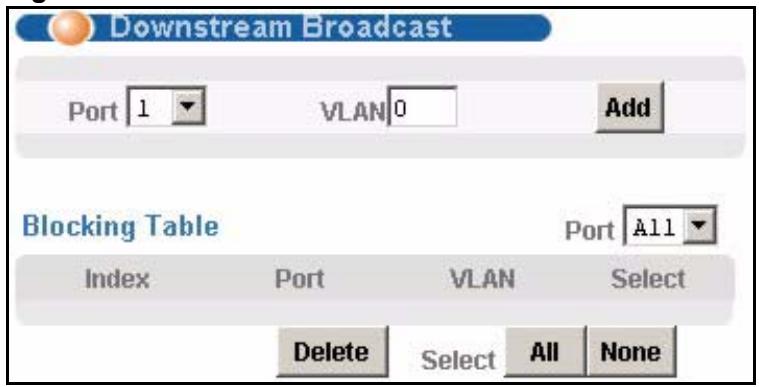
Figure 122 Downstream Broadcast
The following table describes the labels in this screen.
Table 71 Downstream Broadcast
| LABEL | DESCRIPTION |
| Port | Use this drop-down list box to select a port for which you wish to configure settings. |
| VLAN | Specify the number of a VLAN (on this entry's port) to which you do not want to send broadcast traffic. The VLAN must already be configured in the system. |
| Add | Click Add to save your changes to the IES-1248's volatile memory. The IES-1248 loses these changes if it is turned off or loses power, so use the Config Save link on the navigation panel to save your changes to the non-volatile memory when you are done configuring. |
| Blocking Table | |
| Port | Use this drop-down list box to select a port for which you wish to display settings. |
| Index | This field displays the number of the downstream broadcast blocking entry. |
| Port | This is the number of a DSL port through which you will block downstream broadcast traffic (on a specific VLAN). |
| VLAN | This field displays the number of a VLAN to which you do not want to send broadcast traffic (on the entry's port). |
| Select | Select an entry's Select check box and click Delete to remove the entry. Clicking Delete saves your changes to the IES-1248's volatile memory. The IES-1248 loses these changes if it is turned off or loses power, so use the Config Save link on the navigation panel to save your changes to the non-volatile memory when you are done configuring. |
| Select All | Click All to mark all of the check boxes. |
| Select None | Click None to un-mark all of the check boxes. |
CHAPTER 36 Syslog
This chapter explains how to set the syslog parameters.
36.1 Syslog
The syslog feature sends logs to an external syslog server.
36.2 SysLog Screen
To open this screen, click Advanced Application, SysLog.
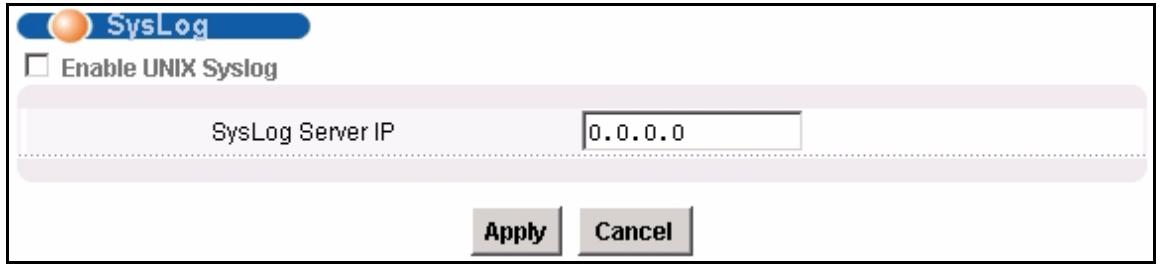
Figure 123 SysLog
The following table describes the labels in this screen.
Table 72 SysLog
| LABEL | DESCRIPTION |
| Enable Unix Syslog | Select this check box to activate syslog (system logging) and then configure the syslog parameters described in the following fields. |
| Syslog Server IP | Enter the IP address of the syslog server. (The log facility is specified in Alarm > Alarm Event Setup. See Section 39.4 on page 249.) |
| Apply | Click Apply to save your changes to the IES-1248's volatile memory. The IES-1248 loses these changes if it is turned off or loses power, so use the Config Save link on the navigation panel to save your changes to the non-volatile memory when you are done configuring. |
| Cancel | Click Cancel to begin configuring this screen afresh. |
CHAPTER 37 Access Control
This chapter describes how to configure access control.
37.1 Access Control Screen
Use this screen to configure SNMP and enable/disable remote service access.
To open this screen, click Advanced Application, Access Control.

Figure 124 Access Control
37.2 Access Control Overview
A console port or Telnet session can coexist with one FTP session, a web configurator session and/or limitless SNMP access control sessions.
Table 73 Access Control Summary
| CONSOLE PORT | TELNET | FTP | WEB | SNMP | |
| Number of sessions allowed | 1 | 5 | 1 | No limit | No limit |
37.3 SNMP
Simple Network Management Protocol is a protocol used for exchanging management information between network devices. SNMP is a member of TCP/IP protocol suite. A manager station can manage and monitor the IES-1248 through the network via SNMP version one (SNMPv1) and/or SNMP version 2c. The next figure illustrates an SNMP management operation. SNMP is only available if TCP/IP is configured.
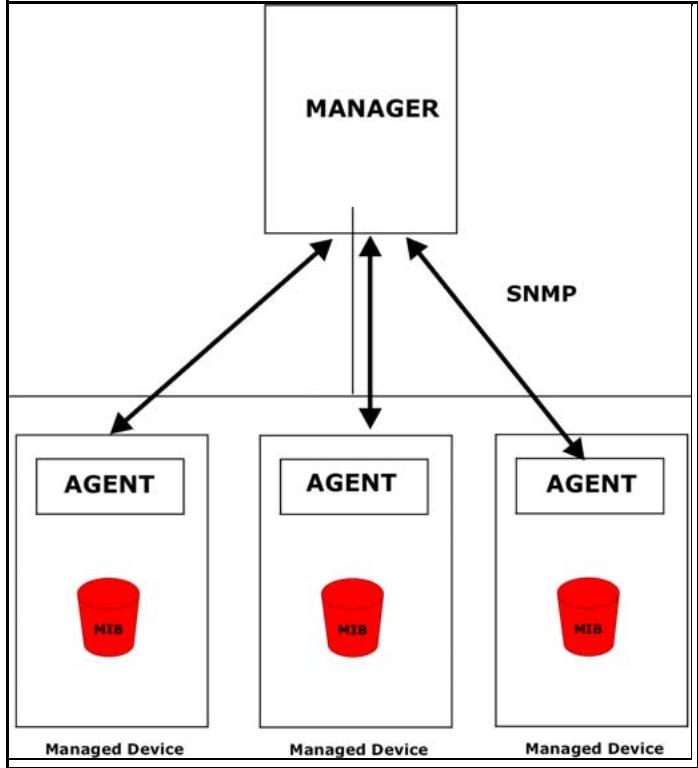
Figure 125 SNMP Management Model
An SNMP managed network consists of two main components: agents and a manager.
An agent is a management software module that resides in a managed device (the IES-1248). An agent translates the local management information from the managed device into a form compatible with SNMP. The manager is the console through which network administrators perform network management functions. It executes applications that control and monitor managed devices.
The managed devices contain object variables/managed objects that define each piece of information to be collected about a device. Examples of variables include such as number of packets received, node port status etc. A Management Information Base (MIB) is a collection of managed objects. SNMP allows a manager and agents to communicate for the purpose of accessing these objects.
SNMP itself is a simple request/response protocol based on the manager/agent model. The manager issues a request and the agent returns responses using the following protocol operations:
Table 74 SNMP Commands
| COMMAND | DESCRIPTION |
| Get | Allows the manager to retrieve an object variable from the agent. |
| GetNext | Allows the manager to retrieve the next object variable from a table or list within an agent. In SNMPv1, when a manager wants to retrieve all elements of a table from an agent, it initiates a Get operation, followed by a series of GetNext operations. |
| Set | Allows the manager to set values for object variables within an agent. |
| Trap | Used by the agent to inform the manager of some events. |
37.3.1 Supported MIBs
MIBs let administrators collect statistics and monitor status and performance. The IES-1248 supports the following MIBs:
- MIB II IF MIB and ADSL line MIB (RFC-2662)
SNMP MIB II (RFC-1215)
BRIDGE MIB: FDB status
The IES-1248 can also respond with specific data from the DSLAM private MIBs:
- dslam.mib
- dslam-AS-ATM.mib
- dslam-AS.mib
- dslam-AESCommon.mib
- dslam-iesCommon.mib
- ies1248.mib
37.3.2 SNMP Traps
The IES-1248 can send the following SNMP traps to an SNMP manager when an event occurs. ATUC refers to the downstream channel (for traffic going from the IES-1248 to the subscriber). ATUR refers to the upstream channel (for traffic coming from the subscriber to the IES-1248).
Table 75 SNMPv2 Traps
| TRAP NAME | DESCRIPTION |
| coldStart | This trap is sent when the IES-1248 is turned on. |
| warmStart | This trap is sent when the IES-1248 restarts. |
| linkDown | This trap is sent when the Ethernet link is down. Enterprise specific (adsl_atuc_LOs) traps are sent when an ADSL link is down. |
| linkUp | This trap is sent when the Ethernet or ADSL link comes up. |
| authenticationFailure | This trap is sent when the SNMP community check fails. |
| reboot | This trap is sent when the system is going to reboot. The variable is the reason for the system reboot. |
| overheat | This trap is sent when the system is overheated. The variable is the current system temperature in Celsius. |
| overheatOver | This trap is sent when the system is no longer overheated. The variable is the current system temperature in Celsius. |
| fanRpmLow | This trap is sent when the RPM of the fan is too low. The variable is the current RPM of the fan. |
| fanRpmNormal | This trap is sent when the RPM of the fan is back within the normal range. The variable is the current RPM of the fan. |
| voltageOutOfRange | This trap is sent when the voltage of the system is out of the normal range. The variable is the current voltage of the system in volts. |
| voltageNormal | This trap is sent when the voltage of the system is back within the normal range. The variable is the current voltage of the system in volts. |
| extAlarmInputTrigger | This trap is sent when there is an external alarm input. |
| extAlarmInputRelease | This trap is sent when the external alarm input stops. |
| thermalSensorFailure | This trap is sent when the thermal sensor fails. |
| adslAtucLof | This trap is sent when a Loss Of Frame is detected on the ATUC. |
| adslAtucLof | This trap is sent when a Loss Of Frame is detected on the ATUR. |
| adslAtucLos | This trap is sent when a Loss Of Signal is detected on the ATUC. |
| adslAtucLos | This trap is sent when a Loss Of Signal is detected on the ATUR. |
| adslAtucLpr | This trap is sent when a Loss Of Power is detected on the ATUR. |
| adslAtucLofClear | This trap is sent when the Loss Of Frame detected on the ATUC is over. |
| adslAtucLofClear | This trap is sent when the Loss Of Frame detected on the ATUR is over. |
| adslAtucLosClear | This trap is sent when the Loss Of Signal detected on the ATUC is over. |
| adslAtucLosClear | This trap is sent when the Loss Of Signal detected on the ATUR is over. |
| adslAtucLprClear | This trap is sent when the Loss Of Power detected on the ATUR is over. |
| adslAtucPerfLofsThreshTrap | The number of times a Loss Of Frame has occurred within 15 minutes for the ATUC has reached the threshold. currValue is the number of times a Loss Of Frame has occurred within the 15-minute interval. |
| adslAtucPerfLossThreshTrap | The number of times a Loss Of Signal has occurred within 15 minutes for the ATUC has reached the threshold. currValue is the number of times a Loss Of Signal has occurred within the 15 minute interval. |
| adslAtucPerfLprsThreshTrap | The number of times a Loss Of Power has occurred within 15 minutes for the ATUC has reached the threshold. currValue is the number of times a Loss Of Power has occurred within the 15-minute interval. |
| adslAtucPerfESsThreshTrap | The number of error seconds within 15 minutes for the ATUC has reached the threshold. currValue is the number of error seconds that have occurred within the 15-minute interval. |
| adslAtucPerfLolsThreshTrap | The number of times a Loss Of Link has occurred within 15 minutes for the ATUC has reached the threshold. currValue is the number of times a Loss Of Link has occurred within the 15-minute interval. |
| adslAturPerfLofsThreshTrap | The number of times a Loss Of Frame has occurred within 15 minutes for the ATUR has reached the threshold. currValue is the number of times a Loss Of Frame has occurred within the 15-minute interval. |
| adslAturPerfLossThreshTrap | The number of times a Loss Of Signal has occurred within 15 minutes for the ATUR has reached the threshold. currValue is the number of times a Loss Of Signal has occurred within the 15-minute interval. |
| adslAturPerfLprsThreshTrap | The number of times a Loss Of Power has occurred within 15 minutes for the ATUR has reached the threshold. currValue is the number of times a Loss Of Power has occurred within the 15-minute interval. |
| adslAturPerfESsThreshTrap | The number of error seconds within 15 minutes for the ATUR has reached the threshold. currValue is the number of error seconds that have occurred within the 15-minute interval. |
| adslAtucSesLThreshTrap | The number of severely errored seconds within 15 minutes for the ATUC has reached the threshold. currValue is the number of severely errored seconds that have occurred within the 15-minute interval. |
| adslAtucUasLThreshTrap | The number of Unavailable seconds within 15 minutes for the ATUC has reached the threshold. currValue is the number of Unavailable seconds that have occurred within the 15-minute interval. |
| adslAturSesLThreshTrap | The number of severely errored seconds within 15 minutes for the ATUR has reached the threshold. currValue is the number of severely errored seconds that have occurred within the 15-minute interval. |
| adslAturUasLThreshTrap | The number of Unavailable seconds within 15 minutes for the ATUR has reached the threshold. currValue is the number of Unavailable seconds that have occurred within the 15-minute interval. |
37.4 SNMP Screen
To open this screen, click Advanced Application, Access Control, SNMP.
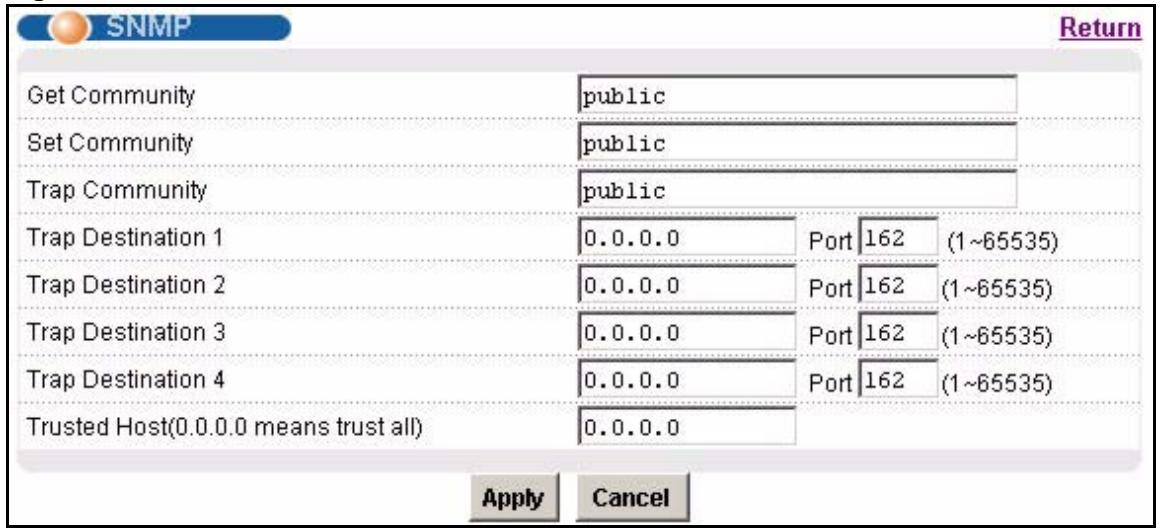
Figure 126 SNMP
The following table describes the labels in this screen.
Table 76 SNMP
| LABEL | DESCRIPTION |
| Return | Click Return to go back to the previous screen. |
| Get Community | Enter the get community, which is the password for the incoming Get- and GetNext- requests from the management station. |
| Set Community | Enter the set community, which is the password for incoming Set- requests from the management station. |
| Trap Community | Enter the trap community, which is the password sent with each trap to the SNMP manager. |
| Trap Destination 1~4 | Enter the IP address of a station to send your SNMP traps to. |
| Port | Enter the port number upon which the station listens for SNMP traps. |
| Trusted Host | A “trusted host” is a computer that is allowed to use SNMP with the IES-1248. 0.0.0.0 allows any computer to use SNMP to access the IES-1248. Specify an IP address to allow only the computer with that IP address to use SNMP to access the IES-1248. |
| Apply | Click Apply to save your changes to the IES-1248's volatile memory. The IES-1248 loses these changes if it is turned off or loses power, so use the Config Save link on the navigation panel to save your changes to the non-volatile memory when you are done configuring. |
| Cancel | Click Cancel to begin configuring this screen afresh. |
37.5 Service Access Control Screen
To open this screen, click Advanced Application, Access Control, Service Access Control.
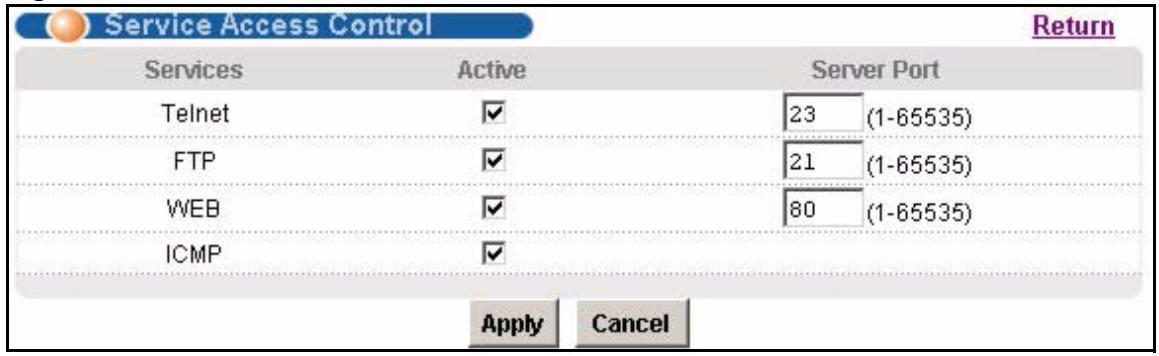
Figure 127 Service Access Control
The following table describes the labels in this screen.
Table 77 Service Access Control
| LABEL | DESCRIPTION |
| Return | Click Return to go back to the previous screen. |
| Services | Services you may use to access the IES-1248 are listed here. |
| Active | Select the Active check boxes for the corresponding services that you want to allow to access the IES-1248. |
| Server Port | For Telnet, FTP or web services, you may change the default service port by typing the new port number in the Server Port field. If you change the default port number then you will have to let people (who wish to use the service) know the new port number for that service. |
| Apply | Click Apply to save your changes to the IES-1248's volatile memory. The IES-1248 loses these changes if it is turned off or loses power, so use the Config Save link on the navigation panel to save your changes to the non-volatile memory when you are done configuring. |
| Cancel | Click Cancel to begin configuring this screen afresh. |
37.6 Remote Management Screen
Use this screen to configure the IP address ranges of trusted computers that may manage the IES-1248.
To open this screen, click Advanced Application, Access Control, Secured Client.
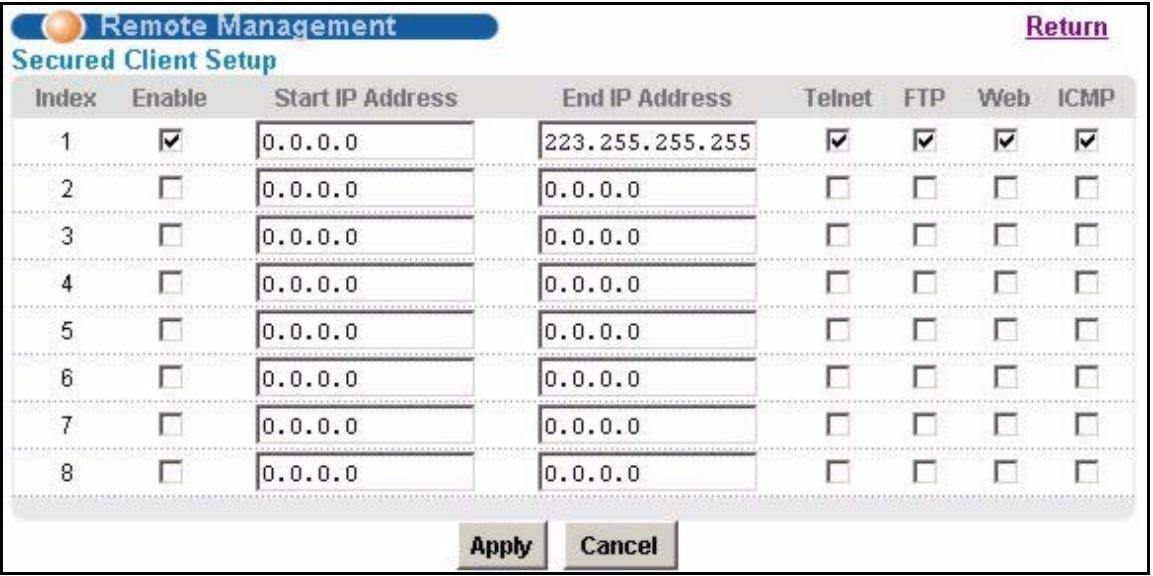
Figure 128 Remote Management (Secured Client Setup)
The following table describes the labels in this screen.
Table 78 Remote Management (Secured Client Setup)
| LABEL | DESCRIPTION |
| Return | Click Return to go back to the previous screen. |
| Index | This is the client set index number. A “client set” is a group of one or more “trusted computers” from which an administrator may use a service to manage the IES-1248. |
| Enable | Select this check box to activate this secured client set. Clear the check box if you wish to temporarily disable the set without deleting it. |
| Start IP Address End IP Address | Configure the IP address range of trusted computers from which you can manage the IES-1248.The IES-1248 checks if the client IP address of a computer requesting a service or protocol matches the range set here. The IES-1248 immediately disconnects the session if it does not match. |
| Telnet/FTP/Web/ICMP | Select services that may be used for managing the IES-1248 from the specified trusted computers. |
| Apply | Click Apply to save your changes to the IES-1248's volatile memory. The IES-1248 loses these changes if it is turned off or loses power, so use the Config Save link on the navigation panel to save your changes to the non-volatile memory when you are done configuring. |
| Cancel | Click Cancel to begin configuring this screen afresh. |
CHAPTER 38
Static Routing
This chapter shows you how to configure the static routing function.
Static routes tell the IES-1248 how to forward the IES-1248's own IP traffic when you configure the TCP/IP parameters manually. This is generally useful for allowing management of the device from a device with an IP address on a different subnet from that of the device's IP address (remote management).
To open this screen, click Routing Protocol, Static Routing.
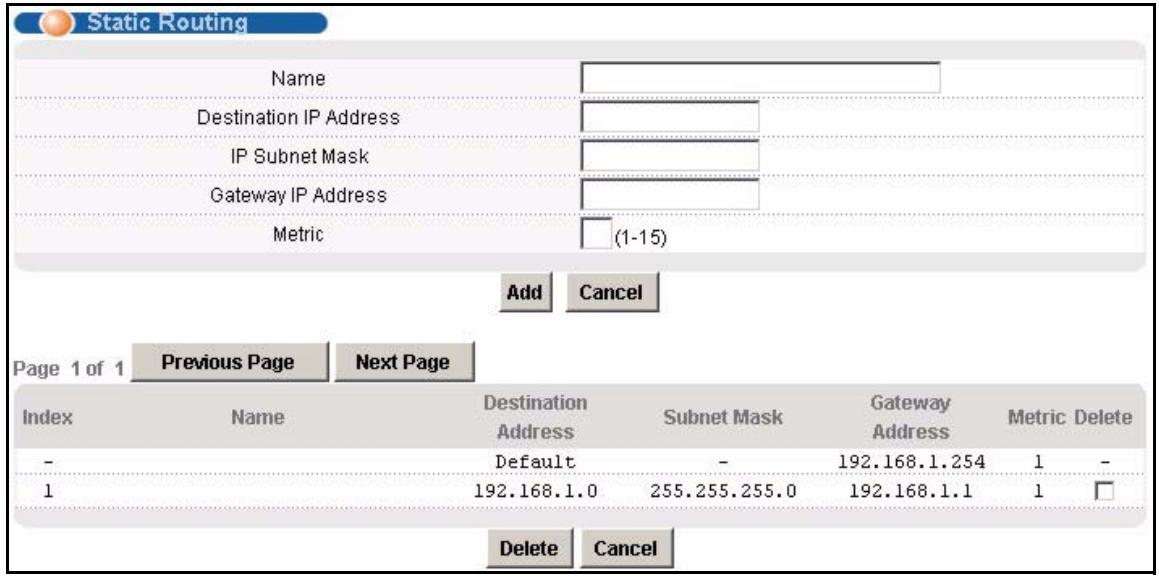
Figure 129 Static Routing
The following table describes the labels in this screen.
Table 79 Static Routing
| LABEL | DESCRIPTION |
| Use this section to create a new static route. | |
| Name | Type a name to identify this static route. Use up to 31 ASCII characters. Spaces and tabs are not allowed. |
| Destination IP Address | This parameter specifies the IP network address of the final destination. Routing is always based on network number. If you need to specify a route to a single host, use a subnet mask of 255.255.255.255 in the subnet mask field to force the network number to be identical to the host ID. |
| IP Subnet Mask | Enter the subnet mask for this destination. |
| Gateway IP Address | Enter the IP address of the gateway. The gateway is an immediate neighbor of your device that will forward the packet to the destination. The gateway must be a router on the same segment as your device. |
| Metric | The metric represents the “cost” of transmission for routing purposes. IP routing uses hop count as the measurement of cost, with a minimum of 1 for directly connected networks. Enter a number that approximates the cost for this link. The number need not be precise, but it must be between 1 and 15. In practice, 2 or 3 is usually a good number. |
| Add | Click Add to save the new rule to the IES-1248's volatile memory. It then displays in the summary table at the bottom of the screen. The IES-1248 loses these changes if it is turned off or loses power, so use the Config Save link on the navigation panel to save your changes to the non-volatile memory when you are done configuring. |
| Cancel | Click Cancel to reset the fields to your previous configuration. |
| Use this section to look at a summary of all static routes in the IES-1248. | |
| Previous Page | Click this to display the preceding page of static route entries. |
| Next Page | Click this to display the following page of static route entries. |
| Index | This field displays the index number of the route. |
| Name | This field displays the name of this static route. |
| Destination Address | This field displays the IP network address of the final destination. |
| Subnet Mask | This field displays the subnet mask for this destination. |
| Gateway Address | This field displays the IP address of the gateway. The gateway is an immediate neighbor of your device that will forward the packet to the destination. |
| Metric | This field displays the cost of transmission for routing purposes. |
| Delete | Select the rule(s) that you want to remove in the Delete column, and then click the Delete button. |
| Cancel | Click Cancel to clear the selected check boxes in the Delete column. |
CHAPTER 39
Alarm
This chapter shows you how to display the alarms, sets the severity level of an alarm(s) and where the system is to send the alarm(s) and set port alarm severity level threshold settings.
39.1 Alarm
The IES-1248 monitors for equipment, DSL and system alarms and can report them via SNMP or syslog. You can specify the severity level of an alarm(s) and where the system is to send the alarm(s). You can also set the alarm severity threshold for recording alarms on an individual port(s). The system reports an alarm on a port if the alarm has a severity equal to or higher than the port's threshold.
39.2 Alarm Status Screen
This screen displays the alarms that are currently in the system.
To open this screen, click Alarm, Alarm Status.
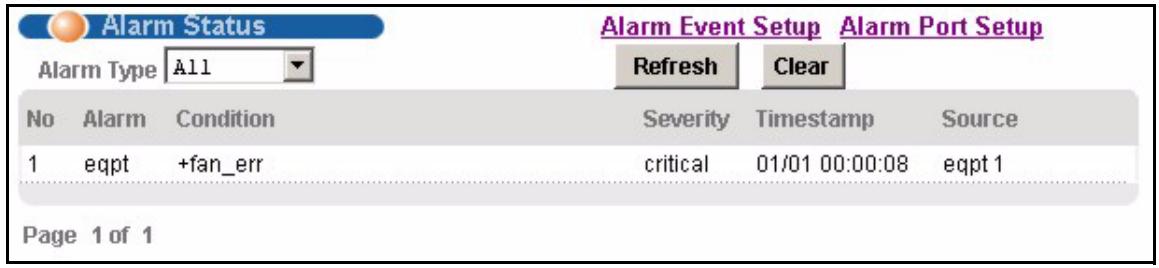
Figure 130 Alarm Status
The following table describes the labels in this screen.
Table 80 Alarm Status
| LABEL | DESCRIPTION |
| Alarm Event Setup | Click Alarm Event Setup to go to a screen where you can configure the severity level of an alarm(s) and where the system is to send the alarm(s). See Section 39.4 on page 249. |
| Alarm Port Setup | Click Alarm Port Setup to go to a screen where you can configure the alarm severity threshold for recording alarms on an individual port(s). See Section 39.5 on page 252. |
| Alarm Type | Select which type of alarms to display by Severity, or select All to look at all the alarms. |
| Refresh | Click this button to update this screen. |
| Clear | Click this button to erase the clearable alarm entries. |
| No | This field displays the index number of the alarm entry in the system. |
| Alarm | This field displays the alarm category to which the alarm belongs. |
| Condition | This field displays a text description for the condition under which the alarm applies. |
| Severity | This field displays the alarm severity level (critical, major, minor or info). |
| Timestamp | This field displays the month, day, hour, minute and second that the system created the log. |
| Source | This field displays where the alarm originated. This is either a DSL port number, one of the Ethernet ports (enet 1 or 2), or “eqpt” for the system itself. |
| Page X of X | This identifies which page of information is displayed and the total number of pages of information. |
| Previous Page | Click this to display the preceding page of entries. |
| Next Page | Click this to display the following page of entries. |
39.3 Alarm Descriptions
This table describes alarms that the system can send.
ATUC refers to the downstream channel (for traffic going from the IES-1248 to the subscriber). ATUR refers to the upstream channel (for traffic coming from the subscriber to the IES-1248). A "V" in the CLEARABLE column indicates that an administrator can remove the alarm.
Table 81 Alarm Descriptions
| NO | ALARM | CONDITION | FACILITY | SNMP | SYSLOG | SEVERITY | CLEARAB LE |
| 1 | dsl | (5000)line_up | local1 | V | V | info | - |
| 2 | dsl | (5001)line_down | local1 | V | V | minor | V |
| 3 | dsl | (5002)ad_perf_lol_thresh | local1 | V | V | minor | V |
| 4 | dsl | (5003)ad_perf_lof_thresh | local1 | V | V | minor | V |
| 5 | dsl | (5004)ad_perf_LOs_thres h | local1 | V | V | minor | V |
| 6 | dsl | (5005)ad_perf_lop_thres h | local1 | V | V | minor | V |
| 7 | dsl | (5006)ad_perf es_thresh | local1 | V | V | minor | V |
| 8 | dsl | (5007)ad_perf_ses_thres h | local1 | V | V | minor | V |
| 9 | dsl | (5008)ad_perf_uas_thres h | local1 | V | V | minor | V |
| 10 | dsl | (5009)ad_atuc_lotrap | local1 | V | V | minor | - |
| 11 | dsl | (5010)ad_atuc_lotrap | local1 | V | V | minor | - |
| 12 | dsl | (5011)ad_atur_lotrap | local1 | V | V | minor | - |
| 13 | dsl | (5012)ad_atur_lotrap | local1 | V | V | minor | - |
| 14 | dsl | (5013)ad_atur_lprtrap | local1 | V | V | minor | - |
| 15 | eqpt | (10000)vol_err | local1 | V | V | critical | - |
| 16 | eqpt | (10001)temp_err | local1 | V | V | critical | - |
| 17 | eqpt | (10002)fan_err | local1 | V | V | critical | - |
| 18 | eqpt | (10003)hw_rtc_fail | local1 | V | V | critical | - |
| 19 | eqpt | (10004)hw_mon_fail | local1 | V | V | critical | - |
| 20 | eqpt | (10005)cold_start | local1 | V | V | info | - |
| 21 | eqpt | (10006)warm_start | local1 | V | V | info | - |
| 22 | eqpt | (10007)alm_input | local1 | V | V | critical | - |
| 23 | sys | (15000)reboot | local1 | V | V | info | - |
| 24 | sys | (15001)aco | local1 | V | V | info | - |
| 25 | sys | (15002)alm_clear | local1 | V | V | info | - |
| 26 | sys | (15003)login_fail | local1 | V | V | minor | V |
| 27 | sys | (15004)anti_spoofing | local1 | V | V | minor | V |
| 28 | enet | (20000)up | local1 | V | V | info | - |
| 29 | enet | (20001)down | local1 | V | V | major | V |
39.4 Alarm Event Setup Screen
This screen lists the alarms that the system can generate along with the severity levels of the alarms and where the system is to send them.
To open this screen, click Alarm, Alarm Event Setup.
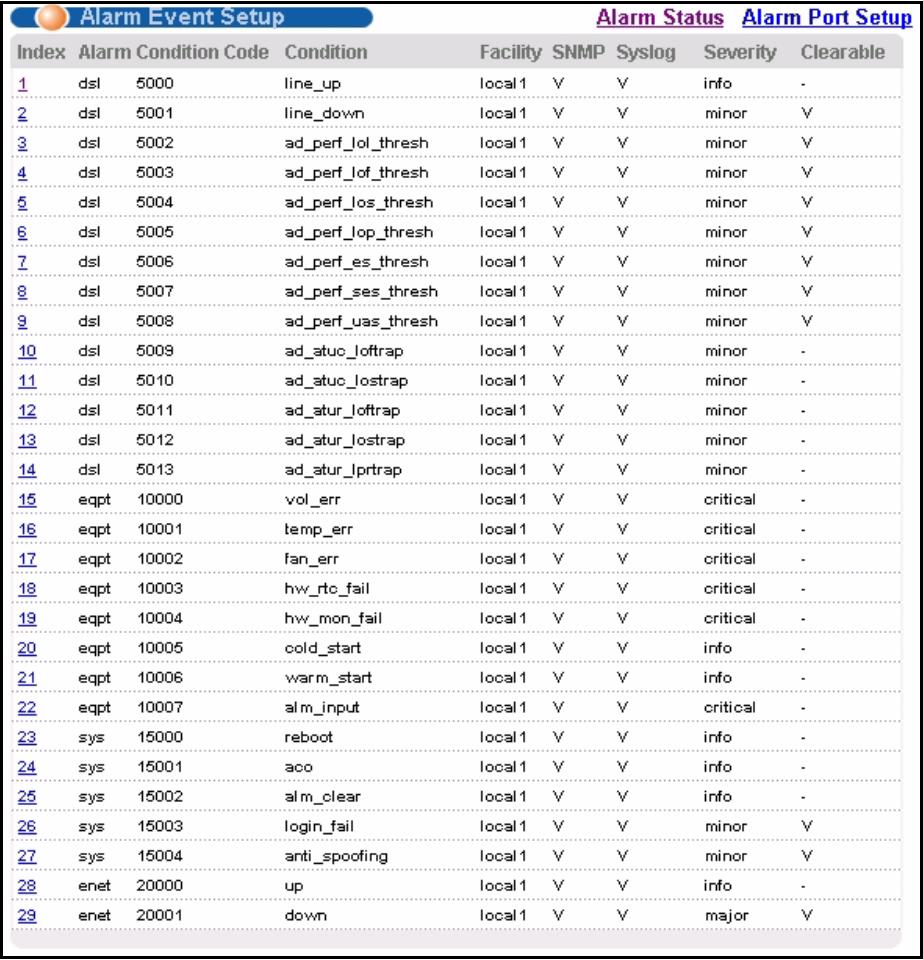
Figure 131 Alarm Event Setup
The following table describes the labels in this screen.
Table 82 Alarm Event Setup
| LABEL | DESCRIPTION |
| Alarm Status | Click Alarm Status to go to a screen that displays the alarms that are currently in the system (see Section 39.2 on page 247). |
| Alarm Port Setup | Click Alarm Port Setup to go to a screen where you can configure the alarm severity threshold for recording alarms on an individual port(s). See Section 39.5 on page 252. |
| Index | This field displays the index number of the alarm in the list. Click this to specify the severity level of an alarm(s) and where the system is to send the alarm(s). See Section 39.4.1 on page 251. |
| Alarm | This field displays the alarm category to which the alarm belongs. eqpt represents equipment alarms. dsl represents Digital Subscriber Line (DSL) alarms. enet represents Ethernet alarms. sys represents system alarms. |
| Condition Code | This field displays the condition code number for the specific alarm message. |
| Condition | This field displays a text description for the condition under which the alarm applies. |
| Facility | This field displays the log facility (local1~local7) on the syslog server where the system is to log this alarm. This is for alarms that send alarms to a syslog server. |
| SNMP | This field displays “V” if the system is to send this alarm to an SNMP server. It displays “-” if the system does not send this alarm to an SNMP server. |
| Syslog | This field displays “V” if the system is to send this alarm to a syslog server. It displays “-” if the system does not send this alarm to a syslog server. |
| Severity | This field displays the alarm severity level (critical, major, minor or info). |
| Clearable | This displays “V” if the alarm clear command removes the alarm from the system. It displays “-” if the alarm clear command does not remove the alarm from the system. |
39.4.1 Edit Alarm Event Setup Screen
Use this screen to specify the severity level of an alarm(s) and where the system is to send the alarm(s).
To open this screen, click Alarm, Alarm Status. Then, click an alarm's index number.

Figure 132 Alarm Event Setup Edit
The following table describes the labels in this screen.
Table 83 Alarm Event Setup Edit
| LABEL | DESCRIPTION |
| Alarm | This field displays the alarm category to which the alarm belongs. eqpt represents equipment alarms. dsl represents Digital Subscriber Line (DSL) alarms. enet represents Ethernet alarms. sys represents system alarms. |
| Condition Code | This field displays the condition code number for the specific alarm message. |
| Condition | This field displays a text description for the condition under which the alarm applies. |
| Facility | The log facility (local1~local7) has the device log the syslog messages to a particular file in the syslog server. Select a log facility (local1~local7) from the drop-down list box if this entry is for sending alarms to a syslog server. See your syslog program's documentation for details. |
| SNMP | Select this check box to have the system send this alarm to an SNMP server. |
| Syslog | Select this check box to have the system send this alarm to a syslog server. |
| Severity | Select an alarm severity level (critical, major, minor or info) for this alarm. Critical alarms are the most severe, major alarms are the second most severe, minor alarms are the third most severe and info alarms are the least severe. |
| Clearable | Select this check box to allow administrators to use the management interface to remove an alarm report generated by this alarm event entry. Select this check box to keep an alarm report generated by this alarm event in the system until the conditions that caused the alarm report are no longer present. |
| Apply | Click Apply to save your changes to the IES-1248's volatile memory. The IES-1248 loses these changes if it is turned off or loses power, so use the Config Save link on the navigation panel to save your changes to the non-volatile memory when you are done configuring. |
| Close | Click Close to exit the screen without saving your changes. |
39.5 Alarm Port Setup Screen
Use this screen to set the alarm severity threshold for recording alarms on an individual port(s). The system reports an alarm on a port if the alarm has a severity equal to or higher than the port's threshold.
To open this screen, click Alarm, Alarm Port Setup.
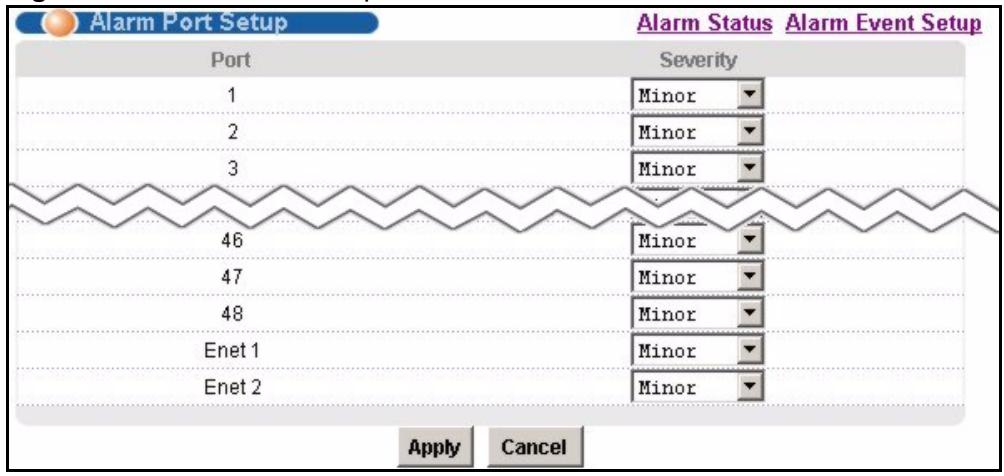
Figure 133 Alarm Port Setup
The following table describes the labels in this screen.
Table 84 Alarm Port Setup
| LABEL | DESCRIPTION |
| Alarm Status | Click Alarm Status to go to a screen that displays the alarms that are currently in the system (see Section 39.2 on page 247). |
| Alarm Event Setup | Click Alarm Event Setup to go to a screen where you can configure the severity level of an alarm(s) and where the system is to send the alarm(s). See Section 39.4 on page 249. |
| Port | This column lists the device's individual DSL and Ethernet interfaces. |
| Severity | Select an alarm severity level (critical, major, minor or info) as the threshold for recording alarms on this port. Critical alarms are the most severe, major alarms are the second most severe, minor alarms are the third most severe and info alarms are the least severe. |
| Apply | Click Apply to save your changes to the IES-1248's volatile memory. The IES-1248 loses these changes if it is turned off or loses power, so use the Config Save link on the navigation panel to save your changes to the non-volatile memory when you are done configuring. |
| Cancel | Click Cancel to start configuring the screen again. |
CHAPTER 40 Maintenance
This chapter explains how to use the maintenance screens.
40.1 Maintenance Screen
To open this screen, click Management, Maintenance.
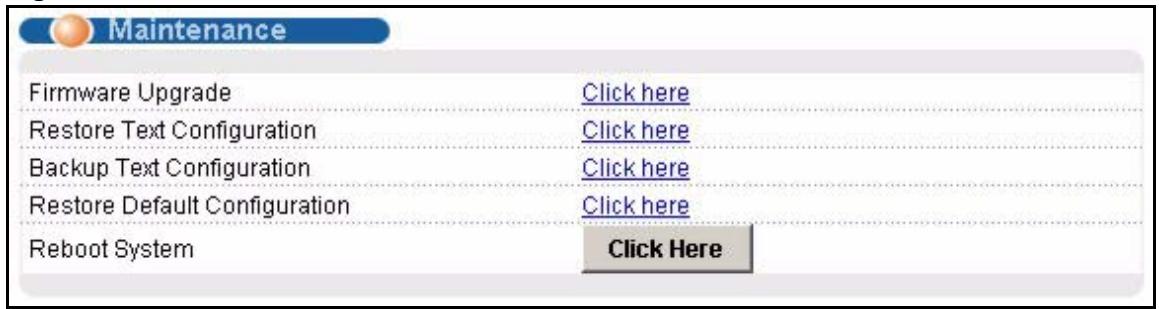
Figure 134 Maintenance
40.2 Firmware Upgrade Screen
Use this screen to upgrade your device firmware. See the System Info screen to verify your current firmware version number. Make sure you have downloaded (and unzipped) the correct model firmware and version to your computer before uploading to the device.
Note: Be sure to upload the correct model firmware as uploading the wrong model firmware may damage your device.
To open this screen, click Management, Maintenance, Click here (Firmware Upgrade).
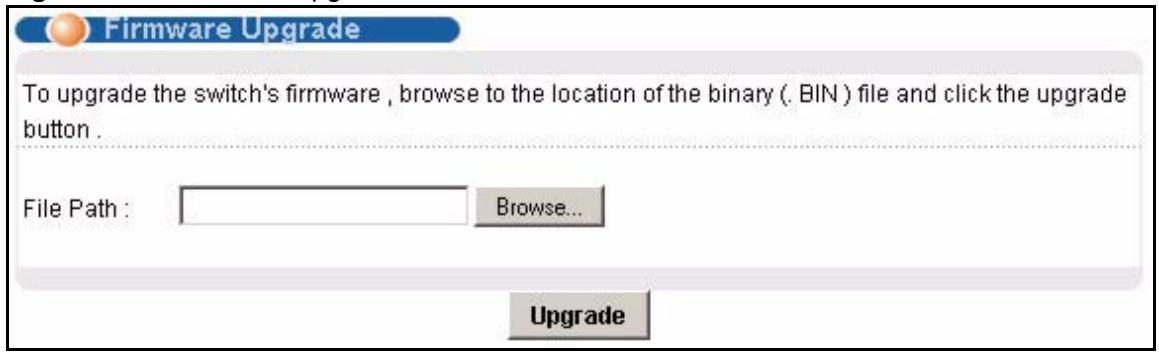
Figure 135 Firmware Upgrade
Type the path and file name of the firmware file you wish to upload to the device in the File Path text box or click Browse to locate it. After you have specified the file, click Upgrade.
40.3 Restore Configuration Screen
Use this screen to load a configuration file from your computer to the device.
To open this screen, click Management, Maintenance, Click here (Restore Text Configuration).
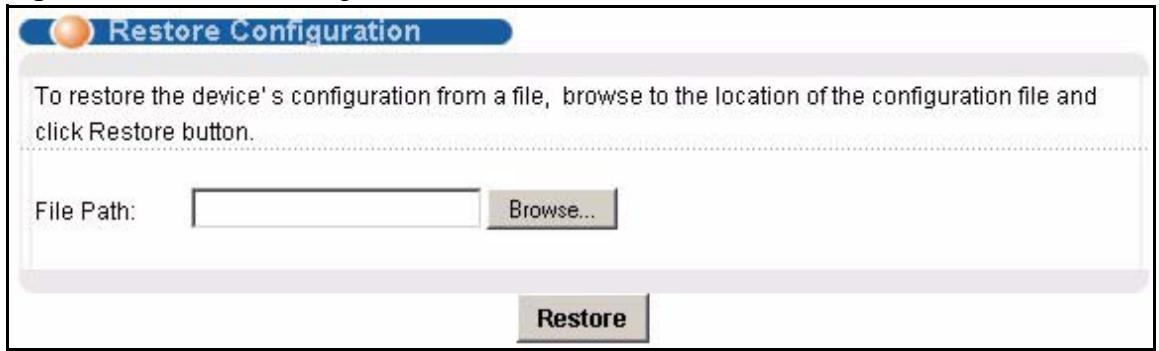
Figure 136 Restore Configuration
Type the path and file name of the configuration file you wish to restore in the File Path text box or click Browse to display a Choose File screen from which you can locate it. After you have specified the file, click Restore. "conf-0" is the name of the configuration file on the device, so your backup configuration file is automatically renamed when you restore using this screen.
Note: Warning! If you load an invalid configuration file, it may corrupt the settings, and you might have to use the console to reconfigure the system.
40.4 Backing Up a Configuration File
Backing up your device configurations allows you to create various "snap shots" of your device from which you may restore at a later date.
Click Management, Maintenance, and do the following to save your device's configuration to your computer.
1 Right-click the Click here (Backup Text Configuration) link and click Save Target As. Or:
Click the Click here (Backup Text Configuration) link and then click File, Save As.
2 In the Save As screen, choose a location to save the file on your computer from the Save in drop-down list box and type a descriptive name for it in the File name list box. Click Save to save the configuration file to your computer.
Note: See the CLI chapters to edit the configuration text file.
Note: You can change the ".dat" file to a ".txt" file and still upload it back to the IES-1248.
40.5 Load Factory Defaults
Use this function to clear all device configuration information you configured and return to the factory defaults.
Note: Warning! Restoring the default configuration deletes all the current settings. It is recommended to back up the configuration file before restoring the default configuration.
To do this, click Management, Maintenance, Click here (Restore Default Configuration).
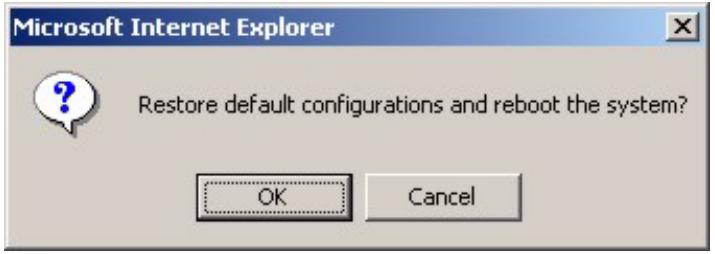
Figure 137 Restore Default Configuration
Click OK to begin resetting all device configurations to the factory defaults and then wait for the device to restart. This takes up to two minutes. If you want to access the web configurator again, you may need to change the IP address of your computer to be in the same subnet as that of the default device IP address (192.168.1.1).
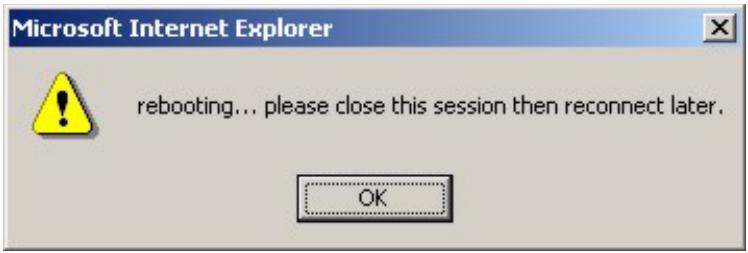
Figure 138 Restore Factory Default Settings,Reboot
40.6 Reboot System
Use this function to restart the device without physically turning the power off.
To open this screen, click Management, Maintenance, Click here (Reboot System).
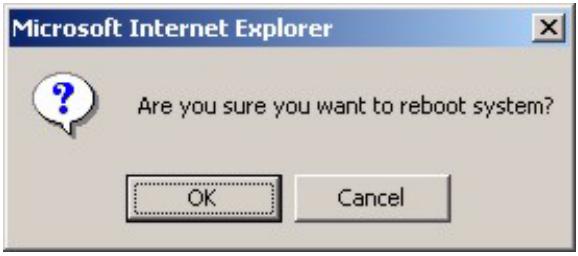
Figure 139 Reboot System
Click OK. You then see the screen as shown in Figure 138 on page 257. Click OK again and wait for the device to restart. This takes up to two minutes. This does not affect the device's configuration.
40.7 Command Line FTP
See Chapter 53 on page 353 for how to upload or download files to or from the device using FTP commands.
CHAPTER 41 Diagnostic
This chapter explains the Diagnostic screens.
41.1 Diagnostic Screen
Use this screen to check system logs, ping IP addresses or perform loopback tests.
To open this screen, click Management, Diagnostic.
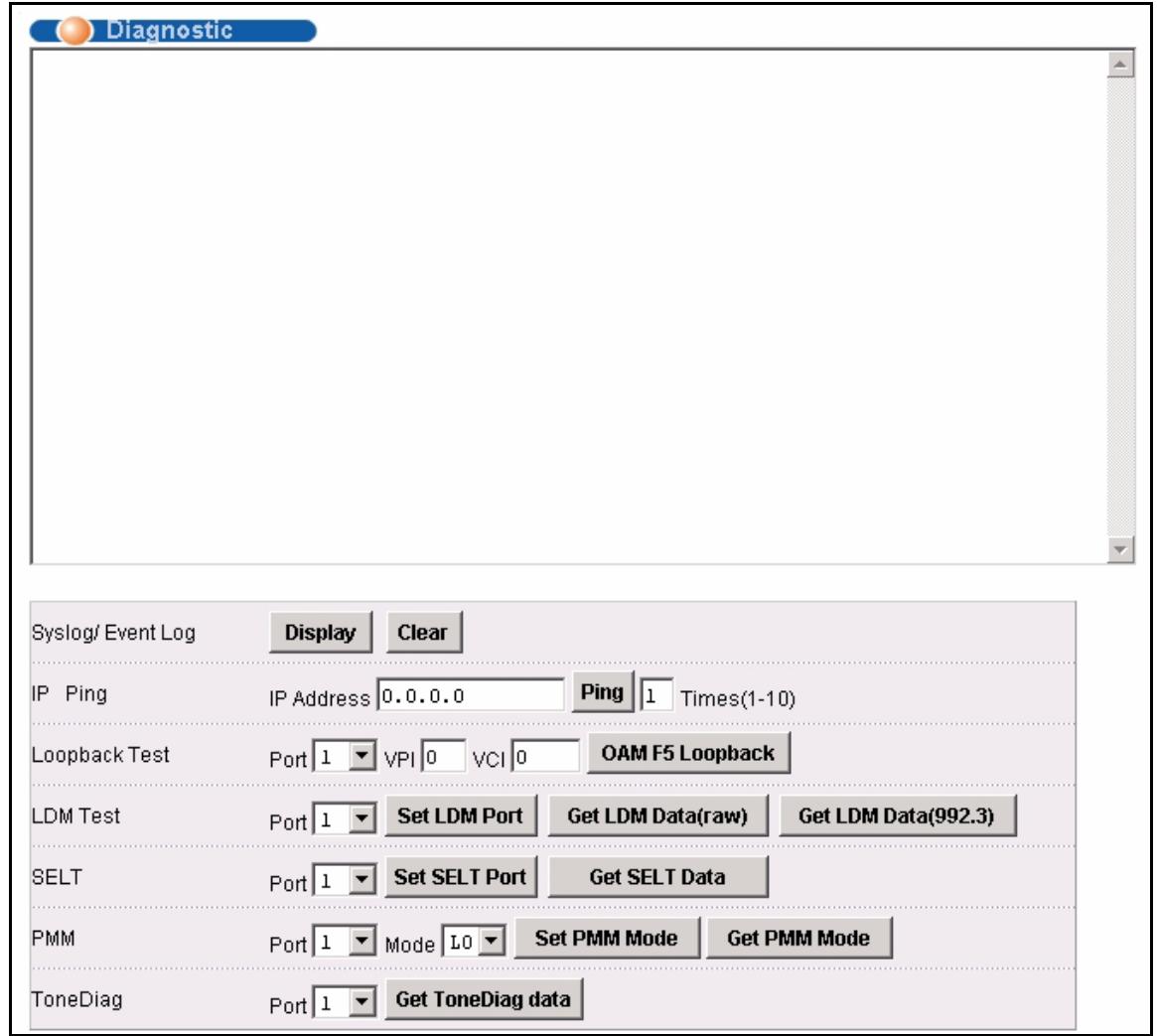
Figure 140 Diagnostic
The following table describes the labels in this screen.
Table 85 Diagnostic
| LABEL | DESCRIPTION |
| Syslog/ Event Log | Click Display to display a log of events in the multi-line text box. Click Clear to empty the text box and reset the log. |
| IP Ping | Type the IP address of a device that you want to ping in order to test a connection. In the field to the right specify the number of times that you want to ping the IP address. Click Ping to have the device ping the IP address (in the field to the left). |
| Loopback Test | Select a port number from the Port drop-down list box and enter a VPI/VCI to specify a PVC. Click OAM F5 Loopback to perform an OAMF5 loopback test on the specified DSL port. An Operational, Administration and Maintenance Function 5 test is used to test the connection between two DSL devices. First, the DSL devices establish a virtual circuit. Then the local device sends an ATM F5 cell to be returned by the remote DSL device (both DSL devices must support ATM F5 in order to use this test). The results ("Passed" or "Failed") display in the multi-line text box. |
| LDM Test | Select a port number from the Port drop-down list box and click Set LDM Port to have the IES-1248 perform line diagnostics on the specified port. The ADSL port must be set to ADSL2 or ADSL2+ ADSL operational mode and have a connection. It takes about one minute for the line diagnostics to finish. The screen displays a message confirming upon which ADSL port line diagnostics will be performed. Click Get LDM Data to display the line diagnostics results after using the Set LDM Port button on an ADSL port. Use the line diagnostics results to analyze problems with the physical ADSL line. Click Get LDM Data(raw) to display the unformatted line diagnostics results. Click Get LDM Data(992.3) to display the line diagnostics results in the format defined in the ITU-T G.992.3 standard. Note: Wait at least one minute after using Set LDM Port before using Get LDM Data. |
| SELT | Select a port number from the Port drop-down list box and click Set SELT Port to perform a Single End Loop Test (SELT) on the specified port. This test checks the distance to the subscriber's location. Note: The port must have an open loop. There cannot be a DSL device, phone, fax machine or other device connected to the subscriber's end of the telephone line. The SELT takes at least fifteen seconds. To check the status of the SELT or to look at the results when the SELT is complete, select a port number from the Port drop-down list box and click Get SELT Data. The results tell you what gauge of telephone wire is connected to the port and the approximate length of the line. |
| PMM | Select a port number from the Port drop-down list box and a power management mode from the Mode drop-down list box and click Set PMM Mode to have the specified port use the specified power management mode. Select L0 to turn off power management on the port. Select L2 to scale back the power usage to just support the transmission rate that the subscriber is using. Select L2 to have the ADSL connection use power saving mode and reduce the rate when there is no traffic. The rate comes back up when there is traffic. The ADSL port must be set to ADSL2 or ADSL2+ ADSL operational mode. Click Get PMM Mode to display which power mode the ADSL port is currently set to use. |
| ToneDiag | Select a port number from the Port drop-down list box. The ADSL port must be set to ADSL2 or ADSL2+ ADSL operational mode and have a connection. Click Get ToneDiag data to display the ADSL port's tone diagnostics. The tone diagnostic information displays in the format defined in the ITU-T G.992.3 standard. Use the information to analyze problems with the physical ADSL line. Note: ToneDiag is faster than the LDM test but displays less information. |
41.2 Log Format
The common format of the system logs is:
Table 86 Log Format
| LABEL | DESCRIPTION |
| This is the index number of the log entry. | |
| This is the time and date when the log was created. | |
| This is the process that created the log. | |
| This identifies what kind of log it is. "INFO" identifies an information log. "WARN" identifies a warning log. | |
| This is the log's detailed information (see Table 87 on page 262). |
41.2.1 Log Messages
The following table lists and describes the system log messages.
Table 87 Log Messages
| LOGMESSAGE | TYPE | DESCRIPTION |
| ADSL <port> Link Up (SN=<seq no}): <ds rate>/<us rate>! or ADSL Link Info: NM:<ds NM>/<us NM>! | INFO | An ADSL port established a connection. <port> - port number <seq no> - sequence number of the connection <ds rate> - downstream rate <us rate> - upstream rate <us NM> - upstream noise margin <ds NM> - downstream noise margin |
| ADSL <port> Link Down (SN=<seq no>)! | WARN | An ADSL port lost its connection. <port> - port number <seq no> - sequence number of the connection |
| Session Begin! | INFO | A console, telnet or FTP session has begun (see the <process> field for the type of session). |
| Session End! | INFO | A console telnet or FTP session has terminated (see the <process> field for the type of session). |
| Incorrect Password! | WARN | Someone attempted to use the wrong password to start a console, telnet or FTP session (see the <process> field for the type of session). |
| Received Firmware Checksum Error! | WARN | A checksum error was detected during an attempted FTP firmware upload. |
| Received Firmware Size too large! | WARN | The file size was too large with an attempted FTP firmware upload. |
| Received Firmware Invalid! | WARN | Someone attempted to upload a firmware file with a wrong identity via FTP. |
| Received File <file>! | INFO | A file was uploaded to the IES-1248 by FTP. <file> - received file's name |
| THERMO OVER TEMPERATURE: dev:<id> threshold:<threshold>( degree C) value:<temp>(degree C) ! | WARN | The temperature was too high at one of the temperature sensors. <id> - 0: sensor near the ADSL chipset 1: sensor near the CPU 2: thermal sensor chip itself <threshold> - threshold temperature <temp> - temperature when the entry was logged |
| THERMO OVER TEMPERATURE released: dev:<id> threshold:<threshold>( degree C) value:<temp>(degree C) ! | INFO | The temperature at one of the temperature sensors has come back to normal. <id> 0: sensor near the ADSL chipset 1: sensor near the CPU 2: thermal sensor chip itself <threshold> - threshold temperature <temp> - temperature when the entry was logged |
| THERMO OVER VOLTAGE: nominal:<nominal>(mV) value:<voltage> mV)! | WARN | The voltage went outside of the accepted operating range. <nominal> - nominal voltage of the DC power <voltage> - voltage of the DC power when logged |
| THERMO OVER VOLTAGE released: nominal:<nominal>(mV) value:<voltage> (mV)! | INFO | The voltage is back inside the accepted operating range. <nominal> - nominal voltage of the DC power <voltage> - voltage of the DC power when logged |
41.3 LDM Test Parameters
The following table lists the line diagnostics test parameters that display, see the ITU-T's G.992.3 for more information.
Table 88 LDM Test Parameters
| LABEL | DESCRIPTION |
| number_of_subcarries | Discrete Multi-Tone (DMT) modulation divides up a line's bandwidth into sub-carriers (sub-channels) of 4.3125 KHz each.The first number is the total number of DMT sub-carriers the ADSL connection is using. The second number indicates how many upstream DMT sub-carriers the ADSL connection is using. |
| hlinScale: | The channel characteristics function is represented in linear format by a scale factor and a complex number. These are the maximum upstream and downstream scale factors used in producing the channel characteristics function. |
| latn: | This is the upstream and downstream Line Attenuation (in dB). |
| satn: | This is the upstream and downstream Signal Attenuation (in dB). |
| snrm: | This is the upstream and downstream Signal-to-Noise Ratio Margin (in dB). A DMT sub-carrier's SNR is the ratio between the received signal power and the received noise power. The signal-to-noise ratio margin is the maximum that the received noise power could increase with the IES-1248 still being able to meet its transmission targets. |
| attndr: | This is the upstream and downstream Attainable Net Data Rate (in bit/s). |
| farEndActatp: | This is the upstream and downstream Far End Actual Aggregate Transmit Power (in dBm) |
| i | This is the index number of the DMT sub-carrier. |
| li.r1 | The channel characteristics function is represented in linear format by a scale factor and a complex number. This is the real part of the complex number used in producing the channel characteristics function for this sub-carrier. |
| li.im | The channel characteristics function is represented in linear format by a scale factor and a complex number. This is the imaginary part of the complex number used in producing the channel characteristics function for this sub-carrier |
| log | This is a format for providing channel characteristics. It provides magnitude values in a logarithmic scale. This can be used in analyzing the physical condition of the ADSL line. |
| QLN | The Quiet Line Noise for a DMT sub-carrier is the rms (root mean square) level of the noise present on the line, when no ADSL signals are present. It is measured in dBm/Hz. The QLN can be used in analyzing crosstalk. |
| SNR | This is the upstream and downstream Signal-to-Noise Ratio (in dB). A DMT sub-carrier's SNR is the ratio between the received signal power and the received noise power. The SNR can be used in analyzing time dependent changes in crosstalk levels and line attenuation (such as those caused by temperature variations and moisture). |
41.4 ToneDiag Parameters
The following table lists the tone diagnostic parameters that display, see the ITU-T's G.992.3 for more information.
Table 89 ToneDiag Parameters
| LABEL | DESCRIPTION |
| number_of_subcarries | Discrete Multi-Tone (DMT) modulation divides up a line's bandwidth into sub-carriers (sub-channels) of 4.3125 KHz each.This number indicates how many upstream and downstream DMT sub-carriers the ADSL connection is using. |
| hlinScale: | The channel characteristics function is represented in linear format by a scale factor and a complex number. This is the maximum upstream and downstream scale factor used in producing the channel characteristics function. |
| latn: | This is the upstream and downstream Line Attenuation (in dB). |
| satn: | This is the upstream and downstream Signal Attenuation (in dB). |
| snrm: | This is the upstream and downstream Signal-to-Noise Ratio Margin (in dB). A DMT sub-carrier's SNR is the ratio between the received signal power and the received noise power. The signal-to-noise ratio margin is the maximum that the received noise power could increase with the IES-1248 still being able to meet its transmission targets. |
| attndr: | This is the upstream and downstream Attainable Net Data Rate (in bit/s). |
| farEndActatp: | This is the upstream and downstream Far End Actual Aggregate Transmit Power (in dBm) |
| i | This is the index number of the DMT sub-carrier. |
| log (dB) | This is a format for providing channel characteristics. It provides magnitude values in a logarithmic scale. This can be used in analyzing the physical condition of the ADSL line. |
| QLN (dBm) | The Quiet Line Noise for a DMT sub-carrier is the rms (root mean square) level of the noise present on the line, when no ADSL signals are present. It is measured in dBm/Hz. The QLN can be used in analyzing crosstalk. |
| SNR (dB) | This is the upstream and downstream Signal-to-Noise Ratio (in dB). A DMT sub-carrier's SNR is the ratio between the received signal power and the received noise power. The SNR can be used in analyzing time dependent changes in crosstalk levels and line attenuation (such as those caused by temperature variations and moisture). |
CHAPTER 42 MAC Table
This chapter introduces the MAC Table.
42.1 Introduction to MAC Table
The MAC table lists device MAC addresses that are dynamically learned by the IES-1248. The table shows the following for each MAC address: the port upon which Ethernet frames were received from the device, to which VLAN groups the device belongs (if any) and to which channel it is connected (for devices connected to DSL ports).
The device uses the MAC table to determine how to forward frames. See the following figure.
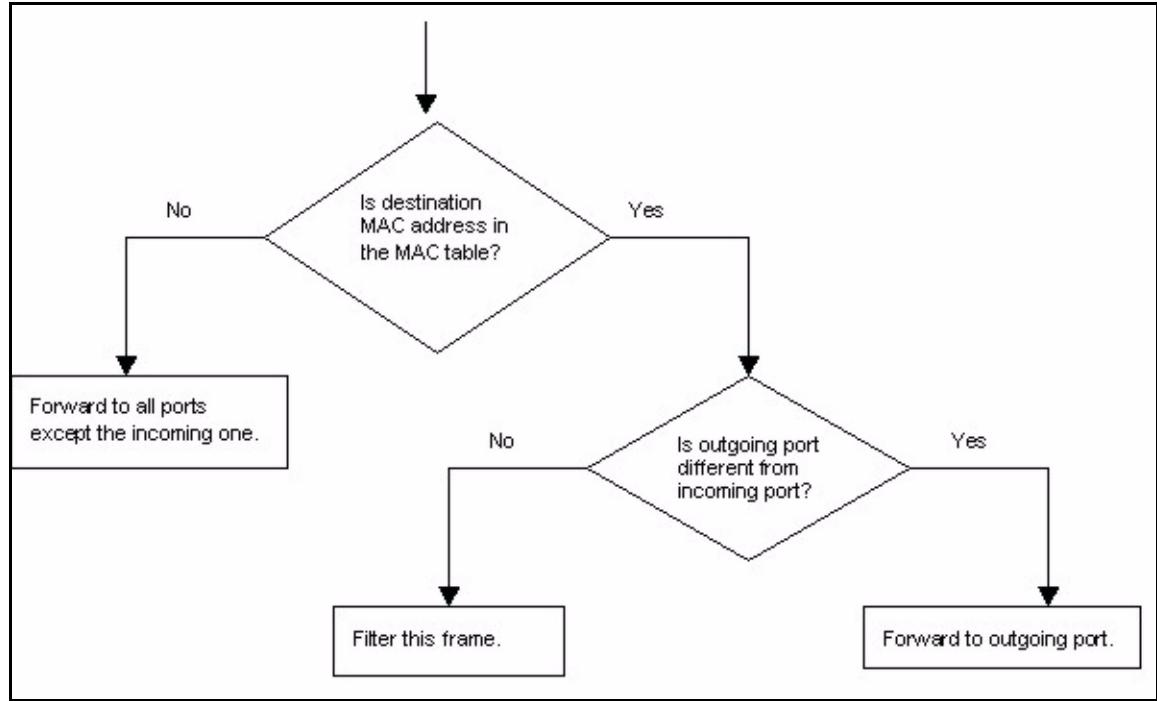
Figure 141 MAC Table Filtering Flowchart
1 The device examines a received frame and learns the port on which this source MAC address came.
2 The device checks to see if the frame's destination MAC address matches a source MAC address already learned in the MAC table.
- If the device has already learned the port for this MAC address, then it forwards the frame to that port.
- If the device has not already learned the port for this MAC address, then the frame is flooded to all ports. Too much port flooding leads to network congestion.
- If the device has already learned the port for this MAC address, but the destination port is the same as the port it came in on, then it filters the frame.
42.2 MAC Table Screen
To open this screen, click Management, MAC Table.
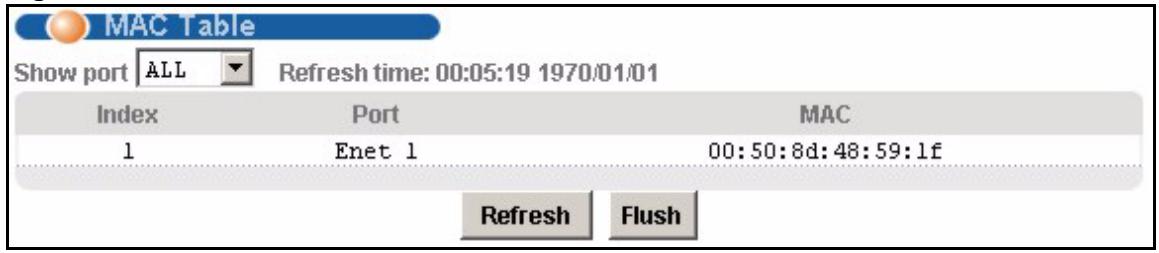
Figure 142 MAC Table
The following table describes the labels in this screen.
Table 90 MAC Table
| LABEL | DESCRIPTION |
| Show port | Select a port for which to display learned MAC addresses (or display all of them). |
| Page X of X | This identifies which page of information is displayed and the total number of pages of information. |
| Previous/Next | Click one of these buttons to show the previous/next screen if all of the information cannot be seen in one screen. |
| Index | This is the number of the MAC table entry. |
| Port | This is the port to which the MAC address is associated. |
| MAC | This is the MAC address of the device from which this incoming frame came. |
| Refresh | Click Refresh to update the list of dynamically learned MAC addresses. |
| Flush | Click Flush to remove all of the dynamically learned MAC address entries from the MAC table. |
CHAPTER 43 ARP Table
This chapter describes the ARP Table.
43.1 Introduction to ARP Table
Address Resolution Protocol (ARP) is a protocol for mapping an Internet Protocol address (IP address) to a physical machine address, also known as a Media Access Control or MAC address, on the local area network.
An IP (version 4) address is 32 bits long. In an Ethernet LAN, MAC addresses are 48 bits long. The ARP Table maintains an association between each MAC address and its corresponding IP address.
43.1.1 How ARP Works
When an incoming packet destined for a host device on a local area network arrives at the device, the device's ARP program looks in the ARP Table and, if it finds the address, sends it to the device.
If no entry is found for the IP address, ARP broadcasts the request to all the devices on the LAN. The device fills in its own MAC and IP address in the sender address fields, and puts the known IP address of the target in the target IP address field. In addition, the device puts all ones in the target MAC field (FF.FF.FF.FF.FF.FF is the Ethernet broadcast address). The replying device (which is either the IP address of the device being sought or the router that knows the way) replaces the broadcast address with the target's MAC address, swaps the sender and target pairs, and unicast the answer directly back to the requesting machine. ARP updates the ARP Table for future reference and then sends the packet to the MAC address that replied.
43.2 ARP Table Screen
The ARP table can hold up to 500 entries.
To open this screen, click Management, ARP Table.
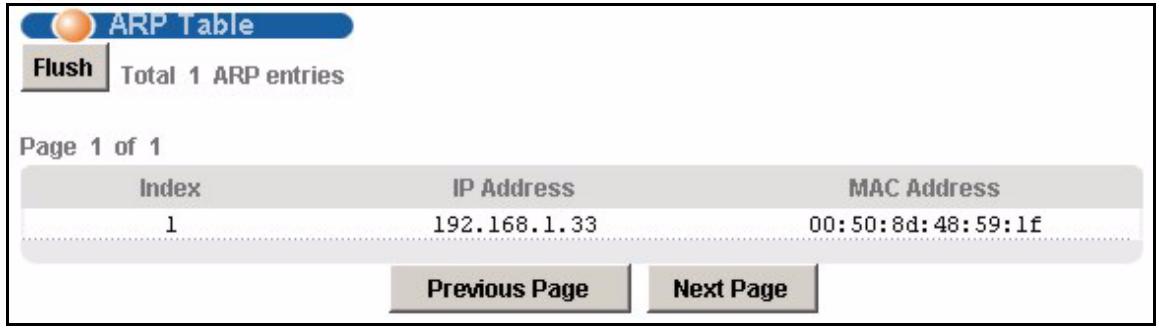
Figure 143 ARP Table
The following table describes the labels in this screen.
Table 91 ARP Table
| LABEL | DESCRIPTION |
| Flush | Click Flush to remove all of the entries from the ARP table. |
| Total X ARP Entries | This displays the number of entries in the ARP table. |
| Page X of X | This identifies which page of information is displayed and the total number of pages of information. |
| Index | This is the ARP table entry number. |
| IP Address | This is the learned IP address of a device connected to a port. |
| MAC Address | This is the MAC address of the device with the listed IP address. |
| Previous Page Next Page | Click one of these buttons to show the preceding or following screen if the information cannot be displayed in one screen. |
CHAPTER 44 Commands
This chapter introduces the command line interface and lists the available commands.
44.1 Command Line Interface Overview
Note: See the previous chapters for background information on features configurable by the web configurator. The web configurator is the preferred configuration tool.
You can use text command lines for software configuration. The rules of the commands are listed next.
1 The command keywords are in courier new font.
2 Commands can be abbreviated to the smallest unique string that differentiates the command. For example, the "system date" command could be abbreviated to "sy d".
3 The optional fields in a command are enclosed in square brackets []. For instance, config [save] means that the save field is optional.
4 "Command" refers to a command used in the command line interface (CI command).
5 The symbol means "or".
Note: Using commands not documented in the User's Guide can damage the unit and possibly render it unusable.
44.2 Command Privilege Levels
There is a high, middle or low privilege level for each command.
High privilege commands are only available to administrators with high privilege access. High privilege commands include things like creating administrator accounts, restarting the system and resetting the factory defaults. Administrators with high privilege access can use all commands including the lower privilege commands.
Administrators with middle privilege access can use middle or low privilege commands.
Administrators with the low privilege level are restricted to using only low privilege commands. Low privilege commands are read only.
44.3 Saving Your Configuration
Use the following command to save your configuration when you are done with a configuration session.
ras> config save
Note: Do not turn off your IES-1248 while saving your configuration.
This command saves all system configurations to nonvolatile memory. You must use this command to save any configuration changes that you make, otherwise the IES-1248 returns to its default settings when it is restarted. Save your changes after each configuration session.
Nonvolatile memory refers to the IES-1248's storage that remains even if the IES-1248's power is turned off. Run-time (memory) is lost when the IES-1248's power is turned off.
44.4 Commands
The following table lists commands that you can use with the IES-1248.
The P column on the right indicates the administrator privilege level needed to use the command (H for high, M for middle or L for low) and the equivalent in the web configurator (H for high or L for low).
Table 92 Commands
| CLASS | COMMAND | PARAMETERS | DESCRIPTION | P |
| sys | ||||
| info show | Displays general system information. | L/L | ||
| info hostname | Sets the system name. | M/L | ||
| info location | Sets location information. | L/L | ||
| info contact | Sets contact person information. | L/L | ||
| passwd | ||||
| reboot | [show|sec|cancel] | Sets the reboot timer or displays the timer and remaining time for reboot. If a reboot has been scheduled, use this command to prevent a reboot. | H/H | |
| snmp show | Displays SNMP settings. | M/L | ||
| snmp getcommunity | Sets the SNMP GetRequest community. | H/H | ||
| snmp setcommunity | Sets the SNMP SetRequest community. | H/H | ||
| snmp trapcommunity | Sets the SNMP Trap community. | H/H | ||
| snmp trusthost | Sets the SNMP trusted host. Set 0.0.0.0 to trust all hosts. | H/H | ||
| snmp trapdst set | (index> [ip] | Sets the SNMP trap server and listening port. Set 0.0.0.0 to not send any SNMP traps. | H/H | |
| snmp trapdst del | (index> | Deletes the SNMP trap server | H/H | |
| server show | Displays the device's service status and port numbers. | M/L | ||
| server enable | [telnet|ftp|web|ic mp> | Turns on a service. | H/H | |
| server disable | [telnet|ftp|web|ic mp> | Turns off a service. | H/H | |
| server port | [telnet|ftp|web|ic mp> | Sets a port for a service. | H/H | |
| client show | Displays the device's secured client settings. | M/L | ||
| client enable | [index> | H/H | ||
| client disable | [index> | H/H | ||
| client set | [index> [start ip] [end ip] [ftp] [web] [icmp]] | Sets a secured client set: a range of IP addresses from which you can manage the device and the protocols that can be used. | H/H | |
| syslog show | Displays the syslog settings. | M/L | ||
| syslog enable | Turns on the syslog logging. | H/H | ||
| syslog disable | Turns off the syslog logging. | H/H | ||
| syslog server | [ip> | Sets the IP address of the syslog server. | H/H | |
| stdio show | Displays Current Stdio Timeout. | L/L | ||
| stdio set | [0:no timeout> | Sets Current Stdio Timeout. | H/H | |
| time show | Displays the system's current time. | L/L | ||
| time set | [<mm> [ss]] | Sets the system's time. | H/H | |
| date show | Displays the system's current date. | L/L | ||
| date set | [yyyy dd] | Sets the system's date. | H/H | |
| timeserver show | Displays the system's time server. | M/L | ||
| timeserver set | [none> | Sets the system to not use a time server. | H/H | |
| timeserver set | [daytime|time|ntp> [ip] [uc+/- >0100~1200] [nosync] | Sets the time service protocol, time server's IP address and the device's time zone. | H/H | |
| timeserver sync | Retrieves the date and time from the time server. | H/H | ||
| log show | Displays the device's logs. | M/L | ||
| log clear | Cleared the device's logs. | H/H | ||
| wdog show | Displays the current watchdog firmware protection feature status and timer. | H/~ | ||
| wdog set | Sets the watchdog count. 0 turns the watchdog off. | H/~ | ||
| monitor show | Displays the hardware monitor's statistics. | L/L | ||
| monitor enable | Turns the hardware monitor on. | H/H | ||
| monitor disable | Turns the hardware monitor off. | H/H | ||
| monitor vlimit | Sets the maximum (<high>) or minimum (<low>) voltage at the specified voltage sensor. You can specify a voltage with up to three digits after a decimal point (0.941 for example). Normal voltage at each sensor: Idx: 1=1.2v, 2=1.8v, 3=3.3v, 4=24v | H/H | ||
| monitor tlimit | Sets the maximum (<high>) or minimum (<low>) temperature at the specified temperature sensor. You can specify a temperature with up to three digits after a decimal point (-50.025 for example). Temperature sensor locations: Idx: 1=DSL, 2=CPU, 3=HW monitor | H/H | ||
| monitor flimit | Sets the maximum (<high>) or minimum (<low>) fan revs per minute (RPM) at the specified fan (<idx>). Idx: 1=Fan 1, 2=Fan 2, 3=Fan 3. | H/H | ||
| monitor extalm | Set external alarm name. | H/H | ||
| user online | Displays online user info. | M/~ | ||
| user enable | Turns on the specified user name of multi-login. | H/H | ||
| user disable | Turns off the specified user name of multi-login. | H/H | ||
| user set | Creates or edits the password and privilege level of the specified user name. | H/H | ||
| user delete | Removes the specified user name of multi-login. | H/H | ||
| user show | Displays the authentication mode, RADIUS server settings and user info. | M/L | ||
| user auth | Set authentication method. | H/H | ||
| User server | <ip> <port><secret>[high|middle|low|deny] | Set remote authentication server IP address and secret | H/H | |
| ads1 | ||||
| show | Displays the ADSL settings. | L/L | ||
| enable | <portlist> | Turns on the specified ADSL ports. | M/L | |
| disable | <portlist> | Turns off the specified ADSL ports. | M/L | |
| profile show | [profile] | Displays profile contents. | L/L | |
| profile set | <profile> <fast>interleave [=<updelay>,<downdelay>] <up maxrate> <down maxrate>[<up targetmargin> <up minmargin> <up maxmargin> <up minrate> <down targetmargin> <down minmargin> <down maxmargin> <down minrate> <up down-shift margin> <up up-shift margin> <down down-shiftmargin> <down up-shift margin> | Creates an adsl line profile. | H/H | |
| profile delete | <profile> | Removes an ADSL profile. | H/H | |
| profile map | <portlist> <profile><glit|gdmt|t1413|auto|ads12|ads12+> | IES-1248-51/51A: Assigns a specific profile to a port(s) and sets the port's ADSL mode. | H/H | |
| profile map | <portlist> <profile><gdmt|etsi|auto|adsl2|ads12+> | IES-1248-53: Assigns a specific profile to a port(s) and sets the port's ADSL mode. | H/H | |
| name | <portlist><name> | Sets the name of a port(s). | M/L | |
| tel | <portlist><tel> | Records an ADSL port(s) subscriber's telephone number. | M/L | |
| loopback | <portlist><f5><vpi><vci> | Performs an OAMF5 loopback test. | H/H | |
| vcprofile show | [vcprofile] | Shows a virtual channel profile's contents. | L/L | |
| vcprofile set | <vcprofile><vc|llc><ubr|cbr><pcr><cdvt> | Creates a UBR or CBR virtual channel profile (with encapsulation). | H/H | |
| vcprofile set | <vcprofile> <vc|llc> <vbr(rt-vbr)|nrt-vbr><pcr><cdvt><scr mcr><bt nrm> | Creates a VBR virtual channel profile (with encapsulation). | H/H | |
| vcprofile delete | <vcprofile> | Removes a virtual channel profile. | H/H | |
| pvc show | [portlist] [<vpi><vci>] | Displays PVC settings. | M/L | |
| pvc set | <portlist><vpi><super |vid = 1..4094 <priority><DS vcprofile[,US vcprofile]> | Creates or modifies a PVC setting. | H/H | |
| pvc delete | <portlist><vpi><vci> | Removes a PVC setting. | H/H | |
| ppvc show | [portlist] [<vpi><vci>] | Display priority PVC settings | M/L | |
| ppvc set | <portlist><vpi><vci><encap><pvid><priority> | Set priority PVC. | H/H | |
| ppvc member show | [portlist] [<vpi><vci>] | Display PPVC member settings. | M/L | |
| ppvc member set | <portlist><vpi><vci><member vpi><member vci><DS vcprofile[,US vcprofile]> | Set PPVC member. | H/H | |
| ppvc member delete | <portlist><vpi><vci><member vpi><member vci> | Remove PPVC member. | H/H | |
| ppvc delete | <portlist><vpi><vci> | Remove Priority PVC. | H/H | |
| rpvc gateway set | <gateway ip><vlan id>[<priority>] | H/H | ||
| rpvc gateway delete | <gateway ip> | H/H | ||
| rpvc gateway show | M/L | |||
| rpvc set | <portlist><vpi><vci><DS vcprofile[,US vcprofile]>><ip>/<netmask><gateway ip> | H/H | ||
| rpvc delete | <portlist><vpi><vci> | H/H | ||
| rpvc show | <portlist> | M/L | ||
| rpvc route set | <port number><vpi><vci></ip>/<netmask> | H/H | ||
| rpvc route delete | <port number><vpi><vci></ip>/<netmask> | H/H | ||
| rpvc route show | <portlist> | M/L | ||
| rpvc arp agingtime show | H/H | |||
| rpvc arp agingtime set | <sec,10..10000|0:disabl ed> | M/L | ||
| rpvc arp flush | H/H | |||
| rpvc arp show | M/L | |||
| paepvc delete | <portlist><vpi><vci> | Delete a PPPoAoE PVC | M/H | |
| paepvc set | <portlist><vpi><vci><DS vcprofile[,US vcprofile]><pvid><priority>[acname<string32>] [srvname<string32>] [hellotime <time>] | Create/modify a PPPoAoE PVC<acname>: access concentrator name<srvname>: service name,<time>: 0~600 in unit of second Default: acname="",srvname="",<time>=600 | M/H | |
| paepvc show | <portlist>[detail] | Display PPPoAoE PVC setting by | L/L | |
| paepvc session | <portlist>[<vpi><vci>] | Display PPPoAoE PVC session status | L/L | |
| paepvc counter | <portlist>[<vpi><vci>] | Display PPPoAoE PVC counter | L/L | |
| tlspvcdlete | <portlist><vpi><vci> | Delete a TLS PVC | M/H | |
| tlspvcset | <portlist><vpi><vci><DS vcprofile[,US vcprofile]><pvid><priority>: priority for s-tag | M/H | ||
| tlspvchow | portlist [detail] | Display TLS PVC setting by 'port' | L/L | |
| queuemap show | M/L | |||
| queuemap set | <priority><queue> | H/H | ||
| linediagetld | <port number> | Sets the specified port to line diagnostic mode. | H/H | |
| linediagetld | <port number> | Displays the specified port line diagnostics. | L/L | |
| linediagetld992_3 | <port number> | Displays the specified port line diagnostics. | L/L | |
| linediag setselt | <port number> | Sets the specified port to line SELT. | H/H | |
| linediag getselt | <port number> | Displays the specified port line SELT. | L/L | |
| linediag toneDiag | <port number> | Displays the specified port line diagnostics. | L/L | |
| alarmprofile show | [profile] | Displays alarm profiles and their settings. | L/L | |
| alarmprofile set | <profile> [<atuc lofs> <atur lofs> <atuc loss> <atur loss> <atuc olls> <atuc lprs> <atur lprs> <atuc ess> <atur ess> <atuc fast rateup> <atur fast rateup> <atuc interleave rateup> <atur interleave rateup> <atuc fast ratedown> <atur fast ratedown> <atuc interleave ratedown> <atur interleave ratedown> <init fail enable> <atuc fail fast> <atuc ses> <atur ses> <atuc uas> <atur uas>] | Configures an alarm profile. | H/H | |
| alarmprofile delete | <profile> | Removes an alarm profile. | H/H | |
| alarmprofile map | <portlist> <profile> | Maps specified ADSL ports to an alarm profile. | H/H | |
| alarmprofile showmap | [port number] | Displays alarm profile to ADSL port mapping. | L/L | |
| alarmprofile showport | <port number> | Displays which alarm profile parameters are mapped to an ADSL port. | L/~ | |
| usnompsd | <portNo> [<max nominal psd>] | H/H | ||
| dsnompsd | <portNo> [<max nominal psd>] | H/H | ||
| uscarrier | <port number> [<m0><m1>] | H/H | ||
| dscarrier0 | <port> [<m1><m2><m3><m4><m5><m6><m7>] | H/H | ||
| dscarrierl | port> [m0] | (IES-1248-51, IES-1248-51A)Turns on the Annex L feature on the specified port(s). | H/H | |
| annexl enable | portlist> | (IES-1248-51, IES-1248-51A)Turns off the Annex L feature on the specified port(s). | H/H | |
| annexl disable | portlist> | (IES-1248-51, IES-1248-51A)Displays the Annex L feature setting for the specified port(s). | H/H | |
| annexl show | portlist> | (IES-1248-51, IES-1248-51A)Displays the Annex L feature setting for the specified port(s). | M/L | |
| annexi enable | portlist> | (IES-1248-51, IES-1248-51A)Turns on the Annex I feature on the specified port(s). | H/H | |
| annexi disable | portlist> | (IES-1248-51, IES-1248-51A)Turns off the Annex I feature on the specified port(s). | H/H | |
| annexi show | portlist> | (IES-1248-51, IES-1248-51A)Displays the Annex I feature setting for the specified port(s). | M/L | |
| annexm enable | portlist> | (IES-1248-51, IES-1248-51A)Turns on the Annex M feature on the specified port(s). | H/H | |
| annexm disable | portlist> | (IES-1248-51, IES-1248-51A)Turns off the Annex M feature on the specified port(s). | H/H | |
| annexm show | portlist> | (IES-1248-51, IES-1248-51A)Displays the Annex M feature setting for the specified port(s). | M/L | |
| sra enable | portlist> | Turns on Seamless Rate Adaptation (SRA) ADSL2+ on the specified port(s). | H/H | |
| sra disable | portlist> | Turns off SRA ADSL2+ on the specified port(s). | H/H | |
| sra show | portlist> | Displays the SRA ADSL2+ setting for the specified port(s). | M/L | |
| pmm enable | portlist> | Turns on the Power Management feature on the specified port(s). | H/H | |
| pmm disable | portlist> | Turns off the Power Management feature on the specified port(s). | H/H | |
| pmm show | portlist> | Displays the Power Management feature setting for the specified port(s). | M/L | |
| pmm set | portlist> | Sets the Power Management mode | H/H | |
| pmm param | <portlist>[<10time><12time><12atpr><12atprt>] [<max_12rate><min_12rate><10tol2_rate>] | Displays or sets the Power Management parameter | H/H | |
| dsbcast enable | <port number><vlanlist> | H/H | ||
| dsbcast disable | <port number><vlanlist> | H/H | ||
| dsbcast show | <portlist> | M/L | ||
| reset | <portlist> | H/H | ||
| showall | H/~ | |||
| inp | <portlist>[<usINP>[,<dsINP>] | H/H | ||
| alarm | ||||
| clear | M/L | |||
| cutoff | M/~ | |||
| xedit | <alarm>|all|<cond>|<conndcode><severity><fac><target>[,<target] [clearable] | M/L | ||
| history clear | <alarm>|all|<condition>|all | M/~ | ||
| history clear | clear <severity> | M/~ | ||
| history show | [<severity>|all][<alarm>|all][<condition>|all][<sdate>|all][<edate>|all][for|rev] [detail] | L/~ | ||
| show | [<severity>|all][<alarm>|all][<condition>|all][<sdate>|all][<edate>|all][for|rev] [detail] | L/L | ||
| port show | L/L | |||
| port set | <all|enet1|enet2|port><severity> | M/L | ||
| tablelist | [<alarm>|all][<severity>|all][<fac>|all][<target>|,<target]][<condition>|all] | L/L | ||
| switch | ||||
| igmpsnoop show | Displays the IGMP snooping setting. | M/L | ||
| igmpsnoop enable | Sets IGMP snooping mode. | H/H | ||
| igmpsnoop disable | Turns off IGMP snooping. | H/H | ||
| igmpsnoop bandwidth default | M/H | |||
| igmpsnoop bandwidth delete | Delete an entry of bandwidth budget setting specified in field. | M/H | ||
| igmpsnoop bandwidth port disable | Disable bandwidth budget control for a port | M/H | ||
| igmpsnoop bandwidth port enable | Enable bandwidth budget control for a port | L/H | ||
| igmpsnoop bandwidth port set | Set bandwidth threshold for a port: 1...100,000, in unit of kbps | M/H | ||
| igmpsnoop bandwidth port show | Show bandwidth control setting for a port | L/L | ||
| igmpsnoop bandwidth set | Set bandwidth budget for a range of multicast IP channels specified in field. | M/H | ||
| igmpsnoop bandwidth show | Show bandwidth budget for a range of multicast IP channels specified in field. | L/L | ||
| igmpsnoop igmpcount disable | Disable IGMP count limiting to subscriber port | H/H | ||
| igmpsnoop igmpcount enable | Enable IGMP count limiting to subscriber port | H/H | ||
| igmpsnoop igmpcount set | Set IGMP count limiting number to subscriber port | H/H | ||
| igmpsnoop igmpcount show | Display IGMP count limiting setting status on the specified slot | M/L | ||
| igmpsnoop mvlan set | Configures a MVLAN entry. (Same as VLAN command) | H/H | ||
| igmpsnoop mvlan show | Show multicast vlans, Include group information | M/L | ||
| igmpsnoop mvlan disable | Turns off a MVLAN entry. | H/H | ||
| igmpsnoop mvlan enable | Turns on a MVLAN entry. | H/H | ||
| igmpsnoop mvlan delete | Removes a MVLAN entry. | H/H | ||
| igmpsnoop mvlan group set | Create a multicast to VLAN translation entry.up to 16 entries<index>: 1~16,Note: IP address in each entry should be disjointed | H/H | ||
| igmpsnoop mvlan group delete | Delete a multicast to VLAN translation entry. | H/H | ||
| igmpsnoop mvlan group show | Show a multicast to VLAN translation entry. | M/L | ||
| igmpfilter set | Sets an ADSL port(s) to use an IGMP filter profile. | H/H | ||
| igmpfilter show | [portlist] | Displays which IGMP filter profile an ADSL port(s) is using. | M/L | |
| igmpfilter profile set | Configs an IGMP filter profile. | H/H | ||
| igmpfilter profile delete | Removes an IGMP filter profile. | H/H | ||
| igmpfilter profile show | [name] | Displays an IGMP filter profile's settings. | M/L | |
| queuemap show | Displays the system's priority level to physical queue mapping. | M/L | ||
| queuemap set | Maps a priority level to a physical queue. | H/H | ||
| garptimer show | Display the system's garp settings. | M/L | ||
| garptimer join | Set system's garp join time. | H/H | ||
| garptimer leave | Set system's garp leave time. | H/H | ||
| garptimer leaveall | Set system's garp leaveall time. | H/H | ||
| rstp show | Display the system's rstp settings. | M/L | ||
| rstp enable | Turn system's rstp on. | H/H | ||
| rstp disable | Turn system's rstp off. | H/H | ||
| rstp priority | Set system rstp's priority. | H/H | ||
| rstp hellotime | Set system rstp's hello time. | H/H | ||
| rstp maxage | Set system rstp's max age. | H/H | ||
| rstp fwdelay | Set system rstp's forward delay time. | H/H | ||
| rstp port show | Display enet port rstp status. | M/L | ||
| rstp port enable | Set enet port to enable rstp. | H/H | ||
| rstp port disable | <portlist> | Set enet port to disable rstp. | H/H | |
| rstp port priority | <portlist><priority> | Set enet port's rstp priority. | H/H | |
| rstp port pathcost | <portlist><pathcost> | Set enet port's rstp pathcost. | H/H | |
| dhcpdelay show | Displays DHCP relay settings. | L/L | ||
| dhcpdelay enable | Turns on DHCP relay. | H/H | ||
| dhcpdelay disable | Turns off DHCP relay. | H/H | ||
| dhcpdelay server set | <vid><primary-server>[<secondary-server>] | Set DHCP server IP address where the DHCP request will forward to <vid>: VLAN <primary-server>: IP address for primary server <secondary-server>: IP address for secondary server Maximum 32 entries can be configured. Default: (empty list) | M/H | |
| dhcpdelay server delete | <vid>[<primary-server>] | M/H | ||
| dhcpdelay server active | <vid><active-server> | M/H | ||
| dhcpdelay relaymode | <mode> | DHCP relay mode, auto/both | M/H | |
| dhcpdelay option82 enable | Turns on the DHCP relay agent information (Option 82) feature. | M/H | ||
| dhcpdelay option82 disable | Turns off the DHCP relay agent information (Option 82) feature. | M/H | ||
| dhcpdelay option82 set | <relay info> | Adds the specified information for the relay agent. | M/H | |
| dhcpdelay opt82sub2 enable | Turns on option 82 sub-option 2 | M/H | ||
| dhcpdelay opt82sub2 disable | Turns off option 82 sub-option 2 | M/H | ||
| dhcpdelay opt82sub2 set | <relay info> | Adds the specified information for sub-option 2 | M/H | |
| acl profile delete | "name> | delete an acl profile | M/H |
Table 92 Commands (continued)
| CLASS | COMMAND | PARAMETERS | DESCRIPTION | P | |
| acl profile set | <name> <rule> <action> | Create/modify a acl profile <rule>: <l2>|<l3_protocol>|<mfc> <l2>: Layer-2 match fields (listed in priority sequence match) etype <etype> vlan <vid> etype <etype> smac <mac> etype <etype> dmac <mac> vlan <vid> smac <mac> vlan <vid> dmac <mac> smac <mac> dmac <mac> vlan <vid> priority <priority> etype <etype> vlan <vid> smac <mac> dmac <mac> priority <priority> protocol <protocol> <priority>: 0~7 <etype>: 0~65535 <protocol> : tcpUDP|ospf|igmp|ip|gre|icmp|pty pe> <pty>: 0~65535 Note: multiple-field rules (position independent): MFC rules: {srcip |dstip |ip}/<mask>{tos |tos}|{srcport |dstport |port}|} } <mask>: 0~32 <tos>:0~255 <port>:0~65535 <action>: rate <rate>|rvlan <vlan>|pri |deny <rate>: 1~65535 in unit of kbps <vlan>: replaced vlan 1~4094 <pri>: replaced priority 0~7 | M/H | ||
| acl profile show | [<name>] | Display an acl profile | L/L | ||
| acl profile showmap | <name> | Display acl profile reference | L/L | ||
| acl delete | <portlist> <vpi> <hci> <profile> | Remove an acl profile from PVC <profile>: string32 up to 8 profiles if only one PVC has profiles | M/H |
Table 92 Commands (continued)
| CLASS | COMMAND | PARAMETERS | DESCRIPTION | P |
| acl set | <portlist><vpi><vci><profile> | Apply an acl profile to a PVCMax. 8 profiles per port | M/H | |
| acl show | [portlist][<vpi><vci>] | Show acl profile setting for a PVC | L/L | |
| dhcpsnoop disable | <portlist> | Disable ip spoofing for a port | M/H | |
| dhcpsnoop enable | <portlist> | Enable ip spoofing for a port | M/H | |
| dhcpsnoop flush | <portlist> | Flush DHCP snooping table for a port | M/H | |
| dhcpsnoop show | <portlist> | L/L | ||
| dscp show | Displaying per port DSCP setting | L/L | ||
| dscp enable | <portlist> | Enable ADSL/ENET ports to use DSCP mapping | M/H | |
| dscp disable | <portlist> | Disable ADSL/ENET ports to use DSCP mapping | M/H | |
| dscp map show | Displaying the DSCP code to 802.1p mapping table | L/L | ||
| dscp map set | <srccp><mappri><srccp>: source code point, 0~63, example: 1,3~5,10~15<mappri>: mapping priority, 0~7 | Setting the DSCP code to 802.1p mapping table | M/H | |
| vlan show | <vlanlist> | Displays VLAN settings. | M/L | |
| vlan portshow | [portlist] | Displays the port(s) VLAN settings. | M/L | |
| vlan set | <vid><portlist>:<F<T|U>|X|N>[<portlist>]: <F<T|U>|X|N> ...][name] | Configures a VLAN entry. | H/H | |
| vlan enable | <vid> | Turns on a VLAN entry. | H/H | |
| vlan disable | <vid> | Turns off a VLAN entry. | H/H | |
| vlan delete | <vlanlist> | Removes a VLAN entry. | H/H | |
| vlan pvid | <portlist><pvid> | Sets the PVID (Port VLAN ID) assigned to untagged frames or priority frames (0 VID) received on this port(s). | H/H | |
| vlan priority | <portlist><priority> | Sets a port's default IEEE 802.1p priority. | H/H | |
| vlan gvrp | <portlist><enable|disable> | Set the port(s) to enable or disable gvrp. | H/H | |
| vlan frametype | Sets the specified DSL port to accept tagged, untagged or Ethernet frames (or both). Note: enet1, enet2 are fixed at 'all'. | H/H | ||
| vlan cpu show | Displays the VLAN ID of the Management VLAN. | M/~ | ||
| vlan cpu set | Sets the VLAN ID of the Management VLAN. | H/~ | ||
| mac flush | Clears learned MAC addresses from the forwarding table. | H/H | ||
| mac agingtime show | Displays the MAC aging out time period. | M/L | ||
| mac agingtime set | Sets the MAC aging out time period. | H/H | ||
| mac antispoofing show | Show the MAC antispoofing status | M/L | ||
| mac antispoofing enable | Turns on the MAC antispoofing | H/H | ||
| mac antispoofing disable | Turns off the MAC antispoofing | H/H | ||
| mac count show | [portlist] | Displays the system's current MAC address count settings. | M/L | |
| mac count enable | Turns on the MAC address count filter for an ADSL port(s). | H/H | ||
| mac count disable | Turns off the MAC address count filter for an ADSL port(s). | H/H | ||
| mac count set | Sets the MAC address count filter for an ADSL port(s). | H/H | ||
| mac filter show | [portlist] | Displays MAC filter settings. | M/L | |
| mac filter enable | [portlist] | Turns on the MAC filter. | H/H | |
| mac filter disable | [portlist] | Turns off the MAC filter. | H/H | |
| mac filter mode | Sets the MAC filter to accept or deny. | H/H | ||
| mac filter set | Adds a MAC filter MAC entry on an ADSL port(s). | H/H | ||
| mac filter delete | Removes a MAC filter MAC entry on an ADSL port(s). | H/H | ||
| pktfilter show | [portlist] | Display packet filter settings. | M/L | |
| pktfilter set | set | Set packet filter for port | H/H | |
| pktfilter pp Poeonly | pp Poeonly | Set packet filter to ppoe only for port. | H/H | |
| dot1x show | [portlist] | Display dot1x settings. | M/L | |
| dot1x enable | Turn on dot1x. | H/H | ||
| dot1x disable | Turn off dot1x. | H/H | ||
| dot1x auth | <profile|radius> | Set authentication method to profile or radius. | H/H | |
| dot1x port enable | <portlist> | Turn on dot1x on port. | H/H | |
| dot1x port disable | <portlist> | Turn off dot1x on port. | H/H | |
| dot1x port control | <portlist> | Set port authentication status. | H/H | |
| <auto|auth|unauth> | ||||
| dot1x port reauth | <portlist> <on|off> | Turn on or turn off port to do reauthentication. | H/H | |
| dot1x port peroid | <portlist> <period> | Set port reauth period. | H/H | |
| dot1x radius show | Display radius server settings. | M/L | ||
| dot1x radius ip | <ip> | Set Radius server IP. | H/H | |
| dot1x radius port | <port> | Set Radius server port. | H/H | |
| dot1x radius secret | <secret> | Set Radius server secret. | H/H | |
| dot1x profile show | Display accounts for profile mode. | M/L | ||
| dot1x profile set | {name} <password> | Set account and password for profile mode. | H/H | |
| dot1x profile delete | {name} | Remove account for profile mode. | H/H | |
| enet show | Displays the Ethernet port settings. | M/L | ||
| enet speed | <portlist> <1000fiber|1000copper|100copper|auto> | Sets the Ethernet port(s) connection speed. | H/H | |
| enet name | <portlist> <name> | Sets the Ethernet port(s) name. | H/H | |
| enet enable | <portlist> | Turns on the specified Ethernet port(s). | H/H | |
| enet disable | <portlist> | Turns off the specified Ethernet port(s). | H/H | |
| enet reset | <portlist> | H/H | ||
| smcast show | Display all MAC addresses joined to ADSL ports. | M/L | ||
| smcast set | <adsl_port> <mac> <join|leave> | Use join/leave to add/ remove multicast MAC addresses on specified ADSL ports, a range of ADSL ports or all ADSL ports. MAC example: 01005E010203 | H/H | |
| smcast delete | <mac> | Removes a static multicast filter entry by deleting the associated MAC address. | H/H | |
| isolation show | Displays the subscriber isolation feature's current setting. | M/L | ||
| isolation enable | Turns the subscriber isolation feature on. | H/H | ||
| isolation disable | Turns the subscriber isolation feature off. | H/H | ||
| isolation daisychain | H/H | |||
| isolation standalone | H/H | |||
| ip | ||||
| show | Displays the Management IP address settings. | M/L | ||
| arp show | Displays the device's IP Address Resolution Protocol(ARP) table. | M/L | ||
| arp flush | Cleared the device's IP Address Resolution Protocol(ARP) table. | H/H | ||
| set | [/netmask] | Sets the Management IP address and subnet mask. | H/H | |
| gateway | <gateway ip> | Sets the IP address of the device's default gateway. | H/H | |
| route show | Displays the routing table. | M/L | ||
| route set | [/netmask][metric] | Adds a routing table entry. | H/H | |
| route set | default [metric] | Sets the device's default route. | H/H | |
| route delete | [/netmask] | Removes a routing table entry. | H/H | |
| route flush | C clears the routing table. | H/~ | ||
| ping | [count] | Pings a remote host. | M/L | |
| statistics | ||||
| monitor | Displays hardware monitor status. | M/L | ||
| adsl show | [portlist] | Displays ADSL port connection status. | M/L | |
| adsl linedata | [portlist] | Displays the line data load per symbol (tone). | M/L | |
| adsl lineinfo | [portlist] | Displays the info of the specified ADSL ports. | M/L | |
| adsl lineperf | [portlist] | Displays the performance statistics of the specified ADSL port. | M/L | |
| adsl linerate | [portlist] | Displays the line rate. | M/L | |
| adsl 15mperf | [count <0..96>] | Displays line performance statistics for the current and previous 15-minute periods. | M/L | |
| adsl 1dayperf | [portlist] | Displays line performance statistics for the current and previous 24 hours. | M/L | |
| igmpsnoop info [clear] | Display protocol packets counters & number of learned groups | M/L | ||
| igmpsnoop group | [VID][mcast_ip]] | Display IGMP learned group member information | M/L | |
| igmpsnoop port info | [portlist][clear]] | Display received protocol packets counters, number of joined groups. multicast data volume (in bytes).? multicast bandwidth usage in this port.? | M/L | |
| igmpsnoop port group | [portlist] | Display joined groups in this port | M/L | |
| dhcp counter | [portlist][clear]] | Display DHCP statistics for a port | L/L | |
| dhcp snoop | [portlist] | Display snooping | L/L | |
| rmon | Stats|history[giga-port> | Display uplink/subtending link RMON information | M/L | |
| rstp | M/L | |||
| vlan | Displays current VLANs. | M/L | ||
| mac | Displays current MAC address forwarding table. | M/L | ||
| port | [portlist][clear] | This command displays and/or erases port statistics. | M/L | |
| dot1x | [portlist] | M/L | ||
| enet | Displays Ethernet port settings and statistics. | M/L | ||
| ip | Displays a Management port's status and performance data. | M/~ | ||
| config | ||||
| show | [nopause] | Displays the device's configuration. | M/L | |
| save | Saves the current configuration. | H/H | ||
| restore | Reloads the factory default configuration. | H/H | ||
| exit | Ends the console or telnet session. | L/L |
CHAPTER 45
Command Examples
This chapter gives some examples of commands.
45.1 Command Examples Overview
These are commands that you may use frequently in configuring and maintaining your IES-1248. See Chapter 48 on page 313 for commands that deal with the IEEE 802.1Q Tagged VLAN.
45.2 Sys Commands
These are the commonly used commands that belong to the sys (system) group of commands.
45.2.1 Log Show Command
Syntax:
ras>sys log show
This command displays the system error log. An example is shown next.
Figure 144 Log Show Command Example
ras> sys log show
1 Wed Aug 11 20:37:11 2004 telnetd INFO Session Begin!
2 Wed Aug 11 20:37:05 2004 telnetd INFO Session Begin!
3 Wed Aug 11 20:36:56 2004 telnetd INFO Session Begin!
45.3 Log Format
The common format of the system logs is:
Table 93 Log Format
| LABEL | DESCRIPTION |
| <item no> | This is the index number of the log entry. |
| <time> | This is the time and date when the log was created. |
| <process> | This is the process that created the log. |
| <style> | This identifies what kind of log it is. "INFO" identifies an information log. "WARN" identifies a warning log. |
| <log message> | This is the log's detailed information (see Table 94 on page 290) |
45.3.1 Log Messages
The following table lists and describes the system log messages.
Table 94 Log Messages
| LOGMESSAGE | TYPE | DESCRIPTION |
| ADSL <port> Link Up (SN=<seq no}): <ds rate>/<us rate?! or ADSL Link Info: NM:<ds NM>/<us NM! | INFO | An ADSL port established a connection. <port> - port number <seq no> - sequence number of the connection <ds rate> - downstream rate <us rate> - upstream rate <us NM> - upstream noise margin <ds NM> - downstream noise margin |
| ADSL <port> Link Down (SN=<seq no>)! | WARN | An ADSL port lost its connection. <port> - port number <seq no> - sequence number of the connection |
| ADSL <port> Link Loss of Power Dying-Gasp Event! | WARN | The subscriber device connected to an ADSL port experienced a loss of power (Dying-Gasp). <port> - port number |
| Change time server to none. | INFO | The time server setting was changed to none. |
| Change time server to TIME. IP:<ip> Timezone: <time zone>. | INFO | The time server protocol setting was changed to TIME. The time server's IP address and time zone are displayed. |
| Change time server to DAYTIME. IP:<ip> | INFO | The time server protocol setting was changed to DAYTIME. The time server's IP address and time zone are displayed. |
| Change time server to NTP. IP:<ip> Timezone: <time zone> | INFO | The time server protocol setting was changed to NTP. The time server's IP address and time zone are displayed. |
| External alarm is triggered! | WARN | External alarm input was detected. |
| Ether <port> Link Down (SN=N)! | WARN | An Ethernet link is down. <port> - 1 is ENET1, 2 is ENET2 SN - an internal sequencer number |
| Ether N Link Up (SN=N): <speed>! | INFO | An Ethernet link is up. <port> - 1 is ENET1, 2 is ENET2 SN - an internal sequencer number <speed> - Ethernet connection speed, for example 1000M or 100M |
| External alarm is released. | INFO | An external alarm is over and the input has returned to a normal state. |
| FAN RPM DOWN: dev: <id> Limit:N value:N! | WARN | A fan's RPM went too low. <id> 1=Fan 1, 2=Fan 2, 3=Fan Limit - minimum (low) fan (RPM) value - the measured fan RPM |
| FAN RPM OK: dev: <id> Limit:N value:N! | INFO | A fan's RPM returned to the normal range. <id> 1=Fan 1, 2=Fan 2, 3=Fan 3 Limit - maximum (high) or minimum fan (RPM) that had been breached value - the measured fan RPM |
| FAN RPM OVER: dev: <id> Limit:N value:N! | WARN | A fan's RPM went too high. <id> 1=Fan 1, 2=Fan 2, 3=Fan 3 Limit - maximum (high) fan (RPM) value - the measured fan RPM |
| Incorrect Password! | WARN | Someone attempted to use the wrong password to start a console, telnet or FTP session (see the <process> field for the type of session). |
| Session Begin! | INFO | A console, telnet or FTP session has begun (see the <process> field for the type of session). |
| Session End! | INFO | A console telnet or FTP session has terminated (see the <process> field for the type of session). |
| Sync with timeserver <ip> failed! | WARN | The device was not able to synchronize the time with the time server at the listed IP address. |
| Sync with timeserver <ip> successful! | INFO | The device synchronized the time with the time server at the listed IP address. |
| Received File <file>! | INFO | A file was uploaded to the IES-1248 by FTP. <file> - received file's name |
| Received Firmware Checksum Error! | WARN | A checksum error was detected during an attempted FTP firmware upload. |
| Received Firmware Invalid! | WARN | Someone attempted to upload a firmware file with a wrong identity via FTP. |
| Received Firmware Size too large! | WARN | The file size was too large with an attempted FTP firmware upload. |
| THERMO LOW VOLTAGE: dev: <id> limit: <threshold> value: <voltage>! | WARN | The device's voltage went above the accepted operating range. <id> 1=1.2v, 2=1.8v, 3=3.3v, 4=24v <threshold> - voltage limit <voltage> - voltage of the DC power when logged |
| THERMO LOW TEMPERATURE: dev: <id> threshold:<threshold>(degree C) value:<temp>(degree C)! | WARN | The temperature was too low at one of the temperature sensors. <id> - 0: sensor near the ADSL chipset 1: sensor near the CPU 2: thermal sensor chip <threshold> - temperature limit <temp> - temperature when the entry was logged |
| THERMO OVER TEMPERATURE: dev:<id> threshold:<threshold>(degree C) value:<temp>(degree C)! | WARN | The temperature was too high at one of the temperature sensors. <id> - 0: sensor near the ADSL chipset 1: sensor near the CPU 2: thermal sensor chip <threshold> - temperature limit <temp> - temperature when the entry was logged |
| THERMO OVER TEMPERATURE released: dev:<id> threshold:<threshold>(degree C) value:<temp>(degree C)! | INFO | The temperature at one of the temperature sensors has come back to normal. <id> - 0: sensor near the ADSL chipset 1: sensor near the CPU 2: thermal sensor chip <threshold> - temperature limit <temp> - temperature when the entry was logged |
| THERMO OVER VOLTAGE: dev:<id> limit: <threshold> value:<voltage?! | WARN | The voltage at one of the voltage sensors went above the accepted operating range. <id> 1=1.2v, 2=1.8v, 3=3.3v, 4=24v <threshold> - voltage limit <voltage> - voltage of the DC power when logged |
| THERMO OVER VOLTAGE released: nominal:<nominal>(mV) value:<voltage>(mV)! | INFO | The device's voltage is back inside the accepted operating range. <nominal> - nominal voltage of the DC power <voltage> - voltage of the DC power when logged |
45.3.2 Log Clear Command
Syntax:
ras> sys log clear
This command clears the system error log.
Note: If you clear a log (using the log clear command), you cannot view it again.
45.3.3 Info Show Command
Syntax:
ras> sys info show
This command shows general system settings, the BIN (firmware) version, system uptime and bootbase version.
An example is shown next.
Figure 145 Info Show Example
ras>sysinfo show
Hostname:
Location:
Contact: Model:IES1248-53
ZyNOS version:V3.52(ABR.0) | 05/11/2006 F/W size:2756752 MAC address:00:13:49:92:14:06 System up time:7(days):7:36:30 Bootbase version: VABR1.01|03/07/2006 F/W build date: May 11 2006 10:40:48 DSP code version:6.04.0003
Hardware version: AB Serial number: 0z0615000022
45.4 Isolation Commands
Turn on port isolation to block communications between subscriber ports. When you enable port isolation, you do not need to configure the VLAN to isolate subscribers.
45.4.1 Isolation Show Command
Syntax:
ras> switch isolation show
This command displays the current setting of the subscriber isolation feature.
An example is shown next.
Figure 146 Isolation Show Example
ras> switch isolation show system isolation: enabled
45.4.2 Isolation Enable Command
Syntax:
ras> switch isolation enable
This command turns on the subscriber isolation feature.
45.4.3 Isolation Disable Command
Syntax:
ras> switch isolation disable
This command turns off the subscriber isolation feature.
45.5 Statistics Monitor Command
Syntax:
ras> statistics monitor
This command shows the current hardware status (voltage, temperature, fan speed and alarm status).
An example is shown next.
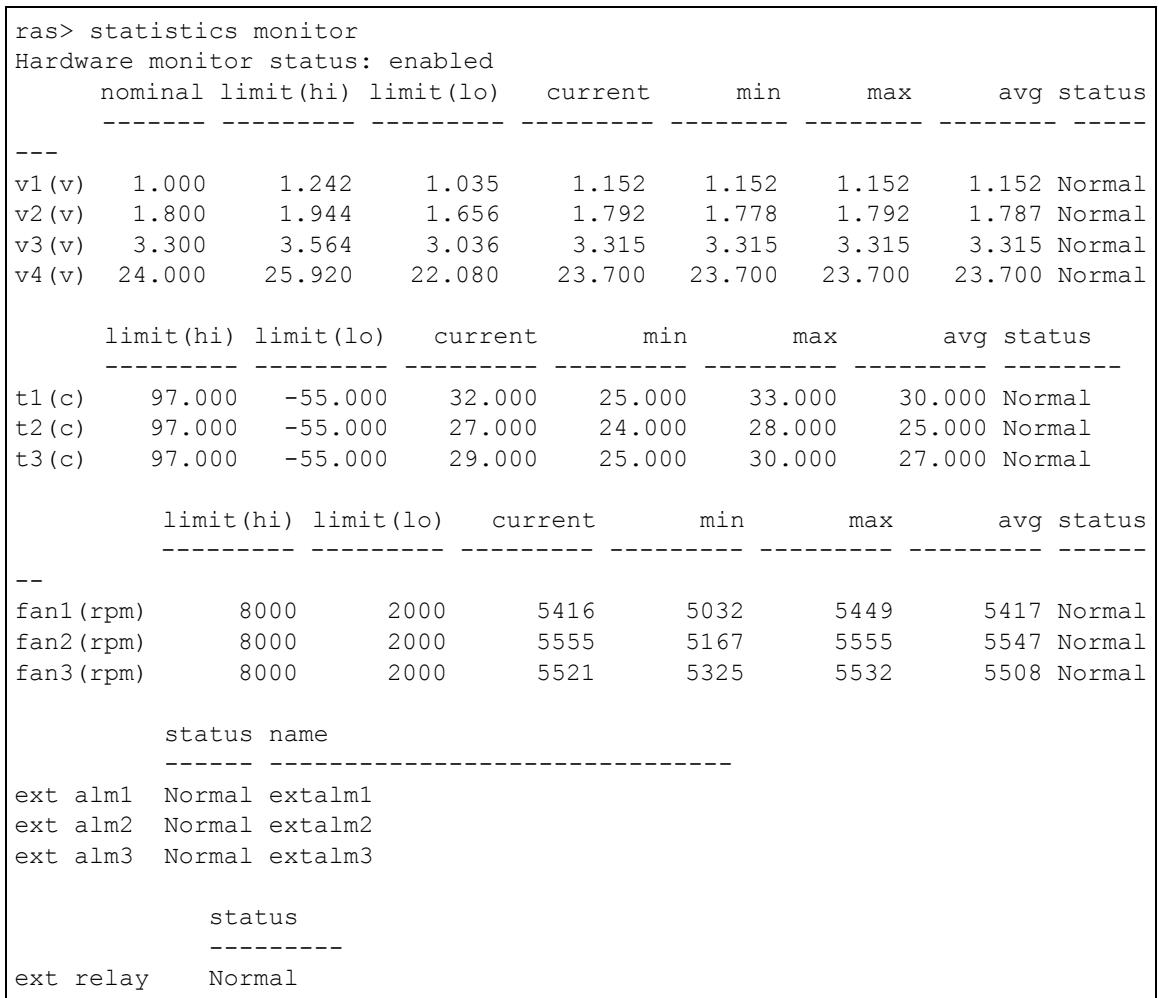
Figure 147 Statistics Monitor Command Example
45.6 Statistics Port Command
Syntax:
ras> statistics port <portlist> [<vpi> <vci>] [clear]
where
[clear] = Use clear to have the IES-1248 set the specified port(s) or PVC's counters back to zero.
This command displays and/or erases port statistics.
The following example displays port statistics for ADSL port 1.
Figure 148 Statistics Port Command Example
ras> statistics port 1
[ads1 port 1]
tx packets : 20
rx packets : 0
tx uni-packets : 1
rx uni-packets : 0
tx nonuni-packets : 19
rx nonuni-packets : 0
tx discard packets: 0
rx discard packets: 0
errors : 0
tx rate (bytes/s): 0
rx rate (bytes/s): 128
tx bytes : 5904
rx bytes : 0
where
tx uni-packets = This field shows the number of unicast packets transmitted on this port.
rx uni-packets = This field shows the number of unicast packets received on this port.
tx nonuni-packets = This field shows the number of non-unicast (broadcast and multicast) packets transmitted on this port.
rx nonuni-packets = This field shows the number of non-unicast (broadcast and multicast) packets received on this port.
See Chapter 9 on page 87 for details on the other port statistics fields.
CHAPTER 46 Alarm Commands
This chapter describes the alarm management commands.
46.1 Alarm Commands
Use these commands to view, customize and clear alarms. You can also set the device to report alarms to an SNMP or syslog server that you specify.
46.2 General Alarm Command Parameters
The following table describes commonly used alarm command parameter notation.
Table 95 General Alarm Command Parameters
| NOTATION | DESCRIPTION |
| <alarm> | Specify a category of alarms. eqpt represents equipment alarms. dsl represents Digital Subscriber Line (DSL) alarms. enet represents Ethernet alarms. sys represents system alarms. all specifies every alarm category. |
| <severity> | Specify an alarm severity level (critical, major, minor, info or all). Critical alarms are the most severe, major alarms are the second most severe, minor alarms are the third most severe and info alarms are the least severe. |
| <condition> | This is the text description for the condition under which the alarm applies. Use the alarm tablelist to find alarm conditions. |
46.3 Alarm Show Command
Syntax:
ras> alarm show [
where
[detail] = Display in-depth alarm information.
This command displays the current alarms by severity, alarm category or alarm condition.
The following example displays the current critical level alarms for all alarm categories and conditions.
The source is where the alarm originated. This is either a DSL port number, one of the Ethernet ports (enet 1 or 2), or "eqpt" for the system itself.
Figure 149 Alarm Show Command Example
ras> alarm tablelist no alarm condition facility snmp syslog severity clearable 1 dsl (5000) line_up local1 V V info -2 dsl (5001) line_down local1 V V minor V 3 dsl (5002)ad_perf_lol thresh local1 V V info V 4 dsl (5003)ad_perf_lof thresh local1 V V info V 5 dsl (5004)ad_perf_LOs thresh local1 V V info V 6 dsl (5005)ad_perf_lop thresh local1 V V info V 7 dsl (5006)ad_perf_es thresh local1 V V info V 8 dsl (5007)ad_perf_rate_chg local1 V V info V 9 dsl (5008)ad_perf Ses thresh local1 V V info V 10 dsl (5009)ad_perf_uas thresh local1 V V info V 11 dsl (5010)ad_atuc_lotrap local1 V V minor -12 dsl (5011)ad_atuc(lostrip local1 V V minor -13 dsl (5012)ad_atur_lotrap local1 V V minor -14 dsl (5013)ad_atur_lotrap local1 V V minor -15 dsl (5014)ad_atur_lprtrap local1 V V minor -16 eqpt (10000)vol_err local1 V V critical -17 eqpt (10001)temp_err local1 V V critical -18 eqpt (10002)fan_err local1 V V critical -19 eqpt (10003)hw_rtc_fail local1 V V critical -Press any key to continue, 'e' to exit, 'n' for nopause
46.4 Alarm Port Show Command
Syntax:
ras> alarm port show [<severity>|all]
This command displays port alarm severity level thresholds. The system reports an alarm on a port if the alarm has a severity equal to or higher than the port's threshold.
The following example displays the port alarm thresholds for all ports. "ifindex" identifies the interface.
Figure 150 Alarm Port Show Command Example
ras>alarm port show Press any key to continue, 'e' to exit, 'n' for nopause no ifindex severity 01 01 minor 02 02 minor 03 03 minor 04 04 minor 05 05 minor 06 06 minor 07 07 minor 08 08 minor 09 09 minor 10 10 minor 11 11 minor 12 12 minor 13 13 minor 14 14 minor 15 15 minor 16 16 minor 17 17 minor 18 18 minor 19 19 minor 20 20 minor Press any key to continue, 'e' to exit, 'n' for nopause
46.5 Alarm Port Set Command
Syntax:
ras> alarm port set <all|enet1|enet2|port> <severity>
where
<all|enet1|enet = Ports on the IES-1248.
2|port>
This command sets the alarm severity threshold for recording alarms on an individual port(s). The system reports an alarm on a port if the alarm has a severity equal to or higher than the port's threshold.
The following example has the IES-1248 only record critical alarms on DSL port 7.
Figure 151 Alarm Port Set Command Example
ras> alarm port set 7 critical
46.6 Alarm Tablelist Command
Syntax:
ras>alarm tablelist [<alarm>|all] [<severity>|all] [<fac>|all] [<target>[,<target>]] [<condition>|all]
where
<fac> = The log facility (local1~local7) that has the device log the syslog messages to different files in the syslog server. See your syslog program's documentation for details.
<target> = snmp|syslog|all The type of alarm messages that the device is to send (SNMP, syslog or all).
This command lists alarm settings.
The following example displays the supported minor level alarms for all alarm categories, facilities, types of alarm messages and conditions.
Figure 152 Alarm Tablelist Command Example
ras> alarm table no alarm condition facility snmp syslog severity clearable 1 dsl (5000) line_enable local1 V V info -2 dsl (5001) line_disable local1 V V info -3 dsl (5002) line_up local1 V V info -4 dsl (5003) line_down local1 V V minor V 5 dsl (5004) line CROSS thresh local1 V V minor -6 dsl (5005) line計劃rate local1 V V minor -7 dsl (5006) line_ldm local1 V V info -8 dsl (5007) line_ldm_done local1 V V info -9 dsl (5008) line_pml2 local1 V V info -10 dsl (5009) line_pml0 local1 V V info -Snip
46.7 Log Format
The following table describes the columns in the list.
Table 96 Log Format
| LABEL | DESCRIPTION |
| no | This is the index number of the alarm entry in this list display. |
| alarm | This is the category of alarms. eqpt represents equipment alarms. dsl represents Digital Subscriber Line (DSL) alarms. enet represents Ethernet alarms. sys represents system alarms. |
| condition | There is a condition code number for the specific alarm message and a text description for the condition under which the alarm applies. |
| facility | This is the log facility (local1~local7) on the syslog server where the system is to log this alarm. This is for alarms that send alarms to a syslog server. |
| snmp | This displays “V” if the system is to send this alarm to an SNMP server. It displays “-” if the system does not send this alarm to an SNMP server. |
| syslog | This displays “V” if the system is to send this alarm to a syslog server. It displays “-” if the system does not send this alarm to a syslog server. |
| severity | This is the alarm severity level (critical, major, minor or info). |
| clearable | This displays “V” if the alarm clear command removes the alarm from the system. It displays “-” if the alarm clear command does not remove the alarm from the system. |
46.8 Alarm History Show Command
Syntax:
ras>alarm history show [<severity>|all] [<alarm>|all] [<condition>|all] [<sdate>|all] [<edate>|all] [for|rev] [detail]]
where
[for|rev] = The displaying order. Use for to display in chronological order starting from the oldest alarm. Use rev to display in reverse chronological order starting from the most recent alarm.
[detail] = Display in-depth alarm information.
This command displays historic alarms by severity, alarm category, alarm condition and/or dates.
The following example displays the historic critical level alarms for all alarm categories, and all conditions.
Figure 153 Alarm History Show Command Example
ras> alarm history show critical all all all all rev detail no alarm condition severity timestamp source eqpt +fan_err critical 07/28 15:23:35 eqpt IES-1248:Fan 2 speed 0, low 2000, high 8000 eqpt +fan_err critical 07/28 15:23:35 eqpt IES-1248:Fan 3 speed 0, low 2000, high 8000 eqpt +fan_err critical 07/28 15:23:33 eqpt IES-1248:Fan 1 speed 0, low 2000, high 8000
46.9 Alarm History Clear Command
Syntax:
ras> alarm history clear [<alarm>|all <condition>|all] <severity>
This command removes historic alarm entries by alarm category, alarm condition or severity.
The following example removes the historic minor level alarms for all alarm categories, and all conditions.
Figure 154 Alarm History Clear Command Example
ras> alarm history clear minor
46.10 Alarm XEdit Command
Syntax:
ras> alarm xedit <alarm>|all |<cond>|<condcode> <severity> <fac> <target>[,<target>] [clearable]
where
<cond> = all|condition This is the text description for the condition under which the alarm applies. Use the alarm tablelist to find alarm conditions.
<condcode> = The condition code is the number of a specific alarm message. Use the alarm tablelist to find alarm condition codes.
[clearable] = clearable|unclearable This sets whether or not the alarm clear command removes the alarm from the system.
This command sets the severity level of an alarm(s) and where the system is to send the alarm(s).
Note: Use the alarm tablelist command to display alarm setting details.
The following example creates an alarm report entry that sets all system alarms to the major severity level and sends them to an SNMP server at the local 3 log facility.
Figure 155 Alarm Xedit Command Example
ras> alarm xedit sys all major local3 syslog
46.11 Alarm Cutoff Command
Syntax:
ras>alarm cutoff
This command cancels an alarm. This stops the sending of the alarm signal current. This is useful in stopping an alarm if you have the alarm output connector pins connected to a visible or audible alarm. The alarm entry remains in the system.
46.12 Alarm Clear Command
Syntax:
ras> alarm clear
This command erases the clearable alarm entries.
CHAPTER 47 DHCP Commands
This chapter describes how to use the DHCP Relay and DHCP Snoop commands.
47.1 DHCP Relay Commands
Use these commands to configure the DHCP relay feature. See Chapter 28 on page 199 for background information on DHCP relay.
47.1.1 Show Command
Syntax:
ras> switch dhcpprelay show
This command displays whether or not the DHCP relay feature is activated, which relay mode the IES-1248 is using, the current list of DHCP servers by VLAN, the status of the DHCP relay agent info option 82 feature and the information configured for it.
Figure 156 Show Command Example
DHCP relay status: disable
DHCP relay mode: auto
Server list:
index vid primary-server secondary-server
1 1 (*)212.212.212.212 213.213.213.213
2 2 (*)214.214.214.214 215.215.215.251
option82 sub-opt1 info (Circuit ID)
-
option82 sub-opt2 info (Remote ID)
47.1.2 Enable Command
Syntax:
ras> switch dhcpprelay enable
This command turns on the DHCP relay feature.
47.1.3 Disable Command
Syntax:
ras> switch dhcpprelay disable
This command turns off the DHCP relay feature.
47.1.4 Server Set Command
Syntax:
ras> switch dhcpprelay server set <vid> <primary-server> [<secondary-server>]
where
<vid> = The ID of the VLAN served by the specified DHCP server(s).
<primary- = The IP address of one DHCP server. server>
<secondary- = The IP address of a second DHCP server. server>
This command specifies the DHCP server(s) that serve the specified VLAN. The primary server is required; the secondary server is optional. The IES-1248 routes DHCP requests to the specified DHCP server(s) according to the relaymode. See Section 47.1.7 on page 307.
Use VLAN ID 0 to set up the default DHCP server(s) for all non-listed VLAN.
47.1.5 Server Delete Command
Syntax:
ras> switch dhcpprelay server delete <vid> [<primary-server>]
where
<vid> = The ID of the VLAN served by the specified DHCP server(s).
<primary- = The IP address of one DHCP server. server>
This command deletes all information about DHCP servers for the specified VLAN.
Afterwards, the specified VLAN can uses the default DHCP server(s) set up for VLAN ID 0, if any.
47.1.6 Server Active Command
Syntax:
ras> switch dhcpprelay server active <vid> <active-server>
where
<vid> = The ID of the VLAN served by the specified DHCP server(s).
<active-server> = 1: The primary DHCP server is active.
2: The secondary DHCP server is active.
This command has no effect if the relaymode is both. If the relaymode is auto, this command specifies to which DHCP server (the primary one or the secondary one) the IES-1248 should relay DHCP requests for the selected VLAN.
47.1.7 Relaymode Command
Syntax:
ras> switch dhcpprelay relaymode <mode>
where
<mode> = relay process mode; it controls to which DHCP server(s) the IES-1248 relays DHCP requests.
auto - the IES-1248 relays DHCP requests to the active server for each VLAN
both - the IES-1248 relays DHCP requests to the primary and secondary server for each VLAN, regardless of which one is active
This command controls how the IES-1248 routes DHCP requests. The IES-1248 can route DHCP requests to the active DHCP server for the VLAN, or it can route DHCP requests to all DHCP servers set up for the VLAN.
47.2 DHCP Relay Option 82 (Agent Information) Sub-option 1 (Circuit ID)
Use the following commands to configure the DHCP relay Option 82 (agent information) feature, sub-option 1. This feature applies regardless of whether or not the DHCP relay is on.
47.2.1 Option 82 Sub-option 1 Enable Command
Syntax:
ras> switch dhcpprelay option82 enable
This command turns on the DHCP relay agent information (Option 82 Sub-option 1) feature.
47.2.2 Option 82 Sub-option 1 Disable Command
Syntax:
ras> switch dhcpprelay option82 disable
This command turns off the DHCP relay agent information (Option 82, Sub-option 1) feature.
47.2.3 Option 82 Sub-option 1 Set Command
Syntax:
ras> switch dhcpprelay option82 set [
where
[
Examples of information you could add would be the name of the IES-1248 or the ISP.
This command adds the specified information for the relay agent.
47.3 DHCP Relay Option 82 (Agent Information) Sub-option 2 (Remote ID)
Use the following commands to configure the DHCP relay Option 82 (agent information) feature, sub-option 2. This feature applies regardless of whether or not the DHCP relay is on.
47.3.1 Option 82 Sub-option 2 Enable Command
Syntax:
ras> switch dhcpprelay opt82sub2 enable
This command turns on the DHCP relay agent information (Option 82, Sub-option 2) feature.
47.3.2 Option 82 Sub-option 2 Disable Command
Syntax:
ras> switch dhcpprelay opt82sub2 disable
This command turns off the DHCP relay agent information (Option 82, Sub-option 2) feature.
47.3.3 Option 82 Sub-option 2 Set Command
Syntax:
ras> switch dhcpprelay opt82sub2 set [<relay info>]
where
[<relay info>] = Up to 23 ASCII characters of additional information for the IES-1248 to add to the DHCP requests that it relays to a DHCP server.
Examples of information you could add would be the name of the IES-1248 or the ISP.
This command adds the specified information for the relay agent.
47.4 DHCP Snoop Commands
Use these commands to configure or show DHCP snooping settings on the subscriber ports. The system gets the client MAC-IP address information (in the reply from a DHCP server) and stores it in the DHCP snooping table. The system only forwards packets from the clients whose MAC-IP address is in the DHCP snooping table. Packets from unknown IP address(es) are not forwarded (dropped). This feature prevents clients from assigning their own static IP addresses.
47.4.1 DHCP Snoop Enable Command
Syntax:
ras> switch dhcpsnoop enable <portlist>
where
[portlist] = You can specify a single port < 1> , all ports < *> or a list of ports < 1,3,enet1> . You can also include a range of ports < 1,5,6 10,enet1,enet2> .
This command activates the DHCP snooping feature on the specified port(s). The following example enables DHCP snooping on port 1.
Figure 157 DHCP Snoop Enable Command Example
ras> switch dhcpsnoop enable 1
47.4.2 DHCP Snoop Disable Command
Syntax:
ras> switch dhcppsnoop disable <portlist>
where
[portlist] = You can specify a single port < 1> , all ports < *> or a list of ports < 1,3,enet1> . You can also include a range of ports < 1,5,6 10,enet1,enet2> .
This command disables the DHCP snooping feature on the specified port(s).
47.4.3 DHCP Snoop Flush Command
Syntax:
ras> switch dhcpsnoop flush <portlist>
where
[portlist] = You can specify a single port <1> , all ports <* or a list of ports <1,3,enet1> . You can also include a range of ports <1,5,6 10,enet1,enet2> .
This command clears the DHCP snooping binding table on the specified port(s). The system also automatically clears the binding table when you disable DHCP snooping.
47.4.4 DHCP Snoop Show Command
Syntax:
ras> switch dhcpsnoop show <portlist>
where
[portlist] = You can specify a single port <1> , all ports <* or a list of ports <1,3,enet1> . You can also include a range of ports <1,5,6 10,enet1,enet2> .
Use this command to display the current DHCP snooping settings of the specified port(s). The following example displays the settings of ports 1-5.
Figure 158 DHCP Snoop Show Command Example
ras> switch dhcppsnoop show 1~5
port enable
--------
1 V
2 -
3 -
4 -
5 -
47.4.5 DHCP Counter Statistics Command
Syntax:
ras> statistics dhcp counter [<portlist> [clear]]
where
Use this command to display a summary of DHCP packets on the specified port(s). The following example displays the settings of port 1.
Figure 159 DHCP Counter Statistics Command Example
ras> statistics dhcp counter 1 port discover offer request ack overflow 1 0 0 0 0
Each field is described in the following table.
port = The selected ADSL port number(s).
discover = The number of DHCP Discover packets on this port.
offer = The number of DHCP Offer packets on this port.
request = The number of DHCP Request packets on this port.
ack = The number of DHCP Ack packets on this port.
overflow = The DHCP server can assign up to 32 IP addresses at one time to each port. This field displays the number of requests from DHCP clients above this limit.
47.4.6 DHCP Snoop Statistics Command
Syntax:
ras> statistics dhcp snoop <portlist>
where
Use this command to look at the DHCP snooping table on the specified port(s). The following example displays the settings of port 1.
Figure 160 DHCP Snoop Statistics Command Example
ras> statistics dhcp snoop 1
port overflow mac ip
Each field is described in the following table.
port = The selected ADSL port number(s).
overflow = The DHCP server can assign up to 32 IP addresses at one time to each port. This field displays the number of requests from DHCP clients above this limit.
mac = The MAC address of a client on this port to which the DHCP server assigned an IP address.
i The IP address assigned to a client on this port.
CHAPTER 48
IEEE 802.1Q Tagged VLAN
Commands
This chapter describes the IEEE 802.1Q Tagged VLAN commands.
48.1 Introduction to VLANs
See Chapter 19 on page 157 for more background information on VLANs.
48.2 IEEE 802.1Q Tagging Types
There are two kinds of tagging:
- Explicit Tagging
A VLAN identifier is added to the frame header that identifies the source VLAN.
- Implicit Tagging
The MAC (Media Access Control) number, the port or other information is used to identify the source of a VLAN frame.
The IEEE 802.1Q Tagged VLAN uses both explicit and implicit tagging.
It is important for the IES-1248 to determine what devices are VLAN-aware and VLAN-unaware so that it can decide whether to forward a tagged frame (to a VLAN-aware device) or first strip the tag from a frame and then forward it (to a VLAN-unaware device).
48.3 Filtering Databases
A filtering database stores and organizes VLAN registration information useful for switching frames to and from the IES-1248. A filtering database consists of static entries (Static VLAN or SVLAN table).
48.3.1 Static Entries (SVLAN Table)
Static entry registration information is added, modified and removed by administrators only.
48.4 IEEE VLAN1Q Tagged VLAN Configuration Commands
These switch commands allow you to configure and monitor the IEEE 802.1Q Tagged VLAN.
48.4.1 VLAN Port Show Command
Syntax:
ras> switch vlan portshow [portlist]
where
[portlist] = You can specify a single port <1> , all ports <* or a list of ports <1,3,enet1> . You can also include a range of ports <1,5,610,enet1,enet2> .
This command displays the port's IEEE 802.1Q VLAN tag settings.
The following example shows the settings for ADSL port 1.
Figure 161 VLAN Port Show Command Example
ras> switch vlan portshow 3
port pvid priorityframetype
3 1 0 all
48.4.2 VLAN PVID Command
Syntax:
ras> switch vlan pvid <portlist> <pvid>
where
<p> = The VLAN ID. Valid parameter range = [1 - 4094].</p>
This command sets a default VLAN ID for all untagged packets that come in through the specified port.
The following example sets the default VID of port 1 to 200.
Figure 162 VLAN PVID Command Example
ras> switch vlan pvid 1 200
48.4.3 VLAN Priority Command
Syntax:
ras> switch vlan priority <portlist> <priority>
where
<priority> = This is the priority value (0 to 7) to use for incoming frames with an IEEE 802.1Q VLAN tag.
This command sets the priority of incoming frames with an IEEE 802.1Q VLAN tag.
The following example sets a priority of three for frames (with an IEEE 802.1Q VLAN tag) that come in on ADSL port 2.
Figure 163 VLAN CPU Set Command Example
ras> switch vlan priority 2 3
48.4.4 VLAN Set Command
Syntax:
ras> switch vlan set <vid> <portlist>:<F<T|U>|X|N> [<portlist>:<F<T|U>|X> ...][name]
where
<vid> = The VLAN ID [1 - 4094].
< F < T|U > ) = The < F> stands for a fixed registrar administration control flag and registers a port # to the static VLAN table with vid>. For a fixed port, you also have to specify < T|U> ,the tag control flag. T has the device add an IEEE 802.1Q tag to frames going out through this port(s). U has the device send frames out through this port(s) without an IEEE 802.1Q tag.
|X|N> = This is the registrar administration control flag. X stands for forbidden and blocks a port # from joining the static VLAN table with vid>. N stands for normal and confirms registration of the port # to the static VLAN table with vid>. This is used in GVRP applications.
[name] = A name to identify the SVLAN entry.
This command adds or modifies an entry in the static VLAN table. Use the switch vlan show command to display your configuration. An example of a configuration is shown next.
48.4.4.1 Modify a Static VLAN Table Example
The following is an example of how to modify a static VLAN table.
Figure 164 Modifying the Static VLAN Example
ras> switch vlan set 2000 1:FU
ras> switch vlan set 2001 2:FU
48.4.4.2 Forwarding Process Example
Tagged Frames
1 First the IES-1248 checks the VLAN ID (VID) of tagged frames or assigns temporary VIDs to untagged frames (see Section 48.4.2 on page 314).
2 The IES-1248 checks the frame's source MAC address against the MAC filter.
3 The IES-1248 then checks the VID in a frame's tag against the SVLAN table.
4 The IES-1248 notes what the SVLAN table says (that is, the SVLAN tells the IES-1248 whether or not to forward a frame and if the forwarded frames should have a tag).
5 Frames might be dropped if they are sent to a CPE (customer premises equipment) DSL device that does not accept tagged frames.
Untagged Frames
1 An untagged frame comes in from the LAN.
2 The IES-1248 checks the frame's source MAC address against the MAC filter.
3 The IES-1248 checks the PVID table and assigns a VID and IEEE 802.1Q priority.
4 The IES-1248 ignores the port from which the frame came, because the IES-1248 does not send a frame to the port from which it came. The IES-1248 also does not forward frames to "forbidden" ports.
5 If after looking at the SVLAN, the IES-1248 does not have any ports to which it will send the frame, it drops the frame.
48.4.5 VLAN Frame Type Command
Syntax:
ras> switch vlanframetype <portlist> <all|tag>
where
You can specify a single DSL port < 1> , all DSL ports <^*> or a list of DSL ports < 1,3> . You can also include a range of DSL ports < 1,5,6 10> .
= Use tag to have the specified port(s) accept only incoming Ethernet frames that have a VLAN tag.
Use all to have the specified port(s) accept both tagged and untagged incoming Ethernet frames.
This command sets the specified DSL ports to accept VLAN tagged Ethernet frames, or both tagged and untagged Ethernet frames.
Note: The IES-1248 accepts both tagged and untagged incoming frames on the Ethernet ports.
The following example sets the IES-1248 to accept only VLAN tagged Ethernet frames on DSL port 3.
Figure 165 VLAN Frame Type Command Example
ras> switch vlanframetype 3 tag
48.4.6 VLAN CPU Show Command
Syntax:
ras> switch vlan cpu show
This command displays the management VLAN (CPU). You can only use ports that are members of this management VLAN in order to manage the IES-1248.
The following example sets VLAN ID 2 to be the CPU (management) VLAN.
Figure 166 VLAN CPU Set Command Example
ras> switch vlan cpu set 2
48.4.7 VLAN CPU Set Command
Syntax:
ras> switch vlan cpu set <vid>
where
<vid> = The VLAN ID. Valid parameter range = [1 - 4094].
This command sets the management VLAN (CPU). You can only use ports that are members of this management VLAN in order to manage the IES-1248.
The following example sets VLAN ID 2 to be the CPU (management) VLAN.
Figure 167 VLAN CPU Set Command Example
ras> switch vlan cpu set 2
48.4.8 Configuring Management VLAN Example
Note: After the following example configuration, you must connect to the first Ethernet port through a VLAN aware device that is using the proper VLAN ID in order to perform management.
By default, the IES-1248's ADSL ports are members of the management VLAN (VID 1). The following procedure shows you how to configure a tagged VLAN that limits management access to just one Ethernet port.
Note: Use the console port to configure the IES-1248 if you misconfigure the management VLAN and lock yourself out.
1 Use the switch vlan set command to configure a VLAN ID (VID 3 in this example) for managing the IES-1248 (the "management" or "CPU" VLAN).
Figure 168 CPU VLAN Configuration and Activation Example
ras> switch vlan set 3 enet1:FT
2 Use the switch vlan1q vlan cpu command to set VID 3 as the management VLAN.
Figure 169 删除Default VLANExample
ras> switch vlan cpu set 3
48.4.9 VLAN Delete Command
Syntax:
ras> switch vlan delete <vlanlist>
where
This command deletes the specified VLAN ID entry from the static VLAN table. The following example deletes entry 2 in the static VLAN table.
Figure 170 VLAN Delete Command Example
ras> switch vlan delete 2
48.5 VLAN Enable
Syntax:
ras> switch vlan enable <vid>
This command enables the specified VLAN ID in the SVLAN (Static VLAN) table.
48.6 VLAN Disable
Syntax:
ras> switch vlan disable <vid>
This command disables the specified VLAN ID in the SVLAN (Static VLAN) table.
48.6.1 VLAN Show Command
Syntax:
ras> switch vlan show <vlanlist>
where
This command shows information about the specified port's VLAN settings.
The following example shows the settings for all VIDs.
Figure 171 VLAN Show Command Example
ras> switch vlan show *
vid name F:fixed X: forbidden N: normal U:untag T:tag
1 -
enabled 123456789012345678901234567890123456789012345678 12
FFFFFFCCCCCCCCCCCCCCCCCCCCCCCCCCCCCCCCCCCCCCCCCCCCCCCCCCCCCCCCCCCCCCCCCCCCCCCCCCCCCCCCCCCCCCCCCCCCCCCCCCCCCCCCCCCCCCCCCCCCCCCCCCCCCCCCCCCCCCCCCCCCCCCCCCCCCCCCCCCCCCCCCCCCCCCCCCCCCCCCCCCCCCCCCCCCCCCCCCCCCCCCCCCCCCCCCCCCCCCCCCCCCCCCCCCCCCCCCCCCCCCCCCCCCCCCCCCCCCCCCCCCCCCCCCCCCCCCCCCCCCCCCCCCCCCCCCCCCCCCCCCCCCCCCCCCCCCCCCCCCCCCCCCCCCCCCCCCCCCCCCCCCCCCCCCCCCCCCCCCCCCCCCCCCCCCCCCCCCCCCCCCCCCCCCCCCCCCCCCCCCCCCCCCCCCCCCCCCCCCCCCCCCCCCCCCCCCCCCCCCCCCCCCCCCCCCCCCCCCCCCCCCCCCCCCCCCCCCCCCCCCCCCCCCCCCCCCCCCCCCCCCCCCCCCCCCCCCCCCCCCCCCCCCCCCCCCCCCCCCCCCCCCCCCCCCCCCCCCCCCCCCCCCCCCCCCCCCCCCCCCCCCCCCCCCCCCCCCCCCCCCCCCCCCCCCCCCCCCCCCCCCCCCCCCCCCCCCCCCCCCCCCCCCCCCCCCCCCCCCCCCCCCCCCCCCCCCCCCCCCCCCCCCCCCCCCCCCCCCCCCCCCCCCCCCCCCCCCCCCCCCCCCCCCCCCCCCCCCCCCCCCCCCCCCCCCCCCCCCCCCCCCCCCCCCCCCCCCCCCCCCCCCCCCCCCCCCCCCCCCCCCCCCCCCCCCCCCCCCCCCCCCCCCCCCCCCCCCCCCCCCCCCCCCCCCCCCCCCCCCCCCCCCCCCCCCCCCCCCCCCCCCCCCCCCCCCCCCCCCCCCCCCCCCCCCCCCCCCCCCCCCCCCCCCCCCCCCCCCCCCCCCCCCCCCCCCCCCCCCCCCCCCCCCCCCCCCCCCCCCCCCCCCCCCCCCCCCCCCCCCCCCCCCCCCCCCCCCCCCCCCCCCCCCCCCCCCCCCCCCCCCCCCCCCCCCCCCCCCCCCCCCCCCCCCCCCCCCCCCCCCCCCCCCCCCCCCCCCCCCCCCCCCCCCCCCCCCCCCCCCCCCCCCCCCCCCCCCCCCCCCCCCCCCCCCCCCCCCCCCCCCCCCCCCCCCCCCCCCCCCCCCCCCCCCCCCCCCCCCCCFFFFFFFFFFFFFFFFFFFFFFFFFFFFFFFFFFFFFFFFFFFFFFFFFFFFFFFFFFFFFFFFFFFFFFFFFFFFFFFFFFFFFFFFFFFFFFFFFFFFFFFFFFFFFFFFFFFFFFFFFFFFFFFFFFFFFFFFFFFFFFFFFFFFFFFFFFFFFFFFFFFFFFFFFFFFFFFFFFFFFFFFFFFFFFFFFFFFFFFFFFFFFFFFFFFFFFFFFFFFFFFFFFFFFFFFFFFFFFFFFFFFFFFFFFFFFFFFFFFFFFFFFFFFFFFFFFFFFFFFFFFFFFFFFFFFFFFFFFFFFFFFFFFFFFFFFFFFFFFFFFFFFFFFFFFFFFFFFFFFFFFFFFFFFFFFFFFFFFFFFFFFFFFFFFFFFFFFFFFFFFFFFFFFFFFFFFFFFFFFFFFFFFFFFFFFFFFFFFFFFFFFFFFFFFFFFFFFFFFFFFFFFFFFFFFFFFFFFFFFFFFFFFFFFFFFFFFFFFFFFFFFFFFFFFFFFFFFFFFFFFFFFFFFFFFFFFFFFFFFFFFFFFFFFFFFFFFFFFFFFFFFFFFFFFFFFFFFFFFFFFFFFFFFFFFFFFFFFFFFFFFFFFFFFFFFFFFFFFFFFFFFFFFFFFFFFFFFFFFFFFFFFFFFFFFFFFFFFFFFFFFFFFFFFFFFFFFFFFFFFFFFFFFFFFFFFFFFFFFFFFFFFFFFFFFFFFFFFFFFFFFFFFFFFFFFFFFFFFFFFFFFFFFFFFFFFFFFFFFFFFFFFFFFFFFFFFFFFFFFFFFFFFFFFFFFFFFFFFFFFFFFFFFFFFFFFFFFFFFFFFFFFFFFFFFFOSP
CHAPTER 49 MAC Commands
This chapter describes how to configure the IES-1248's MAC commands.
49.1 MAC Commands Overview
Use the MAC commands to configure MAC filtering or limit the MAC count.
49.2 MAC Filter Commands
Use the MAC filter to control from which MAC (Media Access Control) addresses frames can (or cannot) come in through a port.
49.2.1 MAC Filter Show Command
Syntax:
ras> switch mac filter show [portlist]
where
This command displays the MAC filtering status (V for enabled, - for disabled) and the fixed source MAC addresses on the specified ADSL port(s) or on all ADSL ports if no port is specified.
The following example displays the MAC filtering mode, status and the fixed source MAC addresses on ADSL port 5.
Figure 172 MAC Filter Show Command Example
ras> sw mac filter show 5 status:V, enable mac filter function. status:-, disable mac filter function. port mode status mac 5 accept -00:a0:c5:12:34:56
49.2.2 MAC Filter Enable Command
Syntax:
ras> switch mac filter enable [portlist]
where
This command turns on the MAC filtering feature on the specified ADSL port(s) or on all ADSL ports if no port is specified.
The following example turns on the MAC filtering feature on ADSL port 5.
Figure 173 MAC Filter Enable Command Example
ras> switch mac filter enable 5
49.2.3 MAC Filter Disable Command
Syntax:
ras> switch mac filter disable [portlist]
where
This command turns off the MAC filtering feature on the specified ADSL port(s) or on all ADSL ports if no port is specified.
The following example turns off the MAC filtering feature on ADSL port 5.
Figure 174 MAC Filter Disable Command Example
ras> switch mac filter disable 5
49.2.4 MAC Filter Mode Command
Syntax:
ras> switch mac filter mode <port> <accept|deny>
where
deny = Block frames from MAC addresses that you specify and allow frames from other MAC addresses.
This command sets whether the IES-1248 allows or blocks access for the MAC addresses you specify.
The following example sets ADSL port 5 to allow frames from the MAC addresses specified for ADSL port 5.
Figure 175 MAC Filter Mode Command Example
ras> switch mac filter mode 5 accept
49.2.5 MAC Filter Set Command
Syntax:
ras> switch mac filter set <port> <mac> [<mac> <mac> ...]
where
<port> = The number of an ADSL port.
<mac> = The source MAC address in "00:a0:c5:12:34:56" format.
This command adds an allowed source MAC address on the specified ADSL port.
The following example adds source MAC address 00:a0:c5:12:34:56 for ADSL port 5.
Figure 176 MAC Filter Set Command Example
ras> switch mac filter set 5 00:a0:c5:12:34:56
49.2.6 MAC Filter Delete Command
Syntax:
ras> switch mac filter delete <port> <mac> [<mac> <mac> ...]
where
<port> = The number of an ADSL port.
<mac> = The source MAC address in "00:a0:c5:12:34:56" format.
This command removes a configured source MAC address from the ADSL port that you specify.
The following example removes the source MAC address of 00:a0:c5:12:34:56 from the MAC filter for ADSL port 5.
Figure 177 MAC Filter Delete Command Example
ras> switch mac filter delete 5 00:a0:c5:12:34:56
49.3 MAC Count Commands
Use MAC count commands to limit how many MAC addresses may be dynamically learned. MAC count commands are listed next. When the MAC filter accept mode is enabled (see Section 49.2 on page 321), the IES-1248 ignores the MAC count setting and accepts all of the MAC addresses listed for the port in the MAC filter settings.
49.3.1 MAC Count Show Command
Syntax:
ras> switch mac count show [portlist]
where
[portlist] = You can specify a single ADSL port < 1> , all ADSL ports <^*> or a list of ADSL ports <1,3,5> . You can also include a range of ports <1,5,6 10> .
This command displays the MAC count settings on the specified ADSL port(s) or on all ADSL ports if no port is specified.
The following example displays the MAC count settings for ADSL port 4.
Figure 178 MAC Count Show Command Example
ras> switch mac count show 4
port status count
---- -- -- --
4 V 128
49.3.2 MAC Count Enable Command
Syntax:
ras> switch mac count enable <portlist>
where
This command enables the MAC count filter on the specified ADSL port(s). When the MAC filter accept mode is enabled (see Section 49.2 on page 321), the IES-1248 ignores the MAC count setting and accepts all of the MAC addresses listed for the port in the MAC filter settings.
The following example turns on the MAC count filter on ADSL port 4.
Figure 179 MAC Count Enable Command Example
ras> switch mac count enable 4
49.3.3 MAC Count Disable Command
Syntax:
ras> switch mac count disable <portlist>
where
This command disables the MAC filtering feature on the specified ADSL port(s).
The following example turns off the MAC count filter on ADSL port 4.
Figure 180 MAC Count Disable Command Example
ras> switch mac count disable 4
49.3.4 MAC Count Set Command
Syntax:
ras> switch mac count set <portlist> <count>
where
<count> = Set the limit for how many MAC addresses that a port may dynamically learn. For example, if you are configuring port 2 and you set this field to "5", then only five devices with dynamically learned MAC addresses may access port 2 at any one time. A sixth device would have to wait until one of the five learned MAC addresses ages out.
The valid range is from "1" to "128".
This command sets the limit for how many MAC addresses may be dynamically learned on the specified ADSL port(s).
The following example sets the MAC count filter to allow up to 50 MAC addresses to be dynamically learned on ADSL port 7.
Figure 181 MAC Count Set Command Example
ras> switch mac count set 7 50
CHAPTER 50 IGMP Commands
This chapter describes the IGMP snooping and filtering commands.
50.1 Multicast Overview
See Chapter 20 on page 165 for background information on this feature.
50.2 IGMP Snoop Commands
Use the IGMP snoop commands to enable or disable IGMP proxy or IGMP snooping.
50.2.1 IGMP Snoop Show Command
Syntax:
ras> switch igmpsnoop show
This command displays the IGMP mode (proxy, snooping or disabled).
The following is an example.
Figure 182 IGMP Snoop Show Command Example
ras> switch igmpsnoop show
IGMP Snooping/Proxy is Disable
50.2.2 IGMP Snoop Enable Command
Syntax:
ras> switch igmpsnoop enable
This command turns on IGMP proxy or snooping. Use proxy to have the device use IGMP proxy. Use IGMP snooping to have the device passively learn multicast groups.
The following example sets the device to use IGMP proxy.
Figure 183 IGMP Snoop Enable Command Example
ras> switch igmpsnoop enable proxy
50.2.3 IGMP Snoop Disable Command
Syntax:
ras> switch igmpsnoop disable
This command turns off IGMP proxy or snooping.
The following example sets the device to not use IGMP proxy or snooping.
Figure 184 IGMP Snoop Disable Command Example
ras> switch igmpsnoop disable
50.3 IGMP Filter Commands
Use the IGMP filter commands to define IGMP filter profiles and assign them to ADSL ports.
IGMP filter profiles allow you to control access to IGMP multicast groups. You can have a service available to a specific IGMP multicast group. You can configure an IGMP filter profile for an IGMP multicast group that has access to a service (like a SIP server for example). Then you can assign the IGMP filter profile to ADSL ports that are allowed to use the service.
50.3.1 IGMP Filter Show Command
Syntax:
ras> switch igmpfilter show [portlist]
where
[portlist] = You can specify a single ADSL port < 1> , all ADSL ports <^*> or a list of ADSL ports < 1,3,5> . You can also include a range of ports < 1,5,6 10> .
This command displays which IGMP filter profile an ADSL port(s) is using.
The following example displays which IGMP filter profile ADSL port 9 is using.
Figure 185 IGMP Filter Show Command Example
ras> switch igmpfilter show 9
port profile
9 DEFVAL
50.3.2 IGMP Filter Set Command
Syntax:
ras> switch igmpfilter set [<port>|*] <name>
where
[ \text{[
<name> = The name of an IGMP filter profile.
This command sets an ADSL port(s) to use an IGMP filter profile.
The following example sets ADSL port 9 to use the voice IGMP filter profile.
Figure 186 IGMP Filter Set Command Example
ras> switch igmpfilter set 9 voice
50.3.3 IGMP Filter Profile Set Command
Syntax:
ras> switch igmpfilter profile set <name> <index> <startup> <endip>
where
<name> = Specify a name to identify the IGMP filter profile (you cannot change the name of the DEFVAL profile). You can use up to 31 ASCII characters; spaces are not allowed.
<index> = The number (1~16) to identify a multicast IP address range.
<startup> = Type the starting multicast IP address for a range of multicast IP addresses that you want to belong to the IGMP filter profile.
If you want to add a single multicast IP address, enter it in both the Start IP and End IP fields.
This command configures an IGMP filter profile.
The following example configures an IGMP filter profile named voice with a range of multicast IP addresses (index 1) from 224.1.1.10 to 224.1.1.44.
Figure 187 IGMP Filter Profile Set Command Example
ras> switch igmpfilter profile set test1 1 224.1.1.10 224.1.1.44
50.3.4 IGMP Filter Profile Delete Command
Syntax:
ras> switch igmpfilter profile delete
where
This command removes an IGMP filter profile.
The following example removes the voice IGMP filter profile.
Figure 188 IGMP Filter Profile Delete Command Example
ras> switch igmpfilter profile delete voice
50.3.5 IGMP Filter Profile Show Command
Syntax:
ras> switch igmpfilter profile show [
where
[ <name> * ] = The name of an IGMP filter profile or all of the IGMP filter profiles <^*> .
This command displays an IGMP filter profile's settings.
The following example displays the voice IGMP filter profile's settings.
Figure 189 IGMP Filter Show Command Example
| ras> switch igmpfilter profile show voice | |||
| profile index startup endip | |||
| voice | 1 | 224.1.1.10 | 224.1.1.44 |
| voice | 2 | 0.0.0.0 | 0.0.0.0 |
| voice | 3 | 0.0.0.0 | 0.0.0.0 |
| voice | 4 | 0.0.0.0 | 0.0.0.0 |
| voice | 5 | 0.0.0.0 | 0.0.0.0 |
| voice | 6 | 0.0.0.0 | 0.0.0.0 |
| voice | 7 | 0.0.0.0 | 0.0.0.0 |
| voice | 8 | 0.0.0.0 | 0.0.0.0 |
| voice | 9 | 0.0.0.0 | 0.0.0.0 |
| voice | 10 | 0.0.0.0 | 0.0.0.0 |
| voice | 11 | 0.0.0.0 | 0.0.0.0 |
| voice | 12 | 0.0.0.0 | 0.0.0.0 |
| voice | 13 | 0.0.0.0 | 0.0.0.0 |
| voice | 14 | 0.0.0.0 | 0.0.0.0 |
| voice | 15 | 0.0.0.0 | 0.0.0.0 |
| voice | 16 | 0.0.0.0 | 0.0.0.0 |
50.4 IGMP Bandwidth Commands
Use the IGMP bandwidth commands to set up bandwidth budgets for specific multicast channels.
50.4.1 IGMP Bandwidth Default Command
Syntax:
ras> switch igmpsnoop bandwidth default <bandwidth>
where
<bandwidth> = Allowed bandwidth between 1 and 1000 000 kbps (kilo bits per second).
This command sets the default bandwidth for multicast channels for which you have not configured bandwidth requirements yet. Multicast bandwidth settings on channels (using the switch igmpsnoop bandwidth set command) have higher priority over this default setting.
50.4.2 IGMP Bandwidth Set Command
Syntax:
ras> switch igmpsnoop bandwidth set <index> <start-mcast-ip> <end-mcast-ip> <bandwidth>
where
<index> = 1..96; a unique number for this setting. <start-mcast-ip> = 224.0.0.0..239.255.255.255; the beginning of the multicast range.
<end-mcast-ip> = 224.0.0.0..239.255.255.255; the end of the multicast range. It must be greater than <start-mcast-ip>.
<bandwidth> = 1..100000, in units of kbps
This command configures bandwidth allocation for the multicast channel(s). For multicast channel(s) for which you have not configured bandwidth settings, the default multicast bandwidth setting applies (see the switch igmpsnoop bandwidth default command).
50.4.3 IGMP Bandwidth Delete Command
Syntax:
ras> switch igmpsnoop bandwidth delete <index>
where
<index> = 1..96; a unique number for this setting.
This command removes the specified multicast bandwidth configuration profile.
50.5 IGMP Bandwidth Port Commands
Use the IGMP bandwidth port commands to set up bandwidth budgets for multicast traffic on specific ports.
50.5.1 IGMP Bandwidth Port Disable Command
Syntax:
ras> switch igmpsnoop bandwidth port disable <portlist>
where
This command deactivates multicast bandwidth settings of the specified port.
50.5.2 IGMP Bandwidth Port Enable Command
Syntax:
ras> switch igmpsnoop bandwidth port enable <portlist>
where
This command activates multicast bandwidth setting on the specified port.
50.5.3 IGMP Bandwidth Port Set Command
Syntax:
ras> switch igmpsnoop bandwidth port set <portlist> <bandwidth>
where
<bandwidth> = 1..100000, in units of kbps
This command sets the bandwidth allowed for multicast traffic on the specified port(s). It does not automatically enable it, however.
50.5.4 IGMP Bandwidth Port Show Command
Syntax:
ras> switch igmpsnoop bandwidth port show <portlist>
where
This command displays the multicast bandwidth setting on the specified port(s) and whether or not this setting is active. The following example displays the bandwidth budget for port 1.
Figure 190 IGMP Bandwidth Port Show Command Example
ras> switch igmpsnoop bandwidth port show 1
port enable bandwidth
1 - 4096
50.6 IGMP Count Limit Commands
Use these commands to limit the number of IGMP groups a subscriber on a port can join. This allows you to control the distribution of multicast services (such as content information distribution) based on service plans and types of subscription.
IGMP count is useful for ensuring the service quality of high bandwidth services like video or Internet Protocol television (IPTV). IGMP count can limit how many channels (IGMP groups) the subscriber connected to a DSL port can use at a time. If each channel requires 4 5 Mbps of download bandwidth, and the subscriber's connection supports 11 Mbps, you can use IGMP count to limit the subscriber to using just 2 channels at a time. This also effectively limits the subscriber to using only two IPTVs with the DSL connection.
50.6.1 IGMP Count Disable Command
Syntax:
ras> switch igmpsnoop igmpcount disable <portlist>
where
This command turns off the IGMP count limit for the specified ADSL port(s).
The following command turns off the IGMP count limit for port 4.
Figure 191 IGMP Count Disable Command Example
ras> switch igmpsnoop igmpcount disable 4
50.6.2 IGMP Count Enable Command
Syntax:
ras> switch igmpsnoop igmpcount enable <portlist>
where
<portlist>
= You can specify a single ADSL port <1> , all ADSL ports <^*> or a list of ADSL ports <1,3,5> . You can also include a range of ports <1,5,6 10> .
This command turns on the IGMP count limit for the specified ADSL port(s).
The following command turns on the IGMP count limit for port 4.
Figure 192 IGMP Count Enable Command Example
ras> switch igmpsnoop igmpcount enable 4
50.6.3 IGMP Count Set Command
Syntax:
ras> switch igmpsnoop igmpcount set <portlist> <count>
where
<portlist>
= You can specify a single ADSL port < 1> , all ADSL ports < *> or a list of ADSL ports < 1,3,5> . You can also include a range of ports < 1,5,6 10> .
<count>
= 0..16; the maximum number of IGMP groups subscribers on the specified port(s) can join.
This command sets the IGMP count limit for the specified ADSL port(s).
The following command sets a IGMP count limit of 2 for port 4.
Figure 193 IGMP Count Set Command Example
ras> switch igmpsnoop igmpcount set 4 2
50.6.4 IGMP Count Show Command
Syntax:
ras> switch igmpsnoop igmpcount show [portlist]
where
[portlist] = You can specify a single ADSL port < 1> , all ADSL ports <^*> or a list of ADSL ports < 1,3,5> . You can also include a range of ports < 1,5,6 10> .
This command displays the IGMP count limit setting status for the specified ADSL port(s). The following example displays the IGMP count limit settings for ports 1-5.
Figure 194 IGMP Count Show Command Example
50.7 IGMP Snoop Statistics Commands
Use the IGMP Snoop Statistics commands to display current IGMP settings and statistics.
50.7.1 IGMP Snoop Info Statistics Command
Syntax:
ras> statistics igmpsnoop info [clear]
This command displays the current IGMP settings and the number of IGMP-related packets received. The following figure shows an example.
Figure 195 IGMP Snoop Info Statistics Command Example
ras> statistics igmpsnoop info
IGMP Snooping/Proxy is Disable
number of query = 0
number of report = 0
number of leave = 0
number of groups = 0
50.7.2 IGMP Group Statistics Command
Syntax:
ras> statistics igmpsnoop group [<vid> [<mcast_ip>]
where
<vid> = The VLAN ID [1 - 4094].
<mcast_ip> = The multicast IP address.
This command displays the information about IGMP groups learned on the system, specified VLAN, or specified multicast address on the specified VLAN(s).
Figure 196 IGMP Group Statistics Command Example
ras> statistics igmpsnoop group
[group info]
group vid port
50.7.3 IGMP Port Info Statistics Command
Syntax:
ras> statistics igmpsnoop port info <portlist>
where
[portlist] = You can specify a single ADSL port < 1> , all ADSL ports < *> or a list of ADSL ports < 1,3,5> . You can also include a range of ports < 1,5,6 10> .
This command displays the number of IGMP-related packets received on the specified port(s). The following figure shows the number of IGMP packets for port 1.
Figure 197 IGMP Port Info Statistics Command Example
ras> statistics igmpsnoop port info 1
port group_cnt query_cnt join_cnt leave_cnt
1 0 0 0 0
50.7.4 IGMP Port Group Statistics Command
Syntax:
ras> statistics igmpsnoop port group <portlist>
where
[portlist] = You can specify a single ADSL port < 1> , all ADSL ports <^*> or a list of ADSL ports <1,3,5> . You can also include a range of ports <1,5,6 10> .
This command displays the IGMP groups a port joins. The following figure shows an example for port 1.
Figure 198 IGMP Port Group Statistics Command Example
ras> statistics igmpsnoop port group 1
port vid mcast_ip source ip
50.8 Multicast VLAN Commands
Use these commands to configure VLAN multicast settings and set multicast port members.
Multicast VLAN allows one single multicast VLAN to be shared among different subscriber VLANs on the network. This improves bandwidth utilization by reducing multicast traffic in the subscriber VLANs and simplifies multicast group management.
50.8.1 Multicast VLAN Set Command
Syntax:
ras> switch igmpsnoop mvlan set <vid> <portlist>:<F<T|U>|X>[<portlist>:<F<T|U>|X> ...] [name]
where
|x> = This is the registrar administration control flag.
[name] = A name to identify the SVLAN entry.
This command creates a multicast VLAN and sets the allowed/blocked port member(s).
This command is similar to the command to create a regular VLAN. See Section 48.4.4 on page 315 for examples and more information.
50.8.2 Multicast VLAN Delete Command
Syntax:
ras> switch igmpsnoop mvlan delete <vlanlist>
where
This command removes the specified multicast VLAN configuration(s).
50.8.3 Multicast VLAN Disable Command
Syntax:
ras> switch igmpsnoop mvlan disable <vid>
where
<vid> = The multicast VLAN ID [1 - 4094].
This command deactivates the specified multicast VLAN. The following example disables multicast VLAN 12.
Figure 199 Multicast VLAN Disable Command Example
ras> switch igmpsnoop mvlan disable 12
50.8.4 Multicast VLAN Enable Command
Syntax:
ras> switch igmpsnoop mvlan enable <vid>
where
<vid> = The multicast VLAN ID [1 - 4094].
This command activates the specified multicast VLAN.
50.8.5 Multicast VLAN Show Command
Syntax:
ras> switch igmpsnoop mvlan show <vlanlist>
where
This command displays the current multicast VLAN settings. In the state column, “-” indicates the multicast VLAN is not active while “V” indicates the multicast VLAN is active.
Figure 200 Multicast VLAN Show Command Example
ras> switch igmpsnoop mvlan show 1
vid name F:fixed X:forbidden U:untag T:tag
50.8.6 Multicast VLAN Group Set Command
Syntax:
ras> switch igmpsnoop mvlan group set <vid> <index> <start-mcast-ip> <end-mcast-ip>
where
<vid> = The multicast VLAN ID [1 - 4094].
<index> = 1..16; a unique number for this setting.
<start-mcast-ip> = Start of the multicast IP address range.
<end-mcast-ip> = End of the multicast IP address range.
This command creates a multicast VLAN group. The following example creates a multicast VLAN with VID 10 and group index 1. The multicast address range is 224.224.224.1 224.224.224.10.
Figure 201 Multicast VLAN Group Set Command Example
ras> switch igmpsnoop mvlan group set 10 1 224.224.224.1 224.224.224.10
50.8.7 Multicast VLAN Group Delete Command
Syntax:
ras> switch igmpsnoop mvlan group delete <vid> <index>
where
<vid> = The multicast VLAN ID [1 - 4094]. <index> = 1..16; a unique number for this setting.
This command removes the specified multicast VLAN group setting.
50.8.8 Multicast VLAN Group Show Command
Syntax:
ras> switch igmpsnoop mvlan group show [<vid>]
where
<vid> = The multicast VLAN ID [1 - 4094].
This command displays a multicast to VLAN translation entry.
CHAPTER 51
Packet Filter Commands
This chapter describes the packet filter commands.
51.1 Packet Filter Commands
Use the following packet filter commands to filter out specific types of packets on specific ports.
51.1.1 Packet Filter Show Command
Syntax:
ras> switch pktfilter show [portlist]
where
[portlist]
= You can specify a single ADSL port < 1> , all ADSL ports < *> or a list of ADSL ports < 1,3,5> . You can also include a range of ports < 1,5,6 10> .
This command displays the packet type filter settings on the specified ADSL port(s) or on all ADSL ports if no port is specified.
The following example displays the packet type filter settings for ADSL ports 1 and 2. "V" displays for the packet types that the IES-1248 is to accept on the port. "-" displays for packet types that the IES-1248 is to reject on the port (packet types that are not listed are accepted). When you use PPPoE only, "#" appears for all of the packet types. With PPPoE only, the IES-1248 rejects all packet types except for PPPoE (packet types that are not listed are also rejected).
Figure 202 Packet Filter Show Command Example
ras> switch pktfilter show 9
V: pass through, -- filter out, #:Don't care
E: Enable, D: Disable
port pppoe ip arp netbios dhcp eapol igmp | PPPoE-Only
1 # # # # # # # # | E
2 - V V - V V V V | D
51.1.2 Packet Filter Set Command
Syntax:
ras> switch pktfilter set
where
= You can specify a single ADSL port <1> , all ADSL ports <^*> or a list of ADSL ports <1,3,5> . You can also include a range of ports <1,5,6 10> .
[filter]
= [pppoe] Reject PPPoE packets. (Point-to-Point Protocol over Ethernet) relies on PPP and Ethernet. PPPoE is a specification for connecting the users on an Ethernet to the Internet through a common broadband medium, such as a single DSL line, wireless device or cable modem.
[ip] Reject IP packets. Internet Protocol. The underlying protocol for routing packets on the Internet and other TCP/IP-based networks.
[arp] Reject ARP packets. Address Resolution Protocol is a protocol for mapping an Internet Protocol address (IP address) to a physical computer address that is recognized in the local network.
[netbios] Reject NetBIOS packets. (Network Basic Input/Output System) are TCP or UDP packets that enable a computer to connect to and communicate with a LAN.
[ dhcp] Reject DHCP packets. Dynamic Host Configuration Protocol automatically assigns IP addresses to clients when they log on. DHCP centralizes IP address management on central computers that run the DHCP server program. DHCP leases addresses, for a period of time, which means that past addresses are "recycled" and made available for future reassignment to other systems.
[eapol] Reject EAPol packets. EAP (Extensible Authentication Protocol, RFC 2486) over LAN. EAP is used with IEEE 802.1x to allow additional authentication methods (besides RADIUS) to be deployed with no changes to the access point or the wireless clients.
[igmp] Reject IGMP packets. Internet Group Multicast Protocol is used when sending packets to a specific group of hosts.
[none] Accept all packets.
This command sets the packet type filter for the specified ADSL port(s).
The following example sets ADSL port 9 to reject ARP, PPPoE and IGMP packets.
Figure 203 Packet Filter Set Command Example
ras> switch pktfilter set 9 arp pppoe igmp
51.1.3 Packet Filter PPPoE Only Command
Syntax:
ras> switch pktfilter pppoeonly<portlist>
This command sets the IES-1248 to allow only PPPoE traffic on the specified ADSL port(s). The system will drop any non-PPPoE packets.
The following example sets ADSL port 1 to accept only PPPoE packets.
Figure 204 Packet Filter PPPoE Only Command Example
ras> switch pktfilter pppoeonly 1
CHAPTER 52 IP Commands
This chapter shows you how to use the (standard shell) IP commands to configure the IP (Internet Protocol) parameters.
52.1 IP Commands Introduction
Use the IES-1248's management IP addresses to manage it through the network.
52.2 IP Settings and Default Gateway
Use the following command sequence to set the IES-1248's IP settings for the Ethernet 1 and 2, and DSL ports, VID and default gateway. With the Ethernet 1 and 2, and DSL ports, you must connect to the IES-1248 through a port that is a member of the management (CPU) VLAN in order to perform in-band management.
Figure 205 IP Settings and Default Gateway Address Commands
ras>ip set <new ip address> [/netmask>] ras>ip gateway <ip> ras> config save
where
<new ip = The IP address you want to configure for the IES-1248.
address>
The bit number of the subnet mask of the IP address you want to configure for IES-1248's uplink, downlink and IES-1248 DSL ports. To find the bit number, convert the subnet mask to binary and add all of the 1's together. Take "255.255.255.0" for example. 255 converts to eight 1's in binary. There are three 255's, so add three eights together and you get the bit number (24).
The first command changes the IP settings for the IES-1248's uplink, downlink and IES-1248 DSL ports. If you don't enter the subnet mask, the system automatically computes the subnet mask.
The second command changes the default gateway (next hop). This tells the IES-1248 where to send packets that have a destination IP address that is not on the same subnet as the IES-1248's IP address.
The third command saves the new configuration to the nonvolatile memory.
For example, use the following command sequence sets the IES-1248 to have 192.168.1.3 as the IP address, 255.255.255.0 for the subnet mask and 192.168.1.233 for the default gateway.
Figure 206 IP Settings and Default Gateway Address Command Example
ras>ip set 192.168.1.3/24 ras>ip gateway 192.168.1.233 ras>config save
The IES-1248 leaves the factory with a default management IP address of 192.168.1.1 and a subnet mask of 255.255.255.0, (ff:ff:ff:00 in hexadecimal notation), and the default gateway set at 192.168.1.254. Make sure that you configure the IP parameters correctly before you connect a IES-1248 to the network, otherwise, you may interrupt services already running.
52.3 General IP Commands
The following is a list of general IP commands that help with the management of the IP parameters.
52.3.1 Show
Syntax:
ras>ip show
Use the command to display the current management IP settings.
52.3.2 Ping Command
Syntax:
ras>ip ping <ip> [count]
This is an IP facility to check for network functionality by sending an echo request to another IP host and waiting for the reply.
52.3.3 Route Set Command
Syntax:
ras>ip route set <dst ip>/[netmask]<gateway ip>[metric]<name> ras>ip route set default <gateway ip><metric>
where
<dst ip> = The destination IP address of packets that this static route is to route.
[/netmask] = The destination subnet mask of packets that this static route is to route.
<gateway ip> = The IP address of the gateway that you want to send the packets through.
[metric] = The metric (hop count) of this static route.
<name> = A name to identify this static route. Up to 31 ASCII characters. Spaces and tabs are not allowed.
default = Use this to configure the IES-1248's default route.
This command defines a new, static IP forwarding route or edits an existing one.
52.3.4 Route Delete Command
Syntax:
ras>ip route delete <dstip>/netmask]
where
<dst ip> = The destination IP address of packets to which this static route applies.
[/netmask] = The destination subnet mask of packets to which this static route applies.
This command removes a static, IP forwarding route.
52.3.5 Route Show Command
Syntax:
ras>iprouteshow
This command displays the IES-1248's routing table.
An example is shown next.
Figure 207 Route Show Command Example
| ras> ip route show | |||
| index | dest | gateway | metric name |
| 1 | 192.168.1.0/24 | 192.168.1.1 | 1 |
| 2 | default | 192.168.1.254 | 1 |
52.3.6 ARP Show Command
Syntax:
ras>ip arp show
This command displays the IES-1248's IP Address Resolution Protocol table. This is the list of IP addresses and matching MAC addresses that the IES-1248 has resolved.
An example is shown next.
Figure 208 ARP Show Command Example
| ras> ip arp show | |
| ip | mac address |
| 172.23.14.254 | 00:0c:db:30:ac:00 |
| 172.23.15.254 | 00:0c:db:30:ac:00 |
52.3.7 ARP Flush Command
Syntax:
ras>ip arp flush
This command clears the IES-1248's IP Address Resolution Protocol table.
52.4 Statistics IP Command
Syntax:
ras> statistics ip
This command shows the statistics for the CPU IP traffic.
An example is shown next.
Figure 209 Statistics IP Command Example
ras> statistics ip
[Ethernet]
inet : 172.23.14.253 netmask: 0.0.0.0
broadcast: 172.23.255.255 mtu: 1500
in octet : 10728504 in unicast : 738 in multicast : 232488
in discard : 0 in error : 0 in unknown proto: 0
out octet : 41361 out unicast: 861 out multicast : 0
out discard: 0 out error : 0
CHAPTER 53 Firmware and Configuration File Maintenance
This chapter tells you how to upload a new firmware and/or configuration file for the IES-1248.
53.1 Firmware and Configuration File Maintenance Overview
The IES-1248's built-in FTP server allows you to use any FTP client (for example, ftp.exe in Windows) to upgrade IES-1248 firmware or configuration files. The firmware or configuration file upgrade is done during operation (run-time).
Note: Do not turn off the power to the IES-1248 during the file transfer process, as it may permanently damage your IES-1248.
Note: The IES-1248 automatically restarts when the upgrade process is complete.
53.2 Filename Conventions
The configuration file (called config-0) contains the factory default settings in the menus such as password, IP address, VLANs and so on. The configuration file arrives with a "rom" filename extension.
The OS (Operating System) firmware (sometimes referred to as the "ras" file) has a "bin" filename extension. With many FTP and clients, the filenames are similar to those shown next.
Figure 210 FTP Put Configuration File Example
ftp> put firmware.bin ras
This is a sample from a FTP session to transfer the computer file firmware.bin to the IES-1248.
Figure 211 FTP Get Configuration File Example
ftp> get config-0 config.txt
This is a sample from a FTP session to transfer the IES-1248's current configuration file (including the configuration files of all the IES-1248) to the computer file config.txt.
If your FTP client does not allow you to have a destination filename different than the source, you will need to rename them as the IES-1248 only recognizes "config-0" and "ras". Be sure you keep unaltered copies of the files for later use.
The following table is a summary. Please note that the internal filename refers to the filename on the IES-1248 and the external filename refers to the filename not on the IES-1248, that is, on your computer, local network or FTP site and so the name (but not the extension) may vary. After uploading new firmware, use the sys version command on the IES-1248 to confirm that you have uploaded the correct firmware version.
Table 97 Filename Conventions
| FILE TYPE | INTERNAL NAME | EXTERNAL NAME | DESCRIPTION |
| Configuration File | config-0 | *.dat | This is the configuration filename for the IES-1248. |
| Firmware | ras | *.bin | This is the Operating System firmware on the IES-1248. |
53.3 Editable Configuration File
The configuration file can be downloaded as a plain-text (ASCII) file. Edits to the configuration can be made to this file before it is uploaded again to the IES-1248.
Note: You can change the ".dat" file to a ".txt" file and still upload it back to the IES-1248.
Note: Do not upload any invalid files to the IES-1248's configuration file, as it may permanently damage your IES-1248.
53.3.1 Editable Configuration File Backup
Configure your system, and then use FTP to backup the plain-text configuration file onto your computer. Do the following to backup the configuration file:
Use an FTP client to connect to the IES-1248.
Figure 212 Example: Use an FTP Client to Connect to the IES-1248
C:\>ftp <IES-1248 IP address>
Type your user name and press [ENTER].
User (172.23.15.86: (none)): admin
Enter the management password (1234 by default).
Figure 213 Example: Enter the Management Password
Password: 1234
230 Logged in
Use get to transfer the configuration file to the computer. The configuration file on the system (that you want to backup to the computer) is named config-0.
Figure 214 Example: Get the Configuration File config-0
ftp> get config-0
Quit FTP.
Figure 215 Example: Close FTP Client
ftp> quit
53.3.2 Edit Configuration File
Open the config-0 file via Notepad (see the following example) and edit to a desired configuration.
Note: Ensure that any changes you make to the commands in the configuration file correspond to the commands documented in this User's Guide. The wrong configuration file or an incorrectly configured configuration file can render the device inoperable.
Figure 216 Configuration File Example
#!/usr/bin/env
sysinfo sysinfo hostname ""
sysinfo location ""
sysinfo contact ""
#!/usr/bin/env
sys snmp getcommunity public
sys snmp setcommunity public
sys snmp trapcommunity public
sys snmp trustedhost 0.0.0.0
sys snmpTrapdst set 1 0.0.0.0 162
sys snmpTrapdst set 2 0.0.0.0 162
sys snmpTrapdst set 3 0.0.0.0 162
sys snmpTrapdst set 4 0.0.0.0 162
#!/usr/bin/env
sys server enable telnet
sys server enable ftp
sys server enable web
sys server enable icmp
sys server port telnet 23
sys server port ftp 21
SNIP
--- Snip
Note: The sys user set admin command is encrypted and you cannot edit it in a text editor. Attempting to edit it and upload it to the IES-1248 will lock you out after the system restarts. If this happens you will have to use the console port to restore the default configuration file, and all of your configuration changes will be lost.
53.3.3 Editable Configuration File Upload
You can upload the configuration file by following the steps below.
Use an FTP client to connect to the IES-1248.
Figure 217 Example: Use an FTP Client to Connect to the IES-1248
C:\>ftp <IES-1248 IP address>
Type your user name and press [ENTER].
User (172.23.15.86:(none)):admin
Enter the management password (1234 by default).
Figure 218 Example: Enter the Management Password
Password: 1234
230 Logged in
Use put to transfer the configuration file from the computer. The configuration file on the system is named config-0.
Figure 219 Example:Upload the Configuration File config-0
ftp> put xxx.dat config-0
Quit FTP.
Figure 220 Example: Close FTP Client
ftp> quit
Wait for the update to finish. The system restarts automatically.
53.4 Firmware File Upgrade
Use the following procedure to upload firmware to the IES-1248.
Use an FTP client to connect to the IES-1248.
Figure 221 Example: Use an FTP Client to Connect to the IES-1248
C:\>ftp <IES-1248 IP address>
Type your user name and press [ENTER].
User (172.23.15.86:(none)):admin
Enter the management password (1234 by default).
Figure 222 Example: Enter the Management Password
Password: 1234
230 Logged in
Transfer the firmware file to the IES-1248. The firmware file on your computer (that you want to put onto the IES-1248 is named firmware.bin. The internal firmware file on the IES-1248 is named ras.
Figure 223 Example: Transfer the Firmware File
ftp> put firmware.bin ras
Quit FTP.
Figure 224 Example: Close FTP Client
ftp> quit
Wait for the update to finish. The IES-1248 restarts automatically.
CHAPTER 54 SNMP
This chapter covers Simple Network Management Protocol (SNMP) with the IES-1248.
54.1 SNMP Commands
Use these commands to configure SNMP settings. See Chapter 37 on page 237 for more information about SNMP.
54.1.1 Get Community Command
Syntax:
ras> sys snmp getcommunity
where
Enter this command with the community to set the password.
54.1.2 Set Community Command
Syntax:
ras> sys snmp setcommunity
where
Enter this command with the community to set the password.
54.1.3 Trusted Host Set Command
Syntax:
ras> sys snmp trusthost
where
<ip> = The IP address of a trusted host.
Use this command to add the host IP address to the list of trusted hosts. If you enter a trusted host, your IES-1248 will only respond to SNMP messages from this address. If you leave the trusted host set to 0.0.0.0 (default), the IES-1248 will respond to all SNMP messages it receives, regardless of source.
54.1.4 Trap Community Command
Syntax:
ras> sys snmp trapcommunity <community>
where
<community> = The password sent with each trap to the SNMP manager.
Enter this command with the community to set the password.
54.1.5 Trap Destination Set Command
Syntax:
ras> sys snmp trapdst set <index> <ip> [<port>]
where
<ip> = The IP address of the trap server.
[<port>] = The port number upon which the trap server listens for SNMP traps. The IES-1248 uses the default of 162 if you do not specify a trap port.
Use this command specify the IP address (and port number) of a trap server to which the IES-1248 sends SNMP traps. If you leave the trap destination set to 0.0.0.0 (default), the IES-1248 will not send any SNMP traps.
54.1.6 Show SNMP Settings Command
Syntax:
ras> sys snmp show
This command displays the current SNMP get community, set community, trap community, trusted hosts and trap destination settings.
CHAPTER 55 ADSL Commands
This chapter describes some of the ADSL commands that allow you to configure and monitor the ADSL ports.
55.1 ADSL Commands
Use these commands to configure the ADSL ports. See Chapter 16 on page 119 for background information on ADSL.
55.1.1 ADSL Show Command
Syntax:
= You can specify a single ADSL port < 1> , all ADSL ports <^*> or a list of ADSL ports <1,3,5> . You can also include a range of ports <1,5,6 10> .
This command shows the activation status, ADSL mode, maximum upstream and downstream rate settings, profile and name of each ADSL port.
The following example displays information on ADSL port 5.
Figure 225 ADSL Show Command Example
ras> ADS1 show 5
port enable mode up/downstream profile name
--- -- auto 512/ 2048 DEFVAL
55.1.2 ADSL Enable Command
Syntax:
ras> adssl enable <portlist>
where
This command forcibly enables the specified ADSL port(s).
55.1.3 ADSL Disable Command
Syntax:
ras> adsl disable <portlist>
where
This command forcibly disables the specified ADSL port(s).
Note: The factory default of all ports is enabled.
55.1.4 ADSL Profile Show Command
Syntax:
ras> adsl profile show [profile]
where
<profile> = A profile name.
This command displays the specified ADSL profile or all ADSL profiles if you do not specify one.
The following example displays the ADSL DEFVAL profile.
Figure 226 ADSL Profile Show Command Example
ras> ADS1 profile show DEFVAL
01. DEFVAL latency mode: interleave up stream down stream max rate (kbps): 512 2048 min rate (kbps): 32 32 latency delay (ms): 4 4 max margin (db): 31 31 min margin (db): 0 0 target margin (db): 6 6 up shift margin(db): 9 9 down shift margin(db): 3 3
55.1.5 ADSL Profile Set Command
Syntax:
where
ras> adsl profile set <profile> <fast|interleave[=<up delay>,<down delay>]>
<up max rate> <down max rate>
[<up target margin> <up min margin> <up max margin> <up min rate>
<down target margin> <down min margin> <down max margin> <down min rate>
<up down-shift margin> <up up-shift margin>
<down down-shift margin> <down up-shift margin>]
<profile> = The descriptive name for the profile.
<fast|interleav e [=<up delay>,<down delay>] = The latency mode. With interleave, you must also define the upstream and downstream delay (1-255 ms). It is recommended that you configure the same delay for both upstream and downstream.
<up max rate> = The maximum ADSL upstream transmission rate (64-4096 Kbps).
<down max rate> = The maximum ADSL downstream transmission rate (64-32000 Kbps).
<up target margin> = The target ADSL upstream signal/noise margin (0-31db).
<up min margin> = The minimum acceptable ADSL upstream signal/noise margin (0-31db).
<up max margin> = The maximum acceptable ADSL upstream signal/noise margin (0-31db).
<up min rate> = The minimum ADSL upstream transmission rate (32-4096 Kbps).
<down target = The target ADSL downstream signal/noise margin (0-31db).
margin>
<down min = The minimum acceptable ADSL downstream signal/noise margin (0-31db).
margin>
<down max = The maximum acceptable ADSL downstream signal/noise margin (0-31db).
margin>
<down min rate = The minimum ADSL downstream transmission rate (32-32000 Kbps).
margin>
<up down shift = The upstream down shift noise margin (0~31 in dB).
margin>
<up up shift = The upstream up shift noise margin (0~31 in dB).
margin>
<down down = The downstream down shift noise margin (0~31 in dB).
shift margin>
<down up shift = The downstream up shift noise margin (0~31 in dB).
margin>]
The profile is a table that contains information on ADSL line configuration. Each entry in this table reflects a parameter defined by a manager, which can be used to configure the ADSL line.
Note that the default value will be used for any of the above fields that are omitted.
The upstream rate must be less than or equal to the downstream rate.
Even though you can specify arbitrary numbers in the profile set command, the actual rate is always a multiple of 32 Kbps. If you enter a rate that is not a multiple of 32 Kbps, the actual rate will be the next lower multiple of 32Kbps. For instance, if you specify 60 Kbps for a port, the actual rate for that port will not exceed 32 Kbps, and if you specify 66 Kbps, the actual rate will not be over 64Kbps.
The ADSL up/down shift noise margins define the threshold that triggers rate adaptation. For example:
The target SNR is 6, and the up/down shift noise margins are 9/3 .
If the signal becomes better and the SNR is higher than 9, rate adaptation is triggered and the line rate becomes higher
If the signal becomes bad and the SNR is lower than 3, rate adaptation is triggered and the line rate becomes lower.
The following example creates a premium profile (named gold) for providing subscribers with very high connection speeds and no interleave delay. It also sets the upstream target signal/ noise margin to 5 db, the upstream minimum acceptable signal/noise margin to 0 db, the upstream maximum acceptable signal/noise margin to 30 db, the upstream minimum ADSL
transmission rate to 128 Kbps, the downstream target signal/noise margin to 5 db, the downstream minimum acceptable signal/noise margin to 0 db, the downstream maximum acceptable signal/noise margin to 30 db and the downstream minimum ADSL transmission rate to 256Kbps.
The upstream down shift noise margin is 0 dB. The upstream up shift noise margin is 6 dB. The downstream down shift noise margin is 0 dB. The downstream up shift noise margin is 6 dB.
Figure 227 ADSL Profile Set Command Example 1
ras> ads1 profile set gold fast 1200 24000 5 0 30 128 5 0 30 256 0 6 0 6
This next example creates a similar premium profile (named goldi), except it sets an interleave delay of 16 ms for both upstream and downstream traffic.
Figure 228 ADSL Profile Set Command Example 2
ras> adsl profile set goldi interleave=16,16 1200 24000 5 0 30 128 5 0 30 256 0 6 0 6
After you create an ADSL profile, you can assign it to any of the ADSL ports on the IES-1248.
55.1.6 ADSL Profile Delete Command
Syntax:
ras> ads1 profile delete <profile>
where
<profile> = A profile name.
This command allows you to delete an individual ADSL profile by its name. You cannot delete a profile that is assigned to any of the DSL ports in the IES-1248. Assign a different profile to any DSL ports that are using the profile that you want to delete, and then you can delete the profile.
The following example deletes the gold ADSL profile.
Figure 229 ADSL Profile Delete Command Example
ras> ADS1 profile delete gold
55.1.7 ADSL Profile Map Command
Syntax: (IES-1248-51/51A)
ras> adsl profile map <portlist> <profile>
-> <glite|gdmt|t1413|auto|ads12|ads12+>
Syntax: (IES-1248-53)
ras> adsl profile map <portlist> <profile>
-> <gdmt|etsi|auto|ads12|ads12+>
where
<profile> = The profile that will define the settings of this port.
<glite|gdmt|lets = The ADSL operational mode. The IES-1248-51/51A and the i|t1413|auto|ad IES-1248-53 have different choices. sl2|ads12+>
This command assigns a specific profile to an individual port and sets the port's ADSL mode (or standard). The profile defines the maximum and minimum upstream/downstream rates, the target upstream/downstream signal noise margins, and the maximum and minimum upstream/ downstream acceptable noise margins of all the ADSL ports to which you assign the profile.
When set to auto, the port follows whatever mode is set on the other end of the line.
Note: When the mode is set to auto, the connection rates are governed by the negotiated ADSL mode regardless of the rates configured in the profile. For example, if the profile is set to use a rate of 18000 Kbps, that speed is only supported if the negotiated ADSL mode is ADSL 2+ . Any other ADSL mode will limit the rate to what is supported by the specific ADSL standard.
When the mode is set to auto in the IES-1248-51/51A, the t1413 mode has been removed from the auto mode selection list. When a profile is assigned to a line in auto mode, the line will not go to showtime if the modem is configured in t1413 mode only or if it is an old modem that only supports t1413. You have to explicitly configure the line in t1413 mode to make the modem initialize.
The following example sets ADSL port 1 to have the gold profile in G.dmt mode.
Figure 230 ADSL Profile Delete Command Example
ras> ADS1 profile map 1 gold gdmt
55.1.8 ADSL Name Command
Syntax:
ras> ads1 name <portlist> <name>
where
<name> = A descriptive name for the port. You can use up to 31 printable ASCII characters (including spaces and hyphens).
This command sets the name of an ADSL port(s).
The following example sets ADSL port 5 to have the name super.
Figure 231 ADSL Name Command Example
<tel> = An ADSL subscriber's telephone number. You can use up to 15 ASCII characters (including spaces and hyphens).
This command records the telephone number of an ADSL subscriber telephone number.
The following example records the telephone number 12345678 for ADSL port 5.
Figure 232 ADSL Tel Command Example
< f5> = Use f5 to perform an OAMF5 loopback test on the specified DSL port. An Operational, Administration and Maintenance Function 5 test is used to test the connection between two DSL devices. First, the DSL devices establish a virtual circuit. Then the local device sends an ATM F5 cell to be returned by the remote DSL device (both DSL devices must support ATM F5 in order to use this test).
This command has the IES-1248 perform an OAMF5 loopback test on the specified ADSL port(s).
The following example has the IES-1248 perform an OAMF5 loopback test on ADSL port 1's PVC at VPI 0 and VCI 33.
Figure 233 ADSL Loopback Command Example
ras> ads1 loopback 1 f5 0 33
port[1] OAM F5 loopback test: failed
55.1.11 ADSL Upstream PSD Command
Syntax:
ras> adsl usnompsd <portNo> [<max nominal psd>]
where
<max nominal = -400 ~ 40 (unit of measure is 0.1dBm/Hz) psd>
This command displays or sets the upstream maximum nominal transmit PSD (Power Spectral Density).
The following example sets the upstream maximum nominal transmit PSD for port 7 to -10 dBm/Hz.
Figure 234 ADSL Upstream PSD Command Example
ras> adsl usnompsd 7 -100
55.1.12 ADSL Downstream PSD Command
Syntax:
ras> adsl dsnompsd <portNo> [<max nominal psd>]
where
<max nominal = -400 ~ 40 (unit of measure is 0.1dBm/Hz) psd>
This command displays or sets the downstream maximum nominal transmit PSD (Power Spectral Density).
The following example sets the downstream maximum nominal transmit PSD for port 7 to -10 dBm/Hz.
Figure 235 ADSL Downstream PSD Command Example
ras> ads1 dsnompsd 7 -100
55.1.13 ADSL Upstream Carrier Command
Syntax:
ras> ads1 uscarrierportNo> [m0<m1>]
where
<m0> , m1 = The upstream subcarriers to be masked (disabled). Each <mx> can use up to 8 hexadecimal digits (00000000~FFFFFF). Each <mx> represents 32 carrier tones (each hexadecimal digit represents 4 tones).
< m0> = tones 0~31
<m1> = tones 32~63
The hexadecimal digit is converted to binary and a '1' disables the corresponding tone. Disabling a carrier tone turns it off so the system does not send data on it.
The hexadecimal digit is converted to binary and a '1' masks (disables) the corresponding tone. Disabling a carrier tone turns it off so the system does not send data on it.
This command displays or sets masks for upstream carrier tones from 0 to 63. Masking a carrier tone disables the use of that tone on the specified ADSL port. Use this command to have the system not use an ADSL line's tones that are known to have a high noise level. The most significant bit defines the lowest tone number in a mask.
The most significant bit defines the first tone sequentially. For example, in m0 , 0x00000001 means tone 31. For example, you could use 0xFFFFFF0000 for m0 to disable upstream carrier tones 0~15 and leave tones 16~31 enabled.
The following example disables upstream carrier tones 0 15 for ADSL port 5.
Figure 236 ADSL Upstream Carrier Command Example
ras> adsl uscarrier 5 ffff0000 00000000
The following example displays the results.
Figure 237 ADSL Upstream Carrier Command Display Example
ras> ads1 uscarrier 5
us carrier
port m0 m1
---- |--------|--------|
5 FFFF0000 00000000
Tone:
m0:0-31, m1:32-63
55.1.14 ADSL Downstream Carrier0 Command
Syntax:
ras> ads1 dscarrier0 <port number> [<ml> <m2> <m3> <m4> <m5> <m6> <m7>]
where
<m1> - <m7> = The downstream carrier tones to be masked (disabled). Each <mx> can use up to 8 hexadecimal digits (0~FFFFFF). Each <mx> represents 32 carrier tones (each hexadecimal digit represents 4 tones).
< m1> = tones 32~63 < m2> = tones 64~95 < m3> = tones 96~127 < m4> = tones 128~159
< m5> = tones 160~191 < m6> = tones 192~223 < m7> = tones 224~255
The hexadecimal digit is converted to binary and a '1' masks (disables) the corresponding tone. Disabling a carrier tone turns it off so the system does not send data on it.
This command displays or sets masks for downstream carrier tones from 33 to 255. Masking a carrier tone disables the use of that tone on the specified ADSL port. The most significant bit defines the lowest tone number in a mask.
The following example disables downstream carrier tone 71 for ADSL port 5.
Figure 238 ADSL Downstream Carrier0 Command Example 1
ras> adsl dscarrier0 5 0 01000000 0 0 0 0 0
The following example displays the results.
Figure 239 ADSL Downstream Carrier0 Command Display Example
ras> ads1 dscarrier0 5
port m1 m2 m3 m4 m5 m6 m7
---- |--------|--------|--------|--------|--------|--------|--------|--------|
5 00000000 01000000 00000000 00000000 00000000 00000000 00000000
Tone:
m1:32-63, m2:64-95, m3:96-127, m4:128-159
m5:160-191, m6:192-223, m7:224-255
This example disables downstream carrier tones 70 and 71 for ADSL port 5.
Figure 240 ADSL Downstream Carrier0 Command Example 2
ras> ADS1 dscarrier0 5 0 03000000 0 0 0 0 0
55.1.15 ADSL Downstream Carrier1 Command
Syntax:
ras> ads1 dscarrier1 <port number> [<m0> <m1> <m2> <m3> <m4> <m5> <m6> <m7>]
where
<m0> - m7 = The downstream carrier tones to be masked (disabled). Each <mx can use up to 8 hexadecimal digits (0~FFFFFF). Each <mx represents 32 carrier tones (each hexadecimal digit represents 4 tones).
< m0> = tones 256~287 < m1> = tones 288~319 < m2> = tones 320~351 < m3> = tones 352~383 < m4> = tones 384~415 < m5> = tones 416~447 < m6> = tones 448~479 < m7> = tones 480~511
The hexadecimal digit is converted to binary and a '1' masks (disables) the corresponding tone. Disabling a carrier tone turns it off so the system does not send data on it.
This command displays or sets masks for downstream carrier tones from 256 to 511 on the specified ADSL2+ port(s). Use this command to have the system not use an ADSL line's tones that are known to have a high noise level.
The following example disables downstream carrier tone 307 for ADSL2+ port 5.
Figure 241 ADSL Downstream Carrier1 Command Example 1
ras> ADS1 dscarrier1 5000001000 0000000
The following example disables downstream carrier tones 304 to 307 for ADSL2+ port 5.
Figure 242 ADSL Downstream Carrier1 Command Example 2
ras> ADS1 dscarrier1 50 0000f000 0 0 0 0 0 0
The following example displays the results.
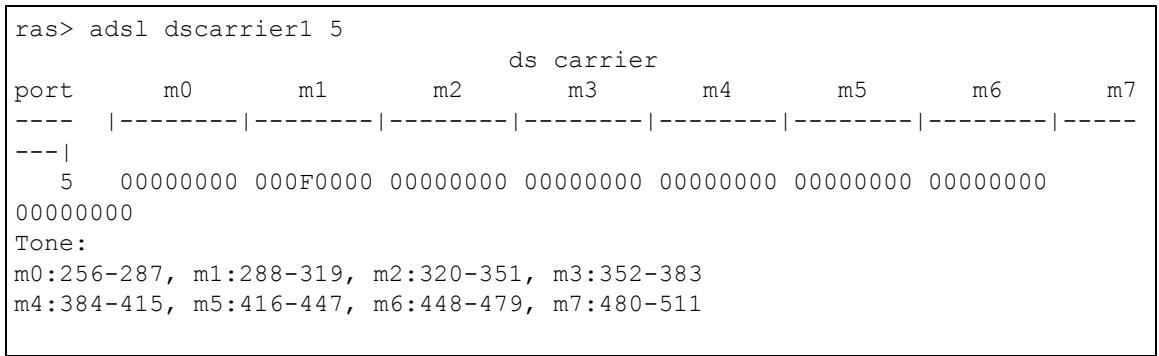
Figure 243 ADSL Downstream Carrier1 Command Display Example
55.1.16 PMM Parameters Command
Syntax:
ras> ads1 pmm param <portlist> [<10time> <12time> <12atpr> <12atprt>]
[<max_l2rate> <min_l2rate> <10tol2_rate>]
where
<10time> = Set the minimum time in seconds (10~65535) that the ADSL line must stay in L0 power mode before changing to the L2 power mode.
<12time> = Set minimum time in seconds (10~65535) that the ADSL line must stay in the L2 power mode before reducing the power again in the L2 power mode.
<12atpr> = Set the maximum Aggregate Transmit Power Reduction (ATPR) in decibels (dB) that is permitted in a L2 power reduction. The system can gradually decrease the ADSL line transmission power while it is in the L2 power mode. This is the largest individual power reduction allowed in the L2 power mode. The range is 0~15(dB).
<12atprt> = Set the maximum Aggregate Transmit Power Reduction Total (ATPRT) in decibels (dB) that is permitted in the L2 power mode. This is the total transmit power decrease that is allowed to occur in the L2 power mode. The range is 0~15(dB).
<max_l2rate> = Set the maximum transfer rate (in Kilobits per second) that is permitted while the port is in the L2 power mode. The supported range is 32~4096 Kbps in 4 Kbps increments. If you enter a number that is not a multiple of 4, the system uses the next lower multiple of 4. If you enter 39 for example, the system will use 36.
<min_l2rate> = Set the minimum transfer rate (in Kilobits per second) that is permitted while the port is in the L2 power mode. The supported range is 32~4096 Kbps in 4 Kbps increments. If you enter a number that is not a multiple of 4, the system uses the next lower multiple of 4. If you enter 39 for example, the system will use 36.
<10tol2_rate> = Set the down stream transfer rate (in Kilobits per second) that serves as the threshold for whether the port is to use the L0 or the L2 power mode. The system changes from L0 mode to L2 mode when the downstream transfer rate stays below this threshold for L0 Time. The system changes back from L2 mode to L0 mode when the downstream transfer rate goes above this threshold. This rate must be less than or equal to one half of the Min L2 Rate and at least 16 Kbps.
Use this command to display or set Power ManageMent (PMM) parameters for the specified ADSL port(s).
The following example sets ADSL port 5 to use the following PMM settings.
- Stay in the L0 power mode for 180 seconds before a change to the L2 power mode is permitted.
- Once in L2 power mode, wait for 90 seconds before further reducing the transmission power.
Each L2 power mode power reduction can only be 2 dB or less. - The total power reduction allowed in the L2 power mode is 40dB .
Figure 244 PMM Parameters Command Example
ras> adsl pmm param 5 180 90 2 40
55.1.17 Impulse Noise Protection Command
Syntax:
ras> adsl inp <portlist> [<usINP> [,<dsINP>] ]
where
<dsINP> = Sets the minimum downstream (ds) impulse noise protection setting. Use 0~3 to define a number of DMT symbols. 0 = 0 DMT symbols, 1 = 0.5 DMT symbols, 2 = 1 DMT symbols, 3 = 2 DMT symbols.
This command sets the upstream (us) and downstream (ds) impulse noise protection minimum setting on the specified ADSL port(s). Sudden spikes in the line's noise level (impulse noise) can cause errors and result in lost packets. Set the impulse noise protection minimum to have a buffer to protect the ADSL physical layer connection against impulse noise. This buffering causes a delay that reduces transfer speeds. It is recommended that you use a non-zero setting for real time traffic that has no error correction (like videoconferencing).
The following example sets the impulse noise protection minimum to 1 DMT symbols for upstream and 0.5 DMT symbols for downstream for ADSL port 5.
Figure 245 Impulse Noise Protection Command Example
ras> ads1 inp 5 2 1
55.1.18 Annex L Enable Command
This command is available for the IES-1248-51 and IES-1248-51A.
Syntax:
This command turns on the Annex L reach extended feature on the specified ADSL2 port(s). Annex L can be used with Annex A (ADSL over POTS), not Annex B (ADSL over ISDN).
The following example turns on the Annex L feature for port 5.
Figure 246 Annex L Enable Command Example
This command is available for the IES-1248-51 and IES-1248-51A.
Syntax:
ras> adssl annex1 disable <portlist>
This command turns off the Annex L reach extended feature on the specified ADSL2 port(s).
The following example turns off the Annex L feature for port 5.
Figure 247 Annex L Disable Command Example
55.1.20 Annex M Enable Command
This command is available for the IES-1248-51 and IES-1248-51A.
Syntax:
This command turns on the Annex M double upstream feature on the specified ADSL2/2+ port(s). This has the upstream connection use tones 6 to 63.
The following example turns on the Annex M feature for port 5.
Figure 248 Annex M Enable Command Example
ras> adsl annexm enable 5
55.1.21 Annex M Disable Command
This command is available for the IES-1248-51 and IES-1248-51A.
Syntax:
ras> adsl annexm disable <portlist>
This command turns off the Annex M double upstream feature on the specified ADSL2/2+ port(s).
The following example turns off the Annex M feature for port 5.
Figure 249 Annex M Disable Command Example
ras> ads1 annexm disable 5
55.1.22 Annex I Enable Command
This command is available for the IES-1248-51 and IES-1248-51A.
Syntax:
ras> adssl annexi enable <portlist>
This command turns on the Annex I all digital mode feature on the specified ADSL2/2+ port(s). With Annex I, the ADSL connection uses the full spectrum of the physical line and the user can not use POTS or ISDN service.
The following example turns on the Annex I feature for port 5.
Figure 250 Annex I Enable Command Example
This command is available for the IES-1248-51 and IES-1248-51A.
Syntax:
ras> adsl annexi disable <portlist>
This command turns off the Annex I all digital mode feature on the specified ADSL2/2+ port(s).
The following example turns off the Annex I feature for port 5.
Figure 251 Annex I Disable Command Example
Use these commands to display ADSL port statistics.
55.2.1 ADSL Show Command
Syntax:
ras> statistics ADS1 show [portlist]
where
[portlist] = You can specify a single ADSL port < 1> , all ADSL ports < *> or a list of ADSL ports < 1,3,5> . You can also include a range of ports < 1,5,6 10> .
This command displays ADSL port connection statistics including the status (V for enabled, - for disabled), ADSL operational mode, upstream and downstream maximum rates, up time and the number of errored seconds.
The following example displays connection statistics for ADSL port 1.

Figure 252 ADSL Show Command Example
55.2.2 Linedata Command
Syntax:
ras> statistics adsl linedata <portlist>
where
This command shows the line bit allocation of an ADSL port.
Discrete Multi-Tone (DMT) modulation divides up a line's bandwidth into tones. This command displays the number of bits transmitted for each tone. This can be used to determine the quality of the connection, whether a given sub-carrier loop has sufficient margins to support ADSL transmission rates, and possibly to determine whether certain specific types of interference or line attenuation exist. See the ITU-T G.992.1 recommendation for more information on DMT.
The better (or shorter) the line, the higher the number of bits transmitted for a DMT tone. The maximum number of bits that can be transmitted per DMT tone is 15.
"upstream carrier load" displays the number of bits transmitted per DMT tone for the upstream channel (from the subscriber's DSL modem or router to the IES-1248).
"downstream carrier load" displays the number of bits received per DMT tone for the downstream channel (from the IES-1248 to the subscriber's DSL modem or router).
The bit allocation contents are only valid when the link is up.
In the following example, the upstream channel is carried on tones 7 to 39 and the downstream channel is carried on tones 53 to 259 (space is left between the channels to avoid interference).
Figure 253 Linedata Command Example
ras> statistics adsl linedata 1
[port 1]
up stream carrier load: number of bits per symbol(tone):
tone 0- 19: 00 00 00 00 00 00 02 03 04 05 - 06 07 07 07 07 07 07 07 08 08
tone 20- 39: 08 08 07 08 08 07 07 06 06 05 - 04 03
down stream carrier load: number of bits per symbol(tone):
tone 0- 19: 00 00 00 00 00 00 00 00 00 - 00 00 00 00 00 00 00 00 00 00
tone 20- 39: 00 00 00 00 00 00 00 00 00 - 00 00 00 00 00 00 00 00
tone 40- 59: 00 00 00 00 00 00 00 00 - 00 00 00 11 1111111111111111111111111111111111111111111111111111111111111111111111111111111111111111111111111111
55.2.3 Lineinfo Command
Syntax:
ras> statistics adsl lineinfo <portlist>
where
<portlist>
= You can specify a single ADSL port <1> , all ADSL ports <^*> or a list of ADSL ports <1,3,5> . You can also include a range of ports <1,5,6 10> .
This command shows the line operating values of an ADSL port.
An example is shown next.
Figure 254 Lineinfo Command Example
ras> statistics adsl lineinfo 8
[port 8]
operating modes:
- service type in operation: adsl2+
- TRELLIS operation mode : on
connection detail:
- down/up stream interleaved delay (ms): 3/2
- total transceiver DS output power (dbm): -2.5
- total transceiver US output power (dbm): 11.5
atuc information:
- vendor id: 3030423530303530000000000000000000000000000000000000000000000000000000000000000000000000000000000000000000000000000
The service type in operation is the ADSL standard that the port is using: G.dmt (IES-1248-51/51A), G.dmt Annex B (IES-1248-53), ETSI (IES-1248-53), Glite (IES-1248-51/51A), ANSI T1.413 issue 2 (IES-1248-51/51A), ADSL2, or ADSL2+.
Trellis coding helps to reduce the noise in ADSL transmissions. Trellis may reduce throughput but it makes the connection more stable.4
The numbers of milliseconds of interleave delay for downstream and upstream transmissions are listed. The total output power of the transceiver varies with the length and line quality. The farther away the subscriber's ADSL modem or router is or the more interference there is on the line, the higher the power will be. "DS" refers to the power output of the IES-1248 "US" refers to the power output of the subscriber's ADSL modem or router.
Information obtained prior to training to steady state transition will not be valid or will be old information.
The atuc information fields show data acquired from the ATUC (ADSL Termination Unit – Central), in this case IES-1248, during negotiation/provisioning message interchanges.
The atrur information fields show data acquired from the ATUR (ADSL Termination Unit - Remote), in this case the subscriber's ADSL modem or router, during negotiation/provisioning message interchanges. This information can help in identifying the subscriber's ADSL modem or router.
The vendor ID, vendor version number and product serial number are obtained from vendor ID fields (see ITU-T G.994.1) or R-MSGS1 (see T1.413).
55.2.4 Lineperf Command
Syntax:
ras> statistics adsl lineperf <portlist>
where
This command shows the line performance counters of an ADSL port.
An example is shown next.
Figure 255 Lineperf Command Example
ras> statistics adsl lineperf 1
[port 1] Perf since boot up
nfebe-I/nfebe-ni : 46/ 0 (Far End CRC)
ncrc-I/ncrc-ni : 5/ 0 (Near End CRC)
nfecc-I/nfecc-ni : 0/ 0 (Far End Corrected FEC)
nfec-I/nfec-ni : 28/ 0 (Near End Corrected FEC)
init-atuc/init-atur: 23/ -
es-atuc /es-atur : 27/ 92
ses-atuc /ses-atur : 26/ 60
uas-atuc /uas-atur : 1515/ 1515
lpr-atuc /lpr-atur : -/ 2
These counters display line performance data that has been accumulated since the system started. In the list above the definitions of near end/far end will always be relative to the ATU-C (ADSL Termination Unit-Central Office). Downstream (ds) refers to data from the ATU-C and upstream (us) refers to data from the ATU-R. "I" stands for interleaved and "ni" stands for non-interleaved (fast mode).
A block is a set of consecutive bits associated with the path; each bit belongs to one and only one block. Consecutive bits may not be contiguous in time.
Table 98 Line Performance Counters
| LABEL | DESCRIPTION |
| nfebe | The Number of Far End Block Errors (Cyclic Redundancy Check). |
| ncrc | Near end Cyclic Redundancy Check errors. |
| nfecc | The Far End blocks repaired by Forward Error Correction. |
| nfec | The Near End blocks repaired by Forward Error Correction. |
| init | The number of link ups and link downs. |
| es | The Number of Errroed Seconds. This is how many seconds contained at least one errored block or at least one defect. |
| ses | The Number of Severely Errroed Seconds. This is how many seconds contained 30% or more erroded blocks. This is a subset of n-es. |
| uas | The Number of Unavailable Seconds. |
| lpr | The Number of Loss of Power Seconds (on the ATUR) that have occurred. |
55.2.5 15 Minute Performance Command
Syntax:
ras> statistics ADS1 15mperf
where
[ \text{[count} < 0..96 > \text{]} = \text{Specify for which 15-minute interval (0~96) you want to display performance statistics. 0 is the current 15 minutes.} ]
This command displays line performance statistics for the current and previous 15-minute periods.
An example is shown next.
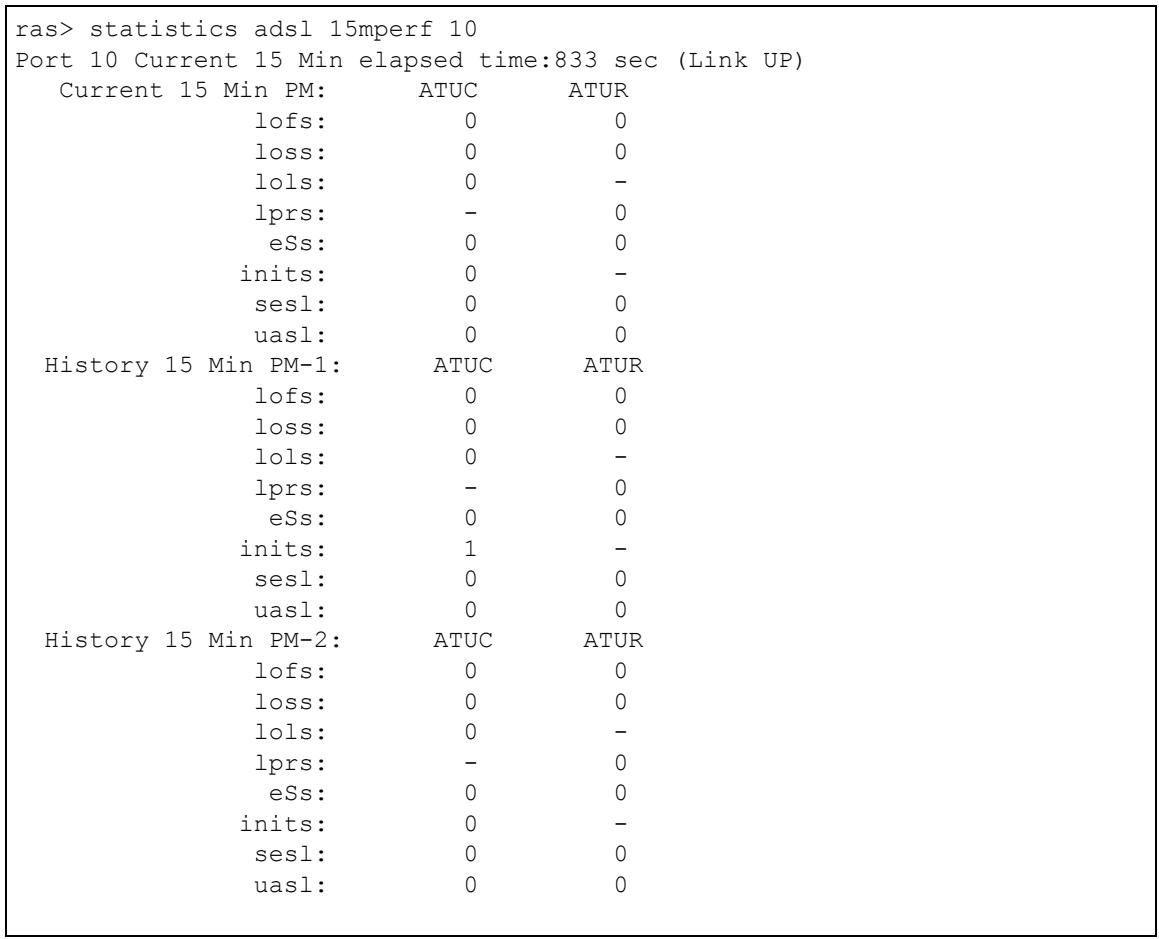
Figure 256 15 Minute Performance Command Example
The following table explains these counters.
Table 99 15 Minute Performance Counters
| LABEL | DESCRIPTION |
| atuc | Upstream. These statistics are for the connection (or traffic) coming from the subscriber's device to the IES-1248. |
| atur | Downstream. These statistics are for the connection (or traffic) going from the IES-1248 to the subscriber's device. |
| lofs | The number of Loss Of Frame seconds that have occurred within the 15-minute period. |
| loss | The number of Loss Of Signal seconds that have occurred within the 15-minute period. |
| lolis | The number of Loss Of Link seconds that have occurred within the 15-minute period. |
| lprs | The number of Loss of Power seconds (on the ATUR) that have occurred within the 15-minute period. |
| eSs | The number of Errored Seconds that have occurred within the 15-minute period. |
| inits | The number of link ups and link downs that have occurred within the 15-minute period. |
| sesl | The number of Severely Errored Seconds that have occurred within the 15-minute period. |
| uasl | The number of UnAvailable Seconds that have occurred within the 15-minute period. |
These counters are also used in the alarm profiles (see Section 55.2.9 on page 389).
55.2.6 1 Day Performance Command
Syntax:
ras> statistics adsl 1dayperf <portlist>
where
<portlist>
= You can specify a single ADSL port <1> , all ADSL ports <^*> or a list of ADSL ports <1,3,5> . You can also include a range of ports <1,5,6 10> .
This command displays line performance statistics for the current and previous 24 hours.
An example is shown next.
Figure 257 1Day Performance Command Example
ras> statistics adsl 1dayperf 10
Port 10 current 1 day elapsed time:7827 sec (Link UP)
Current 1 Day Perf ATUC ATUR
lofs 0 0
loss 0 0
lols 0 -
lprs - 0
eSs 0 0
inits 1 -
sesl 1 0
uasl 0 0
Port 10 previous 1 day elapsed time:0 sec
Previous 1 Day Perf ATUC ATUR
lofs 0 0
loss 0 0
lols 0 -
lprs - 0
eSs 0 0
inits 0 -
sesl 0 0
uasl 0 0
See Table 99 on page 385 for details about these counters.
55.2.7 Line Diagnostics Set Command
Syntax:
ras> ADS1 linediag setld <port number>
This command has the IES-1248 perform line diagnostics on the specified port. The ADSL port must be set to ADSL2 or ADSL2+ ADSL operational mode and have a connection. It takes about one minute for the line diagnostics to finish.
The following example performs line diagnostics on ADSL port 1. The screen displays a message confirming upon which ADSL port line diagnostics will be performed.
Figure 258 Line Diagnostics Set Command Example
ras> adsl linediag setld 1 Line- 1 set to Line Diagnostic Mode
55.2.8 Line Diagnostics Get Command
Syntax:
ras> adssl linediag getld
Use this command to display the line diagnostics results after using the line diagnostics set command on an ADSL port. Use the line diagnostics results to analyze problems with the physical ADSL line.
Note: Wait at least one minute after using the line diagnostic set command before using this command.
The following example displays the line diagnostics results for ADSL port 1.
Figure 259 Line Diagnostics Get Command Example
ras> ADS1 linediag getld 1
Line_Diagnostics_Parameter,_channel: 0
number_of_subcarries: 256 32
hlinScale: 19625 32767
latn: 54 0
satn: 52 8
snrm: 60 60
attndr: 12140000 1120000
farEndActatp: 75 125
i li.r1 li.im log QLN SNR
0 32768 32768 1023 255 255
1 32768 32768 1023 255 255
2 32768 32768 1023 255 255
3 32768 32768 1023 255 255
4 32768 32768 1023 255 255
5 32768 32768 1023 255 255
6 11604 4752 83 191 132
7 17794 5598 48 190 139
8 22385 5567 30 184 147
9 24903 5163 21 163 152
10 26768 5013 15 185 159
11 29179 5494 8 175 165
12 31605 6574 1 172 168
13 32766 8020 1023 186 170
14 32159 9597 1023 183 173
15 30990 11350 1023 182 173
16 30432 13730 1023 186 172
17 30259 16694 1023 182 170
18 29137 19570 1023 171 170
19 26499 21554 1023 186 172
20 23288 22973 0 173 174
The following table lists the line diagnostics test parameters that display, see the ITU-T's G992.3 for more information.
Table 100 Line Diagnostics Get Command
| LABEL | DESCRIPTION |
| number_of_subcarries | Discrete Multi-Tone (DMT) modulation divides up a line's bandwidth into sub-carriers (sub-channels) of 4.3125 kHz each.The first number is the total number of DMT sub-carriers the ADSL connection is using. The second number indicates how many upstream DMT sub-carriers the ADSL connection is using. |
| hlinScale: | The channel characteristics function is represented in linear format by a scale factor and a complex number. These are the maximum upstream and downstream scale factors used in producing the channel characteristics function. |
| latn: | This is the upstream and downstream Line Attenuation (in .1 dB). |
| satn: | This is the upstream and downstream Signal Attenuation (in .1 dB). |
| snrm: | This is the upstream and downstream Signal-to-Noise Ratio Margin (in .1 dB). A DMT sub-carrier's SNR is the ratio between the received signal power and the received noise power. The signal-to-noise ratio margin is the maximum that the received noise power could increase with the IES-1248 still being able to meet its transmission targets. |
| attndr: | This is the upstream and downstream Attainable Net Data Rate (in bit/s). |
| farEndActatp: | This is the upstream and downstream Far End Actual Aggregate Transmit Power (in .1 dBm) |
| i | This is the index number of the DMT sub-carrier. |
| li.r1 | The channel characteristics function is represented in linear format by a scale factor and a complex number. This is the real part of the complex number used in producing the channel characteristics function for this sub-carrier. |
| li.im | The channel characteristics function is represented in linear format by a scale factor and a complex number. This is the imaginary part of the complex number used in producing the channel characteristics function for this sub-carrier |
| log | This is a format for providing channel characteristics. It provides magnitude values in a logarithmic scale. This can be used in analyzing the physical condition of the ADSL line. |
| QLN | The Quiet Line Noise for a DMT sub-carrier is the rms (root mean square) level of the noise present on the line, when no ADSL signals are present. It is measured in dBm/Hz. The QLN can be used in analyzing crosstalk. |
| SNR | This is the upstream and downstream Signal-to-Noise Ratio (in .1 dB). A DMT sub-carrier's SNR is the ratio between the received signal power and the received noise power. The SNR can be used in analyzing time dependent changes in crosstalk levels and line attenuation (such as those caused by temperature variations and moisture). |
55.2.9 Line Diagnostics Get 992.3 Command
Syntax:
ras> adsl linediag getld992_3
Use this command to display the line diagnostics results in the format defined in the ITU-T G.992.3 standard after using the line diagnostics set command on an ADSL port. Use the line diagnostics results to analyze problems with the physical ADSL line.
Note: Wait at least one minute after using the line diagnostic set command before using this command.
The following example displays the line diagnostics results for ADSL port 1.
Figure 260 Line Diagnostics Get 992.3 Command Example
ras> ADS1 linediag getld992_3 1
port: 1
number_of_subcarries: 256 32
hlinScale: 17024 32767
latn: 2.0 0.2
satn: 2.0 0.0
snrm: -0.0 6.0
attndr: 10398468 1152000
farEndActatp: 20.4 12.4
i li.r1 li.im log(dB) QLN(dBm) SNR(dB)
0 N/A N/A N/A N/A N/A N/A
1 N/A N/A N/A N/A N/A N/A N/A
2 N/A N/A N/A N/A N/A N/A N/A
3 N/A N/A N/A N/A N/A N/A N/A
4 N/A N/A N/A N/A N/A N/A N/A
5 N/A N/A N/A N/A N/A N/A N/A
6 0.31557 0.00796 -9.9 -120.5 8.5
7 0.43477 -0.31599 -5.3 -120.0 42.0
8 0.28313 -0.67576 -2.6 -119.5 44.5
9 -0.01016 -0.86645 -1.1 -119.0 46.5
10 -0.28423 -0.89969 -0.4 -118.5 51.5
11 -0.48750 -0.85403 -0.1 -118.0 52.0
12 -0.63495 -0.79630 0.2 -118.0 54.5
13 -0.75373 -0.75644 0.6 -117.5 56.5
14 -0.84457 -0.72510 1.0 -117.0 56.5
15 -0.89389 -0.68549 1.1 -116.5 56.5
16 -0.90713 -0.64631 1.0 -114.5 56.5
17 -0.91955 -0.63196 1.0 -116.0 57.0
18 -0.95053 -0.64860 1.3 -116.0 57.0
19 -0.97781 -0.67563 1.6 -115.5 57.0
20 -0.97161 -0.69211 1.6 -115.5 57.5
The following table lists the line diagnostics test parameters that display, see the ITU-T's G992.3 for more information.
Table 101 Line Diagnostics Get 992.3 Command
| LABEL | DESCRIPTION |
| number_of_subcarries | Discrete Multi-Tone (DMT) modulation divides up a line's bandwidth into sub-carriers (sub-channels) of 4.3125 KHz each.The first number is the total number of DMT sub-carriers the ADSL connection is using. The second number indicates how many upstream DMT sub-carriers the ADSL connection is using. |
| hlinScale: | The channel characteristics function is represented in linear format by a scale factor and a complex number. These are the maximum upstream and downstream scale factors used in producing the channel characteristics function. |
| latn: | This is the upstream and downstream Line Attenuation (in dB). |
| satn: | This is the upstream and downstream Signal Attenuation (in dB). |
| snrm: | This is the upstream and downstream Signal-to-Noise Ratio Margin (in dB). A DMT sub-carrier's SNR is the ratio between the received signal power and the received noise power. The signal-to-noise ratio margin is the maximum that the received noise power could increase with the IES-1248 still being able to meet its transmission targets. |
| attndr: | This is the upstream and downstream Attainable Net Data Rate (in bit/s). |
| farEndActatp: | This is the upstream and downstream Far End Actual Aggregate Transmit Power (in dBm) |
| i | This is the index number of the DMT sub-carrier. |
| li.r1 | The channel characteristics function is represented in linear format by a scale factor and a complex number. This is the real part of the complex number used in producing the channel characteristics function for this sub-carrier. |
| li.im | The channel characteristics function is represented in linear format by a scale factor and a complex number. This is the imaginary part of the complex number used in producing the channel characteristics function for this sub-carrier |
| log | This is a format for providing channel characteristics. It provides magnitude values in a logarithmic scale. It is measured in dB. This can be used in analyzing the physical condition of the ADSL line. |
| QLN | The Quiet Line Noise for a DMT sub-carrier is the rms (root mean square) level of the noise present on the line, when no ADSL signals are present. It is measured in dBm. The QLN can be used in analyzing crosstalk. |
| SNR | This is the upstream and downstream Signal-to-Noise Ratio (in dB). A DMT sub-carrier's SNR is the ratio between the received signal power and the received noise power. The SNR can be used in analyzing time dependent changes in crosstalk levels and line attenuation (such as those caused by temperature variations and moisture). |
55.2.10 SELT Diagnostic Set Command
Syntax:
ras> adsl linediag setselt
This command has the IES-1248 perform a single end line test on the specified port. This test checks the distance to the subscriber's location.
Note: The port must have an open loop. There cannot be a DSL device, phone, fax machine or other device connected to the subscriber's end of the telephone line.
The test takes at least 15 seconds. You can run the SELT Diagnostic Get Command to check the status of the test and to look at the results.
The following example starts a SELT test on ADSL port 1.
Figure 261 SELT Diagnostic Set Command Example
ras> adsl linediag setselt 1
55.2.11 Selt Diagnostic Get Command
Syntax:
ras> adsl linediag getselt <port number>
Use this command to display the status and the results of the Selt test on the specified port. The report tells you what gauge of telephone wire is connected to the port and the approximate length of the line measured both in meters and thousands of feet.
The following example displays the status and results SELT diagnostic results for ADSL port 1.
Figure 262 Line Diagnostics Get Command Example
ras> adsl linediag getselt 1
port inprogress cableType loopEstimateLength
--- -- -- -- -- -- -- -- -- -- -- -- -- -- -- -- -- -- -- -- -- -- -- -- -- -- -- -- -- -- -- -- -- -- -- -- -- -- -- -- -- -- -- -- -- -- -- -- -- -- -- -- -- -- -- -- -- -- -- -- -- -- -- -- -- -- -- -- -- -- -- -- -- -- -- -- -- -- -- -- -- -- -- -- -- -- -- -- -- -- -- - - - - - - - - - - - - - - - - - - - - - - - - - - - - - - - - - - - - - - - - - - - - - - - - - - - - - - - - - - - - - - - - - - - - - - - - - - - - - - - - - - - - - - - - - - - - - - - - - - - -
1 INPROGRESS 24AWG 0 m(0.00 kFt)
ras> adsl linediag getselt 1
port inprogress cableType loopEstimateLength
--- -- -- -- -- -- -- -- -- -- -- -- -- -- -- -- -- -- -- -- -- -- -- -- -- -- -- -- --
1 DONE 24AWG 0 m(0.00 kFt)
55.2.12 Tone Diagnostics 992.3 Command
Syntax:
ras> adsl linediag toneDiag <port number>
Use this command to display the tone diagnostics for a port in the format defined in the ITU-T G.992.3 standard. You do not need to use the line diagnostics set command first. Use the tone diagnostics to analyze problems with the physical ADSL line.
The following example displays the tone diagnostics results for ADSL port 8.
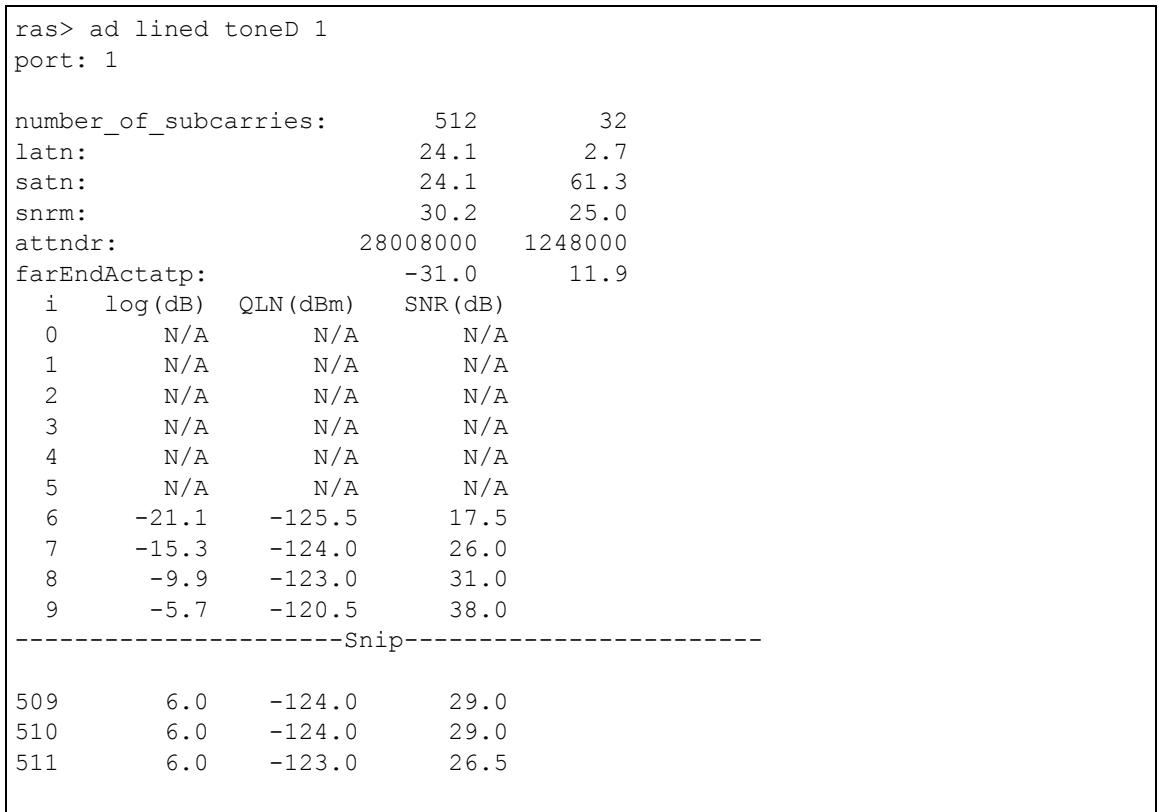
Figure 263 Tone Diagnostics Command Example
The following table lists the tone diagnostic parameters. See the ITU-T's G.992.3 for more information.
Table 102 ToneDiag Command
| LABEL | DESCRIPTION |
| number_of_subcarries | Discrete Multi-Tone (DMT) modulation divides up a line's bandwidth into sub-carriers (sub-channels) of 4.3125 KHz each.This number indicates how many upstream and downstream DMT sub-carriers the ADSL connection is using. |
| hlinScale: | The channel characteristics function is represented in linear format by a scale factor and a complex number. This is the maximum upstream and downstream scale factor used in producing the channel characteristics function. |
| latn: | This is the upstream and downstream Line Attenuation (in dB). |
| satn: | This is the upstream and downstream Signal Attenuation (in dB). |
| snrm: | This is the upstream and downstream Signal-to-Noise Ratio Margin (in dB). A DMT sub-carrier's SNR is the ratio between the received signal power and the received noise power. The signal-to-noise ratio margin is the maximum that the received noise power could increase with the IES-1248 still being able to meet its transmission targets. |
| attndr: | This is the upstream and downstream Attainable Net Data Rate (in bit/s). |
| farEndActatp: | This is the upstream and downstream Far End Actual Aggregate Transmit Power (in dBm) |
| i | This is the index number of the DMT sub-carrier. |
| log (dB) | This is a format for providing channel characteristics. It provides magnitude values in a logarithmic scale. This can be used in analyzing the physical condition of the ADSL line. |
| QLN (dBm) | The Quiet Line Noise for a DMT sub-carrier is the rms (root mean square) level of the noise present on the line, when no ADSL signals are present. It is measured in dBm/Hz. The QLN can be used in analyzing crosstalk. |
| SNR (dB) | This is the upstream and downstream Signal-to-Noise Ratio (in dB). A DMT sub-carrier's SNR is the ratio between the received signal power and the received noise power. The SNR can be used in analyzing time dependent changes in crosstalk levels and line attenuation (such as those caused by temperature variations and moisture). |
55.3 Alarm Profile Commands
Configure alarm profiles to set alarm settings and thresholds for the ADSL ports.
55.3.1 Alarm Profile Show Command
Syntax:
ras> adssl alarmprofile show [profile]
where
[profile] = The name of an alarm profile.
Displays the settings of the specified alarm profile (or all of them if you do not specify one).
The following example displays the default alarm profile (DEFVAL).
Figure 264 Alarm Profile Show Command Example
ras> ADS1 alarmprofile show DEFVAL 01. DEFVAL ATU-C ATU-R Thresh15MinLofs (sec): 0 0 Thresh15MinLoss (sec): 0 0 Thresh15MinLols (sec): 0 --- Thresh15MinLprs : 0 0 Thresh15MinESs (sec): 0 0 ThreshFastRateUp (bps): 0 0 ThreshInterleaveRateUp (bps): 0 0 ThreshFastRateDown (bps): 0 0 ThreshInterleaveRateDown (bps): 0 0 InitFailureTrap(1-enable,2 DISABLE) : 2 --- Thresh15MinFailedFast : 0 --- Thresh15MinSes (sec): 0 0 Thresh15MinUas (sec): 0 0
55.3.2 Alarm Profile Set Command
Syntax:
ras> adsl alarmprofile set
where
atuc = Upstream. These parameters are for the connection (or traffic) coming from the subscriber's device to the IES-1248.
atur = Downstream. These parameters are for the connection (or traffic) going from the IES-1248 to the subscriber's device.
<atuc ess> = The number of Errored Seconds that are permitted to occur within 15 minutes.
<atur ess> = A rate in kilobits per second (kbps). If a fast mode connection's upstream transmission rate increases by more than this number, then a trap is sent.
<atuc fast rateup> <atur fast rateup> = A rate in kilobits per second (kbps). If an interleave mode connection's upstream transmission rate increases by more than this number, then a trap is sent.
<atuc interleave rateup> <atur interleave rateup> = A rate in kilobits per second (kbps). If a fast mode connection's downstream transmission rate decreases by more than this number, then a trap is sent.
<atuc fast ratedown> <atur fast ratedown> = A rate in kilobits per second (kbps). If an interleave mode connection's upstream transmission rate decreases by more than this number, then a trap is sent.
<atuc interleave ratedown> <atur interleave ratedown> = A rate in kilobits per second (kbps). If an interleave mode connection's upstream transmission rate decreases by more than this number, then a trap is sent.
<init fail enable> = "1" sets the profile to trigger an alarm for an initialization failures trap. "2" sets the profile to not trigger an alarm for an initialization failures trap.
<atuc fail fast> = The number of failed fast retrans that are permitted to occur within 15 minutes.
<atuc ses> = The number of Severely Errored Seconds that are permitted to occur within 15 minutes.
<atur ses> = The number of UnAvailable Seconds that are permitted to occur within 15 minutes.
This command configures settings and thresholds that define when the IES-1248 is to send an alarm trap and generate a syslog entry.
Configure alarm profiles first and then use the alarmprofile map command to set the IES-1248 to use them with specific ADSL ports.
The following example sets an alarm profile named SESalarm that has the IES-1248 send an alarm trap and generate a syslog whenever the upstream connection's number of severely errored seconds exceeds three within a 15 minute period.
Figure 265 Alarm Profile Set Command Example
ras> ADS1 alarmprofile set SESalarm 0 0 0 0 0 0 0 0 0 0 0 0 0 0 0 0 2 0 3 0 0 0
55.3.3 Alarm Profile Delete Command
Syntax:
ras> adssl alarmprofile delete <profile>
where
<profile> = The name of an alarm profile.
This command allows you to delete an individual ADSL alarm profile by its name. You cannot delete the DEFVAL alarm profile.
The following example deletes the SESalarm alarm profile.
Figure 266 Alarm Profile Delete Command Example
ras> adsl alarm profile delete SESalarm
55.3.4 Alarm Profile Map Command
Syntax:
ras> ads1 alarmprofile map <portlist> <profile>
where
<profile> = The name of an alarm profile.
Sets the IES-1248 to use an (already-configured) alarm profile with the specified ADSL ports.
The following example sets the IES-1248 to use the SESalarm alarm profile with ADSL port 5.
Figure 267 Alarm Profile Map Command Example
ras> ADS1 alarmprofile map SESalarm 5
55.3.5 Alarm Profile Showmap Command
Syntax:
ras> ADS1 alarmprofile showmap [profile]
where
[profile] = The name of an alarm profile.
Displays which alarm profiles the IES-1248 is set to use for specific (or all) ADSL ports.
The following example displays which alarm profile the IES-1248 is set to use for ADSL port 5.
Figure 268 Alarm Profile Showmap Command Example
ras> ADS1 alarmprofile showmap 5
ADSL alarm profile mapping:
Port 5: Alarm Profile = DEFVAL
CHAPTER 56
Virtual Channel Management
This chapter shows you how to use commands to configure virtual channels.
56.1 Virtual Channel Management Overview
See Chapter 16 on page 119 for background information on virtual channels and ATM QoS.
56.2 Virtual Channel Profile Commands
Use the following commands to configure virtual channel profiles.
56.2.1 Show Virtual Channel Profile Command
Syntax:
ras> ads1 vcprofile show [vcprofile]
where
[vcprofile] = The name of the virtual channel profile (up to 31 ASCII characters).
Displays the settings of the specified virtual channel profile (or all of them if you do not specify one).
56.2.2 Set Virtual Channel Profile Command
Syntax:
ras> adsl vcprofile set <vcprofile> <vc|llc> <ubr|cbr> <pcr> <cdvt> ras> adsl vcprofile set <vcprofile> <vc|llc> <vbr(rt-vbr)|nrt-vbr> <pcr> <cdvt> <scr> <bt>
where
<vcprofile> = The name of the virtual channel profile (up to 31 ASCII characters). You cannot change the DEFVAL or DEFVAL_VC profiles.
<vc|11c> = The type of encapsulation (vc or llc).
<ubr|cbr> = The ubr (unspecified bit rate) or cbr (constant bit rate) or ATM traffic class.
<pcr> = Peak Cell Rate (150 to 300000), the maximum rate (cells per second) at which the sender can send cells.
[cdvt] = Cell Delay Variation Tolerance is the accepted tolerance of the difference between a cell's transfer delay and the expected transfer delay (number of cells). 0 to 255 cells or * (means 0).
<vbr(rt-vbr)|nrt-vbr> = The real-time (vbr) or non real-time (nrt-vbr) Variable Bit Rate ATM traffic class.
<scr> = The Sustained Cell Rate sets the average cell rate (long-term) that can be transmitted (cells per second). SCR applies with the vbr traffic class.
<bt> = Burst Tolerance this is the maximum number of cells that the port is guaranteed to handle without any discards (number of cells). BT applies with the vbr traffic class.
This command creates a virtual channel profile. After you create a virtual channel profile, you can assign it to any of the ADSL ports on any of the ADSL IES-1248 in the IES-1248.
The following example creates a virtual channel profile named gold that uses LLC encapsulation. It uses constant bit rate and has the maximum rate (peak cell rate) set to 300,000 cells per second. The acceptable tolerance of the difference between a cell's transfer delay and the expected transfer delay (CDVT) is set to 5 cells.
Figure 269 Set Virtual Channel Profile Command Example 1
ras> adsl vcprofile set gold llc cbr 300000 5
The following example creates a virtual channel profile named silver that uses VC encapsulation. It uses real-time variable bit rate and has the maximum rate (peak cell rate) set to 250,000 cells per second. The acceptable tolerance of the difference between a cell's transfer delay and the expected transfer delay (CDVT) is set to 5 cells. The average cell rate that can be transmitted (SCR) is set to 100,000 cells per second. The maximum number of cells that the port is guaranteed to handle without any discards (BT) is set to 200.
Figure 270 Set Virtual Channel Profile Command Example 2
ras> adsl vprofile set silver vc vbr 250000 5 100000 200
The following example creates a virtual channel profile named economy that uses LLC encapsulation. It uses unspecified bit rate and has the maximum rate (peak cell rate) set to 50,000 cells per second. The acceptable tolerance of the difference between a cell's transfer delay and the expected transfer delay (CDVT) is set to 100 cells.
Figure 271 Set Virtual Channel Profile Command Example 3
ras> adsl vprofile set gold l1c cbr 50000 100
56.2.3 Delete Virtual Channel Profile Command
Syntax:
ras> adsl vprofile delete <vcprofile>
where
<vcprofile> = The name of the virtual channel profile (up to 31 ASCII characters). You cannot delete the DEFVAL or DEFVAL_VC profiles.
You cannot delete a virtual channel profile that is assigned to any of the ADSL ports. Assign a different profile to any ADSL ports that are using the profile that you want to delete, and then you can delete the profile.
The following example deletes the silver virtual channel profile.
Figure 272 Delete Virtual Channel Profile Command Example
ras> adsl vprofile delete silver
56.3 PVC Channels
Channels (also called Permanent Virtual Circuits or PVCs) let you set priorities for different services or subscribers. You can define up to eight channels on each DSL port and use them for different services or levels of service. You set the PVID that is assigned to untagged frames received on each channel. You also set an IEEE 802.1p priority for each of the PVIDs. In this way you can assign different priorities to different channels (and consequently the services that get carried on them or the subscribers that use them). Use the following commands to define channels.
56.3.1 PVC Show Command
Syntax:
ras> adsl pvc show [portlist] [<vpi><vci>]
where
<vpi> < vci> = The VPI and VCI of an individual PVC.
This command allows you to display the PVC parameters of the specified ADSL port(s) or all of the ADSL ports if you do not specify any.
56.3.2 PVC Set Command
Syntax:
ras> adsl pvc set
where
= The VPI setting can be 0 to 255.
<super | vid = Enable the super channel option to allow a channel forward frames belonging to multiple VLAN groups (that are not assigned to other channels). The IES-1248 forwards frames belonging to VLAN groups that are not assigned to specific channels to the super channel. The super channel functions in the same way as the channel in a single channel environment. One port can have only one super channel.
The default VID (1 to 4094). Each PVC must have a unique VID since the IES-1248 forwards traffic back to the subscribers based on the VLAN ID.
DS vcprofile = Assign a VC profile to use for this channel's downstream traffic shaping.
[,US = Assign a VC profile to use for policing this channel's upstream traffic. The IES-1248 does not perform upstream traffic policing if you do not specify an upstream VC profile.
This command allows the configuration of a PVC (permanent virtual circuit) for one or a range of ADSL ports.
The following example sets a PVC on ADSL port 1 with VPI 1, VCI 34, default VID 100 priority 3. It sets the "platinum" profile for downstream traffic shaping and a VC profile named "plus" for upstream traffic policing.
Figure 273 PVC Set Command Example
ras> ads1 pvc set 1 1 34 100 3 platinum,plus
56.3.3 PVC Delete Command
Syntax:
ras> adsl pvc delete <portlist> <vpi> <vci>
where
[ \left[ <\mathrm{vpi}> <\mathrm{vci}> \right] = \text{The VPI and VCI of an individual PVC.} ]
This command deletes the specified PVC channel.
56.4 Priority-based PVCs
A PPVC (Priority-based PVC) allows you to give different priorities to PVCs that are members of the same VLAN.
The IES-1248 uses eight priority queues (also called levels) for the member PVCs. The system maps frames with certain IEEE 802.1p priorities to a PVC with a particular priority queue. See Chapter 16 on page 119 for the factory default mapping.
Use these commands to configure PPVCs and add and remove member PVCs.
56.4.1 PPVC Set Command
Syntax:
ras> adsl ppvc set
where
This command creates a PPVC.
The following example creates a PPVC with VPI 8 and VCI 35 for port 5. The PPVC uses llc encapsulation and default VID 25. Any frames received without an IEEE 802.1p priority tag will be assigned a priority of 3. The IES-1248 uses this PVC channel internally. This PVC is not needed on the subscriber's device.
Figure 274 PPVC Set Command Example
ras> ads1 ppvc set 5 8 35 11c 25 3
56.4.2 PPVC Member Set Command
Syntax:
ras> adsl ppvc member set
where
You can specify a single ADSL port <1> , all ADSL ports <* or a list of ADSL ports <1,3,5> . You can also include a range of ports <1,5,6 10> .
DS vcprofile = Assign a VC profile to use for this channel's downstream traffic shaping.
[,US vcprofile>] = Assign a VC profile to use for policing this channel's upstream traffic. The IES-1248 does not perform upstream traffic policing if you do not specify an upstream VC profile.
This command adds a member PVC to a PPVC. You must create the PPVC before you use this command to add a member.
Note: Only the member PVCs need to be created on the subscriber's device.
The following example adds a PVC to a PPVC with VPI 8 and VCI 35 for port 5. The PVC uses VPI 8 and VCI 36. It sets the DEFVAL profile for downstream traffic shaping and for upstream traffic policing. It uses priority queue 2.
Figure 275 PPVC Member Set Command Example
ras> ads1 ppvc member set 5 8 35 8 36 DEFVAL,DEFVAL 2
56.5 PPVC Member Delete Command
Syntax:
ras> adsl ppvc member delete <portlist> <vpi> <vci> <member vpi> <member vci>
where
You can specify a single ADSL port <1> , all ADSL ports <* > or a list of ADSL ports <1,3,5> . You can also include a range of ports <1,5,6 10> .
This command removes a PVC from a PPVC.
The following example removes a PVC that uses VPI 8 and VCI 36 from a PPVC with VPI 8 and VCI 35 for port 5.
Figure 276 PPVC Member Delete Command Example
ras> adsl ppvc member delete 5 8 35 8 36
56.6 PPVC Member Show Command
Syntax:
ras> adsl ppvc member show [<portlist> [<vpi> <vci>]
where
You can specify a single ADSL port <1> , all ADSL ports <串> or a list of ADSL ports <1,3,5> . You can also include a range of ports <1,5,6 10> .
This command displays the PVCs that are members of a PPVC.
The following example displays the PVCs that are members of a PPVC for port 5.
Figure 277 PPVC Member Show Command Example
ras> adsl ppvc member show 5
port vpi vci mvpi mvci level DS/US vcprofile
5 8 35 8 36 2 DEFVAL/DEFVAL
56.6.1 PPVC Show Command
Syntax:
ras> adsl ppvc show [<portlist> [<vpi> <vci>]
where
<portlist> = The port(s) of the PPVC.
You can specify a single ADSL port < 1> , all ADSL ports <^*> or a list of ADSL ports <1,3,5> . You can also include a range of ports <1,5,6 10> .
<Vpi> = The VPI of the PPVC.
<vci> = The VCI of the PPVC.
This command displays the runtime configured PPVCs.
The following example displays the PPVCs configured on DSL port 5.
Figure 278 PPVC Show Command Example
ras> ads1 ppvc show 5
port vpi vci encap pvid pri
5 8 35 11c 25 6
56.6.2 PPVC Delete Command
Syntax:
ras> adsl ppvc delete <portlist> <vpi> <vci>
where
You can specify a single ADSL port <1> , all ADSL ports <> or a list of ADSL ports <1,3,5> . You can also include a range of ports <1,5,610> .
This command removes a PPVC. Removing a PPVC also deletes all of the member PVCs.
The following example removes a PPVC with VPI 8 and VCI 35 for port 5.
Figure 279 PPVC Delete Command Example
ras> ads1 ppvc delete 5 8 35
56.7 2684 Routed Mode Commands
Use the 2684 routed mode to have the IES-1248 add MAC address headers to 2684 routed mode traffic from a PVC that connects to a subscriber device that uses 2684 routed mode. You can also specify the gateway to which the IES-1248 sends the traffic and the VLAN ID tag to add. See RFC-2684 for details on routed mode traffic carried over AAL type 5 over ATM.
Use the commands in the following order to set up a 2684 routed mode PVC.
1 Use the ads1 rpvc gateway commands to configure gateway settings.
2 Use the ads1 rpvc set command to configure RPVCs (2684 routed mode PVCs) for 2684 routed mode traffic.
3 Use the adsl rpvc route set command to configure domains for 2684 routed mode traffic. The domain is the range of IP addresses behind the subscriber's device (the CPE or Customer Premises Equipment). This includes the CPE device's LAN IP addresses and the IP addresses of the LAN computers.
4 Use the ads1 rpvc arp commands to view the Address Resolution Protocol table of IP addresses of CPE devices using 2684 routed mode and configure how long the device is to store them.
5 For upstream traffic: Since the subscriber's device will not send out a MAC address, after the IES-1248 reassembles the Ethernet packets from the AAL5 ATM cells, the IES-1248 will append the routed mode gateway's MAC address and the IES-1248's MAC address as the destination/source MAC address.
6 For downstream traffic: When the IES-1248 sees the destination IP address is specified in the RPVC (or RPVC domain), the IES-1248 will strip out the MAC header and send them to the corresponding RPVC.
56.7.1 2684 Routed Mode Example
The following figure shows an example RFC 2684 (formerly RFC 1483) routed mode set up. The gateway server uses IP address 192.168.10.102 and is in VLAN 1. The IES-1248 uses IP address 192.168.20.101. The subscriber's device (the CPE) is connected to DSL port 1 on the IES-1248 and the 2684 routed mode traffic is to use the PVC identified by VPI 8 and VCI 35. The CPE device's WAN IP address is 192.168.10.200. The routed domain is the LAN IP addresses behind the CPE device. The CPE device's LAN IP address is 10.10.10.10 and the LAN computer's IP address is 10.10.10.1. This includes the CPE device's LAN IP addresses and the IP addresses of the LAN computers.
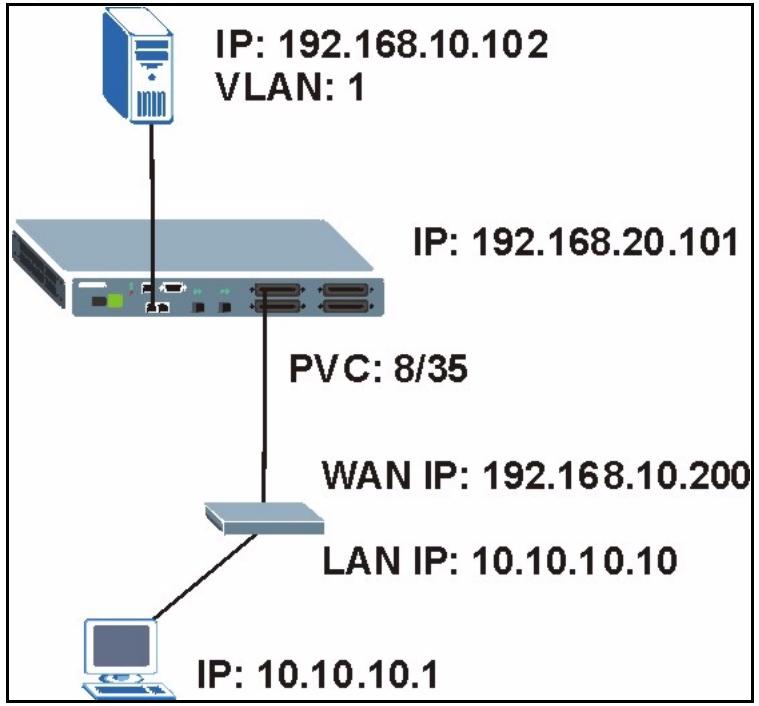
Figure 280 2684 Routed Mode Example
Note the following.
- The CPE device's WAN IP (192.168.10.200 in this example) must be in the same subnet as the gateway's IP address (192.168.10.102 in this example).
- The IES-1248's management IP address can be any IP address, it doesn't have any relationship to the WAN IP address or routed gateway IP address.
- The IES-1248's management IP address should not be in the same subnet as the one defined by the WAN IP address and netmask of the subscriber's device. It is suggested that you set the netmask of the subscriber's WAN IP address to 32 to avoid this problem
- The IES-1248's management IP address should not be in the same subnet range of any RPVC and RPVC domain. It will make the IES-1248 confused if the IES-1248 receives a packet with this IP as destination IP.
-
The IES-1248's management IP address also should not be in the same subnet as the one defined by the LAN IP address and netmask of the subscriber's device. Make sure you assign the IP addresses properly.
-
In general deployment, the computer must set the CPE device's LAN IP address (10.10.10.10 in this example) as its default gateway.
- The subnet range of any RPVC and RPVC domain must be unique.
Use the following command sequence to configure the IES-1248 for this example set up.
Figure 281 2684 Routed Mode Commands Example
ras> adsl rpvc gateway set 192.168.10.102 1
ras> adsl rpvc set 1 8 35 DEFVAL 192.168.10.200/32 192.168.10.102
ras> adsl rpvc route set 1 8 35 10.10.10.1/24
56.7.2 RPVC Gateway Set Command
Syntax:
ras> adsl rpvc gateway set <gateway ip> <vlan id> [<priority>]
where
<gateway ip> = The IP address of the gateway to which you want to send the traffic that the system receives from this PVC. Enter the IP address in dotted decimal notation.
<vlan id> = The VLAN Identifier to add to Ethernet frames that the system routes to this gateway.
[<priority>] = Set the IEEE 802.1p priority (0~7) to add to the traffic that you send to this gateway.
This command adds a gateway IP address to use for 2684 routed mode traffic.
The following example has the device use a VLAN ID of 1 and IEEE 802.1p priority of 3 when sending 2684 routed mode traffic to a gateway at IP address 192.168.10.102.
Figure 282 RPVC Gateway Set Command Example
ras> adsl rpvc gateway set 192.168.10.102 1 3
56.7.3 RPVC Gateway Show Command
Syntax:
ras> adsl rpvc gateway show
This command displays the gateway IP addresses that are configured for use with 2684 routed mode traffic.
The following is an example.
Figure 283 RPVC Gateway Show Command Example
ras> ADS1 rpvc gateway show gateway ip vid 192.168.10.102 1
56.7.4 RPVC Gateway Delete Command
Syntax:
ras> adsl rpvc gateway delete <gateway ip>
where
<gateway ip> = The IP address of the gateway to which you no longer want the device to send the traffic that the system receives from this PVC. Enter the IP address in dotted decimal notation.
This command removes a gateway IP address that the device was set to use for 2684 routed mode traffic.
The following example has the device remove a 2684 routed mode traffic gateway entry for IP address 192.168.10.102.
Figure 284 RPVC Gateway Delete Command Example
ras> ADS1 rpvc gateway delete 192.168.10.102
56.7.5 RPVC Set Command
Syntax:
ras> adsl rpvc set <portlist> <vpi> <vci> <DS vcprofile[,US vcprofile>]
<ip>/<netmask> <gateway ip>
where
<portlist> = The port(s) of the RPVC.
You can specify a single ADSL port < 1> , all ADSL ports <^*> or a list of ADSL ports <1,3,5> . You can also include a range of ports <1,5,6 10> .
<Vpi> = The VPI of the RPVC.
<vci> = The VCI of the RPVC.
DS vcprofile = Assign a VC profile to use for this channel's downstream traffic shaping.
[,US vcprofile>] = Assign a VC profile to use for policing this channel's upstream traffic. The IES-1248 does not perform upstream traffic policing if you do not specify an upstream VC profile.
<ip> = The subscriber's CPE WAN IP address in dotted decimal notation.
</netmask> = The bit number of the subnet mask of the subscriber's IP address. To find the bit number, convert the subnet mask to binary and add all of the 1's together. Take “255.255.255.0” for example. 255 converts to eight 1's in binary. There are three 255's, so add three eights together and you get the bit number (24).
Make sure that the routed PVC's subnet does not include the IES-1248's IP address.
<gateway ip> = The IP address of the gateway to which you want to send the traffic that the system receives from this PVC. Enter the IP address in dotted decimal notation.
This command adds a PVC to handle 2684 routed mode traffic.
Note: You must use the rpvc gateway set command to configure the gateway's settings before you use the rpvc set command.
The following example adds a PVC for 2684 routed mode traffic. It is for DSL port 1, VPI 8, VCI 35. It sets the DEFVAL profile for downstream traffic shaping and for upstream traffic policing. The CPE device's WAN IP address is 192.168.10.200 with a netmask of 32 and the gateway's IP address is 192.168.10.102.
Figure 285 RPVC Set Command Example
ras> ADS1 rpvc set 1 8 35 DEFVAL,DEFVAL 192.168.10.200/32 192.168.10.102
56.7.6 RPVC Show Command
Syntax:
ras> adsl rpvc show <portlist>
where
You can specify a single ADSL port <1> , all ADSL ports <^*> or a list of ADSL ports <1,3,5> . You can also include a range of ports <1,5,6 10> .
This command lists the PVCs for handling 2684 routed mode traffic (RPVCs).
The following example displays the RPVCs for DSL port 1.
Figure 286 RPVC Show Command Example
ras> ads1 rpvc show 1
port vpi vci ip/netmask gateway ip DS/US vcprofile
1 8 35 192.168.10.200/32 192.168.10.102 DEFVAL/DEFVAL
56.7.7 RPVC Delete Command
Syntax:
ras> adsl rpvc delete <portlist> <vpi> <vci>
where
You can specify a single ADSL port <1> , all ADSL ports <串> or a list of ADSL ports <1,3,5> . You can also include a range of ports <1,5,6 10> .
This command removes a PVC for 2684 routed mode traffic.
The following example removes a PVC for 2684 routed mode traffic. It is for DSL port 1, VPI 8, VCI 35.
Figure 287 RPVC Delete Command Example
ras> ads1 rpvc delete 1 8 35
56.7.8 RPVC Route Set Command
Syntax:
ras> adsl rpvc route set <port number> <vpi> <vci> <ip>/<netmask>
where
<Vpi> = The VPI of the RPVC.
<vci> = The VCI of the RPVC.
<ip> = The subscriber's CPE LAN IP address in dotted decimal notation.
</netmask> = The bit number of the subnet mask of the subscriber's IP address. To find the bit number, convert the subnet mask to binary and add all of the 1's together. Take “255.255.255.0” for example. 255 converts to eight 1's in binary. There are three 255's, so add three eights together and you get the bit number (24).
This command adds a domain for 2684 routed mode traffic. The domain includes the subscriber's LAN IP addresses.
Note: You must use the rpvc gateway set and the rpvc set commands before you use the rpvc route set command.
The following example adds a domain for a CPE device is connected to DSL port 1 on the IES-1248 and the 2684 routed mode traffic is to use the PVC identified by VPI 8 and VCI 35. The CPE device's LAN IP address is 10.10.10.10 and uses a subnet mask of 255.255.255.0. This includes the CPE device's LAN IP addresses and the IP addresses of the LAN computers.
Figure 288 RPVC Route Set Command Example
ras> adsl rpvc route set 1 8 35 10.10.10.1/24
56.7.9 RPVC Route Show Command
Syntax:
ras> ads1 rpvc route show <portlist>
where
<portlist> = The port(s) of the RPVC.
You can specify a single ADSL port <1> , all ADSL ports <^*> or a list of ADSL ports <1,3,5> . You can also include a range of ports <1,5,6 10> .
This command lists the domains for 2684 routed mode traffic.
The following example displays the domains for 2684 routed mode traffic for devices connected to DSL ports 1 and 2.
Figure 289 RPVC Route Show Command Example
ras> ads1 rpvc route show 1,2
port vpi vci ip/netmask
1 8 35 10.10.10.0/24
2 8 35 10.10.11.0/24
56.7.10 RPVC Route Delete Command
Syntax:
ras> adsl rpvc route delete <port number> <vpi> <vci> <ip>/<netmask>
where
<pi> = The VPI of the RPVC.
<vci> = The VCI of the RPVC.
<ip> = The subscriber's CPE LAN IP address in dotted decimal notation.
</netmask> = The bit number of the subnet mask of the subscriber's IP address. To find the bit number, convert the subnet mask to binary and add all of the 1's together. Take "255.255.255.0" for example. 255 converts to eight 1's in binary. There are three 255's, so add three eights together and you get the bit number (24).
This command removes a domain for 2684 routed mode traffic. The domain includes the subscriber's LAN IP addresses.
The following example removes a domain for a CPE device is connected to DSL port 1 on the IES-1248 and the 2684 routed mode traffic is to use the PVC identified by VPI 8 and VCI 35. The CPE device's LAN IP address is 10.10.10.10 and uses a subnet mask of 255.255.255.0. This includes the CPE device's LAN IP addresses and the IP addresses of the LAN computers.
Figure 290 RPVC Route Delete Command Example
ras> ads1 rpvc route delete 1 8 35 10.10.10.1/24
56.7.11 RPVC ARP Agingtime Set Command
Syntax:
ras> adsl rpvc arp agingtime set <sec>
where
<sec> = The number of seconds (10~10000) the device is to keep the Address Resolution Protocol table's entries of IP addresses of 2684 routed mode gateways. Use 0 to disable the aging time.
This command configures how long the device stores the IP addresses of CPE devices using 2684 routed mode in the Address Resolution Protocol table.
The following example sets the device to store the IP addresses 2684 routed mode gateways in the Address Resolution Protocol table for 500 seconds.
Figure 291 RPVC ARP Agingtime Command Example
ras> adsl rpvc arp agingtime set 500
56.7.12 RPVC ARP Aging Time Show Command
Syntax:
ras> adsl rpvc arp agingtime show
This command displays how long the device stores the IP addresses of 2684 routed mode gateways in the Address Resolution Protocol table.
The following is an example.
Figure 292 RPVC ARP Agingtime Show Command Example
ras> adsl rpvc arp agingtime show rpvc aging time (sec): 500
56.7.13 RPVC ARP Show Command
Syntax:
ras> adsl rpvc arp show
This command displays how long the device stores the IP addresses of 2684 routed mode gateways in the Address Resolution Protocol table.
The following is an example.
Figure 293 RPVC ARP Agingtime Show Command Example
ras> adsl rpvc arp show gateway ip vid mac 192.168.10.102 1 00:0d:9d:d9:43:3b
56.7.14 RPVC ARP Flush Command
Syntax:
ras> adsl rpvc arp flush
This command clears the IP addresses of 2684 routed mode gateways from the Address Resolution Protocol table.
56.8 PPPoA to PPPoE (PAE) Commands
You can use these commands to create PVCs for PAE translation.
56.8.1 PAE PVC Delete Command
Syntax:
ras> adsl paepvc delete <portlist> <vpi> <vci>
where
<Vpi> = The VPI of the PAE PVC.
<vci> = The VCI of the PAE PVC.
This command removes a PAE PVC.
56.8.2 PAE PVC Set Command
Syntax:
ras> adsl paepvc set <portlist> <vpi> <vci> <DS vcprofile[,US vcprofile>] <pvid> <priority> [acname <acname>] [srvcname <srvcname>] [hellotime <hellotime>]
where
[,US vcprofile>] = Assign a VC profile to use for policing this channel's upstream traffic. The IES-1248 does not perform upstream traffic policing if you do not specify an upstream VC profile.
This command creates a PPPoA-to-PPPoE PVC to allow communication between the ATM (CPE) and Ethernet network (BRAS) segments. The PVC is mapped to a PPPoE session that connects to the specified BRAS.
The following example creates a PPPoA-to-PPPoE PVC (1/33) for port 1. The VLAN ID is 1, and the IEEE 802.1p priority is 0. This configuration is for the video service on the vom access concentrator. The switch waits 10 seconds before terminating the PPPoE session.
Figure 294 PAE PVC Set Command Example
ras> adsl paepvc set 1 1 33 DEFVAL 1 0 acname vomsrvcname video hellotime 10
56.8.3 PAE PVC Show Command
Syntax:
ras> adsl paepvc show <portlist> [<vpi> <vci>]
where
<Vpi> = The VPI of the PAE PVC.
<vci> = The VCI of the PAE PVC.
This command displays the PPPoA-to-PPPoe PVC settings for the specified port(s) or PVCs.
The following example displays the settings for port 1.
Figure 295 PAE PVC Show Command Example
ras> ads1 paepvc show 1
port vpi vci pvid pri htime US/DS vcprofile/acname/srvcname
--- 1 33 1 0 10 dsprofile: DEFVAL
usprofile:
acname : vom
srvcname : video
56.8.4 PAE PVC Session Command
Syntax:
ras> adsl paepvc session <portlist> [<vpi><vci>]
where
<Vpi> = The VPI of the PAE PVC.
<vci> = The VCI of the PAE PVC.
This command displays the status of PPPoA-to-PPPoE PVC sessions on the specified port(s) or PVCs.
The following example displays the settings for port 1.
Figure 296 PAE PVC Session Command Example
ras> ADS1 paepvc session 1
pvc 1-1/33
session state : down
session id : 0
session uptime: 0 secs
acname :
srvcname :
56.8.5 PAE PVC Counter Command
Syntax:
ras> adsl paepvc counter <portlist> [<vpi> <vci>]
where
The port number of the PAE PVC. You can specify a single ADSL port < 1> , all ADSL ports < *> or a list of ADSL ports < 1,3,5> . You can also include a range of ports < 1,5,6 10> .
The VPI of the PAE PVC.
The VCI of the PAE PVC.
This command displays statistics about PPPoA-to-PPPoE PVC activity.
The following example displays the statistics for port 1.
Figure 297 PAE PVC Counter Command Example
ras> adsl paepvc counter 1
pvc 1-1/33
tx rx
ppp lcp config-request : - 0
ppp lcp echo-request : - 0
ppp lcp echo-reply : - 0
pppoe padi : 0 -
pppoe pado : - 0
pppoe padr : 0 -
pppoe pads : - 0
pppoe padt : 0 0
pppoe srvcname error : - 0
pppoe ac system error : - 0
pppoe generic error : 0 0
Each value is described below.
tx/rx = The values in these columns are for packets transmitted (tx) or received (rx) by the IES-1248.
ppp lcp config- request = The number of config-request PDUs received by the IES-1248 from the CPE (client) device.
ppp lcp echo- request = The number of echo-request PDUs received by the IES-1248 from the CPE (client) device.
ppp lcp echo- reply = The number of echo-reply PDUs received by the IES-1248 from the CPE (client) device.
pppoe padi = The number of padi PDUs sent by the IES-1248 to the BRAS.
pppoe pado = The number of pado PDUs sent by the BRAS to the IES-1248.
pppoe padr = The number of padr PDUs sent by the IES-1248 to the BRAS.
pppoe pads = The number of pads PDUs sent by the BRAS to the IES-1248.
pppoe padt = The number of padt PDUs sent and received by the IES-1248.
pppoe srvcname = The number of service name errors; for example, the IES-1248's specified service is different than the BRAS's setting.
pppoe ac system error = The number of times the access concentrator experienced an error while performing the Host request; for example, when resources are exhausted in the access concentrator. This value does not include the number of times the IES-1248 checks the AC name field in the BRAS's reply PDU and finds a mismatch, however.
pppoe generic error = The number of other types of errors that occur in the PPPoE session between the IES-1248 and the BRAS.
56.9 Transparent LAN Service (TLS) Commands
Note: You can NOT configure PPPoA-to-PPPoe and TLS settings on the same PVC.
56.9.1 TLS PVC Delete Command
Syntax:
ras> adsl tlspvc delete <portlist> <vpi> <vci>
where
<vci> = The VCI of the TLS PVC.
This command clears TLS settings for the PVC.
56.9.2 TLS PVC Set Command
Syntax:
ras> adsl tlspvc set <portlist> <vpi> <vci> <DS vcprofile[,US vcprofile>] <pvid> <priority>
where
<Vpi> = The VPI of the TLS PVC.
<vci> = The VCI of the TLS PVC.
<DS vcprofile = Assign a VC profile to use for this channel's downstream traffic shaping.
[,US = Assign a VC profile to use for policing this channel's upstream traffic. The IES-1248 does not perform upstream traffic policing if you do not specify an upstream VC profile.
<pvid> = 1 - 4094; the (second) VLAN Identifier to add to Ethernet frames that the system routes using this PVC.
This command sets the second VLAN tag to add to the packets from the PVC.
The following example adds VLAN tag 100 to traffic using the DEFVAL ATM profile on PVC (1/33) on port 2.
Figure 298 TLS PVC Set Command Example
ras> adsl tlspc set 2 1 33 DEFVAL 100 0
56.9.3 TLS PVC Show Command
Syntax:
ras> adsl tlspvc show <portlist> [<vpi> <vci>]
where
<Vpi> = The VPI of the TLS PVC.
<vci> = The VCI of the TLS PVC.
This command displays the TLS settings for the specified port(s) or PVC(s). The following example shows the TLS settings on port 2.
Figure 299 TLS PVC Show Command Example
ras> adsl tlspvc show 2
port vpi vci pvid pri DS/US vcprofile
--- 2 1 33 100 0 DEFVAL
CHAPTER 57 ACL Commands
An ACL (Access Control Logic) profile allows the system to classify and perform actions on the upstream traffic. Use the ACL Profile commands to set up ACL profiles and the ACL Assignment commands to apply them to PVCs.
57.1 ACL Profile Commands
Use these commands to set up ACL profiles.
57.1.1 ACL Profile Set Command
Syntax:
ras> switch acl profile set <name> <rule> <action>
where
<name> = The name of the ACL profile.
<rule> = The rule that classifies traffic flows. See below.
<action> = One or more actions to perform on the classified packets. You can select one or more of the following actions.
- rate
= Sets the transmission rate (1~65535 in kbps) for the matched traffic. - rvlan
= Replaces the VLAN ID with this VLAN ID (1~4094). - rpri
= Replaces the priority with this priority (0 ~7) of the matched packets. - deny = Drops the packets.
This command configures an ACL rule to classify the upstream traffic and perform action(s) on the classified traffic.
The following lists the set of criteria you can configure for rules in ACL profiles. The rules are listed in sequence from highest priority to lowest priority. The criteria within a rule are position-independent.
- etype
vlan - etype
smac - etype
dmac
- vlan < vid > smac <mac>
- vlan < vid > dmac <mac>
- smac < mac > dmac <mac>
- vlan < vid > priority <priority>
- etype <etype>
- vlan <vid>
- smac <mac>
- dmac <mac>
- priority <priority>
- protocol <protocol>
- srcip <ip>/<mask> [dstip <ip>/<mask> [tos <tos> [srcport <sport> [dstport <sport> <eport>] ]]
where
- etype
= Ethernet type (0~65535). - vlan
= VLAN ID (1~4094). - smac
= Source MAC address. - dmac
= Destination MAC address. - priority
= Priority (0 ~ 7) - protocol
= Protocol type: tcp, udp, ospf, igmp, ip, gre, icmp or user specified IP protocol number < 0 255> . - srcip
/ = Source IP address and subnet mask (0~32). - dstip
/ = Destination IP address and subnet mask (0~32). - tos
= Sets the ToS (Type of Service) range between 0 and 255. - srcport
= Source port range (0~65535). - dstport
= Destination port range (0~65535).
The following guidelines apply to classifiers.
- You can apply one classifier for a protocol on a port's PVC.
- You cannot create a classifier that contains matching criteria for layer 2 and layer 3 fields. For example switch acl profile set test protocol tcp vlan 15 deny is not allowed as protocol type and VLAN do not belong to the same network layer.
- Each type of criteria can only be used once in a classifier. For example, profile acl set test protocol tcp protocol udp deny is not allowed. For this example, you need to create a separate classifier for each protocol and apply them to the same PVC(s).
The following example creates an ACL rule example named test for traffic from VLAN 10 with a priority level of 2. This rule limits the rate on the classified traffic to 1000 kbps and changes the priority level to 7.
Figure 300 ACL Profile Set Command Example
ras> switch acl profile set test vlan 10 priority 2 rate 1000 rpri 7
57.1.2 ACL Profile Delete Command
Syntax:
ras> switch acl profile delete <name>
where
<name> = The name of the ACL profile.
This command removes the specified ACL profile.
Note: You cannot remove the ACL profile(s) that is currently in use.
57.1.3 ACL Profile Show Map Command
Syntax:
ras> switch acl profile showmap <name>
where
<name> = The name of the ACL profile.
This command displays the DSL port(s) to which the specified ACL profile is applied.
The following example displays the port mapping table for the example ACL profile.
Figure 301 ACL Profile Show Map Command Example
ras> switch acl profile showmap test
profile: test
port type vpi vci
57.1.4 ACL Profile Show Command
Syntax:
ras> switch acl profile show [<name>]
where
<name> = The name of the ACL profile.
This command lists the names of every ACL profile or displays the detailed settings of the specified ACL profile.
Figure 302 ACL Profile Show Command Example
ras> switch acl profile show test
profile test:
rule:
    vlan :10
    priority:2
action:
    rpri :7
    rate :1000
57.2 ACL Assignment Commands
Use these commands to apply ACL profiles to PVCs.
57.2.1 ACL Assignment Set Command
Syntax:
ras> switch acl set <portlist> <vpi> <vci> <profile>
where
<Vpi> = The VPI of the PVC.
<vci> = The VCI of the PVC.
<profile> = The name of the ACL profile.
This command allows you to apply an ACL profile to the specified port(s). You can apply up to eight profiles to a subscriber port.
The following example applies the ACL profile "test" to a PVC.
Figure 303 ACL Assignment Set Command Example
ras> switch acl set 1 0 33 test
57.2.2 ACL Assignment Delete Command
Syntax:
ras> switch acl delete <portlist> <vpi> <vci> <profile>
where
<Vpi> = The VPI of the PVC.
<vci> = The VCI of the PVC.
<profile> = The name of the ACL profile.
This command allows you to remove an ACL profile from the specified PVC.
57.2.3 ACL Assignment Show Command
Syntax:
ras> switch acl show [<portlist>] [<vpi><vci>]
where
<Vpi> = The VPI of the PVC.
<vci> = The VCI of the PVC.
This command displays the current ACL profiles applied to the specified PVC(s). The following figure shows an example.
Figure 304 ACL Assignment Show Command Example
ras> switch acl show
port vpi vci type profile
--- 1 0 33 PVC test
CHAPTER 58 Troubleshooting
This chapter covers potential problems and possible remedies. After each problem description, some steps are provided to help you to diagnose and solve the problem.
58.1 The SYS or PWR LED Does Not Turn On
The SYS/PWR LED does not turn on.
Table 103 SYS LED Troubleshooting
| STEP | CORRECTIVE ACTION |
| 1 | (IES-1248-51, IES-1248-53) Make sure the power wires are properly connected to the power supply and the power supply is operating normally. Make sure you are using the correct power source (see Appendix B on page 445). (IES-1248-51A only) Make sure the power cord is properly connecting the device's power socket to an appropriate power outlet. Make sure you are using the correct power source (see Appendix B on page 445). |
| 2 | Make sure the power wires are connected properly. |
| 3 | (IES-1248-51A only) Make sure the fuse is not burnt-out. Replace the fuse if it is burnt out. See Appendix D on page 453 for instructions. |
| 3 | The LED itself or the unit may be faulty; contact your vendor. |
58.2 The ALM LED Is On
The ALM (alarm) LED lights when the IES-1248 is overheated, the fans are not working properly, the voltage readings are outside the tolerance levels or an alarm has been detected on the ALARM input pins.
Table 104 ALM LED Troubleshooting
| STEP | CORRECTIVE ACTION |
| 1 | Use the statistics monitor command to verify the cause of the alarm. See step 2 if the unit is overheated, step 3 if the problem is with the fans and step 4 if the voltages are out of the allowed ranges. |
| 2 | Ensure that the IES-1248 is installed in a well-ventilated area and that normal operation of the fans is not inhibited. Keep the bottom, top and all sides clear of obstructions and away from the exhaust of other equipment. |
| 3 | Make sure you can feel and/or hear the fans working - working fans emit a low buzz and blow air. |
| 4 | If the voltage levels are outside the allowed range, take a screen shot of the statistics monitor command display and contact your vendor. |
58.3 SFP LNK LEDs Do Not Turn On
The LEDs for one of the SFP slots do not turn on.
Table 105 SFP LNK LED Troubleshooting
| STEPS | CORRECTIVE ACTION |
| 1 | Make sure that the Ethernet port's mode is set to match that of the peer Ethernet device. |
| 2 | Check the cable and connections between the SFP slot and the peer Ethernet device. |
| 3 | Check the mini GBIC transceiver. |
| 4 | Make sure that the peer Ethernet device is functioning properly. If the cable, transceiver and peer Ethernet device are all OK and the LEDs stay off, there may be a problem with the SFP slot. Contact the distributor. |
58.4 100/1000 LEDs Do Not Turn On
A 100/1000 Ethernet port's LEDs do not turn on.
Table 106 100/1000 LED Troubleshooting
| STEPS | CORRECTIVE ACTION |
| 1 | Each 100/1000M RJ-45 Ethernet port is paired with a mini GBIC slot. The IES-1248 uses one connection per pair. |
| 2 | Check the Speed Mode settings in the ENET Port Setup screen. Make sure that the 100/1000 Ethernet port's connection speed is set to match that of the port on the peer Ethernet device. When an Ethernet port is set to Auto, the IES-1248 tries to make a fiber connection first and does not attempt to use the RJ-45 port if the fiber connection is successful. |
| 3 | Check the Ethernet cable and connections between the 100/1000 Ethernet port and the peer Ethernet device. Use 1000Base-T 4-pair (8 wire) UTP Cat. 5 Ethernet cables with the RJ-45 interface. |
| 4 | Make sure that the peer Ethernet device is functioning properly. If the Ethernet cable and peer Ethernet device are both OK and the LEDs still stay off, there may be a problem with the port. Contact the distributor. |
58.5 100/1000 Ethernet Port Data Transmission
The Ethernet port's LED is on, but data cannot be transmitted.
Table 107 Troubleshooting Data Transmission
| STEPS | CORRECTIVE ACTION |
| 1 | Make sure that the Ethernet port has the appropriate mode setting. |
| 2 | Make sure that the IES-1248's IP settings are properly configured. |
| 3 | Check the VLAN configuration. |
| 4 | Ping the IES-1248 from a computer behind the peer Ethernet device. |
| 5 | If you cannot ping, check the Ethernet cable and connections between the Ethernet port and the Ethernet switch or router. |
| 6 | Check the switch mode. In daisychain mode, if you have a loop topology and enable RSTP, it is possible for RSTP to disable Ethernet port 1 (the uplink port).Note: It is not recommended to use daisychain mode in a loop topology. |
58.6 DSL Data Transmission
The DSL link is up, but data cannot be transmitted.
Table 108 DSL Data Transmission Troubleshooting
| STEPS | CORRECTIVE ACTION |
| 1 | Check the switch mode and port isolation settings. Check to see that the VPI/VCI and multiplexing mode (LLC/VC) settings in the subscriber's ADSL modem or router match those of the ADSL port. If the subscriber is having problems with a video or other high-bandwidth services, make sure the IES-1248's ADSL port's data rates are set high enough. |
| 2 | Check the VLAN configuration. |
| 3 | Ping the IES-1248 from the computer behind the ADSL modem or router. |
| 4 | If you cannot ping, connect a DSL modem to an ADSL port (that is known to work). If the ADSL modem or router works with a different ADSL port, there may be a problem with the original port. Contact the distributor. |
| 5 | If using a different port does not work, try a different ADSL modem or router with the original port. |
58.7 There Is No Voice on an ADSL Connection
The IES-1248 has internal POTS (Plain Old Telephone Service) splitters and CO side Telco-50 connectors that allow the telephone wiring used for ADSL connections to also simultaneously carry normal voice conversations.
Table 109 ADSL Voice Troubleshooting
| STEP | CORRECTIVE ACTION |
| 1 | Make sure the subscriber has a POTS splitter properly installed. |
| 2 | Check the ADSL line pin assignments shown in Appendix C on page 449. |
| 3 | Check the telephone wire connections between the subscriber and the MDF(s). |
| 4 | Check the telephone wire and connections between the MDF(s) and USER port(s). |
| 5 | Check the telephone wire and connections between the MDF(s) and the CO connector(s). Check the connection from the MDF(s) to the telephone company or the PBX. |
| 6 | Check the telephone wire mapping on the MDF(s). |
| 7 | Make sure the in-house wiring works and is connected properly. |
| 8 | Repeat the steps above using a different ADSL port. |
58.8 Testing Wiring
Use the following tests if there is no voice.
Systematically test wiring using a functioning telephone to determine if there is a wiring problem. If the connection is good, the telephone will return a dial tone. Letters in the figure shown next indicate the systematic tests to be done. Suppose you're using installation scenario "B" as shown in the chapter on MDF connections. The logic for other scenarios should be similar.
Use steps A-D if there is no voice but you can transmit data. Use all of the steps if there is no voice and you cannot transmit data.
Table 110 Wiring Tests
| TEST | DESCRIPTION |
| A. | Test A determines if there is a wiring problem between the TELCO (telephone company) and MDF 1. |
| B. | Test B determines if there is a wiring problem between MDF 1 and MDF 2. |
| C. | Test C determines if there is a wiring problem between MDF 2 and your device. |
| D. | Test D determines if there is a problem with your device's internal splitter. |
| E. | Test E determines if there is a wiring problem between your device and MDF 3. |
| F. | Test F determines if there is a building-wiring problem between the subscriber's wall jack and MDF 3. |
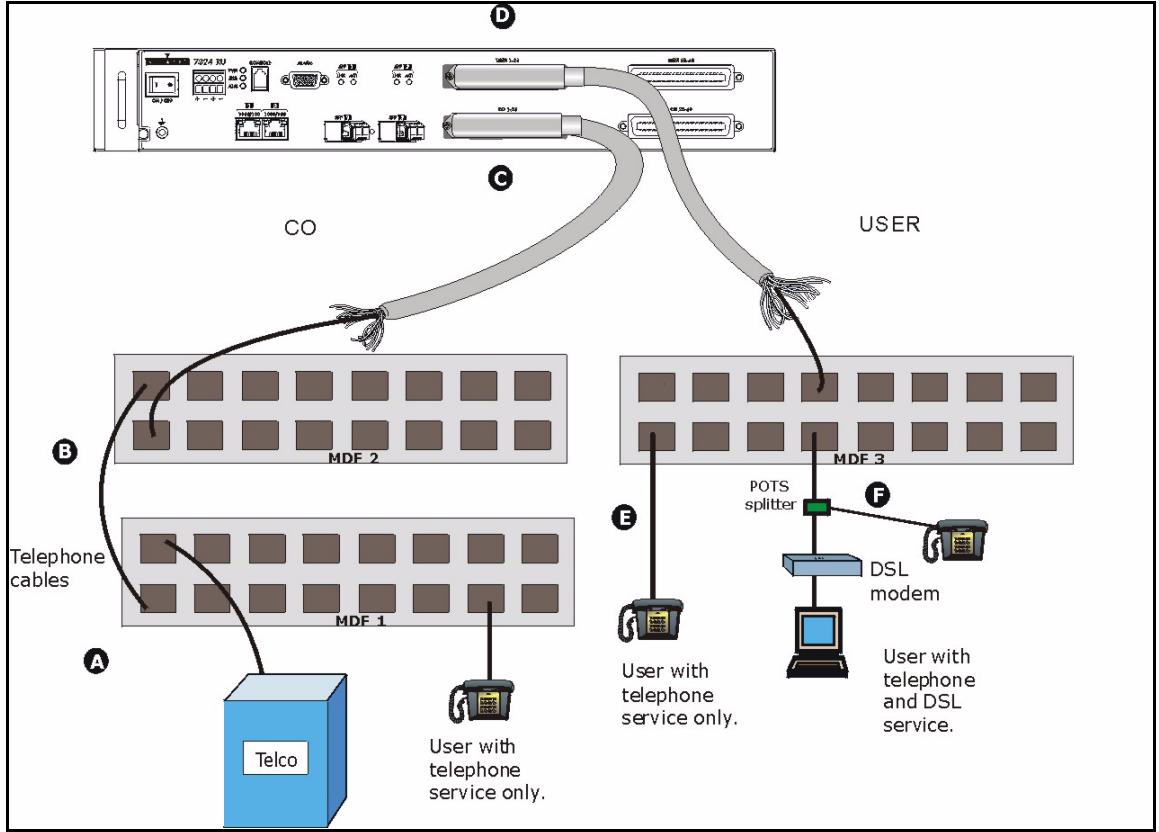
Figure 305 Testing In-house Wiring
Table 111 Testing In-house Wiring
| STEP | TEST |
| A | Connect a standard telephone to MDF 1. If there is no dial tone, then a problem with the wire or wire connections between MDF 1 and the TELCO exists. Contact your telephone company for troubleshooting. |
| B | Connect a telephone to the upper port of MDF 2. If there is no dial tone, then the problem is between MDF 1 and MDF 2. Check the telephone wire and connections between MDFs 1 and 2. |
| C | Disconnect the telephone wire from CO. Connect a telephone to the telephone wire. If there is no dial tone, then the problem is between your device and MDF 2. Check the telephone wire's pin assignments (see Appendix C on page 449 for the proper pin assignments). Replace the telephone wire if the pin assignments are OK and there is still no dial tone. |
| D | Reconnect the telephone wire to CO. Disconnect the telephone wire from USER. Connect a telephone to USER (see Appendix C on page 449 for the proper pin assignments). If there is no dial tone, your device's internal splitter may be faulty, contact your vendor. |
| E | Reconnect the telephone wire to USERConnect a telephone to a lower port of MDF 3. If there is no dial tone, then the problem is between your device and MDF 3. Check the pin assignments of the telephone wire's connector that connects to USER. Replace the telephone wire connecting your device to MDF 3.If there is no dial tone, then MDF 3 may be faulty. Contact the telephone company if that is the case. |
| F | Disconnect the DSL modem from the wall jack and connect the telephone to the wall jack. If there is no dial tone, then there is a problem with the building wiring between the DSL subscriber's home and the MDF. Contact your telephone company for troubleshooting. |
58.9 Local Server
The computer behind a DSL modem or router cannot access a local server connected to the IES-1248.
Table 112 Troubleshooting a Local Server
| STEPS | CORRECTIVE ACTION |
| 1 | See Section 58.6 on page 433 to make sure that the subscriber is able to transmit to the IES-1248. |
| 2 | Make sure the computer behind the DSL device has the correct gateway IP address configured. |
| 3 | Check the VLAN configuration (see Chapter 19 on page 157). |
| 4 | Check the cable and connections between the IES-1248 and the local server. |
| 5 | Try to access another local server. If data can be transmitted to a different local server, the local server that could not be accessed may have a problem. |
58.10 Data Rate
The SYNC-rate is not the same as the configured rate.
Table 113 Troubleshooting the SYNC-rate
| STEPS | CORRECTIVE ACTION |
| 1 | Connect the ADSL modem or router directly to the ADSL port using a different telephone wire. |
| 2 | If the rates match, the quality of the telephone wiring that connects the subscriber to the ADSL port may be limiting the speed to a certain rate. If they do not match when a good wire is used, contact the distributor. |
58.11 Configured Settings
The configured settings do not take effect.
Table 114 Troubleshooting the IES-1248's Configured Settings
| CORRECTIVE ACTION |
| Use the “config save” command after you finish configuring to save the IES-1248’s settings. |
58.12 Password
If you forget your password, you will need to use the console port to reload the factory-default configuration file (see Section 58.16 on page 438).
58.13 System Lockout
Any of the following could also lock you and others out from using in-band management (managing through the data ports).
1 Deleting the management VLAN (default is VLAN 1).
2 Incorrectly configuring the CPU VLAN.
3 Incorrectly configuring the access control settings.
4 Disabling all ports.
Note: Be careful not to lock yourself and others out of the system.
If you lock yourself (and others) out of the system, you can try using the console port to reconfigure the system. See Section 58.16 on page 438.
58.14 SNMP
The SNMP manager server cannot get information from the IES-1248.
Table 115 Troubleshooting the SNMP Server
| STEPS | CORRECTIVE ACTION |
| 1 | Ping the IES-1248 from the SNMP server. If you cannot, check the cable, connections and IP configuration. |
| 2 | Check to see that the community (or trusted host) in the IES-1248 matches the SNMP server's community. |
| 3 | Make sure that your computer's IP address matches a configured trusted host IP address (if configured). |
| 4 | Incorrectly configuring the access control settings may lock you out from using in-band management. Try using the console port to reconfigure the system. |
58.15 Telnet
I cannot telnet into the IES-1248.
Table 116 Troubleshooting Telnet
| STEPS | CORRECTIVE ACTION |
| 1 | Make sure that the number of current telnet sessions does not exceed the maximum allowed number. You cannot have more than five telnet sessions at one time. |
| 2 | Make sure that your computer's IP address matches a configured secured client IP address (if configured). The IES-1248 immediately disconnects the telnet session if secured host IP addresses are configured and your computer's IP address does not match one of them. |
| 3 | Make sure that you have not disabled the Telnet service or changed the server port number that the IES-1248 uses for Telnet. |
| 4 | Ping the IES-1248 from your computer. If you are able to ping the IES-1248 but are still unable to telnet, contact the distributor. If you cannot ping the IES-1248, check the cable, connections and IP configuration. |
| 5 | Incorrectly configuring the access control settings may lock you out from using in-band management. Try using the console port to reconfigure the system. |
58.16 Resetting the Defaults
If you lock yourself (and others) from the IES-1248, you will need to reload the factory-default configuration file. Uploading the factory-default configuration file replaces the current configuration file with the factory-default configuration file. This means that you will lose all previous configurations and the speed of the console port will be reset to the default of 9600bps with 8 data bit, no parity, one stop bit and flow control set to none. The user name will be reset to "admin" and the password will be reset to "1234" and the IP address to 192.168.1.1.
58.16.1 Resetting the Defaults Via Command
If you know the password, you can reload the factory-default configuration file via Command Line Interface (CLI) command. Use the following procedure.
1 Connect to the console port using a computer with terminal emulation software. See chapters 2-6 for details.
2 Enter your password.
3 Type config restore.
4 Type Y at the question "Do you want to restore default ROM file(y/n)?"
5 The IES-1248 restarts.
Figure 306 Resetting the Switch Via Command
ras> config restore
System will reboot automatically after restoring default configuration. Do you want to proceed(y/n)? >
restoring configuration...
saving configuration to flash...
The IES-1248 is now reinitialized with a default configuration file including the default user name of "admin" and the default password of "1234".
58.16.2 Uploading the Default Configuration File
If you forget your password or cannot access the IES-1248, you will need to reload the factory-default configuration file. Uploading the factory-default configuration file replaces the current configuration file with the factory-default configuration file. This means that you will lose all previous configurations and the speed of the console port will be reset to the default of 9600bps with 8 data bit, no parity, one stop bit and flow control set to none. The password will also be reset to "1234" and the IP address to 192.168.1.1.
Note: Uploading the factory default configuration file erases the IES-1248's entire configuration.
Obtain the default configuration file, unzip it and save it in a folder. Use a console cable to connect a computer with terminal emulation software to the IES-1248's console port. Turn the IES-1248 off and then on to begin a session. When you turn on the IES-1248 again you will see the initial screen. When you see the message Press any key to enter Debug Mode within 3 seconds press any key to enter debug mode.
To upload the configuration file, do the following:
1 Type atlc after the Enter Debug Mode message.
2 Wait for the Starting XMODEM upload message before activating XMODEM upload on your terminal.
3 This is an example Xmodem configuration upload using HyperTerminal. Click Transfer, then Send File to display the following screen.
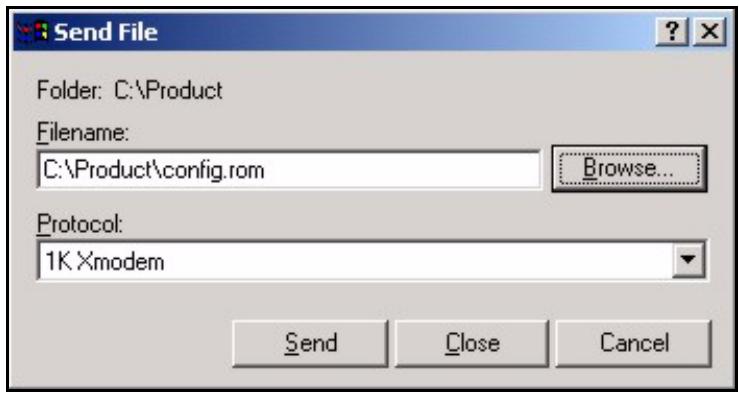
Figure 307 Example Xmodem Upload
Type the configuration file's location, or click Browse to search for it. Choose the 1K Xmodem protocol. Then click Send.
4 After a successful configuration file upload, type atgo to restart the IES-1248.
The IES-1248 is now reinitialized with a default configuration file including the default password of "1234".
58.17 Recovering the Firmware
Usually you should use FTP or the web configurator to upload the IES-1248's firmware. If the IES-1248 will not start up, the firmware may be lost or corrupted. Use the following procedure to upload firmware to the IES-1248 only when you are unable to upload firmware through FTP.
Note: This procedure is for emergency situations only.
1 Obtain the firmware file, unzip it and save it in a folder on your computer.
2 Connect your computer to the console port and use terminal emulation software configured to the following parameters:
VT100 terminal emulation
9600 bps
No parity, 8 data bits, 1 stop bit
No flow control
3 Turn off the IES-1248 and turn it back on to restart it and begin a session.
4 When you see the message Press any key to enter Debug Mode within 3 seconds, press a key to enter debug mode.
5 Type atba5 after the Enter Debug Mode message (this changes the console port speed to 115200 bps).
6 Change the configuration of your terminal emulation software to use 115200 bps and reconnect to the IES-1248.
7 Type atur after the Enter Debug Mode message.
8 Wait for the Starting XMODEM upload message before activating XMODEM upload on your terminal.
9 This is an example Xmodem configuration upload using HyperTerminal. Click Transfer, then Send File to display the following screen.
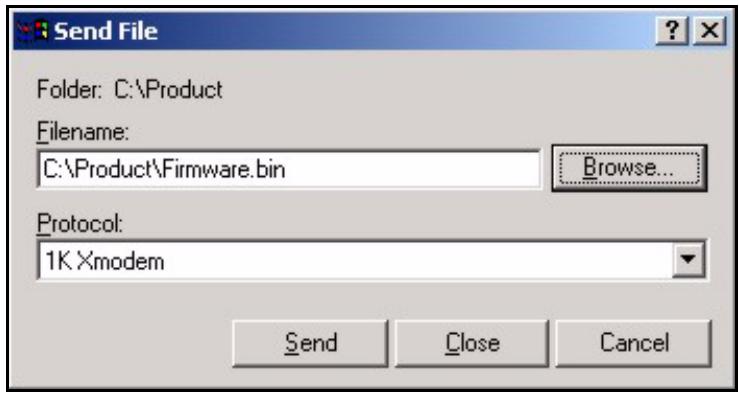
Figure 308 Example Xmodem Upload
Type the firmware file's location, or click Browse to search for it. Choose the 1K Xmodem protocol. Then click Send.
10 After a successful firmware upload, type atgo to restart the IES-1248. The console port speed automatically changes back to 9600 bps when the IES-1248 restarts.
APPENDIX A
Default Settings
This section lists the default configuration of the IES-1248.
Table 117 Default Settings
| VLAN Default Settings | One VLAN is created (this is also the management VLAN). | |
| VID: | 1 | |
| Registration: | Fixed for the Ethernet and ADSL ports | |
| Tagging: | Untagged for all ports | |
| ADSL Default Settings | ||
| Enable/Disable State: | Enabled | |
| Operational Mode: | auto | |
| (ADSL) Port Profile Default Settings | ||
| Name: | DEFVAL | |
| Profile Status: | Active | |
| Latency Mode: | Interleave | |
| Upstream ADSL Settings: | Downstream ADSL Settings: | |
| Max Rate | 512 Kbps | 2048 Kbps |
| Min Rate | 64 Kbps | 64 Kbps |
| Latency Delay | 4 ms | 4 ms |
| Max SNR | 31 db | 31 db |
| Min SNR | 0 db | 0 db |
| Target SNR | 6 db | 6 db |
| Up Shift Margin | 9 db | 9 db |
| Down Shift Margin | 3 db | 3 db |
| Name: | DEFVAL_MAX (Factory Default) | |
| Profile Status: | Active | |
| Latency Mode: | Interleave | |
| Upstream ADSL Settings: | Downstream ADSL Settings: | |
| Max Rate | 512 Kbps | 9088 Kbps |
| Min Rate | 32 Kbps | 32 Kbps |
| Latency Delay | 4 ms | 4 ms |
| Max Margin | 31 db | 31 db |
| Min Margin | 0 db | 0 db |
| Target Margin | 6 db | 6 db |
| Up Shift Margin | 9 db | 9 db |
| Down Shift Margin | 3 db | 3 db |
| Virtual Channel Default Settingsa. | ||
| Super channel: | Enabled | |
| VPI: | 0 | |
| VCI: | 33 | |
| VC Profile: | DEFVAL (factory default) | |
| Default VC Profile Settings | ||
| DEFVAL Profile Settings | ||
| Encapsulation: | RFC 1483, RFC 2684 | |
| Multiplexing: | LLC-based | |
| Traffic Class: | UBR | |
| PCR: | 300000 cells/second | |
| CDVT: | 0 | |
| DEFVAL_VC Profile Settings | ||
| Encapsulation: | RFC 1483, RFC 2684 | |
| Multiplexing: | VC-based | |
| Traffic Class: | UBR | |
| PCR: | 300000 cells/second | |
| CDVT: | 0 | |
| Default IGMP Filter Profile Settings | The DEFVAL IGMP filter profile is assigned to all of the ADSL ports by default. It allows a port to join all multicast IP addresses (224.0.0.0~239.255.255.255). |
a. The IES-1248 ADSL ports' PVCs use ATM Adaptation Layer (AAL) 5.
APPENDIX B
IES-1248 Specifications
This chapter provides the specifications for the IES-1248.
Physical Specifications
The IES-1248 is 19 inch (482.6mm) rack-mountable.
Telco-50 Connectors
The IES-1248 has 4 Telco-50 connectors. Connect the two USER Telco-50 connectors to the subscribers and two CO Telco-50 connectors to the PSTN switch.
Dimensions
Wire Gauge Specifications
The following table shows the specifications for wire gauge.
Note: Make sure you use wires of the specified wire gauge.
Table 118 Wire Gauge Specifications
| WIRE TYPE | REQUIRED AWG NO. (DIAMETER) |
| Ground Wire | 18 or larger |
| Telephone Wire | 26 or larger |
| IES-1248 Power Wire | 18 or larger |
AWG (American Wire Gauge) is a measurement system for wire that specifies its thickness. As the thickness of the wire increases, the AWG number decreases.
Power Input
The following table lists the power input specifications.
Table 119 Power Input Specifications
| IES-1248-51 AND IES-1248-53 | IES-1248-51A |
| -36 ~ -72 VDC, 2.5 A maximum. | 100~240 VAC, 50~60 Hz, 1.7A Max |
Power Consumption
The following table lists the power consumption.
Table 120 Power Input Specifications
| IES-1248-51 AND IES-1248-53 | IES-1248-51A |
| 90 W maximum | 100 W maximum |
Fuse Rating
The following specifications are for the IES-1248-51A.
Table 121 Fuse Specifications (IES-1248-51A only)
| FUSE LOCATION | FUSE RATING |
| Front panel (AC inlet) | 250 VAC, Fast T4A |
Note: Changing fuses for the IES-1248-51 and IES-1248-53 requires disassembly of the device. Only a qualified technician should perform this.
The following specifications are for the IES-1248-51 and IES-1248-53.
Table 122 Fuse Specifications (IES-1248-51, IES-1248-53)
| FUSE LOCATION | FUSE RATING |
| Mother Board | 250 VAC, T5.0A |
| DC Switch Board | 250 VAC, T6.3A |
ALARM Port Power
The maximum power rating for the ALARM port is as follows:
- Input: no power, dry contact; use open or short circuits without any external input power
Output: 20V,500mA
Operating Environment
- Temperature: -40 - 65°C (IES-1248-51, IES-1248-53)
Temperature: 0 - 50^ (IES-1248-51A) - Humidity: 10% - 95% (non-condensing)
Storage Environment
- Temperature: -40 - 70^
- Humidity: 5% - 95% (non-condensing)
MAC Table
The MAC address table can hold up to 14K entries (128 per ADSL port, 4K per Ethernet port)
APPENDIX C
Pin Assignments
Hardware Telco-50 Connector Pin Assignments
The following diagram shows the pin assignments of the USER Telco-50 connectors.
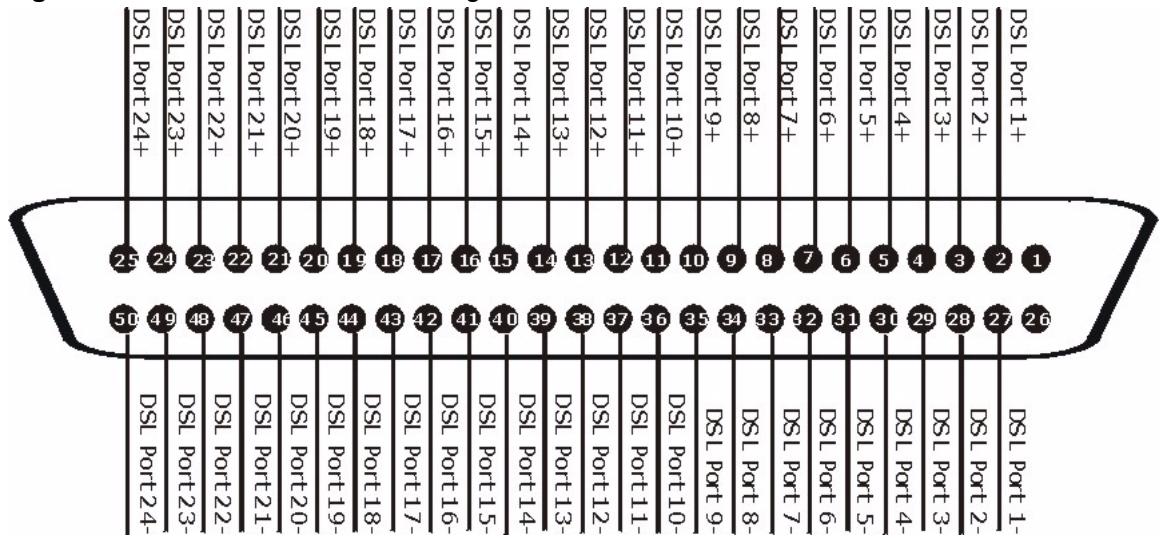
Figure 309 USER Telco-50 Pin Assignments
The following diagram shows the phone port pin assignments of the CO Telco-50 connectors.

This table lists the ports and matching pin numbers for the hardware Telco-50 connectors.
Table 123 Hardware Telco-50 Connector Port and Pin Numbers
| PORT NUMBER | PIN NUMBER |
| 1 | 2, 27 |
| 2 | 3, 28 |
| 3 | 4, 29 |
| 4 | 5, 30 |
| 5 | 6, 31 |
| 6 | 7, 32 |
| 7 | 8, 33 |
| 8 | 9, 34 |
| 9 | 10, 35 |
| 10 | 11, 36 |
| 11 | 12, 37 |
| 12 | 13, 38 |
| 13 | 14, 39 |
| 14 | 15, 40 |
| 15 | 16, 41 |
| 16 | 17, 42 |
| 17 | 18, 43 |
| 18 | 19, 44 |
| 19 | 20, 45 |
| 20 | 21, 46 |
| 21 | 22, 47 |
| 22 | 23, 48 |
| 23 | 24, 49 |
| 24 | 25, 50 |
Console Cable Pin Assignments
The following diagrams and chart show the pin assignments of the console cable.
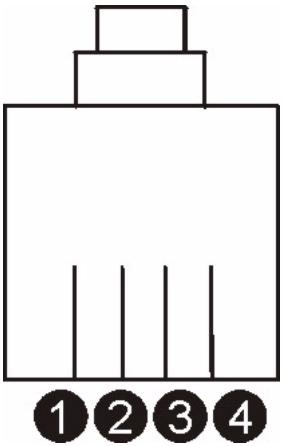
Figure 311 Console Cable RJ-11 Male Connector
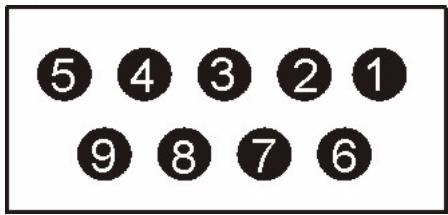
Figure 312 Console Cable DB-9 Female Connector
Table 124 Console Cable Connector Pin Assignments
| RJ-11 MALE | DB-9 FEMALE |
| Pin 2: TXD | Pin 2 |
| Pin 3: RXD | Pin 3 |
| Pin 4: GND | Pin 5 |
APPENDIX D
Removing and Installing a Fuse
This appendix shows you how to remove and install fuses for the IES-1248-51A.
If you need to install a new fuse, follow the procedure below.
Note: If you use a fuse other than the included fuses, make sure it matches the fuse specifications in Appendix B on page 445.
Removing a Fuse
Note: Disconnect all power from the IES-1248 before you begin this procedure.
1 Remove the power cord from the unit.
2 The fuse housing is located between the power switch and the power port. Use a small flat-head screwdriver to carefully pry out the fuse housing.
3 A burnt-out fuse is blackened, darkened or cloudy inside its glass casing. A working fuse has a completely clear glass casing. Pull gently, but firmly, to remove the burnt out fuse from the fuse housing. Dispose of the burnt-out fuse.
Installing a Fuse
1 The IES-1248 is shipped from the factory with one spare fuse included in a box-like section of the fuse housing. Push the middle part of the box-like section to access the spare fuse. Put another spare fuse in its place in order to always have one on hand.
2 Push the replacement fuse into the fuse housing until you hear a click.
3 Firmly, but gently, push the fuse housing back into the IES-1248 until you hear a click.
4 Plug the power cord back into the unit.
Index
Numerics
100/1000 LED
troubleshooting 432
2684 routed mode 408
authentication 106
default privilege level for administrators 107
modes for administrators 107
user 106
authentication modes
administrator 107
A
Access Control 237
actual rate 120
Address Resolution Protocol. See ARP.
adsl alarmprofile commands 394
adsl commands 363
adsl linediag commands 387
adsl paepvc commands 417
ADSL Port Setup 119, 137
ADSL port statistics 91
adsl ppvc commands 403
ADSL profiles 120
default 121
adsl pvc commands 401
adsl rpvc commands 408
ADSL standard 152
adsl tlspc commands 421
adsl vprofile commands 399
aging time 112
alarm commands 297
Alarm Profile Screen 145
all digital mode 125
ALM LED troubleshooting 431
American Wire Gauge (AWG) 445
Annex I 125
Annex L 125
Annex M 125
ARP 184,267
table 267
ATM F5 260
ATM Forum Traffic Management 4.0 Specification 140
ATM QoS 140
ATM traffic class 144
ATM traffic classes 140
Attainable Net Data Rate 263, 264
B
back up configuration 257
bit allocation 156
Bridge Protocol Data Units (BPDU) 188
Burst Tolerance (BT) 142
C
Canonical Format Indicator (CFI) 157
Cell Delay Variation Tolerance (CDVT) 142
certifications 4
viewing 4
channel characteristics function 263, 264
CI 269
CI commands. See commands.
CLI 269
CLI commands. See commands.
CO port 59
Command Line Interface. See CI or CLI.
commands 269, 270
abbreviations 269
config save 270
configuration
back up 257, 353
file names 353
restore 256,353
using FTP 353
configured rate 120
connections 58
console port 58, 440
pin assignments 451
Constant Bit Rate (CBR) 140
contact information 8
contact person's name 103
copyright 3
crosstalk 264
curbside application 46
customer support 8
D
Daytime (RFC 867) 104
default gateway 115
default privilege level 107
DEFVAL 128
DEFVAL profile settings 443
DEFVAL_VC 128
DHCP 184, 199
DHCP relay 199
option 82 199
Diagnostic 259
disclaimer 3
Discrete Multi-Tone. See DMT.
DMT 155
sub-carriers 263
double upstream mode 125
double-tagged frames 223
downstream (traffic) 119
DSL LED
troubleshooting 433
duplex 117
Dynamic Host Configuration Protocol. See DHCP.
E
EAPoL 184
encapsulation
LLC 128
VC Mux 128
Erroded Seconds (ES) 154
Ethernet address. See MAC address.
Ethernet Port Statistics 94, 96, 97
Ethernet port statistics 89
Extensible Authentication Protocol. See EAPoL.
F
factory defaults 257, 438
fan maintenance 71
fan module 71
fan speed 101
Far End Actual Aggregate Transmit Power 263, 264
Far End Block Errors (FEBE) 154
fast channel 120
fast mode 120, 138
FCC interference statement 4
filtering databases 313
firmware upgrade 255, 353
file names 353
using FTP 353
when unable to use FTP 440
firmware version 100
frame ground 50
frame ground wire 50
front panel 53
FTP 258,353
full duplex 117
fuse, replacement 453
G
GARP 109
GARP timer 112
GARP timer setup 109
General Setup 103
Generic Attribute Registration Protocol. See GARP.
H
Home screen 74, 87
host name 103
1
IEEE 802.1D. See STP.
IEEE 802.1Q. See VLAN.
IEEE 802.1w. See RSTP.
IEEE 802.1x 193, 195
IEEE 802.1x. See also RADIUS.
IGMP 184
leave packets 167
modes 171
query packets 167
report packets 167
IGMP Filter Profile Screen 148
IGMP snooping 165
initial configuration 81
installation
fan module 71
rack-mounted 49
requirements 48
interleave delay 120, 138
interleave mode 138
Internet Explorer 73, 81
Internet Group Multicast Protocol. See IGMP.
Internet Protocol. See IP.
IP 184
ip commands 347
IP DSLAM 41
IP Setup 115
L
latency mode 138
LDM test 260
Line Attenuation 263, 264
Line Data 155
line operating values 151
Line Performance 153
line type 154
LLC 128
location 103
log format 261, 289, 301
log messages 262, 290
logging out 78
Login screen 74
loopback test 260
M
MAC address 101
MAC address learning 112
MAC filter 185
Main Distribution Frame. See MDF.
Management Information Base (MIB) 238
Maximum Burst Size (MBS) 141
MDF 61
MDF connections 61
MDF scenarios 63
Media Access Control. See MAC address.
metric 246
mounting brackets 49
multicast MAC address 176
Multicast VLAN. See MVLAN.
MVLAN 177
N
Near End Block Errors (NEBE) 154
NetBIOS 184
Network Basic Input/Output System. See NetBIOS.
non real-time Variable Bit Rate (nrt-VBR) 140
NTP (RFC-1305) 104
0
OAM F5 Loopback 260
option 82 199
P
packet filter 183
password 77
patch panel 63
Peak Cell Rate (PCR) 141
Permanent Virtual Circuit. See PVC.
ping 260
PMM 261
Point-to-Point Protocol over Ethernet. See PPPoE.
Port Security 197
Port Setup 117
Port VLAN ID. See PVID.
power connections 69
power wires 69
PPPoE 184
PPVC 403
PPVC Setup 133
PPVC Setup Members 134
priority queue assignment 113
product registration 7
protective earthing terminal 50
punch-down tool 62
PVC 127,401
PVID 130
default 158
PWR LED
troubleshooting 431
Q
Q-in-Q. See TLS.
Quality of Service (QOS) 140
Quiet Line Noise 264
R
rack 48
rack-mounted installation 48
RADIUS 193
shared secret 194
RADIUS Setup 194
Rapid Spanning Tree Protocol. See RSTP.
reach extended ADSL2 125
real-time Variable Bit Rate (rt-VBR) 140
reboot 257
Reed-Solomon 120, 138
registration
product 7
related documentation 39
Remote Authentication Dial In User Service. See RADIUS.
Remote Management screen 243
restart 257
restore configuration 256
RFC 1305. See NTP.
RFC 1483 42
RFC 2131. See DHCP.
RFC 2132. See DHCP.
RFC 2138. See RADIUS.
RFC 2139. See RADIUS.
RFC 2486. See EAPoL.
RFC 3046. See Option 82.
RFC 867. See Daytime.
RFC 868. See Time.
RJ-11 connectors 62
RSTP 187
port states 188
See also STP.
RTN 70
s
safety warnings 5
saving configuration 78
Secured Client Setup screen 243
SELT 260
Service Access Control 242
Service Provider's Network (SPN) 223
Severely Errored Seconds (SES) 154
SFP LNK LED
troubleshooting 432
shared secret 107
Signal Attenuation 263, 264
Signal-to-Noise Ratio 264
Signal-to-Noise Ratio Margin 263, 264
Simple Network Management Protocol. See SNMP.
Single End Loop Test. See SELT.
SNMP 237
commands 238
Get 238
GetNext 238
manager 238
MIBs 239
supported versions 237
Trap 239
traps 239
SNMP screen 241
Spanning Tree Protocol. See STP.
specifications 445
splitter chassis rear panel connections 62
stacking 41
static multicast filter 175
static route 245
metric 246
Static VLAN. See SVLAN.
statistics
ADSL port 91
Ethernet port 89
statistics adsl commands 379
statistics dhcp commands 311
statistics igmpsnoop commands 336
statisticsip commands 350
statistics monitor command 294
statistics port command 295
STP 187
Bridge Protocol Data Units (BPDU) 188
designated bridge 187
hello time 188
max age 188
path cost 187
port path cost 192
port priority 192
port states 188
root bridge 187
root port 187
sub-carriers 263
super channel 127
surge protection circuitry 61
Sustained Cell Rate (SCR) 141
SVLAN 313
switchaclcommands428
switch acl profile commands 425
switch dhcpdelay commands 305
switch dhcpsnoop commands 309
switch igmpfilter commands 328
switch igmpsnoop bandwidth commands 331
switch igmpsnoop commands 327
switch igmpsnoop igmpcount commands 334
switch igmpsnoop mvlan commands 338
switch isolation commands 293
switch mac count commands 324
switch mac filter commands 321
switch pktfilter commands 343
Switch Setup 111
switch vlan commands 314
syntax conventions 39
sys commands 289
SYS LED
troubleshooting 431
sys snmp commands 359
syslog 235
System Information 99
system log 260
system up time 87
T
Tag Control Information (TCI) 157
Tag Protocol Identifier (TPID) 157
tagged VLAN. See VLAN.
telco-50 cables 62
telco-50 connector
pin assignments 449
temperature 101
terminal emulation 58, 440
Theoretical Arrival Time (TAT) 142
Time (RFC-868) 104
time server protocols supported 104
time zone 104
TLS 223
ToneDiag 261
tones 155
trademarks 3
traffic parameters 141
traffic shaping 140
transmission error correction 120, 138
Transparent LAN Service. See TLS.
Trellis encoding 152
troubleshooting 431
turn on the power 70
U
Unavailable Seconds (UAS) 154
UNIXsyslog235
Unspecified Bit Rate (UBR) 141
up time 88
upstream (traffic) 119
User Account 105
USER port 59
V
Variable Bit Rate (VBR) 140
VC 128
VC Mux 128
VC Profile Screen 143
VC Setup 128
vendor information 152
ventilation holes 48
virtual channel 127
downstream profile 129
profile 128
upstream profile 130
Virtual Circuit Identifier (VCI)
Virtual Circuit. See VC.
Virtual Local Area Network. See VLAN.
Virtual Path Identifier (VPI)
VLAN 157
explicit tagging 313
forwarding 158
implicit tagging 313
priority frame 158
registration information 313
VLAN ID 157
VLAN ID, maximum number of 157
when VLAN ID is zero 158
VLAN stacking. See TLS.
voltage 101
W
warranty 7
note 7
X
XMODEM upload 439, 441
- Disclaimer
- Trademarks
- Certifications
- Federal Communications Commission (FCC) Interference Statement
- FCC Warning
- CE Mark Warning:
- Taiwanese BSMI (Bureau of Standards, Metrology and Inspection) A Warning:
- Viewing Certifications
- SafetyWarnings
- ZyXEL Limited Warranty
- Note
- Registration
- Customer Support
- Table of Contents
- Chapter 4 MDF Connections 61
- Chapter 5 Power Connections 69
- Chapter 6 Fan Maintenance 71
- Chapter 7 Introducing the Web Configurator 73
- Chapter 8 Initial Configuration 81
- Chapter 9 Home and Port Statistics Screens 87
- Chapter 10 System Information 99
- Chapter 11 General Setup 103
- Chapter 12 User Account 105
- Chapter 13 Switch Setup. 109
- Chapter 14
- Chapter 15
- Chapter 16
- Chapter 17
- Chapter 18
- Chapter 19
- Chapter 20
- Chapter 21
- Chapter 22
- Chapter 23
- Filtering 183
- Chapter 24
- MAC Filter 185
- Chapter 25
- Spanning Tree Protocol 187
- Chapter 26
- Port Authentication 193
- Chapter 27
- Port Security 197
- Chapter 28
- DHCP Relay 199
- Chapter 29
- DHCP Snoop 203
- Chapter 30
- Routed Mode 207
- Chapter 31
- PPPoA to PPPoE 215
- Chapter 32
- DSCP 221
- Chapter 33
- TLS PVC 223
- Chapter 34
- ACL 227
- Chapter 35
- Downstream Broadcast 233
- Chapter 36
- Chapter 37
- Chapter 38
- Chapter 39
- Chapter 40
- Chapter 41
- Chapter 42
- MAC Table 265
- Chapter 43
- ARP Table 267
- Chapter 44
- Commands 269
- Chapter 45
- Command Examples 289
- Chapter 46
- Alarm Commands 297
- Chapter 47
- DHCP Commands 305
- Chapter 48
- IEEE 802.1Q Tagged VLAN Commands 313
- Chapter 49
- MAC Commands 321
- Chapter 50
- IGMP Commands 327
- Chapter 51
- Packet Filter Commands 343
- Chapter 52
- IP Commands 347
- Chapter 53
- Firmware and Configuration File Maintenance 353
- Chapter 54
- SNMP 359
- Chapter 55
- ADSL Commands 363
- Statistics ADSL Commands 379
- Alarm Profile Commands 394
- Chapter 56
- Virtual Channel Management 399
- PVC Channels 401
- Priority-based PVCs 403
- Chapter 57
- Chapter 58
- Troubleshooting 431
- Appendix A
- Default Settings 443
- Appendix B
- IES-1248 Specifications 445
- Appendix C
- Pin Assignments 449
- Appendix D
- Removing and Installing a Fuse 453
- Index 455
- List of Figures
- List of Tables
- Preface
- About This User's Guide
- Related Documentation
- Syntax Conventions
- Graphics Icons Key
- Firmware Naming Conventions
- User Guide Feedback
- CHAPTER 1 Getting to Know the IES-1248
- System Description
- Four Telco-50 Connectors
- 1000/100 Mbps Ethernet Ports
- Two Slots for Mini GBIC Modules
- Stacking
- Integrated Splitters
- Console Port
- Fans
- IP Protocols
- ADSL Encapsulation
- ADSL Compliance
- IEEE 802.1p Priority
- Multiple PVC and ATM QoS
- IEEE 802.1x Port-based Authentication
- Routed Mode
- Downstream Broadcast
- Management
- Security
- MAC (Media Access Control) Filter
- MAC (Media Access Control) Count Filter
- Static Multicast
- IGMP Proxy
- IGMP Snooping
- System Monitoring
- System Error Logging
- Alarm LED
- Bandwidth Control
- Quality of Service
- STP (Spanning Tree Protocol) / RSTP (Rapid STP)
- Applications
- MTU Application
- Curbside Application
- CHAPTER 2 Hardware Installation
- General Installation Instructions
- Installation Scenarios
- Desktop Installation Procedure
- Rack-Mounted Installation
- Rack-mounted Installation Requirements
- Rack-Mounted Installation Procedure
- Connecting the Frame Ground
- CHAPTER 3
- Front Panel Connections
- Front Panel
- Front Panel Ports
- LEDs
- 1000/100M Auto-Sensing Ethernet
- Ethernet Default Settings
- SFP Mini GBIC Slots
- Transceiver Installation
- Transceiver Removal
- Console Port Connection
- ALARM Connections
- ADSL Connections
- CHAPTER 4
- MDF Connections
- MDF Connections Overview
- MDF (Main Distribution Frame)
- Telco-50 Cables
- Telco-50 Connections
- MDF Scenarios
- Typical MDF Scenarios
- Installation Scenario A
- Procedure to Connect to an MDF
- Installation Scenario B
- Procedure to Connect to MDFs
- Installation Scenario C
- Procedure to Connect to MDFs
- CHAPTER 5
- Power Connections
- Power Connections Overview
- Power Connections
- AC Power Connections (IES-1248-51A only)
- DC Power Connections (IES-1248-51, IES-1248-53)
- Procedure to Turn on the IES-1248 Power
- CHAPTER 6
- Fan Maintenance
- Fan Maintenance Introduction
- Removing and Installing the Fan Module
- CHAPTER 7 Introducing the Web Configurator
- Web Configurator Overview
- Screen Privilege Levels
- Accessing the Web Configurator
- Navigation Panel
- Changing Your Password
- Saving Your Configuration
- Logging Out of the Web Configurator
- CHAPTER 8
- Initial Configuration
- Initial Configuration Overview
- Initial Configuration
- CHAPTER 9
- Home and Port Statistics
- Screens
- Home Screen
- Ethernet Port Statistics Screen
- ADSL Port Statistics Screen
- RMON Statistics Screen
- RMON History Screen
- RMON History Detail Screen
- CHAPTER 10
- System Information
- CHAPTER 11
- General Setup
- CHAPTER 12 User Account
- User Account Screen
- Authentication Screen
- CHAPTER 13 Switch Setup
- GARP Timer Setup
- Switch Modes
- Standalone Switch Mode
- Port Isolation with Standalone Switch Mode Example
- Daisychain Switch Mode
- Port Isolation with Daisychain Switch Mode Example
- Switch Setup Screen
- CHAPTER 14 IP Setup
- ENET Port Setup
- CHAPTER 16 xDSL Port Setup
- ADSL Standards Overview
- Downstream and Upstream
- Profiles
- Interleave Delay
- Fast Mode
- Configured Versus Actual Rate
- Default Settings
- xDSL Port Setup Screen
- xDSL Port Setting Screen
- Virtual Channels
- Super Channel
- LLC
- VC Mux
- Virtual Channel Profile
- VC Setup Screen
- Priority-based PVCs
- PPVC Setup Screen
- PPVC Setup Members Screen
- xDSL Profiles Setup
- Port Profile Screen
- ATM QoS
- Traffic Shaping
- ATM Traffic Classes
- Constant Bit Rate (CBR)
- Variable Bit Rate (VBR)
- Unspecified Bit Rate (UBR)
- Traffic Parameters
- Peak Cell Rate (PCR)
- Sustained Cell Rate (SCR)
- Maximum Burst Size (MBS)
- Cell Delay Variation Tolerance (CDVT)
- Burst Tolerance (BT)
- Theoretical Arrival Time (TAT)
- Upstream Policing
- VC Profile Screen
- Alarm Profile Screen
- IGMP Filtering
- IGMP Filter Profile Screen
- CHAPTER 18 xDSL Line Data
- xDSL Line Rate Info Screen
- xDSL Performance Screen
- xDSL Line Data Screen
- VLAN
- Introduction to VLANs
- Introduction to IEEE 802.1Q Tagged VLAN
- Forwarding Tagged and Untagged Frames
- VLAN Status Screen
- Static VLAN Setting Screen
- VLAN Port Setting Screen
- CHAPTER 20 IGMP
- IGMP
- IP Multicast Addresses
- IGMP Snooping
- IGMP Proxy
- IGMP Status Screen
- IGMP Bandwidth Screen
- Bandwidth Port Setup Screen
- IGMP Setup Screen
- IGMP Filter Setup Screen
- IGMP Count Screen
- IGMP Port Info Screen
- IGMP Port Group Screen
- CHAPTER 21 Static Multicast
- Static Multicast
- Static Multicast Screen
- Multicast VLAN
- Multicast VLAN Overview
- MVLAN Status Screen
- MVLAN Setup Screen
- MVLAN Group Screen
- Filtering
- Packet Filter Screen
- CHAPTER 24 MAC Filter
- MAC Filter Introduction
- MAC Filter Screen
- Spanning Tree Protocol
- RSTP and STP
- Spanning Tree Protocol Status Screen
- Spanning Tree Protocol Screen
- CHAPTER 26 Port Authentication
- Introduction to Authentication
- RADIUS
- Introduction to Local User Database
- RADIUS Screen
- 802.1x Screen
- CHAPTER 27 Port Security
- Port Security Overview
- Port Security Screen
- CHAPTER 28 DHCP Relay
- DHCP Relay
- DHCP Relay Agent Information Option (Option 82)
- DHCP Relay Agent Circuit ID and Remote ID Sub-option Formats
- DHCP Relay Screen
- CHAPTER 29 DHCP Snoop
- DHCP Snoop Overview
- DHCP Snoop Screen
- DHCP Snoop Status Screen
- DHCP Counter Screen
- 2684 Routed Mode
- 2684 Routed Mode Example
- 2684 Routed PVC Screen
- 2684 Routed Domain Screen
- RPVC Arp Proxy Screen
- 2684 Routed Gateway Screen
- CHAPTER 31 PPPoA to PPPoE
- PPPoA to PPPoE Overview
- PPPoA to PPPoE Screen
- PPPoA to PPPoE Status Screen
- CHAPTER 32 DSCP
- DSCP Overview
- DSCP Setup Screen
- DSCP Map Screen
- CHAPTER 33 TLS PVC
- Transparent LAN Service (TLS) Overview
- TLS Network Example
- TLS PVC Screen
- CHAPTER 34 ACL
- Access Control Logic (ACL) Overview
- ACL Profile Rules
- ACL Profile Actions
- ACL Setup Screen
- ACL Profile Setup Screen
- ACL Profile Map Screen
- Downstream Broadcast
- Downstream Broadcast Screen
- CHAPTER 36 Syslog
- Syslog
- SysLog Screen
- CHAPTER 37 Access Control
- Access Control Screen
- Access Control Overview
- SNMP
- Supported MIBs
- SNMP Traps
- SNMP Screen
- Service Access Control Screen
- Remote Management Screen
- Static Routing
- Alarm
- Alarm
- Alarm Status Screen
- Alarm Descriptions
- Alarm Event Setup Screen
- Edit Alarm Event Setup Screen
- Alarm Port Setup Screen
- CHAPTER 40 Maintenance
- Maintenance Screen
- Firmware Upgrade Screen
- Restore Configuration Screen
- Backing Up a Configuration File
- Load Factory Defaults
- Reboot System
- Command Line FTP
- CHAPTER 41 Diagnostic
- Diagnostic Screen
- Log Format
- Log Messages
- LDM Test Parameters
- ToneDiag Parameters
- CHAPTER 42 MAC Table
- Introduction to MAC Table
- MAC Table Screen
- CHAPTER 43 ARP Table
- Introduction to ARP Table
- How ARP Works
- ARP Table Screen
- CHAPTER 44 Commands
- Command Line Interface Overview
- Command Privilege Levels
- Saving Your Configuration
- Commands
- Command Examples
- Command Examples Overview
- Sys Commands
- Log Show Command
- Log Format
- Log Messages
- Log Clear Command
- Info Show Command
- Isolation Commands
- Isolation Show Command
- Isolation Enable Command
- Isolation Disable Command
- Statistics Monitor Command
- Statistics Port Command
- Syntax:
- where
- CHAPTER 46 Alarm Commands
- Alarm Commands
- General Alarm Command Parameters
- Alarm Show Command
- Alarm Port Show Command
- Alarm Port Set Command
- Alarm Tablelist Command
- Log Format
- Alarm History Show Command
- Alarm History Clear Command
- Alarm XEdit Command
- Alarm Cutoff Command
- Alarm Clear Command
- CHAPTER 47 DHCP Commands
- DHCP Relay Commands
- Show Command
- Enable Command
- Disable Command
- Server Set Command
- Server Delete Command
- Server Active Command
- Relaymode Command
- DHCP Relay Option 82 (Agent Information) Sub-option 1 (Circuit ID)
- Option 82 Sub-option 1 Enable Command
- Option 82 Sub-option 1 Disable Command
- Option 82 Sub-option 1 Set Command
- DHCP Relay Option 82 (Agent Information) Sub-option 2 (Remote ID)
- Option 82 Sub-option 2 Enable Command
- Option 82 Sub-option 2 Disable Command
- Option 82 Sub-option 2 Set Command
- DHCP Snoop Commands
- DHCP Snoop Enable Command
- DHCP Snoop Disable Command
- DHCP Snoop Flush Command
- DHCP Snoop Show Command
- DHCP Counter Statistics Command
- DHCP Snoop Statistics Command
- Figure 160 DHCP Snoop Statistics Command Example
- IEEE 802.1Q Tagged VLAN
- Commands
- Introduction to VLANs
- IEEE 802.1Q Tagging Types
- Filtering Databases
- Static Entries (SVLAN Table)
- IEEE VLAN1Q Tagged VLAN Configuration Commands
- VLAN Port Show Command
- VLAN PVID Command
- VLAN Priority Command
- VLAN Set Command
- Modify a Static VLAN Table Example
- Forwarding Process Example
- Tagged Frames
- Untagged Frames
- VLAN Frame Type Command
- VLAN CPU Show Command
- VLAN CPU Set Command
- Configuring Management VLAN Example
- VLAN Delete Command
- VLAN Enable
- VLAN Disable
- VLAN Show Command
- CHAPTER 49 MAC Commands
- MAC Commands Overview
- MAC Filter Commands
- MAC Filter Show Command
- MAC Filter Enable Command
- MAC Filter Disable Command
- MAC Filter Mode Command
- MAC Filter Set Command
- MAC Filter Delete Command
- MAC Count Commands
- MAC Count Show Command
- MAC Count Enable Command
- MAC Count Disable Command
- MAC Count Set Command
- Figure 181 MAC Count Set Command Example
- CHAPTER 50 IGMP Commands
- Multicast Overview
- IGMP Snoop Commands
- IGMP Snoop Show Command
- IGMP Snoop Enable Command
- IGMP Snoop Disable Command
- IGMP Filter Commands
- IGMP Filter Show Command
- IGMP Filter Set Command
- IGMP Filter Profile Set Command
- IGMP Filter Profile Delete Command
- IGMP Filter Profile Show Command
- IGMP Bandwidth Commands
- IGMP Bandwidth Default Command
- IGMP Bandwidth Set Command
- IGMP Bandwidth Delete Command
- IGMP Bandwidth Port Commands
- IGMP Bandwidth Port Disable Command
- IGMP Bandwidth Port Enable Command
- IGMP Bandwidth Port Set Command
- IGMP Bandwidth Port Show Command
- IGMP Count Limit Commands
- IGMP Count Disable Command
- IGMP Count Enable Command
- IGMP Count Set Command
- IGMP Count Show Command
- IGMP Snoop Statistics Commands
- IGMP Snoop Info Statistics Command
- IGMP Group Statistics Command
- IGMP Port Info Statistics Command
- IGMP Port Group Statistics Command
- Multicast VLAN Commands
- Multicast VLAN Set Command
- Multicast VLAN Delete Command
- Multicast VLAN Disable Command
- Multicast VLAN Enable Command
- Multicast VLAN Show Command
- Multicast VLAN Group Set Command
- Multicast VLAN Group Delete Command
- Multicast VLAN Group Show Command
- Packet Filter Commands
- Packet Filter Commands
- Packet Filter Show Command
- Packet Filter Set Command
- Packet Filter PPPoE Only Command
- CHAPTER 52 IP Commands
- IP Commands Introduction
- IP Settings and Default Gateway
- General IP Commands
- Show
- Ping Command
- Route Set Command
- Route Delete Command
- Route Show Command
- ARP Show Command
- ARP Flush Command
- Statistics IP Command
- CHAPTER 53 Firmware and Configuration File Maintenance
- Firmware and Configuration File Maintenance Overview
- Filename Conventions
- Editable Configuration File
- Editable Configuration File Backup
- Edit Configuration File
- Editable Configuration File Upload
- Firmware File Upgrade
- Figure 223 Example: Transfer the Firmware File
- Figure 224 Example: Close FTP Client
- CHAPTER 54 SNMP
- SNMP Commands
- Get Community Command
- Set Community Command
- Trusted Host Set Command
- Trap Community Command
- Trap Destination Set Command
- Show SNMP Settings Command
- CHAPTER 55 ADSL Commands
- ADSL Commands
- ADSL Show Command
- ADSL Enable Command
- ADSL Disable Command
- ADSL Profile Show Command
- ADSL Profile Set Command
- Figure 227 ADSL Profile Set Command Example 1
- Figure 228 ADSL Profile Set Command Example 2
- ADSL Profile Delete Command
- Figure 229 ADSL Profile Delete Command Example
- ADSL Profile Map Command
- ADSL Name Command
- ADSL Upstream PSD Command
- ADSL Downstream PSD Command
- ADSL Upstream Carrier Command
- ADSL Downstream Carrier0 Command
- Figure 238 ADSL Downstream Carrier0 Command Example 1
- ADSL Downstream Carrier1 Command
- PMM Parameters Command
- Impulse Noise Protection Command
- Annex L Enable Command
- Annex M Enable Command
- Annex M Disable Command
- Annex I Enable Command
- ADSL Show Command
- Linedata Command
- Lineinfo Command
- Lineperf Command
- 15 Minute Performance Command
- 1 Day Performance Command
- Line Diagnostics Set Command
- Line Diagnostics Get Command
- Line Diagnostics Get 992.3 Command
- SELT Diagnostic Set Command
- Selt Diagnostic Get Command
- Tone Diagnostics 992.3 Command
- Alarm Profile Commands
- Alarm Profile Show Command
- Alarm Profile Set Command
- Alarm Profile Delete Command
- Alarm Profile Map Command
- Alarm Profile Showmap Command
- Virtual Channel Management
- Virtual Channel Management Overview
- Virtual Channel Profile Commands
- Show Virtual Channel Profile Command
- Set Virtual Channel Profile Command
- Delete Virtual Channel Profile Command
- PVC Channels
- PVC Show Command
- PVC Set Command
- PVC Delete Command
- Priority-based PVCs
- PPVC Set Command
- PPVC Member Set Command
- PPVC Member Delete Command
- PPVC Member Show Command
- PPVC Show Command
- PPVC Delete Command
- 2684 Routed Mode Commands
- 2684 Routed Mode Example
- Note the following.
- RPVC Gateway Set Command
- RPVC Gateway Show Command
- RPVC Gateway Delete Command
- RPVC Set Command
- RPVC Show Command
- RPVC Delete Command
- RPVC Route Set Command
- RPVC Route Show Command
- RPVC Route Delete Command
- RPVC ARP Agingtime Set Command
- RPVC ARP Aging Time Show Command
- RPVC ARP Show Command
- RPVC ARP Flush Command
- PPPoA to PPPoE (PAE) Commands
- PAE PVC Delete Command
- PAE PVC Set Command
- Figure 294 PAE PVC Set Command Example
- PAE PVC Show Command
- PAE PVC Session Command
- PAE PVC Counter Command
- Transparent LAN Service (TLS) Commands
- TLS PVC Delete Command
- TLS PVC Set Command
- TLS PVC Show Command
- CHAPTER 57 ACL Commands
- ACL Profile Commands
- ACL Profile Set Command
- The following guidelines apply to classifiers.
- ACL Profile Delete Command
- ACL Profile Show Map Command
- ACL Profile Show Command
- ACL Assignment Commands
- ACL Assignment Set Command
- ACL Assignment Delete Command
- ACL Assignment Show Command
- CHAPTER 58 Troubleshooting
- The SYS or PWR LED Does Not Turn On
- The ALM LED Is On
- SFP LNK LEDs Do Not Turn On
- 100/1000 LEDs Do Not Turn On
- 100/1000 Ethernet Port Data Transmission
- DSL Data Transmission
- There Is No Voice on an ADSL Connection
- Testing Wiring
- Local Server
- Data Rate
- Configured Settings
- Password
- System Lockout
- SNMP
- Telnet
- Resetting the Defaults
- Resetting the Defaults Via Command
- Figure 306 Resetting the Switch Via Command
- Uploading the Default Configuration File
- Recovering the Firmware
- Default Settings
- IES-1248 Specifications
- Physical Specifications
- Telco-50 Connectors
- Dimensions
- Wire Gauge Specifications
- Power Input
- Power Consumption
- Fuse Rating
- ALARM Port Power
- Operating Environment
- Storage Environment
- MAC Table
- Pin Assignments
- Hardware Telco-50 Connector Pin Assignments
- Console Cable Pin Assignments
- Removing and Installing a Fuse
- Removing a Fuse
- Installing a Fuse
- Index
- Numerics
- A
- B
- C
- D
- E
- F
- G
- H
- 1
- L
- M
- N
- 0
- P
- Q
- R
- s
- T
- U
- V
- W
- X
Brand : ZYXEL
Model : IES-1248-51
Category : Network switch